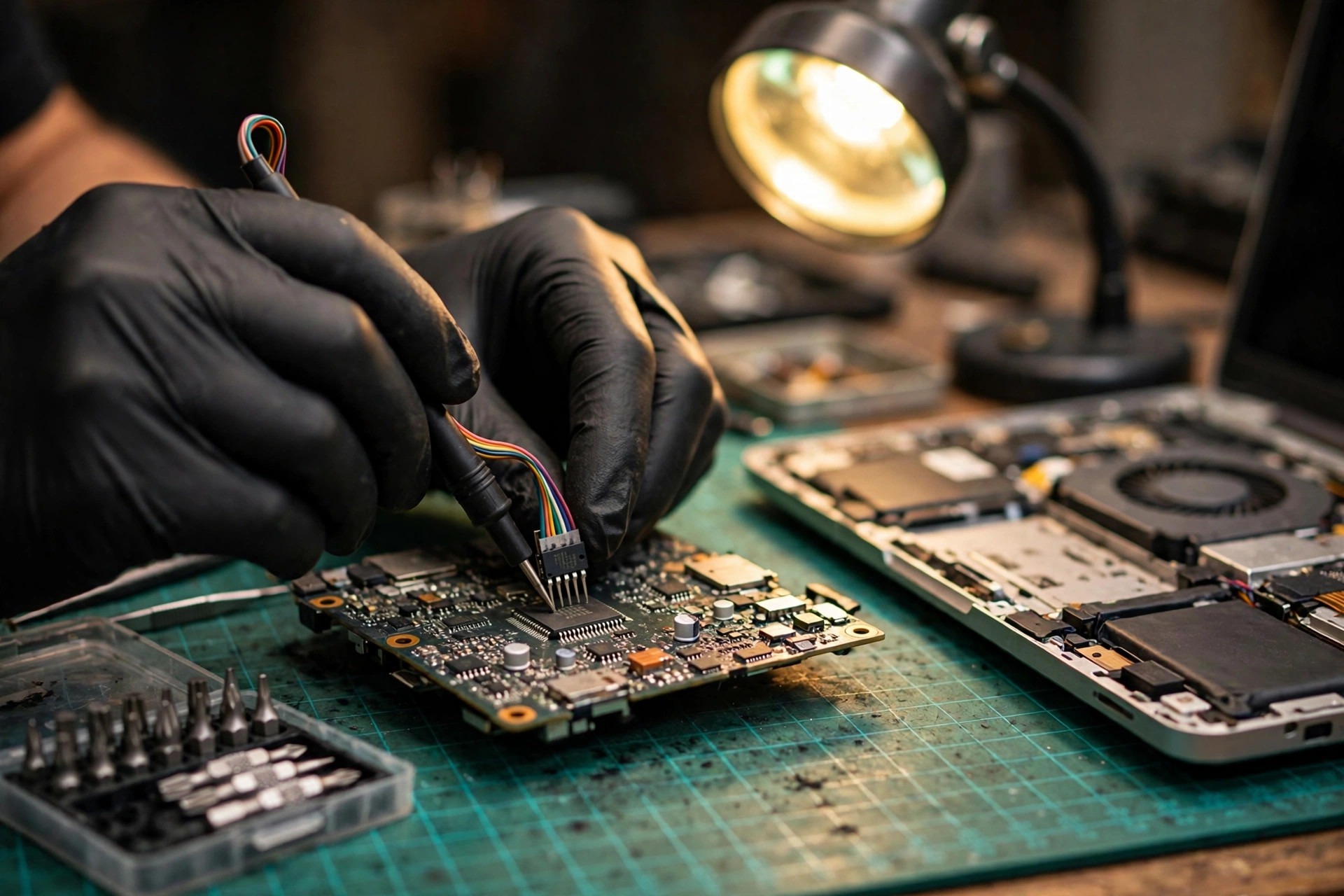
1. Scope Guard: This Article Is Only About the Firmware Image Itself
The starting point of this article is that basic checks are already done. Charger comparison, external display, memory reseating, and storage detection are first-line steps and are not repeated here. The remaining question is only one: is the firmware image itself, its update process, or its stored variables the source of the fault, and if so, which recovery layer still works?
The boundary matters because almost every firmware-corruption symptom overlaps another fault. A black screen can be display, memory, graphics, cable, power, EC, or firmware. A freeze at the logo can be late firmware, storage, bootloader, or operating system. No response at all can be power or EC. This article does not present any single symptom as exclusive evidence of firmware corruption. Its value is separation: which symptom points to which layer, and which evidence is needed before suspicion can move toward firmware.
The boundaries with neighbouring topics are as follows. EC embedded-controller failure is a different layer: the EC has its own firmware and failure modes, covering power sequencing, keyboard, fan, and charging behaviour. Although some Intel SPI images can contain an EC region, an EC fault is not a BIOS code fault, and the reverse is also true. Boot loop stuck on logo is a symptom-level topic; firmware is only one possible cause. Black screen with no display is a symptom-level topic; display, memory, graphics, and cable causes belong there. CMOS battery and RTC failure is a settings and real-time clock problem; clearing settings does not rewrite damaged code. A power button with no response is a power-path problem. Windows update failure is an operating-system update problem, relevant here only where Windows Update delivered or interrupted a firmware update.
| Neighbouring topic | How this article treats it |
|---|---|
| EC embedded-controller failure | Division of labour and boundary only, not EC repair |
| Boot loop stuck on logo | One symptom inside layered diagnosis, not a general boot-loop guide |
| Black screen with no display | One symptom inside layered diagnosis, not a general black-screen guide |
| CMOS battery and RTC failure | Settings layer versus code layer only, not a battery topic |
| Power button not responding | Starting point for a machine with no power-on sign |
| Windows update failure | Only the part where it delivered or interrupted a firmware update |
2. Four Boot Phases: SEC, PEI, DXE, and BDS Decide Where a Symptom Appears
Modern UEFI boot is not a single step from power button to operating system. It is a sequence of phases, and understanding them explains why damage in different places can look very different on the outside.
SEC is the Security phase. It runs with no system memory available, uses CPU cache as temporary memory, establishes minimal CPU state, and can act as a root of trust that verifies the next phase before hand-off. On Intel and AMD platforms, silicon-level code runs before or alongside SEC, including Intel CSME and AMD PSP, so describing SEC as the very first code that ever runs, without that qualification, would be inaccurate on those platforms.
PEI is Pre-EFI Initialization. It handles early hardware initialisation, and critically memory-controller and DRAM initialisation, so later phases have real memory. Once memory is available, PEI hands off to DXE and the temporary cache-as-memory environment is torn down. In some implementations, PEI also handles firmware recovery operations.
DXE is the Driver Execution Environment, the largest phase. With memory available, its dispatcher loads UEFI drivers in dependency order: CPU, chipset, buses, storage controllers, graphics output, ACPI and SMBIOS tables, filesystem and network support, and cryptography. It provides Boot Services and Runtime Services that the bootloader later uses. Secure Boot enforcement lives in this phase, not at the very start of boot.
BDS is Boot Device Selection. It reads NVRAM boot variables, enumerates bootable devices, shows the OEM splash screen where applicable, and locates and executes a bootloader from the EFI System Partition, such as Windows Boot Manager. After BDS hands off, the bootloader runs under UEFI, and then the operating system kernel takes control with only UEFI Runtime Services remaining.
| Phase | Main work | Tendency when damaged |
|---|---|---|
| SEC | Minimal CPU state, root of trust, hand-off verification | Stops very early, before display, logo, or setup |
| PEI | Early hardware initialisation, memory initialisation | Stops before memory is established, hard to reach later phases |
| DXE | Driver loading, Secure Boot, device support | Hardware partly initialised, but a driver or policy layer fails |
| BDS | Boot variables, device enumeration, logo, bootloader execution | Signs of initialisation, but no bootloader found or executed |
3. SPI Flash: The So-Called BIOS Chip Is Really a Multi-Region Image
Talk of rewriting the BIOS often sounds as if the whole chip held one block of code. On Intel platforms, in Descriptor Mode, the SPI flash is divided into regions defined by the Flash Descriptor at offset zero. The Intel Core Ultra 200H and 200U datasheet lists, for that platform family, Region 0 Flash Descriptor, Region 1 BIOS, Region 2 Intel CSME, Region 3 GbE, Region 4 Platform Data Region, Region 8 EC, and Region 10 Intel Silicon Security Engine. It states that the Flash Descriptor and CSME regions are the only required regions, and that the descriptor must be in region zero at the first sector of Device 0. Region numbering, sizes, and the presence of GbE, Platform Data, and EC regions are platform- and generation-specific. The Core Ultra table must not be copied as if it applied to every laptop.
More important still, a vendor BIOS update package is normally an updater plus a partial or wrapped image, not necessarily a byte-for-byte copy of the whole SPI chip. Repair guides warn explicitly that the file a vendor ships for its own updater is usually wrapped in a vendor-specific envelope that the updater unwraps and writes only to the changed portion, whereas a chip programmer writes the whole chip byte for byte. The two are not equivalent and must not be treated as interchangeable.
| Concept | What it really means | Common misunderstanding |
|---|---|---|
| Flash Descriptor | Defines region boundaries and read and write permissions for each controller | Assuming any tool can freely read and write the whole chip |
| BIOS region | Where the main UEFI code lives | Assuming the BIOS region equals the whole chip |
| CSME region | Where Intel Management Engine firmware lives | Assuming a BIOS update always updates CSME together |
| GbE region | Integrated network firmware and related identity data | Ignoring that a wrong image can affect network identity data |
| EC region | EC code inside the image on some platforms | Treating an EC fault and a BIOS code fault as the same thing |
4. Co-Processors That Run Before and Beside the Main CPU: ME, CSME, PSP, and AGESA
Before the main CPU formally runs, independent security and management co-processors are already online. Ignoring them distorts the whole boot order.
Intel ME, later called CSME, is a dedicated microcontroller in the chipset or platform hub, independent of the main CPU, sharing SPI flash but with its own region. It can be active while the system is off but connected to mains power, and it loads from SPI flash at power-on independently of the host CPU. The CSME region contains firmware supporting Active Management Technology and other CSME capabilities. Because the descriptor defines region boundaries and access, and because ME firmware is versioned and signed separately from the BIOS region, writing a BIOS region from one release against an ME region from an incompatible release, or writing an unprogrammed and unconfigured ME file, is a known repair pitfall. Repair guidance warns against writing an unprogrammed ME file, and advises using an ME file extracted from a BIOS for the exact model board, or a stock ME file run through the vendor configuration tool against that BIOS as a base.
On AMD platforms, the PSP is an ARM-based security co-processor embedded in the processor, responsible for creating and maintaining the security environment and managing the boot process and related security mechanisms. On reset, only the PSP is running. It acts as hardware root of trust, verifies the SEC and PEI portions of UEFI firmware through the PSP directory table and BIOS signing key in the SPI flash, and only then releases the main x86 cores. A vendor-specific PEI module then verifies the DXE volumes. AGESA is AMD initialisation code: the PSP boot ROM verifies and loads the off-chip PSP bootloader from SPI flash, the AGESA bootloader performs hardware initialisation including memory training, and then passes control to UEFI.
| Platform | Role before main boot | Mechanism consequence when damaged |
|---|---|---|
| Intel CSME | Independent microcontroller, own region, loads independently at power-on | BIOS and ME versions never validated together can cause refusal to boot or degraded behaviour, but no universal symptom table exists |
| AMD PSP | Hardware root of trust, verifies SEC and PEI, then releases main cores | Signature failure in the PSP directory or PEI volume can halt boot before x86 cores ever run |
| AMD AGESA | Memory training and hardware initialisation | A mismatched PSP directory and AGESA combination can fail the PSP signature chain |
| Both platforms | Firmware image is more than main CPU code | Rewriting only the main BIOS region may not fix a co-processor region problem |
5. NVRAM Variables Versus CMOS: Two Stores, Two Kinds of Failure
This distinction is one of the most practical splits in advanced diagnosis. UEFI NVRAM variables live in non-volatile storage, in practice in a region of the SPI flash image, managed by firmware as authenticated variables where applicable. They include boot entries, boot order, Secure Boot policy databases called PK, KEK, db, and dbx, and other firmware settings and operating-system-registered entries. Classic CMOS and RTC storage, by contrast, is battery-backed volatile storage holding a small set of legacy settings plus the real-time clock. Modern systems have largely moved settings into NVRAM, but the RTC function and the coin cell remain, and a dead cell still causes clock loss and can cause settings to fall back to defaults on some designs.
If boot order is empty, missing, or unreadable, firmware falls back to initialising defaults and re-creating entries from bootloaders it finds on the EFI System Partition. The message about boot order not being found and initialising defaults is reported in UEFI troubleshooting as exactly this condition, sometimes with repeated re-creation of the same entries on every boot. Firmware bugs, inconsistent Secure Boot or CSM settings, or an interrupted write can leave boot order or individual entries dropped, duplicated, or pointing at a bootloader that no longer exists. Operating-system installers and updates that rewrite entries can also interact badly with a buggy firmware implementation, where a variable write is not retained.
| Store | What it holds | How damage is repaired |
|---|---|---|
| NVRAM variables | Boot order, boot entries, Secure Boot databases, firmware settings | Loading defaults may restore boot, but discards custom order and custom Secure Boot enrolments |
| CMOS and RTC | Legacy settings, real-time clock, battery-backed state | Battery replacement or settings clear handles clock and settings problems |
| Firmware code region | SEC, PEI, DXE, and BDS code | Defaults clear has no effect; recovery flash or external rewrite is needed |
6. Secure Boot, TPM, and BitLocker: The Chain Reaction Firmware Work Most Often Triggers
Secure Boot is defined in the UEFI Specification. It verifies third-party firmware code, including operating-system bootloader, option ROMs, and UEFI applications, against keys and hashes stored in authenticated NVRAM variables before executing it. It assumes system firmware itself is trusted. It does not by itself verify the firmware image that contains the Secure Boot code. The four databases are: PK, the Platform Key, one per device, the root of the on-device public-key infrastructure, verifying KEK and db and dbx updates; KEK, the Key Exchange Key, multiple allowed, verifying db and dbx updates; db, the Authorised Signature Database, an allow list of keys and hashes; and dbx, the Forbidden Signature Database, a deny list, where a match blocks execution even if the image is also in db.
Secure Boot starts in DXE, not in SEC or PEI, and protects BDS, option ROMs, and everything after BDS. Corruption of the authenticated-variable region can therefore break Secure Boot policy even when DXE code itself is intact. For example, a damaged or cleared db can refuse a previously valid bootloader, and a damaged dbx update can leave a revoked bootloader trusted, or the reverse. Specific failure messages are vendor- and model-specific.
The TPM is a tamper-resistant security chip, or a firmware TPM such as Intel PTT or AMD fTPM. It records cryptographic hashes, called measurements, of firmware and boot components into Platform Configuration Registers as each component runs, measuring before execution. BitLocker seals the drive key to a set of PCR measurements. If a firmware update, Secure Boot toggle, boot-order change, TPM clear or reset, or motherboard replacement changes the measured state, the TPM will not auto-release the key and BitLocker falls back to demanding the 48-digit recovery key. The recovery screen shows a Key ID to match against the saved key. The Key ID is not itself the key.
| Trigger | Mechanism | Practical consequence |
|---|---|---|
| Firmware update | TPM measurements change | May demand a BitLocker recovery key, depending on which PCRs the protector is sealed to |
| Secure Boot toggle | Measurements and policy change | Can itself trigger a recovery prompt; not a neutral troubleshooting step |
| TPM clear | Sealed keys are destroyed | Without the recovery key already in hand, recovery becomes harder, not easier |
| Board replacement | Platform measurements change | Booting after board service but demanding a key is expected TPM behaviour, not a second failure |
| Windows Hello credentials | Credentials tied to TPM | Firmware repair may require re-enrolment of PIN, fingerprint, or face |
7. How Firmware Becomes Corrupted: Five Mechanisms, Each by Path
The first mechanism is interrupted update or power loss during flashing. This is the clearest vendor-documented cause. Lenovo manuals state directly that if power is interrupted while POST and BIOS are being updated, the computer might not restart correctly, and the remedy section is titled Boot-block Recovery or Recovering from a POST or BIOS update failure. ASUS states the same mechanism for CrashFree BIOS: recovery exists because an update may be interrupted, or the BIOS may be lost or damaged when power is removed, and the system then cannot boot normally or enter the BIOS screen. The mechanism is that SPI flash erases in blocks before writing. Power loss between erase and completed write leaves a partially written region, code that fails checksum or signature verification, or a boot block that jumps into unwritten space. The partially written state is worse than the old version still being there, because the old code has already been erased in the blocks being updated. Related triggers in the same family include closing the lid, sleep or hibernate during an update, removing the adapter, a depleted battery, or a forced power-off during the flash.
The second mechanism is a bad or wrong image. Flashing an image for a different model, sub-model, board revision, or region can write code that initialises the wrong hardware, with wrong GPIO, wrong memory training, or wrong EC interface, or fails signature checks. Documented vendor recovery procedures usually start by downloading the image for the exact model, service tag, or serial number. A corrupted or incomplete download is the same failure in miniature: the updater may reject it in the best case, or, if checks are weak or bypassed by an external programmer, write it in the worst case. Downgrade blocking is a distinct vendor behaviour, not corruption: Dell documents a BIOS update blocked due to unsupported downgrade as a symptom alongside auto-recovery failure after a Windows Update-delivered BIOS update. A blocked downgrade is firmware refusing an older image, not a corrupted image.
The third mechanism is ME or CSME mismatch on Intel, and PSP or AGESA mismatch on AMD. This is a region-consistency failure: BIOS region and Engine or PSP region versions that were never validated together. On Intel it can arise from writing a BIOS region alone from a donor dump, or from writing an unconfigured ME file. On AMD the analogous risk is a PSP directory and AGESA combination that fails the PSP signature chain. Vendors do not publish a general mismatch symptom table for laptops, and repair literature describes the pitfall rather than a fixed symptom set.
The fourth mechanism is NVRAM variable corruption. Causes include interrupted writes to the variable store, power loss during a settings save or firmware update that also updates variables, firmware bugs that fail to retain boot order, and operating-system tools that rewrite boot entries against a buggy implementation. Variable corruption is recoverable by defaults reset in many cases and does not by itself imply code damage.
The fifth mechanism is chip or circuit failure. Liquid damage, battery leakage residue, or board corrosion around the SPI chip, its decoupling, or its SPI traces can interrupt reads and present as firmware failure. This is a board-inspection finding, not a firmware-logic finding, and it is environment- and history-specific. No statistic is asserted. A cracked solder joint or failed SPI chip presents identically to corrupted contents until the chip is read externally. A read that returns garbage, all-FF, all-00, or inconsistent data across reads points toward hardware rather than a bad image. This diagnostic distinction is repair-community practice, not a vendor diagnostic, and should be labelled as such.
| Mechanism | Typical trigger | Key distinction |
|---|---|---|
| Interrupted update | Power loss, adapter removal, depleted battery, forced shutdown, lid closed into sleep | Old code already erased in blocks being updated, so partial write is worse than old version |
| Bad or wrong image | Wrong model, board revision, region, or incomplete download | Vendor updater may block it; external programmer bypasses that protection |
| ME, PSP region mismatch | BIOS region alone from donor dump, unconfigured ME file | Regions never validated as a pair, not simply old versus new |
| NVRAM variable corruption | Interrupted variable write, firmware bug, boot entry rewrite not retained | Defaults reset may help; code damage is a different problem |
| Chip or circuit failure | Corrosion, liquid, solder joint, failed chip | External read inconsistent or all-FF or all-00 points to hardware |
8. Layered Diagnosis: Symptom, Layer, and What Separates Firmware From Look-Alikes
The general rule from repair literature is that fans spinning and LEDs lighting do not confirm a successful POST, and a blank screen alone does not prove BIOS corruption. Timing, especially immediately after a BIOS flash, POST indicators, and hardware checks matter more than any single symptom.
| Observed symptom | Most likely layer | What points toward firmware corruption | What points away from firmware corruption |
|---|---|---|---|
| No LED, no fan, no response at all | Power delivery, EC | Nothing on its own; only if power and EC have been ruled out by board-level testing does firmware re-enter the picture | Classic power or EC presentation, not a firmware-image presentation |
| Power LED on, fan spins, no logo, no beep, no blink | Ambiguous: firmware, CPU, RAM, EC, power stability | Failure began immediately during or after a BIOS or UEFI update, power loss during a flash, or a wrong-file flash; or a vendor recovery screen or recovery LED pattern appears | RAM fault, CPU fault, display fault, and unstable power all produce the same outward picture; fan spin is not POST success |
| Power LED on, fan spins, repeating beep code or LED blink pattern | POST halt at a specific step | A pattern the exact model's manual maps to a firmware or ROM checksum error | Most patterns map to RAM, CPU, or graphics, not firmware; the pattern must be decoded from the exact model's documentation |
| Logo appears, then freezes, or machine restarts at the logo repeatedly | Late POST, device initialisation, bootloader handoff | Freeze began right after a firmware update or firmware settings change; machine never reaches a boot-device error or Windows recovery | Storage failure, corrupted bootloader or EFI partition, or a Windows problem can freeze at or just after the logo |
| No bootable device, no boot device found, EFI or boot entry missing, or boot straight to firmware setup | UEFI boot manager, EFI partition, storage | A firmware update or settings reset changed boot mode, boot order, Secure Boot state, or storage controller mode, and the drive itself is detected in firmware setup | Drive not detected in firmware setup points to storage or connection; drive detected but Windows will not load points to bootloader or operating system |
| Firmware setup opens, but settings will not save, clock resets, or date resets every power-off | RTC and CMOS settings layer | None; this is the CMOS and RTC topic | A settings reset may restore defaults and fix a bad-configuration boot failure, but it does not rewrite a damaged firmware image |
| Machine boots, but BitLocker recovery key is demanded after a firmware change | TPM measurement, Secure Boot layer | Prompt appeared on the first reboot after a firmware update, TPM change, Secure Boot change, or board service | BitLocker prompt is a trust-measurement mismatch, not evidence that the drive or its data is damaged |
| Machine shuts down about 30 minutes after boot, repeatedly | ME region, unverified as a general diagnostic | Forum reports link a missing or corrupt ME region to a 30-minute shutdown on some older Intel platforms | Power, thermal, and operating-system faults also cause timed shutdowns; ME diagnosis requires firmware-dump inspection |
What does not confirm firmware corruption includes fan spin, LED on, black screen alone, a single beep, a logo freeze alone, a boot-device error alone, a Windows Update that happened to coincide with the failure, or a claim found online that a model has BIOS problems.
Need a laptop repair expert?
Free diagnosis · Transparent pricing · No fix, no fee · 180-day warranty
9. Vendor Crisis-Recovery Routes: Only What Vendor Documentation Verifies
Recovery proceeds from the least invasive layer that can still run. If a layer's own code is damaged, that layer cannot rescue itself. That is why the ladder exists. The verification levels below are deliberately different, and must not be smoothed into one level of confidence.
Dell is the best-documented current laptop flow in this research. Dell documents BIOS corruption and update failure after Windows Update with LED error 3-6 as a symptom, and gives a USB recovery procedure: download the latest BIOS file, rename it to BIOS_IMG.rcv, copy it to a FAT32 USB drive, insert it, hold Ctrl and Esc while powering on until the BIOS Recovery page appears, select Recover BIOS, do not power off or disconnect, then after recovery boot to the operating system and re-apply the latest BIOS so the recovery image itself is refreshed. The fuller No-POST recovery article describes recovery from USB key or from the hard drive, 3-6 and 3-7 LED patterns, extraction of the .hdr recovery file, renaming to BIOS_IMG.rcv, a wired keyboard requirement because a wireless keyboard cannot complete the procedure, and a fallback of removing power and the CMOS coin cell for about a minute if the recovery page will not appear. A laptop-specific summary describes charging to a minimum level, powering off, disconnecting the adapter, holding Ctrl and Esc, reconnecting the adapter, and releasing on the recovery screen, optionally using Reset NVRAM, then Recover BIOS, with the machine possibly restarting several times. Dell sources found in this research differ on the minimum battery charge before recovery, so no single number is chosen here as universal; the exact model's page governs. Dell's own on-screen message, BIOS corruption has been detected and auto recovery is triggered, is the case where the machine's own recovery image on the drive is still intact and auto-recovery can run without USB. If that auto-recovery itself fails, the USB path is the next layer. Dell's BIOS Recovery Tool video states the tool applies to Dell models released after December 2015; earlier systems do not have it. Dell notes that BIOS recovery affects only BIOS and UEFI firmware; data and the Windows installation remain unchanged.
HP is partly verified. HP community posts by HP employees and moderators repeatedly document the same HP notebook route, quoting HP's notebook BIOS recovery document. The trigger described is: with the machine off and on AC power, hold Windows and B, press and hold Power for 2 to 3 seconds, release Power but keep holding Windows and B until the HP BIOS Update screen appears or beeps are heard; if that fails, repeat with Windows and V. The emergency feature is described as separate from the BIOS and designed to work after catastrophic BIOS failure, recovering the last known good BIOS from the hard drive where the drive is functional. If the key combination yields no screen, or the machine reports that BIOS recovery files cannot be found or are corrupted, the next layer is a recovery USB created on another PC: download the exact model's BIOS update, run it, choose Create Recovery USB flash drive, insert it, and repeat Windows and B, or Windows and V. A folder-layout variant reported for some models places recovery files under Hewlett-Packard, BIOS, Current on a FAT32 USB, with the .bin or .fd file in the Current folder; other models expect the file at the USB root. This layout variation is community-reported, not a single HP document, and is model-specific. The verification status matters: these are HP Support Community posts quoting HP documentation, stronger than random forum advice, but not the same as a directly fetched HP support article in this research. The exact-model HP page must still be checked before presenting Windows and B or V as applying to a given laptop.
Lenovo has no universal crisis key combination verified. The verified, model-specific example is Lenovo's user guide for ThinkPad T14 Gen 5, T16 Gen 3, and P14s Gen 5, which documents UEFI BIOS self-recovery: if the UEFI BIOS is corrupted or maliciously attacked, it can self-recover from the last uncorrupted and secure backup; the screen may be blank during self-recovery; progress is shown by blinking LEDs on Esc, then Esc and F1, then Esc, F1, and F4, corresponding to 0 to 32 percent, 33 to 65 percent, and 66 to 100 percent; the power button must not be pressed to interrupt it; wait a few minutes until the logo screen appears. This is a self-recovery feature on those models. It must not be generalised to all Lenovo laptops, and no key combination is involved in this documented route. Forum threads for bricked Lenovo laptops list conflicting combinations and file names, with different posters reporting no success, and with advice that an official recovery method, if one exists for that system, must be confirmed with Lenovo. For Lenovo, the correct position is to check the vendor page for the exact model, by serial or machine type, and not to present any Fn combination or crisis file name as a Lenovo route. Two traps must also be separated. The Novo button menu on some IdeaPad and Yoga models opens a boot or setup menu on a machine that can already reach that menu; it is not evidence of a BIOS-image crisis-recovery route. Lenovo Digital Download Recovery Service creates a factory Windows recovery USB key; it restores Windows to factory state and deletes user files on the system drive; it does not reflash a corrupted BIOS image.
ASUS laptops have no laptop crisis route verified. ASUS documents USB BIOS FlashBack for specific ROG Strix desktop models, with a FAT16 or FAT32 single-partition USB, renamed .CAP or .AS file in the root, USB in the marked FlashBack port, holding the rear FlashBack button about 3 seconds until the indicator flashes 3 times, up to about 8 minutes, without removing USB or power during the process. ASUS CrashFree BIOS 3 for motherboards recovers from a motherboard support DVD or USB drive holding the correct .CAP file via EZ Flash, after a warning that BIOS Recovery mode has been detected. Neither transfers to laptops. ASUS laptop EZ Flash requires reaching firmware setup, which is a different layer from a no-POST brick. For ASUS laptops, the position is to check the vendor page for the exact model. Other brands, including Acer, MSI, and Gigabyte, were not researched in this brief for crisis routes, and the same position applies.
| Brand | Vendor-documented route found | Status |
|---|---|---|
| Dell | Ctrl and Esc BIOS Recovery; hard-drive first, FAT32 USB with BIOS_IMG.rcv second; recovery tool for models after December 2015 | Verified from Dell support pages |
| HP | Windows and B, some models Windows and V, power 2 to 3 seconds; SoftPaq Create Recovery USB Flash Drive | Partly verified: HP community posts quoting HP documentation; exact-model page still required |
| Lenovo | ThinkPad self-recovery with Esc, F1, F4 LED progress on documented models; no key combination | Verified for those ThinkPad models only; no universal Lenovo crisis combination verified |
| ASUS laptops | None verified | Unverified: desktop FlashBack and motherboard CrashFree must not be presented as laptop routes |
| Other brands | Not covered in this guide | Unverified: check the vendor page for the exact model |
10. Safe at Home Versus Board-Level Tools: Two Groups, Not One Difficulty
Safe at home steps share one property: no soldering, no chip removal, and no raw flash writing. First, record the exact model, serial or Service Tag, current firmware version if reachable, the trigger, and the symptom pattern, ideally a short video of the power-on sequence. This record is what separates a firmware case from a look-alike at diagnosis. Second, use only the vendor-documented recovery route for that exact model, on AC power, with peripherals removed, and without interrupting recovery once started. If the model has no documented recovery route, that is a finding, not a reason to try a forum combination. Third, if firmware setup is reachable, note whether the drive is detected, what boot order and boot mode are, and whether Secure Boot or TPM settings changed, without changing encrypted-machine settings blindly. Fourth, if data matters and the drive is removable, data can be preserved by reading the drive in another machine or enclosure, but only as a data-preservation step, not as a firmware fix. If storage is soldered, this route does not exist and board-level data work is a specialist matter.
Stop conditions are: no documented recovery route; recovery screen never appears; recovery fails repeatedly with the correct file for the exact model; or any sign of liquid, corrosion, or burn damage. All point to board-level diagnosis, not to repeated home flashing.
Board-level tools begin with the external SPI programmer, commonly CH341A with a SOIC-8 clip or a desoldered chip in a socket, using programmer software. When no boot-block, crisis, or vendor recovery layer runs, the remaining firmware-level option is to read, verify, and rewrite the SPI chip externally. Required discipline includes identifying the exact chip and reading its datasheet for voltage, package, and pinout before connecting anything; reading and saving existing chip contents first, and verifying the read by reading twice and comparing, before erasing, because the original dump is the only copy of board-specific data; using an image for the exact model and board revision, since a vendor updater package is not a raw chip image; disconnecting all board power, including battery, adapter, and CMOS cell where the procedure requires it, before clip work, because live board circuits interfere with SPI lines; and recognising that if clip reads are inconsistent, desoldering is the cleaner path but carries its own board risk.
Chip desoldering, replacement, or reballing is the next group. Removing the flash chip, or in deeper board repair a BGA chip, with hot air and a bottom heater, programming or replacing it, and soldering it back, is board-rework skill with ESD, thermal, and pad-damage risk. Reballing is re-forming solder balls under a BGA package. A lifted pad or overheated neighbour can turn a firmware fault into a board fault.
ME cleaning or ME-region repair is a third group. The ME or CSME region in SPI flash is a separate, signed firmware region with its own configuration. Cleaning means rebuilding that region with the correct ME version and configuration, typically after reading the original dump and preserving board-specific data, using Intel configuration tooling or an equivalent specialist workflow. It is not the same as flashing a vendor BIOS update file. Intel ME runs as an independent subsystem with its own CPU and microkernel, shares SPI flash storage with UEFI, and lives in a protected region that software alone generally cannot write.
On modern laptops the classic POST card has no slot. Diagnosis uses board schematics and boardview, voltage and power-sequence measurement, and firmware-dump inspection. A POST code alone, where available, is a clue, not a verdict.
| Board-level step | What it actually does | Why it is not beginner work |
|---|---|---|
| External SPI programmer | Reads and writes the chip directly, bypassing the machine's own boot | Voltage, chip identification, image correctness, and original backup dominate risk |
| Chip desoldering or replacement | Removes, programs or replaces, and re-solders the chip | Pad damage, overheating, and ESD; a failed home attempt can destroy the recovery path |
| ME region cleaning | Rebuilds ME version and configuration, preserving board-specific data | Vendor update file is not an ME region; descriptor locks vary by platform |
| Board diagnostics | Schematics, voltage and sequence measurement, dump inspection | No classic POST card slot; a code alone is a clue, not a verdict |
11. Repair, Board Replacement, or Machine Replacement: A Framework Ordered by Facts
No single price decides this. This framework uses only the confirmed price floors and treats everything else as subject to written quotation after diagnosis. Confirmed floors are: battery from HK$580, screen from HK$1,280, board chip-level repair from HK$880, and keyboard from HK$480. These floors are starting points, not quotations for a firmware-corruption job. A firmware case that turns out to be a board fault, a storage fault, or a display fault is a different job from the floor that happens to share a component name.
Decision factors, in order, are as follows. First, is the fault actually firmware? If diagnosis is still ambiguous, with no POST, no pattern, and no recovery screen, the decision is to diagnose first, not to replace a board. Replacing a board for a RAM, power, or display fault wastes the board. Second, does a vendor recovery route exist for this exact model, and has it been tried correctly? If yes and it failed, board-level firmware work is the next layer. If no route exists, board-level work is the only firmware route, which changes the cost and benefit calculation. Third, is the firmware image recoverable by SPI reflash, or is there board damage too? A clean reflash candidate, with interrupted update, intact board, readable chip, and original dump recoverable, favours chip-level repair. Corrosion, liquid damage, burnt components, or a damaged flash chip favour board replacement or machine replacement. Fourth, board availability and identity: a replacement board must match the exact model and configuration. Older or uncommon boards may be scarce or only available used, with their own firmware and configuration state. A replacement board also changes TPM measurements and may need its own firmware and data handling. Fifth, machine age, condition, and remaining value: an older machine with a failing battery, worn keyboard, and a board fault stacks multiple jobs. The decision is the total cost of returning the machine to reliable use, not the single cheapest line item. Sixth, data value and storage type: if storage is removable, data can usually be preserved regardless of the board decision. If storage is soldered and the board is dead, data recovery becomes part of the board decision and may dominate it. Seventh, recurrence risk: a firmware fault caused by a one-off interrupted update has a different recurrence profile from a fault caused by ongoing corrosion, a failing flash chip, or repeated power instability. The underlying cause must be addressed, not just the image rewritten.
| Path | Favoured when | Watch out for |
|---|---|---|
| Vendor recovery, no soldering | Documented route exists for the exact model; board otherwise healthy; trigger was an interrupted or wrong update | Repeating a failed route with the wrong file; interrupting recovery; BitLocker key not available |
| Chip-level firmware repair, SPI reflash or ME repair | Vendor route absent or failed; chip readable; board otherwise healthy; original dump can be backed up or reconstructed correctly | Voltage error; wrong image; lost board-specific data; in-circuit clip failure masking as chip failure |
| Board replacement | Flash chip or board damaged; firmware repair failed or uneconomical; exact replacement board available | TPM and BitLocker consequences; replacement board's own firmware state; total cost versus machine value |
| Machine replacement | Board unavailable or uneconomical; multiple concurrent faults; soldered storage with dead board and data already preserved or not recoverable by board work | Data migration; software and licence transfer; disposing of the old machine securely |
12. Hong Kong Context: Humidity, Commuting, and Parts Reality Change the Order of Diagnosis
Hong Kong's humid climate, condensation when a cold machine enters warm humid air, and long storage in damp rooms can promote corrosion on board contacts, connectors, and clips over time. Corrosion produces intermittent contact faults that can mimic firmware symptoms, including no POST, intermittent boot, and a device disappearing. This brief does not claim that humidity causes firmware-image corruption directly. The defensible claim is that humidity-related contact and board faults are a differential that must be ruled out before a firmware verdict, especially on machines with a history of damp storage or liquid exposure. No Hong Kong-specific prevalence figure for firmware corruption was found in this research, and none should be invented.
Commuting drops and loosened clips and connectors follow the same discipline. A drop or daily bag transport can loosen internal connectors, flex cables, and socketed components, including RAM, storage, and display cable. A loosened connector can produce no-POST or no-display behaviour that looks like firmware failure. The diagnostic point is sequence: connector and reseat checks belong before a firmware verdict, even in an advanced article, because they change the layer. Drops must not be presented as a proven cause of firmware corruption; they are a cause of look-alike symptoms.
Local parts and repair geography are verified only at cluster level. Sham Shui Po's Golden Computer Centre and Golden Computer Arcade area and Mong Kok's Sin Tat Plaza and Sino Centre area are documented computer-retail and repair clusters in Hong Kong, within a few MTR stops of each other. This verifies that the clusters exist; it does not verify any shop's capability, price, or stock for a given board, and must not be used as a shop recommendation. Parts reality varies sharply by model and age. A current mainstream board is a different sourcing problem from a five-year-old uncommon board. Any statement about parts must be model-specific or explicitly general, such as availability varies by model and should be confirmed before committing to a board route. No Hong Kong parts price beyond the four confirmed floors above should be stated.
A practical Hong Kong note for diagnosis is to bring the charger, note the exact model and serial, and have the BitLocker recovery key available if the drive is encrypted. A shop cannot complete a firmware or TPM-sensitive diagnosis safely without the charger and, on encrypted machines, the key. See the pricing page and diagnostic page for general process information; final charges remain subject to written quotation after diagnosis.
13. Common Misdiagnoses and Traps: The Core Advanced Value of This Topic
| Trap | Why it misleads | Correct separation |
|---|---|---|
| Black screen means BIOS corrupted | RAM, display, GPU, power, EC, and firmware all produce black screens | Use trigger, POST indicators, external display, and component checks before a firmware verdict |
| CMOS reset fixes corrupted BIOS | A CMOS or RTC clear restores settings; it does not rewrite a damaged firmware image | Settings fault may respond to CMOS clear; image fault needs vendor recovery or SPI reflash |
| Fan spins, so POST passed | Fan and LED are powered by early power and EC stages, not by POST success | POST success is logo, beep or blink pattern, or firmware-setup entry, not fan noise |
| Logo freeze means Windows problem, or the reverse | Late-POST firmware hangs and bootloader or storage hangs both freeze near the logo | Note whether firmware setup is reachable, whether the drive is detected, and whether a boot-device error or Windows recovery appears |
| Boot-device error means BIOS corrupted | POST has already passed; the failure is in boot configuration, EFI partition, or storage | Check boot mode and order, drive detection, and EFI partition and bootloader before blaming the image |
| BitLocker prompt means data lost or drive dead | BitLocker recovery is a TPM trust mismatch after a firmware, TPM, or board change | Retrieve the recovery key; treat the prompt as an access step, not as data loss |
| Any BIOS file for the same brand will work | Firmware files are model-specific, and a raw dump contains board-specific data | Use only the exact model's file, from the vendor, and back up the original dump before any SPI write |
| Forum crisis key combination will save it | Lenovo combinations in forums conflict with each other and failed for the posters reporting them; ASUS desktop routes do not transfer to laptops | If no vendor route is documented for the exact model, say so and move to board-level diagnosis |
| Windows factory recovery means BIOS recovery | Factory Windows recovery restores Windows and wipes the system drive; it does not reflash firmware | Keep Windows recovery and firmware recovery as separate layers with separate consequences |
| Turning Secure Boot off fixes boot problems | On an encrypted machine it changes TPM measurements and can trigger BitLocker recovery | Treat Secure Boot toggles as TPM-relevant changes, not neutral tweaks |
| CH341A is cheap, so SPI repair is easy | Tool price is not skill price; voltage, chip identification, image correctness, and ME data dominate risk | Present SPI work as specialist work with defined risks, not as a purchase-and-plug fix |
| Repeat the same failed USB recovery until it works | HP community cases show repeated USB recovery with correct files still looping after a Windows-update-triggered failure | Change one variable at a time, such as verified file version for the exact model, different USB, or model-support check, or escalate to board diagnosis |
| Interrupting a recovery to try again faster is harmless | Interrupting a flash or vendor recovery can corrupt the image further, including the recovery path itself | Never interrupt a flash or recovery once started; wait for completion or a documented timeout |
| A 30-minute shutdown proves ME corruption | Forum-reported pattern on some older Intel platforms; not a vendor diagnostic and shared with thermal and power faults | ME-region diagnosis requires firmware-dump inspection, not symptom matching |
| Replacing the board is always cheaper than chip repair, or the reverse | Depends on board availability, board identity and TPM consequences, and whether the fault is image-only or board damage | Use the framework in section 11; price only after diagnosis and written quotation |
14. Pre-Diagnosis Information List: Bring These, So Diagnosis Can Judge in One Visit
For any case presented as firmware corruption, the following facts should be on record before a verdict is offered. Exact brand, model, machine type or Service Tag or serial, and firmware version if reachable. Trigger and timing: what update or event immediately preceded the failure, and whether power was lost or the machine was forced off during a flash. Power-on behaviour in sequence: LED colour and pattern, fan behaviour, any beep or blink pattern counted rather than described as beeping, whether any logo appears, whether firmware setup is reachable, and whether an external display shows anything. Drive detection in firmware setup, if reachable, and boot mode, boot order, and Secure Boot state. BitLocker or encryption status and whether the recovery key is available. Liquid, drop, damp-storage, or repair history. Vendor recovery route for the exact model, whether it exists, and what happened when it was tried, including whether a screen appeared, what error was shown, and loop behaviour. For board-level cases: chip identification and voltage, whether the original dump was read and backed up, and whether board-specific data was preserved.
If several of these facts are missing, the honest position is that firmware is suspected but not confirmed, not a firmware verdict. The shop is at 沙田石門達利廣場1209室, telephone +852 2186 8010, WhatsApp +852 6558 6806, hours 12:00-19:00. Board chip-level repair is from HK$880, battery from HK$580, screen from HK$1,280, keyboard from HK$480, and everything else is subject to written quotation after diagnosis. For general definitions, see the pricing page and diagnostic page.
Frequently Asked Questions
Q1: The machine shows no light and no sound at all. Does that mean the BIOS is corrupted?
No. A completely dead machine with no light, no fan, and no response points first to power delivery or the EC layer. Firmware corruption alone is a weak explanation for a machine with no sign of power at all. Charger, battery, power path, and EC must be excluded first. Treating a dead machine as BIOS corruption straight away is the most common jump in logic, and the easiest way to send the repair in the wrong direction.
Q2: The fan spins and the light is on. Does that mean POST has passed?
No. Fan and indicator lights are driven by early power and EC stages. Evidence of POST success is a further signal, such as a logo, a firmware setup screen, a beep, or a documented indicator pattern, not fan noise. A spinning fan only shows that the power chain reached a certain step. It does not prove that memory training, display initialisation, and device enumeration have completed. The full power-on sequence must be recorded before judging which layer stopped.
Q3: Power was lost during a BIOS update and the machine no longer boots. Can it always be recovered?
Not always. It depends on which layer still works. SPI flash erases blocks before writing them, so a power loss can leave erased blocks only partly written: the old code is no longer complete and the new code is not complete either. If a protected boot block or a vendor recovery image is still intact, a recovery layer may still work. If that layer is itself damaged, or if the chip, power, or board has a fault, the case moves to board-level diagnosis. No single layer can be promised in advance.
Q4: Why does clearing CMOS not repair a corrupted BIOS?
Because the two operations touch different things. Clearing CMOS or loading firmware defaults restores settings and variables. It does not rewrite damaged firmware code. A settings error may be helped by a defaults reset. Damaged code requires a vendor recovery procedure or an external programmer rewrite. Repeating a settings clear cannot turn damaged code back into complete code.
Q5: A Dell machine does not reach the recovery screen with Ctrl and Esc. Does that mean there is no recovery?
No, but repeating the same key combination is not the next step. Dell documents two routes: recovery from the hard drive first, then recovery from a USB drive. The USB route needs the file for the exact model, the name BIOS_IMG.rcv, a FAT32 drive, and a wired keyboard, and it applies only to models and years that carry the feature. If no screen appears, the model may not support it, the file may be wrong, the USB format may be wrong, or the recovery layer itself may be damaged. That is the point to move to board-level diagnosis.
Q6: An HP machine does not reach the recovery screen with Windows and B. How should that be read?
HP community documents quoting HP documentation describe Windows and B on some models and Windows and V on others, with the power button held for two to three seconds and then released while the combination is still held, until the recovery screen appears. The same community documents state that if no screen appears, the model may not support the feature or the hard-drive recovery files may have a problem. The combination is not universal across HP laptops. The exact model's vendor support page must be checked before it is used.
Q7: Is there one universal crisis-recovery key combination for Lenovo laptops?
No universal combination verified in vendor documentation was found in this research. Forum lists of Fn combinations contradict each other, and posters report failures. They must not be published as a procedure. The one vendor-documented example found is UEFI BIOS self-recovery on ThinkPad T14 Gen 5, T16 Gen 3, and P14s Gen 5, where the screen may be blank during recovery, progress is shown by LEDs on Esc, then Esc and F1, then Esc, F1, and F4, and the power button must not be pressed to interrupt it. Other Lenovo models require their own vendor support page.
Q8: Can ASUS CrashFree or FlashBack recover an ASUS laptop?
That must not be assumed. The CrashFree documents found are for motherboards, and the FlashBack documents found are for specific desktop models. Neither is a laptop document. Moving a desktop or motherboard procedure to a laptop is reasoning by analogy, not a verified laptop procedure. An ASUS laptop that can still reach firmware setup and use its in-setup update tool is a different layer from a no-POST recovery. For an ASUS laptop, the starting point is the vendor support page for that exact model.
Q9: Why must the BitLocker recovery key be sorted out before firmware work?
BitLocker ties release of the drive key to TPM measurements of the boot chain. A firmware update, a Secure Boot change, a TPM clear, a boot-order or storage-controller change, or a board replacement can change the measured state and trigger a demand for the 48-digit recovery key. That screen does not mean the drive is damaged or the data is lost. But if the recovery key itself cannot be found, encrypted data cannot be read. Before any planned firmware update, confirm where the key is and how it can be retrieved. Do not wait until the screen appears.
Q10: Is an external CH341A programmer a cheap and simple self-rescue method?
No. The programmer hardware is inexpensive, but the risk and skill are not. First, the chip model and voltage must be identified: many modern chips are 1.8 V, and using 3.3 V or 5 V can damage the chip. Second, the original image must be read and backed up before any erase, because without a backup there is no way to restore board-specific data. Third, a vendor download is not a complete chip image, and writing an image for the wrong model or wrong version can make the problem worse. Fourth, poor clip contact can produce unstable reads and writes and be misread as a dead chip. These steps are board-level work, not a plug-in fix.
Q11: The machine shuts down about 30 minutes after boot. Does that prove ME region corruption?
No. Forum reports link an approximately 30-minute shutdown to an ME region problem on some older Intel platforms, but that claim has no vendor documentation as a general diagnostic, and thermal, power, and operating-system faults can also cause timed shutdowns. ME region diagnosis requires inspection of the firmware image, not guessing from shutdown timing. Writing an unverified timing pattern as a diagnostic standard would misdirect thermal or power faults into firmware faults.
Q12: What information should be prepared before sending a machine for diagnosis, so it can be judged in one visit?
Prepare eight items: the full brand and model, plus serial number or service tag; the trigger and timing, including which update was running and when power was lost or the machine was forced off; a power-on sequence record, including lights, fan, beeps or blink patterns, whether any logo appeared, and whether firmware setup is reachable; whether the drive is detected in firmware setup, plus boot mode, boot order, and Secure Boot state; BitLocker or encryption status and whether the recovery key has been found; liquid, drop, damp-storage, or repair history; the vendor recovery route tried for the exact model and its result, including whether any screen appeared and any error shown; and the original charger. The shop is at 沙田石門達利廣場1209室, telephone +852 2186 8010, WhatsApp +852 6558 6806, hours 12:00-19:00.
Need Professional Laptop Repair?
Laptop King has 15+ years of repair experience in Shek Mun, Sha Tin. Free diagnosis, transparent pricing, no fix no fee. 180-day warranty for your peace of mind.