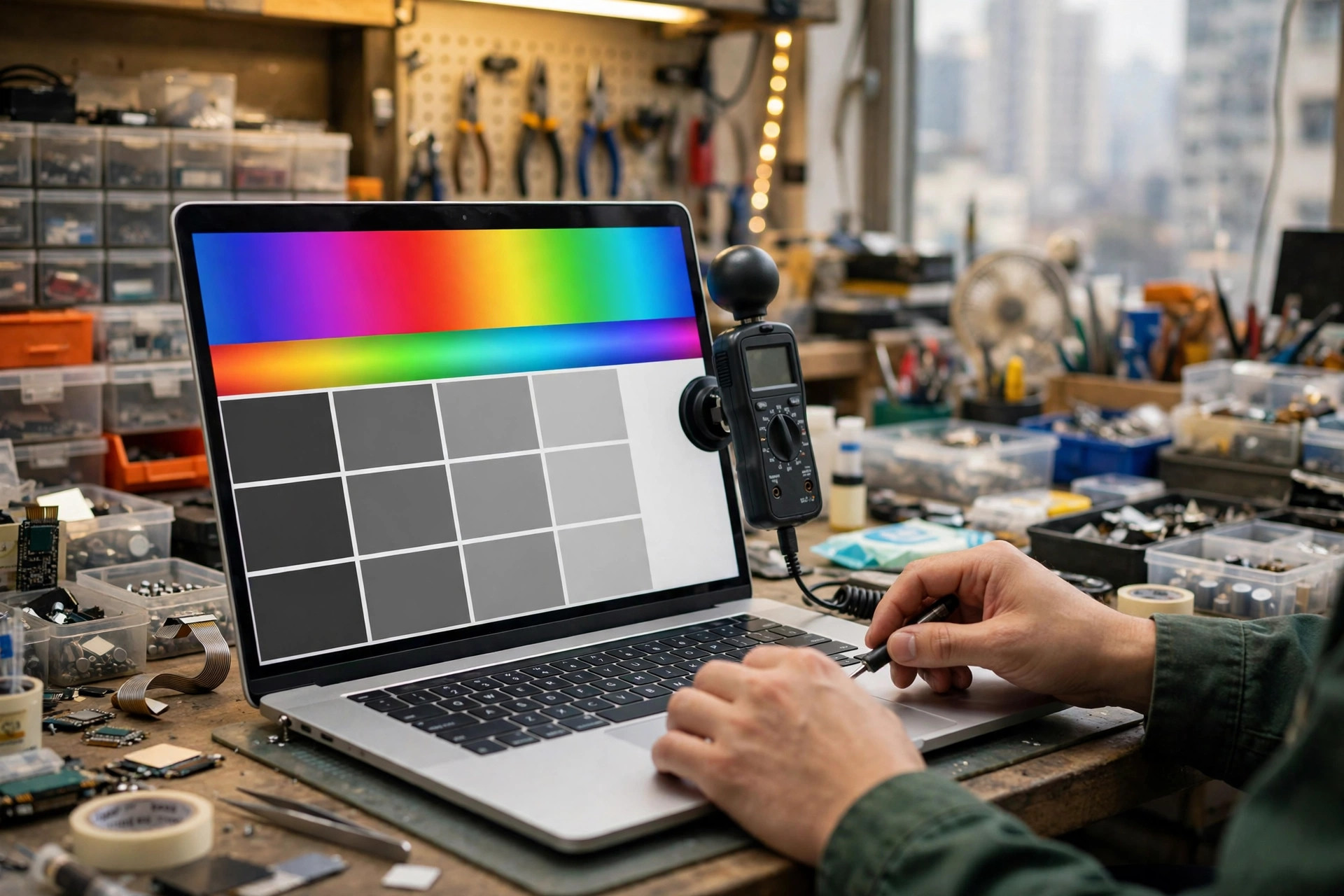
📌 Key Takeaways
- •HDR: High Dynamic Range; widening luminance, gamut and colour depth at the same time [A-S5][B-S4].
- •SDR: Standard Dynamic Range; reference white about 100 nits, gamma curve about 2.4 [A-S4][B-S3].
- •EOTF: Electro-Optical Transfer Function, the function that maps signal values to display luminance (PQ or HLG) [A-S4][B-S3].
- •OETF: Opto-Electronic Transfer Function, the function by which a camera or sensor turns scene light into a signal [A-S5].
- •OOTF: Opto-Optical Transfer Function, the overall characteristic of the whole system from scene to display [A-S5].
# Laptop HDR and Colour Calibration: A Deep Dive — Why HDR Will Not Switch On, Colours Are Inaccurate, and Panels Drift
Category: Advanced Laptop Display Guide
Excerpt: HDR that will not switch on is not necessarily a broken panel, and inaccurate colour is not necessarily a job for calibration. This article works from the PQ and HLG curves, static and dynamic metadata, tone mapping, DisplayHDR tiers and the light-emitting mechanisms of OLED and IPS, through gamuts, white point, gamma, Delta E, ICC profiles, calibration instruments and panel ageing, to the Hong Kong repair reality — proving layer by layer which step broke before deciding whether to fix settings, calibrate, replace the panel or replace the machine.
Summary first: HDR is not one switch, and inaccurate colour is not one cause
Laptop users report three complaints that look similar on the surface but have completely different mechanisms. The first is "HDR will not switch on": the HDR switch in Settings is greyed out, or the picture looks washed out once HDR is on. The second is "the colours are inaccurate": a photograph looks right on one machine and completely different on another machine or in print. The third is "the machine has a colour cast": whites look yellow, blue or green, and the problem gets worse over time. Much repair discussion lumps these three complaints together as "a panel problem" or "it needs calibration", but looked at from the mechanism level, HDR and colour accuracy are two different chains. HDR is about luminance range, colour volume and signal format; colour accuracy is about the measurable error between output and a target. A laptop certified to DisplayHDR 1000 can be completely inaccurate, and an SDR laptop with a factory average colour error below 1 can be completely unable to switch HDR on; neither guarantees the other [A-S1][B-S14][B-S15].
The position of this article is simple: do not diagnose a part from a symptom; prove, layer by layer, which step broke. The article starts at the bottom and works up: which electro-optical transfer function the content was encoded with, which metadata it carries, which colour management pipeline the operating system uses, how many bits the graphics card outputs, which light-emitting mechanism the panel uses to reproduce the image, and how far the panel itself has aged. A failure at any link in that chain can produce the same symptom — washed out, colour cast, oversaturated, crushed blacks — so the point of layered exclusion is to stop guessing "panel" or "calibration" from the symptom and instead prove which step broke [A-S1][A-S14][A-S27][B-S9][B-S17].
This article assumes the reader can do basic operations such as switching HDR on and off in Settings, reading a driver version in Device Manager and opening an administrator command prompt. If any step feels uncertain, start with a diagnostic and decide on the basis of the findings. Prices are listed on the pricing page; apart from battery from HK$580, screen from HK$1,280, motherboard chip-level repair from HK$880 and keyboard from HK$480, every repair is quoted in writing after diagnosis.
1. What HDR is: dynamic range, peak luminance and colour gamut in three dimensions
1.1 SDR versus HDR is not simply "brighter"
SDR (Standard Dynamic Range) follows a gamma curve of about 2.4 that has been in use for decades, with a reference white of about 100 nits, and the whole brightness range of the picture is compressed into a narrow interval [A-S4][A-S5][B-S3]. HDR (High Dynamic Range) widens three things at once: the luminance range, from a 100-nit reference white up to highlights of 1,000 to 4,000 nits or more; the colour gamut, from Rec.709 or sRGB out to DCI-P3 and even BT.2020; and the colour depth, from 8-bit up to 10-bit or more, which reduces banding [A-S5][A-S7][B-S4]. If any one of the three is missing, it is not complete HDR. High luminance with a narrow gamut still produces forced, clipped colour; a wide gamut with only 8-bit produces visible steps in gradients; enough bit depth with insufficient luminance still cannot separate highlights from shadows. This three-dimensional definition is the foundation for every chapter that follows, because many so-called "HDR problems" are really a failure in only one dimension, mistaken by the user for a failure of the whole of HDR.
The most common misunderstanding in the workshop is equating "supports HDR" with "HDR will look good". Supporting HDR only means the machine can decode an HDR signal; it does not mean it can reproduce an HDR picture well. VESA warns explicitly that a label such as "HDR-400" is not the same as DisplayHDR 400 certification; to verify a claim, check the exact VESA DisplayHDR certification name, tier and Compliance Test Specification version, and cross-check the full model number against the VESA list of certified products [A-S2][A-S3][B-S33]. Microsoft support documentation likewise advises buyers to look for DisplayHDR certification, and one summary notes that Microsoft recommends DisplayHDR 500 or above [A-S2][A-S14][B-S33]. Section 6 breaks down each tier number by number, and the reader will see that the 400 tier and the 1000 tier are fundamentally different classes of product.
1.2 The three signal chains of HDR
HDR content travels from mastering to the eye through three layers, and each layer has its own failure modes. The table below is the route map for the whole article; every section that follows magnifies one of its rows [A-S14][A-S27][A-S48][B-S9][B-S17].
| Layer | Contents | Symptom when it fails |
|---|---|---|
| Content layer | Electro-optical transfer function (PQ or HLG) plus metadata (static or dynamic) | Wrong format: grey, dark, or no HDR at all [A-S4][A-S6] |
| Operating system and driver layer | Windows Advanced Color, Auto Color Management, macOS EDR and ColorSync | Wrong pipeline: SDR content mapped incorrectly, whole desktop washed out [A-S27][B-S17] |
| Panel layer | Peak luminance, black level, gamut, bit depth, light-emitting mechanism | Hardware not strong enough: clipped highlights, crushed blacks, banding [A-S1][A-S25] |
1.3 Units of luminance and the preconditions for measurement
The unit of luminance used in this article is the nit, which is the same as cd/m2; the two are different names for one unit. Peak luminance is how bright a small patch can go for a short time; full-screen luminance is how bright the whole picture can stay over a long time, and the two can differ by several times, so they must never be confused [A-S1][B-S2]. Gamut coverage is the fraction of the target standard triangle covered by the panel triangle, and it can never exceed 100 percent; gamut volume is the ratio of triangle areas, and it can exceed 100 percent, and the two must never be confused either [A-S22][B-S39]. Delta E is measured in the CIELAB colour space, and a number is only half a story unless it also states which formula, which gamut, which white point, which gamma and which luminance it was measured against [A-S23][B-S15]. This discipline about definitions is the precondition for every numerical comparison that follows; without it, the numbers on a specification sheet are only advertising language.
2. Electro-optical transfer functions: PQ (SMPTE ST 2084) versus HLG
2.1 PQ: an absolute luminance curve
PQ, the Perceptual Quantizer, was developed by Dolby, standardised by SMPTE as ST 2084 in 2014, and incorporated by the ITU into Rec. BT.2100 in 2016 [A-S4][A-S5][B-S3]. PQ is an absolute electro-optical transfer function: signal values from 0 to 1 map to absolute luminances from 0 to 10,000 cd/m2 (nits), not to relative values [A-S4][B-S3]. That absoluteness is the most important property of PQ. When content says "this pixel is 1,000 nits", it means the creator wants it to emit 1,000 nits, not "some percentage of whatever your display can do". PQ was designed around human perception of luminance differences, so that at 12-bit the steps between neighbouring values stay below the threshold of human perception all the way through, and no banding appears; at 10-bit it is already enough for noisy photographic content, but for noiseless animation or computer graphics, 12-bit is needed to guarantee no visible banding anywhere [A-S4][B-S3]. A traditional power function pushed to 10,000 nits would need 15-bit; PQ uses perceptual quantisation to compress that requirement to 12-bit, and that is its mathematical value [B-S3].
PQ is not backward compatible with the BT.1886 gamma curve of SDR [A-S4][B-S3]. An SDR display that receives a PQ signal without converting it will show a very dark picture with strange contrast, and that is one of the reasons "HDR content looks very dark on a display that does not support it". PQ is the common foundation of HDR10, HDR10+ and Dolby Vision [A-S4][A-S7][B-S7], so understanding PQ means understanding half of mainstream streaming and gaming HDR today. BT.2100 specifies 10-bit or 12-bit for PQ [A-S4][B-S4]; an 8-bit PQ signal is mathematically unsound, because the steps would be so coarse that the luminance jumps would be visible to the eye.
2.2 HLG: a relative luminance curve, built for broadcast
HLG, Hybrid Log-Gamma, was jointly developed by the BBC and NHK, standardised as ARIB STD-B67, and incorporated into ITU-R BT.2100 [A-S6][B-S5][B-S6]. HLG is a relative curve: the lower half of the signal (0 to 50 percent) uses a traditional gamma curve, and the upper half (50 to 100 percent) uses a logarithmic curve [A-S6][B-S5]. Because the lower half matches the SDR gamma curve, an old SDR television receiving an HLG signal can play it as ordinary SDR and the picture looks roughly normal; an HDR television knows how to expand the logarithmic upper half and restore the highlights [A-S6]. HLG needs no metadata at all, which suits broadcast, where metadata can arrive out of sync or damaged in transmission, while HLG feeds both SDR and HDR receivers with a single stream [A-S6][B-S5].
But the backward compatibility of HLG has a limit: it is usually paired with BT.2020 primaries, and an old SDR device that only supports the Rec.709 gamut will show desaturation and hue shifts [A-S6]. In other words, the compatibility of HLG is compatibility at the luminance level, not complete compatibility at the colour level. The nominal peak luminance of HLG is 1,000 cd/m2, and the system gamma can be adjusted according to ambient brightness [B-S5][B-S6], which means the expected result has to be recalibrated for different viewing environments rather than summed up in one fixed number. The NHK Broadcasting Technology Research Laboratories document records in detail how HLG and PQ were negotiated inside the ITU-R standardisation process, showing that the two are not a winner and a loser but parallel solutions designed for different transmission scenarios [B-S6].
2.3 PQ versus HLG
| Item | PQ (ST 2084) | HLG (ARIB STD-B67 / BT.2100) |
|---|---|---|
| Luminance definition | Absolute: 0 to 10,000 nits [A-S4][B-S3] | Relative: depends on the display peak luminance setting, nominally 1,000 cd/m2 [A-S6][B-S5] |
| SDR compatibility | Not compatible [A-S4][B-S3] | Lower half matches the SDR gamma curve, broadly compatible [A-S6][B-S5] |
| Metadata | Required (static or dynamic) [A-S8] | Not required [A-S6][B-S5] |
| Main uses | Streaming, UHD Blu-ray, games [A-S7][B-S7] | Broadcast (BBC iPlayer, NHK 4K/8K, live sport) [A-S6][B-S34] |
| Bit depth | BT.2100 specifies 10-bit or 12-bit [A-S4][B-S4] | 10-bit [A-S6] |
2.4 EOTF, OETF and OOTF: three functions that must not be mixed up
BT.2100 splits the whole imaging chain into three functions [A-S5][A-S6][B-S4]: the opto-electronic transfer function (OETF), in which the camera or sensor turns scene light into a signal; the electro-optical transfer function (EOTF), in which the display turns the signal back into light; and the opto-optical transfer function (OOTF), the overall characteristic of the whole system from scene to display. Almost everything discussed in repair and calibration is the EOTF — that is, "signal value X should produce how many nits". When someone says "HDR looks dark", very often the panel is not too dim; the EOTF mapping is wrong, for example PQ content decoded with an SDR gamma, or a tone mapping knee point set too early (see Section 5) [A-S48][B-S13]. Keeping the three functions apart prevents an encoding-layer problem from being misdiagnosed as insufficient panel brightness, which would then produce a quote for a panel replacement that is not needed.
3. Metadata: static ST 2086, MaxCLL and MaxFALL, dynamic ST 2094
3.1 Static metadata: SMPTE ST 2086
Static metadata is defined by SMPTE ST 2086, applies to a whole piece of content, and contains only one set of numbers [A-S8][A-S9][B-S13][B-S47]. It carries two kinds of information: the mastering display characteristics (the red, green and blue primary coordinates, the white point, and the maximum and minimum luminance of the mastering display) and the content luminance (MaxCLL and MaxFALL) [A-S8][B-S47]. When the display reads this set of numbers, it knows how to compress the mastering luminance range into its own capability range — that is the input to tone mapping (see Section 5). Static metadata is structurally simple, which keeps transmission cost low and compatibility high, but the information is too sparse to describe how luminance changes over time inside a piece of content.
3.2 MaxCLL and MaxFALL: the definitions must be exact
The two numbers are often mixed up, but their definitions and their roles are completely different and must be kept apart [A-S8][A-S9][B-S7][B-S47].
| Field | Definition | Role |
|---|---|---|
| MaxCLL (Maximum Content Light Level) | The luminance of the brightest single pixel in the whole content [A-S8][B-S7] | Tells the display "how bright the brightest point goes", and decides how much the highlights must be compressed |
| MaxFALL (Maximum Frame-Average Light Level) | The highest frame-average luminance in the whole content: first compute the average luminance of all pixels in each frame, then take the maximum across frames [A-S8][A-S9][B-S47] | Tells the display "how bright the picture is on average", and affects automatic brightness limiting and the choice of the overall tone curve |
3.3 The weakness of static metadata: one number governs a whole film
HDR10 uses static metadata, so a whole film uses a single MaxCLL and MaxFALL pair [A-S10][A-S11][B-S7][B-S13]. If a film contains one 4,000-nit explosion, MaxCLL reports 4,000 nits, and a 600-nit television has to compress the tone curve of the whole film to accommodate that peak, with the result that even dark dialogue scenes that never get anywhere near that bright have their mid-tones pushed down [A-S11][B-S13]. That is not a faulty television; it is a limitation of the format itself. When a user complains that "the whole film looks dark in HDR10", very often this is the mechanism at work, not a panel fault. Understanding this point is what stops a repairer from misdiagnosing a format limitation as a hardware fault.
3.4 Dynamic metadata: SMPTE ST 2094
Dynamic metadata is defined by SMPTE ST 2094 and updates its instructions scene by scene or even frame by frame [A-S9][B-S7]. Dolby Vision uses ST 2094-10 and HDR10+ uses ST 2094-40 [A-S9][A-S11][B-S7]. Dynamic metadata lets the display adjust tone mapping to the actual peak of each scene, instead of sacrificing the other two hours of a film for its brightest second [A-S10][B-S36]. But note carefully: what dynamic metadata improves is the mapping decision, not the physical luminance — a 400-nit panel receiving perfect dynamic metadata will still not produce 1,000-nit highlights. That distinction is the core of expectation management: a format upgrade can make mapping smarter, but it cannot conjure light the hardware does not have.
4. Format comparison: HDR10 versus HDR10+ versus Dolby Vision versus HLG
4.1 Four formats share one signal foundation
The four formats share one signal foundation: the PQ electro-optical transfer function, BT.2020 primaries, and in streaming practice 10-bit HEVC or AV1. They differ only in metadata and licensing [B-S7][B-S36][A-S10]. That sentence is worth repeating, because many users think of the formats as a ladder of picture quality grades, when they are more like different navigation systems on the same motorway: the road (PQ, BT.2020) is the same, and only the fineness of the navigation instructions (the metadata) differs. Once that is understood, questions such as "is Dolby Vision always better than HDR10" stop making sense without further premises — the answer depends on panel capability, on the quality of the mastering, and on whether the playback chain is complete.
| Item | HDR10 | HDR10+ | Dolby Vision | HLG |
|---|---|---|---|---|
| Electro-optical transfer function | PQ (ST 2084) [A-S7] | PQ [A-S10] | PQ [A-S4] | HLG [A-S6] |
| Metadata | Static (ST 2086) [A-S8] | Dynamic (ST 2094-40), per scene [A-S11] | Dynamic (ST 2094-10), per scene or per frame, plus trims for different target displays [A-S11] | None [A-S6] |
| Bit depth | 10-bit [A-S7] | 10-bit [A-S10] | Container up to 12-bit (streaming profiles usually 10-bit) [A-S11] | 10-bit [A-S6] |
| Peak luminance ceiling (format) | Content usually mastered to 1,000 nits, specification up to 4,000 nits [A-S10] | Up to 4,000 nits [A-S10] | Up to 10,000 nits [A-S10] | Undefined (relative curve) |
| Gamut | BT.2020 [A-S7] | BT.2020 [A-S10] | BT.2020 [A-S10] | BT.2020 [A-S6] |
| Licensing | Royalty-free open standard [A-S10] | No content royalty; device and tool vendors pay administrative fees [A-S11] | Patented, Dolby licence required [A-S10] | Royalty-free |
| Support gaps | Supported by almost every HDR device [A-S10] | LG and Sony televisions do not support it [A-S11] | Samsung televisions do not support it [A-S11] | Mainly broadcast |
4.2 Three points that must be stated clearly
First, "12-bit" does not mean "the machine is a 12-bit panel". Dolby Vision supports a 12-bit workflow, but the great majority of consumer panels are themselves 10-bit or 8-bit plus FRC; 12-bit is a container and mastering capability, not panel physics [A-S11][B-S7]. The streaming profiles 5, 8.1 and 10 are 10-bit; only the dual-layer Profile 7 used on UHD Blu-ray is 12-bit [B-S7][B-S8]. Second, format does not decide the picture quality ceiling; the panel does. A DisplayHDR 400 laptop playing Dolby Vision still has only a 400-nit peak; the dynamic metadata of the format can make mapping smarter, but it cannot produce light the hardware does not have [A-S1][A-S48][B-S7]. Third, at the Windows level: Microsoft support documentation states that on a Dolby Vision certified display Windows automatically selects Dolby Vision where available, and that the "Use Dolby Vision mode" setting can be switched off in HDR settings [A-S14]. That switch only appears on Dolby Vision certified displays; its absence on other machines is not a fault.
4.3 The production difference behind dynamic metadata
The dynamic metadata of Dolby Vision is updated per scene or even per frame, and during mastering a colourist performs a trim pass for target displays of 100, 600 and 1,000 nits and others, so that displays of different brightness each receive the mapping that suits them best [B-S7][B-S8]. The dynamic metadata of HDR10+ is usually generated automatically rather than colour-graded scene by scene by hand, so it comes close to Dolby Vision in effect at a lower production cost [B-S7]. That production difference explains why two formats that both carry dynamic metadata can still look different in practice: one is a hand-tuned per-scene mapping, the other is an algorithmically generated per-scene mapping. HDR10+ Advanced launched on Prime Video on 4 August 2026, and Dolby Vision 2 launched with Hisense televisions on 6 August 2026 [B-S36]; when citing either new version, the latest status should be re-verified, because both launched recently and their support coverage is still changing.
4.4 Laptop practice: most Windows laptops only guarantee HDR10
The HDR path of most Windows laptops only guarantees HDR10. Dolby Vision on a Windows laptop is usually limited to specific models and specific applications (for example the Netflix app), and it needs the display and the driver to support it at the same time; HDR10+ is rarer still on laptops [B-S36][A-S14]. In the workshop, if a user says "Netflix shows a Dolby Vision option but it will not switch on", the first step is to check whether the official specifications of the model list Dolby Vision support at all, rather than assuming "HDR10 works, so Dolby Vision must work too". By the same logic, HLG on a laptop mainly appears in YouTube and in video shot on an iPhone, and it is not a label interchangeable with HDR10 [B-S34].
5. Tone mapping: why HDR looks grey, dark or blown out
5.1 The root of the problem: mastering luminance exceeds panel capability
Film masters are commonly made on professional reference monitors of 1,000 to 4,000 nits, but consumer laptop panels typically peak at only 300 to 1,000 nits [A-S48][B-S13]. When a signal encoded in PQ to 4,000 nits arrives at a 600-nit display, the display physically cannot emit 4,000 nits, so an algorithm must translate the excess luminance down — that is tone mapping [A-S48][B-S13][B-S47]. Tone mapping is not an optional feature; it is something every HDR display must do, and the only difference is how well it is done. ITU-R BT.2390 provides a standardised electrical-electrical transfer function tone mapping curve built from monotonic Hermite splines, with the aim of removing the inconsistency between manufacturers' tone mapping [B-S13].
5.2 Hard clipping versus soft roll-off
When a display meets luminance beyond its peak, there are two basic philosophies [A-S48][B-S13][B-S47]. Hard clipping follows the PQ curve one to one up to the panel peak, and then clamps everything above the peak to the peak value. Its advantage is that mid-tones and shadows stay completely faithful to the master, bright and accurate; its disadvantage is that all highlight detail becomes a single patch of solid white — clouds lose their texture, explosions become white discs, and faces near windows lose their contours. Soft roll-off sets a knee point at roughly 50 to 70 percent of the peak, and above the knee uses a curved compression shoulder to squeeze the 4,000-nit range gradually into the remaining luminance of the panel. Its advantage is that highlight detail is preserved; its disadvantage is that the whole highlight region is pushed darker, so the picture as a whole can look dim. There is no absolute right or wrong between the two, only a trade-off. The position of the knee point is not standardised; different manufacturers and different tone mapping operators use different knee points, and the knee point in BT.2390 is computed from the target peak luminance and the scene peak [A-S48][B-S13].
5.3 HGiG: preventing double tone mapping
Games differ from films: a game has no mastering metadata, and the console or host does not tell the television what luminance it is playing [A-S49][B-S12]. The HDR Gaming Interest Group (HGiG) was founded in 2018, led by Microsoft and Sony, with members including LG, Samsung, Panasonic, Activision, EA, Rockstar and Ubisoft, to set a best practice so that games, hosts and displays agree on tone mapping [A-S49][B-S12]. The core recommendation of HGiG is that the display reports to the host the luminance range in which it can preserve detail (three numbers: the minimum preservable dark luminance MinTML, the full-screen peak MaxFFTML, and the small-window peak), the host passes those numbers to the game, the game does its own tone mapping, and the display does not do a second one [A-S49][B-S12]. The three HGiG test patterns in the Windows HDR Calibration app (darkest visible detail, brightest visible detail, maximum luminance) measure precisely those three numbers [A-S12][B-S9]. Microsoft also notes that certified displays usually perform better out of the box, but that it is still worth calibrating with the Windows HDR Calibration app [A-S13]. If a user calibrates while the dynamic tone mapping of the display is switched on, the peak number produced by the calibration will be wrong, and every game afterwards will inherit that error [A-S49][B-S12]. The correct order is: first switch the dynamic tone mapping of the display off or set it to HGiG mode, and only then perform the system calibration.
5.4 Windowed mode versus full-screen mode
There is another practical detail on Windows: in windowed mode (Composed Flip), the Desktop Window Manager (DWM) strips away the ST 2086 metadata, the display receives no metadata, and it usually falls back to HGiG behaviour; only in full-screen exclusive mode (Independent Flip) is the metadata passed to the display in full, so that the display can use its own dynamic tone mapping [B-S47][B-S13]. In other words, the same machine and the same game can look different in HDR between windowed and full-screen mode, and that is not a bug but a pipeline design. In the workshop, if a user says "full screen looks good, windowed mode looks grey", the mechanism should be explained first rather than suspecting the driver or the panel immediately.
5.5 Common tone mapping failure shapes
| Symptom | Possible mechanism |
|---|---|
| HDR looks washed out, no contrast | SDR content wrongly mapped with the HDR EOTF, or HDR content played as SDR; or the tone mapping knee point is too early and the whole picture is pushed down [A-S48][B-S13] |
| Highlights are one patch of white, no detail | Hard clipping; or content MaxCLL far above the panel peak while the display does no roll-off [A-S48][B-S47] |
| Shadows are crushed black, no detail visible | Panel black level too high (DisplayHDR 400 allows a 0.4-nit black level), or tone mapping compresses the shadows; CTS 1.2 added a black crush test precisely for this problem [A-S1][A-S3][B-S1] |
| Brightness flickers up and down | Dynamic tone mapping adjusting in real time to each frame histogram; or automatic brightness limiting reducing luminance on large bright areas [A-S49][B-S27] |
| Subtitles flicker | CTS 1.2 added a subtitle flicker test, because subtitle luminance changes trigger local dimming responses [A-S3][B-S1] |
6. VESA DisplayHDR certification: what the tier numbers really require
6.1 Two families, five tiers
VESA DisplayHDR is divided into two families: the classic LCD family (LED-backlit LCD) and the True Black family (self-emissive displays such as OLED), each with five tiers — 400, 500, 600, 1000 and 1400; True Black 1400 was only announced in July 2026 [A-S1][B-S2]. Certification applies to monitors, tablets and laptop displays, but not to televisions [A-S1]. Each tier is a bundle of requirements, not a single luminance number. Certification requires a product to support HDR10 and to pass a series of tests on luminance, contrast, gamut and bit depth before it can claim a given tier [B-S2]. The Compliance Test Specification CTS 1.2 was published on 7 May 2024 and tightened the requirements: it added minimum contrast and gamut coverage requirements, required acceptance of a 10-bit signal, and added black crush and colour accuracy tests at different luminance levels [B-S1][B-S2][B-S33]. The transition period for old CTS 1.1 certification ran to May 2025 for monitors and May 2026 for laptops [B-S2][A-S1].
6.2 The CTS 1.2 criteria table
The numbers below are the VESA public CTS 1.2 summary table, cross-checked against three sources [A-S1][A-S2][A-S3][B-S1][B-S33]. Note that the number in the tier name is the minimum luminance in the 8 percent central patch test (with a 2 percent APL background), not the full-screen luminance; CTS 1.1 used a 10 percent patch, and CTS 1.2 changed it to an 8 percent patch [A-S3][B-S33].
| CTS 1.2 test | DisplayHDR 400 | DisplayHDR 500 | DisplayHDR 600 | DisplayHDR 1000 | DisplayHDR 1400 |
|---|---|---|---|---|---|
| 8% patch peak luminance (minimum) | 400 cd/m2 | 500 cd/m2 | 600 cd/m2 | 1,000 cd/m2 | 1,400 cd/m2 |
| Full-screen flash luminance (minimum) | 400 cd/m2 | 500 cd/m2 | 600 cd/m2 | 1,000 cd/m2 | 1,400 cd/m2 |
| Full-screen sustained luminance (minimum) | 320 cd/m2 | 320 cd/m2 | 350 cd/m2 | 600 cd/m2 | 900 cd/m2 |
| Black level (dual-corner-box test, central maximum) | 0.4 cd/m2 | 0.1 cd/m2 | 0.1 cd/m2 | 0.05 cd/m2 | 0.02 cd/m2 |
| DCI-P3 (D65) coverage | 90% | 95% | 90% | 95% | 95% |
| BT.709 coverage | 99% | 99% | 99% | 99% | 99% |
| Static contrast ratio | 1,300:1 | 7,000:1 | 8,000:1 | 30,000:1 (2D dimming) | 50,000:1 |
| Frames required to rise from black to maximum luminance (maximum) | 8 frames | 2 frames | 2 frames | 2 frames | 2 frames |
| CTS 1.2 test | True Black 400 | True Black 600 | True Black 1000 | True Black 1400 |
|---|---|---|---|---|
| 8% patch peak luminance (minimum) | 400 cd/m2 | 600 cd/m2 | 1,000 cd/m2 | 1,400 cd/m2 |
| Full-screen flash / sustained luminance (minimum) | 250 cd/m2 | 350 cd/m2 | 500 cd/m2 | 700 cd/m2 |
| Black level (maximum) | 0.0005 cd/m2 | 0.0005 cd/m2 | 0.0005 cd/m2 | 0.0005 cd/m2 |
| Static contrast ratio | Infinite:1 | Infinite:1 | Infinite:1 | Infinite:1 |
6.3 How to read this table: four points that matter most in the workshop
First, DisplayHDR 400 does not require local dimming. Under CTS 1.2 the 400 tier still does not mandate zoned dimming; the 600 tier is the first to mandate it (500 and 600 use 1D, 1000 and above use 2D) [A-S1][A-S2][B-S2]. A 400-nit panel without zoned dimming will very likely look worse in HDR than a well-tuned SDR mode, because its backlight shines at the same level across the whole screen, the shadows float up, and a black level allowance of 0.4 nits is not black at all. Second, the peak number is not the full-screen luminance. The full-screen sustained luminance required of DisplayHDR 400 is only 320 nits; True Black 400 requires only 250 nits. A "400-nit HDR" label means a small patch can briefly reach 400, not that the whole picture stays at 400 for a long time [A-S2][A-S3][B-S33]. Third, CTS 1.2 tightened the colour requirements. The 400 tier moved from requiring only 95 percent sRGB under CTS 1.1 to requiring 90 percent DCI-P3 (99 percent sRGB); at the same time it added a contrast floor, an HDR colour accuracy test (based on the X-Rite ColorChecker SV, 96 colours at three luminance levels, nearly 300 checks), a black crush test, a subtitle flicker test, and white point accuracy measured from 1 cd/m2 [A-S1][A-S3][B-S1]. Old CTS 1.1 certification could be used until the end of May 2025, and for laptops until May 2026, so the same tier name carries different weight under CTS 1.1 and CTS 1.2; when buying or inspecting a machine, record both the tier and the CTS version [A-S1][B-S2]. Fourth, the signal depth requirement is 10-bit, but that does not mean a native 10-bit panel. CTS 1.2 requires acceptance of a 10-bit signal, but allows 8-bit plus 2-bit FRC dithering to achieve it [A-S3][B-S33]. Section 8 explains what FRC is.
6.4 The "supports HDR" switch is greyed out: check layer by layer
When the Windows "Use HDR" switch is greyed out, the most common causes in order of increasing checking cost are: HDR not switched on in the monitor OSD, insufficient cable or interface bandwidth (external), no HDR block in the EDID, a WDDM driver version below 2.4, or a GPU that is too old [A-S14][B-S48]. The diagnostic methods listed in Microsoft support documentation include checking DxDiag for AdvancedColorSupported (driver and display support HDR10) and, under Monitor Capabilities, BT2020RGB, BT2020YCC and Eotf2084Supported; only when all three are present is the display HDR10-capable [A-S14][B-S49]. "HDR certification: not found" is another common misunderstanding: that label only means the display has no HDR certification, or the manufacturer has not published certification data that Windows can read; it does not switch HDR off, and an uncertified HDR10 display can still switch HDR on [B-S49]. For internal panels, Microsoft guidance for HDR video is a resolution of 1080p or above and a maximum luminance of at least 300 nits, but meeting those two numbers does not by itself guarantee that HDR will look good [A-S14][B-S48]. HDR is also not supported in the initial "duplicate display" configuration [B-S48], a point that is often overlooked.
6.5 Auto HDR: SDR games converted to HDR in real time, not a cure-all
Auto HDR is another Windows 11 mechanism: it converts games originally rendered in SDR (DirectX 11 or DirectX 12) into HDR output in real time [A-S15][B-S11][B-S38]. It is not calibration, and it does not turn SDR material into a genuine HDR master — it only remaps the existing signal into the HDR luminance range. Users can adjust the intensity per game; if the picture looks washed out or the colours look wrong after conversion, the first suspect should be the Auto HDR mapping, not the panel itself [A-S15][B-S38]. Auto HDR only applies to DirectX 11 or DirectX 12 games; DirectX 9 or OpenGL games are not affected [B-S11]. HDR must be switched on first before Auto HDR appears, because it is a sub-setting of HDR [B-S11]. The shortcut Win + Alt + B switches HDR on and off instantly [B-S11]. If the display is uncalibrated or the HDR chain is incomplete, the result of Auto HDR can be overexposed or washed out [B-S38].
7. Panel light-emitting mechanisms: the colour mechanisms of OLED and IPS are fundamentally different
7.1 IPS LCD: backlight plus liquid crystal shutter plus colour filter
An IPS panel does not emit light itself. A white LED backlight (a blue LED plus a yellow phosphor) emits white light, which passes through a liquid crystal layer (one shutter per pixel, controlling how much light passes) and then through red, green and blue colour filters before it becomes colour [A-S45][B-S28]. That three-layer structure determines the colour characteristics of IPS, and understanding it means understanding the source of every IPS strength and weakness. First, the black level is limited by liquid crystal leakage. Even when the liquid crystal is "closed", light still leaks through, so the black level of IPS is never true black; the contrast ratio is usually only about 1,000:1 [A-S1][B-S27]. DisplayHDR 600 requires an 8,000:1 static contrast ratio, which IPS liquid crystal alone cannot achieve; local dimming must dim the backlight in dark areas before the target can be met [A-S2][B-S2]. Second, the gamut is decided by the backlight spectrum. An ordinary white LED backlight reaches only about sRGB; to reach DCI-P3, a quantum dot backlight film or a wider-spectrum LED is needed, narrowing and pushing the red and green components of the backlight into place [A-S52][B-S27]. Third, luminance and colour constrain each other. Raising the backlight brightness raises the black level at the same time, because leakage grows in proportion, so IPS HDR is a compromise of "brighter but never black", unless there is zoned dimming. Taken together, those three points explain why an IPS laptop performs steadily in a bright office but always shows a floating layer of grey in the blacks when watching HDR video in a dark room.
The strengths of IPS come from the same structure: the light transmission of the liquid crystal shutter is controlled very stably, the viewing angle is wide, colours are stable, and there is no burn-in risk, which suits long hours of static work [B-S27]. The weakness is the black level and contrast, which have to be chased with backlight zoning. That trade-off is not a manufacturer cutting corners; it is the physical limit of a transmissive display. Light has to pass through three layers before it reaches the eye, and every layer leaks a little, so the black level is destined never to reach zero. When judging an IPS black level problem in the workshop, first ask what ambient light the user watches in: in a bright office, a 0.4-nit black level is imperceptible; in a completely dark room, the black level of the same machine becomes very obvious. Ambient light is part of the diagnosis, not noise outside it.
7.2 Mini-LED local dimming: more zones mean a smaller halo, but never per-pixel control
Mini-LED is still LCD. The difference is that the backlight consists of hundreds to thousands of small LEDs, divided into hundreds to thousands of independently dimmable zones [A-S50][B-S27]. Zones in dark areas dim, so the black level deepens; zones in bright areas brighten, so highlights gain strength. One zone covers thousands of pixels, so when the picture contains only one point of light (a star, a subtitle, a mouse cursor), the display must light the whole zone, and the other dark pixels inside that zone are lit as well, producing a ring of glow around the point — called blooming or halo [A-S50]. The more zones there are, and the better the control algorithm, the smaller the halo, but no Mini-LED can eliminate it completely, because a zone is always larger than a pixel [A-S50][B-S27]. DisplayHDR 1000 and 1400 require full-array 2D local dimming precisely because edge-lit dimming is not enough [B-S1][A-S1].
The workshop test is simple: a halo follows the point of light; if the glow stays fixed in one corner and does not follow the content, it is backlight bleed or IPS glow, not halo. Open a black picture, put a small white dot in the middle, and drag it slowly — a halo that follows the dot is the normal physics of Mini-LED zoned dimming; a glow that stays in the corner is a problem with the panel or the backlight assembly and needs further checking. Many users mistake a normal halo for a fault, and mistake faulty bleed for a normal halo, and both misjudgements lead to wrong repair decisions. The number of zones itself deserves attention: more zones do not mean a better algorithm, and a 1,000-zone panel with a crude algorithm can show a worse halo than a 500-zone panel with a refined algorithm. The specification sheet never lists algorithm quality; only measurement can reveal it.
7.3 OLED: every pixel emits its own light
In OLED, every pixel emits light directly from organic material, with no backlight. To show black, the pixel simply switches off, so the black level is close to zero and the contrast ratio is theoretically infinite [A-S1][A-S43][B-S27]. That structure makes the colour mechanism of OLED completely different from IPS: luminance and colour are decided by the same set of organic emitters, and there is no "backlight leakage" problem; but the price is that the emitting material ages (see Section 11). The black level, contrast and per-pixel dimming of OLED are innate; those of IPS have to be chased with backlight zoning. That difference decides everything. In a dark room watching a film, the advantage of OLED is overwhelming; in long hours of static desktop work, the burn-in risk of OLED is equally real. The two are not a matter of good versus bad, but of different costs.
OLED has another characteristic that is often overlooked: Automatic Brightness Limiter (ABL). To control power consumption and heat, OLED automatically dims full-screen bright content, and only small-area highlights can reach peak luminance [B-S27]. So the "1,000 nits" of OLED is usually a small-patch number; a full-screen white may only reach 250 to 400 nits — consistent with the full-screen numbers of DisplayHDR True Black [B-S2][A-S1]. When a user says "a full page of white documents never looks bright enough", very often ABL is doing its job, not a panel fault. Understanding ABL prevents a protection mechanism from being misdiagnosed as insufficient brightness.
7.4 WOLED versus QD-OLED versus Tandem OLED
Laptop OLED comes mainly in three implementations, each with a different colour mechanism [A-S53][B-S27][B-S46]. The differences are not marketing language; they are different physical paths for emitting light and producing colour, and they affect colour volume, text clarity and black level behaviour in strong ambient light.
| Technology | How it emits light | Colour mechanism | Cost in colour terms |
|---|---|---|---|
| WOLED (mainly LG Display) | White OLED light plus red, green and blue colour filters, plus one unfiltered white sub-pixel (RGWB) | The white sub-pixel pushes luminance up | At high luminance the white light washes out saturated colour, so HDR colour volume is lower; older non-RGB-stripe layouts cause colour fringing on small text, because ClearType assumes an RGB vertical stripe layout [A-S53] |
| QD-OLED (mainly Samsung Display) | Blue OLED plus a quantum dot conversion layer that turns blue light into red and green light | No white sub-pixel; white is made by all three colours together | Saturated colour holds up better at high luminance, so colour volume is higher; but with no polariser, the black level floats slightly in ambient light, with a purple or magenta tint [A-S53][B-S27] |
| Tandem OLED (two-layer stack) | Two OLED layers emitting in series | Each layer needs only about half the power for the same luminance | Lower current stress per layer, theoretically helpful for lifetime; Apple 2026 MacBook Pro PROLED XDR uses tandem OLED [A-S55][B-S27] |
7.5 Choosing a panel is not choosing "which is best"; it is choosing which cost fits the use
For long hours of static desktop work (menu bars, toolbars, code editors that rarely move), the burn-in risk of OLED is higher, and Mini-LED IPS is the safer choice [A-S43][A-S55][B-S26]. For watching films in a dark room or editing HDR video, the true black and colour volume advantage of OLED is greatest [A-S53][B-S27]. For bright offices or outdoor use, Mini-LED has higher full-screen sustained luminance, while OLED full-screen luminance is lower (True Black 400 only requires 250 nits full-screen) [A-S1][B-S2]. For colour-critical work, the panel type does not decide accuracy; calibration does. An uncalibrated QD-OLED can be less accurate than a calibrated IPS [A-S23][B-S15]. The value of this comparison is that it pulls buying decisions back from brand superstition to use matching: asking "how do you use the machine every day" is far more useful than asking "which panel is best".
| Use | Leaning | Reason |
|---|---|---|
| Video editing, HDR content, film viewing | OLED (QD-OLED or WOLED) | True black, high contrast, wide colour volume [B-S27][A-S53] |
| Long hours of documents, programming, static interfaces | IPS or Mini-LED | No burn-in risk; long static toolbars are the highest-risk use pattern for OLED [B-S26][A-S43] |
| Print matching, colour-critical work | Professional IPS plus hardware calibration, or Apple XDR Reference Mode | Hardware LUT and Reference Mode accuracy, not something OLED alone owns [B-S23][B-S24] |
| Outdoors or bright offices | IPS or Mini-LED, high luminance | QD-OLED black level floats in strong light; OLED full-screen luminance is limited by ABL [B-S27][A-S1] |
7.6 Reading certification and panel type together
DisplayHDR certification and panel type are two independent dimensions that can be cross-read: a Mini-LED IPS can earn DisplayHDR 1000, and an OLED can earn True Black 1000, but the 1000 number sits on completely different test combinations — the former chases contrast with zoned dimming, the latter chases black level with self-emission [A-S1][B-S2]. When buying, look at the certification tier, the panel type and the CTS version together; missing any one of the three leads to a wrong judgement. For example, a DisplayHDR 400 OLED laptop will beat a DisplayHDR 600 IPS laptop on black level, but may lose to it on full-screen luminance; judging by the tier number alone gives the opposite conclusion. That cross-reading habit is the only way to avoid the "bigger number is always better" trap. Microsoft recommends looking for DisplayHDR 500 or above with CTS 1.2 certification [B-S33], and that recommendation is worth following: the HDR improvement of a 400-tier laptop panel is usually very slight, and not worth sacrificing SDR colour accuracy or battery life for.
7.7 Windows HDR settings in practice: the checking order from a greyed-out switch to a working one
The Windows 11 HDR settings live under Settings, System, Display, HDR, and the "Display capabilities" column lists HDR, HDR video streaming, and HDR games and apps as "Supported" or "Not supported" [B-S10][A-S14]. Microsoft hardware guidance says an internal display should be at least 1080p with a recommended maximum luminance of at least 300 nits; an external display must support HDR10, connected over DisplayPort 1.4, HDMI 2.0 or newer, USB-C or Thunderbolt; and the graphics card must be WDDM 2.4 or newer [B-S48][A-S14]. The checking order should run from cheap to expensive: first look at the support column in Settings, then check whether HDR mode is switched on in the monitor OSD, then check DxDiag for AdvancedColorSupported and Eotf2084Supported, then check the WDDM version of the driver, and only last suspect cable bandwidth or a missing EDID HDR block [A-S14][B-S49][B-S48]. The point of that order is cost: changing a setting costs nothing, changing a cable costs a small amount, and changing a panel costs four figures. Get the order wrong, and a small cost becomes a large one.
The Windows HDR Calibration app deserves a mention of its own. It is a free download from the Microsoft Store, with three HGiG test patterns for improving the HDR gaming experience [B-S9][A-S12]. Its requirements include Windows 11, an HDR-capable display, HDR switched on, the app running in full screen, a relatively recent GPU (AMD RX 400 series or newer, Intel 11th generation or newer integrated graphics, NVIDIA GTX 10xx or newer), and a display driver of WDDM 2.7 or newer [B-S9][A-S12][B-S37]. The calibration result is saved as an HDR profile for that display, and Windows uses it automatically when HDR is on [B-S37]. In practice, let the display warm up for at least 15 to 30 minutes before calibrating, and calibrate at the final brightness and room lighting that will actually be used; after calibration, do not manually change the HDR mode of the display, or the assumptions of the profile will no longer hold [B-S37][B-S22]. The app is not a cure-all: it calibrates HDR luminance mapping, not SDR colour accuracy, and treating it as a colour accuracy calibration tool is a common misuse.
7.8 macOS HDR: ColorSync, EDR and Reference Modes
Need a laptop repair expert?
Free diagnosis · Transparent pricing · No fix, no fee · 180-day warranty
Colour management on macOS is handled by ColorSync: it reads ICC profiles and performs colour conversion at the system level, for every display [B-S24][A-S30]. Apple XDR-class displays (Pro Display XDR, Liquid Retina XDR MacBook Pro) take a different route: Reference Mode, which puts the calibration data in the display or hardware layer rather than mainly in the ICC profile, with the result that system settings no longer offer a manual ICC choice [B-S24]. EDR, Extended Dynamic Range, is Apple HDR compositing architecture: HDR highlights live in the headroom above the SDR white, and that headroom is not a fixed value — Apple varies the available headroom according to the brightness setting of the display itself, the ambient light, the specific display and the Mac model [B-S24][A-S17]. The practical consequence is that the same HDR content can reach a different HDR peak under different SDR brightness settings. For example, on the new MacBook Pro PROLED XDR, the HDR peak varies with the SDR brightness setting: the brighter the SDR white, the more headroom is available for HDR highlights [B-S24][A-S17]. That is not a fault; it is the design of EDR, and misunderstanding it leads to a misdiagnosis of a brightness fault.
On Reference Modes, Apple official documentation lists several presets, each setting a specific gamut, white point, gamma and luminance [B-S24][A-S16][A-S18]. The main modes include Apple XDR Display (P3-1600 nits, general daily use on LCD models, 1,000 nits sustained and 1,600 nits peak), Apple Display (P3-500 or 600 nits, SDR desktop on LCD models, locked luminance, no EDR headroom), HDR Video (P3-ST 2084, HDR video mastering, 1,000 nits full-screen sustained), HD Video (BT.709-BT.1886, high-definition broadcast mastering, 100-nit reference white), Internet and Web (sRGB, 80-nit web reference standard), and Photography (Adobe RGB-D65, exclusive to the new PROLED XDR) [B-S24][A-S16]. When switching to a production Reference Mode, macOS locks the brightness keys, True Tone, Night Shift, automatic brightness and other parameters that would change image accuracy — a deliberate design, because the mode assumes a specific ambient light [A-S47][B-S24]. Use a daily mode for watching films and a production mode for mastering; the two must not be mixed up. Dolby guidance for DaVinci Resolve likewise requires that, when previewing HDR on a Mac, the preset be set to HDR Video (P3-ST 2084), the output gamut to P3, and the EOTF to ST.2084 (PQ) [A-S19][B-S24]. Note that P3-1600 and P3-500/600 are presets for LCD models (Pro Display XDR and Liquid Retina XDR MacBook Pro); the everyday preset on PROLED models is P3-2000 nits [B-S24]. The MacBook Pro PROLED XDR (tandem OLED) launched in October 2026 added P3 plus Adobe RGB daily presets and a native Adobe RGB-D65 Reference Mode, the first time a hardware-level Adobe RGB preset has been offered on a portable Mac [A-S47][B-S24].
(End of Part 1. Part 2 continues with colour science, the colour management chain, calibration hardware, panel ageing, misdiagnosis, the Hong Kong context and the repair-or-replace framework.)
8. Colour science: gamuts, white point, gamma, Delta E and bit depth
8.1 Three gamuts: sRGB, DCI-P3 and Adobe RGB
A colour gamut is the range of colours a display can output, defined by the triangle formed by the red, green and blue primary coordinates on the CIE 1931 chromaticity diagram [A-S20][A-S21][B-S14][B-S39]. The positions and sizes of the three standards, measured as a proportion of the visible spectrum in CIE 1931, differ slightly by measurement method, but the direction is consistent.
| Gamut | Defined | Share of visible spectrum (approx.) | Main uses | Notes |
|---|---|---|---|---|
| sRGB | 1996, HP plus Microsoft, IEC 61966-2-1 | About 35% [A-S20] | Web, Windows, most SDR content | The lowest common denominator; 99 to 100% coverage is a reasonable target for general use [A-S20][B-S14] |
| DCI-P3 | 2005, Digital Cinema Initiatives, digital cinema projection standard | About 45% [A-S20] | Digital cinema, HDR video, Apple devices | About 25% wider than sRGB, deeper reds and greens; the target gamut of HDR [A-S20][A-S21][B-S39] |
| Adobe RGB | 1998, Adobe, print photography workflow | About 50% [A-S20] | Photo printing, pre-press | Wider in the cyan-green direction, a different direction from DCI-P3; the two cannot be compared by size alone |
| Rec.2020 (BT.2020) | 2012, ITU, UHD television | About 75% [A-S21] | HDR mastering container | No consumer panel today can cover it fully; QD-OLED at about 90% coverage is already the top tier [A-S21][B-S14] |
8.2 Coverage versus volume: two percentages that are not the same thing
Two numbers on a specification sheet are constantly mixed up [A-S22][B-S14][B-S39]. Coverage is the fraction of the target standard triangle covered by the display triangle: 100 percent sRGB coverage means every sRGB colour can be shown, and coverage can never exceed 100 percent. Volume is the area of the display triangle divided by the area of the target standard triangle, and it can exceed 100 percent. A machine can have a 125 percent sRGB volume (because it extends far beyond sRGB in some directions) while having only 95 percent sRGB coverage (because in other directions it fails to reach the corners of sRGB). When reading a specification, coverage is the useful number; a number above 100 percent is almost certainly volume, not coverage [A-S22][B-S39]. Going further, two-dimensional coverage and volume both leave out the luminance dimension; true three-dimensional colour volume has to count "whether saturated colour can still be held at high luminance" (see Section 7.4). A machine can cover 99 percent of DCI-P3 in two dimensions yet have its saturated red already washed out at 600 nits — the specification sheet will not tell you that; only measurement can. That is precisely why VESA DisplayHDR certification added colour volume requirements [B-S14].
That distinction has a direct application in the workshop. When a user says "the specification says 100 percent DCI-P3, so why does HDR still look insufficiently vivid", the answer may be that two-dimensional coverage is met but three-dimensional colour volume falls at high luminance, or that the content itself never reaches such saturated colours in the first place. Neither case is a panel fault, but the handling is completely different: the first is a hardware limit, the second is an expectation problem. When measuring, record both the two-dimensional coverage and the saturation retention at different luminances before claiming to know the truth about a machine's colour volume.
8.3 White point D65 and gamma 2.2: the two anchors of calibration
The white point D65 (6500K) is the standard white point of sRGB, Adobe RGB and Display P3, representing average daylight [A-S54][B-S18][B-S43]. The calibration target for white point is usually D65; D50 (5000K) is used only in controlled print proofing environments [A-S54][B-S43]. Gamma 2.2 is the standard tone curve of sRGB and Adobe RGB, and the default of Windows and modern macOS [A-S54][B-S18]. Gamma decides how dark the mid-tones are: too low and the picture looks grey, too high and the shadows are crushed. Note that SDR video masters use BT.1886 (about 2.4), and in a darker controlled room 2.4 is the right target for watching films; 2.2 is the general computer work target, not the only correct answer for every purpose. Gamma is not a matter of taste but of room brightness: a dim reference room uses 2.4, a bright office uses 2.2 [B-S18][B-S43].
The standard target combination in calibration software is a D65 white point, gamma 2.2, and a luminance of 80 to 120 cd/m2 for photographic work, depending on ambient light, or 120 to 160 cd/m2 for general office use [A-S54][B-S18]. The luminance target must follow the ambient light: the brighter the room, the higher the target luminance has to be, or the picture will look grey and dull; but the higher the luminance, the faster the backlight ages (see Section 11). The CIE coordinates of D65 are x=0.3127 and y=0.3290, with a correlated colour temperature of about 6,500K [B-S18]. Note that an OSD reading of "6500K" is not the same as a measured D65; factory defaults are usually cooler, and one summary notes that some IPS panels leave the factory at 7,000 to 7,500K, so the grey scale looks blue [B-S18]. That factory coolness is a deliberate market choice: a cooler white looks brighter and whiter under showroom lighting, but under calibration standards it is a colour error.
8.4 Delta E: the unit of colour accuracy
Delta E measures the perceptual distance, computed in the CIELAB colour space, between "the colour the display shows" and "the colour it should show" [A-S23][A-S24][B-S15][B-S40]. Zero is perfect; the larger the number, the more visible the error. The three formulas cannot be swapped: CIE76 is the simplest Euclidean distance, with larger errors in saturated colours; CIE94 adds chromaticity and hue weighting, and is more accurate for saturated colours; CIEDE2000 adds hue rotation and luminance correction, matches human perception most closely, and is the current mainstream formula for professional display and print evaluation [B-S15]. A claim that does not state its formula is ambiguous in itself: a Delta E76 of 1 is not the same as a Delta E00 of 1 [B-S15]. The commonly used interpretation, in CIEDE2000 terms, which is the modern industry-preferred formula because it matches human perception most closely — the numbers from the older CIE76 formula cannot be compared directly [A-S23][A-S24] — is as follows.
| Average Delta E2000 | What it means in practice |
|---|---|
| Below 1 | Excellent; the human eye basically cannot notice it [A-S23][B-S15] |
| Below 2 | Good; the accepted threshold for colour-critical work [A-S23][A-S24][B-S40] |
| 2 to 3 | Acceptable for general use, borderline for professional colour work [A-S23][B-S15] |
| Above 3 | Clearly visible when compared side by side [A-S23][B-S15] |
8.5 Bit depth and FRC: 8-bit, 8-bit plus FRC, 10-bit and 12-bit
| Bit depth | Levels per channel | Total colours | Mechanism |
|---|---|---|---|
| 6-bit plus FRC | 64 (simulating 256) | Simulating about 16.7 million | Temporal dithering simulating 8-bit; older cheap panels [B-S16] |
| 8-bit | 256 | About 16.7 million | Native 8-bit [A-S25] |
| 8-bit plus FRC | 256 (simulating 1,024) | Simulating about 1.07 billion | Temporal dithering: rapidly alternating two neighbouring 8-bit shades, which the eye averages into an intermediate value [A-S25][B-S16] |
| 10-bit | 1,024 | About 1.07 billion | Native 10-bit [A-S25] |
| 12-bit | 4,096 | About 68.7 billion | Dolby Vision container or master [A-S25] |
FRC (Frame Rate Control) is a form of temporal dithering: to show an intermediate colour between two 8-bit steps, the panel rapidly alternates the two neighbouring 8-bit colours across consecutive frames, and the eye averages them into the intermediate value [A-S25][B-S16]. A well-made 8-bit plus FRC panel is almost indistinguishable from a native 10-bit panel when watching video; but in extremely dark tones (where neighbouring steps differ more in perception) or in large flat areas, a minority of people notice flicker or grain [A-S25][A-S26][B-S16]. For colour-critical work, native 10-bit remains the reference standard, because the intermediate value of FRC is "averaged out", not "accurately produced" [A-S26]. Another common misjudgement: banding is not necessarily a panel problem. If the source is a low-bit-rate stream, the banding already appeared during compression, and changing to a 10-bit panel will not remove it; to tell the difference, check whether the banding moves with the image (a source problem) or appears on the OSD test pattern too (a panel or output setting problem) [A-S26][B-S41]. Banding has four layers of causes: insufficient panel bit depth, GPU output settings, the source content itself, and the VCGT calibration curve [B-S16][B-S41], and diagnosis must exclude them layer by layer.
8.6 Wide gamut viewing SDR content: why it looks oversaturated
Almost all SDR content is created for sRGB. If a wide-gamut display applies no clamping at all, the red value of sRGB is reproduced with the panel's own deeper red primary, and the whole picture becomes oversaturated: the YouTube logo glows red, skin looks sunburnt, grass looks piercingly yellow [A-S51][A-S52][B-S17][B-S39]. That is not "poor panel colour accuracy"; it is "no gamut conversion was performed". There are three layers of remedy, from hardware to software. First, the hardware sRGB mode of the display (sRGB emulation or clamping): inside the display, the native gamut is clamped to about 100 percent sRGB, which works for every application, including games and the Windows desktop. The disadvantage is that the sRGB mode of many machines locks the brightness or other settings, and how accurately the clamping is done depends on factory calibration [A-S51][A-S52][B-S17]. Second, an ICC profile (only effective for colour-aware applications): Photoshop, Lightroom and similar tools read the ICC profile and convert; but games and most Windows desktop applications do not read it, and still look oversaturated [A-S51]. Third, Windows 11 Auto Color Management: at the system level it clamps the gamut for all applications, by default to sRGB [A-S28][B-S17]. The workshop test is this: if the same photograph looks normal in Photoshop but oversaturated in Chrome, the panel is not broken; the colour management chain is inconsistent. Only when it is oversaturated in every application should the panel mode or the EDID chromaticity data be suspected. Almost all SDR content (web pages, Office, games) is designed for sRGB; if a DCI-P3 laptop has no colour management at all, the system assumes the display is sRGB, sends sRGB data to the panel unchanged, and the panel shows it with its own wider native gamut, so reds get redder, greens get greener and skin turns orange [B-S17][B-S39].
9. The colour management chain: ICC, LUTs, Windows WCS and ACM, macOS ColorSync
9.1 Calibration versus profiling: two steps
Many people mix the two together, but they are two sequential steps [A-S32][B-S22][B-S50]. Calibration adjusts the behaviour of the display itself — white point, luminance, gamma — to the target values. Hardware calibration changes the LUT inside the display; software calibration changes the video LUT of the graphics card. Profiling, after calibration is complete, measures the actual performance of the display in its calibrated state and writes it as an ICC profile (a .icc or .icm file), telling colour-aware applications "this is how this machine actually produces colour" [A-S32][B-S22]. An ICC profile by itself does not change display behaviour (except for the vcgt tag, see Section 9.2); it is only an instruction manual that lets an application convert colour values into values this machine can reproduce accurately. Profiling without calibration is meaningless — all it does is accurately record a machine that is inaccurate. The DisplayCAL workflow has four steps: calibration, profiling, verification, and optional 3D LUT generation [B-S22], each with its own independent output, and no step can be skipped.
9.2 What is inside an ICC profile: matrix, tone response curve, vcgt, 3D LUT
The ICC specification is defined by the International Color Consortium, and the current format has also become ISO 15076-1 [A-S32][B-S50]. A display ICC profile usually contains the three primary coordinates, the tone response curves, the white point, and an Apple-defined vcgt (video card gamma table) tag. Calibration software writes the correction values into the vcgt tag, the operating system loads them into the graphics card LUT at login, and that is where software calibration actually takes effect [A-S32][B-S23]. Note that vcgt is a one-dimensional per-channel table: it can only correct the grey scale and the white point, not the non-linear errors of hue or saturation; correcting those needs a 3D LUT [A-S30][B-S23]. ColorSync on macOS only supports a 3x3 matrix plus tone response curve plus vcgt form of one-dimensional table in a display profile, and does not support putting 3D LUT data inside a display profile — Apple developer support has confirmed this [A-S30][B-S24]. That limitation is structural, not a software version problem; users on a Mac who need genuine 3D correction must use an external professional display that supports a hardware LUT.
9.3 Windows: WCS, Advanced Color and ACM
The foundation of colour management in Windows is the Windows Color System (WCS), which replaced the old ICM from Windows Vista onwards and is responsible for installing, managing and applying ICC profiles [A-S27][B-S17][B-S42]. In the traditional mode, Windows itself does no colour management for applications: it assumes application content is sRGB, and the responsibility for accurate reproduction sits with the application itself — the application must read the ICC profile and perform the gamut conversion itself [A-S27]. That is why the same photograph looks different in different Windows applications. Advanced Color is Microsoft's umbrella term for "high colour accuracy displays": when Advanced Color is active (when HDR is switched on, or when ACM is switched on under SDR), Windows performs system-level automatic colour management, so that the colours of all applications (including old applications that do not understand colour management) are reproduced accurately [A-S27]. In that mode, the behaviour of the display ICC profile changes in a way that is not backward compatible, and an application that understands Advanced Color should no longer read the ICC profile directly, but instead obtain the display characteristics through the APIs Windows provides [A-S27].
Auto Color Management (ACM) is the SDR extension of Advanced Color: introduced in Windows 11 22H2 and extended in 24H2 to qualifying SDR wide-gamut displays [A-S28][A-S29][B-S17]. It is switched on under Settings, System, Display, Colour settings, "Automatically manage colour for apps"; the setting is independent for each display [A-S28][B-S17]. When ACM is enabled, Windows uses the chromaticity data from the EDID (if there is no ICC profile) or the manufacturer or calibrated profile to clamp the gamut for all applications, by default to sRGB [A-S28][B-S17]. If the switch is not there, the display is not eligible — usually because the EDID chromaticity data is incomplete, the driver is too old, or the GPU does not support it [A-S29][B-S17]. The technical basis of ACM is an ICC v4 profile with a Microsoft-specific MHC2 tag, containing a conversion matrix and a regamma LUT, which the operating system extracts and programs into the display hardware for hardware-accelerated conversion [A-S27]. A practical reminder: ACM is not calibration. It will not correct a panel that is itself inaccurate, and it does not replace a hardware colorimeter [A-S29]. If the user already has a calibrated ICC profile, switching ACM on may conflict with it; in that case the two should be compared, not run together. ACM only operates under SDR, and it seems to be offered only when the display supports HDR [B-S17]. The legacy ICC colour management setting lets an application read the full gamut data of an ICC profile (including gamut conversion) instead of being limited to sRGB by ACM, but that setting leaves hardware-accelerated video content still oversaturated, because the video path does not use ICC data [B-S17].
9.4 Panel LUTs: 1D versus 3D, software versus hardware calibration
A LUT (Look-Up Table) is the table inside a display that maps input values to output values [A-S40][B-S23]. A 1D LUT has one table per channel and can only correct the luminance curve of each channel (gamma, white point, grey scale tracking); the vcgt of the graphics card is a 1D LUT. A 3D LUT is a three-dimensional cube (commonly 17x17x17, 33x33x33 or even 65x65x65 calibration points) that can also correct the non-linear errors of hue and saturation — that is, problems such as a red that turns orange at a certain luminance or a green that turns blue at a certain saturation can only be corrected by a 3D LUT, not by a 1D LUT [A-S40][B-S23].
| Method | Where the correction is written | Bit depth | Advantages and disadvantages |
|---|---|---|---|
| Software calibration | The 8-bit LUT of the graphics card (loaded through the vcgt tag of the ICC profile) | Usually 8-bit | Works on any display; but reallocating the 8-bit steps can create banding; after a restart the system must reload the vcgt [B-S23] |
| Hardware calibration | The LUT inside the display (10, 12 or 16-bit on professional displays) | 10 to 16-bit | Far more precise, almost eliminates banding; the calibration lives in the display and follows it to another computer; only professional displays that support hardware calibration (EIZO ColorEdge, BenQ PhotoVue and similar) offer it, and laptop internal panels generally do not [B-S23][A-S40] |
9.5 macOS: the structural limits of ColorSync, EDR and Reference Modes
Colour management on macOS is handled by ColorSync, at the system level, always on, with no way to switch it off [A-S30][B-S24]. The output of every application passes through the ColorSync pipeline before it reaches the display, whether or not the application understands colour management [A-S30]. That is very different from the traditional mode of Windows: wide-gamut oversaturation is less of a problem on macOS, because the system converts for every application; but the price is that a professional workflow has to understand how ColorSync behaves and cannot assume "bypassing ColorSync". The technical analysis from Light Illusion points out a structural limit: the standard ColorSync pipeline of macOS describes an ICC profile with a matrix plus a tone curve, plus a VCGT (video card gamma table) loaded into the graphics card, and Apple has confirmed that an ICC profile carrying 3D LUT data is not a supported mechanism for a macOS display profile [B-S24][A-S30]. A 3x3 matrix cannot correct three-dimensional colour errors, and VCGT does not touch the gamut at all; even the Reference Mode of XDR, which is genuine hardware-layer calibration, is limited to a single tone curve and a white point target, with no three-dimensional correction [B-S24]. The practical meaning is this: on a Mac, "colorimeter plus ICC" can improve the white point, gamma and grey scale, but it cannot turn a panel with three-dimensionally distributed gamut errors into a reference-grade one. If the user needs genuine 3D LUT correction, the answer is an external professional display that supports a hardware LUT, not an expectation that the Mac internal panel can do it.
# Laptop HDR and Colour Calibration: A Deep Dive (Part 2) — Calibration Hardware, Panel Ageing, Misdiagnosis, the Hong Kong Context and the Repair-or-Replace Framework
10. Calibration hardware and workflow: colorimeter versus spectrophotometer, and how to calibrate correctly
10.1 Colorimeter versus spectrophotometer: different measurement principles
Both instruments "measure colour", but their principles differ [A-S33][A-S34][B-S21]. A colorimeter uses three (or more) wide-band filters to simulate the response of the three cone types in the human eye, and outputs tristimulus values such as XYZ or Lab directly. Its advantages are speed, low cost and sufficient accuracy for display measurement; its disadvantage is that the response curves of the filters are fixed, so narrow spectral peaks (for example the narrow-band emission of a quantum dot backlight or an OLED) produce systematic errors, and a spectral correction (correction matrix or CCSS) is needed for different panel technologies [A-S33][B-S21]. A spectrophotometer uses a diffraction grating to spread light into a complete spectrum and measures it wavelength by wavelength. Its advantage is that it captures complete spectral data, so it can measure any emitter accurately, produce correction files for colorimeters, and measure printed matter; its disadvantages are slowness, high cost and greater noise at low luminance [A-S33][A-S34][B-S21].
The Datacolor official support article states the distinction clearly: the difference is not "one measures displays and the other measures paper", because both instruments have emissive and reflective versions; the difference is the measurement method — the spectrophotometer captures a spectrum, the colorimeter captures tristimulus values [A-S33]. For laptop display calibration, a colorimeter is already the right tool; the value of a spectrophotometer is that it can produce a panel-specific correction for the colorimeter, so that the colorimeter stays accurate on new panel technologies. The practical consensus is that a good colorimeter already delivers ninety percent of the result for display calibration; to get the best result, especially on ultra-wide-gamut displays (beyond P3, RGB laser, quantum dot), a spectrophotometer should be added in combination: use the spectrophotometer to measure the white point and primaries, and the colorimeter for the remaining measurements [B-S21]. If the filters of a colorimeter have not been tuned for the display, the problem is greatest; on newer models with tuned or updatable filter matrices, that gap has already narrowed [B-S21].
10.2 Models: only models and specifications with a source, nothing invented
| Instrument | Type | Specifications confirmed by the manufacturer or a source |
|---|---|---|
| Calibrite Display Pro HL (model CCDIS3HL) | Colorimeter | High-luminance sensor, measurable up to 3,000 nits; supports LCD, Mini-LED, OLED and Apple XDR panels; ships with Calibrite PROFILER software, with custom white point, luminance, contrast and gamma, profile verification and uniformity checks [A-S35][B-S19] |
| Calibrite Display Plus HL | Colorimeter | The manufacturer states it can measure up to 10,000 nits; the first colorimeter approved by Apple for use with the built-in Pro Display Calibrator in macOS Tahoe 26.4 or above; also listed in the supported sensor list of EIZO ColorNavigator 7 [A-S36][B-S19] |
| Calibrite Display 123 | Colorimeter | Entry level, supports at most 2 displays, mainly LCD or LED [A-S36] |
| X-Rite i1Display Pro | Colorimeter (previous generation) | The predecessor brand model of the Calibrite Display Pro HL; the measurement range of the i1Display Pro generation is about 0.1 to 1,000 cd/m2; the current successors are the Display Pro HL and Plus HL [A-S35][A-S36][B-S21] |
| Datacolor SpyderPro (SP2024PRO) | Colorimeter | Supports up to 12,000 nits; supports OLED, QD-OLED, Mini-LED and Apple Liquid Retina XDR; can export a 3D LUT; calibration takes about 90 seconds [A-S36][A-S37] |
| Datacolor Spyder X2 Ultra | Colorimeter | Designed for high-luminance displays of 750 to 2,000 cd/m2, USB-C, lens-based sensor [A-S38][B-S20] |
| Datacolor Spyder X2 Elite | Colorimeter | The mid-range version of the Spyder X2, with a lower luminance range than the Ultra [A-S38][B-S20] |
| Calibrite ColorChecker Studio | Spectrophotometer | Besides displays, it can also make printer, camera and scanner profiles; suitable for users with printing needs [A-S36] |
| X-Rite i1Basic Pro 3 (i1Pro 3) | Spectrophotometer | One of the few enthusiast-grade spectrophotometers that is barely affordable; other professional models cost far more; DisplayCAL supports using it for 3 nm profiling [B-S21] |
10.3 The calibration workflow: software calibration, as used on laptops
First, warm up: switch the machine on for at least 30 minutes so that the backlight and panel temperature stabilise; the colour temperature is cooler just after switch-on, and the measurement will be wrong. Second, reset: restore the display to its factory defaults and switch off all "vivid, cinema, game" modes; if the machine has an sRGB or P3 mode, decide which mode is the target first, and do not change mode after calibrating. Third, ambient light: calibrate in a stable environment without direct sunlight, and do not move the desk lamp during measurement. Fourth, set the targets: white point D65, gamma 2.2, and luminance by purpose (80 to 120 cd/m2 for photography, 120 to 160 cd/m2 for general office work) [A-S54][B-S18][B-S43]. Fifth, attach the instrument: press the colorimeter firmly against the centre of the screen with no light leakage; the software displays a series of colour patches (from a few dozen to a few hundred, depending on the accuracy setting) and measures them one by one. Sixth, generate the profile: the software writes the ICC profile and sets it as the default; check the average and maximum Delta E in the report. Seventh, verify: finishing calibration does not mean the result is accurate — use the verification function (measure a fresh set of independent patches) to confirm that the average Delta E is below 2 and the maximum Delta E is not too far out [A-S23][B-S22]. A display must be switched on for at least 30 minutes before calibration; the luminance and colour of an LCD or LED panel drift during the first half hour after switch-on, and a cold calibration is wrong by construction [B-S22][B-S29]. Switching off interference is also a necessary step: switch off every Eco mode, True Tone, Night Shift and automatic brightness so that the measurement environment is stable [B-S22]. During interactive adjustment, the software asks the user to adjust luminance through the OSD and then adjust red, green and blue one by one to a neutral grey [B-S22].
10.4 How often to calibrate
The official guidance from EIZO is that an LCD display used for imaging work should be calibrated every 200 to 300 hours, which in daily use means about once a month; its example is a display set to 5000K and 100 cd/m2 whose white point drifts to 4500K and whose luminance falls to 90 cd/m2 after a few months [A-S41]. The recommendation from BenQ is once every two weeks, or at least once a month [A-S42]. The general principle is once a month for colour-critical work, once every 1 to 3 months for ordinary use, and immediately after a panel change, a driver or firmware update, or a move to a different working environment. Calibration is not a one-off task — backlight ageing is a continuous process (see Section 11). The recommended frequencies from the sources can be compared in the table below [B-S29].
| Situation | Recommended frequency | Source |
|---|---|---|
| Professional colour work (LCD) | At least once a month | Light Illusion: manufacturers generally agree on at least once a month, and serious users verify once a week [B-S29][A-S41] |
| Professional colour work (OLED) | About once every two weeks | Datacolor and Calibrite recommendation: OLED sub-pixels drift faster [B-S29] |
| General precise use | Once every 1 to 3 months | Combined summary [B-S29][A-S42] |
| Non-critical use | At least once every 6 months | LCD ageing is slower than CRT, but calibration is still needed [B-S29] |
10.5 Software choices
For manufacturer software, Calibrite PROFILER and the Datacolor Spyder software are the simplest, and they pair best with their own hardware [A-S35][A-S37][B-S19][B-S20]. Calibrite PROFILER supports custom white point, luminance, contrast and gamma, profile verification and uniformity checks [B-S19]. The Datacolor Spyder software has a second-generation interface, Display Mapping and Analysis (gamut, tone response, white point, uniformity and colour accuracy diagnosis), Soft Proofing and Studio Match [B-S20]. DisplayCAL is the free open-source option based on ArgyllCMS: free, supporting almost every colorimeter and spectrophotometer on the market (Calibrite, X-Rite, Datacolor Spyder, Klein, Colorimetry Research and others), able to measure thousands of colour patches and generate high-precision ICC profiles and 3D LUTs, and the most commonly used free solution among professional users [A-S39][B-S22]. Note that the official DisplayCAL website is displaycal.net; displaycal.org is an unofficial summary site [A-S39]. DisplayCAL supports spectral correction files (CCSS) that let a colorimeter understand different backlight types correctly [B-S22]. The advantage of DisplayCAL is the finest control (white point, luminance target, gamma curve type, profile quality, verification report); its disadvantage is a steeper learning curve, and the ArgyllCMS engine and instrument drivers must be installed separately [B-S22]. For built-in operating system tools, Windows has "Calibrate display colour" and macOS has the Display Calibrator Assistant (System Settings, Displays, Colour Profile, Customise) — both rely on the human eye for visual adjustment, can only establish a rough baseline, and cannot replace hardware measurement [A-S31][A-S54][B-S50]. On macOS, Apple Silicon machines with factory-calibrated displays use Pro Display Calibrator instead, and the traditional expert mode does not apply [A-S31].
11. Panel ageing: how colour accuracy decays over time
11.1 OLED: the blue sub-pixel ages first, and the colour shift is towards yellow
The organic emitting material of OLED degrades chemically while it emits light, and its luminous efficiency falls permanently; the more a pixel is used, the faster it ages [A-S43][B-S25]. Blue is the most fragile link: blue photons carry the highest energy, and the excited state is enough to break organic molecular bonds and create non-emitting traps; research indicates that the lifetime of a blue phosphorescent OLED can be 10 to 40 times shorter than that of red or green [A-S44]. The blue sub-pixel degrades fastest: its emitting material is less efficient and chemically more fragile, and to reach enough luminance the blue sub-pixel usually has to run at a higher current, which accelerates wear [B-S25]. The practical consequence is directional: in worn areas the blue component falls faster than red and green, so white drifts warm and yellow-green; static content (taskbar, logos, game HUDs) occupying the same position for a long time causes permanent ghosting [A-S43][A-S44][B-S25].
Two concepts must be kept apart: temporary image retention is short-lived and disappears after a few tens of minutes of different content; burn-in is permanent differential ageing that does not disappear when the picture changes [A-S43][A-S55][B-S25]. The RTINGS long-term accelerated test (18 hours a day of a static news channel at maximum luminance) showed visible permanent wear on several OLEDs after more than 10,000 hours, but the test conditions were far harsher than ordinary mixed use, and the result cannot be read directly as "it will burn in after 10,000 hours of use" [A-S43][B-S26]. Manufacturer mitigations include pixel shift, dimming of static elements, pixel refresh routines, and luminance management and other compensation measures [A-S44]. The essence of compensation is to dim the unworn pixels to match the worn ones — overall luminance falls in exchange for uniformity. Temporary image retention can fade with dynamic content or rest; permanent burn-in cannot be fully repaired [B-S25]. A summary on whether OLED laptop screens burn in notes the definition of burn-in, the blue pixel, the lifetime range and the fact that warranties generally do not cover it, all of which should be understood before buying [B-S44].
11.2 The RTINGS long-term test: what an accelerated test can and cannot say
The RTINGS 100-television accelerated longevity test (started in October 2022, run for more than 10,000 hours, roughly equivalent to six years of use by an American household, playing the CNN news channel every day at maximum luminance) found that all 18 OLEDs developed burn-in, and that more than a quarter of the 82 LCDs developed visible uniformity problems, with thin edge-lit backlights the worst (7 out of 11), against 14 out of 71 full-array or direct-lit models [B-S26]. Another comparison found no statistically significant improvement in the burn-in rate of OLED panels from 2017 and from 2020 to 2023 under the same extreme conditions, even though the newer panels were 28 percent brighter and used 27 percent less power [B-S26]. The limitation must be stated clearly: this is an accelerated test (18.1 hours a day, the same static news picture, maximum luminance), not normal household use, and the number of hours cannot be converted directly into "how many years your machine will last" [B-S26][A-S43]. RTINGS itself notes that, with varied content, burn-in is not a problem for most viewers; the risk concentrates on the same bright static elements (channel logos, tickers, desktop toolbars, game HUDs) repeated for thousands of hours [B-S26]. The risk for a laptop is a step higher than for a television, because the desktop toolbar, the browser tab bar and the editing software interface are themselves long-lived static high-contrast elements. That difference in risk is the point most easily missed when buying: the use pattern of a television and the use pattern of a laptop are fundamentally different, and applying television test results directly to a laptop is a methodological error.
11.3 IPS LCD: backlight yellowing, polariser ageing and adhesive ageing
LCD yellowing is not a single cause; several layers of optical material age at the same time [A-S45][B-S28]. On LED phosphor decay, a white LED is a blue LED plus a yellow phosphor (usually Ce:YAG); as the phosphor degrades over time, the blue-to-yellow ratio goes out of balance and the colour temperature drifts. Experimental measurement shows that after 6,000 hours of ageing, a white LED loses about 15.7 percent of total luminous flux and its correlated colour temperature rises by about 1.5 percent, and the phosphor decays faster than the LED chip itself, so the blue component becomes relatively stronger [A-S56][B-S28]. On polariser ageing, the polarising film degrades under heat and ultraviolet light, and its transmittance and polarisation efficiency fall, so contrast and colour purity worsen [A-S45]. On optical adhesive ageing, the bonding layer ages and causes localised yellowing, the most common cause of yellowing that is local rather than uniform across the whole screen [A-S45]. On encapsulant yellowing, LED encapsulant with poor UV resistance yellows over time and pushes the colour temperature further [A-S45]. On the colour filter, the polymer adhesive degrades, blue transmittance falls, and white turns yellow and warm [B-S28]. On optical glue and adhesive yellowing, the whole picture turns yellow [B-S28].
The HP repair guidance notes that an LCD panel usually lasts 30,000 to 60,000 hours before obvious degradation, and an LED backlight usually more than 50,000 hours, but high temperature and long hours at high luminance accelerate all of the processes above [A-S46]. Once yellowing is caused by material ageing, it cannot be fully corrected by calibration. Calibration can pull the white point back to D65, but only at the cost of luminance and colour steps (because the over-strong channel must be pushed down); and if the yellowing is locally uneven, a one-dimensional vcgt correction is even less able to help, because it applies one uniform correction to the whole screen [A-S45]. The white LED ageing experiment measured that after 6,000 hours of normal operation, total luminous flux fell by 15.7 percent, correlated colour temperature rose by 1.5 percent, and the colour rendering index rose by 1.2 percent; at 50 degrees Celsius for 1,000 hours, luminous flux fell by 4.1 percent [B-S28]. The conclusion is that the phosphor of an LED degrades faster than the LED chip itself, the share of blue light in total output rises, and the colour temperature drifts upwards [B-S28].
11.4 What decides the speed of ageing
| Factor | Mechanism |
|---|---|
| Luminance | The higher the luminance, the larger the OLED current and the higher the LED junction temperature, and the faster the ageing; LED industry experience is that every 10 degrees Celsius drop in junction temperature roughly doubles lifetime (unverified) [A-S45][B-S28] |
| Temperature | High temperature accelerates the chemical degradation of polarisers, adhesives, phosphors and organic materials [A-S45][A-S46][B-S28] |
| Static content | OLED differential ageing (burn-in) only appears with static high-contrast content; IPS has no such problem [A-S43][B-S25] |
| Hours of use | EIZO example: after a few months of use, the white point drifted from 5000K to 4500K and luminance fell from 100 to 90 cd/m2 [A-S41] |
| Humidity and storage | High humidity accelerates the yellowing of optical adhesive and metal corrosion; machines stored long-term in humidity carry a higher risk of connector oxidation [A-S45][B-S32] |
11.5 How to tell "ageing" from "a settings error"
A settings error is characterised by uniform colour cast across the whole screen, immediate improvement when the white point, gamma or ICC profile is changed, and disappearance of the symptom after a driver reinstall or an operating system reset. Ageing is characterised by a colour cast that appears slowly over time, partial recovery from calibration but a fallen luminance ceiling (for example a panel that used to calibrate to 300 nits now only reaches 250 nits), and localised yellowing or ghosting that does not disappear when the profile, cable or operating system is changed; a difference in colour between a cold start and 15 to 20 minutes of warm-up signals a contact or material thermal characteristic problem. Calibration can compensate for a certain amount of drift (a shifted white point, a changed gamma, a fallen luminance), but it has three hard limits: a narrowed gamut cannot be recovered, because the backlight spectrum has changed and the primary coordinates themselves have moved, so calibration can only compress the target gamut into what the panel can still do, not widen it; luminance that has fallen below the target cannot be recovered, because if the maximum luminance of the panel has already fallen below the 100-nit target, calibration cannot add light from nothing; and uneven ageing cannot be recovered, because burn-in is local while calibration is whole-screen, so calibrating one region makes another region worse [B-S29]. The test is this: if the average Delta E in the calibration verification report is still above 2 after calibration, or the maximum Delta E stays high, or the luminance target cannot be reached, the panel has aged beyond what calibration can compensate for, and a panel replacement should be considered (see Section 14).
12. Common misdiagnoses and traps
12.1 Full versus Limited RGB: the most common "washed out" picture
Full range uses 0 to 255 (0 is the darkest, 255 is the brightest); Limited range (the television range, 16 to 235) uses 16 for black and 235 for white, with 1 to 15 and 236 to 255 reserved as signal headroom, a legacy of the broadcast television standard [B-S30]. When both ends agree, there is no problem; when they disagree, there is. If the GPU sends Limited and the display decodes it as Full, black becomes the dark grey of RGB 16, white becomes darker, and the whole picture looks washed out and low in contrast [B-S30][B-S41]. If the GPU sends Full and the display decodes it as Limited, 0 to 15 are all crushed into the same black (shadow detail disappears) and 236 to 255 are all crushed into the same white (highlight detail disappears) [B-S30]. The fix is: NVIDIA Control Panel, Display, Change resolution, Output dynamic range, Full; AMD: pixel format, RGB 4:4:4 Full; Intel: quantisation range, Full; and the Black Level or HDMI Black Level in the display OSD must be set to the matching value [B-S30]. The trap is that NVIDIA, when connected over HDMI to a television-type display, has historically defaulted to Limited, and a driver update can silently revert it to Limited, which explains "it was fine yesterday" [B-S30]. Note also that a screenshot does not show this problem, because the screenshot is captured before the GPU output [B-S30]. That is an important diagnostic reminder: a screenshot sent by a user saying "look, the picture is grey" may itself be completely normal, because the problem is in the output range negotiation, not in the rendering.
12.2 Night Shift, True Tone and eye-care modes: not a yellow panel
Night Shift (macOS and iOS) pushes the white point along the Planckian locus towards warm colours at sunset, to reduce blue light; at its warmest it is only a warm white, not a deep amber [B-S31]. True Tone uses an ambient light sensor to adjust the colour temperature and intensity of the display to match the room light, so that white looks like paper; it is not a blue light filter, and under cool fluorescent light it can push the display towards cool colours [B-S31]. The official Apple wording is that True Tone makes images look more natural; switch it off, and the display keeps its colour temperature and intensity unchanged [B-S31]. Windows Night Light and f.lux likewise push the white point warm; f.lux can go to extremely warm presets such as 1,200K (candlelight) [B-S31]. All three make whites yellow and worsen Delta E, but all three are software-level white point shifts, not panel ageing. The first step in the workshop should be to check whether any of these settings is switched on — one summary notes that a blue light filter left on a default schedule is the most common cause of "yellow screen" complaints, more common than a genuinely inaccurate panel [B-S29][B-S31]. A macOS Reference Mode switches True Tone and Night Shift off automatically, which is itself a diagnostic clue [B-S24]. The signature of this kind of software-level yellowing is that it is uniform across the whole screen, changes with time or ambient light, and disappears immediately when the setting is switched off; the signature of panel ageing yellowing is that it appears slowly, does not disappear immediately when settings change, and is locally uneven. Comparing the two signatures already separates eighty percent of cases.
12.3 Mistaking "HDR looks washed out" for a broken panel
When the whole desktop looks washed out after HDR is switched on, very often the panel is not the problem; SDR content is being mapped wrongly in HDR mode. The correct approach is to adjust the SDR content brightness slider first (Settings, System, Display, HDR, SDR content brightness), then check whether some applications do not follow Windows control; if only some applications are grey, it is an application-layer problem [A-S14][B-S48]. After Windows switches HDR on, SDR content such as the desktop and the browser has to be mapped into the HDR colour space. Windows has an "SDR content brightness" slider that controls how bright SDR content is in HDR mode [B-S48]. If the slider is too low, SDR content looks dim; if the tone mapping of the display maps the SDR white (about 100 nits) too low, the whole desktop turns grey. That is not a broken panel but a problem with the SDR-to-HDR mapping settings: adjust the SDR content brightness slider first, then run the Windows HDR Calibration app [B-S37]. Another common cause is a Full versus Limited RGB range mismatch, covered in Section 12.1 [B-S30].
12.4 Mistaking "wide-gamut oversaturation" for poor panel colour accuracy
A wide-gamut panel showing SDR content oversaturated is the normal physical result of no gamut clamping, not a broken panel. The correct approach is to switch on the sRGB mode of the display or Windows ACM, not to replace the panel or buy a colorimeter immediately [A-S51][A-S52][A-S28][B-S17]. A DCI-P3 laptop viewing an sRGB web page oversaturated is a case of no gamut mapping, not an inaccurate panel. Switching ACM or sRGB mode on usually fixes it immediately; do not tell a user to buy a colorimeter to "calibrate" a problem that is not a calibration problem at all [B-S17]. The cost of this misdiagnosis is particularly high: the user buys a colorimeter, calibrates, and finds the oversaturation still there, because calibration never handled gamut mapping; then the user assumes the panel is broken and asks for a panel replacement quote. One settings problem can snowball into three layers of wrong spending.
12.5 Believing calibration can fix every colour cast
Calibration can only correct the part where "the panel itself produces colour inaccurately". It cannot help with physical panel damage, locally yellowed backlight (uneven), OLED burn-in ghosting, wrong EDID chromaticity data (ACM clamping to the wrong data), Night Shift, True Tone or eye-care modes left on (the operating system layers warmth on top of the calibration result), or a driver Digital Vibrance or saturation enhancement left on. Before calibrating, all of these overlay layers should be switched off; otherwise the calibration measures the mixed result of "panel plus overlay layers" and the profile will be wrong. That principle echoes the workflow in Section 10.3: calibration is not magic; it only measures and corrects "the panel itself", and anything layered on top of the panel must be removed first, or the measurement does not represent the panel.
12.6 Mistaking "banding" for a broken panel
Banding has three possible sources: source compression (low-bit-rate streaming), GPU output settings (8-bit output, Limited dynamic range), and the panel itself (6-bit plus FRC, weak dithering). The way to tell them apart is: banding that moves with the image is the source; banding that disappears when the output settings are changed is a GPU setting; banding visible on the OSD test pattern is the panel [A-S26][B-S41]. If banding appears on every input, every piece of content and even the OSD test pattern, it is the bit depth or dithering limit of the panel itself; if it appears only at a certain refresh rate or resolution, it is a bandwidth or output setting problem; if it appears only in one piece of video, it is a source problem [B-S41]. That three-layer method is the practical application of Section 8.5, and it is worth pinning to the workshop wall.
12.7 Mistaking "external is fine" for "the internal panel is fine"
The internal panel runs over eDP, while external displays run over HDMI or DisplayPort, and the EDID reading, HDR negotiation and driver branches of the two paths are different. Normal HDR on an external display only proves that the GPU outputs HDR normally over HDMI or DisplayPort; it cannot prove that the eDP chain of the internal panel, the EDID chromaticity data of the internal panel, or the internal panel itself is normal. This misdiagnosis was covered in detail in batch 135, and it is repeated here because HDR and colour problems are especially prone to it: a user says "HDR looks beautiful on the television but grey on the internal panel", and the repairer easily concludes "the internal panel is broken", when the real cause may be a damaged HDR block in the internal EDID, intermittent eDP cable contact, or chromaticity data of the internal panel that differs completely from the external one. For the EDID reading and resolution scaling mechanism in detail, see EDID and resolution scaling in depth.
12.8 Mistaking "DisplayHDR 400" for "good HDR"
DisplayHDR 400 does not require local dimming, its full-screen sustained luminance is only 320 nits, and its black level may be 0.4 nits [A-S1][A-S2][B-S2]. The HDR effect of a DisplayHDR 400 laptop is very likely worse than a well-tuned SDR mode; if the main complaint of the user is "HDR looks worse than SDR", the correct answer may be "switch HDR off", not "replace the panel". That advice sounds counter-intuitive, but it is completely reasonable in mechanism terms: when a 400-tier panel switches HDR on, the backlight is pushed up across the whole screen, the black level floats up, and the picture looks like "a washed-out SDR" [B-S2]. Switch HDR off, and the panel returns to SDR mode, the backlight no longer has to be pushed up across the whole screen, the black level deepens, and the contrast improves. A repairer should be willing to say that, because it is the most helpful advice for the user, even though it brings no repair revenue.
12.9 Judging "accurate or not" by eye instead of by measurement
Human judgement of colour is strongly affected by ambient light, adaptation state and neighbouring colours; the same machine can look very different in a warm-lit room and a cool-lit room. "I think it looks yellow" is not a diagnosis; a colorimeter must measure the white point and Delta E before anyone can say "how yellow it is". In the other direction, a panel with a Delta E below 1 can still look "inaccurate" under the wrong ambient light, because the eye adapts to ambient light while the display does not. That two-way reminder is the core of diagnostic discipline: measurement cannot replace what the user feels, but feeling cannot replace measurement. Both must be recorded together: the measurement report says how far the panel is objectively off, and the user experience says how serious the problem is in their own working environment.
12.10 Three causes of "worse after calibration"
First, double correction: switching sRGB emulation and an ICC profile on at the same time, or switching ACM and a legacy ICC on at the same time, makes colours undersaturated [B-S17]. Second, cold calibration: calibrating before the 30-minute warm-up produces a result that is wrong by construction [B-S22]. Third, an instrument that does not match the panel type: an old colorimeter without a QD-OLED or Mini-LED correction file produces systematically biased measurements; use the CCSS of DisplayCAL or the panel type selection of the manufacturer software [B-S21][B-S22]. Those three causes together explain almost every case of "worse after calibration than before". The order of handling is: first check for double correction, then check the warm-up time, and last check the instrument panel type setting. Get the order wrong, and a lot of time is wasted in the wrong direction.
12.11 A colour cast must be split into "whole screen" and "local"
A whole-screen yellow or blue cast is a white point problem (Night Shift, colour temperature setting, backlight ageing, a wrong ICC), and software or calibration can usually handle it [B-S31]. A local colour cast (for example yellow on one side and white on the other) is uneven backlight, mismatched LED binning, panel pressure or local ageing — calibration cannot save it, and the panel must be replaced [B-S28]. A colour cast that follows the window — one application is off-colour while others are normal — is an application colour management problem, not a panel problem [B-S17]. A colour cast that follows the viewing angle is a viewing angle problem (a TN panel or a poor IPS panel), not a calibration problem. That four-way split is the fastest classification tool at intake: two more questions place a case in one of the four boxes, and the next step is different in each box.
12.12 The layered exclusion flow in one table
| Layer | Check | Tool or method | If it passes, next step |
|---|---|---|---|
| Content layer | Format, metadata, streaming platform | Change platform and source for comparison | Go to the operating system layer [A-S7][B-S7] |
| Operating system layer | HDR switch, SDR brightness slider, ACM, ICC, Night Shift | Toggle settings one by one for comparison | Go to the graphics card layer [A-S14][B-S17] |
| Graphics card layer | Bit depth, Full or Limited, driver version, WDDM | Graphics card control panel, DxDiag | Go to the panel layer [B-S30][B-S49] |
| Panel layer | EDID chromaticity, HDR block, luminance ceiling, uniformity | EDID export, colorimeter measurement | Go to the ageing judgement [A-S35][B-S22] |
| Ageing layer | Post-calibration Delta E, luminance ceiling, local yellowing or ghosting | Calibration verification report, photographs | Decision: replace the panel or replace the machine [B-S29] |
13. The Hong Kong context: humidity, commuting, the Sham Shui Po parts market
13.1 Humidity and temperature differences
Hong Kong users often carry a laptop from an air-conditioned room (about 22 degrees Celsius, relative humidity below 50 percent) out into humid streets (above 30 degrees Celsius, relative humidity above 80 percent), and the temperature difference causes condensation inside the machine; long-term storage in a humid environment oxidises the metal contacts of flexible cables and disturbs the signal [A-S45][A-S46][B-S32]. The Hong Kong Observatory climate normals for 1991 to 2020 give an annual mean relative humidity of 78 percent, with a monthly mean maximum of 82 percent and a minimum of 71 percent [B-S32]. For colour, the direct effect of humidity is not the gamut but intermittent failure of EDID or AUX reading caused by poor contact, and accelerated chemical ageing of backlight and polariser materials [A-S45][B-S32]. No primary source can quantify "how much faster Hong Kong humidity makes a particular panel model lose colour accuracy", and this article will not invent a number; the reasonable repair inference is that a machine stored long-term in humidity carries a higher risk of cable contact oxidation than the same model stored in a dry environment, and diagnosis should prove it with a lid-opening test and an EDID reading, not with "it must be the cable because Hong Kong is humid". High humidity accelerates oxidation and corrosion of cable connectors, and poor cable contact can make eDP AUX reading of the EDID fail, indirectly making the HDR capability declaration disappear — the symptom is "the HDR switch suddenly went grey", but the root cause is the cable, not the panel [B-S32]. Carrying a machine from an air-conditioned room into humid streets causes condensation inside; long-term condensation accelerates the yellowing of optical adhesive and metal corrosion [B-S28].
13.2 Commuting vibration and high temperature
Daily commuting — putting the laptop in a bag, riding the MTR, climbing stairs — subjects it to vibration and knocks that accelerate fatigue of the cable at the hinge. The indirect effect on colour is that intermittent eDP cable contact makes AUX reading unstable, so the operating system may intermittently fail to read the chromaticity data of the EDID, ACM or ICC application becomes intermittent, and the symptom is "sometimes accurate, sometimes off-colour". Another factor is high temperature: for every 10 degrees Celsius rise in LED backlight junction temperature, lifetime can roughly halve (an industry experience figure, unverified); using a machine outdoors in a Hong Kong summer or storing it in a hot car accelerates phosphor decay and polariser ageing [B-S28]. At intake, the user should be asked whether the laptop is left long-term in a car boot or in a sunlit window. These are usage habit problems that no calibration can fix; only a change in storage habits can slow the ageing. For the symptoms and checks for eDP cable failure, see eDP cable failure in depth.
13.3 The Sham Shui Po parts market: genuine versus parallel-import versus third-party panels and their gamut differences
Sham Shui Po is the Hong Kong distribution centre for laptop parts, where genuine, parallel-import and third-party panels coexist. The following points are common observations in the workshop, but no public primary source can quantify "how common the gamut difference between genuine and parallel-import panels is", so this article offers them only as mechanism-level reminders. A genuine panel is supplied by the panel maker directly to the brand manufacturer, and its EDID is burned in according to the brand specification with the correct manufacturer, model, DTD and chromaticity coordinates, so after fitting, the driver can recognise the native gamut directly [A-S45]. A parallel-import panel may come from the same model of machine sold in another region; its EDID is itself correct, but its gamut or refresh rate may differ from the original panel of the Hong Kong genuine machine — for example, both are 1920 by 1080, but one is 100 percent sRGB and the other is 72 percent NTSC (another way of saying about 100 percent sRGB) or 45 percent NTSC (about 63 percent sRGB, common in cheap machines). After fitting a parallel-import panel, the user feels that "the colours have become pale", when in fact the panel itself has a narrower gamut, which calibration cannot fix. Third-party or compatible panels need the most care: a third-party panel may use a generic EDID (only the basic resolution, without complete chromaticity or an HDR block), with the result that Windows recognises the resolution but the colours are inaccurate and the HDR switch is greyed out; or it may copy the EDID of another panel outright, so the chromaticity coordinates do not match the actual panel, and ACM clamps to the wrong chromaticity data, making the error worse the more it clamps.
The workshop countermeasure is to export and back up the EDID of the original panel before replacing it, then export the EDID of the new panel after fitting and compare the manufacturer, model, DTD and chromaticity coordinates with the original, and then measure the gamut coverage with a colorimeter instead of handing the machine back on the basis of "there is a picture". Panel driver board (TCON) failure can also cause picture faults; see panel and TCON board failure in depth. Before replacing a panel, export the EDID of the original panel and record the gamut specification of the original panel (from the manufacturer service manual or the panel model datasheet); after fitting the new panel, export its EDID and compare the chromaticity; and where possible measure the actual gamut coverage and Delta E of the new panel with a colorimeter, rather than handing the machine back on "there is a picture". That comparison workflow is the only reliable protection under the Sham Shui Po parts reality; skipping it hands colour accuracy over to luck.
13.4 The local repair pricing reality
The only prices this article may state are: battery from HK$580, screen from HK$1,280, motherboard chip-level repair from HK$880, keyboard from HK$480; everything else is quoted in writing after diagnosis. The price of calibration services, colorimeter rental and panel ordering varies greatly by model, panel supply and whether the panel is genuine, and cannot be summarised in a single flat price. A repairer should provide a written quote after diagnosis, stating the source of the part (genuine, parallel-import or third-party), the measured gamut result and the warranty terms. That restriction itself reflects the reality of the Hong Kong repair market: the price of a panel replacement varies greatly by model, panel supply (genuine, parallel-import or third-party), gamut specification (45 percent NTSC versus 100 percent sRGB versus 100 percent DCI-P3 OLED) and whether ordering is needed — the same size of panel can differ several times in price between a low-gamut IPS and a high-gamut OLED, so no single flat price can cover it. Calibration itself must also be quoted in writing after diagnosis: it involves the instrument, time and a verification report, which no fixed price can represent. Prices are on the pricing page; if the layer of the problem is uncertain, start with a diagnostic and decide on the basis of the findings.
14. The repair, replace and upgrade decision framework
14.1 Decision principles
Software first, hardware second: settings, drivers, ICC or ACM, and calibration cost the least and should be excluded first; hardware problems (cable, panel, backlight) cost more and should only be judged after the software has been excluded. Measure first, replace parts second: before every part replacement, there must be measurement data (gamut coverage, Delta E, white point, luminance) proving that the old part has a problem; never replace a part on "it looks pale". Count total cost, not the price of one part: replacing a panel means the panel plus the cable plus labour plus the diagnosis fee plus recalibration, and replacing the machine means the new machine price minus the residual value of the old machine and the data migration cost. Calibration has a ceiling: calibration cannot widen the gamut, cannot add luminance, and cannot correct local ageing; beyond that ceiling, the panel must be replaced [B-S29].
14.2 Decision table
| Situation | Recommendation | Reason |
|---|---|---|
| Settings problem (greyed-out HDR switch, grey SDR, oversaturation) | Fix the settings: OSD HDR, SDR brightness slider, sRGB mode or ACM | Lowest cost, no need to open the machine [A-S14][A-S28][A-S51][B-S17] |
| Full or Limited mismatch, Night Shift switched on, double ACM or ICC correction | Fix the settings (software): match the range, switch the eye-care mode off, choose one colour management path | Lowest cost, immediate effect [B-S30][B-S31][B-S17] |
| Colour accuracy drift, but panel luminance and uniformity normal | Calibrate: colorimeter plus ICC profile, monthly or every 200 to 300 hours | The panel itself is not broken; calibration can pull the white point and gamma back [A-S41][B-S29] |
| Gamut itself insufficient (for example a 45% NTSC panel needed for photographic work) | Replace the panel (genuine high-gamut) or accept the current state | Gamut is the physical ceiling of the panel; calibration cannot produce colours the panel does not have; before replacing, confirm eDP bandwidth and EDID completeness |
| OLED burn-in ghosting, local yellowing, clearly fallen luminance ceiling | Replace the panel | Physical ageing cannot be repaired by calibration; screen from HK$1,280, the rest quoted in writing after diagnosis |
| Post-calibration Delta E still above 2, or luminance cannot reach the 100-nit target | Replace the panel | Ageing has passed the calibration ceiling [B-S29] |
| Backlight failure (whole screen dark, flickering, local black areas) | Replace the panel or the backlight assembly | Depends on the model structure; in some machines the backlight and the panel are one unit and the whole panel must be replaced |
| Local colour cast, uneven backlight, physical panel damage | Replace the panel | Local problems cannot be saved by calibration [B-S28] |
| User wants to upgrade from a low-gamut IPS to a high-gamut or OLED panel | Before upgrading, confirm three points: is the eDP link bandwidth enough, does the GPU support the timing of the new panel, is the EDID of the new panel complete | After upgrading, "HDR not recognised" or "gamut shown wrongly" may appear and become another problem |
| Older machine (for example more than 5 years), several ageing parts at once (battery, keyboard and panel failing together) | Replace the machine | One repair may solve the current problem, but other ageing parts will fail one after another |
| Only needs "a picture for video and documents", no HDR or accurate colour needed | Accept the current state or take the lowest-cost repair | Setting the resolution to native, switching sRGB mode on and switching HDR off already meets the basic need |
14.3 Upgrade considerations
Upgrading from an SDR panel to an HDR or high-gamut panel (for example from 1080p 60Hz sRGB to 2.8K 120Hz DCI-P3 OLED) requires four confirmations first: whether the eDP link bandwidth of the laptop is enough, whether the GPU supports the timing of the new panel, whether the EDID of the new panel is complete (chromaticity, HDR block), and whether the colour management of the operating system keeps up (whether Windows ACM is eligible, whether macOS Reference Mode is supported). If any one of the four is not met, the upgrade may produce a "greyed-out HDR switch" or "oversaturated colours" problem and become another HDR or colour problem. Before upgrading, check the panel compatibility list in the manufacturer service manual; do not assume compatibility from "the connector looks the same". Dead pixels, lines or discolouration on the panel itself are not necessarily the same class of problem; see dead pixels, lines and discolouration in depth.
14.4 When repair is not worth it
The panel is discontinued, ordering takes weeks, and the machine is already old, so the total repair cost approaches the price of a second-hand machine of the same model. Panel ageing has already pushed the luminance ceiling below daily needs, and calibration only makes it darker each time. The user has already decided to replace the machine, and the colour problem is only a reason to bring the replacement forward, so further investment in repair is not worthwhile. The calibration verification report shows the gamut has narrowed beyond what the work requires (for example a photographer needs 99 percent Adobe RGB but the panel now only reaches 85 percent); replacing the panel is the only way out, and repeated calibration wastes time. OLED burn-in already affects daily use, and the user work pattern is itself long hours of static interfaces — replacing with the same OLED panel will repeat the same story in a few years, so the trade-off of switching to IPS or Mini-LED should be discussed with the user.
Appendix: workshop quick checklist
Five questions to ask at intake: First, when did it start? Was there an update, a cable change, a dock change, a drop, or a panel replacement? Second, is the colour cast the whole picture or one application? Does it become normal on another display? Third, is HDR switched on or off? Did the problem start only after HDR was switched on, or does it happen in SDR too? Fourth, are Night Shift, the eye-care mode or True Tone switched on? Which display mode is it in (vivid, sRGB, P3)? Fifth, how long has the machine been used, how many hours a day is it on, and is it at maximum luminance or automatic luminance?
Six things that can be done without opening the machine: First, record the current HDR switch, SDR brightness slider, colour mode, ICC profile and ACM switch. Second, export the EDID and check the chromaticity coordinates, the HDR block and the checksum. Third, use solid colour test patterns (red, green, blue, grey scale gradients) to check colour cast, banding and uniformity; does the banding move with the image or stay fixed on the display? Fourth, switch sRGB mode on or off, or toggle ACM, and compare whether the oversaturation improves. Fifth, switch off all overlay layers (Night Shift, True Tone, driver saturation enhancement) and look again. Sixth, measure the white point, gamma, luminance and Delta E with a colorimeter and keep the report as a baseline.
Three pieces of evidence needed before opening the machine or replacing the panel: First, a colorimeter measurement report (gamut coverage, Delta E, white point, luminance ceiling). Second, an EDID comparison between the old and new panels (manufacturer, model, chromaticity, HDR block). Third, photographs of local yellowing, ghosting or backlight abnormality (fixed test pattern, same exposure).
Shop details: Room 1209, Daly Plaza, Shek Mun, Sha Tin; telephone +852 2186 8010; WhatsApp +852 6558 6806; business hours 12:00-19:00. Prices: battery from HK$580, screen from HK$1,280, motherboard chip-level repair from HK$880, keyboard from HK$480; everything else quoted in writing after diagnosis. Book a diagnosis: diagnostic; price list: pricing page.
15. Worked cases: from symptom to root cause
The five cases below are generic illustrative scenarios, assembled from the mechanism patterns discussed in this article. They are not records of real repairs of any particular customer's machine, and every number in them is illustrative — it is there to explain the mechanism and the decision flow, not to be cited as a measured result.
15.1 Case one: a new machine where HDR on Netflix looks greyer than SDR
For example, suppose a new laptop certified to DisplayHDR 400 showed Netflix in HDR looking greyer than SDR, and the user suspected a panel fault. Suppose layered checking found that the content layer was normal — Netflix streaming uses PQ plus static metadata; that the operating system layer had the SDR content brightness slider set to its minimum, pushing the whole desktop down in HDR mode; and that, suppose, the panel layer measured a peak luminance consistent with the 400 tier, but a full-screen sustained luminance of only 320 nits and a black level of 0.4 nits [A-S1][A-S14][B-S48]. There were two root causes: a settings problem, the slider set too low, and an expectation problem, because a 400-tier panel pushing its backlight up across the whole screen in HDR mode floats its black level up, so its effect is never going to beat SDR [B-S2]. The handling was to return the slider to its middle value, explain the physical ceiling of the 400 tier to the user, and recommend SDR mode for everyday viewing, with HDR switched on only for native HDR content. The lesson of this case is that one symptom can have a settings root cause and an expectation root cause at the same time, and both must be handled; fixing only the setting leaves the user still feeling that "HDR does not look good enough", because the ceiling of the 400 tier is itself the limit.
15.2 Case two: a photographer whose machine turns yellower every year
For example, suppose an IPS laptop used for three years showed whites turning steadily yellower, and the photographer suspected Night Shift. Suppose checking found that Night Shift was never switched on, and True Tone was never switched on either; suppose colorimeter measurement showed the white point had drifted from the factory D65 to about 5800K, the luminance ceiling had fallen from 320 nits to 260 nits, and the average Delta E after calibration was still 2.6 — all of these numbers are illustrative only [A-S41][A-S45][B-S29]. The EDID chromaticity data was normal, which excluded an EDID problem. The root cause was uniform yellowing from backlight phosphor decay and polariser ageing, which calibration can pull back to D65 only at the cost of luminance and colour steps, while the average Delta E stays above the professional threshold of 2 [A-S45][B-S28]. In this illustrative scenario, the decision was to replace the panel, because calibration had reached its ceiling and the work requirement was photographic output, where an illustrative Delta E of 2.6 is not acceptable. Before replacing, the EDID of the original panel was exported and backed up, and the chromaticity coordinates and gamut coverage of the new panel were compared to confirm a genuine high-gamut panel before handover. This case demonstrates the method of Section 11.5: a settings error is immediately reversible, while ageing appears slowly and cannot be saved by calibration.
15.3 Case three: a game that looks good in full screen and grey in windowed mode
For example, suppose a Mini-LED laptop played games beautifully in full-screen mode but grey in windowed mode. The user suspected a driver problem and reinstalled the driver three times without improvement. Suppose layered checking found that in full-screen exclusive mode the ST 2086 metadata reached the display in full and the display used its own dynamic tone mapping, while in windowed mode the DWM stripped the metadata away, the display fell back to HGiG behaviour, and the tone mapping expectations of the game and the display no longer agreed [B-S47][B-S13]. The root cause was pipeline design, not a fault. The handling was to explain the mechanism and recommend full-screen mode for gaming, or to accept HGiG behaviour in windowed mode. The lesson is that not every "inconsistency" is a fault; some are trade-offs built into the pipeline design itself, and the work of a repairer is not to "fix" every inconsistency, but to separate faults from design.
15.4 Case four: the HDR switch went grey after a third-party panel was fitted
For example, suppose that after a third-party panel was fitted in Sham Shui Po, the resolution was normal, but the HDR switch went grey and the colours looked pale. Suppose the EDID export showed that the new panel used a generic EDID with only the basic resolution, without complete chromaticity coordinates or an HDR block; suppose colorimeter measurement showed gamut coverage of only about 63 percent of sRGB, against 100 percent sRGB for the original panel — all of these numbers are illustrative only [A-S45][B-S33]. There were two root causes: the generic EDID meant Windows did not know the panel supported HDR, so the greyed-out switch was a missing capability declaration; and the narrow gamut was a property of the panel specification itself, which calibration cannot fix because it cannot produce colours the panel does not have. The handling was to fit a genuine high-gamut panel instead, comparing the EDID and the measured gamut first. This case demonstrates the countermeasure of Section 13.3: export and compare the EDID before and after a panel replacement, and never hand a machine back on "there is a picture" alone. A third-party panel is not necessarily bad, but its EDID completeness and gamut vary by supplier and cannot be generalised; each panel must be compared individually.
15.5 Case five: more banding after calibration
For example, suppose a laptop with an 8-bit plus FRC panel showed more banding in gradients after the user calibrated it with a colorimeter. Suppose checking found that the calibration correction was very large, and after the 8-bit LUT of the graphics card reallocated its steps, there were not enough steps left, so gradients jumped between levels [A-S25][B-S23]. The root cause was the structural limit of software calibration: the video LUT has only 8-bit precision, and a large correction consumes colour steps. The handling was to reduce the correction, accept a slight white point deviation in exchange for smooth gradients, or switch to an external professional display with hardware calibration. This case demonstrates the trade-off of Section 9.4: calibration is not a matter of the larger the correction the better; the correction itself has a cost, and that cost is colour steps. A professional calibrator records both the Delta E improvement and the change in banding in the report, and only by looking at both can calibration be judged a success.
15.6 Case comparison table
| Case | Symptom | Root cause layer | Key evidence | Handling |
|---|---|---|---|---|
| New machine, HDR greyer than SDR | HDR grey | Settings plus expectation | SDR brightness slider at minimum; 400 tier full-screen only 320 nits [A-S1][B-S48] | Adjust the slider; use SDR daily [A-S14] |
| Photographer machine turning yellow | Whole-screen yellow cast | Ageing | Suppose the white point drifted to about 5800K; suppose the average Delta E was 2.6 after calibration (illustrative figures) [A-S41][B-S29] | Replace the panel; compare EDID [A-S45] |
| Good in full screen, grey in window | Mode difference | Pipeline design | DWM strips metadata; only full screen passes complete metadata [B-S47] | Use full-screen mode; explain the mechanism [B-S13] |
| Greyed-out switch after third-party panel | HDR switch grey, pale colours | EDID plus panel specification | Generic EDID without HDR block; suppose gamut only about 63% sRGB (illustrative figure) [A-S45][B-S33] | Fit a genuine panel; compare EDID |
| More banding after calibration | Gradient steps | Software calibration limit | 8-bit LUT correction too large [A-S25][B-S23] | Reduce the correction; consider hardware calibration |
15.7 Research limits and unresolved questions
First, the full text of VESA DisplayHDR CTS 1.2 and of SMPTE ST 2084, ST 2086 and ST 2094 are membership or paid documents, and this article can only cite the public criteria summary tables, announcements and secondary summaries; where a specific page of a standard is needed, the original should be obtained from VESA or SMPTE for verification, and a secondary summary should not be used as the sole authority [A-S1][B-S1][B-S3]. Second, there are no public primary statistics for the quantified impact of Hong Kong humidity, commuting vibration or the Sham Shui Po parts market; the relevant passages in Section 13 are already marked as having no primary source found, and are offered only as mechanism-level inference [B-S32]. Third, some specification figures from Calibrite and Datacolor (for example the 10,000 nits of the Display Plus HL) come from manufacturer distributors and review summaries, not from measurement by this article, and should be cited as "the manufacturer states" [A-S36][B-S19]. Fourth, the Apple PROLED XDR MacBook Pro (tandem OLED) launched in October 2026 is too new for long-term burn-in data; the description of its lifetime in this article is limited to the compensation mechanisms announced by Apple and the principles of the tandem structure, and makes no lifetime promise [A-S55][A-S47]. Fifth, the driver behaviour of Intel, AMD and NVIDIA and the colour management behaviour of Windows and macOS change with versions (for example the eligibility conditions of ACM and the Reference Mode list of macOS), and the descriptions in this article follow the official documents as consulted on 2026-11-11; the latest version should be reconfirmed at the time of repair [B-S17][B-S24]. Sixth, the EDID completeness and gamut of third-party panels vary by supplier and cannot be generalised; before replacing a panel, the EDID and the measured gamut must be compared panel by panel, and it must not be assumed that the same model is always right. Seventh, manufacturer HDR and colour behaviour changes with firmware and driver versions (for example Dolby Vision 2 and HDR10+ Advanced launched one after another in August 2026, and SpyderPro hardware launched in November 2024 and, after a 2025 software update, succeeded the X2 Ultra), and the descriptions in this article follow the public information as consulted on 2026-11-11; the latest models and versions should be reconfirmed in writing and in repair [B-S36][B-S20]. Eighth, the behaviour of some laptops in limiting HDR or reducing luminance in battery mode differs by brand, and no unified primary source could be found; it should be verified by model, not generalised. These limits are not a weakness of this article; they are part of its honesty boundary: say only as much as the evidence supports, and mark unverified numbers as unverified rather than treating them as settled fact. Readers who meet a symptom this article does not cover should follow the layered exclusion flow of Section 12.12 and record evidence layer by layer: compare platforms for the content layer, toggle settings one by one for the operating system layer, check the graphics card control panel for the graphics card layer, export the EDID and measure with a colorimeter for the panel layer, and read the calibration verification report for the ageing layer. Only with complete evidence can it be judged whether to fix settings, calibrate, replace the panel or replace the machine; with incomplete evidence, any quote is only an estimate, not a diagnosis. That habit is the most important thing this article wants to leave behind: do not diagnose a part from a symptom; prove, layer by layer, which step broke.
Glossary
- HDR: High Dynamic Range; widening luminance, gamut and colour depth at the same time [A-S5][B-S4].
- SDR: Standard Dynamic Range; reference white about 100 nits, gamma curve about 2.4 [A-S4][B-S3].
- EOTF: Electro-Optical Transfer Function, the function that maps signal values to display luminance (PQ or HLG) [A-S4][B-S3].
- OETF: Opto-Electronic Transfer Function, the function by which a camera or sensor turns scene light into a signal [A-S5].
- OOTF: Opto-Optical Transfer Function, the overall characteristic of the whole system from scene to display [A-S5].
- PQ: Perceptual Quantizer, SMPTE ST 2084, an absolute luminance EOTF, 0 to 10,000 nits, not backward compatible with SDR [A-S4][B-S3][B-S35].
- HLG: Hybrid Log-Gamma, ARIB STD-B67 or BT.2100, a relative luminance EOTF whose lower half is compatible with SDR and which needs no metadata [A-S6][B-S5].
- MaxCLL: Maximum Content Light Level, the luminance of the brightest single pixel in the whole content [A-S8][B-S7].
- MaxFALL: Maximum Frame-Average Light Level, the highest frame-average luminance in the whole content [A-S8][B-S47].
- Static metadata: SMPTE ST 2086, one set of numbers for a whole piece of content [A-S8][B-S13].
- Dynamic metadata: SMPTE ST 2094, updated scene by scene or frame by frame; Dolby Vision uses ST 2094-10, HDR10+ uses ST 2094-40 [A-S9][B-S7].
- Tone mapping: the algorithm that compresses a luminance range beyond the capability of the panel into the capability of the panel [A-S48][B-S13].
- Hard clipping: following the PQ curve one to one up to the panel peak, then cutting everything above it to solid white [A-S48][B-S47].
- Soft roll-off: setting a knee point before the peak and using a curved shoulder to preserve highlight detail [A-S48][B-S13].
- Knee point: the luminance at which tone mapping changes from following the curve to compressing, roughly 50 to 70 percent of the panel peak [A-S48].
- HGiG: HDR Gaming Interest Group, the coordination scheme under which the game does the tone mapping and the display does not do it a second time [A-S49][B-S12].
- Double tone mapping: the game and the display both performing tone mapping, producing a picture that is dark and strange [B-S12].
- BT.2390: the ITU-R standardised tone mapping curve, built from monotonic Hermite splines [B-S13].
- DisplayHDR: the VESA HDR certification for displays, in the classic LCD and True Black families [A-S1][B-S2].
- CTS: Compliance Test Specification, the compliance test specification of DisplayHDR, currently version 1.2 [A-S1][B-S1].
- True Black: the self-emissive display family of DisplayHDR, with a black level ceiling of 0.0005 cd/m2 [A-S1][B-S2].
- Local dimming: zoned dimming of the backlight; Mini-LED is its high-density implementation [A-S50][B-S27].
- Blooming / halo: the ring of glow around a point of light under zoned dimming [A-S50].
- ABL: Automatic Brightness Limiter, which automatically dims full-screen bright content on OLED [B-S27].
- WOLED: white OLED plus colour filters, with an extra white sub-pixel to raise luminance [A-S53][B-S27].
- QD-OLED: blue OLED plus a quantum dot conversion layer that turns blue light into red and green light [A-S53][B-S46].
- Tandem OLED: two OLED layers emitting in series, each needing only about half the power [A-S55].
- Quantum dot: a semiconductor crystal a few nanometres across, whose emitted colour is decided by its physical size and whose emission spectrum is very narrow [B-S27].
- Colour volume: the ability to keep saturated colour at different luminances (three-dimensional), different from two-dimensional gamut coverage [A-S53][B-S14].
- Coverage versus volume: coverage is how much of the target standard is reproduced and can never exceed 100 percent; volume is the triangle area ratio and can exceed 100 percent [A-S22][B-S39].
- sRGB: the standard gamut defined in 1996 by HP and Microsoft, about 35 percent of the visible spectrum [A-S20][B-S14].
- DCI-P3: the digital cinema gamut, about 25 percent wider than sRGB [A-S20][B-S39].
- Adobe RGB: defined in 1998 by Adobe, wider in the cyan-green direction, used for print photography [A-S20][B-S14].
- Rec.2020 / BT.2020: the HDR mastering container gamut defined by the ITU, about 75 percent of the visible spectrum [A-S21][B-S14].
- D65: the 6500K standard white point of sRGB, Adobe RGB and Display P3 [A-S54][B-S18].
- D50: the 5000K white point, used only in controlled print proofing environments [A-S54][B-S43].
- Gamma 2.2: the standard tone curve of sRGB and Adobe RGB [A-S54][B-S18].
- BT.1886: the electro-optical transfer function of SDR video masters, about 2.4, used in dim reference rooms [B-S18].
- Delta E: perceptual colour difference, with CIEDE2000 as the modern preferred formula; below 1 is imperceptible, below 2 is the professional threshold, above 3 is obvious [A-S23][B-S15].
- CIEDE2000: the colour difference formula that matches human perception most closely, adding hue rotation and luminance correction [B-S15][A-S24].
- CIELAB: CIE Lab*, the colour space designed in 1976 for perceptual uniformity [B-S15].
- FRC: Frame Rate Control, temporal dithering that uses an 8-bit panel to simulate 10-bit [A-S25][B-S16].
- Banding: visible steps in a gradient, the visible consequence of insufficient bit depth [A-S25][B-S16].
- ICC profile: a file describing the actual colour behaviour of a display (.icc or .icm), containing tags such as vcgt [A-S32][B-S22].
- vcgt: the tag inside an ICC profile that loads the graphics card LUT, through which software calibration takes effect [A-S32][B-S23].
- LUT: Look-Up Table; a 1D LUT corrects only the luminance curve of each channel, a 3D LUT can correct hue and saturation [A-S40][B-S23].
- 3D LUT: a three-dimensional look-up table that corrects three-dimensional colour errors, commonly with 17 or 33 calibration points per side [A-S40][B-S23].
- WCS: Windows Color System, the foundation of colour management in Windows [A-S27][B-S17].
- ACM: Auto Color Management, the system-level automatic colour management of Windows 11 [A-S28][B-S17].
- Advanced Color: the Microsoft umbrella term for high colour accuracy displays, activating system-level colour management when HDR is on [A-S27].
- ColorSync: the system-level colour management of macOS, always on [A-S30][B-S24].
- EDR: Extended Dynamic Range, the HDR implementation of macOS on XDR displays, with SDR white at 1.0 [A-S17][B-S24].
- Reference Mode: a hardware-layer calibration preset of Apple XDR displays, for example HDR Video (P3-ST 2084) [A-S16][B-S24].
- Colorimeter: an instrument that measures tristimulus values with filters; fast, cheap and accurate enough for displays [A-S33][B-S21].
- Spectrophotometer: an instrument that measures the complete spectrum with a grating, and can make panel-specific corrections for a colorimeter [A-S33][B-S21].
- CCSS: a spectral correction file that lets a colorimeter understand different backlight types correctly [B-S22].
- DisplayCAL: free open-source calibration software, the graphical front end of ArgyllCMS [A-S39][B-S22].
- Calibration versus profiling: calibration adjusts the display to the target values; profiling measures the calibrated performance and writes it as an ICC profile [A-S32][B-S22].
- Burn-in: the permanent ghost image caused by differential ageing of OLED, different from temporary image retention [A-S43][B-S25].
- Image retention: a temporary after-image that disappears after a few tens of minutes of different content [A-S43][B-S25].
- Full versus Limited RGB: the signal ranges 0 to 255 versus 16 to 235; a mismatch makes the picture grey or loses detail [B-S30].
- Night Shift: the macOS and iOS feature that pushes the white point towards warm colours at sunset [B-S31].
- True Tone: the feature that uses an ambient light sensor to adjust the colour temperature and intensity of the display to match the room light [B-S31].
- sRGB emulation: a display OSD mode that clamps the gamut to sRGB, effective for all applications [A-S51][B-S17].
- Genuine versus parallel-import versus third-party panels: a genuine panel has the correct EDID burned in to the brand specification; a parallel-import panel may have a different gamut; a third-party panel may use a generic EDID [A-S45][B-S32].
Frequently asked questions
Q1: The HDR switch is greyed out. Is the panel broken?
A1: Not necessarily. The most common causes, in order of increasing checking cost, are: HDR not switched on in the monitor OSD, insufficient cable or interface bandwidth, no HDR block in the EDID, a WDDM driver version below 2.4, or a GPU that is too old [A-S14][B-S48]. The diagnostic methods listed in Microsoft support documentation include checking DxDiag for AdvancedColorSupported, BT2020RGB/BT2020YCC and Eotf2084Supported; only when all three are present is the display HDR10-capable [A-S14][B-S49]. For internal panels, check the official specifications for HDR10 support first, and do not trust labels such as "HDR-ready" that carry no certification [B-S33]. If you are unsure, start with a diagnostic.
Q2: After switching HDR on, the whole desktop looks washed out. What should I do?
A2: Adjust the SDR content brightness slider first (Settings, System, Display, HDR, SDR content brightness), then check whether some applications do not follow Windows control; if only some applications are grey, it is an application-layer problem [A-S14][B-S48]. Another common cause is a Full versus Limited RGB range mismatch: if the graphics card sends Limited but the display decodes it as Full, black becomes dark grey and the whole picture looks washed out [B-S30][B-S41]. Both are settings problems, not a broken panel, and do not need a panel replacement immediately. Prices are on the pricing page; other repairs are quoted in writing after diagnosis.
Q3: A wide-gamut laptop shows web pages oversaturated. Can buying a colorimeter and calibrating fix it?
A3: No. Oversaturation is the normal physical result of no gamut mapping, not an inaccurate panel [A-S51][A-S52][B-S17]. The correct approach is to switch on the sRGB mode of the display or Windows ACM, clamping the gamut to sRGB, which usually fixes it immediately [A-S28][B-S17]. Calibration can only correct the part where the panel itself produces colour inaccurately; it does not handle gamut mapping, so after buying a colorimeter and calibrating, the oversaturation will still be there. If the same photograph looks normal in Photoshop but oversaturated in Chrome, the colour management chain is inconsistent, not the panel [A-S51]. If you are not confident handling it yourself, start with a diagnostic.
Q4: The machine has been used for a few years and its whites are slowly turning yellow. Can calibration save it?
A4: It depends on the cause and the degree. First switch off the software-level warm overlays — Night Shift, True Tone and Night Light — then measure the white point and Delta E with a colorimeter [B-S31][B-S22]. If the cause is uniform yellowing from backlight phosphor decay, polariser ageing or optical adhesive yellowing, calibration can pull the white point back to D65, but only at the cost of luminance and colour steps; if the yellowing is local, if there is OLED burn-in ghosting, or if the average Delta E is still above 2 after calibration, calibration has reached its ceiling and a panel replacement should be considered [A-S45][B-S29][B-S25]. Screen from HK$1,280, the rest quoted in writing after diagnosis; prices are on the pricing page.
Sources
All sources were accessed on 2026-11-11. Researcher A (56 sources, [A-S1]-[A-S56]) and researcher B (50 sources, [B-S1]-[B-S50]), 106 sources in total. Anything flagged as a secondary summary should not be treated as a substitute for the original VESA, SMPTE, ITU, Microsoft or Apple text.
- [A-S1] VESA DisplayHDR Certification, RTINGS (secondary summary of CTS 1.2, ten tiers, 8% patch, full-screen luminance, black level, contrast and 10-bit signal requirements). https://www.rtings.com/monitor/learn/display-hdr
- [A-S2] DisplayHDR 400 vs 600 vs True Black: reading an "HDR support" claim against the VESA criteria and what Windows asks for, Faultnote (secondary summary of the CTS 1.2 summary table and the Microsoft recommendation of DisplayHDR 500 or above). https://faultnote.com/en/learn/comparisons/monitor-hdr-displayhdr-tier-windows-certification-choice/
- [A-S3] DisplayHDR 1.2 Explained: Tiers, Brightness & Buying Checks, ScreenExtendersHub (secondary summary of CTS 1.2, the 8% patch and 2% APL, and True Black 1400 announced in July 2026). https://screenextendershub.com/displayhdr-1-2-explained/
- [A-S4] Perceptual quantizer, Wikipedia (secondary summary of PQ, SMPTE ST 2084, 0-10,000 nits, 12-bit without visible banding, and no backward compatibility with BT.1886). https://en.wikipedia.org/wiki/Perceptual_quantizer
- [A-S5] Recommendation ITU-R BT.2100-0: Image parameter values for high dynamic range television, ITU (the PQ and HLG transfer functions, the BT.2020 gamut and the D65 white point). https://www.itu.int/dms_pubrec/itu-r/rec/bt/R-REC-BT.2100-0-201607-S!!PDF-E.pdf
- [A-S6] Hybrid log-gamma, Wikipedia (secondary summary of HLG, BBC and NHK, ARIB STD-B67, BT.2100, no metadata needed, and the limits of backward compatibility with SDR). https://en.wikipedia.org/wiki/Hybrid_Log-Gamma
- [A-S7] HDR Encoding, Academy Software Foundation (Encoding Guidelines; the HDR10 definition: PQ, 10-bit, Rec.2020 and ST 2086 static metadata). https://academysoftwarefoundation.github.io/EncodingGuidelines/enctests/HDR_Encoding.html
- [A-S8] HDR10 Metadata Explained, Kodi Community Forum (secondary summary of ST 2086 and the MaxCLL and MaxFALL definitions). https://forum.kodi.tv/archive/index.php?thread-223175-417.html
- [A-S9] 4K HDR Dynamic Metadata: Dolby Vision, HDR10+, AVForums (secondary summary of static ST 2086 versus dynamic ST 2094, and ST 2094-10 and ST 2094-40). https://www.avforums.com/articles/what-is-4k-hdr-dynamic-metadata.13402/
- [A-S10] HDR Formats Explained: Dolby Vision vs HDR10 vs HDR10+, TheaterCalc (secondary summary comparing the four formats: metadata, bit depth, peak ceiling and licensing). https://theatercalc.com/guides/hdr-formats-explained
- [A-S11] HDR10 vs Dolby Vision: Differences for Streaming Platforms, BlazingCDN Blog (secondary summary of the weakness of static metadata, the Dolby Vision trim, and HDR10+ licensing and device gaps). https://blog.blazingcdn.com/en-us/hdr10-vs-dolby-vision-differences-for-streaming-platforms
- [A-S12] Calibrate your HDR display using the Windows HDR Calibration app, Microsoft Support (three HGiG test patterns, Windows 11, WDDM 2.7 or above, GPU generation requirements). https://support.microsoft.com/en-us/windows/hardware/display-graphics/calibrate-your-hdr-display-using-the-windows-hdr-calibration-app
- [A-S13] The Windows HDR Calibration app will soon be coming to PCs, DirectX Developer Blog, Microsoft (three HGiG test patterns, and better out-of-box performance on certified displays). https://devblogs.microsoft.com/directx/windows-hdr-calibration-app/
- [A-S14] HDR settings in Windows, Microsoft Support (HDR switch-on steps, Dolby Vision mode, the SDR content brightness slider, and DxDiag AdvancedColorSupported and Eotf2084Supported diagnostics). https://support.microsoft.com/en-us/windows/hardware/display-graphics/hdr-settings-in-windows
- [A-S15] Auto HDR guide: How and why to use Windows 11's new gaming feature, PCWorld (secondary summary of Auto HDR, the DirectX 11 and 12 requirements, and per-game intensity settings). https://www.pcworld.com/article/546269/auto-hdr-deep-dive-how-and-why-to-use-windows-11s-eye-catching-game-feature.html
- [A-S16] Use presets and reference modes with your Apple display, Apple Support (XDR presets and Reference Modes, HDR Video P3-ST 2084, HD Video BT.709-BT.1886, 1,000 nits full-screen sustained). https://support.apple.com/en-us/108321
- [A-S17] What Is XDR Display & Apple EDR on Mac? (2026 Guide), Hazen Studio (secondary summary of the EDR mechanism, SDR white at 1.0, the headroom formula, the Pro Display XDR 576 zones, and 1,000 and 1,600 nits). https://www.hazenstudio.com/maclc/blog/edr-xdr-explained/
- [A-S18] MacBook Pro Reference Modes for Video & Movies (2026), Hazen Studio (secondary summary comparing ten Reference Modes and the locking of display parameters when switching to a production mode). https://www.hazenstudio.com/maclc/blog/macbook-pro-xdr-presets/
- [A-S19] Best Practices: How to Display HDR on Viewers Using Mac Based DaVinci Resolve Systems, Dolby Professional Support (use the HDR Video P3-ST 2084 preset on a Mac, with output gamut P3 and ST.2084). https://professionalsupport.dolby.com/s/article/Display-HDR-on-viewers-using-Mac-based-Davinci-Resolve-systems?language=en_US
- [A-S20] sRGB vs DCI-P3 vs Adobe RGB: Colour Gamut Guide for Monitors, Pixle (secondary summary of the visible-spectrum shares of the three gamuts: sRGB about 35%, DCI-P3 about 45%, Adobe RGB about 50%, Rec.2020 about 76%). https://pixle.sg/guides/colour-gamut-srgb-dci-p3-adobe-rgb
- [A-S21] Color Space Explained, BlackScreen (secondary summary of CIE 1931, sRGB, DCI-P3, Adobe RGB and Rec.2020, and the three-dimensional difference between coverage and volume). https://blackscreen.live/wiki/color-space-explained/
- [A-S22] Gamut Volume vs Coverage: What Gamers Need to Know, Evetech (secondary summary of coverage versus volume, and that a number above 100% is almost certainly volume). https://evezone.evetech.co.za/deep-dives/gamut-volume-vs-coverage-gaming-monitor-myth
- [A-S23] Color Gamut & Accuracy Explained: sRGB, DCI-P3 & Delta E, MonitorGuide (secondary summary of Delta E thresholds, average versus maximum Delta E, the importance of measurement conditions, and factory calibration drift). https://www.monitorguide.co/blog/color-gamut-accuracy-explained.html
- [A-S24] What Is Delta E? And Why Is It Important for Color Accuracy?, ViewSonic (the Delta E definition, CIEDE2000 as the modern preferred formula, and Delta E of 2 or below as the ideal for professional work). https://www.viewsonic.com/library/creative-work/what-is-delta-e-and-why-is-it-important-for-color-accuracy/
- [A-S25] 8-Bit vs 10-Bit Monitors: Color Depth and FRC Explained, MonitorGuide (secondary summary of 256 versus 1,024 levels, the FRC temporal dithering mechanism, and the 10-bit baseline for HDR). https://www.monitorguide.co/blog/8-bit-vs-10-bit-monitor-frc-explained.html
- [A-S26] GPU Colour Banding in Gradients? 8-bit vs 10-bit Colour Depth, Limited vs Full Dynamic Range & Panel Diagnosis, displaycard-repair.com (layered causes of banding, FRC weaker in dark tones, and source versus panel diagnosis). https://www.displaycard-repair.com/blog/gpu-colour-banding-gradients-8bit-10bit-limited-full-dynamic-range-diagnosis/
- [A-S27] ICC profile behavior with Advanced Color, Microsoft Learn (WCS, Advanced Color, ACM, the MHC2 tag, the ICC shim, and Windows assuming sRGB in the traditional mode). https://learn.microsoft.com/en-us/windows/win32/wcs/advanced-color-icc-profiles
- [A-S28] How to change display color profile on Windows 11, TechDows (secondary summary of the 24H2 colour settings page, per-display ACM settings, using EDID chromaticity data when there is no ICC, and ACM limiting ICC apps to sRGB by default). https://techdows.com/how-to-change-display-color-profile-on-windows-11.html
- [A-S29] How to Turn Auto Color Management on or off in Windows 11, GeekRewind (secondary summary that ACM needs Windows 11 22H2 or above, that a missing switch means the display is not eligible, and that ACM is not professional calibration). https://geekrewind.com/how-to-turn-auto-color-management-on-or-off-in-windows-11/
- [A-S30] Mac Colour Management, Light Illusion (secondary summary that ColorSync is always on and cannot be bypassed, that display profiles only support matrix plus tone curve plus vcgt, and that 3D LUT is not supported). https://lightillusion.com/mac_colour_management.html
- [A-S31] How to Calibrate Your Monitor: Mac & PC Guide (2026), DisplayBuddy (secondary summary of the macOS Display Calibrator Assistant path, Apple Silicon machines switching to Pro Display Calibrator, and ICC file locations). https://displaybuddy.app/how-to-calibrate-monitor-mac
- [A-S32] ICC.1:2001-12 File Format for Color Profiles (Version 4.0.0), International Color Consortium (the ICC profile format specification, tag structure and display profile requirements). https://www.color.org/newiccspec.pdf
- [A-S33] What's the difference between a spectrophotometer and a colorimeter?, Datacolor Spyder Support (a spectrophotometer captures a spectrum with a grating, a colorimeter captures tristimulus values with filters, and the difference is not emissive versus reflective). https://spyder-support.datacolor.com/hc/en-us/articles/4406047304466-What-s-the-difference-between-a-spectrophotometer-and-a-colorimeter-I-ve-been-told-that-a-spectrophotometer-is-better-but-I-m-unclear-on-how-and-why
- [A-S34] What's the Difference Between a Colorimeter and a Spectrophotometer?, Shutterbug (secondary summary: a colorimeter simulates the human eye, a spectrophotometer measures the full spectrum). https://www.shutterbug.com/node/581071
- [A-S35] Calibrite Display Pro HL, The Flash Centre (distributor quoting manufacturer data: 3,000 nits, high-luminance sensor, LCD, Mini-LED, OLED and Apple XDR, and PROFILER software features). https://theflashcentre.com/products/calibrite-display-pro-hl
- [A-S36] The Best Monitor Calibrators: 4 Compared (and One to Skip), Real Buyer Experiences (secondary summary of the Display Plus HL at 10,000 nits, the first Apple Pro Display Calibrator approval, SpyderPro at 12,000 nits, the SpyderExpress software lock, and ColorChecker Studio as a spectrophotometer). https://realbuyerexperiences.com/best-monitor-calibrators/
- [A-S37] Datacolor SpyderPro Advanced Colorimeter, B&H Photo (distributor quoting manufacturer specifications: maximum luminance 12,000 nits, backlight types, 3D LUT export). https://www.Bhphotovideo.com/c/product/1848609-REG/datacolor_sp2024pro_spyderpro_advanced_colorimeter.html
- [A-S38] Datacolor Spyder X2 Ultra Review, CameraJabber (secondary summary of the X2 Ultra for 750-2,000 cd/m2, the lens-based sensor and USB-C). https://camerajabber.com/reviews/datacolor-spyder-x2-ultradatacolor/
- [A-S39] DisplayCAL: Free Open-Source Display Calibration Software, DisplayCAL (based on ArgyllCMS, supporting Calibrite, X-Rite, Spyder and other instruments; note: displaycal.org is an unofficial summary site, and the official project is at displaycal.net). https://displaycal.org/
- [A-S40] 3D LUT Calibration Best Practices for Manufacturers, Portrait Displays (3D LUT signal pipeline position, 17, 33 and 65 cube points, LUT bit depth at least 2-bit above the input, and the hardware calibration workflow). https://www.portrait.com/resource-center/3d-lut-calibration-best-practices-for-manufacturers/
- [A-S41] Color Resource Management & Monitor Calibration, EIZO (the white point and luminance drift example, imaging-work LCD calibration every 200-300 hours, about once a month). https://www.eizo.com/library/management/calibration/
- [A-S42] How often should I calibrate my monitor?, BenQ (once every two weeks, or at least once a month). https://www.benq.com/en-me/support/downloads-faq/faq/product/application/monitor-faq-k-00016.html
- [A-S43] OLED Monitor Burn-In: How Real Is the Desktop Risk?, PanelPicks (secondary summary of temporary retention versus permanent burn-in, the RTINGS 10,000-hour accelerated test, blue ageing first and causing a yellow shift, and the QD-OLED versus WOLED white sub-pixel difference). https://panelpicks.com/gaming-monitors/oled-monitor-burn-in/
- [A-S44] AMOLED Screen Lifespan Explained: Burn-In, Aging, and Real-World Durability, Panox Display (secondary summary that blue phosphorescent OLED lifetime can be 10-40 times shorter than red or green, and that Apple, Google and Samsung acknowledge retention and burn-in under long extreme use). https://www.panoxdisplay.com/knowledge/amoled-screen-lifespan-burn-in-guide.html
- [A-S45] LCD Yellowing Causes: Why Screens Turn Yellow & Solutions, CDTech Display (secondary summary of polariser, adhesive and backlight ageing, LED phosphor decay, and yellowing usually being irreversible). https://www.cdtech-display.com/knowledges/lcd-yellowing-causes-industrial-solutions/
- [A-S46] What Is Screen Discoloration? Causes, Fixes, and Prevention, HP (LCD panel degradation at 30,000-60,000 hours, LED backlight above 50,000 hours, and high temperature accelerating ageing). https://www.hp.com/us-en/tech-takes/monitors/troubleshooting/screen-discoloration-causes-fixes-prevention-guide.html
- [A-S47] PROLED XDR reference modes and Apple CMF 2026 explained, Appdook (secondary summary of the PROLED 16 Reference Modes, the P3 plus Adobe RGB presets, fixed modes locking True Tone, Night Shift and brightness keys, and the D65 white point coordinates). https://appdook.com/news/macbook-pro-proled-xdr-reference-modes-apple-cmf-2026
- [A-S48] What Is Tone Mapping in HDR Video? (2026 Guide), Hazen Studio (secondary summary of masters at 1,000-4,000 nits versus consumer panels at 300-1,000 nits, hard clipping versus soft roll-off, the knee point at about 50-70% of peak, and BT.2390). https://www.hazenstudio.com/maclc/blog/what-is-tone-mapping/
- [A-S49] Gaming HDR Setup Guide: HGiG Tone Mapping & Peak Nits Setup, Mneurix (secondary summary of HGiG founded in 2018, led by Microsoft and Sony, the three luminance parameters, the double tone mapping error, and switching dynamic tone mapping off before calibrating). https://www.mneurix.quest/news/hdr-color-grading-hgig-clipping-tone-mapping-guide/
- [A-S50] What Is Mini-LED? The 2026 TV Backlight Tech Explained, SmartTVs (secondary summary that Mini-LED is still LCD, zoned dimming, and blooming and halo as the core cost). https://smarttvs.org/what-is-mini-led/
- [A-S51] What Is sRGB Emulation Mode And Why Is It Important?, DisplayNinja (secondary summary of oversaturation without clamping, the sRGB mode clamping principle, locked brightness and other disadvantages, and ACM, AMD and novideo_srgb software alternatives). https://www.displayninja.com/what-is-srgb-emulation-mode/
- [A-S52] Taming the Wide Gamut using sRGB Emulation, PCMonitors.info (secondary summary that most SDR content is created for sRGB, the oversaturation symptoms without clamping, and sRGB modes often locking settings). https://pcmonitors.info/articles/taming-the-wide-gamut-using-srgb-emulation/
- [A-S53] QD-OLED vs WOLED vs Tandem OLED: Which is Better in 2026?, MonitorSuggest (secondary summary of the WOLED white sub-pixel washing out saturated colour at high luminance, the higher colour volume of QD-OLED, the better bright-room black level of WOLED, and the text fringing problem). https://www.monitorsuggest.com/category/blog/qd-oled-vs-woled-tandem-oled/
- [A-S54] Best Monitor Settings for Photo Editing: Brightness, Gamma and Color Profile Explained, Impact Photography (secondary summary of the targets: luminance 100-120 cd/m2, gamma 2.2, white point D65, and D50 only for print proofing). https://www.impact-photography.com/best-monitor-settings-for-photo-editing-brightness-gamma-and-color-profile-explained/
- [A-S55] Do we need to worry about burn-in as Macs transition to OLED screens?, 9to5Mac (secondary summary of tandem OLED sharing power across two layers, and the Mac static interface as the hardest use case for OLED). https://9to5mac.com/2026/07/23/do-we-need-to-worry-about-burn-in-as-macs-transition-to-oled-screens/?extended-comments=1
- [A-S56] Color and spectral characteristics of white LEDs and their variation during aging, M. Masheda, A. Gurskii (the white LED ageing experiment: total luminous flux down 15.7% and colour temperature up 1.5% after 6,000 hours, with phosphor decaying faster than the chip itself). https://libeldoc.bsuir.by/bitstream/123456789/46456/1/Masheda_Color.pdf
- [B-S1] VESA Improve DisplayHDR Certification Criteria Including Positive Changes to HDR 400 Tier, TFTCentral (reporting the VESA CTS 1.2 announcement, 2024-05-07). https://tftcentral.co.uk/articles/vesa-improve-displayhdr-certification-criteria-including-positive-changes-to-hdr-400-tier
- [B-S2] VESA DisplayHDR Certification, RTINGS (secondary summary of CTS 1.2 and the ten-tier comparison table). https://www.rtings.com/monitor/learn/display-hdr
- [B-S3] Perceptual quantizer, Wikipedia (secondary summary of SMPTE ST 2084, PQ, 0-10,000 nits and 12-bit without banding). https://en.wikipedia.org/wiki/Perceptual_quantizer
- [B-S4] Rec. 2100, Wikipedia (secondary summary of ITU-R BT.2100, PQ and HLG, and 10 and 12-bit). https://en.wikipedia.org/wiki/BT.2100
- [B-S5] Hybrid log-gamma, Wikipedia (secondary summary of HLG, ARIB STD-B67, BBC and NHK, no metadata, and backward compatibility with SDR). https://en.wikipedia.org/wiki/Hybrid_Log-Gamma
- [B-S6] HDR-TV Image Formats and Standardization Process at ITU-R, NHK Broadcasting Technology Research Laboratories (Broadcast Technology No.70, autumn 2017, HLG versus PQ and the BT.2100 negotiation process). https://www.nhk.or.jp/strl/english/publica/bt/70/2.html
- [B-S7] HDR Formats Explained: Dolby Vision vs HDR10 vs HDR10+, TheaterCalc (secondary summary of static versus dynamic metadata, ST 2094-10 and 2094-40, 12-bit and 10,000 nits). https://theatercalc.com/guides/hdr-formats-explained
- [B-S8] HDR10 vs Dolby Vision: Differences for Streaming Platforms, BlazingCDN Blog (secondary summary of Profile 8.1, the trim pass and streaming practice). https://blog.blazingcdn.com/en-us/hdr10-vs-dolby-vision-differences-for-streaming-platforms
- [B-S9] Calibrate your HDR display using the Windows HDR Calibration app, Microsoft Support (official; the three HGiG patterns, WDDM 2.7 and GPU requirements). https://support.microsoft.com/en-us/windows/hardware/display-graphics/calibrate-your-hdr-display-using-the-windows-hdr-calibration-app
- [B-S10] How to Check HDR Display Support in Windows 11, Geek Rewind (secondary summary of Settings, System, Display, HDR and the display capabilities column). https://geekrewind.com/how-to-check-if-display-supports-hdr-in-windows-11/
- [B-S11] Windows 11 Auto HDR: Enable HDR for SDR Games and Videos, iDiskHome (secondary summary of DirectX 11 and 12 and Win + Alt + B). https://www.idiskhome.com/resource/computer-instruction/windows-11-auto-hdr.shtml
- [B-S12] Gaming HDR Setup Guide: HGiG Tone Mapping & Peak Nits Setup, Mneurix (secondary summary of HGiG founded in 2018, MinTML and MaxFFTML, and double tone mapping). https://www.mneurix.quest/news/hdr-color-grading-hgig-clipping-tone-mapping-guide/
- [B-S13] What Is Tone Mapping in HDR Video? (2026 Guide), Hazen Studio (secondary summary of the BT.2390 Hermite splines, clip versus roll-off, and the static MaxCLL problem). https://www.hazenstudio.com/maclc/blog/what-is-tone-mapping/
- [B-S14] Color Space Explained, BlackScreen (secondary summary of the sRGB, DCI-P3, Adobe RGB and Rec.2020 coverage ratios, coverage versus volume, and DisplayHDR colour volume). https://blackscreen.live/wiki/color-space-explained/
- [B-S15] Delta E Explained: How Color Accuracy Is Measured, Luminxel (secondary summary of CIE76, CIE94 and CIEDE2000, the interpretation scale, and that the formula must be stated). https://luminxel.com/camera/camera-settings-information/delta-e-color-accuracy-explained/
- [B-S16] 8-Bit vs 10-Bit Monitors: Color Depth and FRC Explained, MonitorGuide (secondary summary of 256 versus 1,024 steps, FRC temporal dithering and banding). https://www.monitorguide.co/blog/8-bit-vs-10-bit-monitor-frc-explained.html
- [B-S17] Taming the Wide Gamut using sRGB Emulation, PCMonitors.info (secondary summary of sRGB emulation, Windows ACM, legacy ICC and the double-correction warning). https://pcmonitors.info/articles/taming-the-wide-gamut-using-srgb-emulation/
- [B-S18] Display Color Calibration, Dolby Professional Support (official SDR and HDR calibration targets: BT.709, D65, 100 nits, BT.1886 and ST.2084). https://professionalsupport.dolby.com/s/article/Display-Color-Calibration?language=en_US
- [B-S19] Calibrite Display Pro HL Monitor Calibration Colorimeter, Amazon product page (manufacturer data: 3,000 nits, LCD, Mini-LED, OLED and Apple XDR, Calibrite PROFILER, model CCDIS3HL). https://www.amazon.com/dp/B0C836NB5X/ref=cm_sw_r_cso_cp_apin_dp_TH3W25K36R8HK4VBHT9P
- [B-S20] Datacolor Spyder X2 Ultra Review, CameraJabber (secondary summary of 2,000 nits, the lens-based sensor, USB-C, Rec.709 and 2020, and Studio Match). https://camerajabber.com/reviews/datacolor-spyder-x2-ultradatacolor/
- [B-S21] Meters for Display Calibration 2023, Simple Home Cinema (secondary summary of colorimeter versus spectrophotometer, CCSS and EDR, the i1Display Pro rebadged as Calibrite, and the i1Basic Pro 3). https://simplehomecinema.com/2023/07/12/meters-for-display-calibration-2023/
- [B-S22] DisplayCAL: Free Open-Source Display Calibration Software, DisplayCAL (official project page; the ArgyllCMS front end, calibration versus profiling, 3D LUT and verification). https://displaycal.org/
- [B-S23] All about monitor calibration, EIZO (official; software versus hardware calibration, the 16-bit LUT, dual LUT and 3D LUT). https://www.eizo.eu/colour-management-and-calibration/all-about-monitor-calibration
- [B-S24] Use presets and reference modes with your Apple display, Apple Support (official; Reference Modes, P3-ST 2084, BT.709-BT.1886, and True Tone and Night Shift locking). https://support.apple.com/en-us/108321
- [B-S25] Why do OLED screens lose brightness over time, and what does this mean for the screen's lifespan?, TME (secondary summary of the blue sub-pixel degrading fastest, the warm shift and the burn-in mechanism). https://www.tme.eu/ie/en/news/library-articles/faq/page/79462/why-do-oled-screens-lose-brightness-over-time-and-what-does-this-mean-for-the-screens-lifespan/
- [B-S26] OLED vs Mini-LED Longevity: Burn-In, Reliability and Which to Buy, UMA Technology (secondary summary of the RTINGS 100-television 10,000-hour test and the limits of accelerated testing). http://umatechnology.org/oled-vs-mini-led-which-display-is-better-for-long-term-use/
- [B-S27] OLED vs QD-OLED: What Is The Difference?, DisplayNinja (secondary summary of W-OLED RWBG and RGWB, the QD-OLED triangular layout, viewing angle and floating black level). https://www.displayninja.com/oled-vs-qd-oled/
- [B-S28] LCD Yellowing Causes: Why Screens Turn Yellow & Solutions, CDTech (secondary summary of polariser, colour filter and LED phosphor degradation, heat acceleration and irreversibility). https://www.cdtech-display.com/knowledges/lcd-yellowing-causes-industrial-solutions/
- [B-S29] Why Calibrate Your TV, Monitor or Projector?, Light Illusion (secondary summary of display drift, recalibrating at least once a month, and the manufacturer consensus). https://lightillusion.com/why_calibrate.html
- [B-S30] To change the RGB dynamic range, NVIDIA Control Panel Help (official; Full 0-255 versus Limited 16-235). https://www.nvidia.com/content/Control-Panel-Help/vLatest/en-gb/mergedProjects/nvdspENG/To_change_the_RGB_range.htm
- [B-S31] Night Shift vs f.lux on Mac: Which to Use in 2026, FavTray (secondary summary of Night Shift, True Tone not being a blue light filter, and f.lux at 1,200K). https://favtray.com/blog/blue-light-glasses-night-shift-flux-comparison
- [B-S32] Monthly Meteorological Normals for Hong Kong (1991-2020), Hong Kong Observatory (official; annual mean relative humidity 78%). https://www.hko.gov.hk/en/cis/normal/1991_2020/normals.htm
- [B-S33] DisplayHDR 1.2 Explained: Tiers, Brightness & Buying Checks, ScreenExtendersHub (secondary summary of the CTS 1.2 numbers table, the 8% patch, full-screen sustained luminance and the "HDR-400" warning). https://screenextendershub.com/displayhdr-1-2-explained/
- [B-S34] What Is HLG HDR? Broadcast Standard, iPhone, vs HDR10, Hazen Studio (secondary summary of BBC and NHK, ARIB STD-B67, no metadata, and NHK 4K and 8K). https://www.hazenstudio.com/maclc/blog/what-is-hlg/
- [B-S35] SMPTE ST 2084 Explained: What PQ Means in HDR, UMA Technology (secondary summary of PQ absolute luminance, 10,000 nits, BT.2100-3 and the 203 cd/m2 reference white). http://umatechnology.org/what-is-smpte-st-2084-the-pq-hdr-transfer-function-explained/
- [B-S36] HDR10 vs HDR10+ vs Dolby Vision vs HLG (2026), VSC Times (secondary summary comparing the four formats, HDR10+ Advanced on 2026-08-04 and Dolby Vision 2 on 2026-08-06). https://vsctimes.com/hdr10-vs-dolby-vision-vs-hlg/
- [B-S37] Windows HDR Calibration, TechSpot (secondary summary reproducing the Microsoft requirements, WDDM 2.7 and full-screen mode). https://www.techspot.com/downloads/7736-windows-hdr-calibration.html
- [B-S38] Auto HDR guide: How and why to use Windows 11's new gaming feature, GeekChamp (secondary summary of system-level tone mapping, that it is not native HDR, and the importance of calibration). https://geekchamp.com/auto-hdr-guide-how-and-why-to-use-windows-11s-new-gaming-feature/
- [B-S39] Color Gamut Explained: sRGB, DCI-P3, Adobe RGB, ScreenLab (secondary summary that DCI-P3 is 25% wider, Adobe RGB is wider in cyan-green, coverage versus volume, and that above 100% means volume). https://screenlab.nl/blog/color-gamut-explained/
- [B-S40] What Is Delta E? And Why Is It Important for Color Accuracy?, ViewSonic (secondary summary of Delta E of 2 or below as the professional benchmark, average versus maximum, and the gamut and white point background). https://www.viewsonic.com/library/creative-work/what-is-delta-e-and-why-is-it-important-for-color-accuracy/
- [B-S41] GPU Colour Banding in Gradients? 8-bit vs 10-bit Colour Depth, Limited vs Full Dynamic Range & Panel Diagnosis, DisplayCard-Repair.com (secondary summary of layered banding diagnosis, FRC, and Limited versus Full). https://www.displaycard-repair.com/blog/gpu-colour-banding-gradients-8bit-10bit-limited-full-dynamic-range-diagnosis/
- [B-S42] How to open & use Color Management in Windows 11/10, TechDows (secondary summary of colorcpl.exe, WCS, ICC and ICM, and the Advanced tab). https://techdows.com/how-to-open-use-color-management-in-windows-1110.html
- [B-S43] Calibration Targets - Ask Tim Grey, Ask Tim Grey (secondary summary of D65, gamma 2.2, 120 cd/m2 and the D50 print reference). https://asktimgrey.com/2019/07/23/calibration-targets/
- [B-S44] Will OLED Laptop Screen Burn?, Kelai Display (secondary summary of the burn-in definition, the blue pixel, the 20,000-100,000 hour lifetime range, and warranties generally not covering it). http://www.kelaidisplay.com/will-oled-laptop-screen-burn.html
- [B-S45] Causes of LCD Screen Burn-In, DisplayModule (secondary summary of LCD static image retention, the 1,000-hour threshold and pixel ageing). https://www.displaymodule.com/blogs/knowledge/causes-of-lcd-screen-burn-in-prolonged-static-images-pixel-aging-high-workload-operation
- [B-S46] QD-OLED, CinemaConfig (secondary summary of blue OLED plus quantum dot conversion, quantum yield above 90%, colour volume, and that it is not Mini-LED QLED). https://cinemaconfig.com/reference/qd-oled
- [B-S47] HDR Tonemapping Behavior, DeepWiki (MHC ICC Profile Maker documentation; secondary summary of the ST 2086 structure, DWM stripping metadata, windowed versus full-screen, and HGiG). https://deepwiki.com/ttys001/MHC-ICC-Profile-Maker/8.2-hdr-tonemapping-behavior
- [B-S48] How to Change Video Playback HDR Settings in Windows 11, Geek Rewind (secondary summary of internal 1080p and 300 nits, external HDR10, DP 1.4 and HDMI 2.0, duplicate display not supported, and codecs). https://geekrewind.com/how-to-change-video-playback-hdr-settings-in-windows-11/
- [B-S49] Fix HDR certification not found on Windows 11, TechDows (secondary summary that "certification: not found" does not switch HDR off, and dxdiag AdvancedColorSupported and Eotf2084Supported). https://techdows.com/fix-hdr-certification-not-found-on-windows-11-fixes.html
- [B-S50] Monitor Calibration Guide: Brightness, Color and ICC Profiles, MonitorSuggest (secondary summary of calibration versus profiling, D65 and D50, gamma 2.2 versus 2.4, and the ICC workflow). https://www.monitorsuggest.com/category/blog/monitor-calibration-guide/
Need Professional Laptop Repair?
Laptop King has 15+ years of repair experience in Shek Mun, Sha Tin. Free diagnosis, transparent pricing, no fix no fee. 180-day warranty for your peace of mind.