📌 Key Takeaways
- •Smooth whooshing airflow noise that rises and falls with load: it gets louder when you run demanding programs and settles when idle, and the sound itself is smooth, with no grinding feel. This kind of noise mostly points to cooling, airflow, or load issues, such as dust, ageing thermal paste, software load, room temperature, or fan-curve settings.
- •Grinding, scraping, clicking, buzzing, squealing, or irregular vibration: the sound itself is not smooth and feels mechanical. This kind of noise mostly points to a mechanical problem, such as bearing wear, blade damage, something touching the blades, or a loose fan mount. If you hear this kind, reduce heavy-load use and get the machine checked soon. Do not just turn the fan speed down to hide the sound.
A loud fan does not mean the fan is broken
When a laptop fan gets loud, many people immediately think: is the fan broken, do I need a new fan? In fact, fan speed follows temperature, and temperature follows load and cooling efficiency. A loud fan can mean the cooling system is working normally, it can mean dust build-up, it can mean software is doing something in the background, and it can also mean a mechanical problem in the fan itself. Replacing the fan before you know which one applies may leave the noise exactly as it was, and waste time and money.
The right order is: first tell the type of sound apart, then compare load and temperature, then look at how the noise changed and how the laptop is placed, and only then decide whether to handle it yourself, watch it, or send it in. This article follows that order.
Step one: tell airflow noise apart from mechanical noise
This is the most important first step, because the two kinds of sound point in completely different directions.
- Smooth whooshing airflow noise that rises and falls with load: it gets louder when you run demanding programs and settles when idle, and the sound itself is smooth, with no grinding feel. This kind of noise mostly points to cooling, airflow, or load issues, such as dust, ageing thermal paste, software load, room temperature, or fan-curve settings.
- Grinding, scraping, clicking, buzzing, squealing, or irregular vibration: the sound itself is not smooth and feels mechanical. This kind of noise mostly points to a mechanical problem, such as bearing wear, blade damage, something touching the blades, or a loose fan mount. If you hear this kind, reduce heavy-load use and get the machine checked soon. Do not just turn the fan speed down to hide the sound.
- Load and temperature comparison: open Task Manager (Windows: Ctrl+Shift+Esc) or Activity Monitor (Mac), sort by CPU, and see which program is using the most CPU. At the same time, use a temperature monitoring tool (for example HWMonitor, Core Temp, HWiNFO, or the maker's own tool, depending on the model) to watch CPU and GPU temperature changes. The key logic is: if CPU load is low at idle but temperature is still high and the fan is still at full speed, the problem leans toward the cooling path. If CPU load is high at idle and the fan speeds up with it, the problem leans toward a software-load illusion.
- Change pattern: noise that gets gradually louder leans toward dust accumulation, ageing thermal paste, or slowly wearing bearings. Noise that appears suddenly leans toward a sudden software load, something falling in, blade damage, or loosening after an impact. If tilting the machine or lightly pressing near the fan changes the sound, that leans toward mechanical imbalance, bearing wear, or loosening, and the machine needs checking. When doing a tilt test, be gentle and do not shake the machine.
- Placement and environment comparison: using the laptop on a bed, sofa, blanket, or another soft surface, or covering the intake or exhaust vents, forces the fan to spin faster. Move back to a hard, flat desk, leave space around the vents, and compare the fan sound under the same load. In a warmer room, in direct sunlight, or while charging and running heavy load at the same time, a faster fan can be a normal response, and does not necessarily mean a fault.
Cause 1: Dust blocking the fins, blades, or vents
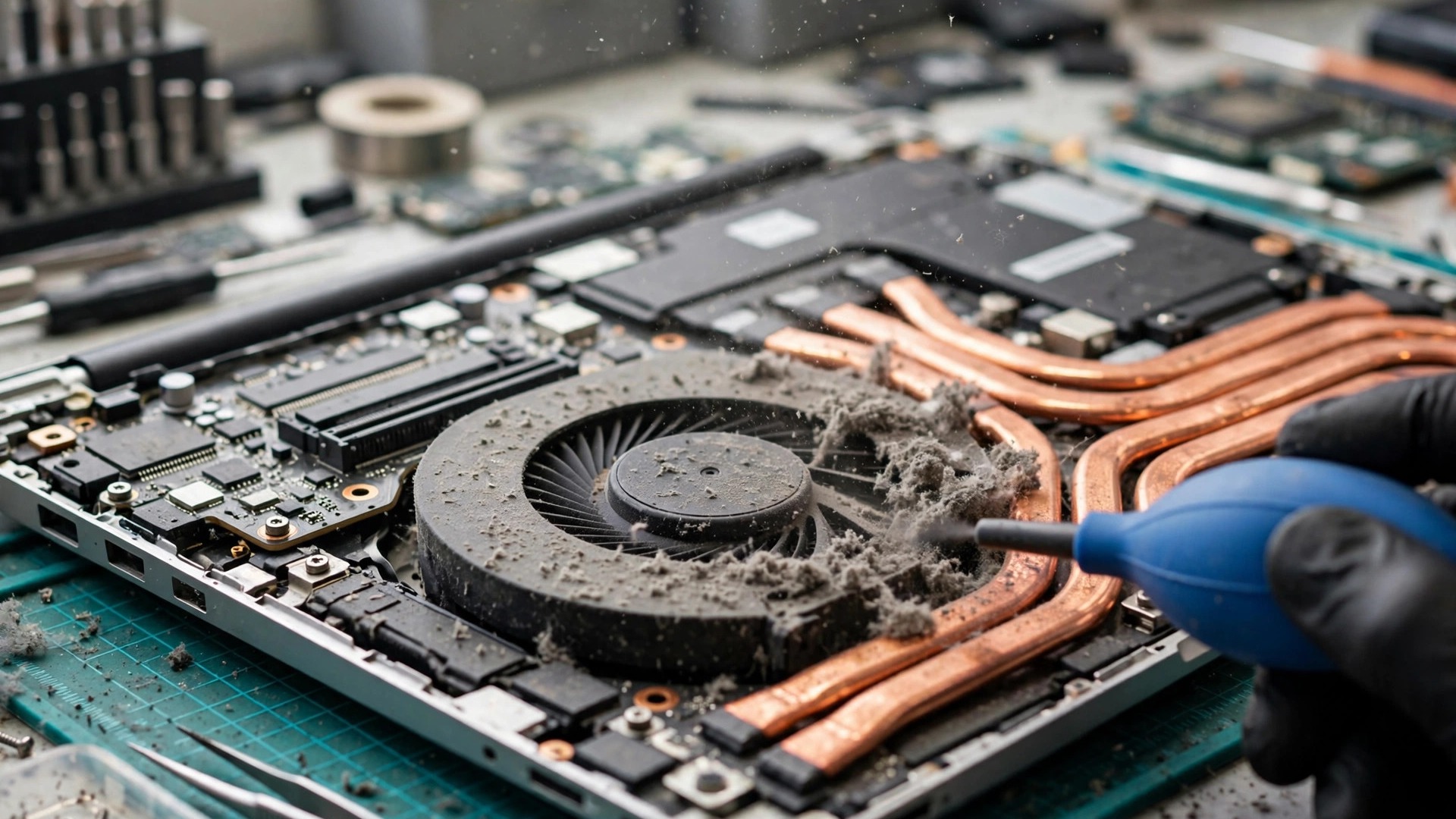
Dust, hair, and fibres accumulate over time on the fan blades, between the cooling fins, and at the exhaust vents, forming an obstruction. On one hand, blocked airflow means the same fan speed removes less heat. On the other hand, dust coating the fin surfaces reduces heat-exchange efficiency. To hold temperature, the system pushes the fan faster, so it gets louder. The felt-like dust mat between the fins is often invisible from outside, and blowing at the exhaust from outside may not clear it. Uneven dust on the blades can also affect airflow and balance.
Typical signs: smooth, continuous whooshing that rises with load and falls when load drops; weak airflow from the exhaust, or exhaust air that does not feel very hot, because heat is trapped inside and cannot get out; a hot chassis and reduced performance under heavy load, as the system slows itself down to protect the hardware, and in severe cases automatic shutdown; noise that gets gradually louder, rather than mechanical noise appearing overnight.
How to tell: under heavy load, feel the exhaust airflow and temperature. If airflow is clearly weak, the chassis is very hot, but the exhaust is not hot, that leans toward fin or exhaust blockage. Move to a hard, flat desk, make sure the intake and exhaust are uncovered, and compare the sound under the same load. If CPU load is low at idle but temperature is still high and the fan still spins fast, that leans toward a cooling-path problem. Without opening the machine, check the exhaust and intake for visible dust mats, hair, or fibres, but a clean-looking outside does not mean the inside is clean. A dust mat deep in the fins can only be seen after opening the machine, and inspection is the deciding step. If professional cleaning clearly reduces the noise and improves temperature, that supports dust as the main cause. If mechanical noise remains after cleaning, consider bearing, blade, or other mechanical causes.
Severity: medium. In the short term it mainly means noise and heat. Long-term poor cooling keeps hardware at high temperature, increasing the risk of throttling, instability, and hardware wear. It is a common, treatable cause, but do not wait until the machine shuts itself down all the time before dealing with it.
Cause 2: Bearing wear and dried lubrication
The fan shaft relies on bearings to keep rotation smooth. Long use, high temperature, and dust intrusion can wear the bearings or dry out the lubrication, increasing friction and making rotation uneven. Bearing wear can also let the rotor sit slightly off-centre, so the blades no longer rotate concentrically, which adds vibration and noise. Some laptop fans are sealed units and are not suitable for user-added oil. Inspection is the deciding step, and it depends on the model.
Typical signs: mechanical noise rather than smooth airflow noise, including grinding, scraping, dry squealing, clicking, loose rattling, or uneven vibration; sound that comes and goes, or changes with speed, and usually becomes more obvious as load and speed rise; possibly unstable fan speed or a local vibration feel in the chassis; in severe cases the fan may slow down or even stop, after which cooling cannot keep up, leading to overheating, throttling, and automatic shutdown.
How to tell: if the sound is smooth airflow noise, it leans toward airflow, cooling, or load. If it is grinding, scraping, clicking, squealing, or similar mechanical noise, it leans toward a bearing or blade mechanical problem. Gently change the tilt of the machine and listen for a clear change. If the sound changes with tilt, that supports rotor eccentricity, bearing wear, or imbalance. Lightly press the chassis near the fan, without force. If the sound changes, it may relate to fan mounting, imbalance, or mechanical contact. That is only a reference signal, not a diagnosis, and the machine still needs checking. After cleaning the cooling path, if smooth airflow noise improves but mechanical noise remains, that leans toward a bearing or mechanical problem rather than dust alone. Even when CPU load is low and temperature is not especially high, if mechanical noise is still present, that leans toward a mechanical problem in the fan itself, rather than the fan spinning fast because it is hot.
Severity: medium to high. Bearing wear is mechanical deterioration and will not fix itself. Continuing heavy-load use may make the fan fail further, and then turn into an overheating problem. If you hear grinding, scraping, or clicking, reduce heavy-load use and get the machine checked soon.
Cause 3: Dried or aged thermal paste keeping the fan at full speed
Thermal paste fills microscopic gaps between the CPU and GPU chip surfaces and the heatsink base, helping heat move from the chip to the heatsink. Long cycles of heating and cooling and ageing can make the paste dry, harden, crack, or even get squeezed out of the contact surface by thermal expansion and contraction, so heat conduction drops and the paste becomes more like an insulating layer. When heat cannot get out, chip temperature climbs easily, and the system keeps the fan at high speed to bring temperature down. At the same time, the chip may throttle to protect itself, producing the pattern of a very loud fan but a machine that is still slow.
Typical signs: the fan sound itself is mostly still smooth airflow noise, but the key feature is that it stays at full speed for a long time. Even during light work, such as only browsing the web, the fan often spins fast and does not settle easily. The chassis feels clearly hot, temperature is high even under light load, and heavy load easily causes throttling and stuttering. From the outside, the fan and exhaust do not look especially dirty, but the machine is still hot and loud, because the problem is in the contact layer between the chip and the heatsink, which cannot be seen from outside. This is more common in machines that have been used for a while. Ageing speed differs by model and usage environment.
How to tell: close heavy-load programs and do only light work, and see whether the fan still stays at full speed for a long time. If it does even under light load, that leans toward a cooling-path problem, not toward you running a demanding program. If the vents have been cleaned and the noise and temperature still show no clear improvement, the chance of aged thermal paste rises. Note that this is only a process of elimination, not a diagnosis. The state of the paste can only be seen after opening the heatsink module, and inspection is the deciding step. Use a temperature monitoring tool to watch CPU and GPU temperature. If temperature is already high at idle or light load while fan speed is already high, that supports heat not getting out, rather than the fan not knowing how to spin. Do not judge thermal paste brands or amounts yourself. Replacement involves opening the heatsink module, depends on the model, and should be decided after inspection.
Severity: medium to high. In the short term it means noise, heat, and throttling. Long-term sustained high temperature adds stress to hardware. It is a cause that needs the machine opened for inspection and handling, and it is not suitable for fixing by turning the fan speed down alone.
Cause 4: Damaged or deformed blades, or something stuck in the fan
A cracked, chipped, or deformed blade makes rotation unbalanced, producing vibration and noise. Even if speed is not especially high, the imbalance itself can make the sound louder. Foreign matter, such as hair, paper fibre, small debris, or a loose cable touching a spinning blade, directly produces scraping or slapping sounds. A loose cable or part that keeps touching the blade may further damage the blade. Drops, squeezing, or improper disassembly can deform a blade or shift the fan mount, depending on the individual case.
Typical signs: irregular mechanical noise, including scraping, slapping, intermittent clicking, or buzzing vibration, sometimes continuous, sometimes intermittent; sound that is especially obvious in a certain speed range, or that appears when the machine starts or when speed changes; possibly a vibration feel in the chassis, and in severe cases restricted fan rotation and reduced cooling; if something is stuck, the sound may appear suddenly rather than getting gradually louder.
How to tell: continuous smooth airflow noise leans toward airflow or cooling. Rhythmic scraping, slapping, or intermittent clicking leans toward a blade touching something, blade imbalance, or foreign matter. If tilting the machine or lightly pressing the chassis near the fan changes the sound, that supports mechanical contact, imbalance, or loosening. That is reference only, not a diagnosis. If scraping or slapping remains after cleaning, that leans toward blade damage or deformation itself, rather than dust alone. Do not poke a hard object into the exhaust to flick the blades, or you may break a blade or hurt yourself. Blade condition needs to be checked after opening the machine, and inspection is the deciding step. Bearing wear is mostly grinding, squealing, and uneven vibration. Blade and foreign-matter problems are mostly scraping, slapping, and intermittent clicking. The two can exist at the same time, and the real split can only be made after opening the machine. Sound alone cannot give a one-hundred-percent diagnosis.
Severity: medium to high. Blade imbalance or foreign matter touching the blade for a long time may further damage the fan, and in severe cases affect cooling. If you hear scraping or slapping, reduce heavy-load use and get the machine checked soon.
Cause 5: A software-load illusion, where the hardware may not be faulty at all
Fan speed follows temperature, and temperature follows CPU and GPU load. If a program keeps using CPU or GPU, heat output rises, the fan naturally spins faster, and the sound gets louder. In this situation the fan and cooling hardware may not be faulty at all. It is just being told to work. Common sources include system update installation, file indexing, cloud sync, antivirus scanning, browser tabs with many open pages, especially pages with video, animation, advertising, or unclosed web apps, plus video calls, video editing, file conversion, and games. Malware can also keep using CPU or GPU in the background, keeping the fan at full speed for a long time. A stuck program or infinite loop can also cause sustained high load.
Need a laptop repair expert?
Free diagnosis · Transparent pricing · No fix, no fee · 180-day warranty
Typical signs: smooth airflow noise that rises and falls with load; it gets loud when you open a certain program or website, and settles when you close it; the fan is at full speed but the chassis temperature may not reach an abnormal level, or it settles for a short time after restart and is then pushed up again by a program; possibly a slower system and delayed program responses, but not necessarily mechanical noise; if it is a system task such as an update, indexing, or sync, the loud fan may be temporary and should settle when the task finishes.
How to tell: open Task Manager or Activity Monitor, sort by CPU, and see which program keeps using CPU. Watch for a while. A brief spike and a sustained high level are two different things. Only a program that stays high and does not settle is worth suspecting. After a restart, before opening any program, see whether the fan is quiet. If it is quiet after restart and only gets loud when you open a certain program, that leans toward that program, tab, or task causing the load. Close browser tabs and programs one by one, and see which one makes the fan settle when closed. Pay particular attention to browser tabs, cloud sync, antivirus scanning, and video calls. Check whether a system update is downloading or installing. During an update, system programs using CPU can be normal, and should settle when the update finishes. If it stays high for a very long time, it needs further checking. In Safe Mode, only minimal drivers and startup programs load. If the fan is quiet in Safe Mode, that leans toward a software or startup-program conflict. If it is still very loud in Safe Mode, consider hardware or cooling-path causes. Safe Mode is only a reference step and depends on the model and system. If there is an unknown program, a suspicious name, location, or publisher, or sustained high load from a program you cannot identify, use the built-in system security tool or a trusted antivirus program for a full scan. Do not end system programs at random. If you cannot tell them apart, inspection is the deciding step. The key to a software-load illusion is high load leading to a fast fan. If Task Manager shows low load but the fan still stays at full speed for a long time and temperature is still high, that leans toward a cooling-path or hardware cause, not a software illusion.
Severity: low to medium, depending on the cause. Normal background tasks or many tabs are a normal response, and the machine recovers once the load is handled. But if it is malware or a stuck program, it needs proper handling, and long-term high load and high temperature should not be left alone.
Other reasonable causes worth knowing
- Loose heatsink module or poor contact: the heatsink must press evenly against the CPU and GPU surfaces for heat to transfer smoothly. If the heatsink mounting screws loosen, mounting pressure becomes uneven, or a heat pipe bends or is damaged, contact between the chip and heatsink worsens and heat cannot get out. Drops, long-term thermal expansion and contraction, or a previous disassembly that was not reassembled well can all cause poor contact, depending on the individual case. The signs are a fan at high speed for a long time, smooth airflow noise, temperature that climbs easily even under light load, and easy throttling and stuttering under heavy load, with nothing visible from outside. After ruling out high software load, blocked placement, and surface dust, if temperature still climbs quickly under light load and the fan still stays at full speed, the chance of poor heatsink-module contact rises. Do not tighten heatsink screws yourself. Heatsink screws need to be handled in sequence and with even force. Tightening them wrong can make contact worse. Their state needs to be checked after opening the machine, and inspection is the deciding step.
- BIOS, fan-curve, and power-mode settings: fan speed is controlled by BIOS, UEFI, or the maker's power management tool according to a temperature curve. Different modes, such as silent, balanced, and performance, use different settings for when to speed up. If the setting is on performance or full-speed mode, or the fan curve has been changed by a third-party tool to be very aggressive, the fan will speed up earlier and stay at high speed longer, sounding louder. Outdated BIOS or drivers can also make temperature control and power management less accurate, depending on the model. To tell, in the maker's own tool or the system power settings, switch from performance mode to balanced or silent mode, and see whether the fan settles under the same load. If it does, settings are one of the factors. If it does not, other causes still need consideration. If the problem appeared after a BIOS or driver update, record the behaviour before and after the update, and do not repeatedly reflash BIOS yourself. BIOS updates carry risk, depend on the model, and should follow the maker's guidance and inspection. Do not use a third-party tool to force the fan speed down. Forcing the speed down only hides the sound, pushes temperature up, and may trigger throttling, shutdown, or long-term heat damage. Fix the real cause first, and do not rely on suppressing speed to get quiet.
- High room temperature, poor ventilation, or blocked placement: a laptop cools by drawing in surrounding air. The hotter the room air, the hotter the air drawn in, and the more airflow is needed to remove the same amount of heat, so the fan naturally spins faster and louder. Using the laptop on a bed, sofa, blanket, lap, or another soft surface covers the bottom intake. Using it in an enclosed space, near a heater, or in direct sunlight also worsens cooling. Charging while running heavy load also adds heat and raises fan speed, depending on the model. To tell, do the same work once in a cool, ventilated room on a hard, flat desk, and compare it with the original hot, stuffy, or soft-surface environment. If it clearly improves, environment and placement are a main cause or an important factor. Make sure the intake and exhaust are uncovered, do not place the machine on a blanket or sofa, and leave space around the vents.
- Temperature sensor or fan-control abnormality: if the temperature reading does not match what the machine actually feels like, for example the fan stays at full speed even though the machine is not hot, or the fan does not speed up even though the machine is very hot, it may be a sensor or control-circuit problem. Inspection is the deciding step. This is not a common cause.
- Loose fan mounting or chassis resonance: loose fan mounting screws, a deformed chassis, or a loose internal part can amplify vibration into a buzzing sound. A change in a light-press or tilt test can be a reference signal, but confirmation needs opening the machine.
- Swollen battery, a safety note, not to be confused: if you also see a raised touchpad or keyboard, a chassis that is separating, or abnormal heat while charging, do not treat it as ordinary fan noise. Stop using the machine at once and get it checked. Do not handle a swollen battery yourself.
- Hard-drive sound versus fan sound: a traditional hard drive can itself make clicking sounds, so do not attribute every click to the fan. One way to tell is to listen for where the sound comes from and check drive health. Inspection is the deciding step.
Cause comparison table: symptom, possible cause, DIY or send it in
Before reading the table, understand that the same symptom can come from different causes. The table helps you decide the next direction, not make a diagnosis.
| Symptom | Possible cause | Suggested direction |
|---|---|---|
| Smooth airflow noise that rises and falls with load, weak exhaust, hot chassis, gradually louder | Dust blocking cooling fins, fan blades, or exhaust vents | Start with no-opening cleaning. If improvement is limited, consider deep cleaning with the base opened, or send it in |
| Grinding, scraping, squealing, clicking, irregular vibration, sound changes when tilted | Bearing wear, dried lubrication | Reduce heavy-load use, send it in soon, do not add oil yourself |
| Smooth airflow noise but stuck at full speed, hot and loud even under light load, outside does not look dirty | Dried or aged thermal paste; poor heatsink-module contact | Send it in for inspection. Do not open the heatsink module or tighten heatsink screws yourself |
| Scraping, slapping, intermittent clicking, vibration feel, sudden onset | Damaged or deformed blades; foreign matter stuck; loose mounting | Reduce heavy-load use, send it in soon, do not poke a hard object in to flick the blades |
| Smooth airflow noise, only loud when a certain program is open, settles when closed | Software-load illusion: background programs, updates, sync, scanning, many tabs, malware | Start with software comparisons: check Task Manager, close programs one by one, run a scan, rule out software before thinking hardware |
| Smooth airflow noise, improves in a cool, ventilated room on a hard, flat desk | High room temperature, poor ventilation, blocked placement; power-mode settings | Improve environment and placement, switch to balanced or silent mode and compare |
| Fan does not spin at all, fan error message at startup, strange smell, smoke, swollen battery | Fan itself faulty, power or sensor problem, battery problem | Stop using it at once, send it in, do not continue DIY |
DIY cleaning: start without opening, then consider opening the base
Shared ground rules for both methods
- Before cleaning, power off, unplug, and remove all external cables and peripherals. Do not clean while the machine is on or plugged in.
- Wait for the chassis to cool for a while before starting. Do not clean immediately after heavy load while the machine is still very hot.
- Work on a clean, stable desk with good light. When opening the machine, lay down a clean soft cloth to protect the surface, and avoid losing small parts.
- First read the official manual or disassembly guide for your exact model. Base-cover structure, screw positions, and cable routing differ greatly by model. Do not copy another model's method from memory.
- Think about warranty status before opening the machine. On some models, opening the machine yourself may affect warranty. Warranty stickers and seals are handled differently by brand, region, and warranty terms, and cannot be generalised. If you are not sure, use the no-opening method first, or ask the maker or an authorised repair centre. Before opening or sending the machine in, back up important data.
Method A: No opening, only clean the exhaust and intake (most conservative, try this first)
Suitable when: the fan is only a little louder than usual, none of the red-flag list below applies, and you do not want to or cannot open the machine.
1. Power off, unplug, and remove all cables.
2. Find the intake and exhaust positions. They are usually at the bottom, the sides, or near the screen hinge. On some machines the exhaust is hidden near the hinge, so do not assume all vents are on the same side.
3. First use a clean, dry microfibre cloth or anti-static soft brush to gently sweep away visible dust on the vent surfaces. Do not poke a hard object deep into the vents.
4. Tilt the machine slightly, so gravity helps dust fall outwards instead of back inside.
5. Use a can of compressed air on the vents: keep the can upright the whole time, do not invert it, and do not shake it hard. Use short bursts, not a long press. Spray a few short bursts, then pause and let parts return to normal temperature. Keep the nozzle a distance away from the vent, not pressed against it. Aim the dust out of the machine, not into it. Blow the intake first, then the exhaust. You can also alternate, so loosened dust has an exit. Do not keep blowing in one direction only, or you may push a pile of dust deep into the fins and form a dust mat. If you can see the blades through the vent, hold the blades still while spraying, and do not let airflow spin them freely at high speed. A soft non-metal tool can be used to gently hold the blade hub. It is best to do this in a ventilated place, so you do not breathe in the dust that is blown out.
6. After blowing, wipe away the dust that came out with a cloth or soft brush.
7. Power on and listen: under light load, listen for whether the fan sound has become steadier, and feel whether the base temperature has improved. If basic browsing or video still runs at full speed and loud, or the machine shuts down under load, do not rely on outside blowing alone. Consider deep cleaning with the base opened, or send it in.
Limitation: blowing from outside without opening can only remove loose dust. A dust layer already pressed into a felt-like mat between the fins often cannot be cleared by outside blowing.
Method B: Open the base for cleaning (deep cleaning, higher risk)
Suitable when: outside blowing gave limited improvement, the machine is out of warranty or you have confirmed that opening it yourself does not affect your warranty arrangements, and you have basic hands-on ability and accept the risk. If any red flag applies, do not open it yourself. Send it in first.
Preparation tools, a general list depending on the model: a screwdriver of the right size, Phillips, Torx, Pentalobe, or others, depending on the model. Using the wrong size easily strips a screw. A plastic pry tool, plastic card, or opening pick. Use plastic, not metal, to avoid scratching the case and board. An anti-static wrist strap, recommended, or an anti-static mat. A can of compressed air, a soft brush, anti-static, a microfibre cloth, and isopropyl alcohol. For stubborn marks, use a cloth that is only slightly damp, and do not let it drip. A small box, magnetic screw mat, or labelled cups to store screws separately by step. A phone or camera to photograph the internal layout, cable routing, and screw positions before disassembly, so you can compare when reassembling.
Basic flow: power off, unplug, remove all cables, and let the chassis cool. Check the base screws and remove them one by one. Note that screw lengths may differ. On some machines screws hide under rubber feet. Do not pry hard if you missed one. Screw management: store screws separately by removal step and position, with labels. Do not mix all screws into one pile. When reassembling, each screw must go back to its original place. Do not put a long screw into a short screw hole, or it may pierce the board or crush a part. Anti-static points: before and during disassembly, touch grounded metal, or wear a grounded anti-static wrist strap. If available, use an anti-static mat. Do not open the machine on a carpet, mattress, or other surface that easily builds static. Do not touch small components, pins, and connectors on the board with bare hands. Even when powered off, residual charge may remain on the board. Use a plastic pry tool or plastic card to slowly release the plastic clips along the base seam. Do not force it. The golden rule is: if it feels very tight and will not move, stop and check whether a screw is still in place. Do not pull hard. After the base loosens, do not lift the whole cover off at once. First check whether any cable connects the base to the board. On some models the base connects to speaker, light, or fingerprint cables. If there is one, release the cable connector correctly before separating. Disconnect the built-in battery cable as soon as possible, if the guide for that model says to do so. After opening, disconnect the battery from the board before other internal work. You do not need to remove the whole battery. Disconnecting the cable already lowers the risk of working while powered. Before disconnecting, do not pry near the battery with a metal tool. Find the fan and heatsink. The fan is usually near the heatsink, as a round blade assembly. To clean the fan and cooling fins: first hold the blades still with a non-metal tool, do not let them spin freely, then use short bursts of compressed air to blow dust away, can upright, keep a distance, short bursts. Use a soft brush to gently sweep dust between the blades and fins. A pressed dust mat between the fins sometimes lifts off in one piece. Handle it gently, and do not scrape hard. For stubborn marks, wipe gently with a slightly damp isopropyl alcohol microfibre cloth or cotton swab. The cloth must not drip, and liquid must not seep inside. If the fan cable connector needs to be removed, release it according to that connector type. If you are not sure, do not remove the fan. Clean it in place. Check other visible parts: whether any dust clumps remain at the vents, fins, or around the fan, and whether any cable is pressed or pulled loose. Reassemble in the reverse order of disassembly. First reconnect the battery cable, if it was disconnected, and other cables. Confirm each connector is seated and each latch is closed. Align the base, press the clips closed gently, then put each screw back in its original place, tight but not so forceful that it strips. Power-on test: first listen to the fan and check for error messages, then observe under light load for a while. If there is abnormal sound, failure to power on, or a fan that does not spin at all, power off at once, do not keep using it, and consider sending it in.
Advanced note, only for experienced users, not recommended for general users: thermal paste and thermal pads are deeper repair work. Reaching them means opening the heatsink, which involves heatsink screw release order, thermal pad thickness, and reinstallation pressure, and is not part of general dust cleaning. Some guides note that gaming machines often have complex multi-heat-pipe cooling modules, and opening the heatsink carries higher risk. Thermal paste replacement is not a casual add-on to dust cleaning. Treat it as a send-in item. Do not drip lubricating oil into the fan hub yourself. It is not a maker-recommended practice.
Common mistakes you must avoid
- Using a household vacuum directly on the inside or vents: a general household vacuum can generate static electricity and damage electronic components. Its suction can also pull small parts loose, or suck away sealing and cushioning material around the heatsink module. Professional vacuums designed for electronics and marked anti-static are a different category, and should not be confused with household vacuums.
- Holding compressed air down for a long continuous spray: continuous spraying cools the can and parts rapidly, increasing condensation risk, and also keeps the fan spinning freely at high speed for a long time. Use short bursts, spray a few times, then pause.
- Inverting, tilting, or shaking the can before spraying: this can spray liquid propellant, cool rapidly, cause local condensation, and the liquid propellant can also damage part surface coatings and labels, with a risk of cold burns to skin. The can should stay upright the whole time.
- Not holding the blades still, letting airflow spin them freely at high speed: free high-speed spinning can stress and wear the bearings, and may even damage the blades. Some guides also note that a fast-spinning blade acts like a generator and may produce reverse voltage that affects the board. Different sources describe the severity of reverse voltage differently, but holding the blades still before spraying is a consistent recommendation.
- Blowing with your mouth: breath carries moisture into the machine. Air pressure is unstable, and it will not remove pressed dust. Do not use your mouth instead of compressed air or a soft brush.
- Spraying lubricant or moisture-removal spray into the fan: these products are for lubrication, moisture removal, and rust protection, not fan cleaning, and should not be sprayed into a laptop cooling system.
- Poking vents or scraping fins with a sharp or metal tool: this can scratch or break blades, or scratch board surface components. Use a soft brush, microfibre cloth, or plastic pry tool.
- Blowing in the wrong direction, pushing dust further in: blowing in only one direction can push dust deep into the fins and form a dust mat, making cooling worse. Dust needs an exit out of the chassis.
- Using an air compressor or unfiltered, unregulated compressed air: an industrial air compressor may have excessive pressure, and its airflow can contain moisture and oil, which can damage electronic components. Use a can designed for electronics, or an anti-static dust-blowing tool.
- Cleaning while powered on or plugged in: this increases the risk of short circuits, electric shock, and touching parts by mistake. Before cleaning, power off and unplug.
- Forcing the base open without checking hidden screws: this easily tears cables, breaks clips, or bends the base. If it will not move, stop and check first.
- Skipping anti-static measures, or opening the machine on carpet: static discharge can damage components immediately or potentially, sometimes with no visible problem at the time.
- Mixing all screws together, then tightening them back at random: wrong-length screws can crush the board, pierce parts, or leave the base not closing properly.
DIY risks: how DIY can break things
- Torn cables and damaged connectors: a laptop has many flat cables and push-type connectors, linking the keyboard, touchpad, screen, speakers, battery, fan, and more. Common damage includes pulling a cable before releasing its latch, tearing the cable or breaking the latch; prying the wrong place on a push-type connector, prying the socket on the board instead of the connector itself, and damaging the socket; pulling the cable itself instead of the connector, breaking the wire cores; reassembling with a cable crooked, not fully inserted, or with the latch not closed, so the keyboard, touchpad, or screen fails after power-on; and prying a connector with a metal tool, scratching the board or causing a short. A push-type connector should be pried vertically upward at the edge of the connector, not at the socket. When reassembling, align it and press each side gently until it clicks. Do not press hard in the middle. Different latch connectors open differently. Do not guess. Some cables hide under the battery or are pressed by it, and can be torn when removing the battery.
- Stripped or misplaced screws: using the wrong size screwdriver, tightening too hard, or a screw that is already rusted or stuck can easily strip a screw. After stripping, the screw is hard to remove, and forcing it can drill into surrounding parts. Screws in different positions have different lengths, and misplacing them on reassembly can pierce the board, crush components, or leave the base not closing properly. On some models, base screws hide under rubber feet, and prying hard after missing one can break the base or clips.
- Warranty stickers and seals: some models have warranty stickers or tamper-evident seals on the base or screw positions. Different brands, regions, and warranty terms handle whether self-opening affects warranty differently. On individual models, the warranty terms may only exclude damage caused by self-opening, and opening for cleaning alone does not necessarily mean losing warranty; but self-opening or tearing a seal may also make a warranty claim more complex, or even lead to refusal. Before opening, check the warranty terms for your exact model, or ask the maker or an authorised repair centre. For a machine still in warranty, prefer maker or authorised repair, and do not open it yourself.
- Battery safety: a built-in lithium battery is dangerous if squeezed, bent, punctured, or heated. The handling principle for a swollen battery is: do not press, bend, pry with a tool, puncture, or open the battery pack or cells. If a swollen battery is stuck, do not force it out. Common battery risks during disassembly include prying the base near the battery with a metal pry tool, puncturing or squeezing the battery; bending the battery by accident when removing the base; working on the board before disconnecting the battery cable, increasing short-circuit risk; and bending or puncturing a glue-fixed battery when tearing it up. A swollen battery itself is a red flag, and should not be handled yourself.
- Soldered parts, do not touch: on modern thin machines and some models, memory, storage, and even some ports are soldered to the board, not plug-in modules. Mistaking a soldered part for something that can be removed and forcing it can break the board. Using force, heat, or the wrong tool near soldered parts can cause board-level damage, greatly increasing repair difficulty and cost. Opening the heatsink involves a CPU and GPU shared heatsink module, and improper handling can affect several cooling surfaces at once. Soldered parts should only be handled by professional repair. DIY cleaning should stay at the fan, fins, and vents level, and should not extend to removing soldered parts.
- Other DIY damage paths: static discharge can damage components immediately or potentially, sometimes with normal power-on at the time and instability later; drops or tool slips, where a screwdriver slips and scratches the board, or a pry tool slips between components; improper heatsink-module handling, where heatsink screws are released in the wrong order or reinstalled with uneven pressure, possibly damaging chips, or a torn thermal pad is replaced with one of the wrong thickness, possibly making cooling worse. This kind of work is not general DIY cleaning. Liquid seeping in, where a cleaning cloth is too wet, isopropyl alcohol drips, or condensation is not dry before power-on, all carry short-circuit risk. Missing parts on reassembly, such as a missed cable, a missed screw, or base clips not closed, leading to failure to power on or a loose chassis. Accidental damage to the storage or board during disassembly can affect data, so back up important data before sending in or opening the machine.
When you must send it in
If any item below appears, do not continue DIY. Stop using the machine as needed, and send it in.
Stop using it at once, do not power on again
- Strange noise with a strange smell, burning smell, or smoke: smell plus strange noise usually means a part is overheating, burning, or short-circuiting. Continuing to use it carries a risk of further damage and even safety risk.
- Swollen battery: base bulging, touchpad raised, keyboard lifted, chassis not closing. A swollen battery should be taken out of use, the charger unplugged, the battery allowed to discharge, and support contacted for replacement. Do not press, bend, pry, or puncture it. Do not remove a swollen battery yourself.
- Fan abnormal after water or moisture exposure: liquid can cause corrosion, affecting the fan motor or power supply. This belongs in professional inspection.
- Abnormal heat or deformation of the chassis, charger, or battery.
Signs the fan itself is faulty
- Fan does not spin at all: if a cooling fan not operating correctly type of error appears at startup and the fan does not spin at all, stop using the machine until it is fixed. Repeatedly bypassing the warning to keep using it bypasses safety protection, and should not be used as a daily practice.
- Fan error message at startup: for example, on individual models, a system fan error appears at startup, warning that the cooling fan is not operating normally. Error codes depend on the model, and an individual code only applies to individual models, not all machines. First power off and clear the vents, do a hard reset, and update BIOS. If the error persists, it means a fan hardware fault, and the machine needs sending in.
- Grinding, scraping, or rattling fan noise: this kind of mechanical noise usually means physical damage to bearings or blades. Cleaning will not fix it. The fan needs replacement.
- Fan visibly wobbling while spinning, unstable speed, or starting and stopping.
- Still at full speed and hot after cleaning: if the vents and fan have already been cleaned as above, and under light load the fan is still loud at full speed, the chassis is still very hot, or the machine even throttles or shuts down by itself, the problem is not only surface dust. It may be deep heatsink blockage, aged thermal paste or pads, a sensor, or a heatsink-module fault, and needs professional diagnosis.
- Repeated overheating shutdowns or freezes: this is sustained cooling failure. Do not delay by just keeping using it.
Involving soldered parts or deep disassembly
- If opening the machine shows you need to move soldered parts, remove the whole board to reach the fan, or open the heatsink or replace thermal paste to fix it, do not continue yourself.
- Gaming and high-performance cooling modules are complex, with dual fans, multiple heat pipes, and a CPU plus GPU shared heatsink, and disassembly involves several cooling surfaces and thermal pads. Send it in.
- If the model structure is special, for example a glue-fixed battery, dense cables, or needing to remove the screen or keyboard to reach the fan, self-disassembly carries high risk. Send it in.
Other send-in indicators
- Machine in warranty with a fan fault: use maker or authorised repair first. Do not open the machine yourself and add warranty disputes.
- Not sure whether you know how to open it, or no right tools: do not force it. No screwdriver of the right size, no plastic pry tool, no anti-static measures, that is a stop signal.
- New problems after opening: cannot power on, keyboard, touchpad, or screen failure, fan not spinning at all, or a new error message. Power off at once, do not repeatedly test by powering on, and send it in for checking.
- Needing to replace the fan itself: fan replacement involves model-matched parts, cable connectors, and heatsink-module installation. It is not general cleaning. Professional repair is recommended.
Brand disassembly difficulty differences, in general terms
The following are only general trends, not a ranking table. Differences between individual models are large, and everything depends on the model. Different series from the same brand can differ greatly. Business series and consumer series should not be mixed. Different years in the same series can also switch to different structures.
- Business machines, for example business series, general trend: the general design focus leans toward maintainability, with more standard screws, a relatively straightforward base structure, and on some models official repair manuals or service guides that make disassembly easier. Some models still have soldered memory or ports, depending on the model.
- General consumer thin and light machines, thin and light focus: for thinness, internal space is tighter, cables are denser, and battery, speakers, cables, and cooling modules more often cover each other. On some models the base clips are tighter and screw types are more varied, so screw positions and lengths need more careful checking during disassembly. A higher share have soldered memory or storage, with fewer upgrade and replacement options. DIY should stay at the cleaning level.
- MacBook, general trend: Pentalobe special screws are commonly used. Opening the base needs a dedicated screwdriver, and a general Phillips screwdriver cannot be used. Older models were described as having lower repairability: batteries fixed with glue, soldered memory, keyboards fixed with rivets, and similar factors, with higher disassembly risk. Newer models show improvement. For example, teardown reports for a particular year point out that the battery already uses pull tabs instead of large amounts of glue, and many parts, including the fan, are modular and independently replaceable. But Pentalobe screws, glue-fixed speakers, hard-to-replace keyboards, and soldered storage remain. Teardown reports for a newer entry model point out that the base needs only a small number of Pentalobe screws, and the battery is fixed with screws on a tray instead of glue, a more repairable design in recent years, but keyboard replacement is still involved. Depending on model and year, older models are generally harder to open, some newer models show improvement, but special screws and soldered-part limits remain.
- Gaming and high-performance machines, dual-fan and multi-heat-pipe focus: the cooling module is usually more complex, with dual fans, multiple heat pipes, and a CPU plus GPU shared heatsink, and disassembly involves more screws and cooling surfaces. Heatsink screws usually have a numbered release order, and reinstallation pressure must be even. A thermal pad of the wrong thickness affects cooling. On some models the fan and heatsink are bound into one assembly, not independently replaceable. Some models need the board removed to reach the cooling module. Gaming-machine cleaning can cover outside blowing plus base-open cleaning, but opening the heatsink or replacing thermal paste should be listed as a send-in item, not treated as an easy DIY step.
- Models that emphasise repairability, general trend: an individual brand design emphasises repairability, with base screws that are captive screws, still attached to the base after loosening and not easily lost, panels held by magnets instead of plastic clips, internal parts with labels and codes linking to repair guides, and official repair manuals and parts provided. Many parts are of modular design, depending on the model, and can be replaced independently. This kind of model is an exception, and should not be used as an example that all laptops are this easy to open. This is only an individual brand's design focus, and does not represent all brands.
Pricing reference and what to bring for repair
For confirmed pricing: battery replacement from HK$580, screen replacement from HK$1,280, chip-level motherboard repair from HK$880, and keyboard replacement from HK$480. There is no confirmed price for fan repair itself. Fan cleaning, fan replacement, and other cooling repairs are all subject to written quote after inspection. For pricing details, see our pricing page; to book a check, visit diagnostic.
Bringing a few things will speed up the diagnosis: when the fan noise appeared and how it changed, for example gradually louder or sudden, and whether there is mechanical noise; whether there is an error message at startup; the power adapter, as power-delivery checks need your actual adapter; how the machine is normally used, for example whether it is often used on a bed or sofa; and whether it has been dropped, exposed to water, or had a system update recently. In Hong Kong's hot and humid summers, blocked vents, dust build-up, and using a laptop on a bed or blanket make overheating-related problems more likely, so mentioning how the machine is normally used genuinely helps the diagnosis.
Visit us at Room 1209, Daly Plaza, Shek Mun, Sha Tin. Phone: +852 2186 8010. WhatsApp: +852 6558 6806. Opening hours: 12:00–19:00.
Frequently asked questions
Q1: The fan is loud but the laptop seems to work fine. Do I need to do anything?
A: It depends on the sound. Smooth airflow noise that rises and falls with load, with no other red flags, can first be checked with a placement comparison and no-opening cleaning, then watched. If it is grinding, scraping, or clicking mechanical noise, or it comes with overheating, throttling, or automatic shutdown, do not treat it as nothing. Reduce heavy-load use and get the machine checked soon.
Q2: I already blew air in without opening the machine, but it is still loud. Does that mean I need a new fan?
A: Not necessarily. Blowing from outside without opening can only remove loose dust. A dust layer already pressed into a felt-like mat between the fins often cannot be cleared that way. Other causes can also apply, including aged thermal paste, poor heatsink-module contact, software load, or settings. If the fan is still at full speed and hot after cleaning, the problem is not only surface dust. Professional diagnosis is needed to tell the causes apart. Do not jump straight to replacing the fan.
Q3: If I open the base to clean it myself, what is easiest to break?
A: The most common damage is torn cables or damaged connectors, stripped or misplaced screws, static damage to components, and battery damage. Cables must be released according to their connector type, not pulled hard. Screws must be stored separately by position and returned to their original places. Anti-static measures are needed before opening, and the machine should not be opened on carpet. For a machine still in warranty, prefer maker or authorised repair, and check the warranty terms before opening. If you do not have the right tools or are not sure how to open it, do not force it.
Q4: When should I stop trying things myself and send the laptop in?
A: Stop at once in these cases: strange noise with a strange smell, burning smell, or smoke; a swollen battery; fan abnormal after water or moisture exposure; a fan that does not spin at all, or a fan error message at startup that keeps appearing; grinding, scraping, or rattling sounds; still at full speed and hot after cleaning, with repeated overheating shutdowns; or new problems after opening, such as failure to power on, or keyboard, touchpad, or screen failure. Continuing DIY attempts in those situations risks making the damage worse, or brings danger.
Need Professional Laptop Repair?
Laptop King has 15+ years of repair experience in Shek Mun, Sha Tin. Free diagnosis, transparent pricing, no fix no fee. 180-day warranty for your peace of mind.