
📌 Key Takeaways
- •[A-S1] Wi-Fi Alliance — Wi-Fi Alliance® introduces Wi-Fi CERTIFIED 7™ — https://www.wi-fi.org/news-events/newsroom/wi-fi-alliance-introduces-wi-fi-certified-7 — Accessed: 2026-11-15
- •[A-S2] Wi-Fi Alliance — Wi-Fi CERTIFIED 7™ Technology Overview, January 2024 — https://www.wi-fi.org/system/files/Wi-Fi_CERTIFIED_7_Technology_Overview_202401_0.pdf — Accessed: 2026-11-15
- •[A-S3] Microsoft Support — Faster and more secure Wi-Fi in Windows — https://support.microsoft.com/en-au/windows/faster-and-more-secure-wi-fi-in-windows-26177a28-38ed-1a8e-7eca-66f24dc63f09 — Accessed: 2026-11-15
- •[A-S4] Microsoft Windows IT Pro Blog — Introducing Wi-Fi 7 for enterprise connectivity — https://techcommunity.microsoft.com/blog/windows-itpro-blog/introducing-wi-fi-7-for-enterprise-connectivity/4456751 — Accessed: 2026-11-15
- •[A-S5] Intel — Intel® Wireless Wi-Fi Drivers for Windows® 10 and Windows 11* — https://www.intel.com/content/www/us/en/download/19351/922739/intel-wireless-wi-fi-drivers-for-windows-10-and-windows-11.html — Accessed: 2026-11-15
# Laptop Wi-Fi 7 Upgrade Compatibility — Deep Guide
!Laptop Wi-Fi 7 Upgrade Compatibility — Deep Guide
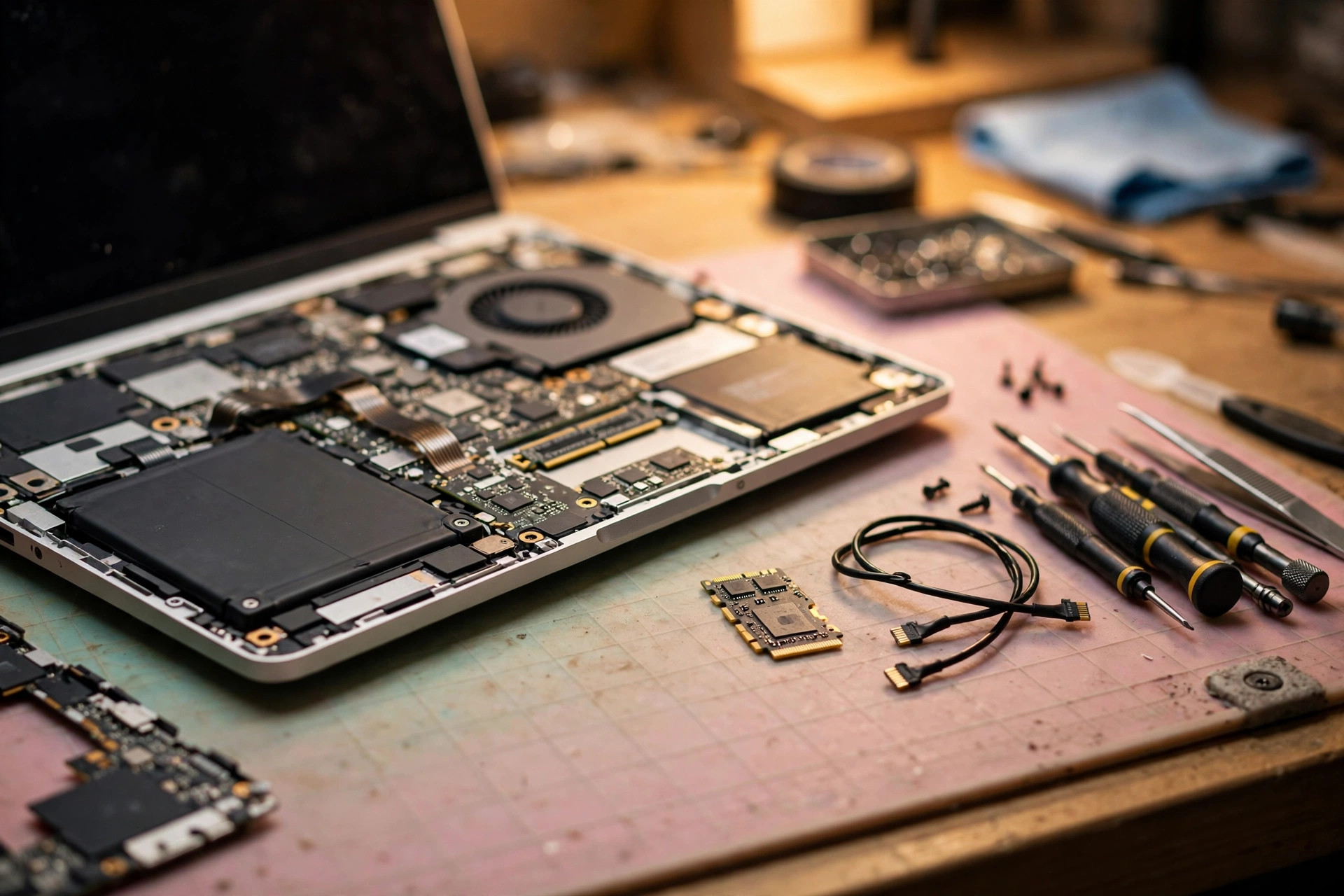
Date: 2026-11-15
A Wi-Fi 7 upgrade never turns on a single card. Before a card changes hands, six layers need to line up at the same time: the chip, the slot interface, the driver, the operating system, the router, and the spectrum rules. When any one layer fails to line up, the result is a downgrade to Wi-Fi 6E, a connection stuck on 5 GHz, or a card that the machine never sees at all. Wi-Fi 7 is the commercial name for IEEE 802.11be, formally Extremely High Throughput (EHT) [A-S3][B-S1]. The Wi-Fi Alliance launched the Wi-Fi CERTIFIED 7 programme on 8 January 2024 [A-S1][B-S1], and the IEEE 802.11be-2024 final document appeared on 22 July 2025, a date cross-checked against secondary summaries and not yet verified against the IEEE publication page itself [A-S29][B-S3][B-S4]. Certification came first and the standard followed, and that order explains a lot about the early market: Wi-Fi 7 products reached shelves before the standard document was final, so feature combinations vary between products that carry the same label.
The figure of 46 Gbps is a standard ceiling under 16 spatial streams, 320 MHz, 4096-QAM and ideal conditions, not a figure any 2x2 laptop ever sees [A-S29][B-S3]. The final standard removed the 16-stream option, leaving an 8-stream ceiling of about 23,059 Mbps, or about 23 Gbps, on a single band [B-S3][B-S4]. A single spatial stream at 320 MHz with 4096-QAM runs at about 2.88 Gbps, and eight streams multiplied together give about 23 Gbps [B-S4]. A typical laptop is 2x2, so its ceiling sits far below 23 Gbps and further still from 46 Gbps. The IEEE 802.11be-2024 text sets a design target of at least 30 Gbit/s of maximum throughput measured at the MAC SAP in at least one mode, with carrier frequencies from 1 to 7.250 GHz and backward compatibility with legacy devices on 2.4, 5 and 6 GHz [B-S3]. That 30 Gbps figure is a design target for the standard, not a promise for a single client device.
The three headline features work through different physics and cannot be lumped together. A 320 MHz channel is a wider road, and it exists only on 6 GHz. 4096-QAM packs more into each vehicle, 12 bits per symbol against 10 bits for the 1024-QAM of Wi-Fi 6, a 20% gain that needs an extremely high signal-to-noise ratio before it pays off. MLO manages several roads at once, and it matters most at the architecture level, yet the mainstream laptop implementation is eMLSR, which listens on several bands and transmits and receives at full speed on one link at a time, rather than adding two bandwidths together [A-S1][A-S3][A-S30][A-S31][B-S1][B-S5]. The vendor-quoted peak rates for 2x2 laptop cards are 5.8 Gbps for the BE200, FastConnect 7800 and QCNCM865, 6.5 Gbps for the Filogic 380 MLO total, and 2.9 Gbps for the Filogic 360 with its 160 MHz ceiling, and every one of those figures is a PHY-layer theoretical rate, not measured TCP throughput [A-S7][A-S9][A-S11][A-S12][B-S10][B-S14][B-S17].
The binding constraint in Hong Kong is not technology but spectrum: only 5.925–6.425 GHz, the designated 6 GHz band, a total of 500 MHz, is open to Wi-Fi, and 6.425–7.125 GHz is closed to Wi-Fi use [A-S13][B-S20]. Inside 500 MHz there is room for only one non-overlapping 320 MHz channel, so once neighbours pile in and interference arrives, a 320 MHz channel gives way, drops back, or falls to 160 MHz. A full-band router brought in from overseas can break the law when used in Hong Kong. The operating system bar is a hard bar: Microsoft states plainly that Wi-Fi 7 is available starting with Windows 11, version 24H2 [A-S3][B-S5], and Intel driver release notes state the same, with only limited function on Windows 10 [A-S5][A-S6][B-S8][B-S9]. Swap a card before moving to 24H2 and the card runs in Wi-Fi 6E mode.
1 What Wi-Fi 7 Is: The 802.11be Position
Wi-Fi 7 keeps the three bands of 2.4 GHz, 5 GHz and 6 GHz and stays backward compatible with older generations [A-S1][A-S3][B-S1]. Wi-Fi CERTIFIED 7 covers 320 MHz channels, MLO, 4K QAM, 512 compressed block-ack, Multiple RUs to a single STA, Triggered Uplink Access, and Emergency Preparedness Communication Services (EPCS) [A-S1][B-S1]. The first certification test platforms came from Broadcom, CommScope RUCKUS, Intel, MaxLinear, MediaTek and Qualcomm [A-S1]. Certification initially covered general access points and stations, expanding later to Mobile AP and 20 MHz-only STA, and MLO includes the Multi-Link Single Radio mode, where a device can sit on several links without transmitting and receiving on them at the same time [B-S2].
Three dates need to stay separate. On 8 January 2024, Wi-Fi CERTIFIED 7 launched [A-S1][B-S1]. During 2024, Windows 11 already supported consumer Wi-Fi 7 access points, described by Microsoft as available since 2024 [A-S4][B-S6], yet full function waited for 24H2. On 22 July 2025, the IEEE 802.11be-2024 final document was published, a date cross-checked against secondary summaries and not yet verified against the IEEE publication page itself [A-S29][B-S3][B-S4]. On 29 September 2025, Microsoft announced enterprise Wi-Fi 7 access point support as generally available, conditional on Windows 11 24H2 plus the September 2025 preview non-security update or a later version [A-S4][B-S7].
Wi-Fi 7 builds on Wi-Fi 6 (802.11ax), covering 2.4, 5 and 6 GHz, indoor and outdoor, stationary and walking-speed use [B-S3][B-S4]. The changes split into three layers. At the physical layer, wider channels plus denser modulation raise the peak rate of a single link, but the signal-to-noise requirement climbs steeply, and a little extra distance drops the link back to a lower modulation. At the MAC and spectrum-use layer, Multi-RU plus Preamble Puncturing keep a wide channel usable when part of it is hit by interference, instead of throwing the whole channel away. At the link-management layer, MLO moves from picking one band at a time to managing several links at once, improving latency and reliability more than raw speed [B-S26][B-S34][B-S35][A-S1][A-S19].
A Wi-Fi CERTIFIED 7 label does not mean every Wi-Fi 7 feature is present. In certification, 320 MHz and 4096-QAM sit in the optional column while MLO is mandatory, a distinction drawn from secondary technical summaries against Wi-Fi Alliance documents, a certification-level distinction rather than a word-for-word quotation of IEEE text [B-S2][B-S26][A-S2]. Several summaries describe 320 MHz as an optional certification item, while the Wi-Fi Alliance technology overview lists 320 MHz as a headline feature without marking each item mandatory or optional in the public press release, a point that remains unverified [A-S2][A-S29]. The practical consequence is that two devices with the same Wi-Fi 7 badge can support different feature sets. The BE202 laptop card is one example: it carries the Wi-Fi 7 name with only 160 MHz and 1024-QAM, peaking at 2.4 Gbps [A-S25][B-S30]. The specification sheet is the place to check, not the box. Router and client need to support the same feature on both sides before that feature turns on. A router with 320 MHz talking to a card capped at 160 MHz gives 160 MHz, and the reverse holds as well [A-S3][B-S5].
Microsoft's support page describes Wi-Fi 7 as up to 4x faster than Wi-Fi 6 and Wi-Fi 6E, and close to 6x faster than Wi-Fi 5, with the qualifier that performance may vary by manufacturer and hardware device capabilities, so the 4x and 6x figures describe a ceiling under ideal conditions rather than a measured laptop result [A-S3][B-S5]. No peak figure stands on its own: behind each one sit five conditions working together, namely spatial stream count, channel width, modulation order, distance, and interference.
| Item | Wi-Fi 5 (802.11ac) | Wi-Fi 6 (802.11ax) | Wi-Fi 6E (802.11ax + 6 GHz) | Wi-Fi 7 (802.11be) |
|---|---|---|---|---|
| Bands | Mainly 5 GHz | 2.4 / 5 GHz | 2.4 / 5 / 6 GHz | 2.4 / 5 / 6 GHz [B-S1][B-S20] |
| Widest channel | 160 MHz | 160 MHz | 160 MHz | 320 MHz, 6 GHz only [B-S1][B-S5] |
| Highest modulation | 256-QAM | 1024-QAM, 10 bits per symbol | 1024-QAM | 4096-QAM, 12 bits per symbol, 20% faster [B-S1][B-S5] |
| MLO | None | None | None | Present, mandatory in certification [B-S1][B-S2] |
| Multi-RU / Preamble Puncturing | None | None / optional and rarely implemented | Same as Wi-Fi 6 | Present [B-S34][B-S35] |
| 6 GHz security | None | None | WPA3 mandatory | WPA3 mandatory [B-S27][B-S28] |
| Single-band theoretical peak | About 6.9 Gbps | About 9.6 Gbps | About 9.6 Gbps | About 23 Gbps, 8 streams [B-S3][B-S4] |
| Figure | Meaning | Conditions |
|---|---|---|
| 46 Gbps (about 46.1 Gbps) | 802.11be theoretical ceiling, 16 spatial streams, 320 MHz, 4096-QAM, ideal conditions | Early draft figure; the final standard removed the 16-stream option [A-S29][B-S3][B-S4] |
| About 23 Gbps (23,059 Mbps) | Single-band theoretical ceiling, 8 spatial streams | Final standard ceiling [B-S3][B-S4] |
| 30 Gbit/s | IEEE 802.11be-2024 design target, at least one mode measured at the MAC SAP | A design target for the standard, not a per-client promise [B-S3] |
| 5.8 Gbps | 2x2 laptop card vendor peak, BE200, FastConnect 7800, QCNCM865 | 320 MHz plus 4096-QAM plus 2 spatial streams, PHY rate [A-S7][A-S9][B-S10][B-S14] |
| 6.5 Gbps | MediaTek Filogic 380 MLO total; 5 Gbps on a single channel | An MLO total, not a single-link rate [A-S11] |
| 2.9 Gbps | MediaTek Filogic 360 peak | 160 MHz ceiling [A-S12][B-S17] |
| 2.4 Gbps | Intel BE202 peak | 160 MHz, 1024-QAM [A-S25][A-S7] |
2 MLO Multi-Link Operation
MLO, short for Multi-Link Operation, is the most important mechanism in Wi-Fi 7 and also the easiest to misunderstand. The Wi-Fi Alliance definition is that MLO allows a device to transmit and receive data simultaneously over multiple links for increased throughput, reduced latency, and improved reliability [A-S1][B-S1]. Microsoft puts it as devices using multiple bands (2.4 GHz, 5 GHz, and/or 6 GHz) simultaneously to avoid network congestion and maintain connectivity [A-S3][B-S5]. Three benefits stand side by side, and quoting throughput alone misrepresents the design.
In the Wi-Fi 6 and 6E era, a device held one link at a time, one band plus one channel. Once that band grew congested or picked up interference, the device waited, retransmitted, or reassociated, and latency and jitter followed [A-S1][A-S19][B-S1]. 802.11be introduced the Multi-Link Device (MLD) idea: the router is an AP MLD, the laptop is a non-AP MLD (STA MLD), and several links can exist between them at once, each link mapped to a band or a channel [A-S30][A-S31][B-S31][B-S32]. One MLD manages several links, each link contends for the channel, backs off, and transmits on its own, while a single MAC-layer association and security context covers all of them. Packets can be spread across links, and when one link congests, traffic moves to another link at once, with no reassociation [A-S30][A-S31].
The mode decides what MLO actually delivers, and the mainstream mode is not full-speed aggregation. MLSR (Multi-Link Single Radio) uses one radio, transmits and receives on one link at a time, and keeps the other links as standby for switching. eMLSR (Enhanced Multi-Link Single Radio) uses one main radio plus low-capability listeners, monitors several bands at once, and moves the whole radio across as soon as the router starts an exchange on one of them; it still transmits and receives at full speed on one link at a time, so the gain is fast congestion avoidance and lower latency, not added bandwidth [A-S30][A-S31][B-S31][B-S32]. MLMR-STR (Multi-Link Multi-Radio, Simultaneous Transmit and Receive) uses several radios that work independently, sending on one link while receiving on another, genuinely aggregating bandwidth, at the cost of enough frequency separation or self-interference cancellation, plus the highest hardware cost and power draw [A-S30][A-S31][B-S31][B-S32]. MLMR-NSTR (Non-Simultaneous Transmit and Receive) uses several radios but cannot send and receive at the same time, so transmissions need alignment and efficiency drops; several technical summaries note that no vendor ships NSTR as a headline mode, a point that comes from secondary material and remains unverified against a Wi-Fi Alliance page [A-S30][B-S31][B-S32]. eMLMR is an enhanced multi-radio mode seen in Arista and Dong summaries, with details not yet verified against a first-hand source.
Laptop cards vary model by model. The Intel BE200 MLO implementation is described in several technical summaries as eMLSR, listening on several bands and transmitting and receiving on one link at a time; that description comes from RouterHaus and Dong secondary material, and no Intel product page uses the eMLSR term for it [A-S30][B-S32]. The MediaTek Filogic 360 official specification states MLO (eMLSR) in plain terms [A-S12][B-S17]. The Qualcomm FastConnect 7800 sells High Band Simultaneous (HBS) Multi-Link, using two Wi-Fi radios to deliver four high-band streams across 5 and/or 6 GHz at once [A-S9][B-S14]. The MLO content of the three cards differs, and treating them as one thing misleads buyers.
The three benefits deserve separate treatment. Throughput aggregation means several links carry different packets at the same time, and the bandwidth can add up in theory, but whether it adds up depends on the mode. Latency reduction means a packet takes the first link that turns idle instead of waiting for a congested link, and retransmissions can switch links as well. Reliability means one link can take interference while another stays up, which matters most for video calls, games, and AR/VR, the applications that suffer first from jitter [A-S1][B-S1].
Windows shows MLO state directly. Microsoft points to Settings, Network and internet, Wi-Fi, then the network properties, and the network band (channel) field: more than one band listed, for example 5 GHz and 6 GHz, or 2.4 GHz and 5 GHz, means MLO is running [A-S3][B-S5]. A single band listed does not mean the card is broken; the router may have MLO off, the modes may not match, or one link may be too weak.
Three common misunderstandings need correction. First, MLO does not mean 5 GHz plus 6 GHz speeds added together, as in 2.4 plus 5.8 giving 8.2 Gbps. Under eMLSR only one link runs at full speed at a time, so speeds do not add; under STR, aggregation depends on the router and client implementations. Second, MLO does not mean a connection never drops. MLO raises resilience under congestion, but a router crash, a broadband outage, or a dead spot sits outside what MLO can fix. Third, MLO does not need all three bands on before it helps. MLO can run as 5 plus 6 GHz, 2.4 plus 5 GHz, or other combinations, depending on the link combinations the device supports. MLO also cannot fix coverage physics: once 6 GHz falls out of range, MLO can only fall back to 5 or 2.4 GHz to keep the connection alive, and it cannot make 6 GHz pass through walls [B-S33].
| Mode | Mechanism | Throughput effect | Latency / reliability effect |
|---|---|---|---|
| MLSR | One radio, one link at a time, switching between links | No aggregation | Limited, listening in turn [B-S31][B-S32] |
| eMLSR | One main radio plus low-capability listeners, monitoring several bands, moving the whole radio when an exchange starts | No aggregation, one link at a time | Avoids busy bands with no reconnection [A-S30][A-S31][B-S31][B-S32] |
| MLMR-STR | Several radios, each band independent, sending and receiving at once | Aggregation possible | Highest, taking the first idle link [A-S30][A-S31][B-S31][B-S32] |
| MLMR-NSTR | Several radios, but no simultaneous send and receive, coordinated transmission | Aggregation with limits | Below STR; secondary material notes no vendor ships it as a headline mode [A-S30][B-S31][B-S32] |
| HBS Multi-Link | Qualcomm dual-radio design, four high-band streams on 5 and/or 6 GHz | Aggregation possible | High-band links running together [A-S9][B-S14] |
| Benefit | Mechanism | Mode where it shows most | Note |
|---|---|---|---|
| Throughput aggregation | Several links carry different packets at once | STR, HBS | eMLSR does not add speeds [A-S30][B-S31] |
| Lower latency | Packets take the first idle link; retransmissions switch links | eMLSR, STR | Shows most under congestion [A-S1][B-S1] |
| Reliability | One link takes interference while another stays up | Every MLO mode | Router crashes and broadband outages sit outside it |
| Fast congestion avoidance | Monitoring several bands, switching at once | eMLSR | Router and client need to support it together [B-S31][B-S32] |
| Multi-device settings | Different devices use different links, less mutual waiting | STR | Depends on router scheduling |
3 320 MHz Channel Width
The 320 MHz channel is the widest channel in Wi-Fi 7. The Wi-Fi Alliance describes 320 MHz channels as available in countries that make the 6 GHz band available to Wi-Fi, with ultra-wide channels doubling the widest channel size of today [A-S1][B-S1]. Microsoft describes 320 MHz ultra-wide bandwidth in the 6 GHz band as doubling the speed to devices [A-S3][B-S5]. The mechanism is direct: doubling channel width doubles the symbols that can move at once, so the PHY rate doubles in theory. A wider road is not a faster car; the car, meaning QAM order and spatial stream count, stays the same, so the benefit of the wider road still depends on signal-to-noise ratio, interference, and contention.
320 MHz exists only on 6 GHz. The 5 GHz band has no continuous spectrum wide enough to hold a 320 MHz channel. Where 6 GHz is absent, Qualcomm uses 240 MHz on 5 GHz (160 plus 80) to reach 4.3 Gbps [A-S9][B-S14]. Neither 2.4 GHz nor 5 GHz offers 320 MHz, so 320 MHz never appears on 5 GHz.
The Hong Kong arithmetic is the core of the matter. The designated 6 GHz band in Hong Kong is 5.925–6.425 GHz, a total of 500 MHz [A-S13][B-S20]. Dividing 500 by 320 gives 1.56, which means room for only one non-overlapping 320 MHz channel, an arithmetic inference from the 500 MHz designated band [A-S13][B-S20] divided by 320 MHz. The arithmetic gives one non-overlapping channel, not one channel number; two overlapping 320 MHz centre positions exist in the standard channel table but cannot serve as two independent channels at once, and the channel-number detail remains unverified. The consequence follows directly: once neighbours pile in, everyone crowds onto the same 320 MHz channel, contention and interference eat the bandwidth advantage, and the router may narrow itself to 160 MHz or 80 MHz to escape interference. That is the common reason a new Wi-Fi 7 router still shows a 160 MHz link rate, and the card is not at fault.
The 160 plus 160 MHz non-contiguous option also exists in the standard, combining two separate 160 MHz blocks [A-S29][B-S14]. The Qualcomm FastConnect 7800 supports a single 320 MHz channel or paired 160 MHz channels [A-S9][B-S14]. Inside Hong Kong's 500 MHz, 160 plus 160 faces the same total-spectrum limit, so its practical value is limited. The full 1200 MHz band in the United States holds three non-overlapping 320 MHz channels, while Hong Kong holds one, and that gap is the reality Hong Kong users face [B-S20][B-S33].
Wider bandwidth also means more spectrum occupied at once, so the chance of picking up interference rises; when the signal-to-noise ratio falls short, the system falls back to a narrower channel or a lower modulation, and the theoretical 320 MHz advantage disappears. That is a physics inference, needing clean spectrum and short range, without a quantified distance figure. Router settings matter as well: a router set to 80 MHz never gives a laptop 320 MHz, and automatic channel selection usually beats a manually locked 320 MHz setting for stability; where neighbours are many, setting 6 GHz to 160 MHz to cut contention beats forcing 320 MHz and retransmitting constantly.
| Channel width | Non-overlapping channels in the full 1200 MHz band (United States) | Non-overlapping channels in Hong Kong 500 MHz (5.925–6.425 GHz) |
|---|---|---|
| 20 MHz | 59 | About 25, theoretical |
| 80 MHz | 14 | About 6 |
| 160 MHz | 7 | 3 |
| 320 MHz | 3 | 1 [B-S20][B-S33] |
| Band | Widest channel | 320 MHz available | Note |
|---|---|---|---|
| 2.4 GHz | 40 MHz | No | Narrow channels, heavy interference |
| 5 GHz | 160 MHz | No | No continuous spectrum wide enough for 320 MHz |
| 6 GHz, United States | 320 MHz | Yes, 3 non-overlapping | Full 1200 MHz band [B-S20] |
| 6 GHz, Hong Kong | 320 MHz | Yes, 1 non-overlapping | Designated band is only 500 MHz [A-S13][B-S20] |
4 4096-QAM
4096-QAM, or 4K QAM, carries 12 bits per modulation symbol, against 10 bits per symbol for the 1024-QAM of Wi-Fi 6, a theoretical rate gain of 20% [A-S1][A-S3][B-S1][B-S5]. MCS 12 and MCS 13 map to 4096-QAM, with coding rates of 3/4 and 5/6 respectively [B-S26]. At the mechanism level, the constellation grows from 1,024 points to 4,096 points, halving the distance between neighbours, so the receiver needs to resolve finer differences in amplitude and phase. Any noise, interference, or distortion raises the error rate, which is why 4096-QAM needs an extremely high signal-to-noise ratio before it holds.
The TP-Link official blog notes that 4K-QAM requires a high signal-to-noise ratio, pays off fully only at short range, and falls back automatically to 1024-QAM or lower at longer range or under interference [A-S20]. Third-party RF summaries disagree on the exact SNR figure, in a range of about 36 to 42 dB, which remains unverified, so no single precise dB value is treated as fact. 4096-QAM needs an extremely high signal-to-noise ratio, works only at short range with clear line of sight and clean spectrum, and steps down automatically as distance grows, with rate adaptation constantly picking the highest modulation the current SNR can support. The 20% gain from 4096-QAM is a finishing touch, not a rescue. One wall or one room of distance can cost a few dB, and that alone is enough to push 4096-QAM out. That explains why the same laptop tests fast next to the router and slow inside a bedroom: the card is not broken, the physics changed.
Model differences need naming. The BE200 supports 4096-QAM; the BE202 does not, topping out at 1024-QAM, which is why its peak is only 2.4 Gbps [A-S25][A-S7][B-S30]. Buying a BE202 by mistake means buying Wi-Fi 7 without 4K QAM. In certification, 4096-QAM sits in the optional column, so not every device carrying a Wi-Fi 7 badge supports it, and checking the individual model specification is the only reliable route; Wi-Fi 7 never means 4K QAM by itself [B-S2][B-S26].
4096-QAM and 320 MHz multiply together, bandwidth times bits per symbol, yet both answer to the same signal-to-noise limit. At longer range the two advantages vanish together, not independently. Rate adaptation steps down gradually as the signal weakens, from 4096-QAM back to 1024-QAM and then to 256-QAM, while channel width may shrink from 320 MHz to 160 MHz or 80 MHz. The link rate shown on screen is the combination negotiated at that moment, not the maximum capability of the card.
| Modulation | Bits per symbol | Against Wi-Fi 6 1024-QAM | Signal-to-noise requirement | Generation |
|---|---|---|---|---|
| 256-QAM | 8 bits | 20% lower | Lower | Wi-Fi 5 |
| 1024-QAM | 10 bits | Baseline | High | Wi-Fi 6 / 6E [A-S1][B-S1] |
| 4096-QAM | 12 bits | 20% faster | Extremely high, short range only | Wi-Fi 7 [A-S1][A-S3][B-S1][B-S5] |
| Situation | Likely modulation | Likely channel width | Outcome |
|---|---|---|---|
| Same room, clear line of sight, clean spectrum | 4096-QAM | 320 MHz | Link rate near the quoted peak [A-S20] |
| Same room, light interference | 4096-QAM or 1024-QAM | 320 or 160 MHz | Rate adaptation steps down |
| Through one wall | 1024-QAM or lower | 160 or 80 MHz | 4096-QAM drops out [A-S20][B-S26] |
| Through two walls or one floor slab | 256-QAM or lower | 80 or 40 MHz | 6 GHz may drop out, falling back to 5 GHz |
5 The 6 GHz Band: Physics
The 6 GHz band arrived with Wi-Fi 6E and carries over into Wi-Fi 7, defined globally as 5.925–7.125 GHz, with Hong Kong allowing only the lower 500 MHz [A-S13][B-S20]. 6 GHz is not unique to Wi-Fi 7: Wi-Fi 6E already introduced it, and Wi-Fi 7 uses it harder, with 320 MHz plus MLO [B-S20]. The advantage is a fresh band where older neighbour routers do not operate, so interference is lower and wide channels fit. The drawback is physics: higher frequency means higher open-space path loss and heavier wall attenuation.
The open-space loss formula gives 20log₁₀(6.5/5.5), about 1.45 dB, meaning 6.5 GHz loses about 1.45 dB more than 5.5 GHz at the same distance, roughly 85% of the range, a formula-derived figure [A-S36][B-S33]. Wall loss figures vary widely between laboratories. RouterHaus, summarising NIST laboratory data, notes that plasterboard, glass, plywood and brick each add at most about 0.5 dB more loss at 6.5 GHz than at 5.5 GHz, an 8-inch hollow concrete block wall adds about 1 dB, and a 4-inch solid concrete wall adds about 2 dB; the wall itself costs far more than the band difference [A-S36][B-S33]. Another consumer-facing summary gives larger totals of 10–15 dB for brick and 15–25 dB for concrete [A-S37]. No single exaggerated figure settles the question: 6 GHz passes through walls worse than 5 GHz, by an amount that depends on the wall material, and the steel-reinforced concrete slabs and brick walls common in Hong Kong homes are the biggest obstacle, leaving 6 GHz practical mainly in the same room or the next room.
A different summary, using the ITU-R P.1238 model, puts brick at about 16 dB and concrete shear walls at 28–32 dB on 6 GHz, and the two sets of figures differ because the models and wall definitions differ, so neither set is taken alone as a conclusion; the wall itself already dominates the loss, 6 GHz adds a little more on top, and the combination can push the signal below the SNR that 4096-QAM and 320 MHz need [B-S33]. Power limits matter as well: the Hong Kong indoor EIRP cap is 24 dBm and the outdoor cap is 14 dBm [A-S15][A-S16][B-S21], and router and laptop transmit powers are asymmetric, with the laptop return signal weaker, so the uplink often becomes the bottleneck first. Most home routers run 6 GHz at low-power indoor levels, while 5 GHz allows 6–12 dB more power per MHz, and phones and laptops transmit at lower power still, making them the weaker end [B-S33].
Hong Kong homes add a local twist: flats are small, so router-to-laptop distance is short, which favours 6 GHz at close range, yet floor slabs and partition walls are mostly concrete and brick, neighbour density is extreme, with dozens of routers in one building, 2.4 and 5 GHz are heavily congested, and the clean 6 GHz band is worth more in Hong Kong than elsewhere, provided router and laptop share a room. The value of 6 GHz sits in cleanliness, not penetration: legacy devices cannot enter it, so interference stays lower, but penetration is the worst and coverage the shortest [B-S33]. Open-plan flats and same-room use get the most from 6 GHz, while one structural wall is enough to cut its speed sharply.
| Band | Open-space loss against 5.5 GHz | Wall penetration | Cleanliness | Practical range |
|---|---|---|---|---|
| 2.4 GHz | Lowest | Best | Worst, most neighbours | Whole flat |
| 5 GHz | Medium | Medium | Medium | Whole flat, slower through walls |
| 6 GHz | About 1.45 dB more, about 85% of the distance | Worst | Best, legacy devices stay out | Mainly the same room [A-S36][B-S33] |
| Wall material | Extra loss at 6.5 GHz over 5.5 GHz, NIST laboratory data | Note |
|---|---|---|
| Plasterboard, glass, plywood, brick | About 0.5 dB or less | The wall itself costs far more than the band difference [A-S36][B-S33] |
| 8-inch hollow concrete block | About 1 dB | |
| 4-inch solid concrete | About 2 dB | |
| Brick, consumer summary | 10–15 dB total loss | Models differ widely; no single set is taken as settled [A-S37] |
| Concrete, consumer summary | 15–25 dB total loss | Same caution applies [A-S37] |
| Setting | 6 GHz maximum power, average EIRP | Source |
|---|---|---|
| Indoor | 24 dBm | OFCA, HKCA 1081 [A-S15][A-S16][B-S21] |
| Outdoor | 14 dBm | OFCA, HKCA 1081 [A-S15][A-S16][B-S21] |
6 Multi-RU
Wi-Fi 6 introduced OFDMA, slicing a channel into Resource Units (RUs) for different devices, yet each device could receive only one RU at a time, so leftover fragments of spectrum went to waste [A-S19][A-S32][B-S34][B-S35]. Wi-Fi 7 changes that: one device can receive several RUs at once, called Multiple RUs (MRU), including RUs that are not adjacent [A-S1][A-S19][B-S34][B-S35]. The Wi-Fi Alliance press release lists Multiple RUs to a single STA as improving flexibility for spectrum resource scheduling to enhance spectrum efficiency [A-S1][B-S1].
Combinations are not arbitrary: the standard fixes the allowed pairs, small RUs with small RUs, for example 52 plus 26 tones or 106 plus 26 tones, and large RUs with large RUs, for example 484 plus 242 tones, which is one 80 MHz channel with one 20 MHz block removed [B-S34]. At the mechanism level, when part of a channel is hit by interference or taken by another device, the access point can stitch together the remaining non-contiguous RUs and hand them to the same device, cutting waste. Dense settings with many devices, offices and shopping malls, gain the most; a home with one or two devices gains little.
Multi-RU works together with preamble puncturing: puncturing cuts out the interfered sub-channels, and MRU stitches the surviving fragments back into use [A-S32][A-S33][B-S34][B-S35]. Together they keep a wide channel useful when interference is present. MRU is an access-point scheduling function, so the laptop card needs no special setting; both router and client need to support 802.11be MRU before the full benefit appears. A card swap alone does not deliver MRU.
The MediaTek Filogic 360 product page states MRU support and claims up to 185% faster performance than the previous generation in busy networks, a vendor claim, and vendor claims are not independent measurement [A-S12][B-S17]. MediaTek also claims Hybrid MLO gains of up to 1.8 Gbps at short range and up to 10 dB at long range, again a vendor claim, not an independently measured figure [B-S17]. The test conditions behind vendor percentages have no published independent measurement method or data behind them, a point that remains unverified. Readers need to understand that a figure like 185% comes from a test environment that looks nothing like a living room.
In Hong Kong housing estates, malls, and offices, interference in the middle of the spectrum is routine, and MRU earns its keep by skipping the interfered block and still using the rest [B-S34][B-S35]. That is the real Hong Kong value of MRU: it stops a wide channel from being written off entirely in a crowded environment, rather than raising the peak rate. The more fragmented the spectrum, the more MRU matters; in clean spectrum with few devices, its benefit shrinks toward zero.
| RU combination example | Meaning | Setting |
|---|---|---|
| 52 + 26 tones | Small RU with small RU | Narrow channels, many devices [B-S34] |
| 106 + 26 tones | Small RU with small RU | Narrow channels, many devices [B-S34] |
| 484 + 242 tones | Large RU with large RU, one 80 MHz channel with a 20 MHz block removed | Wide channel with local interference [B-S34] |
| Single RU | Wi-Fi 6 approach, one RU per device at a time | Legacy generation [A-S19][B-S34] |
| Several non-contiguous RUs | Wi-Fi 7 MRU, skipping interfered blocks | Dense, interfered settings [A-S32][B-S35] |
| Item | Wi-Fi 6 OFDMA | Wi-Fi 7 MRU |
|---|---|---|
| RUs per device at a time | 1 | Several, including non-adjacent [A-S1][B-S34] |
| Fragmented spectrum | Wasted | Stitched into use [A-S32][B-S35] |
| Dense-setting benefit | Limited | Larger [B-S34] |
| Home with one or two devices | Already enough | Smaller |
| Support needed on which side | Access-point scheduling | Access point and client both supporting 802.11be MRU |
7 Preamble Puncturing
The problem is simple to state: a 320 MHz channel is wide, and any 20 MHz sub-channel can take interference from radar, a neighbour access point, or a legacy device, yet the old answer was to downgrade the whole channel, from 320 to 160 to 80 MHz, wasting a large amount of clean spectrum [A-S32][A-S33][B-S34][B-S35]. Wi-Fi 7 answers by placing a puncturing bitmap in the preamble of each frame, marking which 20 MHz sub-channels are off and which stay on; the receiver reads the bitmap and decodes only the unpunctured part [A-S32][A-S33][B-S34]. The HPE Aruba technical document notes that Wi-Fi 7 makes static puncturing mandatory on the 6 GHz band, with 20 MHz puncturing resolution, a minimum channel width of 80 MHz, and no puncturing support on 20 or 40 MHz channels [A-S19][B-S26].
A worked example makes the arithmetic visible. With 40 MHz of a 320 MHz channel interfered, puncturing leaves 280 MHz usable; without puncturing, the channel might fall back to 160 MHz or even 80 MHz [A-S32]. Another summary gives a 160 MHz example: one 20 MHz block interfered drops Wi-Fi 6 to 80 MHz, while Wi-Fi 7 keeps the remaining 140 MHz [B-S35]. Both are illustrative examples, not measured data. Puncturing patterns are not arbitrary: the standard fixes the valid bitmap patterns, generally at the edges or at fixed 20 or 40 MHz positions [B-S34].
Wi-Fi 6 already had preamble puncturing as an optional feature, but almost nobody implemented it; Wi-Fi 7 makes it a mandatory certification feature, which is what makes it reliable, a contrast drawn from secondary material, an implementation-level difference [A-S32][A-S33][B-S34]. In Hong Kong the practical value is immediate: neighbours are dense, interference is common, and puncturing matters more in daily use than 4096-QAM. Puncturing plus MRU together form the real value of Wi-Fi 7 in crowded settings, ahead of peak speed numbers.
The two mechanisms divide the work: puncturing decides at the PHY layer which 20 MHz pieces of the channel go unused, while Multi-RU decides at the MAC and OFDMA layer how the surviving RUs get shared out flexibly between devices [B-S35]. One subtracts, the other reassembles, and only together do they keep a wide channel usable under real interference. Router firmware decides puncturing behaviour, and behaviour varies widely between brands and firmware versions, so updating router firmware to the latest stable release is reasonable practice, without any promise that an update always improves matters.
| Situation | Wi-Fi 6 approach | Wi-Fi 7 puncturing approach |
|---|---|---|
| 40 MHz of 320 MHz interfered | Possibly falls to 160 MHz or even 80 MHz | 280 MHz stays usable [A-S32] |
| 20 MHz of 160 MHz interfered | Falls to 80 MHz | Remaining 140 MHz stays usable [B-S35] |
| 80 MHz of 320 MHz interfered | Falls to 160 MHz or narrower | Remaining 240 MHz stays usable [B-S34][B-S35] |
| No interference | Full bandwidth | Full bandwidth |
| Item | Wi-Fi 6 | Wi-Fi 7 |
|---|---|---|
| Preamble puncturing | Optional, rarely implemented | Mandatory, static puncturing on 6 GHz [A-S19][B-S26] |
| Puncturing resolution | Not widely used | 20 MHz [A-S19] |
| Minimum channel width | Not widely used | 80 MHz; 20 / 40 MHz channels have no puncturing support [A-S19] |
| Wide channel under interference | Whole channel downgraded | Interfered part cut out, the rest kept [A-S32][B-S34] |
8 Other 802.11be Mechanisms
512 Compressed Block-Ack raises efficiency and cuts overhead [A-S1][B-S1]. It helps applications with many small packets and latency sensitivity, but it never decides a purchase. Triggered Uplink Access refines the trigger-based uplink access Wi-Fi 6 already had, serving latency-sensitive traffic and QoS [A-S1][B-S1]. EPCS (Emergency Preparedness Communication Services) provides seamless service for national security and emergency preparedness while keeping Wi-Fi access network priority and service quality [A-S1][B-S1], and it has no direct connection to a home upgrade, so one sentence covers it.
16 spatial streams (16x16 MU-MIMO) raise the standard ceiling from the 8x8 of Wi-Fi 6 to 16x16, yet laptop cards are 2x2 and routers rarely reach 16 streams, so the figure is a standard ceiling rather than a laptop reality [A-S29][B-S3]. The final standard removed the 16-stream option and capped streams at 8, a point made in the opening chapter and worth repeating, because box marketing easily leaves the impression that 16 streams are something money can buy. Restricted Target Wake Time (rTWT) and Stream Classification Service (SCS) appear in Aruba material as latency and QoS mechanisms [B-S26], reserving wake time for latency-sensitive traffic and classifying streams so contention falls in multi-device settings.
All of these mechanisms are finishing touches, never the main reason to upgrade. When choosing a card or a router, the five items that need checking one by one are still 320 MHz, 4096-QAM, MLO mode, 6 GHz, and WPA3. The longer the feature list on a vendor page, the more each item needs the same questions: does the laptop card support it, does the router support it, do the two modes match, and does Hong Kong spectrum allow it.
| Mechanism | Function | Importance for buyers |
|---|---|---|
| 512 Compressed Block-Ack | Raises efficiency, cuts overhead | Low [A-S1][B-S1] |
| Triggered Uplink Access | Refines trigger-based uplink, serves latency-sensitive traffic | Medium [A-S1][B-S1] |
| EPCS | Emergency preparedness communication service | Low, no direct link to home upgrades [A-S1][B-S1] |
| rTWT | Reserves wake time for latency-sensitive traffic | Medium [B-S26] |
| SCS | Traffic classification, QoS | Medium [B-S26] |
| 16 spatial streams | Standard ceiling, 8x8 raised to 16x16 | Low, laptop cards are 2x2, final standard caps streams at 8 [A-S29][B-S3] |
| 320 MHz / 4096-QAM / MLO | Peak rate, modulation, multi-link | High, the core of the upgrade decision |
9 Laptop Card Chipset Comparison
Choosing a laptop Wi-Fi 7 card is not a matter of buying the most expensive option; the question is which card's interface, bandwidth, modulation, and MLO mode fit the laptop in hand. The table below lists only verified columns, with a dash where verification is missing. Every peak speed is a vendor theoretical peak, not a measured promise. The gap between 2.9 Gbps (Filogic 360) and 5.8 Gbps (BE200 and FastConnect 7800) comes mainly from channel width, 160 against 320 MHz, not from a generation gap.
The BE200 peak has two written forms: the Intel official guide writes up to 5.7 Gbps in one place, while another place and reseller summaries give 5.8 Gbps [A-S7][B-S10]. The difference comes from rounding (5.76 Gbps) and different document versions, up to about 5.8 Gbps is the figure to use, and chasing the 0.1 Gbps difference adds nothing. On the BE201, the product brief writes up to 5 Gigabit speed, with a note explaining that the theoretical maximum for 2x2, 320 MHz and 4096-QAM is 5.76 Gbps [A-S8][B-S11], about 5 Gbps, attributed to the product brief, is the figure to use.
Bluetooth versions show the same kind of drift. For FastConnect 7800, the 2022 press release writes Bluetooth 5.3 [A-S9][B-S14], while later product briefs and third-party summaries give Bluetooth 5.4, a difference that may come from different revisions or module packages, so 5.3 stands as the launch figure, with a 5.4 claim in later documents that remains unverified as the same part number. For Filogic 380, the 2022 press release writes Bluetooth 5.3 [A-S11], while MT7927 module summaries give Bluetooth 5.4, and the two may not be the same part number or the same module generation, a point that remains unverified. At purchase time, the Bluetooth version follows the specific module specification, and no fixed version applies across modules.
Three sentences teach card selection. Intel machine, steadiest path: BE200 (PCIe plus USB, 320 MHz, 4K QAM), after confirming a Key E slot, no BIOS whitelist, Windows 11 24H2, and the latest Intel driver. AMD machine, avoiding Intel limits: QCNCM865 or MT7927 (standard PCIe), after confirming two antennas, Windows 11 driver support, and no BIOS whitelist. Seeing BE201 or BE202 calls for a pause: BE201 is CNVio3-only and older machines cannot use it; BE202 is a 160 MHz and 1024-QAM budget version peaking at 2.4 Gbps, and buyers need to ask what they actually want before paying.
| Chip / module | Vendor / platform | Standard | Bands | Widest channel | Highest QAM | Quoted peak (PHY) | MLO mode | Bluetooth | Interface |
|---|---|---|---|---|---|---|---|---|---|
| Intel Wi-Fi 7 BE200 (BE200NGW / BE200D2W) | Intel | 802.11be | 2.4 / 5 / 6 GHz | 320 MHz | 4096-QAM | 5.8 Gbps; official guide writes 5.7 Gbps | Present, summaries point to eMLSR as the main mode | 5.4 | M.2: PCIe + USB [A-S7][B-S10] |
| Intel Wi-Fi 7 BE202 (BE202NGW) | Intel | 802.11be | 2.4 / 5 / 6 GHz | 160 MHz | 1024-QAM | 2.4 Gbps | Present, narrower than BE200 | 5.4 | M.2: PCIe + USB [A-S25][A-S7][B-S10] |
| Intel Wi-Fi 7 BE201 (BE201NGW / BE201D2W) | Intel | 802.11be | 2.4 / 5 / 6 GHz | 320 MHz | 4096-QAM | 5 Gbps, product brief writes 5 Gig | Present | 5.4 | M.2: CNVio3 [A-S8][B-S11] |
| Qualcomm FastConnect 7800 (WCN785x) | Qualcomm | 802.11be | 2.4 / 5 / 6 GHz | 320 MHz, or 160+160 | 4096-QAM | 5.8 Gbps; 4.3 Gbps without 6 GHz | HBS Multi-Link | 5.3 at launch; later documents claim 5.4 | Depends on module package [A-S9][B-S14] |
| Qualcomm QCNCM865 / NCM865 (WCN7850 / 7851) | Qualcomm / Quectel / MSI and others | 802.11be | 2.4 / 5 / 6 GHz | 320 MHz | 4096-QAM | 5.8 Gbps | Present, HBS | 5.4, MSI specification; 5.3 in early material | M.2 2230 Key E, PCIe [A-S26][B-S15][B-S16] |
| MediaTek Filogic 380 (MT7927) | MediaTek | 802.11be | 2.4 / 5 / 6 GHz | 320 MHz | 4096-QAM | 6.5 Gbps MLO total; 5 Gbps single channel | Present | 5.3, Filogic 380 original; 5.4, MT7927 module | M.2 2230 Key E, PCIe + USB [A-S11][B-S19] |
| MediaTek Filogic 360 (MT7925) | MediaTek | 802.11be | 2.4 / 5 / 6 GHz | 160 MHz | 4096-QAM | 2.9 Gbps | eMLSR, Hybrid MLO | 5.4, dual Bluetooth | PCIe 2.1 or USB 3.0 [A-S12][B-S17] |
| Chip | Peak | Channel | QAM | MLO | Interface | Platform fit |
|---|---|---|---|---|---|---|
| BE200 | 5.8 Gbps | 320 MHz | 4096 | Mainly eMLSR | PCIe + USB | Mainly Intel; AMD is disputed [A-S24][B-S29] |
| BE202 | 2.4 Gbps | 160 MHz | 1024 | Present, narrower | PCIe + USB | Intel and AMD both have working cases in community reports [B-S29] |
| BE201 | 5 Gbps | 320 MHz | 4096 | Present | CNVio3 | Only Intel platforms with CNVio3 [A-S8][B-S11] |
| FastConnect 7800 | 5.8 Gbps | 320 MHz | 4096 | HBS | Depends on module | Intel and AMD, standard PCIe card |
| QCNCM865 | 5.8 Gbps | 320 MHz | 4096 | HBS | PCIe | x86 platforms [B-S15] |
| Filogic 380 | 6.5 Gbps MLO total | 320 MHz | 4096 | Present | PCIe | Secondary sources; no MediaTek official product page found [B-S19] |
| Filogic 360 | 2.9 Gbps | 160 MHz | 4096 | eMLSR | PCIe 2.1 or USB 3.0 | Laptops / tablets / PCs, official [B-S17] |
10 Intel BE200
The BE200 is the most widely usable Intel upgrade card, with conditions attached. The Intel official guide lists the BE200NGW as M.2 2230 (22×30×2.4 mm) and the BE200D2W as M.2 1216 (12×16×1.7 mm); the 2230 module weighs about 2.83 g; 2x2, Bluetooth 5.4, tri-band, 320 MHz, 4K QAM, and support for Wi-Fi CERTIFIED 6 with Wi-Fi 6E, WPA3, PMF, and Wi-Fi Direct [A-S7][B-S10]. The interface is M.2: PCIe plus USB, not CNVio [A-S7][A-S21][B-S10]. An Intel community technician states it plainly: BE200 Wi-Fi 7 320 MHz is PCIe plus USB, Key E, and a PCIe plus USB Wi-Fi card fits in a CNVio2 system but not the other way around [A-S21][B-S12]. The card itself does not depend on CNVi IP inside the CPU, so in theory any standard M.2 Key E slot with PCIe plus USB gives it a chance to work.
Theory is not the same as every machine working. Early user testing found the BE200 unrecognised on some AMD platforms, invisible in Device Manager, while running more smoothly on Intel platforms; other reports describe different behaviour on non-Intel platforms such as Raspberry Pi [A-S24]. Intel has never said that AMD is unsupported, yet the community consensus is that BE200 compatibility on AMD platforms is unstable, so AMD platforms need checking case by case, Intel platforms are steadier, and neither a blanket claim that BE200 never supports AMD nor a blanket claim that it always supports AMD holds.
The dispute needs both sides on the table. On the official-document side, the Intel Adapter Information Guide lists the BE200 and BE202 interface as M.2: PCIe, USB, with no CNVio wording, and Intel community posts list BE200 Wi-Fi 7 320 MHz as PCIe plus USB, Key E, BE202 the same, and BE201 as CNVi 3 [B-S10][B-S12]. On the community-report side, a Framework community post says the BE200 uses CNVio2, works only with certain Intel CPUs and chipsets, and never appears on the AMD Framework 16, while the BE202 uses standard PCIe plus USB and works fully [B-S29]. Another early review reports the BE200 unrecognised on AMD systems, possibly a software limit, with Intel slow to ship an AMD compatibility update [B-S30]. The two sides cannot be reconciled directly. Possible explanations include different batches or sub-models of the BE200 carrying different interface definitions, community confusion between the BE200 and the CNVio family, or a phased driver limitation on AMD platforms. All three are hypotheses, unverified.
On drivers, the Intel wireless Wi-Fi driver package 24.50.0 (June 2026 release notes) lists support for BE200, BE201, BE202, BE211 and BE213, and states that Wi-Fi 7 features are available starting with Windows 11 24H2 [A-S5][A-S6]. The Intel driver download page for 24.70.0 supports BE200, BE201 and BE202, and notes that all Intel Wi-Fi 7 products support 6 GHz, that 6 GHz use depends on Microsoft Windows (Windows 11) operating system support, and that Wi-Fi 7 features are available starting with Windows 11 24H2 [B-S8]. The March 2026 Release Notes (24.30.1) carry the same wording and add the BE211 and BE213 [B-S9]. Older driver versions may not include newer models such as the BE201.
On buying, the market holds many loose BE200NGW cards, with differences in origin, firmware version, and whether the stock is genuine factory material, so the origin and the return arrangement need asking about directly. Invented fake-rates and prices are left out of the comparison. The BE200NGW (2230, removable) and the BE200D2W (1216, soldered) are different forms, and the latter is not a user-replaceable card [B-S10]. The 5.8 Gbps and 5.7 Gbps forms coexist: Intel documents write 5.7 Gbps, while market and secondary summaries commonly write 5.8 Gbps, and a third summed form, 574 Mbps on 2.4 GHz plus 2402 Mbps on 5 GHz plus 5800 Mbps on 6 GHz, totalling 8774 Mbps, also appears in third-party shops; that summed figure is not a single-link speed [B-S10][B-S30]. Before buying a card, a diagnostic confirms slot, interface, antennas and system version in one pass.
| Item | BE200NGW | BE200D2W |
|---|---|---|
| Size | M.2 2230, 22×30×2.4 mm | M.2 1216, 12×16×1.7 mm [B-S10] |
| Replaceable | Removable card | Soldered form, not user-replaceable [B-S10] |
| Interface | M.2: PCIe, USB [A-S7][B-S10] | M.2: PCIe, USB |
| Bands | 2.4 / 5 / 6 GHz | 2.4 / 5 / 6 GHz |
| Widest channel | 320 MHz | 320 MHz |
| Highest QAM | 4096-QAM | 4096-QAM |
| Quoted peak | 5.7 Gbps in Intel documents; market commonly writes 5.8 Gbps [B-S10] | Same |
| Bluetooth | 5.4 [B-S10] | 5.4 |
| Operating temperature | 0 to 50°C, module operating range, not the whole laptop [B-S10] | Same |
| Driver | Intel 24.50.0 or 24.70.0; Wi-Fi 7 features from Windows 11 24H2 [A-S5][B-S8] | Same |
11 Intel BE202
The BE202 shares the BE200 outer form, M.2 2230 or 1216, PCIe plus USB, 2x2, Bluetooth 5.4, but stops at 160 MHz and 1024-QAM, peaking at 2.4 Gbps [A-S25][A-S7][B-S10][B-S30]. The Intel official guide lists the BE202 802.11ax rate as 2.4 Gbps, and the Dong Knows Tech comparison table also lists the BE202 with only 160 MHz and a 2.4 Gbps peak [A-S7][A-S25][B-S30]. Several summaries describe the BE202 as a cost-optimised version aimed at industrial or commercial use. The BE200 and BE202 share most specifications in Intel documents, with one key difference: channel width. The BE200 supports 320 MHz, the BE202 only 160 MHz, so the top speed halves, about 5 Gbps against about 2.5 Gbps [B-S30].
At the mechanism level, the BE202 is not simply a slower BE200; it lacks the two most marketable physical advantages of Wi-Fi 7, 320 MHz and 4096-QAM, keeping only MLO plus 6 GHz plus the 802.11be protocol frame. For a user moving from Wi-Fi 5 or 6 to 6 GHz, the BE202 still holds value; for a user chasing full Wi-Fi 7 speed, the BE202 disappoints. The BE202 is no cheap BE200 substitute that is only slightly slower. The peak differs by more than half, with no 320 MHz and no 4K QAM, as the comparison table shows.
In practice, inside Hong Kong's 500 MHz of usable 6 GHz, the BE202 160 MHz ceiling may not be a fatal weakness; where router, distance and interference already prevent 320 MHz from running, the measured gap between BE200 and BE202 shrinks far below the paper gap. That is an inference, needing judgement against measured conditions, never a quantified measured gap. Community reports add that the BE202, using standard PCIe plus USB, runs normally on AMD platforms such as the Framework 16 AMD edition, while the BE200 never appears in the lspci list [B-S29]. That is a community case, not an Intel guarantee.
| Item | BE200 | BE202 |
|---|---|---|
| Widest channel | 320 MHz | 160 MHz [A-S7][B-S30] |
| Highest QAM | 4096-QAM | 1024-QAM [A-S25] |
| Quoted peak | About 5.8 Gbps | 2.4 Gbps [A-S25][A-S7] |
| MLO | Present, mainly eMLSR | Present, narrower |
| Interface | M.2: PCIe + USB | M.2: PCIe + USB [B-S10] |
| Bluetooth | 5.4 | 5.4 [B-S10] |
| AMD community reports | Cases of non-recognition [A-S24][B-S29] | Cases of normal operation [B-S29] |
| Positioning | Full-feature Wi-Fi 7 | Cost-optimised version, industrial or commercial use |
12 Intel BE201
The BE201 is the easiest card to buy by mistake. The product brief positions it as a CRF (Companion RF) module, working with CNVi IP inside the Intel SoC or PCH; the connection interface is M.2: CNVio3, with the document also writing CNVio7, a footnote-number mix-up [A-S8][B-S11]. Specifications run 2x2, tri-band, 320 MHz, 4096-QAM, Bluetooth 5.4, M.2 2230 or 1216, peaking at about 5 Gbps [A-S8][B-S11]. The BE201NGW is an M.2 2230 Wi-Fi 7 2x2 Bluetooth 5.4 card, the BE201D2W is M.2 1216, the interface is M.2 CNVio3, the 2230 measures 22×30×2.42 mm, and the 1216 measures 12×16×1.7 mm [B-S11].
The key trap is that the CNVio generations are mutually incompatible. Intel community material states that CNVio, CNVio2 and CNVio3 are not backward compatible, because the Wi-Fi components sit on the processor [A-S21]; the 700 Series chipsets do not support CNVio3, with support introduced in the 800 Series chipsets [A-S22]. A machine that shipped with an AX201 (CNVio2) cannot move directly to a BE201 (CNVio3); a machine with an AX211 (CNVio2) faces the same wall; only a platform with CNVio3, meaning 800 Series chipsets or a new Core Ultra platform, can use the BE201, and the specific model list remains unverified.
The driver trap is just as sharp. When the BE201 first shipped, the public Intel driver package did not list it, device ID 8086 DEV A0F0 went unrecognised, and users waited for a driver update before support arrived [A-S23][B-S13]. Intel community reports describe a user moving an AX201 (CNVio2) to a BE201 and finding the BE201 unrecognised on an 11th-generation Core i5-1135G7 running Windows 11 23H2, with device ID 8086 DEV A0F0 missing from the Intel driver package 23.60.1.2 support list [B-S13]. Another discussion notes that the BE201 is a CNVio3 M.2 board that cannot work on a mainboard without that interface [B-S13]. The 24.50.0 driver of June 2026 already lists BE201 support [A-S6], yet users on older machines who never updated drivers still meet the recognised-hardware, no-driver situation.
The conclusion is direct: the BE201 is essentially not an upgrade card but a factory-fitted card for new machines. Unless the laptop shipped with a CNVio3 slot, buying a BE201 for a self-upgrade is not advisable. The BE201 always carries the CNVio3 limit and the factory support list with it. On the footnote mix-up, the BE201 product brief table writes the connector interface as M.2: CNVio37, where the 7 is a footnote number, not a version called CNVio37 [A-S8]; the interface is CNVio3, never CNVio37.
| Item | BE201 | BE200 |
|---|---|---|
| Interface | M.2: CNVio3 [A-S8][B-S11] | M.2: PCIe + USB |
| Matching platform | Only Intel platforms with CNVio3, 800 Series chipsets onward [A-S22] | Platforms that do not depend on CNVi |
| 700 Series chipsets | No CNVio3 support [A-S22] | PCIe cards usable |
| Widest channel | 320 MHz | 320 MHz |
| Quoted peak | About 5 Gbps, product brief [A-S8][B-S11] | About 5.8 Gbps |
| Early driver state | Device ID 8086 DEV A0F0 missing from the 23.60.1.2 support list [B-S13] | More mature driver support |
| Positioning | Factory-fitted card, CRF module | General upgrade card |
FastConnect 7800 is the Qualcomm Wi-Fi 7 solution launched on 28 February 2022 as the first commercial Wi-Fi 7 solution in the world, built on a 14 nm process, peaking at 5.8 Gbps through a single 320 MHz channel or paired 160 MHz channels, reaching 4.3 Gbps without 6 GHz, and holding sustained low latency under 2 ms [A-S9][B-S14]. The Qualcomm press material of 27 February 2022, published for MWC 2022, presents the FastConnect 7800 as making Wi-Fi 7 and next-generation Bluetooth audio a reality [B-S14]. HBS Multi-Link runs two Wi-Fi radios at once to deliver four high-band streams across 5 and/or 6 GHz, on a 14 nm process, with Bluetooth 5.3 and LE Audio [B-S14]. The Qualcomm official product brief for the FastConnect 7800 mobile connectivity system carries the same system specification, and its content follows the official document [A-S10].
HBS Multi-Link is the largest architectural difference between the FastConnect 7800 and the BE200: the former is a dual-radio design, the latter a single radio with eMLSR as the main mode. A dual-radio design lets 5 GHz and 6 GHz genuinely transmit and receive at the same time, instead of listening in turn. In multi-device settings and high-bandwidth use, the dual-radio advantage shows clearly; for a single device doing light browsing, the advantage narrows toward zero. 4-Stream DBS extended to the high bands is the other face of the HBS design, meaning the count of simultaneously operating streams across two bands can reach four [A-S9][B-S14].
In module form, FastConnect 7800 is a system-level solution, and the laptop upgrade card most often seen is the QCNCM865 / NCM865 (WCN7850 / 7851), an M.2 2230 Key E card on a PCIe interface, 2x2, 320 MHz, 4K QAM, peaking at 5.8 Gbps [A-S26][A-S28][B-S15][B-S16]. The MSI Herald-BE NCM865 puts that module on a PCIe adapter card for desktops, with specifications listing 5.8 Gbps, 320 MHz on 6 GHz, 4096-QAM, and Bluetooth 5.4 [A-S26][B-S16]. The Quectel NCM865 (FME170Q-865) specification lists simultaneous operation on 2.4 plus 5, 2.4 plus 6, 5 plus 5, and 5 plus 6 GHz, 5.8 Gbps from 4K-QAM plus 320 MHz, antennas at 2×2 plus 2×2, dimensions of 22×30×2.2 mm, and Bluetooth 5.4 [B-S15].
On platform compatibility, the QCNCM865 uses a standard PCIe plus USB interface and does not depend on Intel CNVi, so community reports on AMD platforms look better for it than for the BE200, a claim that comes from a third-party module summary [A-S39]. Better does not mean guaranteed: the BIOS whitelist, the antennas, and the driver still need checking machine by machine. On operating systems, third-party summaries of the QCNCM865 point to Windows 10 and 11 plus Linux support, in contrast with the MediaTek MT7927, which supports only Windows 11 23H2 and later [A-S39]. Linux support depends on kernel version and firmware, and plug-and-play on Linux is not something to assume.
Name confusion needs clearing up: FastConnect 7800 is the system and chip platform name, WCN785x is the chip code, and QCNCM865 / NCM865 is the M.2 module name; the three cannot be swapped for each other. When buying a card, the question to ask is which module name is on the card, not only whether it is FastConnect 7800. CNX Software coverage also describes the Qualcomm announcement of the FastConnect 7800 Wi-Fi 7 and Bluetooth 5.3 solution on 1 March 2022 [A-S28]. Power-saving claims in the Qualcomm press release carry attached conditions and have no independent measurement behind them, so no percentage is used.
| Item | FastConnect 7800 |
|---|---|
| Launch | 28 February 2022, first commercial Wi-Fi 7 solution in the world [A-S9][B-S14] |
| Process | 14 nm [B-S14] |
| Peak | 5.8 Gbps, single 320 MHz or paired 160 MHz channels [A-S9][B-S14] |
| Without 6 GHz | 4.3 Gbps, 240 MHz, 5 GHz [A-S9][B-S14] |
| Sustained low latency | Under 2 ms [A-S9][B-S14] |
| MLO | HBS Multi-Link, dual radio, four high-band streams on 5 / 6 GHz at once [A-S9][B-S14] |
| Modulation | 4096-QAM [B-S14] |
| Bluetooth | 5.3 at launch; module versions at 5.4 [B-S14][B-S15] |
| Product brief | Qualcomm FastConnect 7800 Mobile Connectivity System Product Brief [A-S10] |
| Item | QCNCM865 / NCM865 |
|---|---|
| Chip | WCN7850 / WCN7851, FastConnect 7800 platform [A-S26][B-S15] |
| Size | M.2 2230 Key E, 22×30×2.2 mm [B-S15] |
| Interface | PCIe [B-S15][B-S16] |
| Bands | 2.4 / 5 / 6 GHz [B-S15] |
| Widest channel | 320 MHz [B-S15] |
| Quoted peak | 5.8 Gbps [B-S15][B-S16] |
| MLO | HBS Multi-Link, supporting 2.4+5, 2.4+6, 5+5, 5+6 simultaneous operation [B-S15] |
| Bluetooth | 5.4 [B-S15][B-S16] |
| Antennas | 2×2 plus 2×2 [B-S15] |
| Platform fit | x86 platforms, Quectel specification [B-S15] |
Need a laptop repair expert?
Free diagnosis · Transparent pricing · No fix, no fee · 180-day warranty
14 MediaTek Filogic 360 / Filogic 380
On the Filogic 380 platform, MediaTek launched on 23 May 2022 a 6 nm single-chip Wi-Fi 7 plus Bluetooth 5.3 combination, supporting 4096-QAM, 320 MHz, MRU, and MLO, with an MLO total of 6.5 Gbps, 5 Gbps on a single channel, dual 2x2 radios, and dual-band simultaneous operation [A-S11]. Filogic 380 is a platform name, not a laptop card that can be bought directly, and that distinction matters.
On the Filogic 360 (MT7925, launched 2023), the official product page can be verified directly: a single-chip Wi-Fi 7 2x2 plus dual Bluetooth 5.4 solution, peaking at 2.9 Gbps, with up to 160 MHz, 4096-QAM, MLO (eMLSR), and MRU, on a PCIe 2.1 or USB 3.0 interface [A-S12][B-S17]. MediaTek also claims that MRU and Preamble Puncture can deliver up to 185% better performance than the previous generation in busy networks, a vendor claim, and vendor claims are not independent measurement [A-S12][B-S17]. CNX Software coverage notes the Filogic 360 announcement in November 2023 and mass production from mid-2024, aimed at mainstream clients [B-S18], and the same coverage introduces the Filogic 860 and Filogic 360 as targeting mainstream BE7200 routers and clients [A-S27][B-S18].
On the MT7927 (Filogic 380 module), third-party module summaries describe the MT7927 as the modular version of the Filogic 380 (MT7927BEW), an M.2 2230 Key E card on PCIe, 2x2, 320 MHz, with a 6.5 Gbps MLO total and Bluetooth 5.4 [A-S39][B-S19]. No standalone MT7927 product page exists on the MediaTek official site, and the checks behind this text found only the Filogic 360 official page and the Filogic 380 platform press release, so the detailed MT7927 specifications, including per-band rates, driver requirements, and Linux support, can only be cross-checked against third-party module documents, a point that remains unverified. Secondary reseller and buyer-guide material calls the MT7927 a Filogic 380 part, tri-band Wi-Fi 7, 6.5 Gbps MLO, Bluetooth 5.4, M.2 2230 Key E, 320 MHz, per-band rates of 574, 2400 and 5000 Mbps, Windows 11 23H2 or later, separate Intel and AMD driver packages, and no Linux driver at the time of writing [B-S19]. Those figures come from reseller and buyer-guide material, unverified against a MediaTek official page, and they cannot be mixed with the official Filogic 360 figures.
On driver thresholds, third-party summaries state that the MT7927 and MT7925 require Windows 11 (64-bit) 23H2 or later, do not support Windows 10, and had no Linux driver at the time of writing [A-S39][B-S19]. That claim has not been verified against a MediaTek official page, so it stands as third-party module material, with a recommendation to confirm with the supplier or the laptop maker rather than treating it as a MediaTek official position. The MediaTek Filogic 360 official page lists use in high-performance tablets, laptops, and PCs, tri-band operation, up to 2.9 Gbps, 160 MHz, 4096-QAM, MLO (eMLSR), MRU, 2x2 tri-band antennas, Bluetooth 5.4 LE Audio, and a PCIe 2.1 or USB 3.0 interface [B-S17].
On buying advice, an AMD-platform user who wants a standard PCIe card and wants to avoid Intel CNVi questions has two practical directions in the MT7927 and the QCNCM865; an Intel-platform user who wants the most mature Windows driver has the steadier direction in the BE200. All three still need to pass the six-layer check first. Platform and module need to stay separate: Filogic 380 is the platform, MT7927 is the module, Filogic 360 is the single-chip solution with an official product page, and MT7925 is its chip code.
| Item | Filogic 360 (MT7925) |
|---|---|
| Official product page | MediaTek Filogic 360, Wi-Fi 7 and BT 5.4 [A-S12][B-S17] |
| Launch | Announced November 2023, mass production mid-2024, CNX Software summary [B-S18] |
| Form | Single-chip Wi-Fi 7 2x2 plus dual Bluetooth 5.4 [B-S17] |
| Top speed | 2.9 Gbps [A-S12][B-S17] |
| Widest channel | 160 MHz [B-S17] |
| Highest QAM | 4096-QAM [B-S17] |
| MLO | MLO (eMLSR), Hybrid MLO [B-S17] |
| MRU | MRU supported [A-S12][B-S17] |
| Interface | PCIe 2.1 or USB 3.0 [B-S17] |
| Bluetooth | Dual 5.4, LE Audio [B-S17] |
| Vendor claim | Up to 185% faster than the previous generation in busy networks, a vendor claim with no independent measurement behind it [A-S12][B-S17] |
| Item | MT7927, Filogic 380 module |
|---|---|
| Source level | Secondary reseller and buyer-guide material; no MediaTek official product page found [B-S19] |
| Size | M.2 2230 Key E [B-S19] |
| Interface | PCIe [B-S19] |
| Widest channel | 320 MHz, secondary [B-S19] |
| MLO total peak | 6.5 Gbps, secondary [B-S19] |
| Per-band rates | 574 / 2400 / 5000 Mbps, secondary, unverified [B-S19] |
| Bluetooth | 5.4, secondary [B-S19] |
| Driver requirement | Windows 11 23H2 or later, no Windows 10 support, no Linux driver at the time of writing, secondary [A-S39][B-S19] |
| Caution | Never mixed with the official Filogic 360 figures |
15 BE211 / BE213
The Intel driver 24.50.0 (June 2026) lists new support for the Intel Wi-Fi 7 BE211, BE213, and Wi-Fi 6 AX231 [A-S5][A-S6]. The Intel December 2025 driver (24.0.2) and the March 2026 Release Notes (24.30.1) added the same support, yet no complete specification table has been obtained, and the item sits in the unverified follow-up list [B-S8][B-S9]. Beyond the driver release notes, no official BE211 or BE213 product specification page was found, so channel width, QAM, interface, MLO mode, and peak rate all remain unverified.
BE211 and BE213 specifications remain unpublished, and no purchase is recommended. Driver support is not the same as a product being buyable, and it is further still from the specifications being public. Where a loose card on the market claims to be a BE211 or BE213, its specification and interface need asking about with the supplier or Intel directly, and a name on a driver list is never enough reason to order. New model names always appear faster than official specification pages, and that gap is itself a risk.
How a buyer verifies a new model name is worth spelling out, because the BE211 and BE213 case shows the gap between a driver list and a buyable product. A driver release note proves that a chip exists and that a driver package recognises its device ID; it proves nothing about retail availability, module form, interface, channel width, or MLO mode. Verification needs three separate checks. First, an Intel product brief or Adapter Information Guide entry for the exact model number, giving interface, size, bands, and peak rate. Second, a module listing from a known module maker, giving the M.2 form, key, and antenna count. Third, community reports from users who fitted the exact module into a named laptop model and recorded the result. Where only the first check exists in the form of a driver list, the model stays unverified, and ordering it means paying to become the test case. The BE211 and BE213 sit exactly there: driver lists from December 2025 (24.0.2) and March 2026 (24.30.1) name them, the June 2026 driver 24.50.0 lists them again, yet no complete specification table has been obtained [B-S8][B-S9][A-S5][A-S6]. Loose cards carrying those names may appear on the market before any specification page does, and their interface and channel width need asking about with the supplier or Intel directly. A name on a driver list is never enough reason to order, and the gap between a name appearing and a specification appearing is itself a risk signal.
16 Compatibility in Layers: Overview
The layer model is the frame for understanding whether an upgrade works, and it is not a three-step card swap. Layer 0, physical: slot shape, card size, screw position, antenna connector. Layer 1, electrical interface: PCIe plus USB against CNVio, CNVio2, and CNVio3. Layer 2, firmware: BIOS whitelist, BIOS version, UEFI settings. Layer 3, antennas: count, band coverage, connector, routing, loss. Layer 4, drivers: driver version, driver source, Bluetooth coexistence. Layer 5, operating system: Windows 11 24H2 and later, WPA3, region and regulatory settings. Layer 6, router and spectrum: router support, channel, power, Hong Kong rules. When any layer fails, the symptom can look identical, for example no 6 GHz connection, while the root cause sits in a completely different layer. Layer-by-layer elimination is the core method.
The six-layer check runs from the bottom up, one layer at a time, stopping at the first failure instead of jumping layers to guess. First comes whether the card can be swapped at all, then the interface, then the BIOS, then the antenna count, then the system and driver, and finally the router. The order carries meaning: where the physical layer fails, discussion of the layers above it is pointless, and where the interface mismatches, reinstalling drivers any number of times changes nothing. The value of an inspection flow sits not only in finding which layer failed but also in keeping time and money away from the wrong layer.
The table below compresses the six layers into one view, and the chapters after it take each layer apart. Each layer carries its own check method and typical symptom, and readers can work through the table item by item. Before opening the machine, the Wireless section of the laptop maker's service manual confirms the factory card model, the slot key, and the card size. After opening, photograph the original card model, screw positions, and antenna colours and positions before removing the card.
| Layer | Name | What to check | Failure symptom |
|---|---|---|---|
| Layer 0 | Physical | M.2 2230 removable card, Key E or A+E, not soldered [B-S10][B-S12][B-S39] | Card does not fit, sits loose, presses against the bottom cover |
| Layer 1 | Electrical interface | PCIe + USB against CNVio / CNVio2 / CNVio3 [B-S10][B-S12] | Device Manager shows nothing, lspci shows nothing |
| Layer 2 | Firmware | BIOS whitelist, BIOS version [B-S38] | Boot reports 1802 / 104, boot halts |
| Layer 3 | Antennas | Two antennas, 6 GHz coverage, I-PEX MHF4 connector in good order [B-S19] | Weak 6 GHz signal, 2x2 falling to 1x1 |
| Layer 4 | Drivers | Driver version, driver source, Bluetooth coexistence [B-S8][B-S9] | Yellow exclamation mark, error code 10, Bluetooth missing |
| Layer 5 | Operating system | Windows 11 24H2 and later, WPA3 [B-S5][B-S6] | Protocol shows 802.11ax, not 802.11be |
| Layer 6 | Router / spectrum | Wi-Fi 7 router, CA label, only 5.925–6.425 GHz [B-S5][B-S20] | No 6 GHz connection, 320 MHz never running |
A worked example shows how the layers interact in practice. Take a laptop that shipped with an AX211 card, a CNVio2 part, running Windows 11 23H2, with two antenna leads, and a Wi-Fi 6 router at home. The owner wants a BE200. Layer 0 passes: the machine has a removable M.2 2230 card. Layer 1 passes in principle: a PCIe plus USB card fits a CNVio2 slot physically, and the BE200 interface is PCIe plus USB [A-S21][B-S12]. Layer 2 needs the factory support list: an older Lenovo or HP machine may carry a whitelist, and the BE200 may sit outside it [B-S38]. Layer 3 passes on count, yet the antenna question stays open: two leads exist, but whether they cover 6 GHz needs the factory antenna specification, which has not been verified model by model. Layer 4 and layer 5 fail together: the OS sits at 23H2, below the 24H2 starting point for Wi-Fi 7 features, so even a current Intel driver leaves the card in Wi-Fi 6E mode [A-S5][B-S8][A-S3][B-S5]. Layer 6 fails as well: the home router is Wi-Fi 6, so 320 MHz, MLO, and 4K QAM have nowhere to start. Counting the layers gives three passes, one open question, and three failures, and the correct sequence is to upgrade the OS first, confirm the whitelist, check the antennas, and budget for a router, before ordering any card. Skipping straight to the card order inverts the sequence and guarantees a second round of spending.
Layers also interact in pairs, and pair thinking catches errors that single-layer thinking misses. Driver and operating system form one pair: a current driver on an old OS, or an old driver on a current OS, both leave Wi-Fi 7 off, and only the pair together turns it on [B-S8]. Antennas and router form a second pair: a 6 GHz-capable card with a single 2.4 and 5 GHz antenna, or a strong antenna set talking to a router with 6 GHz switched off, both end with no 6 GHz connection. Interface and BIOS form a third pair: a physically fitting card can still fail where the interface mismatches or the whitelist blocks it, and the two failures look identical from the outside, with no card shown at all. Checking pairs instead of single items is what separates a quick guess from a diagnosis.
17 Physical Layer and CNVio
The mainstream laptop Wi-Fi card is M.2 2230, 22 mm wide by 30 mm long, Key A/E or Key E [A-S21][A-S25][B-S12]. M.2 1216 (12×16 mm) is a soldered version that cannot be replaced by the user [A-S7][B-S10]. The key means the notch position on the edge of the M.2 slot decides whether the card physically fits. Wi-Fi cards use Key A/E or Key E, SSDs use Key M, and the two never interchange. Putting a Wi-Fi card in an SSD slot, or an SSD in a Wi-Fi slot, already fails on physics. The Key E notch sits at pins 24 to 31, Key A at pins 8 to 15; storage Key M and B never work with wireless cards, and an SSD never goes into a wireless slot or the reverse [B-S12].
Several physical traps recur. Wrong card length: a 2230 card cannot fit a machine that only takes a soldered 1216 position, and the reverse holds as well. Screw hole and standoff position: some ultra-thin machines use special fixing, and a generic card may not sit securely. Card thickness: M.2 2230 tops out at 2.4 mm, 1.5 mm on top and 0.1 mm underneath [A-S7], and a tight chassis presses against the bottom cover. Standoff position matters too: 2230 needs the 30 mm standoff, and forcing a card onto the wrong standoff bends the card and breaks contact [B-S12]. Some older machines use Half Mini PCIe instead of M.2, needing an adapter board that usually has no room, and that route is not recommended.
Some ultra-thin laptops solder the Wi-Fi chip to the mainboard with no M.2 slot, so a card swap cannot upgrade them. Examples from community and service-manual material: the Dell XPS 13 9300 is soldered according to iFixit community replies; the Dell XPS 13 9380 service manual has no card-removal procedure, and the Dell community treats it as a mainboard-fixed part; the HP Omen 15-ek0013dx and 15-en1013dx are integrated Wi-Fi with no removal procedure in HP community material and service manuals [B-S39]. The check is to look in the factory service manual for a Remove the wireless module procedure; no procedure plus no standalone part number means soldering is highly likely. The manual comes first, before any guess from appearance.
CNVi means the following: Intel's Connectivity Integration architecture moves the Wi-Fi MAC and baseband into the CPU or PCH, leaving only the radio and signalling parts, the CRF (Companion RF), on the M.2 card. Card and CPU talk over the proprietary CNVio interface [A-S8][A-S21][B-S11][B-S12]. The three generations never interchange. CNVio, first generation, covers cards such as the AC 9560 for older Intel platforms, and they cannot move to CNVio2 or CNVio3 cards. CNVio2 covers the AX201 and AX211 for Intel 10th, 11th, and 12th generation platforms, and they cannot move to CNVio cards or to CNVio3 cards, meaning the BE201. CNVio3 covers the BE201 for 800 Series chipsets and new Core Ultra platforms, and it cannot move to CNVio2 cards; the 700 Series does not support CNVio3 [A-S22]. Standard PCIe plus USB cards, the AX200, AX210, BE200, BE202, QCNCM865, and MT7927, do not depend on CNVi, fit physically in a CNVio2 slot, and cannot be reversed the other way [A-S21][B-S12].
One sentence from an Intel community technician is worth remembering: a PCIe plus USB Wi-Fi card fits in a CNVio2 system but not the other way around; CNVio2 is the interface and not the Wi-Fi card slot, meaning the Bluetooth and Wi-Fi components sit on the CPU and only the RF and signalling sit on the Wi-Fi card; with PCIe plus USB, all of the components sit on the Wi-Fi card [A-S21]. Intel's official CNVi description adds that even where a CRF fits a standard M.2 Key E slot, it only works with a system designed for CNVi, so the same slot with a different protocol is the most common reason for buying the wrong card [B-S12].
Consequences split by layer. A CNVio card in a standard PCIe slot fits physically, yet with no CNVi IP on the electrical side, the card never gets recognised: Device Manager shows nothing and lspci shows nothing. That is not a driver problem but an interface problem, and reinstalling drivers changes nothing. A PCIe card in a CNVio2 slot is physically compatible and has a chance of working, with the BE200 as the example, yet the BIOS whitelist, antennas, and driver still apply. A BE201 (CNVio3) in a CNVio2 slot never works. Intel community material records a user moving an AX201 (CNVio2) to a BE201 and finding device ID 8086 DEV A0F0 unrecognised by the driver [A-S23][B-S13].
The check is direct: read the original card model, match it against the table, and confirm the new card interface. An original AX201, AX211, or 9560 means a CNVio2 slot; an original AX200 or AX210 means a standard PCIe slot. Never order from M.2 2230 alone. On Intel model numbers, secondary summaries note a pattern where a trailing 0, as in AX200 and AX210, usually means a PCIe card, and a trailing 1, as in AX201 and AX211, usually means a CNVio card; that is an experience pattern, not an official guarantee, and the BE200 and BE201 are the warning examples against it [B-S12]. Fitting in is not the same as working: the key only stops the wrong physical fit and says nothing about the electrical protocol. An M.2 slot needs both PCIe wiring for Wi-Fi and USB 2.0 wiring for Bluetooth; where the mainboard never wired USB, Wi-Fi may appear while Bluetooth never does [B-S12]. Where doubt remains, a diagnostic reads the original card model after opening the machine, before any order goes in.
| Interface | Representative cards | Matching platform | Interchange |
|---|---|---|---|
| CNVio, first generation | AC 9560 and others | Older Intel platforms | Cannot move to CNVio2 / CNVio3 cards [A-S21] |
| CNVio2 | AX201, AX211 | Intel 10th / 11th / 12th generation platforms | Cannot move to CNVio cards or to CNVio3 cards, the BE201 [A-S21][A-S22] |
| CNVio3 | BE201 | 800 Series chipsets / new Core Ultra platforms | Cannot move to CNVio2 cards; 700 Series has no CNVio3 support [A-S22][B-S11] |
| PCIe + USB, standard | AX200, AX210, BE200, BE202, QCNCM865, MT7927 | Platforms that do not depend on CNVi, Intel and AMD both possible | Fits a CNVio2 slot, physically compatible, but never the reverse [A-S21][B-S12] |
| Key | Notch position | Use | Note |
|---|---|---|---|
| Key A | Pins 8 to 15 | Wireless card, A+E common | [B-S12] |
| Key E | Pins 24 to 31 | Wireless card, 2230 mainstream | The Intel AX210 kit guide requires a Key E 2230 wireless slot [B-S12] |
| Key M | Storage use | SSD | Never interchangeable with wireless cards [B-S12] |
| Key B | Storage use | SSD | Never interchangeable with wireless cards [B-S12] |
18 BIOS Whitelists
A BIOS whitelist is an approved-hardware list built into the BIOS of some laptop makers: at boot the BIOS checks the Wi-Fi card vendor and device ID, and a card outside the list gets refused at boot or refused recognition [A-S34][A-S35][B-S38]. The historical error codes come mainly from older machines, and they still need checking. Lenovo ThinkPad reports Error 1802, Unauthorized network card is plugged in [A-S35][B-S38]. HP reports Error 104, Unsupported Wireless Network Device Detected [A-S35][B-S38].
Current practice is mixed: several summaries note that newer business laptops use whitelists less often, yet older HP and Lenovo machines still carry them, and HP community material from 2026 still shows users hitting whitelist problems after a card swap, with an HP official reply stating that the notebook carries a BIOS whitelist restricting installation to approved Wi-Fi adapter models [A-S34]. HP community replies add that almost all HP consumer laptops from before 2012 carry a whitelist and take only the factory-supplied model, while newer business machines are looser, without any blanket statement covering all of them [B-S38]. Machines today do not all lack whitelists: newer machines have fewer, and older machines still need checking. On mechanism, the BIOS matches the card sub-vendor PCI-ID against the list and blocks anything outside it; the factory explanation is that card plus antennas need wireless certification together, while community voices also note the pressure to buy factory cards [B-S38].
Checking runs in three steps. First, read the supported Wi-Fi card list in the first chapter of the laptop maker's service manual and see whether the new card model is listed. Second, search the HP and Lenovo support forums for the model plus whitelist, 1802, or 104. Third, update the BIOS to the latest version before opening the machine, since some makers loosen whitelists through BIOS updates, without any promise that an update always does so. On bypassing, a modified BIOS can remove a whitelist, yet it carries a bricking risk, loss of factory commitment, and possible breach of maker terms. Modifying a BIOS to bypass a whitelist is not advised; a confirmed whitelist means choosing a card inside the list, switching to a USB Wi-Fi adapter, or considering a replacement machine.
The whitelist differs from CNVio and the two need separate treatment. A whitelist is a BIOS refusal, while CNVio is an electrical mismatch. Symptoms look alike, with the card unrecognised in both cases, yet a whitelist usually shows a clear error message or a halted boot, while CNVio fails silently with no display. Layer-by-layer elimination keeps them apart. Swapping the original card back and booting normally points at a whitelist, not a mainboard fault. On other BIOS functions, some BIOS versions carry a WLAN switch, a 160 or 320 MHz ceiling, or a need for a BIOS update before a new card works; Intel community replies also note that older systems may not handle 160 or 320 MHz and suggest an 80 MHz card, a community experience that remains unverified [B-S12]. Where a whitelist is suspected, a diagnostic verifies it on the real machine, which beats searching online.
| Error code | Brand | Message | Meaning |
|---|---|---|---|
| Error 1802 | Lenovo ThinkPad | Unauthorized network card is plugged in | BIOS whitelist block, power off and remove the card [A-S35][B-S38] |
| Error 104 | HP | Unsupported Wireless Network Device Detected | BIOS whitelist block, boot refused [A-S35][B-S38] |
| No display | Any brand | Device Manager shows nothing, lspci shows nothing | Possibly a CNVio mismatch, not a whitelist [A-S21] |
| Yellow exclamation mark | Any brand | Driver problem | Driver layer, not a whitelist |
19 Antennas
A 2x2 card needs two antennas, main plus auxiliary, Main and Aux. Some entry-level laptops ship with only one antenna, a 1x1 card, and putting a 2x2 card in with only one antenna connected halves the speed, breaks MIMO, and weakens 6 GHz further [A-S34][A-S35][B-S19]. Every Wi-Fi 7 laptop card is 2x2 and needs two antenna leads. Where a laptop originally had one antenna, a 2x2 card connected to one lead falls back to 1x1, with speed and stability dropping sharply [B-S19].
On connectors, modern M.2 cards use I-PEX MHF4, 1.5 mm outer diameter and 1.4 mm mated height, not the older U.FL at 2.0 mm [A-S38]. Forcing a U.FL connector into an MHF4 socket crushes the centre pin and splits the ground ring, permanently damaging the radio path. Intel community material also confirms that cards such as the AX200 and AX201 use MHF4 [A-S38]. The IPEX MHF4 micro connector is extremely fragile, and careless removal breaks it or leaves it loose, showing up as speeds that come and go or one band with no signal, easily misread as a broken card or a driver problem.
On band coverage, older antennas may be tuned only for 2.4 and 5 GHz, with no 6 GHz coverage (5.925–7.125 GHz). Intel community replies note that antenna choice only turns important where 6 GHz is needed [A-S38]. Where 2.4 and 5 GHz work after a card swap while 6 GHz is extremely weak or never appears, the antenna is the first suspect, not the card. How efficient an older antenna is on 6 GHz needs the factory antenna specification for that model, and that check has not been done model by model.
On routing and loss, antenna leads run through the hinge and the screen bezel, and years of opening and closing wear them down or snap them; damp and oxidation add loss as well. In Hong Kong's humid setting, oxidation at the antenna connector is a reasonable suspicion, a mechanism inference rather than a statistic. Laptop antennas usually sit inside the screen bezel or hinge, with leads crossing the hinge, and long-term opening and closing plus humidity can bring oxidation or poor contact, a repair hypothesis without quantification.
On colours and positions, the main antenna is usually black or grey and the auxiliary white, with differences between makers, so no fixed colour map applies and the service manual rules. When opening the machine, note which lead goes to which socket, Main and Aux marked on the card, because swapping them weakens the signal. The check list runs as follows: count the antenna leads when opening, photograph the Main and Aux colours and positions, inspect the connectors for oxidation, and confirm both leads click firmly home on reassembly with a gentle pull test. For measurement, compare 2.4, 5, and 6 GHz signal strength (RSSI) and link rates at the same spot after a card swap; where 6 GHz is clearly weaker than 5 GHz, or only one antenna exists, open the machine and inspect the antenna count and connectors.
| Item | Content |
|---|---|
| Count | A 2x2 card needs two antennas, main plus auxiliary; one antenna falls back to 1x1 [A-S34][B-S19] |
| Connector | I-PEX MHF4, 1.5 mm outer diameter, 1.4 mm mated height, not U.FL 2.0 mm [A-S38] |
| Band coverage | Older antennas may be tuned only for 2.4 / 5 GHz, with weaker 6 GHz efficiency; factory specification decides [A-S38] |
| Routing | Leads cross the hinge and screen bezel; long-term opening and closing wears them or snaps them |
| Oxidation | In Hong Kong humidity, connector oxidation is a reasonable suspicion, a mechanism inference, not a statistic |
| Swapped leads | Main and Aux reversed leaves one band notably weak, easily misread as a broken card |
| Check | Count the leads, photograph them, inspect for oxidation, pull-test after reassembly |
20 Drivers
Driver sources follow a priority order: the laptop maker's official driver first, then the chip maker's official driver from Intel, Qualcomm, or MediaTek, then the automatic driver from Windows Update, and last a third-party driver site. An OEM driver may lag behind, yet it carries verification for that model; a generic driver is newer, yet it may never have been verified for that model. Readers are advised to check the laptop brand support page for a Wi-Fi 7 driver first, and only then consider the chip-maker version. The Intel official download page is the place to go, not a search-engine advertisement link.
Intel driver version facts matter. Version 24.50.0 (June 2026) supports the BE200, BE201, BE202, BE211, and BE213, and states that Wi-Fi 7 features are available starting with Windows 11 24H2 [A-S5][A-S6]. From 23.170.0 onward, drivers carry verification for Windows 11 25H2 [A-S5][A-S6]. Older drivers, for example 23.60.1, never listed the BE201, so users who fitted a BE201 met the recognised-hardware, no-driver situation [A-S23][B-S13]. The Intel driver download page for 24.70.0 supports the BE200, BE201, and BE202, and notes that all Intel Wi-Fi 7 products support 6 GHz, that 6 GHz use depends on Microsoft Windows (Windows 11) operating system support, and that Wi-Fi 7 features are available starting with Windows 11 24H2 [B-S8]. The March 2026 Release Notes (24.30.1) carry the same wording and add the BE211 and BE213 [B-S9].
Driver and operating system interact as a pair: even with the driver installed, Wi-Fi 7 features stay off where the OS sits below 24H2, and the card runs in Wi-Fi 6E mode [A-S5][A-S6][B-S8][B-S9]. That is a two-layer gate, driver plus OS, and changing the driver alone never opens it. Microsoft's support page notes that the driver reports to the operating system which hardware features are supported, for example which frequencies and channels and which form of MLO; installing 24H2 without the correct driver still leaves Wi-Fi 7 incomplete [B-S8].
On Bluetooth coexistence, Wi-Fi and Bluetooth share 2.4 GHz, and the driver handles coexistence. Where Bluetooth earphones stutter after a card swap and Wi-Fi speed falls, a driver coexistence problem is the likely cause, not a broken card. The MediaTek Filogic 360 official page also stresses Bluetooth and Wi-Fi coexistence technology [A-S12]. Bluetooth and Wi-Fi drivers often install separately: where Wi-Fi works after a card swap but Bluetooth vanishes, the cause is usually a missing USB wire, a missing Bluetooth driver, or a BIOS Bluetooth switch left off, not a broken card.
Driver installation traps are common. Installing the wrong driver first, for example a BE200 driver onto a BE201 card, leaves Device Manager with a yellow exclamation mark or error code 10. Windows Update can overwrite a driver automatically, sometimes dropping a newer driver back to an older version and switching Wi-Fi 7 features off. Checking means matching driver version number and date. Removing an old driver needs the delete-the-driver-software checkbox ticked, or leftover old driver files keep running. An uninstalled driver, a wrong driver version, a lagging OEM driver, or a Bluetooth driver installed separately can all leave Device Manager showing an unknown device, a yellow exclamation mark, or a netsh wlan show drivers output with no 802.11be, all pointing at the driver or system layer. Where driver doubts remain, a diagnostic matches driver version against system version, instead of assuming the card is broken.
| Driver version | Supported models | Wi-Fi 7 features start | Note |
|---|---|---|---|
| 23.60.1.2 | BE201 missing; device ID 8086 DEV A0F0 unrecognised | Windows 11 24H2 onward | BE201 users waited for a driver update [A-S23][B-S13] |
| 23.170.0 onward | Verified for Windows 11 25H2 | Windows 11 24H2 onward | [A-S5][A-S6] |
| 24.30.1, March 2026 | BE211 / BE213 added | Windows 11 24H2 onward | Same wording, 6 GHz depends on OS support [B-S9] |
| 24.50.0, June 2026 | BE200 / BE201 / BE202 / BE211 / BE213 | Windows 11 24H2 onward | IT administrator release notes [A-S5][A-S6] |
| 24.70.0 | BE200 / BE201 / BE202 | Windows 11 24H2 onward | All Intel Wi-Fi 7 products support 6 GHz [B-S8] |
21 Windows 11 24H2
Microsoft's consumer statement is that Wi-Fi 7 is available starting with Windows 11, version 24H2 [A-S3][B-S5]. Checking runs through winver for the version, 24H2 or later, and netsh wlan show drivers for Radio types supported including 802.11be, plus Authentication and cipher supported including WPA3-Personal and WPA3-Enterprise [A-S3][B-S5]. Microsoft Learn (What's new in Windows 11, version 24H2) states that support for Wi-Fi 7 was added for consumer access points [B-S6].
Microsoft's enterprise statement is that enterprise Wi-Fi 7 access point support arrived with the September 2025 preview non-security update, conditional on Windows 11 24H2 or a later version plus a Wi-Fi 7 chip, a certified driver, and an enterprise-grade Wi-Fi 7 access point; the enterprise setting requires WPA3-Enterprise authentication [A-S4][B-S7]. Consumer support already existed from 2024, while enterprise support only turned generally available in September 2025, and the two are never mixed up. A Microsoft support page also carries a note that Wi-Fi 7 (Enterprise) is currently not supported in Windows 11; the two statements come from different points in time, so they cannot be stitched into a contradiction. Enterprise support rolled out in stages, and the latest Microsoft announcement and driver need checking; how the two statements fit together remains unverified.
On Windows 10, an older version of the Microsoft support page once wrote that enterprise Wi-Fi 7 was unsupported, a sentence that went out of date when enterprise support launched in September 2025, so that wording no longer applies [A-S4]. Intel driver release notes state that Wi-Fi 7 features are available starting with Windows 11 24H2 [A-S5][A-S6][B-S8]. The conclusion is that Windows 10 is not a target operating system for a Wi-Fi 7 upgrade. The Microsoft support page takes 24H2 as the starting point, and the Intel driver notes also put Wi-Fi 7 features from 24H2 onward with limited function on Windows 10; Windows 10 has no Wi-Fi 7 feature support on those two sources, yet Windows 10 still recognises a BE200 as a card, because recognising a card and running Wi-Fi 7 features are two different things.
WPA3 is mandatory on 6 GHz. The 6 GHz band takes WPA3, or OWE encrypted open networks, and WPA2 cannot run on 6 GHz; PMF (Protected Management Frames) is mandatory as well. A router set to WPA2, or to a WPA2 plus WPA3 mixed mode, can leave a laptop unable to reach 6 GHz or falling back to 5 GHz. That is a two-layer problem, OS plus router, not a broken card. 6 GHz mandates WPA3, WPA2 is not allowed in, and an open network needs Enhanced Open (OWE) rather than no encryption [B-S27][B-S28]. Protected Management Frames (PMF) are mandatory on 6 GHz; WPA3-Personal uses SAE plus Hash-to-Element (H2E), WPA3-Enterprise uses 802.1X, with an optional 192-bit suite [B-S27]. Wi-Fi 7 MLO and 802.11be data rates also require WPA3 [B-S27]. Where a router still runs WPA2 or a WPA2 and WPA3 mixed transitional mode, 6 GHz may never appear or the laptop may refuse a Wi-Fi 7 connection, and users misread it as a broken card or a router without 6 GHz, when the real cause is a security setting. The 2.4 and 5 GHz bands can use transitional modes, while 6 GHz cancels transitional mode automatically [B-S28].
Region and regulatory settings matter too: the Windows region setting changes the available channels. Setting the region to the United States can make the laptop try channels above 6.425 GHz, which fails on a Hong Kong router, and the reverse holds as well. Checking means confirming that the region setting and the router country code agree, with Hong Kong as HK. On 25H2, Intel drivers from 23.170.0 onward already carry verification for Windows 11 25H2 [A-S5][A-S6][B-S8][B-S9], meaning 25H2 already exists after 24H2. Wi-Fi 7 support starts at 24H2 or a later version, including 25H2. The Wi-Fi 7 starting point remains 24H2, never 25H2, and 25H2 never serves as the Wi-Fi 7 support starting point.
| Version | Wi-Fi 7 support | Note |
|---|---|---|
| Windows 10 | Limited function, not a target OS for upgrades | Intel driver notes put Wi-Fi 7 features from 24H2 onward [A-S5][B-S8] |
| Windows 11 23H2 | No complete Wi-Fi 7 function | BE201 unrecognised on 23H2 in a reported case [B-S13] |
| Windows 11 24H2 | Present, consumer access point support added [B-S6] | Wi-Fi 7 available from this version onward [A-S3][B-S5] |
| Windows 11 24H2 plus September 2025 preview update | Present, enterprise access point support generally available | Needs 24H2 plus certified driver plus enterprise access point plus WPA3-Enterprise [A-S4][B-S7] |
| Windows 11 25H2 | Present | Intel driver 23.170.0 onward already verified [A-S5][B-S8] |
22 Layer-by-Layer Elimination
The layer-by-layer elimination flow turns into a check list, and the order itself is the diagnostic logic. Step one: is the card recognised at all. Device Manager, lspci, and netsh wlan show drivers either show the card or they do not. No display points at layers 0, 1, and 2, meaning physical, CNVio, and whitelist. A yellow exclamation mark points at layer 4, the driver. Step two: is the driver version right. Match it against the latest Intel, Qualcomm, or MediaTek official version, and check whether the OS is 24H2 or later. A mismatch points at layers 4 and 5. Step three: do 2.4 and 5 GHz work. Where they work but 6 GHz does not, the pointer goes to layers 3, 5, and 6, meaning antennas, WPA3, and router or regulation. Where nothing works, the pointer goes to layers 0, 1, 3, and 4. Step four: what does the link rate show. Showing 802.11ax instead of 802.11be means the OS is below 24H2, the driver is old, or the router never turned Wi-Fi 7 on. Showing 802.11be with a low rate points at layers 3 and 6, meaning antennas, distance, interference, and channel width. Step five: swap the original card back in. Where the original card restores normal operation, the new card or a compatibility problem is at fault; where the original card also fails, the laptop itself, the antennas, or the router is at fault, not the new card.
Commands and places for checking need recording. winver confirms the Windows 11 version, 24H2 or later. netsh wlan show drivers confirms Radio types supported includes 802.11be and Authentication includes WPA3. netsh wlan show interfaces confirms the current band, channel, link rate, and signal strength. Settings, Network and internet, Wi-Fi, then the network properties confirm the protocol is Wi-Fi 7 (802.11be) and whether the network band field shows several bands, meaning MLO. The router admin page confirms whether 6 GHz is on, the channel width, whether MLO is on, and the negotiated rate of connected devices. For iPerf3 on the local network, the laptop measures TCP throughput against a wired NAS or computer, testing 6 GHz at close range and at the usual spot separately [B-S36][B-S37].
A second version of the flow starts from the service manual. Check the service manual: removable, 2230, Key E. Where the answer is no, take the USB route or replace the machine. Check the current card model: CNVio or not. Where it is CNVio, only a same-generation CNVio card can replace it, or the built-in upgrade is abandoned. Check the BIOS whitelist: an older Lenovo or HP needs the factory support list. Count the antennas: two or not. Where only one exists, add an antenna or accept 1x1. Check the Windows version: 24H2 or later. Where it is older, upgrade the system first, after confirming the hardware qualifies. Check the driver: does the OEM carry a Wi-Fi 7 driver. Where it does not, check the chip-maker driver, noting that it lacks OEM verification. Check the router: Wi-Fi 7, MLO mode, WPA3, CA label. Where it fails, fix the router before swapping the card. For measurement, test in the same room on the same router, with iPerf3 local-network testing and internet speed testing kept separate. Where the failing layer stays unclear, a diagnostic verifies layer by layer, which beats guessing layer by layer.
| Step | Check | Result points at |
|---|---|---|
| 1 | Is the card recognised: Device Manager / lspci / netsh wlan show drivers | No: layers 0 / 1 / 2; yellow exclamation mark: layer 4 |
| 2 | Is the driver version right; is the OS 24H2 or later | Wrong: layers 4 / 5 [A-S5][B-S8] |
| 3 | Do 2.4 / 5 GHz work | Working but no 6 GHz: layers 3 / 5 / 6; nothing works: layers 0 / 1 / 3 / 4 |
| 4 | What link rate shows | 802.11ax: OS below 24H2, old driver, or router without Wi-Fi 7; 802.11be but low rate: layers 3 / 6 [A-S3][B-S5] |
| 5 | Swap the original card back in | Original card normal: new card or compatibility problem; original card also failing: laptop, antennas, or router problem |
A second example covers a low link rate. A laptop on 6 GHz shows 802.11be with a 1200 Mbps link rate instead of 5764 Mbps. Step four points at layers 3 and 6. The router page shows a 160 MHz channel width, the laptop sits two rooms away behind a concrete wall, and the signal strength reads low. Each factor alone explains part of the drop: the 160 MHz width caps the rate, the wall costs signal, and rate adaptation steps modulation down from 4096-QAM [B-S26]. Moving into the same room and widening the router channel to 320 MHz lifts the rate, confirming that the card, driver, and OS were all sound. The lesson is that a low link rate is a measurement with several inputs, and changing one input at a time identifies which input dominates.
23 Router Pairing
Microsoft's official requirement list is clear: a Wi-Fi 7 router plus Windows 11 24H2 plus a wireless card supporting Wi-Fi 7 and WPA3, with all three present and none missing [A-S3][B-S5]. The router feature list needs checking item by item, never from the Wi-Fi 7 label alone. Does it support 320 MHz on 6 GHz, since some entry Wi-Fi 7 routers stop at 160 MHz. Does it support MLO, and is the MLO mode eMLSR or STR, with the router and laptop modes needing to match. Does it support 4096-QAM, since some routers support 4K QAM only on 6 GHz and not on 5 GHz. Does it support Multi-RU and preamble puncturing, usually on by default, with differences between firmware versions. Does it carry a CA label, meaning Hong Kong authorised stock.
Router setting traps come in several forms. MLO left off: some routers split 2.4, 5, and 6 GHz into three SSIDs by default, and MLO needs a manual MLO SSID or Smart Connect switch before it works. Channel width locked down: a router set to 80 MHz never gives a laptop 320 MHz. A WPA2 and WPA3 mixed mode: 6 GHz needs WPA3, and a mixed mode can block the 6 GHz connection. Old firmware: early Wi-Fi 7 router firmware had incomplete MLO implementations, improving only after a firmware update. On MLO modes, the router needs to support the same MLO mode as the laptop card; an STR router with an eMLSR laptop card only runs eMLSR, never STR [B-S31][B-S32].
Swapping the card without swapping the router equals no swap at all. A laptop card upgraded to Wi-Fi 7 talking to a Wi-Fi 6 or 6E router only connects in Wi-Fi 6 or 6E mode, with 320 MHz, MLO, and 4K QAM all staying off. The upgrade budget needs to include the router, or the swap is wasted. The reverse holds as well: a Wi-Fi 7 router with a Wi-Fi 6 laptop card never turns the laptop into Wi-Fi 7. Both sides upgrade together, as an and-relation, never an or-relation.
On the router pairing check list, tri-band against dual-band matters first: a dual-band Wi-Fi 7 router has no 6 GHz radio, so 320 MHz and 6 GHz MLO have nowhere to start; confirm a 6 GHz radio before buying a router [B-S20]. On channel settings, the router needs automatic or manual 6 GHz channel selection, locked inside 5.925–6.425 GHz in Hong Kong; a router brought from the United States with a full-band 6 GHz default needs firmware or region settings to lock it back to the lower half, or it stays non-compliant [B-S20]. On WPA3, 6 GHz needs WPA3, and a router with only WPA2 shows no 6 GHz at all [B-S27]. On firmware, MLO behaviour follows firmware, and MLO performance can differ widely between brands and firmware versions; updating router firmware to the latest stable release is recommended, without any promise that an update always improves matters.
On mesh and multi-AP setups, MLO can also serve mesh backhaul, yet no first-hand source has verified each brand's mesh MLO implementation. On LAN port bottlenecks, a Wi-Fi 7 router does not automatically carry 2.5G or 10G LAN ports; where the router LAN port is only 1 Gbps, local iPerf3 also caps at about 940 Mbps. Before buying a router, confirm authorised Hong Kong stock, a CA label, 320 MHz plus MLO support, and updatable firmware. On placement, 6 GHz passes through walls poorly, so the router belongs in the same room the laptop uses most, with clear line of sight, about 1 metre off the floor, away from metal cabinets, fish tanks, and microwave ovens. Never expect a router to fix public Wi-Fi: the Wi-Fi in trains, malls, and offices is a separate system, and swapping a home router and laptop card improves none of it.
| Check item | Requirement | Failure consequence |
|---|---|---|
| Wi-Fi 7 router | Tri-band, with a 6 GHz radio | No 6 GHz, so 320 MHz and 6 GHz MLO have nowhere to start [B-S20] |
| 320 MHz | 6 GHz supports 320 MHz | Only 160 MHz or narrower |
| MLO | Mode matches the laptop card | STR router with eMLSR card runs eMLSR only [B-S31][B-S32] |
| 4096-QAM | 6 GHz supports 4K QAM | Falls back to 1024-QAM |
| WPA3 | 6 GHz needs WPA3 | 6 GHz never appears [B-S27] |
| CA label | Hong Kong authorised stock, CA label present | Grey-import full-band version may be non-compliant [B-S20] |
| Firmware | Latest stable version | Incomplete MLO implementation, poor performance |
| LAN port | 2.5G or 10G before local speeds above 2 Gbps can be measured | 1 Gbps LAN port caps at about 940 Mbps |
24 Hong Kong 6 GHz Spectrum and OFCA
The core rule takes one sentence: Hong Kong allows Wi-Fi only on 5.925–6.425 GHz, and 6.425–7.125 GHz is closed to Wi-Fi use. The OFCA Smart Choice of Wi-Fi Devices leaflet states that only Wi-Fi 6E and Wi-Fi 7 devices operating within the lower part of the 6 GHz band, the 5.925–6.425 GHz band, referred to as the designated 6 GHz band, are permitted for use in Hong Kong [A-S13][B-S20]. On band definitions, the 6 GHz band globally means 5.925–7.125 GHz, while the Hong Kong designated band is the lower 500 MHz of it [A-S13][A-S14][B-S20]. The OFCA Spectrum Advisory Committee paper SSAC Paper 6/2024 (24 July 2024) outlines Wi-Fi 7 and its regulatory regime, confirms Wi-Fi 7 support for 6 GHz plus 2.4 and 5 GHz, and lists MLO, Multi-RU, and 320 MHz among the headline features [A-S14]. The same paper confirms that Hong Kong Wi-Fi devices may operate only on 5.925–6.425 GHz, that devices on 6.425–7.125 GHz may not be sold or used in Hong Kong, and that access points need mandatory certification and labelling [A-S14].
Why the upper half stays closed: the Communications Authority is considering the 6.425–7.125 GHz band, or parts of it, for public mobile services including 5G, and Wi-Fi devices operating outside the designated band fall outside the class licence and may not be used in Hong Kong, to avoid interference with future licensed radiocommunications services [A-S13][B-S20]. The upper half, or parts of it, is under consideration for public mobile use; Wi-Fi 6E and 7 devices operating there fall outside the class licence and may not be used in Hong Kong, so that later licensed services stay clear of interference [B-S20]. GSMA material also notes that the Hong Kong regulator OFCA led the way in auctioning the upper 6 GHz band for mobile services, confirming the direction of reserving the upper half for 5G and 6G [B-S40].
On the latest development for the upper half, OFCA auctioned 300 MHz of 6 and 7 GHz public mobile spectrum in November 2024, with China Mobile Hong Kong, SmarTone, and Hong Kong Telecom each winning 100 MHz, and a fifteen-year spectrum assignment period [A-S40]. That explains why the upper half cannot be handed to Wi-Fi: it already belongs to mobile networks. RCR Wireless News covered the November 2024 auction [A-S40].
On licensing, the 2.4 and 5 GHz bands are exempt from licensing under the Telecommunications (Telecommunications Apparatus) (Exemption from Licensing) Order (Chapter 106Z) [A-S13]. The designated 6 GHz band (5.925–6.425 GHz) falls under the Class Licence for 6 GHz Device set up by the Communications Authority in April 2022, under which anyone may possess, use, and sell Wi-Fi 6E and 7 devices operating inside the designated band, with no individual licence application and no licence fee [A-S13][A-S16][B-S20][B-S23]. The 6 GHz device class licence was issued on 29 April 2022, covering 5.925–6.425 GHz, with maximum power of 24 dBm average EIRP indoors and 14 dBm average EIRP outdoors, and compliance with HKCA 1081 [B-S23]. The 6.425–7.125 GHz range falls outside the class licence and may not be used [A-S13][B-S20]. The class licence for 6 GHz devices comes from the Communications Authority, and compliant devices need no individual telecommunications licence and pay no licence fee [B-S20].
On the HKCA 1081 technical specification, the full name is Performance Specification for Radiocommunications Apparatus Operating in the 6 GHz Band for Wireless Local Area Network [A-S15]. The frequency range is 5.925–6.425 GHz, with the July 2025 revised version noting 5.925–5.945 GHz as a guard band, so usable spectrum starts at 5.945 GHz [A-S15]. Maximum output power (EIRP) is 24 dBm indoors and 14 dBm outdoors [A-S15][A-S16][B-S21]. The reference standard is ETSI EN 303 687 (6 GHz WAS and RLAN), with equipment classes including Low Power Indoor (LPI) and Very Low Power (VLP) [A-S15]. HKCA 1081 Issue 2 appeared in August 2025 and sits in the OFCA specification index [B-S22]; CSA Group material notes that Issue 2 removed electrical safety requirements, updated the band definition to a Guard Band of 5.925–5.945 GHz plus an Operating Band of 5.945–6.425 GHz, and clarified the LPI and VLP classes in line with ETSI EN 303 687 [B-S25]. The Guard Band detail comes from CSA material and has not been verified word for word against the OFCA leaflet text, so it is cited with its source level noted. CSA Group material also covers the background of the Hong Kong OFCA HKCA 1081 6 GHz WLAN specification [B-S24].
On certification and labelling (the CA label), Wi-Fi 6E and 7 access points (AP) need mandatory certification against HKCA 1081 plus a mandatory CA label before sale in Hong Kong [A-S13][B-S20]. Wi-Fi 6E and 7 client devices, including laptops, carry voluntary certification and labelling, the same practice as Wi-Fi 4, 5, and 6 devices [A-S13][B-S20]. In other words, the laptop card itself has no mandatory CA label, while the router needs one. The OFCA wireless local area network page also lists the 5925–6425 MHz band with 24 dBm EIRP indoors and 14 dBm EIRP outdoors, mandatory HKCA 1081 certification and CA labelling for access points, and voluntary certification for client devices [A-S17][B-S21]. Buyers are taught to look for the CA label on the device or the packaging; a Wi-Fi 7 router without a CA label, especially a grey import or overseas version, may be a full-band version that fails Hong Kong specifications. OFCA also publishes a Wi-Fi 6E and 7 access points leaflet covering the same arrangements [A-S18].
Bringing routers in from overseas carries a clear warning. OFCA states that consumers are not to bring Wi-Fi 6E or 7 access points operating on 6.425–7.125 GHz back from overseas, for example the United States and Canada, for use in Hong Kong; under the Telecommunications Ordinance (Chapter 106), possessing or using unauthorised radiocommunications apparatus that fails the prescribed technical specifications can bring a fine and imprisonment of up to 2 years [A-S13][B-S20]. At the mechanism level, the firmware or country code of an overseas full-band router may switch the upper half on by default, so even in Hong Kong it can try transmitting on a forbidden band and cause interference. Some routers allow a manual country-code change to HK to lock the lower half, yet not every model supports it, and a settings change never makes an unlawful device lawful. Some grey-import routers carry no CA label and no HKCA 1081 certification, while Hong Kong sale requires mandatory certification plus labelling, and consumers who bring one back for personal use still carry legal risk [B-S20]. Before buying, the CA label on the box and the model number against the OFCA certified equipment list settle the question in minutes, and a router bought locally from an authorised channel already carries both [A-S13][B-S20]. A grey-import unit may still work on 5 GHz while its 6 GHz side breaks the band rules, so the check is worth doing even when the router powers on and connects. Keeping the receipt and the box also matters when a return is needed, since an uncertified unit cannot be fixed by a settings change. The advice is direct: never buy a cheaper United States version Wi-Fi 7 router for use back in Hong Kong; look for the CA label and check the OFCA certified equipment list, linked from the OFCA leaflet [B-S20].
The practical effect on 320 MHz needs repeating once more: inside Hong Kong's 500 MHz designated band there is only one non-overlapping 320 MHz channel, and routers share it with neighbour routers. Spectrum rules limit total spectrum, total spectrum limits the practical use of 320 MHz, and the practical use of 320 MHz limits the value of the upgrade. The arithmetic consequence for Hong Kong's 500 MHz is about 25 theoretical 20 MHz channels, about 6 at 80 MHz, 3 at 160 MHz, and 1 at 320 MHz, all arithmetic inferences, with fewer actually usable after the Guard Band is deducted [B-S25]. A laptop card is a client device with voluntary certification, yet it still needs to operate inside the designated band and never above 5.925–6.425 GHz [B-S20][B-S21]. Where a laptop comes from overseas, its default region setting may allow the upper 6 GHz half, so region and channel settings need checking to confirm Hong Kong use stays inside the designated band.
| Item | Hong Kong | United States / Canada |
|---|---|---|
| 6 GHz band open to Wi-Fi | 5.925–6.425 GHz, designated band, 500 MHz [A-S13][B-S20] | 5.925–7.125 GHz, full 1200 MHz |
| 6.425–7.125 GHz | Closed to Wi-Fi, reserved for public mobile services [A-S13][B-S20] | Open |
| Non-overlapping 320 MHz channels | 1 | 3 |
| AP certification | Mandatory, HKCA 1081, plus CA label [A-S13][B-S21] | Local regime |
| Client certification | Voluntary [A-S13][B-S20] | Local regime |
| Indoor power cap | 24 dBm EIRP [A-S15][B-S21] | Local regime |
| Outdoor power cap | 14 dBm EIRP [A-S15][B-S21] | Local regime |
| Breach consequence | Under the Telecommunications Ordinance (Chapter 106), a fine and imprisonment of up to 2 years [A-S13][B-S20] | Local regime |
The class licence itself has a short history that explains the present arrangement. The Communications Authority issued the Class Licence for 6 GHz Device on 29 April 2022, covering 5.925–6.425 GHz, with maximum power of 24 dBm average EIRP indoors and 14 dBm average EIRP outdoors, and compliance with HKCA 1081 [B-S23]. Under the class licence, anyone may possess, use, and sell Wi-Fi 6E and 7 devices operating inside the designated band, with no individual licence application and no licence fee [B-S20][B-S23]. The SSAC Paper 6/2024 from the OFCA Spectrum Advisory Committee, dated 24 July 2024, outlines Wi-Fi 7 and its regulatory regime and confirms the same band limits, the mandatory access-point certification and labelling, and the closed upper half [A-S14]. The November 2024 auction of 300 MHz of 6 and 7 GHz public mobile spectrum, with China Mobile Hong Kong, SmarTone, and Hong Kong Telecom each winning 100 MHz for a fifteen-year assignment, shows where the upper half went, and GSMA material notes OFCA leading the way in auctioning the upper 6 GHz band for mobile services [A-S40][B-S40]. A diagnostic can confirm the router country code and channel range on the spot, which is the fastest way to confirm a home setup stays inside the designated band.
25 Real-World Speed Traps
Three speeds need separating. The PHY link rate is the speed shown in the Windows Wi-Fi properties, for example 5.8 Gbps or 2.4 Gbps, misread as download speed when it is really the air-interface theoretical value before overhead. Local-network throughput is the actual transfer speed between the laptop and another device on the local network, for example a NAS or another computer, usually measured with iPerf3, and using an internet speed test in its place measures the wrong thing. Internet speed is the speed from the laptop through the router and broadband line to a test server, usually measured with Speedtest or Fast, and it is wrong to think a Wi-Fi upgrade raises the broadband plan speed, since the broadband plan itself is the ceiling. Microsoft's support page also notes that performance may vary by manufacturer and hardware device capabilities, and that Wi-Fi 7 can deliver multi-gigabit speeds only with matching hardware [B-S5].
The broadband plan is the ceiling. With a 1 Gbps broadband plan, a Wi-Fi upgrade to 5.8 Gbps still leaves the internet speed test below 1 Gbps, lower still after overhead. Local-network transfers show Wi-Fi 7 gains first: large files moving inside the local network, for example laptop to NAS, wireless projection, and AR and VR streaming, have a chance of showing 320 MHz and MLO gains. For browsing, video, and email alone, Wi-Fi 6 is already enough, and the upgrade gain is minimal. Wired 1 GbE iPerf3 commonly measures about 930 to 950 Mbps after overhead, so a lower Wi-Fi figure is normal, not a fault [B-S37].
Speedtest measures the whole path, laptop to router to broadband to test server, and it answers to the broadband plan ceiling, test-server distance and load, the router WAN port, and other devices using the network at the same time [B-S36][B-S37]. With a 1 Gbps broadband plan, Speedtest never passes about 1 Gbps even where the Wi-Fi 7 link rate shows 5.8 Gbps. The reverse misreading also happens: a slow Speedtest does not mean a broken Wi-Fi card, and the local network test comes first to isolate Wi-Fi itself.
The correct local-network method uses iPerf3. iPerf3 is a client-server tool measuring throughput between two devices; one device runs as the server (iperf3 -s) and the other as the client (iperf3 -c plus the server IP), on default TCP port 5201 [B-S36][B-S37]. The server needs a wired connection to the router: where the server itself uses Wi-Fi, the result measures the weaker of two Wi-Fi links plus contention for airtime, not a single Wi-Fi link [B-S37]. Testing runs through upload, download with -R, single-stream and multi-stream with -P 4, each run lasting 30 to 60 seconds, repeated 5 to 10 times for a trend, never taking a single highest value [B-S36][B-S37]. Before testing, record the link rate, band, channel width, signal strength (RSSI), router-to-laptop distance, wall count, and whether other devices are using the network at the same time. Testing traps include a USB 2.0 adapter commonly capping at about 300 to 350 Mbps, a firewall blocking port 5201, both ends running at full CPU, and a server on Wi-Fi; any one of them distorts the result [B-S37].
Speed-testing mistakes form a list, and each one feeds a misdiagnosis. First, measuring a Wi-Fi upgrade with an internet speed test measures broadband plus server plus routing, not Wi-Fi. The correct approach is iPerf3 for the local network first, then Speedtest for the internet, reporting the two separately. Second, testing once, at one place, at one time of day ignores neighbour interference, time of day, and router load. The correct approach is three runs at the same spot for a median, at close range in the same room and at the usual desk spot, recording link rate, band, and channel width. Third, reporting a speed without connection parameters makes the number useless: each test needs protocol (802.11be or ax), band (6, 5, or 2.4 GHz), channel width (320, 160, or 80 MHz), signal strength (RSSI), and whether MLO is on. Without those parameters, speeds cannot be compared or diagnosed. Fourth, using a phone hotspot or an old router as the comparison group makes the comparison meaningless, since router, band, and distance all differ. Fifth, ignoring router WAN and LAN port bottlenecks: a 1 Gbps router WAN port caps even a wired NAS test at 1 Gbps, and measuring Wi-Fi 7 above 2 Gbps needs a 2.5G or 10G wired link between NAS and router, or the result measures the wired bottleneck, not the Wi-Fi bottleneck. Sixth, ignoring the laptop itself: SSD write speed, CPU load, power-saving mode, VPN, and firewall or antivirus real-time scanning all drag test results down. Before testing, switch the VPN off, pause cloud sync, and plug in power instead of running on battery power-saving mode. Seventh, testing Wi-Fi 7 speed on 2.4 GHz, where narrow channels and heavy interference cap Wi-Fi 7 at about 574 Mbps on the BE200 specification [A-S7]; Wi-Fi 7 testing needs a 6 GHz connection. Eighth, treating a link-rate screenshot as a speed-test result, when the Windows 5.8 Gbps figure is a negotiated rate, not measured throughput.
Reading link rate correctly matters. Windows shows link rate or speed on the Wi-Fi properties page, and netsh wlan show interfaces in Command Prompt shows signal, band, and channel. A high link rate with low throughput can mean interference, retransmission, router CPU load, a server bottleneck, or a single-stream TCP limit; the answer is multi-stream iPerf3, a different server, and a different band for comparison. A low link rate, for example 1200 Mbps on 6 GHz instead of 5764 Mbps, can mean long distance, a wall in the way, a channel fallen back to 160 or 80 MHz, or modulation fallen back to 1024-QAM, all normal step-down behaviour rather than a fault. Readers are advised to record before-and-after figures at the same place on the same router after a card swap, instead of a single absolute number.
On reasonable expectations, ranges apply rather than any single fixed number. Measured-speed tables only make sense with stated conditions, so ranges are given instead. Expectations always come with conditions, covering distance, band, channel width, router model, and test tool, expressed with depending-on wording. Qualitative expectations are these: same room, 6 GHz, 320 MHz, strong signal, with a chance of 1 to 2 Gbps of local-network throughput depending on router and test tool, never equal to 5.8 Gbps. One room away, with 6 GHz signal weakening, rates step down automatically and may land near Wi-Fi 6E levels. Through two walls or one floor slab, 6 GHz may drop out or fall back to 5 GHz, with MLO switching over, yet speed runs little faster than 5 GHz. Any claim of Speedtest rising from 500 Mbps to 2,000 Mbps after an upgrade, with no note that the broadband plan also changed, misleads. Where speed testing raises doubts, the pricing page covers other items, and a diagnostic separates local-network iPerf3 from internet testing.
| Speed | Meaning | Common misreading |
|---|---|---|
| PHY link rate | Speed shown in Windows Wi-Fi properties, for example 5.8 Gbps or 2.4 Gbps | Misread as download speed; really the air-interface theoretical value before overhead |
| Local-network throughput (LAN Throughput) | Actual transfer speed between the laptop and another device on the local network, usually measured with iPerf3 | Internet speed testing used in its place measures the wrong thing |
| Internet speed | Speed from the laptop through router and broadband line to a test server, usually measured with Speedtest or Fast | Thinking a Wi-Fi upgrade raises the broadband plan speed; the broadband plan itself is the ceiling |
| Trap | Consequence | Correct approach |
|---|---|---|
| Testing once, taking only the highest value, ignoring variation | Distorted result | Three runs at the same spot for a median, at close range and at the usual spot [B-S36][B-S37] |
| Using a phone as the iPerf3 server | The phone itself is Wi-Fi plus a weaker CPU | Server wired to the router [B-S37] |
| Testing 6 GHz through a wall or at long range, then blaming the card | Coverage problem misread as a card problem | Same room, clear line of sight, 2 to 3 metres |
| Router LAN port only 1 Gbps, yet expecting local-network results above 2 Gbps | Wired bottleneck measured | 2.5G or 10G wired link between NAS and router |
| Family streaming 4K or downloading during the test, airtime taken | Speed reads low | Pause other devices during testing |
| Mixing 2.4, 5, and 6 GHz results without noting band and channel width | No comparison possible | Record band, channel width, RSSI, and MLO each time |
| Treating a vendor summed speed, for example 574 + 2402 + 5800 = 8774 Mbps, as a single-device speed | Three-band sum is not a single-link speed | Read only the single-link rate [B-S30] |
| Testing over VPN | VPN server, encryption overhead, and exit bandwidth all become bottlenecks, unrelated to Wi-Fi | Switch the VPN off before testing |
| Wrong test-server region or a loaded server, misread as a local Wi-Fi problem | Misdiagnosis | Change server, retest at a different time |
| Reading Speedtest alone, never link rate, RSSI, or channel width, so no layer can be located | No diagnosis possible | Wired iPerf3 baseline first, then Wi-Fi iPerf3 [B-S36][B-S37] |
The wired path behind the router deserves its own paragraph, because it quietly caps many tests. A NAS connected to the router on a 1 Gbps port caps local-network testing at about 940 Mbps after overhead, whatever the Wi-Fi link rate shows [B-S37]. Measuring Wi-Fi 7 above 2 Gbps needs a 2.5G or 10G wired link between the NAS and the router, and a server CPU fast enough to fill it. A phone used as an iPerf3 server adds two more limits at once: a Wi-Fi link on the server side and a weaker CPU, so phone-server results read low for reasons that have nothing to do with the laptop card [B-S37]. The test server belongs on a wire, the client belongs on Wi-Fi, and the two roles are never swapped. Testing at 2.4 GHz also misleads in the other direction: the BE200 specification puts Wi-Fi 7 on 2.4 GHz at about 574 Mbps [A-S7], so a 2.4 GHz result near that figure is the band ceiling, not a card fault. Each of these points is small on its own, and together they decide whether a test result means anything at all.
26 Common Misdiagnoses
The misdiagnosis table lists symptoms, common misreadings, true root causes by layer, and layer-by-layer elimination. A new card invisible in Device Manager after a swap is commonly misread as a broken card, while the true causes in likelihood order are a CNVio interface mismatch, a BIOS whitelist, and a card not seated firmly or a screw left loose, with elimination by swapping the original card back, checking the original card interface, checking the whitelist, and reseating the card. Working 2.4 and 5 GHz with no 6 GHz found is commonly misread as a broken 6 GHz radio, while the true causes are antennas without 6 GHz support or only one lead connected, a router with 6 GHz off or a channel outside Hong Kong rules, and an OS below 24H2 or an old driver, with elimination by checking antenna count, router 6 GHz settings, and OS version plus driver. A link rate showing 802.11ax instead of 802.11be is commonly misread as a fake Wi-Fi 7 card, while the true causes are an OS below 24H2, an old driver, and a Wi-Fi 6 or 6E router, with elimination by matching winver, driver version, and router model against each other. Slow speed tests read as a failed upgrade, while the true causes are an internet speed test used to measure Wi-Fi, a broadband plan acting as the ceiling, and distance or walls pushing 4096-QAM and 320 MHz out, with elimination by switching to iPerf3 for the local network, recording connection parameters, and retesting at close range. A sharp speed drop in the next room is commonly misread as a weak card signal, while the true causes are 6 GHz wall physics, antenna loss, and router placement, with elimination by retesting in the same room, comparing 5 GHz with 6 GHz, and moving the router. Intermittent Wi-Fi is commonly misread as an unstable card, while the true causes are router firmware or MLO implementation problems, neighbour interference or channel congestion, driver coexistence with Bluetooth, and power management putting the card to sleep, with elimination by updating router firmware, changing channel, updating the driver, and switching Wi-Fi power saving off. Stuttering Bluetooth earphones plus slow Wi-Fi are commonly misread as a defective card, while the true causes are driver Bluetooth and Wi-Fi coexistence problems and 2.4 GHz congestion, with elimination by updating the driver, moving Wi-Fi to 5 or 6 GHz, and bringing the Bluetooth device closer to the laptop. Faster battery drain after an upgrade is commonly misread as a power-hungry card, while the true causes are the higher power draw of 320 MHz plus MLO, which is normal, driver power-management settings, and an ageing laptop battery, with elimination by comparing battery health before and after the upgrade and checking the power plan, without blaming a single part. A router showing a Wi-Fi 7 connection with no speed gain is commonly misread as a dishonest router, while the true causes are a broadband plan bottleneck, a test-tool bottleneck, and a single-device test that cannot show multi-device MLO gains, with elimination by measuring the local network, running multi-stream iPerf3, and checking WAN and LAN port speeds. A boot halt or error 1802 or 104 after a card swap is commonly misread as a broken mainboard, while the true cause is a BIOS whitelist, with elimination by swapping the original card back and reading the service-manual list, never by forcing a modified BIOS flash.
Three misdiagnoses are the most dangerous and deserve emphasis. First, a router problem misread as a broken card. The mechanism is that old router firmware, MLO left off, a wrongly set channel, a wrong WPA mode, or an overheated or crashed router can all block 6 GHz or slow the laptop down. After a card swap the problem stays, and the user concludes that the new card is broken too, when the root cause sits in the router. Elimination uses another known-good Wi-Fi 7 device, for example a phone, on the same router at the same spot; where the phone is also slow or also misses 6 GHz, the router is at fault, not the laptop card. Carrying the laptop to another known-good Wi-Fi 7 router works as the second test.
Second, insufficient 6 GHz coverage misread as a failed upgrade. The mechanism is that weak 6 GHz penetration through walls is physics, not a fault. A user testing in a bedroom sees a weak 6 GHz signal and low speed and concludes the upgrade failed, when the reality is that 6 GHz does not suit use through walls, and the correct answer is letting MLO switch to 5 GHz automatically or moving the router closer to the usual spot. Elimination means retesting at close range in the same room, comparing 5 GHz with 6 GHz at the same spot, and accepting that 6 GHz is a same-room technology. In Hong Kong homes, one structural wall is enough to cut 6 GHz speed sharply, so elimination runs in the same room with clear line of sight at 2 to 3 metres; fast in the same room and slow through a wall means a coverage problem, not a card problem [B-S33].
Third, a driver problem misread as a hardware fault. The mechanism is that an old driver, a wrongly installed driver, a Windows Update driver overwrite, or a driver and OS version mismatch can all show card errors, missing features, and slow speeds. Users then return the card or buy another one, and the problem stays. Elimination means updating the driver to the latest chip-maker version first, confirming the OS has reached 24H2, removing the old driver and reinstalling, and only then judging whether hardware is at fault. Driver elimination before a card swap costs the least.
Why the human brain misreads layers so easily also needs explaining. Visibility bias: the card is the hardware touched most recently, so any problem gets blamed on the new card, while router, driver, system, and spectrum changes at the same time go unnoticed. Number bias: one Speedtest figure, read without layer-by-layer measurement, cannot say whether the bottleneck sits in broadband, router, Wi-Fi, or server. Signal-bar bias: signal bars are a rough indicator, never a speed promise, and a full-bar 2.4 GHz connection can run slower than a two-bar 6 GHz connection. Label bias: seeing the words Wi-Fi 7 leads to assuming every feature is present, while MLO mode, channel width, and whether 4096-QAM actually negotiated go unchecked.
A list of not-broken, only-not-aligned cases closes the chapter, and none of them calls for a card swap: a link rate showing 2.4 Gbps instead of 5.8 Gbps, with protocol 802.11be and a 160 MHz channel, is normal behaviour for a BE202 or a router with only 160 MHz on. Weak 6 GHz signal in the next room with normal 5 GHz is physics, not a fault. MLO showing no second band with a normal single-band connection can mean the router never turned MLO on, or one link is too weak. A speed test capped by the broadband plan is a broadband ceiling, not a Wi-Fi problem. An old device, for example a printer or a smart-home device, missing 6 GHz is normal, since old devices never supported 6 GHz and belong on 2.4 or 5 GHz. Neighbour interference misread as a useless upgrade is another case: Hong Kong estates are dense, 2.4 and 5 GHz are heavily congested, 6 GHz is cleaner, yet 320 MHz has only one position, so neighbours opening 320 MHz at the same time interfere with each other; elimination retests late at night or when neighbours are quieter, and looks at channel occupancy with a Wi-Fi analysis tool. An antenna problem misread as a broken card is a further case: a loose or oxidised IPEX connector, or Main and Aux swapped, leaves one band notably weak, and elimination reseats the antennas, swaps them for testing, and inspects the connectors. A BIOS whitelist misread as a broken mainboard is one more case: booting straight into 1802 or 104, then booting normally with the original card back in, means a whitelist block [B-S38].
| Symptom | Common misreading | True cause, in likelihood order | Layer-by-layer elimination |
|---|---|---|---|
| New card invisible in Device Manager after swap | Card is broken | CNVio interface mismatch; BIOS whitelist; card not seated firmly | Swap original card back; check original card interface; check whitelist; reseat card [A-S21][B-S38] |
| 2.4 / 5 GHz work, 6 GHz never found | New card 6 GHz radio is broken | Antennas without 6 GHz support; router 6 GHz off; OS below 24H2 | Check antenna count; check router 6 GHz settings; check OS version and driver [A-S38][B-S20] |
| Link rate shows 802.11ax, not 802.11be | Fake Wi-Fi 7 card bought | OS below 24H2; old driver; Wi-Fi 6 / 6E router | Match winver, driver version, and router model [A-S3][B-S5] |
| Speed test slow, upgrade read as failed | Upgrade is useless | Internet speed test used to measure Wi-Fi; broadband plan ceiling; distance pushing 4096-QAM out | iPerf3 for local network; record connection parameters; retest at close range [B-S36][B-S37] |
| Sharp speed drop in the next room | Card signal is weak | 6 GHz wall physics; antenna loss; router placement | Retest in the same room; compare 5 GHz with 6 GHz; move the router [B-S33] |
| Wi-Fi dropping in and out | Card is unstable | Router firmware; neighbour interference; driver coexistence; power management sleep | Update router firmware; change channel; update driver; switch Wi-Fi power saving off |
| Bluetooth earphones stuttering plus slow Wi-Fi | Card is defective | Driver Bluetooth and Wi-Fi coexistence problem; 2.4 GHz congestion | Update driver; move Wi-Fi to 5 / 6 GHz; bring Bluetooth device closer |
| Battery draining faster after upgrade | Card eats power | 320 MHz plus MLO power draw, normal; driver power management; ageing laptop battery | Compare battery health before and after; check power plan |
| Router shows Wi-Fi 7 connected, no speed gain | Router is dishonest | Broadband plan bottleneck; test-tool bottleneck; single-device test missing multi-device MLO gains | Measure local network; multi-stream iPerf3; check WAN / LAN port speeds |
| Boot halt or error 1802 / 104 after swap | Mainboard is broken | BIOS whitelist | Swap original card back; read service-manual list; never force a modified BIOS flash [A-S35][B-S38] |
Visibility bias also deserves a concrete scene. A user swaps a card on Saturday morning, and by Saturday afternoon the Wi-Fi drops twice. The card is the thing that changed most recently, so the card takes the blame, yet the router firmware updated itself on Friday night, a neighbour installed a new router on the same channel, and Windows Update replaced the driver in the same week. Any one of those three changes can produce the same symptom, and the card swap may be innocent. The elimination flow exists precisely because human memory points at the most recent change, while networks fail for the least visible reason. Swapping the original card back in for ten minutes is the cheapest test in the whole flow: where the original card shows the same fault, the new card is cleared at once [A-S35][B-S38]. Where the original card works and the new card fails, the fault sits with the new card or its compatibility, and the next step is the interface and whitelist check, not a second purchase.
A first-ten-minutes sequence turns the whole chapter into action. Minute one to two: read winver and netsh wlan show drivers, confirming 24H2 or later and 802.11be in the radio types [A-S3][B-S5]. Minute three to four: open the router admin page, confirming 6 GHz on, the channel width, MLO on, and WPA3 active. Minute five to six: stand in the same room as the router, check the link rate and RSSI, and compare 5 GHz with 6 GHz at the same spot. Minute seven to eight: run a short iPerf3 test against a wired server, noting the median of three runs [B-S36][B-S37]. Minute nine to ten: where anything looks wrong, swap the original card back in and repeat the same four checks. Ten minutes of ordered checking beats an afternoon of guessing, and it produces numbers that a repairer can actually use.
27 Upgrade or Replace: Decision Framework
Before deciding, the six-layer check runs through, and only a full pass leads to an upgrade. Check one, slot: does the laptop have an M.2 2230 Key E slot, and is the card soldered (1216). The pass standard is a replaceable slot, not soldered. Failing means soldering equals no card swap, leaving only a replacement machine or a USB adapter. Check two, interface: is the original card CNVio, CNVio2, or CNVio3, or PCIe plus USB, and does the new card interface match. The pass standard is a new card interface matching the slot. Failing means a mismatched interface equals a card never recognised, money wasted. Check three, BIOS: is there a whitelist, is the new card on the approved list, and is the BIOS current. The pass standard is no whitelist, or the new card on the list. Failing means a whitelist equals a halted boot, money wasted. Check four, antennas: how many antenna leads exist, do they support 6 GHz, and is the MHF4 connector in good order. The pass standard is two leads, 6 GHz support, and a sound connector. Failing means one lead or no 6 GHz support equals 2x2 falling to 1x1 and weak 6 GHz. Check five, driver plus OS: is the OS Windows 11 24H2 or later, and is the driver current. The pass standard is yes on both. Failing means the card runs in Wi-Fi 6E mode only, a wasted swap. Check six, router: is the router Wi-Fi 7, authorised Hong Kong stock with a CA label, and supporting 320 MHz plus MLO. The pass standard is yes on all three. Failing means the laptop upgrade is useless without a router change alongside it.
Decision rules follow from the check. Six green lights mean an upgrade can go ahead, with expected gains centred on the same room, 6 GHz, and large local-network file transfers. Any single red light means fixing that layer first and then reassessing, with the fix cost, for example an antenna set or a router, counted inside the total upgrade cost. Two or more red lights mean total upgrade cost and risk already run high, and a replacement machine deserves serious comparison. A red light on check one, soldering, means no card swap is advised at all, leaving a USB Wi-Fi 7 adapter or a replacement machine.
The decision tree in words runs as follows. Start: does Wi-Fi 7 matter enough to upgrade. Is the laptop Wi-Fi card soldered (M.2 1216). Yes means no card swap, so consider a USB adapter or a replacement machine. No means continue. What interface does the original card use. CNVio2 (AX201 or AX211) means the new card needs to be PCIe plus USB (BE200, BE202, QCNCM865, or MT7927), and a BE201 is never bought. CNVio3 (BE201 factory-fitted) means Wi-Fi 7 is already present and no upgrade is needed, and any card change stays inside CNVio3. PCIe plus USB (AX200 or AX210) means a BE200, BE202, QCNCM865, or MT7927 can replace it. Unknown means opening the machine to read the model before buying a card. Does the BIOS carry a whitelist with the new card outside the list. Yes means never buying that card, choosing a card inside the list instead, or taking the USB adapter or replacement-machine route. No, or the new card on the list, means continue. Are there two antennas with 6 GHz support. No means an antenna set change, opening the screen bezel at high risk, counted in cost, and where opening the machine is unwanted, upgrade gains fall sharply. Yes means continue. Is the OS Windows 11 24H2 or later. No means upgrading the OS first, and where the laptop cannot take 24H2, a card upgrade is useless and a replacement machine is the answer. Yes means continue. Is the router authorised Wi-Fi 7 stock. No means changing the router together with the card, and counting the router cost inside the total before comparing against a replacement machine. Yes means six green lights, and the upgrade can go ahead.
A scoring frame turns the same check into a self-assessment, with each item scored 0 to 2, a total of 12, 8 or more before an upgrade is considered, and 5 or below leaning against upgrading or toward fixing the weak point first; the score is a frame tool, not a measured statistic. Removable card: 2 points for an M.2 2230 Key E removable card, 1 point where removal works but key or size needs an adapter, 0 points for soldered or 1216. Interface: 2 points for standard PCIe with a current card such as the AX210, 1 point where the interface is unconfirmed and needs opening to check, 0 points for the CNVio family. BIOS: 2 points for a newer machine with no whitelist record, 1 point where the whitelist is unchecked and needs verification, 0 points for an older Lenovo or HP with a whitelist. Antennas: 2 points for two leads in place, 1 point for two leads with oxidation or looseness, 0 points for a single lead. System plus driver: 2 points for Windows 11 24H2 or later with an OEM driver, 1 point for 24H2 or later with a chip-maker driver, 0 points below 24H2 or with no driver. Router plus setting: 2 points for a tri-band Wi-Fi 7 router with same-room use, 1 point for Wi-Fi 7 with through-wall use, 0 points with no Wi-Fi 7 router.
Upgrade against replacement compares as follows. On cost, an upgrade means card plus labour plus possible antennas or a router, with the Wi-Fi card price unconfirmed and quoted in writing after inspection; a replacement machine means a whole-machine price that remains unverified. On risk, an upgrade carries antenna-connector damage during opening, a BIOS whitelist, a CNVio mismatch, and driver problems; a replacement machine carries low risk, with a factory-fitted card already tuned. On gains, an upgrade improves Wi-Fi only, leaving CPU, RAM, SSD, battery, and screen unchanged; a replacement machine improves everything, including Wi-Fi, performance, battery, and screen. On fit, an upgrade suits a laptop whose other parts are still sound, that only lacks Wi-Fi 7, with six green lights; a replacement machine suits a laptop already ageing, with weak battery, screen, and performance, several red lights, and repair cost near replacement cost. On time, an upgrade takes inspection plus card swap plus testing, about a few hours; a replacement machine takes selection plus data transfer, about a few days. Neither a claim that upgrading always costs less than replacing nor does replacing always beat upgrading. Six green lights plus a sound laptop elsewhere makes upgrading sensible, while several red lights plus an ageing laptop makes replacement the more reasonable route, with readers judging by the six-layer check table.
Hidden upgrade costs sit beyond the card itself: opening risk for antenna connectors, screws, and factory commitment, driver or system upgrade time, a router that may need changing at the same time, and testing time. Where any one item fails, the upgrade can turn into a chain of card swap plus router swap plus driver reinstall. Replacement-machine thinking covers the whole machine: where a laptop also has an ageing battery, a full SSD, weak CPU performance, and a screen problem, a single Wi-Fi card swap cannot fix the whole experience, and the whole machine is the right unit of assessment.
Local repair prices carry only the four confirmed items: battery from HK$580, screen from HK$1,280, mainboard chip-level work from HK$880, and keyboard from HK$480. A Wi-Fi card upgrade price is unconfirmed and always quoted in writing after inspection. The four confirmed prices are never applied to a Wi-Fi upgrade, and no Wi-Fi card price ever appears as an approximate figure. Where a laptop has an ageing battery plus a Wi-Fi upgrade wanted, readers count the battery (from HK$580) and the Wi-Fi card (price pending a written quote) together as total cost before comparing against a replacement machine, never counting the Wi-Fi card alone while ignoring other ageing parts. Questions to ask when buying a replacement machine cover the factory Wi-Fi 7 card model, BE200, BE201, QCNCM865, or MT7927; whether it runs 320 MHz or 160 MHz, and whether 4096-QAM is present; whether the MLO mode is eMLSR or STR; whether the antennas are 2x2 and support 6 GHz; and which Windows 11 version ships, 24H2 or later. Different users point in different directions: same-room gaming or 4K editing at home with a Wi-Fi 7 router already in place gives the highest upgrade return, after the six-layer check. Office use on company Wi-Fi, where the company never moved to Wi-Fi 7 access points, gives no upgrade return, and the company IT team is the first place to ask about Wi-Fi 7 plans. Commuting plus malls plus coffee shops, where public Wi-Fi mostly lacks Wi-Fi 7 and 6 GHz, gives minimal upgrade return. An old machine with several ageing hardware items leans toward replacement rather than a single card swap. An AMD laptop with an Intel card wanted needs the BE200 dispute handled first, with standard PCIe Qualcomm or MediaTek cards as the priority. Comparing total upgrade cost against replacement cost starts with the pricing page and a diagnostic that checks the rest of the laptop in the same pass.
| Check | Question | Pass standard | Failure consequence |
|---|---|---|---|
| C-1 Slot | Does the laptop have an M.2 2230 Key E slot; is the card soldered (1216) | Replaceable slot present, not soldered | Soldered means no card swap, only replacement machine or USB adapter |
| C-2 Interface | Is the original card CNVio / CNVio2 / CNVio3 or PCIe + USB; does the new card interface match | New card interface matches the slot | Mismatched interface means the card is never recognised, money wasted |
| C-3 BIOS | Is there a whitelist; is the new card on the approved list; is the BIOS current | No whitelist, or new card on the list | Whitelist means a halted boot, money wasted |
| C-4 Antennas | How many antenna leads; do they support 6 GHz; is the MHF4 connector in good order | Two leads, 6 GHz support, sound connector | One lead or no 6 GHz support means 2x2 falling to 1x1 and weak 6 GHz |
| C-5 Driver + OS | Is the OS Windows 11 24H2 or later; is the driver current | Yes on both | No means the card runs in Wi-Fi 6E mode only, a wasted swap |
| C-6 Router | Is the router Wi-Fi 7, authorised Hong Kong stock with a CA label, supporting 320 MHz + MLO | Yes on all three | No means the laptop upgrade is useless without a router change |
| Factor | Upgrading the card | Replacing the machine |
|---|---|---|
| Cost | Card plus labour plus possible antennas / router; Wi-Fi card price unconfirmed, quoted in writing after inspection | Whole-machine price, unverified, no price set |
| Risk | Antenna-connector damage on opening, BIOS whitelist, CNVio mismatch, driver problems | Low, factory-fitted card already tuned |
| Gain | Wi-Fi only; CPU, RAM, SSD, battery, and screen unchanged | Whole-machine improvement, including Wi-Fi, performance, battery, and screen |
| Fit | Laptop otherwise sound, only Wi-Fi 7 missing, six green lights | Laptop already ageing, several red lights, repair cost near replacement cost |
| Time | Inspection plus card swap plus testing, about a few hours | Selection plus data transfer, about a few days |
| Factory commitment | A card swap may affect the factory commitment, depending on maker terms | New machine carries a new factory commitment |
Total-cost thinking closes the decision. A card price quoted in writing after inspection is only one line of the bill, and the other lines are labour, a possible antenna set, a possible router, and the time spent testing. A laptop with an ageing battery adds a confirmed battery line from HK$580, and a laptop with a failing keyboard adds a confirmed keyboard line from HK$480, so the honest comparison counts every ageing part together before judging an upgrade against a replacement machine. Price ranges for the confirmed items sit on the pricing page, while the Wi-Fi card figure always comes as a written quote after inspection. A user who counts only the card and ignores the battery, the screen, and the router is comparing a part of the upgrade against the whole of the replacement, and the comparison cannot come out right.
28 USB Adapters and the Hong Kong Setting
As a compromise, a USB Wi-Fi 7 adapter fits soldered cards, BIOS-whitelisted older machines, CNVio mismatches, and users who never want to open a machine. The advantages are no opening, no CNVio or whitelist questions, and plug-and-play operation, depending on the driver. The disadvantages are an exposed body that snaps easily, a USB port taken, smaller antennas, performance usually below a built-in card, and some adapters supporting only 160 MHz or carrying incomplete drivers. For soldered cards, whitelisted older machines, and users unwilling to open a machine, a USB Wi-Fi 7 external adapter is worth considering, and SlashGear coverage also presents it as the alternative for soldered machines [B-S39]. The limits are concrete: USB adapters usually carry an external antenna or a small stick form, take a USB port, stick out of the body, snap easily while commuting, support only certain Windows versions in some cases, hit a bottleneck on a USB 2.0 port, and need MLO and 320 MHz support checked model by model, never assumed equal to a built-in Wi-Fi 7 card. Specific USB adapter models and prices remain unverified. The USB route carries the lowest cost and risk with the worst portability, suiting soldered machines, whitelisted older machines, or users who never want to open a machine as a transitional option.
Hong Kong homes add their own shape to the picture. Flats are small, so router-to-laptop distance is short, which in theory favours close-range 6 GHz speed. Yet one building holds dozens of routers, 2.4 and 5 GHz are heavily congested, and the clean 6 GHz advantage is worth more in Hong Kong than elsewhere, provided router and laptop share a room. On walls, Hong Kong partition walls and floor slabs are mostly brick or steel-reinforced concrete, and 6 GHz loses heavily through them. Practical 6 GHz range usually covers the same room or the next room, and through two rooms or one floor slab, 6 GHz may drop out while MLO switches to 5 GHz. On neighbour interference, Hong Kong's 500 MHz designated band holds only one non-overlapping 320 MHz channel, so neighbours opening 320 MHz at the same time cut into each other's practical use. Automatic router channel selection and preamble puncturing matter more in Hong Kong than in low-density places. Practical advice runs as follows: put the router high in the centre of the living room, keep it out of cabinets and from behind the television, test 6 GHz in the same room before using it in a bedroom, and consider an extra access point or mesh for cross-room use instead of relying on a card swap alone. Hong Kong flats are small, yet partition walls are mostly solid or steel-reinforced concrete, leaving 6 GHz wall penetration the weakest [B-S33]. Estate density is high, 2.4 and 5 GHz are heavily congested, the clean 6 GHz advantage is worth more in Hong Kong, yet 320 MHz has only one position, so neighbours opening it together interfere with each other [B-S20].
Commuting use runs on a different system entirely. The public Wi-Fi in trains, malls, coffee shops, and offices belongs to the venue operator, which controls band, channel, and authentication. Swapping a laptop Wi-Fi 7 card never makes public Wi-Fi faster; public Wi-Fi itself may run Wi-Fi 5 or 6, and the laptop only connects in the generation the other side supports. Mobile data inside train carriages (4G and 5G) is a different matter from Wi-Fi, and a Wi-Fi card swap improves mobile data not at all. On office Wi-Fi, enterprise Wi-Fi 7 access point support arrived with the September 2025 preview update, conditional on Windows 11 24H2 plus a certified driver plus an enterprise-grade access point plus WPA3-Enterprise [A-S4][B-S7]. Where the company never upgraded its access points, a laptop card swap is useless, and office workers are advised to ask the IT department which Wi-Fi generation the office runs before swapping a card and feeling let down. Public Wi-Fi in trains, malls, and offices mostly lacks Wi-Fi 7 and 6 GHz, so even a Wi-Fi 7 laptop connecting to an old access point only runs the old generation, with no upgrade return. While commuting, laptops mostly use phone hotspots or public Wi-Fi, and the bottleneck sits in the phone or the public network, not in the laptop Wi-Fi card. Where a user spends 80% of time outside on public Wi-Fi, the return on a Wi-Fi 7 upgrade is extremely low, and battery, portability, and mobile data plans deserve priority. Wi-Fi 7 coverage rates for Hong Kong housing estates, malls, and offices have no public statistics.
Humidity and hardware ageing work slowly and are easy to overstate. Hong Kong humidity can speed oxidation at metal contacts over long use; oxidised IPEX antenna connectors and M.2 gold fingers can cause poor contact, showing up as intermittent drops and one weak band, a repair-experience hypothesis without quantitative backing. No quantified claim links Hong Kong humidity to higher Wi-Fi 7 failure rates; the advice stays general, such as watching for oxidised contacts when opening a machine in a humid setting and keeping parts dry before reassembly. A laptop left by a window, at an air-conditioner outlet, or in a damp setting can take condensation damage to the mainboard, a general electronics point rather than a Wi-Fi 7 problem. In Hong Kong humidity, oxidation at antenna connectors and M.2 slot contacts is a reasonable ageing direction, a mechanism inference rather than a statistic. When swapping a card, contacts need checking for oxidation, green residue, and looseness, with cleaning where needed. On opening risk, Hong Kong repair shops open machines for card swaps as a routine service, yet the MHF4 antenna connector is extremely fine and breaks easily with careless handling, so work by an experienced repairer is recommended rather than teaching readers to force a machine open themselves.
On local parts and repair realities, the advantage of local repair is hands-on inspection: opening the machine to confirm a removable card, counting antennas, checking the BIOS, trying drivers, and testing against a router, all in one inspection pass, avoiding a wrong card bought online. The risk is the mixed origin of cards bought online: the BE200, BE201, and BE202 look alike yet carry different interfaces, and the MT7927 and MT7925 look alike as well, so a wrong purchase wastes time and return costs. Readers are advised to run an inspection before upgrading and to take the price as a written quote; no light claim about buying online or swapping a card being simple holds up. Confirmed prices bear repeating: battery from HK$580, screen from HK$1,280, mainboard chip-level work from HK$880, and keyboard from HK$480; a Wi-Fi card upgrade price is unconfirmed and always quoted in writing after inspection.
Shop details are as follows: Room 1209, Daly Plaza, Shek Mun, Sha Tin; telephone +852 2186 8010; WhatsApp +852 6558 6806; opening hours 12:00–19:00. Before upgrading, a diagnostic checks all six layers in one pass, and other item prices sit on the pricing page. A Wi-Fi card upgrade is always quoted in writing after inspection.
Frequently Asked Questions
Q1: Does a BE200 work in an AMD laptop?
Intel official documents list the BE200 as M.2: PCIe, USB, with no CNVio wording [B-S10][B-S12], so in theory it never depends on CNVi IP inside the CPU. Yet several community reports say the BE200 goes unrecognised on AMD platforms, and a Framework community post says the BE200 never appears on the AMD Framework 16, while the BE202, using standard PCIe plus USB, works fully [B-S29]. Another early review reports the BE200 unrecognised on AMD systems, possibly a software limit [B-S30]. The two sides cannot be reconciled directly, so buyers need to verify with the specific laptop model plus BIOS version through the supplier or the maker, never judging from the model name alone. Where doubt remains, a diagnostic verifies it on the real machine.
Q2: What limits 320 MHz use in Hong Kong?
The Hong Kong designated 6 GHz band is 5.925–6.425 GHz, a total of 500 MHz [A-S13][B-S20], and 500 divided by 320 gives 1.56, meaning room for only one non-overlapping 320 MHz channel. Once neighbours pile in, everyone crowds onto the same channel, contention and interference eat the bandwidth advantage, and the router may narrow itself to 160 MHz or 80 MHz. The 6.425–7.125 GHz range is closed to Wi-Fi use, and an overseas full-band router brought back to Hong Kong can break the law. Router buyers look for the CA label [A-S13][B-S20].
Q3: After a card swap, 6 GHz never appears. Is the card broken?
Not necessarily. 6 GHz passes through walls worst, and the Hong Kong indoor power cap is 24 dBm EIRP, so a coverage problem is the more likely cause, not a broken card [B-S21][B-S33]. Test first in the same room, with clear line of sight, at 2 to 3 metres; where the band appears in the same room and vanishes through a wall, the cause is coverage. Other possible causes are antennas without 6 GHz support or only one lead connected, a router with 6 GHz off, an OS below 24H2, an old driver, and a router set to WPA2. Eliminate layer by layer instead of assuming a broken card.
Q4: Does MLO mean 5 GHz plus 6 GHz speeds added together?
No. Mainstream laptop implementations use eMLSR, listening on several bands and transmitting and receiving at full speed on one link at a time, with gains mainly in lower latency, higher reliability, and fast congestion avoidance, not added bandwidth [A-S30][A-S31][B-S31][B-S32]. Genuine bandwidth aggregation needs the MLMR-STR mode, several radios working independently, sending on one link while receiving on another. The Qualcomm FastConnect 7800 sells HBS Multi-Link, using two Wi-Fi radios to deliver four high-band streams on 5 and/or 6 GHz at once [A-S9][B-S14]. Windows network properties showing more than one band mean MLO is running [A-S3][B-S5].
Q5: The BE201 costs less than the BE200. Is it worth buying?
Never treat the BE201 as a cheaper BE200. The BE201 is a CRF module on an M.2: CNVio3 interface, working only with specific Intel platforms [A-S8][B-S11]. The 700 Series chipsets do not support CNVio3, with support introduced in the 800 Series chipsets [A-S22]. A machine that shipped with an AX201 (CNVio2) cannot move directly to a BE201. When the BE201 first shipped, device ID 8086 DEV A0F0 sat outside the Intel driver package 23.60.1.2 support list [B-S13]. Unless the laptop shipped with a CNVio3 slot, buying a BE201 for a self-upgrade is not advisable.
Q6: Does Windows 10 run Wi-Fi 7?
Windows 10 is not a target operating system for a Wi-Fi 7 upgrade. Microsoft states that Wi-Fi 7 is available starting with Windows 11, version 24H2 [A-S3][B-S5], and Intel driver release notes state that Wi-Fi 7 features are available starting with Windows 11 24H2, with only limited function on Windows 10 [A-S5][A-S6][B-S8][B-S9]. Swapping a card before moving to 24H2 leaves the card running in Wi-Fi 6E mode. Checking runs through winver for the version, 24H2 or later, and netsh wlan show drivers for Radio types supported including 802.11be. Other item prices sit on the pricing page, while a Wi-Fi card upgrade is always quoted in writing after inspection.
Sources
- [A-S1] Wi-Fi Alliance — Wi-Fi Alliance® introduces Wi-Fi CERTIFIED 7™ — https://www.wi-fi.org/news-events/newsroom/wi-fi-alliance-introduces-wi-fi-certified-7 — Accessed: 2026-11-15
- [A-S2] Wi-Fi Alliance — Wi-Fi CERTIFIED 7™ Technology Overview, January 2024 — https://www.wi-fi.org/system/files/Wi-Fi_CERTIFIED_7_Technology_Overview_202401_0.pdf — Accessed: 2026-11-15
- [A-S3] Microsoft Support — Faster and more secure Wi-Fi in Windows — https://support.microsoft.com/en-au/windows/faster-and-more-secure-wi-fi-in-windows-26177a28-38ed-1a8e-7eca-66f24dc63f09 — Accessed: 2026-11-15
- [A-S4] Microsoft Windows IT Pro Blog — Introducing Wi-Fi 7 for enterprise connectivity — https://techcommunity.microsoft.com/blog/windows-itpro-blog/introducing-wi-fi-7-for-enterprise-connectivity/4456751 — Accessed: 2026-11-15
- [A-S5] Intel — Intel® Wireless Wi-Fi Drivers for Windows® 10 and Windows 11* — https://www.intel.com/content/www/us/en/download/19351/922739/intel-wireless-wi-fi-drivers-for-windows-10-and-windows-11.html — Accessed: 2026-11-15
- [A-S6] Intel — Release Notes: Intel® Wireless Wi-Fi Drivers 24.50.0 for IT Administrators — https://downloadmirror.intel.com/922740/ReleaseNotes_WiFi_24.50.0_IT.pdf — Accessed: 2026-11-15
- [A-S7] Intel — Intel® WiFi Adapter Information Guide: BE200 & BE202 — https://cdrdv2.intel.com/v1/dl/getContent/872817?fileName=Intel-WiFi-Adapter-Information-Guide-BE200-BE202-ww03-26.pdf — Accessed: 2026-11-15
- [A-S8] Intel — Intel® Wi-Fi 7 BE201 (Fillmore Peak 2) Product Brief — https://aio.lv/document/product/10978552/2142062?stream=1 — Accessed: 2026-11-15
- [A-S9] Qualcomm — Qualcomm Extends Connectivity Leadership with World's First and Fastest Wi-Fi 7 Commercial Solution — https://www.qualcomm.com/news/releases/2022/02/28/qualcomm-extends-connectivity-leadership-worlds-first-and-fastest-wi-fi-7 — Accessed: 2026-11-15
- [A-S10] Qualcomm — Qualcomm FastConnect™ 7800 Mobile Connectivity System Product Brief — https://manuals.plus/m/d1c6322617dbb7bec36349a5e30fae2e668f915c41861a93e49f49309b80b52a — Accessed: 2026-11-15
- [A-S11] MediaTek — MediaTek Announces World's First Complete Wi-Fi 7 Platforms for Access Points and Clients — https://www.mediatek.com/press-room/mediatek-announces-worlds-first-complete-wi-fi-7-platforms-for-access-points-and-clients — Accessed: 2026-11-15
- [A-S12] MediaTek — MediaTek Filogic 360 | Wi-Fi 7 & BT 5.4 — https://www.mediatek.com/products/broadband-wifi/mediatek-filogic-360 — Accessed: 2026-11-15
- [A-S13] OFCA — Smart Choice of Wi-Fi Devices — https://www.ofca.gov.hk/en/consumer_focus/guide/general/smart_choice_of_wi_fi_devices/index.html — Accessed: 2026-11-15
- [A-S14] OFCA — SSAC Paper 6/2024: Overview of Wi-Fi 7 and its Regulatory Regime — https://www.ofca.gov.hk/filemanager/ofca/en/content_751/SSAC_Paper_6_2024.pdf — Accessed: 2026-11-15
- [A-S15] OFCA — Annex to SSAC Paper 5/2025: HKCA 1081 Performance Specification for Radiocommunications Apparatus Operating in the 6 GHz Band for WLAN — https://www.ofca.gov.hk/filemanager/ofca/en/content_751/SSAC_Paper_5_2025_Annex.pdf — Accessed: 2026-11-15
- [A-S16] Communications Authority — Class Licence for 6 GHz Device — https://www.coms-auth.hk/filemanager/common/licensing/Class_Licence_for_6_GHz_Device_(ENG).pdf — Accessed: 2026-11-15
- [A-S17] OFCA — Wireless Local Area Network — https://www.ofca.gov.hk/en/consumer_focus/guide/help_for_consumers/information_on_radio_applications/wireless_local_area_network/index.html — Accessed: 2026-11-15
- [A-S18] OFCA — Leaflet: Wi-Fi 6E/7 Access Points — https://www.ofca.gov.hk/filemanager/ofca/Publicity/en/upload/53/OFCA_Leaflet_Wifi_6E_Eng_final.pdf — Accessed: 2026-11-15
- [A-S19] HPE Aruba Networking — Wi-Fi 7 (802.11be) Technical Guide — https://arubanetworking.hpe.com/techdocs/aos/_print/wifi-design-deploy/generations/wifi7/ — Accessed: 2026-11-15
- [A-S20] TP-Link — What Is QAM? The Technology Behind Wi-Fi 7's Faster Speeds — https://www.tp-link.com/us/blog/2525/what-is-qam-the-technology-behind-wi-fi-7-s-faster-speeds/ — Accessed: 2026-11-15
- [A-S21] Intel Community — PCIe vs CNVio and CNVio 2 — https://community.intel.com/t/pcie-vs-cnvio-and-cnvio-2/122802 — Accessed: 2026-11-15
- [A-S22] Intel Community — CNVio V3: 700-Series PCH / Raptor Lake — https://community.intel.com/t/cnvio-v3-700-series-pch-raptor-lake/134654 — Accessed: 2026-11-15
- [A-S23] Intel Community — Intel WiFi 7 BE201 driver download? — https://community.intel.com/t/intel-wifi-7-be201-driver-download/125331 — Accessed: 2026-11-15
- [A-S24] Framework Community — Intel Wi-Fi 7 BE200 and BE202 compatible with Framework 16? — https://community.frame.work/t/intel-wi-fi-7-be200-and-be202-compatible-with-framework-16/45786?page=3 — Accessed: 2026-11-15
- [A-S25] Dong Knows Tech — Best Intel Wi-Fi 7 News: BE200 and BE202 Chipsets Released — https://dongknows.com/intel-wi-fi-7-be200-and-be202-chipsets-released/ — Accessed: 2026-11-15
- [A-S26] MSI — MSI HERALD-BE NCM865 Wi-Fi 7 — https://www.msi.com/PC-Component/MSI-HERALD-BE-NCM865-WI-FI-7/ — Accessed: 2026-11-15
- [A-S27] CNX Software — MediaTek Filogic 860 & Filogic 360 WiFi 7 chipsets target mainstream BE7200 routers and clients — https://www.cnx-software.com/2023/11/20/mediatek-filogic-860-filogic-360-wifi-7-chipsets-target-mainstream-be7200-routers-and-clients/ — Accessed: 2026-11-15
- [A-S28] CNX Software — Qualcomm announces FastConnect 7800 WiFi 7 & Bluetooth 5.3 solution — https://www.cnx-software.com/2022/03/01/qualcomm-fastconnect-7800-wifi-7-bluetooth-5-3-solution/ — Accessed: 2026-11-15
- [A-S29] Wikipedia — Wi-Fi 7 — https://en.wikipedia.org/wiki/Wi-Fi_7 — Accessed: 2026-11-15
- [A-S30] RouterHaus — Wi-Fi 7 MLO Explained: Box Claims vs Real Device Support — https://www.routerhaus.com/assets/blog/wifi-7-mlo-explained — Accessed: 2026-11-15
- [A-S31] Arista Community — WiFi 7 Multi-Link Operation (MLO) — https://arista.my.site.com/AristaCommunity/s/article/WiFi7-Multi-Link-Operation — Accessed: 2026-11-15
- [A-S32] WiFiSpeed — WiFi 7 OFDMA Explained: Multi-RU and Preamble Puncturing — https://www.wifispeed.com/guides/wifi-7-ofdma-explained — Accessed: 2026-11-15
- [A-S33] Sven V. G. — WiFi Explained: WiFi 7 Spectrum & Multi-Link Operation — https://www.svenvg.com/posts/wifi-explained-wifi-7-spectrum-multi-link-operation/ — Accessed: 2026-11-15
- [A-S34] HP Support Community — wifi card change — https://h30434.www3.hp.com/t5/Notebook-Wireless-and-Networking/wifi-card-change/m-p/9721908/highlight/true — Accessed: 2026-11-15
- [A-S35] Prime Laptop Parts — Why a New WiFi Card Might Not Work in Your Laptop — https://www.primelaptopparts.co.za/blogs/blog-posts/why-a-new-wifi-card-might-not-work-in-your-laptop — Accessed: 2026-11-15
- [A-S36] RouterHaus — Wi-Fi 7 Range Explained: 6 GHz vs 5 GHz Through Walls and Floors — https://www.routerhaus.com/assets/blog/wifi-6ghz-vs-5ghz-range — Accessed: 2026-11-15
- [A-S37] WiFiSpeed — How to Extend WiFi 6E Range — https://www.wifispeed.com/blog/how-to-fix-wifi-6e-range — Accessed: 2026-11-15
- [A-S38] Intel Community — What is the antenna connector type on the AX200 adapter card? — https://community.intel.com/t/what-is-the-antenna-connector-type-on-the-ax200-adapter-card/42717 — Accessed: 2026-11-15
- [A-S39] Lightning Fish (ZFishTek) — MT7927 Wi-Fi 7 Card Buyer's Guide 2026: vs Intel BE200, Qualcomm QCNCM865, MT7925 & AX210 — https://zfishtek.com/index.php/2026/09/27/mt7927-wifi-7-card-buyers-guide-2026/ — Accessed: 2026-11-15
- [A-S40] RCR Wireless News — Carriers secure 6/7 GHz band in Hong Kong — https://rcrwireless.com/20241205/5g/hong-kong-carriers-6-7-ghz — Accessed: 2026-11-15
- [B-S1] Wi-Fi Alliance — Wi-Fi Alliance® introduces Wi-Fi CERTIFIED 7™, 2024-01-08 — https://www.wi-fi.org/news-events/newsroom/wi-fi-alliance-introduces-wi-fi-certified-7 — Accessed: 2026-11-15
- [B-S2] Wi-Fi Alliance — Wi-Fi CERTIFIED 7™ Technology Overview, January 2024 — https://www.wi-fi.org/system/files/Wi-Fi_CERTIFIED_7_Technology_Overview_202401_0.pdf — Accessed: 2026-11-15
- [B-S3] IEEE Standards Association — IEEE SA – IEEE 802.11-2024 — https://standards.ieee.org/ieee/802.11/10548/ — Accessed: 2026-11-15
- [B-S4] IEEE 802.11be Wi-Fi 7: Feature Summary and Performance Evaluation, arXiv — https://arxiv.org/html/2309.15951v3 — Accessed: 2026-11-15
- [B-S5] Microsoft Support — Faster and more secure Wi-Fi in Windows — https://support.microsoft.com/en-au/windows/faster-and-more-secure-wi-fi-in-windows-26177a28-38ed-1a8e-7eca-66f24dc63f09 — Accessed: 2026-11-15
- [B-S6] Microsoft Learn — What's new in Windows 11, version 24H2 — https://learn.microsoft.com/en-us/windows/whats-new/whats-new-windows-11-version-24h2 — Accessed: 2026-11-15
- [B-S7] Microsoft Tech Community — Introducing Wi-Fi 7 for enterprise connectivity, 2025-09-29 — https://techcommunity.microsoft.com/blog/windows-itpro-blog/introducing-wi-fi-7-for-enterprise-connectivity/4456751 — Accessed: 2026-11-15
- [B-S8] Intel — Intel® Wireless Wi-Fi Drivers for Windows® 10 and Windows 11* (24.70.0) — https://www.intel.com/content/www/us/en/download/19351/926939/intel-wireless-wi-fi-drivers-for-windows-10-and-windows-11.html — Accessed: 2026-11-15
- [B-S9] Intel — Release Notes — Intel® Wireless Wi-Fi Drivers 24.30.1, March 2026 — https://downloadmirror.intel.com/915842/ReleaseNotes_WiFi_24.30.1.pdf — Accessed: 2026-11-15
- [B-S10] Intel — Intel® WiFi Adapter Information Guide — BE200 / BE202 — https://cdrdv2.intel.com/v1/dl/getContent/872817?fileName=Intel-WiFi-Adapter-Information-Guide-BE200-BE202-ww03-26.pdf — Accessed: 2026-11-15
- [B-S11] Intel — Intel® Wi-Fi 7 BE201 (Fillmore Peak 2) Product Brief — https://aio.lv/document/product/10978552/2142062?stream=1 — Accessed: 2026-11-15
- [B-S12] Intel Community — PCIe vs CNVio and CNVio 2 — https://community.intel.com/t/pcie-vs-cnvio-and-cnvio-2/122802/3 — Accessed: 2026-11-15
- [B-S13] Intel Community — Intel Wifi 7 BE201 driver download? — https://community.intel.com/t/intel-wifi-7-be201-driver-download/125331/9 — Accessed: 2026-11-15
- [B-S14] Qualcomm — MWC 2022: Qualcomm FastConnect 7800 makes Wi-Fi 7 and next-gen Bluetooth audio a reality, 2022-02-27 — https://www.qualcomm.com/news/onq/2022/02/mwc-2022-qualcomm-fastconnect-7800-makes-wi-fi-7-and-next-gen-bluetooth-audio — Accessed: 2026-11-15
- [B-S15] Quectel — Quectel_NCM865_Short-Range_Module_Specification_V1.0 (FME170Q-865) — https://mc-technologies.com/wp-content/uploads/2024/12/Quectel_FME170Q-865_Short-Range_Module_Specification_V1.0.0_Preliminary_20240914-003.pdf — Accessed: 2026-11-15
- [B-S16] MSI — MSI HERALD-BE NCM865 WI-FI 7 — Specification — https://www.msi.com/PC-Component/MSI-HERALD-BE-NCM865-WI-FI-7/Specification — Accessed: 2026-11-15
- [B-S17] MediaTek — MediaTek Filogic 360 | Wi-Fi 7 & BT 5.4 — https://www.mediatek.com/products/broadband-wifi/mediatek-filogic-360 — Accessed: 2026-11-15
- [B-S18] CNX Software — MediaTek Filogic 860 & Filogic 360 WiFi 7 chipsets target mainstream BE7200 routers and clients, 2023-11-20 — https://www.cnx-software.com/2023/11/20/mediatek-filogic-860-filogic-360-wifi-7-chipsets-target-mainstream-be7200-routers-and-clients/ — Accessed: 2026-11-15
- [B-S19] ZFishTek — MT7927 Wi-Fi 7 Card Buyer's Guide 2026: vs Intel BE200, Qualcomm QCNCM865, MT7925 & AX210, 2026-09-27 — https://zfishtek.com/index.php/2026/09/27/mt7927-wifi-7-card-buyers-guide-2026/ — Accessed: 2026-11-15
- [B-S20] OFCA — Smart Choice of Wi-Fi Devices — https://www.ofca.gov.hk/en/consumer_focus/guide/general/smart_choice_of_wi_fi_devices/index.html — Accessed: 2026-11-15
- [B-S21] OFCA — Wireless Local Area Network — https://www.ofca.gov.hk/en/consumer_focus/guide/help_for_consumers/information_on_radio_applications/wireless_local_area_network/index.html — Accessed: 2026-11-15
- [B-S22] OFCA — Radio Equipment Specifications (HKCA 10XX) — https://www.ofca.gov.hk/en/industry_focus/standards/tel_standards/hkca/radio_equipment_specifications/index.html — Accessed: 2026-11-15
- [B-S23] Communications Authority — Class Licence — 6 GHz Device, 2022-04-29 — https://www.coms-auth.hk/filemanager/common/licensing/Class_Licence_for_6_GHz_Device_(ENG).pdf — Accessed: 2026-11-15
- [B-S24] CSA Group — Hong Kong (OFCA) – HKCA 1081 – 6 GHz band for WLAN, May 2022 — https://www.csagroup.org/global-certification-regulatory-update/hong-kong-ofca-hkca-1081-6-ghz-band-for-wlan/ — Accessed: 2026-11-15
- [B-S25] CSA Group — OFCA Updates Specifications for 6 GHz WLAN and 5G NR User Equipment (HKCA 1081 Issue 2, Aug 2025) — https://www.csagroup.org/global-certification-regulatory-update/ofca-updates-specifications-for-6-ghz-wlan-and-5g-nr-user-equipment/ — Accessed: 2026-11-15
- [B-S26] HPE Aruba Networking — Wi-Fi 7 technical guide — https://arubanetworking.hpe.com/techdocs/aos/_print/wifi-design-deploy/generations/wifi7/ — Accessed: 2026-11-15
- [B-S27] Cisco Meraki — WPA3 Encryption and Configuration Guide — https://documentation.meraki.com/Wireless/Design_and_Configure/Configuration_Guides/Encryption_and_Authentication/WPA3_Encryption_and_Configuration_Guide — Accessed: 2026-11-15
- [B-S28] HPE Aruba Networking — Security modes (6 GHz operation) — https://arubanetworking.hpe.com/techdocs/aos/wifi-design-deploy/security/modes/overview/ — Accessed: 2026-11-15
- [B-S29] Framework Community — Intel Wi-Fi 7 BE200 and BE202 compatible with Framework 16? — https://community.frame.work/t/intel-wi-fi-7-be200-and-be202-compatible-with-framework-16/45786?page=3 — Accessed: 2026-11-15
- [B-S30] Dong Knows Tech — Best Intel Wi-Fi 7 News: BE200 and BE202 Chipsets Released — https://dongknows.com/intel-wi-fi-7-be200-and-be202-chipsets-released/ — Accessed: 2026-11-15
- [B-S31] Dong Knows Tech — Multi-Link Operation 101 — https://dongknows.com/multi-link-operation-mlo-explained/ — Accessed: 2026-11-15
- [B-S32] RouterHaus — Wi-Fi 7 MLO Explained: Box Claims vs Real Device Support — https://www.routerhaus.com/assets/blog/wifi-7-mlo-explained — Accessed: 2026-11-15
- [B-S33] RouterHaus — Wi-Fi 7 Range Explained: 6 GHz vs 5 GHz Through Walls and Floors — https://www.routerhaus.com/assets/blog/wifi-6ghz-vs-5ghz-range — Accessed: 2026-11-15
- [B-S34] Sven Vegter — WiFi Explained: WiFi 7 Spectrum & Multi-Link Operation — https://www.svenvg.com/posts/wifi-explained-wifi-7-spectrum-multi-link-operation/ — Accessed: 2026-11-15
- [B-S35] RF Wireless World — Wi-Fi 7 Multi-RU Vs Preamble Puncturing: Advantages & Differences — https://www.rfwireless-world.com/articles/wifi-7-multi-ru-and-preamble-puncturing — Accessed: 2026-11-15
- [B-S36] LaptopJudge — What Is Iperf3 Throughput Testing? — https://laptopjudge.com/what-is-iperf3-throughput-testing/ — Accessed: 2026-11-15
- [B-S37] Dev.to — Measuring real LAN speed from a phone with iperf3 — https://dev.to/chamav/measuring-real-lan-speed-from-a-phone-with-iperf3-3644 — Accessed: 2026-11-15
- [B-S38] Prime Laptop Parts — Why a New WiFi Card Might Not Work in Your Laptop — https://www.primelaptopparts.co.za/blogs/blog-posts/why-a-new-wifi-card-might-not-work-in-your-laptop — Accessed: 2026-11-15
- [B-S39] SlashGear — Want To Upgrade Your Laptop To Wi-Fi 7? Here's What You Need To Check First, 2025-07-09 — https://www.slashgear.com/1905642/wifi-7-card-how-upgrade-laptop-explained-what-need-check/ — Accessed: 2026-11-15
- [B-S40] GSMA — Where are we now with 6 GHz?, 2026-11-12 — https://www.gsma.com/connectivity-for-good/spectrum/one-year-since-wrc-23-where-are-we-now-with-6-ghz/ — Accessed: 2026-11-15
Need Professional Laptop Repair?
Laptop King has 15+ years of repair experience in Shek Mun, Sha Tin. Free diagnosis, transparent pricing, no fix no fee. 180-day warranty for your peace of mind.