📌 Key Takeaways
- •No response at all (no lights, no fan, no sound, and pressing the power button feels dead): this is first a power-layer problem, and should be handled with the power and charging guide. Do not mix "completely dead" with "responsive but black".
- •A picture appears, then the screen goes black after reaching the Windows desktop, or flickers black briefly and comes back: this may involve drivers, display modes, graphics switching, or sleep wake-up. This guide touches on those boundaries in the display-output and graphics layers, but they are not the main diagnostic tree here.
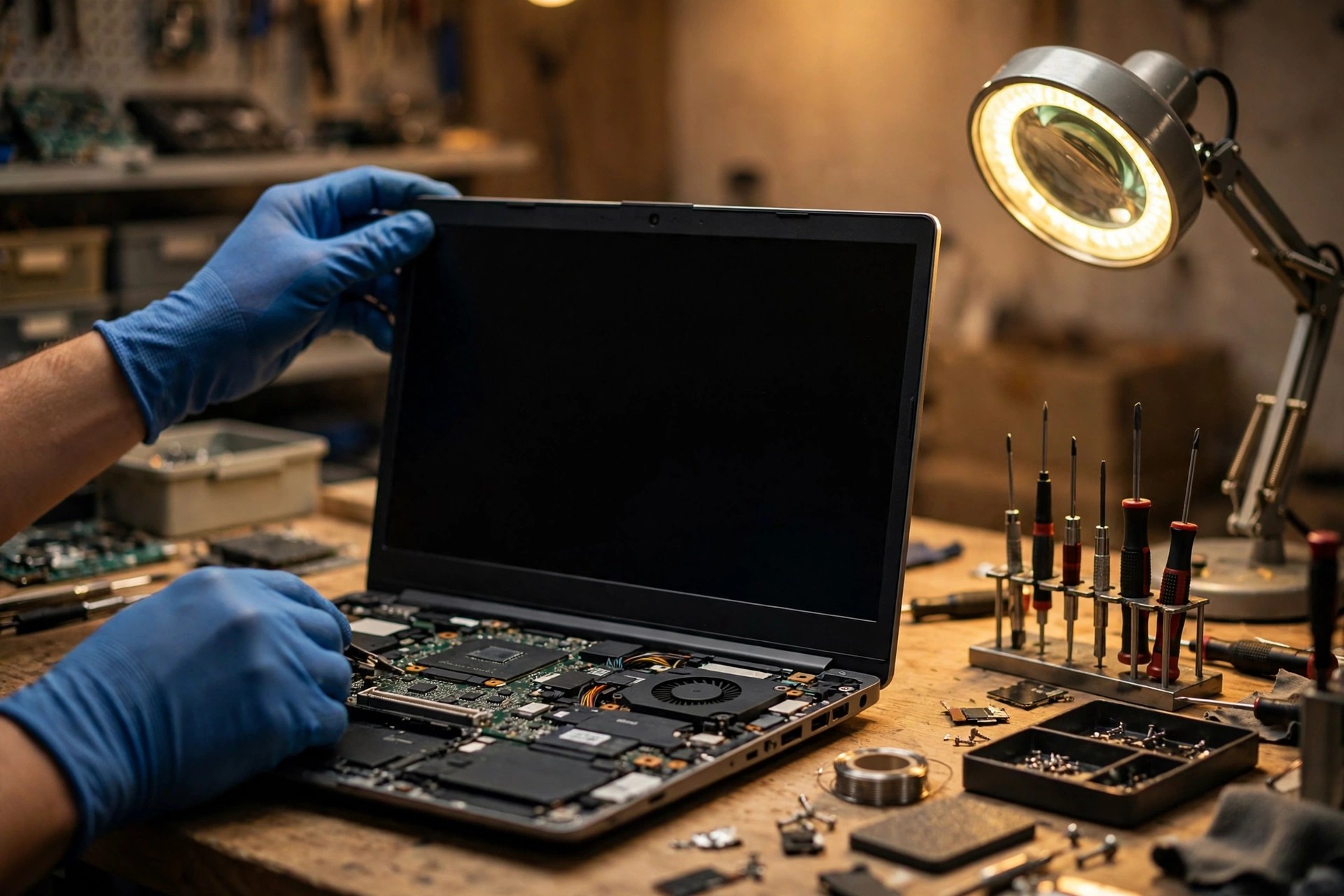
Scope first: this guide covers only "the laptop powers on, but the built-in screen stays black"
This guide covers one state only: after pressing the power button, the machine shows some response — the fan spins, the keyboard lights up, the power light is on, the drive activity light flashes, or a startup or login sound is heard — but the built-in screen stays black throughout, with no manufacturer logo and no BIOS or UEFI screen, or with a picture appearing only at one angle or for one moment.
Two situations are not the main subject of this guide, and are mentioned only to help you tell them apart, because their causes and handling order differ:
- No response at all (no lights, no fan, no sound, and pressing the power button feels dead): this is first a power-layer problem, and should be handled with the power and charging guide. Do not mix "completely dead" with "responsive but black".
- A picture appears, then the screen goes black after reaching the Windows desktop, or flickers black briefly and comes back: this may involve drivers, display modes, graphics switching, or sleep wake-up. This guide touches on those boundaries in the display-output and graphics layers, but they are not the main diagnostic tree here.
The most important reassurance and fact, stated up front rather than only at the end: a black screen does not mean your data is gone. A black built-in screen is usually a display-path problem, and the storage device itself may be undamaged. Even with a motherboard problem, data may still be readable as long as the storage device itself is undamaged. Full data-safety guidance is in the later section "Data safety reminders".
The layered diagnostic tree: the backbone of this guide, in this order
This guide follows this order, without skipping layers and without starting with a screen replacement:
1. Layer 1: Power — is the supply sufficient, stable, and reaching the motherboard?
2. Layer 2: POST — has the motherboard completed its power-on self-test?
3. Layer 3: Display output — is the problem only about "which screen the picture went to"?
4. Layer 4: Backlight — does the screen have a picture but no light?
5. Layer 5: Signal — does the image signal reach the panel?
6. Layer 6: Graphics — which graphics processor is at fault, and is switching stuck?
7. Layer 7: Motherboard power rails — is the motherboard's internal power broken or shorted?
At the end of each layer, this guide states which steps are safe for the user to try and which steps must be sent for inspection. Before inspection, note when the black screen appears, whether an external screen shows a picture, whether a torch reveals a faint image, and whether the machine was recently dropped, squeezed, exposed to water, or fitted with a different charger. Bring the original charger if you have it, so the power supply can be ruled out.
Two-branch comparison: external screen shows a picture vs external screen also shows nothing
The external-screen test is the single most important branching step in this guide. Connect an external screen or television by HDMI, DisplayPort, or USB-C, and watch whether the manufacturer logo appears at startup. The two outcomes lead to completely different next steps and must be handled separately.
| Test result | What it logically rules out | What it fails to rule out | Next layer |
|---|---|---|---|
| External screen shows a picture (Branch A) | The host has broadly completed POST; the system has broadly reached the operating system; the graphics processor has at least one working output path | The built-in panel, built-in cable, built-in backlight, and motherboard built-in output interface | Layer 4 backlight, then Layer 5 signal |
| External screen also shows nothing (Branch B) | Almost nothing | POST, graphics, motherboard power, memory, firmware | Back to Layer 2 POST, then Layer 6 graphics and Layer 7 motherboard |
| External screen shows a picture, but the built-in screen never shows even the BIOS logo | The problem is more likely in a built-in screen path that already exists at early boot, rather than a Windows driver | Cable, backlight, panel, motherboard built-in output (because the BIOS stage has not yet loaded Windows drivers) | Layer 4 or Layer 5; do not reinstall the system first |
| Built-in screen shows the BIOS logo, then goes black in Windows | The early-boot built-in screen path is broadly working | Windows drivers, display mode, graphics switching, sleep or power settings | Layer 3 display output, then Layer 6 graphics drivers |
| Torch reveals a faint image on the screen | The panel broadly has a signal and the graphics output is broadly working | Backlight strip, backlight boost or driver, backlight fuse, backlight power cable | Layer 4 |
| Torch reveals no image at all | Nothing beyond the backlight is ruled out | Signal, panel, graphics, POST, motherboard | Layers 5, 6, and 7 |
1. An external picture does not mean the screen is broken. An external picture only proves the host has output. A black built-in screen can be the cable, backlight, connector, panel, or motherboard built-in interface. Before replacing the screen, backlight and signal must be separated.
2. No external picture does not mean the graphics chip is burnt out. No external picture can also mean POST did not complete, or a memory, firmware, or motherboard power problem. Do not write off the graphics chip the moment the external screen is black.
3. No torch image does not mean the backlight is fine. A positive torch test (a faint image is visible) has pointing value; a negative test (nothing is visible) has no exclusion power. This is repeated in the backlight section: seeing no image does not mean the backlight is healthy.
Branch A: external screen shows a picture — the host has output, so the problem narrows to the built-in screen path
In Branch A, the host and graphics output are basically working, so the problem narrows to the built-in screen path. The order is: first rule out false black screens in the display-output layer (brightness, display mode, lid sensing), then use the torch test to separate the backlight, then use the angle test to separate the cable, and only then consider the panel and the motherboard built-in interface. The mistake to avoid in Branch A is replacing the screen before backlight and signal have been separated; see traps 1 and 6 below.
Branch B: external screen also shows nothing — the problem is at the POST, graphics, or motherboard layer
In Branch B, almost nothing is ruled out. The order is: return to the power and POST layers, check the external cable and external screen themselves, the display mode, and the memory and firmware possibilities, then consider graphics and motherboard power. The mistakes to avoid in Branch B are declaring the motherboard completely dead and abandoning inspection, and repeatedly power-cycling the machine; see trap 2 below. Both screens black means "not yet diagnosed", not a conclusion.
Layer 1: Power — is the supply sufficient, stable, and reaching the motherboard?
Laptop power is not "plugged in means powered". Between the wall socket and the motherboard there are several stages, and the exact power design depends on the model service manual:
- Charger: converts mains power to direct current and supplies the power the machine needs. An under-powered charger or a non-original charger with the wrong specification can produce "the charging light is on but the machine switches off as soon as it starts" or "the screen goes black only under heavy load".
- USB-C charging negotiation (USB-C charging models only): the motherboard controller must negotiate voltage with the charger. If negotiation fails, charging may stay at a low voltage for a long time, showing as extremely slow charging and weak startup. This guide only states the general mechanism — "negotiation failure may cause abnormal charging" — and does not set specific voltage or current thresholds as a general diagnostic standard.
- Charging port: a loose port, dust, or a cracked solder joint causes intermittent power. The signature is "moving the cable switches the machine off or on", which must be distinguished from the cable problem's "moving the screen changes the picture": one is moving the cable, the other is moving the screen.
- Battery: ageing, deep discharge, or a locked protection board can make the motherboard misjudge the power state. A visibly swollen battery, a lifted bottom cover, or a trackpad pushed up means stop at once: do not press it further, do not keep charging it, and send it for inspection.
- Embedded controller: the embedded controller is a low-power chip that must already be working before startup, handling the power button, charging light, early fan control, and battery state. When the controller state is stuck, the ASUS official support document describes holding the power button for about 40 seconds as a controller reset. Note that this is the ASUS document's description; other brands use different controller-reset methods, and this guide does not present that duration as a general method.
- Motherboard main power rail: see Layer 7. The boundary between the power layer and the motherboard layer is that a lit charging light does not mean every internal motherboard power rail is healthy.
Must be sent for inspection: swollen battery, loose or water-damaged charging port, a burnt smell, visible burn marks, measuring voltage with the machine opened, or replacing charging-port solder joints. Charging ports and batteries carry short-circuit risk, and this guide states plainly that they must not be pried open by the user. Battery replacement is priced only as "battery from HK$580"; all other power items are quoted in writing after diagnosis, with prices on the pricing page.
Layer 2: POST — has the motherboard completed its power-on self-test?
POST (Power-On Self-Test) is the round of preliminary hardware checks that the BIOS or UEFI performs before handing over to the operating system: whether the processor, memory, and display output are basically ready. Key points:
- A POST failure does not mean Windows is broken. The POST stage has not yet loaded Windows, so reinstalling Windows, entering safe mode, or restoring the system is ineffective for a POST-layer black screen.
- Memory training: after replacing memory or the battery, or after a controller reset, the motherboard must relearn the memory parameters on its first startup. The ASUS official support document states that, in the three situations that document describes, startup may show no picture for about 1 to 3 minutes depending on memory capacity, and the machine should stay connected to power and not be forced off during that time. That duration applies only to the situation described in the ASUS document and must not be generalised to all brands. Wait long enough, or a training black screen may be mistaken for a fault.
- Memory is one POST sticking point: loose or faulty memory can halt POST, showing as power with no picture, and the diagnostic direction is to test one module at a time. But models with built-in or soldered memory cannot be tested module by module by the reader and must be sent for inspection; this guide does not teach readers to remove soldered memory.
- Firmware or BIOS damage: an interrupted BIOS update or a wrong BIOS setting can also halt POST. When this guide mentions BIOS, it only states "follow the BIOS recovery procedure in that model's official document" and does not give a general BIOS recovery procedure, because methods differ completely between manufacturers.
Safe user checks: listen, look, and feel together — fan sound, keyboard light, power light, startup sound, and body temperature, judged together rather than from one signal alone; remove external devices and the dock, then start again, to rule out an external device dragging down POST; the external-screen test is the most important step at this layer — if the external screen shows the manufacturer logo, POST has broadly passed, and if neither screen shows a logo, the problem is before or within POST itself, not Windows; wait long enough — after a hardware change or a controller reset, wait at least the duration corresponding to the situation described in the document above before judging, and do not declare a fault after 10 seconds with no picture.
Must be sent for inspection: removing and reseating memory with the machine opened (built-in battery models), a failed BIOS recovery, repeated restarts, or abnormal POST lights or beep codes. Beep codes and motherboard diagnostic lights mean different things by manufacturer, so this guide only states "check that model's manual" and does not give a general beep-code table. Prices are quoted in writing after diagnosis.
Layer 3: Display output — the picture went somewhere the reader cannot see
This layer is the easiest to misread as hardware damage, because the machine is actually on; the picture has simply gone somewhere the reader cannot see, or has been switched off by the system:
1. Display mode (Windows): Windows can be set to "external screen only", "built-in screen only", "duplicate", or "extend". If an external screen was used last time, the system may still remember "external screen first", so the built-in screen goes black next time no external screen is connected. This guide can teach Windows + P to switch display mode, with the reminder that blind operation requires waiting a few seconds, using the arrow keys, and pressing Enter, rather than pressing keys at random.
2. Function-key switching: each manufacturer's switching key differs by model, so this guide only states "look for the display icon on the keyboard" and does not fix one key for all machines. The same applies to ThinkPad models: the switching key is given by the keyboard icon and that model's official manual, and this guide does not list a fixed key.
3. Brightness at zero: brightness turned to the lowest setting looks identical to a black screen. This guide puts "turn the brightness up" first in the diagnostic tree, because it costs nothing.
4. Sleep or hibernation wake failure: the system may believe it is still asleep, or the display output may not have been re-initialised after waking, showing as "fan sound and lights, but a black screen". This guide only states "force a shutdown and restart" as a split, and does not state "a sleep black screen is necessarily a driver problem".
5. Lid sensing: most modern laptops use a Hall effect sensor instead of an old mechanical switch, sensing the magnet in the screen lid to judge whether the lid is closed or open. Manufacturer documents state that the sensor is usually at the screen edge or a keyboard-area corner, and its job is to detect lid closure and switch off the display or trackpad; when a magnetic object (phone, smartwatch, magnetic stylus, magnetic accessory) is placed near the sensor, the system misjudges the lid as closed, causing a black screen or sleep. Another manufacturer's document also states that closing the lid switches off the built-in screen and, with an external screen connected, moves the picture to the external screen, while an external magnetic field can cause loss of video, random shutdown, or sleep or hibernation. This mechanism is very important: first check the desk for magnetic objects placed near the sensor — it costs nothing, and it is one cause worth ruling out first. Note that the manufacturer documents describe a "false trigger" mechanism, not that a particular model's sensor is especially problem-prone, and it is not a statistical claim.
6. Driver restart (Windows): a community adviser reply mentions Win + Ctrl + Shift + B to restart the display driver. That source is a community reply, not a manufacturer official document, so this guide only states it as something that "can be tried", and must explain that if even the BIOS logo never appears, this key combination is ineffective, because Windows has not yet loaded.
Simple checks: move all magnetic objects away, then open and close the lid once and see whether the picture returns; turn up the brightness, press the display-switching key, and try Windows + P blind switching; run the external-screen test — an external picture means Branch A, no external picture means Branch B; check the "when I close the lid" power setting (only meaningful when Windows has already loaded; if even the BIOS is absent, this step is meaningless). ThinkPad users should note the dock variable in particular: test with the dock detached first, because a dock, adapter, or external device can interfere with startup, display detection, and power.
Must be sent for inspection: a damaged lid sensor itself, or a faulty lid-sensing circuit, which require opened-machine inspection. This guide does not teach readers to "test" the sensor with a magnet, because an external magnet test can mislead and make the diagnosis more confused. Prices are quoted in writing after diagnosis.
Layer 4: Backlight — a picture with no light
An LCD panel does not emit light by itself; it is a light valve. The liquid-crystal layer controls how much light each pixel lets through, and the real light source is the backlight module behind it. When the backlight goes out, the panel can still produce an image, but the human eye cannot see it in normal light, so the result looks "completely black" when it is really "a picture with no light".
The backlight system differs between old and new models; keep them separate rather than mixing them:
- Older CCFL: a high-voltage inverter steps low-voltage direct current up to drive the lamp. Third-party repair explanations note that older CCFL screens use a separate high-voltage inverter while newer LED screens use an LED driver circuit, so "inverter failure" is only one possible cause, not a general statement. CCFL high voltage carries an electric-shock risk, and the inverter high-voltage side must not be measured or touched by the user.
- Mainstream LED backlight: an LED strip, powered by an LED driver circuit on the motherboard or panel that steps voltage up, with a pulse-width modulation signal controlling brightness and an enable signal controlling on and off. The chip manufacturer's official eDP document states that eDP supports backlight pulse-width modulation control, enable signals, and power enable. In other words, a dark backlight can be the strip itself, the boost circuit, the driver chip, the pulse-width modulation or enable signal, or the power fuse — not only "the lamp is broken".
- Backlight fuse: repair discussions note that the motherboard has a backlight power fuse, which, when blown, leaves the backlight completely black, and fuse failure is often associated with water exposure, short circuits, or cable damage. This guide can mention the "fuse" concept, but does not teach readers to measure or replace a motherboard fuse by themselves (that requires opening the machine and soldering, and belongs to chip-level repair).
- Backlight power travels through the cable: repair discussions note that backlight power is delivered through the eDP or display cable, so a cable fault can also cause no backlight, although that is relatively uncommon. In other words, the backlight layer and the signal layer are not fully independent: the cable carries signal, power, and backlight control at the same time, and this guide states that crossover in the signal section.
- OLED exception: OLED panels use self-emitting pixels and, by mechanism, have no conventional backlight module. When this guide mentions OLED models, the panel type for that model must be checked first; the torch test must not be applied to OLED models as if it were an LCD backlight test.
The torch test: method, interpretation, and misreading
Method:
1. In a fairly dark room, start the machine and give the system time to reach the desktop or login screen.
2. Shine a torch at an angle across the screen (not pressed vertically against it), and look from different angles.
3. Look for a faint desktop icon, login box, or manufacturer logo outline.
| Torch result | Mechanism meaning | Next step |
|---|---|---|
| A faint image is visible (positive) | The panel and display output broadly have a signal, so the problem narrows to the backlight path | Send for inspection of the backlight strip, driver, fuse, and cable power; price is quoted in writing after diagnosis. Backlight repair is not one of the approved starting-price categories in this guide, so no price is set for it here |
| No image at all is visible (negative) | Nothing is ruled out: the signal may not have arrived, or the panel, graphics, POST, or motherboard may be at fault | Move to Layer 5 signal, then Layers 6 or 7. Do not write "the backlight is fine" |
| An image is visible but only half lit or half black | A partial backlight-strip fault or a partial panel problem are both possible, and only inspection can separate them | Send for inspection; do not judge by yourself whether it is the strip or the panel |
Must be sent for inspection: any screen opening, backlight-module removal, boost-voltage measurement, strip replacement, driver-chip replacement, or fuse replacement. CCFL high voltage and LED boost circuits carry electric-shock and short-circuit risks. Backlight prices are quoted in writing after diagnosis and the screen starting price must not be presented as a backlight price.
Layer 5: Signal — eDP or LVDS cable and hinge stress
How the image signal travels from the motherboard to the panel
- LVDS (older): a low-voltage differential signal, common in older models. Its bandwidth and wiring differ from newer types, so this guide uses this term for older machines and does not apply it loosely to new machines.
- eDP (mainstream): embedded DisplayPort, designed for laptops and all-in-one machines. The chip manufacturer's official document states that eDP, like DisplayPort, consists of a main link, an auxiliary channel, and an optional hot-plug detect, and supports backlight pulse-width modulation control, enable signals, and power enable, with a maximum HBR3 link rate. A third-party comparison notes that the eDP auxiliary channel handles link training, EDID exchange, and panel backlight control. The mechanism meaning is: a broken main link means no image; a broken auxiliary channel means the motherboard cannot recognise the panel (the EDID cannot be read), which may show as abnormal resolution or no picture; a broken backlight-control signal means a signal with no light (the Layer 4 crossover); a broken hot-plug detect means the motherboard believes there is no panel and outputs no signal. In other words, one cable carries several different kinds of signals at the same time, and which kind breaks, and how much of it breaks, produces different symptoms. This guide does not reduce cable problems to "the cable is broken" in one sentence.
- The cable runs through the hinge: a laptop display cable must run from the host through the hinge to the screen, and it bends every time the screen is opened or closed. Repair knowledge bases note that the display cable in many models passes through the hinge area, and physical wear can eventually cause intermittent display problems; community discussions also note that a screen failing only at one opening angle, with the external screen still working, points toward a display-cable or hinge-related fault. Community discussions are only clues, however, so this guide only states that "hinge stress is one direction to check" and does not state that a particular model's cable is especially prone to breaking or is caused by its design.
- Loose connector vs broken cable vs faulty panel: the three can look extremely similar. Repair discussions note that a loose cable can occur at the motherboard end or the panel end, and panel failure must also be ruled out. Final separation relies on "swap testing" (cross-testing with a known-good cable or panel), because symptoms alone cannot separate them.
Typical signs and simple checks
Typical signs: the picture flickers, shows horizontal or vertical lines, comes and goes, or appears only at one angle when the screen angle is moved; the screen previously showed lines, flicker, or a garbled picture before going completely black; the black screen followed a drop, impact, loose or cracked hinge, or an unusual sound when opening or closing; or the external screen is completely normal while the built-in screen is black at every angle (in which case the cable, connector, panel, and motherboard interface are all still possible — do not write only "cable").
Safe user checks: a slow open-and-close test — with the external screen working, open and close the screen extremely slowly and watch whether the picture changes with the angle. This test only provides a clue and cannot confirm a diagnosis; if the hinge is already cracked or loose, do not force it, or cable damage may worsen. Dell models have an official checkpoint: the Dell official service manual states that the LCD built-in self-test can judge whether a screen fault is a panel problem or a graphics-card or settings problem, and it is started by shutting down, connecting only the original charger, and holding the D key while pressing power until coloured bars appear. If the self-test shows coloured pictures, the panel itself is broadly healthy and suspicion moves to the cable, motherboard, or settings; if the self-test also shows nothing, the panel or its power or signal path is more suspect. The self-test applies to Dell models only, not to all brands. Combined external-plus-torch judgement: external normal plus torch positive points to the backlight path first; external normal plus torch negative plus angle sensitivity points to the signal or cable first; external normal plus torch negative plus no angle sensitivity means the cable, panel, and motherboard interface all need inspection.
Must be sent for inspection: opening the screen, reseating or replacing the cable, or replacing the panel. The screen replacement starting price can be written as "screen from HK$1,280", but with the added sentence that the final item and price for the cable, backlight, and panel are quoted in writing after diagnosis, and the starting price must not be presented as a cable or backlight price.
Layer 6: Graphics — integrated graphics, discrete graphics, switching, and solder joints
Two kinds of graphics, two wiring approaches
- Integrated graphics: built into the processor, low power, handling everyday display. Many thin and light machines have integrated graphics only, so the graphics layer's suspicion is relatively simple for a black screen.
- Discrete graphics: a separate graphics chip, higher power, handling games or rendering. Dual-graphics machines must handle "which graphics processor drives the screen".
- No-multiplexer mode: the manufacturer document states that, on Optimus laptops without a multiplexer, the built-in screen is driven by integrated graphics, while discrete graphics only does off-screen rendering, and the rendered picture must pass through integrated graphics before reaching the built-in screen; if the system wrongly uses the discrete driver to drive the built-in screen, there will be no picture. The mechanism meaning is that a black built-in screen on a no-multiplexer machine is not necessarily a burnt-out discrete chip; it can be the integrated output path, the driver choice, or one link in the picture-passing chain.
- Multiplexer mode: a multiplexer is a physical switching chip that can connect the built-in screen directly to discrete graphics, bypassing integrated graphics. The manufacturer article states that a multiplexer lets discrete graphics bypass the processor and push the picture directly to the display, reducing latency; Ultimate mode uses the multiplexer for a direct discrete connection and needs a restart to take effect; Standard mode uses standard power management, with Windows deciding when to use discrete or integrated graphics; Eco mode disables discrete graphics completely. The mechanism meaning is that multiplexer mode switching is itself a black-screen risk point — during switching, the display output must be re-initialised, and if the driver, firmware, or settings do not match, the machine can get stuck on a black screen.
- Brief black screen vs permanent black screen: a third-party gaming-laptop guide, quoting the manufacturer, states that models supporting dynamic switching may show a brief black screen or flicker while switching between integrated and discrete graphics. But this guide has not directly verified the manufacturer's original text for a time figure, so it only states that "a brief black moment during switching, followed by recovery, may be a normal switching process", without a time figure and without a direct manufacturer quotation.
- Graphics solder-joint problems: the mechanism explanation is that the graphics chip is soldered to the motherboard with ball-grid-array joints, and long-term thermal expansion and contraction, body flex, and drops or impacts can crack joints or cause poor contact, showing as intermittent garbled pictures, intermittent black screens, or black screens only under heavy load. But three things matter: this is a "mechanism possibility", not a symptom diagnosis — garbled pictures or black screens can be caused by drivers, memory, panels, cables, power, and many other causes, and symptoms alone cannot tell whether it is a joint problem; confirmation requires motherboard-level inspection, and "black only when gaming" must not be written as a joint problem; and heating, hot-air, or re-soldering is not recommended as a user method, nor is any repair guarantee given. Motherboard chip-level repair is priced only as "motherboard chip-level from HK$880", with the final price quoted in writing after diagnosis.
Safe user checks: the external-screen split — an external picture means the graphics processor has at least one working output, so the built-in screen path is more suspect; no external picture means graphics, POST, or motherboard suspicion is greater. The BIOS-picture test: if even the BIOS logo is absent, the problem is before Windows drivers, so do not reinstall drivers first; if the BIOS shows a picture and Windows then goes black, driver or display-mode suspicion is greater. Safe-mode testing: manufacturer guidance states that safe mode loads only necessary drivers and can help tell whether the problem is a driver or software problem, but safe-mode entry differs by Windows version, and this guide follows the current Windows version rather than fixing an old method. Restoring the graphics mode: if the black screen appeared after changing graphics mode, restore the previous mode first and observe; the manufacturer article states that Ultimate mode needs a restart to take effect, so this guide reminds readers that "after changing mode, restart; do not assume it takes effect immediately". Driver rollback: manufacturer guidance mentions that, if blackness started after an update, rolling back the display driver can be considered. This guide only states this "with safe mode or a working external screen available" and does not teach blind operation while the screen is black.
Must be sent for inspection: a faulty graphics chip itself, a multiplexer-chip fault, a graphics power fault, or a solder-joint problem. All of these belong to the motherboard chip-level range, priced as "motherboard chip-level from HK$880", with the final price quoted in writing after diagnosis. Do not repeatedly switch BIOS display settings, do not remove the graphics chip by yourself, and do not heat the motherboard with a hot-air tool.
Layer 7: Motherboard power rails — one main rail split into many low-voltage rails
Motherboard power is not "one wire into the processor"; by mechanism it is layered step-down power. The main power rail is the motherboard's principal power rail and the high-voltage-side input to the downstream step-down regulators; if the main rail breaks or shorts, every downstream low-voltage rail is affected, and the result can be a machine that does not start at all, starts once then stops, or shows black on both screens. Downstream step-down rails split from the main rail through several step-down circuits into standby rails, processor core voltage, graphics voltage, memory voltage, and controller voltage, and so on. Each rail has its own power chip, inductor, capacitor, and switching device. A short, break, or abnormal voltage on any rail can halt POST.
Fuse isolation of front and back ends: repair cases note that one way to judge whether a short is at the front end or the back end is to open the main-rail fuse and see which side still shorts. That is a repairer's operation, and it only explains "why inspection must split front and back ends" — it does not teach readers to open a fuse by themselves. Short-circuit cases for individual models note that, when a main rail shorts, the suspect in an individual model case is a damaged capacitor, with low-voltage injection plus thermal imaging used to find the hot spot; another technical discussion also notes checking the low-impedance path between the main rail and the processor core-voltage inductor, because a damaged high-side switching device leaking current can send high voltage to a low-voltage rail and endanger the processor. These are "individual-model repair cases", not a universal short-circuit cause for all laptops, and no particular capacitor type is the most failure-prone.
Need a laptop repair expert?
Free diagnosis · Transparent pricing · No fix, no fee · 180-day warranty
The role of water or corrosion: repair discussions note that backlight fuses and cable-connector damage are often associated with water exposure and corrosion. The motherboard layer follows the same logic: residue after water exposure can cause a slow short, showing as "still working when it got wet, then black a few days later". This guide can mention that time lag, but does not state "water exposure will necessarily cause a short". The standby-rail versus powered-on-rail distinction is also useful: if the standby rail is abnormal, the embedded controller cannot even receive the startup command, showing as no response at all; if standby is normal but a powered-on-only rail is abnormal, the result is "responsive but unable to pass POST". That distinction helps this guide explain why "a lit charging light" does not mean "the motherboard is healthy".
Typical signs: the charging light is on, but pressing power produces no fan and no light change, or the fan spins once then stops; the charger becomes abnormally hot as soon as it is plugged in, a burnt smell is present, or the motherboard shows burn or discolouration (stop at once if these are seen, and do not power on again); intermittent blackness after water exposure or a drop, later becoming completely black; no picture on the external screen, built-in screen, or BIOS, and every simple POST-layer test is ineffective.
How to tell: at the user level, this is where it stops. What the user can do is only the Layer 1 to Layer 3 tests (changing the charger, removing external devices, the external-screen test, and observing lights and sounds). Once the motherboard power-rail layer is reached, the correct approach is: stop repeated power-on attempts (repeated power-on may widen short-circuit damage); record the charging light, fan, smell, and water-exposure or drop history, and hand it to the inspector; do not open the machine to measure voltage by yourself, do not inject voltage by yourself to find a hot spot, and do not replace motherboard components by yourself. The injection-plus-thermal-imaging method mentioned in repair cases is a professional repair operation, not a user step.
This whole layer must be sent for inspection, leaving no grey area. Pricing: motherboard chip-level from HK$880; if the final repair requires replacing the whole motherboard, the price is quoted in writing after diagnosis, and the chip-level starting price must not be used to imply a board-replacement price.
Model differences: checkpoints worth noting
General principle for this section: every point below has source support. Model comparisons without a source are not made. "Checkpoint" here means "a checkpoint mentioned in that model's official document or repair knowledge base", not "that model is especially failure-prone". No model-level statistical claims or rankings are made.
- MacBook: Retina models use eDP signals for the display cable, not LVDS, so MacBook cables use eDP, not LVDS. MacBook reset and safe-mode or recovery-mode entry differ by chip generation, so follow the manufacturer's official guidance. Where an individual manufacturer's repair programme is involved, eligibility is determined by the manufacturer's official serial-number check, and no programme outcome is stated as a certainty. The external-screen test for Mac follows the same Branch B logic as Windows machines, and the same logic applies, but only as "suspicion", not a diagnosis.
- ThinkPad: no fixed display-switching key is listed; look at the keyboard icon and follow that model's official manual. ThinkPad users should test with the dock detached first, because a dock, adapter, or external device can interfere with startup, display detection, and power. For models relying on USB-C power, check both whether the charging light is on and whether the battery is charging normally. Follow that model's official manual as a general guide.
- Dell: the LCD built-in self-test is Dell's official checkpoint, as described in Layer 5, and for Dell models, lead with the self-test rather than only the external-screen test. In community discussions, a user described a screen failing at one opening angle and then failing completely, while the external screen still worked, with community replies pointing to a display-cable or hinge-related fault. That source is a community discussion, so only "community discussions mention similar symptoms pointing to the cable or hinge" is claimed, and no particular model's cable problem is presented as caused by its design. Dell's official document also covers the lid-sensor mechanism, so "move magnetic objects away" is a checkpoint that manufacturer documents also mention, but it is not a Dell-only problem.
- ASUS ROG: multiplexer mode is the ROG official checkpoint, as described in Layer 6, so for ROG black screens, first ask "was the graphics mode changed recently?" and then restore the mode, rather than starting with graphics-chip damage. Controller reset and memory training are ASUS official checkpoints, as described in Layers 1 and 2, so for ASUS models, "wait long enough" comes first.
- Other brands, general reminders: HP official guidance mentions safe mode, driver rollback, system restore, and USB startup as advanced steps, but those steps apply only to the situation "already able to reach the Windows recovery environment", and they are not a general solution for a black screen at startup. The MSI official lid-sensor document is one of the best manufacturer sources for the general mechanism, so "magnetic objects causing a black screen" should be explained by the mechanism, rather than presented as one brand's unique problem. Common to all brands: the external-screen test, torch test, slow open-and-close test, and external-device removal test are all cross-brand general logic, so one diagnostic tree applies, with model differences only adding checkpoints (for example Dell self-test, ROG multiplexer, Mac chip-generation reset entry, ThinkPad detached-dock test), and not a completely different diagnostic tree for every brand.
Hong Kong context: humidity, commuting, local parts, and local repair realities
Humid weather: the real worry is not "wet" but "condensation plus long-term oxidation"
Hong Kong has a subtropical humid climate. Public climate material quoting Hong Kong Observatory data states that Hong Kong's average summer relative humidity is about 80% to 85%, and the annual average relative humidity is about 78%. That background alone does not mean every machine will be damaged by moisture, but three mechanisms are worth writing into this guide, because they explain why Hong Kong black screens sometimes start intermittently and later become a long black screen:
1. Contact oxidation is a gradual process, not a same-day event. An older service manual notes that finger grease or long-term high temperature and humidity can corrode contacts, and that corrosion is gradual, eventually causing intermittent circuit failure; humid environments promote corrosion in particular. Applied to black screens: if cable contacts and motherboard display-power contacts stay in a high-humidity environment for a long time, the early stage may be only occasional black screens, or a picture that returns when the machine is moved, and only later becomes a stable full black screen. "One humid night burns the board" would be an exaggeration.
2. Condensation is more dangerous than average humidity: hot-cold alternation. Electronics engineering discussions generally note that the real short-circuit or corrosion risk is condensation — when a device surface is colder than the dew point, water vapour condenses into water inside and outside the device. Public forum discussions carry the same reminder: high humidity alone may not cause an immediate problem, but a cold device entering a humid environment and condensing water vapour leaves corrosion on contacts. Common Hong Kong hot-cold alternation scenarios include: from a strongly air-conditioned room to outdoors, on transport, or back into a non-air-conditioned room; and in winter or rainy weather, bringing a cold body from outdoors into a warm room. The inside of the machine may not visibly show water at once, but repeated condensation and drying on cable contacts and small motherboard solder joints accumulates oxidation risk over time. This paragraph is a mechanism inference, not verified by local measurement, so it is only "may increase risk", not "Hong Kong machines will necessarily" do anything.
3. Dust plus moisture amplify each other. Public tropical electronics moisture-protection guidance notes that dust absorbs moisture and forms a conductive dirt layer, and dust in vents also worsens cooling. Carpet dust, air-conditioner outlet dust, and debris inside backpacks are common in Hong Kong offices and homes, and long-term accumulation worsens the local environment around the motherboard and cables. The everyday practices this guide can suggest are limited to low-risk actions: keep vents clear, avoid switching on a machine that is not yet dry, and store a long-unused machine in a ventilated, dry place. Readers must not be taught to open the machine to "blow it dry" or heat it with a hair dryer — those are high-risk practices.
Writing red line: Hong Kong humidity must not be written as the "main cause" or "statistical cause" of a particular model's black screen; it can only be written as "humidity is one environmental factor to rule out, and confirmation still relies on the external-screen test, the torch test, and opened-machine inspection".
Commuting: backpack squeezing and frequent opening and closing concentrate wear at the hinge
Hong Kong users commute daily, go to work or school, and move between offices for meetings, so laptops are opened and closed more often than desktop machines. The hinge-cable wear mechanism is supported by public repair material: the display cable runs from the motherboard, along one side of the body, through the hinge, and to the back of the panel; every opening and closing bends the cable once. Public repair guidance states that, after enough opening and closing cycles, or after one poor squeeze, the copper wires inside the cable begin to break at the hinge, where stress is greatest; early symptoms are a picture only at a specific angle, flicker or blackness when the screen is moved, and later a full black screen. Public explanations for individual MacBook models describe the same mechanism: a thin flexible cable inside the hinge is pulled with every opening and closing, and over time the copper wires break, causing backlight failure and picture interruption, with problems only at certain opening angles in the early stage. Do not apply one model's specific term to all brands' hinge problems; use "a similar hinge-cable wear mechanism" and go by model.
Hong Kong commuting factors that amplify the mechanism (the following are context inferences, not verified by local statistics, and this guide marks them as "usage-habit reminders" rather than diagnostic conclusions):
- Backpack squeezing: a laptop squeezed into the same compartment as a charger, water bottle, and books has its screen bent under pressure, with long-term stress on the hinge and panel edges; carrying a backpack with one hand and impacts from a shaking carriage can also shift an already loose cable connector further.
- One-handed opening, opened to the limit: pushing the screen open from one corner with one hand loads the two hinges unevenly; long-term opening beyond the everyday angle, or pressing the screen down as if it were a stand, accelerates cable fatigue.
- MTR and office environments: standing use in a carriage, lap use, and alternating between desk and lap constantly change the machine's cooling and pressure conditions; in offices, long-term external-screen connection and frequent switching between "external screen only" and "built-in screen only" can make a display-setting or cable problem look like a system-setting problem.
- Indirect water risk: rain seeping into a backpack, a water cup knocked over on a desk, or water vapour entering through vents — this guide only states "if water exposure is suspected, disconnect power and stop using the machine immediately, and send it for inspection", and does not teach readers to open the machine and wipe the board.
Local parts reality: a panel is not interchangeable by size alone
All statements in this section are general repair-common-sense descriptions. A specific model's supply, specification, and waiting time are quoted in writing after diagnosis, with no waiting-time figures written here.
- A panel is not "interchangeable by one size". Two 13-inch, 14-inch, or 15-inch panels can still differ in resolution, connector pin count, cable position, backlight power method, and bezel thickness. The correct method is to match parts by model and by the part number on the label behind the panel, not by size alone.
- General difference directions between original-grade panels and third-party screens (qualitative descriptions, not guarantees): public repair discussions generally note that panel grade differences can show in brightness, colour performance, viewing angle, dead-pixel condition, and durability; a third-party screen is not necessarily unusable, but users should ask at quotation time "which grade of panel is being fitted, and whether the resolution and interface match the original machine", and have it stated in the written quotation. This guide makes no claim about any specific brand's or supplier's panel quality and gives no comparison figures.
- General description of parts-order waiting time: panels and cables for common models are easier to have in stock or obtain quickly; for uncommon models, older models, special resolutions, or touch panels, ordering generally takes longer, depending on supplier stock and model. No specific number of days is promised; after inspection, you will be told whether parts need to be ordered and what the general waiting situation is.
- Cables and panels must be quoted separately: a loose or broken cable and a damaged panel are two different repairs — the former may involve only connector handling or cable replacement, while the latter involves screen replacement. Quoting a "screen replacement" price before inspection can easily make the user pay for an unnecessary screen replacement; this guide stresses "inspect first, then quote by item".
Hong Kong repair-process reality: inspect first, then quote; courier collection and delivery
Inspecting first and quoting afterwards is a reasonable process: black-screen causes span the cable, backlight power, panel, memory, graphics chip, and motherboard power layers, so a firm price before opened-machine inspection is not accurate. This guide should help users understand that preliminary external-screen and torch tests can only "narrow the range", and final characterisation still needs opened-machine inspection; a written quotation should list the repair items, parts grade, and cost breakdown, and work should start only after the user confirms it.
Preparation before sending for repair: note when the black screen appears (black at startup, black after entering the system, black when the angle is moved), whether the external screen shows a picture, whether the torch shows a faint light, and whether there was a recent drop, water exposure, or charger change; bring the original charger if you have it, so the technician can rule out power problems; if the machine holds important data, say so before sending it, as described in the data-safety section below.
General description of courier collection and delivery: for users who cannot visit the shop in person, courier collection and delivery is a common handover method. Before posting, users should pack the machine properly (original bag or bubble wrap, avoiding pressure on the screen), note the serial number and external condition, and keep the tracking number after posting; on receipt, check the external appearance first, then switch on and check the picture. No courier fee, time promise, or free-delivery claim is made, and everything is quoted in writing after diagnosis or subject to the actual arrangement.
Common misdiagnoses and traps: 8 misjudgements to avoid
General tools (stated before this section, and used by every trap below): the external-screen test, the torch test, the angle test, and startup signs (keyboard light, whether the Caps Lock light can be toggled, fan sound, drive light, startup sound). These tests only narrow the range and cannot replace opened-machine inspection; opening the machine by yourself risks breaking clips and cables.
Trap 1: assuming the screen is broken, when it is really a loose or broken cable
Why it is misdiagnosed: a black built-in screen is the most direct "screen broken" association; users buy a screen online or accept a screen-replacement quotation without doing the angle test or the external-screen test. Some loose-cable early symptoms are also intermittent, making users think "intermittent means the screen is about to die" and overlook the cable in the middle. Public repair guidance also notes that, when a screen flickers or fails only at a specific angle, a cable-related direction deserves priority checking rather than the panel itself.
How to tell correctly: first run the external-screen test (an external picture points to a built-in screen path problem); then run the angle test (a picture that comes and goes when the screen is moved, or appears only at one angle, points more toward a cable or hinge suspicion); then note whether there was a drop, squeeze, loose hinge, or unusual sound before the black screen. Final confirmation requires opening the machine to check whether the cable connectors at both ends are loose, oxidised, crushed, or broken, and whether the hinge has pinched the cable. Never conclude "replace the screen" from "completely black" alone.
What happens if it drags on: replacing the screen without repairing the cable leaves the screen black after replacement, wasting the screen-replacement cost and time; worse, a breaking cable that keeps being opened and closed can wear from "loose" to "broken" and may even scratch the panel interface or motherboard interface, turning a small cable repair into a large repair that also needs interface repair.
Trap 2: concluding from no external picture that the motherboard is completely dead
Why it is misdiagnosed: "both screens black means the whole machine is dead" sounds logical, but no external picture has many prior causes: the external cable or interface itself is faulty, the display output mode has not been switched (for example it is still set to "built-in screen only"), the external screen's input source is wrong, poor memory contact means the machine never completed POST, or BIOS or UEFI settings or insufficient power mean the display output was never initialised. Public guidance also reminds readers that, with no external picture, systemic problems may involve the graphics processor, memory, or motherboard, but must be ruled out one by one rather than jumping to "motherboard dead" in one step.
How to tell correctly: try a known-good cable and a different external screen; try the display-switching key (combinations differ by brand, and the manual is authoritative) and wait long enough; watch whether the Caps Lock light can be toggled and whether the fan and drive lights are normal, to judge whether the machine has started; if possible, check whether memory is loose or faulty. If both screens are black and the machine seems not to have completed startup, send it for layered inspection of motherboard power, memory, and the graphics chip, rather than scrapping it.
What happens if it drags on: misjudging the motherboard as dead and abandoning repair may cause a machine that only needed memory replacement, a BIOS reset, or a power repair to be treated as scrap, and data may be disposed of before it is backed up; conversely, if it really is a motherboard problem and the machine is repeatedly power-tested, the power problem may worsen. The correct approach is to stop at "both screens black means not yet diagnosed" and hand it to inspection for characterisation.
Trap 3: assuming the battery is broken, while the supply is simply not strong enough to drive the display
Why it is misdiagnosed: the first reaction to a black screen is often "no power or a dead battery", because battery ageing is indeed common; and some machines with an aged battery still light the keyboard and spin the fan, making users think "there is power but the screen is broken". Public guidance notes that insufficient power can leave the keyboard and fan responsive, while the graphics processor and backlight do not receive enough power at the peak startup draw, so the result is still a black screen.
How to tell correctly: if the model allows battery removal, try "charger only, no battery" startup; compare the voltage and power markings on the original charger and the current charger for consistency; watch the charging light, signs of battery swelling (for example a trackpad or palm rest pushed up), and patterns such as "starts only on charger power, goes black or off as soon as charger power is removed". Battery, charger, charging interface, and motherboard charging circuit must be ruled out separately; do not settle for a battery replacement merely because the battery is "old".
What happens if it drags on: replacing the battery when the problem is the charger or charging circuit leaves the black screen unchanged, wasting the battery cost; if a swollen battery keeps being used, there is also a safety risk, and it should be stopped and sent for inspection. On pricing, the battery item may only be written as "battery from HK$580"; all other power items are quoted in writing after diagnosis.
Trap 4: opening the machine carelessly and breaking cable clips, turning a small problem into a large one
Why it goes wrong: online teardown videos look easy, making users think "just push the cable back in and it is fixed"; but in reality, cable clips (flip-cover, push-pull, and press types) differ by brand and model, and one wrong force, direction, or sequence causes damage. Public repair discussions also remind readers that, before opening a machine, power must be disconnected and the battery removed, or hot-plugging a display cable can spark and burn the interface. In addition, modern thin and light machines have extremely thin cables, and hinge-area cables have already suffered long-term bending fatigue, so a slight pull can break them.
Correct approach: at user level, only run tests that do not open the machine (external screen, torch, angle, power comparison); steps that need opening (reseating a cable, checking contacts, replacing a cable) should be left to inspection, and when sending for repair, state "whether anyone has opened it before, and whether the clips were touched", so the technician can judge whether the damage is original or secondary. Disconnecting power before opening is a basic safety requirement, but "knowing how to disconnect power" is not the same as "knowing how to open the machine".
What happens if it drags on: broken clips, bent or broken cable pins, scratched panel interfaces, or burnt motherboard interfaces — what may have been only a loose connection becomes a cable replacement, interface replacement, or even motherboard repair; some damage is not obvious from the outside, so inspection time and cost both increase. Secondary damage may also affect the later quotation and parts matching, and this guide should state that plainly so users think twice before sending the machine for repair after opening it.
Trap 5: using the wrong charger voltage or power, assuming "if it plugs in, it works"
Why it is misdiagnosed: the charger plug fits, the light is on, and the fan spins, making users think the supply is normal; but voltage must match the marking on the machine, and insufficient power causes unstable supply at peak startup draw. Public guidance states that mismatched voltage can cause motherboard faults, battery damage, or immediate damage to internal parts, while insufficient power can cause instability, inability to charge, throttling, or crashes. Discussions also note that a higher-voltage charger can damage the motherboard power-input section, leaving the machine unable to start even on battery afterwards.
How to tell correctly: compare the voltage and power or current markings on the bottom of the machine and on the original charger — voltage must match, and power should meet or exceed the original requirement (for USB-C models, also follow the protocol and power tier in the original specification); before borrowing another machine's charger, check the markings first, and do not judge by plug shape alone; if the charger is suspected, test startup and the external-screen test again with the original or a known-good charger of the same specification.
What happens if it drags on: long-term use of the wrong voltage can burn the power-input circuit and charging chip, and may even affect other motherboard power sections, turning what was only a "wrong charger" problem into motherboard chip-level repair; long-term insufficient power can leave the battery in an abnormal charge-discharge state and accelerate ageing. The motherboard chip-level item may only be written as "motherboard chip-level from HK$880", with the actual cost quoted in writing after diagnosis.
Trap 6: seeing a faint backlight glow and assuming the whole screen is dead
Why it is misdiagnosed: "a faint glow means the screen has power but is dead" is a common intuition, but in reality a faint glow often means the panel is still producing an image signal and only the backlight system is off. Public guidance states that, in a dark place, shining a torch at an angle at the screen and seeing a faint image means the panel and display output are broadly normal, and the backlight system should be checked; older CCFL screens use a separate high-voltage inverter, while newer LED screens use an LED driver circuit, and the two have similar failure appearances but different repair locations.
How to tell correctly: run the torch test — in a dark place, shine at an angle, and if a desktop, login box, or mouse pointer is visible, the suspicion points more toward the backlight or backlight power; if the torch shows no image at all, then suspect the panel, cable, graphics chip, or startup problem. Further separation relies on inspection: the backlight fuse, LED driver, cable backlight pins, and panel backlight section must be measured layer by layer; the high-voltage section of an older CCFL model carries an electric-shock risk and must not be probed by the user.
What happens if it drags on: replacing the whole screen directly wastes the screen-replacement cost, while the truly faulty backlight power is unrepaired, so the replacement screen may still have no backlight; if a faulty backlight circuit is left running on an external screen for a long time, the built-in backlight circuit problem may continue to worsen and may even affect motherboard power. The screen item may only be written as "screen from HK$1,280"; backlight power items are quoted in writing after diagnosis.
Trap 7: reinstalling the system, assuming it can fix a hardware black screen
Why it is misdiagnosed: a black screen after a Windows or driver update naturally suggests a system problem, and the online claim that "reinstalling fixes everything" circulates widely, leading users to reinstall before any hardware separation. In reality, if the black screen shows no brand logo and no BIOS screen, the system has not even loaded, so reinstalling the system has nowhere to start; even when the screen goes black only after entering the system, driver problems and hardware problems must first be separated.
How to tell correctly: first look at whether there is a picture in early startup — black at startup (no logo, no BIOS) points to hardware, power, or the display path first, not reinstallation; an external picture with a black built-in screen points to the built-in screen path first, and system reinstallation cannot help a cable or backlight; only when an external picture is available, safe mode or the system can be entered, and the symptoms match the driver or update timing, should driver rollback or system repair be considered. Before reinstalling, data must be backed up, because reinstallation may erase data.
What happens if it drags on: an ineffective reinstallation wastes time and may erase data that could otherwise have been recovered, wipe original drivers and settings, and make later inspection harder to compare; if the real cause is a cable or backlight, the black screen remains after reinstallation, and users may wrongly conclude that "even reinstallation failed, so the motherboard is dead", a further misjudgement. This guide should state plainly that reinstallation is a system-layer tool, not a hardware diagnostic tool.
Trap 8: ignoring memory, POST, and display settings, and staring only at the screen
Why it is misdiagnosed: the screen is the only part that can be "seen", so users naturally stare only at the screen; but loose or faulty memory can prevent the machine from completing POST, resulting in a spinning fan, lit lights, and a completely black screen that looks exactly like a broken screen on the surface. Public guidance notes that poor memory contact is more common after impacts or transport, and reseating or single-module testing is a common troubleshooting step. In addition, display-output settings (for example "external screen only", a wrong external-screen input source, brightness turned to minimum, or a lid sensor misjudging the lid as closed) can also manufacture a "false black screen".
How to tell correctly: first rule out the simplest settings layer — turn up brightness, try the display-switching key, select the correct external-screen input source, and check whether a magnet or debris near the lid sensor is interfering (sensing methods differ by model, and the manual is authoritative); then watch startup signs (whether Caps Lock can be toggled, whether there is a startup sound, whether there is a BIOS picture); memory-layer checks (reseating, single-module, changing slots, testing with known-good memory) are opened-machine operations and should be left to inspection, and users are not advised to repeatedly plug and unplug memory by themselves.
What happens if it drags on: replacing only the screen while ignoring memory leaves the screen black after replacement; repeatedly forcing startup tests on faulty memory may also cause the system to write data in an unstable state, increasing data-damage risk; a settings-layer false black screen treated as a hardware fault for repair, although inspection can correct it, means the user has made a wasted trip. This guide should state the check order plainly — "settings, power, memory, cable, backlight, panel, motherboard" — so users understand that a black screen is not a single-part problem.
Repair, replace, or upgrade decision framework: a qualitative framework with no specific numeric threshold
Principle: this section sets no specific percentage or amount threshold, because thresholds differ completely by model, use, data value, and parts supply. Judge with "four dimensions" by yourself, with the written quotation after diagnosis as the final basis.
First, split by layer: black-screen repair has four layers from shallow to deep
| Layer | General problem direction | Judgement |
|---|---|---|
| Layer 1: contacts, cable, and power | Loose or broken cable, oxidised contacts, backlight fuse or driver power, charger or charging circuit, poor memory contact | Symptoms are often angle-related, intermittent, external picture present, or torch-visible faint light; if inspection confirms this layer, it is generally a targeted repair, with cost quoted in writing after diagnosis |
| Layer 2: panel | Panel itself damaged, backlight section damaged, panel interface damaged | External screen normal, torch and angle tests both point to the panel, panel cracked or pressure-marked; the corresponding item is screen replacement, priced only as "screen from HK$1,280", with the actual price quoted in writing after diagnosis |
| Layer 3: motherboard | Graphics chip, graphics power, backlight power circuit, other motherboard power problems | Both screens black, or still black after cable, panel, memory, and power have been ruled out; the corresponding item is motherboard chip-level repair, priced only as "motherboard chip-level from HK$880", with the actual price quoted in writing after diagnosis |
| Layer 4: whole machine | Several places ageing at once (for example panel plus hinge plus battery plus motherboard all with problems), parts discontinued, other hidden problems remaining after repair | See "when to replace the whole machine" below |
When repair is worthwhile
- Layer 1 problem plus the rest of the machine in good condition: worth repairing. The machine's everyday use still meets needs (documents, internet, video meetings, light work), and the battery, keyboard, interfaces, and cooling have no other major problems, so it can continue normal use for a period after repair. The value of repair here is not only "the screen lights up again", but also keeping the configured system, software, and data environment, avoiding migration cost after a replacement.
- Layer 2 screen replacement plus the rest of the machine in good condition: worth considering. The key is to ask clearly about panel grade, resolution, and whether the interface matches the original machine, and to have it stated in the written quotation; if the machine itself already has several ageing places, the value of screen replacement must be discounted.
- Layer 3 motherboard repair plus the machine still having use value: worth evaluating. The point of motherboard chip-level repair is targeted repair of the faulty circuit, not replacing the whole board; whether it is worthwhile depends on whether the fault scope is limited, whether the rest of the machine is healthy, and on the repair cost relative to a comparable new machine (a qualitative comparison, with no numeric threshold set).
- Common signals that repair is worthwhile: the fault scope has been narrowed by inspection to a single layer; the written quotation is itemised clearly; the user has a clear dependence on the current machine's keyboard feel, interfaces, or software environment; data has not yet been backed up and the machine needs to be repaired to a data-readable state first.
When to replace the screen, and when to repair or replace the motherboard
- Replace the screen when: inspection confirms the panel itself is damaged (for example a cracked panel, internal panel damage, or a backlight section that is integral to the panel and cannot be repaired separately), while the cable, backlight power, and motherboard display output test normal; or the panel damage scope already makes targeted repair impractical. Before replacing the screen, confirm that the panel part number, resolution, and interface match.
- Repair the motherboard at chip level or replace the whole motherboard when: inspection confirms the fault is in the motherboard display or power circuit, rather than the cable or panel; or both screens are black and memory, power, and settings layers have already been ruled out. This guide should distinguish "chip-level repair" from "whole-board replacement" as two different options — the former targets a faulty component or circuit, while the latter involves replacing the entire motherboard, with different costs and parts supply — all quoted in writing after diagnosis, and the two must not be mixed up.
- When neither choice should be made: replacing the screen before the cable problem is ruled out, replacing the screen before backlight power is ruled out, or replacing the motherboard before memory is ruled out — all of these are "deciding before layering", which this guide explicitly opposes.
When to replace the whole machine
When several of the following apply, rather than a single one, replacing the whole machine should be seriously considered instead of continuing to invest in repair:
- Age and overall ageing: the machine is already old, and apart from the black screen, the battery, keyboard, hinge, cooling, and interfaces already have several ageing or faulty places, so other problems may appear again shortly after the black screen is fixed.
- Use has outgrown the machine's capability: the current machine's processor, memory, storage, or system version can no longer meet the user's current work or study needs (for example a new system, new software, or higher performance is needed), so even after the black screen is fixed, everyday use will still be strained.
- Repair cost is relatively high compared with a new machine: the repair cost (on the written quotation) is already at a relatively high level compared with a comparable new machine, and other hidden problems remain unsolved after repair; the comparison should be "repair cost plus possible future repair cost" against "new-machine price plus new-machine usable life", not a single repair cost alone. No specific ratio threshold is set here.
- Parts supply problems: panel, cable, or motherboard parts are discontinued or hard to obtain, the general ordering description is longer (no specific number of days written), and even if parts are obtained, other ageing parts cannot be guaranteed not to fail again.
- Data already backed up, migration cost low: data is safely backed up or can already be read through an external screen or by removing the drive, so migration resistance after replacement is low.
- Reverse reminder: if data is not backed up, or the machine holds specialist software and settings that cannot be reinstalled, even when replacement is considered, data reading should be handled first, and then the old machine's fate decided; never discard or format the old machine before backup.
Decision process (simplified version)
1. Tests without opening the machine: brightness, external screen, torch, angle, power comparison — record the results.
2. Layered inspection: the inspection report should state which of Layers 1, 2, or 3 it belongs to, or whether several layers exist together.
3. Read the written quotation: itemised repair items, parts grade, and costs; compare against the four dimensions above (age and overall condition, use, repair cost relative to a new machine, parts supply and data value).
4. Data first, decision second: if not backed up, say so first, as described in the next section; only after deciding to repair or replace should the old machine's fate be handled.
5. Acceptance check: when collecting the machine, check the built-in screen, external screen, angle opening and closing, and brightness adjustment on the spot, confirm the black-screen symptom is gone, and then leave.
Data safety reminders
A black screen does not mean the data is gone
A black built-in screen is usually a display-path problem (cable, backlight, panel), and the storage device itself may be undamaged; even with a motherboard problem, as long as the storage device itself is undamaged, data may still be readable. Public data-rescue guidance also notes that, for a laptop that cannot start, the hard-drive data in many cases still exists, and the more reliable method is to remove the drive and read it on another computer. Conversely, a black screen does not guarantee that data is necessarily safe: if the black screen comes with hard-drive noises, a storage device that is recognised intermittently, or a motherboard power problem that has already affected the storage device, the data risk rises and more careful handling is needed.
General principles for reading data (from lowest to highest risk)
1. External-screen reading (lowest risk, try first): if the external screen shows a picture, operate through the external screen first and copy important files to an external drive or the cloud; only after copying is complete should repair or reinstallation be decided. Never reinstall the system or format directly before backup.
2. Removing the drive or SSD and reading it in an external enclosure (medium risk, needs opening skill or inspection): if both screens are black but the storage device itself is normal, the hard drive or SSD can be removed and placed in a matching external enclosure (SATA or M.2 NVMe or SATA, with matching interface), then copied on another computer. Public guidance reminds readers to read only, not write to the original drive, and to copy to a different drive rather than to the original drive itself.
3. Encryption warning: if the machine uses full-disk encryption such as BitLocker (Windows) or FileVault (Mac), the removed drive still needs a password or recovery key to be read; without the key, the removed drive cannot be read either. Before sending for repair or removing the drive, confirm whether the recovery key has been kept, and do not format or reinstall before confirming.
4. Stop and send for inspection when these signals appear: the hard drive makes clicking sounds or unusual noises, is recognised intermittently, reads extremely slowly, or disconnects frequently; the SSD is not recognised at all; the body smells burnt or shows water-exposure marks. Public guidance also reminds readers that, when a hard drive clicks or cannot be recognised, self-attempts should stop and the machine should be handed to professional handling. Repeated startup and repeated plugging only worsen the damage.
5. Communication checklist before repair: when sending for repair, state "the machine holds important data, backed up or not backed up, whether it is encrypted, and whether the recovery key is available", and ask clearly whether the repair process will involve formatting, storage-device replacement, or system reinstallation; if the repair involves any of these, complete the data backup before authorising work.
How data safety relates to the repair decision
If data value is high while the repair cost is relatively high, it may still be worthwhile to repair the machine to a data-readable state first, and then decide whether to keep using it long term; data reading and long-term repair are two decisions and should not be bundled. If a new machine is chosen, before disposing of the old machine, confirm that data has been copied and can be opened (not merely that file names are visible), and then clear the old drive as needed; never discard the old machine merely because "the new machine already starts". This guide cannot promise data-rescue results; it can only state general principles and risk reminders.
User-safe vs must-send-for-inspection summary table, by layer
| Layer | Safe for the user | Must be sent for inspection | Pricing wording |
|---|---|---|---|
| Power | Cross-test charger or cable, remove external devices, observe lights | Swollen battery, loose or water-damaged charging port, burnt smell, burn marks | Battery from HK$580; other items quoted in writing after diagnosis |
| POST | Remove external devices, external-screen test, wait for memory training to complete | Open-machine memory reseating (built-in battery models), failed BIOS recovery, repeated restarts | Quoted in writing after diagnosis |
| Display output | Move magnetic objects away, adjust brightness, Windows + P, display-switching key | Lid sensor itself damaged, lid-circuit fault | Quoted in writing after diagnosis |
| Backlight | Torch test, adjust brightness, external-screen test | Open the screen, replace the strip, replace the driver chip, replace the fuse, measure boost voltage | Quoted in writing after diagnosis; the screen starting price must not be presented as a backlight price |
| Signal | Slow open-and-close observation, Dell self-test (Dell models), combined external-plus-torch judgement | Open the screen, reseat or replace the cable, replace the panel | Screen from HK$1,280; final cable or panel item quoted in writing after diagnosis |
| Graphics | External-screen test, BIOS-picture observation, safe mode, restore graphics mode, driver rollback (with a picture available) | Graphics chip, multiplexer chip, graphics power, solder-joint problems | Motherboard chip-level from HK$880; final price quoted in writing after diagnosis |
| Motherboard power rails | Only observation and recording (lights, sounds, smells, water-exposure or drop history) | Everything: measuring voltage, injection testing, replacing components, replacing the board | Motherboard chip-level from HK$880; board replacement quoted in writing after diagnosis |
Closing: finish the no-opening tests and record the results before sending for inspection
For a laptop that is responsive but has a black built-in screen, do not conclude first that the screen is broken, and do not conclude first that the motherboard is broken. First run the five no-opening tests — brightness, external screen, torch, angle, and power comparison — record every result, and compare them with the branch table and layer tables in this guide to see which layer the problem has narrowed to. An external picture points to the built-in screen path; no external picture means not yet diagnosed, and the POST, graphics, and motherboard layers must be ruled out layer by layer. Steps that need opening the machine are all left to inspection: hot-plugging a cable with power connected, measuring motherboard voltage by yourself, and heating the motherboard by yourself must not be done.
For pricing, see the pricing page: battery from HK$580, screen from HK$1,280, motherboard chip-level from HK$880, and all other items quoted in writing after diagnosis. For inspection arrangements, see the diagnostic page. Shop information: Room 1209, Dalton Plaza, Shek Mun, Sha Tin; telephone +852 2186 8010; WhatsApp +852 6558 6806; opening hours 12:00–19:00.
Need Professional Laptop Repair?
Laptop King has 15+ years of repair experience in Shek Mun, Sha Tin. Free diagnosis, transparent pricing, no fix no fee. 180-day warranty for your peace of mind.