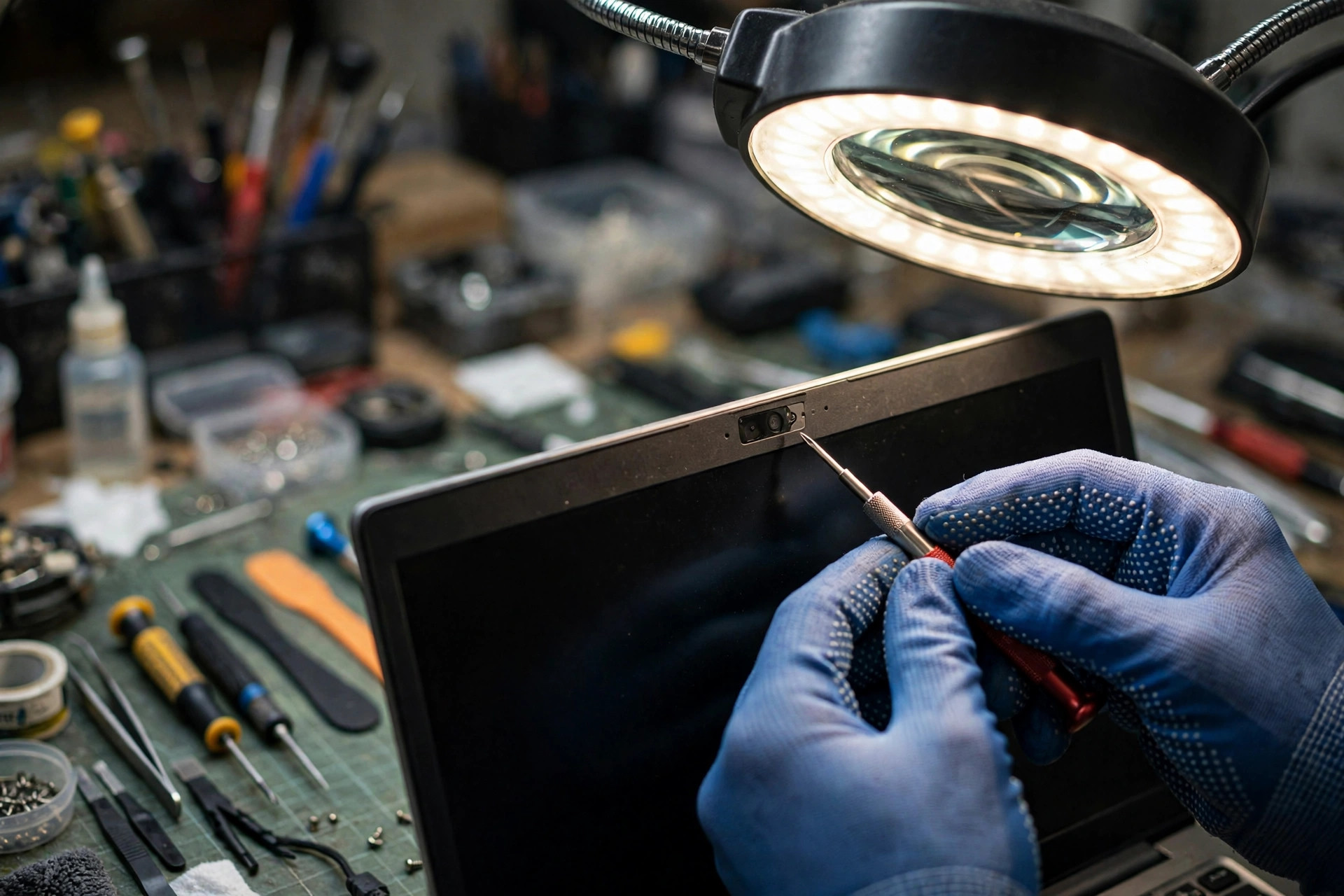
Scope first: this guide covers only "no picture, no sound, or only one side failing in a video meeting"
This guide covers one situation only: the laptop itself powers on and works normally, but its built-in camera shows no picture, its built-in microphone picks up no sound, or both fail together, most often discovered when joining Zoom, Teams, or Google Meet, or when starting an online class. A laptop that will not power on at all, a completely black screen, or speakers with no sound at all belong to different diagnostic lines and should not be mixed with this guide.
A camera and a microphone look like two separate parts, but they share one diagnostic logic: first prove whether the problem is system-wide or limited to one program, then prove whether it sits in the permission or software layer or in the firmware or hardware layer. Replacing a camera or reinstalling a driver before that branching is done very often replaces the wrong thing. The most common truths are far simpler: a privacy shutter left closed, a privacy permission left off, the wrong device selected in the meeting program, or a microphone locked by another program.
The diagnostic philosophy of this guide can be stated in one sentence: first ask whether the system recognises the hardware at all, then ask whether a recognised device fails only in one program. If the built-in system tests pass, the problem very likely sits in the program layer. If the system tests themselves fail, only then is it worth suspecting the driver, BIOS, cable, module, and motherboard layers. Reversing that order produces the two classic wastes: reinstalling drivers for a whole machine when only Teams had the wrong microphone selected, or reinstalling Zoom again and again when a cable was loose.
The seven-layer model: do not skip layers
This guide uses seven layers, ordered from the outermost and easiest to check to the innermost and most in need of opened-machine inspection:
| Layer | Content | Typical clue | One test that rules it out |
|---|---|---|---|
| Layer 1: Privacy shutter and physical switches | Camera privacy shutter, side privacy switch, keyboard camera key, microphone hardware mute key | Black picture while the system still recognises the camera; sudden silence while the device still exists | Look at the shutter and switches with your eyes, open the shutter, and test again |
| Layer 2: Operating-system privacy permissions | Windows camera and microphone permissions, macOS Privacy and Security authorisation, browser site permission | Everything except the built-in program fails in Zoom, Teams, and Meet | Check all three Windows permission switches and both macOS authorisations, then fully restart the program |
| Layer 3: Drivers and system updates | Camera driver, audio driver, chipset driver, driver mismatch after an update | Failure starts suddenly after an update or a system reinstall; Device Manager shows a warning or the device disappears | In Device Manager, first check whether the device is disabled, then consider updating, rolling back, or reinstalling |
| Layer 4: BIOS and firmware settings | Camera disabled in BIOS, settings rewritten after a BIOS recovery, BIOS or firmware version problems | The whole system cannot find the camera, not even in Device Manager; reinstalling drivers has no effect | Check only when the device has fully disappeared or after a BIOS recovery, and do not change unfamiliar settings |
| Layer 5: Internal USB and cable routing | The camera module runs through the lid cable and hinge to the motherboard; the microphone array uses a similar lid route | The result depends on the opening angle, tapping near the lid briefly restores it, or it starts after a drop or repeated opening and closing | Run an angle test and an external-device comparison, record which angle fails, and do not open the lid yourself |
| Layer 6: Camera and microphone modules | The camera module itself, the microphone module itself | After the cable has been reseated, drivers reinstalled, and BIOS confirmed on, there is still no response at all | Suspect a module only after Layers 1 to 5 are ruled out; a module must match the actual model |
| Layer 7: Motherboard USB controller | The motherboard USB controller and related circuits | Even after cable and module checks there is no response; other USB devices are also unstable | This requires opened-machine inspection for confirmation and cannot be concluded from symptoms alone |
Camera types also need separating. Microsoft privacy documentation notes that cameras on a device can include colour cameras, infrared cameras, and depth cameras. A working Windows Hello infrared camera for face sign-in does not prove that the colour video camera works; the two must be tested separately, and the same applies in reverse.
Three branches: match your symptom first, then enter the layers
Branch A: The camera has a picture, but the microphone has no sound
The point of this branch is to prove whether the microphone picks up nothing at all, or whether the other side simply cannot hear it. Do not touch the camera side again.
Start with a system-level test. In Windows, go to Settings, System, Sound, Input, and watch the input volume meter. On a Mac, go to System Settings, Sound, Input, and watch the input volume meter. If the system meter shows no response at all, check privacy permission, whether the default input device is wrongly set to a disconnected Bluetooth headset or external microphone, and whether a hardware mute key has switched the microphone off. If the system meter responds but the meeting program has no sound, check the microphone selection inside that program, in-program mute, and browser site permission, which applies to Google Meet. If only one program has no sound while other recording programs work, suspect program settings, exclusive mode, program cache, or program version first, not a broken microphone module. If the whole system has no sound and Device Manager cannot find a microphone input device, move to the driver and BIOS layers before considering the cable or microphone module.
Bluetooth headsets are the easiest trap in Branch A. Listening to music uses a stereo mode, while speaking uses a hands-free mode. Selecting the wrong mode produces "I can hear them, but they cannot hear me" or a sudden drop in sound quality. The correct practice is to select the same device explicitly for input and output inside the meeting program, rather than leaving it on Default and letting it jump. Wired headsets have a splitter problem too: most laptops have only one 3.5 mm combined jack, so an older headset with separate microphone and headphone plugs needs an adapter before its microphone can work. That is not a broken headset.
A microphone array name change is another trap. An older driver may call it Microphone Array, while a newer driver may call it only Microphone. A different name does not mean different hardware, and a missing old name does not mean the microphone is gone. Judge by whether Device Manager shows a device and whether the system test meter moves, not by the name.
Branch B: The microphone has sound, but the camera is black
The point of this branch is that a black picture does not equal a broken camera. First separate a shutter black from a system black.
First, look at the shutter: is there a sliding cover above the camera, a red dot, or a covering mark? Is there a privacy switch on the side of the machine? Is there a camera icon key on the keyboard? Second, run a built-in program comparison test: the built-in Camera program in Windows, or FaceTime or Photo Booth on a Mac. If the built-in program has a picture and only Zoom, Teams, or Meet is black, the problem sits in Layer 2: permission, site authorisation, program device selection, or another program occupying the camera. If the built-in program is also black or says it cannot find a camera, check privacy permission, whether the camera is disabled or missing in Device Manager, and whether the camera is switched off in BIOS. If the black picture appears only at one opening angle, or moving the lid makes it flicker, that is a Layer 5 cable or hinge routing clue. Stop there and send it for inspection instead of opening and closing it forcefully to test it.
The macOS comparison test deserves repeating. Photo Booth with a picture means the hardware and system layers are basically working, and the problem sits in that meeting program's permission or settings. Photo Booth black as well means the problem sits in the system layer or hardware layer, and reinstalling meeting programs one by one will not help. After changing a macOS permission, the program must be fully quit and reopened. Merely closing its window does not count as reopening, and this is the step most people miss.
Branch C: Camera and microphone fail together
The point of this branch is that joint failure does not necessarily mean two parts broke at the same time. A shared layer is more likely.
First ask whether they started failing at the same time. Joint onset points first to shared layers: privacy settings, a driver after a system update, BIOS settings, lid cable routing, or motherboard-related circuits. Test them separately: the built-in camera program for the camera, and the system recording test or input volume meter for the microphone. Do not conclude from one meeting program alone. If both devices disappear from Device Manager or System Information at the same time, the suspicion for driver, BIOS, cable, and motherboard layers rises. If the camera and microphone failed in different programs at different times, treat them as two separate problems and branch them separately. If there are other symptoms at the same time, such as a loose lid hinge, screen flicker, or Wi-Fi antenna problems, tell the inspector about all of them, because lid routing can affect several modules. That is a diagnostic inference, however, and it must be confirmed by opened-machine inspection. Symptoms alone cannot confirm it.
Intermittent failure deserves its own note. Failure only in one program points to exclusive use, occupation, network, or program version. Failure only at one opening angle points to cable or hinge routing. Failure only after an update points to driver matching. Intermittent does not mean no problem. It means the triggering condition has not been reproduced steadily, so when sending the machine for inspection, state the trigger clearly: which program, which angle, and whether it was before or after an update.
| Branch | System-level comparison result | Check this layer first | Do not do this first |
|---|---|---|---|
| A: Camera picture, no microphone sound | System meter responds, meeting has no sound | Program microphone selection, mute, exclusive mode, site permission | Replace the microphone module |
| A: Camera picture, no microphone sound | System meter shows no response at all | Privacy permission, wrong default device, driver, BIOS | Just turn the volume up |
| B: Microphone sound, camera black | Built-in camera program has a picture, meeting is black | Shutter, permission, program occupation | Replace the camera |
| B: Microphone sound, camera black | Built-in camera program is also black | Permission, disabled device, BIOS, cable | Reinstall only the meeting program |
| C: Both fail | Both system tests fail | Shared layers: permission, driver, BIOS, cable | Treat it as two parts breaking at once and replace both |
| C: Both fail | External device works, built-in devices all fail | Built-in routing, module, motherboard-layer inspection | Declare the motherboard dead |
Layer 1: Privacy shutter and physical switches
Lenovo official support documentation lists this checking order: confirm the machine has a built-in camera, confirm the shutter is open, confirm the system camera is enabled, confirm program permission, check whether security software is blocking it, and update the driver. The Lenovo ThinkPad user guide frequently asked questions list the same order: open the shutter first, then go to Settings, Bluetooth and devices, Camera to enable the camera, then go to Privacy and security, Camera to authorise it, and only then move to drivers and automatic troubleshooting.
HP community support replies, whose nature must be noted as HP staff community replies rather than formal knowledge base articles, note that many HP models have a camera privacy cover, a side privacy switch, or a keyboard camera key, with positions varying by model. Common key positions include F8 or F10 types, but the icon on the machine itself must be followed. No single key can be assumed correct for every model. Dell official documentation notes that when Teams shows a black picture, the first check is whether the camera privacy slider is closed.
One key reminder: a ThinkShutter type cover only covers the camera. It does not switch off the microphone. A shutter opened but a microphone still silent does not mean the shutter is the microphone switch. In the other direction, a thick camera sticker on some models can press on the screen when the lid is closed, and Apple has warned that thick stickers can affect the screen and ambient light sensing. A sliding privacy cover or system permission management is more reliable than a permanently thick sticker. Microphone holes also need checking: a protective film or case covering a microphone hole can make a voice quiet or muffled without the microphone being broken.
Layer 2: Operating-system privacy permissions and in-program device selection
Windows privacy permissions: three switches, none optional
Microsoft official documentation is clear, and all three switches must be written out. First, Camera access or Microphone access: the device-level master switch. If this switch is greyed out because an administrator has locked it, an ordinary user cannot change it and must contact the administrator. Second, Let apps access the camera or microphone: the Microsoft Store program layer. Third, Let desktop apps access the camera or microphone: the desktop program layer. Microsoft states explicitly that browsers such as Edge and video meeting programs such as Teams are desktop programs, so they will not appear in the per-program list and depend on this master switch. The same structure applies to the microphone.
Checking only the per-program list, failing to find Zoom or Teams there, and concluding there is no problem is the most common misdiagnosis in this layer. Desktop programs are not listed one by one.
macOS privacy permissions
Apple official Privacy and Security documentation lists the camera and microphone as controlled items, and only programs that have previously requested authorisation appear in the list. Apple official microphone authorisation documentation gives the path: Apple menu, System Settings, Privacy and Security, Microphone, with a switch per program. It also notes that Control Centre shows a recording indicator when the microphone is in use or was recently used. Another macOS trap is that the browser itself needs authorisation. Opening Google Meet in Chrome or Safari, even after the Meet site itself is allowed, will still give no picture or no sound if the browser itself has not been authorised at the system level. After authorisation, the browser usually needs to be fully closed and reopened before the authorisation takes effect. That operational detail is practical advice, noted as such rather than quoted word for word from Apple documentation.
In-program settings, occupation, and exclusive mode
Microsoft Teams official documentation advises closing other programs that may be using the camera, checking for updates, and then using Settings, Devices, Make a test call to test the microphone, speaker, and camera together, following the instructions to record a short message and play it back. Teams documentation also reminds users that if the camera works in Windows but not in Teams, they should check the camera selection and preview in Teams Devices. Google Meet official documentation requires three layers of authorisation at once: Meet itself, the browser, and the device. Missing any one layer causes failure. Meet also requires checking whether the user is muted inside the meeting and whether the correct microphone is selected in device settings. Zoom community and support discussion follows the same logic: confirm the correct microphone in Zoom Audio settings first, then compare at the system level. If other recording programs also cannot recognise the microphone, the problem is not only a Zoom problem.
Need a laptop repair expert?
Free diagnosis · Transparent pricing · No fix, no fee · 180-day warranty
Windows exclusive mode sits in Sound, Recording, microphone properties, Advanced, under Allow applications to take exclusive control of this device. When it is on, one program can lock the microphone so other programs get no sound. Switching programs before and after a meeting is exactly when this collision happens. For general video meeting users, switching exclusive mode off first and then testing is a useful comparison. The automatic microphone volume adjustment in meeting programs can also push gain up and down in a noisy room, making volume feel unstable. When this layer is suspected, switch automatic gain off and exclusive mode off, then run a system recording test again.
Managed company or school devices need separate attention: a management policy can block the camera and microphone altogether, so personal settings cannot override it. In that case, contact the information technology administrator rather than treating it as hardware failure.
Layer 3: Drivers and system updates
The common order in Microsoft and manufacturer documentation is: Device Manager, Cameras or imaging devices, and audio inputs and outputs. First confirm whether the device is disabled, then consider updating the driver, rolling back to an older driver, or uninstalling it and restarting so the system reinstalls it. Dell official documentation warns specifically that Windows Update or other update tools can push a wrong or incomplete camera driver. Some models have camera drivers with other Intel driver dependencies, so installation order matters, and the correct manufacturer driver package must be used rather than relying only on Windows automatic update. ASUS official troubleshooting documentation lists the same order: update BIOS, Windows, and drivers first, then run a built-in camera program comparison test, then check permissions, and finally enable or reinstall the driver in Device Manager.
A driver showing as up to date does not mean it is the correct version. A manufacturer model-specific driver and a Windows generic driver can differ, especially for MIPI built-in camera models. MIPI is a connection specification for built-in cameras, and different models can need different driver packages. Do not replace a manufacturer driver package directly with a generic driver. Newer versions of Windows 11 offer a basic camera mode, which bypasses manufacturer plug-ins or hardware acceleration and runs the camera in the most basic way. If basic mode has a picture while normal mode does not, the problem very likely sits in the manufacturer driver or plug-in layer rather than a dead camera. That comparison result is valuable to record for inspection.
A failure starting after an update does not mean the update physically broke hardware. An update more often changes a permission, replaces a driver, or resets a setting. Hardware does not suddenly suffer physical damage from one ordinary update, unless the update process also involved a BIOS or firmware change. Distinguishing "it failed after an update" from "the update broke it" matters.
Layer 4: BIOS and firmware settings
Dell official documentation gives this example: press F2 during startup to enter BIOS, go to Integrated Devices or System Configuration, Miscellaneous Devices, confirm that Enable Camera is ticked, save, exit, and test again. Another Dell official document notes that on some Latitude models, the camera setting can be switched off after a BIOS recovery, requiring manual re-enabling, together with a BIOS update to prevent recurrence. That example proves a BIOS-layer fault can show no Windows error message at all, only a missing device.
The writing caution matters: BIOS entry keys and menu names vary by brand, model, and firmware version, so they cannot be written as one key for all machines. Only the Dell official example can be cited, with a reminder to follow the official documentation for the reader's own model. A BIOS update is also not a cure-all. Before updating, power and procedure must be confirmed, and the risk of an operational mistake is high, so ordinary users should not try it casually. BIOS checking belongs in the advanced category: look, but do not change unfamiliar settings. It is worth doing only when Device Manager cannot find the device at all, or when failure starts after a BIOS recovery or update. If BIOS is unfamiliar, do not change other options.
Layer 5: Internal USB and cable and hinge routing
A built-in camera module usually sits at the top of the screen lid and runs through a cable across the hinge to the motherboard. iFixit repair guides show that a camera replacement requires opening the lid bezel and releasing the relevant cable. If the cable itself has come loose, reseating it may restore function, but only a person with opened-machine experience should do it. Another iFixit guide, for the Lenovo IdeaPad C340 and Flex 14, notes that a machine carried out every day whose camera suddenly fails and briefly recovers when tapped near the camera very likely has a poor contact and needs its camera board reseated. That is a useful diagnostic clue, but tapping is not a repair method. Recovery after tapping instead proves a contact problem and means the machine should be sent for inspection.
The microphone array usually sits near the top of the lid as well, with a routing path close to the camera. When the camera and microphone fail together and the symptoms relate to lid opening, the suspicion for the cable layer rises. Final confirmation still requires opened-machine inspection, and symptoms alone cannot confirm it. The method for separating a cable problem from a module problem belongs to the inspection layer, not to user self-service: test after reseating the cable; if there is still no response, suspect the module next; if replacing the module still gives no response, suspect routing or the motherboard layer. Understanding that logic explains why inspection sometimes needs stepwise reporting.
The angle test is done by slowly opening and closing the lid and recording which angle triggers the symptom, and by checking whether the hinge is loose, cracked, or making unusual sounds. Do not open the lid yourself to pull a cable. Cable sockets are fragile, and a wrong removal can turn a cable problem into a motherboard socket problem. When a lid is replaced, the camera, microphone, and Wi-Fi antenna routing must be handled together. Hinge problems can affect lid parts together, but normal Wi-Fi does not prove lid cable health, because antenna routing and camera or microphone routing serve different functions and cannot prove each other. Sound from speakers also does not prove microphone health, because speakers and microphones are different audio paths. Speakers working proves only that the output path works.
Layer 6: Camera and microphone modules
If Layers 1 to 5 are all ruled out and there is still no response at all, the remaining possibility is damage to the module itself. Built-in camera and microphone modules usually must match the actual brand and model. They are not universal parts. For some MacBook models, Apple does not supply the camera as a separately replaceable part, so repair may need the whole screen assembly. That can only be stated accurately after inspection, and this guide does not pre-commit any model to one repair method. Buying a generic camera online for self-replacement is also a trap: a wrong connector, size, or cable direction may not fit, and may damage the socket.
An external USB camera or microphone can serve as a comparison test. An external device working while the built-in device gives no response helps narrow the problem to the built-in routing or module, rather than a collapse of the whole system video or audio function. But an external device working does not prove the built-in part is broken. The same comparison result appears when BIOS has switched the built-in camera off. External working proves only that the system video function is broadly working. It cannot rule out BIOS closure, cable problems, or a built-in module problem.
Layer 7: Motherboard USB controller and related circuits
If Layers 1 to 6 are all ruled out and there is still no response, the remaining possibility is a motherboard-related circuit or controller problem. One useful indirect clue is that other USB devices on the same machine are also unstable, appearing and disappearing. That may mean the problem is not only the camera or microphone, but a higher controller or power and chipset layer. That remains an inspection inference, and this guide states clearly that inspection confirmation is required. No conclusion of motherboard or chip damage should be drawn from symptoms alone without opened-machine inspection.
Pricing language for this layer must also follow the rule: camera, microphone module, cable, and motherboard-layer inspection prices are all quoted in writing after diagnosis. No estimated price, price range, or approximate figure should be written for them. Other price references in this guide are limited to the authorised list, given in the decision framework section below.
Reading symptoms: error codes and prompts
| Surface prompt | More likely layer, check first | Do not do this first |
|---|---|---|
| Cannot find camera, error code 0xA00F4244 | Shutter or switch, BIOS closure, missing driver, missing device | Buy a new camera or replace the module at once |
| Error codes 0xA00F4243, 0xA00F4289, or 0x80070005 | Another program occupying the device, insufficient permission | Reinstall only the driver and ignore permission and occupation |
| Camera has a picture but the whole meeting is black | Program device selection, site permission, desktop program permission | Replace the camera |
| System input meter responds but the meeting has no sound | Program microphone selection, in-program mute, exclusive mode, site permission | Replace the microphone module |
| System input meter shows no response at all | Permission, wrong default device, driver, BIOS, cable or module | Just turn the volume up |
| Camera light is on but there is no picture, or the picture freezes | Program occupation, driver, firmware | Keep switching the same program on and off without closing other programs |
| Device Manager has no camera or microphone device at all | BIOS, missing driver, loose cable, module or motherboard layer | Do only a system restore |
Common misdiagnoses and traps: 12 to avoid
1. Treating it as a driver problem when it is a privacy permission. Desktop programs are not listed one by one, so looking for Zoom or Teams in the list and finding nothing, then reinstalling drivers several times, solves nothing.
2. Treating it as a broken camera when the shutter is closed. With the shutter covering the lens, the whole system behaves almost exactly like a broken camera, yet the fix takes one second.
3. Treating it as a broken microphone when the wrong device is selected. After connecting a Bluetooth headset, USB headset, or docking station, the default input device may still point to a disconnected device.
4. Treating it as a broken microphone when it is in-program mute or a site block. System permissions can all be on, while the meeting program is still muted, or the browser site permission is still refused.
5. Treating it as a system failure when another program is occupying the device. Another meeting program, recording program, or browser tab still holding the camera or microphone leaves nothing for the new program.
6. Replacing the camera when the cable is loose. A replaced module still shows a black picture, because the problem was never in the module, but in the routing or connector.
7. Replacing a module when BIOS has switched it off. After a BIOS recovery or setting change, the device disappears at the system level, and replacing any part is useless.
8. Assuming a driver update always improves things. A generic driver pushed by Windows Update is not necessarily equal to a manufacturer model-specific driver, especially for MIPI camera models, where driver order and companion drivers matter.
9. Assuming a working external camera proves the built-in camera is sound. External working proves only that the system video function is broadly sound. It cannot rule out BIOS closure, cable problems, or a built-in module problem.
10. Assuming intermittent failure means no problem. Recovery after tapping, or recovery at one angle, is exactly a poor-contact clue. Delay can turn intermittent failure into complete failure.
11. Assuming turning the volume up fixes a silent microphone. When the system meter shows no response at all, turning the volume up only amplifies background noise. It will not make a microphone with no signal suddenly produce sound.
12. Assuming normal infrared sign-in proves the video camera is sound. They are different camera types and must be tested separately. Sound from speakers also does not prove microphone health, because output and input are different paths.
A safe self-check list that does not open the machine
| What the user can do | Do not do this yourself |
|---|---|
| Look at the shutter, body switch, and keyboard camera key to confirm they are open | Open the lid, pry the bezel, or pull a cable yourself |
| Run a built-in camera program and system sound input meter comparison test | Change unfamiliar BIOS settings yourself |
| Check the three Windows permission switches or macOS Privacy and Security authorisation | Download a driver package from an unknown source yourself |
| Check device selection, mute state, and test call or test functions in Zoom, Teams, and Meet | Tap forcefully or bend the lid to test contact |
| Fully close other programs and browser tabs that may be using the camera or microphone, then test again | Clear a microphone hole with a sharp object, or wipe directly into a microphone hole with a wet cloth |
| Check whether the default microphone is wrongly set to a disconnected Bluetooth or USB device | Leave account passwords inside the machine or on a note for inspection staff |
| Check whether Windows exclusive mode is on; general meeting users can switch it off first and test | Repeatedly power on a machine with a water-exposure history to test the camera |
| Record the trigger: which program, which opening angle, before or after an update, drop or water exposure | Assume external working means the built-in device is sound, and delay inspection indefinitely |
| Run one external USB camera or microphone comparison, as a branching reference only, not a final diagnosis | Assume a generic part will fit every model |
Repair, replace, or upgrade decision framework
Locate first, then decide
| Location result | Reasonable direction |
|---|---|
| Layers 1 to 2: shutter, permission, program selection | Correct the settings yourself; no part replacement is needed |
| Layers 3 to 4: driver, BIOS | Correct it with the correct manufacturer driver or BIOS setting; back up important data and confirm the procedure first |
| Layer 5: cable or connector loose | After inspection confirmation, reseat or replace the routing; this belongs to opened-machine inspection |
| Layer 6: module damaged | Replace the camera or microphone module for the corresponding model; it must match the actual model, and there is no universal module |
| Layer 7: motherboard-related | Enter motherboard-layer inspection and decide according to damage scope and overall machine condition; price is quoted in writing after diagnosis |
| Cannot be reproduced steadily, intermittent | Record the trigger first and send it for inspection; do not wait until it fails completely |
When an external device is worth using first
When a meeting or class is urgent and the built-in device is not yet repaired, an external USB camera or headset microphone is a reasonable temporary solution. The boundary must be stated clearly: a temporary solution is not a repair. If the problem is a loose cable or hinge routing damage, delay can make it worse, so an external device should not be used to cover it indefinitely. When only the microphone is broken and the camera works, or only the camera is broken and the microphone works, the trade-off differs: a single-function gap is cheaper and less inconvenient to cover externally. When both fail together, a complete inspection should take priority.
| Option | Advantage | Cost or limitation |
|---|---|---|
| USB external camera with microphone | Plug and play, bypasses the built-in cable or module; free angle, and a broken one can be replaced without opening the machine | Takes one USB port; the meeting program must be switched manually to the external device, or it will keep using the broken built-in device |
| USB microphone or wired headset microphone | Sound is usually more stable than a built-in microphone hole and is not affected by a blocked microphone hole; suitable for long-term meetings | Must be carried and plugged in separately; the meeting program must still select the correct input device |
| Bluetooth headset microphone | Wireless convenience, suitable for commuting or moving around | Stereo listening mode and hands-free speaking mode must be distinguished; older Bluetooth hands-free mode has poorer sound quality; battery, pairing, and distance all affect stability |
| Built-in repair | Restores the original integrated experience without carrying an external device long term; suitable for a long-term main machine | Opened-machine inspection is needed first to separate cable, module, and motherboard layers; some models need whole-assembly handling, with more steps; no result should be pre-committed before inspection |
When replacing the whole machine deserves serious thought
The following is only a thinking framework, not a quotation or a conclusion, and it must be judged on the actual inspection result: other major faults appear at the same time as the camera or microphone, such as battery, screen, keyboard, or motherboard faults; the machine is old, parts are hard to supply, and overall repair cost approaches a reasonable replacement range; work or study depends heavily on video meetings and cannot bear repeated inspection uncertainty; or data, accounts, and usage habits need whole-machine migration, so backup and sign-out must be handled before replacement.
Four questions help decide the next step, without a one-size-fits-all cutoff by year or price. First, does the system test pass? If it passes, the problem is in the software, permission, or program layer, and the user can follow the checklist without sending it at once. If it fails and Device Manager cannot find the device, it leans toward driver, BIOS, or hardware layers and deserves inspection. Second, does the external comparison pass? External working and built-in failing points to the built-in chain, and that comparison result should be stated at inspection. External failing as well means checking system permission, drivers, and USB ports first, not concluding at once that built-in hardware is broken. Third, does the symptom follow an opening angle, drop, or water exposure? Following an angle points strongly to cable suspicion, and opening and closing should not be continued, because wear continues. With a drop or water history, repeated power-on testing should stop, and inspection should happen promptly with that history stated. Fourth, is the machine still a main machine? For a daily meeting main machine, built-in repair is worth more, and external use is only transitional. For a retired backup machine used only occasionally for meetings, external use may already be enough, without opening the whole machine for a built-in camera.
Price references are limited to the following authorised wording: battery from HK$580, screen from HK$1,280, motherboard chip-level from HK$880, and keyboard from HK$480. Camera, microphone, cable, lid, and screen assembly prices are all quoted in writing after diagnosis. For the pricing page, see the pricing page. For inspection arrangements, see the diagnostic page.
Hong Kong context: humidity, commuting, Zoom, Teams, Google Meet, and online classes
Commuting and usage habits
Hong Kong users often carry a laptop in a backpack, open and close it many times a day, and move between the MTR, buses, classrooms, and offices. That pattern puts repeated stress on lid cables and hinges, so intermittent cable problems deserve particular attention. Backpack pressure, opening the lid with one hand holding the lid, and a drop that leaves no visible damage on the outside followed by intermittent camera or microphone failure are all background details that should be volunteered at inspection. A laptop often pressed inside a commuting bag, with many opening cycles, puts more load on hinges and lid cables than a machine left on a desk. If symptoms relate to an opening angle, commuting usage history is an important clue.
Humidity and temperature differences, written with care
Hong Kong humidity and large indoor-outdoor air-conditioning temperature differences can make a camera surface fog up and microphone sound muffled in daily use, which can easily look like part failure. This guide must separate levels: surface fog and temporary moisture are different from internal moisture exposure and connector oxidation. Surface fog usually disappears as temperature returns to normal. If a problem persists or recurs, it should not be concluded by the user to be humidity-caused. Inspection confirmation is required. This guide writes no proportion or causal figure for humidity-caused failure. Cleaning advice should stay conservative: wipe the camera only with a clean dry cloth, do not clear a microphone hole with a sharp object, do not wipe directly into a microphone hole with a wet cloth, and if there is a water-exposure history, do not power on the machine again to test the camera. Send it directly for inspection.
Mixed use of Zoom, Teams, and Google Meet
Hong Kong workers and students often switch between Zoom, Teams, and Google Meet in one day, and may use school or company accounts and personal accounts at the same time. Mixed use brings real risks: the previous program may not have fully closed and still holds the camera or microphone; permission settings can differ between accounts; and a company or school managed device may have its privacy switch locked by an administrator, leaving the switch greyed out. This guide teaches one habit: before a meeting, run a built-in program comparison test first to confirm the system layer is normal, then enter the meeting program. That immediately separates a system problem from a problem in one meeting program.
The permission layers differ across platforms. Desktop Zoom and Teams are affected by the Windows desktop program master switch, while only Store versions appear one by one in the list. Many users switch on only the Store program layer and miss the desktop program layer. Browser versions of Meet and web Teams need the browser site layer as well as the system layer. After once clicking Refuse, the browser will not ask again, so the site setting must be changed manually to Allow. Before an online class, interview, or client meeting, a system test plus a meeting program test call should be done a day in advance, not first tried inside the formal meeting. The most common failure scene for Hong Kong workers and students is not ordinary use, but five minutes before a meeting: the camera was not used normally, and only at meeting time is it discovered that permission was off, the wrong device was selected, or another program was holding the camera.
Network problems pretending to be camera or microphone problems
A video meeting that lags, freezes, or gives broken sound to the other side is not necessarily a camera or microphone failure. The distinguishing test is this: if the local built-in program preview is smooth, but the meeting itself lags, the problem very likely sits in network, bandwidth, or the meeting program. Lag, intermittent breaks, and out-of-sync sound and picture do not equal camera or microphone failure. First check whether only the user lags or the whole meeting lags. Do not send a network problem for hardware inspection as if it were a hardware problem.
Local parts and inspection reality
Camera or microphone modules usually must match the actual brand and model. They are not universal parts. This guide reminds readers to provide brand, model, system version, and failure trigger at inspection, not only saying the camera is broken. A reasonable local inspection expectation should be written as: inspect and locate first, then give a written quotation, and repair only after confirmation. At inspection, bring the error code, which tests passed or failed, which angle triggered it, and whether there was a drop, water exposure, or hinge history, all stated at once.
Privacy reminders
A camera and microphone involve privacy, and the authorisation principle should be use it only when needed, and switch it off when not in use: authorise only programs that genuinely need meetings or classes, and do not authorise every program at once. Windows desktop programs cannot be switched one by one, so switching on the desktop program master switch means every desktop program may gain access. After a meeting, check which programs are still running in the background. macOS Control Centre has a microphone use indicator, and Windows also has a camera light or microphone icon prompt. Readers should watch these prompts and not ignore them. After a meeting or online class, close the privacy shutter by hand. If the machine has a shutter, that is the simplest and most reliable physical protection.
Basic privacy preparation before inspection: sign out of meeting, school, and company accounts, back up important data, and do not leave passwords inside the machine or on a note. Inspection staff only need to know the failure symptoms. They do not need account passwords. Do not read out personal data, passwords, or sensitive content when testing a microphone in a public place. One ordinary test sentence in a test recording is enough. Before recording or taping a meeting, check the rules of the company, school, or organiser. Do not privately record other people's pictures and voices and forward them. Do not assume nobody can see anything when opening a camera in a public place, a company pantry, or a room where family members walk in and out. Background, screen reflections, and whiteboard content also enter the picture. If a program is suspected of secretly using the camera or microphone, first look at the light or system use indicator, then switch programs off one by one in permission settings, rather than continuing on a feeling that nothing is wrong.
What the user can safely do versus what must go to inspection, by layer
| Layer | What the user can safely do | What must go to inspection |
|---|---|---|
| Layer 1: Shutter and switches | Look with eyes, open the shutter, press the keyboard camera key or mute key | A damaged shutter itself, or a switch stuck in place |
| Layer 2: Privacy permissions and programs | Check the three Windows switches, macOS authorisation, program device selection, and switch exclusive mode off | Policy switches locked by an administrator, which need the administrator |
| Layer 3: Drivers | Confirm disabled status in Device Manager, update or roll back a manufacturer driver | Confused driver packages and MIPI driver dependency problems, which need inspection confirmation |
| Layer 4: BIOS and firmware | Look only at the camera option stated in the official documentation for the reader's own model | A device missing after BIOS recovery, and any unfamiliar setting that should not be changed casually |
| Layer 5: Cable and hinge | Angle test, record the angle, external comparison | Opening the lid, reseating a cable, checking hinge damage to a cable |
| Layer 6: Modules | External comparison, record system test results | Replacing a matching model module, or whole screen assembly handling |
| Layer 7: Motherboard USB controller | Record whether other USB devices are also abnormal | All measurement, inspection, and motherboard-layer part replacement |
Closing: finish the no-opening tests and record the results before inspection
For a laptop with no picture or no sound in a video meeting, do not conclude first that the camera is broken or the microphone is broken, and do not conclude first that the motherboard is broken. Run the system-level comparison tests first: does the built-in camera program have a picture, does the system input volume meter respond, was the program fully restarted after a permission change, does closing all other programs change the result, and does an external device comparison change the result? Record every result, then compare it with the branch table and seven-layer tables in this guide to see which layer the problem has narrowed to. System tests passing point very likely to the permission or program layer. System tests failing mean the driver, BIOS, cable, module, and motherboard layers must be ruled out layer by layer. Steps that need opening the machine are all left to inspection: opening the lid yourself, prying the bezel, pulling a cable, changing BIOS settings casually, and installing a driver package from an unknown source must not be done.
For price references, see the pricing page: battery from HK$580, screen from HK$1,280, motherboard chip-level from HK$880, and keyboard from HK$480, with all other items quoted in writing after diagnosis. For inspection arrangements, see the diagnostic page. Shop details: Room 1209, Daly Plaza, Shek Mun, Sha Tin, telephone +852 2186 8010, WhatsApp +852 6558 6806, opening hours 12:00-19:00. At inspection, please state brand, model, system version, which program failed, which angle triggered it, and whether there was a drop or water exposure, so inspection can aim at the correct layer at once.
Need Professional Laptop Repair?
Laptop King has 15+ years of repair experience in Shek Mun, Sha Tin. Free diagnosis, transparent pricing, no fix no fee. 180-day warranty for your peace of mind.