📌 Key Takeaways
- •B key (single notch): supports SATA, PCIe x2 and similar interfaces; belongs to Socket 2.
- •M key (single notch): supports PCIe x4; belongs to Socket 3; typical of high-performance SSDs.
- •B+M key (double notch): supports SATA, PCIe x2; the broadest compatibility, but limited to PCIe x2 lanes or SATA speeds, so bandwidth is mid-range.
First, three terms that mean three different things
SATA is a family of interfaces and protocols. NVMe is a storage command interface designed to be used over PCI Express. M.2 is a physical module and connector specification. So one SSD can be an M.2 SATA drive, and it can also be an M.2 NVMe drive. M.2 describes the physical form factor; SATA and PCIe are the storage interfaces, and the main difference between them is performance and the protocol the SSD speaks.
NVMe, in full NVM Express, is an interface specification optimised for solid-state drives built on PCI Express, defined in a scalable way to support both enterprise and client needs. The NVM Express specification defines how host software talks to non-volatile memory across several transports, including PCI Express (PCIe), RDMA and TCP, and it is the industry standard for solid-state drives in many form factors, including U.2, M.2, add-in cards and EDSFF. An M.2 SSD supports only one protocol, SATA or PCIe, but some system M.2 slots support both SATA and PCIe.
SATA vs NVMe comparison table
| Item | SATA SSD | NVMe SSD |
|---|---|---|
| Interface / protocol | SATA interface, AHCI protocol | PCIe interface, NVMe protocol |
| Queues | One command queue, up to 32 commands per queue | Up to 64K queues, up to 64K commands per queue |
| Speed ceiling | SATA III 6 Gb/s; about 550 MB/s throughput after overhead | PCIe Gen 3 x4 up to about 4 GB/s (bidirectional); PCIe Gen 4 x4 up to about 8 GB/s (bidirectional) |
| Physical form | 2.5-inch or M.2 | M.2 (other form factors also exist) |
| Fits | Slots that support SATA, or a 2.5-inch bay | M.2 slots that support PCIe NVMe |
The SATA III bus performance limit is 6 Gb/s, meaning a SATA SSD can offer a maximum of about 550 MB/s of throughput after overhead. SATA-III has a maximum theoretical data transfer rate of up to 6 Gb/s and is backward compatible with SATA-II and SATA-I, but transfer rates drop to 3 Gb/s and 1.5 Gb/s; actual speeds can vary with host hardware, software and usage. Just seeing the words "M.2 SSD" is not enough to judge speed, because M.2 only describes the physical specification; the WD Blue SA510, for example, comes in an M.2 2280 version but still uses SATA III 6 Gb/s, so physically it is M.2 but it is not NVMe.
PCIe generations: each generation roughly doubles bandwidth
PCIe (Peripheral Component Interconnect Express) is a high-bandwidth expansion bus commonly used to connect graphics cards, SSDs, capture cards, wireless cards and other peripherals. Motherboard PCIe lanes come in x1, x2, x4, x8 and x16 sizes; more lanes mean more bandwidth and a longer slot; modern PCIe M.2 SSDs use x4 lanes.
Each generation of PCIe is about twice as fast as its predecessor: PCIe 3.0 has a data transfer rate of 8 GT/s, PCIe 4.0 runs at 16 GT/s, and PCIe 5.0 at 32 GT/s; GT/s is the theoretical maximum before encoding, and actual speeds may be slower. For SSD sequential read speeds, PCIe Gen 3 SSDs can reach up to 3,500 MB/s, PCIe Gen 4 SSDs can exceed 7,000 MB/s, and PCIe Gen 5 SSDs can exceed 14,000 MB/s. These are theoretical speeds, before NAND speed, controller limits, real efficiency and cooling are taken into account. A single PCIe 3.0 lane provides 1 GB/s (bidirectional) throughput, so a PCIe 3.0 x4 SSD can reach up to 4 GB/s read / write throughput, while PCIe Gen 4 x4 can reach 8 GB/s (bidirectional).
PCIe slots look the same across generations and offer both backward and forward compatibility: you can connect a PCIe 3.0 SSD to a PCIe 4.0 slot, and you can also connect a PCIe 4.0 SSD into a 3.0 slot. Compatibility in practice means running at the slower side's speed: if a newer-generation SSD is fitted into an older-generation slot, it is expected to run at the slot's generation speed and cannot deliver its full bandwidth; conversely, fitting an older-generation SSD into a newer-generation slot will not make it faster. Check the slot generation in the model manual before buying.
M.2 keys: B key / M key / B+M key
The notch on the edge connector of an M.2 module is called a "key"; its purpose is to prevent the module from being inserted into an incompatible slot on the host. The M.2 specification defines several key IDs, but M.2 SSDs commonly use only three keys: B, M and B+M; the key type is marked on or near the SSD edge connector (gold fingers).
- B key (single notch): supports SATA, PCIe x2 and similar interfaces; belongs to Socket 2.
- M key (single notch): supports PCIe x4; belongs to Socket 3; typical of high-performance SSDs.
- B+M key (double notch): supports SATA, PCIe x2; the broadest compatibility, but limited to PCIe x2 lanes or SATA speeds, so bandwidth is mid-range.
M.2 lengths: 2230 / 2242 / 2280 and others
In the M.2 naming, the first two digits are the width in millimetres and the remaining digits are the length in millimetres; for example, M.2 2280 means 22 mm wide and 80 mm long. The standard width of an M.2 SSD is 22 mm, while lengths vary; common types include 2230 (22 mm x 30 mm), 2242 (22 mm x 42 mm) and 2280 (22 mm x 80 mm). The M.2 specification also includes 2260 (22 mm x 60 mm) and 22110 (22 mm x 110 mm). The 2280 is the most common size and is widely used in high-performance laptops; 2230 is used in handheld devices and slim laptops; 2242 is seen in small systems and business laptops.
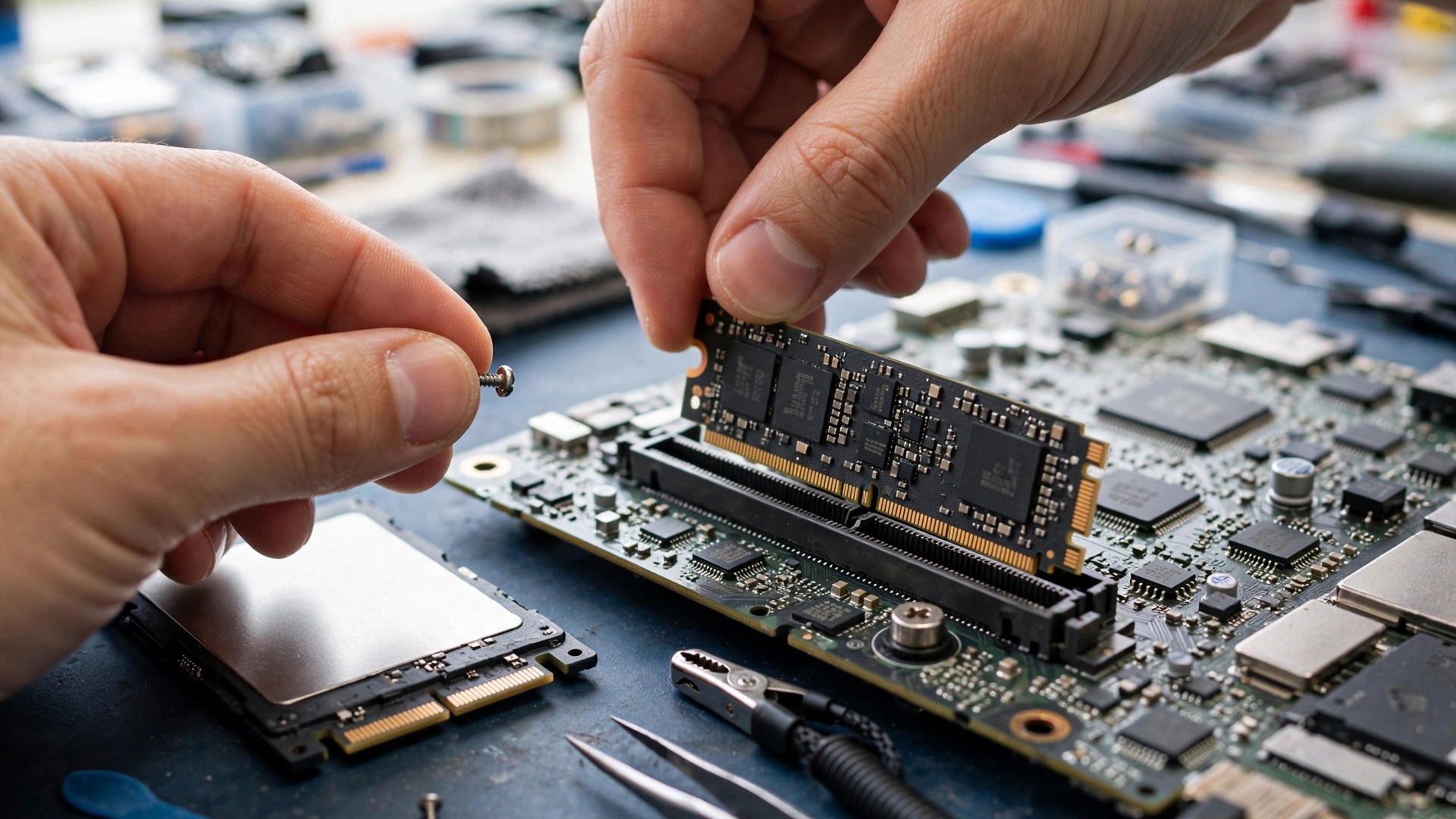
An M.2 SSD mounts directly onto the motherboard M.2 slot with no cables; one end goes into the slot and the other end is fixed with a screw. Different motherboards support different drive lengths; Dell gives the concrete example that one model may, depending on factory configuration, support only an M.2 2230 or an M.2 2280 form factor, and upgrades must use the same form factor. The screw-hole position of the M.2 slot corresponds to a specific length; a drive of the wrong length may not be fixable or may not be recognised even if the key matches.
How to tell what your laptop supports
1. The most reliable method: check the official specifications / service manual for that model
Dell's official guidance is: go to Dell.com/support, enter the computer's Service Tag, Express Service Code or model, open the model's Setup and Specifications guide or Service Manual, and check the Storage section for each slot's supported M.2 sizes (2230, 2242, 2280 and so on), whether the slot supports NVMe, SATA or both, and the supported PCIe generation. Dell warns explicitly: if the drive size or interface does not match, it will not work even if it physically fits into the slot. Four dimensions must all be checked: M.2 size (length) + key (B / M / B+M) + protocol (SATA / PCIe NVMe) + PCIe generation. "It fits" does not mean "it will run at that speed".
2. Telling SATA from NVMe inside Windows
In Windows, Device Manager can tell them apart: expand "Disk drives", right-click the existing disk, choose Properties, go to the "Details" tab, and set the property to "Hardware Ids"; if the value shows NVMe, it uses an NVMe slot; if the value is SCSI\Disk, it uses a SATA port.
3. Physical checks: look at the existing drive, slot notch and screw-hole position
An M.2 SSD is installed by aligning the SSD notch with the slot tab, inserting at about a 30-degree angle, then pressing flat and fixing with a screw; Crucial's guide says explicitly "Do not force the connection". Dell's guide describes the same: the SSD is fully inserted into the M.2 slot at about a 30-degree angle, then pressed down and fixed with a screw; a loose or misaligned drive will not be recognised. Some non-NVMe SSDs can fit into the same slot as an NVMe drive but still will not deliver NVMe performance, because that connector (the M.2 connector) is backward compatible with SATA SSDs of the same form factor.
Common reasons a new NVMe SSD is not detected include: the drive is not fully inserted into the M.2 slot or not fixed with a screw; the physical size does not match the slot (for example, the slot only supports 2230 but a 2280 was fitted); some M.2 slots only support SATA (not NVMe), or a slot sharing lanes with other components may be disabled in BIOS; wrong PCIe lane configuration, storage mode or Secure Boot settings in BIOS can also cause NVMe detection failure. A brand-new NVMe SSD will not appear in File Explorer before it is initialised and formatted in Disk Management; Dell lists this as normal, not proof of a drive fault.
2.5-inch SATA bay
A 2.5-inch SATA SSD is a standard drive-bay size, with a SATA interface (up to 6 Gb/s), installed with cables (power + data) plus a mounting bracket; its advantages are high compatibility and easy replacement. A 2.5-inch SATA SSD interface is SATA III 6.0 Gb/s; taking Innodisk product specifications as an example, its 2.5-inch SATA SSD sequential read / write maxima are 520 / 450 MB/s. The 2.5-inch bay is the most common SATA SSD form in laptops and small computers, connected via SATA; M.2 SSDs can support SATA or NVMe.
2.5-inch SATA SSDs also come in different thicknesses. Taking the WD Green SATA SSD 2.5-inch / 7 mm model as an example, its dimensions are 100.5 mm x 69.85 mm x 7 mm, interface SATA. Taking Innodisk specifications as an example, 8 GB to 1 TB models measure 69.85 x 100.0 x 6.9 mm, while the 2 TB model measures 69.85 x 100.0 x 9.5 mm. So "there is a 2.5-inch bay" alone does not prove any thickness will fit; check the thickness that model supports in its official specifications / service manual.
Choosing capacity: measure your own machine, do not guess
Windows 11 minimum system requirements include a storage device of 64 GB or larger. That is the threshold for "Windows 11 can be installed", not "enough to use". Windows Settings, System, Storage shows which categories take up space, such as apps, temporary files and documents; Storage Sense can automatically clean up unneeded temporary files and Recycle Bin contents. That screen is the first-hand basis for estimation. In File Explorer, "This PC", "Devices and drives" shows the system drive's total capacity and free space. When estimating, record both "total capacity" and "used space"; do not record only free space.
Step 1 — Measure the current state. On the old drive, record each of these numbers, all based on your own machine's actual values: (a) system drive used space; (b) by storage category: apps, documents, photos, videos, music, temporary files and so on; (c) used space on a non-system data drive / external drive, if any.
Step 2 — List your own future needs item by item. Estimate by your own actual usage, item by item, rather than using generic averages: documents / web browsing means mainly documents, browser downloads and the apps themselves; photos means using your existing photo folder's actual size as the baseline, then projecting by future shooting / importing habits; video editing means using one real project folder (raw clips + finished output + temporary files) as the baseline, multiplied by how many projects are kept at once; games means using your installed games' actual occupied size as the baseline, plus games to be installed later. The key principle: every usage number must come from the measured size of your own existing folders / installed programs. This article provides no "average user uses X GB" statistics.
Need a laptop repair expert?
Free diagnosis · Transparent pricing · No fix, no fee · 180-day warranty
Step 3 — Add up and leave headroom. Add "current used space" + "each usage's future additions", then leave extra room for system updates, temporary files and daily operation. Microsoft notes that Storage Sense runs cleanup when disk space is low, and a capacity bar turning red means low free-space state; in other words, running permanently near full is not ideal. Do not buy exactly "just enough".
Step 4 — Compare and review. Compare the "total + headroom" required capacity against candidate SSD capacities; if the required capacity is close to a candidate capacity's ceiling, consider the next capacity up, or first clean up / move archivable data to external storage and re-estimate. Cleanup itself can use Storage Sense / storage categories as the basis.
Common misunderstanding to clear up: the Windows 11 minimum requirement of 64 GB is only an installation threshold. It cannot be read as a conclusion that "64 GB is enough for office work". Whether it is enough must be worked out by the method above, using your own machine's actual used space plus future usage, item by item.
Data migration: back up first, then choose clone or clean install
Back up before migration (applies to both methods, must be done first)
Microsoft notes that before creating installation media / before installing or reinstalling Windows, back up your files first. Windows Backup can back up files, themes, settings, installed apps and Wi-Fi information, and is designed to make it easy to restore backed-up data when moving to a new device; using Windows Backup requires signing in with a Microsoft account. Windows Backup folder backup can sync user folders to OneDrive, including Desktop, Documents, Pictures, Videos and Music folders; each folder can be switched on or off individually. File History is a Windows feature that automatically backs up personal files (such as documents, photos and videos) to an external drive or network location, making it easy to restore older versions when files are lost, damaged or accidentally changed.
After backup completes, do not treat a "backup completed" message alone as proof of success. Actually open the backup destination, spot-check that several important folders and files can be opened, and confirm the backup time is the latest one before migration. This is a procedural recommendation, not a verbatim Microsoft requirement.
Method A: clone / disk copy
Samsung's official description says the Data Migration function in Magician software can transfer the operating system, applications and files on an existing storage device to a Samsung drive. Samsung's official SSD upgrade guide lists the migration steps: select the device with the existing operating system installed, select the copy target drive, select the volumes to copy, then press "Start" to begin the migration process. Samsung's official FAQ states that Samsung Data Migration software is designed to migrate all data (including the existing operating system version, application software and user data) from the existing storage device to a new Samsung SSD quickly, easily and safely; Magician software provides Secure Erase and other SSD management functions, but only supports Samsung-brand SSDs.
Western Digital's official support documents state that Acronis True Image for Western Digital can back up the operating system, applications, settings and individual files, can restore files and folders, and can copy a built-in drive; a system using that software must be connected to at least one compatible Western Digital (WD, G-Technology) storage product. Western Digital's official manual-clone steps require: the source (old) drive must be inside the computer; the new (target) drive must be connected to another SATA port or via a SATA-to-USB adapter; cloning a boot drive must use Acronis Rescue Media; copying a RAID of two drives to a single drive is not supported.
Clone pros and cons, summarised from the official sources above:
- Pros: keeps the original operating system, applications, settings and files; after migration you can in theory carry on using it directly, without reinstalling each program one by one.
- Cons: (a) copies the old system's clutter, wrong settings or problems across as well; you do not get a clean system; (b) brand migration tools usually only support that brand's target drives (Samsung tools only support Samsung SSDs; WD tools require a compatible WD product connected), so the wrong brand combination may mean the tool cannot be used; (c) you must carefully tell the source drive from the target drive; picking the wrong target drive will cause the target drive's data to be overwritten; (d) after copying, you still have to shut down, swap drives, set the boot order, and actually boot from the new SSD to verify before migration can be treated as successful.
Method B: clean install of Windows
Microsoft notes that installation media (for example a USB flash drive) can be used to install a fresh copy of Windows, perform a clean install of Windows, or reinstall Windows. Creating installation media needs: a computer with a reliable internet connection; a blank USB flash drive with at least 8 GB of space; Microsoft recommends using a blank USB flash drive because anything on the drive will be deleted. When reinstalling Windows with installation media, you can choose what to keep: personal files and apps, only personal files, or nothing.
For "Reset this PC", Microsoft distinguishes "Keep my files" from "Remove everything": the former reinstalls Windows but keeps personal files, while removing your changes to settings and apps and drivers you installed yourself; the latter reinstalls Windows and removes personal files, settings changes, and apps and drivers you installed yourself.
Clean-install pros and cons, summarised from the official sources above:
- Pros: you get a clean Windows system and do not carry the old system's cluttered settings across; with the "keep nothing" option, it is the most thorough fresh start.
- Cons: (a) you must back up first, or data will be lost; (b) you have to reinstall all applications and drivers, sign in to accounts again, and reconfigure the system; (c) you have to restore files from backup, or sync files back via Windows Backup / OneDrive ; (d) allow time to make the installation media, install the system, update the system and reinstall applications.
Clone vs clean install comparison table
| Item | Clone / disk copy | Clean install of Windows |
|---|---|---|
| Result | Keeps the original system, apps, settings and files | A clean Windows system |
| Biggest advantage | Can carry on using it directly after migration, no need to reinstall each program | Does not carry the old system's cluttered settings across |
| Biggest cost | Also copies the old system's clutter, wrong settings or problems | Must reinstall all apps and drivers, sign in again, reconfigure the system |
| Tool limits | Brand migration tools usually only support that brand's target drive | Needs installation media: a blank USB flash drive of at least 8 GB, contents will be deleted |
| Shared requirement | Back up before migration; after migration actually boot from the new SSD and spot-check files and commonly used programs | Same as the left column |
Old drive handling: enclosure reuse, format first, safe sanitisation
Reusing the old drive in an enclosure
WD's official clone documents acknowledge a common connection method: the new (target) drive can be connected to another SATA port, or via a SATA-to-USB adapter. In other words, connecting an internal drive via an adapter / enclosure over USB is a connection method that brand official documents also mention. After confirming the new SSD boots normally and the data is verified correct, the old drive can be fitted into an enclosure matching its interface and size (for example SATA interface, 2.5-inch / 3.5-inch) and reused as an external drive over USB, for example as a backup drive or archive drive. When buying an enclosure, it must match the old drive's interface and size; do not judge by appearance alone.
Two points must be confirmed before reuse: (a) before formatting or clearing, the old drive still holds the complete old system and all data; do not assume the old drive is already clean just because "the SSD has been replaced"; (b) the old drive should only be formatted / cleared / repurposed after confirming the new SSD boots normally and important files have been verified correct. This order is a procedural recommendation, so there is still a way back if the new drive has a problem.
Before formatting
Before formatting an external hard drive, back up all data first, because formatting can cause important data to be lost. Microsoft Q&A formatting guidance lists two methods: via File Explorer (select the drive, right-click, Format) or via Disk Management (select Disk Management, right-click the volume to format, Format). For the file system when formatting, Microsoft Q&A guidance mentions options including NTFS and FAT32; another reply in the same guidance notes that NTFS suits Windows-only use, while exFAT suits use on both Windows and Mac.
Formatting checklist, procedural recommendation:
- Backup confirmed complete and spot-checked openable;
- Confirmed the format target is the old drive, not the new SSD (check disk capacity, disk number, drive letter);
- Logged out / unlinked accounts or licences that may be tied to the old drive, where applicable;
- Taken out files still needed from the old drive (for example browser exports, software licence key backups, files scattered in non-default folders);
- Understood that formatting is not the same as safe sanitisation.
Sensitive data: Clear / Purge / Destroy
NIST SP 800-88 Rev. 2, Guidelines for Media Sanitization, was published in September 2025 and replaces Rev. 1. The guidance defines media sanitization as a process that makes target data unrecoverable within a stated amount of effort, and helps organisations set appropriate sanitisation and disposal techniques and controls according to data sensitivity. NIST's earlier media sanitization guidance notes that even when stored data appears to have been deleted, in many cases residual data can still be retrieved and rebuilt; the guidance recommends organisations first judge the data's confidentiality, then decide how to dispose of the media.
NIST guidance describes three most common sanitisation methods: Clearing (using software or hardware products to overwrite storage space with non-sensitive data), Purging (methods such as degaussing for magnetic media; degaussing exposes media to a strong magnetic field to disturb magnetic encoding information), Destroying (destroying media by methods from shredding to melting and incineration). The core concept: simply deleting files or formatting is not safe sanitisation. NIST's definition is "making target data unrecoverable within a stated amount of effort", while deleting / formatting generally only removes the index or file-system records and does not meet that standard.
The three NIST framework levels, per Dell's citation of NIST SP 800-88 Rev. 1 definitions:
- Clear: uses logical techniques to clear all user-accessible storage locations of data, guarding against simple, non-invasive data recovery techniques, usually via standard read / write commands, for example rewriting with new values, or using a factory-reset menu option (where rewriting is not supported);
- Purge: uses physical or logical techniques so that target data cannot be recovered even with the most advanced laboratory techniques;
- Destroy: uses physical techniques so that target data cannot be recovered, and the media can no longer be used as storage afterwards.
SSD special note: degaussing is a method for magnetic media. An SSD is not magnetic storage media, so degaussing is not a suitable sanitisation method for SSDs; SSDs should use the drive's own sanitisation / sanitize commands, cryptographic erase and other methods suited to flash media, or physical destruction. Samsung's official FAQ notes that Samsung Magician software provides Secure Erase and other SSD management functions. For other brands' SSDs, use the corresponding sanitisation function provided by that brand's official tool; do not assume all brands' tools are interchangeable.
Cryptographic erase: when data is stored on media in encrypted form, sanitisation can be done by clearing the encryption key used to encrypt the data, rather than clearing the data at the storage locations themselves.
Microsoft's "Reset this PC" "Remove everything" + "fully clean the drive" option: Microsoft's wording is that it makes it "harder for others to recover files you have removed", and notes the process may take one to two hours. That is, this option only makes recovery harder, not impossible.
Old-drive decision framework for sensitive data, summarised from the NIST framework, not verbatim official text:
- If the old drive is only for your own continued reuse (for example as a backup drive), do at least Clear-level sanitisation, and confirm old-system accounts are logged out after clearing;
- If the old drive is to be sold, given away, donated, recycled or returned to a supplier, choose Purge or Destroy level according to data sensitivity; do not rely on deleting or formatting alone;
- If the old drive has already failed and sanitisation commands cannot be run or the result cannot be verified, treat it as unverifiable and consider physical destruction;
- Whatever method is used, verify after sanitisation where possible (for example confirm no old volumes / old files remain readable on the drive), and keep a sanitisation record (method, date, verification result), in line with the validation concept in.
BitLocker and encryption reminders
BitLocker is a Windows security feature that protects data by encrypting the drive; encryption ensures that if someone tries to access the disk offline, its contents cannot be read; if a device is lost or stolen, BitLocker is especially valuable for protecting sensitive information. Microsoft reminds users that if any drive has BitLocker switched on, the BitLocker recovery key must be backed up; if BitLocker detects unauthorised access to the disk or a hardware change, it will ask for the recovery key; without that key, the disk cannot be accessed. BitLocker Drive Encryption can manually encrypt a specified drive; the management interface lists operating system drives, fixed data drives, and removable drives (BitLocker To Go).
Practical reminder, procedural recommendation: before migration, first confirm whether the old drive / system drive has BitLocker or device encryption switched on; if so, back up the recovery key to a place separate from that disk before migration (do not store it only on the disk to be migrated / cleared). When the old drive is repurposed as an external drive, if it holds sensitive data, consider protecting it with encryption such as BitLocker To Go, and likewise keep the recovery key safe.
Pricing: the only prices we can state here
| Item | Price |
|---|---|
| Battery | HK$580 up |
| Screen | HK$1,280 up |
| Main board chip-level | HK$880 up |
| Keyboard | HK$480 up |
| SSD upgrade | Quoted in writing after inspection |
Before sending it in
- Write down the laptop model and what you want: which interface the slot supports, which capacity you estimated, and whether you want clone or clean install.
- Write down the backup you have made, and where the backup is kept, plus whether BitLocker is switched on and where the recovery key is kept.
- Write down what has already been tried, and what the machine did when powered on.
- Keep the old drive powered off and still, stored in a safe place, until the new SSD is confirmed working and important files are verified.
FAQ
Q1: How do I know whether my laptop supports SATA or NVMe?
A1: Check the official specifications / service manual for that exact model first: the Storage section lists each slot's supported M.2 sizes, whether the slot supports NVMe, SATA or both, and the supported PCIe generation. In Windows, Device Manager can also help: expand "Disk drives", right-click the existing disk, Properties, "Details" tab, property "Hardware Ids"; if the value shows NVMe, it uses an NVMe slot; if the value is SCSI\Disk, it uses a SATA port. "It fits" does not mean "it will run at that speed"; size, key, protocol and PCIe generation must all match.
Q2: Can a newer-generation SSD be fitted into an older-generation slot?
A2: Yes, PCIe slots look the same across generations and offer both backward and forward compatibility: a PCIe 3.0 SSD can go into a PCIe 4.0 slot, and a PCIe 4.0 SSD can go into a 3.0 slot. In practice it is expected to run at the slot's generation speed and cannot deliver its full bandwidth. Check the slot generation in the model manual before buying.
Q3: How do I choose capacity? Is 64 GB enough?
A3: 64 GB is only the Windows 11 minimum installation threshold, not a conclusion that it is "enough". Measure your own machine: record system-drive used space, storage by category, and any data-drive / external-drive used space; list your own future needs item by item from your own folders' and installed programs' measured sizes; add them up and leave headroom for system updates, temporary files and daily operation; then compare against candidate SSD capacities. If the required capacity is close to a candidate's ceiling, consider the next capacity up, or clean up / move archivable data first and re-estimate.
Q4: How is an SSD upgrade charged?
A4: SSD upgrade charges are quoted in writing after inspection. Book a check through diagnostic to get a written quote for your exact machine.
Need Professional Laptop Repair?
Laptop King has 15+ years of repair experience in Shek Mun, Sha Tin. Free diagnosis, transparent pricing, no fix no fee. 180-day warranty for your peace of mind.