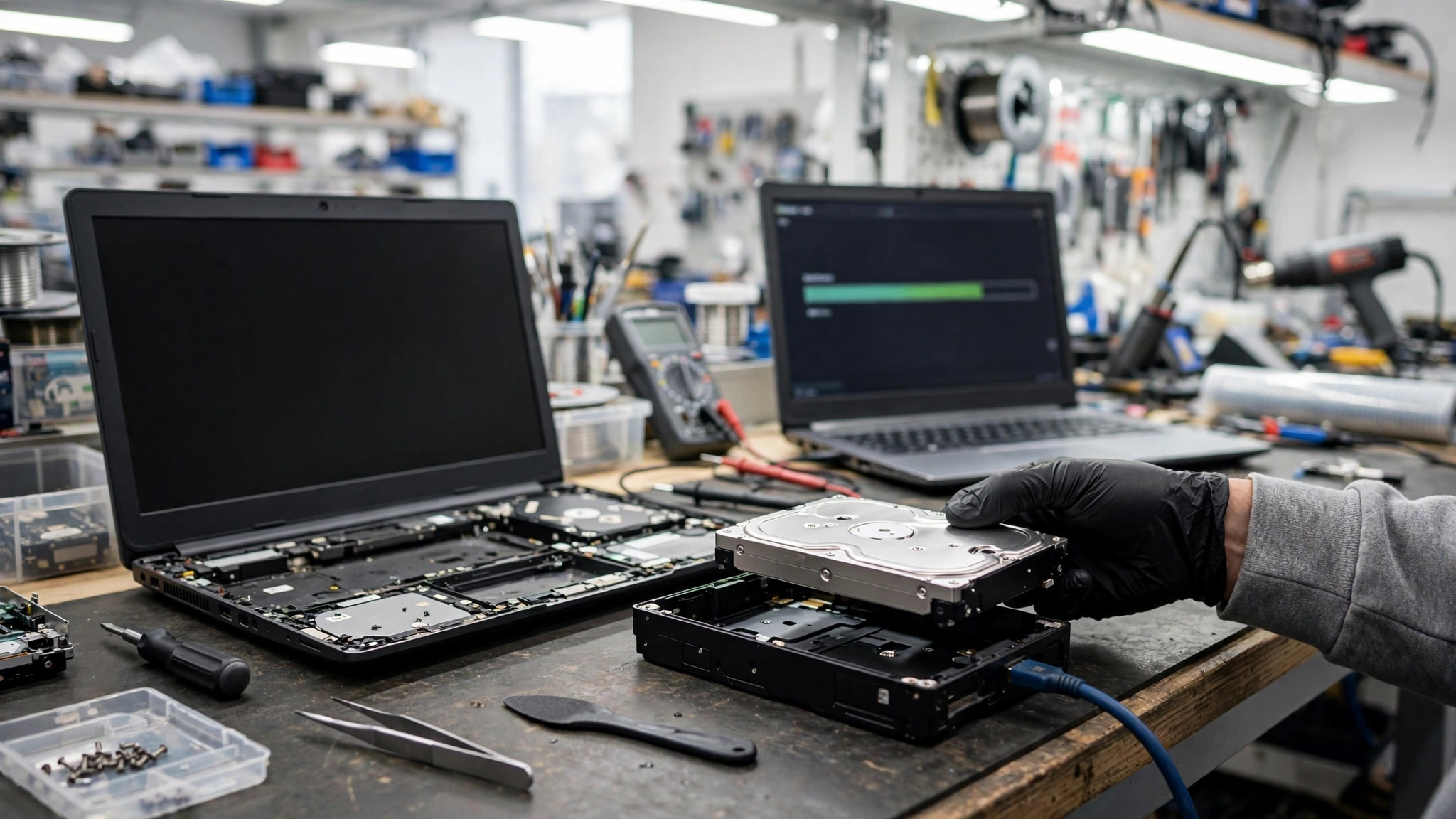
📌 Key Takeaways
- •SATA-to-USB adapter. A SATA-to-USB adapter can turn a removed internal drive into an external drive for temporary use.
- •Enclosure. An enclosure or adapter connected to another computer through USB can let a removed drive be read as an external drive.
- •Reading on another computer. After connecting through an adapter, the operating system generally treats the drive as a USB stick or an external drive, so the files can be browsed and copied directly.
- •Save recovered files to a different drive. Recovered files should be saved to another drive, not back to the same drive being recovered, so that files not yet recovered are not overwritten.
- •Do not remove a drive while it is powered. Before removing a drive, switch the laptop fully off and disconnect all power sources.
Dead laptop: is the data still there?
A laptop that will not turn on does not mean the data is already gone. The fault may be in the motherboard or the battery, rather than in the drive itself.
If the drive itself is intact, removing the drive and connecting it to another computer can generally read the files directly.
If the drive itself is already damaged, removing it and reading it may not work.
Symptom and recovery-direction table
| Symptom | Recovery direction | What to do |
|---|---|---|
| Laptop will not turn on, drive itself intact | Read the removed drive | Remove the drive and read it on another computer through an enclosure or adapter |
| Drive itself already damaged | Removing and reading may not work | Stop and arrange an inspection |
| Drive makes an unusual sound | Stop at once | Do not restart it just to check again; arrange an inspection |
| Drive is encrypted, key or password not yet ready | Prepare the key or password first | Prepare the key or password, then arrange an inspection |
| Mac with soldered storage | Removing the drive does not apply | Arrange an inspection |
Reading a removed drive: enclosure and adapter
- SATA-to-USB adapter. A SATA-to-USB adapter can turn a removed internal drive into an external drive for temporary use.
- Enclosure. An enclosure or adapter connected to another computer through USB can let a removed drive be read as an external drive.
- Reading on another computer. After connecting through an adapter, the operating system generally treats the drive as a USB stick or an external drive, so the files can be browsed and copied directly.
- Save recovered files to a different drive. Recovered files should be saved to another drive, not back to the same drive being recovered, so that files not yet recovered are not overwritten.
- Do not remove a drive while it is powered. Before removing a drive, switch the laptop fully off and disconnect all power sources.
- Anti-static handling. When handling a removed drive, take anti-static measures.
HDD vs SSD vs NVMe: differences in removal and reading
- HDD. An HDD has rotating parts inside and is a mechanical device.
- SSD. An SSD has no rotating parts inside and stores data in flash memory cells.
- M.2 NVMe SSD. An M.2 NVMe SSD needs an M.2 NVMe enclosure for reading; a SATA enclosure does not apply.
Telling the interfaces apart: SATA, M.2 SATA, M.2 NVMe
Need a laptop repair expert?
Free diagnosis · Transparent pricing · No fix, no fee · 180-day warranty
- M.2 protocols. An M.2 SSD can use the SATA protocol, and it can also use the NVMe protocol.
- The enclosure must match the interface. An enclosure or adapter must match the interface and specification of the drive. M.2 SATA and M.2 NVMe must also be told apart.
Removal and reading options comparison table
| Option | When it fits | What to note |
|---|---|---|
| SATA-to-USB adapter | Reading a removed internal drive as an external drive | The adapter must match the interface; save recovered files to a different drive |
| M.2 NVMe enclosure | M.2 NVMe SSD | A SATA enclosure does not apply |
| Professional handling | Traditional HDD with mechanical fault or physical damage | Do not open the drive casing yourself; stop and arrange a professional inspection |
BitLocker and FileVault encryption reminders
- Prepare the key or password before recovery. If the drive is encrypted, prepare the key or password before recovery.
- BitLocker recovery key. A BitLocker recovery key is a key made up of a set of digits, used to regain access when the disk cannot unlock automatically.
- Microsoft Support cannot retrieve a lost BitLocker key. Microsoft Support cannot retrieve, provide or recreate a lost BitLocker recovery key.
- FileVault. FileVault is the disk encryption feature on Mac.
- FileVault recovery key storage. A copy of the FileVault recovery key should be kept somewhere other than the encrypted startup disk.
- If both the Mac login password and the FileVault recovery key are lost. If both the Mac login password and the FileVault recovery key are lost, the files and settings may not be recoverable.
Do-not-do list before powering on
- Do not reinstall Windows onto the affected drive before the data has been copied elsewhere.
- Do not run CHKDSK with repair parameters on a failing drive.
- Do not keep powering the failing drive on, off and on again.
- If the drive makes an unusual sound, stop using it at once. Do not restart it just to check again.
- Do not open the drive casing yourself. Exposing the platter to unfiltered air can cause permanent scratches.
- Do not put a faulty drive in a fridge or freezer. Cooling can cause condensation damage.
- Do not save recovered files back to the same source drive.
- Do not remove a drive while it is powered. Switch the machine fully off and disconnect the power first.
When to stop and arrange professional handling
If a traditional HDD has a mechanical fault or physical damage, do not open the drive casing yourself. Stop and arrange a professional inspection.
Pricing: the only prices we can state here
| Item | Price |
|---|---|
| Battery | HK$580 up |
| Screen | HK$1,280 up |
| Main board chip-level | HK$880 up |
| Keyboard | HK$480 up |
| Data recovery | Quoted in writing after inspection |
Before sending it in
- Write down what happened: what the machine did when powered on, any sounds, the fault date, the symptoms, and the drive model if known.
- Write down which files or folders matter most, so the recovered list can be checked against the priority items.
- Write down what has already been tried.
- Keep the drive powered off and still, stored in a safe place. Do not repeat an operation that has already failed.
- Prepare the BitLocker recovery key, or the FileVault password or recovery key, before recovery.
FAQ
Q1: My laptop will not turn on. Is the data already gone?
A1: Not necessarily. The fault may be in the motherboard or the battery, rather than in the drive itself. If the drive itself is intact, removing the drive and connecting it to another computer can generally read the files directly. If the drive itself is already damaged, removing and reading it may not work. The final judgement should be based on inspection.
Q2: After removing the drive, how do I read it?
A2: Use a SATA-to-USB adapter or an enclosure that matches the interface, and connect it to another computer. The operating system generally treats the drive as an external drive, so the files can be browsed and copied directly. Save recovered files to a different drive, not back to the same drive. The enclosure or adapter must match the interface and specification of the drive. M.2 SATA and M.2 NVMe must also be told apart. An M.2 NVMe SSD needs an M.2 NVMe enclosure; a SATA enclosure does not apply.
Q3: The drive is encrypted. Can a removed drive still be read?
A3: Prepare the key or password first. A BitLocker recovery key is a key made up of a set of digits, used to regain access when the disk cannot unlock automatically. Microsoft Support cannot retrieve, provide or recreate a lost BitLocker recovery key. For FileVault, keep a copy of the recovery key somewhere other than the encrypted startup disk. If both the Mac login password and the FileVault recovery key are lost, the files and settings may not be recoverable.
Q4: How is data recovery charged?
A4: Data recovery charges are quoted in writing after inspection. Book a check through diagnostic to get a written quote for your exact machine.
Need Professional Laptop Repair?
Laptop King has 15+ years of repair experience in Shek Mun, Sha Tin. Free diagnosis, transparent pricing, no fix no fee. 180-day warranty for your peace of mind.