📌 Key Takeaways
- •If the touchpad works on the BIOS / UEFI screen but fails in Windows, the problem is more likely in Windows settings or the driver.
- •If the touchpad still does not work on the BIOS / UEFI screen, the problem may be hardware, for example a loose internal cable.
Touchpad not working: first tell software from hardware
A touchpad that does not respond at all and a cursor that jumps around while typing can come from different directions. One direction is software, settings or driver. The other direction is hardware, such as a loose internal cable. The BIOS test below can tell the two apart before doing anything else.
- If the touchpad works on the BIOS / UEFI screen but fails in Windows, the problem is more likely in Windows settings or the driver.
- If the touchpad still does not work on the BIOS / UEFI screen, the problem may be hardware, for example a loose internal cable.
Symptom comparison table
| Symptom | More likely direction | What to do |
|---|---|---|
| No response at all | Driver problem or loose cable are both possible | Use the BIOS test to tell software from hardware, then arrange an inspection |
| Cursor jumps while typing | Palm accidental touch, sensitivity setting, or dirt on the surface | Clean the surface and fingers, check palm accidental touch and sensitivity settings |
| Works in BIOS but fails in Windows | Points to the software / settings / driver direction | Focus on Windows settings and the driver |
| Touchpad completely missing in settings and Device Manager | Driver missing or damaged, or internal connection / hardware not detected | Restore the BIOS defaults, with inspection as the final check |
| Touch inaccurate | Dirt, grease, liquid or food residue on the touchpad surface or fingers | Clean the surface and fingers, keep them clean and dry |
Software and settings checks
- Clean the surface and fingers. If the touchpad surface or the fingers touching it carry dirt, grease, liquid or food residue, touch can become inaccurate. Keep the surface and fingers clean and dry.
- Typing cursor jumping: check palm accidental touch and sensitivity. Check the palm accidental touch and touchpad sensitivity settings.
- Driver problem. A missing or damaged driver can cause the touchpad to fail. If the touchpad is completely missing in settings and Device Manager, that often points to a missing or damaged driver. The driver status needs to be checked, with inspection as the final check.
- Precision Touchpad or vendor driver. Some newer laptops use a Precision Touchpad, whose driver is built into Windows, so no separate driver download is needed. Other models use a vendor driver instead. The two are different driver standards with different settings entries, so they should not be treated as the same driver.
- BIOS test. If the touchpad works on the BIOS / UEFI screen but fails in Windows, focus on Windows settings and the driver. If it fails on the BIOS / UEFI screen as well, the problem may be hardware.
- BIOS defaults. If the touchpad is missing in settings, restoring the BIOS defaults is part of the checks before judging.
Need a laptop repair expert?
Free diagnosis · Transparent pricing · No fix, no fee · 180-day warranty
Hardware direction
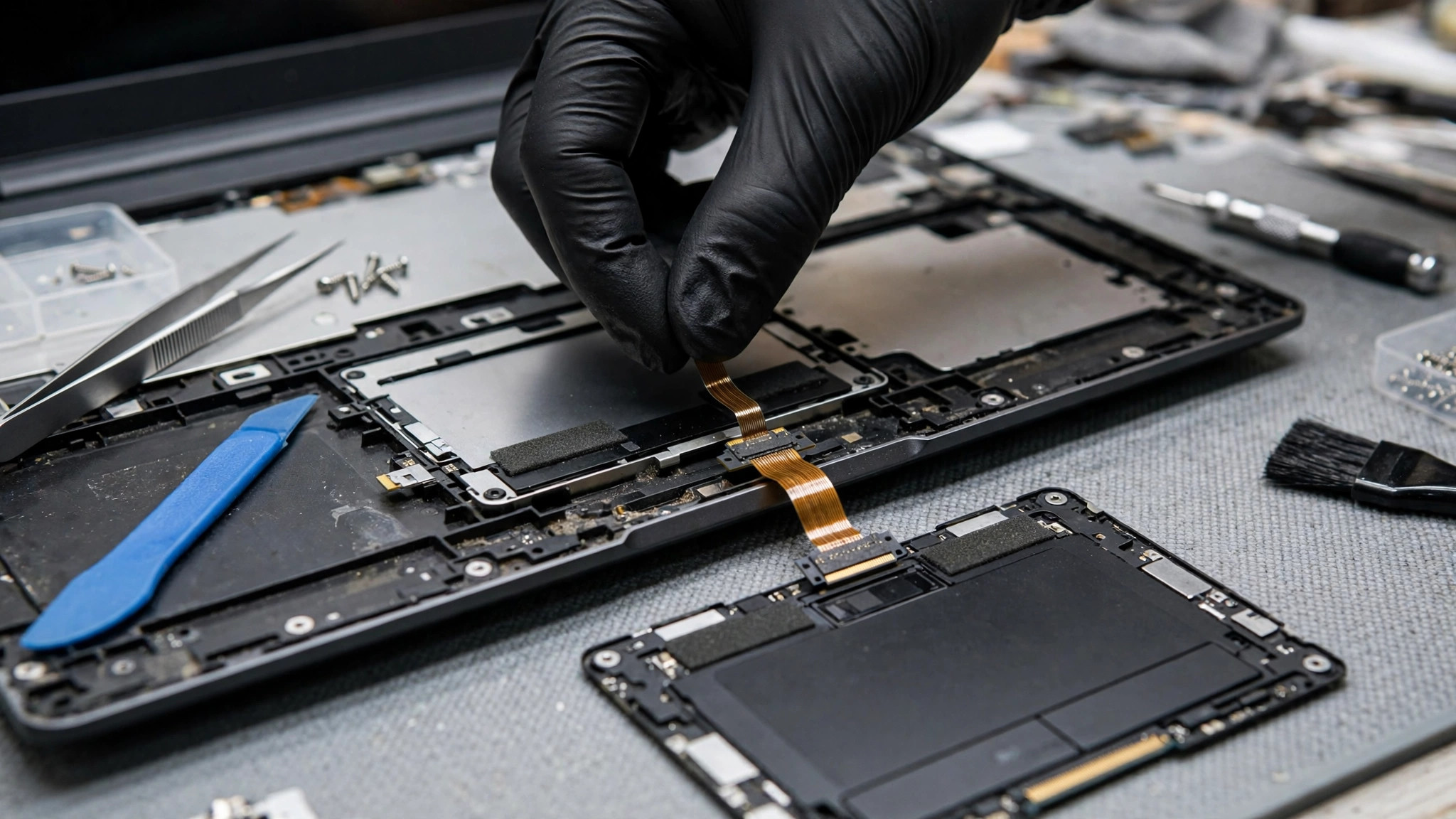
- Loose internal cable. A loose cable can be one hardware cause of touchpad failure, so it should be left to inspection.
- Completely missing in settings. If the touchpad is completely missing in settings and Device Manager, that can point to a driver problem or to an internal connection or hardware item not being detected. Install the correct vendor driver and reset the BIOS defaults before judging, and use inspection as the final check.
Troubleshooting and repair options comparison table
| Option | When it fits | What to note |
|---|---|---|
| Clean surface and fingers, check palm accidental touch and sensitivity settings | Cursor jumps while typing, touch inaccurate | Keep the surface and fingers clean and dry; check palm accidental touch and sensitivity settings |
| Driver status check | No response at all, touchpad missing in settings | A missing or damaged driver can cause failure; inspection is the final check |
| BIOS test and hardware diagnostics | Telling software from hardware | Touchpad working in BIOS but failing in Windows points to the software direction; failing in BIOS as well may be hardware; some brands provide a boot-time hardware diagnostics test |
| Internal cable check | Hardware cause suspected | A loose cable can cause failure; inspection is needed |
Before sending it in:
- Back up important files.
- Write down the symptoms, for example whether there is no response at all, whether the cursor jumps while typing, and whether gestures work.
- Write down the laptop brand and model and the serial number. A clear fault description helps the engineer diagnose faster.
Pricing: the only prices we can state here
| Item | Price |
|---|---|
| Battery | HK$580 up |
| Screen | HK$1,280 up |
| Main board chip-level | HK$880 up |
| Keyboard | HK$480 up |
| Touchpad / cable repair | Quoted in writing after inspection |
FAQ
Q1: The cursor jumps while I type. What should I do?
A1: Check palm accidental touch and the touchpad sensitivity setting first, and clean the touchpad surface and your fingers. Dirt, grease, liquid or food residue on the surface or fingers can also make touch inaccurate. If the problem stays, arrange an inspection.
Q2: The touchpad does not respond at all. Is it software or hardware?
A2: Use the BIOS test. If the touchpad works on the BIOS / UEFI screen but fails in Windows, the problem is more likely in Windows settings or the driver. If it still does not work on the BIOS / UEFI screen, the problem may be hardware, for example a loose internal cable. Some brands also provide a boot-time hardware diagnostics touchpad test; if the touchpad is missing there or the test fails, the problem may be hardware. The final judgement should be based on inspection.
Q3: The touchpad is missing in settings. What does that mean?
A3: It can point to a driver problem or to an internal connection or hardware item not being detected. A missing or damaged driver is one possible cause. Before judging, install the correct vendor driver and restore the BIOS defaults, with inspection as the final check. Do not assume it is a single cause until it has been inspected.
Q4: How much does touchpad repair cost?
A4: Touchpad and cable repair prices are quoted in writing after inspection. The actual scope depends on inspection: whether it is a driver or settings problem, or a loose internal cable. Book a check through diagnostic to get a written quote for your exact model.
Need Professional Laptop Repair?
Laptop King has 15+ years of repair experience in Shek Mun, Sha Tin. Free diagnosis, transparent pricing, no fix no fee. 180-day warranty for your peace of mind.