📌 Key Takeaways
- •Scope result: which ports work and which do not, one side or all ports, and which kind of device fails.
- •Speed result: whether USB 2.0 devices work, whether USB 3.x devices work, and whether speed has fallen back.
- •Power result: direct versus self-powered hub comparison, and whether the fault needs several devices attached or appears with one.
- •Physical result: any looseness, bent pin, missing pin, cracked plastic tongue, burning, discoloration, heat, or burnt smell.
- •Hub result: direct versus hub comparison, cables swapped, and the dock model.
Premise: This Is the Advanced Article, Not a Rewrite of the Basics
The earlier article, on telling apart driver, power, physical damage, and board problems for a dead USB port, already covered the basic checks. This article only cites it here as a premise and does not rewrite that content. It assumes you have already done the basics: restarted, swapped cables and devices, confirmed the device itself works on another computer, and checked drivers and power, yet the port is still dead.
The core principle of advanced differentiation is simple: one symptom does not equal one cause. A port with no response can sit at the power, controller, physical, hub, firmware, or board layer. Without hands-on inspection, any cause is only a possibility, not a diagnosis. Figures that have not been verified for your model should be treated as subject to inspection. USB repair pricing is quoted in writing after inspection, and this article gives no specific USB repair figure. Before touching BIOS settings, firmware updates, or opening the machine, back up important data; if you are unsure, stop and send it in. If you see heat, discoloration, a burnt smell, or smoke, stop using that port at once and do not keep plugging devices in.
Step 1: One Dead Port, or Every Port at Once
This is the first boundary to draw, because the two sides point at completely different layers. Test every port one by one and write down which port works, which does not, and which kind of device fails. Do not rely on an impression that everything is dead.
| Scope | Typical pattern | More likely layer | Next differentiation |
|---|---|---|---|
| Only one port dead, others fine | The same device works in other ports and is completely unresponsive in this one | That port's physical damage, poor contact, solder problem, or its individual circuit | See Step 4, then confirm by inspection |
| Ports on one side dead together | For example, both left-side ports dead while the right side works | A shared controller, power circuit, or internal cable for that group | See Steps 3 and 8, not just the single port |
| All ports dead together | No port and no device responds | Controller, driver layer, firmware setting, power, or board layer | See Steps 6, 7, and 8, layer by layer |
| Only one kind of device fails | A mouse works but an external drive does not, or USB 2.0 devices work but USB 3.x devices do not | Insufficient power, speed negotiation failure, or a single controller channel problem | See Steps 2 and 3 |
| Intermittent, position-dependent | Moving the cable breaks the connection, another angle brings it back | Loose socket, bent pin, cracked solder, or poor contact | See Step 4, not a software cause |
Step 2: USB 2.0 and USB 3.x Must Be Read Separately; Speed and Power Are Two Things
Many people assume a USB 3.x port running slowly means it is broken, or that a USB 2.0 device failing in a USB 3.x port means the port is dead. Speed and power are separate dimensions. A USB 2.0 device in a USB 3.x port generally still works, limited by the slower side; a USB 3.x device in a USB 2.0 port also works, but only at USB 2.0 speed. The speeds below are specification ceilings, not measured transfer speeds. Real speed depends on the device, cable, hub, and system load.
| Specification | Common name | Specification ceiling | Typical use |
|---|---|---|---|
| USB 1.x | Low-Speed / Full-Speed | 1.5 Mbps / 12 Mbps | Legacy keyboards and mice; historical reference only |
| USB 2.0 | High-Speed | 480 Mbps | Keyboards, mice, printers, ordinary flash drives |
| USB 3.0 / USB 3.2 Gen 1 | SuperSpeed | 5 Gbps | External drives, flash drives, large file transfers |
| USB 3.1 / USB 3.2 Gen 2 | SuperSpeed+ | 10 Gbps | Faster external storage |
| USB 3.2 Gen 2x2 | SuperSpeed USB 20Gbps | 20 Gbps | Depends on model and cable; not every USB-C port supports it |
| USB4 | USB 40Gbps | 40 Gbps | Depends on model; needs both ends and the cable to match |
Step 3: Insufficient Power, or a Failed Controller
Insufficient power and controller failure are easy to confuse, because both can leave a device unrecognised or dropping in and out. Separate them by how much power the device draws, whether the fault appears only when several devices are attached, and whether any power clues are present.
| Specification / mode | Per-port power ceiling | Note |
|---|---|---|
| USB 2.0 high-power device | 500 mA at 5V, about 2.5W | Enough for mice and keyboards; not always enough for an external drive |
| USB 3.x high-power device, single lane | 900 mA at 5V, about 4.5W | Higher than USB 2.0, but still not unlimited |
| Battery Charging 1.2 | 1.5A at 5V, about 7.5W | Only if that port supports it; not every port does |
| USB-C without PD | 1.5A or 3A at 5V, about 7.5W or 15W | Depends on model |
| USB PD Standard Power Range | Up to 20V at 5A, about 100W | Needs charger, cable, and device all to support it |
| USB PD Extended Power Range | Up to 48V at 5A, about 240W | Needs a specially marked cable and both ends to support it; depends on model |
One more power trap: a laptop on battery and on charger can behave differently on USB power, and after sleep or hibernation an individual port may fail to restore power. That belongs to Step 6 power management, not automatically to a dead port. This article gives no universal voltage figure for individual models; measured values depend on the model and are subject to inspection.
Need a laptop repair expert?
Free diagnosis · Transparent pricing · No fix, no fee · 180-day warranty
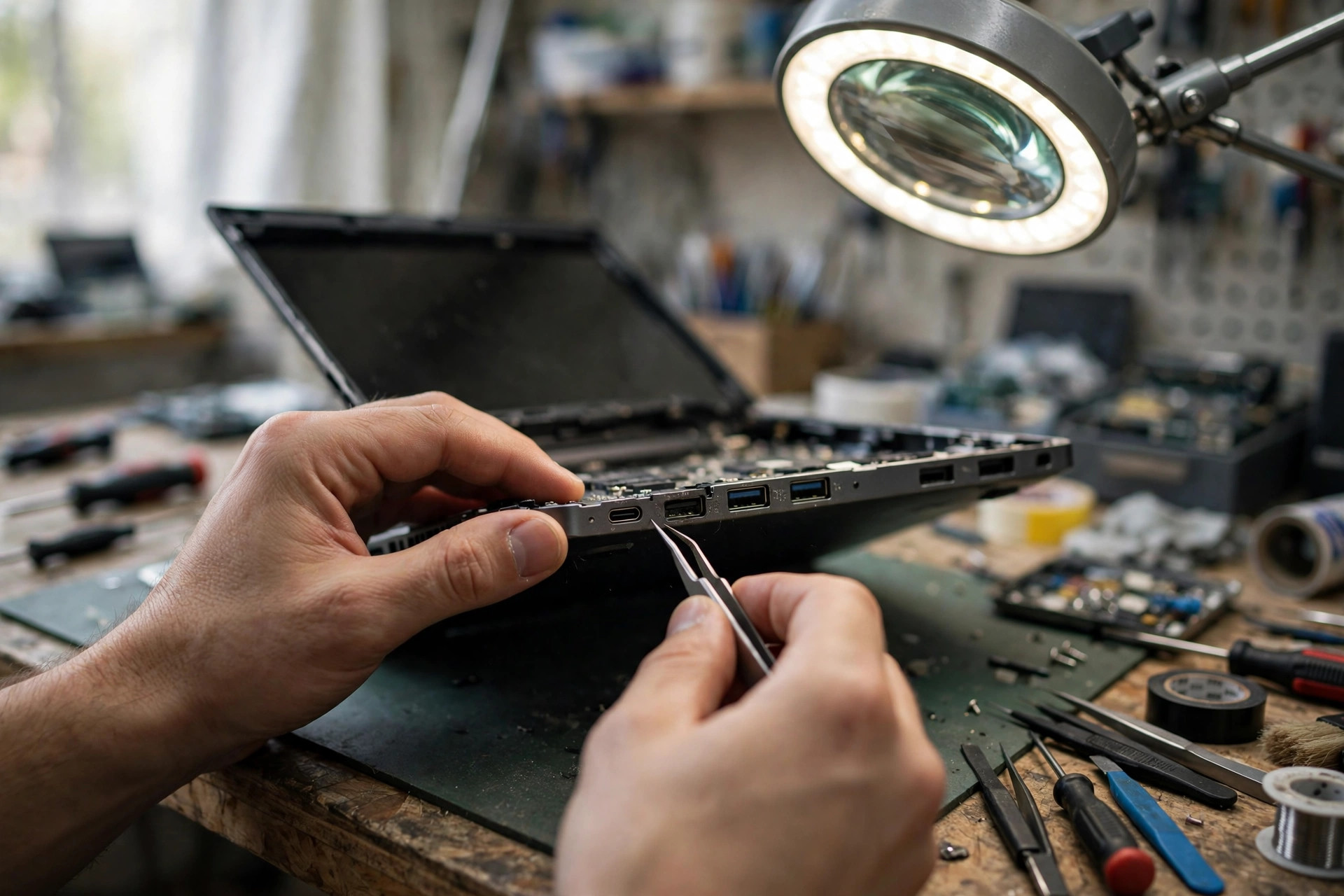
Step 4: Reading Physical Damage: Loose, Bent Pins, Cracked Solder
Physical damage is the easiest advanced layer to read by eye and by feel, and also the easiest to make worse by repeated plugging. Before inspecting, shut down and remove the device; never poke a metal tool into a live port.
| Physical sign | What you see or feel | Direction it points | Correct handling |
|---|---|---|---|
| Loose | The plug falls out easily, the socket shifts, or it wobbles when seated | The socket mounting has loosened, or solder joints have loosened | Stop using that port; do not tape it or press it to hold it in place; send it in |
| Bent pin | A pin inside is bent, asymmetric, or touching another pin or the housing | Bent pin or short-circuit risk | Do not straighten it yourself with a pin; a short can drag down other ports; stop using it and send it in |
| Cracked solder | The outside may look fine; wiggling makes it work, then fail again | A cracked solder joint making intermittent contact | Appearance alone cannot rule this out; it needs the machine opened and inspected |
| Missing or broken pin | Clearly fewer pins, or a pin snapped off | The socket itself is damaged | The socket needs replacement; cleaning cannot fix it |
| Cracked or deformed plastic tongue | The plastic tab inside is cracked, bent, or chipped | Socket structure damaged; pin positions may already have shifted | Stop using that port; do not keep inserting devices |
| Burnt, discoloured, hot, or smelling burnt | Discoloration near the socket, heat, or a burnt smell | Electrical damage that may already affect nearby circuits | Stop using it at once; do not test again; send it in |
| Debris or dust inside | Dust or fragments blocking the plug | Poor contact, not necessarily a broken socket | Only short bursts of compressed air; no water, no damp cloth, no metal tools |
Step 5: Hubs and Docks: Helper or Culprit
After the basics, many people overlook that the hub itself is the fault. The correct comparison is to unplug the device from the hub and plug it directly into the laptop's own port. If direct works and through the hub fails, the hub side is the problem; if direct also fails, look at the computer itself.
| Hub type | Power source | Power per downstream port | Suitable for |
|---|---|---|---|
| Bus-powered hub | Only the host port's power | All downstream ports share the upstream port's power; the more devices attached, the less each gets | Keyboards, mice, flash drives, and other low-draw devices |
| Self-powered hub | Its own external power supply | Each port can get fuller power without competing with the others | External drives, audio interfaces, several high-draw devices at once |
| Passive adapter | No power, no signal boosting chip | Only changes plug shape; adds no power and no speed | Shape conversion only; do not expect it to fix a power problem |
| Dock / docking station | Usually its own external power supply | Depends on the product; some ports still share bandwidth and power | A fixed desk setup with many devices; judge by product specification and testing |
Step 6: Software Layer Versus Hardware Layer: Device Manager, Power Management, Controller State
The software-versus-hardware boundary can be drawn with a Device Manager and BIOS-level comparison. Software-layer faults usually show inside Windows first; hardware-layer faults often already fail at BIOS level, or survive every driver change.
| What Device Manager shows | More likely direction | Next step |
|---|---|---|
| Yellow warning under Universal Serial Bus controllers | Driver or device-reported problem | Read the warning and error code, then compare with the maker's driver; do not conclude hardware failure from a warning alone |
| Unknown USB Device, Code 43 | Windows has stopped the device because it reported problems; public discussion notes Code 43 often reflects a hardware handshake failure, not a simple driver issue | Cross-test port, cable, and another computer; if several computers give the same code, the device or the port is the stronger direction |
| Device appearing and disappearing repeatedly | Unstable power, poor contact, power management stepping in, or a hub problem | See Steps 3, 4, and the power management settings |
| A controller itself missing, or a whole group gone | Controller, firmware, or board-layer problem | See Steps 7 and 8, not driver reinstallation alone |
| Everything normal, no warning, yet the device is still not recognised | A normal driver display does not prove the hardware is fine; power, physical, or controller-channel problems remain | Direct-connection comparison, device comparison, BIOS-level comparison |
A one-line boundary to remember: recognised at BIOS level but not in Windows leans toward the software layer; not recognised even at BIOS level, and unchanged after driver work, leans toward the hardware layer. This is a direction only, not a diagnosis, because some hardware faults can still appear briefly at BIOS level before dropping out.
Step 7: BIOS and Firmware Layer: Which Settings Actually Relate to USB
The BIOS and firmware layer is the easiest to overlook after the basics, because option names vary by maker and many laptop BIOS screens lock some options away. The table below gives general concepts only; exact names and locations follow that machine's manual.
| BIOS / firmware item | Rough meaning | Value for USB differentiation |
|---|---|---|
| Legacy USB Support | Support for older systems; options are usually Enabled, Disabled, or Auto | If off, pre-boot USB keyboards, mice, or USB booting may be affected; a fault that only appears inside Windows is not necessarily about this |
| XHCI Hand-off | Whether the USB 3.x controller is handled by BIOS or by the operating system | A wrong setting can affect USB 3.x ports inside the system; depends on model |
| EHCI Hand-off | Hand-over for the USB 2.0 controller, for older systems without hand-off support | More relevant to older machines; newer models may not show it at all |
| Per-port enable / disable | Some models can switch individual ports on or off | If a port is disabled in BIOS, no Windows setting will bring it back |
| Restore BIOS defaults | Return BIOS settings to factory defaults | Can rule out a wrongly changed setting, but check boot order and other settings afterwards |
| BIOS / firmware update | A maker-supplied firmware fix | Consider only when the maker's update notes describe a similar USB fix; an interrupted update can leave the machine unable to boot, so back up and keep power connected |
Step 8: Judging the Board Layer, and When to Stop Testing
The board layer is the last layer, and the one least suited to a guess from symptoms. The clues below point toward the board layer only when several appear together; a single clue is not enough.
| Board-layer clue | Why it matters | Do not conclude |
|---|---|---|
| All ports dead together, and not recognised even at BIOS level | The direction toward a controller or shared circuit is stronger | That the whole board has failed; it may be one controller or power circuit |
| The machine shuts down or restarts when a device is plugged in | A short or power protection response is possible | That repeated plugging will confirm it; stop and send it in |
| A port is hot, discoloured, or smells burnt | Electrical damage may already affect nearby circuits | That this is ordinary looseness; stop using it and send it in |
| Liquid exposure, a drop, or an impact before the fault | Impact or liquid can affect solder joints and circuits | That a clean exterior means no damage; liquid damage can appear late |
| Every port, cable, device, driver, and BIOS setting already tried, still dead | The external and software layers are exhausted, leaving hardware | That more setting changes will help; bring the comparison results and send it in |
| Only USB is affected, everything else fully normal | The fault is more likely confined to the USB subsystem | That the fault is therefore small; the USB subsystem itself can be a board-layer repair |
| USB plus other functions unstable together, such as charging, touchpad, or keyboard | A shared power or wider board-range problem is possible | That USB alone should be repaired; the whole machine needs inspection |
Step 9: USB-C and PD Differentiation: Same Shape, Completely Different Functions
USB-C needs its own section, because USB-C is only a plug shape, not a function grade. The same USB-C port may support data and charging only, or may add video output, high-speed transfer, or PD charging, depending on model.
| USB-C pattern | More likely direction | How to separate |
|---|---|---|
| Charging works, data does not | Data channel, cable, controller, or driver problem | Swap to a cable confirmed to support data; do not use a charge-only cable for a data comparison |
| Data works, charging fails or is very slow | PD negotiation failure, cable power rating too low, or charger power too low | Compare charger, cable, and device together; whichever is lowest pulls the whole setup down |
| Fails through a dock, fine on direct connection | Dock, cable, or dock driver problem | See Step 5; rule out the dock itself first |
| Video output fails, but data and charging are fine | That port may not support video output, or the cable or display setting is wrong | Check the model's official specification for video output first; do not assume every USB-C port outputs video |
| Works in one orientation, fails when flipped | One side of the socket or cable has a contact problem | Do not treat this as normal; have the socket inspected |
Step 10: Stop Rules and the Inspection Checklist: Bring Complete Information
In one line: after the basics, do not repeat the same method, and do not change settings by feel. First separate scope, one port or all ports; then speed, USB 2.0 or USB 3.x; then power, enough or not; then physical, loose, bent pin, or cracked solder; then hub, direct or through a hub; then software, Device Manager and power management; then firmware, BIOS settings and updates; and only last, the board layer. Any conclusion not verified is subject to inspection.
Before sending the machine in, bring this checklist, not just "the USB port does not work".
- Scope result: which ports work and which do not, one side or all ports, and which kind of device fails.
- Speed result: whether USB 2.0 devices work, whether USB 3.x devices work, and whether speed has fallen back.
- Power result: direct versus self-powered hub comparison, and whether the fault needs several devices attached or appears with one.
- Physical result: any looseness, bent pin, missing pin, cracked plastic tongue, burning, discoloration, heat, or burnt smell.
- Hub result: direct versus hub comparison, cables swapped, and the dock model.
- Software result: Device Manager warnings, error codes, which two power management places were changed, and whether drivers came from the maker or from Windows.
- Firmware result: whether BIOS recognises the device, whether BIOS has per-port switches, and the BIOS version and update history.
- Board-layer clues: any drop or liquid exposure, any shutdown or restart on plug-in, and whether other functions are unstable too.
- Backup status: whether important data has another copy, especially data on an external drive.
Need Professional Laptop Repair?
Laptop King has 15+ years of repair experience in Shek Mun, Sha Tin. Free diagnosis, transparent pricing, no fix no fee. 180-day warranty for your peace of mind.