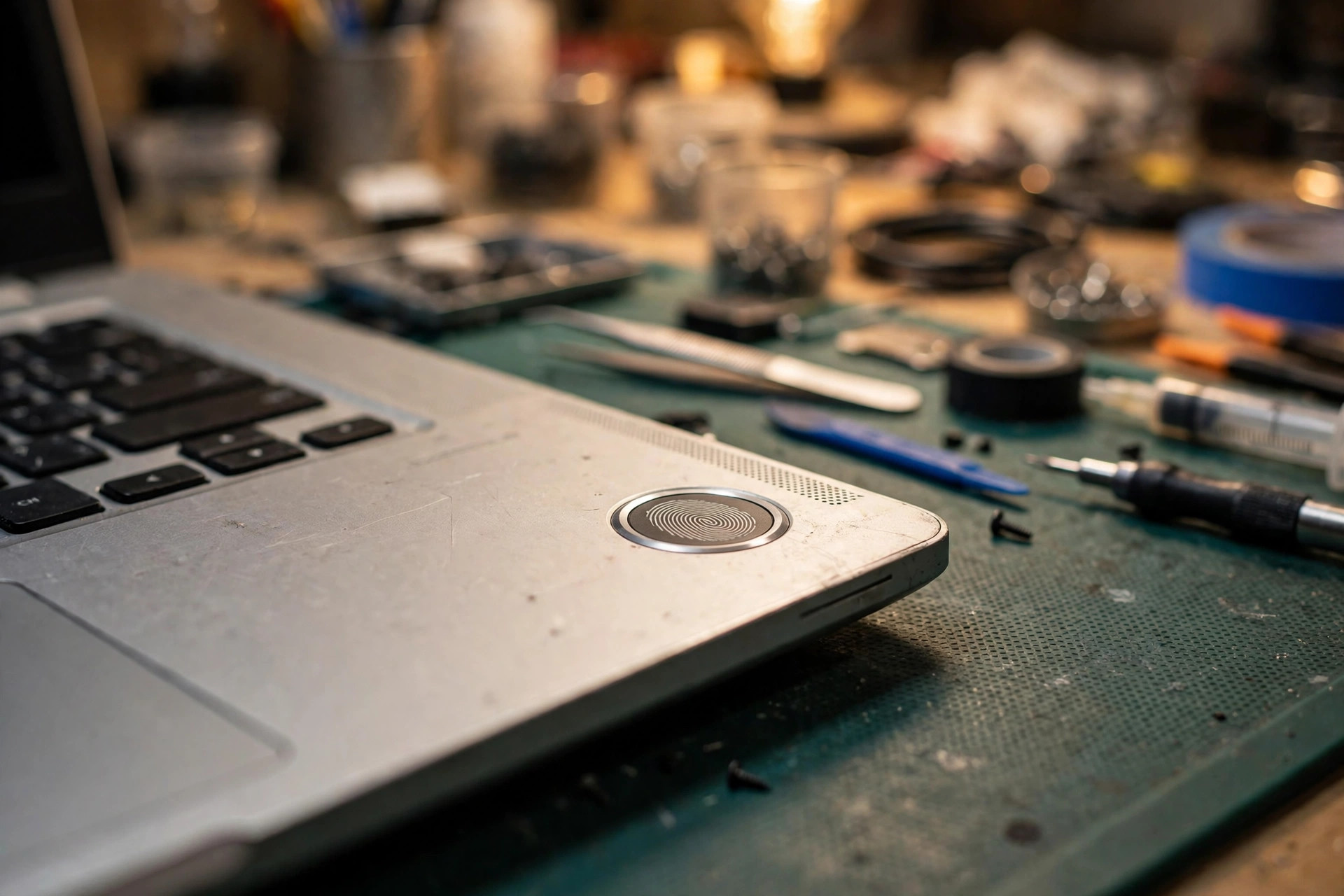
What "basic checks already done" actually means
Restart done, sensor surface cleaned, fingerprint removed and re-enrolled, Windows Hello settings checked, driver reinstalled, and fingerprint or face sign-in still fails. That state is itself an important clue. Basic checks deal with the outermost layer: whether the system recognises the sensor, whether a setting has switched it off, whether visible dirt covers the surface, whether a driver file is damaged. When every outer layer has been excluded and the symptom remains, the fault may sit deeper: the connection and power path between the sensor and the mainboard, firmware enablement, the completeness of the driver stack, whether the Windows Biometric Framework enumerates the sensor, which layer stores the template, the state of the TPM and the credential container, account and policy restrictions, or the power-resume sequence after sleep. This guide does not repeat the basic checklist. It starts from symptom branching and narrows layer by layer.
Set one discipline first: change one variable at a time and record the result. Changing several settings at once may restore the fingerprint, but it will not show which change mattered, and an inspection cannot reproduce the result from such a record. Every section below follows the same pattern: how to isolate, then the mechanism behind it, then which layer deserves further checking. One scope note matters throughout: this guide covers a laptop's built-in fingerprint sensor and built-in face camera, not an external USB fingerprint reader or an external camera. External devices appear only in the closing decision framework, as a separate option beside built-in components, and their failure patterns must not be mixed with built-in ones.
| Basic check item | Layer already excluded | Layer still open |
|---|---|---|
| Restart | Temporary system state | Enumeration failure, power state stuck |
| Cleaning the sensor surface | Visible surface dirt | Finger condition, template quality, sensor surface wear |
| Removing and re-enrolling a fingerprint | The enrolment action at the settings layer | Template storage layer, old template inside the sensor, account binding |
| Checking Windows Hello settings | Switches at the settings layer | Policy block, ESS state, service stopped |
| Reinstalling the driver | The upper driver file itself | Driver version and source, chipset and USB support layer, firmware switch |
Six symptom branches first, never one generic "fingerprint broken"
The easiest mistake in an advanced guide is treating six different faults as one broken fingerprint. The first step in branching is not replacing a part. It is testing PIN, fingerprint, and face one at a time, and recording whether the failure changes with boot state, sleep state, power state, or account. The six directions below need completely different checks, and any record sent for inspection should state its branch first, then the comparisons already tried.
| Branch | What is seen | Layer to suspect first |
|---|---|---|
| Branch 1: sensor not recognised at all | Settings reports no compatible scanner; Device Manager shows no biometric item | Firmware switch, bus enumeration, driver load |
| Branch 2: recognised but enrolment fails, or enrolment succeeds and matching never works | Enrolment fails part-way, or every sign-in falls back to PIN | Template quality, template storage layer, old template inside the sensor |
| Branch 3: works after restart, breaks after sleep or wake | Cold boot normal, no response after sleep, restart restores it | USB suspend, wake resume, TPM wake interaction |
| Branch 4: PIN works but biometrics greyed out or option missing | PIN signs in normally; fingerprint or face option greyed out or gone | Policy layer, ESS state, service layer, missing prerequisite |
| Branch 5: face and fingerprint, only one side fails | One method reliable, the other completely dead | Hardware, driver, or template belonging to the failing side only |
| Branch 6: breaks after a Windows update or an account change | Failure immediately after an update, account change, or domain join | Driver replacement, ESS state change, credential container failure, policy change |
Fingerprint sensor types and placement: not all sensors work the same way
"Fingerprint sensor" is a collective name for three different principles, and the principle decides what the sensor fears and how it fails. The model's specification sheet is the authority for which type a given laptop uses. Guessing from the sensor's shape is not a diagnosis.
A capacitive sensor measures electrical differences between fingerprint ridges and valleys, and it needs direct finger contact with the surface to read a signal. It is compact, which is why it fits a power button or a small palm-rest pad, and it is the most common laptop type. Its weakness follows directly from its principle: a very dry finger, a thick layer of hand cream, a film of sweat or oil all change the electrical signal it measures. A scratched or worn surface changes the field it reads in the same way.
An optical sensor lights the finger and photographs the ridge pattern with a small image sensor. It depends less on electrical contact than a capacitive sensor, but it is more sensitive to anything that blocks or scatters light: surface dirt, strong light leaking into the capture, a scratched cover. Optical sensors are more common in standalone access-control hardware than in thin laptop palm rests, but the diagnostic logic still applies: a sensor that fails only in bright light, or only with a dirty finger, behaves like an optical capture problem, not like a dead bus.
An ultrasonic sensor sends high-frequency sound waves into the finger and builds a three-dimensional map from the reflections. Sound penetrates a surface film better than light or surface capacitance, so in principle it tolerates wet or dirty fingers better. Ultrasonic sensors are mainly a phone under-display technology, not the usual laptop palm-rest or power-button sensor. The diagnostic value here is negative: a laptop sensor that performs badly with wet hands is almost certainly not ultrasonic, and wet-hand failure alone does not prove the sensor is faulty. It may be behaving exactly as its type behaves.
Placement adds a second distinction. A power-button-integrated sensor puts power and biometrics in one assembly: a button that still switches the machine on does not prove the sensor portion is healthy, and a sensor that fails at the lock screen but works after sign-in may point at the wake sequence rather than the finger. A palm-rest sensor is a separate pad beside the keyboard or touchpad, with its own connection path, exposed to palm sweat, wrist pressure, and knocks from carrying the machine in a bag, and its connector is itself an independent failure point. Where a sensor sits in or beside the touchpad, touchpad driver problems and sensor problems can coincide, but coincidence is not causation: touchpad movement and clicks must be tested separately from sensor enrolment.
Branch 1: fingerprint sensor not recognised at all
What is seen: Settings reports that no fingerprint scanner compatible with Windows Hello Fingerprint could be found, or the fingerprint option does not appear at all. Device Manager may show no Biometric devices entry, or show one only under View, Show hidden devices, or show an unknown device or a warning icon.
The mechanism layer sits between firmware enablement, bus enumeration, and driver load. If firmware never enabled the sensor, Windows never sees it, and no driver reinstall can create a device. If the bus or internal hub fails to enumerate it, it appears as an unknown device or not at all. If the driver is missing, or a generic driver has replaced the maker's Hello driver for that model, the hardware may appear in Device Manager while Windows still reports no compatible scanner.
Isolation testing must record three Device Manager views separately. The normal view shows whether a biometric item exists and whether it carries a warning icon. The Show hidden devices view shows greyed-out items: a device visible only as a hidden item was installed before but is not enumerated now, which points at enumeration or power, not at a missing driver package. The device Properties, Details, and Device instance path identify the hardware for inspection; writing "nothing in Device Manager" is not a complete record.
Next, test three boot states separately: after a Restart, after sleep and wake, and after a full shutdown followed by power-on. Present after Restart but absent after sleep points at resume; absent in all three points at firmware, bus, or driver load. Add two more comparisons: whether another account on the same machine sees the sensor, and whether the Windows Biometric Service is running in the Services list. No account seeing it puts the fault below the account layer; one account seeing it and another not seeing it puts the fault outside the hardware itself.
What each result rules out matters as much as what it points at. A sensor absent from Device Manager in every power state and for every account rules out a template or enrolment fault, because there is nothing to enrol against. Conversely, a sensor present with a clean driver but still reported as incompatible rules out a simple missing-driver explanation and points at firmware enablement, ESS capability, or a driver that is not the maker's Hello driver for that model. Before sending the Device Manager findings for further checking, the inspection process can be seen on the diagnostic page, which sets out what records to bring.
Branch 2: recognised but enrolment fails, or enrolment succeeds and matching never works
What is seen: the sensor is visible, enrolment starts, but enrolment fails part-way, or enrolment completes and the finger is never accepted at sign-in, or a different finger is accepted inconsistently. One message deserves its exact wording recorded: the system says the fingerprint is too similar to one already set up and asks for a different finger. That message is not generic enrolment failure. It points at an existing record of that finger inside the sensor or Windows.
The mechanism layer splits into two template storage designs. In a match-on-host design, the sensor captures the image and Windows matches it against a template stored on the device. A damaged template database, a template that no longer matches its credential after OS recovery or an account change, or a driver that captures poorly will all produce enrolment or matching failure while the sensor stays visible. In a match-on-sensor design, the sensor itself stores templates and performs matching, returning only a match result to Windows. After OS recovery, an account change, or a sensor firmware update, an old template can remain inside the sensor and block re-enrolment of the same finger even after Windows is reinstalled, because Windows was never the store that needed clearing. Dell documents exactly this pattern for Inspiron and Vostro models: after a Windows Update, driver, firmware, or BIOS update, or after OS recovery without deleting enrolled fingerprints, setup can fail with the "too similar" message, and the failure can persist after reinstalling the operating system or trying another account. Dell gives the cause as Windows treating the finger as already registered under a different profile, and the resolution for those models as a specific Goodix driver version, 20.8.0.9, A06 or later. That finding belongs to that model family, not to laptops in general, and it shows why reinstalling Windows is not a clean isolation test for a match-on-sensor device.
Skin and sensor-surface conditions sit underneath both designs. Capacitive sensors depend on electrical contact, so a finger that is very wet, very dry, oily, or covered in lotion, and a sensor surface filmed with sweat or oil, will enrol a poor template that then never matches reliably. Re-enrolling the same finger in the same poor condition reproduces the same poor template, so repeated re-enrolment without changing the finger, the condition, or the sensor surface is not a new test.
Isolation testing has four parts. First, enrol a different finger, in a clean and dry condition, slowly, deliberately varying the angle during enrolment, and test that finger alone. If the new finger enrols and matches reliably while the original finger does not, the fault is finger or template quality for that finger, not the sensor. Second, enrol the same finger under a different user account on the same machine. If it enrols under the second account but not the first, the fault is profile or template state for the first account. If it fails under both accounts with the "too similar" message, the fault is sensor-stored template state, and the resolution is model-specific. Third, test matching at three points: immediately after enrolment, after lock and unlock, and after Restart. Matching that works immediately but fails after Restart points at template persistence or service recovery, not at capture quality. Fourth, note the exact error text verbatim. "Too similar," "something went wrong," and "couldn't find a scanner" are different layers, and a paraphrase loses the distinction.
What each result rules out: a new finger that enrols and matches rules out a dead sensor, a broken bus, and a missing driver in one test. A finger that fails under every account and after a driver change rules out a single-profile template fault and points at sensor-stored state, sensor capture quality, or an ESS or certificate problem. Enrolment succeeding but sign-in always failing rules out capture and points at the template-to-credential link or the service layer.
Branch 3: Hello works after restart, then breaks after sleep or wake
What is seen: fingerprint or face sign-in works after a Restart, then fails after the laptop sleeps, hibernates, or is shut down with Fast Startup, and returns after another Restart. Sometimes the sensor is still listed in Device Manager but does not respond to touch; sometimes it has vanished until restart.
The mechanism layer runs in this order: USB selective suspend or the sensor's own "allow the computer to turn off this device" setting, the USB host controller's resume, the biometric service's recovery after resume, and, for power-button sensors, the Wake on Touch path. A second, distinct mechanism is the TPM interaction on resume. Dell documents a model-family example: on certain Tiger Lake-U Latitude and Vostro models, the first fingerprint unlock attempt after cold boot or after resuming from adaptive hibernation fails on battery power only, with "Something went wrong on our end. Please try again," while the second attempt succeeds, and Dell attributes this to a Hello and TPM interaction on that chipset on battery power that cannot be resolved other than by connecting AC power or retrying. That is a chipset-specific limitation, not a general TPM rule, and it must not be generalised to other models. Its value here is that battery versus AC is a test variable in its own right, not background detail.
The core isolation test is a power-state table, with each cell tested separately rather than collapsed into "it works sometimes." The cells are: after Restart, after lock and unlock, after sleep and wake, after hibernate and wake, and after full shutdown followed by power-on, each on AC power and on battery. Lock and unlock involves no power transition: if that cell works but sleep and wake does not, the template and sensor are functional and the fault is in the resume path. After a failed wake, sign in with PIN and check Device Manager: a sensor present but unresponsive points at driver or service re-initialisation, while a sensor absent points at bus re-enumeration.
Settings-level single-variable tests are the sensor's Power Management setting and the USB selective suspend setting, changed one at a time with the power-state table repeated after each change. If changing one setting moves the failure from "after every sleep" to "after hibernate only," that setting is part of the mechanism even if it is not the whole fix. A further diagnostic comparison is Fast Startup: with Fast Startup on, a shutdown is not a full cold boot, because the kernel session is hibernated. A fault that disappears when Fast Startup is off was a resume fault, not a cold-boot fault. Keeping the full power-state table, including the AC versus battery split, lets an inspection start from the correct wake path instead of repeating every test.
What each result rules out: working after Restart rules out a dead sensor, a missing driver, and a missing template. Failing only after sleep rules out an enrolment fault. Failing only on battery rules out a general driver fault and points at a power-state-specific interaction of the kind Dell documents for the affected Tiger Lake-U models.
Branch 4: PIN works but biometrics are greyed out or the option is missing
What is seen: the PIN signs in reliably, but the fingerprint or face option is greyed out, shows "currently unavailable," or is absent from Sign-in options, even though the sensor is visible in Device Manager or the camera works for video calls. This branch shows most clearly that PIN and biometrics are not the same path.
The mechanism starts from credential separation. A working PIN proves that the Hello key container and the account binding are at least partly functional. The block is therefore in the biometric-only part of the chain, and the candidates run in this order. First, a policy or MDM block: biometrics disabled by Group Policy, domain policy, or Intune, while PIN remains permitted. The Windows Hello for Business "Use biometrics" setting, when disabled, permits PIN only. Second, an ESS block: ESS is on, and the sensor is not ESS-capable, so the framework does not enumerate it. The sensor can be visible as hardware yet invisible to Hello. Microsoft's ESS documentation states this directly, and the Settings surface for it is Additional settings, Enhanced sign-in security, on Windows 11 version 24H2 or newer; on 23H2 the wording is "Sign in with an external camera or fingerprint reader." Third, a missing prerequisite: no PIN set, since biometrics require a PIN first, or an account type whose sign-in screen behaves differently, including a passwordless setting that hides options that are actually configured. Fourth, a service or framework failure: the Windows Biometric Service stopped or disabled, so the option cannot be offered even though the hardware is present. Fifth, a driver capability failure: the installed driver does not expose the sensor as Hello-compatible, so Settings reports no compatible scanner while Device Manager shows a device.
Isolation testing has four parts. First, confirm the PIN is set and working, then check the ESS state in Settings: On, Off, or Pending set up. An ESS state of On with a non-ESS sensor explains the greyed-out option without any hardware fault. Second, check the Windows Biometric Service state. Third, check whether the option is missing for every account on the machine, and whether the machine is domain-joined or work or school enrolled. Missing for every account on a managed machine points at policy; present for a personal account but missing for a work account on the same machine points at account or management policy for that account. Fourth, check the sensor's Device Manager entry for a warning icon and for the ESS capability markers Microsoft documents, and note the exact Settings wording. "Currently unavailable" and "couldn't find a compatible scanner" are different layers: the first can be service, policy, or ESS state, while the second is enumeration or driver capability.
What each result rules out: a working PIN rules out a broken Hello container, a forgotten account password as the cause, and a TPM failure that would block all Hello gestures. A biometric option missing for every account rules out a single-profile template fault. A biometric option present on an unmanaged account but missing on a managed account rules out hardware.
Branch 5: face fails while fingerprint works, or fingerprint fails while face works
What is seen: one method works reliably and the other does not, on the same machine, under the same account, after the same basic checks. This is the cleanest proof in the whole diagnosis that the Hello container, the PIN, the TPM, and the account are not the fault, because the working method uses all of them.
The mechanism is straightforward: the two methods share the credential container, the account, and the policy baseline, but they have almost no shared hardware. The fault therefore lives in the failing method's own chain. A face-only failure points at IR camera hardware, the IR or depth driver, camera firmware, the SDEV table for ESS face, lighting and positioning, or the face template. A visible-light camera that works for calls does not test any of these. A generic camera driver that replaces the maker-specific IR driver can remove Hello face while leaving calls intact. Face also depends on the camera being unobstructed and on the face being presented in a way the IR map can read; glasses, a changed appearance, or strong backlight can change matching without any hardware fault, and the "Improve recognition" enrolment path exists for that reason. A fingerprint-only failure points at sensor hardware, sensor driver, sensor bus and power, fingerprint template, or sensor-stored template state, as in Branches 1 to 3. Face working proves the framework and credential layers are alive, which narrows the fingerprint fault to the sensor chain.
Isolation testing must record each method separately after Restart, after lock and unlock, and after sleep and wake, in separate rows. A face failure that appears only after sleep while fingerprint survives sleep points at camera resume, not at Hello as a whole. For face, check Device Manager Cameras for an IR or depth entry, not just a webcam entry, and check whether the camera driver provider is the laptop maker or a generic provider. For fingerprint, check Biometric devices separately. The two checks must not be merged into "drivers are up to date." For face, test in even, front lighting with the camera unobstructed, and test the "Improve recognition" path if enrolment exists but matching is inconsistent. If matching improves in controlled lighting, the fault is capture conditions or template quality, not hardware. For fingerprint, test a different finger as in Branch 2. If the different finger works while face also works, the fault is finger-specific, not systemic.
What each result rules out: one working method rules out policy that blocks all biometrics, a stopped biometric service, a broken Hello container, and a TPM failure that blocks all gestures. It also rules out an account problem. What remains is the failing method's sensor, driver, firmware, or template.
Branch 6: Hello breaks after a Windows update or an account change
What is seen: Hello worked, then a Windows feature update, a driver update delivered through Windows Update, a BIOS or firmware update, or a change of account was followed by Hello failing, even though the sensor and camera hardware are unchanged. Account changes include local to Microsoft, Microsoft to local, personal to work or school, and a new user profile.
Four distinct mechanisms hide under "after an update," and they must be separated. First, driver replacement: Windows Update replaces the maker-specific biometric or camera driver with a generic or newer driver that lacks Hello or ESS support for that integration. The hardware is unchanged; the driver capability changed. Second, firmware or BIOS change: a BIOS update can change sensor enablement, TPM state, or the SDEV table, or can reset a setting that previously enabled the sensor. The fault then appears as Branch 1, sensor absent, rather than as a driver fault. Third, ESS or policy state change: a feature update can change the ESS default or expose an ESS toggle state that previously did not apply, so a previously working non-ESS sensor is now blocked because ESS is on. An ESS state that changed with the update explains a failure that no driver reinstall fixes, because the framework is deliberately not enumerating the sensor. Fourth, account and template binding change: Hello templates and keys are bound to a device and an account identity. Changing the account, running OS recovery, or creating a new profile does not carry the old template with it, and for match-on-sensor devices the old template may remain in the sensor and block the new profile with the "too similar" message Dell documents. A new account that cannot enrol the same finger is therefore not proof that the sensor broke during the update; it can be proof that the sensor still holds the old enrolment.
Isolation testing starts with a precise timeline: which update, whether a Windows feature update, an optional driver update, or a BIOS update, or which account change, and the first Hello failure after it. Then record driver provider, version, and date from Device Manager, and compare with the driver the laptop maker lists for the exact model. A driver whose provider or date changed at the same time as the failure points at driver replacement. Test the previous driver version via Device Manager Roll Back Driver, where that option is available, as a single-variable test. If Hello returns on the previous driver, the update's driver is the mechanism, regardless of what the newer driver's release notes claim. Test Hello under the original account, if it still exists on the machine, versus the new account. Working under the original account but not the new account points at account or template binding; failing under both points at driver, firmware, or ESS state. Test the ESS toggle state before and after the change, where Settings exposes it.
What each result rules out: a failure that follows a driver change and reverses on driver rollback rules out hardware failure. A failure that follows an account change but not a driver change rules out driver replacement. A failure that affects a new account but not the original account rules out a sensor fault.
Need a laptop repair expert?
Free diagnosis · Transparent pricing · No fix, no fee · 180-day warranty
The full chain from finger to desktop: sensor, bus, and power
With the six branches covered, the underlying chain deserves one complete pass, because many misdiagnoses come from treating faults at different layers as the same cause. From finger or face to unlocked desktop, the chain runs: capture hardware; the physical link and power to the mainboard; firmware enablement; the driver stack; the Windows Biometric Framework and enrolment store; the credential layer and TPM; the policy and account layer; and the sign-in surface in Settings. Settings only shows what the layers below it currently allow. A missing or greyed-out option is a symptom of a lower layer, not a fault in the Settings page itself.
At the bus layer, laptop fingerprint sensors commonly reach the system over an internal USB link or over SPI, depending on the model and the sensor vendor. The exact bus is a model fact, found in that model's specification and Device Manager hardware IDs, not from a generic rule. A USB-connected sensor shares the fate of its internal hub. If the hub is powered down, suspended, or fails to re-enumerate after sleep, Windows sees no biometric device at all, not a device with an error, but no device. This is why "Show hidden devices" matters: a greyed-out hidden entry means Windows has seen the device before but does not see it now, which points at enumeration or power, not at a missing driver package. An SPI-connected sensor does not go through a USB hub, so USB selective suspend settings are not the lever for it. If a USB power test changes nothing on an SPI sensor, that result is expected, not a failed test. Internal hub sharing also explains why a sensor fault can coincide with another internal device fault, for example a camera or Bluetooth device on the same hub, and why a fault that appears only after sleep is different from a fault present from a cold boot.
Power-management mechanisms need separate understanding. USB selective suspend lets Windows power down an idle USB device. If the sensor or its hub mishandles resume, Windows may treat it as unplugged after wake. The per-device "Allow the computer to turn off this device to save power" setting is the same idea at device level. Fast Startup is a hybrid shutdown that preserves kernel and driver state, so it can carry a broken driver or device state from one boot to the next. A fault that survives a normal restart but clears after a full shutdown is a clue pointing at Fast Startup or resume state, not at the finger. Modern Standby versus S3 sleep, hibernate, and cold boot are different resume paths with different device re-initialisation. A sensor that works after a cold boot but not after sleep, or works after sleep but not after hibernate, is failing on a specific resume path. Recording exactly which wake path fails is one of the most informative facts in the whole diagnosis.
Windows Biometric Framework and template storage: match on host versus match on sensor
Windows Hello biometrics run through the Windows Biometric Framework. The Windows Biometric Service, wbiosrvc, is the service that hosts this work. Above the driver, a WBDI driver exposes the device to that service, and the framework groups biometric units into sensor pools. A driver that installs without an error is not automatically a WBF-compatible Hello driver, and that gap explains many cases where "the driver is installed" but Hello offers no option. Whether the framework enumerates the sensor can be read from the Biometrics Operational log in Event Viewer, where a loaded sensor produces event 1108. That log is status information to read, not something to edit.
Template storage needs a clear explanation because it drives Branch 2 and Branch 6 directly. A sensor captures samples, multiple samples are averaged into a template, the template is securely stored, and a later sample is compared against stored templates to verify identity. Enrolment does not store a photograph of a fingerprint, and it does not roam to another machine. Microsoft's documentation states the principle that applies to consumer Hello as well as to Hello for Business: biometric templates are stored locally on the device, the gesture does not roam between devices, and the private key, when TPM-backed, never leaves the device. In the standard path, the template database sits on the device in the WinBio database. In the ESS path, template generation and matching move into Virtualization-Based Security or into the sensor itself, as the next section explains.
The two storage designs have different consequences. In a match-on-host design, the sensor captures the image and Windows matches it against a template stored on the device. A damaged template database, a service or database inconsistency, or a credential mismatch will produce enrolment without sign-in: the sensor works, enrolment appears to work, but sign-in still falls back to PIN. In a match-on-sensor design, the sensor itself stores templates and performs matching, returning only a match result. After OS recovery or an account change, an old template can remain inside the sensor and block the new profile. A further trap is exclusive access: WBF operates a device with exclusive access, so another biometric application, an older vendor utility, or a leftover driver from a previous sensor can hold or block the device, leaving Hello reporting "currently unavailable" even though Device Manager shows the device without error. Dual-boot history is a known variant of this class: a fingerprint template or secure storage state left by another operating system can conflict with Windows Hello's expectation of exclusive access, and clearing sensor-side stored data through firmware is an inspection-level step in that scenario.
A safety boundary belongs here, stated plainly. Settings-level checks, Device Manager viewing, PIN and account status, and power settings are the home boundary. Anything beyond that, firmware setting changes, TPM clearing, biometric database deletion, policy changes on a managed machine, driver-version control for a specific model, and any internal hardware work, is inspection work. In particular, do not open the bottom cover, do not pry components apart, and do not pull any cable. Checking the sensor's connection path itself requires opening the machine, and that work belongs in inspection. Do not install a driver package from an unverified source: model-specific drivers belong on the laptop maker's support page for the exact model, or in the Windows Update maker-provided driver channel.
TPM 2.0, PIN versus biometric, and why a working PIN does not clear the sensor
Windows Hello is not "fingerprint unlocks Windows" in one step. It is a device-bound key pair, unlocked by a gesture. Microsoft's documentation describes the model: credentials are based on an asymmetric key pair or certificate bound to the device, the identity provider maps the public key to the user account during registration, the private key never leaves the device when TPM-backed, and the PIN entry and the biometric gesture both cause Windows to use the private key to sign data sent to the identity provider.
The PIN and the biometric are therefore not two copies of the same credential. The PIN is the fallback gesture and the prerequisite: face and fingerprint setup both require a PIN first, and removing the PIN removes the biometric sign-in path with it. A PIN that works proves that the Hello key container, the account binding, and the TPM-backed key release path are at least partly functional. It does not prove that the sensor, its driver, or the biometric template is functional. A biometric gesture is an alternative way to release the same device-bound key. It adds the sensor, the driver, the framework, and the template to the chain. When the PIN works and the biometric does not, the fault is in that biometric-only part of the chain, unless the failure is at the ESS or policy layer, which can block biometrics while leaving the PIN untouched.
TPM is the hardware root for this. Consumer Windows Hello uses TPM 2.0; enterprise documentation notes TPM 1.2 as a legacy minimum for older enterprise deployments, but TPM 2.0 is the requirement for current consumer devices and for ESS. If the TPM is disabled in firmware, cleared, or in an error state, Hello credential operations can fail even when the sensor is visible. TPM anti-hammering limits repeated PIN guesses, which is a credential-layer protection, not a sensor fault. The Dell Tiger Lake-U battery-only first-attempt failure is a resume-path TPM interaction, not TPM damage, and the second-attempt-success pattern is the feature worth recording.
Attestation and ESS raise the bar further. Under ESS, the face algorithm runs in VBS-isolated memory, the camera writes face data through a hypervisor-protected path, and face templates are generated in VBS and encrypted with VBS-only keys when stored. For fingerprints, ESS is only supported on match-on-sensor devices: the sensor has its own microprocessor and memory, matching and template storage are isolated in the sensor hardware, the sensor carries a certificate embedded during manufacturing, and Windows biometric components in VBS validate that certificate and establish a secure session with the sensor. A sensor that works in the standard Hello path can therefore fail under ESS if it is not match-on-sensor, if its driver or firmware does not support ESS, or if its certificate cannot be validated. Microsoft states the consequence plainly: when ESS is enabled, only ESS-supporting sensors work, and non-capable sensors are not enumerated by the Windows Biometric Framework. Changing ESS state also has a cost worth knowing before testing it: changing ESS state removes existing ESS enrolments and associated passkeys, which must then be set up again.
IR camera, depth, and why a normal webcam cannot do Hello face
Windows Hello face recognition requires an infrared camera, not just a visible-light camera. A normal webcam, even a high-resolution one, captures a flat visible-light image. That image can be spoofed by a photograph and cannot measure depth or liveness in the way Hello requires. Hello face uses IR illumination and, on many modules, a depth component, to build a face map that works in low light and resists a flat photograph.
The practical consequences follow directly. A laptop whose camera works perfectly in video calls can still have no Hello face option, because the visible-light camera and the IR camera are separate functions, sometimes separate devices in Device Manager. The Device Manager check is for an IR camera or depth camera entry under Cameras, not just a generic webcam entry. A driver replacement that installs a generic camera driver can silently remove IR and depth function while leaving video calls working. This is why the driver question for face Hello is "which driver, from which source, for this exact model" rather than "is the camera driver up to date" in the abstract. For ESS face, Microsoft adds a firmware requirement: a Secure Devices ACPI table configured by the manufacturer for the included camera hardware, plus the standard UVC driver, plus the secure-device capability on the host controller and camera. A camera that is Hello-capable in the standard path is not automatically ESS-capable.
Face-specific failure modes are distinct from fingerprint failures. A privacy shutter or tape over the camera blocks IR as well as visible light. Glasses and appearance change affect matching: Microsoft notes that additional enrolments may be needed for glasses wearers, major facial change, or high ambient IR environments, and the "Improve recognition" enrolment path exists for that reason. Angle and distance matter: head orientation beyond tolerance, or a face too close or too far, fails before matching even starts. The test is a straight-on, evenly lit, normally distanced attempt, not repeated attempts from the same awkward angle. Strong backlight and direct sunlight can swamp the IR signal, even though IR tolerates ambient light better than a colour camera. Docking matters too: when a laptop is docked, Windows may default to an external camera that is not Hello-capable, and face sign-in silently stops working while the built-in IR camera sits idle. The test is to undock and test the built-in camera alone.
Group Policy, MDM, and domain-joined blocks: hardware healthy, option gone
On a personal, unmanaged laptop, policy is rarely the cause. On a work or school laptop, it is one of the first things to check, because policy can remove the biometric option entirely while leaving the PIN working. That pattern looks like a sensor fault but is not one.
The policy surface, as documented in Microsoft support threads and policy guides, covers several families. The Biometrics family covers whether biometrics may be used at all, and whether users may log on using biometrics, split by facial features and fingerprint features. The domain variant covers whether domain users may log on using biometrics. The Windows Hello for Business family covers whether Hello for Business is used, and its Biometrics sub-setting "Use biometrics," which, when disabled, permits PIN only. The enhanced anti-spoofing family covers whether enhanced anti-spoofing is required for face, which can block a camera that does not meet it. Intune and MDM device configuration profiles can enforce the same settings without Group Policy Editor being present on the machine. Windows Home does not include the Group Policy Editor, so the absence of the editor on Home proves nothing about policy.
The isolation test for policy is account and management context, not re-enrolment. Does the option disappear for every account on this machine? Does it appear on an unmanaged personal account? Is the machine joined to a domain or enrolled in work or school management? A local change on a domain-joined machine can be overridden by a domain Group Policy Object, so a setting that reverts after restart points at domain policy, not at a local fault. Hardware present plus option blocked means policy until proven otherwise. A fault that appears after joining a work or school account, a domain, or MDM enrolment, or after an IT policy push, with no hardware change, belongs to the same family. A split result, personal account offers biometrics while a work account on the same machine does not, is the decisive test: same hardware, different account context, different result means the fault is in account or policy, not hardware. On a managed device, the next step is the organisation's IT administrator, because a local driver or template fix cannot override a management policy. On a personally owned machine with no work enrolment, a policy block that appears out of nowhere after an update is an inspection-level policy-state question, not a reason to replace a sensor.
Driver stack: four layers and the Windows Update replacement trap
The stack has at least four layers, and "reinstall the driver" is ambiguous until the layer is named. The first layer is the sensor or biometric driver, the entry under Biometric devices in Device Manager, typically from Synaptics, Goodix, ELAN, Validity, or a similar sensor vendor, delivered through the laptop maker's support page for the exact model. Dell, HP, and Lenovo support pages all route fingerprint troubleshooting through the model-specific driver, not a generic sensor driver. On some Dell Latitude models, ControlVault is a combined package covering fingerprint, smart-card, and related firmware; installing only a generic fingerprint driver on such a model can leave the sensor unusable. The second layer is chipset and USB host-controller drivers: if the host controller or internal hub is unstable, the sensor can vanish intermittently even when its own driver is correct, which is why vendor guides pair the fingerprint driver with chipset driver updates. The third layer is the camera and IR driver, for face Hello, a separate driver under Cameras, plus any biometric device entry the camera exposes. The fourth layer is firmware and BIOS, which together determine whether the sensor is enumerated at boot and whether its ESS certificate and SDEV table are presented correctly.
Windows Update is a source of driver replacement, not just driver improvement. A Windows Update or optional driver update can replace a maker-specific biometric driver with a generic or newer driver that does not support the sensor's ESS or match-on-sensor features, or can install a driver that is correct for the sensor chip but wrong for the laptop's integration. The isolation test is version and source, recorded from Device Manager before and after the change: driver provider, version, and date, and whether the driver came from Windows Update or from the laptop maker's support page for the exact model. Rolling back to the previous driver version, where Device Manager offers that option, is a settings-level test that distinguishes "the new driver broke it" from "the sensor broke at the same time as the update." The reverse also happens: a manufacturer driver that predates a Windows feature update can stop meeting the new requirements after the feature update, so the update did not break the driver by replacing it. It raised the bar the driver must meet.
Two further driver traps deserve naming. First, "up to date" via Windows Update can mean a generic or newer driver that lacks the maker-specific Hello or ESS capability for that integration. Provider, version, and source matter more than recency. Second, a driver for a sibling model with a different sensor vendor can install and still fail, and a driver package from an unverified source can install the wrong sensor driver, remove Hello capability, or introduce software that is difficult to remove. Sensor drivers are model-specific and are obtained from the laptop maker's support page for the exact model. Driver version and source records belong in the pre-inspection checklist, not as a vague note that a driver was reinstalled.
BIOS and firmware enablement: record it, leave changes to inspection
On many laptops the fingerprint reader and the IR camera can be disabled at firmware level, under Security or Integrated Devices, independently of Windows. If the sensor is disabled in firmware, Windows cannot see it at all: no Biometric devices entry, no Hello option, and no driver reinstall will create it. The setting is also where TPM enablement lives, sometimes labelled Intel Platform Trust Technology or AMD fTPM, and where fingerprint data stored in the sensor can in some models be reset. The TPM setting and the fingerprint setting are different firmware items; changing one does not fix the other. The SDEV table for ESS face is likewise a firmware-level item configured by the manufacturer for the included camera hardware.
Firmware settings are diagnostic information here: whether the sensor is listed and enabled, whether TPM is listed and enabled, and whether the setting changed around the time the fault appeared, for example after a BIOS update. Changing firmware settings beyond confirming what is listed is inspection work, and any step that clears TPM or sensor-stored data removes Hello credentials and must be understood before it is done, because it affects the PIN and biometric container as well as the fingerprint. A BIOS version can itself be the fault: Dell documents cases where a specific BIOS version is the fix for fingerprint loss after reboot on specific Plus models, and the general lesson is that a BIOS version is part of the driver story, not separate from it. What the reader needs to do is record any firmware listing information already known, plus the fault timeline, and leave firmware changes to inspection.
Hong Kong context: humidity, sweat, oil, commuting knocks, wet hands
Hong Kong conditions change the skin-interface layer more than the software layers, and they are worth naming because they are often misread as hardware failure.
Humidity, sweat, and oily fingers affect capacitive sensors directly, because those sensors depend on electrical contact. In humid weather, after commuting, or with sunscreen, hand cream, or food oil on the fingers, the sensor reads a film rather than ridges. The test is not "clean the sensor once" but "clean and dry both the sensor and the finger, then enrol and test a different finger in that condition." A sensor that works in an air-conditioned room and fails outdoors in humidity is showing a capture-condition effect, not necessarily a failing sensor. Wet hands are the worst case: a wet finger on a capacitive sensor, and water on an optical sensor cover, both degrade capture. Drying the finger and the sensor and retesting is a diagnostic step, not a dismissal. If drying restores matching, the template enrolled under wet conditions may itself be poor, and re-enrolment in dry conditions is the relevant test.
Commuting knocks are the second Hong Kong factor. A laptop carried daily in a bag, knocked against a hard surface, or closed on an object can suffer a sensor or palm-rest connection fault that no software step fixes. The diagnostic clue is timing: a fault that starts immediately after a knock or drop, and that is present in every power state and for every account, points at the hardware connection layer. The same timing after a software update points the other way. Recording the timing is what separates them. Dry winter skin and callouses are the third factor: very dry, cracked, or calloused fingertips give weak capacitive signals, and trying a different finger with softer skin is a legitimate isolation test, not a workaround to hide behind. Cleaning products are the fourth: a damp cloth is the cleaning method vendors describe, while harsh chemicals, abrasive cloths, and scratching the sensor surface can damage the capture surface permanently. A sensor that failed after aggressive cleaning has a different history from one that failed spontaneously, and that history matters for inspection. Shared and work machines are the fifth: a laptop that moves between home and office, or that is enrolled in work or school management, can acquire a policy block at the office that persists at home. The Branch 4 policy test, managed versus personal account on the same machine, matters more in Hong Kong's mixed personal and work laptop use than in a single-account household.
Reading the sign-in options screen: four wordings, four layers
The wording on the sign-in options screen is itself branching evidence. Recording it verbatim matters, because paraphrase erases the distinction between layers.
The first wording reports that no fingerprint scanner compatible with Windows Hello Fingerprint could be found. The key word is compatible: hardware may appear in Device Manager while the framework still does not regard it as a Hello-compatible scanner. The corresponding layers are enumeration or driver capability: firmware disabled, bus enumeration failure, a generic driver in place of the maker's Hello driver, or a non-ESS sensor not enumerated while ESS is on. Device Manager view results and ESS state separate those four.
The second wording greys out the option or reports it as currently unavailable. That wording does not claim the hardware is absent. It claims the function cannot currently be offered. The corresponding layers are service, policy, ESS state, or a missing prerequisite: the biometric service stopped, a policy blocking biometrics, an ESS state that leaves the sensor unenumerated, or a PIN not yet set so the biometric option never appears. Under this wording the hardware may be entirely healthy, and the checks should run through service state, account management context, and ESS state, not through the sensor itself.
The third wording states that some settings are managed by the organisation. When that wording appears, the policy layer is no longer a suspicion but direct evidence: the machine is constrained by domain, MDM, or work-account policy, and the biometric option is controlled by management policy. Driver reinstalls, re-enrolment, and sensor replacement will not change the result, because control does not sit on the machine. The decision belongs to the organisation's IT administrator.
The fourth wording is the option missing entirely, without even a greyed-out entry. That needs two readings. If the PIN option works normally but the biometric option is entirely absent, prerequisites and policy come first. If the whole Hello option group is absent, account type and Hello container state come first. An option entirely absent is a different signal from an option greyed out: the first can mean the function was never offered, the second means the function is offered but currently blocked. Recording which of the two applies already eliminates half the wrong directions.
Driver version comparison: provider, version, and date
The driver-replacement isolation test succeeds or fails on three recorded values: driver provider, driver version, and driver date. The provider tells an inspector where the driver came from: the laptop maker, the sensor vendor, or a Microsoft generic driver, and those three can differ completely in Hello capability. The version tells an inspector which release it is, and the date tells an inspector when it was released. Together they can be matched against the driver list on the maker's support page for the exact model. A record that only says "the driver is up to date" has no diagnostic value, because "up to date" can mean a Windows Update generic release or a maker-specific release, and the two can behave in opposite ways.
The comparison needs a before and an after. The driver version before the fault, where update history or a driver backup still shows it, gets recorded; the driver version after the fault gets recorded from Device Manager immediately. A provider change, a date jump, or a large version-number change between the two already points at driver replacement. Where Device Manager offers Roll Back Driver, that option is a single-variable test: Hello returning on the previous driver confirms a driver-version conflict, while Hello still failing on the previous driver lowers the driver-replacement suspicion and moves the direction toward firmware, ESS state, or account binding. The comparison has a second value: an inspection does not need to ask which driver was used before, because the whole timeline is already in the checklist.
When both methods fail together: the shared-layer shortlist
Branch 5 covers one method failing while the other works. The mirror case, both methods failing together, deserves its own shortlist, because it reverses the logic: when two independent capture chains fail at the same time, the fault is almost certainly above both of them, in a layer they share.
The shared layers, in the order worth checking, are: the Windows Biometric Service, the Hello credential container, the TPM state, a global biometric policy block, and a major update that changed driver requirements or ESS state. A stopped biometric service removes both methods at once, because neither method can reach the framework without it. A credential container failure removes both methods at once, because both methods release the same device-bound key; if the container is damaged, neither gesture can release it. A TPM failure that blocks key release removes both methods at once, and usually affects the PIN as well, which is why PIN status is the first comparison in this case: PIN working while both biometrics fail points away from the container and toward the service, the global policy, or the driver requirements, while PIN also failing points toward the container or TPM layer.
A global policy block removes both methods at once by design. That is the difference between a global block and a per-method block: a policy that disables facial features only removes face, while a policy that disables biometrics entirely removes both. The sign-in options wording helps here. A management message plus both methods missing points at global policy; both methods missing without a management message points at the service, the container, or the update. A major update can also remove both methods at once by replacing two drivers, by changing ESS state, or by invalidating the credential container after a firmware or TPM state change. In that case the timeline test from Branch 6 applies to both methods together: one update, two methods failing from the same moment, points at the update's shared effect, not at two sensors breaking simultaneously.
The practical consequence is about parts. Replacing a fingerprint sensor will not restore face sign-in, and replacing a camera assembly will not restore fingerprint sign-in. When both methods fail together, neither part should be replaced before the shared layers have been checked, because the most likely fault is not in either part. The record for this case should state both methods, the PIN status, the service state, the ESS state, the account management context, and the update timeline in one place, so an inspection starts from the shared shortlist rather than from either sensor.
External peripherals and docked setups: what changes when the sensor is not built in
External peripherals and docking stations change the diagnosis in ways that are easy to miss, because they add a second set of hardware that Windows can silently prefer over the built-in assembly.
For face sign-in, docking is the main trap. When a laptop is docked, Windows may select an external camera as the default camera, and an external camera that is not Hello-capable cannot perform face sign-in, even though the built-in IR camera is healthy and idle. The symptom looks like a face failure, but the built-in chain is untouched. The isolation test is undocking: test the built-in camera alone, with no external camera attached, and compare. If face sign-in returns when undocked, the fault is camera selection under docking, not the IR assembly. The same logic applies to an external monitor with a built-in webcam: a monitor webcam that becomes the default camera can displace the IR camera in exactly the same way. External camera modules also have an ESS limit worth stating plainly: ESS does not support external camera modules, so an external camera cannot provide ESS face sign-in regardless of its quality.
For fingerprint sign-in, an external USB fingerprint reader is a legitimate alternative only when it explicitly states Windows Hello compatibility and WBF support. A generic USB fingerprint reader that does not state Hello compatibility is not an equivalent substitute: it may enrol fingerprints in its own software while never offering Windows Hello sign-in, which looks like a Hello failure but is actually a compatibility gap. An external reader also sits on an external USB path, so it is exposed to hub power, selective suspend, and port differences in ways a built-in sensor is not. Testing an external reader on a different port, and testing it with no hub between the reader and the machine, are valid comparisons, but they test the external path, not the built-in sensor. A built-in sensor failure cannot be diagnosed from an external reader's behaviour, and an external reader working does not prove the built-in sensor healthy.
Docking also affects power and resume. A laptop that sleeps while docked and wakes while docked follows a different resume path from a laptop that sleeps undocked, because the dock's hub, display outputs, and power delivery all take part in the wake sequence. A Branch 3 sleep and wake fault that appears only when docked points at the docked resume path, not at the sensor. The power-state table should therefore record docked versus undocked as a separate variable, alongside AC versus battery. Where a fault changes with docking state, the dock and its connection belong in the inspection record, not as an afterthought but as a test variable with its own result.
Common misdiagnoses and traps
| Misdiagnosis | Why it is wrong | Correct comparison |
|---|---|---|
| Reinstall Windows as a first step | On match-on-sensor devices, reinstalling Windows does not clear a sensor-stored template, and Dell documents the failure persisting after OS reinstall; reinstalling also destroys driver-version evidence | Branch and driver-version comparison first, reinstall last |
| The camera works in video calls, so Hello face should work | Video calls use the visible-light camera; Hello face needs the IR and depth assembly, a different path | Check Cameras for an IR or depth entry |
| The driver is up to date, so the driver is fine | A Windows Update latest driver can be a generic release lacking the maker integration's Hello or ESS capability | Compare provider, version, and date against the maker's model support page |
| A new driver fixed it, so the old driver was corrupt | A new driver can also change ESS capability, sensor firmware interaction, or power behaviour; the fix does not prove the old driver's mechanism without the version comparison | Compare versions before claiming a mechanism |
| The PIN works, so Hello is fine | The PIN and the biometric release the same key by different paths; a working PIN only proves the credential container partly | Narrow the fault to the biometric-only path |
| It worked before the update, so the update broke the hardware | An update can replace a driver, change ESS state, change firmware enablement, or apply policy, none of which is physical damage | Separate with driver rollback and ESS state comparison |
| Enrolment failed, so the sensor is dead | A visible sensor failing enrolment usually means template, capture-condition, or sensor-stored-state problems; a dead sensor usually presents as Branch 1 absence | Compare with a different finger and a different account |
| It fails after sleep, so the battery is failing | Sleep and wake failure is a resume-path fault; a failing battery produces other symptoms first | Use the power-state table and AC versus battery comparison |
| Cleaning the sensor again will fix it | After the basic clean, repeated cleaning without changing the finger, the condition, or the test variable is not a new test | Change the finger, the condition, or the power state for a new test |
| A third-party driver pack will find the right driver | A non-maker package can install the wrong sensor variant, a sibling model driver, or a mismatched WBDI layer, making diagnosis harder | Use only the laptop maker's model support page and the Windows Update maker driver channel |
| Clearing the TPM or deleting the biometric database will fix any Hello fault | Those steps destroy credential and template state and can force PIN re-setup, creating a second fault on top of the first | Only when diagnosis points at that layer, and only at inspection level |
| Face and fingerprint failing together means both sensors are dead | Two independent sensors failing at once is unlikely; a shared layer is far more likely | Check credential, TPM, global policy, service, and major updates first |
Repair, replace, or upgrade decision framework: follow the branch, not the severity
The decision follows the branch, not the symptom's severity alone. Fingerprint sensor, IR camera assembly, palm-rest assembly, power-button assembly, and any board-level work vary by model and assembly, and for all of them the applicable figure is subject to a written quotation after inspection. There is no general figure for those parts in this guide. For the relationship between price boundaries and inspection arrangements, see the pricing page first, then match the evidence below.
| Branch evidence | Decision direction |
|---|---|
| Branch 1: sensor absent in all power states and all accounts, firmware listing shows disabled or absent, persistent warning icon after the maker-specific driver is installed | Settings-level work is exhausted; next step is inspection of the sensor and its connection path, and a decision between sensor or assembly replacement and continued PIN-only use, based on the written quotation for that machine and on whether the machine has another working Hello method |
| Branch 2: sensor visible, a different finger works, the original finger does not | The machine stays usable with a different finger; whether the original finger's template state can be resolved by a model-specific driver or an inspection-level sensor-data step is decided at inspection |
| Branch 2: no finger enrols or matches, sensor visible | The fault is sensor capture or sensor-stored state; next step is inspection, not further enrolment attempts |
| Branch 3: sleep and wake only, cold-boot Hello working | The machine stays usable with a Restart workaround; the decision is whether a resume-path setting or driver change resolves it at settings level, or whether it is a chipset-specific resume limitation of the kind Dell documents for the affected Tiger Lake-U models, in which case sensor replacement will not change it |
| Branch 4: policy or ESS block, PIN working | No hardware decision arises until policy or ESS state is resolved. On a managed machine the organisation's administrator owns the policy decision. On an ESS block with a non-ESS sensor, the decision is between ESS off with standard Hello, where Settings permits it, and sensor replacement with an ESS-capable sensor, which is a model-specific question for inspection |
| Branch 5: one method working | The working method is the fallback, and the failing method follows its own branch. A face failure does not justify replacing a fingerprint sensor, and a fingerprint failure does not justify replacing a camera |
| Branch 6: rollback or account comparison points at software | The decision is a software one: restore the previous maker-specific driver, correct the ESS state, or resolve the account or template binding at inspection. A rollback success rules out hardware replacement |
| Model never had an IR assembly | No Hello face is correct behaviour by design, not a fault, and no replacement question arises |
| Policy block is a deliberate organisational setting | No hardware replacement question arises; the decision belongs to the organisation's IT administrator |
Intermittent faults: how to make a fault that comes and goes diagnosable
An intermittent fault is harder to diagnose than a constant one, not because it is less real, but because a single successful test can hide it. The goal with an intermittent fault is not to force it to appear on demand. It is to record the pattern tightly enough that the pattern itself identifies the layer.
Four pattern questions do most of the work. First, does the fault follow movement, lid handling, or docking? A fault tied to movement points at a physical connection, while a fault tied to docking points at the docked resume or camera-selection path. Second, does the fault follow a power transition, appearing after sleep but never after Restart? That pattern points at resume, and the power-state table captures it. Third, does the fault follow a time or temperature pattern, appearing after the machine has been running for a while, or only in a hot or humid environment? A pattern tied to heat or humidity points at the capture layer or at power delivery under load, while a pattern with no time dependence points elsewhere. Fourth, does the fault follow an account or a user? A fault that appears for one account but never for another points at profile or policy, while a fault that appears for every account points below the account layer.
The recording method for an intermittent fault is a dated log, not a summary. Each entry needs the date and time, the boot state, the power state, whether the machine was docked, which method was tried, and the exact result, including exact error wording where one appeared. Three or four dated entries with those fields are worth more than a general statement that the fault happens sometimes, because an inspector can match the entries against the power-state table and the branch definitions without guessing. Bring the charger used during the failures as well, since AC versus battery is a test variable, and bring the dock if the fault is docking-related, because a docked fault cannot be tested without the dock. If the fault cannot be reproduced during inspection, the dated log plus the power-state table is what keeps the diagnosis moving: it shows which paths have already been excluded and which path the fault follows when it does appear.
Pre-inspection checklist: facts to record before sending the laptop in
Recording these facts before inspection prevents the most common inspection delay: a fault that cannot be reproduced because the trigger, whether sleep, dock, update, or account, was not recorded.
1. Exact symptom branch: Branch 1 not recognised, Branch 2 enrolment or matching, Branch 3 sleep or wake, Branch 4 PIN works with biometrics greyed out or missing, Branch 5 one method only, stating which one, or Branch 6 after an update or account change. Note the exact Settings wording and any exact error text.
2. When it broke: date and trigger, whether a Windows update, a BIOS or firmware update, an account change, OS recovery, a knock or drop, liquid exposure, or no trigger noticed. Note the last time it worked.
3. Sleep versus cold boot: results separately for Restart, full shutdown then power-on, lock and unlock, sleep and wake, and hibernate and wake, each on AC power and on battery.
4. PIN status: whether a PIN is set and whether it signs in reliably, whether the PIN also breaks, or whether Hello asks to set up the PIN again.
5. Device Manager state: Biometric devices entry present, absent, hidden-only, or with a warning icon; Cameras entry showing IR or depth, or only a visible-light webcam; driver provider, version, and date for the sensor and camera; and whether the driver came from Windows Update or the laptop maker's support page.
6. Windows Biometric Service state: running and Automatic, stopped, or disabled, as seen in Services.
7. TPM status: as shown in system information, including specification version where available, and whether TPM is listed as enabled in firmware information. Do not clear TPM before inspection.
8. ESS state: as shown in Settings, Additional settings, Enhanced sign-in security: On, Off, or Pending set up, where that entry exists.
9. Account type: local account, Microsoft account, or domain, work, or school account; whether the machine is domain-joined or work or school enrolled; and whether the fault affects every account on the machine or one account only.
10. Update history: Windows feature update, optional driver update, and BIOS or firmware update history around the first failure, and the driver version before and after the change where known.
11. Finger and condition notes: which fingers were tried, whether a different finger enrols and matches, and the finger and sensor condition at the time: clean and dry, wet, oily, lotion, humidity.
12. Model identity: laptop maker and exact model, and whether the sensor is power-button-integrated or palm-rest, where that can be seen from the outside without opening the machine.
13. Docking and peripherals: docked versus undocked, external camera or USB reader attached, and whether the fault changes when undocked.
14. What has already been tried, with results: restart, cleaning, re-enrolment of which fingers, driver reinstall from which source and version, and what each step changed, not just that it was tried.
Bringing this checklist to the diagnostic page lets an inspection start from the branch the evidence points at, without repeating basic checks and without losing a fault that cannot be reproduced because its trigger was never recorded.
Conclusion: branch first, parts second
A fingerprint or face method still failing after basic checks is most often misjudged not by delay but by jumping to a conclusion before branching. Sensor absent, enrolment failure, wake failure, greyed-out option, one-sided failure, and post-update failure are six different directions, backed by six different layer groups: firmware switches, bus enumeration, driver capability, template storage, TPM and credential containers, policy and accounts, and power-resume sequencing. Changing one variable at a time, recording power states separately, comparing accounts separately, and testing the two methods separately are four habits that narrow most cases from "fingerprint broken" to a single layer. What cannot be narrowed that way, or what needs firmware changes, TPM operations, template database work, policy handling, or internal inspection, belongs at inspection level, and bringing the full checklist above is far more effective than enrolling a few more times or reinstalling the same driver again.
Fingerprint sensor, IR camera assembly, palm-rest assembly, power-button assembly, and board-level work are all subject to a written quotation after inspection. For price boundaries, see the pricing page; for the inspection process and the records to bring, see the diagnostic page. The single most useful habit in this whole guide is also the simplest: write down the branch, the power state, the account, and the exact wording before changing anything else. A record with those four fields turns a vague complaint into a diagnosable fault, shortens the inspection, prevents a healthy part from being replaced for a fault that lives in a driver, a policy, or a wake sequence, and gives the next person who looks at the machine a starting point grounded in observed evidence rather than guesswork. A record with those four fields turns a vague complaint into a diagnosable fault, shortens the inspection, and prevents a healthy part from being replaced for a fault that lives in a driver, a policy, or a wake sequence. The inspection location is Room 1209, Tai Lee Plaza, Shek Mun, Sha Tin, phone +852 2186 8010, WhatsApp +852 6558 6806, hours 12:00–19:00.
Need Professional Laptop Repair?
Laptop King has 15+ years of repair experience in Shek Mun, Sha Tin. Free diagnosis, transparent pricing, no fix no fee. 180-day warranty for your peace of mind.