📌 Key Takeaways
- •Laptop brand, model, processor and graphics chip models (discrete graphics or integrated only)
- •Which of the eight symptom patterns applies, when it first appeared, and whether it has worsened
- •Trigger conditions: light or heavy load, charger or battery, which programs, how long before it appears
- •Whether shutdown was preceded by throttling signs (slowing, stuttering, sudden fan surge)
- •Hot-spot location: chip zone, power zone, battery zone, drive zone, which side runs hottest
What "basic checks already done" actually means
Cleaning done, thermal paste replaced, BIOS and drivers updated, cooling pad tried, and the laptop still overheats, throttles, or shuts itself down. That state is itself an important clue. Basic checks deal with the outermost layer: visible dust, hardened old paste, outdated firmware, and a completely blocked bottom intake. When every outer layer has been excluded and the symptom remains, the fault may sit deeper: whether the temperature reading is accurate, which sensor commands the fan, whether the heat pipe itself can still move heat, whether the fin stack is blocked deep inside, whether fresh paste has already been pushed out of the contact area, how the manufacturer set the power limits, whether the power delivery stages run hot, or whether the board has a localised leakage path. This guide does not repeat the basic checklist. It starts from symptoms and narrows layer by layer.
First, one control principle: change one variable at a time and write down the result. Change the cooling pad, the power mode, and the background programs all at once, and even if temperatures improve, nobody can tell which change mattered, and the fault cannot be reproduced reliably at inspection. Every section below follows that principle: how to isolate first, the mechanism second, and which layer deserves closer inspection last. One more scope note: this guide covers air-cooled laptops with built-in cooling systems, not external liquid-cooling modifications. Any step that needs the machine opened, a power rail measured, or a cooling assembly or board component replaced belongs at inspection, not at home. Do not open the bottom cover, pry components, pull cables, or change firmware settings blindly.
| Basic check | Layer already excluded | Layers still open |
|---|---|---|
| Cleaning (fan, vents) | Visible outer dust | Deep fin-stack felt, the seam between fan and fins |
| Thermal paste replaced | Hardened old paste, dried contact | Heat pipe failure, paste pump-out, uneven contact pressure |
| BIOS / driver updated | Outdated firmware, known driver faults | Power limits, fan curve, EC control faults |
| Cooling pad used | Zero airflow under the base | Pad fans misaligned with intakes, airflow short-circuit |
| Power mode changed | Simple high-performance overheating | Power limits, power stages, sensor misreporting |
Branch on symptoms first: eight overheating patterns, eight different layers
"Overheating" is not one fault. It is a family of symptoms. Hot within minutes at idle and hot only after half an hour under load, fan screaming and fan silent, slowing down and shutting down outright, all point to different layers. Match the pattern before assuming "not enough cooling".
| Symptom | First suspect layer | Key comparison |
|---|---|---|
| Very hot within minutes, even at light load | Sensor layer, conduction layer, board layer | Is light-load temperature abnormally high; where exactly is hottest |
| Slows down after minutes under load, temperature peaks | Power / firmware layer, conduction layer | How frequency and power fall when throttling starts; whether the fan sped up |
| Fan at full speed, temperature still will not fall | Fan / airflow layer, conduction layer | Is exhaust airflow weak or strong; are the fins cool or hot |
| Very quiet or silent fan, but the body is very hot | Sensor layer, fan control layer | Fan speed reading versus actual spinning; EC reading versus processor reading |
| Temperature reading jumps up and down erratically | Sensor layer | Do two monitoring tools agree; is the reading the same after restart |
| Sudden shutdown, not necessarily slow first | Board layer, power layer | Was there a throttling warning first; only under load or at light load too |
| One zone far hotter than the rest | Board layer, conduction layer | Hot-spot location: chip zone, power zone, battery zone, drive zone |
| Better for a while after repasting, then back to normal | Conduction layer (pump-out) | How long the improvement lasted; gradual return versus sudden return |
The layered elimination flow: sensor → fan / airflow → conduction → power / firmware → board
This order has a reason. The sensor layer decides whether the numbers you see are true. The fan and airflow layer decides whether heat has a way out. The conduction layer decides whether heat reaches the fins at all. The power and firmware layer decides how much heat the system is allowed to generate. The board layer decides whether there is an extra heat source. Skip any earlier layer and every later conclusion may rest on a wrong number.
| Layer | Question to ask | How to exclude it (records and comparisons only) | What points here if not excluded |
|---|---|---|---|
| Sensor | Is the reading accurate? Which sensor commands the fan? | Compare two tools; record idle, light-load, and heavy-load states | Readings contradict each other, freeze, or jump |
| Fan / airflow | Does the fan really reach its expected speed? Does air have a path? | Record speed reading and exhaust feel; compare with the base raised; check pad alignment | Weak airflow despite high speed; clear improvement when raised |
| Conduction | Does heat travel from chip to fins? | Note the chip-to-fin temperature difference; note how long repasting helped | Chip scorching hot, fins cool; brief improvement after repasting |
| Power / firmware | How much power is allowed? Which limit triggers throttling? | Record frequency, power, and temperature together; compare power modes | Throttling before temperature peaks; power pinned at a fixed ceiling |
| Board | Is there a heat source beyond the chips? | Record hot-spot location; note heat on charger connection, heat before power-on | Localised hot spot; heat on plug-in; shutdown at light load |
Sensor layer: the temperature you see may not be the chip's real temperature
Processor sensors and board sensors are different things
The processor has internal digital temperature sensors that trigger throttling protection. The board has separate sensors that feed the embedded controller (EC), which decides fan speed. They sit in different places, read different values, and serve different purposes. The temperature shown on a BIOS screen is often the EC-side sensor value rather than the processor's direct value, and a difference of a few degrees between the two is normal. The problem arises when one sensor goes wrong: the system then follows a wrong number with correct logic, and the result looks absurd even though the logic itself is sound.
Two opposite faces of sensor misreporting
| Misreport direction | Fan behaviour | What the user feels | Commonly misdiagnosed as |
|---|---|---|---|
| Reads too low (hot in reality, cool on screen) | Fan stays slow for too long | Body very hot but fan quiet, then sudden throttling or shutdown | Dead fan, failed paste |
| Reads too high (cool in reality, hot on screen) | Fan stuck at full speed, early throttling | Noisy at light load, performance held back for no reason | Broken fan control, weak cooling |
| Reading frozen or jumping | Fan behaviour erratic, or locked at one speed | Temperature number ignores load completely | Monitoring software fault |
How to test the sensor layer
Run two different monitoring tools over the same period and compare processor temperature, fan speed, and frequency against load. In a healthy machine, load rises, temperature rises, the fan speeds up, and frequency holds or adjusts to the power limit. Suspect the sensor layer if any of these appear: a temperature number frozen for a long time; load clearly rising while the temperature number does not move; two tools disagreeing by a large margin for a long time; a temperature number jumping by tens of degrees within a second. Note which tool, which reading, and which load produced the anomaly. At inspection, those notes are worth far more than the words "very hot".
Fan and airflow layer: a spinning fan does not mean air has a path
The EC fan curve: which temperature commands the fan
Laptop fans are usually driven by the EC against a fan curve table: a given temperature maps to a fan speed percentage, rising with temperature and falling as it cools. The table is written into firmware by the manufacturer and differs by model. A BIOS update can change the fan curve, so the same machine can behave differently before and after an update. That change is not necessarily a fault, but it must be recorded: what changed, and at which temperature range.
How PWM fan control fails
Fan speed is set by PWM (pulse-width modulation): the EC sends a duty-cycle signal and the fan spins to match. Failures look different at each point in the chain. A fan that never spins may be a power, cable, or motor problem. A fan stuck at full speed may have lost its control signal and fallen back to fail-safe full speed. A fan whose speed reading looks normal but whose airflow feels weak may have blade, bearing, or duct problems rather than control problems. Speed reading and airflow must be judged separately: a normal reading does not prove normal airflow.
Deep fin-stack blockage: the layer "already cleaned" hides best
Clean fan blades do not mean clean fins. Fin spacing is extremely tight, and dust can form a felt layer on the inner side of the seam between fan and fins, invisible from outside, while sealing off most of the airway. Its signature is clear: fan speed very high, exhaust airflow very weak; exhaust temperature uneven; no improvement at all after cleaning the visible blades. Reaching the inside of the fin stack means opening the fan module, which belongs at inspection.
| Airway state | Fan speed reading | Exhaust airflow feel | Temperature pattern |
|---|---|---|---|
| Airway clear | Rises and falls with load | Strong and even | Stable under load |
| Deep fin blockage | Persistently high | Weak, or strong on one side only | Hot even at light load |
| Fan motor / bearing decline | Unstable reading, occasional odd noise | Varies over time | Temperature swings widely |
| Control signal lost (fail-safe full speed) | Locked at maximum | Strong but noise never changes | Very noisy at light load, temperature not necessarily high |
Conduction layer: heat pipes move heat, paste transfers it — different jobs
How a heat pipe moves heat: evaporation, condensation, capillary return
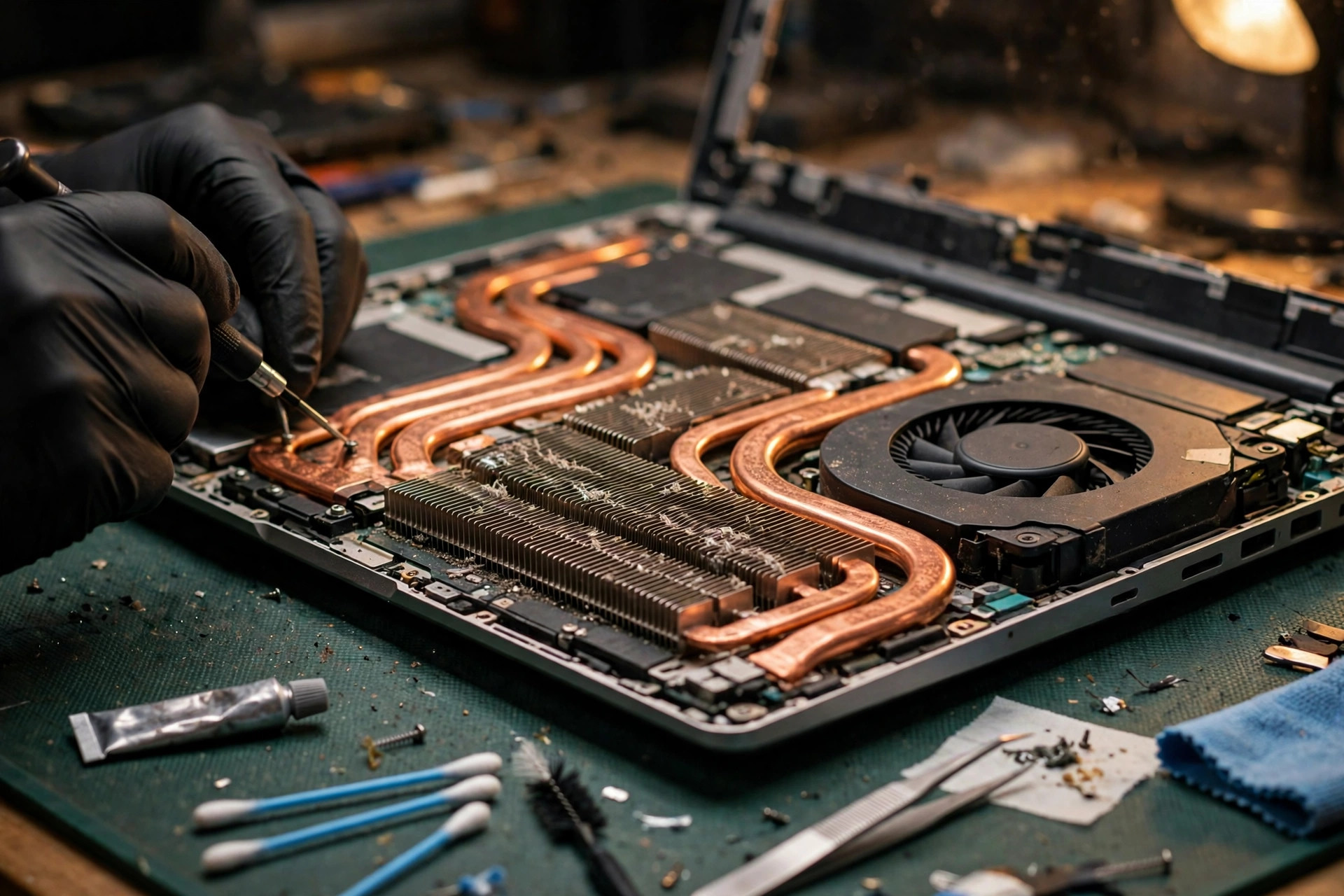
A heat pipe is not a solid copper rod. It is a sealed copper tube holding a small amount of working fluid and a capillary wick. At the hot end the fluid evaporates, absorbing a large amount of heat; the vapour travels to the cool fin end, condenses, and releases the heat; the liquid then flows back to the hot end through the wick by capillary action, and the cycle repeats. A vapour chamber is the same principle flattened into two dimensions: a flat vacuum-sealed copper shell in which vapour spreads heat across the whole plate before fins and fans carry it away. The key point is that a heat pipe moves heat by phase change, not by copper conduction alone. Break the phase-change cycle and the whole pipe is left with only the feeble conduction of the copper tube itself.
Recognising heat pipe failure
Need a laptop repair expert?
Free diagnosis · Transparent pricing · No fix, no fee · 180-day warranty
Heat pipe failure has signatures that repasting cannot fix: the chip end scorching hot while the fin end feels cool, because heat never arrives at the fins; temperature rising unusually fast, peaking within minutes of power-on; full fan speed with a clear airway still unable to hold temperature down. Possible causes include a damaged seal losing working fluid, a damaged or blocked wick, or a crushed or bent tube. All of these need the cooling assembly opened to confirm, which belongs at inspection. The diagnostic contribution at home is recording the "hot chip, cool fins" contrast, not repasting again.
Thermal paste pump-out: better for a while, then back again
Thermal paste only fills microscopic gaps between chip and heatsink so heat can cross the contact. Pump-out happens like this: the paste matrix and its filler particles expand at different rates, so repeated heating and cooling cycles stress the paste and push it toward the edge of the contact area; at high temperature the matrix thins and is pushed out more easily; volatile components evaporate and change the paste's properties. Laptop heatsinks press directly onto the die with lighter mounting pressure than desktop coolers, so pump-out appears more readily. The time pattern is the most diagnostic feature: immediate improvement after repasting, then a gradual return over weeks to months, not a sudden return. That gradual curve points to pump-out more than to a fan suddenly failing. Liquid metal resists pump-out but conducts electricity, so a stray drop can short nearby components. Never attempt it at home.
| Conduction fault | Time pattern | Temperature contrast | Does repasting again help |
|---|---|---|---|
| Old paste hardened | Gradual decline over months | Chip hot, fins also hot (heat arrives but cannot escape) | Yes, but check other layers too |
| Pump-out | Better after repasting, gradually back again | Same as above, but with a repeated improvement record | Briefly, then it returns |
| Heat pipe failure | Possibly sudden, or no improvement after repasting at all | Chip extremely hot, fins cool | No, heat never reaches the fins |
| Uneven contact / warped heatsink | No improvement immediately after repasting, or a local hot spot | One zone unusually hot | No, this is structural |
Thermal pads have a job too
Processors and graphics chips use paste, but power stages, memory chips, and drive controllers often use thermal pads. An aged, flattened, or shifted pad leaves that component's heat with nowhere to go, while the processor temperature reading stays perfectly normal. That is one explanation for "processor temperature normal, but one zone of the body very hot". If only the processor paste was replaced and the pads were never checked, this layer was skipped.
Power and firmware layer: throttling is not always overheating — it may be a power wall
Intel PL1, PL2, and Tau: sustained limit, burst limit, time window
Intel processor power management rests on three ideas. PL1 is the long-term average power limit; the manufacturer recommendation is to set it equal to processor base power, and it should not exceed what the cooling solution can handle. PL2 is the short burst limit, allowing far higher power for a short time to push frequency up. Tau is the time parameter governing the fall from PL2 back to PL1, deciding how long the burst can last. A workload starts fast at PL2, then settles to PL1 once Tau passes, and frequency falls with it. That fast-then-slower curve is normal design, not a fault.
The crucial point is that PL1, PL2, and Tau are not fixed properties of the processor. They are set by the manufacturer according to the chassis cooling capacity and power delivery design. A thin machine has a low PL1 and short Tau; a performance machine has a higher PL2 and longer Tau. The same processor in different chassis can perform very differently over a long workload. If a machine still "slows down after a while" after cleaning and repasting, the first question is: when frequency fell, had temperature already peaked? If frequency and power were already pinned at a fixed ceiling while temperature had not peaked, that is a power wall, not weak cooling. Mistaking a power wall for a cooling fault leads to endless repasting and fan replacement that can never find the cause.
AMD STAPM, PPT, TDC, and EDC: the strictest limit wins
AMD mobile platforms use different names for the same logic. STAPM is the long-term average power limit whose purpose is to keep the chassis surface from overheating. PPT has fast and slow components: fast allows brief bursts, slow is the sustained limit. TDC is the average current limit for the voltage regulators, and EDC is the instantaneous peak current limit. Several limits run at once, and the strictest wins; the temperature limit overrides all power limits. Monitoring software only shows "throttling" without saying which limit fired first. Diagnosis needs frequency, power, temperature, and current (where available) recorded together, so the record can separate a temperature wall from a power wall from a current wall.
| Limit type | Intel name | AMD name | What throttling looks like |
|---|---|---|---|
| Sustained power limit | PL1 | PPT Slow, STAPM | Frequency settles to a stable level under long load, temperature not necessarily peaked |
| Short burst limit | PL2 | PPT Fast | Very fast at first, falls back shortly after |
| Time parameter | Tau | STAPM / slow time constant | The fall-back happens at a relatively fixed time point |
| Current limit | Voltage regulator current limit | TDC, EDC | Frequency drops sharply at peak load, possibly with a hot power zone |
| Temperature limit | Tjmax, PROCHOT | Core temperature limit | Throttling only once temperature peaks; frequency recovers as temperature falls |
PROCHOT versus shutdown: throttling and power-off are two different protections
When the processor reaches its maximum safe junction temperature, PROCHOT throttling engages: execution rate and frequency fall to push temperature down. This is the first protection, designed to keep the machine running, only slower. If cooling fails catastrophically and temperature climbs further, THERMTRIP fires: independent of processor activity, not user-configurable, invisible to software, and the system cuts power outright. So "slowing down" and "shutting down" are not the same severity. Slowing down means the first protection still works. Shutdown without warning means temperature passed the second line, or a board-layer fault triggered protection early. Record whether shutdown was preceded by throttling signs: with warning signs, the cooling and power chain is the prime suspect; without warning signs, even at light load, the board layer deserves serious attention.
BIOS settings and power modes: record them, do not scramble them
BIOS cooling modes, performance modes, and fan modes change power limits and fan curves. Windows power modes (best performance, balanced, power saver) also change power ceilings. The right way to handle them is comparison: under the same load, record temperature, frequency, and power mode by mode, and see which mode changed which number. Changing several settings at once, or using an unknown tuning tool to push power limits higher, can overload the cooling system permanently and may void warranty coverage. Raising a power limit to "fix" throttling belongs to inspection judgement, not home experimentation.
Board layer: heat sources beyond the chips
Power stage overheating: normal processor temperature, throttling anyway
The processor power stages (VRM) use MOSFETs, inductors, and capacitors to convert supply power into the low voltage and high current the processor needs. The power stages generate heat themselves and have their own temperature limits; overheated power stages can current-limit and force the processor to throttle even while the processor temperature reading looks fine. Aged or shifted thermal pads on the power stages, or a blocked power-zone airway, can produce exactly this "processor cool but still slow" picture. The clue is hot-spot location: heat concentrated in the power zone beside the processor, not on the processor itself.
Localised shorts and leakage: hot on plug-in, hot before power-on
Board-level shorts most often involve ceramic capacitors or MOSFETs, letting one power rail carry a large continuous current. Signatures include: one small zone abnormally hot while the rest is normal; heat appearing as soon as the charger is connected, before the power button is pressed; battery draining for no reason; shutdown even at light load. At inspection, technicians locate such faults with current-limited low-voltage injection and thermal imaging. Never open the machine to measure rails or power it up for testing at home. If these signs appear, stop using the machine, disconnect power, and record the hot-spot location and conditions for inspection.
Battery and drive are heat sources too
An aged battery with rising internal resistance generates more heat during charge and discharge, and a slightly swollen battery can lift the bottom cover, changing heatsink contact and airway shape. A solid-state drive under sustained large writes also heats noticeably, with the hot spot in the drive zone. Hot-spot location is the simplest layering tool: chip zone hot, power zone hot, battery zone hot, and drive zone hot each point to a different layer. Record the location before inspection so the check can start at the right layer.
Blocked bottom intake and chassis warping: using a cooling pad does not prove the intake is clear
Why a cooling pad sometimes makes things worse
Most laptops draw air from the bottom and exhaust from the sides or rear. A cooling pad helps only if two conditions hold: its fans line up with the intake vents, and the air actually enters the machine instead of short-circuiting between base and pad. A misaligned pad only cools the plastic underside while the intakes get nothing. A fully flush pad surface with no openings can even seal the intakes shut. The comparison is simple: under the same load, record temperature and fan speed for three states — cooling pad on, cooling pad off but base raised, and flat on a hard desk. If raising the base gives almost the same improvement as the pad, the problem is intake clearance, not the need for a more expensive pad.
| Usage state | Intake situation | Expected effect | Watch out for |
|---|---|---|---|
| On a bed, sofa, or soft fabric | Bottom intakes sealed | Worst, heat accumulates | Never use like this; unrelated to paste |
| Flat on a hard desk, base touching the desk | Minimal intake clearance | Baseline state | Most chassis are designed around this state |
| Base raised with clearance underneath | More intake space | Slight improvement | Improvement varies by chassis |
| Cooling pad fans aligned with intakes | Active air forced into the machine | Largest improvement | Alignment matters more than fan count |
| Cooling pad fans misaligned | Only the plastic base cooled | Minimal improvement, possibly none | Do not judge by fan count |
How chassis warping affects cooling
Drops, backpack pressure, or long-term one-sided stress can slightly warp the bottom cover. Warping causes three effects: uneven heatsink-to-chip contact with weak pressure in places; airway gaps that let air leak out instead of passing through the fins; fan blades scraping the housing and losing speed. Warping is not always visible, but these clues suggest it: the four bottom feet not sitting level, one bottom screw unusually loose or tight, a gap when the lid closes, or a clearly different fan sound on one side. This is structural. Repasting and cleaning cannot fix it, and inspection must decide whether the cooling assembly or housing components need replacement.
Hong Kong context: humidity, dust, commuting, summer room temperature
Hong Kong conditions stack several disadvantages. Humidity makes dust stick to fins as a felt mat; in dry air loose dust blows away, but in humid air the mat clings. Humidity also accelerates contact oxidation, making sensor and fan-control signals more prone to intermittent faults. Commuting means daily backpack pressure, transit vibration, and repeated swings between air-conditioned trains and outdoor heat — exactly the thermal cycling that accelerates paste pump-out and solder fatigue. A summer room without air-conditioning, in the mid-thirties, already starts the cooling system ten-plus degrees higher than an air-conditioned room. The same machine under the same load will run hotter in summer than in winter by physics alone, and that seasonal difference must not be mistaken for a sudden fault.
For comparison, record room temperature, placement, environment (air-conditioned or not, direct window sun or not), and load together. A machine that behaves in an air-conditioned room but overheats without air-conditioning points to an environmental ceiling, not a sudden hardware failure. A machine that changed from normal to overheating in the same environment points to a hardware-layer change. Tell the inspector about the environment, or the fault may refuse to reproduce in an air-conditioned workshop.
Common misdiagnosis traps
| Misdiagnosis | Why it is wrong | Correct comparison |
|---|---|---|
| Noisy fan means dead fan | Noise can come from sensor misreporting high, blocked fins, or power settings; the fan only executes commands | Record speed, airflow, and temperature together |
| High temperature means failed paste | Heat pipe failure, fin blockage, sensor misreporting, and power-zone heating all raise temperature | Separate hot-spot location and chip-to-fin contrast first |
| No improvement after repasting means bad repasting technique | Heat pipe failure, warping, power walls, and board-layer faults do not respond to repasting at all | Look at the post-repaste time curve and chip-to-fin contrast |
| Throttling always means overheating | Power walls, current walls, and power-stage limiting all throttle, with temperature possibly below peak | Record whether temperature, power, and frequency peaked together |
| Cooling pad useless means the pad is not powerful enough | Misaligned fans, sealed intakes, and airflow short-circuits defeat any fan count | Compare with base raised; check alignment |
| Shutdown means dead battery | Shutdown can be THERMTRIP, a board short, or a power fault; battery is only one possibility | Record warning signs, load conditions, and hot-spot location |
| Monitoring software numbers are absolute truth | Different tools read different sensors; EC values and core values differ by design | Compare two tools; follow trends, not single numbers |
| Changing every setting at once | Even if it improves, nobody knows which change worked, so recurrence cannot be traced | Change one variable at a time and record the result |
Repair, replace, or upgrade decision framework
| Layer the evidence points to | Tend toward repair | Tend toward component replacement | Tend toward upgrade / new machine | Question to answer first |
|---|---|---|---|---|
| Sensor layer (sensor, EC) | Sensor and control work | Depending on parts availability | Old machine with several layers failing at once | Is the reading anomaly reproducible |
| Fan / airflow layer | Fan and fin-stack work | Fan module | Fan discontinued, chassis warped as well | Speed versus airflow comparison result |
| Conduction layer (heat pipe, paste, pads) | Cooling assembly work | Cooling assembly | Cooling assembly discontinued | Chip-to-fin contrast signature |
| Power / firmware layer | Firmware and power-setting work | Not applicable (settings layer) | Settings already at their limit and still not enough | Did temperature peak when throttling started |
| Board layer (power, short) | Board-level chip work | Board components | Damage too wide, repair cost near replacement cost | Hot-spot location and short extent |
| Structural layer (warping) | Housing and cooling assembly work | Housing components | Warping affects several components | Extent of warping and affected parts |
The upgrade-versus-new-machine judgement must not rest on temperature numbers alone. Consider machine age, remaining life after repair, whether daily load already exceeds what this chassis was designed for, and the ratio of repair cost to replacement cost. If the problem is the power wall itself — the chassis design ceiling is simply that low — repairing the cooling system will not raise the ceiling, and upgrading is the rational direction. If the problem is one damaged layer, fixing that layer restores design performance, and replacing the machine wastes money.
Pre-inspection checklist
Bring this list to the diagnostic page so inspection can start at the layer your evidence points to, without repeating basic checks and without the fault refusing to reproduce because its trigger was never recorded:
- Laptop brand, model, processor and graphics chip models (discrete graphics or integrated only)
- Which of the eight symptom patterns applies, when it first appeared, and whether it has worsened
- Trigger conditions: light or heavy load, charger or battery, which programs, how long before it appears
- Whether shutdown was preceded by throttling signs (slowing, stuttering, sudden fan surge)
- Hot-spot location: chip zone, power zone, battery zone, drive zone, which side runs hottest
- Fan behaviour: speed reading, actual airflow, odd noises, permanently full speed or permanently silent
- Cleaning and repasting history: when done, how long improvement lasted, whether it faded gradually
- Power mode and BIOS cooling mode settings, recent BIOS or driver updates, and any behaviour change after them
- Usage environment: approximate room temperature, placement, cooling pad model and fan alignment, commuting use
- Monitoring records: temperature, frequency, and power readings from two tools where available, plus one-variable-at-a-time comparison results
Conclusion: overheating is a result, not a cause
Still overheating after cleaning and repasting does not mean the basic checks were wasted. It means the problem is not in the outer layer. Work down the layers in order: are the numbers accurate, does air have a path, does heat reach the fins, what does the power wall allow, and is there a heat source beyond the chips. After those five questions, almost every "still hot" case narrows to one or two possible layers. Record the symptom, the trigger, the hot-spot location, and the time curve. Those four items are the entire starting point of layered diagnosis.
Need Professional Laptop Repair?
Laptop King has 15+ years of repair experience in Shek Mun, Sha Tin. Free diagnosis, transparent pricing, no fix no fee. 180-day warranty for your peace of mind.