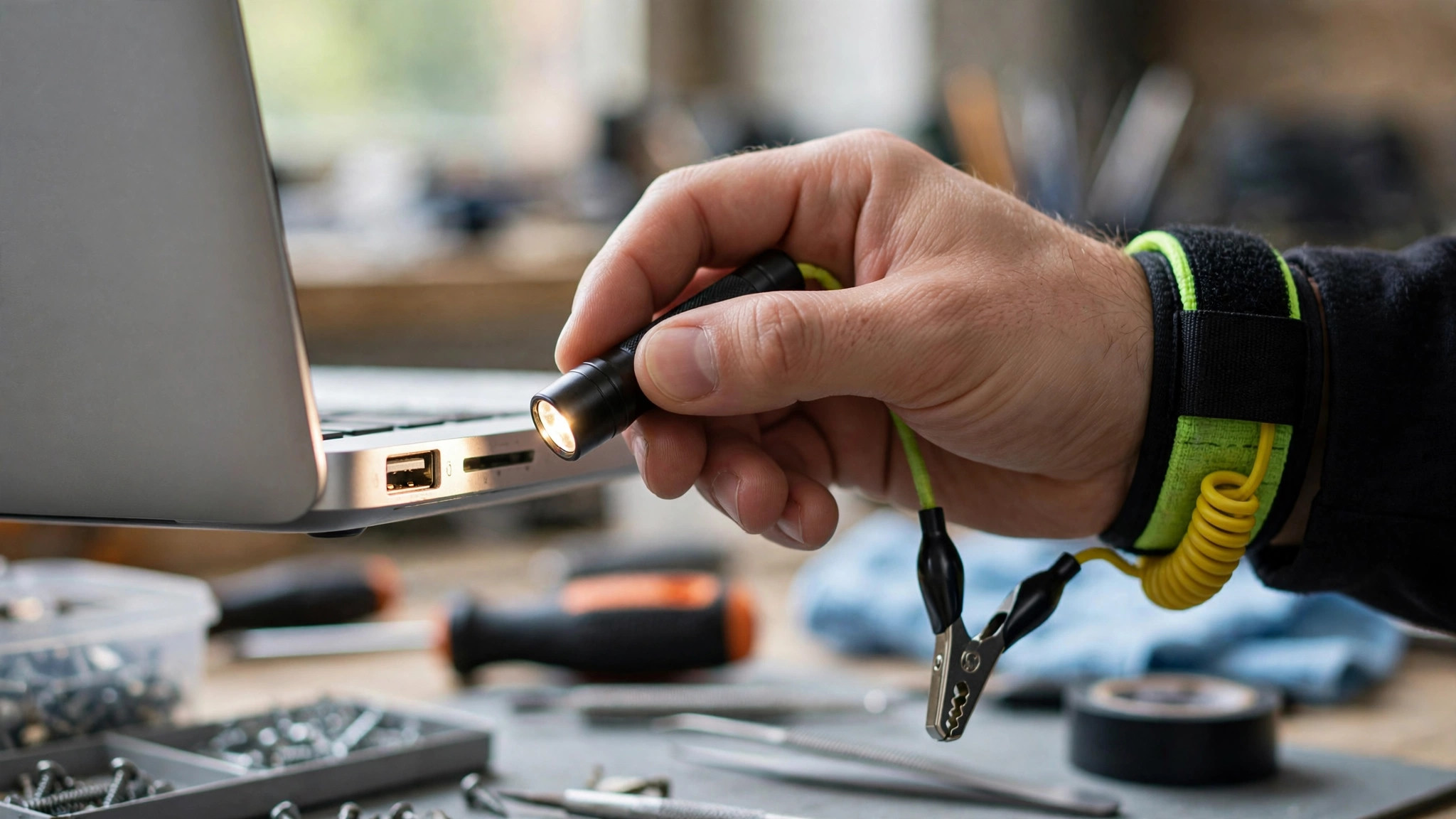
A USB port that suddenly stops recognising devices: do not jump to a conclusion about which part failed
A dead USB port may be caused by a driver, power delivery, physical damage, a setting, or the hardware itself. Layered troubleshooting changes only one variable at a time and narrows the range step by step, instead of starting with disassembly or assuming a motherboard fault. Work from tests that do not change system settings toward steps that do, and from no-disassembly checks toward repair. After each step, note the result: which port, device, and cable, and whether any error message appeared.
Layered troubleshooting table: what each step tells you
| Step | What to do | What it tells you |
|---|---|---|
| Swap the device | Plug a different device known to work into the same port | Works: may be the original device or cable. Fails too: may be that port or system-level factors |
| Swap the port | Move the same device to another port | Works elsewhere: may be the original port or its settings. Fails everywhere: keep working through the layers; do not conclude the motherboard is faulty |
| Swap the cable | Try another cable, and check it for visible damage | Works with another cable: may be the original cable |
| Swap the computer | Connect the same device to another computer | Works there: may be the original computer. Fails there too: may be the device or the cable |
| Remove the hub | Connect directly to a port on the computer, without a hub or dock | Direct connection works: may be the hub, the dock, or that connection |
| Reconnect one at a time | Remove all USB devices, then reconnect them one at a time | Shows which device is followed by the problem when reconnected |
| Restart | Remove all USB devices, shut down completely, wait 30 seconds, restart, reconnect one at a time | Works after restart: may have been a temporary system or driver state |
| Device Manager | Look at warning symbols and error codes, note Device status | Separates a driver or settings direction from deeper checking |
| Selective suspend | Troubleshooting step only; see power section | Shows whether a power-management setting is putting the port to sleep |
| Power | Check external power, mains power, hub arrangement; see power section | Shows whether the power arrangement may be the issue |
| Physical | Visually inspect pins, tongue, appearance; see physical section | Shows whether there is visible physical damage |
| BIOS | Check whether USB is enabled; see BIOS section | Shows whether a BIOS setting has disabled USB |
| Repair | All steps above tried, port still fails | A hardware repair may be needed; see repair section |
Device Manager: read the symbols and error codes, do not guess
In Device Manager, expand Universal Serial Bus controllers, look for warning symbols, right-click the affected device, and open Properties to see the device status and error details. A yellow exclamation mark marks a device with a problem. Note the error code first.
Symbols: black down-arrow = device disabled; yellow exclamation mark = device has a problem and may need attention, and may still partly work; red X = device physically present but disabled, Windows has not loaded a driver for it; yellow question mark = listed as Unknown, drivers not installed or unavailable. Common messages include "USB Device Not Recognized", "Power Surge on the USB Port", "Device Descriptor Request Failed", and "This device cannot start (Code 10)". These alone do not prove a hardware fault.
| Error code | Official meaning | How to read it |
|---|---|---|
| Code 43 | Windows has stopped this device because it has reported problems | One driver controlling the device notified the operating system that the device failed in some manner. This does not mean the device has burned out, or that the port is broken. A device that fails to enumerate appears with code 43, and is listed as Unknown Device if Windows could not identify it first |
| Code 10 | The device did not start | The definition only says the device did not start. It does not say which part is damaged, so one Code 10 cannot prove which part is at fault |
| Code 28 | Installation failed, and no driver was selected | Installation failed with no driver selected, although the kernel did not report a problem |
| Code 22 | The device is disabled | Device is disabled |
| Code 1 | The device is not installed, and was not installed previously | Not installed now or previously |
| Code 12 | There were not sufficient resources to start this device | Insufficient resources to start the device |
| Code 18 | The device needs to be reinstalled, and was installed previously | Needs reinstall; was installed previously |
| Code 31 | The device was not added | Possible reasons: a driver's AddDevice routine returned an error, or no service listed in the registry |
Reinstalling drivers: uninstall, then scan for hardware changes
For Code 43, the official manual reinstall steps are: Start, search for Device Manager; right-click the device; Uninstall; then Action > Scan for hardware changes. If a driver path is requested and you have none, download the latest driver from the hardware maker's website. Alternatively, uninstall each USB device and restart, so Windows reinstalls the drivers. For a yellow-exclamation device, try another port, remove any hub, and uninstall the device; if an option to delete the driver software is shown, it may be selected.
Safe Mode starts Windows with only essential programs and drivers, separating third-party software or driver conflicts. If refreshing USB controllers works in Safe Mode but not in normal mode, the problem is likely a third-party app or driver conflict. Windows 11 path: Settings > System > Recovery > Advanced startup > Restart now > Troubleshoot > Advanced options > Startup Settings > Restart, then 4/F4 or 5/F5 (with Networking). In Safe Mode, uninstall each USB Root Hub and Host Controller before restarting, then restart so Windows scans for hardware changes and reinstalls the drivers.
If the USB ports worked before and stopped after a recent software installation or Windows update, System Restore can return the computer to an earlier working point. System Restore does not affect personal files such as documents, photos, or music, but removes apps, drivers, and updates installed after the restore point. Windows updates can fix known bugs and improve hardware compatibility; make sure the system is fully updated.
Power: specification figures, hubs, and selective suspend
Default power figures: a USB 2.0 host delivers 500 mA at 5V to an enumerated device; USB 3.0 and 3.1 hosts offer 5V at 900 mA. A bus-powered device begins to enumerate below the default power, and during enumeration informs the host how much power each configuration will consume. Type-C systems can supply more than the 2.0/3.x default, but the amount varies by system. Do not treat any single current value as universal for Type-C.
Connecting an external hard drive into a non-powered USB hub can leave too little power to operate the drive. Plug it directly into the computer instead.
The "Power Surge on the USB Port" message indicates that a connected device has malfunctioned and is drawing more power than the port can supply, or requires more power than the port can provide. It can appear even with no devices connected. The "Overvoltage on USB Port" error suggests a device is not functioning properly and has exceeded its hub's power limits, and often requires disconnecting the device to reset the port.
If a "USB device might need more power" prompt appears, possible causes include: the PC might not provide enough power; the PC has a low battery, so it has temporarily limited the power it can provide; the PC is powering other devices, so it has temporarily limited power to the device just connected; or the device requires more power than the PC can provide. Steps: power the device externally if possible; plug the PC into an external power source, not battery power; disconnect unused USB devices; and if a hub is in use, connect the device directly to the computer.
USB selective suspend means the hub driver can suspend an individual port without affecting the other ports on the hub, helping portable computers conserve battery power. It is enabled by default, and Microsoft strongly recommends not disabling it. Setting path: Control Panel > Hardware and Sound > Power Options > Change plan settings > Change advanced power settings > USB settings > USB selective suspend setting; set On battery and Plugged in to Disabled as a troubleshooting step only. Selective suspend can occasionally put a USB port to sleep at the wrong moment and trigger a "Power Surge on the USB Port" error; because Microsoft strongly recommends not disabling it, treat disabling as a troubleshooting step only. In Device Manager, expand Universal Serial Bus controllers, right-click a USB Root Hub, Properties, Power Management tab, and clear "Allow the computer to turn off this device to save power", repeated for all Root Hubs.
Physical damage: only what is visible counts, and feel alone is not a diagnosis
Judge physical damage from visible forms: bent or broken pins, breakage or detachment of the plastic tongue inside the port, deformation, cracks, or breakage in the port's appearance, and oxidation. Also check that the plug is seated all the way in, and remove extension cables and switchboxes and connect directly.
Need a laptop repair expert?
Free diagnosis · Transparent pricing · No fix, no fee · 180-day warranty
Safety rules: do not insert metal objects into the port, to avoid damaging the contacts; do not insert objects into ports and openings; do not clean ports with sharp objects; unplug all cables and turn the device off before cleaning; use a dry cloth only, no liquids. Do not use water, liquid cleaning solutions, or a damp cloth near USB ports. Always disconnect the USB device before using compressed air. If dust or debris is visible inside the port, use a can of compressed air, held upright, in short bursts. If the cable feels loose or wiggles, try a different cable. A loose or odd feel alone is not a diagnosis and cannot prove physical damage.
Minor dust or debris can often be cleaned with a can of compressed air, but extensive damage requires professional repair. If physical damage is noticed, contact technical support about repair options. If liquid intrusion is suspected, or corrosion or oxidation is visible, do not keep testing with power connected. Stop and seek authorised repair inspection.
Port colour is not a standard, so do not judge speed by colour
USB-IF does not standardise colour-coding on USB ports. Colour is an unspoken rule between manufacturers and vendors, with outliers. The only exception is that USB-IF recommends a certain blue colour to distinguish USB 3.0 ports from older ports. The usual correspondences are reference only: white roughly represents USB 1.x; black roughly represents USB 2.0; blue roughly represents USB 3.0 SuperSpeed, also covering USB 3.1 Gen 1 and USB 3.2 Gen 1. Red, yellow, or orange does not necessarily mean speed; these ports are often always-on ports that can deliver power even when the host is off or sleeping.
An SS (SuperSpeed) label only means faster than USB 2.0, not a precise indicator. Some ports label the data rate in Gbps, others show the port name. A Thunderbolt port is identified by a lightning bolt symbol; first confirm the computer itself supports Thunderbolt.
On pin counts: USB 2.0 Type-A uses 4 pins; USB 3.0 Type-A uses 9 pins, keeping the original 4 for backwards compatibility and adding 5 for SuperSpeed. USB-C is a 24-pin reversible connector, not a protocol, and can carry other protocols besides USB, such as Thunderbolt, PCIe, DisplayPort, and HDMI. Counting pins is not a diagnostic method: pins sit deep inside the port and poor light makes misjudgement easy.
Type-C: fitting in does not mean every function works
A USB-C port may charge external devices, charge the device itself, display video on an external monitor, transfer files, and use compatible USB-C external devices. Not all USB-C cables support all features, so use the cable that came with the device.
Alternate Mode must be supported on the PC's hardware and software, on the connected device or dongle, and by a suitable cable. There is no setting to turn on; the device automatically uses the appropriate mode if supported. Display Alternate Modes include DisplayPort, MHL, and HDMI.
A Thunderbolt device must be connected to the USB-C port that supports Thunderbolt; the wrong port can produce a limited-functionality message. Thunderbolt troubleshooting: remove the existing driver, then install the latest driver from the product download page; check for a BIOS or Thunderbolt firmware update; test with another Thunderbolt-certified cable; and connect the device to another computer for testing. For a USB4 device with limited functionality: make sure the PC supports USB4, use the cable provided by the device or dock maker or a certified USB4 cable, and connect directly to the PC or only to USB4 docks. USB-C adapters have no on/off switch or LED lights to indicate power, errors, or functionality. If an adapter is not responding, remove it, restart the device, then try again.
BIOS checks: USB may simply have been disabled
The BIOS controls how hardware components work, including USB ports. Incorrect or misconfigured BIOS settings can sometimes interfere with USB ports. Check whether USB ports are enabled in BIOS settings, because they can sometimes be disabled; if disabled, no system-level step will make the device recognised. On Dell machines, the example path is: BIOS settings > USB Configuration or USB Ports, usually under Integrated Devices, and ensure Enable USB Ports is checked. Menu names differ by brand and model. Resetting the BIOS to its default settings can help, but the exact steps vary by model; check that model's manual.
Legacy USB support enables USB devices to be used even when the OS USB drivers are not yet available, for example to access BIOS Setup or install an OS that supports USB. On one Intel board manual, the default is Enabled, but not every board uses the same default. When Disabled, USB devices are available only through OS drivers. The Auto option disables legacy support if no USB devices are connected.
A useful dividing line: if the keyboard works during POST or in the BIOS utility but not in the operating system, check software logs for device driver errors. Conversely, failing already at the BIOS stage does not prove a motherboard fault.
Microsoft warning: modifying BIOS / CMOS settings incorrectly can cause serious problems that may prevent the computer from booting properly; modifications are at your own risk.
Residual charge discharge: non-disassembly version only
Non-disassembly version only, following Surface USB-C guidance: unplug the USB-C device, then shut down via Start > Power > Shut down. After 10 seconds, press and hold the Power button for about 20 seconds until the Windows logo appears, disappears, then appears again. Then plug in the USB-C device again.
The discharge version in Dell service manuals involves disassembly, intended for authorised service technicians only. General users should not dismantle the machine to discharge it, and this article does not teach a disassembly version. Discharge is listed as a troubleshooting step when a computer does not power on or boot. Do not treat discharge as repairing a failed USB port.
When to stop DIY and send it in
If all steps have been tried and the port still is not working, the issue may need a hardware repair. Run a hardware diagnostic on the USB port; if the test fails, follow the on-screen instructions. If the steps do not resolve the problem, contact the official customer service centre. Stop immediately for bent or broken pins, a broken or detached tongue, deformation, cracks, breakage, oxidation or corrosion, or suspected liquid intrusion. Do not force the plug or pry the port.
Before sending it in
The following are practical suggestions, not official requirements. Note down: the computer brand and full model, the operating system version, which port is faulty (for example the left Type-C or right Type-A port), how long it has been faulty, whether it failed suddenly or intermittently, and whether the machine was dropped, exposed to liquid, or updated first. Also note what was already tried and what happened: which cable and port were tried, whether the device worked on another computer, what error code Device Manager showed, and whether USB was enabled in BIOS.
Back up important files before repair or a reset. Resetting to factory settings removes all personal data. Back up to an external drive or cloud storage first. Windows Backup can back up files, themes, settings, installed apps, and Wi-Fi information to OneDrive. File History automatically copies personal files to an external drive or network location.
Pricing: the only prices we can state here
| Item | Price |
|---|---|
| Battery | HK$580 up |
| Screen | HK$1,280 up |
| Main board chip-level | HK$880 up |
| Keyboard | HK$480 up |
| USB port repair | Quoted in writing after inspection |
FAQ
Q1: If all USB ports fail at the same time, does that mean the motherboard is faulty?
A1: No. All ports failing at once may be caused by system-level factors such as drivers, settings, BIOS, power, or the controller. Work through the layered table in order, and check the Device Manager error code and whether USB is enabled in BIOS. If the port still fails, a hardware repair may be needed, but all ports failing does not by itself prove a motherboard fault.
Q2: Device Manager shows Code 43. Does that mean the device has burned out?
A2: No. Code 43 officially means Windows has stopped this device because it has reported problems: one driver controlling the device notified the operating system that the device failed in some manner. That does not mean the device has burned out, or that the port is broken. Do cross-testing first, then uninstall the driver, use Scan for hardware changes, or restart and let Windows reinstall it.
Q3: Is a blue USB port always USB 3.0, and a black port always USB 2.0?
A3: No. USB-IF does not standardise colour-coding on USB ports. Colour is an unspoken rule between manufacturers, with outliers. Blue roughly represents USB 3.0, and black roughly represents USB 2.0, but those are references only. Red, yellow, or orange does not necessarily mean speed, and often means an always-on port that still supplies power when the host is off or sleeping. Judge speed and function from the specification table and Device Manager, not colour alone.
Q4: How is a USB port repair charged?
A4: USB port repair charges are quoted in writing after inspection. Book a check through diagnostic to get a written quote.
Need Professional Laptop Repair?
Laptop King has 15+ years of repair experience in Shek Mun, Sha Tin. Free diagnosis, transparent pricing, no fix no fee. 180-day warranty for your peace of mind.