📌 Key Takeaways
- •Turn to the SSD: if the machine still uses a hard drive, replacing it with an SSD helps most with boot and program loading feel. An SSD cannot substitute for RAM. They are two different things.
- •System optimisation: reduce startup programs, close background programs you do not use, keep the system and drivers updated, and clean up disk space. These need no disassembly.
- •Consider a new machine: when buying a new machine, buy enough RAM from the start, because a fully soldered model cannot be changed later. When choosing, check the official specifications for Max Memory and slot count, not just how many GB it has now.
Signs your RAM may not be enough
When RAM runs short, multitasking gets slow: switching between programs or browser tabs takes longer, programs load slowly or stop responding, and the system can freeze when you try to load a program. Booting can also take a long time to finish loading, but slow booting has many possible causes, such as drive speed, startup items, system updates, cooling, or the motherboard. Slow booting alone does not prove RAM is the problem. It is worth suspecting RAM only when slow booting comes with multitasking lag and memory usage staying high for a long time.
When physical RAM fills up, the system pages data to a paging file on the drive, which acts as virtual memory. Drive reads and writes are far slower than RAM, so the whole machine slows down. Frequent drive activity spikes can be a sign of this paging mechanism at work, but drive activity can also have other causes. Judge it together with Task Manager memory usage, not from drive activity alone. Kingston mentions that receiving a memory error message, or the computer using 80 percent or more of its memory, is one sign that more memory may be needed. That is a reference indicator only, not an absolute diagnostic line. Consider an upgrade when high usage persists over time and the symptoms above appear together.
DDR4 vs DDR5: tell them apart before you buy
Laptop memory modules are SO-DIMM. The pin counts below refer to laptop SO-DIMM, not desktop DIMM. DDR4 and DDR5 are not cross-compatible: a DDR5 module cannot be fitted into a DDR4 slot, and vice versa. Each generation has a different keying notch position, so a module of the wrong generation physically will not fit. If the notch does not line up, you bought the wrong generation. Do not force it.
DDR4 vs DDR5 comparison table
| Item | DDR4 SO-DIMM | DDR5 SO-DIMM |
|---|---|---|
| Pin count | 260-pin | 262-pin |
| Standard voltage | 1.2V | 1.1V |
| Common speeds | 2400 / 2666 / 3200 MT/s; standard maximum 3200 MT/s | Starts at 4800 MT/s; common laptop modules 4800 / 5600 MT/s |
| Keying notch | Notch position differs from DDR5 | Notch position differs from DDR4 |
| Compatibility | Not compatible with DDR5 | Not compatible with DDR4 |
Maximum capacity: check the official specifications for your exact model
The core rule is simple: use the official specifications or manual for your exact model, not your own arithmetic of slots multiplied by the largest module on the market. The motherboard and BIOS validation limit can be lower than the CPU theoretical limit.
Check in this order:
1. The model official specifications, for example Lenovo PSREF or the HP / Dell official specification page, for the Max Memory and Memory Slots entries.
2. The CPU official specifications. For Intel, go to Intel ARK, search your CPU model, and read Max Memory Size and Memory Types under Memory Specifications. For example, the Intel Core i5-1155G7 lists Max Memory Size 64GB, and the Intel Core i7-10875H lists Max Memory Size 128GB.
3. A compatibility tool such as the Crucial Advisor or System Scanner for that model, which lists maximum installed memory, number of slots, and supported speeds.
4. If the three disagree, the model official specifications win. As a practical working suggestion, not a manufacturer quote, take the lower of the CPU limit and the model limit.
Real examples show why the official limit matters. The Lenovo ThinkPad T14 Gen 4 (Intel) has 16GB soldered DDR5 plus one DDR5 SO-DIMM slot, but its official Max Memory is only up to 32GB, meaning 16GB soldered plus 16GB SO-DIMM, even though larger DDR5 SO-DIMM modules exist on the market. The Lenovo ThinkPad E16 Gen 1 (Intel) has an official Max Memory of up to 40GB, meaning 8GB soldered plus 32GB SO-DIMM. The Lenovo ThinkPad P14s Gen 2 (Intel) has an official Max Memory of up to 48GB, meaning 16GB soldered plus 32GB SO-DIMM. Combinations beyond the official limit are not guaranteed by the manufacturer, so do not buy beyond the official limit hoping it will work.
On single-module capacity: DDR4 SO-DIMM modules commonly come in 4 / 8 / 16 / 32GB. DDR5 SO-DIMM modules commonly come in 8 / 16 / 24 / 32 / 48GB, and a 64GB single DDR5 SO-DIMM module already exists, for example the Crucial CT64G56C46S5, a 262-pin DDR5 SO-DIMM at 5600 MT/s and 1.10V. So 48GB is not the ceiling for DDR5 SO-DIMM. Whether your machine can use a large module still depends on the official limit for your exact model. Do not simply buy the largest module on the market.
Dual channel: matched pairs are the safest
Dual channel means the two memory channels transfer data at the same time. When identical modules are installed as a pair, the effective bandwidth for the memory controller is theoretically doubled. Theoretically is the key word: it does not mean the whole machine becomes twice as fast. Intel describes Dual-Channel Symmetric mode as providing maximum performance on real-world applications, but how much faster dual channel is depends on the test platform and software; there is no single universal figure.
For dual channel, the safest approach is two modules of the same capacity, same generation, and same speed, filling both channels. Intel documentation states the rule as both channels having the same total amount of memory. It does not require the same brand or the same batch. If different-speed modules are mixed between channels, the slowest memory timing will be used. Mixing brands or speeds might work, but it is not recommended: mixed memory often runs at the speed of the slowest module and may cause stability issues. For reliability, install a matched kit with the same capacity and speed.
Different capacities can still partly run in dual channel under Intel Flex Memory Technology. Memory is divided into a symmetric zone and an asymmetric zone. For example, with 8GB on one side and 16GB on the other, the 8GB plus 8GB portion runs in dual-channel mode, and the remaining 8GB runs in single-channel mode. Flex Mode requires modules installed in both channels.
Dual channel matters more for machines using integrated graphics, because the integrated graphics core uses system memory as display memory. Lenovo PSREF notes that Intel Iris Xe Graphics capability requires the system to be configured with dual-channel memory, and on a system with single-channel memory, Intel Iris Xe Graphics will function as Intel UHD Graphics. For everyday documents and web browsing, the difference between single and dual channel may not be obvious, but to get the machine running at its intended performance, use two modules of the same capacity in dual channel where possible.
Soldered RAM: how to tell, and what to do
Some laptops have memory soldered directly to the system board, meaning it cannot be added or swapped after purchase. How to tell:
Need a laptop repair expert?
Free diagnosis · Transparent pricing · No fix, no fee · 180-day warranty
1. Check the official product specification page: look at the Memory or Memory Slots entry for the words soldered or onboard. If the memory specification says onboard, it is soldered to the motherboard.
2. Download the official service or maintenance manual: Chapter 1 states whether the memory is onboard and not upgradable, and Chapter 5 either has or does not have a procedure to remove or replace the memory. No procedure means no replacement.
3. Look for the LPDDR prefix: LPDDR4, LPDDR4x, or LPDDR5 is very likely soldered onboard. For example, a specification reading 8GB LPDDR5 onboard means the LPDDR memory is an integral part of the motherboard and cannot be upgraded.
If the specification page and the manual disagree, confirm against the manual and the actual machine before buying a module. Do not use Task Manager to judge whether RAM is soldered: Task Manager shows capacity, speed, slot usage, and form factor, but does not label memory as soldered.
Soldered does not always mean nothing can be added. Many machines combine soldered memory with one empty SO-DIMM slot, so you can still add one module, but the soldered portion can never be replaced. The limit equals soldered capacity plus the SO-DIMM slot official validated limit.
Soldered plus SO-DIMM hybrid configurations
| Model example | Soldered portion | SO-DIMM slot | Official maximum memory |
|---|---|---|---|
| ThinkPad E16 Gen 1 (Intel) | 8GB DDR4-3200 | 1 DDR4 SO-DIMM slot | Up to 40GB (8GB soldered + 32GB SO-DIMM) |
| ThinkPad T14 Gen 4 (Intel) | 16GB DDR5-5200 | 1 DDR5 SO-DIMM slot | Up to 32GB (16GB soldered + 16GB SO-DIMM) |
| ThinkPad P14s Gen 2 (Intel) | 16GB DDR4-3200 | 1 DDR4 SO-DIMM slot | Up to 48GB (16GB soldered + 32GB SO-DIMM) |
| ThinkPad E14 Gen 3 (AMD) | 8GB DDR4-3200 | 1 DDR4 SO-DIMM slot | Up to 24GB (8GB soldered + 16GB SO-DIMM) |
If the machine is fully soldered, the following are general suggestions, not manufacturer promises:
- Turn to the SSD: if the machine still uses a hard drive, replacing it with an SSD helps most with boot and program loading feel. An SSD cannot substitute for RAM. They are two different things.
- System optimisation: reduce startup programs, close background programs you do not use, keep the system and drivers updated, and clean up disk space. These need no disassembly.
- Consider a new machine: when buying a new machine, buy enough RAM from the start, because a fully soldered model cannot be changed later. When choosing, check the official specifications for Max Memory and slot count, not just how many GB it has now.
Before the upgrade: preparation
- Power down the laptop completely and disconnect the power adapter. If the battery is removable, take it out. If the battery is internal, disconnect it only if the service manual instructs you to do so.
- Disconnect external devices and peripherals before opening the machine.
- Static protection: electrostatic discharge can damage sensitive hardware like RAM. Before handling a module, wear a grounded anti-static wrist strap, or touch an unpainted metal surface to discharge. Hold the module by its edges. Do not press directly on the chips, do not touch the gold fingers, and do not bend or flex the board.
- Check the service manual first: not all laptops can be upgraded. Confirm slot count and maximum supported capacity for that model before buying anything.
- Back up important data as a precaution before any hardware change. A RAM upgrade itself will not erase hard drive data. Backing up is protection in case something goes wrong during disassembly, not because upgrading RAM wipes the machine.
- Work in a clean, well-lit area so you can keep track of small screws and components. Screws can differ in length by position, so keep them separated and note where each came from.
- After powering off and disconnecting power, press and hold the power button for several seconds to discharge any residual electricity.
Check what you already have
Windows Task Manager shows current memory usage and how many physical memory slots are available, so check for a free slot before buying. Open Task Manager with Ctrl+Shift+Esc, click the Performance tab, then Memory, to see total capacity, speed, slots used, and form factor, which on a laptop shows as SO-DIMM. Note that Task Manager on some Windows versions or models may not show the DDR generation, so do not rely on Task Manager alone to tell DDR4 from DDR5. Confirm the generation with System Information, CPU-Z, or the manufacturer specifications together.
Windows System Information, run with msinfo32, shows Installed Physical Memory (RAM) in System Summary, useful for before-and-after comparison. CPU-Z shows more detail: the Memory tab shows memory type, for example DDR4 or DDR5, channel count, total capacity, and actual frequency; the SPD tab shows each module specification and available profiles. CPU-Z shows DRAM Frequency as the actual clock, and DDR effective speed is twice that value, for example 1600 MHz shown means DDR4-3200, and 2400 MHz shown means DDR5-4800.
Buying: match four things
Match: (1) form factor: laptops use SO-DIMM, not the longer desktop DIMM; (2) DDR generation: whether the motherboard supports DDR4 or DDR5; (3) maximum capacity: the model supported limit and slot count; (4) speed and specification: the new module speed and specification must match the system. A compatibility tool such as the Crucial Advisor or System Scanner can list upgrades that work for a given system.
Installation: angle, notch, clips
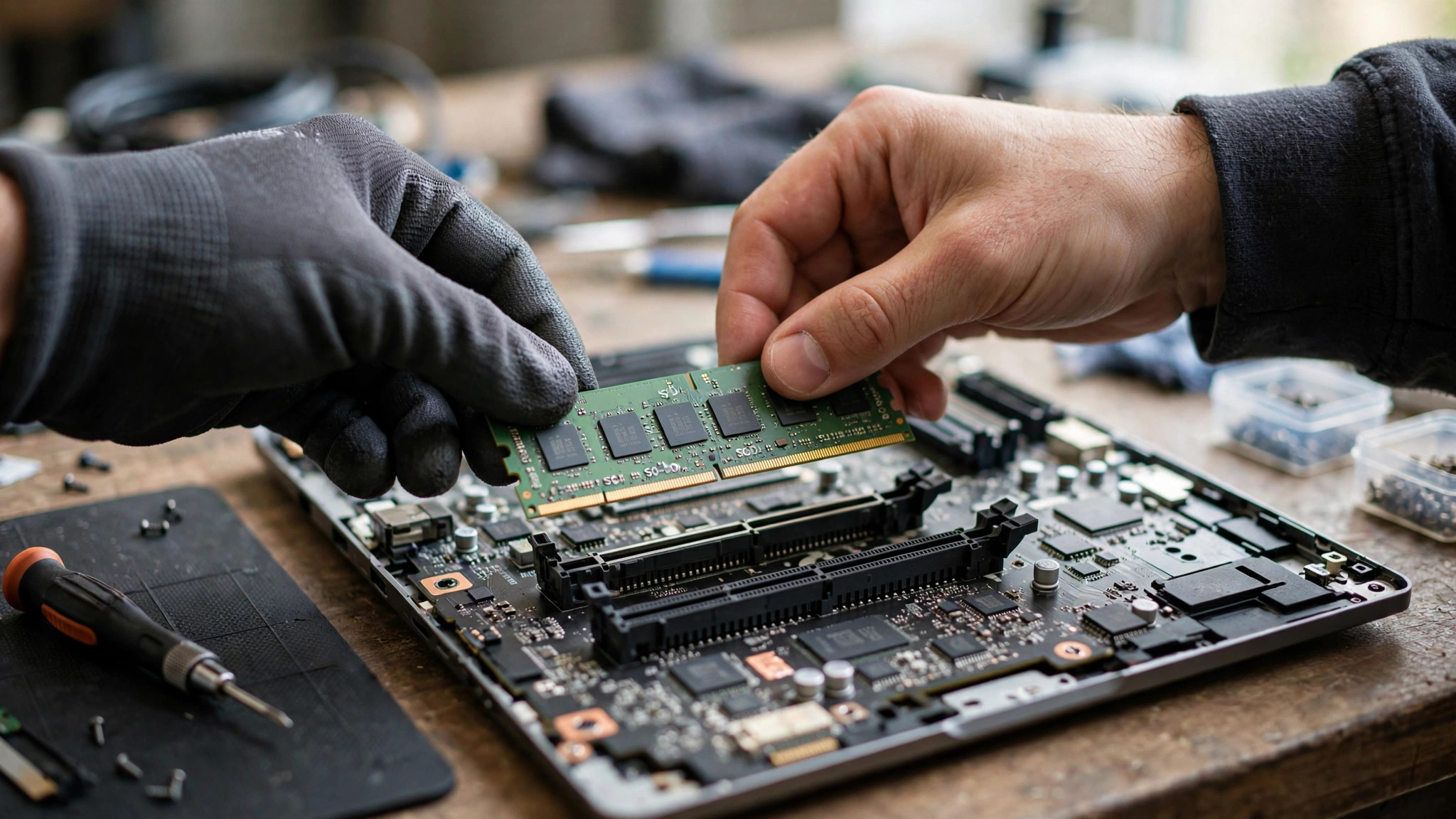
Align the notch on the module with the ridge in the memory slot. Insert the module at about a 30–45 degree angle, following the manual for that model, then press it down flat until the side clips click into place. Do not push hard. If the notch does not line up, the generation or direction is wrong. Open the machine gently: do not force plastic clips, and do not pull cables directly without releasing their latches or locks first. Cable sockets on the board are fragile. Many models do not require touching any ribbon cable to change RAM, so do not assume a RAM upgrade always involves removing cables.
After installation: verify it is recognised
Power on and verify the new memory is recognised, using Task Manager Performance and Memory, or the BIOS / UEFI memory screen. Enter BIOS / UEFI using the key specified for that brand. There is no single universal key. If the system does not detect the module, power down and reseat it firmly, then test one stick at a time to isolate faulty hardware. If the machine will not boot or makes beeping sounds, first power off, reseat the modules firmly, and test one at a time. Beep code meanings vary by brand and BIOS, so check the beep code table for that brand. Do not treat one brand example as a universal rule, and do not assume beeping must mean RAM is not seated: it can also point to other hardware.
Common mistakes
- Buying the wrong DDR generation. DDR4 and DDR5 modules cannot be swapped. The keying notch positions differ, so they physically cannot be inserted into each other slots. Forcing a module may damage hardware. Confirm which generation the motherboard supports before buying.
- Buying beyond the capacity limit. Every machine has a maximum supported capacity. Do not exceed it. The excess part may not be recognised by the system.
- Mixing brands, speeds, or capacities. Mixing might work, but it is not recommended. Mixed memory often runs at the speed of the slowest module and may cause stability issues. Use matched pairs for dual-channel performance.
- Not fully inserting the module. If the module is not fully seated, the machine may not boot. Reseat firmly and test one stick at a time.
- Static damage. Electrostatic discharge can damage components including a new memory module. Discharge before handling.
- Forcing clips or cables during disassembly. Work gently and release latches before removing cables.
Windows 11 minimum RAM: 4GB is a floor, not enough
Microsoft official Windows 11 minimum system requirements include 4GB of RAM. That is the threshold for installing Windows 11, not a recommendation and not a conclusion that 4GB is enough for daily use. Whether it is enough depends on actual usage.
Pricing: the only prices we can state here
| Item | Price |
|---|---|
| Battery | HK$580 up |
| Screen | HK$1,280 up |
| Main board chip-level | HK$880 up |
| Keyboard | HK$480 up |
| RAM upgrade | Quoted in writing after inspection |
Before sending it in
- Write down the laptop model and what you want: which DDR generation the machine supports, the capacity you estimated, and whether you want to add one module or replace existing modules.
- Write down the backup you have made, and where the backup is kept.
- Write down what has already been tried, and what the machine did when powered on.
- Keep the machine powered off and still, stored in a safe place, until the upgrade is confirmed working.
FAQ
Q1: How do I know whether my laptop is DDR4 or DDR5?
A1: Check the official specifications or service manual for that exact model first: the Memory section lists the generation, slot count, and maximum memory. In Windows, Task Manager shows capacity, speed, slots, and form factor, but may not show the DDR generation on some versions or models. Confirm the generation with System Information, CPU-Z, or the manufacturer specifications together. Do not rely on Task Manager alone.
Q2: If the RAM is soldered, is there really no upgrade?
A2: It depends on the configuration. If the specification lists soldered memory plus an empty SO-DIMM slot, you can still add one module, but the soldered portion can never be replaced, and the limit equals soldered capacity plus the SO-DIMM slot official validated limit. If the specification states fully soldered memory with no SO-DIMM slot, RAM capacity was decided at purchase and cannot be changed or added to later.
Q3: Does dual channel require two identical modules?
A3: The safest choice is two modules of the same capacity, same generation, and same speed. Intel documentation only requires the same total amount of memory in each channel; it does not require the same brand or batch. With different capacities, Intel Flex Memory Technology divides memory into a symmetric zone running in dual channel and an asymmetric zone running in single channel. For example, with 8GB on one side and 16GB on the other, 8GB plus 8GB runs in dual channel and the remaining 8GB runs in single channel.
Q4: How is a RAM upgrade charged?
A4: RAM upgrade charges are quoted in writing after inspection. Book a check through diagnostic to get a written quote for your exact machine.
Need Professional Laptop Repair?
Laptop King has 15+ years of repair experience in Shek Mun, Sha Tin. Free diagnosis, transparent pricing, no fix no fee. 180-day warranty for your peace of mind.