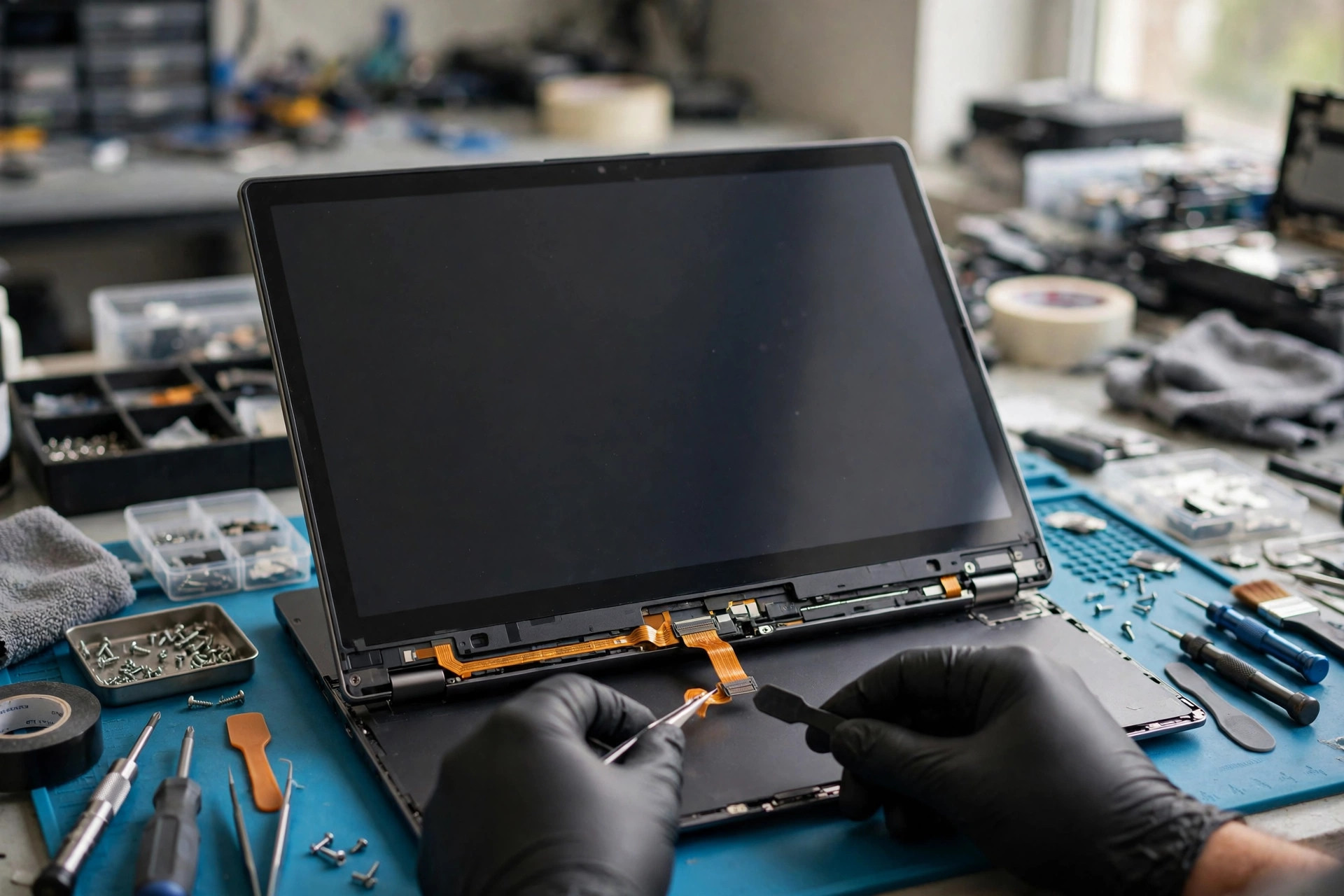
What "basic checks are done" actually means
Restarting, wiping the screen, checking the Windows touch settings, and reinstalling the touch driver have all been done, and touch still has not returned. That state is itself an important clue. Basic checks deal with the outermost switches: whether the system recognises touch at all, whether a setting has turned touch off, and whether obvious surface dirt is blocking sensing. When the outer layer is cleared and the symptom remains, the problem may sit in a deeper layer: the completeness of the driver combination, the success or failure of the HID enumeration procedure, the switch state in BIOS and in the embedded controller, errors in stored calibration data, interference from a screen film or a crack acting on the capacitive field, the contact state of the cable and its connector, or the power and signal state of the mainboard touch channel. The material below does not repeat the basic checklist. It starts from branching, and narrows layer by layer.
Set one comparison rule first: change only one condition at a time, record the result, and then restore the original value. If a film is removed, a charger is changed, USB devices are unplugged, and calibration is reset at the same time, touch may return without anyone knowing which change mattered, and an inspection visit cannot reproduce the result. The value of a comparison is not trying every method at once. It is that every change has a record, so before and after can be compared. Every section below follows that rule: first the isolation test, then the mechanism behind it, and only then the layer worth further checking.
The scope of this guide also needs a clear boundary. This guide is about the built-in laptop touchscreen, meaning the layer of glass that a finger or a stylus touches directly. A touchpad is a different input device. It sometimes shares the same kind of lower support layer as the touchscreen, but its sensing layer, its cable, and its failure pattern are not the same. When this guide mentions a touchpad, it is only to judge whether a shared layer has failed. It does not turn a touchpad problem into a touchscreen problem. This guide also does not cover storage devices or system speed. A touch signal chain has no direct relationship with a storage device, and the two kinds of problem should not be judged together.
| Basic check already done | Layer already cleared | Layer still not cleared |
|---|---|---|
| Restart | Temporary system state | Enumeration failure, power state stuck |
| Surface cleaning | Obvious surface dirt | Moisture under a film, dust at the edge, a crack |
| Windows touch settings | Settings-layer switch | BIOS switch, calibration data error |
| Touch driver reinstall | Upper driver file itself | Lower I2C controller, chipset support layer |
Five failure patterns first: never treat every touch failure as one fault
The easiest mistake in an advanced guide is blending five different faults into one label called broken touch. The first step in branching is not replacing a part. It is testing with a finger, a stylus, and a mouse one by one, and recording whether the failed area changes with opening angle, charging state, or film presence. The five patterns below lead in completely different directions, and a useful record should name its pattern first, then list the comparisons already tried.
Whole-screen no touch means no position on the whole screen responds to a finger, while the picture itself looks normal and the mouse and keyboard work. The layers to suspect, from soft to hard, are: the touch device is not recognised or is disabled inside Windows, the lower chipset or I2C controller driver is missing, touch is turned off at BIOS or embedded-controller level, the cable or connector is loose or damaged, or the touch layer itself or the mainboard touch channel has failed. Two boundary tests matter here. Look in Settings, under System and About, for whether pen and touch input are listed in the device specification. Look in Device Manager, under Human Interface Devices, for a touch item. If even showing hidden devices finds nothing, the direction should move to lower driver and hardware checking, not another round of upper driver reinstalls.
A local dead zone means one fixed area stays unresponsive for a long time, or a drawn straight line breaks at the same segment, while other areas work. Suspect the sensing grid in that area, a crack crossing that area, a film bubble or pressure point in that area, one channel of the cable with poor contact, or one channel of the touch controller behaving abnormally. A fixed dead zone must be separated from a calibration problem. Calibration only builds a coordinate mapping. It cannot make an area that senses nothing start sensing again. If a whole area gives no signal at all, calibration is not the answer. Test by drawing full-screen straight lines and a grid in a paint program or a touch test screen, from left to right and from top to bottom, and record whether the break point sits in the same place every time. A break point that moves every time points toward interference or a driver-layer problem. A break point that stays in the same place points toward that area of the sensing layer or its channel.
Edge or corner failure means the centre works, but the ring near the frame, or one corner, is hard to trigger. A light touch gives nothing, and only a firm press gives a response. Suspect the frame pressing on the touch layer, a film edge lifting or trapping dust or water, a deformed case pressing on an edge, a damaged sensing line at the edge of the touch layer, or calibration error that is largest at the edge. Calibration error shows most clearly at corners, so edge failure should first be compared against a calibration reset, and only then judged as a hardware edge problem. If the edge still fails in a fixed way after a reset, calibration should no longer be blamed. Another edge cause is a protective case or a case frame applying continuous pressure to the screen edge, simulating a continuous touch or deadening edge sensing. That pattern needs a bare-glass retest first, with the case and film removed.
Ghost touch means the screen acts on its own without being touched: programs open, pages jump, the text cursor wanders, or a touch point dances nearby. The suspect order is: film or edge moisture or dirt, charger or USB device electromagnetic interference, poor grounding, a driver-layer abnormality, or signal noise from a damaged touch layer or cable. A useful confirmation is to disable the touch device temporarily in Device Manager. If the dancing stops completely, the signal really comes from the touch layer, not from a mouse, a touchpad, or another input device.
Stylus failure with normal finger touch, or the reverse, is the fifth pattern. Finger touch and stylus input are separate collections at the Windows HID level. A touch layer can provide both touch and pen functions, but the two must be declared separately. One working while the other fails is itself an important clue. It does not mean the whole touch layer has failed. Finger normal with pen failure points first toward the pen itself, pen protocol, pen driver, or the pen sensing part. Pen normal with finger failure points first toward touch input being disabled, hover suppression from a pen nearby, a touch driver problem, or the touch sensing part.
| Pattern | What the reader can observe | First branching questions |
|---|---|---|
| Whole-screen no touch | No position responds, picture normal | Is there a touch item in Device Manager, and does touch respond in BIOS or UEFI |
| Local dead zone | One fixed band, side, corner, or area fails, rest works | Is the failed area in the same place every time, and does a dragged line break at the same point |
| Edge or corner failure | Centre normal, frame ring or corners hard to trigger, or touch points drift from the edge | Is failure limited to the edge, is a film corner lifting, is the case frame pressing |
| Ghost touch | Touch points appear without touch, scrolling or input happens alone, points jump around | Does it stop on battery power, after film removal, after changing socket or position, and is there moisture, a crack, or frame pressure |
| Stylus branching | Finger normal and pen dead, or pen normal and finger dead, or pen tip dead while the pen top button works | Which protocol is the pen, does the pen have power, is the tip worn or loose, what does a second pen of the same protocol do |
From finger to Windows: the layers a touch signal passes through
An advanced guide must explain the chain from a finger to Windows, or the reader will only keep reinstalling drivers. A common chain, from screen to system, is: finger or stylus, the touch sensing layer under the glass, the touch controller chip, the I2C bus or USB channel, the Windows HID driver layer, the touch or pen item in Device Manager, and finally the Windows touch and pen input system. Any link in that chain can fail, and the outward symptom can look similar, while the checking method is completely different.
The sensing layer is a grid under the glass that senses finger position. It is built from horizontal and vertical conductive electrodes, and each crossing point forms a mutual capacitance. When a finger approaches or touches, the finger changes the effective capacitance at that crossing point, and the controller uses that change to judge the touch position. That principle explains why a water film, a crack, film pressure, frame pressure, and power noise can all affect touch. Any factor that changes the capacitance distribution across the sensing layer may be read by the controller as a touch point, or may mask the signal of a real touch.
The touch controller chip converts sensing grid signals into coordinates, and passes them through the bus to the host. If signals are inconsistent or damaged, the chip may read noise as touch input, showing as ghost touch, random scrolling, or local no response. The controller also has power states. With a touch point present or recent activity, it works at full pace. After a period without activity, it can lower its scan pace to save power. In sleep, it must still be able to wake the system on qualifying activity, but it should not send a wake signal because of a false touch point. A fault that appears only after sleep and wake, or ghost touch that appears after wake, should therefore bring power-state transition into the suspect range, not only driver version.
The bus layer has three common forms: HID over USB, HID over I2C, and HID over SPI on some Windows 11 machines. Many built-in laptop touch layers use I2C rather than USB. An external touchscreen mostly uses USB, and its picture cable and its touch data cable are separate. If an external screen is connected only by a picture cable without a USB cable, the picture looks normal but touch sends no data. That is not the main subject of a built-in touchscreen guide, but it clarifies the channel idea: a normal picture only proves the display channel. The touch channel needs separate checking. The same logic applies to a built-in screen. A normal picture proves the display channel, not the touch channel.
The Windows HID driver layer needs careful explanation. Microsoft guidance favours using the built-in Windows driver for touch devices, and a vendor does not always need to supply a separate touch driver download. Above the built-in driver, the system still depends on vendor chipset and I2C controller drivers for normal enumeration. That layering explains a common experience: reinstalling the touch item alone does nothing, because the missing piece is the lower controller or chipset driver. If the I2C controller under System devices in Device Manager has a problem, the touch device above it will not appear.
The last layer is the Windows touch and pen input system, covering touch mapping, calibration data, palm rejection, and pen hover handling. That layer can only work correctly when the layers below it have enumerated correctly and are sending clean coordinates. If coordinates arriving from below are already wrong, already missing, or full of noise, no setting change above will make them correct. The point of layering is exactly that: find which layer stops first, handle that layer, and do not keep changing settings on a layer that is already healthy.
| Layer | What it does | Common outward sign when it fails |
|---|---|---|
| Sensing layer | Senses finger position, outputs capacitance change | Fixed dead zone, ghost touch near a crack |
| Controller | Converts sensing signals into coordinates | Ghost touch, random scrolling, local no response |
| Bus | Carries data over I2C, USB, or SPI | Device absent entirely, intermittent presence |
| HID driver layer | Enumerates the device, hands coordinates to the system | Error code, hidden device, missing item |
| Input system layer | Maps coordinates, calibration, palm handling | Touch point offset, touch landing on the wrong screen, palm interference |
How to read Device Manager: present, hidden, disabled, and error codes mean different things
This section assumes a driver reinstall has already been done without success. Its focus is therefore not another reinstall. It is reading the Device Manager state backwards into a layer. Confirm three locations first: the HID-compliant touch screen item under Human Interface Devices in Device Manager, the I2C HID Device item in the same category when the machine uses I2C, and the HID-compliant pen item or pen-related item in the same category when the machine supports an active pen. An extra location is unknown devices and warning items under Other devices or under Universal Serial Bus controllers, which may mean the touch controller has not been identified correctly.
Three operating points matter. First, turn on View and then Show hidden devices, because Windows hides devices it remembers but cannot currently see, and a hidden state looks the same as a fully missing state. Second, use Action and then Scan for hardware changes, so Windows searches for hardware again. Third, if there are two touch screen items, check both in the same way. A machine with more than one screen or more than one sensing layer can show two items, and skipping one means skipping a whole branch.
Each state needs separate reading. An item that exists with no warning symbol, while touch still gives no response, means Windows believes the device has loaded, but the input layer has received no touch point, or touch points are mapped wrongly. The next steps should be a touch mapping check, a BIOS touch switch check, a pen and finger branching check, and a cable angle test. An item shown grey, meaning a hidden device, means Windows remembers that device but cannot currently see it. That points toward enumeration failure, a power state that has not woken, or a cable contact problem. The next steps are a full power-off reset, a scan for hardware changes, and a check of whether the I2C HID Device item is also in error.
An item with a downward arrow means the device has been disabled. Enabling it from the right-click menu can restore function in that situation, and a disabled state is not hardware damage. An item with a yellow exclamation mark means a driver has loaded but reports an error. Open its Properties and then the General tab, and record the device status text and the error code. Do not judge from the icon alone. An item that is absent entirely, even among hidden devices, means Windows currently cannot see the touch controller at all in enumeration. That points toward a BIOS switch turned off, ACPI enumeration failure, a controller without power, a disconnected cable, or a controller fault, and it needs BIOS checking and a power reset.
A combination deserves special attention. An I2C HID Device item in error, with no touch screen item present, means the I2C layer is in error and the touch layer cannot enumerate further. Do not handle the touch screen item alone in that situation. Handle the I2C HID Device item and the chipset or Serial IO support layer first. A finger touch item present with a pen item in error means the pen channel has failed while the finger channel works. That situation belongs in the pen protocol, pen tip, pen power, and pen firmware direction, not in whole-layer replacement. Touch and touchpad failing together, with the keyboard normal, also deserves attention. The two may share the same kind of support layer, and damage to one sensing layer alone cannot explain both failing together. Check the shared layer first, then check the touch branch separately.
| Device Manager state | What it means | Next direction |
|---|---|---|
| Present, no warning, still no response | Loaded, but no touch point received or mapping wrong | Mapping check, BIOS switch, pen and finger branching, angle test |
| Grey hidden device | Remembered, but currently not seen | Full power-off, scan for hardware changes, check I2C layer |
| Downward arrow | Disabled | Enable the device, see whether function returns |
| Yellow exclamation mark | Loaded but reporting an error | Record the error code and status text, see the next section |
| Absent entirely | Enumeration currently sees no controller | BIOS check, power reset, cable and channel check |
| I2C item in error, touch item missing | I2C layer in error, touch cannot enumerate | Handle I2C and chipset support layer first |
HID over I2C enumeration and Code 10: why reinstalling the upper driver can fail
Many laptop touch layers are HID over I2C devices. Windows includes HIDI2C.sys for HID over I2C support, but normal enumeration also depends on vendor chipset and I2C controller drivers, including the Intel Serial IO I2C Host Controller on Intel platforms. The I2C HID Device item in Device Manager does not by itself name one fixed piece of hardware. It only says that a device communicates with Windows over the I2C bus using the HID standard. On a laptop it usually corresponds to a touchpad or a touchscreen, and telling which one needs the hardware identifier and the vendor driver package. That distinction matters. Treating an I2C HID Device item as one fixed part will send later judgement in the wrong direction.
The enumeration procedure itself has an order. The host first obtains ACPI data for the HID I2C device from system BIOS, then obtains the HID descriptor, sends a power command, sends a host-initiated reset, waits for the device to raise a GPIO interrupt, reads the input register value, and finally obtains the report descriptor. Guidance notes that if the host fails to complete any step smoothly, the HIDI2C driver may load with Code 10, and those commands have no built-in retry logic. That detail explains two common puzzles. First, why a device still reports an error even though its driver file exists. Second, why an ordinary restart may not help, because an ordinary restart may not make the enumeration procedure run through its full sequence again.
Code 10 is written in full as this device cannot start. The advanced reading is that Code 10 only says the enumeration or start procedure stopped at some link. It does not name which part is damaged, and it does not say the driver file is damaged. When the extra text says that requesting the HID descriptor failed, the matching link is the HID descriptor request for the I2C HID device, pointing toward the descriptor or communication layer rather than driver version alone. Code 43 is written as Windows has stopped this device. It means Windows stopped the device because a problem was reported, and it describes a result rather than a cause. Code 45 is written as this hardware device is not currently connected to the computer. It points toward the enumeration and connection layer rather than driver version alone. The useful way to record an error code is to list the code, the matching enumeration layer, and the next isolation test. Code 10 should not be turned directly into a statement that the touchscreen is damaged and must be replaced, and it should not be turned directly into a statement that a driver is damaged and an update will fix it.
A grey hidden device means the item was installed before but is not present in current system enumeration. The correct handling is to uninstall the grey item and then scan for hardware changes, so Windows re-enumerates the ACPI table, installs the I2C controller driver first, and then brings the touch device back. Order matters here. If the upper touch item is handled first while the lower controller is still not enumerated, the upper item will not appear no matter how many times it is installed. Power management is another layer. If the power management setting for the I2C controller allows the computer to turn the device off to save power, touch may not return after wake. Turning off that allow option can serve as an isolation step for faults that repeat after sleep and wake, but it should not be presented as a general long-term setting recommendation.
Driver source order also needs stating. The correct order is Windows Update, the vendor support page for the exact model, platform vendor guidance, and then Device Manager reinstall, rather than a third-party driver download site. A driver package from a third-party source may carry the wrong version or the wrong model, and in a situation where enumeration has already failed, a wrong source only adds confusion to judgement. A vendor driver package must match the exact model, not another model in the same series, because ACPI data and controller combinations can be completely different.
| Error code | Status text meaning | Layer it points toward |
|---|---|---|
| Code 10 | Device cannot start, one enumeration link failed | ACPI, descriptor, power command, reset interrupt, report descriptor |
| Code 43 | Windows has stopped the device | Windows stopped the device because a problem was reported, cause still needs layering |
| Code 45 | Device currently not connected | Enumeration and connection layer, cable, power, BIOS switch |
Whole-screen no touch: tracing enumeration failure to cable and mainboard channel
Whole-screen no touch is the branch most likely to make a reader think of screen replacement at once, but advanced diagnosis should run from enumeration failure through to cable and mainboard channel, with screen replacement considered last rather than first. The first group of checks is Device Manager and Settings: whether the touch item exists, is disabled, or is a grey hidden device, whether the I2C controller and chipset drivers carry warnings, and whether Settings shows pen and touch input in the device specification. If the touch item is absent entirely, even among hidden devices, the direction should move to BIOS checking and a full power-off reset, not another loop inside Windows.
The second group of checks is the BIOS and embedded-controller layer, covered in detail later in this guide. The judgement logic belongs here first. If touch is also abnormal in BIOS or UEFI diagnosis, the problem is not in Windows settings. If diagnosis looks normal but touch fails after entering Windows, the direction moves toward drivers, system files, or a Windows update. One limit must stay attached to that logic. Not every UEFI implementation supports touch input. Some BIOS screens accept only a keyboard and a mouse, so even a healthy touch layer gives no response there. A lack of response in BIOS is therefore only a clue pointing toward hardware, never a standalone conclusion of hardware damage. It must be combined with Device Manager state, opening-angle testing, and cable and controller checking.
The third group of checks is the lower support layer: chipset driver, I2C controller driver, and vendor firmware package matched to the exact model version. A fault that appeared only after a system update, with normal function before, carries an important time point. Even after a basic driver reinstall, the chipset, Serial IO, and vendor firmware package still need checking for compatibility with the updated system. A touch fault appearing together with another device on the same I2C channel, for example a touchpad failing at the same time, should be checked at mainboard channel level, not by replacing the screen and the touchpad one after another. A touchpad working normally while the touchscreen fails means the shared layer is broadly healthy, and the problem sits on the touch branch: touch controller, touch cable, touch sensing layer, or touch BIOS switch.
The fourth group of checks is a cable and hinge-angle comparison. Record whether opening angle and press position change touch behaviour. When such clues exist, the cable and connector should be checked following the model service manual, not by declaring the touch layer dead at once. Most cable connectors are FFC or ZIF forms. A latch not fully closed, a cable not inserted far enough, or a cable inserted slightly crooked can cause whole-screen no response or intermittent response. Checking a cable inside the machine carries risk, so this guide states only that qualified personnel should check it following the model service manual. It does not instruct a reader to open a cable without power-off and static protection. A touch controller chip is sensitive to static discharge, and unsuitable tools or static discharge can damage related circuits.
The fifth group is the mainboard touch channel layer. When a known good screen assembly has been tried, the cable has been confirmed seated, BIOS has been confirmed enabled, and chipset and I2C drivers have been updated to the vendor version for the exact model, yet touch still never appears, the direction moves toward the mainboard touch channel or the touch power circuit. That layer belongs in chip-level checking. The starting figure for mainboard chip-level work is HK$880, and the actual figure is always subject to a written quotation after inspection. The starting figure should never be treated as a final figure. For the boundary between price bands and the inspection arrangement, first look at the pricing page, then look at the diagnostic page, and bring the branching result and the comparison record along, so inspection staff do not need to repeat basic checks from the start.
| Whole-screen check order | What is being checked | Where to go next when this layer looks healthy |
|---|---|---|
| Device Manager state | Item present, hidden, disabled, error code | BIOS and power reset |
| BIOS and EC layer | Touch switch, UEFI touch test | Lower support layer |
| Chipset and I2C layer | Controller driver, vendor firmware package | Cable angle comparison |
| Cable and connector layer | Angle, press position, hinge-related change | Mainboard channel check |
| Mainboard touch channel layer | Power, I2C channel, controller power | Written quotation after inspection before any decision |
Local dead zones: fixed dead areas and the row-column grid
The core question for a local dead zone is whether the dead position stays fixed, what shape it has, and whether its boundary follows a straight line. A digitizer uses a capacitive sensing grid. Every row and every column has its own trace on the cable, so any problem in a sensor or a connection can disable a whole row or column group. Possible causes of a local dead zone include a damaged sensing electrode trace, a damaged FPC trace or connector, a faulty controller channel, local pressure from a frame, gasket, tape, or screw load, bonding stress or mechanical misalignment, and conductive material interference near the sensor edge. That structural explanation matters, because it decides how a dead-zone shape should be read.
A horizontal or vertical dead band points toward a row or column trace or a controller channel. A fixed-shape dead area points toward local sensing layer damage, local pressure, or a local film problem. A dead zone that moves with opening angle points toward cable and connector direction. A dead point that moves every time points toward a temporary signal, interference, or test technique problem. The test method is to draw slow horizontal and vertical lines across the full screen with a finger, and watch where a line breaks or jumps. Repeat the same path twice. If the break sits in the same place both times, the pattern leans toward a fixed dead zone. If the break sits in a different place each time, the pattern leans toward a temporary signal or test technique problem. Testing should first remove the film and case and run on bare glass, or a film-caused dead zone will be misjudged as a sensing layer dead zone. Testing should also record opening angle at the same time. A dead zone that appears at one angle and disappears at another is an important cable clue.
Need a laptop repair expert?
Free diagnosis · Transparent pricing · No fix, no fee · 180-day warranty
Micro cracks in the touch layer need separate attention. The touch layer is a grid under the glass that senses finger position. A micro crack that the eye may not easily see can interrupt or scramble touch signals in that area, showing as a dead zone or ghost touch. The interference mechanism is that even a fine crack can distort the electrostatic field, causing a continuous false touch or a dead zone near the crack. A crack problem usually cannot be solved by cleaning or by reinstalling a driver. The correspondence is worth recording: the position where a drawn line breaks, the position where a crack can be seen, and the position where a film bubble sits. When the three overlap, the pattern leans toward physical damage in that area. When they do not overlap, further separation is needed.
The relationship between a local fault and sensing layer replacement needs a clear boundary. A sensing layer and an LCD are usually bonded together, so replacing a complete display assembly is often easier than replacing a sensing layer alone. Whether a sensing layer can be replaced on its own must be checked in the service manual and the panel part number for that exact model. Sensing layer replacement alone is not a universal answer. Another point is that when the same side still fails after a sensing layer replacement, the touch connector on the mainboard should be checked for dust or damage. A connector or drive circuit problem may be the remaining layer. A replacement that still fails does not prove the new sensing layer is also damaged. The connector and mainboard layer still need checking.
| Dead-zone shape | Direction it leans toward | Next comparison |
|---|---|---|
| One horizontal or vertical dead band | Row or column trace, controller channel | Check whether the band covers a full row or column, check the cable connector |
| One fixed-shape dead area | Local sensing layer damage, local pressure, local film problem | Bare-glass retest after film removal, check whether crack and bubble positions overlap |
| Dead zone moves with angle | Cable and connector | Record angle and press position, see the hinge section |
| Position differs every time | Interference, temporary signal, test technique | Draw slowly twice with a fixed technique, compare |
Edge and corner failure: frame pressure, film edges, and calibration corner error overlap
Edge and corner failure has three overlapping factors, and each must be isolated in turn. It is not, on its own, proof of screen edge damage. The first factor is the sensor boundary. When conductive material sits too close to the sensor edge, or when a frame, gasket, tape, or screw load creates local pressure, the edge position is affected first. The second factor is the film corner. A film corner lifting, bubbles gathering at a corner, or a film edge overlapping the case frame can create a pressure point at the corner. The third factor is calibration corner error. Calibration marks often start from corners, and an inaccurate light touch at a corner can make edge mapping error especially visible. When the centre is normal and the edge is offset, calibration corner error is one possible direction, but frame pressure and film corner factors must be excluded first. Repeating calibration before that exclusion only writes the error into new calibration data.
The outward form of edge failure has two variants that should be recorded separately. One variant is weak triggering: the centre works, but the ring near the frame or one corner needs a firm press before it responds. The other variant is point drift at the edge: a finger clearly touches the edge, but the system shows the touch point shifted inward by a distance. The first variant leans toward sensing, and the second leans toward mapping. The first needs a bare-glass comparison first, and the second needs a calibration reset comparison first. When both variants appear together, isolate them one at a time. Changing every condition at once makes it impossible to know whether edge error comes from the frame, the film, calibration, or screen binding.
A suggested isolation order is: first remove the film and case and retest on bare glass, then check whether the frame is pressed or deformed and whether the case edge presses on the screen frame, and only then run a calibration reset comparison to see whether edge error follows calibration data. When edge function returns after film removal, the direction is film or edge interference, not screen replacement. When edge function returns after a calibration reset, the direction is old calibration data, not hardware damage. When the edge still fails in a fixed way after bare glass and a calibration reset, the direction moves toward edge sensing lines or structural problems.
Continuous pressure from a protective case and a case frame deserves attention. A screen film or case that creates edge pressure is a checking point for ghost touch and edge failure. A case edge pressing on the screen frame can slightly deform the sensing layer, enough to trigger a touch point or to deaden edge sensing. Removing the case for testing is a test step, not a permanent recommendation. When the problem disappears after case removal, pressure played a part. When the problem stays in the same place after case removal, pressure is not the main cause. That distinction should be written into the record, or inspection staff cannot know whether an edge problem is related to a case.
| Edge isolation step | What is being done | How to read the result |
|---|---|---|
| Remove film and case, bare-glass retest | Exclude film corners and case pressure | Function returns, direction is film or pressure |
| Check frame pressure and deformation | Look at frame, gasket, screw load | Pressure marks present, direction is frame pressure |
| Calibration reset, then retest | Exclude old calibration corner error | Function returns, direction is old calibration data |
| All steps done, edge still fixed failing | Narrow to edge sensing or structural layer | Further checking by model and panel number |
Ghost touch: isolate first, then explain the capacitive-field mechanism
Ghost touch is the opposite of a dead zone. It is extra touch points, not missing touch points. When a screen only responds slowly or misses touches, the direction is a dead zone or a delay, not ghost touch. Ghost touch appears across different programs and different screens, because it is a signal problem at the sensing layer or controller layer, not an interface problem in one program. Ghost touch that repeats at a fixed position points toward a crack, a film pressure point, a frame pressure point, or a water film residue at that position. Ghost touch that jumps randomly across the whole screen points toward power noise, grounding, electromagnetic interference, or a controller problem. That distinction decides the isolation order.
Four comparisons should come before mechanism discussion. The first is a bare-glass comparison. Remove the film and case, and repeat testing on bare glass. When ghost touch stops, the direction is film. When ghost touch stays in the same position, the direction is a crack, frame pressure, or sensing layer. Removing a film is a test step, not a permanent solution recommendation. A reader can decide separately whether to apply a compliant film again. The second comparison is a charger comparison. Unplug the charger and test on battery power. When ghost touch stops, the direction is power noise or grounding. The third comparison is a USB device comparison. Unplug USB peripherals one by one, and watch whether ghost touch follows one device. The fourth comparison is a touch disable comparison. Disable the touch device temporarily in Device Manager, and watch whether ghost touch stops completely. When it stops, the signal really comes from the touch layer, not from a mouse, a touchpad, or another input device.
At mechanism level, the capacitive sensing principle is that the sensing layer is built from horizontal and vertical conductive electrodes, and each crossing point forms a mutual capacitance. A finger approaching or touching changes the effective capacitance at that crossing point, and the controller judges the touch position from that change. The common mechanism for ghost touch follows from that principle. Any factor that changes the capacitance distribution across the sensing layer may be read by the controller as a touch point, including a water film, conductive residue, electrode change from a crack, layer distance change from frame pressure, and signal change from power noise.
Water and water film form one mechanism group. Water conducts electricity. When drops, a water film, sweat, or cleaning liquid residue stay on the screen surface or enter between glass and sensing layer, they form extra conductive paths that the controller reads as touch points. The test suggestion is to dry the screen thoroughly and repeat testing in a dry environment. When ghost touch disappears after drying, the direction is moisture. When ghost touch stays in the same position after drying, the direction is a crack, frame pressure, or sensing layer. Film-caused ghost touch has several mechanisms. A film that is too thick, of poor quality, or installed off-centre can create bubbles or uneven pressure that the sensing layer reads wrongly. A film corner lifting creates a pressure point at the lifted place, and the controller may read that pressure point as a long press. Bubbles, dust, or moisture trapped between a film and the original glass also create local pressure points. Vendor guidance notes that when a film is not designed for capacitive touch, or when bubbles sit under a film, touch may fail to register, and the film must be removed.
Cracks and frame pressure form another mechanism group. A fall, a crack, or pressure can break the integrity of the sensing layer. Even a micro crack that the eye can hardly see can disturb electrical signals and create false input. Local pressure sources include a frame, gasket, tape, and screw load. When loosening a frame or removing a device makes a dead zone or ghost touch disappear, the frame gap, gasket compression, tape position, and screw load need checking. Battery swelling that pushes upward is a direction to note only when three signs appear together: a swollen case, a pressed screen, and unstable touch. It should not be inferred from ghost touch alone. The starting figure for battery replacement is HK$580, and the actual figure is always subject to a written quotation after inspection. A battery starting figure should never be treated as a touch layer figure.
Power noise, grounding, and electromagnetic interference form a third mechanism group. A charger switching power supply and its capacitor elements can couple alternating-current power noise into the direct-current output ground, and then through a finger into the touch sensing layer, so the controller reads it wrongly. When a three-pin power adapter sits in a socket without a grounding connection, coupling can become more visible. In the environment, unearthed electrical equipment, high-frequency equipment, motors, intercoms, and neon lights can act as electromagnetic interference sources. Isolation testing is: unplug the charger and test on battery, change to the original charger and cable, change socket and position, and unplug USB peripherals one by one. Vendor guidance also lists unplugging USB peripherals one by one and confirming that a power adapter sits in a grounded socket as ghost touch checking steps. Reinstalling the system at once for ghost touch is a misjudgement. Ghost touch needs the bare-glass, charger, USB, and touch-disable comparisons first. When ghost touch follows a charger or one USB device, reinstalling the system will not solve a grounding or interference problem.
| Ghost touch isolation comparison | When ghost touch stops | When ghost touch stays in the same place |
|---|---|---|
| Remove film and case | Direction is film or case pressure | Direction is crack, frame pressure, sensing layer |
| Unplug charger, use battery | Direction is power noise or grounding | Direction is surface, crack, controller |
| Unplug USB devices one by one | Direction is one device electromagnetic interference | Direction is power, surface, controller |
| Temporarily disable touch device | Proves the signal comes from the touch layer | Signal may come from another input device, needs further branching |
| Dry thoroughly, then retest | Direction is moisture | Direction is crack, frame pressure, sensing layer |
Stylus failure: the Bluetooth button and writing are two channels
The stylus section needs to stand alone. It should start by stating that the Bluetooth button and writing are two channels, and then present a protocol comparison table. Without that opening, a reader can easily mistake a working pen top button for proof that the pen is connected correctly. A passive capacitive pen works on the same principle as a finger. It needs no battery, and it works as a finger on any capacitive touchscreen, but its precision is similar to a finger, and it has no pressure sensing. An active pen has its own power and electronic circuit, and it needs pairing with an active touch layer inside the machine before it gives precision and pressure sensing. A Wacom touch layer pairs with a Wacom pen, and an MPP touch layer pairs with an MPP pen. When protocols do not match, no ink input appears.
Four pen types need clear separation. A passive capacitive pen imitates a finger. Its conductive tip passes finger charge to the screen, so the capacitive sensing layer treats it as a finger touch. It needs no power, and it has no hardware basis for pressure sensing, tilt sensing, a hover cursor, or palm rejection. It can only do what a finger can do. A Wacom EMR pen uses electromagnetic resonance. An electromagnetic sensing grid under the screen emits a field, and a coil in the pen tip takes power by resonance and returns a signal. The pen itself has no battery, so it is light and needs no charging or battery replacement, and the sensing layer sits on the screen side while the pen only returns passively. A Wacom AES pen uses active electrostatic sensing. The screen contains several electrostatic sensing grids, and the pen actively sends a signal that interacts with one grid group for positioning. It needs power, usually a rechargeable battery or a replaceable battery, and it provides pressure sensing and palm rejection. Its screen sensing layer differs from EMR, and the two cannot be interchanged. Microsoft Pen Protocol, or MPP, is a similar active pen protocol. The pen actively sends a signal, and the screen sensing layer receives and processes pressure, tilt, and related data. It needs power, usually an AAAA battery or a built-in rechargeable battery, and the Surface Pen is a representative MPP example.
The AES 1.0 and AES 2.0 generation trap needs special attention. A device with an AES 2.0 sensor supports both AES 1.0 and AES 2.0 pens. A device with an AES 1.0 sensor supports only AES 1.0 pens. Writing AES on both sides therefore does not guarantee interchangeability. Both the pen generation and the machine sensor generation must be checked together. When buying or borrowing another pen for testing, confirm that the other pen protocol and generation match the reader machine, or the test result is invalid. An invalid test example is testing with an AES 2.0 pen on an AES 1.0 machine, getting no response, and then judging the original pen or the original machine as damaged from that result alone.
The pen top button and the pen tip are two channels, and that is the most important misjudgement trap in this section. A Surface Pen top button uses the Bluetooth channel. Holding the pen top button for a period makes the indicator keep flashing, meaning Bluetooth pairing mode has started. Pen tip writing uses the screen sensing layer channel, and writing works without Bluetooth pairing. Three patterns must therefore be read separately. A pen top button that responds while the pen tip gives no response at all points toward the pen tip, pen power too low to drive writing sensing, protocol mismatch, or pen sensing layer fault, not toward a Bluetooth fault. A pen tip that responds while the pen top button gives no response points toward Bluetooth pairing, Bluetooth settings, or pen top button function settings, not toward a writing sensing layer fault. Neither responding points first toward pen power and indicator state, and then toward protocol and sensing layer.
Indicator reading should follow vendor guidance. An indicator that keeps flashing after holding the pen top button means the pen has power and is trying to pair. An indicator that flashes only briefly means the pen is currently paired with another nearby device, and the pen needs removal from that other device before pairing again. An indicator showing red or amber means power is low, and the pen needs charging or battery replacement depending on pen model. An indicator that never lights, even after battery replacement or charging, points toward a pen fault direction. Low pen power has a special form. An AAAA battery low on power may still drive the Bluetooth button, but not drive writing sensing. Handling includes removing the battery, waiting a period, inserting it again, or directly replacing it with a fresh AAAA battery, and then testing writing again. A loose or worn pen tip is also a common reason for a paired pen that cannot write. Handling is to pull the tip out gently, seat it firmly again, or test with another tip.
The checking order for pen failure should be: pen power, pen tip state, whether pen protocol matches the model specification, whether the pen driver matches the model version, and whether pen calibration in Tablet PC Settings is wrong on its own. A pen cross test is the key to separating a pen fault from a machine pen sensing layer fault. Test the same pen on another compatible device, and test another pen on the same machine. Only the two results together can separate a pen problem from a machine touch layer problem. A cross-brand pen trap example is the Surface Pen and Lenovo Yoga situation. The Surface Pen uses MPP, and many Lenovo Yoga machines use a Wacom pen protocol. When a machine sensor supports only the Wacom protocol, an MPP pen tip and side button give no response, but the pen top button can still respond over Bluetooth, making it look as though the pen and machine are already connected correctly. Not every Surface Pen fails on Lenovo machines, because some Yoga models support both MPP and AES. The model specification must be checked first, and the correct statement is to check the pen protocols supported by the model before choosing a pen.
| Pen type | Sensing principle | Does the pen need power | Key feature |
|---|---|---|---|
| Passive capacitive pen | Imitates a finger, conductive tip passes charge | No | No pressure sensing, only what a finger can do |
| Wacom EMR | Screen electromagnetic grid emits a field, pen tip returns by resonance | No, pen has no battery | Light pen, no charging, sensing layer on screen side |
| Wacom AES | Pen actively sends a signal to an electrostatic grid | Yes, rechargeable or replaceable battery | Pressure sensing and palm rejection, not interchangeable with EMR |
| MPP | Pen actively sends a signal, screen sensing layer receives it | Yes, AAAA or built-in rechargeable battery | Pen top button over Bluetooth, writing over sensing layer |
Hover suppression is a normal design, not a fault. Microsoft guidance notes that for palm rejection, a pen device should report a pen nearby at a higher vertical distance, so the host can handle touch input differently when it knows a pen is nearby. A palm touching the screen while writing and giving no response is therefore not necessarily a fault. First check whether the pen is inside hover sensing range. Treating hover palm suppression as finger failure is a common misjudgement.
Three calibration jobs: Setup, Calibrate, and Reset have different work
The Windows calibration tool is found under Control Panel, Hardware and Sound, and Tablet PC Settings. Another path is searching for calibrate in the Start menu and opening the item for calibrating a screen for pen or touch input, which opens the Tablet PC Settings dialogue. In newer Windows 11 builds, the traditional interface may be less visible, but the same tool still exists, reached through search or Control Panel. Windows 11 has not removed calibration. Its location is less visible, reached through search or Control Panel, and appearance may differ across builds.
Setup and Calibrate are two different jobs, and confusing them is the most common calibration mistake. Setup tells Windows which screen is the touchscreen, and that matters especially with more than one screen. Calibrate performs coordinate calibration. When touching one screen moves the cursor on another screen, Setup comes first, not Calibrate. The Setup procedure is to press Setup, choose touch input, and follow the instruction to touch lightly on the screen showing the instruction text. A non-touch screen is skipped with Enter. The Calibrate procedure is to choose the correct display, press Calibrate, choose touch input, touch the centre of each cross mark as it appears, and then choose to save the calibration data. Reset restores default calibration. When calibration makes things worse, use Reset in Tablet PC Settings to restore, and then retest. When the Reset button is grey, that means no custom calibration data exists, and the system is using the default calibration supplied by firmware or driver.
| Button | Work it does | Situation it fits |
|---|---|---|
| Setup | Tells Windows which display is the touchscreen, binding the touch sensor to the correct display | Multi-screen environment, touch point landing on another screen, touch mapping completely wrong |
| Calibrate | On an already correctly bound display, corrects touch point and display position mapping point by point | Touch point and finger position with a fixed offset, edge touch points inaccurate, calibration data drifted after a driver update or scaling change |
| Reset | Clears stored calibration data, returning to an uncalibrated state | Calibration done badly, calibration making things worse, suspicion that old calibration data causes offset |
Calibration drift has several causes, including touch mapping data changing after a driver update, display scaling ratio changing, touch mapping reinitialising after a system upgrade, a multi-screen mapping error binding a touch sensor to the wrong display, and calibration done inaccurately so corner error becomes especially visible. An advanced distinction is: uniform offset, meaning touch points across the whole screen shift in the same direction by a fixed distance, leans toward calibration and mapping, and calibration or Setup is more likely to help; a local fixed dead zone, meaning one area gives no response at all, is not a calibration problem, and calibration cannot make a dead sensing electrode respond again; ghost touch, meaning touch points appear without touch, is not a calibration problem, and calibration cannot remove false touch points; edge points especially inaccurate while the centre is normal may be corner calibration error, frame pressure, or film corner problems, and each needs separate isolation rather than a conclusion from recalibration alone.
Typical calibration drift shows as a touch point shifted as a whole from the finger position, error growing larger near the edge, and pen and finger offsets differing in size, because pen and touch need separate calibration. A misjudgement trap is calibrating a dead zone with no signal at all. The calibration sequence itself may fail to finish because it waits for touch in that area, or the dead zone may remain after finishing. Calibration cannot repair physical damage to a sensing layer. A missing calibration tool also needs reading. When the calibration button in Tablet PC Settings is grey or unusable, Windows may not have confirmed that the display provides touch input, or a vendor driver may not be installed correctly. Return to Device Manager checking first, rather than judging the calibration tool as damaged. When only the second screen is a touchscreen, but the drop-down menu still stays on the first screen, the calibration button may stay unusable. Using Setup first to bind touch to the second screen restores the calibration button, and that is an important example of Setup and Calibrate order.
Calibration should only be done when there is a response but the position is offset. Before doing it, run a Reset comparison first. When function returns after Reset, the previous state was wrong calibration data, not hardware damage. That order avoids making wrong calibration data worse step by step, and avoids misjudging a calibration problem as a hardware problem.
BIOS and EC: layers decided before Windows starts
The BIOS and embedded controller layer is decided before Windows starts. When that layer fails, no setting change inside Windows will help. A Dell example is: restart, press F2 to enter BIOS setup, go to Advanced and then Display, and set Touchscreen to disabled to turn touch off at BIOS level. Reversing the operation turns it on. The key point is that a BIOS-level disable remains disabled after a driver update, which differs in nature from a temporary disable in Device Manager. Another vendor document also states that the Touchscreen option in BIOS must be confirmed enabled, or the operating system will not recognise the hardware.
An HP example is: BIOS contains a Touchscreen or Touch Panel option under System Configuration. Community support notes that when BIOS contains no touch option at all, that is already a strong signal that hardware has not been detected. Another HP method is to press Esc at power-on and then press F2 to enter HP PC Hardware Diagnostics UEFI, and run the Touch Screen test under Component Tests. When the test item itself is missing, the direction should move to firmware or hardware level. Dell also offers a SupportAssist touch diagnosis for comparison. Those examples represent what one vendor document writes for its own case, and they cannot be turned into a universal path for every machine. The exact BIOS path for a touch option differs by model and BIOS version, so this guide gives only the Dell and HP examples already confirmed, and does not infer that other vendors must share the same path.
A boundary needs stating clearly. This guide can give the Dell example as a machine type that has such a switch, but it must also state that not every machine has a touch switch, and failing to find that option does not mean a fault. When touch has been turned off inside BIOS, Windows will not see a touch device even after reinstalling drivers, and Device Manager will show an entirely absent state. That is an important cause of the entirely absent branch. In the reverse direction, when no touch option can be found inside BIOS, do not judge at once that the machine has no touch function. First compare the model specification: whether the model itself is a touch version, and whether the panel part number is a touch version. Only a mismatch between the two carries meaning.
An embedded controller reset is another layer. An embedded controller manages power states and power conversion for some input devices. An EC reset means powering off completely, unplugging the charger and every external device, holding the power button for a period, and then powering on again, with the aim of resetting the embedded controller so a touch driver has a chance to appear again. Another vendor document lists EC reset steps as: turn the computer off, remove the power source, hold the power button for a period to reset, reconnect the power source, and start normally. When a battery can be removed, another method is to remove the battery for a period and then install it again. After a reset, the first start cannot rely on the power button alone. It needs connection to a power adapter before starting, and that is normal, showing the EC has been reset.
The role and boundary of an EC reset need stating. An EC reset applies to keyboard, touchpad, or power management related problems. A touchscreen power state and I2C enumeration relate to power states managed by the EC, but an EC reset is not a touch-specific repair method. An EC reset should be listed as one part of a full power-off reset, fitting situations such as failure after sleep and wake, enumeration failure, or a power state stuck, rather than presented as a method that fixes touch failure on its own. Community guidance also lists a similar full power-off sequence: power off, unplug the charger and other devices, hold the power button for a period, reconnect the charger and start again, and then scan for hardware changes. The two sequences share the same structure and can confirm each other.
A fast startup and power state side check can also be listed for the branch where faults repeat after sleep and wake. A driver loading failure related to hibernation may make a problem reappear, and turning off fast startup can serve as one checking point, but it should not be presented as a general solution for every touch failure. A fault appearing only after sleep and wake needs separate attention to power management settings, chipset driver version, and BIOS firmware version, not blame placed only on a Windows update. For carrying BIOS and EC checking results into further checking, first look at the diagnostic page, and record the BIOS switch state, any change after an EC reset, and the Device Manager state together.
| BIOS or EC check | What is being done | How to read the result |
|---|---|---|
| BIOS touch switch | Check whether touch is turned off at BIOS level | Turned off, Windows will not see a touch device |
| UEFI touch test | Test touch in a firmware environment | Normal in firmware, direction is Windows side; abnormal in firmware, direction is hardware, with the limit that some UEFI builds do not support touch input |
| EC reset | Full power-off, reset embedded controller power state | Touch returned after reset, direction is power state or enumeration |
| Fast startup check | Check whether hibernation-related loading makes a problem reappear | Only fits the branch where faults repeat after sleep and wake |
Cable through the hinge: why angle-related symptoms deserve special recording
A laptop display cable must pass through the hinge from the top cover to the main body. With many opening and closing cycles, a loose hinge, or an impact, the cable can be pressed, pinched, or loosened. Community repair examples note that one model display cable, including touch, passes through the right hinge, and pressing that hinge affects touch, which is an important cable clue. A cable in the hinge area bends and pulls on every opening and closing cycle, and after long use it can wear, sustain pressure damage, or lose contact. When a damaged hinge keeps being used, a cable through the hinge barrel can be damaged further, leading to partial or complete screen failure. The relationship between a touch cable and a display cable needs stating. Touch data and display data may travel on different cables inside the same assembly, or on different channels of the same cable, so touch failure with a normal picture does not rule out a cable problem. Picture and touch changing together with angle leans even more toward a shared cable assembly direction.
A cable fault symptom list should raise the priority of the cable and connector direction when it appears. Touch works at one opening angle and fails or dances at another angle. Touch disappears briefly while opening or closing the screen and then returns. Touch failure appears together with picture flicker, display lines, or intermittent camera failure, meaning a cable assembly through the hinge is affected. Touch failure appears or worsens after the body is pressed, moved, or carried in a backpack. Touch failure starts after hinge looseness, case separation, or hinge noise appears. In contrast, the following patterns lean away from cable direction. Touch failure has no relationship with opening angle at all, and fails in a fixed way at every angle. Touch failure appears only while charging, with no angle relationship. Touch failure appears only in one fixed area, with no angle relationship.
Most cable connectors are FFC or ZIF forms. A latch not fully closed, a cable not inserted far enough, or a cable inserted slightly crooked can cause whole-screen no response or intermittent response. Connector latch types divide into lift-up and slide-out forms. A lift-up form raises the latch upward, and a slide-out form pushes the latch out along the cable direction by a small amount. That paragraph only explains connector structure for understanding. Opening steps here are not a reader self-service guide. The correct statement is that when hinge looseness or angle-related clues exist, qualified personnel should check the cable and connector following the model service manual, rather than instructing a reader to open a screen assembly alone. Before any removal, power must be off, the battery removed, static protection in place, cable direction photographed before reinsertion, insertion straight, and force gentle, with no strong pulling. Those requirements themselves explain why cable checking is not suitable without preparation.
Recording an intermittent fault matters, because the timing of an intermittent fault is often more useful than the symptom itself. Record: whether it appears after long operation, after start or a power cycle, after sleep or wake, only after fitting into a case, when another electrical module starts, at high or low temperature, after vibration, transport, or cable movement, and after cleaning or water exposure. This guide suggests turning that list into a reader self-check list, so later judgement has a basis rather than an impression of sometimes working and sometimes not working. Intermittent failure without trigger conditions is almost impossible to branch, and inspection staff can only repeat every comparison from the start.
| Angle-related symptom | Direction it leans toward | Judgement to avoid |
|---|---|---|
| Normal at one angle, failing at another | Cable and connector | Unlimited driver reinstalls |
| Brief disappearance on opening, then return | Cable contact | Declaring the touch layer dead at once |
| Picture flicker plus touch failure changing together with angle | Shared cable assembly | Replacing only the screen |
| Fixed failure at every angle | Non-cable direction, fixed dead zone or enumeration layer | Blaming the hinge alone |
Hong Kong context: humidity, commuting, and charging environment as qualitative background only
Hong Kong context in this guide serves only as qualitative background, never as a cause conclusion. Everything below belongs to assumptions worth testing first under Hong Kong use conditions, not to any statement about fault distribution in Hong Kong. The wording must keep an assumption tone, and it does not mean Hong Kong users are especially likely to develop one particular fault. That boundary matters, because an environmental factor only raises the priority of one comparison group. It cannot replace a comparison result.
Humidity and the temperature difference between air-conditioned rooms and outdoor heat form the first background group. Indoor air conditioning and outdoor humid heat in Hong Kong differ greatly, and a machine moved from a cold environment to a humid hot environment can develop condensation on its surface and edges. Moisture across a capacitive grid can form extra conductive paths, causing edge failure or ghost touch. Local environmental monitoring material also notes that high humidity can cause condensation inside electronic products, leading to corrosion and earlier damage. The reminder here is: after water exposure or condensation, do not test by charging at once. Dry first and place the machine in a dry ventilated place. Corrosion at a cable connector must be found by checking, not assumed absent from a visual look. Moving from an air-conditioned room to humid outdoor air can leave a condensation film on the screen surface. Rain or heavy hand sweat can leave a conductive water film on the screen surface. When sweat or moisture gathers at a film corner, that corner position is especially likely to show fixed-position ghost touch. The test wording should be: when ghost touch disappears after drying, the direction is moisture; when ghost touch stays in the same position after drying, the direction is a crack, frame pressure, or sensing layer, rather than a statement that Hong Kong humidity must mean a moisture problem.
Commuting impact and backpack pressure form the second background group. A laptop carried in a backpack under pressure, opened and closed many times, and stressed at the hinge puts its cable and touch layer edge in a high-pressure position. When failure starts only after a fall or pressure event, hinge and cable questions should come first, not driver questions alone. A laptop pressed inside a backpack, colliding with other items, or pressed on its screen can develop frame pressure, sensing layer deformation, or cable pressure. Touch trouble appearing only after commuting should first be checked for case swelling, screen frame pressure marks, and hinge looseness, and then judged against the branching table. Commuting impact on its own does not establish a fault cause. When a problem starts after an impact or pressure event, frame pressure and cable direction priority should rise.
Charger and socket reality form the third background group. Grounding conditions in older Hong Kong buildings vary, and a power strip shared by several high-power devices can introduce interference. A ghost touch test should change to a grounded independent socket and use the original charger for comparison, not only change position on the same power strip. Grounding conditions, power strip sharing, and third-party charger use differ across Hong Kong homes and offices, so ghost touch appearing only while charging should first run a charger-unplugged comparison test. When changing a charger for testing, use the charger and cable supplied with the model or meeting vendor recognised specifications for comparison, not any third-party charger chosen at random for a conclusion. Using a non-original charger for testing and treating it as a valid comparison is a misjudgement. A non-original or unearthed charger is itself an interference source, so comparison testing should use the original charger and a grounded socket.
Local parts reality forms the fourth background group. Touchscreen parts depend heavily on the exact model and panel part number. Different years, different resolutions, and touch and non-touch versions cannot be interchanged even when they look similar from outside. A reader should therefore match model and panel number first, rather than assuming models in the same series are interchangeable. Two-in-one use habits also deserve mention. Hong Kong users often fold a two-in-one flat and use it as a tablet, with large hinge opening angles and high use frequency, so hinge and cable checking should sit earlier in an advanced guide, not last.
| Hong Kong background | Comparison worth doing first | Conclusion to avoid |
|---|---|---|
| Large temperature gap between air-conditioned rooms and outdoor air | Dry thoroughly, retest in a dry environment | Hong Kong humidity must mean a moisture problem |
| Backpack pressure and commuting impact | Check frame pressure, hinge looseness, angle test | An impact must mean a cable has broken |
| Older building sockets with varied grounding | Change to a grounded independent socket, original charger comparison | Ghost touch while charging must mean the charger is broken |
| Two-in-one folded flat as a tablet | Place hinge and cable checking earlier | Frequent folding must mean the touch layer is broken |
Fourteen misdiagnosis traps
Fourteen traps below each match one common wrong judgement. When a reader compares their own situation, they should first check whether they have fallen into any of these traps, and then decide which comparison group comes next.
First, seeing no touch device in Device Manager and concluding at once that the screen must be replaced. In reality, a missing lower I2C controller or chipset driver, touch turned off in BIOS, or an EC that has not been reset can all make a device disappear entirely. Second, reinstalling the HID-compliant touch screen item repeatedly without handling the Intel Serial IO or chipset driver. The HID layer is only the upper layer. When the lower controller has not enumerated, the upper layer will not appear no matter how many times it is installed. Third, treating calibration as a universal cure. Calibration only handles coordinate mapping. It cannot handle a dead zone, a crack, a loose cable, or a controller fault. Fourth, treating a pen problem as a touch layer fault. Passive and active pens differ, and MPP and Wacom AES protocols differ. A pen out of power, a worn pen tip, and a protocol mismatch can all make a pen unresponsive while a finger works normally.
Fifth, treating hover palm suppression as finger failure. When a pen is nearby, the host changes touch handling for palm rejection, and that is design behaviour, not a fault. Sixth, judging the mainboard as damaged because touch became worse after a screen replacement. After a replacement, the new screen, cable seating, and grounding should be checked first. A cable inserted slightly crooked is already enough to make touch completely abnormal. Seventh, reinstalling the system at once for ghost touch. Ghost touch needs the bare-glass, charger, USB, and touch-disable comparisons first. When ghost touch follows a charger or one USB device, reinstalling the system will not solve a grounding or interference problem. Eighth, judging a touch layer edge as dead at once for edge failure. A case pressing on an edge, a film edge bubbling, and water entering an edge can all simulate edge failure, and the case and film should be removed for retesting first.
Ninth, treating a test with a non-original charger as a valid comparison. A non-original or unearthed charger is itself an interference source, and comparison testing should use the original charger and a grounded socket. Tenth, ignoring battery swelling. Unstable touch starting from the lower screen area, with signs of case swelling, may mean a battery pressing the display assembly from inside, and replacing only the screen will not end the problem. Eleventh, treating touch on one screen moving the cursor on another screen as touch damage. That pattern mostly means Setup in Tablet PC Settings chose the wrong screen, and the touchscreen binding needs reassigning. Twelfth, confusing a touch layer with a whole screen. Some models bond a touch layer and an LCD into one module, and some models allow separation. Writing a replacement plan before matching the exact model and panel part number can mislead a reader into believing that a single layer can always be replaced alone.
Thirteenth, treating touch and touchpad failing together as two independent faults. The two may share an I2C, Serial IO, and chipset support layer, so the shared layer should be checked first, and then the touch branch should be checked separately. Fourteenth, treating a brief return after a driver reinstall as a repaired state. When enumeration failure comes from a power state or cable contact, a brief return after reinstalling may only mean the enumeration procedure ran once more. Sleep, wake, and opening-angle changes may bring the fault back, so sleep-wake and angle testing should be observed before any conclusion that function has been restored.
| Trap group | Wrong judgement | Correct comparison |
|---|---|---|
| One to four | No device means screen replacement, upper layer only, calibration as cure, pen problem means touch layer fault | Lower support layer, BIOS, EC, protocol comparison |
| Five to eight | Palm suppression means failure, worse after replacement means mainboard fault, ghost touch means system reinstall, edge failure means edge dead | Hover range, cable and grounding, four ghost touch comparisons, case and film removal |
| Nine to twelve | Non-original charger as comparison, ignoring battery swelling, multi-screen offset means damage, touch layer equals whole screen | Original charger and grounded socket, case swelling check, Setup rebinding, model and panel number |
| Thirteen to fourteen | Shared-layer failure as independent faults, brief return as repaired | Shared layer first, sleep-wake and angle observation |
Repair, digitizer replacement, full-screen replacement, and replacement-machine framework plus the pre-inspection record list
The decision framework below gives judgement logic only, with no unconfirmed figure or time promise. On pricing, four starting figures are confirmed: battery from HK$580, screen from HK$1,280, mainboard chip-level work from HK$880, and keyboard from HK$480. A touch layer itself, a cable, a touch controller, and a mainboard touch channel check do not map directly onto those four items, so this guide states only that the actual figure is subject to a written quotation after inspection. A screen starting figure should never be treated as a touch layer figure, and a mainboard chip-level starting figure should never be treated as a final figure. When a full-screen assembly involves screen replacement, a screen starting figure is only a starting point, and the actual figure still depends on a written quotation after inspection, because panel figures can differ greatly across models. For price band boundaries, first look at the pricing page. For the inspection process and the material to bring, first look at the diagnostic page.
Situations leaning toward checking cable, connector, and driver layer first, without replacing a screen at once, include: failure that is intermittent, or related to opening angle or press position; a touch device in Device Manager that appears and disappears, or an I2C controller carrying a warning; a BIOS touch switch that was once turned off, or touch that returned after an EC reset; and trouble that started only after a screen replacement or after opening the machine. The common thread across those situations is that symptoms follow a condition, so condition comparisons should be finished before screen replacement.
Situations leaning toward touch layer replacement apply only when the model structure allows independent replacement. The pattern is: a fixed dead zone or crack concentrated in the touch layer, with the picture itself completely normal; bare-glass, cable, driver, and BIOS comparisons all finished, with the dead zone position fixed every time; and a touch layer part number matching the exact model, with a service manual confirming that the model touch layer can be replaced independently. When a service manual states that a touch layer and an LCD form one module, independent layer replacement should no longer be considered.
Situations leaning toward full-screen assembly replacement include: a model whose LCD and touch layer form one module, with a service manual stating separation is not possible; touch layer damage appearing together with display abnormality, for example a crack affecting the picture, backlight, or display cable at the same time; and touch layer edge and case frame structure already damaged, so replacing one layer alone cannot restore fitting and sealing. Price boundaries for a full-screen assembly are subject to a written quotation after inspection. A screen starting figure is only a starting point, not a final figure for a full-screen assembly.
Situations leaning toward a mainboard touch channel check, inside chip-level scope, include: a known good screen assembly plus a confirmed cable, with touch still not recognised at BIOS level; chipset and I2C drivers already updated to the vendor version for the exact model, with Device Manager still showing no touch device at all; and touch failure appearing together with another device on the same I2C channel failing, for example a touchpad failing at the same time, so checking should move to mainboard channel level rather than replacing the screen and touchpad one after another. The starting figure for mainboard chip-level work is HK$880, and the actual figure is always subject to a written quotation after inspection.
Situations leaning toward considering a replacement machine, rather than continuing to replace parts, include: touch layer damage plus hinge structure damage, case deformation, battery swelling, and mainboard abnormalities in several places, so the combined cost and risk of replacing parts one by one already exceed the remaining use value of the machine; a model panel assembly already discontinued, with only parts of unclear origin available in the market, so a panel part number cannot be matched for confirmation; and a user who no longer needs touch function, so disabling touch and working with a mouse and keyboard already gives normal use, making the necessity of part replacement worth reassessing. Those three points are only a decision framework, not an instruction to replace a machine at once. An actual decision must rest on inspection results and a written quotation.
| Decision direction | Fitting situation | Price handling |
|---|---|---|
| Check cable, connector, driver layer first | Intermittent, angle-related, device appearing and disappearing, trouble after screen replacement or opening | Subject to a written quotation after inspection |
| Replace touch layer | Fixed dead zone, picture normal, comparisons finished, service manual confirms independent replacement possible | Subject to a written quotation after inspection |
| Replace full-screen assembly | LCD and touch layer form one module, display abnormality at the same time, edge structure damaged | Screen starting figure is only a starting point, actual figure subject to a written quotation after inspection |
| Check mainboard touch channel | Good screen plus confirmed cable still not recognised, drivers complete still no device, another device on the same channel failing together | Mainboard chip-level starting figure is only a starting point, actual figure subject to a written quotation after inspection |
| Consider a replacement machine | Several problems overlapping, panel discontinued without a matchable part number, touch function no longer needed | Decide from inspection results and a written quotation |
Shop information: 沙田石門達利廣場 1209 室, telephone +852 2186 8010, WhatsApp +852 6558 6806, opening hours 12:00-19:00. Bringing the branching result and comparison record above to an enquiry lets inspection staff start directly from the layer where the reader stopped, rather than repeating basic checks from the start.
Need Professional Laptop Repair?
Laptop King has 15+ years of repair experience in Shek Mun, Sha Tin. Free diagnosis, transparent pricing, no fix no fee. 180-day warranty for your peace of mind.