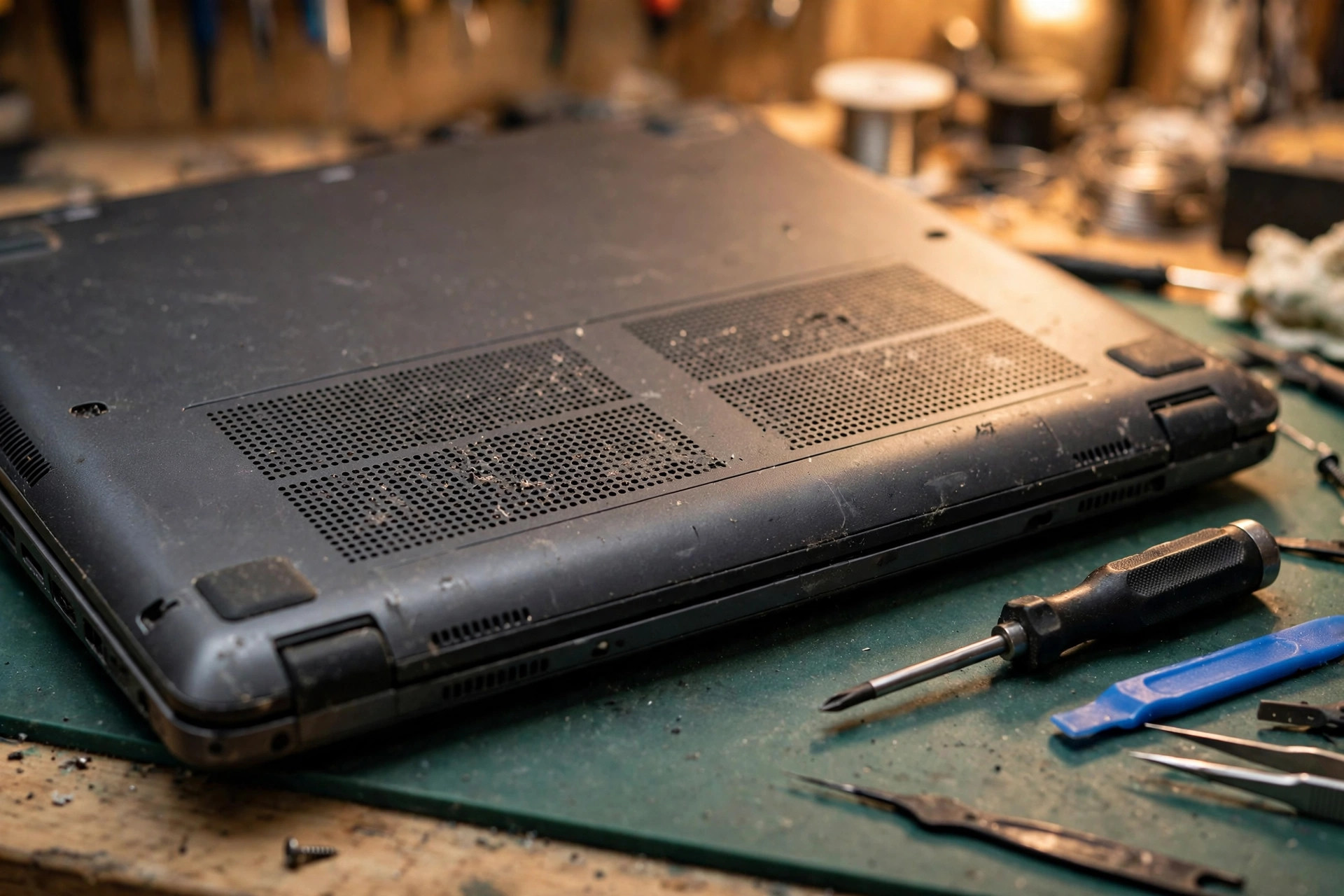
A laptop speaker with no sound or crackling: do not jump to a conclusion about which part failed
No sound, crackling, hissing, or intermittent audio from a laptop speaker may be caused by output selection, volume, mute, an application setting, a driver, an audio service, an external device taking over the output, or a hardware-level issue. The same phrase, 'the speaker is broken', can hide completely different causes. Layered troubleshooting changes only one variable at a time and narrows the range step by step, instead of starting with disassembly or assuming the speaker unit has failed.
Do tests that do not change settings first, then move to steps that do; do no-disassembly checks first, then consider repair. After each step, note the result: which speaker, left, right, or both; whether headphones have sound; which playback source was used; and whether any external device was connected.
Tests that do not change settings
First, unplug the headphones and test again. Microsoft notes that while headphones are plugged in, the speaker may not produce sound, and unplugging them and testing again may help. After unplugging, still confirm in settings that the output device has actually switched back to the built-in speaker, because having plugged in headphones and having the output switch back are two different things.
Second, restart the computer. A restart can clear a temporary system or driver state. Before restarting, note the symptom as it stands: complete silence, no sound from one application only, or crackling.
Third, change the playback source. Try another audio file and another application, then try a system alert sound. This separates a problem that belongs to one file or one application from a system-level problem. Microsoft lists 'system sounds work, but one application has no sound' as a separate phenomenon, with a different troubleshooting direction from overall silence.
Fourth, note the left, right, and headphone comparison: which speaker is affected, left, right, or both, and whether headphones have sound. These comparisons are the basis for telling symptoms apart; do not rely on impression.
Symptom table: what each symptom points toward, not a diagnosis
| Symptom | Troubleshooting direction it points toward | How not to read it |
|---|---|---|
| Complete silence | Output device selection, volume, mute, driver, audio service, external device taking over output | Do not conclude the speaker unit has failed |
| Headphones have sound, speaker does not | Whether output is still pointed at headphones, jack detection, Bluetooth, HDMI, or USB taking over output, built-in speaker output path | Does not prove which part has failed |
| Bluetooth or HDMI taking over output | Current output device selection, automatic switching setting, retest after disconnecting external devices | Do not treat it as a broken speaker |
| One-sided sound | Balance slider, mono switch, which speaker is affected | Do not attribute one-sided sound to one part on that evidence alone |
| Crackling, hissing, intermittent audio | Audio enhancements, default format, driver, audio service, external interference, cable, hardware inspection | Not a diagnosis; compare across layers |
Windows sound settings
Output device selection: select the speaker icon on the taskbar, then select the arrow beside the volume slider to open the list of connected audio devices, and confirm audio is playing to the selected device. Alternatively, go to Start > Settings > System > Sound, and under Output select the correct audio device. Microsoft notes that selecting the wrong audio output device is one reason a speaker or wired headphones can be completely silent.
Volume and mute: confirm the volume is not muted and the slider is raised. Check the speaker and headphone connections for loose cables; confirm all cables are plugged in; confirm the power is on; confirm mute is off, and try turning up all volume controls. Microsoft adds that some speakers and applications have their own volume controls, and all of them must be checked.
Volume mixer: go to Start > Settings > System > Sound > Volume mixer, and under Apps confirm the affected application is not muted and its volume slider is raised. On the same page, confirm the affected application's Output device is selected correctly. An application can use a different output device from the system default.
Default device: go to Start > Settings > System > Sound > More sound settings > Playback, right-click the device, and select Set as default. In the classic Sound control panel Playback tab, this is one of Microsoft's official troubleshooting steps.
Audio enhancements: turning on audio enhancements can sometimes cause audio problems, and turning enhancements off may fix them. The path is Start > Settings > System > Sound, select the audio device under Output, and under Advanced settings set Audio enhancements to Off. Audio enhancements may cause distortion or crackling on some devices, and turning enhancements off is Microsoft's first suggested fix for distortion and crackling.
Default format: an unsupported or incorrect audio format can degrade sound quality. The path is Start > Settings > System > Sound, select the audio device under Output, select Advanced, and under Default format choose another format, then test the audio again.
Troubleshooter: Microsoft provides an entry point to run the troubleshooter in Get Help; if the Get Help app does not fix the problem, try the other solutions in the article. The Playing Audio troubleshooter path is Settings > System > Troubleshoot > Other troubleshooters > Playing Audio > Run, then follow the on-screen suggestions.
Mono and left-right balance: Mono audio merges the left and right channels into one channel, and can be switched in Settings > System > Sound. Left-right balance can be adjusted with the Balance slider under the device's Advanced > Levels > Balance. If a one-sided problem is settings-related, check the mono switch and the balance slider.
Windows driver troubleshooting
Device Manager location: audio devices sit under Device Manager > Sound, video and game controllers. If no audio device is visible in that category, select View > Show hidden devices, then Action > Scan for hardware changes.
Driver updates: Windows Update is the recommended route for the latest audio driver: go to Start > Settings > Windows Update > Check for updates; if an audio driver update is available, install it and restart the computer. Audio driver updates are often included in Windows Update as optional or recommended updates. You can also check manually through Device Manager: open Device Manager, expand Sound, video and game controllers, right-click the audio device, select Update driver, then Search automatically for drivers, follow the on-screen instructions, and restart. If Windows reports the best driver is already installed, the device maker may still have a newer version; check the maker's support site. For Dell machines, for example, the Dell SupportAssist app inside Windows can update drivers.
Driver rollback: if the problem appeared after a recent update, returning to the previous driver may restore audio. The path is Device Manager > Sound, video and game controllers, right-click the audio device, Properties, Driver tab, Roll Back Driver, then restart the device. The Roll Back Driver option is only available when a previous driver version exists. If audio worked before a Windows Update and stopped afterwards, Microsoft suggests trying to roll back the audio driver.
Uninstalling and reinstalling the driver: if updating the driver does not fix the problem, reinstalling it can refresh the installation and repair problems caused by a damaged or incomplete driver. The path is Device Manager > Sound, video and game controllers, right-click the audio device, Uninstall device, confirm, and restart; Windows reinstalls the audio driver after the restart. When uninstalling, the checkbox 'Attempt to remove the driver for this device' may be ticked, shown in some versions as 'Delete the driver software for this device'; then uninstall. After the restart the computer prompts automatically to reinstall the audio driver. Save documents and other work in progress before restarting. If the problem continues, install the latest audio driver from the device maker's website.
Generic audio driver: if the options above do not work, try the generic audio driver included with Windows: Device Manager > Sound, video and game controllers, right-click the audio device, Update driver > Browse my computer for drivers > Let me pick from a list of available drivers on my computer, select the audio device, select Next, and follow the instructions.
Audio services: restarting the audio services can fix temporary audio problems. Select Start, type services.msc and press Enter; right-click Windows Audio > Restart; right-click Windows Audio Endpoint Builder > Restart; then test the audio again. When an audio service has not started correctly, restarting the service can restore sound.
Signs a device is not detected: possible signs include the message 'No audio output device is installed'; sound settings unavailable or greyed out; and no speaker or headphones shown under Output. If the required audio driver is missing, out of date, disabled, or cannot load correctly, Windows may not detect an audio output device; this can happen after a Windows Update or driver change, or because of audio hardware or driver damage. If the audio device is visible in Device Manager, right-click it and select Enable device if that option is present. If a yellow warning symbol appears, note what Device status shows first, and do not guess which part has failed from the symbol alone.
macOS sound settings
Need a laptop repair expert?
Free diagnosis · Transparent pricing · No fix, no fee · 180-day warranty
First check whether the application itself has its volume turned down to the minimum, then try playing another audio file to separate a single-file or single-application problem from a system-level one.
Output device selection: the path is Apple menu > System Settings, called System Preferences in older versions, > Sound > Output. The built-in speaker should be selected as 'Internal Speakers' or the matching model's 'MacBook Speakers'. If no built-in speaker option appears in the list, that is a signal needing further checking, and must not be assumed to be a settings issue only.
Volume, mute, balance: in the Output settings, confirm the Output volume slider is not pushed fully left, and the Mute checkbox is not ticked. The Balance slider can be adjusted; for one-sided silence or one-sided abnormal sound, the Balance position is one item that must be checked. An application's own volume setting can only equal or fall below the computer output volume, and does not override the Sound settings.
System and alert sound settings: in Sound > Sound Effects, an alert sound can be selected, and selecting it plays it immediately for a preview. 'Play sound effects through' selects which output device plays alert sounds; it is generally the built-in speaker, but another output device can be selected if one is available. The Alert volume slider adjusts alert volume; alert volume is relative to computer output volume, so turning computer volume down also makes alerts quieter. 'Play user interface sound effects' controls whether sound effects play for some actions, for example dragging an item to Trash. 'Play feedback when volume is changed' controls whether a sound plays as feedback when a volume key is pressed; on some keyboards, holding Shift while pressing a volume key temporarily reverses this setting; not all keyboards have volume keys.
Startup sound switch: in macOS Big Sur 11 or later, whether a startup sound plays at boot can be controlled. The newer path is Apple menu > System Settings > Sound > 'Play sound on startup', on or off. The older path is Apple menu > System Preferences > Sound > Sound Effects pane > 'Play sound on startup'. Still older macOS versions offer no setting to control the startup sound. Note that the startup sound switch is a system setting, not a speaker hardware test; no startup sound does not prove the speaker is damaged.
External speakers and USB audio devices: for external speakers, confirm they are connected to the Mac or display's audio output port, and connected to power if needed; check the external speaker's own power switch and volume adjustment. On a Mac with only one audio port, in Sound > Output use the 'Use audio port for' pop-up menu, select 'Sound Output', then confirm the external speaker is selected. For a speaker or headphones connected only by USB, in Sound > Output confirm that USB device is selected; then open System Information > Hardware > USB and confirm the speaker is listed; if it is not listed, try unplugging it and plugging it back in. If the external speaker still does not work, Apple's guidance is to consult the documentation that came with that speaker.
NVRAM: NVRAM, or PRAM, is a small amount of memory the Mac uses to store and quickly access certain system settings, such as volume, display resolution, startup disk selection, and time zone; the settings stored differ by Mac and by the devices used. In normal cases these settings can be managed in System Settings or System Preferences, with no need to reset NVRAM; if one or more settings still do not behave as expected, resetting NVRAM may help. The steps to reset NVRAM do not apply to Apple silicon Mac computers, and do not need to be performed on that type of Mac. Intel Mac steps: shut down; immediately after powering on, hold Option, Command, P, and R together; release after about 20 seconds, during which the Mac may appear to restart, for example the startup sound may play more than once, or the Apple logo may appear more than once; after startup completes, some reset system settings may need to be adjusted again. If the Mac seems not to recognise the Option-Command-P-R startup combination, Apple's guidance is to consult the guide on using startup key combinations.
SMC: Apple's official wording is: 'You most likely do not need to reset the SMC.' An SMC reset may help with some problems on Intel Mac computers. The officially listed possibly-related SMC problems are: battery not charging, Mac not turning on, fan spinning very fast, Mac laptop overheating, and built-in camera not working. The official page does not list 'speaker no sound, crackling, or audio abnormality' as an SMC symptom. This article does not present an SMC reset as a routine fix for speaker problems. Resetting the SMC does not affect NVRAM or PRAM. On Apple silicon Mac computers, the SMC resets automatically on restart or on shutdown followed by powering on, with no other steps needed. On a T2-chip Mac laptop: shut down; hold the power button, or Touch ID, for 10 seconds; release, wait a few seconds, then power on. Steps for other Intel laptops or desktop Mac computers vary by model and must follow the matching model section of the official page; do not merge several models' key combinations into one generic step.
Apple Diagnostics: before use, if possible, install the latest macOS update first. Preparation: shut down; unplug all external devices except keyboard, mouse, display, Ethernet if applicable, and AC power; place the Mac on a hard, flat, stable, well-ventilated surface. Apple silicon: hold the power button until Options appears, release, then hold Command-D until the Mac restarts. Intel: hold the D key immediately after powering on; if the D key does not work, use Option-D instead; release when a progress bar appears or a language choice is requested. When the test finishes, results are shown; if one or more reference codes appear, Apple directs readers to the Apple Diagnostics reference codes list; provide that reference code when sending the machine in.
External interference: Bluetooth, HDMI, USB audio, headphone jack
Bluetooth devices taking over output: when a Bluetooth speaker or headphones are connected, sound may be sent to the Bluetooth device instead of the built-in speaker. macOS has an 'Automatically switch audio output' setting, shown in some macOS versions as 'Automatically switch to and from Bluetooth devices'; turning it off stops macOS from automatically moving the default output to the most recently active device. A Bluetooth device reconnecting may still retake the default output; turning off automatic switching does not mean no application will take over output on its own. Troubleshooting direction: check the currently selected device in Sound > Output; temporarily turn off or disconnect the Bluetooth audio device, then confirm whether the built-in speaker recovers. On Windows, if several output devices are available, confirm the appropriate device is selected. A Microsoft Q&A case describes a laptop whose built-in speaker had no sound while Bluetooth audio worked; the reply suggestions included selecting the correct output device, running the Playing Audio troubleshooter, updating or reinstalling the audio driver, and disconnecting all Bluetooth devices, restarting the laptop, then testing the built-in speaker again.
HDMI and external displays: when an HDMI device such as a TV or external display is connected, that HDMI device may appear in the Output list; if the HDMI device is selected, sound goes out through HDMI, not through the built-in speaker. The external display's own speaker is also a possible output device; when troubleshooting, confirm the currently selected device is not the display speaker. A Microsoft Q&A reply notes that by default Windows does not route sound through HDMI output; to change this, in Control Panel > Sound > Playback select 'Digital Output Device (HDMI)' and set it as default; this operation turns off sound from the speaker or general audio output, and reversing the operation restores it.
USB audio devices: when a USB speaker or headphones are connected, that USB device must be selected in Sound > Output before sound comes through it; to return to the built-in speaker, manually select the built-in speaker again. On a Mac, the device can also be checked in the System Information USB list.
Headphone jack misdetection: dust, debris, or lint inside the headphone jack may block normal contact. When the headphone jack is dirty or damaged, the laptop may behave as though headphones are still plugged in, and mute the built-in speaker. Community repair discussion notes that the Mac headphone jack switch is not a purely mechanical switch; the detection switch inside the jack only gives the system an input that something is inserted, and the system then controls muting or output switching in software. Jack detection going wrong can therefore appear as 'headphones already unplugged, but the machine still thinks they are plugged in'. Troubleshooting direction: visually inspect the jack for visible debris; first confirm the output device in Sound > Output; do not force a metal object or hard object into the jack to pry it.
Application-selected output and AirPlay: some applications, such as meeting or messaging software, have their own audio output selection, which may differ from the system Sound setting; when troubleshooting, check the audio output selection inside the application as well. A third-party guide also notes that an AirPlay device on the same network, such as Apple TV or HomePod, may take over the output.
Quick external-interference check: unplug all headphones, external speakers, USB audio devices, and HDMI devices, and turn off Bluetooth audio devices. In Sound > Output, confirm the built-in speaker is selected again, and confirm volume and mute. Test again with another audio source. If sound recovers after removing external devices, the problem is more likely external interference or output selection than the speaker unit itself. If it is still abnormal after removing external devices, move to crackling layers and the repair decision.
Crackling layers: software layer and hardware layer
Software layer, only items verifiable from official sources:
Audio enhancements: audio enhancements can cause distortion or crackling; turning enhancements off is one of Microsoft's first troubleshooting steps.
Audio format: an unsupported or incorrect audio format can degrade sound quality; changing the default format is one of Microsoft's troubleshooting steps.
Drivers: an out-of-date or damaged audio driver can cause distorted sound; updating or reinstalling the driver is one of Microsoft's troubleshooting steps. Dell also lists an out-of-date driver as a possible cause of distorted or crackling sound.
Audio services: restarting 'Windows Audio' and 'Windows Audio Endpoint Builder' can fix temporary audio problems.
Settings and background factors: Dell notes that intermittent audio can be caused by a faulty cable, incorrect settings, or background applications; the suggestion is to try a different audio port or cable and update the driver.
Hardware layer, only generic facts confirmed in the research reports:
Dell notes that a faulty speaker, audio port, or sound card can cause sound problems. Dell also notes that distorted or crackling sound can be caused by a hardware fault. Microsoft notes that speaker and headphone connections should be checked for loose cables; confirm all cables are plugged in; and try the speaker and headphones in a different USB port.
Isolation test logic: if headphones or an external speaker have sound while the built-in speaker does not, the built-in speaker may be faulty. This is a description from a Microsoft Q&A community reply, not a Microsoft official document conclusion; the actual judgement must be based on actual inspection.
What must not be written as verified fact: the state of internal wiring can only be confirmed by disassembly and inspection, and must not be asserted as a wiring problem without inspection. This article does not present unverified part-level damage mechanisms as fact, and does not extend the specific mechanism of interference beyond the sources.
Practical signals for inspection: crackling or distortion that continues at low volume across several audio sources is more likely hardware-level, and needs inspection rather than repeated settings changes. Crackling that changes when the machine is moved, shaken, or pressed is more likely a loose connection; do not press the body hard to 'test' it. Record whether one side or both sides are affected, whether headphones have sound, and whether the problem appeared after connecting an external device.
When to stop DIY, and what to prepare before sending it in
Do not disassemble the machine yourself: Apple manuals state that MacBook Pro has no user-serviceable parts; do not open or disassemble MacBook Pro, and do not attempt to repair or replace any component; disassembly may damage the machine or cause personal injury. Do not attempt to replace or remove the built-in battery yourself; doing so may damage the battery, causing overheating and injury; the built-in battery should be replaced by Apple or an authorised service provider. iFixit notes that some cable connection points are very fragile; a misaligned press-fit connector may bend pins and cause permanent damage; a ZIF connector needs its latch lifted gently first, then the cable slid out, never pulled hard. The iFixit speaker replacement guide requires disconnecting the battery connection first, and lifting the battery connector so it cannot accidentally touch; accidental contact of the battery connector may damage the MacBook. Community repair discussion adds: disconnect the battery first; do not power on with the back cover open, or a short circuit can easily occur. Apple manuals add: do not use a damaged Mac, for example a device with a cracked screen, as it may cause injury.
Do not pry connectors with a metal object: iFixit guides use the flat or pointed end of a plastic spudger to lift a connector latch or disconnect a connector, not a metal tool. A press-fit connector must be aligned and pressed in one side at a time, not pressed in the middle; misalignment may bend pins and cause permanent damage. A ZIF connector needs its hinged latch lifted first; the socket itself must not be pried. The headphone jack must not have a metal object or hard object forced into it either, or the jack or motherboard may be damaged.
Stop immediately if: signs of a swollen battery appear, such as swelling, deformation, a Trackpad that is hard to press, or a body that cannot sit flat; stop using the machine immediately and send it for inspection; do not disassemble it yourself. For a swollen battery: stop using the machine and power it off immediately, unplug the power; do not charge it; do not press the Trackpad or the casing; move the device to a safe, dry place away from flammable materials; and arrange a professional inspection. Do not attempt to puncture or remove a swollen battery yourself; a swollen battery that is punctured, squeezed, bent, or overheated carries a fire risk.
Suspected liquid damage: do not keep powering on and testing repeatedly. After a liquid spill, do not try restarting too soon. Do not shake the computer, or the liquid may spread. Do not use a hair dryer; heat may damage sensitive components. Do not force a cotton swab or tissue into vents or ports; that may damage the motherboard or the port itself. Do not put the device in a bag of rice; rice grains may enter ports and cause further damage. Power off immediately and remove all power; unplug all external devices; wipe off visible liquid; if the spill is mainly on the keyboard, place the keyboard face down on a towel to prevent further seepage; let the machine air-dry in a dry place for a while; and send it to an Apple Store or authorised service provider for inspection as soon as possible. With a liquid or drop history, abnormal speaker behaviour must not be treated as a settings problem only; corrosion, loose wiring, and poor connector contact must also be considered.
Signals for sending it in: settings checks and external-interference checks are complete, yet the built-in speaker still has no sound or crackling. Crackling or distortion that continues at low volume across several audio sources is more likely hardware-level, and needs inspection rather than repeated settings changes. Crackling that changes when the machine is moved, shaken, or pressed is more likely a loose connection, and the body must not be pressed hard to 'test' it. With a liquid or drop history, follow the safety steps above; do not disassemble the machine or power-test it yourself. If Apple Diagnostics shows a reference code, record that code and provide it when sending the machine in.
What to note before sending it in: the following are practical suggestions, not official requirements. Note: the model, for example MacBook Air or MacBook Pro plus size plus year or chip, Intel or Apple silicon, and the serial number if convenient; the system version; which speaker, left, right, or both; one side or both sides; whether headphones have sound; when the problem started; whether it is continuous or intermittent; whether it appears only at high volume or also at low volume; whether moving, shaking, or pressing changes it; whether it appeared after connecting Bluetooth, USB, HDMI, or headphones; steps already tried: output device checked, volume, mute, external devices removed, restarted, Apple Diagnostics run and its reference code if any; liquid or drop history: whether there was a spill, liquid exposure, or drop; if so, the time and the type of liquid, stating only facts provided by the user, without speculation; battery or body abnormality: swelling, deformation, heat, smell, or abnormal sound. Back up important files before repair or a reset.
Pricing: the only prices we can state here
| Item | Price |
|---|---|
| Battery | HK$580 up |
| Screen | HK$1,280 up |
| Main board chip-level | HK$880 up |
| Keyboard | HK$480 up |
| Speaker repair | Quoted in writing after inspection |
FAQ
Q1: Headphones have sound but the speaker does not. Does that mean the speaker is already broken?
A1: No. Headphones having sound while the speaker does not can mean the output is still pointed at headphones, jack detection is wrong, Bluetooth, HDMI, or USB is taking over the output, or the built-in speaker output path is involved. First confirm in settings that the output device is back on the built-in speaker, unplug the headphones and all external devices, disconnect Bluetooth audio, restart, and test again. If it is still abnormal after all checks, it may need inspection, but that does not prove which part has failed.
Q2: Does crackling always mean the speaker unit is broken?
A2: No. Crackling can be caused by audio enhancements, the default format, drivers, audio services, external interference, a cable, or a hardware fault. First turn off audio enhancements, change the default format, update or reinstall the driver, and restart the audio services, then compare across different audio sources and volumes. Crackling that continues at low volume across several sources is more likely hardware-level, and needs inspection rather than a self-diagnosis of one part.
Q3: Can resetting the SMC on a Mac fix no sound from the speaker?
A3: Do not treat an SMC reset as a routine fix for speaker problems. Apple's official wording is 'You most likely do not need to reset the SMC.', and the official page does not list speaker no sound, crackling, or audio abnormality as an SMC symptom. Complete the output device, volume, mute, and external-interference checks first. NVRAM applies to Intel Mac computers only, stores settings such as volume, and is normally managed in System Settings; its reset steps do not need to be performed on Apple silicon Mac computers.
Q4: How is a speaker repair charged?
A4: Speaker repair charges are quoted in writing after inspection. Book a check through diagnostic to get a written quote. See pricing for more details.
Need Professional Laptop Repair?
Laptop King has 15+ years of repair experience in Shek Mun, Sha Tin. Free diagnosis, transparent pricing, no fix no fee. 180-day warranty for your peace of mind.