Premise: this is the advanced guide, and it assumes first aid is already done
The previous article, "MacBook Liquid Damage: The First-24-Hour Response, the M1–M4 Data Survival Guide, and a Liquid Toxicity Ranking" (Chinese library id 109, English library id 110, slug macbook-liquid-damage), already covered the basics. This article cites that article only as a premise at the top and does not rewrite its basic content. The assumption below is that you have already finished that first aid: powering off, not powering on to test, drying, and pre-inspection handling, yet the machine still has problems — intermittent crashes, failure to boot, partial keyboard or trackpad failure, battery abnormality, spreading corrosion, or a data-priority decision. The earlier article's first-24-hour window, list of things not to do, and seven-step cleaning workflow are mentioned here only in a single passing reference and are not expanded again.
The governing principle of this advanced guide is simple: powering on does not mean undamaged, and a symptom is not a diagnosis. Without physical inspection and board-level measurement, any cause is only a possibility, not a confirmed diagnosis. Where something is uncertain, this article says so as possible, inferred, or unverified. All repairs are quoted in writing after inspection.
Liquid types, advanced comparison: the symptoms that appear later are the point
Once liquid dries, residue becomes the long-term problem. Tap water carries dissolved minerals, while coffee, tea, juice, soft drinks, and alcohol leave sugary and acidic residues that are sticky and conductive and can bridge tiny contacts after drying. The comparison below states only directional differences. It gives no precise corrosion speed and no failure rate, because the sources collected provide no verifiable statistics linking liquid type to later failure rate, and any percentage would be invented.
| Liquid type | Residue left after drying | Later risk direction |
|---|---|---|
| Plain water (tap water, bottled water) | Water plus a small amount of minerals | Corrosion can still continue while the machine is damp inside; risk after thorough drying is relatively lower, but not zero |
| Coffee, milk tea, tea | Sugar, milk fat and protein, acidic substances, sticky residue after drying | Sticks to key mechanisms, trackpad flex-cable connectors, and tiny contacts; milk that dries is harder to clean, and keyboards and trackpads often do not survive drying naturally without cleaning |
| Soft drinks, juice, sports drinks | Sugar plus acidic components | Acidity accelerates metal corrosion; dried sugar crystals and sticky film can still conduct and produce green corrosion that gradually eats metal parts |
| Seawater, salt water | Salt, possibly sand grains | The most conductive and fastest to corrode; salt is more easily removed with water or ultrasonic cleaning plus a dedicated cleaner, and wiping the surface alone is not enough |
| Milk, beer, alcoholic drinks | Mixed residue of fat, sugar, and alcohol | Very hard to remove fully without disassembly; fat needs a solvent that can dissolve fat |
Spill location comparison: where it got wet changes where to check
MacBooks vary widely in internal layout, so the comparison below is about the most commonly affected directions, depending on model and spill volume. It is not a per-model parts list.
| Spill location | Most directly affected direction | What to report at inspection |
|---|---|---|
| Keyboard surface | The keyboard itself, the board under the keyboard, the battery area | Which key zones fail or stick, and whether the trackpad is affected at the same time |
| Trackpad | The trackpad itself, its flex cable and connector, keyboard interaction | Whether trackpad failure is limited to one zone or affects the whole pad, and whether the bottom case is bulging at the same time |
| USB-C, charging port | The port itself, the charging circuit and board power section, battery charging | Which port charges intermittently, which port shows no response at all, and which cable was used for testing |
| Display hinge flex cable | The display flex cable, the backlight circuit, related connections, the display itself | Whether symptoms change with the opening angle, and the result of an external display test |
| Bottom intake | Battery, underside of the board, speakers, parts near ventilation openings | How the machine got wet, for example soaked inside a bag or left on a wet surface; this section carries a higher inference component, so do not invent a claim that bottom intake must damage a particular chip |
For the trackpad, keep two different things apart: trackpad failure after a spill, and a swollen battery pushing the trackpad up from below. A swollen battery pushes the trackpad upward, making clicks stiff or raised. If trackpad trouble appears together with a bulging bottom case or a machine that rocks on a desk, suspect battery swelling pushing the trackpad first. If trackpad trouble is limited to one zone with no bulging, a trackpad flex cable, connector corrosion, or top-case problem is more likely. This distinction is only a pre-inspection observation direction, an inference, not a diagnosis.
For the hinge flex cable, keep two causes apart and do not confuse them: corrosion or liquid entering the flex connector through the hinge, and wear of the flex cable itself. The cable bends every time the lid opens, and copper conductors can break over time, starting as an intermittent problem that usually gets worse. The practical distinctions are only directions of suspicion, not diagnoses: symptoms that change with opening angle point first toward the cable or hinge; symptoms unrelated to angle but related to spill location or timing point first toward corrosion or the board; a normal external display with a flickering or black built-in display points more toward the built-in display or cable side; if both displays show the same problem, the board or graphics hardware is more likely. Report the angle behaviour and the external display test result at inspection.
For charging ports, a clean-looking port exterior does not mean the internal charging circuit is free of corrosion. Intermittent charging is especially worth suspecting as connector or charging-circuit corrosion, but only disassembly can confirm it, so do not judge from the port exterior. For bottom intake, source support is limited and the inference component is higher: liquid can enter through the gap between keyboard and display, moving hinge parts, and ventilation openings, and a dry surface does not mean the inside is dry.
Corrosion timeline: why still powering on after drying does not mean safe
The core mechanism is verified in direction but not in exact rate. Electricity catalyses corrosion: even a small amount of untreated residue can cause later problems when powered, and cleaning only the surface with a brush and alcohol is a risky approach. Liquid itself is not the only problem; the residue left after liquid dries is the long-term problem. Residual ions in a damp environment can act as a weak electrolyte, and under electrical bias metal ions can migrate and form dendrite-like conductive bridges that break when dry and reappear when damp, causing intermittent shorts. This mechanism is described in general electronics reliability writing, but the specific conditions on a MacBook board are unverified.
A dry surface does not mean a dry interior. Liquid can be trapped under the board, under chips, inside connectors, and under shielding, invisible to the eye. Heating accelerates the corrosion chemistry and can also harm the battery. Every time description below comes from individual repairers or technical articles as experience descriptions. None of it is an Apple official timeline, and none of it is measured statistics, so it must be written as possible and depending on circumstances, never as a guarantee or a fixed timeline.
| Stage | What may happen | Why this is not a rule |
|---|---|---|
| Immediately to the first few days after the spill | The surface looks dry and the machine still powers on, but residue is already present | A normal surface only describes the surface; what sits under shields and chips cannot be seen |
| Days later | Intermittent crashes, intermittent failure to boot, individual functions becoming unstable | An individual repairer's experience description, not a statistic; never write that failure must happen within a given number of days |
| Weeks later | Some repairers describe coffee spills that looked normal on the surface but failed weeks later as common, and another repairer describes corrosion quietly worsening within weeks | Both are commercial repair websites, not independent measurement studies; never write them as a proportion of machines |
| Long term | Sugar absorbs moisture and salt conducts again when damp, so corrosion keeps spreading | The rate depends on liquid type, spill volume, powered-on attempts, and ambient humidity, and the specific rate is unverified |
Why intermittent faults come and go: three possible mechanisms plus one logging method
First, corrosion causes poor contact or high-resistance joints. Copper traces lose mass, solder joints turn powdery, and nickel underlayers corrode, producing open circuits, high-resistance joints, and latent faults that appear days or weeks later. Note that intermittency alone does not prove spill corrosion: flex-cable contact problems are intermittent by nature, and trackpad flex-cable intermittent faults have been seen on machines without spills.
Second, an unstable power rail or a borderline short. Corrosion bridging or degrading a board power rail can explain random shutdowns, freezing, and restarts, and dendrite-like metal migration may conduct only when heated or loaded, which explains a board that passes a room-temperature short test but collapses under load. That is a mechanism explanation, not a per-machine diagnosis.
Third, temperature, humidity, angle, and load changes can reveal or hide a borderline fault. The display example is opening angle changing flex-cable contact, and the charging example is port corrosion showing as intermittent charging. The sources collected provide no verifiable comparison of which temperature or humidity change most easily triggers intermittent faults, so do not write absolute claims such as damp weather must cause a crash.
On battery health readings, write carefully and do not exaggerate. A battery percentage that looks normal does not mean the battery and power circuitry are normal. If the machine shows charge yet shuts down suddenly, if the percentage jumps up and down, or if charging stops at a certain percentage, treat that as a warning sign for the power system, not simply as battery ageing. The sources provide no verified figure for how far battery health readings can be wrong after a spill, so this article gives no error figure. A swollen battery is a separate matter and is covered in the stopping section.
Symptom logging method: the items below are summarised from symptom sources, not an official repair-shop form, and are offered as a template for readers to record themselves. Spill date and time, liquid type, estimated volume; spill location; whether power was cut immediately and how many times the machine was powered on afterwards; when the first abnormality appeared, immediately, days later, or weeks later; fault frequency and trigger conditions, recording only what was observed without inferring a cause; the relationship between display symptoms and opening angle; external display, external keyboard, and external mouse test results; charging behaviour, including which port, which cable, and charging-light and percentage changes; battery behaviour, including percentage jumps, the percentage at sudden shutdown, and whether the bottom case bulges; smell, sound, and hot spots; and whether important data is backed up and the backup date. One extra warning: do not repeatedly power on for the sake of testing while logging. Every powered test can worsen corrosion or a short.
Ultrasonic cleaning limits: what cleaning can and cannot restore must be kept apart
Need a laptop repair expert?
Free diagnosis · Transparent pricing · No fix, no fee · 180-day warranty
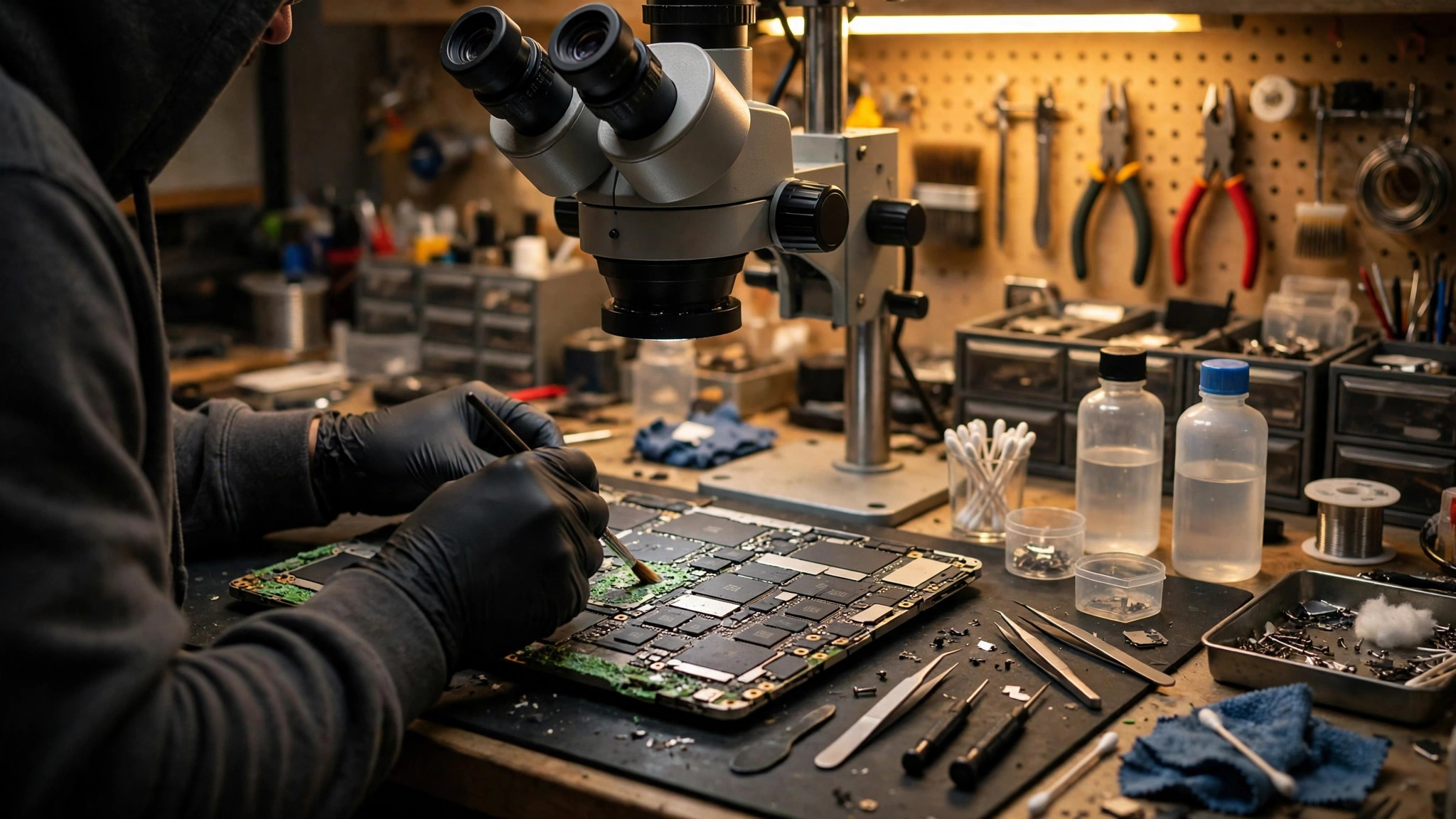
The standard ultrasonic cleaning workflow was already covered in the previous article and is not repeated here step by step. This section only draws the line between what cleaning can and cannot restore: its value is reaching corrosion under components, which hand cleaning cannot, but cleaning alone does not revive anything already broken or burnt out. Different sources give inconsistent temperature and time parameters, so this article does not fix one standard parameter, and it does not teach readers to buy a machine and do it themselves.
Cases cleaning can generally help: corrosion only on the surface, traces and solder joints not yet broken, and components not yet burnt out, so that after residue is removed a board voltage rail may recover; residue under shields, connectors, and flex-cable sockets, which ultrasonic cleaning after shield removal may reach, which is precisely the advantage over hand cleaning; and the workflow of ultrasonic cleaning followed by replacing damaged surface-mount components.
Cases cleaning cannot fix must be stated separately, never as cleaned means fixed. Ball-grid-array underside corrosion or solder-ball damage is a grey zone where cleaning can reach but repair may not follow: ultrasonic cleaning can remove some residue under a chip, but if solder balls have already corroded apart, pads have lifted, or the chip itself is damaged internally, cleaning alone will not reconnect the joints. Reballing, desoldering, or chip replacement may offer a chance, and if the chip itself is damaged, even chip replacement may not solve it. Inner-layer trace breaks cannot be repaired by ultrasonic cleaning: an inner-layer copper trace inside the board is beyond surface cleaning, and the break is hard to locate. Burnt-out components, blackened, cracked, or internally shorted, will not come back to life through cleaning and must be replaced; if no replacement part exists or the component is the SoC itself, the repair path stops. For battery and display, the battery is frequently a spill victim, and the display is a sealed assembly, so visible liquid marks point toward replacing the display assembly rather than cleaning alone. If intermittent problems remain after cleaning, that may mean cleaning solved only the surface part while underside, inner-layer, or already-damaged component problems remain. One cleaning pass is not evidence of repair, and full functional testing is required.
Order matters before cleaning: disconnect the battery, remove the board, and remove shields before cleaning. Cleaning only the surface without removing shields cleans only half the job, because radio-frequency shields, heatsink brackets, and connector housings can hide trapped liquid. After cleaning, do not immediately test with the original battery. Technical writing suggests testing first with a current-limited bench power supply, so that a hidden short only trips the supply instead of burning a whole power rail. That is a bench practice, not a user instruction: this article only says readers can ask a technician how testing is done, and it does not teach readers to connect a bench supply themselves.
Board-layer damage comparison: surface, inner layer, power rail, power-management IC, SoC
The framework below is a researcher's organisation of multiple sources, not an Apple official classification. It describes how a technician classifies damage at inspection, not something a user can diagnose alone.
| Layer | What is visible on the surface | Typical presentation (inference) | Repairability direction |
|---|---|---|---|
| Surface corrosion | Green or white powder, crystallisation around connectors, darkened solder joints | Localised functional abnormality, intermittent poor contact | Cleaning plus surface-component replacement, relatively higher chance |
| Inner-layer trace break | The surface may look completely normal | A fixed function fails, intermittent disconnection, no improvement after cleaning | Extremely hard to locate and repair |
| Power rail short | Possibly burnt black areas, burnt smell, or a hot zone; the surface may also look normal | Failure to boot, supply tripping on plug-in, a power rail shorted to ground | Depends on whether the short source is a capacitor, a component, or inside a chip |
| Power-management IC damage | Possibly no visible damage, or visible burn marks | Whole board without power, no power rails, cannot boot | Depends on whether it is a peripheral power IC or the SoC itself |
| SoC damage | Possibly no visible damage, or visible burn marks | Whole board without power, cannot boot | Replacing peripheral components does not help; not a conventional repair path |
A power rail short needs a clear definition: a power rail is one supply-voltage line; a short is an unintended low-resistance path between paths that should not connect; an open circuit is a broken path. Minerals and acids left by liquid erode traces, cause shorts, and grow dendrite-like conductors, and damage often hides under ball-grid-array chips where cleaning is difficult. Common short sources are general board-repair knowledge, not MacBook-specific statistics: multilayer ceramic capacitors are the most common, because many filter capacitors sit in parallel on one power rail, and one failed dielectric layer can short the whole rail to ground, requiring milliohm measurement or low-voltage current-limited injection with thermal imaging to locate. The shorted load chip may also be a peripheral chip such as a power-management, embedded-controller, or audio chip. The key inference for repairable versus not repairable is: if the short source is one capacitor or one replaceable peripheral component, removing or replacing it may restore the rail; if the short source points inside the SoC, replacing peripheral components is useless and the board-level repair path is basically closed. A user cannot distinguish these two from plug-in with no response alone; board-level measurement is required.
For power-management IC damage, liquid can disable power-rail-related circuitry, and one repairer notes that liquid can corrode power rails and disable the power-management IC, with continued powering on while wet being one of the main causes of board failure. For SoC damage, the SoC contains the processor, graphics, memory controller, and Secure Enclave. Internal SoC damage cannot be solved by replacing peripheral components, and replacing the SoC itself involves encryption pairing problems, so it is not in practice a conventional repair path. No public document found lists which power IC damage is replaceable and which is not by MacBook model, so this article gives no specific IC model comparison table, only principles. Another possible cause of intermittent crashes is an inference: intermittent disconnection of power-management-related solder joints or traces, dropping power under high load. That inference needs board-level measurement to confirm and must not be written as a diagnosis.
Apple Silicon notes: soldered SSD plus Secure Enclave means data recovery equals repairing the original board
The verified Apple official encryption mechanism comes from Apple's Platform Security guide: on Apple Silicon and T2 Macs, all FileVault key handling happens inside the Secure Enclave, and encryption keys are not directly exposed to the processor; every APFS volume has a volume encryption key by default; when FileVault is turned on, the key-encryption key is protected jointly by the user password and the hardware UID; even when FileVault is off, the volume remains encrypted, with the volume encryption key protected only by the hardware UID inside the Secure Enclave. The direct inference from that official mechanism, not an extra assumption, is that built-in storage is not a drive that can be removed and read. Reading data requires the original machine's SoC and Secure Enclave to take part in decryption.
From the M1 generation onward, MacBook flash storage is soldered to the board and hardware-encrypted by the Secure Enclave inside the SoC. Removing the NAND chip alone is useless, because without the original SoC it cannot be decrypted. The generational comparison is stated only as a principle: older removable-SSD models could be read with an adapter, T2 models are all encrypted by T2, and M1-and-later models are all encrypted by the Secure Enclave, so removing chips does not help. The only conventional path is repairing the original board until it can boot, enter macOS Recovery, or share its disk through Share Disk, and then copying data out. If the Secure Enclave or the flash storage itself is destroyed, the data is unreadable. One laboratory's mentioned approach of transplanting the processor, NAND, and EEPROM together onto a donor board is a claim by an individual commercial laboratory. This research has not independently verified its success rate or applicable models, so this article only notes that such a claim exists, that it is a highly specialised approach, and that it is not a conventional path at an ordinary repair shop. It must not be written as a guarantee or as a recommendation to readers. Differences in board layout and power architecture between M1, M2, M3, and M4 generations are unverified in detail, so this article only states that the principle is the same from M1 to M4 and gives no per-generation detail differences.
One extra FileVault layer: even if the board is repaired and can boot, FileVault still requires the user password or recovery key to unlock. Without the password or recovery key, the data remains locked. For Share Disk, Apple Silicon has replaced the Intel Target Disk Mode with Share Disk, which requires entering macOS Recovery first and then using Share Disk. On cabling, multiple sources note that a Thunderbolt cable is needed, and an ordinary USB-C charging cable may not transfer data reliably. This article's wording should be rechecked against Apple's official steps. FileVault does not block board-level hardware recovery: once the board is repaired and the Secure Enclave starts normally, the login password or recovery key can decrypt the disk as usual. FileVault blocks unauthorised access, not hardware recovery itself.
The DFU Revive versus Restore life-or-death distinction is written only as verified principles: Revive reinstalls firmware and the local Recovery system through another Mac using Apple Configurator, and source wording says it does not touch the data volume; Restore wipes the entire NAND, including encryption keys, causing permanent data loss. If readers are unsure, they should not try DFU Restore themselves. If data matters, DFU work should be left to someone who clearly distinguishes Revive from Restore.
Apple's official policy on spill machines, in the parts verified by opening the original text: Apple's support text states that damage from liquid exposure is not covered by the Apple one-year limited warranty or the AppleCare Protection Plan; an AppleCare plan for Mac adds accidental-damage protection subject to a service fee and terms exclusions; and current Mac laptops have liquid contact indicators to help determine whether products have been exposed to liquid. Liquid contact indicators change colour on liquid contact and sit near connectors and the board, but colour change only shows liquid contact, not the extent of damage. This article does not infer beyond that, and writes that Apple uses liquid contact indicators as one reference in its judgement.
Hong Kong AppleCare+ pricing must carry its source level: a Hong Kong reseller page states a service fee of HK$799 for screen or enclosure damage and HK$2,299 for other damage, and states that Hong Kong accidental-damage cover is underwritten by an insurer. Those figures come from a reseller page. This research could not verify the same figures directly in Apple's official support text, where the official page only describes accidental-damage protection subject to a service fee, without listing amounts. This article therefore does not present the reseller figures as Apple official pricing, and readers must rely on their own plan receipt or terms. Also, Apple's official page uses an unlimited wording while the reseller page uses a maximum-per-period wording. The reason for the difference is unverified and may reflect plan-version or regional-version differences, so this article does not pick one and write it as fixed, but states that different versions describe the limit differently and readers must check their own plan. AppleCare+ terms state that Apple may choose to repair or exchange for a new or equivalent-to-new replacement, and if exchanged, the original machine belongs to Apple. The data implication is an inference directly following from the exchange terms: if the Apple exchange path is taken, the original board is taken away and the data-recovery path ends. Users for whom data matters must think this through before sending the machine to Apple. AppleCare+ exclusions include excessive or catastrophic liquid damage, for example partial or total immersion in liquid, and the archived terms version quoted may not be the current Hong Kong version, so readers must rely on their own plan terms. On the rice-drying approach mentioned in the previous article, this article mentions it only in a single passing reference: Apple explicitly advises against the rice-bag approach for iPhone, and Mac guidance carries similar warnings against external heat sources, compressed air, and inserting objects into ports, but a Mac-specific rice-bag warning in Apple's official Mac text has not been verified from the original Mac text, and this article does not claim to have read it.
Data priority: three situations, three orders, and unstable-but-booting comes first for data
The most important premise first: newer Macs are not a case of removing the SSD and reading it. On T2 and Apple Silicon models, the SSD is soldered to the board and its contents are hardware-encrypted by the security chip on the board, with decryption keys inside the original board's security chip. Removing NAND chips to read them on another machine yields only ciphertext. Without the original board's security chip, the data cannot be decrypted. The only viable path, in source wording, is repairing the original board to a bootable or unlockable state and then copying data out. Older removable-SSD models are different, so this article separates cases by year or chip and does not generalise. One data-recovery business notes that Apple itself does not offer a data-recovery service, that Apple repair often replaces hardware or wipes and reinstalls macOS and advises restoring from backup, and that without a backup Apple may not be able to retrieve data, requiring a specialist data-recovery laboratory. This article writes that as a data-recovery business's statement and advises readers to ask before repair whether the plan will replace the board or wipe the machine, so data is not lost during repair.
| Situation | Priority order | Why this order |
|---|---|---|
| Completely dead | Stop first, do not repeatedly try to power on, and say data first as the first sentence at inspection, letting the repairer judge whether board-level repair for data comes first or a quote comes first | Any repair that replaces the board without first extracting data ends the data. Once the original board is replaced, its encryption keys go with it. A new board has a new Secure Enclave and new keys, and NAND on the old board can no longer be decrypted. If the original board is still kept, bring it along as well and try repairing the original board |
| Boots but unstable | Use the still-booting window first to rescue data, then diagnose or repair. Do not update the system first, and do not observe to see whether it happens again | If the machine boots intermittently, or panics after a short time on, that is a rescue window that will not last. Power on immediately, connect an external drive, and copy documents and photos first. Applications do not need to be rushed. Unstable booting is a warning sign that corrosion has spread to storage, power, or communication circuits, and continued use may raise the risk of permanent board damage |
| Completely dead but a backup already exists | Confirm the backup is complete first, then decide on board repair, board replacement, or machine replacement | If a backup is confirmed complete, data risk has fallen sharply, and the repair decision can be judged purely on repair value, without insisting on original-board repair for data. Still check the backup date and contents before repair, and do not assume from memory that turning on a backup means a backup exists |
When to stop: if any item below appears, stop
If any item below appears, stop immediately, and do not plug in, power on, or test charging again: burnt smell, smoke, abnormal heat, or a cracking sound; a bulging bottom case, a raised trackpad, or suspected battery swelling; immediate shutdown after powering on, repeated restarts, or abnormal sounds at boot; visible liquid not yet dry in the charging port or body, or liquid that entered the charging port without inspection; or repeated failed power-on attempts with symptoms getting worse, for example from intermittent booting to completely dead. That last point is a reasonable inference, written as trying more may make things worse, not as a guarantee, and repeated powering on should not be used as a test. The general principle is that cutting power stops short-circuit damage that is already happening, and powered testing after a spill is one of the most common ways a salvageable situation becomes unsalvageable.
A swollen battery must be handled as an independent safety warning, not written as something a spill must cause. The sources collected provide no causal statistics for whether a spill directly causes swelling in a particular case. Swelling warning signs include a bulging bottom case, a trackpad that has become stiff or cannot be pressed, a body that rocks on a desk, keyboard or body seams separating, and abnormal smell or heat. The consistent handling direction from multiple sources is: stop using it immediately, do not charge it, do not press it flat or remove the battery yourself, and send it for professional inspection promptly. Never puncture, press, or try to flatten a swollen battery. The battery itself is frequently a spill victim, and battery inspection is a separate step. Battery abnormality and board shorts must not be conflated: battery abnormality includes sharply falling runtime, jumping percentages, and sudden shutdowns, which may be the battery itself affected by liquid or a board power-management problem, and the two can look similar. At inspection, describe which presentation it is, and do not attribute it yourself.
Pre-inspection checklist, all doable without disassembly: back up, if the machine still boots and is stable enough to copy, copying the most important files with no other copy first, then a full backup; log symptoms using the logging method above; prepare an inspection pack, including model and year, macOS version if known, liquid type, spill location, symptom log, backup status, and arrangements for the login password and FileVault recovery key, without writing passwords on a sticker stuck to the machine for repair; ask the repairer three questions: will the repair plan replace the board, and if so, how is data handled; will board-level inspection or cleaning be done before a quote; and if data comes first, should data extraction come before full repair; and check AppleCare+ cover if any, but only under your own plan terms, without applying another region's version directly. Things that must never be done: do not disassemble and clean the board yourself. Board-level cleaning requires battery disconnection, board removal, microscope inspection, ultrasonic cleaning, and microsoldering, not wiping a surface. Self-disassembly raises the risk of secondary damage such as spreading liquid, breaking flex cables, electrostatic damage, and battery shorts. That is a repair-common-sense inference, written as a risk warning, not as a certainty that damage will happen. Do not use a rice container, high-temperature hairdryer, or shaking. High heat can deform plastic keys, melt display adhesive, and push liquid deeper. Do not repeatedly power on to see whether it works. Do not authorise a board replacement or wipe before confirming a data backup. Do not puncture, press, or try to flatten a swollen battery. Do not treat dried residue as harmless and continue daily use. Even if the surface looks normal, internal inspection is still advised. Six sentences to say clearly at inspection: which day, which liquid, roughly how much, and which location it spilled on; whether power was cut immediately and how many times the machine was powered on afterwards; whether it is now completely dead, intermittently booting, or booting with individual functions failing; which data matters most, whether it is backed up, and the backup date; whether FileVault is on and how the password or recovery key will be handed over; and whether there are safety warnings such as burnt smell, heat, or a bulging bottom case.
Pricing notes
MacBook liquid-damage repair varies with liquid type, affected area, and model. All repairs are quoted in writing after inspection. These are confirmed routine prices:
| Item | Price |
|---|---|
| Battery | HK$580 up |
| Screen | HK$1,280 up |
| Main board chip-level | HK$880 up |
| Keyboard | HK$480 up |
| Deep cleaning for liquid damage, other repairs | Quoted in writing after inspection |
Frequently Asked Questions
Is a machine that still powers on after drying, but crashes intermittently, about to fail completely?
No such conclusion can be drawn. Intermittent crashing is only a symptom. Behind it may be residue corrosion, rising contact resistance, an unstable power rail, or a flex-cable contact problem, and the specific cause needs board-level measurement to know. What is worth doing is logging symptoms and trigger conditions immediately, using the still-booting window to rescue data first, then shutting down and sending the machine for inspection, without repeated powered testing. Powering on does not mean undamaged, and corrosion and residue can keep spreading while the surface looks normal.
Does one ultrasonic cleaning pass mean the machine is fully repaired?
No. Ultrasonic cleaning removes residue and corrosion from the surface and from under components. It will not reconnect an already-broken inner-layer trace, revive an already burnt-out component, or reconnect BGA solder balls that have already corroded apart underneath a chip. If intermittent problems remain after cleaning, that may mean underside, inner-layer, or already-damaged component problems remain, and full functional testing is needed to judge.
For an M1-and-later MacBook that will not boot, is replacing the board the fastest solution?
No. If data matters, a board replacement is not a solution for the data problem. From M1 onward, MacBook flash storage is soldered to the board and data is encrypted by the original machine's Secure Enclave inside the SoC. Replacing the original board discards the decryption path, and data is lost with the original board. The correct data-first order is to say data first, and let the repairer judge whether board-level repair for data extraction comes first, before deciding on later repair options.
With AppleCare+, is liquid-damage repair always free, or always covered?
No. Apple's official page states that liquid damage is not covered by the one-year limited warranty, and AppleCare accidental-damage protection is subject to a service fee and terms exclusions, with excessive or catastrophic liquid damage among the exclusions. A Hong Kong reseller page states a service fee of HK$799 for screen or enclosure damage and HK$2,299 for other damage, but those figures are a second-hand source, unverified in Apple's official text, and must not be treated as Apple official pricing. Different plan versions also describe the incident limit differently, so readers must rely on their own plan receipt or terms. Before repair, decide whether data or machine replacement comes first, because the exchange path takes away the original board.
Need Professional Laptop Repair?
Laptop King has 15+ years of repair experience in Shek Mun, Sha Tin. Free diagnosis, transparent pricing, no fix no fee. 180-day warranty for your peace of mind.