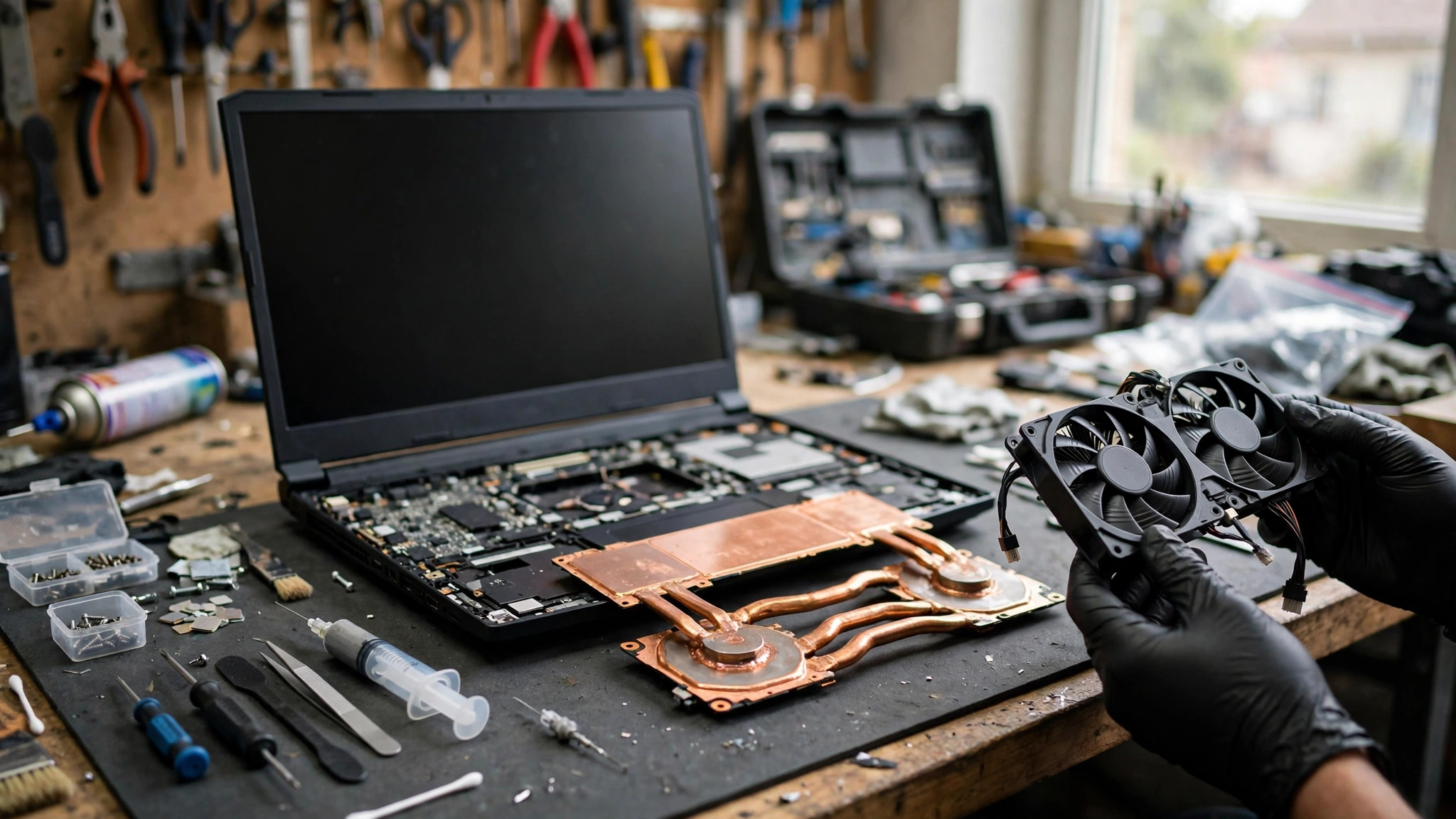
Premise: this is the advanced guide, for machines that still overheat after a repaste
The earlier article, Gaming Laptop Repair: Heat, GPU, and Power — the Complete Troubleshooting Guide (Chinese library number 111, English library number 112, slug gaming-laptop-repair), already covered the general principles of gaming laptop cooling, graphics hardware, and power, together with the basic checks. This advanced article cites that earlier article once, here at the start, and does not rewrite its basic content. The basic meaning of dust cleaning and repasting is covered in one sentence only: clearing dust from vents and fin stacks and replacing aged thermal interface material so heat can once again travel from the chips to the cooling module. This article assumes that step has already been done, and done reasonably well, yet the machine still overheats and throttles during gaming, or crashes, black-screens, or restarts as soon as load rises. It will not teach you how to strip the machine, how to apply paste, or how to choose between paste types, because the earlier article already covered those topics. The advanced question is narrower and more useful: if the heat path has already been renewed, why is heat still not getting away, or why does the machine still believe it is too hot and throttle itself to protect its hardware. The answer is usually not a single cause. It is one link in a longer chain that is still restricted: the fan speed strategy, the power limit, localised heat at the video memory or the power delivery modules, poor contact or a failed vapour chamber in the cooling module itself, a driver or firmware change to the power strategy, or an adapter that cannot deliver enough power. The sections below work through each link and explain how to tell them apart. Do not simply repaste again at the first sign of continued overheating, because repeating a repaste will not fix a contact problem, a power problem, or a firmware problem, and every strip-down adds risk to ribbon cables, screws, and the pressure distribution of the cooling module.
The advanced first principle: distinguish real heat, perceived heat, and a power wall
Before anything else, three states that look almost identical from the outside must be separated. The first is genuine heat: the cooling system genuinely cannot remove heat fast enough, temperature keeps climbing, and the system lowers clock speeds to protect the hardware, so frame rates fall and sustained heavy load may eventually end in a crash or a shutdown. The second is perceived heat: the machine feels hot and the fans sound loud, but the real problem is a conservative fan curve, where the fans are slow to speed up, or one part of the chassis feels hot because it sits close to a power module, while the chips themselves have not necessarily reached their throttling point. The third is a power wall: chip temperature may not be extreme at all, but a power limit, an adapter output limit, or a board power module current limit has been reached, so the system lowers clock speeds anyway, and the result on screen looks exactly like thermal throttling. A user judging only by hand feel and frame rate cannot separate these three states. Advanced diagnosis therefore records several observations at the same time: how fan speed changes, how clock speed changes, how frame rate changes, what charger is connected and what it is rated for, whether any driver or firmware version has changed recently, and whether the fault appears only in one game or one kind of load. The purpose of recording is not self-diagnosis. It is to let a technician reproduce the problem quickly and narrow the range of suspects. Without a physical inspection and measurement, every distinction in this article is a possibility or an inference, never a confirmed diagnosis, and every repair is quoted in writing after inspection.
Link one: how a fan curve can imitate a failed cooling system
A fan curve is the rule by which the system decides fan speed at a given temperature. Most gaming laptops ship with several preset modes, such as silent, balanced, and performance, and the same temperature can correspond to very different fan speeds under different modes. After a repaste, the first suspect should often not be the paste at all, but the mode setting: the machine may be sitting in silent or balanced mode, with its fan speed ceiling held down, so heat accumulates faster than it can be exhausted, temperature climbs, and the system finally has to throttle to stop the rise. Another common situation is a conflict between the manufacturer's control centre and a third-party fan control program, where two programs try to control the same fans at once, so fan speed jumps erratically or stays stuck at a low speed. The distinguishing test is comparatively straightforward: in the same game and the same scene, try different performance modes in turn, and notice whether fan noise and fan speed clearly follow the mode change, and whether frame rate improves with them. If switching to performance mode makes the fans audibly speed up and frame rate recover, the direction of the problem is the fan curve and the mode setting, not the paste itself. If the fans still do not speed up at the highest mode, or if one fan audibly lags behind the other, the suspicion moves to the fan itself, its power supply, or its control circuitry, not to another repaste. One further point deserves attention: an external cooling pad or raising the machine can improve air intake, but neither changes the fan curve ceiling itself, so if the fan curve is locked down, a cooling pad will only slightly improve the situation and will not cure it. When bringing the machine in, state which mode you use, whether any third-party fan control software is installed, and whether fan noise sounds symmetrical on both sides, because those details help the distinction a great deal.
Link two: how a power wall can imitate thermal throttling
The power wall is the link most easily misdiagnosed in this advanced scenario. The processor and the graphics chip in a gaming laptop each have power limits, set jointly by manufacturer firmware, the design of the board power modules, and the output capability of the adapter. When gaming load pushes power demand up, the system hits whichever limit comes first and lowers clock speeds, so frame rate drops immediately, and the screen looks exactly like thermal throttling. The key to telling a power wall from genuine heat lies in the relationship between time and temperature. Genuine heat throttling usually has a warm-up period: the first few minutes of gaming perform normally, and frame rate falls gradually as heat accumulates. Power wall throttling usually appears much faster, sometimes as soon as a heavy scene loads, and after throttling the temperature may not be particularly high. Another distinguishing direction is the kind of load: a power wall shows most clearly when processor and graphics load rise together, while pushing only one side may not trigger it; genuine heat is more closely related to ventilation, ambient temperature, and continuous use time. The adapter is also part of the power wall, and the next sections return to it in detail. A further point is that some models tighten their power limits automatically when battery charge is low or when adapter power is unstable, and in that situation changing thermal paste helps nothing at all. When bringing the machine in, bring the original adapter, because without it a technician can hardly judge whether a power wall comes from the adapter, the board power modules, or a firmware setting, a point already noted in the earlier article, but here the emphasis is on the logic of distinction rather than a repeat of adapter basics.
Link three: localised heat at video memory and power delivery modules
Many users whose machines still crash after a repaste have a problem that is not at the processor or the graphics core at all, but at the video memory chips and the power delivery modules around them. During a repaste, attention usually concentrates on the contact surfaces of the processor and the graphics core, while the thermal pads over the video memory chips and the power modules can end up with the wrong thickness, shifted position, hardened ageing, or a missed pad, so contact becomes poor. Those locations generate substantial heat of their own, but they have no dedicated fans, and they rely on a metal plate or a thermal pad to carry heat away to the cooling module. Once pad contact fails, local temperature stays persistently high, video memory errors can show as visual artefacts, crashes, or driver non-response, and power module overheating can show as sudden throttling, restarts, or a power-cut style shutdown under load. There are several distinguishing directions. First, whether the fault appears only in scenes with particularly high video memory load, such as high resolution textures and large open world games, while remaining stable in games with lighter texture load. Second, whether core temperature readings look unremarkable while the fault still occurs, which should raise suspicion of a local hot spot rather than core cooling. Third, whether short-lived artefacts, texture errors, or driver resets appear before the fault, because those signals point more towards video memory or the driver layer than towards pure core temperature. Video memory damage and video memory overheating must be kept apart: instability caused by heat may recover after cooling, while a genuinely damaged chip may keep failing even after cooling, and the two can only be separated by physical inspection, so a single crash should never be treated as proof of either one.
Link four: poor cooling module contact and vapour chamber failure
This link is the hardware direction most worth suspecting when a machine still overheats after a repaste, and at the same time the hardest to judge from outside. For a cooling module to work, three conditions must all hold: the contact surface must sit flat and fully in contact, pressure must be even, and the heat pipes or vapour chamber inside must transfer heat normally. Poor contact can arise in several ways: screws tightened in the wrong order, so one side carries more pressure than the other; a cooling module slightly deformed after removal, so it never returns to its original flatness; thermal pads of the wrong thickness lifting the module and leaving a gap at the core contact surface; or old interface material left behind, making the new layer uneven in thickness. Vapour chamber failure is even more hidden: a vapour chamber transfers heat through liquid phase change inside a sealed chamber, and once its internal vacuum is damaged, its liquid is lost, or its internal structure is damaged, the whole plate loses much of its heat transfer ability, while from outside everything looks normal, the fans still spin, and the paste has still been changed, yet heat simply does not travel away. Distinguishing directions include: almost no improvement in temperature or frame rate before and after the repaste, which points to the heat path itself rather than ageing interface material; one section of the cooling module feeling distinctly hot while another feels distinctly cooler, which suggests heat is not spreading evenly; and exhaust air feeling not particularly hot while chip temperature is already high, which suggests heat never reached the fin stacks at all. These observations are directions only. Confirmation requires stripping the machine to inspect the contact surface, the pressure distribution, and the vapour chamber condition, and an ordinary user should not repeatedly strip and refit the cooling module to verify this, because each refit can make a contact problem worse.
Link five: how drivers, BIOS, and firmware change the power strategy
Driver and firmware updates are the advanced cause most easily overlooked. A graphics driver update, a system firmware update, or a manufacturer control centre update can each change power limits, fan curves, the coordination strategy between processor and graphics, or introduce an incompatibility with a particular game. If continued overheating after a repaste coincides in time with such an update, that timing itself is an important clue. The distinguishing method is to work along the timeline: did the problem appear only after a particular update, was performance normal in the same game at the same settings before that update, does rolling back the driver by one version improve the problem, and does resetting firmware settings to defaults restore fan curve and power behaviour. Rolling back a driver and resetting firmware both carry risk, and firmware updates in particular must never be interrupted by power loss, so users who are not familiar with the process should not attempt a firmware rollback themselves, but should record version numbers and update dates for a technician to judge. Another firmware-related direction is display switching: some gaming laptops have a direct graphics mode and a hybrid mode, and switching between them changes power distribution and cooling burden, so throttling may appear readily in one mode and not in the other, and that mode-related difference is itself a useful clue to report. On the driver side, two kinds of crash should also be kept apart: a driver timeout reset, which the system usually logs as an event, and hardware-level instability, which more often accompanies artefacts or an immediate restart, and the event log difference can help narrow the range.
Link six: advanced distinctions for an underpowered or unstable adapter
Need a laptop repair expert?
Free diagnosis · Transparent pricing · No fix, no fee · 180-day warranty
The earlier article already covered adapter principles in general, so this section covers only the advanced distinctions relevant after a repaste. The first distinguishing point is whether adapter specification matches model requirements: different gaming laptop models demand different adapter wattages, and a replacement adapter that looks identical and fits the same socket but delivers lower wattage may work perfectly for light office work, yet fall short immediately when gaming pushes power demand up, forcing the system to throttle or to draw supplementary power from the battery, which on screen looks like thermal throttling. The second point is adapter ageing: after long use, an adapter output capability can decline, internal cable breakage, poor socket contact, or abnormal adapter heating can all make actual output fall below its labelled specification, and none of that is visible from outside. The third point is a comparison of plugged-in and battery-only behaviour: in the same game, plugged-in and battery-only performance should differ by the expected performance mode difference, and if plugged-in performance is worse than expected, or if charge still falls while plugged in, the adapter or the charging circuit deserves suspicion. The fourth point is charging socket condition: a loose socket, charging only at a particular angle, or a hot plug all point towards the socket or the power circuit rather than cooling. Bringing the original adapter and its original cable matters, because a technician needs a known-good power combination to exclude the adapter variable, otherwise it is hard to judge whether the problem sits in the adapter or on the board. Never use a clearly underpowered adapter for prolonged gaming as a workaround, because under sustained insufficient supply the battery may remain in supplementary discharge, which accelerates battery ageing and can keep power modules in a marginal state.
Five causes at a glance
| Cause | Most typical appearance | Most useful distinguishing test | Does repasting help |
|---|---|---|---|
| Fan curve and performance mode | Improves immediately in performance mode, worst in silent mode | Compare fan sound and frame rate across modes in the same scene | No direct help, the problem is speed strategy |
| Power wall | Restricted as soon as heavy load starts, temperature not necessarily extreme | Compare single-side load with combined processor plus graphics load | No help, the problem is a power limit |
| Video memory and power module hot spots | Crashes mainly in high texture scenes, core readings unremarkable | Watch for artefacts, texture errors, and driver resets before the fault | Core repasting does not help, the focus is pad contact |
| Cooling module contact and vapour chamber failure | Almost no change before and after repasting, exhaust not hot while chips are hot | Check whether module sections feel evenly warm and whether exhaust carries heat | Repeating a repaste usually does not help, contact and chamber must be checked |
| Driver and firmware power strategy change | Appears only after an update, may improve on rollback | Follow the update timeline and record driver and firmware versions | No help, the problem is software strategy |
Symptom to cause map
| What you observe | First direction to suspect | One detail to report when bringing it in |
|---|---|---|
| Normal for a few minutes, then gradually slower | Genuine heat accumulation or a conservative fan curve | How long before slowing starts, and whether fans speed up with it |
| Slower immediately on entering a heavy scene | Power wall or a firmware power limit | Whether every heavy game behaves the same, or only one game |
| Artefacts or crashes only in high texture scenes | Video memory hot spot or damage | Whether texture errors or driver resets appeared before the artefact |
| Restart or power-cut shutdown under load | Power module hot spot, insufficient adapter, or charging circuit | Whether a blue screen appeared first, and which adapter was connected |
| Almost no difference before and after repasting | Cooling module contact or vapour chamber failure | Who performed the repaste, and whether anything else changed afterwards |
| Problem started only after a driver or firmware update | Driver or firmware power strategy change | Update date and version number, and performance before the update |
A step by step distinction sequence, cheapest and safest first
Advanced distinction should proceed from the cheapest and safest checks first, not from stripping the machine. Step one is to confirm performance mode and fan control software: check which mode is active, whether two fan control programs are installed at once, close any surplus control program, and retry the same scene to see whether fan speed and frame rate change. Step two is to confirm the adapter combination: use the original adapter and original cable, check that the plug sits firmly, check whether the charging socket feels loose, and compare plugged-in with battery-only performance, because this step excludes the most common power variable. Step three is to follow the update timeline: record driver version, system update date, and manufacturer control centre version, and ask whether the problem appeared only after a particular update, writing that date into the inspection record rather than rushing into a firmware rollback. Step four is to record trigger conditions: which game, which scene, which resolution and quality settings, single player or multiplayer, and how long of continuous use precedes the fault, because those details are far more useful than a single statement that the machine feels hot. Step five is physical inspection by a technician: cooling module contact, thermal pad position and thickness, vapour chamber heat spreading, video memory and power module local condition, charging socket and power circuit condition, because those steps require stripping and measurement and belong with a technician. The benefit of this order is that the early steps can be completed safely by the user, and simple variables such as mode setting and adapter can already be excluded before inspection, so physical inspection can concentrate on the genuinely suspect links instead of testing every link blindly. Skipping the early steps and going straight to another repaste easily wastes time and money on the wrong link, and each strip-down makes contact judgement more complicated.
Why different models can behave very differently
Gaming laptops are not a single specification, and different brands, series, and years can differ greatly in cooling design, power design, and firmware strategy. Thin models, built for lightness, have smaller fans and smaller fin areas by design, so under the same load their fan sound and chassis temperature cannot be directly compared with thicker performance models. Some models use vapour chamber designs, where heat conduction works differently from traditional heat pipes, and failure behaviour differs accordingly. Some models use dual fans with different air channel designs, so one fan failing affects overall cooling to a different degree. On power design, some models dynamically share power between processor and graphics, so pushing one side up forces the other side down, and that dynamic sharing in certain game scenes is easily mistaken for thermal throttling. On firmware strategy, different manufacturers take different approaches to fan curves, some favouring quiet operation and some favouring performance, so at the same temperature fan speed can differ greatly, and fan sound from another machine should never be used to judge whether your own machine is faulty. Video memory capacity and texture load also affect local hot spot likelihood: high resolution and high texture settings increase video memory burden, so a local hot spot problem may only appear under those settings and remain completely hidden under low settings. Model information is therefore the foundation of distinction, and when bringing a machine in, accurate model and year must be provided, not merely the words gaming laptop, because without model information a technician cannot compare against that model cooling design, power design, and known firmware strategy, and judgement must start from zero, increasing time and cost. Even within the same brand and series, cooling module design may have changed across years, so experience from an older machine cannot be transferred directly to a newer one, a point worth reminding yourself of during inspection communication.
Common mistakes after a repaste that still overheats
The first mistake is repeating the repaste endlessly. Repasting has a cost and a risk, each strip-down involves ribbon cables, screws, and cooling module pressure distribution, and if the problem is not in the interface material at all, repeating it only adds damage risk without improving contact, power, or firmware problems. The second mistake is running prolonged stress test software to prove a repair, on the assumption that longer testing proves more. Stress test load patterns differ from real games, and prolonged full load can push marginal hardware over the edge sooner, so testing should be short and representative, not longer is better. The third mistake is raising fan speed ceilings or changing voltage settings by following online guides, on the assumption that maximum fan speed equals solved cooling. Fan speed ceilings and voltage settings involve hardware safety margins, and wrong changes can wear fans prematurely or push power modules beyond their design burden, so such changes should be left to people who understand the consequences, not copied blindly. The fourth mistake is persisting with a clearly underpowered adapter, on the assumption that being plugged in equals sufficient supply, when in reality the system may draw supplementary power from the battery for long periods, affecting both battery and power modules. The fifth mistake is ignoring safety warnings and continuing to game: a burning smell, smoke, abnormal heat concentrated at one point, a swollen battery, or a deformed chassis are not ordinary overheating, and the machine should be stopped and inspected immediately, not tested further.
When to stop using the machine immediately
Most cases of continued overheating after a repaste belong in the category of record and inspect, without immediate panic, but several warnings are exceptions and mean stop immediately. First, a burning smell, smoke, or abnormal heat concentrated at one point may point to a power module or another component short circuit, and continued use may widen the damage. Second, a swollen battery, a bulging bottom cover, or a trackpad lifted by swelling relates to battery safety, so stop charging, do not press the swollen area, and bring it in promptly. Third, immediate shutdown on power on, repeated restarts, or abnormal sounds during startup may point to power circuit or board-level problems, and repeated power-on testing only makes the situation worse. Fourth, visible liquid traces at the charging socket or chassis, or a previous liquid spill never inspected, belongs to a different handling direction from ordinary overheating, and the machine should be stopped and inspected as a liquid case rather than continuing to game as if it were only heat. Fifth, a worsening trend, from occasional crashes to a crash on every heavy load, is itself a warning that marginal components may be deteriorating, so the machine should be stopped and inspected rather than confirmed with further stress testing. Apart from those warnings, ordinary thermal throttling and occasional crashes can be recorded and then inspected, without stopping all office work immediately, but heavy gaming should pause until inspection is complete, because continued heavy load only adds pressure to marginal components.
Pre-inspection record checklist
Before inspection, the record should focus on letting a technician reproduce the problem, not on self-diagnosis. First, model and year, processor and graphics combination, and memory capacity, because cooling design, power design, and firmware strategy differ by model, and without model information there is no basis for comparison. Second, repaste timing and change afterwards: performance before repasting, whether improvement was brief and then worsened, or whether there was no improvement from the start, because that timeline helps separate interface material problems from contact problems. Third, performance mode and fan control software: which mode is used, whether third-party control software is installed, and whether fan sound is symmetrical on both sides. Fourth, adapter information: original or replacement, labelled wattage, cable and plug condition, and plugged-in versus battery-only performance difference. Fifth, driver and firmware versions and update timing: whether any driver, system, or manufacturer control centre update preceded the problem. Sixth, fault trigger conditions: which game, which scene, which resolution and quality settings, and how long of continuous use precedes the fault. Seventh, fault detail: whether frame rate falls gradually, or the machine crashes suddenly, black-screens, restarts, or shuts down as if power were cut, and whether artefacts, texture errors, or driver resets appeared beforehand. Eighth, environmental factors: whether the machine is raised, whether vents are blocked, and approximate room temperature, because those factors do not cause the fault but affect cooling performance. When recording, do not repeatedly run heavy stress tests to test, because each heavy load test can add pressure to power modules or video memory already in a marginal state, and one or two representative trigger records are already sufficient.
What inspection usually covers, link by link
When the machine is brought in, inspection usually follows the same links as this article, rather than assuming from the start that the paste is at fault. Inspection may include confirming performance mode and fan curve settings, and checking whether fan speed is symmetrical on both sides and whether any fan sound is abnormal. It may include reproducing heavy load performance under a known-good power combination, to separate a power wall from genuine heat. It may include checking cooling module contact surfaces, thermal pad position and thickness, and whether heat spreads evenly across a vapour chamber. It may include checking thermal contact at video memory and power modules, and watching for local hot spots that do not appear in core readings. It may include comparing driver and firmware versions against the update timeline, to judge whether a software strategy change is plausible. It may also include checking charging socket condition, adapter output, and basic board power circuit condition. This inspection sequence needs the original adapter, accurate model information, and your symptom record working together, and missing any one of them lengthens the time needed for distinction. After inspection, the repair direction depends on the actual cause found: a fan curve or mode problem may only need setting adjustment; a thermal pad contact problem may need pad rework; a contact or vapour chamber problem may need cooling module work; a power module or video memory problem may need chip-level inspection; a driver or firmware problem may need rollback or settings reset. Each direction carries a different price, and every price is quoted in writing after inspection, so this article does not pre-quote any unseen case. Before inspection, back up important files and game saves where possible, because inspection and repair may involve restarts, driver reinstallation, or board work, and backing up remains the user responsibility rather than something to assume will be untouched.
Backing up before inspection, without making the fault worse
Backing up is worth doing before inspection, but it should be done in a way that does not add unnecessary heavy load to a machine already in a marginal state. If the machine still boots and runs stably for ordinary work, copy the most important files first, the files with no other copy anywhere else, including documents, photographs, and work files, and check a few copied files after copying. Game saves deserve separate attention, because cloud sync does not cover every game, and saves from some platforms and standalone installs live locally in documents or application data folders, so those folders should be copied manually rather than assumed to be safe in the cloud. If the drive makes unusual noises, is only intermittently detected, or freezes constantly, stop and tell the technician that the drive holds irreplaceable data, because further use can worsen physical damage, and data recovery should take priority over the cooling repair itself. If device encryption is enabled, make sure the recovery key is available before any board work, because board replacement can trigger an encryption lock, and a lost recovery key cannot be recovered by the manufacturer, leaving reinstallation as the only option. During backup, avoid heavy gaming and avoid prolonged charging while copying large amounts of data, because both can add pressure to power or battery systems already under suspicion, and once copying is complete, shut the machine down and bring it in, rather than continuing everyday gaming while waiting for inspection. A short, calm backup pass is the goal, not a prolonged stress test disguised as backup, and the inspection record should state clearly whether backup is complete, partial, or not yet done, so the technician can plan the inspection sequence around data priority.
Pricing notes
Every gaming laptop fault differs by model, symptoms, and extent, and all repairs are quoted in writing after inspection. These are our confirmed routine prices for reference:
| Item | Price |
|---|---|
| Battery | HK$580 up |
| Screen | HK$1,280 up |
| Main board chip-level | HK$880 up |
| Keyboard | HK$480 up |
| Fan, cooling module, thermal pads, other repairs | Quoted in writing after inspection |
FAQ
Q1: Does continued overheating after a repaste mean the repaste failed or was useless?
A1: Not necessarily. A repaste only addresses the core heat transfer interface link, while fan curve, power wall, video memory and power module local hot spots, cooling module contact and vapour chamber condition, driver and firmware strategy, and adapter supply can each keep the machine throttling or crashing. The correct approach is to work through the links in this article, record mode, adapter, update timeline, and trigger conditions, and then bring the machine in for physical inspection, rather than repasting again immediately.
Q2: How can I tell a fan curve problem from a power wall problem?
A2: A fan curve problem usually shows a clear response to changing performance mode: switching to performance mode makes fans audibly speed up and frame rate recover, which points to speed strategy. A power wall problem usually restricts performance as soon as heavy load starts, shows most clearly when processor and graphics load rise together, and temperature may not be particularly high. Both look like falling frame rate on screen, but their timing pattern and their response to mode switching differ, and reporting those two points helps narrow the range.
Q3: If a game crashes but core temperature readings do not look extreme, does that rule out cooling?
A3: No. Local hot spots at video memory and power modules may not appear in core temperature readings. Crashes mainly in high texture scenes, texture errors before artefacts, and driver resets are all clues pointing towards local hot spots or the driver layer. A local hot spot may relate to thermal pad contact, and confirmation requires stripping the machine to check pad position and thickness, so core readings alone should never be used to exclude a cooling factor.
Q4: After switching to a replacement adapter, gaming got worse. Is the adapter wattage insufficient?
A4: Possibly, but comparison is needed first. Confirm whether the replacement adapter labelled wattage matches model requirements, then compare performance in the same game with the original adapter and with the replacement adapter, while also checking cable, plug condition, and whether the charging socket feels loose. If performance recovers with the original adapter, the direction points to the adapter; if it stays the same with the original adapter, the board power circuit or another link deserves suspicion. Bring the original adapter when bringing the machine in, so a technician can exclude the power variable with a known-good combination.
Need Professional Laptop Repair?
Laptop King has 15+ years of repair experience in Shek Mun, Sha Tin. Free diagnosis, transparent pricing, no fix no fee. 180-day warranty for your peace of mind.