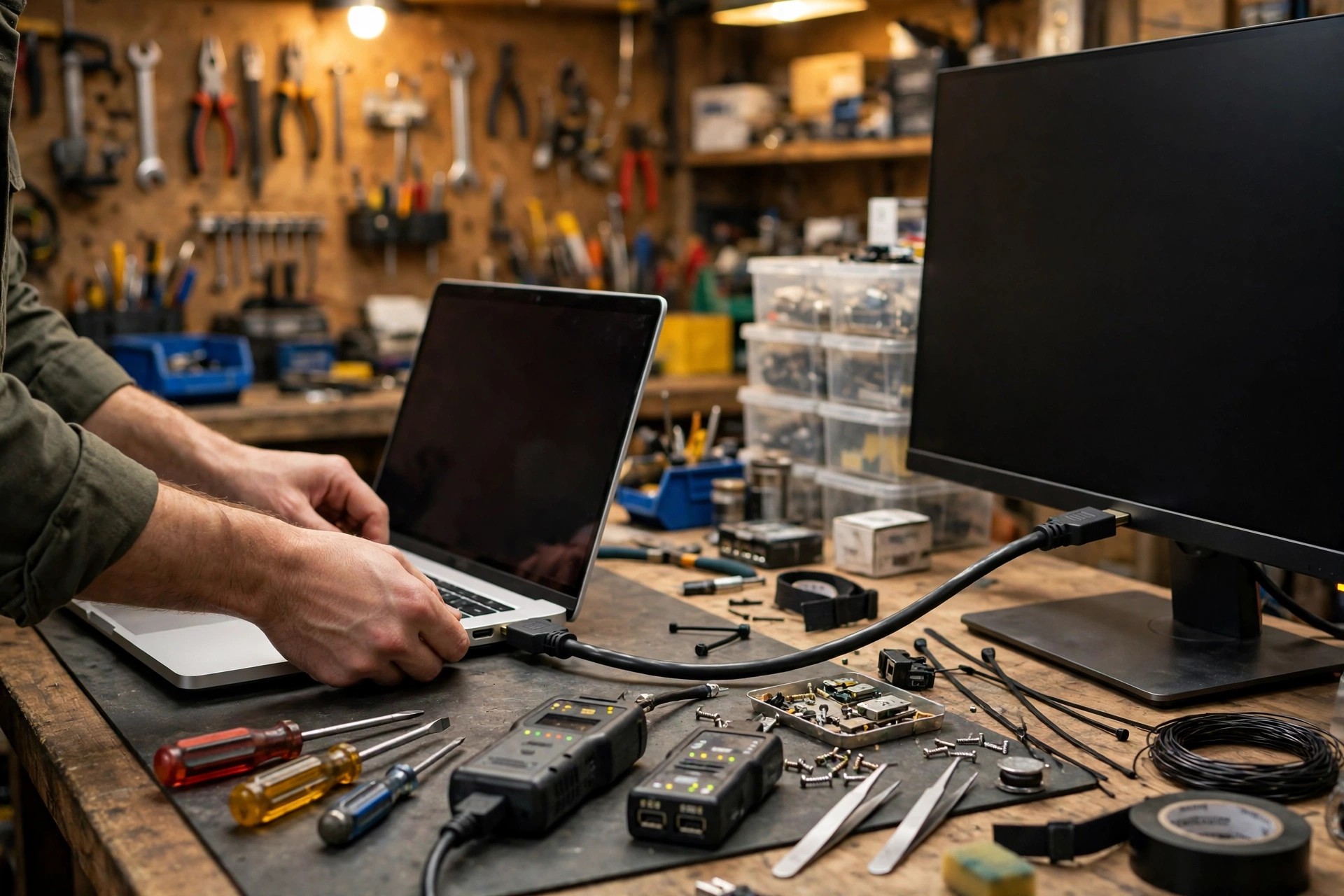
Scope first: this article covers external output only, not internal panel faults
This article covers only laptop external monitor problems: no picture, a no-signal message, frequent flickering, wrong resolution, a stretched picture, or occasional brief black screens. Faults in the built-in panel itself, such as internal panel or ribbon faults, are out of scope; this article uses one section only as a boundary and does not go into internal panel repair.
The boundary test is one sentence: check whether the laptop's own screen is normal first. If the built-in screen displays normally, but the external monitor shows no picture or keeps flickering, the fault very likely sits in the external output chain: cable, port, adapter, dock, display settings, driver, or GPU output. Conversely, if the built-in screen and the external monitor fail at the same time, or the built-in screen itself already shows lines, flickering, or black screens, do not keep swapping cables only; take the internal-panel direction for inspection, and do not mix the two problems together.
The external output chain has five layers; work through them one by one
The working method proposed in this article is as follows, and this method is a working method proposed in this article, not an industry standard: split the external output chain into five layers, and rule them out from outside in, so that whichever layer restores a normal picture when swapped is the layer where the problem stops. The five layers are: first, cable and port; second, adapter and dock; third, display settings; fourth, driver and system settings; fifth, GPU output and port hardware. Skipping layers wastes the most time: for example, concluding a port is dead before checking settings, or concluding the GPU is dead before swapping a cable.
Symptom table: read the symptom first, then choose where to start
The table below is a working method proposed in this article, not an industry standard. It only helps the reader classify what is seen; it is not a diagnosis.
| Symptom | Layer to suspect first | How to tell |
|---|---|---|
| External monitor shows nothing at all, no-signal message | Cable, port, monitor input source | Swap in a known-good cable, try another port, confirm the monitor is switched to the correct input source |
| Picture appears but keeps flickering or briefly blacks out | Cable quality, refresh rate, dock power | Step the refresh rate down one level at a time, bypass the dock with a direct connection, try a shorter cable |
| Resolution will not go high enough, or the picture looks blurry or stretched | Cable version, settings, driver | Check the resolution options in display settings, and confirm whether the cable and port support the target resolution |
| Intermittent fault, sometimes fine and sometimes not | Loose port, adapter, power supply | Gently move the connector and watch for change, swap the adapter, try the dock with its specified power supply |
| Machine slows down or heats up noticeably with an external monitor attached | Driver, display mode, ventilation | Try a single external output only, check vents are not covered, retest after a driver update |
| Another machine works perfectly on the same monitor | Laptop output chain | The problem narrows to the laptop side: cable, port, settings, driver, and output hardware, checked layer by layer |
Port comparison: HDMI, USB-C, and DP are not all the same
The first common misunderstanding is that every USB-C port can output video. In fact, not every USB-C port supports video output: check the specification for that model, because only a USB-C port supporting DisplayPort Alt Mode can output video over USB-C; a USB-C port that supports charging or data only will show no picture even with a video adapter attached. By the same logic, a charging cable and a video cable cannot be treated as interchangeable: two USB-C cables that look alike can have completely different internal wiring and purposes, so before borrowing a cable for testing, confirm that the cable itself supports video output.
| Port or accessory | What to check | Common blind spot |
|---|---|---|
| Direct HDMI | Cable version and length, whether the port is loose or bent | An old or over-long cable may not reach a high resolution and refresh rate |
| USB-C video output | Whether that model's USB-C port supports DisplayPort Alt Mode | Not every USB-C port outputs video; the wrong port is the same as no port |
| USB-C to HDMI or DP adapter | Whether the adapter itself supports the target resolution and refresh rate | The adapter is itself a layer; a faulty adapter also gives no picture |
| Direct DisplayPort | Whether the monitor input source is switched to DP, whether the cable supports the target specification | With the monitor left on the HDMI input, even a firmly connected DP cable gives no picture |
| Dock or hub | Whether power is sufficient, whether the power supply is the specified one | When power is short, video output is the first thing to go unstable, flickering or dropping out |
| Wireless casting | Out of scope for this article, mentioned only as a boundary | A wireless casting fault and a wired output-chain fault are two different things; do not test them with one mixed method |
Eight-step layered diagnosis: change only one variable at a time
Need a laptop repair expert?
Free diagnosis · Transparent pricing · No fix, no fee · 180-day warranty
The hard rule of layered diagnosis is one sentence: change only one variable at a time. If the cable, the port, and the settings are all changed at once and the picture suddenly returns, nobody knows which change was the real fix, and the next failure has to be guessed from scratch. The eight steps below are a working method proposed in this article, not an industry standard.
Step one, confirm the monitor itself is normal: power light, input source selection, and whether the monitor's own menu displays. If even the monitor menu does not appear, deal with the monitor side first. Step two, swap the cable: retry with a known-good cable of similar length, and keep the old cable as a control. Step three, swap the port: if the laptop has a second video port, try it, to rule out one loose or damaged port. Step four, swap the monitor: try another monitor on the same laptop, or another machine on the same monitor, to narrow the fault to the laptop side or the monitor side. Step five, bypass the dock: remove the dock and adapters and connect the laptop directly to the monitor once; if direct connection works, the problem stops at the dock or adapter layer. Step six, check display settings: whether the system detects the external monitor, whether the mode is duplicate or extend, and whether the resolution and refresh rate are a combination the monitor supports, as in the checklist in the next section. Step seven, driver and system: check whether the graphics driver is current or recently changed, and if needed revert to an earlier version following the manufacturer's guidance before retesting; do not change several settings at once. Step eight, step the specification down: lower the resolution and refresh rate one level at a time; if a lower specification is stable and only a higher one fails, the cable, adapter, and port bandwidth layers are the most worth suspecting.
Display settings checklist: with the settings wrong, no hardware swap will help
| Setting | What to check | What goes wrong if it is wrong |
|---|---|---|
| Detect external monitor | Whether a second monitor appears in system display settings | If nothing is detected, the signal never reached the system layer; go back to the cable and port layers |
| Duplicate or extend | Duplicate shows the same picture on both screens; extend joins two screens into one workspace | What looks like no picture may be extend mode, with the window opened on the other screen |
| Resolution | Choose a resolution the monitor itself supports; do not choose a combination beyond its supported range | A wrong resolution gives a blurry or stretched picture, or the monitor reports out of range |
| Refresh rate | Step from low to high, and record at which refresh rate flickering starts | A refresh rate beyond what the cable, adapter, and monitor combination supports causes flickering or black screens |
| Main display | Which monitor is the main display, and where the taskbar and programs open by default | A wrong main display makes it look as if a program will not open, when it opened on the other screen |
| Scaling | Whether text and icon scaling suits each monitor separately | Wrong scaling gives oversized or tiny text; it is not a resolution problem |
| Lid-closed use | Whether closing the lid is set to keep outputting to the external monitor | Output stopping when the lid closes is usually a power or lid-action setting, not a dead port |
Handshake failure: replugging sometimes really works, but know why
Every time an external monitor connects to a laptop, the two sides negotiate once: the laptop asks what resolutions and refresh rates the monitor supports, the monitor replies with its capabilities, and only after they agree does a picture appear. If that negotiation fails, the result is no signal, a resolution that will not go high enough, or flickering. Replugging the cable, switching the monitor input source, or power-cycling the monitor can force a fresh negotiation, which is why it occasionally works; but it does not mean the problem is solved. If every power-on needs a replug before a picture appears, the cable, port, adapter, and power layers are still worth ruling out one by one, rather than living with replugging as a workaround.
Another common case is a monitor whose supported resolution and refresh rate combinations are limited: for example, at one resolution the monitor may support only a few refresh rates, and if the system picks a combination the monitor does not support, the screen goes black or flickers. In that case, step the refresh rate or resolution down, find one stable combination, record it, and report it at inspection, so the inspector does not have to guess from scratch.
When to stop and send the machine in
Stop and send the machine in, rather than opening it yourself or forcing connectors, in any of the following cases. First, a port is already loose or bent, or there is a foreign object inside a connector; forcing it further may widen the damage. Second, cable, port, monitor, direct connection, and stepped-down specification have all been tried, and external output still shows no signal at all; the problem may have reached the GPU output or port hardware layer. Third, the problem comes with unusual heat, unusual smell, or other parts failing at the same time. Fourth, the machine is still within the manufacturer's warranty period; check the warranty terms before opening anything yourself. Before sending the machine in, back up: copy important files to a second location, then open them on another device to confirm they open; do not rely only on a sync icon.
Inspection information checklist
The table below is only a template structure. Every field is to be filled in by the reader from their own actual situation, and must never be treated as real data.
| Information item | How to prepare |
|---|---|
| Symptom record | Write actual observations: no picture or flickering, when it appears, which port, which cable, which monitor |
| Steps already tried | List cable, port, monitor, direct connection, and stepped-down specification results; records with one variable changed at a time are the most useful |
| Cables and adapters | Bring the cable, adapter, and dock in use when the fault appeared, so the inspector can repeat the tests |
| Monitor details | Monitor model, supported resolution and refresh rate, which input source failed |
| Machine and charger | Bring the machine and the original charger, to rule out the power layer |
| Backup confirmation | Confirm important files already open from a second location before sending the machine in |
Pricing notes
All repair work follows a written quotation after inspection. Confirmed routine prices are:
| Item | Price |
|---|---|
| Battery | HK$580 up |
| Screen | HK$1,280 up |
| Main board chip-level | HK$880 up |
| Keyboard | HK$480 up |
| Other repairs | Quoted in writing after inspection |
FAQ
Q1: The external monitor shows no signal. What should I do first?
A1: Confirm the monitor input source is switched correctly first, then retry with a known-good cable. Change only one variable at a time: if a cable swap restores the picture, the problem stops at the cable layer; if it does not, swap the port, swap the monitor, and bypass the dock with a direct connection, narrowing layer by layer, never all at once.
Q2: Why does the built-in screen work normally while the external monitor shows nothing?
A2: Because the built-in screen and the external output are two different paths. A normal built-in screen only proves the internal panel and basic display parts are normal; it does not prove the external output chain is normal. External output still passes through cable, port, adapter, settings, driver, and GPU output layers, and a fault in any one of them can leave the external monitor with no picture.
Q3: A USB-C adapter shows no picture. Does that mean the port is dead?
A3: Not necessarily. Not every USB-C port supports video output: first check the specification for that model to confirm whether the port supports DisplayPort Alt Mode, and confirm the cable itself supports video output, since a charging cable can look similar but serve a completely different purpose. Only after the specification check and a cable swap still give no picture should port hardware be suspected.
Q4: The external monitor keeps flickering, but lowering the refresh rate makes it stable. What does that mean?
A4: It means the higher-specification combination exceeds the capability of one link in the chain: cable, adapter, port bandwidth, or monitor support. Stable at a lower specification and failing only at a higher one points most at the cable and adapter; record at which refresh rate flickering starts, and bring the cable and adapter for testing at inspection, rather than living with a stepped-down setting alone.
Need Professional Laptop Repair?
Laptop King has 15+ years of repair experience in Shek Mun, Sha Tin. Free diagnosis, transparent pricing, no fix no fee. 180-day warranty for your peace of mind.