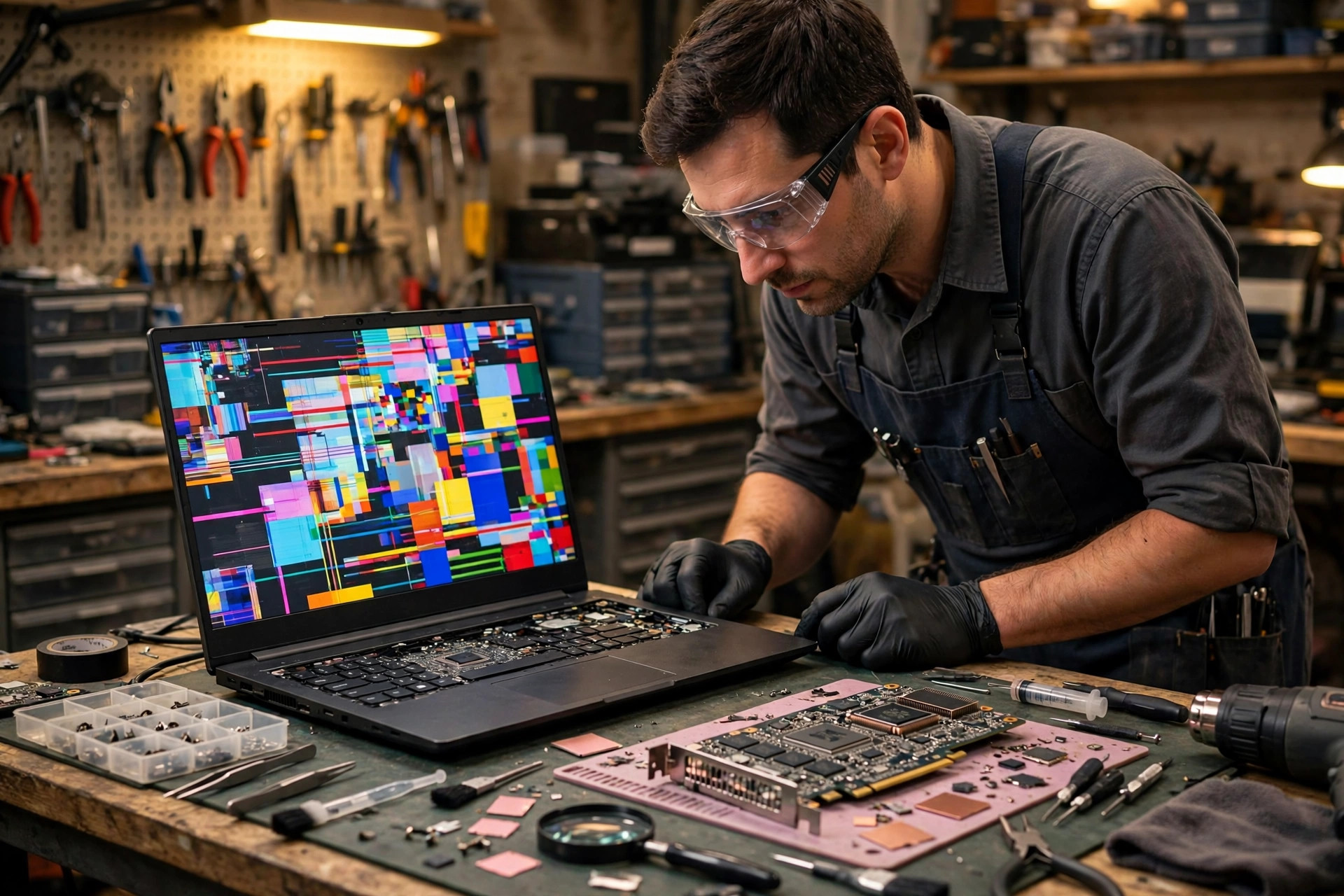
A laptop screen that suddenly fills with checkerboards, stripes, colour blocks or flickering speckles, or that goes black for a second and then comes back on its own, is one of the easiest faults to misdiagnose. The reader's first sentence is usually "the graphics card is dead", but behind that sentence can sit a driver timeout, a video-memory error, unstable power delivery, failed cooling, a worn display cable or a panel timing fault — entirely different layers. This guide assumes the basic checks are already done: restarting, updating or reinstalling the display driver, checking the external display cable, adjusting brightness and updating the system, with the problem still present. Only after those basics have failed is it worth suspecting the display chain itself, layer by layer.
Article link: https://www.laptops-king.com/en/blog/laptop-gpu-artifact-display-driver-crash-advanced-hk/
1. Scope First: This Article Is About Artifacting Plus Driver Crashes — NOT Black Screen, NOT Flicker, NOT Dead Pixels or Lines, NOT Backlight, NOT Brightness
This article is not about every screen problem. It covers exactly one combination: picture content that is itself wrong, or a display driver that repeatedly crashes and recovers. Five boundaries must be drawn first, or the whole diagnosis will go down the wrong road.
First, this is not the black-screen article. That article covers "no picture at all": no response at switch-on, fans spinning with a fully black screen, no signal on an external monitor either. This article is the opposite: a picture appears, but its content is wrong, or the picture blacks out for a moment and then comes back. If the screen stays fully black, including at the boot logo, go back to the black-screen route rather than suspecting the memory layer of artifacting.
Second, this is not the flickering article. That article handles brightness or image jumping rapidly up and down. This article mentions a black flash only as a one-off event at the moment a driver crashes and recovers, as evidence of a timeout recovery. If the main symptom is continuous flickering and jumping brightness while the picture content itself is correct, the flickering article is the main route.
Third, this is not the dead-pixel, line and discolouration article. That article covers "fixed defects": a dead pixel that is always in the same place, a line that is always there, a colour cast that never changes. Artifacting in this article has one key difference: it moves. Checkerboard squares shift, colour blocks change with picture content, stripes appear or vanish as load changes. Fixed defects point at the panel pixel layer; moving, load-dependent, driver-version-dependent corruption points at computation, memory, driver or power layers. The two layers can coexist, but one cannot substitute for the other's diagnosis.
Fourth, this is not the backlight article. That article covers "the image is complete but there is no light to show it", where shining a torch at an angle reveals a complete image. This article is the opposite: a torch test will not make checkerboards disappear, because the problem is not missing light but wrong picture data. If the torch reveals a complete image that is merely extremely dim, go back to the backlight route.
Fifth, this is not the brightness-adjustment article. That article covers "light and a correct picture, but brightness control does not work". In this article the picture content itself is already wrong, and adjusting brightness will not turn checkerboards back into a normal image.
| Three-second triage | Points to |
|---|---|
| Permanently black at switch-on, not even a boot logo | Black-screen route, not this article |
| Brightness continuously flickering and jumping, picture content itself correct | Flickering article, not this article |
| Same dead pixel always, same line always, permanent colour cast | Dead-pixel, line and discolouration article, not this article |
| Extremely dim but a complete image visible under a torch | Backlight article, not this article |
| Light and a correct picture, but brightness will not adjust | Brightness-adjustment article, not this article |
| Checkerboards, stripes, colour blocks, speckles, or a black flash that recovers by itself | This article: artifacting plus driver-crash layered diagnosis |
| External monitor artifacts too, screenshots artifact too | This article: computation or driver layer first |
2. An Artifact Vocabulary: Checkerboards, Stripes, Colour Blocks, Speckles and Texture Corruption Mean Different Things
Artifacting is not a diagnosis; it is a family of symptoms. Describing exactly what is seen is the first step to separating layers. The five most common forms have different cause spectra, and they should never all be lumped together as "the graphics card is dead".
Checkerboard artifacting is a picture broken into regular or irregular squares whose colours do not match the surrounding content, with the squares shifting as the picture scrolls or refreshes. Checkerboards are most worth suspecting in connection with video memory, because video memory stores picture data in blocks, and one wrong block shows up as one wrong square. But checkerboards can also come from a driver rendering error, unstable overclocking or heat-induced computation errors, so a checkerboard alone is not a death sentence for memory. It says only that "picture data went wrong in storage, transfer or computation".
Stripe artifacting is horizontal or vertical lines in vivid colours, of varying thickness. Stripes must be split into two kinds: stripes fixed in position, present at switch-on and visible even on the BIOS screen point more towards the panel, cable or timing layer; stripes that appear only after login, only in one program, or only under high load point more towards the driver, memory or power layer. The same sentence "there are stripes" carries a different diagnosis depending on when the stripes appear.
Colour-block artifacting is a large area in the wrong colour: skin turning green, sky turning purple, black turning into coloured noise. It matters whether the whole picture is colour-shifted or only part of it. A whole-picture shift should first raise colour settings, cable, HDR or driver colour management; localised blocks, especially blocks that follow object edges, point more towards rendering or memory data errors.
Speckle artifacting is small random dots that flash, come and go, and never stay in one place. Speckles are easily confused with dead panel pixels, but the difference is decisive: dead pixels are fixed, speckles flash, move and change with load. Speckles that appear under heat, high load or after overclocking point at computation or memory operating at the edge; speckles present from switch-on, even at idle, point at a deeper hardware or power problem.
Texture corruption is broken surfaces inside games or video: object surfaces covered in noise, shapes stretched, polygons flying off, textures turned into coloured stripes. Texture corruption is almost always tied to the 3D rendering path: driver, shader cache, memory, power or cooling. Corruption confined to one program while other programs are normal should not trigger an immediate "dead graphics card" verdict; the rendering path of that program and its driver-version pairing must be suspected first.
3. The Driver-Crash Mechanism: Why TDR Blacks Out and Then Comes Back
Windows has a mechanism called Timeout Detection and Recovery, or TDR, whose purpose is to stop a graphics stall from killing the whole machine. Understanding it explains why "black for a second, then back" is not a random event but the trace of the system trying to rescue itself.
The flow runs roughly as follows: the graphics scheduler notices that the graphics card has not completed a task within the permitted time, and tries to preempt that task. The default timeout is about two seconds. If the card can neither complete nor preempt the task within that limit, the system diagnoses the card as hung. The system then tells the driver to reset the card; the driver must stop accessing memory and hardware, while the system collects state useful for post-recovery diagnosis. Finally the system purges video-memory allocations, the driver resets the hardware state, and the desktop is restored. What the user sees is a black flash, a program that may stutter or drop out, and then the desktop returning, sometimes with a message along the lines of "display driver stopped responding and has recovered".
A successful TDR recovery does not mean the problem is solved; it means only "this time it was rescued". What matters is frequency and trigger: an isolated event that follows a driver update and vanishes after rolling back points at a driver-version problem; several events a day, triggered by high load or high temperature, point at cooling, power or hardware operating at the edge; many recoveries in a short window that end in a blue screen mean the rescue mechanism itself has failed, and the system bug-checks by design, commonly with the stop code VIDEO_TDR_FAILURE (0x116). A blue screen is not the first step of TDR; it is the last step after repeated failed recoveries, and that progression itself is evidence: a problem that went from "rescued" to "unrescuable" was present all along, and was merely still rescuable early on.
Two common misunderstandings must be separated. First, lengthening the timeout is not a repair. Guides often advise raising the TdrDelay value so the card gets more time to finish a task. That may reduce black flashes, but it only moves the threshold later; the underlying cause of the stall — driver error, memory instability, insufficient power, overheating — remains. Before touching any timeout value, the original frequency and triggers must be recorded, or a post-change "seems better" will mask deterioration. Second, pressing Win + Ctrl + Shift + B to restart the graphics driver only triggers one manual recovery-like action. It is useful to confirm "the screen is black but the system is still alive"; it is not a long-term repair. If that key combination is needed every time to get a picture back, the problem is fundamentally unresolved.
4. The Layer Map: Driver, Chip, Memory, Power, Cooling, Cable and Panel, Separated
The display chain can be split into seven layers. Every layer can corrupt the picture, but each corrupts it differently and leaves different evidence. The purpose of layering is discipline: each test should exclude exactly one layer, never change everything at once.
The driver layer is the most common and the most easily misjudged. The driver translates the system's drawing instructions into work the graphics card can execute. A wrong version, an incomplete installation, leftover settings from an old driver, two drivers fighting on one machine (integrated plus discrete graphics switching), or a system update overwriting a driver can all cause artifacting or crashes. Driver-layer hallmarks are: the problem follows the driver version and improves on rollback; the problem appears only after login while the BIOS screen is clean; the problem vanishes or greatly lessens in Safe Mode, because Safe Mode uses a basic display driver that bypasses the faulty driver path.
The graphics-chip layer is the compute core itself. Chip failure can come from long-term heat ageing, solder-joint fatigue or power-circuit damage, and typically shows as artifacting present from switch-on, present even at idle, and independent of driver version. The chip layer is hardest to confirm at home because its symptoms overlap the memory and power layers; it can only be narrowed down by exclusion: clean driver install done, cooling normal, power normal, external monitor artifacting too, screenshots artifacting too.
The video-memory layer (VRAM) stores picture data, textures and buffers. Memory failure typically shows as checkerboards, colour blocks and texture errors tied to picture content: certain colours or certain textures go wrong more readily. Memory problems can also be timing-edge problems: intermittent errors at default clocks that stabilise after clock reduction. That "stable after lowering clocks" is important evidence, but it is not a long-term repair; it only identifies which layer is operating at the edge.
The power-delivery layer is the most overlooked layer on laptops. A laptop graphics card's peak power draw is large, and an underpowered charger, an ageing charger, an ageing battery that cannot meet peak demand, or ageing board-level power components can all corrupt the card exactly when load rises. Power-layer hallmarks are: behaviour differs on mains power versus battery, behaviour changes after switching to an original full-power charger, problems appear only under load and never at idle. Power problems do not vanish in screenshots and do not vanish by changing drivers, so they are often misread as chip failure.
The cooling layer frequently appears together with power. An overheated chip or memory makes computation errors, showing as "normal for the first ten minutes after switch-on, then increasingly corrupt", and normal again after cooling. Cooling-layer hallmarks are a time signature: cold machine normal, hot machine corrupt, full fan speed improving matters, raising the machine for better airflow improving matters. Cooling failure is not only dirty fans: aged thermal paste, a deformed heatsink, a wrong fan-speed policy or blocked air intakes are all cooling-layer causes.
The cable layer (eDP cable) carries picture signals from the board to the built-in panel through the hinge. Cable hallmarks are highly distinctive: symptoms follow lid angle, one angle artifacts while another is normal, the external monitor is completely normal, screenshots are completely normal. The biggest difference from every other layer is that the fault appears only on the built-in panel; every path that does not pass through the cable is normal. Repeatedly forcing the lid open and closed to test angles only worsens cable wear; an angle test should be one slow sweep, once.
The panel and timing layer is the last layer. The panel's timing controller, liquid-crystal layer and display-side components can produce fixed stripes, fixed colour blocks and defects already visible in a panel self-test. Internal-display-path evidence is: defects visible in a built-in colour-cycle self-test (panel or cable — cable separation still required) where the model supports one, a normal external monitor, normal screenshots, and defects already present on the BIOS screen. The panel layer overlaps the cable layer in symptoms and must be separated from it using the self-test and the angle test.
| Layer | Typical picture | Key evidence | One-line triage |
|---|---|---|---|
| Driver | Black-flash recovery, one version only, one program only | Rollback improves it, Safe Mode lessens it, BIOS clean | Follows the version, suspect the driver first |
| Graphics chip | Artifacting from switch-on, at idle too, version-independent | Still artifacts after clean driver, normal cooling and power | Narrow to this layer only after excluding the rest |
| Video memory | Checkerboards, colour blocks, texture errors | Stable after clock reduction, certain colours or textures fail first | Checkerboards and blocks that follow content |
| Power delivery | Fails only under load, mains versus battery differ | Changes after switching to an original full-power charger | Load-related, suspect power first |
| Cooling | Cold normal, hot corrupt, normal again after cooling | Time signature, full fan speed improves it | Worsens with use, check cooling |
| Cable (eDP) | Follows lid angle, built-in panel only | External normal, screenshots normal, angle reproducible | Built-in only, suspect the cable first |
| Panel and timing | Fixed stripes or blocks, self-test already defective | Self-test defective, BIOS defective too (cable separation still required) | Fixed plus self-test defective |
5. The Evidence Kit: Screenshots, External Monitors, BIOS, Safe Mode and Event Logs
Layered diagnosis does not run on guesses; it runs on five pieces of evidence, each answering exactly one question. Before starting, back up data and record the driver version, system version, charger wattage, when symptoms first appeared, and what happened beforehand (driver update, system update, drop, liquid, part replacement). Clean evidence saves the diagnostic visit from starting at zero.
The first piece of evidence is the screenshot test. The moment artifacting appears, take a screenshot, then open it on another device or an external monitor. If the screenshot artifacts too, the picture data was already wrong when it was produced, pointing at driver, chip, memory, power or cooling. If the screenshot is completely clean and only the naked eye on the built-in panel sees corruption, the fault lies after picture production, in the transfer or display path, pointing at cable or panel. The screenshot test is the easiest to do and the most often skipped, yet it cuts the problem in half in one stroke: computation layer versus transfer-and-display layer.
The second piece of evidence is the external monitor test. Using a known-good cable and monitor, connect an HDMI or USB-C external output and check whether the external picture artifacts too. External artifacting too points at driver, chip, memory, power or cooling; a completely normal external picture with only the built-in panel corrupt points at cable, panel or the built-in display path. The external test has two traps: do not test with the same suspect cable or adapter, because the cable itself can plant false evidence; and on hybrid-graphics machines, note which graphics card drives which output, because integrated and discrete outputs may take different paths, and results must record which output and which card were used.
The third piece of evidence is the BIOS or pre-boot screen. Restart into BIOS setup, or watch the boot-logo screen, and check whether artifacting already exists before the system loads. Artifacting in BIOS means the fault does not depend on the Windows driver, pointing at chip, memory, power, cooling, cable or panel hardware. A clean BIOS with corruption only after login points more towards driver, system settings or program rendering paths. A clean BIOS does not prove the hardware is healthy, because BIOS load is extremely low and marginal hardware may still hold up under low load — but artifacting already in BIOS is strong hardware evidence.
The fourth piece of evidence is Safe Mode. Safe Mode uses a basic display driver and skips most third-party drivers and startup programs, making it the control experiment for the driver layer. Corruption vanishing in Safe Mode points at the normal-mode driver, a third-party program or a startup item; corruption persisting in Safe Mode points at the hardware layer or the basic display path. Safe Mode is not a repair; it is a control experiment, and normal mode must be re-checked afterwards rather than treating Safe Mode as "fixed".
The fifth piece of evidence is Event Viewer and reliability records. After a driver crash, the system usually leaves records such as display-driver errors, LiveKernelEvent entries and application crash records. The point of reading them is not memorising error codes but reading frequency, timing and triggers: how many times a day versus once a week, whether every event involves the same program, whether every event happens under high load, whether events started after a driver update. An error code alone cannot name a part; the same code family can come from driver, power, cooling or memory, and must be read together with the other four pieces of evidence. A written timeline is far more useful at diagnosis than "it artifacts all the time".
| Evidence | Method | If the result is this | Points to |
|---|---|---|---|
| Screenshot | Screenshot during artifacting, view it on another device | Screenshot artifacts too | Computation or driver layer |
| Screenshot | Same | Screenshot completely clean | Cable or panel layer |
| External monitor | Known-good cable and monitor, check the external picture | External artifacts too | Driver, chip, memory, power, cooling |
| External monitor | Same | External normal, built-in only corrupt | Cable, panel, built-in path |
| BIOS screen | Enter BIOS or watch the boot logo | Artifacting already in BIOS | Hardware layer first |
| BIOS screen | Same | BIOS clean, corruption only after login | Driver or system layer first |
| Safe Mode | Observe in Safe Mode | Corruption vanishes in Safe Mode | Normal-mode driver or third-party program |
| Safe Mode | Same | Corruption persists in Safe Mode | Hardware layer first |
| Event records | Read crash frequency, timing, trigger program | Follows a version, follows a program | Driver or program path |
| Event records | Same | Follows load, follows temperature | Power or cooling layer |
6. The Layered Exclusion Procedure: Softest First, One Change at a Time
This procedure assumes the basic checks are already done and runs from softest to hardest, from no disassembly to disassembly. Its most important discipline is one change at a time: change one thing, test immediately, write the result down, and only then change the next thing. Changing driver, settings, charger and fan cleaning all at once means that even if things improve, nobody knows which change worked, and if things relapse, nobody knows where to look.
Need a laptop repair expert?
Free diagnosis · Transparent pricing · No fix, no fee · 180-day warranty
Step one is locking down the trigger. Record what was happening when artifacting appeared: idle or high load, which program, mains or battery, how long after switch-on, how the machine felt temperature-wise, and whether a driver or system update preceded it. Then build one reproducible test: for example, run one program for ten minutes, play one video, or load one game scene, and check whether the same conditions reproduce it every time. Only a reproducible problem can be excluded layer by layer; a random problem must be tracked through event records and a timeline, not through feeling.
Step two is collecting the five pieces of evidence: screenshot, external monitor, BIOS, Safe Mode and event records, as in the previous section, with results written into one table. With all five collected, the problem already splits into three directions: computation-and-driver layer, built-in transfer-and-display layer, or marginal hardware layer. Do not jump to part replacement or system reinstallation before all five are done.
Step three is handling the driver layer, but cleanly. First record the current driver version and graphics card model, then roll back to the last known stable version and test. Only if rollback fails, consider a clean reinstall: remove old driver remnants thoroughly in Safe Mode, then install the driver supplied by the laptop brand or the chip maker. On hybrid-graphics laptops, prefer the laptop brand's version first, because brand versions usually carry power-management and switching tuning that a generic chip-maker version may lose. After a clean install, do not jump straight to maximum load; observe at idle and light load first, then increase load gradually. During driver testing, prevent automatic updates from silently overwriting the driver mid-test, or results will be contaminated.
Step four is handling the settings layer. Restore overclocking, undervolting, custom fan curves, refresh rate, HDR, dynamic refresh rate and variable refresh rate settings to defaults one at a time, testing after each restoration. Shader caches inside games or programs can also be cleared once and rebuilt; slower first runs after clearing are normal rebuilding, not deterioration. The settings layer is where the "change everything at once" error happens most often, so restoration must be one item at a time.
Step five is the power and cooling comparison. Test with an original full-power charger and note whether mains versus battery behaviour differs; raise the machine for airflow, keep air intakes unblocked, and test in a cooler room, noting whether the time signature changes. Power and cooling comparisons need no disassembly but are decisive: improvement after a charger change points at power; improvement after ventilation improves points at cooling; no change in either case justifies suspecting deeper hardware.
Step six is the cable and panel comparison. Do one slow lid-angle sweep, record which angles artifact and which are normal and whether the pattern is reproducible, then stop immediately — do not keep flexing. If the model supports a panel self-test, run it once and record the result. Angle dependence plus a normal external monitor plus normal screenshots together make the cable layer the prime suspect, and self-disassembly should stop there in favour of professional diagnosis.
Step seven is the disassembly layer, and only then. Disassembly, measurement, soldering and chip or memory replacement all belong to professional diagnosis. Before any self-disassembly, switch off, unplug the charger, disconnect the internal battery and wait for residual charge to dissipate; hot-plugging an internal cable without disconnecting power can instantly create a new fault. Disassembly may also affect manufacturer warranty, so warranty status on an in-warranty machine should be checked first rather than sacrificed for speed.
7. Common Misdiagnoses and Traps: The Ten Most Expensive Wrong Calls
First, calling checkerboards a dead graphics card on sight. Checkerboards can come from driver, overclocking, cooling, power or memory, and a death sentence requires all five pieces of evidence plus a clean driver test. Replacing a board or a machine without evidence is the most expensive misdiagnosis.
Second, treating a lengthened timeout as a repair. As section 3 explains, raising TdrDelay only moves the threshold later; it does not remove the cause of the stall. Fewer black flashes after the change do not mean the card has recovered; the underlying problem may keep deteriorating until even the lengthened threshold cannot rescue it.
Third, treating temporary revival by heating as a repair. Heating can temporarily restore a fatigued solder joint and the picture may briefly return, but joint fatigue, chip ageing and power problems are not solved, relapse is not guaranteed to last, and repeated heating can damage surrounding components and the board. Brief revival is not repair evidence; it only says the problem is contact- or temperature-related.
Fourth, treating stability after lowering clocks or voltages as "fixed". Stability after lowering clocks is important diagnostic evidence that the original settings were operating at the edge, but running permanently lowered is running permanently at the edge, with performance loss on top, while underlying ageing may continue. Lowered clocks buy time to back up data and arrange diagnosis; they are not a long-term solution.
Fifth, replacing the screen before testing anything else. If the external monitor artifacts too and screenshots artifact too, replacing the screen cannot help, because the fault is not in the panel. External and screenshot tests must come before any screen replacement, or the replacement is wasted work.
Sixth, assuming a newer driver is always better. A new driver version may fix old problems and may introduce new ones, especially in a particular version-to-model or version-to-program pairing. Driver choice should follow "is this version stable on this machine", not "is it the newest". Rolling back to a stable version is a legitimate diagnostic step, not a backward move.
Seventh, ignoring hybrid-graphics switching. Many laptops have integrated plus discrete graphics and switch by load. Artifacting only at the switching moment, only while one card is in charge, or only on an external output points at switching logic and driver pairing, not at one dead card. Tests must record which card was in charge, or evidence will contradict itself.
Eighth, mistaking a system problem for a graphics-card problem. Faulty system RAM, damaged system files, third-party overlay programs, capture programs and monitoring programs can all corrupt the picture or crash the driver. The Safe Mode test exists to split this layer: corruption vanishing in Safe Mode means the search should start with third-party programs and the system layer, not with the graphics card.
Ninth, repeatedly flexing the lid, tapping the machine or pressing the panel to test the fault. An angle test needs one slow sweep. Repeated flexing, tapping or pressing can snap a cable completely, crack a panel or damage solder joints a second time. A test that creates a new fault also destroys the original evidence.
Tenth, postponing backup. As artifacting plus driver crashes deteriorate, a system can go from "rescued" to "unrescuable" and eventually fail to boot at all. Data backup belongs at step one of diagnosis, not after the problem looks stable. During backup, avoid high-load tests to reduce the chance of triggering a crash.
8. Hong Kong Context: Humidity, Commuting, Cooling and Parts Reality
The Hong Kong environment puts three specific pressures on the display chain. First is humidity. Humidity accelerates connector oxidation, worsens cable-connector contact, and raises the risk of board moisture leakage. Machines used long-term in humid rooms, moved between air-conditioned rooms and outdoors with condensation, or showing intermittent faults that worsen in wet weather or seasonal change, should raise humidity as a factor. After suspected moisture exposure, do not power on repeatedly for testing; drying and diagnosis come first, because powered testing can widen a leakage path.
Second is commuting use. A laptop carried daily, squeezed in a bag, opened and closed many times a day, wears its cable and hinge faster than a machine that sits on a desk. Packing it pressed against hard objects, opening it one-handed by the screen, or opening past its normal range all accelerate cable fatigue. On a commuting machine, angle-dependent artifacting should raise cable and hinge first, not the chip.
Third is cooling reality. Hong Kong summer room temperatures are high, so a laptop's cooling margin is already smaller; using it on a bed, sofa or blanket with intakes blocked quickly makes cooling the bottleneck. Cooling failure does not require dirty fans: high ambient temperature, wrong placement and sustained high load are enough to push marginal hardware into errors. Cooling tests must record ambient temperature and placement together, or "normal in the shop, corrupt at home" becomes an unsolvable argument.
Parts and price reality must also be stated plainly. Most laptop graphics cards are soldered to the board and cannot be swapped like a desktop card; video memory is soldered too, so repair belongs to board-level chip-level work requiring professional equipment and skill, not a simple card swap. The only confirmed starting prices are four items: battery from HK$580, screen from HK$1,280, motherboard chip-level repair from HK$880, keyboard from HK$480. Everything else is subject to a written quotation after diagnosis, as shown on the pricing page https://www.laptops-king.com/pricing and the diagnostic service https://www.laptops-king.com/diagnostic. Before diagnosis, anyone claiming "it is definitely this part at definitely this price" is guessing without evidence, and that guess should not be treated as a diagnosis.
9. Repair, Replace or Upgrade: A Decision Framework
Before deciding, ask three questions: is the data backed up, can the problem be reproduced, and are all five pieces of evidence collected? Only with three affirmative answers is a decision grounded; with any negative answer, the decision is built on guessing.
If evidence points at the driver or settings layer, prefer repair over replacement: clean driver install, rollback to a stable version, settings restoration, shader-cache clearing. These are the lowest-cost, lowest-risk options and can be verified immediately. If the problem vanishes after repair and stays away under normal load over an observation period, that direction was correct.
If evidence points at the cable layer, the decision depends on whether the cable can be replaced independently, whether the hinge is damaged at the same time, and whether the panel connector is damaged. Cable replacement is disassembly work and must be confirmed by diagnosis for model and routing; do not buy a generic cable by screen size alone. If a loose hinge will keep wearing a new cable, hinge and cable must be handled together, or the replacement will relapse quickly.
If evidence points at the panel and timing layer, the decision is usually panel replacement, but only after confirming that panel model, connector, resolution, refresh rate and touch function match exactly. Buying by diagonal size alone is a common error. Screen replacement starts from HK$1,280, with other panel-related items subject to a written quotation after diagnosis.
If evidence points at the power layer, separate charger from board power circuit. A charger problem is relatively simple: an original full-power charger verifies it. A board power-circuit problem belongs to chip-level repair, starting from HK$880, with other items subject to a written quotation after diagnosis. Power problems should not be left, because unstable power over time can inflict further damage on chip and memory.
If evidence points at the cooling layer, separate maintenance from hardware repair. Fan cleaning, air-path clearing and thermal-interface replacement belong to maintenance; a deformed heatsink, a failed fan or a wrong thermal policy must be handled by diagnosis results. If the time signature does not change after cooling maintenance, stop blaming cooling and return to the layer table to re-read the evidence.
If evidence points at the chip or memory layer, the decision needs the most care. Chip-level repair, board replacement and whole-machine replacement differ greatly in cost and risk, and must be compared using a written quotation after diagnosis against the machine's remaining value and use needs: an old machine with other ageing parts and a repair cost close to replacement cost may make upgrading the whole machine more reasonable; a still-current machine with high data and setup migration costs and otherwise healthy parts may make chip-level repair more worthwhile. That comparison must use a written quotation, not an estimated price.
| Points to | Preferred choice | Do not do | Decision key |
|---|---|---|---|
| Driver or settings layer | Clean driver, rollback to a stable version, restore settings | Change everything at once, treat a lengthened timeout as a repair | Stable after rollback or not |
| Cable layer | Replace the cable after diagnosis confirms model, check the hinge too | Keep flexing to test angles, buy a generic cable | Angle evidence plus normal external monitor |
| Panel and timing layer | Replace the panel after exact model match | Buy by screen size alone | Screen from HK$1,280, rest by written quotation |
| Power layer | Verify the charger first, then check the board power circuit | Keep running on an underpowered charger | Mains versus battery difference |
| Cooling layer | Clean and maintain, improve ventilation, check the fan | Rely on lowered clocks, keep blocking intakes | Whether the time signature changes |
| Chip or memory layer | Compare repair, board replacement and machine replacement on a written quotation | Treat heating as a repair, decide before quotation | Written quotation versus remaining value and needs |
10. What to Prepare Before Sending the Machine In
Bring the following so diagnosis can start from the layer table instead of zero: laptop brand and full model, graphics card model (integrated, discrete or hybrid), driver version and last update time; a symptom timeline, including first occurrence and whether it followed a driver update, system update, drop, liquid exposure or part replacement; all five evidence results, including screenshot, external, BIOS, Safe Mode and event-record frequency; trigger conditions, including which program, high load or idle, mains or battery, and how long after switch-on; a list of steps already tried with the result of each; and backup status.
On price, the only confirmed starting prices are four items: battery from HK$580, screen from HK$1,280, motherboard chip-level repair from HK$880, keyboard from HK$480. Everything else is subject to a written quotation after diagnosis, as shown on the pricing page https://www.laptops-king.com/pricing and the diagnostic service https://www.laptops-king.com/diagnostic. The shop is at Room 1209, Daly Plaza, Shek Mun, Sha Tin, phone +852 2186 8010, WhatsApp +852 6558 6806, hours 12:00-19:00.
11. A Supplementary Layer: How Hybrid-Graphics Switching, Docks, HDR and Variable Refresh Rate Fake Artifacting
Three families of settings-layer problems routinely impersonate hardware artifacting and deserve their own section, because their evidence patterns differ from the seven layers above and their remedy is not part replacement.
The first family is hybrid-graphics switching. Many laptops carry integrated plus discrete graphics and switch by load, by program and by power state. A brief black flash at the switching moment is part of switching itself, not a driver crash; but when switching logic goes wrong, corruption appears only at the switching moment, only while one card is in charge, or completely differently on mains power versus battery. Diagnosis must record which card was in charge when corruption appeared, whether switching had just happened, and whether one program alone triggers switching. The test is to pin one card for a period and observe stability, then pin the other card for comparison; a single result misleads easily, while the pair together is meaningful.
The second family is docks and USB-C output. A picture routed through a dock or USB-C adapter adds three variables: dock chip, adapter and cable bandwidth. Corruption that appears only through the dock while direct HDMI output from the laptop itself is clean points at dock, adapter or cable bandwidth, not at the laptop graphics card. Testing must remove variables one at a time: direct-output comparison, one known-good cable, one different output port — never all at once. Dock firmware and driver versions must also be recorded, because dock problems can follow dock firmware versions and have nothing to do with the display driver version.
The third family is HDR, wide colour gamut, variable refresh rate and high refresh rate combinations. Once HDR is on, the colour-management path is entirely different, and colour blocks or casts may appear only in HDR content while SDR content is completely normal; variable and high refresh rates in some monitor pairings cause flicker or tearing that is mistaken for artifacting. Diagnosis here is direct: switch HDR, variable refresh rate and high refresh rate off one at a time back to a basic SDR 60 Hz baseline and check whether the problem vanishes. If the basic baseline is completely clean, the search should start with settings pairings rather than hardware; only if the problem persists at baseline should the layer table above be revisited.
Frequently Asked Questions
Q1: How much does it matter whether screenshots artifact too, or stay clean?
It matters enormously; it is the first cut in layered diagnosis. If screenshots artifact too, the picture data was already wrong when produced, pointing at driver, chip, memory, power or cooling. If screenshots are completely clean and only the naked eye on the built-in panel sees corruption, the fault lies after picture production, in the transfer or display path, pointing at cable or panel. The test must be done the moment artifacting appears and the screenshot viewed on another device. A bare description of a corrupt screen cannot separate these two directions.
Q2: If the external monitor artifacts too, does that prove the graphics card is dead?
No. External artifacting too proves only that the fault is not in the built-in panel or cable, but inside the computation or driver layer — and that layer still contains driver, chip, memory, power and cooling. A wrong driver version, insufficient power or failed cooling can all make an external monitor artifact too. External artifacting excludes the built-in path; it does not pass a death sentence on the graphics card. The next steps are a clean driver test, a power comparison and a cooling comparison.
Q3: The picture blacks out for a second and comes back. Is that a driver crash?
Very likely it is the trace of Windows Timeout Detection and Recovery (TDR): the graphics card fails to complete a task within a roughly two-second limit, the system resets the display driver, and the picture blacks out briefly before recovering. But a black flash alone cannot name the cause; driver errors, memory instability, insufficient power and overheating can all trigger the same flash. What matters is frequency and trigger: an isolated event following a driver update points at the driver, while daily events under high load point at cooling, power or marginal hardware.
Q4: Black flashes fell after I lengthened TdrDelay. Does that mean it is fixed?
No. Lengthening the timeout only moves the threshold later, giving the card more time to finish a task; the underlying cause of the stall remains. Fewer black flashes do not mean the card has recovered, and the underlying problem may keep deteriorating until even the lengthened threshold cannot rescue it. Original frequency and triggers must be recorded before any timeout change, and observation must continue afterwards rather than closing the case as repaired.
Q5: The picture came back after heating. Does that mean the solder problem is solved?
No. Heating can temporarily restore a fatigued solder joint and the picture may briefly return, but joint fatigue, chip ageing and power problems are not solved, relapse is not guaranteed to last, and repeated heating can damage surrounding components and the board. Brief revival only says the problem is contact- or temperature-related; it is not repair evidence and must not be treated as a long-term solution.
Q6: A new screen still artifacts. Is the new screen faulty too?
Not necessarily, and most likely not. If the external monitor artifacts too and screenshots artifact too, the fault is not in the panel at all, and any replacement panel will artifact the same way. External and screenshot tests must come before screen replacement, or the replacement is wasted work. If artifacting persists after a replacement, the priority is re-reading all five pieces of evidence and checking driver, power and cooling, not immediately assuming the new panel is defective.
Q7: Is the newest driver version always the best?
No. A new driver version may fix old problems and may introduce new ones, especially in a particular version-to-model or version-to-program pairing. Driver choice should follow whether a version is stable on this machine, not whether it is the newest. Rolling back to a last known stable version is a legitimate diagnostic step, and on hybrid-graphics laptops the laptop brand's version should be preferred first, because brand versions usually carry power-management and switching tuning.
Q8: Artifacting is already visible in BIOS. Is there no hope?
There is hope, but the direction is now clear: artifacting in BIOS means the fault does not depend on the Windows driver, pointing at chip, memory, power, cooling, cable or panel hardware, and driver-layer work should stop. The next step is using external, screenshot and angle tests to separate the built-in path from the computation layer, then comparing chip-level repair, board replacement and machine replacement on a written quotation after diagnosis. BIOS artifacting is strong hardware evidence, not evidence for giving up.
Q9: Artifacting follows lid angle. What are the risks of reseating the cable myself?
There are three main risks. First, hot-plugging: reseating a cable without disconnecting the battery can instantly create a new fault and even damage the panel or board. Second, repeated flexing: an angle test needs only one slow sweep, and repeated forceful opening and closing can snap a partly fractured cable completely. Third, secondary damage: screen bezels and cable connectors are fragile, and self-disassembly can crack a panel or damage a connector a second time. Before any disassembly, switch off, unplug the charger, disconnect the internal battery and wait for residual charge to dissipate; without the right experience and tools, disassembly, measurement and soldering should be left to professional diagnosis.
Q10: What should I prepare before sending the machine in, and how is price worked out?
Bring the following so diagnosis can start from the layer table instead of zero: laptop brand and full model, graphics card model, driver version and last update time; a symptom timeline, including whether onset followed a driver update, system update, drop, liquid exposure or part replacement; all five evidence results, including screenshot, external, BIOS, Safe Mode and event-record frequency; trigger conditions, including which program, high load or idle, mains or battery; a list of steps already tried with the result of each; and backup status. On price, the only confirmed starting prices are four items: battery from HK$580, screen from HK$1,280, motherboard chip-level repair from HK$880, keyboard from HK$480. Everything else is subject to a written quotation after diagnosis, as shown on the pricing page https://www.laptops-king.com/pricing and the diagnostic service https://www.laptops-king.com/diagnostic. The shop is at Room 1209, Daly Plaza, Shek Mun, Sha Tin, phone +852 2186 8010, WhatsApp +852 6558 6806, hours 12:00-19:00.
Need Professional Laptop Repair?
Laptop King has 15+ years of repair experience in Shek Mun, Sha Tin. Free diagnosis, transparent pricing, no fix no fee. 180-day warranty for your peace of mind.