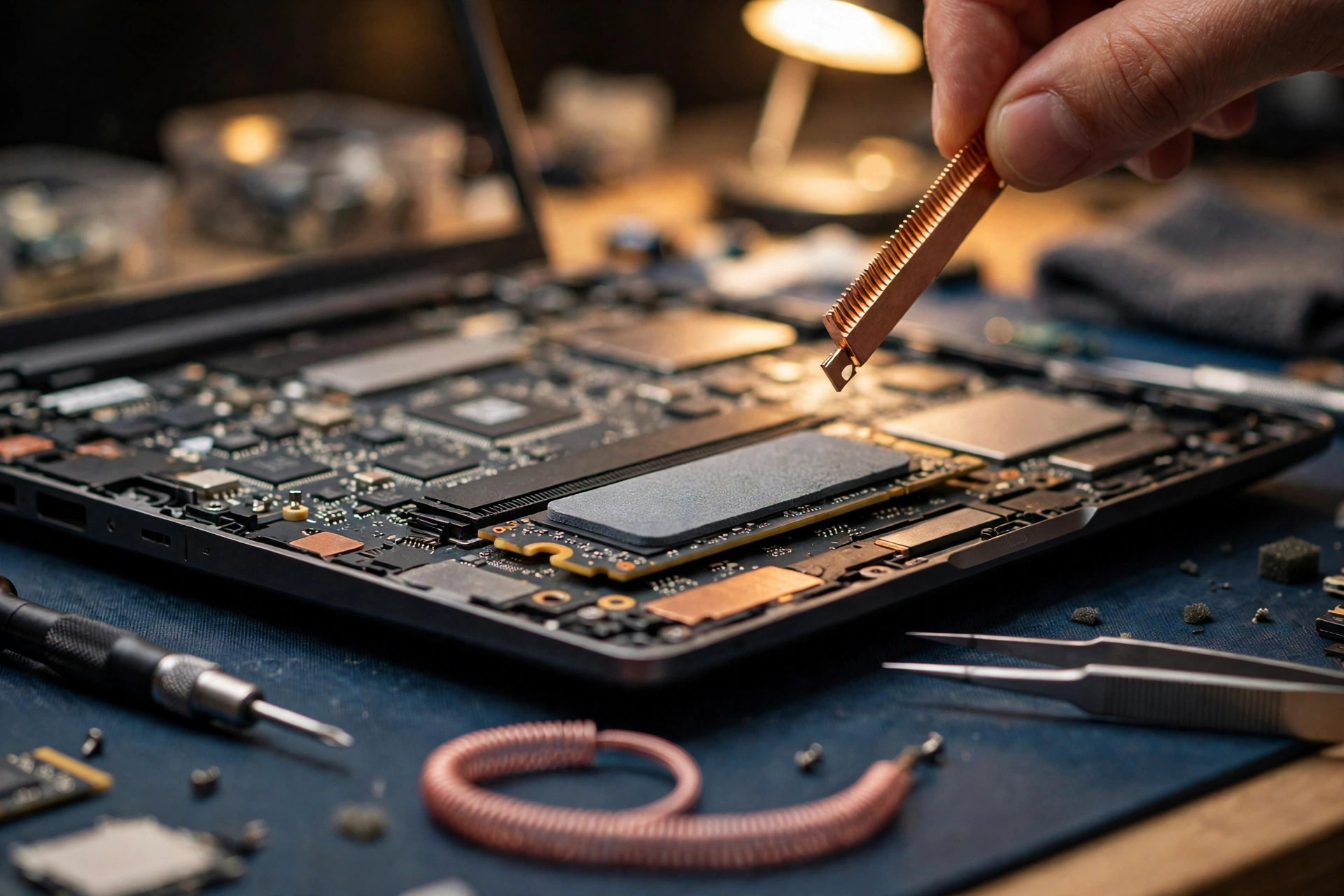
📌 Key Takeaways
- •[A-S1] [B-S2] NVM Express — Technology Power Features — https://nvmexpress.org/resource/technology-power-features/
- •[A-S2] Microsoft Learn — NVME_CDW11_FEATURE_TEMPERATURE_THRESHOLD — https://learn.microsoft.com/en-us/windows/win32/api/nvme/ns-nvme-nvme_cdw11_feature_temperature_threshold
- •[A-S3] Solidigm — NVMe SMART Attributes — https://www.solidigm.com/support-page/maintenance-tools/ka-00079.html
- •[A-S4] Hexmos man page — struct nvme_smart_log (SMART / Health Information Log, Log Identifier 02h) — https://hexmos.com/freedevtools/man-pages/system-calls/miscellaneous-system-calls/struct-nvme_smart_log/
- •[A-S5] Ubuntu Manpage — struct nvme_id_ctrl (Identify Controller data structure) — https://manpages.ubuntu.com/manpages/jammy/man2/nvme_id_ctrl.2.html
Introduction: Throttling Is Not a Broken Drive, It Is a Protection System Making Decisions
The most common thing laptop owners say is: "When I copy a large file, the first ten seconds are fast, and then it suddenly becomes several times slower." Another common one is: "The benchmark says 7,000 MB/s, so why does copying files only reach 1,000 MB/s?" Behind those two sentences there are usually two different things: the first may be the SLC cache filling up, and the second may be the controller throttling because of heat. The two can also happen at the same time, stacking into even slower speeds. This article starts by separating the two, then works through the NVMe SSD temperature management mechanism layer by layer.
NVMe throttling, known as thermal throttling, is a protection mechanism built into the controller firmware: when temperature rises to a threshold set by the manufacturer, the controller actively slows down, lowers power, and may even reduce the PCIe link speed, in order to prevent the chip from overheating and being damaged [A-S1][A-S17]. Throttling itself is not a fault; it is a protection action that the firmware performs according to the specification [B-S2]. The same drive on an open test bench, with airflow and a heatsink, can run at full speed for fifteen minutes without throttling; placed in a thin laptop with no airflow and no heatsink in the second slot, in summer, baking inside a bag while running a backup, the same drive can fall from 7,000 MB/s to below 1,000 MB/s within tens of seconds. The problem is never a single number. It is the product of six variables: the drive, the slot, the heatsink, the airflow, the ambient temperature, and the workload [B-S1][B-S30].
One premise must be accepted first: there is no universal temperature ruler. The NVMe specification only defines the mechanism; the threshold values are set by each manufacturer and each model [A-S1][A-S2][A-S5]. Seventy degrees Celsius may be a normal working temperature for one drive and already throttling for another. Before judging, the datasheet for that model must be checked, or the Identify Controller data read. No single number can judge every drive [A-S17][A-S19]. Every temperature, power, and speed figure in this article comes from the manufacturer datasheets, official documents, and measured reviews cited in the two research reports behind it, with a source number after each factual claim. Figures that were not verified are written as varying by model, never as conclusions.
Before reading further, do one thing first: back up. Before any firmware update, disassembly, or drive replacement, confirm that the data has a second copy. A power cut during a firmware update can brick an SSD, and manufacturer tools also require a backup first [A-S41][A-S42]. This article moves from the mechanism, through the controller, NAND, cache, generation power draw, cooling options, manufacturer designs, firmware and drivers, diagnostic tools, the Hong Kong summer and commuting situation, and common misdiagnoses, and ends with a repair, replace, or upgrade decision framework and a layered elimination procedure. Each chapter can be read on its own, but when diagnosing, follow the order and do not skip steps.
Chapter 1: The NVMe Temperature Management Mechanism — What the Specification Governs, and What It Does Not
1.1 The role of the NVMe specification
NVMe, or Non-Volatile Memory Express, is an open interface specification maintained by NVM Express, Inc., with the latest version 2.4 [A-S1]. The specification defines the commands, queues, power states, and temperature management mechanism between the controller and the host, but it does not require every SSD to use the same throttling temperature. Threshold values are declared by the manufacturer in the Identify Controller data structure [A-S5].
The NVM Express official Technology Power Features document states that the NVMe architecture includes several power management features, and that an SSD can limit its maximum power by changing its active power state, in order to manage platform temperature and total power draw [A-S1][B-S2]. The same document states that Host Controlled Thermal Management, or HCTM, allows the host to set the controller to switch automatically to a lower power state at a specified temperature, or to perform manufacturer-specific thermal management actions [A-S1][B-S2]. In other words, the throttling temperature is not a fixed physical constant. It is a parameter decided jointly by the firmware and the host settings [B-S2].
1.2 The five levels, from light to heavy
Combining the NVMe specification, the official documents, and several measured guides, the typical levels as temperature rises are as follows. The order is a mechanism hierarchy; the trigger temperatures vary by model [A-S1][A-S17][A-S21]:
| Level | Trigger condition | Firmware behaviour | What the user sees |
|---|---|---|---|
| Normal operation | Composite temperature below TMT1 and WCTEMP | Full-speed operation | Speed close to the rated peak |
| Light throttling | Composite temperature between TMT1 and TMT2 | Switches to a lower power state, lowers clock speed, inserts command delays, defers background tasks such as garbage collection [A-S1][B-S2] | Sustained write speed falls noticeably, by an amount that varies by model and firmware; this is not a specification figure [A-S17] |
| Heavy throttling | Composite temperature above TMT2 | More aggressive protection: drops the PCIe link from Gen5 to Gen4 or even Gen1, narrows link width from x4 to x1, serialises the command queue [A-S17][A-S45] | Speed can fall to tens of MB/s, and benchmark figures collapse [A-S17] |
| Paused I/O | Temperature keeps rising | The firmware may pause I/O completely until cooling [A-S17] | Copy progress stalls, and the system briefly stops responding |
| Self shutdown | Beyond the critical threshold | The device shuts itself down for self-protection [A-S6][B-S5] | The SSD suddenly disappears, blue screen, system freeze [A-S17][A-S45] |
1.3 Manufacturers use different names for the same logic
The throttling mechanisms have different manufacturer names, but the logic is the same. Samsung calls it Dynamic Thermal Guard, or DTG, which monitors temperature and reduces performance when it reaches a certain point [B-S31]. Crucial and Micron call it Adaptive Thermal Protection, which starts slowing down at 81 degrees Celsius and shuts the drive down at 90 degrees Celsius to prevent overheating [B-S5]. WD, Seagate, and other manufacturers have their own firmware thermal management, but the trigger temperatures vary by model, and there is no universal throttling temperature that applies to every drive [B-S30].
Another mechanism that is often overlooked is Autonomous Power State Transition, or APST. If the controller supports APST, the host can switch automatically between the supported power states to meet thermal requirements [B-S2]. The NVMe architecture allows each controller to support up to 32 power states, each with a maximum power draw, entry and exit latency, and other parameters [B-S2]. In other words, the same drive can differ by more than ten times in power draw between idle and full speed; the essence of throttling is the firmware forcing the drive back into a low power state.
1.4 Why the same drive behaves differently in a laptop and on a test bench
The same drive can look like two different products depending on where it is tested. On an open test bench with active cooling, the Samsung 990 Pro 2 TB wrote 1.6 TB and reached only about 72 degrees Celsius, comfortably below its first throttle point [B-S1]. The same drive in a thin laptop with no airflow, in a second slot, in a Hong Kong summer at 33 to 36 degrees Celsius, starts 11 to 14 degrees hotter before a single byte is written. The test bench figure is the best case, not a laptop guarantee. Tom's Hardware also noted that its tests use active cooling unless stated otherwise, and that the drive was filled to 50 percent capacity before testing [B-S1]. Fill level, airflow, ambient temperature, and whether the drive is in a case or on an open bench all change the result by a large amount. That is why this article quotes test conditions next to every figure, and why a repair judgement must always be based on a measurement taken from the actual machine, under the actual workload, in the actual room.
Chapter 2: Four Temperature Concepts — Composite Temperature, WCTEMP, CCTEMP, TMT1 and TMT2
2.1 Four concepts that must never be confused
| Concept | English name and field | Meaning | Typical range, varies by model |
|---|---|---|---|
| Composite Temperature | Composite Temperature, SMART Health Information Log, Log ID 02h | The combined temperature of the controller and the namespaces; the specification states that the calculation method is defined by the manufacturer, and it does not necessarily represent the actual temperature of any physical point in the subsystem [A-S4][B-S30] | This is a reading, not a threshold |
| Warning Composite Temperature Threshold | WCTEMP, Warning Composite Temperature Threshold, Identify Controller | When composite temperature reaches this value, it indicates an overheating state, but the controller keeps operating [A-S5] | Consumer drives about 70 to 78 degrees Celsius; enterprise drives about 75 to 80 degrees Celsius [A-S17][B-S30] |
| Critical Composite Temperature Threshold | CCTEMP, Critical Composite Temperature Threshold | A critical overheating state; continued operation may risk shutdown, heavy throttling, data loss, or permanent damage [A-S3] | About 80 to 85 degrees Celsius [A-S17][B-S30] |
| Thermal Management Temperature | TMT1 and TMT2, Thermal Management Temperature 1 and 2, HCTM Feature 0x10 | Two temperature points the host can set: above TMT1 means light throttling, above TMT2 means heavy throttling [A-S1][A-S21][B-S2] | Varies by model; one manufacturer example is TMT1 at 80 degrees Celsius and TMT2 at 85 degrees Celsius [A-S21] |
Second, TMT1 and TMT2 are temperatures the host can set. The NVM Express official document states: when TMT2 is above the composite temperature and the composite temperature is above TMT1, the controller should switch to a lower power state, meaning light throttling, and minimise the effect on performance; when the composite temperature is above TMT2, the controller should switch to a lower power state, meaning heavy throttling, and reduce the composite temperature even at the cost of performance; when the composite temperature falls back below TMT1, it should return to the previous power state [A-S1][B-S2]. A manufacturer example belongs only to that product line and must never be applied to another brand: Hagisol set HCTM to TMT1 at 80 degrees Celsius and TMT2 at 85 degrees Celsius for its SN8E series; in testing, throttling triggered when the temperature reached TMT1 at 80 degrees Celsius, and performance fell to about 100 MB/s [A-S21].
Third, the calculation method for the composite temperature is defined by the manufacturer; the specification does not define it as the highest sensor reading. Guides such as BigIron describe it as usually the highest reading among the several sensors in the drive, the worst sensor, rather than an average of the NAND temperature and the controller temperature [A-S4][B-S30]. A single temperature shown by a monitoring tool is not necessarily the decision temperature used by the firmware. HWiNFO64 can show several sensors at the same time, for example the controller temperature and the NAND temperature, and the two can differ by more than ten degrees [B-S22][B-S23]. The temperature measured on the controller surface with an infrared gun can be higher than the temperature reported by SMART: when Tom's Hardware tested the Samsung 990 Pro, the SMART reading was 36 degrees Celsius but the infrared gun read 45 degrees Celsius at idle [B-S1]. That is why "I only see 65 degrees, so why is it already slow?" can happen: what you see may not be the sensor the firmware is using, or the real cause of the slowdown is the SLC cache filling up rather than temperature [B-S30].
2.2 Proof that threshold figures vary by model
The OCP enterprise requirements document states that a device should report 77 degrees Celsius in the WCTEMP field and 83 degrees Celsius in the CCTEMP field of Identify Controller [A-S6]. Consumer models differ from one another: AnandTech measured the Samsung 980 PRO with a warning temperature of 82 degrees Celsius and a critical temperature of 85 degrees Celsius [A-S37]; Tom's Hardware measured the SK hynix Platinum P41 with SMART reporting two throttle points, 86 degrees Celsius for throttling and 87 degrees Celsius for critical, and measured throttling starting at about 84 to 86 degrees Celsius, with a gentler throttling appearing after writing about 420 GB [A-S12][B-S9]. Two flagship drives of the same Gen4 generation can differ by more than four degrees in their thresholds. That is the proof that no single number can judge every drive.
The Crucial T700 and T705 Adaptive Thermal Protection is likewise 81 degrees Celsius to start throttling and 90 degrees Celsius to shut down [B-S5][B-S7][B-S8]. Three brands, three sets of figures, all correct, and all belonging only to their own models. When making a repair judgement, the correct practice is to check the datasheet for that model, or to read the Identify Controller data for that drive, and never to recite one number from memory.
2.3 What is inside the SMART Health Information Log
The NVMe SMART Health Information Log, Log Identifier 02h, is a standardised structure. The nvme-cli smart-log command and smartctl read the same log [A-S4][A-S17][B-S26]. The important fields include Critical Warning, Composite Temperature, Available Spare and Available Spare Threshold, Percentage Used, Warning and Critical Composite Temperature Time, Temperature Sensor 1 to 8, and the TMT1 and TMT2 Transition Count and Total Time [A-S4][A-S3][B-S26].
The Critical Warning field is eight bits: bit 1 means a temperature threshold was crossed, bit 0 means available spare capacity is below the threshold, bit 2 means reliability has degraded, bit 3 means read-only, and bit 4 means the volatile memory backup device has failed [A-S3][A-S2][B-S26]. The Composite Temperature is measured in Kelvin, and its calculation method is defined by the manufacturer [A-S4]. Percentage Used is the used endurance percentage estimated by the manufacturer; it can exceed 100 percent, with an upper limit of 255 [A-S4][B-S26].
The warning_temp_time and critical_comp_time figures matter most: an instant temperature only says how hot the drive is now, while these two cumulative counters say how long it has endured heat in its history. The BigIron guide puts it directly: a non-zero warning_temp_time means there is a heat problem; a non-zero critical_comp_time means there is a serious heat problem; and if warning_temp_time is zero after the machine has run under a normal workload for several months, there is no heat problem and nothing should be repaired at random [A-S17]. The Solidigm official SMART document also labels the Warning and Critical Composite Temperature Time fields as Thermal Throttling [A-S3]. HWiNFO64 can also read the time spent above the warning and critical temperature thresholds [B-S23].
One more distinction: the SATA attributes 194 and 190 belong to a different system. SATA SMART attributes 194 and 190 are manufacturer-defined ATA SMART attributes, and their raw value encoding varies by manufacturer [A-S38]. NVMe does not use the 194 and 190 system; NVMe uses the standard fields of Log Page 02h. During repair, the SATA reading method must never be applied directly to NVMe.
Chapter 3: The Controller — the Main Heat Source and the Throttling Executor
3.1 What the controller does, and why it runs hottest
The controller is a multi-core ARM or RISC processor plus dedicated accelerators, responsible for the Flash Translation Layer: logical-to-physical address mapping, wear levelling, garbage collection, error correction, encryption, and PCIe and NVMe protocol handling. During sustained writes, the controller must handle host writes, SLC cache folding, and garbage collection at the same time, so its workload is greatest and so is its heat output [A-S28][A-S17]. The heat in an NVMe SSD comes mainly from the controller, and only secondarily from the NAND flash [B-S30]. NAND writing itself needs a higher voltage, so writing generates more heat than reading, and long writes trigger throttling more easily than long reads [B-S27]. That explains why everyday use such as opening applications and loading games, which is mostly short bursts of reading, rarely throttles, while backing up 500 GB, exporting 4K video, installing several games, or running a full disk copy is when throttling most often appears [B-S27].
The process node directly determines heat output. The Phison PS5026-E26, the first-generation mainstream Gen5 controller, uses a TSMC 12-nanometre FinFET process, with dual ARM Cortex-R5 cores plus three dedicated CoXProcessors [A-S14]. TechPowerUp reported that the Silicon Motion SM2508 uses a 6-nanometre process, with controller peak power of about 3.5 W and whole-drive load of about 7 W, while a typical Phison E26 SSD draws more than 11 W at full load [A-S16]. The same report noted that the SM2508 used nearly 2 W less than its closest rival in file copy tests, and up to 3 W less than the most power-hungry rival [A-S16]. Tom's Hardware measured the Phison E26 Max14um reference design at 10.7 W active power for 1 TB and 11 W for 2 TB, already close to the M.2 slot average power limit of 11.55 W [A-S15][A-S46]. The XDA Gen5 report stated that Gen5 SSDs can draw more than 10 to 14 W within seconds under heavy load, and can trigger throttling within one minute without proper cooling [A-S18].
3.2 How controller overheating shows itself, and the measured evidence
When the controller overheats, random read and write IOPS fall, command latency rises sharply, and the PCIe link slows down; in severe cases the controller stops altogether and the SSD disappears from the system [A-S17][A-S45]. The Tom's Hardware PS5 temperature test gives a quantified comparison: adding a heatsink and removing the SSD cover lowered the controller peak temperature by about 15 degrees Celsius, DRAM by 18.4 degrees, and flash by 11.8 degrees during writes; during reads the controller was lower by 9.6 degrees, DRAM by 11.9 degrees, and flash by 5.5 degrees [A-S20]. The same test noted that the WD SN850 controller throttling temperature is close to 88 degrees Celsius [A-S20], which again proves that thresholds vary by model.
The TechPowerUp thermal stress test methodology is worth copying for repair work: install the drive in the M.2 slot between the processor and the graphics card, the typical case position, rather than on an open test bench; plot time on the horizontal axis with transfer speed and SMART temperature together; and run two tests, Real-Life Temperatures using PCMark 10 storage traces replayed for real use, and a Thermal Stress Test with uninterrupted writes to simulate the worst case [B-S28]. Using the Corsair MP700 Pro XT 2 TB as an example, without a heatsink it started throttling fairly quickly despite excellent energy efficiency, but the throttling behaviour was clearly defined and gradual rather than a cliff drop; adding a small Thermalright TR-M2 all-metal heatsink stopped the throttling; the surface temperature above the controller reached 89 degrees Celsius during the test [B-S28].
3.3 Power delivery and the PCB: the overlooked heat layer
The 3.3 V supply of an M.2 SSD passes through a power management chip that converts it to the voltages needed by the controller, NAND, and DRAM; conversion efficiency is not 100 percent, and the loss becomes heat. The M.2 slot average power limit is 11.55 W, that is 3.3 V times 3.5 A [A-S15]. Gen5 flagship drives are already close to this ceiling, which means the power and cooling headroom run out at the same time. The PCB itself is part of the cooling path: copper layers conduct controller heat to the NAND packages and the heatsink; for double-sided NAND, the rear packages have no cooling path, and heat gets trapped between the PCB and the motherboard [A-S24].
Power management chip overheating is rarely discussed on its own, but the logic is the same: unstable power causes the controller to reset abnormally and the SSD to disappear intermittently. These symptoms differ from thermal throttling, and the temperature reading may not be high, so they must be ruled out with the layered procedure in Chapter 22. The Lesty Tech report also noted that the E26 controller alone draws 11 to 14 W, crosses 80 degrees Celsius within 30 to 45 seconds without a heatsink, drops from 12,000 MB/s to 100 MB/s when throttling, and in severe cases shuts down in an emergency, causing the SSD to disappear plus a blue screen [A-S45].
Chapter 4: NAND Flash — Writes Faster When Warm, but Long-Term Hot Storage Shortens Life
4.1 The most easily misunderstood layer
NAND writing is essentially injecting electrons into a floating gate. At higher temperatures, less energy is needed for writing and the write is faster, which is where the saying "NAND likes it warm" comes from. Two XDA reports both state that the controller must stay below 85 degrees Celsius, but NAND at 50 to 60 degrees Celsius is completely fine, and NAND reaches its best write efficiency at 40 to 50 degrees Celsius [A-S18][A-S19]. The Tom's Hardware SK hynix P41 review also warned that consumer NAND is generally rated for a 0 to 70 degrees Celsius working range, and that the claim "NAND performs better at higher temperatures" must be understood in context [A-S12]. Consumer NAND flash is generally rated for a 0 to 70 degrees Celsius working range measured by SMART temperature, as written clearly in the Samsung 980 Pro datasheet and the Seagate FireCuda 530 datasheet [B-S36][B-S11].
The other side is equally real: high temperature accelerates charge loss and shortens data retention after power-off. JEDEC JESD218 requires a consumer SSD to retain data for at least one year when stored powered off at 30 degrees Celsius, but under the same standard the requirement shrinks sharply at high temperatures. Curtiss-Wright quoted JEDEC data: a consumer SSD at 52 degrees Celsius only needs to hold for 500 hours, under 21 days, and at 66 degrees Celsius only 96 hours, just four days [A-S22]. The ATP article also stated that a client SSD must be able to retain data for one year at 30 degrees Celsius after eight hours of active use at 40 degrees Celsius, while an enterprise drive must retain data for three months at 40 degrees Celsius after a full day of operation at 55 degrees Celsius [A-S23]. Charge loss follows the Arrhenius equation and accelerates exponentially with temperature [A-S22][A-S23].
4.2 Operation and storage must be discussed separately
The correct statement is therefore two separate sentences. During operation and writing, NAND that is a little warm, about 40 to 60 degrees Celsius, writes more efficiently, and there is no need to freeze NAND to room temperature [A-S18][A-S19]. During powered-off storage, high temperature is the enemy; leaving an SSD with data in a hot environment for a long time, for example a car cabin in summer or a bag that bakes in the heat, shortens retention sharply [A-S22][A-S23]. There is a counter-intuitive detail about NAND temperature: NAND actually needs a certain temperature to write reliably, and NAND that is too cold has a higher write error rate; but long-term high temperature accelerates electron migration and data loss. The firmware thermal management goal is therefore not "the colder the better", but keeping the controller and NAND inside the working window verified by the manufacturer.
Blindly freezing the whole SSD to the lowest possible temperature is also not good: excessive cooling pulls NAND away from its best writing temperature, and the controller must spend more power to compensate. One discussion suggested that writing to cold NAND actually accelerates gate oxide wear, but that claim comes from community discussion, the evidence is weak, and it is listed here only as a claim that exists, not confirmed by manufacturer documentation, so no conclusion is drawn [A-S22]. In repair practice there is no need to explain semiconductor physics to the customer. It is enough to say clearly: if the temperature stays above the manufacturer rated limit for a long time, the firmware will very likely throttle to protect the drive, and that is not a fault; but if it stays above the limit under normal room temperature and normal load, the cooling system has a problem and must be checked.
The retention figures also explain why a drive that has sat unused in a hot place deserves caution. A consumer SSD stored powered off at 30 degrees Celsius must retain data for at least one year under JEDEC JESD218, but at 52 degrees Celsius the requirement is only 500 hours, and at 66 degrees Celsius only 96 hours [A-S22]. A drive left in a hot car cabin or a bag in summer for weeks is therefore not in the same condition as a drive kept in a cool drawer, even if both were healthy when last used. If data on such a drive matters, it should be copied to a second device before any stress test or firmware update, because the test itself can push a marginal drive over the edge.
Chapter 5: DRAM Cache and HMB — Drives With DRAM and Without DRAM Behave Differently Under Heat
5.1 Drives with a DRAM cache
An SSD with a DRAM cache, for example the WD Black SN850X, uses a DDR4 DRAM cache, with the 2 TB model fitted with 2 GB of Micron DRAM [A-S39]. The mapping table sits in fast DRAM, so random read and write latency is low; during sustained writes the controller still has to do folding, but mapping lookups do not need to travel back and forth over PCIe [A-S28]. The SN850X peaks at about 9 W, with sustained load usually 6 to 7 W, active idle about 1 W, PS3 at 250 mW, and PS4 at 5 mW [A-S39]. DRAM itself also generates heat. The Tom's Hardware PS5 test measured DRAM temperature 18.4 degrees Celsius lower with a heatsink during writes, which shows that heatsink coverage over the DRAM is effective [A-S20].
5.2 DRAM-less drives with HMB
A DRAM-less SSD with HMB, for example the WD Black SN770, has no on-board DRAM and uses Host Memory Buffer technology, borrowing up to 64 MB of system RAM to hold the mapping table [A-S40]; the LanOC review confirmed the SN770 is a DRAM-less design that uses HMB instead of a cache [A-S11]. Every mapping lookup must travel over PCIe, so during sustained writes when the cache fills up, the latency and power cost are greater, and the speed drop after the SLC cache fills is sharper [A-S28].
For repair judgement, under the same workload, the post-cache speed drop of a DRAM-less drive is usually more obvious than that of a comparable drive with DRAM, and it must never be blamed entirely on temperature [A-S28][A-S29]. The SN770 dynamic pseudo-SLC cache by capacity is about 93 GB for the 250 GB model, 188 GB for the 500 GB model, 377 GB for the 1 TB model, and 650 to 740 GB for the 2 TB model, falling back to native TLC at about 560 MB/s after the cache fills [A-S40]. That figure is a measured summary for that model, not a general specification.
| Design | Mapping table location | Sustained write behaviour | Heat behaviour |
|---|---|---|---|
| With DRAM cache, for example SN850X with 2 GB DRAM [A-S39] | On-board DRAM | Fast mapping lookups, low latency | Controller and DRAM heat together; heatsink coverage over DRAM is effective [A-S20] |
| DRAM-less with HMB, for example SN770 borrowing 64 MB of system memory [A-S40] | System memory, via PCIe round trips | Sharper speed drop after the cache fills [A-S28] | Every lookup travels over PCIe, so the cost is greater during sustained writes [A-S28] |
| Common to both | — | Both must write directly to native TLC after the cache fills | Temperature and cache must be measured separately and never mixed up [A-S28][A-S17] |
Chapter 6: SLC Cache Exhaustion Versus Thermal Throttling — How to Tell the Two Curves Apart
6.1 What the SLC cache is
Most consumer TLC and QLC SSDs run part of their NAND in SLC mode, storing only one bit per cell, as a write cache to reach the advertised peak speed; after the cache fills, writes must go directly to native TLC or QLC, and speed falls sharply [B-S27]. When writing one large file continuously, speed usually passes through three stages. The trigger point and the size of the drop at each stage vary by model, capacity, and free space [A-S28][A-S29][A-S17]:
| Stage | Mechanism | Speed behaviour | Temperature behaviour | Recovery condition |
|---|---|---|---|---|
| Stage 1: writing inside the SLC cache | Writes to the pseudo-SLC area, TLC used as SLC with one bit per cell, fastest speed | Close to the rated peak, for example Gen4 at about 5,000 to 7,000 MB/s | Rises gradually | — |
| Stage 2: SLC cache fills | The firmware must fold SLC data into native TLC or QLC while accepting new writes; native TLC write speed is about one third of SLC speed, and QLC is slower still | A cliff drop in one step to a plateau, for example 400 to 800 MB/s; some cheap QLC drives can fall below 100 MB/s, slower than a SATA hard drive sequential write [A-S28] | Temperature stays roughly stable, about 50 to 65 degrees Celsius, without hitting the temperature threshold [A-S28] | Needs a long idle period for the firmware to run garbage collection plus TRIM [A-S28] |
| Stage 3: thermal throttling added on top | The controller junction temperature hits TMT or WCTEMP, and the firmware lowers clock speed, power, and the PCIe link | A sawtooth wave: throttle, cool, recover, hit the threshold again, throttle again [A-S17] | The controller sensor reaches 80 to 85 degrees Celsius, varying by model [A-S17] | Recovers quickly once the temperature falls below the threshold [A-S28] |
6.2 Three ways to tell them apart
There are three ways to tell them apart [B-S27][B-S29]. First, look at the temperature: if the speed falls while the temperature is still low, for example 50 to 60 degrees Celsius, and the drop is a single step that then stays stable at a lower level, the cache probably filled up; if the speed falls when the temperature has already reached 75 to 85 degrees Celsius, and the speed forms a sawtooth wave, falling, cooling a little, rising again, then falling again, thermal throttling is more likely. Second, look at the amount written: if the speed always falls after the same fixed amount, for example about 226 GB or about 600 GB, it is the cache; if the amount written varies with ambient temperature and airflow, it is heat. Third, look at recovery: after writing stops and the cache is cleared in the background through folding, speed recovers; thermal throttling needs the temperature to fall first before it recovers. Both need waiting, but for different reasons.
Measured figures make the distinction more concrete. Tom's Hardware measured the 990 Pro 2 TB cache at about 240 GB, with the official TurboWrite 2.0 rated at 226 GB for 2 TB, of which 10 GB is static and 216 GB is dynamic; after the cache filled, the drive held about 1.4 GB/s of direct TLC writes [B-S1]. In other words, even ignoring heat completely, after writing more than about 226 to 240 GB the speed falls on its own from 6.2 GB/s to 1.4 GB/s, a drop of about 77 percent. That is the cache mechanism, not thermal throttling [B-S1]. The SN850X 2 TB dynamic pseudo-SLC cache is about 600 GB, holding about 6,600 MB/s inside the cache and falling to about 1,500 MB/s of direct TLC writes after it fills [B-S4, secondary summary].
6.3 The two can stack, so never blame only one cause
When writing a large file, the cache filling up drops the speed to 1.4 GB/s, but the controller keeps running at full speed doing background folding, so the temperature keeps rising and eventually triggers thermal throttling, dropping the speed even lower from 1.4 GB/s [B-S27]. During repair, never blame only one cause; say that the cache drop and the heat drop add together. Capacity and free space also affect the SLC cache size: the dynamic SLC cache size depends on free space, so the fuller the SSD, the smaller the cache, and the earlier stage two arrives. XDA recommends keeping 10 to 20 percent free space so that more cells can be used as pseudo-SLC [A-S29]. When an SSD is more than 90 percent full, the dynamic SLC cache shrinks, garbage collection load rises, write amplification increases, speed falls, and heat rises; clearing space is sometimes more effective than adding a heatsink [A-S29].
| Feature | SLC cache exhaustion | Thermal throttling |
|---|---|---|
| Speed curve shape | One drop, then flat [A-S28] | Sawtooth wave, rising and falling repeatedly [A-S17] |
| Temperature when it drops | Not high, about 50 to 65 degrees Celsius [A-S28] | High, controller sensor at 80 degrees Celsius level [A-S17] |
| Trigger write amount | Fixed capacity, for example about 226 GB or about 600 GB [B-S1][B-S4] | Not fixed; depends on ambient temperature and airflow [B-S29] |
| Does it recover after a short idle? | No, it must wait for garbage collection [A-S28] | Yes, stop briefly or blow air over it and it recovers [A-S28] |
| What to measure | Write amount and free space [A-S29] | Temperature plus TMT transition count [A-S4][A-S17] |
Chapter 7: PCIe Generation Power Draw — How Gen3, Gen4, and Gen5 Differ
7.1 Why each generation runs hotter: bandwidth doubles, area stays the same
Each PCIe generation doubles the data rate per lane: Gen3 at 8 GT/s, Gen4 at 16 GT/s, Gen5 at 32 GT/s, while the physical area of an M.2 2280 drive has not changed at all. The BigIron guide puts it precisely: each generation produces about 50 to 100 percent more heat than the previous one, while the M.2 surface area has not changed, and that is the whole reason Gen5 needs a heatsink more than Gen3 does [A-S17]. Most of the electricity consumed becomes heat, so power figures can be read directly as heat output [A-S17]. The NVM Express official document states that SSD power draw rises with capacity, meaning more NAND packages, and with the controller, meaning a larger chip bought at the cost of extra power [B-S2]. One M.2 2280 drive has a cooling area of only about 22 by 80 millimetres, with 8 to 10 W concentrated on one point on the controller; without airflow it can only shed heat by conduction and natural convection, and temperature rises within seconds [B-S6]. That is the physics behind a bare Gen5 drive falling from full speed to hard drive speed within minutes.
7.2 Generation-level power comparison
| Generation | Idle | Active read or write | Sustained write | Measured notes |
|---|---|---|---|---|
| Gen3 NVMe, consumer | 2 to 4 W | 4 to 7 W | 5 to 8 W | Rarely throttles with normal desktop case airflow [A-S17] |
| Gen4 NVMe, consumer | 3 to 5 W | 5 to 8 W | 7 to 10 W | Reliably throttles on sustained writes without a heatsink [A-S17] |
| Gen5 NVMe, consumer | 4 to 7 W | 8 to 12 W | 11 to 15 W | Hits the throttle threshold within 30 to 60 seconds without a heatsink [A-S17] |
| Gen5 flagship, first-generation E26 | — | Peak 11 to 14 W | — | Controller alone 11 to 14 W, 12-nanometre process [A-S45]; InnoGrit IG5666 peaks near 14 W [A-S16] |
| Gen5 new generation, SM2508, 6-nanometre | — | Whole SSD load about 7 W | — | Similar power to a Phison E18 Gen4 drive [A-S16] |
The conclusion is that the Gen5 power range is extremely wide, from 5 W to more than 14 W, depending on the controller process, 12-nanometre versus 6-nanometre, the NAND channel count, and the firmware tuning. When buying or replacing a drive, check the active power in the datasheet for that model, and never assume it must run hot just because it says Gen5 [A-S16][A-S32]. Gen5 power figures vary by controller generation, and new-generation controllers are more efficient, but the overall judgement that Gen5 means high power draw still holds [B-S35].
7.3 Manufacturer datasheet power figures
| Model and capacity | Interface | Active read average | Active write average | Idle | Working temperature, datasheet |
|---|---|---|---|---|---|
| Samsung 980 PRO, 1 TB | Gen4 | 6.2 W | 5.7 W | 35 mW, APST enabled | 0 to 70 degrees Celsius, measured by SMART temperature, needs proper airflow [A-S8][B-S36] |
| Samsung 990 PRO, 1 TB, 2 TB, 4 TB | Gen4 | 5.5, 6.1, 6.5 W | 5.2, 5.5, 5.7 W | L1.2 mode 5 to 5.8 mW | 0 to 70 degrees Celsius [A-S7][B-S3] |
| Samsung 990 PRO, system average, Samsung website | Gen4 | Average 6.5 W, peak 8.6 W in bursts | — | Up to 55 mW | 0 to 70 degrees Celsius [A-S9] |
| SK hynix Platinum P41, 2 TB | Gen4 | Active 7.5 W, maximum | — | Slumber below 50 mW, L1.2 below 5 mW | 0 to 70 degrees Celsius [A-S13][B-S10] |
| WD Black SN850X, 1 TB | Gen4 | Peak about 9 W, sustained load usually 6 to 7 W | — | Active idle about 1 W, PS3 250 mW, PS4 5 mW | 0 to 85 degrees Celsius, defined by the drive reported temperature [A-S10][A-S39][B-S4] |
| WD Black SN770, 1 TB | Gen4, DRAM-less with HMB | Sustained load power below most eight-channel Gen4 rivals | — | — | 0 to 85 degrees Celsius; the manufacturer datasheet version cited in this research does not list itemised wattage [A-S11] |
| Phison E26 Max14um reference design, 1 TB and 2 TB | Gen5 | Active power 10.7 W and 11 W | — | — | Working range 0 to 70 degrees Celsius, controller specification [A-S14][A-S15][A-S46] |
7.4 Why laptops lose out
Power is heat, and area does not change: the same 5 to 8 W that a desktop M.2 slot cools with a case fan can only reach the bottom cover or the motherboard through a thermal pad in a sealed laptop [A-S17]. Idle power cannot be ignored either: Gen4 consumer idle is 3 to 5 W in the BigIron summary [A-S17], while the Samsung 990 PRO L1.2 low power state can go as low as 5 mW [A-S7]. The two differ by nearly a thousand times, and the key is whether APST and PCIe ASPM with L1.2 are enabled normally. If the driver or BIOS leaves the SSD in a high power state for a long time, even idle temperature runs high [A-S1]. The M.2 11.55 W limit is also a hard ceiling: a Gen5 flagship at 11 W active power is already close to the slot limit, which means power and cooling headroom run out together; laptop manufacturers therefore mostly avoid fitting Gen5 flagship drives in thin models, preferring Gen4 low power drives or Gen5 efficiency controllers [A-S15][A-S16].
Chapter 8: Model Comparison — Power and Threshold Figures From Manufacturer Data
8.1 Manufacturer specification summary
All working temperature, power, and speed figures in this chapter come from manufacturer datasheets or official product pages; any figure labelled as a review measurement names the reviewer. Different capacities, 500 GB, 1 TB, 2 TB, and 4 TB, of the same model can differ in power, speed, and TBW, so the table below uses the stated capacity and the 2 TB figure must never be applied to a 1 TB drive [B-S3].
| Model | Interface | Official peak read or write | Working temperature, manufacturer | Average or peak power, manufacturer | Cooling design, manufacturer |
|---|---|---|---|---|---|
| Samsung 990 Pro 1 TB, 2 TB, 4 TB | PCIe 4.0 x4, NVMe 2.0 | 7,450 and 6,900 MB/s | 0 to 70 degrees Celsius | Average 5.5, 6.1, 6.5 W, peak 7.8 to 8.6 W in bursts; idle up to 50 to 55 mW | Nickel-coated controller plus Dynamic Thermal Guard; also sold with a factory heatsink; 4 TB is single-sided [B-S3] |
| Samsung 980 Pro 1 TB | PCIe 4.0 x4, NVMe 1.3c | 7,000 and 5,000 MB/s | 0 to 70 degrees Celsius, needs proper airflow | Average 6.2 W, peak 8.9 W; idle up to 35 mW; L1.2 mode 5 mW | Nickel-coated controller plus heat spreader label plus Dynamic Thermal Guard; factory heatsink version must not have the heatsink removed [B-S36] |
| WD Black SN850X 1 TB, 2 TB, 4 TB | PCIe 4.0 x4, NVMe 1.4 | 7,300 and 6,300 to 6,600 MB/s, by capacity | 0 to 85 degrees Celsius, defined by the drive reported temperature | No single average power listed in the datasheet version cited in this research; TBW 600, 1,200, 2,400 by capacity | Also sold with a factory heatsink, model suffix HE; bare version needs a motherboard or third-party heatsink [B-S4] |
| SK hynix Platinum P41 1 TB and 2 TB | PCIe 4.0 x4 | 7,000 and 6,500 MB/s | 0 to 70 degrees Celsius | Maximum 7.5 W; idle PS3 below 50 mW; L1.2 below 5 mW | Copper heat spreader label, no factory heatsink version [B-S10] |
| Crucial T700 1 TB, 2 TB, 4 TB | PCIe 5.0 x4, NVMe 2.0 | 12,400 and 11,800 MB/s | No single working temperature in the public specification version cited here; Adaptive Thermal Protection: throttling at 81 degrees Celsius, shutdown at 90 degrees Celsius | Varies by model | Aluminium plus nickel-coated copper factory heatsink version; bare version must be fitted with a motherboard or separately bought heatsink [B-S5][B-S35] |
| Crucial T705 2 TB | PCIe 5.0 x4, NVMe 2.0 | About 14,500 MB/s class, by capacity and test | Same as T700: throttling at 81 degrees Celsius, shutdown at 90 degrees Celsius | Varies by model | Factory heatsink version; bare version for systems with motherboard cooling [B-S8][B-S39] |
| Seagate FireCuda 530, 500 GB to 4 TB | PCIe 4.0 x4, NVMe 1.4 | 7,000 to 7,300 MB/s, by capacity | 0 to 70 degrees Celsius, internal temperature | Average active power 6.0 W for 500 GB, 6.3 W for 1 TB, 7.8 W for 2 TB, 8.6 W for 4 TB; idle PS3 15 to 30 mW; L1.2 below 5 mW | Factory heatsink developed with EKWB; the manufacturer states the heatsink must not be removed, and sufficient system space must be confirmed before installation [B-S11] |
| Seagate FireCuda 540 1 TB | PCIe 5.0 x4 | About 10,000 MB/s class, by source | 0 to 70 degrees Celsius, internal temperature | Average active power 10 W; idle PS3 144 mW, according to a retailer specification listing | Factory heatsink version [B-S12] |
8.2 Model by model
Samsung 990 Pro versus 980 Pro: the new generation uses less power, but it is not cool. Samsung states that the 990 Pro improves performance per watt by up to 50 percent over the 980 Pro [B-S3], and Tom's Hardware testing also confirmed that the 990 Pro is clearly more power efficient than the 980 Pro [B-S1]. But both are rated for the same 0 to 70 degrees Celsius working temperature, and both have peak burst power in the same 7.8 to 8.9 W range [B-S3][B-S36]. In other words, the 990 Pro uses less power for the same speed; it does not run cool. On a laptop, the 990 Pro advantage is lower power at idle and low load, which helps battery life, not that it avoids throttling when writing 500 GB continuously.
WD Black SN850X: how to read the 0 to 85 degrees Celsius working temperature. The SN850X datasheet states in black and white that the working temperature is 0 to 85 degrees Celsius [B-S4], the only consumer drive in this chapter rated to 85 degrees Celsius. WD also adds that working temperature is defined as the temperature reported by the drive [B-S4]. That 85 degrees Celsius must not be read as permission for the SN850X to run at full speed at 85 degrees Celsius for a long time; it is only the upper limit of the guaranteed working range, and the firmware throttle point may be far below 85 degrees Celsius. According to a secondary summary, a bare SN850X 2 TB under heavy load can approach 70 to 75 degrees Celsius, close to the throttle threshold; the same summary describes the 2 TB model as single-sided, and laptop drive replacement must check thickness and single or double-sided [B-S4, secondary summary].
SK hynix P41: the efficiency leader, but with no factory heatsink version. The P41 selling point is efficiency: Tom's Hardware rated it the most efficient drive so far [B-S9], and the StorageReview specification table confirms maximum power of 7.5 W and L1.2 below 5 mW [B-S10]. But the P41 has no factory heatsink version, only a copper heat spreader label; GamesRadar recorded 71 degrees Celsius under sustained load, with no throttling in a large case [B-S9]. For a laptop, the P41 is efficient but relies on the laptop own cooling: if the laptop has a factory thermal pad plus a metal shield, the P41 performs well; if the second slot has nothing at all, the P41 will also cross 80 degrees Celsius under extended writes [B-S9].
Crucial T700 and T705: Gen5 cooling is compulsory, not optional. The Crucial official press release states that the T700 aluminium plus nickel-coated copper heatsink was specially designed to maximise heat dissipation and minimise thermal performance throttling, and that the version without a heatsink must be fitted with a motherboard or other heatsink to reach its best performance [B-S35]. The fine print in the same release adds that, with typical airflow and ambient temperature, the pre-installed premium heatsink allows the T700 to run at maximum workload without throttling, but the drive must have proper airflow [B-S35]. In other words, even the factory heatsink version needs airflow; fitting a heatsink does not fix everything for good. The T705 uses the same Adaptive Thermal Protection, throttling at 81 degrees Celsius and shutting down at 90 degrees Celsius [B-S8]; the Dong Knows Tech review also noted that the T705 throttles above 81 degrees Celsius and may crash at about 90 degrees Celsius, and that the heatsink version is essential [B-S38].
Seagate FireCuda 530 and 540: the factory heatsink must not be removed. The FireCuda 530 datasheet states that the heatsink version exceeds the standard M.2 2280 size, the heatsink is pre-installed, and it must not be removed or the SSD may be damaged [B-S11]. The 530 average active power rises with capacity, from 6.0 W at 500 GB to 8.6 W at 4 TB [B-S11]. That matters: buying a larger capacity of the same model means higher power and more heat, not a cooler drive. The 540, a Gen5 drive, already reaches 10 W average active power at 1 TB according to retailer Adorama's specification listing, with idle PS3 at 144 mW [B-S12]; the Seagate official datasheet is authoritative. That idle power level is an order of magnitude higher than Gen4 drives, and the effect on laptop battery life cannot be ignored.
8.3 Why the coolest drive cannot be compared directly
Working temperature is defined differently: Samsung uses SMART temperature, WD uses the drive reported temperature, and Seagate uses internal temperature. The throttle point is firmware confidential; manufacturers do not publish it in datasheets, and it can only be measured in reviews. Test conditions also differ: open bench versus case, 22 degrees Celsius versus 33 degrees Celsius, with airflow versus without. Repair staff should teach customers to judge by their own machine, their own workload, and their own temperature records, rather than by one figure from one review online. The CDRLabs 980 Pro 2 TB test recorded about 29 degrees Celsius at idle, with heavy load reads peaking at 55 degrees Celsius and writes at 54 degrees Celsius, with no throttling [B-S31]; ServeTheHome tested the 980 Pro 1 TB at 22 degrees Celsius room temperature, on an open rack with no direct airflow, and under intense testing it only reached 80 degrees Celsius, which the review considered absolute proof that a heatsink is needed [B-S32]. The same model and generation can differ by 26 degrees Celsius, which shows exactly how much test conditions affect the result.
The 980 Pro also carries a history lesson worth recording in repair notes. The early 990 Pro firmware had a bug that made the health percentage fall quickly, which Samsung fixed through a firmware update, and drives manufactured after early 2023 already shipped with the corrected firmware [B-S3]. Samsung later released firmware versions noting fixes for high temperature records in Magician, intermittent drive detection failures, and read stability [B-S25]. The lesson is that a health percentage falling quickly on an old firmware version is not automatically a hardware fault; the firmware version must be checked first, after a backup, before any hardware conclusion is drawn. At the same time, a firmware update is never a promise that the drive will run cooler; it can only correct the temperature reporting logic or fine-tune the throttle curve [B-S25].
Chapter 9: Heatsinks and Thermal Pads — Heat Needs a Path
Need a laptop repair expert?
Free diagnosis · Transparent pricing · No fix, no fee · 180-day warranty
9.1 The basic physics of cooling
SSD cooling is not just adding a piece of metal. It means building a complete heat conduction path: controller and NAND, through a thermal interface material, or TIM, to the heatsink, and then to air or the case. If any link in the chain breaks, the heatsink is only decoration. The Ziitek thermal pad guide states it clearly: the heatsink itself is not a cooler, it is an interface; the entire job of an M.2 drive is to keep the interface in contact [A-S25].
9.2 Thermal pad thickness: there is no universal number
Several guides agree: the correct thickness is decided by the actual gap between the top of the tallest component on the SSD and the bottom of the heatsink; the thickness of the factory thermal pad is the specification for that gap, and a replacement pad should copy it [A-S25][A-S26][A-S27]. Too thin and the gap is not filled, leaving an air layer; air is an extremely poor heat conductor, so heat cannot cross [A-S25][A-S27]. Too thick and the heatsink cannot sit flat, lifts up, or squeezes the SSD too hard, bending the PCB, stressing the M.2 slot, or pressing against nearby parts [A-S26][A-S27]. The XDA report mentioned a reference range of 1.0 to 1.5 millimetres for thermal pad thickness, so that heatsink pressure can compress the pad without damaging the SSD, but the same report stressed that the pad must line up with the controller hot spot [A-S27]. This research lists 1.0 to 1.5 millimetres as the suggested range from that report, not a general specification; the correct practice is always to check the specified thickness in the motherboard or laptop manufacturer manual [A-S26]. Never stack two thermal pads to fill a gap: the layers compress unevenly and transfer heat worse [A-S26]. Do not use thermal paste instead of a thermal pad: thermal paste is designed for the microscopic gaps of processors and graphics chips, not for millimetre-scale M.2 gaps [A-S26].
9.3 Installation mistakes checklist
| Mistake | Consequence | How to check |
|---|---|---|
| Forgetting to peel the thermal pad protective film | The plastic film insulates, and heat cannot cross at all | Open and look; the protective film is usually a clear or blue sheet |
| Pad in the wrong place, not lined up with the controller | The hottest chip has no contact, and the heatsink only presses on the NAND | Check the motherboard manual placement diagram; the controller is usually the smallest and tallest square chip on the SSD [A-S25][A-S26][A-S27] |
| Pad too thick, heatsink lifts or screws cannot be tightened | Uneven contact, PCB bending under force | The heatsink should sit flat with screws evenly tightened, never forced down |
| Peeling off the factory SSD label sticker | Some manufacturer labels are themselves a heat spreading layer, and removing them may affect manufacturer service terms | Keep the factory label unless the SSD or motherboard manufacturer clearly instructs otherwise [A-S26] |
| Heatsink pressing on nearby parts | Short circuit or mechanical interference | After installation, look at nearby capacitors and slots for pressure |
| Double-sided NAND cooled on one side only | Rear NAND heat is trapped between the PCB and the motherboard, see Chapter 10 [A-S24] | Check whether the rear has a heat path |
9.4 With a heatsink versus without, how large is the measured difference
Gen5 is the part with the clearest measured consensus: a bare Gen5 drive with no cooling almost always throttles, and speed can fall to hard drive levels. Guru3D reported that a T700 without a heatsink reached 86 degrees Celsius in CrystalDiskMark testing, with write speed collapsing to about 100 MB/s; the same test confirmed that the bare drive performed well in short tests but throttled in extended tests, with average write performance after fifteen minutes of continuous use falling to 1,027 MB/s bare versus 3,681 MB/s with a heatsink, a gap of about 3.6 times [B-S6]. KitGuru tested a bare drive with ATTO, reaching 81 degrees Celsius within minutes and starting to throttle almost immediately, with reads falling from 9 GB/s to 5.9 GB/s and writes from 11 GB/s to 6.3 GB/s [B-S7]. CDRLabs with a motherboard heatsink measured the T700 at about 36 degrees Celsius idle, with heavy load reads peaking at 62 degrees Celsius and writes at 65 degrees Celsius, far below 81 degrees Celsius, with no sign of throttling; with the factory heatsink version, idle was about 41 degrees Celsius, reads peaked at 71 degrees Celsius and writes at 78 degrees Celsius, still with no throttling [B-S5]. The TweakTown T705 stayed at 69 degrees Celsius after nine consecutive CrystalDiskMark runs, below the 81 degrees Celsius throttle threshold, with reads and writes above 14,600 and 12,700 MB/s [B-S39].
The conclusion is very clear: the same Gen5 drive with a heatsink runs at 62 to 78 degrees Celsius with no throttling; without a heatsink it reaches 81 to 86 degrees Celsius within minutes, and speed is halved and halved again, falling to about 100 MB/s at worst. A heatsink is not a nice extra. For Gen5, it is the difference between working and not working. A summary quoting Tom's Hardware testing also stated that under a basic motherboard M.2 heatsink, the 990 Pro load temperature was 21 degrees Celsius lower than the bare drive [B-S3][B-S1]; because that 21-degree figure comes from a second-hand summary, it is listed here as second-hand and must be checked against the original review, not treated as a first-hand verified figure.
The PS5 test also carries a lesson that transfers directly to laptops: removing the SSD cover, meaning improving airflow, already lowered the controller peak temperature clearly [A-S20]. The reverse is equally true: a sealed environment with no airflow is itself a main cause of high temperature. Before buying a thicker heatsink, it is worth checking the simple things first: whether the air inlets are blocked, whether the fan still turns, and whether the machine is used on a soft surface that covers the inlets. In many Hong Kong cases, a blocked inlet and a bed are doing more damage than the missing heatsink.
Chapter 10: Graphite Sheets, Copper Sheets, and the Double-Sided NAND Rear Cooling Blind Spot
10.1 Graphite and copper sheets: heat transfer materials, not cooling materials
A graphite sheet has a high in-plane thermal conductivity, so it suits spreading heat sideways and then shedding it over a larger area; it is extremely thin, which suits the millimetre-scale space inside a laptop. But a graphite sheet itself stores very little heat, so it must be paired with a heat sink, meaning the case, a copper sheet, or a heatsink; a single graphite sheet alone cannot act as a cooler. This research found no manufacturer datasheet with quantified cooling figures for laptop SSD graphite sheets, so no cooling figure is listed. A copper sheet conducts heat better than aluminium and suits a thin heat conduction layer, but copper is heavy, expensive, and oxidises, and it must be used with a thermal pad, never pressed directly onto a chip. Copper sheet plus thermal pad M.2 kits are sold on the market; the principle is the same as a heatsink, and success likewise depends on contact and gap.
The conclusion is that graphite sheets and copper sheets are heat transfer materials, not cooling materials; final cooling still relies on air convection or conduction to the case. Inside a sealed laptop, if heat has no way out of the case, adding more transfer material only moves heat from the SSD to another component.
10.2 Double-sided NAND: rear cooling is the biggest blind spot
A How-To Geek article from February 2026 stated that most new NVMe drives of 2 TB or below are single-sided, 8 TB consumer NVMe drives are always double-sided, and 4 TB drives can be either. For example, the Samsung 990 PRO 4 TB is single-sided while the WD Black SN850X 4 TB is double-sided [A-S24]. The effects of a double-sided drive are threefold. First, a motherboard heatsink only cools the top face; the bottom NAND heat is trapped in the narrow air layer between the SSD and the motherboard, and the heatsink instead becomes a heat sponge, radiating heat back into the trapped air [A-S24]. Second, the fix is a heatsink with a bottom bracket so that heat travels from the bottom face to the top heatsink; but the bracket must be fitted with a thermal pad, otherwise the metal bracket traps hot air and makes things worse [A-S24]. Third, a special warning for laptops: How-To Geek states clearly that most laptops do not support double-sided NVMe at all; even if it fits, the laptop only cools the top face, and it strongly recommends against using one [A-S24].
Before replacing a drive, the M.2 thickness supported by the laptop manual must be confirmed: single-sided is about 2.38 millimetres and double-sided about 3.5 millimetres, varying by model, with the manual as the authority. Never judge by the words M.2 2280 alone [A-S24]. The Samsung 990 Pro 4 TB is specifically marked as a single-sided design, which helps in narrow slots [B-S3]; a double-sided drive in some laptops presses against the bottom cover or the thermal pad, so the cover cannot close or the chip is pressed [B-S3].
Chapter 11: Laptop Manufacturer Cooling Designs — How Dell, Lenovo, HP, and ASUS Do It
11.1 Three factory designs for laptop SSD cooling
Laptop M.2 SSD cooling has no large motherboard heatsink like a desktop. It usually takes one of three forms, depending on the model. First, a metal shield plus thermal pad: a thin metal plate covers the SSD, with a thermal pad inside touching the controller and NAND, carrying heat to the shield and then to the case or the airflow. Second, a motherboard or bottom cover thermal pad kit: a matching thermal pad for each slot. Third, the SSD own heat spreader label or copper foil: the Samsung 980 Pro heat spreader label contains a copper heatsink, and the controller has a nickel coating [B-S36]; the SK hynix P41 has a copper heat spreader label [B-S10]. These are only auxiliary measures and cannot replace a metal shield or a thermal pad.
| Manufacturer | Design points | The easiest mistake during repair |
|---|---|---|
| Dell, XPS 13 9345 | There is a thermal pad stuck to the motherboard under the M.2 SSD; if the pad separates when the SSD is removed, it must be reattached [B-S13] | The old pad is pulled up, sticks to the old drive, and is thrown away with it, or is reattached out of position with no contact on the controller |
| Lenovo | A dedicated thermal pad installation guide states which M.2 slot uses which pad, which side faces outward, for example the pink side outward, and the installation procedure, including peeling off the film, not covering screw holes, and replacing expired pads, meaning one year after manufacture [B-S14] | Fitting the pad the wrong way round, not peeling the film, or reusing a flattened or aged old pad |
| HP, Victus | There is a thermal pad between the SSD shield and the chips, and the shield itself works as a heatsink [B-S15] | Removing the shield as if it were decoration, or assuming a thick heatsink must be bought separately |
| ASUS, ROG Zephyrus | The SSD thermal pad is listed as a separate part; removing the SSD includes removing the thermal pad, removing the screw, removing the SSD, removing the bottom thermal pad, and peeling off the SSD shock absorption sticker [B-S17] | Not transferring the material from the old drive to the new drive |
11.2 Dell: the thermal pad sticks to the motherboard, and must be put back if lost
The Dell XPS 13 9345 manual M.2 2280 removal steps repeat the warning: the thermal pad is stuck to the motherboard under the SSD, and if it separates when the SSD is removed, it must be reattached to the motherboard [B-S13]. The installation steps for both 2230 and 2280 carry the same warning [B-S13]. The practical repair lesson is that many cases where temperature rises after a DIY drive replacement are not because the new drive runs hotter, but because the old thermal pad was pulled up, stuck to the old drive, and thrown away with it, or was reattached out of position with no contact on the controller.
11.3 Lenovo: thermal pads have a direction, an expiry, and a matching slot
The Lenovo thermal pad guide is the most detailed manufacturer document found in this research [B-S14]: thermal pads are divided by which side faces outward, for example the pink side outward or the shiny side outward, and divided into top cover kits, bottom cover kits, and motherboard kits; all film must be peeled off before installation; and a pad that is deformed or expired, meaning one year after manufacture, must be replaced [B-S14]. The repair lesson is that a thermal pad is not just a piece of rubber: fitting it the wrong way round, not peeling the film, or reusing a flattened or aged old pad all sharply reduce heat conduction. When replacing a drive, the pad should be replaced as the situation requires, not reused just because the old one still sticks. The Lenovo document also states which M.2 slots the top cover, bottom cover, and motherboard thermal pad kits each cover [B-S14]. In other words, the Lenovo factory design gives every slot its own thermal pad; it is not only the main slot that has one.
11.4 HP and ASUS: is the shield a heatsink, and must the old pad go onto the new drive
The HP support community discussion reflects a common user confusion: the factory 512 GB SSD in a Victus laptop has a metal shield outside it, so when replacing it with a Samsung 990 Pro, should the 990 Pro factory heatsink be used as well? The HP community answer is that what the picture shows is already the heatsink, and there is a thermal pad between the heatsink and the chips on the SSD circuit board; as long as the air inlets and outlets are kept free of dust, no fancy manufacturer heatsink is generally needed, and a thermal pad of the right 2280 size is enough [B-S15]. Another HP discussion warns that a drive with a heatsink may stop the bottom cover from closing, or even crush the drive, so using a drive with a heatsink in a laptop is not recommended [B-S16]. Together, these two discussions capture the core contradiction of laptop drive replacement: the thick heatsinks used in desktops mostly do not fit in laptops; laptops rely on a thin thermal pad plus a metal shield, and the two cannot be swapped.
The ASUS service manual lists the SSD thermal pad as a separate part [B-S17]. The ASUS Customer Self Repair document states clearly: when replacing an M.2 card, if the old card has material stuck to it, that material must be transferred to the new card, and the thermal pad must be kept and reused for the new SSD installation [B-S18]. ASUS also warns that when installing a new SSD, the SSD must be held at less than 15 degrees to the motherboard before insertion [B-S18], and that power must be unplugged and the battery disconnected before disassembly [B-S17]. The ROG official Zephyrus G14 upgrade guide also warns that before upgrading the SSD, the new drive should be placed in an M.2 NVMe USB external enclosure and the original Windows copied across, and that the fan should be checked for dust before closing the cover [B-S19].
Chapter 12: The Second Slot Trap and the Thickness Trap — Having a Slot Does Not Mean Having Cooling
12.1 The second slot trap
Many laptops have two M.2 slots, but only the main slot, usually the one fitted with the system drive at the factory, has a metal shield plus a thermal pad. The second slot may have only a rubber pad, or nothing at all. An HP community discussion noted that the rubber pad in the second slot should be removed gently, because the SSD generates heat and needs airflow on both sides [B-S13, related HP discussion]. The Lenovo document shows that the thermal pads for M.2 slots 2 and 3 belong to the top cover or motherboard kits, separate from slot 1 [B-S14]. In other words, by factory design, the cooling solution for each slot is different, and it must never be assumed that because the main slot has one, the second slot must have one too. In repair practice, before adding a second SSD, the cover must be opened and the second slot checked in person for a thermal pad, shield, and airflow; if there is none, the choice is either to add a thin thermal pad or to use a low power Gen3 drive, rather than stuffing a high power Gen4 or Gen5 drive straight in.
The airflow trap is also worth mentioning: where the SSD slot sits decides how hot it gets. TechPowerUp deliberately installed the test drive in the M.2 slot between the processor and the graphics card, because that is the typical case position and it receives hot air from the graphics card [B-S28]. Laptops are the same: if the SSD slot is near the processor or graphics heat pipes, or downstream of the fan outlet, it receives air that has already been heated, not cold air. If the SSD slot is near the air inlet, it can receive cold air. Before replacing a drive, the airflow diagram in the service manual should be checked, not just whether there is a heatsink.
12.2 The thickness trap: single-sided versus double-sided, 2280 versus 2230, with heatsink versus without
Single-sided versus double-sided: many drives above 2 TB are double-sided, with NAND on both sides, and thicker than single-sided drives; the Samsung 990 Pro 4 TB is specifically marked as a single-sided design, which helps in narrow slots [B-S3]. A double-sided drive in some laptops presses against the bottom cover or the thermal pad, so the cover cannot close or the chip is pressed. 2230 versus 2280: the same Dell XPS 13 9345 can be fitted with either 2230 or 2280, depending on the ordered configuration [B-S13]; buying the wrong length is not just a matter of it not fitting, but of the screw position not matching, requiring a separate adapter bracket. Factory heatsink version height: the Crucial T700 factory heatsink version is noticeably taller than the bare drive; the Seagate FireCuda 530 heatsink version exceeds the standard M.2 2280 size, and the manufacturer requires sufficient system space to be confirmed before installation [B-S11]. These heights are not a problem in desktops, but in laptops they are a question of whether the cover closes. The HP community already has cases of drives being crushed this way [B-S16].
On thermal pad thickness: too thick lifts the bottom cover and bends the motherboard; too thin means no contact with the controller, which is the same as having no pad. The Lenovo document requires that the thermal pad must not cover screw holes or openings [B-S14], and ASUS requires the old thermal interface material to be completely removed and replaced with new material when changing it [B-S17]. During repair, the compressed thickness of the factory thermal pad should be measured with a gauge, not guessed by feel. The ASUS manual also gives a screw torque requirement, for example M2 screws at 2.0 plus or minus 0.2 kgf-cm, and they must not be overtightened [B-S17].
| Trap | Appearance | Truth and countermeasure |
|---|---|---|
| Second slot has no cooling | There is an extra M.2 slot, so adding a drive looks plug-and-play | Only the main slot has a shield plus thermal pad; the second slot may have nothing; open the cover and confirm before adding a drive [B-S14][B-S15] |
| Double-sided drive lifts the cover | A 4 TB or 8 TB drive fits but the cover will not close | Double-sided drives are thicker, and most laptops do not support them; use a single-sided drive of the same capacity [A-S24][B-S3] |
| Factory heatsink version too tall | Assuming the factory heatsink version must be better | The T700 factory heatsink version is noticeably taller than the bare drive, and the FireCuda 530 heatsink version exceeds the standard size [B-S11]; it may not fit in a laptop and can crush the drive [B-S16] |
| Wrong 2230 or 2280 length | The length differs only slightly, so it looks close enough | The screw position does not match and an adapter bracket is needed; the Dell XPS 13 9345 takes either length depending on configuration [B-S13] |
| Thermal pad thickness guessed | Buying a pad and sticking it on by feel | Too thick lifts the cover, too thin means no contact; measure the compressed thickness and match the manual [B-S14][B-S17] |
12.3 Cooling limits of a sealed laptop body
The biggest difference between a laptop and a desktop is not the SSD itself, but the environment. First, there is no case fan blowing directly: a desktop M.2 slot has case airflow, while a laptop SSD slot is mostly under the bottom cover with no independent air channel, and heat can only reach the bottom cover or motherboard through a thermal pad and then by natural convection [A-S17][A-S24]. Second, the cooling system is shared with the processor and graphics: a laptop processor plus graphics can draw 45 to 140 W, and the SSD slot is often near the heat pipes; when the processor is at full load, the SSD ambient temperature has already been raised [A-S17]. Third, thickness limits: the space above the M.2 slot in a thin laptop is only 1 to 2 millimetres, so a finned heatsink cannot be fitted; a thicker heatsink lifts the bottom cover, presses on the battery, or stops the cover from closing [A-S26]. Fourth, blocked air channels: a bottom cover inlet blocked by dust, or long-term use on a bed, sofa, or lap, raises processor, graphics, and SSD temperatures together. Fifth, desktop cooling solutions cannot be fitted directly into laptops: tall finned heatsinks and active fan coolers used in desktops do not fit inside a laptop; forcing them in can crack the bottom cover, crush the battery, or void manufacturer service terms. The correct laptop cooling upgrade is the factory thermal pad or heatsink specification, a compliant thin heatsink, cleaning the air channels, and improving the usage environment, not stuffing a desktop cooler inside. The Tom's Hardware PS5 test also gives a transferable lesson: removing the SSD cover, meaning improving airflow, already lowered the controller peak temperature clearly; conversely, a sealed environment with no airflow is itself a main cause of high temperature [A-S20].
Chapter 13: The Firmware and Driver Layer — HCTM, APST, ASPM, L1.2
13.1 The host can set throttling; it is not only the firmware deciding
The NVM Express official document states that Host Controlled Thermal Management allows the host to set the controller to switch power states automatically or perform manufacturer thermal management actions, in order to meet host-specified thermal management requirements [B-S2]. This feature has been part of the specification since the NVMe 1.4 generation [B-S2]. In practice, ordinary Windows users do not use nvme-cli directly to set TMT1 or TMT2. The nvme set-feature command with feature-id 2 can change the power state [B-S2]; it does not set TMT. Setting TMT uses HCTM feature 0x10, for example with nvme set-feature 0x10 [A-S44]. But repair staff should know that the throttling temperature is not a fixed physical constant; it is a parameter decided jointly by the firmware and the host settings. Some manufacturer tools, for example the Samsung Magician Full Power Mode, are in practice adjusting this power state behaviour. Some SSDs ship without a sensible default throttling temperature [A-S44].
On a desktop with a large heatsink, a user may want to set the throttle temperature higher in exchange for performance; on a laptop, the priority may be battery life and whole-machine temperature [B-S2]. In other words, the throttle temperature is in some designs an adjustable trade-off, not a law of physics.
13.2 APST and NVMe power states
The NVMe specification allows a controller to support up to 32 power states, each with a maximum power draw and entry and exit latency; if the controller supports Autonomous Power State Transition, or APST, the host can switch power states automatically to meet thermal requirements [B-S2]. The Microsoft StorNVMe driver documentation explains further: StorNVMe maps operable power states to logical performance states, or P-States, and maps non-operable states to idle states, or F-States; the switch is mainly decided by the overall system power state [B-S20].
The practical effects on a laptop are threefold. At idle, StorNVMe can move the device to an F-State after an idle period; the idle timeout depends on the ACPI system power state, for example in the S0 working state under a performance plan, the primary idle timeout is 200 milliseconds and the secondary idle timeout is 2,000 milliseconds [B-S20]. In Modern Standby, StorNVMe does not support devices with APST enabled for Modern Standby; when entering Modern Standby, StorNVMe selects PS2, the deepest state with combined entry and exit latency of 500 milliseconds or less [B-S20]. On battery power, when the system runs on direct current, meaning battery, and is not in Modern Standby, StorNVMe selects PS1, the deepest state with combined entry and exit latency of 50 milliseconds or less [B-S20]. In other words, the same drive on mains power versus battery can behave completely differently in its power state choices; faster on mains and slower on battery is sometimes not throttling, but StorNVMe actively choosing a deeper power-saving state. Diagnosis must ask clearly whether the customer tested on mains or battery.
13.3 ASPM and L1.2: PCIe link power saving, not SSD power saving
Active State Power Management, or ASPM, is the PCIe specification link-layer power saving mechanism: when the link is idle for a period, both ends of the link can fall into a low power standby state, while the device itself remains in its normal powered state, D0 [B-S20]. Windows exposes it in the power plan as PCI Express Link State Power Management, with three settings: Off, Moderate power savings, and Maximum power savings [B-S20]. L0s is a shallow standby, with each direction idle independently, saving little power but recovering fast; L1 is a deep standby, with the whole link still, saving more power but recovering slowly; L1.1 and L1.2 are deeper L1 substates, using the CLKREQ# sideband signal instead of high-speed circuits as the wake path, and L1.2 can also switch off the common-mode voltage and high-speed circuits. The NVM Express official document gives the example of the Intel 665p at about 100 mW minimum in the active state, 40 mW idle, and only 4 mW in L1.2 sleep [B-S2].
The Microsoft document notes that, depending on the platform, users may observe that an NVMe device can enter an L1 substate on direct current power but not on alternating current power; in that case the PCIe ASPM power setting must be changed to also achieve maximum power saving on alternating current power [B-S20]. Conversely, if the ASPM setting is too aggressive, some platforms show slow device response, intermittent drive loss, or even blue screens, because the link must retrain on every wake and the latency accumulates. In repair practice, never tell a customer to switch ASPM off or to maximum power saving in one stroke; first record the current setting, then test one step at a time, and observe the change in temperature and response speed. ASPM mainly affects idle power and wake latency, and has limited effect on the temperature during a continuous 500 GB write, because during continuous writes the link is never idle, so ASPM has no chance to step in.
| Mechanism | Layer | Effect | Diagnosis point |
|---|---|---|---|
| HCTM, TMT1 and TMT2 | NVMe Feature 0x10, host can set [A-S1][B-S2] | Decides the light and heavy throttle temperature points | Some drives ship without a sensible default, so check the Identify data [A-S44] |
| APST | Automatic NVMe power state switching [B-S2] | Trade-off between idle power saving and response speed | Mains versus battery state choices differ [B-S20] |
| ASPM, L0s, L1, L1.2 | PCIe link layer power saving [B-S20] | Idle power and wake latency | No chance to step in during continuous writes [B-S20] |
| StorNVMe P-State and F-State | Windows driver mapping [B-S20] | System power state decides the drive state | Ask which power plan, and mains or battery [B-S20] |
Chapter 14: Windows Power Plans and BIOS Settings — Mains and Battery Behave Differently
14.1 Windows power plans
Windows power plans affect the StorNVMe idle timeout and ASPM permission through powercfg settings [B-S20]. In practice there are three recommendations. When diagnosing throttling, first ask the customer which power plan they use and whether they are on mains or battery, because both variables change the StorNVMe state choice [B-S20]. The Samsung Magician Full Power Mode makes the drive enter deep idle states less often, in exchange for lower latency, but at a larger battery cost [B-S1]. On a laptop, the factory default mode is generally recommended, unless the customer clearly needs low latency and stays on mains power. Never use registry edits or third-party tools to change the StorNVMe idle timeout without clear manufacturer guidance; a wrong change can leave the drive in a high power state for a long time and make it run hotter.
14.2 BIOS and UEFI settings: VMD, RAID, PCIe generation
Several BIOS settings affect NVMe temperature and detection. First, Intel VMD, or Volume Management Device, and RAID mode: with VMD or RAID enabled, some manufacturer tools, for example Samsung Magician and WD Dashboard, may fail to detect the drive or fail to update firmware; Samsung documentation states that RAID mode, Intel VMD, custom storage drivers, or an external enclosure can interfere with detection and updates [B-S25]. When diagnosing, if Magician cannot detect the drive, first check whether the BIOS is set to AHCI or RAID and VMD, and do not immediately conclude that the drive is broken.
Second, forced PCIe generation setting: some BIOS versions allow the M.2 slot to be forced to Gen3 or Gen4. Forcing a Gen4 drive to run at Gen3 lowers peak speed but also lowers power draw and temperature. On a laptop with insufficient cooling, this is sometimes a reasonable trade-off, but the customer must be told clearly that it trades speed for temperature, and the BIOS must actually offer the option, which many laptop BIOS versions do not.
Third, BIOS updates: manufacturers sometimes improve the fan curve or M.2 slot power delivery through a BIOS update, which indirectly improves SSD temperature. Before updating the BIOS, back up and connect mains power, and never do it with a low battery.
Chapter 15: Diagnostic Tools — CrystalDiskInfo, HWiNFO64, Manufacturer Tools, smartctl
15.1 Tool overview: which tool shows what
| Tool | Official source | What it shows | What it cannot show, or its limits |
|---|---|---|---|
| CrystalDiskInfo | Crystal Dew World, crystalmark.info [A-S30][B-S21] | Health status, meaning Good, Caution, or Bad, temperature, SMART attributes, total writes, firmware version | It cannot repair a disk, update firmware, or test speed; behind RAID or some USB enclosures it cannot detect the drive [B-S21] |
| HWiNFO64 | REALiX, hwinfo.dev [B-S22] | Several sensor temperatures, meaning controller and NAND, SMART, voltage, fan, PCIe link speed, minimum, maximum, and average values, graphs [B-S22][B-S23] | The free version is for non-commercial use only; the amount of information is large, and beginners can easily read the wrong line [B-S22] |
| Samsung Magician | Samsung official [B-S25] | Health, temperature, firmware updates, performance testing, Over Provisioning, Secure Erase, data migration | Only supports Samsung drives; built-in SSDs are not supported on the macOS or Android versions; RAID, VMD, and external enclosures can interfere [B-S25] |
| WD Dashboard and SanDisk Dashboard | WD and SanDisk official [B-S24] | Health, temperature, remaining life, SMART, firmware updates | Only supports WD and SanDisk drives; OEM drives are not supported [B-S24] |
| Crucial Storage Executive | Micron and Crucial official [B-S8] | SMART, firmware updates, temperature monitoring, Over Provisioning, capacity usage | Only supports Crucial and Micron drives [B-S8] |
| Windows built-in, Settings, System, Storage, Disks and volumes, Properties | Microsoft [B-S37] | Estimated remaining life, available spare capacity, temperature, critical warnings | Only monitors NVMe, not SATA or hard drives; remaining life is a manufacturer prediction [B-S37] |
15.2 CrystalDiskInfo: how to read it correctly
CrystalDiskInfo is a free, MIT-licensed open source tool developed by hiyohiyo of Crystal Dew World, with the official download at crystalmark.info [A-S30][B-S21]. There are five reading points. First, health status colours: blue means Good, yellow means Caution, red means Bad, and grey means Unknown. Caution means at least one monitored value has crossed the warning threshold; it does not mean the drive is about to die, and the line that changed must be checked. Second, the health percentage: many SSDs show something like Good 99 percent, calculated from remaining life, Percentage Used, spare capacity, and other values, with the exact inputs depending on the manufacturer. The percentage is not a calendar countdown of how much life the drive has left; it is the manufacturer estimate of consumed write endurance. Third, Raw Values should be switched to decimal: CrystalDiskInfo shows Raw values in hexadecimal by default, and they should be changed to 10 [DEC] under Function, Advanced Feature, Raw Values before reading. Fourth, temperature alerts: the default CrystalDiskInfo temperature warning threshold may be set low, for example alarming at 50 degrees Celsius, which does not mean the drive is really overheating; 50 degrees Celsius is a normal working temperature for NVMe, and the manufacturer datasheet working temperature limit is the authority, not the tool default. Fifth, total host writes: CrystalDiskInfo lists total host writes, and comparing that with the manufacturer TBW rating can estimate the consumed endurance share, but it cannot directly predict remaining life.
The NVMe health percentage shown by CrystalDiskInfo is derived from the drive remaining life and spare capacity counts; a slow decline in the percentage is normal wear, not a sign of imminent failure [A-S38]. A yellow Caution light means at least one attribute has crossed the safety threshold, and the changed line and its Raw Value must be read before knowing what the problem is; the Caution threshold itself can be adjusted in the software settings, so two computers can judge the same drive differently [A-S38]. CrystalDiskInfo usually only shows the colder sensor reading, meaning the composite temperature, and may not show the hottest controller sensor [A-S43].
15.3 HWiNFO64: look at several sensors, look at the maximum, look at the graphs
The strength of HWiNFO64 is showing several sensors at the same time: besides the overall temperature, it can separate NAND temperature from controller temperature [B-S23]; the Sensors-only mode shows the current, minimum, maximum, and average value of each reading [B-S23]. In repair practice there are three points. Before running a test, reset the minimum and maximum values, then run one continuous write and check the highest temperature reached and the temperature at the moment speed fell. Right-clicking can add a chosen sensor to the system tray or show a graph, which helps long-term monitoring [B-S23]. HWiNFO can also read SMART data, including health, remaining capacity, power cycle count, temperature, and time spent above the warning and critical temperature thresholds [B-S23]. Note that the HWiNFO64 free version is for personal and non-commercial use only, and commercial use needs a Pro licence [B-S22]; shop use should respect the licence terms.
The Tom's Hardware forum has a real example: a user with an XPG GAMMIX S11 Pro saw six temperature sensors in HWiNFO, all normal at 40 to 60 degrees Celsius, except Drive Temperature 4, which rushed to 89 degrees Celsius under heavy load; CrystalDiskInfo only showed the colder sensor, making it look as if there was no problem [A-S43]. Another user with a WD SN770 saw three readings in HWiNFO, 36, 43, and 63 degrees Celsius, of which 63 degrees Celsius was estimated to be the sensor near the controller [A-S43].
There are three reading rules. First, during one test, always watch the same sensor; the composite temperature and the controller sensor cannot be swapped and compared [A-S38]. Second, when judging throttling, look at the hottest sensor, not the coldest one [A-S43]. Third, a single temperature reading cannot diagnose a problem; workload, transfer speed, TMT transition count, and warning and critical cumulative time must be checked together [A-S17][A-S4].
15.4 Manufacturer tools do firmware; third-party tools are for looking
The greatest value of manufacturer tools is not looking at temperature, but updating firmware: only the manufacturer tool can guarantee that the firmware file matches the model [B-S24][B-S25]. The Samsung Magician dashboard shows the model, capacity, firmware version, health and status, temperature, used and free space, total writes, interface, and more [B-S25]. The WD Dashboard status page shows firmware version, drive health based on SMART, capacity, temperature, and remaining life [B-S24]; when the spare block count reaches the minimum threshold or the drive overheats, health shows as Poor, and the drive should be replaced [B-S24]. Crucial Storage Executive can check SMART, update firmware, look at capacity usage, monitor working temperature and overall health, and adjust Over Provisioning [B-S8]. The practical rule is: third-party tools, meaning CrystalDiskInfo and HWiNFO, are for looking; manufacturer tools are for doing, meaning firmware updates and Secure Erase. Never use firmware files downloaded from third-party websites, and never write one model firmware into another model.
Windows also has built-in health display: Windows 11 under Settings, System, Storage, Advanced storage settings, Disks and volumes, Properties shows NVMe SSD health, including estimated remaining life, available spare capacity, and temperature; but Microsoft states that Windows only monitors NVMe SSDs, not SATA SSDs or hard drives [B-S37].
15.5 A ten-minute test routine that avoids most misdiagnoses
A short, repeatable routine covers most cases without any disassembly. First, record the idle temperature, the firmware version, and the free space, and reset the minimum and maximum values in HWiNFO64. Second, copy a file larger than the drive cache, for example more than 200 GB, and watch the speed and temperature curves together, noting the temperature at the moment speed falls [B-S27][B-S29]. Third, stop and wait: if speed recovers after a short cooling pause, heat is the cause; if it stays slow until a long idle period has passed, the cache is the cause [A-S28]. Fourth, check the SMART warning and critical temperature times and the TMT transition counts, which say whether the drive has a history of overheating or only ran hot once [A-S17][A-S4]. Fifth, check the background write volume in Task Manager and the power plan, and ask whether the test was run on mains power or battery, because StorNVMe chooses different power states in each case [B-S20]. Only after these five steps should the cover be opened to check the thermal pad, the shield, the second slot, and the fan for dust [B-S13][B-S19].
Chapter 16: Reading SMART — Warning Time Matters More Than Instant Temperature
16.1 Which readings are warnings, and which are normal
| Reading or symptom | Normal | Warning, needs follow-up | Action |
|---|---|---|---|
| Idle temperature, room about 25 degrees Celsius, with airflow | About 30 to 45 degrees Celsius, varies by model | Long-term idle above 60 degrees Celsius | Check airflow, thermal pad, and whether a background program keeps writing |
| Temperature during continuous writes | Depends on cooling, generally 55 to 75 degrees Celsius | Stays above the manufacturer working limit, meaning Samsung or Seagate 70 degrees Celsius, WD 85 degrees Celsius, or triggers throttling | Add cooling, improve airflow, reduce load |
| Critical Warning | 0x00 | Non-zero, any bit | Back up immediately, do not delay |
| Percentage Used | 0 to 50 percent, new to middle-aged drive | Near or above 100 percent | Does not mean it breaks immediately, but back up and plan replacement; check Available Spare as well |
| Available Spare | 100 percent, new drive | Falls near or below the threshold | Plan replacement |
| Temperature time above the warning threshold | Zero or very short | Long cumulative time, repeated | The cooling system has a problem, not a one-off hot spell |
16.2 How to read Percentage Used
Percentage Used counts upward from zero. One hundred means the manufacturer estimated endurance has been consumed, but it does not mean the drive has failed or will fail immediately, and the value can exceed 100 [B-S26][B-S37]. The NVMe specification text states: 100 indicates that the estimated endurance of the NVM subsystem has been consumed, but does not necessarily indicate an NVM subsystem failure [B-S26]. The Windows built-in remaining life display is also based on manufacturer prediction; it stops at 0 percent, which does not mean the drive stops working immediately [B-S37]. Conversely, a drive with Percentage Used of only 2 percent is still a warning sign if Critical Warning is non-zero or Media Errors are rising. Never use a single percentage as a life-or-death judgement.
The smartmontools 7.5 release is the current version, released on 30 April 2025 [B-S37]. On NVMe, smartctl -a and smartctl -x currently request the same health information, but on ATA and SATA the official advice is to use -x [B-S26]. The NVMe drive health record is the SMART Health Information Log, Log Page 02h, including Critical Warning, Temperature, Available Spare, Percentage Used, Media and Data Integrity Errors, Unsafe Shutdowns, and Warning and Critical Composite Temperature Time [B-S26]. The Warning and Critical Composite Temperature Time figures have more diagnostic value than the highest temperature, because they say how long the drive has been in an overheated state.
16.3 Three misreadings of Caution lights and health percentages
First, a yellow light means the drive is about to die: wrong. A yellow light only means at least one attribute has crossed the threshold, and the changed line must be checked. A yellow light on an SSD is mostly an endurance issue, meaning Percentage Used is near the threshold, so NAND write life is mostly used up; it does not mean the drive dies tomorrow, but the data risk has genuinely risen, so back up immediately and then plan replacement. Second, 90 percent health means 90 percent of life remains: wrong. The NVMe Percentage Used is a manufacturer estimate of used endurance, and it can exceed 100 percent, with an upper limit of 255 [A-S4]; the CrystalDiskInfo health percentage is derived from remaining life and spare capacity, not a linear life meter [A-S38]. Third, Good means definitely fine: wrong. SMART is good at tracking gradual wear, but it cannot predict sudden failure: a controller chip dying suddenly, a power surge, or a drop can happen with SMART completely normal beforehand [A-S38]. Good does not mean no backup is needed. The most important sentence is this: SMART can predict some failures, but not all of them. A drive with clean SMART can still have its controller fail tomorrow [B-S21]. A health percentage is not a crystal ball; backup is the only reliable protection.
Chapter 17: The Hong Kong Summer — Every Degree of Room Temperature Costs a Degree of Headroom
17.1 Hong Kong Observatory figures
Hong Kong Observatory data [A-S34][A-S35]: in July 2025, the monthly mean maximum temperature was 32.4 degrees Celsius, with the highest reaching 35.2 degrees Celsius on 26 July at 16:01, and the monthly mean relative humidity was 81 percent [A-S34]. In June 2025, the monthly mean maximum temperature was 31.5 degrees Celsius and the monthly mean temperature was 28.9 degrees Celsius; on 10 June the highest reached 35.6 degrees Celsius, tying the June record since records began in 1884, and Lau Fau Shan recorded 38.9 degrees Celsius [A-S35].
Another set of more recent figures: the Hong Kong Observatory 1991 to 2020 climate normals show a July mean daily maximum of 31.6 degrees Celsius, August 31.3 degrees Celsius, and June 30.7 degrees Celsius [B-S33]; according to reports, on 9 August 2026 the Observatory headquarters recorded 36.9 degrees Celsius, the highest temperature on record at that station [B-S34]; and the October 2026 monthly mean temperature of 27.6 degrees Celsius was the hottest October on record [B-S34]. The Observatory seasonal forecasts also show that actual temperatures in July to September 2026 and August to October 2026 were above normal [B-S33].
17.2 What it means for an SSD: the cooling headroom is eaten away directly
Cooling is driven by the temperature difference between the SSD and the environment. At a room temperature of 25 degrees Celsius, a 70-degree SSD has a 45-degree difference to shed heat; at a room temperature of 33 degrees Celsius, the same 70-degree SSD has only a 37-degree difference, so cooling capacity falls by about 20 percent. This is an arithmetic inference from the temperature difference ratio, not a measured figure. In other words, the same drive under the same workload runs hotter in a Hong Kong summer outdoor or non-air-conditioned environment than in an air-conditioned room, by almost the room temperature difference. When making a repair judgement, the environment at the time of measurement must be asked clearly, including room temperature, air conditioning, and whether the machine was on a desk or a bed; figures from two different environments cannot be compared directly.
Most reviews are done in air-conditioned rooms at about 22 degrees Celsius [B-S32], while a Hong Kong summer room without air conditioning can be 33 to 36 degrees Celsius, so the starting point is already 11 to 14 degrees higher. A drive that reaches 72 degrees Celsius after writing 1.6 TB in a 22-degree environment [B-S1] may hit its throttle point after writing only a few hundred GB in a 35-degree environment. Review figures from an air-conditioned room must never be used to predict performance in a Hong Kong summer room without air conditioning. During repair, the customer should be asked: where do you usually use the machine, is there air conditioning, and does it happen more in summer or winter?
| Environment | Room temperature | Effect on SSD starting temperature | Throttling headroom |
|---|---|---|---|
| Air-conditioned review bench | About 22 degrees Celsius [B-S32] | Baseline | Most headroom; the 990 Pro reaches 72 degrees Celsius only after writing 1.6 TB, without throttling [B-S1] |
| Hong Kong summer indoors without air conditioning | 33 to 36 degrees Celsius | Starting point 11 to 14 degrees higher | Sharply narrowed; the throttle point may be reached after a few hundred GB |
| Hong Kong Observatory July 2025 maximum | 35.2 degrees Celsius [A-S34] | Temperature difference about 13 degrees less than an air-conditioned room | Cooling capacity down about 20 percent, arithmetic inference |
| 9 August 2026 record | 36.9 degrees Celsius [B-S34] | Starting point 15 degrees higher than the review environment | Least headroom; even light loads can hit the ceiling |
Chapter 18: Humidity, Commuting, and Baking Inside a Bag — Modern Standby
18.1 Humidity: it does not make an SSD overheat directly, but it magnifies other problems
The Samsung 990 PRO and 980 PRO datasheets state a working humidity of 5 to 95 percent non-condensing [A-S7][A-S8]; the WD SN850X datasheet has a similar humidity tolerance. Humidity itself does not make an SSD generate more heat, but it has three indirect effects. First, condensation risk: moving from an air-conditioned room at about 22 degrees Celsius to outdoors at 35 degrees Celsius with high humidity can cause condensation on the machine surface and inside; moisture plus dust means conduction or corrosion risk, affecting the PCB and contacts in the long term. Second, dust plus moisture blocking air channels: in the high humidity of Hong Kong, dust sticks to fans and heatsink fins more easily, so air channels block faster than in dry regions; once the channel blocks, the processor, graphics, and SSD all heat up together. Third, storage: an SSD with data left for a long time in a hot and humid environment has a shorter powered-off retention period, as shown by the JEDEC data in Chapter 4 [A-S22][A-S23].
In July 2025 the monthly mean relative humidity was 81 percent [A-S34]. Humidity itself does not make the SSD chip generate more heat, but it brings two indirect problems: first, humidity plus dust makes heatsinks and fans gather dust faster and stickier, so airflow falls and SSD slot cooling gets worse; second, in a humid environment the contact surfaces of thermal pads and metal shields oxidise easily or gather fine moisture, which affects heat conduction in the long term. In repair practice, when opening the cover, besides looking at the SSD itself, the fan and heatsink fins must be checked for dust, and the thermal pad checked for ageing and hardening.
18.2 Commuting use: baking inside a bag
This is the most common and most dangerous situation for Hong Kong laptop users, and the mechanism comes from Windows Modern Standby, or S0 low power idle. Modern Standby allows the system to keep doing background activity while asleep, including syncing email, Windows Update, and downloads, in exchange for instant wake [A-S33][A-S36]. Notebookcheck measured the Dell XPS 15 7590, Asus ZenBook 15, and Lenovo IdeaPad S740 15 heating up while asleep with the lid closed; the IdeaPad S740 15 measured a sustained 27.4 W power draw overnight in closed-lid sleep, with a surface temperature of 50 degrees Celsius, while normal closed-lid sleep should be below 2 W [A-S33]. The report stated that the heating continued even after Wi-Fi was switched off and all updates were completed [A-S33].
The Microsoft Q and A official reply recommends: use powercfg /a to check the supported sleep states, change the lid-close action to Hibernate, disable wake timers, and update drivers and BIOS [A-S36]. Another guide states that Hibernate writes memory to disk and then powers off completely, which is the safest for putting in a bag; Sleep is only low power, not switched off [A-S36].
18.3 The vicious cycle: why a bag gets hotter and hotter
The chain effect on the SSD has four steps. First, before closing the lid, the user is running a backup, cloud sync, or Windows Update, so the SSD keeps writing; after the lid closes, Modern Standby keeps the system half awake, and writing continues. Second, the laptop goes into a backpack or handbag, and the air inlets and outlets are completely blocked by the shock-absorbing foam in the bag, so heat has nowhere to go. Third, the temperature inside the bag keeps rising, the SSD controller hits the throttle threshold, writing slows down, the backup takes even longer, and the heating lasts even longer, forming a vicious cycle. Fourth, the battery suffers at the same time: long-term high temperature accelerates battery ageing and swelling.
There are three common oven situations for Hong Kong users. First, closing the lid and putting it straight into the bag before a backup or sync finishes: OneDrive, Google Drive, or backup software may keep writing after the lid closes, especially background sync under Modern Standby, and with no airflow and no cooling inside the bag, the SSD temperature can rise sharply. The correct practice is to finish the backup before closing the lid and putting it in the bag, or to change the power setting so that closing the lid means Hibernate or shutdown, rather than relying on lid-closed meaning everything stops. Second, writing continues after resuming from Hibernate: when the system resumes, it writes the hibernation file back and applications catch up on syncing, producing a large amount of writing in a short time; if the machine is still in the bag at that point, the temperature is even higher. Microsoft documentation notes that under Modern Standby, StorNVMe selects a deeper power state [B-S20], but background sync can still wake the device to write. Third, using it on a lap or on bedding in a vehicle: the air inlet is covered, the fan cannot draw cold air, the whole machine temperature rises, and the SSD slot is hit first. This is not an SSD problem, but a usage habit problem, and repair staff must know how to ask about it.
The practical advice is that before putting the machine in a bag, confirm that the backup or sync has finished, or use Hibernate instead of Sleep; if the machine often comes out of the bag like a heater, first use powercfg /sleepstudy to check which component or program is waking the system, and then decide whether it is a driver, a setting, or a hardware problem [A-S33].
Chapter 19: Common Misdiagnoses — Seven Cases That Look Like Overheating But Are Not
19.1 Misdiagnosis summary
| Misdiagnosis | Surface symptom | Real possible cause | How to tell |
|---|---|---|---|
| Mistaking it for slow Windows | Slow boot, slow program loading | SSD throttling, SLC cache full, SSD nearly full, Windows Update writing in the background | Record temperature and transfer speed together; check free space; check background write volume [A-S17][A-S29][B-S27] |
| Mistaking it for a broken SSD | Speed collapse, occasional stuttering | Thermal throttling, SLC cache full, garbage collection in progress | Recovery immediately after cooling means a heat problem; recovery after idle means a cache or garbage collection problem; SMART shows no rising error counts [A-S28][A-S17] |
| Mistaking it for a virus or malware | Fan spinning loudly, machine hot, slow speed | Windows Update, cloud sync, antivirus scanning, index rebuilding, and other background writes | Use Task Manager to see which process is writing to the disk; temperature and write volume rise and fall together [A-S29] |
| Mistaking it for processor or graphics overheating | Machine hot, frequency dropping | The SSD slot is heated by processor or graphics heat, or SSD heat raises the whole body temperature | Monitor processor, graphics, and SSD temperatures separately; SSD temperature high while processor temperature is normal means an SSD-layer problem [A-S17] |
| Mistaking it for a broken motherboard or slot | SSD disappearing intermittently, blue screen | Controller overheating and shutting down for self-protection, unstable power, poor M.2 slot contact, firmware bugs | Check whether the temperature hit the ceiling when it disappeared; test in another slot; check Critical Warning and error logs [A-S17][A-S4] |
| 95 percent health means the drive is about to die | Health shows 95 percent | Percentage Used is an endurance estimate, not a failure countdown | Judge Critical Warning, Available Spare, and Media Errors together [B-S26][B-S37] |
| Buying a Gen5 drive for a laptop with no cooling is an upgrade | Benchmark figures are high | The laptop has no cooling and no airflow, so Gen5 stays throttled, and real speed can be slower than a Gen4 low power drive | Check the slot cooling first, do not look only at benchmarks [B-S6][B-S35] |
19.2 The first question in diagnosis
Slow Windows has many causes: processor at full load, not enough memory, background Windows Update, a nearly full disk, or driver problems. SSD overheating is only one possibility, and it usually only appears during continuous large writes; it does not make opening a browser slow. Diagnosis should first look at Task Manager for processor, memory, and disk use, then look at SSD temperature, and never say "the SSD is overheating" at the first sight of slowness [B-S27]. Intermittent drive loss, blue screens, or the BIOS failing to detect the drive can be caused by overheating making the controller shut down for self-protection; the Crucial T700 shuts down at 90 degrees Celsius [B-S5]. Sometimes it is a firmware bug: the early Samsung 990 Pro firmware had an intermittent drive detection problem that later firmware fixed [B-S25]. Sometimes it is a BIOS VMD or RAID setting that stops tools from detecting the drive [B-S25]. Only sometimes is it a hardware fault. Diagnosis should rule things out in order: temperature records, firmware version, BIOS settings, and a different slot or machine test, before concluding it is a hardware fault.
One more misdiagnosis deserves a note of its own: the second slot. A user adds a second SSD, the new drive runs hot and slow, and the conclusion is that the new drive is faulty. In many laptops only the main slot has a shield and thermal pad, while the second slot has nothing at all [B-S14][B-S15]. The correct check is to open the cover and look, before blaming the drive. A Gen5 high power drive in an uncooled second slot will stay throttled for its whole life, while a Gen4 low power drive in the same slot can hold a steady speed [B-S6][B-S35]. The fix is either a thin thermal pad, if space allows, or a lower power drive, not a replacement of the same hot drive.
Chapter 20: Benchmark Misreadings and Health Percentage Misreadings
Benchmark tools such as CrystalDiskMark use short default tests that measure peak speed inside the SLC cache [A-S28][B-S27]. The CrystalDiskMark default test only writes a small amount of data, for example 1 GiB, and mainly measures burst speed inside the cache, not sustained write speed [B-S27]. With the default settings, the drive always looks fast, because the test never fills the cache and never raises the temperature to the throttle point. A proper sustained write test should write far more than the cache, for example more than 200 GB, record temperature and the speed curve at the same time, repeat several times, and observe recovery. The TechPowerUp method writes 1 MB blocks, single-threaded, measuring write speed twice per second, and erases the whole drive before the test to empty the cache [B-S29]. When explaining benchmarks to a customer, repair staff should say that a benchmark is a sprint, while copying 500 GB is a marathon, and the two measure different abilities.
Before benchmarking, record the idle temperature, free space, and firmware version; run one short test for burst speed plus one long write test for sustained speed, and record them separately; record the temperature curve at the same time and see what the temperature was at the moment speed fell; and never compare results from different days directly, because the ambient temperature differs. On health, CrystalDiskInfo showing Good does not mean the SSD is definitely fine: SMART is good at tracking gradual wear, but it cannot predict sudden failure [A-S38]. A yellow Caution light means at least one attribute has crossed the threshold, and the changed line must be checked; a yellow light on an SSD is mostly an endurance issue, so back up immediately and then plan replacement. There is no need to panic at once, but it must not be left for later [A-S38].
Chapter 21: Firmware Updates — What They Can Fix, What They Cannot Fix, and the Risks
A firmware update can fix the thermal management table, power state transitions, and compatibility bugs; one guide notes that manufacturers regularly release firmware that specifically adjusts the thermal management table [A-S17]. The Samsung 990 Pro firmware 4B2QJXD7, from December 2024, was released to address reports of high temperatures logged in Magician [B-S25]; 7B2QJXD7, from September 2025, fixed intermittent drive detection failures and blue screens; and 8B2QJXD7, from December 2025, improved read operation stability [B-S25]. These version numbers and dates come from a second-hand summary of the Samsung official support page, so repair work should use the latest version shown on the Samsung official page at the time, and never treat the version numbers in this research as permanently current. The Guru3D T700 review also confirms Adaptive Thermal Protection, throttling at 81 degrees Celsius and shutting down at 90 degrees Celsius [B-S40].
But the risks are equally real [A-S41][A-S42]. A power cut during the update can brick the drive: a firmware update rewrites the low-level program of the controller, and a power cut, forced restart, or system crash during the update can leave the SSD in an intermediate state that cannot boot; in some cases the only path is manufacturer service or a replacement drive [A-S42]. Using the wrong firmware can also brick the drive: firmware for different models and revisions cannot be used interchangeably; official tools usually check compatibility, but third-party or forced flashing tools that bypass the check can easily cause a failure [A-S42]. It is not a cure-all: a firmware update cannot change basic thermodynamics, compensate for a missing heatsink, repair worn NAND, or revive a dead controller [A-S17].
Before updating, the required steps are: back up the data, confirm the model and current firmware version, download the tool from the manufacturer official channel, for example Samsung Magician, WD Dashboard or SanDisk Dashboard, or Crucial Storage Executive, connect stable power, meaning a laptop must be on mains power and not running on battery, and do not touch the machine during the update [A-S41][A-S42][B-S24][B-S25]. Situations where updating must not be done: SMART already shows failed health, media error counts are rising, or the machine intermittently fails to detect the SSD. In those cases, back up first and plan a replacement, and do not gamble on a firmware update [A-S41]. Samsung recommends backing up before an update, because every firmware update carries a small risk of data loss, and an update cannot be rolled back to the older version [B-S25].
Chapter 22: The Repair, Replace, or Upgrade Decision Framework
22.1 Decision summary
| Situation | Recommended action | Reason |
|---|---|---|
| Idle 40 to 55 degrees Celsius, sustained writes 65 to 75 degrees Celsius, occasional speed drops without hitting the ceiling | Clean the air channels, clear space, and check drivers or power management | The throttle threshold has not been reached, so no hardware change is needed [A-S17]; keep 10 to 20 percent free space [A-S29] |
| Sustained writes hit WCTEMP with a sawtooth throttle pattern, but everyday use is normal | Add a compliant thin heatsink or replace the thermal pad, at the manual thickness | A heatsink can lower temperature by 5 to 10 degrees Celsius, usually enough to fall below the threshold [A-S17]; measure the clearance first and confirm single-sided or double-sided [A-S24] |
| Thin laptop, Gen4 flagship drive, sustained large writes are daily work | Replace with a Gen3 or low power Gen4 drive, for example a 6-nanometre controller Gen5 drive | A low power drive can use 2 to 4 W less active power, cutting heat at the source [A-S16][A-S32] |
| Double-sided 4 TB or 8 TB drive fitted into a laptop that does not support double-sided drives | Replace with a single-sided drive of the same capacity | The laptop only cools the top face, and rear heat has nowhere to go [A-S24] |
| SSD often above 85 degrees Celsius, disappearing intermittently, SMART error counts rising | Back up, then replace the drive | This is beyond what the protection mechanism can handle, and reliability is doubtful [A-S17][A-S4]; do not gamble on a firmware update [A-S41] |
| The laptop fan itself is broken or the cooling system has failed | Repair the fan or clean dust first, do not only add an SSD heatsink | SSD heat may only be one symptom of whole-machine cooling failure [B-S19] |
| Percentage Used near 100 percent, Media Errors rising | Back up and replace the drive; do not invest further in cooling | Cooling cannot solve exhausted endurance [B-S26][B-S37] |
| Only occasional large file backups, everyday use is documents and web browsing | Use an external SSD enclosure and split backups across it | Moves sustained writes away from the internal SSD; the external enclosure also has cooling limits, so do not bake it with long high-speed writes |
| Old machine, swollen battery, broken fan, motherboard power problems at the same time | Evaluate replacing the machine | Replacing only the SSD cannot fix a system-wide cooling or power problem; a written quotation after inspection is the basis |
22.2 Layered elimination: from the outside in, from cheap to expensive, from software to hardware
Step zero, backup check: is there a second copy of the data? If not, back up first and do not run stress tests. Step one, measure temperature: record idle, light load, and ten minutes of sustained write temperatures, together with which sensor, meaning composite or controller, the room temperature, and where the machine sits; if idle is above 60 degrees Celsius, jump to step five; if sustained writes exceed WCTEMP, continue to step two. Step two, separate read, write, and idle: reads fast but writes slow means a write path problem, so do step three; both reads and writes slow means checking the PCIe link speed; slow or stuck even at idle does not look like a pure heat problem, so check SMART errors and background system writes. Step three, compare against the SLC cache: a short test fast and a long test dropping in one step to a plateau with temperature not high means the SLC cache filled up [A-S28]; a sawtooth speed pattern with high temperature that recovers after a short pause means thermal throttling [A-S17]; if both stack, handle clearing space and improving cooling together; free space below 10 percent shrinks the dynamic cache [A-S29]. Step four, check heatsink contact: open the machine and look at whether the thermal pad has shifted, whether the protective film was never peeled, whether it has aged and hardened, or whether the thickness is wrong; check single-sided or double-sided, slot clearance, and whether the heatsink presses on other parts; check the air channels: whether the fan turns, whether the inlet is blocked by dust, and whether the fins are clogged; after fixing, rerun the same test as step one and compare temperatures. Step five, check firmware or drivers: record the SSD model, firmware version, NVMe driver version, chipset driver, and BIOS version; check whether APST or ASPM is enabled; check the WCTEMP, CCTEMP, and TMT settings; is there new manufacturer firmware mentioning cooling or power fixes? If yes, back up and then update [A-S41]; if no, do not update just for the sake of updating. Step six, check the body air channels and usage environment: room temperature, placement, and whether the bottom cover inlet is blocked; for Modern Standby or wake timers, use powercfg /sleepstudy to check [A-S33]. Step seven, decide: temperature falls and speed recovers, so close the case and teach the user daily precautions; temperature still high but SMART normal, so follow this chapter, meaning a heatsink or a low power drive; SMART errors rising or the drive disappearing intermittently, so back up and then replace the drive; motherboard or power involved, so chip-level motherboard repair from HK$880, see pricing, subject to a written quotation after inspection.
When to stop: if SMART already shows serious errors, or the SSD disappears intermittently, do not run more stress tests; back up immediately and quote for a replacement drive. If disassembly finds a swollen battery or corrosion or burn marks on the motherboard, stop and state it together in the quotation. If the user is unwilling to back up, explain the risk, record it in writing, and do not perform a firmware update or drive replacement on your own initiative.
22.3 Backup priority before any repair
Any SSD diagnosis, firmware update, or drive replacement starts with backup. Samsung, WD, and other manufacturer documents all clearly require backing up data before a firmware update [B-S24][B-S25]. If the drive already shows Critical Warning, rising Media Errors, or intermittent drive loss, back up immediately and do not run more large write tests, because the test itself writes a large amount of data and may finish the drive off. Only after the backup is complete should further diagnosis be done. The backup order is: first, irreplaceable data such as photos, documents, work files, and scanned identity documents, copied to a second physical device or the cloud and confirmed openable; second, system and application settings such as system images, browser bookmarks, and software licences; third, content that can be downloaded again such as games, videos, and installers, handled last.
22.4 What to record at every step
A repair is only as good as its notes. The following record makes the next visit faster and protects both the shop and the customer, because a temperature without a room temperature and a workload means very little.
| Item | What to record |
|---|---|
| Date, room temperature, placement | Whether the machine was on a desk, bed, or lap, and whether the room was air-conditioned |
| SSD model, capacity, firmware, used space | The exact model and firmware version, not just the brand |
| Idle temperature, composite and controller | Both sensors, recorded separately |
| Ten-minute sustained write temperature and speed | The temperature and the speed at the start and after ten minutes |
| Warning and critical temperature times | The cumulative minutes above each threshold [A-S4] |
| TMT1 and TMT2 transition counts | How many times the controller entered thermal management [A-S4] |
| Critical Warning, Percentage Used, Available Spare | Any non-zero warning, and the endurance figures [B-S26] |
| PCIe link speed during the test | Whether the link stayed at Gen4 or dropped to Gen3 or Gen1 |
| Air channel and heatsink check result | Fan, dust, thermal pad position, and shield condition |
Frequently Asked Questions
Q1: Is an SSD at 70 degrees Celsius definitely a problem?
A1: Not necessarily. The Samsung 990 PRO datasheet working temperature is 0 to 70 degrees Celsius [A-S7], while the WD SN850X is 0 to 85 degrees Celsius [A-S10]; the SK hynix P41 only starts throttling at about 84 to 86 degrees Celsius in testing [A-S12]. Seventy degrees is the working ceiling for some drives and only warm for others. Check the WCTEMP or CCTEMP for that model; no single number can judge every drive [A-S17].
Q2: Why does my machine copy a large file fast for the first ten seconds and then suddenly become several times slower?
A2: The most common cause is the SLC cache filling up [A-S28]; if the temperature also rises to the 80-degree level, it is the cache filling up plus thermal throttling stacked together [A-S17]. See Chapter 6 for how to tell them apart: a single drop to a plateau means the cache, and a sawtooth wave means throttling. The 990 Pro 2 TB cache is about 226 GB, falling from 6.2 GB/s to 1.4 GB/s after it fills [B-S1].
Q3: Does adding a heatsink always help?
A3: Not necessarily. If the drive never reaches its throttle threshold, adding a heatsink does not make it faster [A-S19]. It helps when sustained writes have already hit the threshold: a heatsink can lower temperature by 5 to 10 degrees Celsius, enough to fall below the threshold [A-S17]. For a Gen5 bare drive versus one with a heatsink, average write speed over fifteen minutes of continuous writing can rise from 1,027 MB/s to 3,681 MB/s, about 3.6 times [B-S6]. Laptops are also limited by thickness, so not every heatsink fits [A-S24].
Q4: Why does my laptop come out of the bag very hot after I close the lid and put it away to sleep?
A4: Modern Standby keeps the system half awake, so background sync or updates keep running and the SSD keeps writing; inside the bag the air vents are blocked, so heat has nowhere to go [A-S33][A-S36]. Switching to Hibernate before putting it in the bag is safest; use powercfg /sleepstudy regularly to check which program is waking the system. Before any inspection or repair, please back up important data first.
Conclusion
NVMe overheating and throttling cannot be summed up as "just add a heatsink". From the temperature management mechanism in the specification, through the controller, NAND, DRAM or HMB, the SLC cache, generation power draw, heatsinks and thermal pads, manufacturer designs, firmware and drivers, diagnostic tools, and the Hong Kong summer and commuting situation, every layer has its own figures, its own thresholds, and its own misdiagnoses. The correct order is always: back up first, then measure, then tell whether the drop is the cache or heat, then check cooling contact and air channels, and only then decide whether to repair, replace, or upgrade. Temperature figures must be matched to the datasheet for that model, never judged by one number for every drive; speed figures must be read together with the temperature curve, never by benchmark alone.
If the machine already shows intermittent disappearance, blue screens, rising SMART error counts, or sustained writes that stay at the ceiling for a long time, back up first and arrange a professional inspection. Laptop King is at Room 1209, Dalton Plaza, Shek Mun, Shatin, telephone 2186 8010, WhatsApp 6558 6806, opening hours 12:00–19:00. All SSD-related charges, including inspection, cooling modification, drive replacement, and data migration, are subject to a written quotation after inspection. The only confirmed prices are battery replacement from HK$580, screen replacement from HK$1,280, chip-level motherboard repair from HK$880, and keyboard replacement from HK$480. See pricing for details, or book an inspection service.
Sources
- [A-S1] [B-S2] NVM Express — Technology Power Features — https://nvmexpress.org/resource/technology-power-features/
- [A-S2] Microsoft Learn — NVME_CDW11_FEATURE_TEMPERATURE_THRESHOLD — https://learn.microsoft.com/en-us/windows/win32/api/nvme/ns-nvme-nvme_cdw11_feature_temperature_threshold
- [A-S3] Solidigm — NVMe SMART Attributes — https://www.solidigm.com/support-page/maintenance-tools/ka-00079.html
- [A-S4] Hexmos man page — struct nvme_smart_log (SMART / Health Information Log, Log Identifier 02h) — https://hexmos.com/freedevtools/man-pages/system-calls/miscellaneous-system-calls/struct-nvme_smart_log/
- [A-S5] Ubuntu Manpage — struct nvme_id_ctrl (Identify Controller data structure) — https://manpages.ubuntu.com/manpages/jammy/man2/nvme_id_ctrl.2.html
- [A-S6] Open Compute Project — NVMe SSD Requirements Document v1.1r11 — https://OCP-All.groups.io/g/OCP-Storage/attachment/270/0/NVMe%20SSD%20Requirements%20Document%20v1.1r11.pdf
- [A-S7] Samsung — 990 PRO Data Sheet Rev 2.0 (2023) — https://org.downloadcenter.samsung.com/downloadfile/ContentsFile.aspx?CDSite=UNI_NO&OriginYN=N&ModelType=N&ModelName=MZ-V9P1T0&CttFileID=11193335&CDCttType=UM&VPath=UM%2F202512%2F20251202142154239%2Fsamsung_nvme_ssd_990_pro_datasheet_rev.2.0.pdf
- [A-S8] Samsung — 980 PRO Data Sheet (2020),經 Manuals+ 存檔 — https://manuals.plus/m/190b435029309f49a01807626db4c4032ee92780d2299b756c155ce013a03918
- [A-S9] Samsung 官網 — 990 PRO with Heatsink 4TB 產品頁 — https://www.samsung.com/ie/memory-storage/nvme-ssd/nvme-pcie-gen-4-4tb-mz-v9p4t0gw/
- [A-S10] Western Digital — WD_BLACK SN850X NVMe SSD Data Sheet — https://assets.media-quzo.co.uk/pdf/2024/11/04/mmo_100925057_1660556033_2554_27376.pdf
- [A-S11] LanOC Reviews — WD Black SN770 1TB — https://lanoc.org/review/storage/wd-black-sn770-1tb?showall=1
- [A-S12] Tom's Hardware — SK hynix Platinum P41 SSD Review — https://www.tomshardware.com/reviews/sk-hynix-platinum-p41-ssd-review/3
- [A-S13] [B-S10] StorageReview — SK hynix Platinum P41 SSD Review — https://www.storagereview.com/review/sk-hynix-platinum-p41-ssd-review
- [A-S14] StorageReview — Phison E26 PCIe Gen5 Controller Specs Released — https://www.storagereview.com/news/phison-e26-pcie-gen5-controller-specs-released?amp
- [A-S15] Tom's Hardware — Phison E26 Max14um 2TB Performance Preview — https://www.tomshardware.com/pc-components/ssds/this-is-the-fastest-ssd-weve-ever-tested-phison-e26-max14um-2tb-performance-preview
- [A-S16] TechPowerUp — News Posts matching 'Phison E26' — https://www.techPowerUp.com/news-tags/Phison%20E26
- [A-S17] [B-S30] BigIron — NVMe heat and when the heatsink actually helps — https://www.bigiron.cc/guides/nvme-heat-and-when-the-heatsink-actually-helps
- [A-S18] XDA Developers — Your Gen 5 SSD is probably throttling right now — https://www.xda-developers.com/your-pcie-50-ssd-might-be-throttling-without-you-knowing/
- [A-S19] XDA Developers — Please stop putting heatsinks on NVMe drives that never throttle — https://www.xda-developers.com/please-stop-putting-heatsinks-on-nvme-drives-that-never-throttle/
- [A-S20] Tom's Hardware — PS5 SSD Upgrade Temperature Testing — https://www.tomshardware.com/features/ps5-ssd-upgrade-temperature-testing/3
- [A-S21] Hagisol — How NVMe SSD thermal throttling works — https://www.hagisol.com/techblog/?p=635
- [A-S22] Curtiss-Wright — Flash Memory and Data Retention — https://defense-solutions.curtisswright.com/media-center/blog/extended-temperatures-flash-memory
- [A-S23] ATP Electronics — SSD Data Retention in high temperature environments — https://www.atpinc.com/blog/ssd-data-retention-temperature-thermal-throttling
- [A-S24] How-To Geek — Your motherboard heatsink is secretly cooking your double-sided NVMe — https://www.howtogeek.com/your-expensive-nvme-could-fry-itself-even-with-a-heatsink/
- [A-S25] Ziitek — Thermal Pads for SSD & M.2: Selection Guide — https://www.ziitek.com/blog/consumer-electronics-thermal-pads/thermal-pads-for-ssd-m-2-selection-guide
- [A-S26] LaptopJudge — M.2 SSD Motherboard Heatsink: Install Correctly (thermal Pad) — https://laptopjudge.com/m-2-ssd-motherboard-heatsink-install-correctly/
- [A-S27] XDA Developers — Your motherboard's M.2 heatsink is probably making your SSD temps worse — https://www.xda-developers.com/your-ssd-heatsink-probably-making-ssd-temps-worse/
- [A-S28] KBy Technologies — SLC Cache Exhaustion: Why SSD Write Speed Drops — https://www.kbytechnologies.com/tech-fundamentals/slc-cache-exhaustion-why-your-ssd-slows-mid-copy
- [A-S29] XDA Developers — 4 reasons your NVMe drive is throttling, even when temperatures look fine — https://www.xda-developers.com/reasons-your-nvme-drive-is-throttling-even-when-temperatures-look-fine/
- [A-S30] [B-S21] Crystal Dew World — CrystalDiskInfo 官方下載頁(經 Wikipedia/Codegenes 引述核實) — https://crystalmark.info/en/software/crystaldiskinfo/
- [A-S31] StoredBits — SSD Power Consumption: How Much Watts SSDs Consume? — https://storedbits.com/ssd-power-consumption/
- [A-S32] Guru3D — Kioxia Exceria PLUS G4 2TB (Phison E31T) PCIe Gen 5.0 NVMe SSD Review — https://www.guru3d.com/review/kioxia-exceria-plus-g4-2tb-phison-e31t-pcie-gen-50-nvme-ssd-10gb-s-review/page-14/
- [A-S33] Notebookcheck — Microsoft Modern Standby is causing some XPS, Lenovo and Asus laptops to heat up like crazy — https://www.notebookcheck.net/Microsoft-Modern-Standby-is-causing-some-XPS-Lenovo-and-Asus-laptops-to-heat-up-like-crazy.451330.0.html
- [A-S34] 香港天文台 — Extract of Meteorological Observations for Hong Kong, July 2025 — http://www.weather.gov.hk/wxinfo/pastwx/metob202507.htm
- [A-S35] 香港天文台 — The Weather of June 2025 — https://www.hko.gov.hk/en/wxinfo/pastwx/mws2025/mws202506.htm
- [A-S36] Microsoft Q&A — Laptop overheating while sleeping with lid closed, draining battery — https://learn.microsoft.com/en-us/answers/questions/3864512/laptop-overheating-while-sleeping-with-lid-closed
- [A-S37] AnandTech — The Samsung 980 PRO PCIe 4.0 SSD Review: Power Management Features(經存檔鏡像引述) — https://beberexha.s3.de.io.cloud.ovh.net/news/power-management-the-samsung-980-pro-pcie-4-0.html
- [A-S38] DiskGenius — SSD Temperature: Normal Ranges, Overheating Fixes, and How to Monitor? — https://www.diskgenius.com/resource/ssd-temperature.html
- [A-S39] SSD Wiki — Western Digital WD Black SN850X — https://www.ssdwiki.com/m-2-pci-express/wd-black-sn850x/
- [A-S40] SSD Wiki — Western Digital WD Black SN770 — https://www.ssdwiki.com/m-2-pci-express/wd-black-sn770/
- [A-S41] Tech-Insider — Update SSD Firmware: 13 Steps, 40 Min [2026] — https://tech-insider.org/update-ssd-firmware-samsung-magician-nvme-cli-13-steps-2026/
- [A-S42] Windows Noticias — SSD firmware: risks, backups, and tools for updating it — https://en.windowsnoticias.com/SSD-firmware-risks--backups--and-tools-for-updating-it/
- [A-S43] Tom's Hardware Forum — HWiNFO m.2 ssd temperature sensors — https://forums.tomshardware.com/threads/hwinfo-m-2-ssd-temperature-sensors.3823384/
- [A-S44] NixOS Discourse — PSA: keep NVMe storage devices from getting too hot — https://discourse.nixos.org/t/psa-keep-nvme-storage-devices-from-getting-too-hot/35830
- [A-S45] Lesty Tech — PCIe Gen 5 vs. Gen 4 NVMe SSDs — https://lesty.tech/pcie-gen-5-vs-gen-4-ssd-thermal-throttling-4k-random-guide/
- [A-S46] TweakTown — Phison E26 Max14um Reference Design 2TB SSD Review — https://www.tweaktown.com/reviews/10629/phison-e26-max14um-reference-design-2tb-ssd-14-000-mb-ready-for-primetime/index.html
- [B-S1] Tom's Hardware — Samsung 990 Pro SSD Review: The Return of the King(第 2 頁:持續寫入與溫度)— https://www.tomshardware.com/reviews/samsung-990-pro-ssd-review/2
- [B-S3] Samsung — 990 PRO 4TB PCIe 4.0 NVMe M.2 SSD(Samsung Singapore 產品頁)— https://www.samsung.com/sg/memory-storage/nvme-ssd/990-pro-4tb-nvme-pcie-gen-4-mz-v9p4t0bw/
- [B-S4] SanDisk/Western Digital — Data Sheet: WD_BLACK SN850X NVMe SSD — https://www.sandisk.com/es-la/tools/documentRequestHandler?docPath=/content/dam/asset-library/en_us/assets/public/sandisk/product/internal-drives/wd-black-ssd/data-sheet-wd-black-sn850x-nvme-ssd.pdf
- [B-S5] CDRLabs — Crucial T700 2TB PCIe Gen5 NVMe SSD Review:Temperature and Final Thoughts — http://www.cdrlabs.com/reviews/crucial-t700-2tb-pcie-gen5-nvme-solid-state-drive/temperature-and-final-thoughts.html
- [B-S6] Guru3D — Without a Cooler, Crucial's PCIe 5.0 SSD Decelerates to HDD Speeds — https://www.guru3d.com/story/without-a-coolercrucials-pcie-5-ssd-decelerates-to-hdd-speeds/
- [B-S7] KitGuru — Crucial T700 2TB with Heatsink SSD Review(第 6 頁)— https://www.kitguru.net/components/ssd-drives/simon-crisp/crucial-t700-2tb-with-heatsink-ssd-review/6/
- [B-S8] KitGuru — Crucial T705 2TB SSD Review(第 8 頁)— https://www.kitguru.net/components/ssd-drives/simon-crisp/crucial-t705-2tb-ssd-review/8/
- [B-S9] Tom's Hardware — SK hynix Platinum P41 SSD Review: The Best Around(第 2 頁:功耗與溫度)— https://www.tomshardware.com/reviews/sk-hynix-platinum-p41-ssd-review/2
- [B-S11] Seagate — FireCuda 530 Heatsink SSD Data Sheet — https://seagate.com/files/www-content/datasheets/pdfs/firecuda-530-ssd-heatsink-DS2072-2-2107GB-en_IN.pdf
- [B-S12] Adorama — Seagate FireCuda 540 1TB NVMe PCIe Gen5 SSD with Heatsink 規格 — https://www.adorama.com/seagate-firecuda-540-1tb-nvme-pcie-gen5-ssd-heatsink/p/se3jt303
- [B-S13] Dell — XPS 13 9345 Owner's Manual:Removing the M.2 2280 SSD — https://www.dell.com/support/manuals/en-us/xps-13-9345-laptop/xps-13-9345-owners-manual/removing-the-m2-2280-solid-state-drive?guid=guid-aac3674b-f3e2-4524-b908-718e7cb63372&lang=en-us
- [B-S14] Lenovo — Thermal pad installation guidelines — https://pubs.lenovo.com/se100/thermal_pad_installation_guidelines
- [B-S15] HP Support Community — NVMe M.2 SSD Heatsink needed(Victus 筆電)— https://h30434.www3.hp.com/t5/Notebook-Hardware-and-Upgrade-Questions/NVMe-M-2-SSD-Heatsink-needed/td-p/8982753
- [B-S16] HP Support Community — Will a ssd drive with a heat sink fit in my laptop? — https://h30434.www3.hp.com/t5/Notebook-Hardware-and-Upgrade-Questions/Will-a-ssd-drive-with-a-heat-sink-fit-in-my-laptop/m-p/9323817/highlight/true
- [B-S17] ASUS — ROG Zephyrus M16 (GU603Z) Series Service Guide(via manuals.plus)— https://manuals.plus/m/7de85d908b3b9f96906b99765cd4cae5e527ff561c20b847726d61db72ffa53e
- [B-S18] ASUS — Customer Self Repair (CSR):Installing an M.2 Card (SSD)(via manuals.plus)— https://manuals.plus/m/7c39e1b0cbe5a50646248d22b316624e50681cd0a01ac2f4846d93b3c15ff955
- [B-S19] ASUS ROG — How to upgrade the RAM and SSD of your ROG Zephyrus G14 laptop — https://rog.asus.com/ch-en/articles/guides/how-to-upgrade-the-ram-and-ssd-of-your-rog-zephyrus-g14-laptop/
- [B-S20] Microsoft Learn — NVMe|Power Management for Storage Hardware Devices — https://learn.microsoft.com/vi-vn/windows-hardware/design/component-guidelines/power-management-for-storage-hardware-devices-nvme
- [B-S22] HWiNFO — Real-Time Hardware Diagnostics for Windows(hwinfo.dev)— https://www.hwinfo.dev/index.html
- [B-S23] How-To Geek — This free Windows tool tells me everything I need to know about my PC's health — https://www.howtogeek.com/this-free-windows-tool-tells-me-everything-i-need-to-know-about-my-pcs-health/
- [B-S24] Western Digital — SSD Dashboard User Manual — https://cdn3.evostore.io/documents/fusion/fus_533023_manual.pdf
- [B-S25] Samsung — Software and Firmware(Samsung Australia 支援頁)/990 PRO 韌體整理 — https://www.samsung.com/au/support/memory-storage/software-and-firmware/ 及 http://umatechnology.org/how-to-update-samsung-990-pro-firmware-and-check-ssd-health/
- [B-S26] smartmontools 相關指南 — https://sdatic.com/check-ssd-health-linux-without-misreading-smart-data/ 及 https://www.simplified.guide/linux/disk-temperature-view
- [B-S27] Eclectic Light — Why SSDs slow down, and how to avoid it — https://eclecticlight.co/2025/03/17/why-ssds-slow-down-and-how-to-avoid-it/ 及 https://hwpure.com/index.php/blog/why-does-my-ssd-write-speed-drop-during-large-file-transfers
- [B-S28] TechPowerUp — Corsair MP700 Pro XT 2 TB Review:Thermal Throttling — https://www.techpowerup.com/review/corsair-mp700-pro-xt-2-tb/8.html
- [B-S29] TechPowerUp — Team Group MP33 512 GB M.2 NVMe SSD Review:Write Intensive Usage — https://www.techpowerup.com/review/team-group-mp33-512-gb-m2-nvme-ssd/6.html
- [B-S31] CDRLabs — Samsung 980 PRO 2TB PCIe 4.0 NVMe SSD Review:Temperature and Final Thoughts — http://www.cdrlabs.com/reviews/samsung-980-pro-2tb-pcie-nvme-solid-state-drive/temperature-and-final-thoughts.html
- [B-S32] ServeTheHome — Samsung 980 Pro 1TB NVMe M.2 SSD Review(第 3 頁)— https://www.servethehome.com/samsung-980-pro-1tb-nvme-m-2-ssd-review/3/
- [B-S33] Hong Kong Observatory — Recent seasonal forecasts and observations — https://www.weather.gov.hk/en/wxinfo/season/fcvsobs_seasonal.htm
- [B-S34] Free Malaysia Today — Hong Kong logs hottest October on record — https://www.freemalaysiatoday.com/category/world/2026/11/03/hong-kong-logs-hottest-october-on-record
- [B-S35] StorageNewsletter — Micron/Crucial T700 PCIe Gen5 Consumer NVMe M.2 2280 SSD — https://www.storagenewsletter.com/2023/06/08/micron-crucial-t700-pcie-gen5-consumer-nvme-m-2-2280-up-to-4tb-ssd-and-plug-and-play-high-performance-dram-options/
- [B-S36] Samsung — 980 PRO Data Sheet(Rev. 2.01,via manuals.plus)— https://manuals.plus/m/6c84d87f4f3eb769676123f1caf4b175552e95a727c75aa038cee4881542667d
- [B-S37] PCServerAndParts — How to Check SSD Health: Used Drive Wear, SMART, TBW (2026) — https://pcserverandparts.com/news/used-ssd-health-check-2026/
- [B-S38] Dong Knows Tech — Crucial T705 Review: Best NVMe Performance — https://dongknows.com/micron-crucial-t705-pcie-5-0-ssd-review/
- [B-S39] TweakTown — Crucial T705 2TB SSD Review:Full speed ahead — https://www.tweaktown.com/reviews/10673/crucial-t705-2tb-ssd-full-speed-ahead/index.html
- [B-S40] Guru3D — Crucial T700 PCIe 5.0 NVMe SSD Review (Page 2) — https://www.guru3d.com/review/crucial-t700-pcie-5-nvme-ssd-review-12gbs/page-2/
Need Professional Laptop Repair?
Laptop King has 15+ years of repair experience in Shek Mun, Sha Tin. Free diagnosis, transparent pricing, no fix no fee. 180-day warranty for your peace of mind.