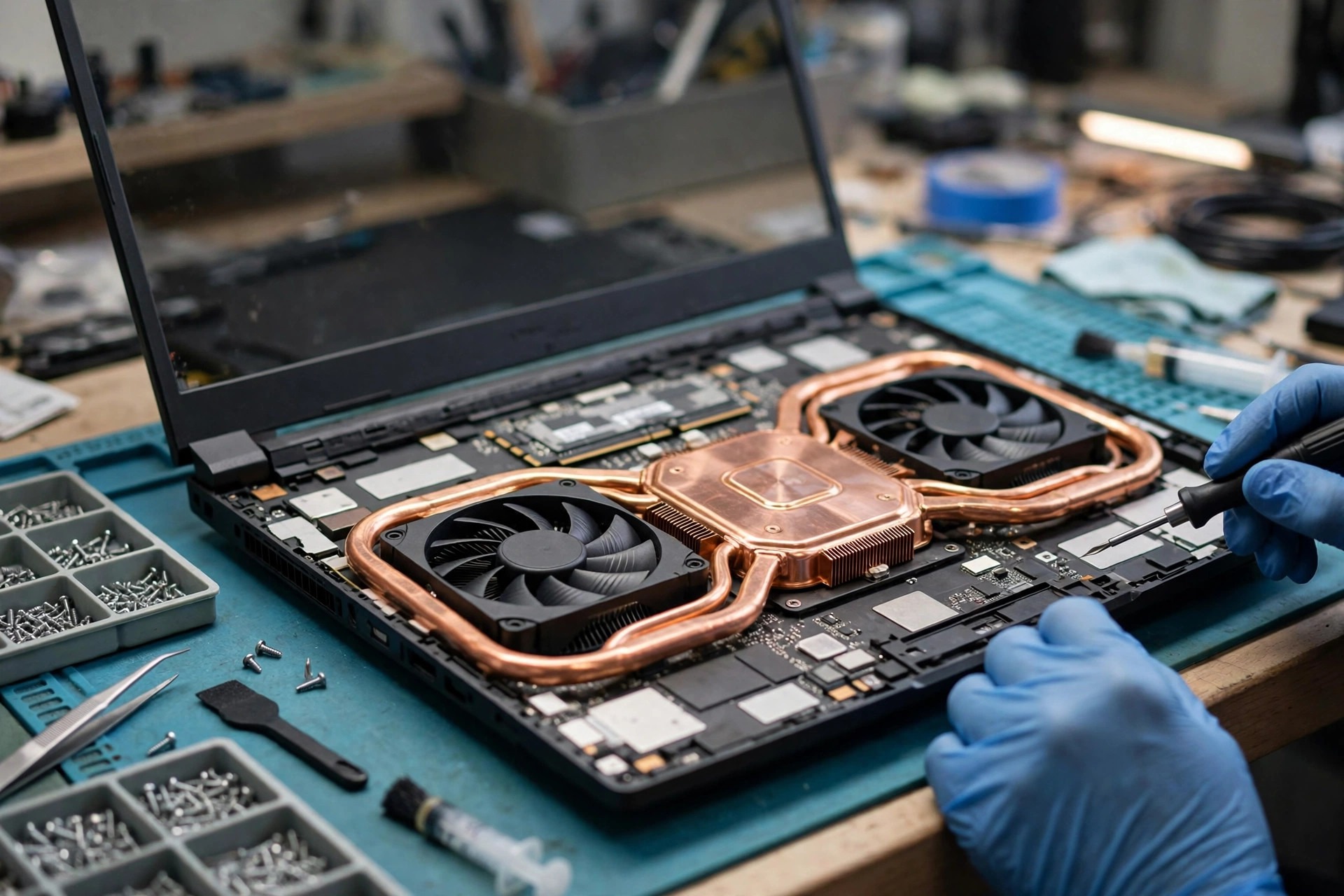
📌 Key Takeaways
- •[A-S1] NVIDIA — Max-Q Technologies — https://www.nvidia.com/en-us/geforce/laptops/max-q-technologies/
- •[A-S2] [B-S12] NVIDIA Support — How to Enable or Disable Dynamic Boost in the NVIDIA Control Panel — https://nvidia.custhelp.com/app/answers/detail/a_id/5087/kw/Dynamic%20b
- •[A-S3] Appuals — GPU Boost – Nvidia's Self Boosting Algorithm Explained — https://appuals.com/asus-rog-zephyrus-g14-with-amd-ryzen-9-6900hs-and-radeon-rx-6800s-beats-intel-competition-in-latest-benchmark/gpu/
- •[A-S4] [B-S10] Notebookcheck — Nvidia RTX 4090 and RTX 4080 Laptop GPUs rated for 2 GHz+ boost and up to 200 W TGP including Dynamic Boost — https://www.notebookcheck.net/Nvidia-RTX-4090-and-RTX-4080-Laptop-GPUs-rated-for-2-GHz-boost-and-up-to-200-W-TGP-including-Dynamic-Boost-RTX-4060-and-RTX-4050-up-to-95-W-or-165-W-each.676258.0.html
- •[A-S5] [B-S11] LaptopMedia — All articles with 4060 tag(RTX 4060 45W/80W/105W/120W/140W 對比) — https://laptopmedia.com/tag/4060/
Introduction: Throttling Is Not a Broken Card, It Is a Protection System Making Decisions
The most common thing laptop owners say is: "The first ten minutes of gaming are smooth, and then it suddenly becomes several times slower." Another common one is: "The benchmark score is high, so why does the frame rate not go up in real games?" Behind those two sentences there are usually two different things: the first may be a temperature wall or a power budget running out, and the second may be a purchase made by looking at the graphics card name without looking at the power setting. This article starts by separating "throttling" from "a broken card", then works through the laptop graphics temperature management mechanism layer by layer.
Throttling, known as thermal throttling, is a protection mechanism built into the graphics firmware: when temperature rises to a threshold set by the manufacturer, the driver actively lowers clock speed and power, in order to prevent the chip from overheating and being damaged [A-S11][A-S13]. Throttling itself is not a fault; it is a protection action that the firmware performs according to the specification [B-S23]. The same graphics chip, in a thick chassis, in an air-conditioned room, plugged into the original power adapter, can hold a high clock speed for the whole session; put into a thin chassis, in a Hong Kong summer room without air conditioning, powered by the wrong small adapter, the same chip can run at a low clock speed for hours. The problem is never a single number; it is the product of eight variables: "chip, power setting, cooling design, airflow, ambient temperature, power adapter, driver, and workload" [B-S54].
First, one premise: there is no universal temperature ruler. NVIDIA states clearly that a graphics card is designed to operate reliably up to its specified maximum operating temperature, that the driver lowers performance to bring the temperature back down when it reaches that temperature, and that the system can shut down to protect the hardware if the temperature keeps rising [A-S13]. The maximum temperature varies by model, and no single number can judge every card [A-S11]. Every figure in this article comes from the manufacturer documents, official support pages, and measured reviews cited in the two research reports, with a source number after each factual claim; figures that could not be verified are marked as varying by model or marked with their source.
Before reading further, do one thing first: back up your data. Before any driver removal, firmware update, or opening the machine, confirm that important files have a second copy. This article starts with the mechanism, then works through the temperature wall, the power wall, the voltage curve, three temperatures, memory, power settings, measured comparisons, manufacturer cooling designs, interface materials, firmware and drivers, power supply, airflow, the Hong Kong context, diagnostic tools, and common misdiagnoses, and closes with a repair, replace, or upgrade decision framework and a layered elimination procedure. Every chapter can be read on its own, but please follow the order when diagnosing, and do not skip steps.
Chapter 1: The GPU Boost Mechanism — Accelerating Until It Hits a Wall
1.1 The Basic Logic of Dynamic Boosting
GPU Boost is NVIDIA's dynamic acceleration mechanism: the graphics card keeps raising its clock speed until it hits a preset power limit or temperature limit. Appuals puts it directly: GPU Boost dynamically raises clock speed until the card reaches its preset power or temperature limit, and the algorithm adjusts a large number of parameters in a very short time so the card stays at the highest workable boost frequency [A-S3]. In other words, the boost clock printed on the box is "the clock speed it can reach under ideal conditions", not "the clock speed it is guaranteed to run at under any conditions" [B-S54].
The key is to understand that "base clock" and "boost clock", the two numbers printed on the box, are reference points, not promises. The base clock is the clock speed the manufacturer guarantees within the rated power. The boost clock is the clock speed GPU Boost can reach when there is power and temperature headroom — it exists only when there is headroom, and it does not exist when there is none. The real operating clock speed changes continuously; it is not a choice between two fixed gears. The better the cooling, the more the card can hold a high clock speed; the worse the cooling, the sooner the clock speed falls back on its own [B-S54].
Appuals also gives a practical measurement: once temperature rises above 75 degrees Celsius, the clock speed drop becomes obvious and affects performance [A-S3]. In other words, above 75 degrees Celsius the card is already "losing clock speed", and the clock speed drop is already obvious; there is no need to wait for 87 degrees Celsius before calling it throttling — the range above 75 degrees Celsius is a step-by-step fine adjustment, and the drop grows as the temperature approaches the wall. For a repair judgement, look at the clock speed curve in HWiNFO or GPU-Z: if the clock speed stays below the base clock for a long time while the temperature sits near the limit, that is real throttling; if the clock speed only moves up and down inside the boost range, that is normal boost behaviour.
1.2 How the Clock Speed Falls: In Steps of 15 MHz
GPU Boost adjusts clock speed in steps of 15 MHz, known as boost bins [A-S3]. Two levels must be kept apart: fine adjustment inside the boost range is normal operation, not a fault; temperature-wall throttling is when the core temperature reaches the limit set in the firmware, and the clock speed falls step by step, even dropping below the base clock [A-S3]. Appuals states the dividing line clearly: throttling happens when the clock speed falls to the base clock or below; adjustment inside the boost range only changes the highest clock speed the card can reach, and the two must not be confused [A-S3].
The means of throttling are not limited to lowering the clock speed. Firmware throttling can combine several methods: lowering the core clock speed, lowering the voltage, lowering the power limit, lowering the memory clock speed, and in extreme cases shutting the graphics card down directly [B-S23]. The driver first fine-tunes the clock speed to hold the temperature line; if the temperature keeps rising, the reduction grows; if the temperature still cannot be held down at the lowest clock speed, the system shuts down [B-S23]. It is worth noting that the throttling curve is not a straight line: GPU Boost adjusts in steps by temperature, taking one step off the clock speed every few degrees Celsius, so going from 75 to 85 degrees Celsius may cost not one step but several, adding up to hundreds of MHz [B-S54].
| Phenomenon | Mechanism | Clock speed behaviour | Meaning |
|---|---|---|---|
| Fine adjustment inside the boost range | GPU Boost fine-tunes by temperature and power | Moves up and down in 15 MHz steps, still above the base clock | Normal operation, not a fault [A-S3] |
| Temperature-wall throttling | Core temperature reaches the firmware limit | Clock speed falls step by step, even below the base clock | Protection has started; cooling can no longer cope [A-S3] |
| Power-wall limiting | Power reaches the firmware limit | Clock speed is stable but below the advertised value, temperature not high | Power budget is capped, not overheating [B-S22] |
1.3 Three Generations and the Blackwell Mechanism Upgrade
GPU Boost 3.0 belongs to the Pascal architecture: the algorithm is locked inside the driver, users cannot adjust it manually, and once temperature passes the threshold the clock speed falls straight from boost to base clock, a steep drop [A-S3]. GPU Boost 4.0 belongs to the Turing architecture: it allows users to adjust the boost algorithm curve manually, and the temperature range gains new inflection points, so the fall from boost to base can happen in several gradual steps instead of one cut [A-S3].
For the Blackwell architecture, the RTX 50 series, NVIDIA has not published a white paper under the name "GPU Boost 5.0" on its own; the architecture document describes underlying mechanism upgrades — a new artificial-intelligence management processor, faster frequency switching, clock, power, and rail gating, and a shorter time to enter deep sleep states [A-S8][A-S9]. HotHardware notes that the frequency switching response is said to improve by 1,000 times, and the deep-sleep entry time is shortened by 10 times [A-S9]. This research lists "GPU Boost 5.0" as an unverified name: the mechanism upgrade is supported by official documents, but the version number "5.0" has not been seen formally adopted in an NVIDIA official white paper, so the article should say "the Blackwell boost mechanism" rather than forcing the version number.
The point is not to write the three generations as "each generation tolerates a higher temperature". The temperature limit is decided by the firmware and the model, not by the boost version. The advance of 4.0 over 3.0 is that it "falls more smoothly, and lets the user adjust the curve", not that it "tolerates more heat" [A-S3].
Chapter 2: The Temperature Wall — Three Layers of Protection, Not One Line
2.1 The Definition of the Three Layers
NVIDIA temperature protection is not a single number; it has three layers, defined by the nvidia-smi documentation [A-S12][A-S13]. The first layer is the maximum operating temperature, at the software level: the driver starts optimising clock speed for the cooling conditions, fine-tuning boost to hold this line; performance falls slightly and the hardware is unharmed [A-S11][A-S12]. The second layer is the slowdown temperature, at the hardware level: the core clock speed falls sharply, described in some documents as dropping to half or below, a firmer form of self-protection [A-S11]. The third layer is the shutdown temperature, the last line of defence: the graphics card shuts itself down to prevent damage [A-S11].
As an example, measurements for the RTX 5080 show a maximum operating temperature of 88 degrees Celsius, a slowdown temperature of 90 degrees Celsius, and a shutdown temperature above 93 degrees Celsius [A-S12]. This set of numbers belongs to that card only and cannot be applied to other models. The NVIDIA official support document, as quoted, says: "NVIDIA GPUs are designed to operate reliably up to their maximum specified operating temperature"; when the maximum temperature is reached, the driver lowers performance to bring the temperature down; if the temperature keeps rising, the system can shut down to protect the hardware [A-S13]. The support document also states that a typical graphics card temperature range of 40 to 90 degrees Celsius is a broad background range, not a universal safe or dangerous dividing line [A-S13].
| Layer | Name | Meaning |
|---|---|---|
| First layer | Maximum operating temperature | Driver fine-tunes clock speed to hold the line; performance falls slightly [A-S11][A-S12] |
| Second layer | Slowdown temperature | Core clock speed falls sharply; firmer self-protection [A-S11] |
| Third layer | Shutdown temperature | Graphics card shuts itself down to prevent damage [A-S11] |
2.2 Official Limits by Model: The 5070 Is Only 85 Degrees
The NVIDIA official "maximum GPU temperature" by generation, taken from product specification pages and checked in August 2026, is as follows [A-S11][B-S25]. Ampere, the RTX 30 series, is 93 degrees Celsius; Ada, the RTX 40 series, is 90 degrees Celsius; Blackwell, the RTX 50 series, is 85 to 90 degrees Celsius, with the RTX 5070 at only 85 degrees Celsius [A-S11]. For desktop cards the official figures are RTX 5090 at 90 degrees Celsius, RTX 5080 and RTX 5070 Ti at 88 degrees Celsius, RTX 5060 Ti at 87 degrees Celsius, and RTX 5070 at 85 degrees Celsius [B-S25]. The RTX 5090 official specification also lists a maximum GPU temperature of 90 degrees Celsius, a total graphics card power of 575W, and a system power requirement of 1,000W, for the Founders Edition or reference design; custom cards from board partners can differ [A-S14].
The RTX 5070 at only 85 degrees Celsius is the easiest number to get wrong: someone used to 90 degrees Celsius as the standard will think 85 degrees Celsius still leaves 5 degrees Celsius of headroom, when in fact the wall has already been reached [A-S11]. Laptop limits are set by the manufacturer firmware and vary by model, so desktop figures cannot be applied directly to laptops; but they make one point clear — there is no universal throttling temperature that applies to every card [B-S25]. The laptop RTX 30 series throttling point is about 87 degrees Celsius, a compiled figure that varies by model [B-S24].
An embedded Blackwell module document gives another set of numbers, from a WOLF VPX module datasheet, which is not a consumer laptop specification and is only a mechanism reference: the clock speed falls when GPU temperature passes 87 degrees Celsius, and the highest boost clock at the current power can only run below 86.5 degrees Celsius [A-S10]. This set of numbers makes the same point: the temperature wall is not a single number; there is a buffer zone at the edge of the wall where the slowdown begins.
| Generation | Model | Maximum GPU temperature |
|---|---|---|
| Ampere | RTX 3060 to RTX 3090 | 93 degrees Celsius [A-S11] |
| Ada | RTX 4060 to RTX 4090 | 90 degrees Celsius [A-S11] |
| Blackwell | RTX 5090 | 90 degrees Celsius [A-S11][B-S25] |
| Blackwell | RTX 5080, RTX 5070 Ti | 88 degrees Celsius [A-S11][B-S25] |
| Blackwell | RTX 5060 Ti | 87 degrees Celsius [B-S25] |
| Blackwell | RTX 5060 | 89 degrees Celsius [A-S11] |
| Blackwell | RTX 5070 | 85 degrees Celsius [A-S11][B-S25] |
Chapter 3: The Power Wall, TGP, and Dynamic Boost
3.1 Two Walls Closing In: Which One Is Hit First
Graphics acceleration is squeezed by two walls at once: the temperature wall and the power wall. Which wall is hit first depends on the cooling and the settings. With good cooling and a low power wall, the temperature never reaches the wall, but the power is already capped, and the clock speed sits at the power wall — the most common case in thin laptops. With poor cooling and a high power wall, there is power headroom, but the temperature reaches the wall early, and the clock speed is held down by the temperature wall — the most common case with dust blockage or aged thermal paste.
The first step in diagnosis is always to find out which wall is hit first, rather than calling everything overheating as soon as it slows down [B-S22]. The laptop version of the power wall is called TGP, total graphics power, the graphics power budget the manufacturer sets for that laptop model, covering the graphics chip and the memory. TGP is not a property of the chip; it is a manufacturer setting: the same graphics chip can have different TGP values in different laptops. The comparison of the three walls is in the table below; the voltage wall is covered in Chapter 4.
| Wall | Trigger condition | Visible symptom | Evidence from tools |
|---|---|---|---|
| Thermal wall | Core temperature reaches the manufacturer maximum operating temperature, for example about 87 degrees Celsius for laptop RTX 30 series [B-S24] | Clock speed rises and falls with temperature in a sawtooth pattern; fans at full speed still cannot hold it down | GPU-Z PerfCap Reason shows Thrm [B-S22] |
| Power wall | Graphics power reaches the TGP limit set in the firmware [B-S5] | Clock speed is stable but below the advertised value; temperature not high, but clock speed cannot rise | GPU-Z PerfCap Reason shows Pwr [B-S22] |
| Voltage wall | Voltage reliability limit or maximum operating voltage reached [B-S22] | Clock speed is at the top, but power and temperature still have headroom; adding voltage does not help | GPU-Z PerfCap Reason shows VRel or VOp [B-S22] |
3.2 Dynamic Boost: Borrowing Power
Dynamic Boost is one of the NVIDIA Max-Q technologies: it uses automatic, learning-based allocation to move power between the graphics card, the memory, and the processor, lending power the processor is not using to the graphics card [A-S1]. The NVIDIA support document states that Dynamic Boost is supported on RTX 20 series SUPER laptop GPUs, is enabled by default globally for maximum performance, and can be switched in the NVIDIA Control Panel under Manage 3D Settings, Global Settings; but on RTX 30 series laptop GPUs and newer models there is no such setting option, because the function runs automatically inside the system [A-S2][B-S12]. Dynamic Boost 2.0 extends this mechanism to per-frame allocation and adds memory power allocation [A-S1][B-S63].
The first generation of Dynamic Boost could lend up to 15W from the processor to the graphics card, with NVIDIA claiming up to 10 percent better performance [B-S13]. Four practical points matter. First, Dynamic Boost is not a free lunch: the 15W to 25W lent to the graphics card is the processor's own budget. Under a mixed load, when the processor and the graphics card both run at full speed, the processor has no spare power to lend, and Dynamic Boost simply does not start [B-S5]. Second, from the RTX 30 series onwards the control panel has no switch: if a customer says they want to turn Dynamic Boost on, and their machine is an RTX 40 or 50 series model, the correct answer is that this setting is already managed automatically by the system and cannot be switched manually [B-S12]. Third, the figures must be read separately: the "maximum" figure manufacturers advertise is usually the base TGP plus Dynamic Boost; the base TGP is the figure the graphics card is more likely to hold for a long time under a mixed load [B-S10][B-S54]. Fourth, the RTX 50 series has a narrower Dynamic Boost allowance: the RTX 5070 Dynamic Boost limit is 15W, compared with 25W on the RTX 40 series, so the room to borrow power is smaller, and the base TGP matters more [B-S57].
Dynamic Boost 2.0, introduced with Max-Q 3.0 on the RTX 30 series, changes the allocation from a whole-frame decision to a per-frame decision, and brings the memory power into the same allocation as the processor and the graphics card [A-S1][B-S63]. The practical consequence is that the power split can move several times a second as the scene changes, so a power reading taken at one moment may not match a reading taken a second later. A repair technician who sees the graphics power moving between 90W and 130W during a game should not conclude that the machine is faulty; the movement itself is the mechanism working [B-S63]. The comparison that matters is the sustained figure over a full test run, not a single snapshot. The same caution applies to the processor side: a short burst to PL2 is expected behaviour, and only the sustained PL1 figure tells the real story of what the machine can hold [A-S36][A-S37][A-S38].
WhisperMode is the other side of the same Max-Q technology set: it uses an automatic algorithm to manage fan speed, together with processor, graphics, and system temperatures, balancing quiet operation against performance [A-S1]. With WhisperMode on, the machine may deliberately lower the power wall to stay quiet — the user thinks it is a throttling fault, when it is actually the designed behaviour of a quiet mode. WhisperMode 2.0 lets the user set a target fan noise level, and the driver makes sure the laptop does not exceed it, at the cost of lower game settings and frame rates (quoted from Notebookcheck in search results) [A-S1].
3.3 The Processor Steals Power and Cooling
In most laptops the processor and the graphics card share one cooling system — the same heat pipes or vapour chamber, the same fans — and the same total power budget. When the processor runs at full speed, it eats the cooling system's headroom, and the graphics card can be held to a lower power limit even when it is not hot itself, because the whole system is too hot [B-S5]. The Notebookcheck RTX 4070 test demonstrates exactly this: a pure graphics load in FurMark can draw 140W, but in 3DMark Time Spy, where the processor and graphics card work together, it draws only about 100W, and in gaming, Cyberpunk 2077 at 4K with maximum settings and ray tracing, it reaches only about 105W [B-S5]. In other words, "the graphics card not reaching its full TGP" under a mixed load is normal behaviour, not a fault.
The processor-side equivalent is PL1 and PL2: PL1 is the long-term power limit, sustainable indefinitely and roughly equal to TDP; PL2 is the short-term burst limit, usually 1.5 to 2.5 times PL1; Tau is the time window for which PL2 can be held, usually 8 to 56 seconds in most laptops [A-S36][A-S37][A-S38]. The graphics card's TGP plus Dynamic Boost and the processor's PL1 plus PL2 plus Tau are two sides of the same philosophy: a sprint can borrow power, but a marathon has to pay it back. Once Tau expires, power falls back to PL1, and performance falls with it — a drop that has nothing to do with temperature, purely a power budget expiring. If a repair only looks at temperature, this kind of case, "cool enough but still slowing down", will be misjudged.
Chapter 4: The Voltage and Frequency Curve, and Undervolting
4.1 The Curve Is the Map Under Boost
The real foundation of GPU Boost is a voltage and frequency table: each voltage point corresponds to a clock speed. The MSI Afterburner curve editor, opened with Ctrl and F, draws this table: the horizontal axis is voltage in millivolts, the vertical axis is frequency in MHz, and each point is a voltage and frequency combination [A-S50][A-S51][B-S26]. Overclocking moves the whole curve up — a higher clock speed at the same voltage. Undervolting pulls one voltage point on the curve up and then flattens everything to its right — the same clock speed at a lower voltage, so power and temperature fall. The official MSI procedure is: pick a target voltage point, pull it to the target clock speed, select all points to its right with Shift, flatten them with Shift and Enter, and apply [A-S51][B-S26]. The MSI example uses 950 mV as the target voltage point [B-S26].
Why undervolting can keep performance: power is proportional to the square of voltage, so a small voltage drop cuts power by a large amount; if the original clock speed was being held down by the power wall, undervolting can let the graphics card hold a higher clock speed within the same power budget. The practical figures for undervolting come from a guide and are not manufacturer specifications: typically power down 15 to 25 percent, temperature down 8 to 15 degrees Celsius, and performance within 2 percent of the original, or even slightly higher [A-S50][B-S27]. These figures are the guide's experience, and they vary greatly between cards and silicon quality, so any article must name the source and say "it varies by card".
| Action | Method | Result |
|---|---|---|
| Overclocking | Move the whole curve up | Higher clock speed at the same voltage; power and temperature rise [A-S50] |
| Undervolting | Pull the target voltage point up, flatten the right side | Same clock speed at lower voltage; power and temperature fall [A-S51][B-S26] |
| Flattening | Select all points to the right with Shift, then Shift and Enter | Stops the card climbing further in the high-voltage region [A-S51] |
4.2 The Limits and the Safety Floor of Undervolting
One important reminder: the Afterburner curve is only a "suggestion", not a "command". The driver still enforces the temperature wall, the power wall, and the voltage limit; a curve set too aggressively results in instability and crashes, not a burnt card — because undervolting reduces voltage, it does not add voltage [A-S50]. Test one step at a time and verify each step: change only one variable at a time, then run a 3DMark stress test or 30 minutes of gaming, and only try the next step once it is stable. An over-aggressive undervolt causes driver crashes or game crashes; these are setting problems, not hardware damage [B-S27].
Do not copy someone else's curve: the voltage tolerance of every chip is different, and a setting for one machine of the same model can be completely unstable on another [B-S27]. MSI also stresses that the voltage tolerance of individual GPUs varies [B-S27]. The laptop limitation is that many laptop firmware versions lock the power limit and voltage adjustment, so Afterburner may be able to see the values but not change them. Being unable to change them does not mean Afterburner is broken; it means the manufacturer locked them [B-S54]. For fan curves, Afterburner can also set a custom fan curve, but laptop fans are mostly controlled by embedded controller firmware, so the Afterburner fan setting may not take effect. Use the manufacturer control centre fan mode first, and do not start by forcing a change with a third-party tool.
Undervolting suits machines where "the temperature wall or power wall is hit for a long time, but the cooling system itself is healthy"; it does not suit machines where "the cooling system has already failed" — those should have their cooling repaired first, not have the problem hidden by undervolting. Before any change, record the factory clock speed, voltage, and temperature baseline, then compare with the same workload after the change, and do not judge by feel.
Chapter 5: Three Temperatures — Core, Hot Spot, and Memory
5.1 Three Sensors, Three Meanings
A modern graphics card does not have one thermometer; it has a whole sensor network. Monitoring software usually shows three temperatures, and they measure three different things [A-S26][B-S18][B-S21]. The core temperature is the temperature from sensors on or near the edge of the chip surface, close to an average; the fan curve follows this number, and Task Manager and the Afterburner default display both show it [A-S26]. The hot spot temperature is the highest reading among all the sensors on the chip, the hottest single point; the AMD boost mechanism watches this number, and NVIDIA has provided it since the RTX 30 series [A-S26]. The memory temperature is the junction temperature inside the memory chips, shown as the hottest of all the memory chips; a normal core temperature does not mean this one is normal [A-S24].
The three numbers cannot be compared with each other. A core at 70 degrees Celsius, a hot spot at 90 degrees Celsius, and memory at 100 degrees Celsius can all appear on the same card at the same time, with all three "normal" or one of them already in trouble, depending entirely on the model and the cooling state. A combination of a 70-degree core, a 95-degree hot spot, and 102-degree memory is entirely possible — the core looks "nice and cool", but the memory is already at the edge of throttling [B-S18]. Looking only at the core temperature and saying "it is not hot" is misdiagnosis number one.
| Reading | What it measures | Who uses it |
|---|---|---|
| Core temperature | Temperature from sensors on or near the chip surface, close to an average | The fan curve follows this number [A-S26] |
| Hot spot temperature | The highest reading among all sensors on the chip | Throttling judgement: the AMD boost mechanism watches this number [A-S26][B-S21] |
| Memory junction temperature | Junction temperature inside the memory chips, the hottest chip | Memory throttling judgement; a normal core does not mean this is normal [A-S24][B-S19] |
5.2 Two Manufacturers, Two Completely Different Hot Spot Philosophies
The hot spot is the hottest point on the chip, usually where the transistors are densest and working hardest. AMD introduced this reading widely from the Radeon VII, when it was called the junction temperature; from the RX 5000 series it was renamed hot spot; NVIDIA followed from the RTX 30 series [A-S26]. On NVIDIA RTX 40 and 50 series cards, the hot spot is usually 10 to 20 degrees Celsius above the core [A-S26][B-S21]. The RTX 50 series has one big change: NVIDIA hid the hot spot from the official interface, so GPU-Z and HWiNFO could not read it at first; in 2026 a modifier exposed it again from lower-level hardware data, and newer HWiNFO versions followed [A-S26][B-S21]. In other words, an RTX 50 user not seeing the hot spot in older monitoring software does not mean there is no hot spot.
AMD RDNA 3, the RX 7000 series, deliberately allows the hot spot to run 20 to 35 degrees Celsius above the core, as part of the boost efficiency design, not as a fault [A-S26]. An RX 7900 XTX with a 65- to 72-degree core and a 95- to 110-degree hot spot can be within its design range [A-S26]. The AMD official limit: the junction temperature limit for the RX 5000, 6000, and 7000 series is 110 degrees Celsius; AMD stated officially that for the RX 5700 series, a junction temperature up to 110 degrees Celsius under typical gaming use is "within expectations and within specification" [A-S15][A-S26][B-S45]. The AMD argument is: rather than setting one conservative worst-case throttling temperature for the whole chip, use a sensor network to watch it precisely, and keep boosting aggressively until any one sensor hits the 110-degree hot spot limit [A-S15].
The desktop RX 7900 XTX once had a controversy over junction temperatures reaching 110 degrees Celsius and triggering throttling; AMD first called it normal, then admitted it was a real problem and followed up [B-S45]. The lesson is: "below the 110-degree limit" does not mean "110 degrees Celsius is fine" — running at the limit for a long time means performance is already being held down, and the cooling system very likely has a contact problem.
Chapter 6: Memory Temperature — GDDR6, GDDR6X, and GDDR7
6.1 Three Temperature Definitions That Must Not Be Confused
Memory is the most easily overlooked layer in the whole throttling topic, because it has its own independent temperature wall, and the wall's number is completely different from the core's. Igor's Lab explains Micron's definitions: the junction temperature is the temperature of the junction inside the chip, which is what HWiNFO shows as the memory junction temperature; the case temperature is the temperature of the chip package surface; the board temperature is the temperature of the circuit board [A-S23]. The junction temperature is always higher than the case temperature.
There is one detail in Micron's public data that must be kept straight. Igor's Lab points out that Micron lists a maximum junction temperature of 100 degrees Celsius for GDDR5 modules, matching a maximum operating temperature of 95 degrees Celsius; but Micron has not published the same level of detailed thermal data for GDDR6, and the "Device Thermal Information" in its documents only goes as far as GDDR5 [A-S23]. In other words, the widely quoted "GDDR6 limit of 100 degrees Celsius" is actually inferred from the GDDR5 specification, not a figure Micron itself listed for GDDR6, and any citation must state this inference chain clearly.
Another point to keep straight: a community technical analysis quoted by displaycard-repair.com notes that Micron's figure of about 95 degrees Celsius refers to the case temperature, while the junction temperature HWiNFO shows is about 10 to 15 degrees Celsius higher than the case; so NVIDIA firmware throttling at a 110-degree junction reading does not conflict with Micron's 95-degree specification — they measure two different things [A-S24]. This analysis comes from the community, not from an official document, so this article states its source and does not treat it as settled.
6.2 GDDR6X: A Cool Core and Scorching Memory
GDDR6X was developed by Micron in close cooperation with NVIDIA, first fitted to the RTX 3080 and 3090, with Micron the only supplier at launch [A-S24]. GDDR6X uses PAM4 signalling, with about 15 percent lower energy per bit transferred than GDDR6, but higher total bandwidth and total power, so it generates more heat [A-S24]. Sources do not agree on the GDDR6X limit, so the statements must be listed side by side: the HWiNFO author, as quoted, says "thermal throttling starts around 110 degrees Celsius", that the displayed value is the hottest of all the memory chips, and that the limit is about 105 to 110 degrees Celsius [A-S24]; VoltGround says the GDDR6X design maximum junction temperature is 120 degrees Celsius, that 100 to 110 degrees Celsius is the expected normal range under full-load gaming on RTX 30 and 40 series cards, and that throttling starts at 110 degrees Celsius [A-S25][B-S20].
This research takes the following position on the GDDR6X limit: the 110-degree throttling point is supported by several independent sources and can be written as "throttling starts at about 110 degrees Celsius"; the 120-degree maximum junction temperature is stated by only one source, VoltGround, and is listed as that source's claim, not verified by a Micron official document, and not written as settled fact. The model-level ranges compiled by VoltGround are: RTX 3080 and 3090 memory junction temperatures of 96 to 108 degrees Celsius under full-load gaming, RTX 3090 Ti and 4090 reaching 100 to 112 degrees Celsius, and RTX 4080 and 4070 Ti at about 92 to 105 degrees Celsius [A-S25]. Another compilation puts the GDDR6 throttling point at about 95 to 100 degrees Celsius, the GDDR6X maximum rating at about 110 degrees Celsius, and the GDDR6X throttling point at about 105 to 110 degrees Celsius [B-S19]. Memory junction temperature is usually 15 to 25 degrees Celsius above the core temperature [B-S19].
GDDR6X memory can sit at 104 to 110 degrees Celsius while the core is only 60 to 70 degrees Celsius, because the cooling paths are completely different [A-S24]. The core has a direct cooling path: the vapour chamber or heat pipes and the fans sit right on top of the graphics chip, carrying heat away directly. The memory relies on thermal pads and a backplate: the memory chips sit around the graphics chip, some on the back of the circuit board, transferring heat through pads to the heatsink or the backplate; if the pads age, have the wrong thickness, or make poor contact, the memory temperature rises at once while the core temperature does not move at all. Memory throttling does not look at the core: the NVIDIA firmware decides by the memory junction temperature, and a 60-degree core cannot save 110-degree memory [A-S24].
| Memory | Throttling point | Note |
|---|---|---|
| GDDR6 | About 95 to 100 degrees Celsius | The limit figure is inferred from the GDDR5 specification; the inference chain must be stated [A-S23][B-S19] |
| GDDR6X | About 105 to 110 degrees Celsius; the 120-degree design maximum junction temperature is a single-source claim | The 110-degree throttling point has several independent sources behind it [A-S24][A-S25][B-S20] |
| GDDR7 | Not enough data to set a limit | Second-hand compiled figure, not verified by long-term measurement and not to be treated as settled; do not apply the GDDR6X 110 degrees Celsius directly to GDDR7 [B-S19] |
Chapter 7: The Hot Spot and Core Delta — Contact Diagnosis
7.1 The Delta Itself Is a Diagnostic Signal
The gap between the core and the hot spot, the delta, is itself a diagnostic signal. The experience framework compiled by displaycard-repair.com is a rule of thumb, not an official standard: about 5 to 10 degrees Celsius is usually normal, with good heatsink contact; about 10 to 20 degrees Celsius is mostly acceptable, but worth watching if it grows over time; about 20 to 25 degrees Celsius or more usually points to a contact, mounting-pressure, or airflow problem, especially when the gap stays there for a long time [A-S26][B-S21]. Another guide notes that factory thermal paste starts to dry out or pump out after 18 to 36 months of use, which is that guide's experience figure [B-S70]; a core-to-hot-spot delta above 15 to 20 degrees Celsius points to uneven thermal paste coverage, from the same guide's compilation [B-S70].
The PCWorld graphics card cooling guide agrees: a gap above 20 degrees Celsius under full load is a clear warning sign that the contact between the chip and the heatsink is poor — for example the thermal paste has dried or is unevenly spread; a gap of 30 degrees Celsius or more means the graphics card is already throttling hard to prevent damage [A-S30]. But the absolute values must be watched at the same time: an NVIDIA card with its hot spot sitting at 95 to 100 degrees Celsius or above for a long time, or an AMD card near 110 degrees Celsius, is a warning zone whatever the delta is [A-S26]. The other way around, a small delta does not mean nothing is wrong — if the core and the hot spot are both at 90 degrees Celsius, the delta is 0 degrees Celsius, but the whole cooling system is already at its limit, and the problem is not enough airflow rather than poor contact.
| Delta | Usual reading |
|---|---|
| About 5 to 10 degrees Celsius | Usually normal; heatsink contact is good [A-S26][B-S21] |
| About 10 to 20 degrees Celsius | Mostly acceptable; watch it if it grows over time [A-S26][B-S21] |
| About 20 to 25 degrees Celsius or more | Usually points to a contact, mounting-pressure, or airflow problem, especially if it stays there [A-S26][B-S21] |
| 30 degrees Celsius or more | The graphics card is already throttling hard to prevent damage [A-S30] |
7.2 How to Use the Delta in a Repair Shop
The delta must be read as a sustained value under the same load, not as a single reading. If the hot spot to core delta stays above 20 to 25 degrees Celsius, or the memory junction temperature stays above 100 degrees Celsius for GDDR6 or 105 degrees Celsius for GDDR6X, it is worth following up [B-S19][B-S21]. If the delta grows after cleaning, the heatsink was put back unevenly, the thermal paste was torn, or a thermal pad moved; if the delta shrinks, contact has improved. Before and after any repair, record the temperature, clock speed, and power under the same workload, and compare before handing the machine back.
The fan curve follows the core temperature, not the hot spot [A-S26] — in other words, the fan thinks the machine is not hot while the hot spot has already reached the wall. This is a blind spot in fan control design, and repair staff should explain it clearly to customers: a normal core temperature does not mean the graphics card is not hot.
Chapter 8: TGP — The Same Name, a Different Machine: The RTX 4060 in Five Power Classes
8.1 The Same Name Can Be Several Completely Different Machines
The biggest truth about laptop graphics cards is that the same name can be several completely different machines. NVIDIA allows manufacturers to pick TGP within a range, and the range is wide enough to differ by several times [A-S4][B-S10]. The RTX 4090 and 4080 laptop versions are 150W to 175W, plus 25W of Dynamic Boost, up to 200W; the RTX 4070, 4060, and 4050 laptop versions have a base TGP of 35W to 115W, plus 25W of Dynamic Boost, for a maximum total of 140W; there are also 85W low-power versions, plus 10W of Dynamic Boost, for a maximum total of 95W [B-S10]. The previous Ampere generation is the same: the RTX 3080 Ti laptop version has a TGP range of 80W to 175W [A-S4]. The full range of the RTX 4060 laptop version is 35W to 140W [A-S5]. The TGP ranges for the RTX 4080 and 4090 differ between sources, 60W to 150W versus 150W to 175W, because NVIDIA's public specification itself allows manufacturers to configure within a wide range, and Dynamic Boost is counted differently; this research lists both statements side by side and does not present one of them as the only truth [B-S10].
From the RTX 30 series onwards, NVIDIA dropped the Max-Q brand label and let manufacturers decide the power configuration of each machine themselves, no longer forcing a Max-Q or full-power label [B-S64]. The result is that consumers find it harder to tell them apart: the same RTX 3060 can be anywhere from 60W to 115W, the RTX 3070 from 80W to 125W, and the RTX 3080 from 80W to more than 150W [B-S64]. NVIDIA later required manufacturers to list graphics performance specifications in detail, including clock speed and wattage [B-S64] — but in practice not every manufacturer, and not every sales page, lists them, so buyers must check before buying.
| Model | TGP range | Plus Dynamic Boost | Maximum total |
|---|---|---|---|
| RTX 4090 laptop | 150W to 175W | 25W | 200W [A-S4][B-S10] |
| RTX 4080 laptop | 150W to 175W; one source says 60W to 150W | 25W | 200W; one source says 175W [A-S4][B-S10] |
| RTX 4070 laptop | 35W to 115W; one source says 115W to 140W | 25W | 140W; one source says 165W [A-S4][B-S10] |
| RTX 4060 laptop | 35W to 115W; one source says 115W to 140W; an 85W low-power version also exists | 25W; 10W for low-power versions | 140W; one source says 165W; 95W for low-power versions [A-S4][A-S5][B-S10] |
| RTX 4050 laptop | 35W to 115W; one source says 115W to 140W; an 85W version also exists | 25W; 10W for low-power versions | 140W; one source says 165W; 95W for low-power versions [A-S4][B-S10] |
8.2 Five Classes Measured: Diminishing Returns
LaptopMedia tested five RTX 4060 laptops at different TGP values: 45W, 80W, 105W, 120W, and 140W [A-S5][B-S11]. Against the 45W version as the baseline, the 3DMark Time Spy differences are: the 80W version is about 28 percent faster, the 105W version about 32 percent, the 120W version about 41 percent, and the 140W version about 45 percent [A-S5][B-S11]. In other words, going from 45W to 140W, adding 95W, enough to power another graphics chip, only makes Time Spy 45 percent faster — power and performance are not a straight line, and the benefit of a higher TGP diminishes at the margin [A-S5]. In real games, the 140W version beats the 80W version by 5 to 22 percent depending on the game [A-S5]; the 140W version beats the 120W version by only about 5 to 13 percent in individual games [B-S11].
The LaptopMedia conclusion: TGP alone is not enough to predict real graphics performance accurately, and many laptops labelled 140W never actually reach the labelled power; it is better to read independent reviews, especially of retail units rather than manufacturer-selected review samples [A-S5][B-S11]. The displaycard-repair.com TGP guide offers a practical framework: judging a laptop graphics specification means looking at three numbers, not one — the base graphics power, before Dynamic Boost; Dynamic Boost, the extra power borrowed from the processor; and the maximum graphics power, the sum of the two [A-S7]. Manufacturers often put only the biggest number in the most visible place, and if one laptop's number is the maximum power while another's is the base power, the two cannot be compared directly at all [A-S7].
Manufacturers lowering TGP is not "cutting corners"; it is three practical trade-offs. First, cooling ability: a thick gaming laptop can sustain 115W plus 25W of Dynamic Boost to 140W for a long time; a thin laptop can only limit the graphics card to a lower power range, or the cooling cannot cope — one compilation notes that a 16mm thin laptop usually limits the graphics card to 35W to 60W, and only a 26mm gaming laptop can sustain 115W for a long time [A-S61]. Second, power adapter wattage: the whole machine's power budget is set by the adapter, and a thin laptop with a small adapter cannot run a high TGP for long. Third, product positioning: the same graphics chip in a high-TGP version sells for more, is thicker and louder; in a low-TGP version it sells for less, is thinner and quieter. Both are correct products; the mistake is for the user to assume their performance is the same.
Chapter 9: Measured Comparisons — 4070, 4080, and 5070
Need a laptop repair expert?
Free diagnosis · Transparent pricing · No fix, no fee · 180-day warranty
9.1 The 4070: 105W Is Already Enough
The Notebookcheck 2023 analysis of the RTX 40 series directly challenges the common sense that "a higher TGP is always better" [B-S5]. Using the XMG Neo 17 engineering sample, a 140W RTX 4070, the test found: in FurMark at 1080p without anti-aliasing, the graphics clock speed reached 2,200 MHz at 140W; with anti-aliasing on, the clock speed rose to 2,370 MHz, but power fell to about 80W — power and clock speed are not simply proportional; it depends on the nature of the workload [B-S5]. 3DMark Time Spy drew only about 100W, Speedway with ray tracing about 110 to 115W; gaming in Cyberpunk 2077 at 4K with maximum settings and ray tracing reached about 105W at most, and about 100W at general settings [B-S5]. The conclusion: a 105W RTX 4070 already delivers the same gaming performance as the 140W version; there is no need to pay more for the 140W figure, because 100 to 105W, that is 80W of TGP plus 25W of Dynamic Boost, already gets the maximum gaming performance [B-S5]. This conclusion applies only to the RTX 4060 and 4070 class, and cannot be applied to the RTX 4080 and 4090.
For individual models, the Lenovo LOQ 15 with an RTX 4060 at 115W has three performance modes switched with Fn and Q; Balanced mode has a PL1 of 60W and Performance mode a PL1 of 90W; there is also a custom mode that can adjust the graphics TGP, Dynamic Boost, and temperature limit independently [B-S1]. The Schenker Key 14 with an RTX 4060 at 100W, that is 75W plus 25W of Dynamic Boost, holds its performance steadily under continuous load; but on battery the graphics card is limited to 40W at most, and performance falls by about 30 percent [B-S3]. The HP OMEN Transcend 16 with an RTX 4060, tested by LaptopMedia in real games, ran at 2,625 MHz, 75 degrees Celsius, and 113W after 2 minutes, and was still at 2,625 MHz, 76 degrees Celsius, and 114W after 30 minutes — after half an hour the clock speed, temperature, and power were almost unchanged, one of the steadiest 4060 curves in this research [B-S4]. The Gigabyte G5 KF5 with an RTX 4060 has a cooling system problem, according to Notebookcheck — the processor stays at 100 degrees Celsius for a long time while gaming, a temperature problem the previous generation already had and the new generation still has not fixed [B-S2]. The same 4060 chip, with a poor cooling design, can feel like a completely different machine.
The Notebookcheck preliminary review of the RTX 4060 laptop version, in the ThunderRobot Zero at 140W full power, scored 10,359 in 3DMark Time Spy, about 27 percent faster than the RTX 3060 mobile median, and about the same as the RTX 3070 Ti mobile version [A-S6]. This figure belongs to the 140W full-power version and cannot be taken as a general score for the RTX 4060 laptop version.
9.2 The 4080 and the 5070: Two Different Worlds
The MSI Vector 16 HX with an RTX 4080 at 175W, tested by LaptopMedia in real games, ran at 2,400 MHz, 78 degrees Celsius, and 174W after 2 minutes, and at 2,364 MHz, 83 degrees Celsius, and 174W after 30 minutes — only 36 MHz lower and 5 degrees Celsius hotter after half an hour, with 175W held for the whole session [B-S8]. Extreme Performance mode is about 175W of TGP, and Balanced mode drops to 120W [B-S8]. The Acer Predator Helios 3D 15 with an RTX 4080, in Turbo mode, ran at 2,227 MHz, 79 degrees Celsius, and 173W, and after 30 minutes at 2,208 MHz, 83 degrees Celsius, and 174W; Performance mode gave 1,886 MHz, 73 degrees Celsius, and 139W [B-S8].
The Lenovo ThinkPad P1 Gen 6 with an RTX 4080 at 80W, tested by Notebookcheck, scored 14,099 in Time Spy Graphics, against an RTX 4080 laptop average of 17,764, about 21 percent lower; Fire Strike Graphics scored 33,402, against an average of 40,828, about 18 percent lower [B-S9]. An 80W 4080 scores even lower than many full-power 4070 machines — "buying the 4080 name, running 4070 performance", the most extreme example of the TGP trap. The same model at different TGP values can differ just as much: the 45W RTX 4060 and the 140W RTX 4060 differ by 45 percent [B-S11]. The class is decided by TGP, not by the chip name.
For the RTX 5070 laptop version, the Gigabyte Aorus Elite 16 with an RTX 5070 at 115W of full TGP including Dynamic Boost, tested by Notebookcheck at a room temperature of 20 degrees Celsius, reached a maximum of 45 degrees Celsius on the top of the chassis and 45 degrees Celsius on the bottom, with performance above the RTX 5070 laptop average, and it comes with a 240W power adapter [B-S40]. The Gigabyte Aero X16 with an RTX 5070 at 85W, that is 70W plus 15W of Dynamic Boost, tested by Notebookcheck, matched a 100W RTX 4070 in synthetic and game tests and was a few percent faster than an 80W 4070; on battery, power fell to 35W, a drop of about 59 percent [B-S41]. The Tom's Hardware test of the same model ran 15 consecutive cycles of the Metro Exodus stress test, averaging 80.86 fps with a standard deviation of only 0.22 fps, the graphics card averaging 1,928 MHz, the processor averaging 58 degrees Celsius, and the graphics card averaging 68 degrees Celsius — an extremely steady curve, but at the cost of the 85W limit itself capping the ceiling [B-S57]. The XMG Pro 16 with an RTX 5070 Ti at 140W, that is 115W plus 25W of Dynamic Boost, tested by Notebookcheck with the fastest 140W version, performed basically the same as the older flagship RTX 4080 laptop version; the cooling is noisy, but temperatures are clearly lower than the previous generation [B-S42]. The XMG Pro 16 was singled out by Notebookcheck as a drawback for having no Advanced Optimus [B-S62]. The Lenovo LOQ 17 with an RTX 5070, tested by Notebookcheck, reached a maximum of 45 degrees Celsius on the top of the chassis and 49 degrees Celsius on the bottom under 3D load, with a 245W power adapter [B-S59].
| Model, graphics card, tester | Conditions | After 2 minutes | After 30 minutes or sustained |
|---|---|---|---|
| HP OMEN Transcend 16, RTX 4060, LaptopMedia | Real games | 2,625 MHz, 75 degrees Celsius, 113W | 2,625 MHz, 76 degrees Celsius, 114W [B-S4] |
| MSI Vector 16 HX, RTX 4080, LaptopMedia | Real games, Extreme mode | 2,400 MHz, 78 degrees Celsius, 174W | 2,364 MHz, 83 degrees Celsius, 174W [B-S8] |
| Acer Predator Helios 3D 15, RTX 4080, LaptopMedia | Real games, Turbo mode | 2,227 MHz, 79 degrees Celsius, 173W | 2,208 MHz, 83 degrees Celsius, 174W [B-S8] |
| ASUS ROG NUC, RTX 4070, Notebookcheck | Sustained load | Average 70 degrees Celsius, hot spot up to 78 degrees Celsius, 130W held throughout | Same as left [B-S7] |
| XMG Neo 17, RTX 4070, Notebookcheck | FurMark, Time Spy, gaming | FurMark 140W, 2,200 MHz; Time Spy about 100W | Gaming about 105W [B-S5] |
| Gigabyte AORUS 15 BSF, RTX 4070, GameGPU | FurMark, gaming, streaming | FurMark 2,225 MHz; gaming 2,300 MHz | Streaming up to 86 degrees Celsius [B-S58] |
| Gigabyte Aero X16, RTX 5070, Tom's Hardware | Metro Exodus stress test, 15 cycles | Average 80.86 fps, graphics card 1,928 MHz | Processor 58 degrees Celsius, graphics card 68 degrees Celsius [B-S57] |
Chapter 10: The AMD and Intel Equivalents
10.1 SmartShift: A Shared Power Pool
AMD SmartShift merges the processor and graphics temperature and power budgets into one pool, allocating them in real time by workload. AMD chief gaming architect Frank Azor explained that SmartShift communicates continuously at the silicon level at 2-millisecond intervals, that the operating system neither knows nor cares, and that it is not an application whitelist [A-S18]. In the Dell G5 15 SE test, SmartShift brought up to about 14 percent better performance [A-S18]; AMD's statement for the PS5 is about 10 percent for games and 12 percent for Cinebench R20 [A-S20]. AMD officially claims SmartShift can bring up to 10 percent better gaming performance and up to 12 percent better content-creation performance, based on internal tests with a Ryzen 4800H and an RX 5600M [B-S15]. Later versions include SmartShift Max, which dynamically allocates processor and graphics power for gaming, video editing, and 3D rendering, and SmartShift Eco, which switches to the integrated graphics automatically when gaming on battery and back to the discrete graphics when plugged in; AMD claims it can extend battery gaming time from 55 minutes to nearly 3 hours [B-S14].
The biggest limit of SmartShift is its combination requirement: it depends on the Infinity Fabric controller communicating between an AMD processor and an AMD graphics card, and it only works in laptops that use an AMD Ryzen processor together with an AMD discrete graphics card [B-S15]. Intel plus AMD, or AMD plus NVIDIA, combinations cannot use it [B-S15]. In the first year, 2020, only one machine in the whole market supported it, the Dell G5 15 SE; later the ASUS ROG Strix G Advantage Edition, with a Ryzen 9 5900HX and an RX 6800M, joined, with ASUS claiming the hardware acceleration interface and learning algorithms could improve performance by up to 15 percent [B-S16][A-S19]. When a repair sees a fully AMD machine, remember that SmartShift itself makes the power allocation move around — graphics power going up and down is not necessarily a fault; it is SmartShift working normally.
The RX 7900M is a reminder that specifications alone do not make a product easy to buy or repair. It launched with only one laptop model, the Alienware m18 [B-S43], so the choice of machines is extremely small, and parts and experience with it are scarce compared with the NVIDIA models that fill every price range. A buyer who wants AMD graphics in a laptop should check not only the TGP and the SmartShift support, but also how many models actually carry the chip, because a rare chip means fewer reviews, fewer spare parts, and fewer technicians who have seen it before. The same logic applies to any niche configuration: a specification on paper is only useful if the machine that carries it can actually be bought, tested, and repaired.
10.2 Radeon Boost, Deep Link, and the Model Comparison
AMD Radeon Boost is not a power mechanism; it is a driver feature that "lowers the resolution while things move". When it detects fast on-screen movement, from mouse or controller input, it dynamically lowers the rendered resolution in DirectX 11, or uses variable rate shading to lower the local shading rate in DirectX 12 on RX 6000 and 7000 series cards, in exchange for a higher frame rate; when the movement stops, it returns to full resolution [A-S16]. AMD officially claims an average frame rate improvement of about 23 percent, close to 40 percent in individual games [A-S17]. Note that Radeon Boost only works in supported games, and it trades image quality for frame rate; it is not free performance, and it cannot be used at the same time as Radeon Chill [A-S17].
For Intel Arc Deep Link, Dynamic Power Share allocates power between the processor and the graphics card by workload, with Intel officially claiming up to 30 percent better performance in creative and compute-heavy applications [A-S21]. But the latest development is that Intel has stopped actively maintaining Deep Link; in a developer discussion thread an Intel representative confirmed Deep Link is "no longer actively maintained", and existing systems may still benefit, but there will be no further updates or bug fixes [A-S22]. An article must not present Deep Link as a current flagship feature.
| Model | Specification | TGP |
|---|---|---|
| RX 7900M | 4,608 stream processors, 16GB GDDR6, game clock 1,825 MHz, maximum boost 2,090 MHz | 160W to 180W, up to 200W with SmartShift [B-S43][B-S44] |
| RX 7700S | 2,048 stream processors, 8GB GDDR6, maximum boost 2,200 MHz | 75W to 100W [B-S43] |
Chapter 11: Vapour Chamber Versus Heat Pipes
11.1 A Fundamental Physical Difference
A heat pipe is one-dimensional heat transfer: working fluid inside a sealed copper pipe evaporates when heated, travels along the pipe to the cold end, condenses, and flows back through the capillary structure, carrying heat from one point to another [B-S35]. A vapour chamber is two-dimensional heat transfer: the same phase-change principle, but made into a flat sealed cavity, so heat can spread across a whole plane instead of travelling along a few pipes [B-S35]. MSI explains officially that a vapour chamber can be seen as an enlarged heat pipe, with 76 percent more cooling area than a traditional heat pipe design, letting the processor or the graphics card use the whole cooling system even when running alone at high load, with performance more than 15 percent higher than a traditional heat pipe system [B-S35].
The advantage of a vapour chamber is that it spreads out high heat density: a modern mobile chip can burst out 80 to 120W of heat from a few square centimetres, which heat pipes cannot handle, while a vapour chamber can spread the heat across the whole plate before handing it to the fins [A-S33]. Razer's comparison table states that a vapour chamber transfers heat faster and more evenly, has a larger cooling area, and gives more stable sustained performance, while heat pipes carry heat along a single narrow pipe and are prone to hot spots [A-S34]. The ASUS ROG Strix G Advantage Edition vapour chamber also covers the 16-phase power delivery module, which means the cooling design itself already includes the power module in the cooled area [A-S19].
11.2 A Vapour Chamber Is Not Magic
A vapour chamber is not always better than heat pipes, and it is not magic — it costs more and weighs more, and in a situation where heat does not need spreading out, heat pipes may be the better fit [A-S33]. A vapour chamber can also fail: if the seal fails, the working fluid is lost, or the capillary structure blocks, the whole plate stops working, and the symptom is a sudden temperature spike that no amount of dust cleaning can fix. This kind of failure can only be fixed by replacing the cooling module, not by cleaning dust or changing thermal paste.
Laptop cooling is a complete heat transfer chain: chip, thermal interface material, vapour chamber or heat pipes, fins, and fans blowing the heat away. If any link breaks, the whole chain fails [A-S35]. Gaming laptops usually have 4 to 6 heat pipes, with dedicated pipes for the processor and the graphics card, plus shared pipes to share the load [A-S35]. MSI's main cooling solution is Cooler Boost 5: two fans and up to 6 to 7 heat pipes, with separate cooling for the processor and the graphics card, so heat from one side does not soak into the other [B-S66]. High-end models use a vapour chamber covering up to 50 percent of the mainboard area, letting a 14-inch chassis carry an RTX 4070 [B-S35].
Chapter 12: Six Manufacturers and Their Cooling Designs
12.1 ASUS, Lenovo, and MSI
The ASUS ROG cooling solution is called Intelligent Cooling. High-end models such as the Strix SCAR 18 include an end-to-end vapour chamber, 20 percent larger than the previous generation; a three-fan design with 91 percent more airflow than the previous generation, a manufacturer claim; sandwich-style cooling fins; and Conductonaut Extreme liquid metal on both the processor and the graphics card [B-S33]. ASUS claims the thermal conductivity of Conductonaut Extreme is 17 times higher than traditional thermal paste, and that processor and graphics temperatures can fall by up to 15 degrees Celsius, an ASUS internal test claim [B-S33]. The Zephyrus G16 version includes a vapour chamber, an improved heat pipe design, liquid metal, and redesigned high-efficiency exhaust vents, with ASUS claiming airflow up by as much as 11.4 percent [B-S33]. The SCAR 18 moves all exhaust vents behind the hinge, so hot air does not blow towards the mouse hand [B-S33].
The Lenovo Legion cooling solution is called Coldfront, and the high-end version is Coldfront: Vapor — a large vapour chamber plus an integrated HyperChamber, a vacuum-sealed auxiliary cavity, plus turbocharged fans, pushing total TDP to 250W plus another 15W [B-S34]. The Legion 9i Gen 10 claims a 300W cooling ceiling, four turbo fans plus liquid metal, and says long rendering sessions will not overheat [B-S34]. The Lenovo LOQ 15 lets users adjust the graphics TGP, Dynamic Boost, and temperature limit independently in a custom mode [B-S1] — which means the throttling behaviour of the same machine can be completely different because the user changed a setting, so diagnosis must first ask whether the customer changed any Vantage custom setting.
For MSI, the Vector 16 HX with an RTX 4080 at 175W still held 174W and 83 degrees Celsius after 30 minutes of gaming, proving that the Cooler Boost 5 heat pipe solution in a thick chassis can support a full-power 4080 just as well [B-S8]. The MSI Katana 15 with an RTX 4070 at 105W holds its graphics temperature steady at 74 degrees Celsius under full load, proving that a mid-range heat pipe solution is already enough at the 105W level. The level of a cooling solution must be judged together with the TGP level; it cannot be ranked on its own.
12.2 HP, Dell, and Acer
The HP OMEN cooling solution is called Tempest Cooling: three-sided exhaust, five-way airflow, 12V fan modules, and an infrared heat sensor that adjusts cooling and noise in real time [B-S36][B-S37]. The evolved 2025 OMEN 16 version adds Cryo Compound, a hybrid material combining the cooling advantage of liquid metal with higher viscosity; one extra heat pipe each for the processor and the graphics card, and wider fan spacing, with HP claiming the keyboard surface up to 15 percent cooler, a 4 times smaller heated area, and 50 percent faster cooling, all HP internal test claims [B-S36]. Unleashed Mode lets users manually overclock in the OMEN Gaming Hub, up to 170W of total package power depending on the model; individual models claim up to 200W [B-S36]. HP's own temperature guidance suggests keeping an OMEN laptop below 85 degrees Celsius for best performance, and says a graphics temperature above 95 degrees Celsius is a critical level [B-S37]. These are HP official guide recommendations, not NVIDIA hard limits.
The Dell Alienware cooling solution is called Cryo-tech: an enlarged vapour chamber, four ultra-thin fans, and Element 31 — Alienware's own gallium-silicon-based thermal interface material, used on both the processor and the graphics card [B-S38]. The Area-51 series vapour chamber is 4 times larger than the previous generation 18-inch machine, with up to 48 percent more copper, a manufacturer claim, plus a Cryo-Chamber design that lifts the chassis slightly to open a high-airflow channel [B-S38]. The Alienware m16 R1 uses a vapour chamber plus four fans plus 7 heat pipes [B-S67]. The Acer Predator cooling core is the 5th generation AeroBlade 3D fan: 89 biomimetic blades, each only 0.08mm thick, all metal, with serrated edges, together with Vortex Flow airflow guidance and liquid metal thermal material [B-S39]. The Predator Helios Neo 16S manufacturer or retailer information claims the liquid metal interface can support 115W of maximum graphics power without throttling — since this claim comes from a retailer product page, this research lists it as a manufacturer or retailer claim, not verified by an independent review [B-S39].
| Manufacturer | Cooling solution name | Vapour chamber | Special interface material | Fans |
|---|---|---|---|---|
| ASUS ROG | Intelligent Cooling | Yes, high-end end-to-end | Conductonaut Extreme liquid metal | Three fans, high-end [B-S33] |
| Lenovo Legion | Coldfront: Vapor | Yes, 250W, HyperChamber | Liquid metal, high-end | Three turbo fans, four fans on 9i [B-S34] |
| MSI | Cooler Boost 5, vapour chamber | Yes, high-end, 50 percent mainboard coverage | Some models | Two fans plus 6 to 7 heat pipes [B-S35][B-S66] |
| HP OMEN | Tempest Cooling | Not stated in the quoted sources | Cryo Compound hybrid material | 12V fans, three-sided exhaust [B-S36][B-S37] |
| Dell Alienware | Cryo-tech | Yes, Area-51 4 times larger | Element 31 gallium-silicon based | Four fans [B-S38][B-S67] |
| Acer Predator | AeroBlade 3D, 5th generation | Not stated in the quoted sources | Liquid metal | 89-blade metal fan, 0.08mm [B-S39] |
Chapter 13: Thermal Paste, Liquid Metal, Thermal Pads, and Phase-Change Pads
13.1 Thermal Paste Ageing and Pump-Out
Thermal paste fills the microscopic gaps between the chip and the heatsink so heat can pass through. Thermal paste dries out, cracks, and pumps out over time, as heating and cooling cycles slowly squeeze it out of the contact area. One guide says thermal paste dries out after 2 to 3 years of regular use [A-S28], and another says 3 to 5 years [A-S27] — both figures are the guides' experience, not manufacturer specifications, and real life depends on operating temperature, the number of heating and cooling cycles, and the quality of the paste. The judgement signal: after cleaning the dust and with the fans normal, if the temperature is still above 90 degrees Celsius, aged thermal paste is the top suspect [A-S27]. A sustained temperature drop of 10 to 20 degrees Celsius after reapplying thermal paste is the expected effect stated by one guide, which is that guide's claim, and the real drop varies by machine [A-S28]. Another compilation notes that replacing dried factory thermal paste can lower temperature by 8 to 10 degrees Celsius, a second-hand figure to be verified on the actual machine [B-S50].
For dust blockage, fins can become almost completely blocked by airflow after 12 to 18 months of dust build-up [A-S27]. This is the most common physical cause of laptop graphics overheating, and also the cheapest repair — cleaning the dust. Another guide suggests cleaning dust every 6 to 12 months, more often for homes with pets or heavy use [A-S29]. Thermal paste pump-out from heating and cooling cycles is also one of the main preventable causes of failure [A-S29]. MSI Katana users have also reported that after thermal paste pump-out, the processor often stays above 90 degrees Celsius [B-S61].
13.2 The Three Risks of Liquid Metal
The mainstream liquid metal product, for example Thermal Grizzly Conductonaut, is a gallium-indium-tin alloy, about 68.5 percent gallium, 21.5 percent indium, and 10 percent tin, with a melting point of minus 19 degrees Celsius, staying liquid at room temperature [A-S31]. Its thermal conductivity is 73 W/mK, several times that of the top traditional thermal paste Kryonaut at 12.5 W/mK; reviews report temperature drops of 10 to 20 degrees Celsius after switching to liquid metal [A-S31]. ASUS uses liquid metal on the processor and graphics card from the factory in the ROG Strix G Advantage Edition, officially claiming it can lower temperatures by up to 14 degrees Celsius [A-S19]. Another compilation notes that liquid metal thermal conductivity is above 70 W/mK, a phase-change pad is about 8.5 W/mK, and traditional thermal paste is 5 to 12 W/mK [B-S50].
But liquid metal carries three risks, and it is not suitable for beginners to apply themselves [A-S31][A-S32]. First, conductive short circuit: liquid metal conducts electricity, and heatsink pressure can squeeze excess liquid metal out, where contact with the tiny capacitors and resistors around the chip causes an immediate short circuit; Kapton tape or an insulating coating must be used to protect the surrounding parts. Second, gallium corrodes aluminium: gallium attacks aluminium and makes it brittle; Thermal Grizzly states officially that it must never be used on an aluminium heatsink, and recommends a nickel-plated copper base [A-S32]. Third, flow and movement: a laptop moves around and is carried out, and liquid metal can shift over time; Thermal Grizzly also states officially that in mobile devices, leaked liquid metal increases the risk of damage [A-S32].
Thermal pads are used on heat-generating parts that are not chips, such as memory and power modules, and the thickness must match the gap — too thin and it does not press, too thick and it lifts the heatsink. When changing thermal paste, if the thermal pads are also removed, they must be replaced at the original thickness, and thermal paste must not be used instead of a thermal pad. In many cases where the memory temperature is high but the core temperature is normal, the cause is an aged or moved thermal pad. A phase-change pad, for example PTM7950, is solid at room temperature and softens and flows above an operating temperature of about 45 degrees Celsius, filling tiny gaps, with better pump-out resistance than traditional thermal paste [B-S50]; one Zephyrus G15 user switched to a PTM7950 phase-change pad after the factory liquid metal shifted [B-S51].
Chapter 14: Firmware, BIOS, Performance Modes, and MUX
14.1 vBIOS, EC, and BIOS Settings
The graphics firmware, vBIOS, holds the temperature limit, the power limit, the boost curve, and the default fan curve. The same graphics chip can have a different temperature wall and TGP in different manufacturers' firmware — this is the underlying reason why graphics cards with the same name can perform so differently. The laptop graphics TGP limit is written in the firmware and set by the manufacturer for each model; the "Maximum Graphics Power" shown in the NVIDIA Control Panel is read from this firmware figure [B-S54]. Users can see the real-time power draw in MSI Afterburner, but they cannot directly use Afterburner to rewrite the laptop firmware TGP limit — laptop firmware is mostly locked, and the "flash the firmware to unlock power" advice found online is extremely risky, because a wrong flash can leave the graphics card unable to start; this research does not recommend it and does not provide steps. In repair practice, the firmware matters for diagnosis: if GPU-Z shows the TGP limit itself is 45W, then no amount of dust cleaning or thermal paste change will make the machine run at 140W — the problem is not cooling; it is the factory setting.
The embedded controller, EC, firmware manages fan speed, power allocation, battery charging, keyboard backlighting, and other low-level hardware management. The EC decides when the fans spin, how fast they spin, and how power is shared between the processor and the graphics card. When the EC firmware has a bug, the symptoms can be fans not spinning, fans stuck at full speed, throttling even when plugged in, or performance locked while the battery is clearly full. EC updates usually come inside a BIOS update from the manufacturer; a power cut during the update is risky, so the laptop must be plugged into its power adapter and must not rely on the battery. Some laptop BIOS setups have cooling modes, fan control, and MUX switches. Resetting the BIOS to defaults can sometimes fix a cooling mode that was set wrongly.
A BIOS update deserves a warning of its own. Manufacturers sometimes improve a fan curve or a power allocation through a BIOS update, which can indirectly improve graphics temperature, so a BIOS update is worth checking when a machine is misbehaving. But the reverse is also possible: if the problem started after a BIOS update, the update note should be read to see whether cooling or power settings were changed. This research found no case of any manufacturer publicly admitting that a particular BIOS version made a graphics card hotter, so this point is listed as something to ask about during a repair, not as a settled fact. Before any BIOS update, back up the data, plug in the original power adapter, and never do it on a low battery.
14.2 Performance Modes Are Themselves Power Wall Switches
The performance modes in manufacturer software — ASUS Armoury Crate, Lenovo Vantage, MSI Center, Razer Synapse, and the like, with Silent, Balanced, Performance, and Turbo modes — are essentially switches that change the PL1, PL2, and TGP limits. One guide gives an example: switching to Turbo mode can raise the processor from 35W to 60W and the graphics card from 100W to 130W, that is 30 to 50 percent more usable power [A-S62]. These figures come from that guide's example, not a universal specification, but the mechanism is real: before saying the machine throttles, check whether the performance mode has been switched — the manufacturer may simply have set the power wall to the silent mode. The HP OMEN Gaming Hub Unleashed Mode can push total package power to 170W, depending on the model [B-S36]. The Lenovo Vantage custom mode allows the graphics TGP, Dynamic Boost, and temperature limit to be adjusted [B-S1].
The MUX switch controls the signal path to the built-in display. In hybrid mode, the discrete graphics card renders the picture and passes it through the integrated graphics to the screen; the extra copy adds latency and costs about 5 to 15 percent of the frame rate depending on the game and the scene, a second-hand compiled figure [B-S65]; but in everyday use the discrete card can sleep completely, saving power and generating less heat. In discrete direct mode, the discrete card drives the screen directly, without going through the integrated graphics; the frame rate is higher and latency is lower, but the discrete card stays powered, so idle power and idle temperature are both higher [B-S17]. Advanced Optimus is NVIDIA's automatic switching solution, which can switch between discrete direct and hybrid modes without a restart [B-S1][B-S17]. Dell notes that Advanced Optimus can save power during general work, provide discrete direct output under heavy load, and support features such as G-SYNC or high refresh rates [B-S17]. Dell also reminds users that discrete mode should only be used when plugged into the power adapter, because power consumption is high and battery life falls clearly [B-S17]. Not every machine has a MUX; a machine without one can use an external monitor, driven directly by the discrete card, to bypass the integrated graphics and get a similar effect [B-S65].
Chapter 15: The Driver Layer — Clean Installation and DDU
15.1 A Three-Step Driver Procedure
The driver is the cheapest and fastest layer to rule out, and also the layer most often misjudged. When a driver goes wrong, the symptoms can look exactly like overheating — frame rate falls, the picture stutters, black screens — but the cause is completely different. The layered elimination order should be to rule out the driver first, then the cooling, because ruling out the driver needs no disassembly and costs the least.
The first step is the clean installation built into the NVIDIA installer: run the official installer, choose Custom (Advanced), and tick "Perform a clean installation". This resets the driver settings and removes old profiles, and it solves most "it got slower after a driver update" problems [B-S47]. The second step is a thorough removal with DDU: if a clean installation does not solve it, use Display Driver Uninstaller, DDU, a free tool from Wagnardsoft. The correct procedure is: download the new driver first; disconnect from the network; enter Safe Mode, which DDU itself can arrange by restarting into Safe Mode; select the device type GPU and the manufacturer NVIDIA, then "Clean and restart"; after the restart, install the new driver while still offline, and only reconnect to the internet after it is installed [A-S46][A-S47][B-S46][B-S47]. The third step is a driver rollback: if the problem started with one particular driver version, try installing the last known good version.
On DCH versus standard drivers, Windows 10 and 11 graphics drivers come in two distribution forms — DCH drivers and traditional standard drivers. DCH drivers split components such as the control panel out for installation from the Microsoft Store, which is the new format Microsoft requires; the core driver functions are the same, but the two must not be mixed, because mixing them can make the control panel disappear and settings impossible to save. During a repair, confirm which one is installed, and do not install the two versions in turn.
15.2 A Driver Can Itself Create Overheating
On 26 February 2026, NVIDIA released the 595.59 driver, and on the same day some graphics cards had fans that would not spin; NVIDIA withdrew it the same day and told users to roll back [A-S11][B-S25]. This example shows that the newest driver is not necessarily the best driver; if throttling or overheating started after a driver update, rolling the driver back is a reasonable first step, not avoiding the problem. Two common driver traps: first, Windows Update may automatically install an old generic driver after DDU has cleared the system, bringing the problem back — the DDU option "Prevent Windows Update from downloading drivers" exists for exactly this situation [B-S46]. Second, the manufacturer control centre sometimes fights with the NVIDIA App for control of the graphics mode, making the MUX option greyed out — a NVIDIA App 11.0.6.386 hotfix (a related compilation) fixed exactly the Advanced Optimus option becoming greyed out [B-S17]. When the MUX option is greyed out, update the NVIDIA App and the manufacturer control centre first, and do not conclude at once that it is a hardware fault.
The judgement signals for the driver layer: the problem appeared after a driver update, it disappeared after reinstalling the driver, or the temperature is normal under Safe Mode or the basic display driver but becomes abnormal as soon as the proper driver is installed — all of these point to the driver layer. The Riot Games support document states: use DDU only when a troubleshooting guide explicitly recommends it; there is no need to use it for every routine driver update [A-S46][B-S46]. DDU should only be used when a driver is damaged, when switching graphics manufacturers, or when a normal clean installation has not worked, and not as a routine step for every update, because each run clears all the graphics control settings [B-S46].
Chapter 16: The Power Supply Layer — Adapter Wattage and VRM
16.1 An Underpowered Adapter: The Easiest Cause to Miss
The whole machine's power budget is set by the power adapter. A gaming laptop at full speed needs 130W to 330W; a thin gaming laptop needs 130W to 180W, and a full gaming or workstation machine needs 180W to 330W [A-S39][B-S69]. USB-C PD 3.0 goes up to 100W, and PD 3.1 EPR up to 240W [A-S39]. Using a 65W USB-C adapter to power a 130W gaming laptop means the battery will fall even while plugged in during gaming; some manufacturers also deliberately lower the processor and graphics power limits when they detect an underpowered adapter, turning a charging inconvenience into a measurable performance drop [A-S39][B-S69].
The displaycard-repair.com measured article notes that gaming plugged into an underpowered adapter can be slower than gaming on battery — because the adapter wattage is a shared budget for "running the system plus charging", and when it is not enough, the embedded controller firmware lowers the processor and graphics power limits, sometimes below the battery mode limit [A-S40][B-S55]. The way to tell: if the battery percentage falls while gaming plugged in, that is proof the adapter is not powerful enough [A-S40]. On using the wrong adapter: adapters of different brands and models, even if the plug fits and the voltage matches, will trigger speed limiting if the wattage is not enough. The first question in a repair should be: "Which adapter are you using now? Is it the original? How many watts?" The output voltage times the current on the adapter label is the wattage, and that figure is the baseline the manufacturer designed the machine around [A-S39].
16.2 VRM and a Weak Adapter Case
The voltage regulator module, VRM, converts the battery or adapter voltage into the voltage the graphics card needs. The VRM itself generates heat and has its own temperature limit; an overheated VRM triggers protection, lowers the power supply, and the graphics clock speed falls with it — while the temperature readings can look completely normal, because the problem is not in the graphics core but in the power supply. HWiNFO can read VRM temperature on some models; when it cannot, the symptoms must be used instead: sudden throttling under heavy load, temperatures not high, and no improvement after changing thermal paste all point to the VRM. The ASUS ROG Strix G Advantage Edition vapour chamber covers the 16-phase VRM, which shows the manufacturer knows the VRM needs cooling too [A-S19].
As a case example, an HP Victus 15 user reported graphics usage at 99 percent but power of only about 18W, clock speed 1,755 MHz, and temperature 70 degrees Celsius, with the processor at 99 degrees Celsius and 32.4W — the graphics card was clearly at 99 percent usage but only drawing 18W, with an extremely low frame rate. The HP community analysis said this was the graphics power limit being held down by the firmware, not a fault in the graphics card itself; the same machine previously drew about 34W at a higher power setting, with the frame rate rising from about 34 FPS to about 100 FPS [B-S56]. The way to tell: swap back to the original adapter and test again; compare graphics power on mains power against battery; check whether GPU-Z PerfCap stays on Pwr for a long time; check whether the battery percentage falls while gaming plugged in [B-S55][B-S56]. Do not say the graphics card is broken as soon as power is low; ask the customer which adapter they are using first.
Chapter 17: Airflow and Placement — The Bottom Intake
17.1 Soft Surfaces Are the Enemy of Laptop Cooling
Almost all gaming laptops take air in from the bottom cover and exhaust it from the sides or the rear. Once the bottom intake is blocked, the whole cooling system is starved of air at once. Putting the laptop on a bed, a sofa, or a lap presses soft material against the intake and blocks the airflow completely; one article quotes an IEEE study saying that restricting airflow can raise internal temperature by 15 to 25 degrees Celsius within a few minutes, a quotation from that article that this research has not independently verified [A-S58]. Another guide (quoted from the second alibaba article in search results) notes that blocking 30 percent of the intake can already raise temperature by 15 to 20 degrees Celsius [A-S58]. Whichever figure is right, the direction is the same: soft surfaces are the great enemy of laptop cooling.
A desk is not automatically safe either: a plastic desk mat, sheets of paper, or books can cover the bottom intake just as well. The check is simple: turn the machine over, see where the intake is, then check whether the place it usually sits covers it. The bottom intake is the design of most gaming laptops, and raising it by 2 to 4 inches can lower gaming temperature by a few degrees Celsius, about 5 degrees Celsius, which is that guide's experience figure [A-S57]. A bed or a sofa is the worst case, and a thick lap desk without ventilation holes should not be used [A-S57].
17.2 The Practical Way to Raise the Machine
Raising the rear edge of the laptop by 2 to 4 inches can lower gaming temperature by a few degrees Celsius; an ordinary laptop stand, or a few books under the rear edge, can already improve the bottom intake clearly [A-S57]. Another compilation notes that raising the rear can lower internal temperature by 3 to 4 degrees Celsius, a second-hand compiled figure [B-S60]. But note: raising only one side, or tilting it too far, is not ideal; a hard, ventilated laptop stand is best, and a thick lap desk without ventilation holes should not be used.
On the real effect of cooling pads, one compilation notes that a cooling pad can lower processor temperature by 5 to 10 degrees Celsius, a second-hand compiled figure, with the effect varying by model and cooling pad design [B-S60]. The real value of a cooling pad is that it does not cover the intake, not that having a fan must make things cooler. In repair practice, the temperature must be compared with the same workload before and after cleaning, and the machine retested with the rear raised, before judging how much the airflow improvement is worth.
Chapter 18: The Hong Kong Context — Summer, Humidity, and Commuting
18.1 The Summer Heat Eats the Cooling Headroom Directly
Hong Kong Observatory data: in July 2025 the monthly mean maximum temperature was 32.4 degrees Celsius, the highest was 35.2 degrees Celsius at 16:01 on 26 July, and the monthly mean relative humidity was 81 percent [A-S55]. On 7 July 2025 the highest temperature reached 34.3 degrees Celsius, one of the hottest "very hot weather" days on record; from 23 to 27 July the highest temperature rose to 35.2 degrees Celsius for several days in a row [A-S56]. The Hong Kong Observatory 1991 to 2020 climate normals show a July mean daily maximum temperature of 31.6 degrees Celsius [B-S52]; on 9 August 2026 the Observatory headquarters recorded 36.9 degrees Celsius, the highest on record at that station, against the previous record of 36.6 degrees Celsius on 22 August 2017, with Sheung Shui recording 39.8 degrees Celsius on the same day [B-S53].
What this means for the graphics card: cooling works on the difference between the chip temperature and the ambient temperature. At a room temperature of 25 degrees Celsius, an 85-degree graphics card has a 60-degree difference to cool with; at a room temperature of 33 degrees Celsius, the same 85-degree card has only a 52-degree difference left. Most reviews are done in air-conditioned rooms at about 20 degrees Celsius [B-S40], while a Hong Kong room without air conditioning in summer can be 33 to 36 degrees Celsius, already 13 to 16 degrees Celsius higher at the starting point. A card that games at 76 degrees Celsius [B-S4] in a 20-degree environment may reach more than 88 degrees Celsius [B-S52] in a 35-degree environment and hit the temperature wall directly. Do not use air-conditioned review figures to predict performance in a Hong Kong summer room without air conditioning. When judging a repair, always ask the user about the environment where the temperature was measured — room temperature, air conditioning, desk or bed — and never compare figures from two different environments directly.
18.2 Humidity, Commuting, and Baking Inside a Bag
Humidity itself does not make the graphics chip generate more heat, but it has three indirect effects. First, condensation risk: moving from an air-conditioned room at about 22 degrees Celsius to outdoors at 35 degrees Celsius with high humidity can cause condensation on the chassis surface and inside the machine; moisture plus dust is a conductivity and corrosion risk that affects the circuit board and contacts over time. Second, dust plus moisture blocks the airflow: in Hong Kong's high-humidity environment, dust sticks more easily to fans and cooling fins, so the airflow blocks faster than in dry regions; once the airflow is blocked, the processor and the graphics card heat up together. Third, faster thermal paste ageing: under long-term high temperature and high humidity, thermal interface materials age faster; although no manufacturer data quantifies this effect, it is not surprising for a 2 to 3 year old Hong Kong laptop to show aged thermal paste.
Commuting use is the most common situation for Hong Kong laptop users, and the mechanism comes from Windows Modern Standby, the S0 low-power idle state: the system keeps doing background work while "asleep", in exchange for instant wake-up. Notebookcheck measured the Dell XPS 15 7590, Asus ZenBook 15, and Lenovo IdeaPad S740 15 still generating heat with the lid closed in sleep; the IdeaPad S740 15 measured a sustained 27.4W of power draw overnight in closed-lid sleep, with a surface temperature of 50 degrees Celsius — normal closed-lid sleep should be below 2W [A-S59]. The report says the heating continued even after Wi-Fi was switched off and all updates were finished [A-S59]. The Microsoft Q and A official reply suggests using powercfg /a to check the supported sleep states, changing the lid-close action to hibernate, disabling wake timers, and updating drivers and the BIOS [A-S60].
The chain effect on the graphics card: before closing the lid, the user is running a game, rendering, or cloud sync, and the graphics card keeps working; after the lid is closed, Modern Standby keeps the system half awake, and the work continues. The laptop goes into a backpack or bag, and the intake and exhaust are completely blocked by the bag's shock-absorbing foam, leaving the heat nowhere to go. The temperature inside the bag keeps rising, the graphics card hits the temperature wall and throttles, the work takes even longer, and the heating lasts even longer — a vicious cycle. The battery suffers at the same time: long-term high temperature speeds up battery ageing and swelling. The practical advice: before putting the machine in a bag, confirm that the game, rendering, or sync has finished, or switch to hibernate instead of sleep; if the machine often comes out of the bag like a heater, use powercfg /sleepstudy first to check which component or program is waking the system, then decide whether it is a driver, a setting, or a hardware problem [A-S59]. For lap use, the lap is a soft surface that presses against the bottom intake; at the same time the human body is about 36 to 37 degrees Celsius, so the bottom cooling environment is worse than on a desk. Gaming on the lap for a long time runs hotter than on a desk, as expected, and it does not mean the machine is broken. Notebookcheck reviews also note that the bottom of the chassis can reach 45 to 49 degrees Celsius under load [B-S59], so feeling heat on the lap is not an illusion.
Chapter 19: Diagnostic Tools — What the Readings Mean, and the Traps
19.1 The Tool Table and HWiNFO64
HWiNFO64 is the main tool in a repair shop: open it in Sensors-only mode, scroll to the graphics card section, and the GPU Temperature (core), GPU Hot Spot, GPU Memory Junction Temperature, GPU Power, and fan speed can all be seen [A-S45]. The points are: look at all three temperatures at once, because no conclusion can be drawn with one missing [A-S26]; look at sustained values, not one-second peaks, reading temperature after 20 to 30 minutes of heavy load while checking whether the clock speed has fallen; and use the logging function to write sensor readings to a CSV file, so the temperature curve can be compared with the frame rate curve afterwards. The traps are that different models show different sensors; the RTX 50 series hot spot needs a newer HWiNFO to read [A-S26]; and laptop manufacturers sometimes hide some sensors, so not being able to read one does not mean there is no problem.
GPU-Z is a one-page graphics card identity card: chip model, process, transistor count, release date, BIOS version, shader, ROP, and texture unit counts, and memory capacity and type [A-S43]. The Sensors tab tracks core clock speed, memory clock speed, temperature, hot spot, fan speed, graphics load, memory usage, board power, and voltage in real time [A-S43]. PerfCap Reason is the most useful diagnostic field in GPU-Z: it says directly why the graphics card is not boosting further — a power limit, a temperature limit, a voltage limit, or not enough usage [A-S43][B-S22]. Seeing any limit flag under full load is mostly normal operation — GPU Boost is designed to push until it hits a wall [B-S22]. PerfCap only has diagnostic value together with other evidence: high temperature plus falling clock speed plus Thrm means overheating throttling; low temperature plus low clock speed plus Pwr means a power or supply problem; low usage plus Util means it is not a graphics card problem at all [B-S22].
| Tool | Developer or source | Main use | Trap |
|---|---|---|---|
| HWiNFO64 | REALiX | Full-system sensor monitoring, CSV logging | Too many sensors; the right reading must be found; the RTX 50 hot spot needs a newer version to read [A-S45][B-S18] |
| GPU-Z | TechPowerUp | Graphics card identity check plus sensor monitoring plus PerfCap Reason | A monitoring tool only; it cannot overclock or adjust the fan curve [A-S43][B-S22] |
| MSI Afterburner plus RTSS | MSI, Guru3D | Clock speed and voltage adjustment, custom fan curve, in-game display | A wrong curve causes instability; the factory settings must be restorable [A-S45][B-S26] |
| OCCT | OCBASE | Processor, graphics, memory, and power supply stress tests plus error counting | The stress test itself is a heavy load, so use it carefully when the hardware already has a problem [A-S48][A-S49][B-S28] |
| 3DMark | UL Solutions | Game-oriented benchmarks plus stress tests, 20 cycles, frame rate stability | The free version has limited functions; scores are only comparable under the same settings [A-S48][B-S31] |
| FrameView | NVIDIA | Game frame rate plus percentile frame rate plus power measurement, low-overhead overlay | Many settings; percentile data must be read, not just the average frame rate [A-S44] |
| FurMark | Geeks3D | Worst-case cooling and power test | Not a game simulation; throttling is expected behaviour; it cannot judge stability on its own [A-S41][A-S42][B-S48] |
| DDU | Wagnardsoft | Clean removal of graphics drivers | Only when a troubleshooting guide explicitly recommends it; download the new driver first [A-S46][B-S46] |
19.2 The Correct Use of OCCT, 3DMark, and FurMark
OCCT is a free, basic-version, all-round diagnostic tool covering processor, graphics, memory, and power supply tests [A-S49]. The two most useful tests for graphics throttling diagnosis are the memory test, which uses Vulkan or OpenCL to write a complex pattern into a set proportion of the memory and read it back, counting errors without waiting for the picture to glitch or the system to crash, and the power test, which pushes the processor and the graphics card to maximum at the same time — the only mainstream tool that truly loads both at once, and the fastest way to expose a power supply shortage [A-S49]. The suggested settings are to allocate 80 to 90 percent of the memory, for example 12 to 14GB on a 16GB card, leaving some room for the Windows display driver, and to run it for 30 minutes; an error count above 0 means the memory is unstable [A-S48][B-S28]. OCCT monitors temperature and stops automatically when an error appears [A-S49]. Note that the OCCT memory test cannot test memory already used by Windows or other programs, so a clean result does not mean every memory chip on the card is fine [B-S30].
The 3DMark stress test runs the same test in a loop 20 times and reports frame rate stability; 97 percent or above is a pass, and falling to the low 80s means the graphics card is throttling or the chassis airflow is not enough [A-S48][A-S49][B-S31]. One 20-cycle test takes about 10 to 20 minutes [A-S48][B-S31]. The advantage of 3DMark is that its load is close to a real game, far better than the flat extreme load of FurMark [A-S49]. The UL official pass standard is 97 percent or above; 96 percent is "acceptable, slightly slower after warming up", not a serious fault [B-S31]. The ROG Flow Z13 at 96.3 percent is an example — already good for a 65W tablet chassis [B-S6].
For FurMark, the NVIDIA official guidance states that FurMark is designed to push graphics power beyond any real application, and slowing down when it hits an over-temperature or over-current protection is expected behaviour [A-S42]. Passing FurMark does not mean the game is stable, and throttling in FurMark does not mean the machine is broken. Modern graphics cards mostly fail not under a steady 100 percent load, but when the load changes suddenly and the clock speed jumps; FurMark is a flat load and cannot test this. A graphics card can run FurMark for 30 minutes without a problem, then crash after 5 minutes of gaming [A-S41]. FurMark should only be used for a 10 to 20 minute cooling health check, not to judge stability [A-S41]. Some drivers detect FurMark and limit the clock speed [B-S68]. A card that games at 75 degrees Celsius can reach more than 85 degrees Celsius in FurMark, which is normal [B-S49]. Using FurMark temperature to judge whether gaming is hot is wrong; using a low FurMark clock speed to judge that the graphics card is broken is also wrong [B-S49].
One more tool distinction is worth making: OCCT offers both a 3D Standard test and a 3D Adaptive test. The standard test applies a high DirectX load with automatic error detection, while the adaptive test lets the load level be set and produces sudden power peaks, which is closer to how real games behave when a scene changes [B-S29][B-S30]. A machine that passes a flat, steady load can still fail when the load jumps, because the power delivery and the cooling system have to react to the change, not just to the average. This is why a single test never proves stability: a flat extreme load, a game-like stress test, a memory error test, and the actual game the customer plays are four different questions, and all four need an answer before a machine is handed back.
FrameView is a free tool from NVIDIA for measuring game frame rate and power: average frame rate, 90th, 95th, and 99th percentile frame rates, performance per watt, and graphics power, that is total board power including memory [A-S44]. It supports DirectX 9 to 12, OpenGL, and Vulkan, and its overlay has a very small effect on the game [A-S44]. Why percentile frame rates matter: the average frame rate can mislead — an average of 120 fps with a 1 percent low of 30 fps still feels stuttery; only the percentile data tells the truth about smoothness. The symptom of throttling is often not a falling average frame rate, but a falling 1 percent low and unstable frame times.
Chapter 20: Common Misdiagnoses — Artefacts Versus Throttling
20.1 Artefacts Are Not the Same as Throttling
This is the easiest distinction in the whole topic to get wrong, and it deserves its own section. The signs of throttling are a gradually falling frame rate, a gradually falling clock speed, a game that gets slower but whose picture stays normal, and recovery after a pause while the temperature falls back. Throttling does not make the picture show noise, colour blocks, or broken images — because throttling only slows the calculation down; it does not make the calculation wrong [A-S52]. The signs of artefacts are scattered coloured dots, wrong shapes, flickering textures, and torn pixel blocks on screen [A-S53].
Artefact causes fall into four groups [A-S53][A-S54]. Unstable overclocking: artefacts appear after overclocking and disappear when factory settings are restored [A-S52][A-S53]. Overheating causing memory errors: artefacts appear after a few minutes of load, once the temperature has risen, and disappear after cooling down [A-S53]. Driver problems: artefacts come and go, appear when switching between full screen and windowed mode, or appear after a driver update [A-S54]. Memory or hardware failure: artefacts are already present in the BIOS or boot screen, appear on another machine as well, or a memory test fails at factory clock speeds [A-S53]. The difference between unstable memory and unstable drivers is: unstable memory gives repeated patterns, colour banding, and broken geometry; unstable drivers come and go and crash when switching to full screen; unstable power causes flickering or throttling; artefacts already in the BIOS point to ageing, memory degradation, or circuit board damage [A-S54].
20.2 The Misdiagnosis Table
The golden test is to restore all overclocking to factory settings and retest with the same workload. If the symptom disappears, overclocking is the suspect; if the symptom continues, keep checking drivers, cooling, power, and hardware [A-S52]. The core and the memory must be tested separately: black screens, driver crashes, and TDR messages mostly point to a core clock speed that is too high; coloured dots, flickering textures, and broken pictures mostly point to unstable memory [A-S52]. But the dividing line is not absolute: memory pushed too far can also crash the system, and heat itself can cause artefacts. For memory testing, tools such as memtest_vulkan can write a pattern into all the memory and read it back, reporting the memory units that return errors (quoted from thecoreitech in search results) [A-S53].
| Misdiagnosis | Surface symptom | The real possible cause | How to tell |
|---|---|---|---|
| Mistaken for a driver problem | Slower after a driver update, game stuttering | A cooling problem was there all along; the driver update only changed boost behaviour | If the symptom continues after rolling the driver back, it is not a driver problem [A-S47][B-S47] |
| Mistaken for bad memory | Noise and broken pictures on screen | Throttling does not produce artefacts; artefacts point to unstable memory, overclocking, drivers, or hardware failure | Throttling only lowers frame rate; the picture itself stays normal [A-S52][A-S53] |
| Hotter after cleaning | Temperature rises after cleaning dust | Thermal paste torn when the heatsink was removed, fan cable not plugged in, thermal pad moved | Check the disassembly steps, not clean the dust again [A-S27][B-S21] |
| Only looking at the core temperature | Core at 70 degrees Celsius, assumed fine | Hot spot above 95 degrees Celsius or memory at 110 degrees Celsius is already throttling | Look at all three temperatures together [A-S24][A-S26][B-S18] |
| FurMark burn-in misjudgement | FurMark throttles or runs at a low clock speed as soon as it starts | FurMark is deliberately designed to exceed any real application's power load | Judge with a 3DMark stress test plus real games [A-S41][A-S42] |
| Mistaken for an adapter problem | Gaming plugged in is slower than on battery | The adapter wattage is not enough, and the embedded controller lowers the power limit | Compare three states: original adapter, weak adapter, and battery [A-S40][B-S55] |
| Mistaken for processor overheating | Machine hot, throttling | Graphics heat travels to the processor through the shared cooling system, or the processor power limit expires | Monitor processor and graphics temperature and power separately [A-S36][B-S5] |
Chapter 21: The Repair, Replace, or Upgrade Decision Framework
21.1 The Decision Table
| Situation | Priority solution | Reason |
|---|---|---|
| Core 70 to 80 degrees Celsius, hot spot below 90 degrees Celsius, memory below 95 degrees Celsius, occasional throttling but normal daily use | Clean the airflow, check placement, switch performance mode, check the adapter | No hard wall has been reached; no hardware change is needed [A-S27][A-S40] |
| Sustained load hits the temperature wall, clock speed in a sawtooth pattern, but daily use is normal | Clean dust plus change thermal paste, check thermal pads | Dust blockage or aged thermal paste is the most common cause [A-S27][A-S28] |
| Memory temperature high, core temperature normal | Check or replace the memory thermal pads, improve chassis airflow | The problem is in the memory cooling path, not core cooling [A-S24] |
| Plugged into a weak adapter, performance lower than on battery | Replace with the original full-wattage adapter | The power budget is not enough; it is not a cooling problem [A-S40][B-S55] |
| Problem started after a driver update | Clean reinstall with DDU or roll back to the older version | Driver residue or a new driver problem, at the lowest cost [A-S46][A-S47] |
| Temperature normal but performance locked low | Check performance mode, quiet mode, power plan, and BIOS settings | The power wall has been set low; it is not the temperature wall [A-S1][A-S62] |
| Fan not spinning or making noise | Replace the fan | A fan is a consumable; worn bearings cannot be fixed by cleaning dust |
| Artefacts already in the BIOS, memory test failed | Chip-level inspection, assess a mainboard replacement or a new machine | Points to a hardware fault, not a cooling problem [A-S53] |
21.2 When It Is Not Worth Repairing
If the graphics card already has a hardware-level fault — artefacts in the BIOS, a failed memory test, or the discrete graphics card intermittently not recognised — fixing the cooling will not bring the chip back to life; the budget should go to a chip-level inspection or a replacement assessment. If the laptop's cooling system itself has failed — fan not spinning, vapour chamber failed, mainboard power fault — changing thermal paste alone treats the symptom, not the cause; the system cooling or power supply must be repaired first. If the user's workload does not need a high TGP at all — office documents, web browsing, watching videos — then instead of spending money on cooling, lower the game settings and limit the frame rate; saving power and running quietly is more practical. Office and web use mostly runs on the integrated graphics, and the discrete card hardly ever runs at full speed [B-S17]. If the machine is old and worn in several places at once, and the total repair cost is close to the cost of a replacement machine, compare the written quotations before deciding. Liquid metal is not for everyone: beginners, people unfamiliar with opening a machine, and machines that are carried out every day should not try to change liquid metal themselves; the triple risk of conductivity, aluminium corrosion, and flow means a mistake can cost the whole mainboard [A-S31][A-S32]. On charges, all graphics-related work — inspection, dust cleaning, thermal paste change, fan change, cooling module change, adapter change — is quoted in writing after inspection; the only confirmed prices are battery replacement from HK$580, screen replacement from HK$1,280, mainboard chip-level repair from HK$880, and keyboard replacement from HK$480 (see /pricing for the confirmed prices, and /diagnostic for the inspection process).
Chapter 22: The Layered Elimination Procedure
22.1 Outside In, Cheapest First, Software Before Hardware
The procedure below follows the order "outside in, cheapest first, software before hardware", and each step has a clear pass or fail standard. If any step finds a risk to the data, stop at once, back up, and do not continue with stress tests. Step 0 is to ask clearly and check the backup: when did it start slowing down, was it after a driver update, was the adapter changed, is it used on a bed; which adapter is in use, is it the original, how many watts; does the data have a second copy. Step 1 is to measure temperature plus clock speed plus power, from idle to light load to heavy load: use HWiNFO64 in Sensors-only mode, and record core, hot spot, memory, clock speed, power, and fan speed; record room temperature, placement, adapter wattage, and performance mode [B-S18]. Step 2 is to separate the temperature wall from the power wall: look at the GPU-Z PerfCap Reason — Thrm means the temperature wall, Pwr means the power wall, VRel means the voltage limit, and Util means not enough usage [A-S43][B-S22]. Step 3 is to separate core, hot spot, and memory: a high core, an even higher hot spot, and a delta above 20 to 25 degrees Celsius means a contact problem; a normal core with memory above 100 degrees Celsius means a memory cooling path problem; all three temperatures high together with fans at full speed means not enough airflow.
22.2 Inspection, Testing, and the Decision
Step 4 is to inspect the cooling module and the airflow, doing the external checks before opening the machine: look at whether the exhaust is blocked with dust, whether the fans spin, and whether the airflow feels normal; check whether the bottom intake is covered, raise the machine and test again, and compare the temperature [A-S57]; clean the dust with short bursts of compressed air, holding the fan blades still to stop them spinning freely, then repeat the same test from Step 1 and compare the temperature; if cleaning brings no improvement, open the machine and check the thermal paste condition, the thermal pad position and thickness, the heat pipe or vapour chamber contact, and the fan cable; if it gets hotter after cleaning, check the reassembly — whether the thermal paste was torn, whether the fan cable is plugged in, and whether the screws were tightened in a diagonal order. Step 5 is to check drivers, firmware, and settings: record the graphics model, driver version, firmware version, BIOS and EC versions, power plan, and manufacturer performance mode; if a driver problem is suspected, do a clean reinstall with DDU in Safe Mode, downloading the new driver first and disconnecting from the network [A-S46][B-S46]; check whether a quiet mode is on; check whether any BIOS or EC update note mentions a cooling or power fix. Step 6 is to check the power supply: whether the adapter is the original and how many watts it is; whether the battery percentage falls while gaming plugged in; and retest with the original full-wattage adapter.
Step 7 is the stress test split: run the 3DMark stress test for 20 cycles, with 97 percent or above as a pass [A-S48][B-S31][B-S32], after idling for at least 10 minutes before the test [A-S48][B-S31]; use FurMark only for a 10 to 20 minute cooling health check, not to judge stability [A-S41]; run the OCCT memory test, where an error count above 0 means the memory is unstable [A-S48][B-S28]. OCCT provides five tests — processor, Linpack, graphics 3D, graphics memory test, and power supply — and the graphics 3D test is suggested at 20 to 30 minutes [B-S29]. Step 8 is the decision: if the temperature falls back and the clock speed recovers, close the case and teach the user the daily precautions; if the temperature is still high but the hardware is healthy, follow the Chapter 21 decision; if artefacts continue, the memory test fails, or the BIOS already shows artefacts, do a chip-level inspection, quoted in writing after inspection; if the mainboard or power supply is involved, mainboard chip-level repair starts from HK$880, quoted in writing after inspection. If artefacts, blue screens, or the discrete graphics card intermittently not being recognised appear, do not run more stress tests; back up at once and quote for inspection. If opening the machine reveals a swollen battery or corrosion or burn marks on the mainboard, stop, and state them together when quoting.
Frequently Asked Questions
Q1: At what temperature is a graphics card overheating?
There is no universal number. The NVIDIA official maximum GPU temperature varies by model: the RTX 30 series is 93 degrees Celsius, the RTX 40 series is 90 degrees Celsius, and the RTX 50 series is 85 to 90 degrees Celsius, with the RTX 5070 at only 85 degrees Celsius [A-S11]; an AMD RX 5700 series hot spot up to 110 degrees Celsius is within specification [A-S15]; the laptop RTX 30 series throttling point is about 87 degrees Celsius [B-S24]. Check the specification for your own model, and do not judge every card by one number.
Q2: Why does my machine run smoothly for the first 10 minutes of gaming, then get slower and slower?
The most common cause is the temperature wall or the power wall: at the start, the graphics card uses Dynamic Boost to push the clock speed high, and once the temperature reaches the wall or the power budget runs out, the clock speed falls [A-S36][A-S37][B-S5]. The way to tell is to record temperature, clock speed, and power at the same time, and see which wall is hit first when the speed falls. A 3DMark stress test stability of 97 percent or above is a pass [B-S31].
Q3: With the same RTX 4060, why is someone else's machine so much faster than mine?
Because the TGP is different. The RTX 4060 laptop version has a TGP range of 35W to 140W, and in Time Spy the 140W version is 45 percent faster than the 45W version [A-S5]. Looking at the graphics card name is not enough; look at the three TGP figures — base, Dynamic Boost, and maximum [A-S7]. The 140W full-power version scores 10,359 in Time Spy, about the same as the RTX 3070 Ti mobile version [A-S6].
Q4: Why is gaming with a 65W USB-C adapter slower than on battery?
The adapter wattage is a shared budget for running the system plus charging; 65W cannot drive a 130W gaming laptop, so the embedded controller lowers the processor and graphics power limits, sometimes below the battery mode [A-S40][B-S55]. If the battery percentage falls while gaming plugged in, that is proof the adapter is not powerful enough [A-S40]. Swap back to the original full-wattage adapter and test again.
Conclusion
Laptop graphics throttling, in the great majority of cases, is not a broken graphics card; it is the firmware carrying out protection and regulation by the temperature wall, the power wall, and the voltage wall. The order of diagnosis should be: first ask clearly about the usage situation and the adapter, then measure the three temperatures plus clock speed plus power, find out which wall is hit first, then check the driver, then the power supply, then the airflow, then the cooling module, and only then talk about hardware. Skipping steps costs wrong parts, wrong quotations, and wasted customer time.
If the machine already shows artefacts, intermittently fails to recognise the discrete graphics card, or the temperature stays close to the shutdown temperature, do not run more long stress tests; back up first, then inspect. To ask about charges or book an inspection, see the confirmed prices on /pricing, or read about the inspection process on /diagnostic. The shop address is Room 1209, Dalton Plaza, Shek Mun, Sha Tin; telephone 2186 8010; WhatsApp 6558 6806; business hours 12:00–19:00. Before an inspection, please back up important data first, and bring the original power adapter with you, so the technician can test against it.
Sources
- [A-S1] NVIDIA — Max-Q Technologies — https://www.nvidia.com/en-us/geforce/laptops/max-q-technologies/
- [A-S2] [B-S12] NVIDIA Support — How to Enable or Disable Dynamic Boost in the NVIDIA Control Panel — https://nvidia.custhelp.com/app/answers/detail/a_id/5087/kw/Dynamic%20b
- [A-S3] Appuals — GPU Boost – Nvidia's Self Boosting Algorithm Explained — https://appuals.com/asus-rog-zephyrus-g14-with-amd-ryzen-9-6900hs-and-radeon-rx-6800s-beats-intel-competition-in-latest-benchmark/gpu/
- [A-S4] [B-S10] Notebookcheck — Nvidia RTX 4090 and RTX 4080 Laptop GPUs rated for 2 GHz+ boost and up to 200 W TGP including Dynamic Boost — https://www.notebookcheck.net/Nvidia-RTX-4090-and-RTX-4080-Laptop-GPUs-rated-for-2-GHz-boost-and-up-to-200-W-TGP-including-Dynamic-Boost-RTX-4060-and-RTX-4050-up-to-95-W-or-165-W-each.676258.0.html
- [A-S5] [B-S11] LaptopMedia — All articles with 4060 tag(RTX 4060 45W/80W/105W/120W/140W 對比) — https://laptopmedia.com/tag/4060/
- [A-S6] Notebookcheck — Impressive RTX 4060 laptop GPU performs on par with RTX 3070 Ti laptop — https://www.notebookcheck.net/Impressive-RTX-4060-laptop-GPU-performs-on-par-with-RTX-3070-Ti-laptop-and-beats-RTX-3060-mobile-by-27-in-preliminary-review.693503.0.html
- [A-S7] displaycard-repair.com — Same Laptop GPU Name, Very Different Performance? TGP Power Classes, Dynamic Boost & Cooling Design Explained — https://www.displaycard-repair.com/blog/laptop-gpu-same-name-different-performance-tgp-power-classes-guide/
- [A-S8] NVIDIA — NVIDIA RTX Blackwell GPU Architecture Built for Neural Rendering(白皮書 PDF) — https://images.nvidia.com/aem-dam/Solutions/geforce/blackwell/nvidia-rtx-blackwell-gpu-architecture.pdf
- [A-S9] HotHardware — NVIDIA RTX Blackwell In-Depth: Exploring The Heart Of GeForce RTX 50 — https://hothardware.com/reviews/nvidia-rtx-blackwell-architecture-overview
- [A-S10] WOLF Advanced Technology — VPX6U-BW5000E-DUAL-VO Datasheet(Blackwell 嵌入式模組) — https://www.tptech.co.jp/documents/uploads/BW5000E-DUAL-VO.pdf
- [A-S11] [B-S25] bottleneckpc.com — GPU Temperature Limits: How Hot Is Too Hot? — https://bottleneckpc.com/blog/gpu-temperature-limits
- [A-S12] TechFuel HQ — Safe GPU Temp: Find Your Card's Exact Limit (2026) — https://techfuelhq.com/articles/safe-gpu-temp-2026/
- [A-S13] umatechnology.org — How to Check GPU Temperature and Know If It's Too Hot — http://umatechnology.org/how-to-monitor-gpu-temperature-and-tell-whether-it-is-too-hot/
- [A-S14] Caseking — NVIDIA GeForce RTX 5090 Technical Specifications — https://www.caseking.de/en/pc-components/graphics-cards/nvidia/rtx-5000/geforce-rtx-5090
- [A-S15] Tom's Hardware — AMD Explains Why 110-Degree Operating Temps Are 'in Spec' for RX 5700 — https://www.tomshardware.com/news/amd-rx-5700-graphics-card-thermal-management,40144.html
- [A-S16] AMD — AMD Radeon Boost — https://www.amd.com/en/products/software/adrenalin/radeon-boost.html
- [A-S17] PCWorld — AMD's massive Adrenalin 2020 Edition update — https://www.pcworld.com/article/398486/amd-radeon-software-adrenalin-2020-edition-update.html
- [A-S18] Gizmodo — Dell's New G5 15 SE Laptop Could Give Us a Preview of the Sony PS5's Power — https://gizmodo.com/dells-new-g5-15-se-laptop-could-give-us-a-preview-of-th-1843577932
- [A-S19] [B-S16] ASUS ROG — ROG Strix G Advantage Edition gaming laptops go all-in on AMD — https://rog.asus.com/bn/articles/news/rog-strix-g-advantage-edition-gaming-laptops-go-all-in-on-amd/
- [A-S20] PCWorld — Sony PlayStation 5 taps AMD's radical SmartShift tech — https://www.pcworld.com/article/398883/sony-playstation-5-taps-amds-radical-smartshift-tech-to-push-its-gpu-to-ludicrous-speeds.html
- [A-S21] SiliconANGLE — Intel debuts its first Arc graphics cards for the laptop market — https://siliconangle.com/2022/03/30/intel-debuts-first-arc-graphics-cards-laptop-market/
- [A-S22] aivanet — Intel Arc GPU users lose Deep Link features as support ends without notice — https://www.aivanet.com/2025/05/intel-arc-gpu-users-lose-deep-link-features-as-support-ends-without-notice/
- [A-S23] Igor's Lab — GDDR6 memory temperatures comprehensibly explained — https://www.igorslab.de/en/gddr6-memory-temperatures-comprehensibly-explained-and-remeasured-is-amd-doing-everything-right-basics/
- [A-S24] displaycard-repair.com — GPU Core Cool but Memory Junction Scorching? GDDR6X Memory Temperature Mechanism & Cooling Guide — https://www.displaycard-repair.com/blog/gpu-memory-junction-temperature-too-high-gddr6x-heat-cooling-guide/
- [A-S25] [B-S20] voltground — GDDR6X Memory Temperature: Why 110 Degrees Is Normal and When to Worry — https://voltground.com/hardware/gddr6x-memory-temperature-guide/
- [A-S26] [B-S21] displaycard-repair.com — GPU Hotspot Temp High but Core Temp Normal? — https://www.displaycard-repair.com/blog/gpu-hotspot-temp-high-core-temp-normal-mounting-pressure-diagnosis/
- [A-S27] lapsolve.com — GPU Overheating Laptop: Causes and Fixes — https://lapsolve.com/gpu-overheating-laptop/
- [A-S28] lapsolve.com — Laptop Thermal Throttling: Causes and Fixes (2026) — https://lapsolve.com/laptop-thermal-throttling-fix/
- [A-S29] BC Computers — Simple Laptop Dust Cleaning and Paste Reapplication to Prevent CPU GPU Failure — https://www.bc-computers.ca/post/simple-laptop-dust-cleaning-and-paste-reapplication-to-prevent-cpu-gpu-failure
- [A-S30] PCWorld — Is your graphics card getting too hot? This tip will boost its performance — https://www.pcworld.com/article/3244556/is-your-graphics-card-getting-too-hot-this-tip-will-boost-its-performance.html
- [A-S31] displaycard-repair.com — Liquid Metal Thermal Paste on GPUs: Why Beginners Should Avoid It — https://www.displaycard-repair.com/blog/gpu-liquid-metal-thermal-paste-risks-conductivity-aluminum-corrosion-guide/
- [A-S32] Thermal Grizzly — Conductonaut Liquid Metal(官方產品頁) — https://www.thermal-grizzly.com/en/conductonaut/s-tg-c-005-r
- [A-S33] finalboss.io — Why high-end gaming laptops suddenly won't shut up about vapor chambers — https://finalboss.io/why-high-end-gaming-laptops-suddenly-wont-shut
- [A-S34] Razer — Razer Cooling Tech: Vapor Chamber vs Heat Pipes — https://www.razer.com/blog/razer-cooling-tech-vapor-chamber-vs-heat-pipes
- [A-S35] gaming-laptop.com.au — Gaming Laptop Cooling Systems Explained — https://www.gaming-laptop.com.au/blog/gaming-laptop-cooling-systems-explained.html
- [A-S36] pchardwarepro.com — Configure PL1 and PL2: CPU power, temperature, and performance — https://www.pchardwarepro.com/en/Configure-power-limits-pl1-and-pl2-to-push-your-CPU-to-its-limits-without-burning-it-out./
- [A-S37] Digital Citizen — PL1, PL2, and Tau Explained — https://www.digitalcitizen.life/pl1-pl2-and-tau-explained-how-intel-cpus-actually-manage-power-and-performance/
- [A-S38] Digit.in — Is your laptop bottlenecked by power limits? Understanding PL1, PL2, and TDP — https://www.digit.in/features/laptops/is-your-laptop-bottlenecked-by-power-limits-understanding-pl1-pl2-and-tdp.html/amp/
- [A-S39] [B-S69] Turonic — How Many Watts to Charge a Laptop? Wattage Explained — https://turonic.com/blogs/news/how-many-watts-do-you-need-to-charge-a-laptop
- [A-S40] [B-S55] displaycard-repair.com — Laptop Gaming Slower Plugged Into a Weak Charger Than on Battery? — https://www.displaycard-repair.com/blog/laptop-gaming-slower-plugged-into-weak-charger-than-on-battery-adapter-wattage-diagnosis/
- [A-S41] Digital Citizen — FurMark Alone Is Not Enough to Prove Your GPU Is Stable — https://www.digitalcitizen.life/furmark-alone-is-not-enough-to-prove-your-gpu-is-stable/
- [A-S42] Windows Forum — 6 GPU Stress Test Tools for Windows — https://windowsforum.com/news/6-gpu-stress-test-tools-for-windows-check-stability-temperatures-and-overclocks.451100/
- [A-S43] nvidiareview.com — TechPowerUp GPU-Z Review — https://nvidiareview.com/techpowerup-gpu-z/
- [A-S44] NVIDIA — FrameView 1.1 User Guide — https://www.nvidia.com/content/dam/en-zz/Solutions/GeForce/technologies/frameview/frameview-user-guide-1-1-web.pdf
- [A-S45] Windows Forum — Windows 11 Gaming PC Monitoring Guide: CPU-Z, GPU-Z, HWiNFO, MSI Afterburner and RTSS — https://windowsforum.com/news/windows-11-gaming-pc-monitoring-guide-cpu-z-gpu-z-hwinfo-msi-afterburner-and-rtss.449035/
- [A-S46] Riot Games Support — Display Driver Uninstaller (DDU) — https://support.riotgames.com/en-us/riot/performance/display-driver-uninstaller-ddu
- [A-S47] [B-S47] nvidiareview.com — How to Clean Install NVIDIA Drivers With DDU — https://nvidiareview.com/how-to-clean-install-nvidia-drivers-ddu/
- [A-S48] pcmasterinsider.com — How to Test GPU VRAM Stability After Overclocking or Undervolting — https://pcmasterinsider.com/gpu-vram-stability-test/
- [A-S49] WCCFTech — How To Properly Stress Test Your GPU — https://wccftech.com/how-to/how-to-properly-stress-test-your-gpu/amp/
- [A-S50] [B-S27] nvidiareview.com — MSI Afterburner Flatten Curve: Undervolt Guide With Numbers — https://nvidiareview.com/msi-afterburner-flatten-curve/
- [A-S51] [B-S26] gadgetsfeed.com — How to Edit Voltage Curve in MSI Afterburner — https://gadgetsfeed.com/how-to-edit-voltage-curve-in-msi-afterburner/
- [A-S52] displaycard-repair.com — GPU Unstable After Overclocking? How to Tell Overclock Instability from Hardware Failure — https://www.displaycard-repair.com/blog/gpu-unstable-after-overclocking-overclock-vs-hardware-failure-diagnosis/
- [A-S53] thecoreitech.com — GPU Artifacts: How to Fix Graphical Glitches on Screen — https://www.thecoreitech.com/troubleshooting/fix-gpu-artifacts/
- [A-S54] box.co.uk — How to Fix AMD GPU Artifacts, Flicker & Crashing Issues — https://box.co.uk/blog/amd-gpu-artifacts-crashes-fix
- [A-S55] 香港天文台 — Extract of Meteorological Observations for Hong Kong, July 2025 — http://www.weather.gov.hk/wxinfo/pastwx/metob202507.htm
- [A-S56] 香港天文台 — The Weather of July 2025 — https://www.hko.gov.hk/en/wxinfo/pastwx/mws2025/mws202507.htm
- [A-S57] thepcgeek.com — Should a Gaming Laptop Be Elevated? — https://thepcgeek.com/blog/should-a-gaming-laptop-be-elevated/
- [A-S58] Alibaba Product Insights — Why Is My Laptop Overheating On Soft Surfaces And How To Prevent It — https://www.alibaba.com/product-insights/why-is-my-laptop-overheating-on-soft-surfaces-and-how-to-prevent-it.html
- [A-S59] Notebookcheck — Microsoft Modern Standby is causing some XPS, Lenovo and Asus laptops to heat up like crazy — https://www.notebookcheck.net/Microsoft-Modern-Standby-is-causing-some-XPS-Lenovo-and-Asus-laptops-to-heat-up-like-crazy.451330.0.html
- [A-S60] Microsoft Q&A — Laptop overheating while sleeping with lid closed, draining battery — https://learn.microsoft.com/en-us/answers/questions/3864512/laptop-overheating-while-sleeping-with-lid-closed
- [A-S61] factlen.com — The 140W TGP Limit: Why a Fully Powered RTX 4060 Outperforms a Throttled RTX 4070 — https://factlen.com/news/the-140w-tgp-limit-why-a-fully-powered-rtx-4060-outperforms-a-throttled-rtx-4070-35795-1b4f3356
- [A-S62] pcbottleneck.buildkit.store — How to Optimize Your Gaming Laptop for Maximum FPS — https://pcbottleneck.buildkit.store/blog/how-to-optimize-gaming-laptop-for-max-fps-fix-throttling-bottlenecks-2026
- [B-S1] Notebookcheck — Lenovo LOQ 15 review: The FHD gaming laptop with an RTX 4060 — https://www.notebookcheck.net/Lenovo-LOQ-15-review-The-FHD-gaming-laptop-with-an-RTX-4060-from-around-US-1-000.860325.0.html
- [B-S2] Notebookcheck — Gigabyte G5 KF5 2024 laptop review: RTX 4060 gaming at a bargain price — https://www.notebookcheck.net/Gigabyte-G5-KF5-2024-laptop-review-RTX-4060-gaming-at-a-bargain-price-is-the-deal-worth-it.906622.0.html
- [B-S3] Notebookcheck — Schenker Key 14 review: 100 W RTX 4060 in a compact multimedia laptop — https://www.notebookcheck.net/Schenker-Key-14-review-100-W-RTX-4060-in-a-compact-multimedia-laptop.933185.0.html
- [B-S4] LaptopMedia — HP OMEN Transcend 16 (u1000) review: Temperatures and comfort, Battery Life — https://laptopmedia.com/review/hp-omen-transcend-16-u1000-review-rtx-4070-power-240hz-display-in-a-thin-chassis/p7/
- [B-S5] Notebookcheck — Nvidia's TDP values for the RTX 4050, 4060 and 4070 Laptop do not matter for gaming — https://www.notebookcheck.net/Nvidia-s-TDP-values-for-the-RTX-4050-4060-and-4070-Laptop-do-not-matter-for-gaming.698161.0.html
- [B-S6] Notebookcheck — Asus ROG Flow Z13 ACRNM Review: Gaming Convertible with RTX 4070 Laptop — https://www.notebookcheck.net/Asus-ROG-Flow-Z13-ACRNM-Review-Gaming-Convertible-with-RTX-4070-Laptop.706476.0.html
- [B-S7] Notebookcheck — Asus ROG NUC gaming mini PC review: Intel Core Ultra 9 185H and Nvidia GeForce RTX 4070 laptop — https://www.notebookcheck.net/Asus-ROG-NUC-gaming-mini-PC-review-Intel-Core-Ultra-9-185H-and-Nvidia-GeForce-RTX-4070-laptop-in-a-2-5-liter-case.874649.0.html
- [B-S8] LaptopMedia — MSI Vector 16 HX A13V review: Temperatures and comfort, Battery Life — https://laptopmedia.com/hu/review/msi-vector-16-hx-a13v-review/p6/
- [B-S9] Notebookcheck — Lenovo ThinkPad P1 G6 review: 80 W GeForce RTX 4080 for ultrathin workstation — https://www.notebookcheck.net/Lenovo-ThinkPad-P1-G6-review-80-W-GeForce-RTX-4080-for-ultrathin-workstation.778650.0.html
- [B-S13] NVIDIA GeForce News — Announcing New GeForce Laptops, Combining New Max-Q Tech with GeForce RTX SUPER GPUs — https://www.nvidia.com/en-gb/geforce/news/geforce-rtx-super-laptops/
- [B-S14] AMD — AMD Smart Technologies — https://www.amd.com/en/gaming/technologies/smart-technologies.html
- [B-S15] Tech ARP — AMD SmartShift Explained: Smart Power Distribution FTW! — https://www.techarp.com/computer/amd-smartshift-explained/?amp=1
- [B-S17] Dell Support — Switchable Graphics on Dell Laptops: Full Setup Guide — https://www.dell.com/support/kbdoc/en-my/000190229/how-to-set-nvidia-video-as-the-default-with-computers-that-have-integrated-and-discrete-video-cards
- [B-S18] FormulaMod — VRAM Overheating: Monitor & Fix Memory Temps — https://www.formulamod.net/blogs/new/vram-overheating-monitor-fix-gpu-memory-temperature
- [B-S19] Misar Blog — GPU Memory Junction Temp: Safe Limits & Fixes 2026 — https://www.misar.blog/@synor/articles/gpu-memory-junction-temperature
- [B-S22] DisplayCard-Repair — How to Read GPU-Z / HWiNFO Sensor Data to Diagnose GPU Faults — https://www.displaycard-repair.com/blog/how-to-read-gpu-z-hwinfo-sensor-data-diagnose-gpu-faults/
- [B-S23] NVIDIA Support — NVIDIA GPU maximum operating temperature and overheating — https://nvidia.custhelp.com/app/answers/detail/a_id/2752/~/nvidia-gpu-maximum-operating-temperature-and-overheating
- [B-S24] LaptopWiki — Thermal management and thermal throttling — https://laptopwiki.eu/laptopwiki/guides/general/thermalguide
- [B-S28] LaptopJudge — Used Gpus 2025: Buyer Inspection Checklist (stress Testing) — https://laptopjudge.com/used-gpus-buyer-inspection-checklist/
- [B-S29] MundoBytes — How to perform stability testing with OCCT: a complete guide — https://mundobytes.com/en/How-to-perform-stability-tests-with-OCCT-on-CPU--GPU--RAM--and-PSU/
- [B-S30] Sekin — The 6 Best Tools to Stress Test Your GPU on Windows — https://sekin.in/the-6-best-tools-to-stress-test-your-gpu-on-windows/
- [B-S31] UL Benchmarks — Check your PC's stability with new 3DMark Stress Tests — https://benchmarks.ul.com/de-jp/news/check-your-pcs-stability-with-new-3dmark-stress-tests
- [B-S32] Steam — 3DMark: Stress test your PC — https://store.steampowered.com/news/app/223850/view/2909844527766318391
- [B-S33] Abt — ASUS ROG Strix SCAR 18 Gaming Laptop G835LWG-DB96(ROG Intelligent Cooling) — https://www.abt.com/ASUS-ROG-Strix-SCAR-18-Gaming-Laptop-18-Inch-Intel-Core-Core-Ultra-9-290HX-Plus-32GB-RAM-1TB-SSD-NVIDIA-GeForce-RTX-5080-in-Black-G835LWGDB96/p/245857.html
- [B-S34] Lenovo — Legion 9i Gen 10 (18″ Intel) — https://www.lenovo.com/us/en/p/laptops/legion-laptops/legion-9-series/legion-9i-gen-10-18-inch-intel/83ey000wus
- [B-S35] MSI Blog — Key to Thin-n-Light Performance Laptops: MSI Vapor Chamber Cooler — https://uk.msi.com/blog/key-to-thin-n-light-performance-Laptops-msi-vapor-chamber-cooler
- [B-S36] HP — OMEN Gaming Laptop 16-ap0047nr — https://www.hp.com/us-en/shop/pdp/omen-gaming-laptop-16-ap0047nr
- [B-S37] HP — How to Cool Down Your Gaming Laptop: OMEN Cooling Guide — https://www.hp.com/gb-en/tech-takes/gaming/how-to/how-to-cool-omen-gaming-laptop.html
- [B-S38] PC Gamer — 4 reasons why Alienware's advanced cooling tech will unleash your PC gaming potential — https://www.pcgamer.com/hardware/gaming-laptops/4-reasons-why-alienwares-advanced-cooling-tech-will-unleash-your-pc-gaming-potential/
- [B-S39] Alza — Acer Predator Helios Neo 18 AI Abyssal Black metal (PHN18-72-94LX) — https://www.alza.sk/EN/acer-predator-helios-neo-18-ai-abyssal-black-metal-phn18-72-94lx-d13364178.htm
- [B-S40] Notebookcheck — Aorus Elite 16 review: Is a premium RTX 5070 gaming laptop worth it? — https://www-notebookcheck-net.webpkgcache.com/doc/-/s/www.notebookcheck.net/Aorus-Elite-16-review-Is-a-premium-RTX-5070-gaming-laptop-worth-it.1082309.0.html
- [B-S41] Notebookcheck — Gigabyte Aero X16 Review: Sleek AMD Zen 5 gaming machine with Nvidia RTX 5070 Laptop — https://www-notebookcheck-net.webpkgcache.com/doc/-/s/www.notebookcheck.net/Gigabyte-Aero-X16-Review-Sleek-AMD-Zen-5-gaming-machine-with-Nvidia-RTX-5070-Laptop-and-upgradeable-RAM.1022304.0.html
- [B-S42] Notebookcheck — The RTX 5070 Ti Laptop and up to 128 GB RAM inside a gaming/workstation hybrid: XMG Pro 16 (E25) laptop review — https://www.notebookcheck.net/The-RTX-5070-Ti-Laptop-and-up-to-128-GB-RAM-inside-a-gaming-workstation-hybrid-XMG-Pro-16-E25-laptop-review.1010910.0.html
- [B-S43] Wccftech — AMD Radeon RX 7900M GPU Debuts In Alienware m18 Laptop — https://wccftech.com/amd-radeon-rx-7900m-gpu-debuts-in-alienware-m18-laptop-ryzen-7045hx-rdna-3-ultimate-mobility/amp/
- [B-S44] Notebookcheck — AMD Radeon RX 7900M GPU: Benchmarks and Specs — https://www.notebookcheck.net/AMD-Radeon-RX-7900M-GPU-Benchmarks-and-Specs.760883.0.html
- [B-S45] Notebookcheck — Boiling hot RX 7900 XTX denied RMA as AMD calls 110 °C junction temperature "normal" — https://www.notebookcheck.net/Boiling-hot-RX-7900-XTX-denied-RMA-as-AMD-calls-110-C-junction-temperature-normal.677148.0.html
- [B-S46] NeatNetTricks — Display Driver Uninstaller (DDU) Review: How to Use It Right — https://www.neatnettricks.com/display-driver-uninstaller-review/
- [B-S48] TechSpot — FurMark Download Free: 2.11.0.4 — https://www.techspot.com/downloads/5462-furmark.html
- [B-S49] Corsair — How to use Furmark to test a GPU — https://www.corsair.com/us/bp/explorer/gamer/gaming-pcs/how-to-use-furmark/
- [B-S50] Kryozon — PTM7950 vs. Liquid Metal: Best Thermal Paste for Gaming — https://www.kryozon.com/blogs/cooling-hub/ptm7950-vs-liquid-metal-vs-regular-paste-for-a-gaming-laptop-how-to-choose
- [B-S51] Lemesre — Replacing liquid metal in an Asus Zephyrus G15 — https://flemesre.github.io/posts/liquid-metal-replacement/
- [B-S52] AirAsia — Hong Kong Weather by Month: When to Visit(引述香港天文台 1991–2020 氣候正常值) — https://www.airasia.com/blog/china/hong-kong/hong-kong-weather-by-month/
- [B-S53] The Witness — Hong Kong weather observatory posts record high temperature — https://witness.co.za/news/2026/08/09/hong-kong-weather-observatory-posts-record-high-temperature/
- [B-S54] LaptopStudy — Laptop GPU TGP (Wattage): What is it? How important is it? — http://laptopstudy.com/laptop-gpu-wattage-tgp/
- [B-S56] HP Support Community — my hp victus is only taking 18w while gaming even with official adapter — https://h30434.www3.hp.com/t5/Gaming-Notebooks/my-hp-victus-is-only-taking-18w-while-gaming-even-with/m-p/9716267
- [B-S57] GadgetSalvation — Gigabyte AERO X16 review: a very good laptop wearing the wrong graphics badge(引述 Tom's Hardware 測試) — https://www.gadgetsalvation.com/blog/gigabyte-aero-x16-review-a-very-good-laptop-wearing-the-wrong-graphics-badge
- [B-S58] GameGPU — Laptop review and benchmarks Gigabyte AORUS 15 BSF with GeForce RTX 4070 Laptop! — https://en.gamegpu.com/test-gpu/test-video-cards/obzor-i-testirovanie-noutbuka-gigabyte-aorus-15-bsf-s-videokartoj-geforce-rtx-4070-laptop
- [B-S59] Notebookcheck — Faster, higher, further thanks to OC: Lenovo LOQ 17 RTX 5070 gaming laptop review — https://www.notebookcheck.net/Faster-higher-further-thanks-to-OC-Lenovo-LOQ-17-RTX-5070-gaming-laptop-review.1139998.0.html
- [B-S60] NKB Gaming — MSI Katana 15 with RTX 4070 — https://nkbgaming.com/msi-katana-15-laptop-with-4070
- [B-S61] Tom's Hardware Forum — Are these temps something to worry about?(MSI Katana RTX 4070 用家) — https://forums.tomshardware.com/threads/are-these-temps-something-to-worry-about.3897923/post-23640699
- [B-S62] Notebookcheck — RTX 4080 Laptop performance for RTX 4070 Laptop money: XMG Pro 16 with the new 5070 Ti Laptop GPU — https://www.notebookcheck.net/RTX-4080-Laptop-performance-for-RTX-4070-Laptop-money-XMG-Pro-16-with-the-new-5070-Ti-Laptop-GPU-shows-strong-performance-in-our-review.1012771.0.html
- [B-S63] HardwareZone — NVIDIA has announced GeForce RTX 3060, 3070 and 3080 mobile-optimised Max-Q GPUs — https://www.hardwarezone.com.sg/pc/laptops/tech-news-nvidia-geforce-rtx-3060-3070-and-3080-mobile-optimised-max-q-gpus
- [B-S64] MyBroadband — Be careful when buying a new gaming laptop — https://mybroadband.co.za/news/gaming/384884-be-careful-when-buying-a-new-gaming-laptop.html
- [B-S65] Himura Games — Tuning Guide for RTX 40/50 Gaming Laptops — https://himuragames.com/tuning-gaming-laptop/
- [B-S66] EveTech — Unlocking MSI Cooling Tech(Cooler Boost 5 & Trinity+) — https://evezone.evetech.co.za/deep-dives/msi-cooling-systems-south-africa-guide/
- [B-S67] Foretec Online — Dell Alienware m16 R1 — https://foreteconline.com/shop/dell-alienware-m16-r113th-gen-intel-corei9-13900hx-32-gb-ram-1tb-ssd-windows-11/
- [B-S68] MundoBytes — GPU and VRAM stress tests with FurMark — https://mundobytes.com/en/stress-tests-for-GPU-and-VRAM-with-FurMark/
- [B-S70] Tech-Insider — GPU Thermal Paste Replacement: 12 Steps, 45 Min [2026] — https://tech-insider.org/gpu-thermal-paste-replacement-2026/
Need Professional Laptop Repair?
Laptop King has 15+ years of repair experience in Shek Mun, Sha Tin. Free diagnosis, transparent pricing, no fix no fee. 180-day warranty for your peace of mind.