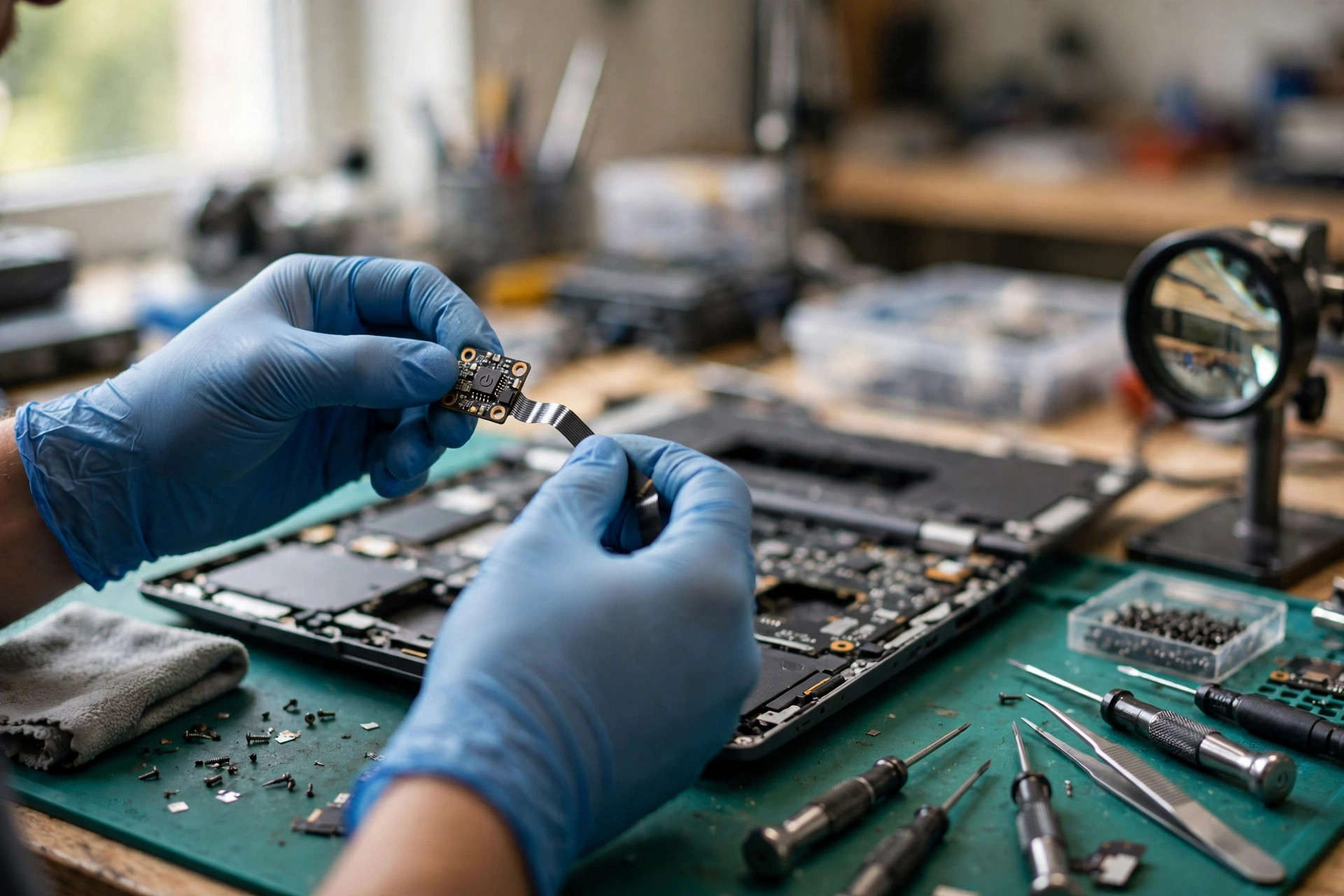
Premise: this is the advanced guide for "pressing the power button does absolutely nothing", after the basic checks are done
This article starts with a premise that must be stated up front: you have already tried a known-good AC adapter and wall socket, tried a long-press power drain, tried removing the battery (only on models with a removable battery, or after following the maker's guidance for an internal battery), and tried an external display — and the machine still does absolutely nothing when you press the power button. If any of those basic checks has not been done, the advanced reasoning in this article does not apply; go back to the basics first, because everything here is built on the starting point "basics already excluded". This article will not rewrite adapter swapping, socket swapping, long-press draining, battery removal, or external-display testing as its main body; those steps appear here only as a one-sentence premise.
This article is about one very specific and strictly defined symptom. All of the following must hold at the same time: after pressing the power button there is no power light, no fan sound, no hard-drive or chassis vibration, no picture, and no brief light that comes on and then goes off. In other words, the button itself produces no response at all — not "the machine turns on but cannot get into the system", and not "there is light and sound but no picture".
One distinction must run through the whole article: "no response" is not the same as "cannot boot". The first means the power-on command was never sent, or never accepted. The second can mean the command was sent, but some later layer failed. The repair direction is completely different in the two cases, and they must not be mixed. A machine with light and fan sound but a black screen belongs to the black-screen topic, at the display or POST layer. A machine that reacts but keeps restarting belongs to the boot-loop topic. A machine whose charging light comes and goes, that only works while plugged in, or that only charges when the cable is wiggled belongs to the intermittent-charging topic. A machine whose system cannot see the battery, whose battery percentage jumps around, or that only recognises adapter power belongs to the battery-not-detected topic. Read the boundary table before going further:
| Your situation | Which topic it belongs to | How this article treats it |
|---|---|---|
| Pressing the button gives no light, no sound, no vibration, no picture, and basic checks are done | This article: the power-button signal layer | Work through the five layers below, outside in |
| Pressing the button gives light and fan sound, but the screen stays black | Black screen: display / POST layer | Light and sound mean the button layer has already been passed; do not keep taking the button board apart here |
| Pressing the button gives a reaction, but the machine keeps restarting or loops on the logo | Boot loop: later power-sequencing / firmware / unstable supply | This article only uses "light flashes once and stops" as a differential hint, and does not expand on it |
| Charging light comes and goes, the machine only works while plugged in, or wiggling the cable changes charging | Intermittent charging: DC jack / adapter / charging-loop contact | This article only borrows "no charging light even with the adapter plugged in" as a power-input clue |
| System cannot see the battery, battery percentage jumps, or only adapter power is recognised | Battery not detected: battery communication / cells / charging-chip layer | This article only covers whether the battery itself can drag down the whole power rail or block power-on |
| Pressing the button gives a brief light, the fan spins once, then it stops | Do not file this directly under this article: there was a power-on action that could not be sustained | This may be a later power rail or a protection shutdown, and must be discussed separately, not written as "button gives no response" |
The overall model: five layers of exclusion, outside in, no skipping
The whole article uses the five layers below as its skeleton, and each later section takes one layer apart. The rule is a single sentence: do not jump to "the mainboard is dead" before the outer layers are excluded, and an inner-layer problem cannot be fixed by replacing the button board. This article will not claim that "most cases are a dead mainboard" or that "most cases are a broken button", because no cross-brand statistics support either proportion claim.
| Layer | Name | What is checked | What happens when it breaks |
|---|---|---|---|
| Layer 1 | Button mechanical layer | Button cap, button body, membrane / metal-dome switch | Pressing feels wrong, gives no travel back, or pressing equals not pressing at all |
| Layer 2 | Transmission layer | Button board, flat flex cable, cable seat | The button itself is fine, but the signal never reaches the mainboard |
| Layer 3 | Embedded-controller input layer | Power-button signal, debounce, standby supply, adapter-detect signal, battery-isolation state | The signal never reaches the controller, or a power-on condition blocks the sequence |
| Layer 4 | Standby power-rail layer | 3 V / 5 V standby rails, controller supply rail | The controller itself has no power, so it cannot hear the button at all |
| Layer 5 | Mainboard / firmware layer | Cable seat and controller surroundings, liquid or humidity corrosion, shorted components, BIOS / EC firmware | The signal path or the controller itself fails on the board |
Symptom triage: split the presentation first, then talk about causes
Even inside "absolutely no response" there are finer splits, and the recording method matters: change only one variable per test — for example only plugging in the adapter, or only unplugging every external device — and note what changes in lights, sound, and fan behaviour. Changing several variables at once means the repairer cannot reproduce the result later, and diagnosis takes longer.
| No. | Symptom (at the moment of pressing) | First suspect layer | Next step | Do not misread it as |
|---|---|---|---|---|
| A | Total silence: no light, no sound, no fan, no vibration, whether or not the adapter is plugged in | Layers 1 to 5 are all possible; start with feel and premise review | Work through the five layers in order, and send in the checklist from the later section | Do not call it "the mainboard is completely dead" straight away; an open-circuit button looks exactly the same |
| B | Light / fan sound / vibration present, but screen fully black | Black screen: the button layer has already been passed | Move to the black-screen flow; this article stops here | Do not keep taking the button board apart here; a lit power light means the controller has already started the power-on sequence |
| C | Charging light present with the adapter plugged in, but pressing the button gives no response | Button signal chain, or layers after the controller, are more likely; the input front end is at least partly working | Exclude the button and cable first, then let repair testing split the signal path | A lit charging light does not mean the controller already has standby power |
| D | No charging light even with the adapter plugged in, and pressing the button gives no response | Input layer, or a main-power short, is more likely | Re-verify the adapter and socket cross-test, then let repair check input and shorts; do not keep hammering the button hoping for luck | Do not call it a dead adapter straight away; a mainboard short can also keep the charging light off |
| E | A slight reaction: light flashes once / fan spins once then stops, then back to no response | Power-sequencing / protection crossover point; some rail may be cut off by protection the moment it comes up, or a key self-test may fail | Record how long it flashes, how many times, and whether there is a pattern; flash patterns must be matched against that model's maker manual, never guessed | Do not read it as "almost turning on, a few more presses will do it"; repeatedly tripping protection does not help |
| F | Intermittent response: sometimes turns on, sometimes nothing; only works at a certain angle or pressure | Button contact failure, cable contact failure, or button-board solder cracking are more likely | Record which angle, pressure, temperature, or movement makes it work; that detail is critical for locating the fault | Do not call it a software problem; intermittent does not mean "it will fix itself" |
| G | Button feel clearly worse (sunken, no return, cannot be pressed down) plus no response | Layer 1 mechanical layer | Do not press harder; hard pressing can make a broken bracket or cable worse | Do not lever the button cap off with an object |
| H | No response only after a drop or liquid exposure | Cable corrosion or breakage plus shorts must both be considered | Record the incident honestly (see the checklist section); after liquid exposure, do not keep powering the machine on to test | Do not write "it dried out, so it is fine"; delayed corrosion can appear a long time later |
Premise review: "already done" sometimes means one variable was never isolated
The first step of the advanced article is not disassembly; it is reviewing whether the basic checks really isolated every variable. This step is a review, not a rewrite of the basic article. The three variables to review are: whether the adapter and socket have been cross-verified, whether every external device has been unplugged, and whether a controller reset or hard reset has been done following that brand's guidance. Maker guidance commonly lists "unplug every external device" as a preparatory step, because an external device itself can hold up the power-on flow.
Controller-reset press durations differ by brand and model, and must never be written as one universal number. Published guidance already shows the spread: one brand's guidance describes holding for more than twenty-five seconds, another page from the same brand describes thirty seconds; another brand's guidance describes twenty-second or forty-second designs across models, with the twenty-second design flashing the power light rapidly for a few seconds after about fifteen seconds. This article therefore writes "follow that model's maker guidance", never picks one of the numbers, and never treats one brand's seconds as a universal standard.
The pass and fail of the review must be written clearly: if the symptom is unchanged after review, move to Layer 1; if review finds that a different adapter turns the machine on, or that removing one external device turns it on, the problem is no longer in this article's advanced layer, and the basic or charging article applies instead. This review step looks trivial, but it removes a large number of false advanced cases and saves the whole layered inspection that follows.
Layer 1: the button mechanical layer — a momentary switch, not a latching switch
The button is a momentary switch: holding it down does not send more power
In its normal state the power button circuit is open. One press closes it briefly, sends a short pulse signal, and releasing it opens the circuit again. Holding it down therefore does not "send more power"; holding it for several seconds is interpreted by system logic as a forced shutdown, not as a stronger power-on. This connects directly with the misdiagnosis table later: holding the button for ten seconds without result does not mean the button lacks force — it may mean the system is being held down by forced-shutdown logic all along, or that the signal never arrived at all.
At the maker-manual level, troubleshooting guidance starts with the outside: a stuck, shifted, or obstructed button should be checked visually before assuming an internal failure. The visual check is something a user can do without disassembly: whether the button face is cracked, dented, has a foreign object in it, or whether the cap has shifted, and whether the feel changed suddenly or gradually compared with when it was normal.
Membrane switches and metal domes: the feel comes from "collapse, then spring back"
The common structural concept is this: the button cap presses down, a metal dome collapses, touches the contact beneath it, and the circuit closes; releasing it lets the dome spring back to its original shape, and the circuit opens. That collapse-and-spring-back snap is the source of the click feel. In material terms, metal domes are commonly described as stainless steel or nickel-plated phosphor bronze, while film or polyester domes are quieter and softer but less durable and less consistent in feel. Different makers and models use different materials, and this article will not claim that your machine uses any particular one.
The failure mechanisms belong to the mechanism layer — the mechanisms hold, but how often each one occurs on a particular model is not established — and must be written that way:
| Failure mechanism | How it happens | Feel or outward clue | Why it becomes total no-response |
|---|---|---|---|
| Dome fatigue or deformation | Long-term pressing, sideways force, or a past impact changes the dome's spring behaviour | Press feels flat, no click, works sometimes then stops | The collapse is too shallow, so the contact is poor or never made |
| Contact oxidation or contamination | Dust, drink residue, or humidity oxidises the contact surface or builds up grime | Feel can be completely normal, but response is intermittent | Contact resistance rises until the signal is too weak for the controller to accept as one valid press |
| Cap or bracket shift or breakage | The force path between cap and dome breaks or bends | Press moves, but feels hollow, as if no force reaches anything | Finger force never reaches the dome, so pressing looks like pressing but electrically equals not pressing |
| Button stuck | Cap held down by debris, a deformed case, or a swollen battery | No travel at all, hard, sunken and never springs back | See the next section: stuck and open-circuit are opposite mechanisms with a similar result |
Three button-board designs: completely different cost and repair difficulty
This article must describe the three designs separately, never as one "replace the button board" approach. Different series from the same brand can use different designs, so this article will not claim that one brand is always a separate board or that another is always keyboard-integrated. The only safe instruction is to check your own model's service manual before any disassembly, and to match the model.
| Design | Structure | What failure means | Repair point |
|---|---|---|---|
| A: Separate small board | Button soldered to a small board, connected to the mainboard by a flex cable; maker manuals carry a separate removal chapter for it, including screw sizes and cable removal | Button, small board, or cable can each break the signal, but in principle only the small board or cable needs replacing, not the whole mainboard | First confirm whether the model has a separate board at all; some also carry a fingerprint module, so the two cables must be discussed separately |
| B: Keyboard-integrated | Button is part of the keyboard assembly, and its signal travels through the keyboard cable; an older-model example has no separate button spare, so the whole keyboard must be replaced | A button failure means a whole-keyboard replacement, and a loose or broken keyboard cable can also kill the button even if other keys still work | Do not write "replace the button"; write "replace the keyboard assembly". The only confirmed keyboard price that may be used is keyboard replacement from HK$480, and everything else is subject to a written quotation after inspection |
| C: Soldered directly to the mainboard | Button soldered straight onto the mainboard, with no separate board and no intermediate cable | Button body, solder joints, or mainboard traces can each fail, and all of them need board-level work; "replace the small board" is not an option | Exclude the other layers first before suspecting a directly soldered button, or the case is easily misdiagnosed as "the whole board is dead" |
Two opposite button faults: open circuit versus stuck short
Open circuit and stuck look similar from the outside, but their circuit meaning is opposite, and they must be kept apart:
| Fault type | Circuit state | What the controller sees | Result | Common causes |
|---|---|---|---|---|
| Open circuit | Pressing never closes the circuit | Never receives a power-on signal | Total no response | Dome failure, broken cable, cracked solder, loose seat |
| Stuck / shorted | Permanently closed | System logic may treat it as "held down", triggering forced-shutdown logic, or may refuse to treat a signal that was already low before power-on as one new press | Also cannot power on, but the cause is not "no signal" — it is "signal always present" | Cap held by debris, deformed case pressing the cap, swollen battery pressing the cap, broken bracket jammed down |
How to use feel clues, and how not to use them
Feel can only be a preliminary clue, never a diagnosis. No travel at all, hard, sunken and never springing back leans towards a mechanical jam or bracket damage. Normal travel with a click but absolutely no light or sound leans towards the signal-transmission, controller, or standby-rail layers, and should not be blamed on the cap alone. Intermittent response, needing a certain angle, or needing harder presses leans towards poor contact — dome contacts, cable contacts, or micro-cracked solder — and this intermittent class is the easiest to mistake for "the battery works sometimes".
Feel cannot diagnose in either direction, and both directions must be stated: normal feel does not prove the signal reached the controller, because internal contact oxidation can leave feel unchanged while resistance climbs; abnormal feel does not prove the button body itself is at fault, because a swollen battery underneath or a deformed case pressing from above can produce the same feel. Abnormal feel combined with a bulging case, a lifted touchpad, or a bottom cover that will not close must stop immediately — see the stop-signal section later.
Layer 2: the cable and button-board transmission layer — a good button can still send nothing
Why a flat flex cable is so easily the breaking point
A flat flex cable is a row of flat conductors joining the button board to the mainboard. Its advantage is thinness and space saving; its disadvantages are poor tolerance for repeated folding, pulling, and over-tight bending. The maker manual's standard removal sequence is itself evidence: open the cable-seat latch, pull the cable out, peel off the fixing tape, and on reassembly align it, tape it back, and latch it firmly. Any step done wrong — pulling without opening the latch, inserting crooked, inserting short, or leaving the latch unfastened — causes poor contact.
| Failure mechanism | How it happens | Outward clue | Why outward appearance cannot confirm it |
|---|---|---|---|
| Conductor break at a fold | Long-term opening and closing, pressure, or over-tight folding during repair creates micro-cracks at the bend | Intermittent at first, fully broken later; the fold may show a crease | Micro-cracks can sit under the insulation and look normal |
| Gold-finger oxidation or contamination | Gold fingers oxidise, pick up finger oil, or collect humidity residue | Fingers look dark or discoloured | Light oxidation may be invisible while contact resistance has already risen |
| Seat latch damage | Cable-seat latches are very fragile; pulling hard or levering the wrong way breaks the latch | Latch broken, will not hold, cable slides out easily | Even a perfect cable cannot stay connected once the latch is broken |
| Cable pinched or abraded | During assembly the cable is caught by a case edge, screw post, or hinge | Damaged insulation or pressure marks | Neighbouring lines can short or break intermittently |
| Length, pin-count, or pitch mismatch | Cables have no universal specification; pin count, pitch, length, and connector direction must all match the model | A bought cable will not fit, or fits but the pins do not line up | This article gives no "universal cable" and no specific pin count, or readers will buy the wrong part |
Telling a bad button board from a bad cable
From the outside both look like total no response, and pressing the button cannot separate them. At repair level the separation concept is to measure or substitute section by section: first check whether the seat is loose and whether the cable shows visible breaks or creases, then check the button board's own switch continuity, and only then suspect the mainboard seat. This article's advice to readers will not teach them to take the machine apart and measure section by section, because of static risk, fragile cable seats, and the risk of working with an un-isolated battery, as covered in the professional-only section. The correct wording is that inspection separates the button board, the cable, and the seat, and replaces whichever one is broken — never opening with "the whole mainboard is dead".
Button boards and cables are usually model-specific parts, not universal parts, and local availability varies by model. This article will only say that they usually need to be ordered against the model, with timing subject to a written quotation after inspection. It will never name a specific shop, specific stock, a specific button-board or cable price, or a specific waiting time, because no source supports any of those, and writing them would be fabrication. Pricing information is on the pricing page, and inspection arrangements are on the diagnostic page.
The fingerprint-combined button trap
Many models combine the power button with a fingerprint reader, and maker removal manuals discuss the combined button and its cable separately — sometimes the fingerprint line and the power line are two separate cables. Two mechanism points matter: a broken fingerprint function does not mean the power button is broken, because the two can travel on different lines; and conversely, a power button with no response does not mean the fingerprint module is broken. This article will not write "the fingerprint button is broken so the machine cannot power on" or "the machine cannot power on so the fingerprint is broken too". When a board is replaced, the fingerprint module model must be matched as well, not just the outward shape. Whether fingerprint function needs re-pairing or re-registration after a combined-button replacement varies by design and is subject to inspection; this article will not promise that it works immediately after replacement.
Professional-only boundary: seat reseating and signal testing are not user steps
From cable-seat reseating onwards, the steps marked professional-only in this article belong to professional repair only. Users must not take the machine apart to short power-button pins themselves, and must not use a multimeter or a bench supply to measure or inject voltage themselves. Shorting the wrong pins, shorting during measurement, or injecting too high a voltage into a low-voltage rail can burn the board or make data harder to recover. The pass and fail wording below is written so users can understand a repair report, and so repairers can follow diagnostic logic — not as do-it-yourself instructions.
The professional concept of seat reseating is: after power-off and battery disconnection, check whether the seat latch is fully fastened, whether the cable has creases, tears, or darkened gold fingers, then reseat it once and retest. Reseating must respect insertion depth and direction; an unlatched latch equals no insertion. If reseating turns the machine on, the fault is in the connection layer, but recurrence must be watched — for example a damaged latch needs a seat or board replacement, not just being held down. If reseating still gives no response, it only excludes a purely loose connection; an internally broken cable may look normal from the outside.
Layer 3: the embedded-controller power-on sequence — the controller is the gatekeeper
What the EC is, and why its death means total silence
After a laptop is shut down, the main supplies for the processor, memory, and display are off, but one small controller stays powered from standby supply and watches the power button, charging, fans, keyboard scanning, and other low-level work. That controller is the embedded controller, or EC, or a similar Super I/O chip. The first watershed for "button gives no response" is therefore: does the controller itself have power, has it received the button signal, and has it judged the power-on conditions to be met? If the controller never wakes, nothing after it ever starts — which explains why the result can be total silence with no light and no sound, rather than light with a black screen.
Need a laptop repair expert?
Free diagnosis · Transparent pricing · No fix, no fee · 180-day warranty
Chip examples are concept evidence only, never "your machine definitely uses this chip". One published schematic example shows a controller with standby supply, power-switch input, adapter-detect input, and power-on enable outputs, and a maker product description lists power-button debounce as a standard function of its controllers or Super I/O chips. Signal names and pin numbers vary by chip model, and this article gives no specific pin numbers.
The power-button signal: active-low, debounce, and forced shutdown
The trailing symbol on the signal name means active-low: normally high, pulled low while pressed. The controller or chipset watches for that high-to-low edge, or for a stable low level for a time, before accepting one valid press.
| Concept | Meaning | Practical meaning for the user |
|---|---|---|
| Active-low | Normally high, pulled low on press; the controller watches the falling edge or a stable low level | An open-circuit button means no falling edge ever, so the controller waits forever |
| Debounce | A mechanical switch bounces several times in the instant of pressing, producing a burst of rapid makes and breaks; controller logic waits for the signal to settle for a short time before confirming | A button must be pressed stably for a short time to count; a mere touch-and-release may not count, but there is also no need to hold it for seconds to power on |
| Forced shutdown | In general terms, holding for a few seconds triggers forced-shutdown logic; one platform document uses about four seconds as its default concept, individual designs can differ, and timing can stretch during sleep-stretch periods | Holding is shutdown logic, not a stronger power-on; do not use a long hold as a substitute for one normal press |
The EC power-on condition flow: stopping at any step looks identical
The following is a generic concept flow, not a measured sequence from any one board; order and signal names vary by board:
| Step | What happens | Appearance if it stops here | Why it can stop here |
|---|---|---|---|
| 1: Standby power present | Adapter connected or battery charged, and not in battery-isolation state, so controller standby supply is established and the controller enters standby | Total no response | No standby rail, battery isolation not released, standby rail shorted |
| 2: Controller listens for the button signal | Signal travels through button board and cable to the controller; a stable low level passes debounce and the controller accepts a valid power-on request | Total no response | Open-circuit button, broken cable, loose seat, broken signal line |
| 3: Controller checks power-on conditions | Controller checks adapter-detect state, battery state, protection state, and whether temperature or short protection has tripped | Total no response | Battery-isolation state, standby-rail short, protection lock |
| 4: Conditions met, power-on enables issued | Controller issues power-on enable signals, main rails come up in stages, the chipset receives its release signals, the processor leaves reset, and firmware begins its self-test | If failure happens after this step, it is no longer total no response — it is light and sound followed by failure | Main-rail, chipset, or firmware-layer problems, which belong to other articles |
A power-state contrast is also worth one paragraph: soft-off still has a tiny amount of logic supply waiting for a wake signal, while mechanical-off has almost no power at all, apart from the real-time clock, and no wake event exists. Removing the battery and unplugging the adapter approaches mechanical-off, while an ordinary system shutdown is usually soft-off. That distinction can explain why battery removal plus adapter removal plus a long-press drain sometimes changes things afterwards — the state returns from soft-off or a protection lock to a clean starting point. But this article will not claim that draining always clears a controller lock, because the effect of a controller reset varies by maker.
Adapter-detect and battery isolation: the machine may not be broken, only isolated
Adapter-detect is how the controller or charging chip knows external power is present. An abnormal detect signal — for example a poor DC-jack contact, charging-chip surrounding damage, or an abnormal sense resistor — can make the system misjudge that there is no adapter, but such cases usually affect charging behaviour as well. This article's division of labour is clear: if the charging light itself is abnormal, the direction may lean towards the charging loop, not a pure button problem.
Battery isolation is the most valuable "false death" example in this article. The maker intention is to isolate the internal battery from the system for factory shipment, long storage, or repair, reducing standby drain and preventing accidental power-on in transit. Official descriptions share a common point: once in battery-isolation state, the machine cannot power on without the adapter, and only plugging in the adapter plus pressing the button releases it and powers it on. Makers also describe a similar service mode: cutting battery supply before repair without removing the battery cable.
For this article the meaning is: the machine may not be broken at all, but in battery-isolation or service-mode state — especially just after a repair, just after a controller reset, or after firmware isolated the battery. Outwardly that is "pressing the button gives absolutely no response without the adapter", but plugging in the adapter powers it on at once.
| Brand example (examples only, never a universal method) | Entry or release concept | How this article writes it safely |
|---|---|---|
| One brand's battery-isolation setting | Once entered, cannot power on without the adapter; adapter plus button press releases it | Labelled as a brand example, never written as true for all machines |
| One brand's shipping-mode option inside firmware setup | Entry shuts down immediately; cannot power on without the adapter; adapter plus button press releases it; entering at low charge may over-discharge | Labelled as a brand example, with the low-charge warning carried together |
| One brand's service mode | Cuts battery supply before repair; entered with a specific key combination plus the power button for a few seconds; if the machine cannot power on, the battery cable must be removed directly | Labelled as a brand example; the key combination is never written as a universal method |
| One brand's note after a controller reset | The reset procedure notes that the first power-on after reset must use the adapter, or battery power-on will not work | Labelled as that brand's note, never generalised to all machines after a controller reset |
What a controller reset does, and what it cannot do
What a controller reset can do, in concept, is clear the controller's temporary state or protection lock — for example a controller left in an error state after an abnormal shutdown — and return it to its standby starting point. What it cannot do is repair a broken cable, a failed dome, a shorted standby rail, a damaged controller chip, or damaged firmware. A controller reset is not a firmware reflash. Press durations differ by brand, and this article writes only "brands differ, follow maker guidance", never a universal number of seconds. The risk note is: during a controller reset, if the battery is swollen, the case is deformed, or liquid residue is present, do not keep pressing the button to test.
The signal-layer test: how a shorting test separates button from board
The shorting test is professional-only, and users must not do it themselves. Its purpose is to bypass the button and cable and simulate one power-on signal directly at the mainboard end, splitting the fault location in two. The mechanism concept is that the power signal is normally pulled high and is briefly pulled low by a press; the controller detects that falling edge, after debounce handling, and starts the power-on sequence. Professional repair briefly connects the correct two points once, simulating the same signal.
| Shorting-test result | What it means | Repair direction |
|---|---|---|
| Machine powers on after shorting | The chain from the mainboard end onwards — controller, power sequencing, main rails — is broadly working | Fault is locked to before the button, cable, or button board; repair direction is replacing the button board, cable, or button body |
| Still no response after shorting | The problem is not the button | Fault is in controller reception, controller supply, power sequencing, or the mainboard power layer; do not keep replacing button boards hoping for luck |
Layer 4: standby power rails — the small supply that is live even when shut down
What a standby rail is: why a shut-down machine can still hear its button
As long as the adapter is plugged in, or the battery is not isolated, the mainboard carries a set of low-voltage supplies that are always live, commonly described as 3 V / 5 V standby rails, with board markings varying by maker — never written as one industry-wide naming table. Their job is to power the controller, part of the firmware chip's circuitry, button-listening logic, and the real-time clock, so the system in soft-off can still "hear" the power button.
The generic structure concept from laptop power explanations is: adapter voltage goes through the charging chip or main conversion, producing standby supply, which powers the controller to wait for the button signal; the controller then issues enables, and main rails come up in stages for the processor, memory, and display. Adapter voltage is written only as a common example, never as "every laptop uses the same voltage", because USB-C power-delivery machines negotiate a different voltage after negotiation, and different adapter specifications differ.
Standby-rail normal versus abnormal: a concept comparison, not a diagnosis table
| Observation | What it may point to in concept | What must not be written |
|---|---|---|
| No charging light after plugging in the adapter, and pressing the button gives no response | The standby power chain upstream may have a problem — adapter, DC jack, charging chip, standby conversion — or the standby rail may be dragged down by a short | Never write "the charging chip must be dead"; the charging light's own definition varies by maker, and on some machines the light is driven by the controller, so a dead controller also means no light |
| Charging light normal after plugging in, but pressing the button gives no response | The standby rail may have power, but the button signal, controller input, or controller conditions layer has failed | Never write "charging light on means the mainboard is fine"; a lit charging light only shows part of the charging loop working |
| The moment the adapter is plugged in, its light goes out, the adapter makes an abnormal sound, or part of the chassis heats up | A standby rail or main rail may be shorted, and protection circuitry cuts the output | Do not tell readers to keep plugging and unplugging to test; stop immediately and send it in |
| Battery-only pressing gives no response, but adapter pressing powers on at once | Leans towards battery isolation, the battery itself, or the battery communication layer, not a pure button problem | Never write "the battery is dead" directly; separate battery isolation, battery protection, and controller conditions as three possibilities |
How a short drags a standby rail down
If a component on a standby rail breaks down into a short, it effectively connects the standby supply straight to ground. The chain is: standby voltage is dragged down, the controller is under-powered or protection cuts off, the controller cannot work, and pressing the button gives no response. Even if the button, cable, and controller chip themselves are all fine, the outward appearance is still total no response. That is why replacing the button board is useless here: the problem is not in the button layer at all, but in the standby-rail layer. This article uses that example to show why layering matters. For common short suspects, the repair-explanation consensus is that ceramic capacitors, MOSFETs, and protection components are the objects repair checks first; this article only writes that repair checks these categories one by one, never which category is most common, and never any percentage.
Layer 5: the mainboard layer — cable seats, controller surroundings, corrosion, shorts, firmware
Cable seats and controller surroundings: the seat, the crystal, and the reset line must all be checked
Mainboard-level inspection must include the seat itself, not just the cable. Around the controller, its supply pins, crystal, reset line, and the resistors and capacitors around its power-button input pin can each break the controller's ability to receive the signal or work at all if they go open, short, or dry-jointed. This article gives no specific pin numbers, because pin assignments vary by chip model, and one schematic example is that model's example only.
The inspection concepts are repair-level only, not instructions for readers to carry out: visual inspection for burning, discolouration, and corrosion; measuring standby-rail voltage; measuring the power-button signal level before and after pressing; measuring standby-rail resistance to ground; and thermal imaging or alcohol-evaporation methods for finding a heating shorted component. This article states plainly that these are professional inspection steps, and that readers must not probe with a multimeter or an external supply on their own, because other components can be burned.
Liquid and humidity corrosion: how "no immediate fault" becomes "suddenly dead some time later"
The mechanism chain has four steps. First, liquid, humidity, dust, or residue leaves conductive residue on the board surface, cable seats, and controller surroundings. Second, while powered, that residue causes micro-leakage and electrochemical corrosion, gradually eating copper traces, solder joints, and connector contacts. Third, corrosion raises trace resistance, or breaks traces entirely, or grows conductive bridges between neighbouring traces causing leakage or shorts. Fourth, the early stage may be only intermittent — worse when humid, better when dry — and the late stage is a fully broken trace or a shorted component breaking down, producing sudden total no response.
So "I never spilled anything" does not mean "there is no corrosion": a humid environment, condensation from moving between air-conditioned rooms and outdoors, long-term storage in a damp corner, or slight seepage into a backpack can all be slow corrosion sources. But this article fences the claim: it will never attribute any particular machine's corrosion directly to Hong Kong weather, and must say that opening the machine for inspection is the only way to know whether corrosion marks exist. Outward clue concepts include white-green residue, darkened solder joints, discoloured copper traces, and water-stain marks near cable seats. These are clues only, not a diagnosis, and the absence of outward marks does not rule out corrosion, because corrosion can sit under a cable seat or under a chip.
Shorted components: MOSFETs, capacitors, protection components
| Component type | Role in the power path | After breakdown | How this article writes it |
|---|---|---|---|
| MOSFET | Switch or isolation, for example the adapter-input switch device or a standby-rail switch device | After breakdown it may become permanently conducting or permanently shorted, dragging the rail down or tripping protection | One of the objects repair checks first |
| Ceramic capacitor | Filtering or decoupling, normally not conducting direct current | After cracking or breakdown it becomes a direct-current short, and is one of the usual suspects for a standby-rail short at repair-explanation level | One of the objects repair checks first |
| Protection component | Absorbs surges, for example a surge-protection diode | After breakdown it becomes a short itself, with the same rail-dragging result | One of the objects repair checks first |
| Core chip itself | Processor, chipset, and other core components | If the short sits in a core chip, repair value must be reassessed | Never guessed from position; located by measurement plus injection |
The professional concept of short investigation must be written as a sequence in nature, but without a list of specific measurement points or injection voltage figures. First, visual inspection: burning, corrosion, or burst components near the DC socket, charging chip, and power rails. Then, with power disconnected, measure the resistance to ground of a suspect power rail: an extremely low resistance concept suggests a hard short. Then, use current-limited low-voltage injection plus thermal imaging or alcohol evaporation to locate the heating component. Repair guidance stresses that injection voltage must stay below that rail's normal voltage and must be current-limited, and that full adapter voltage must never be injected straight into a low-voltage rail. Finally, verify by removing components one by one: only when removing a suspect component clears the short does the location count as confirmed — never replace a whole board because of a burn mark nearby.
The firmware layer: telling a dead controller from broken firmware
In storage-position concept, controller firmware and system firmware usually live separately — for example, in one published example the controller uses its own flash chip while system firmware uses another flash chip. The two failures look different but their outward appearances can overlap, so they must be kept apart:
| Failed layer | Mechanism | Outward tendency | How this article writes it |
|---|---|---|---|
| Controller firmware or controller chip failure | Controller does not work at all, so standby listening and the power-on sequence never begin | Total no response, and even charging-light logic may be abnormal | If pressing gives absolutely no light and no sound, suspect the button, cable, controller, and standby-rail layers first; do not start by claiming firmware is broken and needs reflashing |
| System firmware damage | Controller sequence may already have started, with light and a brief fan spin, but the processor cannot complete its self-test | Black screen, indicator flash codes, or endless restarting | Maker firmware-recovery documents address exactly this class — power present but no self-test, black screen, indicator flash codes — not total no response |
Firmware-corruption cause concepts include power loss during an update, a firmware write error, static, and an abnormal shutdown while the battery is exhausted. This article will not claim that updating firmware will necessarily damage the controller, and will not give any probability. Controller firmware reflashing and firmware-chip removal and rewriting are board-level or professional operations; this article gives no specific programming steps and never tells readers to remove a chip themselves. Whether controller firmware can be rewritten, whether maker firmware is needed, and whether a dedicated programmer is needed all vary by model, and are never written as a universal procedure.
Other mainboard-layer possibilities: mention them, but do not let them take over
For the real-time-clock battery or circuit, some model-specific discussion says an excessively low real-time-clock battery voltage can affect battery-only power-on, but that is a model-specific phenomenon, not a universal rule. This article only writes that individual models have such discussion, never as a universal cause, and writes no real-time-clock voltage threshold as a standard. In general terms, real-time-clock problems rarely cause a zero-response state with not even a light, so this article lists them only as an accompanying item in a controller-reset flow, never as a main cause.
For lid-open or lid-close sensing and keyboard-matrix interference, some designs route the power button through keyboard-matrix scanning, so widespread keyboard-cable damage can affect the button line as well. But this article fences the point: it applies only to keyboard-integrated designs, not to separate-button-board designs, and the two must not be mixed. For mainboard trace breakage, drops, case deformation, and long-term flexing can micro-crack mainboard traces, intermittent at first and fully broken later, invisible from the outside, and knowable only through inspection.
Layered exclusion flow: from no disassembly to board-level inspection
The flow below is written in outside-in order, with each layer ending in what pass and fail mean — not just a list of steps. Never conclude the next layer before the previous one is excluded. For example, if the button body is already open-circuit, a normal mainboard standby-rail measurement does not prove the mainboard is fine; conversely, if the standby rail has no power at all, replacing the button board will not turn the machine on.
| Flow layer | What is done (nature) | Pass means | Fail means |
|---|---|---|---|
| L0 Review basic checks | Review adapter and socket cross-verification, unplug every external device, controller reset per brand guidance | Symptom unchanged, move to L1 | A different adapter powers on, or removing one external device powers on — the problem is no longer in the advanced layer |
| L1 Button feel | No disassembly; compare travel, return, button-face state with normal feel | Feel and return match normal, button mechanical failure less likely, move to L2 | Sunken, no return, or only works at a certain angle — button or button-board mechanical damage highly suspected, but L2 and L3 are still needed to separate |
| L2 Cable-seat reseat | Professional-only; after power-off and battery disconnection, check latch, cable creases, gold-finger state, reseat and retest | Powers on after reseating — fault is in the connection layer, but watch for recurrence | Still no response after reseating — only excludes a purely loose connection; an internally broken cable may look normal |
| L3 Shorting signal test | Professional-only; bypass button and cable, simulate one power-on signal at the mainboard end | Powers on after shorting — fault locked to before the button, cable, or button board | Still no response after shorting — problem is not the button; move to L4–L7 |
| L4 Standby rail and controller supply | Professional-only; measure whether the standby rail appears and is stable | Standby rail appears normally — controller has basic working conditions; problem may be in controller signal reception, controller firmware, or later power-on sequencing | No standby rail at all — move to L5 and L6 |
| L5 Adapter-detect and charging input | Professional-only; check input detection and charging-chip front end | Input detection and charging front end at least partly working — fault more likely in the button signal chain or after the controller | Input layer itself may be faulty, or there may be a main-power short |
| L6 Mainboard short and protection investigation | Professional-only; visual inspection, powered-off measurement, current-limited low-voltage injection location, one-by-one removal verification | Short excluded, rail resistance back in a reasonable range — return to L4 and L7 for controller and sequencing | Short confirmed — direction is chip-level repair; a short in a core chip needs reassessment |
| L7 Controller and firmware layer | Professional-only; controller reset done, button signal chain excluded, standby rail normal, but shorting test still gives no response | Controller or firmware repair succeeds — machine powers on | Controller itself damaged — depends on whether the controller can be replaced separately and whether firmware can be obtained, otherwise move to board-replacement or machine-replacement assessment |
Common misdiagnoses and traps: the table most worth reading slowly
| Misdiagnosis or trap | Why people think it | Actual mechanism, or why it is wrong | Correct wording |
|---|---|---|---|
| Reading no response as a dead battery | The battery is the most common "cannot turn on" cause, so readers reach for it first | A bad battery usually shows as "cannot power on without the adapter, powers on with it" or jumping percentages; if even the adapter gives total no response, the problem may be in the button, controller, or standby-rail layer, and replacing the battery may not help | First separate "does the adapter make a difference"; do not open by telling people to replace the battery. The only confirmed battery price that may be used is battery replacement from HK$580, and everything else is subject to a written quotation after inspection |
| Reading a button-cable problem as a dead mainboard | Total no response looks severe, so readers assume the whole board is dead | A broken cable, loose seat, or bad button board looks exactly like a dead mainboard, but the repair scope and cost are completely different; judging the mainboard dead before layered inspection pushes readers towards an unnecessary board replacement | Stress the layers: button, cable, seat, controller, standby rail, mainboard, excluded one by one |
| Reading a mainboard problem as a broken button | Replacing a button board feels cheaper, so readers hope it is a small problem | A shorted standby rail, a dead controller, or corrupted firmware all present as no response, and replacing the button board is completely useless; repeated button-board replacements only delay correct inspection | After a button-board replacement still gives no response, do not replace another button board; move to the controller and standby-rail layers |
| Repeated long or hard pressing | People assume pressing harder or longer can "force" a signal through | A long hold triggers forced-shutdown logic; hard pressing adds dome or bracket damage; pressing a stuck button harder is even more useless | Press once, wait a few seconds, watch for light or sound; do not hammer the button dozens of times in a row |
| Taking the machine apart to "wiggle the cable" | Online videos make it look simple, and readers want to save an inspection fee | Cable-seat latches are extremely fragile, pulling without opening the latch breaks the latch; working without isolating the battery carries short risk; after self-disassembly, repairers struggle to tell the original fault from human-caused damage | Without experience, tools, and static protection, do not take the machine apart yourself — especially on internal-battery machines, where the battery must be isolated first |
| Misjudging the adapter | Swapping the adapter is the easiest test, so readers assume "a new adapter still fails, so the mainboard is dead" | A good adapter does not mean a good standby rail; DC jack, charging chip, standby conversion, or controller supply can each fail while the adapter light stays on | An adapter test only excludes the adapter itself, never the whole standby power chain |
| Treating a controller reset or firmware recovery as a universal key | Maker troubleshooting often tells people to reset the controller, so readers assume it will always fix the problem | A controller reset only clears temporary state; it does not repair hardware breaks, shorts, or firmware damage; firmware recovery assumes the controller sequence still works, and with total no response the recovery flow may never be entered | State the scope and limits of both, and never write that one controller reset will fix the machine |
| Seeing the charging light on and concluding the mainboard is fine, or seeing it off and concluding the adapter is dead | The charging light is the most visible clue | Which circuit drives the charging light varies by maker; a dead controller can also mean no light, and a partly working charging loop with a dead controller layer can also mean a lit light | The charging light is one clue only, never a diagnosis; read it together with "does pressing give any response" |
| Keep pressing the button while the battery is swollen | Readers have not noticed the case deformation and assume it is only a button problem | A swollen battery presses the case or button board, and continued pressing or charging carries safety risk; some "sunken button" appearances are actually the battery pushing the case up | Stop-signal cases in the stop-signal section — bulging case, lifted touchpad, bottom cover that will not close, abnormally raised button area — mean stop pressing, stop charging, and send it in at once |
| Blowing a liquid-damaged machine dry and testing it immediately | A dry surface looks safe | Residue under the board and under seats keeps corroding; powering on accelerates electrochemical corrosion and shorts, turning a repairable machine into an unrepairable one | Even after the surface looks dry, a liquid-damaged machine needs inspection and cleaning; do not test it repeatedly |
Hong Kong context: humidity, commuting, parts reality — mechanism links, no statistics
| Situation | Mechanism link | What this article can write | What this article will not write |
|---|---|---|---|
| Long-term humidity | Humidity plus dust residue accelerates corrosion of connectors, cable seats, and controller surroundings; corrosion can be slow, not necessarily immediate | Storage advice: do not store long-term in a damp corner, avoid powering on immediately after moving from a very cold environment to a very humid one, and send a liquid-exposed machine in even after the surface looks dry | Any quantified claim turning a humidity figure into a failure rate, and any claim that your machine definitely failed because of humidity |
| Condensation from air-conditioned rooms to outdoors | Large temperature differences cause condensation, and a powered board surface with condensation can short or corrode faster | After moving from a very cold environment to a humid one, let the chassis return to room temperature and dry on the surface before powering on, as general storage advice | Any claim that condensation will necessarily damage the button |
| Backpack pressure during commuting | Pressure on the chassis can shift the button cap, button-board bracket, or cable seat; a hard object in a bag pressing the button area long-term can deform the dome or jam the cap | Backpack pressure, lid-closed pressure, and drops are discussed as three separate mechanisms, and drop history is only an interview clue | Any claim that backpack pressure will necessarily damage the button, and any claim that one drop must mean a broken cable |
| Lid-closed pressure | If objects such as pens, USB drives, or earphones sit on the keyboard when the lid closes, closing pressure transfers to the palm rest or keyboard area and indirectly affects the button board or keyboard cable | Check the keyboard surface for objects before closing the lid, as general storage advice | Any claim that lid-closed pressure will necessarily damage the button |
| Drops and impacts | A fall or impact can loosen a cable seat, micro-crack solder, or deform the case so it presses the button cap; a machine can seem fine immediately after a drop and fail days later, because micro-cracks grow gradually | Drop history must be recorded honestly, as in the send-in checklist | Any claim that a drop must mean a particular layer failed |
| Local parts reality | Button boards and cables are model-specific parts that usually need ordering, with timing and price subject to a written quotation after inspection | The value of inspection itself: layered inspection exists to avoid replacing the wrong part — a button board cannot fix a controller or standby-rail problem, and a mainboard replacement cannot fix a cable problem, and either error costs the reader money for nothing | Specific shop names, street names, mall names, specific stock, specific button-board or cable prices, or specific waiting days |
Decision framework: repair, replace the part, replace the board, or replace the machine
The framework below only describes which direction each diagnosis leans towards; final price and feasibility are subject to a written quotation after inspection. Apart from the four confirmed prices below, every other price is written as subject to a written quotation after inspection, with no other figures and no estimated ranges. The four confirmed items are: battery replacement from HK$580, screen replacement from HK$1,280, mainboard chip-level repair from HK$880, and keyboard replacement from HK$480.
| Diagnosis result | Leaning repair direction | Key questions for the decision |
|---|---|---|
| Button body mechanically damaged, confirmed by feel plus signal testing | Replace the button body or button board | Is the button board a separate part, and do feel and function return to normal after replacement |
| Cable loose, cable broken, or cable seat damaged, confirmed by reseating | Reseat, replace the cable, or replace the button board or repair the seat | Is the latch already damaged — damage means replacing the part, not just holding it down — and does the cable have other creases |
| Shorting test powers on, but button body and cable have both been replaced and it still fails | Re-examine the whole signal path from button board to mainboard, including seat solder and button-board traces | Is the button-board trace itself broken, rather than the button body |
| No standby rail, or abnormal adapter-detect | Charging or power-input layer repair | Is it the charging-chip front end, a protection component, or an input short — chip-level diagnosis is needed to decide |
| Main power-rail short confirmed | Mainboard chip-level repair; mainboard chip-level repair from HK$880 is a confirmed item and may be cited where it applies, with the rest subject to a written quotation after inspection | Is the shorted component a replaceable capacitor or MOSFET, or a core chip, and is there hidden damage beyond the short |
| Controller firmware or controller itself failed | Controller or firmware repair | Can firmware be obtained and rewritten, and can the controller be replaced separately — if neither is possible, move to board-replacement or machine-replacement assessment |
| Widespread mainboard damage, large liquid-corrosion area, or core-chip short | Board replacement versus whole-machine replacement, compared with buying new | See the machine-replacement factors below |
Three decision shortcuts must not be taken: do not buy a button board online because someone wrote that replacing it worked — before a shorting test, the button board may not be the fault point; do not exclude a mainboard problem because the charging light is on, and do not conclude the adapter is dead because the charging light is off; and do not agree to any repair that may affect the storage device or mainboard before backing up and confirming the encryption recovery key.
Pricing information is on the pricing page, and inspection arrangements are on the diagnostic page.
Pre-send-in checklist: what you can safely do versus what must be sent in
The pre-send-in evidence checklist exists so that a repairer seeing the machine for the first time can locate the fault much faster, and so users do not forget a critical detail by the time they reach the shop. Every item on the checklist is an observation record, and none of them requires the user to disassemble anything or take any measurement.
| Checklist item | What to record | Why it matters |
|---|---|---|
| When it started | Date and time of the first no-response event; sudden, or intermittent before that | Sudden versus intermittent points at different layers, and an intermittent history is an important poor-contact clue |
| Last normal power-on before that | Any system update, firmware update, hardware change, drop, or liquid exposure afterwards | Updates, part changes, drops, and liquid each point at different layers |
| Dropped or knocked | Any drop, knock, or pressure, which part was hit, and whether the machine was tested immediately afterwards | Drop history can explain a loosened cable seat, micro-cracked solder, or a case deformed onto the button |
| Liquid or damp exposure | Any spilled liquid, rain, or damp-environment storage, what kind of liquid, whether power was cut immediately, and whether the machine was repeatedly tested afterwards | Repeated powering can worsen corrosion or shorts, and recording how many times it was tested helps |
| Adapter light state | Does the adapter itself have a light, is it on or off when plugged in, does it flicker, was a different adapter or socket tested, and with what result | The adapter light is the first input-layer clue |
| Chassis charging-light state | When the adapter is plugged in, is the chassis charging light on or off, does its colour change, and does it change after unplugging — stating which light it is, charging light or power light, and where it sits | Charging light and power light mean different things, and naming the wrong light points the diagnosis the wrong way |
| Button feel change | Compared with before, has the feel changed — sunken, harder, looser, needs a certain angle — and when did it start | Feel change is an important Layer 1 clue |
| Button response detail | Total no response, or light flashes once, or fan spins once then stops — how long, and is there a pattern, the same every time | Flash-once-and-stop and total no response are two different faults with different repair directions |
| Plugged versus unplugged difference | Pressing without the adapter versus with the adapter, and pressing again after leaving it plugged in for a while — any difference | Adapter-only power-on leans towards battery isolation or the battery layer; failure even with the adapter leans towards the button, controller, or standby-rail layers |
| External-device list | What was plugged in when it failed — USB devices, external drives, mouse, display, dock, memory card — and whether removing everything changed the result | An external device itself can hold up the power-on flow |
| Battery observations | Any recent battery abnormality — draining very fast, charging for a long time without rising, bulging bottom, lifted touchpad, machine that will not sit flat | Bulging signs mean stop at once, as in the stop-signal section |
| Light and sound record | Any light-flash pattern, beep, fan sound, or drive sound — a short phone video of lights plus sound is more accurate than words | Flash patterns must be matched against that model's maker manual, never decoded by guessing |
| Machine details | Brand, model, serial or service tag if visible on the bottom, approximate purchase year, operating system | Model decides the button-board design, cable specification, and controller-reset method |
| Basic checks already done | Adapter or socket swap, long-press drain, battery removal, external display — each done or not, and with what result | Avoids the repairer repeating everything and charging inspection time for it |
What you can safely do, without disassembly and without high-risk firmware operations, includes recording the plugged-versus-unplugged and button-response changes, noting which triage class the symptom belongs to, noting feel changes and drop or liquid history, noting lights and sounds, and bringing the usual adapter along so a result matrix can be built. What must be sent in, without further self-testing, includes an adapter light that goes out the moment it is plugged in or heating somewhere on the chassis, visible physical damage, an abnormally raised button area, or a bottom cover that will not close, a cracked cable seat or lifted solder seen during disassembly, a firmware update interrupted by power loss, not knowing how a cable-seat latch opens and closes, a button board needing desoldering or seat replacement, and a known-good adapter plus controller-reset steps already tried with no result.
A record example can be written like this: one morning, after a normal shutdown the night before, pressing the power button gave absolutely no response — no light, no sound, no fan. After plugging in the original adapter, the chassis charging light came on, but pressing still gave no response. Button feel was the same as before, with no sinking. In the previous week the machine intermittently needed two presses to turn on. No drops, no liquid exposure. Socket swap, removal of every USB device, and long-press drain had already been tried, with no change.
Stop signals: if any of these appear, stop pressing the button to test
| Stop signal | Why stop |
|---|---|
| Bulging bottom, lifted touchpad, machine that will not sit flat, bulging keyboard | Suspected swollen battery: stop using and charging at once, do not press the power button again, do not press, puncture, or try to flatten it |
| Adapter light goes out the moment it is plugged in, adapter makes an abnormal sound, or part of the chassis heats up | A power rail may be shorted, and protection circuitry cuts the output; repeated plugging and unplugging may spread the damage |
| Smell, smoke, or abnormal heating | Leave the area and follow local emergency procedures; a swollen lithium battery is hazardous waste and must not go into general waste |
| Liquid exposure, surface dry but not yet inspected | Residue under the board and under seats keeps corroding; powering on accelerates electrochemical corrosion and shorts |
| Abnormally raised button area, or bottom cover that will not close | Possibly a battery pushing the case up and creating a false button appearance; continued pressing or charging carries safety risk |
Data safety note: back up and hold the recovery key before disassembly or firmware work
If the machine still powers on sometimes, for example intermittently, verify the backup first: do the backup files open, when was the most recent backup, and does it include the user's actual working locations such as desktop, documents, downloads, and browser data? If the machine already cannot power on at all, do not assume repair will necessarily recover the data: mainboard repair, board replacement, and machine replacement can all affect the storage device's reading path, so tell the repairer before sending in which data matters most. The general advice is at least two copies in different places, for example an external drive plus cloud storage, verified regularly. That advice applies to every send-in, not only to power-button faults.
The encryption recovery key is the most practical send-in warning in this article. If the disk is encrypted — including Windows disk encryption or macOS disk encryption — a change in mainboard, firmware, or trusted-platform-module state may prompt for the recovery key before the disk can be unlocked. Without the key, data may be unreadable even if the drive itself is undamaged. A personal device's key may be backed up to a personal account, viewable only by signing in from another device; a company or school device's key may be held by its IT department, and support staff cannot retrieve or rebuild a lost key on a user's behalf. Before sending in, use another device to confirm the key can be found, and check that the key identifier matches this machine.
Before sending in, do the following: use another device to confirm the recovery key can be found and matches this machine; back the key up somewhere other than that machine itself, never only inside it; if firmware updates, trusted-platform-module clearing, or mainboard replacement are involved, understand in advance that a recovery-key prompt may appear, and have the key ready; and never hand the key over together with the machine for the repairer to keep, unless that arrangement is explicitly understood and agreed — keeping the key and the machine apart is the basic practice. An individual device's encryption state — whether disk encryption is on, and whether it is a personal account or company-managed — varies by setting, and this article will not assume that every Windows machine has disk encryption on, or that every Mac has disk encryption on.
General advice on signing out or removing sensitive data before sending in is: if the machine still powers on, sign out of commonly used accounts before sending in, including email, cloud, messaging, and banking-related apps, remove or sign out of saved browser sign-in states, and move particularly sensitive files away, or delete the local copy after an encrypted backup. If the machine already cannot power on, signing out is impossible, so write on the send-in form that the machine could not be powered on and could not be signed out in advance, and confirm with the repairer how data will be handled during repair, for example whether the drive will be removed and whether the system will be accessed. Passwords and recovery keys must never be written on the send-in form or stuck on the chassis. If repair needs a power-on password, it should be entered by the user in person or handled by an agreed method; this article will not teach users to write a password down and hand it over. Company machines need an IT check first: company devices may carry management policies, and unauthorised disassembly or outside repair may breach company rules.
Back up data before diagnosis, and verify the backup opens — "backed up" alone is not enough. Before changing firmware settings or updating firmware, confirm the disk-encryption recovery key is in hand. Before disassembly, firmware updates, or button-board replacement, confirm both the backup and the recovery key. If abnormal heat, a burning smell, case deformation, or sparks appear, stop using the machine and send it in immediately.
Sources note and deliberately omitted unverified claims
This article's mechanisms trace to the following source types: maker service manuals and official support documents, including separate button-board removal chapters, controller-reset guidance, battery-isolation settings, service-mode guidance, and firmware-recovery documents; chip and platform documents, including power-button event inputs, system power states, and controller product descriptions; technical explanations and repair-community material, including standby-rail and power-on sequence explanations, mainboard fault investigation, cable repair, corrosion mechanisms, and short-detection concepts; and encryption and battery-safety material, including disk-encryption recovery-key retrieval guidance and swollen-battery safety handling. Community or forum sources are used only as mechanism evidence, never dressed up as maker conclusions; individual schematic examples are concept evidence only, never a universal pinout.
Deliberately omitted, never written as fact, are: dome-switch lifetime figures; which button-board design a particular model uses; universal debounce times and minimum valid-press times for the controller; a universal forced-shutdown hold time; a normal standby-current range; a unified standby-rail naming table; short-detection resistance or voltage thresholds; shorted-component proportions; a universal adapter input voltage; a universal method for releasing battery isolation or service mode; a universal controller-reset press duration; a universal rule that the first power-on after a controller reset must use the adapter; real-time-clock battery voltage thresholds and their relationship to power-on; corrosion appearance time and corrosion speed; the probability that Hong Kong humidity causes failure; the probability that backpack pressure or drops cause failure; button-board or cable ordering time, price, and local availability; the precise dividing line between firmware-damage presentations; the actual routing of the power-button signal to the controller; individual models' controller chip models, pins, and signal names; individual models' standby-rail names, voltages, and measurement points; individual models' adapter-detect implementations; a universal indicator-flash or beep-code decoding table; parts-supply conditions for button boards, cables, controllers, and mainboards; fingerprint function after a fingerprint-combined button replacement; whether controller firmware can be rewritten, whether maker firmware is needed, or whether a dedicated programmer is needed; the specific shorted component; delayed corrosion time after liquid exposure; individual devices' encryption states; power-button lifetime or press counts; the relationship between a lit charging light and the controller already having standby power; and whether an exhausted real-time-clock battery can cause total no response. Every one of these is handled in this article only with fencing language, or removed outright, and never written as fact.
The closing message of the whole article is this: pressing the button and getting absolutely no response does not mean the mainboard must be dead — from the button body, the cable, the controller, to the standby power rail, a break at any layer gives the same outward appearance. Only layered exclusion avoids replacing the wrong part, and before sending in, recording the symptoms, bringing the adapter, verifying the backup, and confirming the encryption recovery key is in hand is the approach that saves the most time and money. Pricing information is on the pricing page, inspection arrangements are on the diagnostic page, further pricing details are also on pricing, and further inspection details are also on diagnostic.
Laptop King | Room 1209, Dalton Plaza, Shek Mun, Sha Tin | Tel +852 2186 8010 | WhatsApp +852 6558 6806 | 12:00–19:00
Need Professional Laptop Repair?
Laptop King has 15+ years of repair experience in Shek Mun, Sha Tin. Free diagnosis, transparent pricing, no fix no fee. 180-day warranty for your peace of mind.