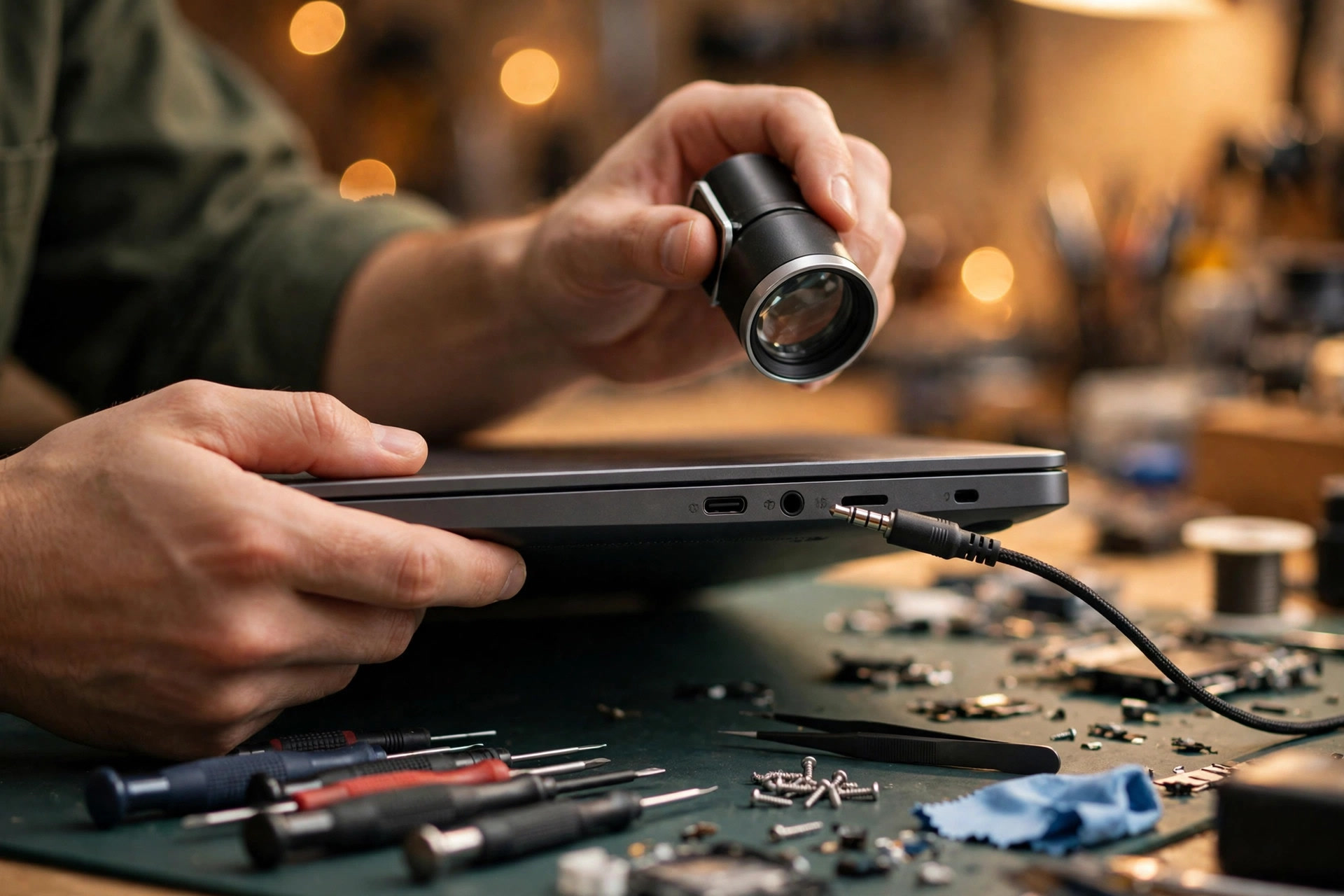
Premise: this is the advanced guide for "headset plugged in but not detected", after the basic checks are done
This article starts with a premise that must be stated up front: you have already tried another headset, restarted the computer, checked volume and mute, and looked at Windows Sound settings — yet the machine still does not recognise the device plugged into its 3.5 mm jack. If any of those basic checks has not been done, the advanced reasoning in this article does not apply; go back to the basics first, because everything here is built on the starting point "basics already excluded".
This article is about one specific symptom: the system does not recognise what is plugged into the 3.5 mm jack at all. It is not about quiet sound, poor sound quality, or dead built-in speakers, and it is not a guide to pairing a Bluetooth headset, although Bluetooth appears later as a confusion trap, because many "wired headset not detected" cases turn out to be Windows still running Bluetooth. The concrete presentations include sound staying on the internal speakers after a headset is plugged in, no new device appearing in the Windows Sound list, headphones working while the headset microphone never appears, or sound that comes and goes when the plug moves.
One distinction must run through the whole article: "the plug is in the hole" and "the system recognises a device" are two different things. The plug being inserted is only physical contact. Recognition has to pass four gates: the jack switch or sense signal, the audio codec's classification, the driver and vendor audio software, and Windows endpoint enumeration. If any gate fails, the screen shows the same result: no new device.
The overall model: one detection chain, and each broken link breaks a different display
The whole article uses this chain as its skeleton, and each later section takes one link apart:
| Position in the chain | Role | What happens when it breaks |
|---|---|---|
| 3.5 mm plug and jack | Physical contact, pole alignment, switch signal | Poor contact gives intermittent sound, mono sound, or no response |
| Audio codec | Detects insertion, measures load, classifies the device, retasks the jack | Wrong classification turns a "headset" into "headphones", so the microphone endpoint never appears |
| Driver and vendor audio software | Hands codec state to Windows, shows the device-type prompt | Missing driver or startup service means no prompt and no classification on insertion |
| Windows audio endpoints | Enumeration, default device, roles, per-app routing | An endpoint appears but the wrong default is used, so sound stays on the speakers |
| BIOS / UEFI and EC | Firmware-level device state, boot diagnostics, hardware-state reset | If the firmware layer is already wrong, no Windows-layer effort will suddenly fix it |
| Mainboard jack, flex cable, codec power | Physical signal path | If this layer is broken, changing headsets and reinstalling drivers are both useless |
Splitting four presentations first, then talking about causes
"Not detected" is not one symptom. It is four presentations, pointing at different layers. Before doing anything else, work out which one you have:
| Presentation | What it looks like | First suspect layer | Key observation |
|---|---|---|---|
| A: Never detected | No headset produces any response; sound always stays on the internal speakers | Sense line, jack contacts, flex cable, codec jack path | Does the Sound list change at all between before and after insertion? |
| B: Detected but no sound | A new device appears in the Sound list, but sound stays on the speakers, or only one application is silent | Default device, role split, per-app routing, exclusive mode | Is the headset the default? Do other applications have sound? |
| C: Microphone missing only | Headphones have sound, but the Recording list has no headset microphone, or keeps using the built-in microphone | TRRS pinout, device classification, disabled endpoint | Did a prompt appear on insertion, and was "Headset" or "Headphones" chosen? Are disabled devices shown? |
| D: Intermittent on movement | Sound changes when the plug or the machine moves, or only works when the plug is pushed to one side | Jack spring wear, contact wear, cracked solder, loose cable seat | Is the symptom tied to movement? Does the plug feel loose? |
Layer one: TRRS, CTIA, and OMTP — fitting in does not mean wired correctly
Counting poles: TRS versus TRRS
A stereo-only plug is TRS: Tip, Ring, Sleeve, three conductors carrying left, right, and ground, with no microphone channel. A headset plug is TRRS: Tip, Ring, Ring, Sleeve, four conductors adding a microphone channel. A laptop "combo jack" is normally a single TRRS socket meant to carry both headphone output and headset-microphone input on one plug. That is why a TRS headphone can give sound but no microphone: it is not faulty, it simply has no fourth conductor.
Any 3.5 mm plug will usually fit mechanically into any 3.5 mm socket, but mechanical fit does not mean electrical compatibility. Counting the black rings on the plug tells you which one you hold: two rings is TRS, three rings is TRRS.
CTIA versus OMTP: the last two poles are swapped
Both layouts agree on the first two poles and differ only on the last two:
| Pole (tip to sleeve) | CTIA / AHJ | OMTP |
|---|---|---|
| Tip | Left audio | Left audio |
| Ring 1 | Right audio | Right audio |
| Ring 2 | Ground | Microphone |
| Sleeve | Microphone | Ground |
A CTIA/OMTP mismatch typically looks like headphones with sound but a dead microphone, or faint or distorted sound with the microphone path wrong. But be careful: the same symptom can come from a wrong device-type selection in software, a disabled recording endpoint, or a damaged plug or jack, so a mismatch is only a candidate explanation, not a conclusion from "sound but no mic" alone. A CTIA-to-OMTP adapter swaps the ground and microphone poles. Whether a given adapter also preserves remote-control buttons was not verified for any specific adapter in this research, so this article makes no promise about buttons.
Apple headsets use a CTIA variant with nonstandard control signalling, so buttons may not work fully even when audio and microphone do. Do not promise full button compatibility.
Layer two: jack mechanics — the switch, the springs, lint, and oxidation
The plug-detection switch: detection is not one thing
Panel-mounted jacks may include switch contacts. The common pattern is a normally closed contact for each signal path: connected to the tip (left) or ring (right) connection when no plug is present, and disconnected when a plug is inserted. Some jacks also have a sleeve contact that can indicate to circuitry that the jack is in use. Less commonly, jacks use normally open or change-over contacts, or switch contacts isolated from the signal path. In isolated-switch designs, normally open switches stay inactive until a plug is inserted, then close and generate detection or logic signals that a codec or microcontroller can use to detect presence, trigger input selection, or control power management, without sitting in the main audio path.
The diagnostic point is large: "detection" is not one thing. A laptop may detect insertion mechanically (switch), electrically (codec sensing), or both, depending on the jack and board design. A jack whose switch no longer moves cleanly can therefore fail to report insertion even if the audio contacts themselves still pass sound, and conversely a codec-sensing fault can fail even if the switch moves. Which mechanism a given laptop uses cannot be assumed; it needs that model's service manual or schematic.
Spring wear, lint, and oxidation: three mechanical failure modes
The springs in many 3.5 mm jacks weaken over time, making them less effective at wiping dirt or holding a good connection, and this is more of a problem where there are many plug and unplug cycles. Plating can affect oxidation and contact contamination over time. Dust, lint, and debris inside the jack interfere with the electrical connection and cause intermittent static, crackling, or dropouts. That mechanism is agreed across third-party cleaning guides, but the guides disagree with each other on tools and safety: one rates a toothpick as high-risk, another treats a wooden or plastic pick as acceptable for stubborn lint, and one warns that cotton swabs can leave fibres behind. Because the guides conflict and none is a laptop-vendor procedure, this article records only the mechanism, not a recommended cleaning method or cleaning product. The one point the guides agree on can be stated: do not probe inside the jack with metal tools, which can scratch contacts or short them. If in doubt, do not probe inside the jack.
Oxidation and corrosion work like this: visible discoloration or greenish or white residue signals corrosion, and oxidation raises contact resistance so that low-voltage analogue audio becomes distorted, unbalanced, or silent. That mechanism is widely described, but no source in this research measured oxidation inside a laptop jack or tied it to a specific environment, so this article presents it as "worth inspecting for", not as a diagnosis.
Partial insertion deserves a mention, framed as reasoning rather than a measured fact about a specific jack design: a plug that is not fully seated may touch some poles and not others, for example audio present but the microphone pole not contacted. "Check full seating" is therefore reasonable advice, not a measured conclusion about a particular jack's contact order.
Layer three: the codec — how it recognises what you plugged in
Presence detect and impedance sensing
Intel High Definition Audio (HD Audio, codename Azalia, successor to AC'97) lists "audio jack detection, sensing, and retasking" among its features. Intel board documentation describes the same feature in product terms: "advanced jack sense" enables the audio codec to recognise the device connected to an audio port, with jacks capable of retasking according to the user's definition or automatically switching depending on the recognised device type.
In a laptop, the chain is: physical jack, codec (commonly a Realtek HD Audio codec), codec driver, Windows audio subsystem. A fault at any link can present as "not detected", and the links cannot be told apart from the symptom alone.
The classic Realtek ALC880 description states the mechanism directly: "Impedance sensing and jack detect techniques allow device loads on inputs and outputs to be auto-detected", and "All analog IOs can be re-tasked according to user's definitions, or automatically switched depending on the connected device type". In general terms, the process has three steps. First, the codec monitors the jack (presence detect: whether something is inserted, via the switch and/or an electrical sense line). Second, it measures the load presented by what is plugged in (impedance sensing: the electrical load differs between, for example, headphones, a headset microphone, and a line-level source). Third, from that measurement it classifies the device type and routes the jack accordingly (retasking), or asks the user to confirm the type.
The diagnostic consequence: a headset whose impedance sits near a classification boundary, a plug whose microphone pole is not contacted, or a CTIA/OMTP swap can all make the codec classify the device wrongly, for example "headphones" instead of "headset", so the microphone endpoint never appears even though sound works. That is a classification failure, not necessarily a broken jack.
Codec detection uses a threshold or reference-voltage comparison. That mechanism class is evidenced by another vendor's HD Audio codec datasheet, but Realtek's current codec datasheets were not found in public sources in this research, so this article states no numeric threshold or classification band for any laptop codec.
Driver variants: vendor driver versus Microsoft class driver
Microsoft's own endpoint-selection documentation notes, as expected behaviour, that switching between the HDAudio class driver and a third-party driver for the same hardware creates new audio endpoints and loses the user settings associated with the old driver, and that uninstalling and reinstalling a driver causes AudioEndpointBuilder to delete the user settings for that driver and create new endpoints on reinstall. Reinstalling the audio driver is therefore not a neutral step. It resets default-device choices and per-app routing, so the advanced guide should tell the reader to re-check defaults after any driver reinstall, and to prefer the laptop maker's own driver package (Dell, HP, or Lenovo support site for that exact model) over a generic Realtek download where the maker ships a companion app. The Dell article below makes the same point for its own models: install the latest BIOS and the latest Realtek driver from Dell's site.
Realtek Audio Console: "what did you plug in?", retasking, and disabling detection
Realtek Audio Console has a "Device advanced settings" area with a "Disable front panel jack detection" toggle (the exact label and location vary by console version and by whether the machine is a laptop or a desktop; on laptops the relevant setting is usually presented as jack detection or "enable jack detection when device is plugged in"). Turning detection off makes Realtek assign audio types without waiting for a detection event; the console's "Connector Retasking" section then lets the user set a jack to Headphone, Mic In, and similar roles.
The pop-up matters because, on many systems, the microphone path is only activated when the user answers "Headset" rather than "Headphones". A Microsoft Q&A thread on Dell laptops with Realtek chipsets states this directly: without the jack-detection pop-up choice between "Headset" and "Headphones", the microphone is not activated. When the pop-up has previously been dismissed with "don't show again", or the console is missing, the headset can be stuck classified as headphones-only. The advanced step is therefore: re-enable the pop-up or jack detection in the console (or, where the console offers retasking, set the jack role manually), then unplug and replug so the classification runs again. If the console is absent entirely, that is itself a diagnostic clue pointing to a missing or wrong driver package, not to a broken jack.
Registry edits sometimes circulated for this problem (searching for JackCtrlFlags or DisableJD keys) appear only in third-party guides, not in Microsoft or vendor documentation found in this research. They are recorded as not verified and must not be presented as a recommended step without a vendor source.
Disabling jack detection is also a trap worth naming: with detection off, Windows may no longer auto-switch from speakers to headset on plug-in, so the user must select the output manually, and it can mask a real sense-line fault, with sound returning through a forced output while the underlying contact or sense problem remains and can worsen. The option is not present on every codec and driver combination, and its absence is not itself a fault.
Need a laptop repair expert?
Free diagnosis · Transparent pricing · No fix, no fee · 180-day warranty
Waves MaxxAudio interference: the Dell pattern, and its limits
Dell's own support article (KB 000137121, for Inspiron laptops using the Realtek driver) is the strongest vendor source in this research. Symptom: the headset or microphone is not recognised when connected after boot, and audio keeps coming from the speakers; if the headset was already connected at boot it is recognised, but disconnecting and reconnecting reproduces the fault until a restart with the headset connected. Cause stated by Dell: the Waves MaxxAudio Service Application must be loaded at startup; users who disable startup items for performance sometimes disable the audio driver or service, which causes the headset and microphone not to be recognised when connected after boot. Resolution stated by Dell: install the latest BIOS and the latest Realtek driver from Dell, verify the Waves MaxxAudio Service Application is enabled, reboot with the headset disconnected, then insert the headset and answer the Waves MaxxAudio prompt with the correct device type, without ticking "never show this dialog again". Dell also gives a fallback: disable other audio-managing applications at startup (it names Waves MaxxAudio Service Application, Realtek HD Audio Manager, and HD Audio Background Process as examples) and test again.
Limits: do not over-generalise. The Dell article is scoped to Inspiron laptops with the Realtek driver; it does not prove the same mechanism on HP, Lenovo, or other Dell lines. HP systems in the Q&A threads use different companion apps (one thread notes an HP Victus uses B&O Audio Control rather than Realtek Audio Manager). "Disable the companion app at startup" is therefore a model-dependent diagnostic step, not a universal fix: on a Dell Inspiron of the kind Dell describes, disabling Waves MaxxAudio can break detection; on another machine, a conflicting companion app can be the thing breaking it. The article must frame it as "check whether your maker's audio app is running, and check the maker's own article for your model", not as "turn MaxxAudio off or on" for everyone.
Layer four: Windows endpoints — recognised and usable are two different things
Endpoints, not jacks
In Windows, each logically independent audio feature is exposed as a separate audio endpoint, listed in the Sound control panel or Sound settings. Only one endpoint at a time can be the default for a given role (Console or Communications), although Windows 10 and later allow a different endpoint per application through App volume and device preferences. The driver stack, in simplified form, is: codec or jack hardware, audio driver, audio endpoint, Windows Audio service and AudioEndpointBuilder, WASAPI clients (applications).
Endpoint states and the default-selection algorithm
Endpoints have four states: ACTIVE, UNPLUGGED, DISABLED, and NOT PRESENT. Only ACTIVE endpoints (present and enabled) are considered when Windows picks a default. Events that change an endpoint's state — inserting or unplugging a device, installing a new device — can trigger a re-run of the default-selection algorithm. The algorithm first honours a per-application user preference, then a system user preference, then falls back to a rank computed from endpoint factors. The ranking factors include jack-detection capability, form factor (Speakers, Headphones, Microphone, Headset, Handset, and others), KSNodeType, bus type (HDAUDIO for the onboard codec, USB, Bluetooth, and others), general location, and geometric location.
Jack-detection capability specifically: an endpoint with this capability can notify the audio subsystem when its peripheral is plugged in or unplugged, and such endpoints are called dynamic endpoints; endpoints without it are static. To support it, drivers must support the KSPROPERTY_JACK_DESCRIPTION2 property. Windows treats all USB and Bluetooth audio endpoints as jack-detection capable.
| Endpoint state | Meaning | Diagnostic reading |
|---|---|---|
| ACTIVE | Present and enabled | Eligible to be default; if there is no sound, check defaults and routing |
| UNPLUGGED | Device unplugged | Plug not detected, or classification not completed |
| DISABLED | Disabled | Only visible when disabled devices are shown; may have been disabled by hand |
| NOT PRESENT | Not present | Driver or firmware layer never enumerated this endpoint |
Roles, per-app routing, and stream routing
Devices have three roles: Console (interaction with the computer, for example games and system sounds), Communications (chat and VoIP), and Multimedia (music and movies). A playback or capture endpoint can hold different roles, and the default for one role need not be the default for another. High-level Windows APIs route a stream to the new default endpoint when the stream was opened on the default device; a stream opened on a specific non-default device is not automatically switched. A WASAPI client can implement its own routing, but the default behaviour most users meet is: streams follow the default device, per-app overrides stay where the user put them.
Consequence: "headset is detected but this one app still plays through the speakers" is consistent with a per-app override or a role split (for example, Console default changed but Communications default did not), not with a jack fault. The advanced guide should include checking App volume and device preferences and both role defaults before concluding the jack is faulty.
WASAPI: shared mode versus exclusive mode
WASAPI is the Windows Audio Session API. In shared mode, a client writes to an endpoint buffer, the Windows audio engine mixes streams from all applications, and plays the mix through the hardware. In exclusive mode, the client has exclusive access to the audio hardware. Only one of the two stream types exists for a given open, depending on how the client opened the stream. In exclusive mode the client can choose any format the endpoint supports; in shared mode it must use the engine's mix format (or a similar one).
Microsoft's exclusive-mode documentation adds the user-facing controls and failure modes: for each playback or capture device the user can allow or disallow exclusive-mode use; if enabled, the user can also allow an exclusive request to preempt shared-mode streams. If preemption is enabled, an exclusive request succeeds if the device is idle or only in shared-mode use, but fails if another application already holds it exclusively; if preemption is disabled, it fails if the device is in any use at all. Exclusive-mode streams also silence system sounds and other applications' audio while they hold the endpoint.
Diagnostic reading: "headset works in one application but is silent or unavailable in others" can be an exclusive-mode hold by a pro-audio or communications application, not a detection failure. The advanced check is the device Properties, Advanced tab: "Allow applications to take exclusive control of this device" and "Give exclusive mode applications priority". Note that these controls are per-device, so a setting that fixes the speaker endpoint does not automatically fix the headset endpoint, which only exists while the headset is classified as present.
Device Manager: hidden devices, and what they do and do not prove
Device Manager's "View, Show hidden devices" reveals devices that are not currently connected, shown faded or greyed out. Microsoft Q&A guidance for cleaning up audio devices describes the procedure (including the devmgr_show_nonpresent_devices environment-variable method for revealing non-present devices) and notes that greyed-out entries can be uninstalled. A related Q&A thread on disappearing onboard audio notes the same starting point — check Device Manager with "Show hidden devices" enabled; if the audio device reappears, uninstall it and restart so Windows reinstalls the driver — and adds checking that onboard audio is still enabled in BIOS/UEFI.
What hidden devices prove, and what they do not: a greyed-out Realtek or High Definition Audio entry proves Windows has a stored device instance for that hardware, not that the jack sensed a plug. Presence of a driver entry and presence of a plug are different facts. A missing entry under both "Sound, video and game controllers" and "Audio inputs and outputs", even with hidden devices shown, points further up the stack: driver not installed, device disabled in BIOS/UEFI, or hardware not enumerated. That is the point at which the guide should stop recommending software steps and point to a hardware check. Uninstalling a hidden or ghost entry is a cleanup step, not a detection fix by itself; Windows recreates the endpoint on the next enumeration only if the hardware and driver are healthy.
Sound-settings counterpart: in the Sound control panel, right-clicking in the Playback or Recording list and enabling "Show Disabled Devices" (and "Show Disconnected Devices") can reveal a headset microphone that is present but disabled. Microsoft Q&A guidance for a headset microphone not being detected gives exactly this step: show disabled devices in the Recording tab, enable the headset microphone if it appears, and set it as default. Keep this separate from Device Manager hidden devices — one is the Sound endpoint list, the other is the driver device list, and a device can be visible in one and hidden in the other.
Layer five: BIOS / UEFI — there is no universal "enable audio jack" toggle
This section is the easiest to get wrong, so its limit comes first: no primary source found in this research documents a universal "enable HD Audio" or "enable the jack" toggle on current Dell, HP, or Lenovo laptop BIOS menus. Writing "go into BIOS and enable the jack" as a generic step would mislead readers whose BIOS has no such option. Whether a specific model has a BIOS audio or jack toggle, and its exact menu path, must be checked in that model's manual.
What vendor documentation does establish is narrower and more useful:
1. BIOS version can break jack detection. Dell documents Latitude 5320 and 5520 on BIOS v1.17.2 to v1.19.1 with exactly this symptom: connected audio-jack devices "do not get detected at all, unless the audio device is connected on boot up (and then only until they are removed, not after replugging)". Dell attributes it to the "interplay of BIOS, Audio driver, and Windows installation" and gives the resolution as updating to BIOS v1.20.0.
2. A codec voltage-threshold limitation can mimic a hardware fault. Dell documents Inspiron and Vostro models with a Cirrus Logic HD Audio codec where headset detection failed, states explicitly "this is not a hardware issue, do not replace any hardware", and resolves it with a driver update to a named revision or later.
3. BIOS update or BIOS reset is a documented later step, not a first step. Dell's persistent-audio troubleshooting puts BIOS and chipset updates after driver reinstall, and adds: "If your BIOS is already on the latest version, try resetting it to factory defaults. This can clear settings that may be affecting the audio". Install BIOS updates only on AC power following the vendor's instructions.
4. A vendor audio service can be the detection gate, as shown by the Dell Inspiron Waves MaxxAudio example in layer three.
5. HP's UEFI diagnostics route as a hardware and software separator. HP support guidance directs users to HP PC Hardware Diagnostics UEFI (F2 at startup, Component Tests, Audio) to help "distinguish between hardware and software issues". Dell and Lenovo have equivalent built-in diagnostics on many models, but the guide names only the vendor tool it has sourced for that brand, and phrases the others generically ("your brand's built-in UEFI diagnostics, if offered").
Layer six: the EC — what can be said, and what cannot
The embedded controller (EC) is a small microcontroller on the motherboard that "controls various hardware components and power management functions". ASUS describes an EC reset (hard reset) as a remedy for "hardware or power-related issues, such as battery, keyboard, touchpad, or system startup problems" and gives a model-dependent procedure (remove external devices, connect AC, hold the power button for the model-specific duration). A separate explainer agrees on the EC's scope: it handles devices that must work when the chipset or CPU are powered off — power switches, charger chip, current monitors, keyboard matrix, fans and sensors — and it is "the first thing to get powered on".
Critical limit, stated plainly: it is not verified that the EC directly controls 3.5 mm jack detection on modern laptops, or that an EC reset fixes jack detection. Neither ASUS's EC-reset article nor the explainer mentions audio-jack detection. The documented jack-detection path is codec to driver. What can be said honestly: an EC or hard reset restores the EC-managed hardware state to defaults, so it is a reasonable, low-cost step when jack failure appeared together with other power, keyboard, or startup oddities, or after a failed sleep or wake or power event — and it is not a targeted jack repair. If the guide lists it, it must be labelled as a general hardware-state reset, with the model's own procedure, not as "reset the EC to fix the jack".
Fast Startup is a related, better-sourced suspect: HP community guidance notes fast startup can interfere with Intel Smart Sound Technology loading. That is a Windows and driver interaction, not an EC claim, and should be presented as such.
Layer seven: mainboard-side failure modes — jack, flex cable, codec
Laptops mount the 3.5 mm jack in (at least) two patterns, and the guide must not assume one. Direct solder to the mainboard: the jack's pins and mounting posts are soldered to the motherboard. A sideways tug on a plugged-in headset can crack solder joints, bend internal contacts, or break the jack's switching contact; symptoms include stereo collapsing to mono, one channel dropping when the plug moves, or sound only while the plug is pushed to one side. Small I/O daughterboard plus flat flex cable: some models put the jack on a small daughterboard linked to the mainboard by a thin flat ribbon or flex cable with a flip-up latch. A repair walkthrough describes exactly this layout: a thin flat cable from motherboard to daughterboard, a tiny latch that flips up, and a single screw holding the board. In that layout the fault can be the cable seating or latch, not the jack itself: "if not, reopen and double-check ribbon cable seating". A separate MSI example lists the same three options: find another daughterboard, desolder and replace the jack, or bypass with a USB audio device.
| Mechanism | Typical clue | Does not prove |
|---|---|---|
| Bent or worn internal jack contacts | One channel only; sound changes when plug is wiggled gently; plug feels loose | Codec failure. Contacts wear before silicon fails. |
| Cracked solder joint or lifted pad | Intermittent sound tied to plug movement or chassis flex; may follow a tug or drop | That resoldering alone will hold. A lifted pad needs trace repair, not just fresh solder. |
| Flex cable unseated or latch not closed (daughterboard models only) | Jack dead after a previous opening, drop, or battery service; sometimes all ports on that daughterboard affected | That the jack is faulty. Reseating is the test. |
| Codec or board-level failure | Speakers also dead or distorted, codec missing or erroring in Device Manager, UEFI audio test fails, USB audio works | That a new jack will fix it. If the codec or its power or signal path has failed, replacing the jack changes nothing. |
| Corrosion or oxidation on contacts | Intermittent after long disuse, damp storage, or liquid exposure; gradual onset | Liquid damage in every case. Oxidation is one candidate among several. |
Layer eight: USB-C audio — analogue and digital are two completely different paths
USB Audio Device Class 3.0 (USB ADC 3.0), published by the USB Implementers Forum (USB-IF) in 2016, "supports both analog and digital audio". The two paths:
| Path | How it works | Key point |
|---|---|---|
| A: Analogue USB-C audio, Audio Accessory Mode (passive adapter) | Uses the two secondary bus (SBU) pins, repurposing the pins on the port to accept passive audio signals; requires an internal DAC, not an external one — the host's own digital-to-analogue converter produces the analogue signal, and the adapter is essentially wires | Works only if the port implements it and the host has a DAC for wired audio |
| B: Digital USB-C audio, USB Audio Class device (active adapter, DAC in the adapter) | The host sends digital audio over USB; a DAC built into the earbuds, headphones, or USB-C to 3.5 mm adapter converts it into an analogue signal | Look for "built-in DAC" or "digital audio adapter" wording; "USB-C to 3.5 mm" on a listing is not enough information |
Reasoning, link by link: a digital USB-C adapter bypasses the laptop's internal audio codec, the 3.5 mm jack contacts, the jack sense line, and any daughterboard flex cable entirely. It uses the USB controller, the Windows USB audio stack, and its own DAC and amplifier. Success therefore proves the USB path, the adapter, and the headset — nothing about the jack path. An analogue (passive) USB-C adapter still does not test the 3.5 mm jack: it uses the USB-C port's SBU pins and the host DAC through a different physical connector and a different sense and switching arrangement. It can work while the 3.5 mm jack's contacts or sense line are broken, and it can fail on a laptop that never implemented Audio Accessory Mode while the 3.5 mm jack is perfectly healthy. A digital adapter failing can mean the adapter is passive on a digital-only host, the host lacks the expected mode, the USB port or driver is at fault, or the adapter itself is faulty — none of which implicates the 3.5 mm jack.
The guide should give the reader a practical identification test that does not require opening the laptop: if the adapter is sold as "built-in DAC" or "digital audio adapter", treat it as path B; if it is a plain passive cable with no DAC mention and it works on one host but not another, suspect a mode mismatch (path A not implemented on the failing host) before suspecting the jack. Whether a specific laptop's USB-C port implements Audio Accessory Mode at all is host-dependent and must be checked in the laptop's specifications, not assumed from the USB-IF interoperability aim.
What a USB-DAC workaround does and does not restore: it restores stereo playback and (on adapters with a mic path) headset microphone, without touching the jack. It does not restore the built-in jack itself, any device that must use the 3.5 mm port, or internal-speaker behaviour tied to jack sense. If a broken jack's sense line is stuck in the "plugged in" state, internal speakers can stay muted even with a USB adapter in use. That stuck-sense muting scenario is a mechanism inference from the jack-sense design, not a vendor-documented symptom found in this research, and it is labelled as such here. It is a reason to get the jack itself inspected rather than assuming the workaround is a complete fix.
Layer nine: Bluetooth versus wired confusion traps
Two profiles, one headset, opposite trade-offs
Classic Bluetooth headsets present two audio profiles to Windows: A2DP (Advanced Audio Distribution Profile), high-quality stereo playback with no microphone; and HFP / HSP (Hands-Free / Headset Profile), microphone plus playback together, but mono and at much lower fidelity, "designed for phone calls, not music". Microsoft Q&A guidance states the same split in user terms: "Stereo (A2DP), high-quality audio, no mic support. Hands-Free (HFP/HSP), mic enabled, low-quality audio", and "you cannot use both high-quality audio and the mic simultaneously due to Bluetooth limitations".
On Windows 11, Microsoft's unified-endpoint behaviour is: "Windows 11 unifies the audio endpoints for A2DP and HFP. If you need to use the microphone, Windows will switch to HFP mode automatically. If you only need audio playback, it will use A2DP". A detailed Windows 11 account adds the triggers: Windows selects HFP when (1) an application opens the headset's microphone endpoint, or (2) an application creates a playback stream categorised as Communications; "in every other case, playback uses A2DP" and "when the mic closes, it switches back to A2DP". During a VoIP call the headset runs at low sample rates and "audio from other apps is resampled down to match".
On Windows 10 the same trade-off is exposed less gracefully: separate "Stereo" and "Hands-Free" playback endpoints, and audio sent to the hands-free output, or an app opening the hands-free mic, puts the device in HFP mode while "any audio going to the stereo output was then discarded".
| Confusion trap | Truth | How to separate it |
|---|---|---|
| "My wired headset sounds bad" | Windows or the meeting app may still be routing to Bluetooth | Disconnect or turn off the Bluetooth device, then test the wired jack alone |
| "Music was fine, then a call started and everything went muffled" | The expected HFP switch, not a jack fault and not a headset fault | Close the app that holds the microphone open; stereo should return |
| "The mic works but music is mono" or "music is stereo but the mic is missing" | The same profile split seen from opposite sides | On Windows 10, check whether the Stereo or the Hands-Free entry is the default; on Windows 11, check which app is holding the mic open |
| Disabling Hands-Free Telephony | Keeps music in A2DP but "removes the headset microphone from the system"; a trade-off, not a free fix | Practical compromise: a separate microphone (USB or laptop built-in) with stereo Bluetooth playback |
| App menus override Windows defaults | Meeting and chat apps (Teams, Zoom, Discord, and similar) have their own speaker and microphone menus; a correct Windows default does not guarantee the app follows it | Test sequence: Windows Sound, then app audio settings, then hardware conclusions |
Layered exclusion flow: from no disassembly to board-level inspection
The flow runs from "no disassembly, no cost" to "disassembly, substitution, board-level inspection". Each step states what passing or failing points to; it is not a list of steps with no branches. The starting point honours the premise: the reader has already tried another headset, rebooted, checked volume and mute, and checked Windows Sound settings, so the flow does not repeat basic steps as new content.
| Layer | Action | Passing points to | Failing points to |
|---|---|---|---|
| Layer 0: Record symptoms | Compare the Sound list before and after insertion; note which of the four presentations applies; note whether a prompt appeared and what was answered | Diagnosis can be split | Incomplete data means the diagnosis will circle |
| Layer 1: Classification and endpoint layer (no disassembly) | Show disabled devices in the Recording list; re-enable jack detection and the prompt in Realtek Audio Console, unplug and replug and answer "Headset"; check default device, role defaults, per-app routing, exclusive-mode settings | Correct classification and defaults restoring normal behaviour means a classification or routing layer problem | No new endpoint at all, or classification wrong however it is answered: go to layer 2 |
| Layer 2: Driver and firmware layer (no disassembly, but take care) | Use the maker's exact-model driver package; re-check defaults after any driver reinstall; check the maker's support page for a BIOS update mentioning audio or jack detection; if already on the latest BIOS, consider a factory-default reset; check whether the maker's audio startup service is enabled | Recognition after a BIOS update or driver correction means a firmware or driver layer problem | Still not recognised: go to layer 3 |
| Layer 3: Hardware-software separator (no disassembly) | Run the brand's built-in UEFI audio test, for example HP's F2 audio component test; use a USB audio adapter as a control, remembering it proves only the USB path | UEFI test failure, or USB working while the jack never works, leans to the hardware layer | UEFI test passing while Windows does not recognise it: return to layers 1 and 2 |
| Layer 4: Mechanical and cable layer (disassembly; send in if unsure) | Visually inspect the jack for obvious damage; on daughterboard models, check flex-cable seating and latch; cross-testing with a known-good headset was already done in the basic steps and is not repeated here | Recognition after reseating the cable means a seating problem | Still not recognised: go to layer 5 |
| Layer 5: Mainboard layer (board-level inspection) | Focus on mainboard jack solder joints, daughterboard flex routing, codec power and signal path, jack sense line | Known-good headset, driver, BIOS, and UEFI steps all tried and still not recognised means the mainboard side | Send for board-level inspection |
Common misdiagnoses and traps
| Misdiagnosis | Why it is wrong | How to separate it |
|---|---|---|
| Jack broken, actually classification wrong | The headset was classified as headphones, so the microphone endpoint was never created | Re-enable the prompt, unplug and replug and answer "Headset"; show disabled devices in the Recording list |
| Headset broken, actually CTIA/OMTP mismatch | Ground and microphone swapped, so sound and mic paths are both wrong | Try a known-CTIA headset; check the headset specification; consider an adapter only after confirming the mismatch |
| Jack broken, actually default or routing wrong | The endpoint appeared, but sound stayed on the speakers or only one app was silent | Check default device, role defaults, per-app routing, exclusive mode |
| Jack broken, actually Bluetooth still holding | The wired headset is plugged in, but Windows or the meeting app still routes to Bluetooth | Disconnect Bluetooth, test wired alone; close the mic-holding app and see whether stereo returns |
| USB adapter working means the jack is fine | A digital adapter bypasses the jack path entirely | Adapter success proves only the USB path; the jack needs its own judgement |
| USB adapter failing means the jack is broken | A passive adapter may only be a host without analogue mode | Try an active (built-in DAC) adapter before blaming the jack |
| Driver broken, actually nothing enumerated | The Sound list has no new endpoint at all; reinstalling drivers cannot conjure an endpoint | Check UEFI diagnostics and the codec layer; the driver layer has nothing to reinstall into existence |
| EC reset fixes the jack | No source shows the EC directly controlling jack detection | An EC reset is only a general hardware-state reset, labelled with its limits, not a targeted repair |
| A BIOS toggle fixes it | No universal BIOS jack toggle is documented in a primary source | Check that model's manual; follow the maker's BIOS update and reset documents |
| Bluetooth sounds bad means the headset is broken | HFP mode is mono and low-fidelity by design | Check whether an app holding the mic open triggered the HFP switch |
| A registry tweak fixes detection | JackCtrlFlags and similar edits appear only in third-party guides | Do not present unverified registry steps as recommendations |
| Wiggling the plug restores sound, so keep wiggling | Cracked solder gets worse with movement | Stop, send it in, and use a USB audio workaround meanwhile |
Hong Kong context: humidity, commuting, Sham Shui Po — mechanism links, no statistics
This section is the easiest in the whole article to fabricate, so its rules are strict: no statistics about the Sham Shui Po market, no proportions, no price surveys, no shop counts, no best-selling models; no "humidity causes this percentage of jack faults" or "commuting is the nth-biggest cause". No primary source supports those numbers, and writing them would be invention. What can be written is how these common Hong Kong usage situations link, as mechanism, to the layers above, labelled as situational reasoning, not measured results.
Humidity and oxidation: Hong Kong Observatory monthly normals (1991–2020) give a year-mean relative humidity of 78%, with monthly means from 70% in December to 83% in April and May. That is climate context only. It supports saying Hong Kong is humid for much of the year; it does not prove that humidity caused any particular jack fault, and no humidity-caused failure rate can be written, because no source in this research measured one. The mechanism link is only this: in a humid environment, contact oxidation is a known physical phenomenon, oxidation raises contact resistance, and low-voltage analogue audio can then distort, unbalance, or go intermittent. The honest wording is "worth inspecting for visible discoloration or intermittent contact", never "Hong Kong humidity broke your jack" as a diagnosis.
Commuting and bag lint: no Hong Kong-specific study of laptop jack lint was found. The mechanism is the general debris mechanism: a laptop carried loose in a bag with the jack unprotected can carry dust and fibres into an open jack, which repeated insertion then compacts. The article may describe it in those general terms — for example, a laptop carried loose in a bag with the jack unprotected — without claiming commuting as a measured cause or naming any transport mode as a culprit.
Sham Shui Po: the Golden Computer Arcade and Golden Computer Centre are described in independent guides as a multi-floor computer mall of dozens of independent stalls under one roof, with components and cables on one level and laptops on another, where shoppers price-check the same part across several sellers within a few steps and should test items before leaving. That description can honestly support saying Sham Shui Po is a sensible place to look for a generic USB audio adapter or a replacement headset, and to compare options across independent stalls; test before leaving, because stalls are independent and quality and honesty vary shop to shop. It cannot support saying any named shop stocks a given laptop's jack daughterboard, any shop will repair a given model, or any price. A 3.5 mm jack board is model-specific, so a generic 3.5 mm jack is not a drop-in substitute, and availability must be confirmed against the exact laptop model and part number before travelling. That last clause is practical guidance, not a stock claim. A market stall selling parts is not the same thing as a board-repair service, and the guide should not conflate the two.
Meeting and headset use cases, choosing the workaround by the job: for all-day meetings and calls, a wired connection avoids the A2DP/HFP switch entirely. Either the 3.5 mm jack (if healthy) or a USB adapter with a microphone path gives playback plus mic without the Bluetooth profile drop. This is the strongest reason to prefer the USB-DAC workaround over Bluetooth when the jack has failed. For music or video only, Bluetooth stereo (A2DP) is acceptable if no app holds the microphone open; the moment a call app opens the mic, quality drops by design. For one headset, two laptops, or hot-desking, a USB adapter travels with the headset and behaves the same on each machine (subject to each machine's USB audio drivers), while a repaired jack stays with one laptop. This is a workflow argument for the workaround, not a technical claim. For privacy in shared rooms, a working wired headset keeps audio out of the room; a stuck-sense fault that leaves speakers playing when a headset is plugged in (the inference scenario flagged above) defeats this, which is a reason to inspect rather than work around, in shared-office use.
Decision framework: repair, replace, or USB-DAC workaround
"Replace" below means replace the faulty sub-assembly (the jack, or the daughterboard where fitted), not replace the whole laptop. Whole-laptop replacement is a separate commercial decision the guide should not push without a board-level diagnosis.
| Situation | Judgement condition | Suggested next step |
|---|---|---|
| Classification and routing first | New endpoint but no sound, mic missing only, or only one app silent | Prompt classification, disabled devices, default device, role defaults, per-app routing, exclusive mode |
| Driver and firmware first | Only fails when plugged in after boot, but works if plugged in before boot; or the maker's support page has an audio or jack-detection BIOS or driver update | Maker's exact-model driver package; BIOS update on AC power following the maker's instructions; if already latest, consider a BIOS factory-default reset |
| USB-DAC workaround first | The laptop is needed for meetings now, the fault is isolated to the jack path, and the user accepts a dongle | Choose an adapter with a microphone path and stated built-in DAC; remember it proves only the USB path, not that the jack is fixed |
| Inspection for jack or daughterboard replacement | Plug feels loose, movement changes sound, visible physical jack damage, or reseating a daughterboard cable does not help | Send for jack inspection; price is subject to a written quotation after inspection |
| Board-level inspection | UEFI audio test fails, codec missing or erroring, speakers also dead or distorted, or USB audio works while the jack never does | Board-level inspection focusing on jack solder joints, flex routing, codec power and signal path; mainboard chip-level repair starts from HK$880, other items subject to a written quotation after inspection |
| Do not replace the jack yet | Classification, default, routing, driver, or BIOS steps not yet done; or the symptom fully matches the Bluetooth HFP switch; or a USB adapter failure is only a passive-mode mismatch | Complete layers 1, 2, and 3 first; do not jump straight to jack replacement |
Pre-send-in checklist: what you can safely do versus what must be sent in
What you can safely do (no disassembly, no high-risk firmware operations): record the Sound list before and after insertion; note which of the four presentations applies; note whether a prompt appeared and what was answered; note the default device and role defaults; note the UEFI diagnostic result; bring the headset you normally use and the AC adapter when sending the machine in, to allow a result matrix. What must be sent in (do not keep trying yourself): visible physical jack damage, a cracked jack housing, or a plug broken off inside; a cracked daughterboard cable seat or lifted solder joint seen during disassembly; a BIOS update interrupted by power loss; not knowing how a flex-cable latch opens and closes; a jack needing desoldering or a daughterboard replacement; a known-good headset, driver, BIOS, and UEFI sequence all tried and still not recognised. Information to bring when sending in: the presentation, the Sound list before-and-after comparison, the prompt answer, the default device settings, the UEFI test result, the headset model and specification, whether BIOS or drivers were updated recently, and whether any startup audio application was disabled recently. With evidence complete, repair, replacement, or workaround gets the right answer. Pricing information is on the pricing page, inspection arrangements are on the diagnostic page, and details are also on pricing and diagnostic.
Data safety note: back up before disassembly or firmware updates
Back up your data before diagnosis, and verify the backup opens; "backed up" alone is not enough. Before changing BIOS settings or updating firmware, confirm you hold the disk-encryption recovery key: with BitLocker or other disk encryption, losing the recovery key can mean being unable to get back into the system after a firmware update. Confirm both the backup and the recovery key before disassembly, firmware updates, or daughterboard replacement. If you see abnormal heat, a burning smell, case deformation, or sparks, stop using the machine and send it in immediately. More pricing information is on the pricing page, and inspection arrangements are on the diagnostic page.
Sources note and deliberately omitted unverified claims
This article's mechanisms trace to the following source types: Intel High Definition Audio specifications and board documents, the Realtek ALC880 codec description, Microsoft default audio endpoint selection documents, Microsoft WASAPI and exclusive-mode documents, Microsoft device roles documents, Dell Inspiron Waves MaxxAudio support article, Dell Latitude BIOS update article, Dell Cirrus Logic codec article, Dell persistent-audio troubleshooting, HP UEFI diagnostics guidance, HP community fast-startup discussion, ASUS EC reset documents, Headset Buddy and Audio-Technica CTIA/OMTP explanations, jack-switch technical explainers, USB-IF USB Audio Device Class 3.0 announcements, Microsoft Bluetooth Q&A, Hong Kong Observatory climate data, and Sham Shui Po independent guides. Where a passage is labelled "inference", the wording uses mechanism reasoning, not a vendor quotation; where a source is community material, the article keeps that level and does not dress it up as a repair-manual original.
The following claims were not verified in this research and are deliberately not stated as fact in this article: exact impedance thresholds, detection reference voltages, or device-type classification bands for any current Realtek laptop codec; whether a given laptop model detects insertion by mechanical switch, by codec impedance sensing, or by both; a cycle-life or failure-rate figure for laptop 3.5 mm jack springs; any Hong Kong-specific jack failure rate, or a claim that humidity or commuting lint caused a specific fault; registry-based jack-detection fixes (JackCtrlFlags / DisableJD); a single recommended cleaning method or cleaning product for laptop jacks; any claim that Waves MaxxAudio, Realtek Audio Console, or B&O Audio Control is present on, or behaves the same on, all brands or models; any claim about a specific adapter preserving microphone quality, button controls, or detection behaviour; any BIOS audio or jack toggle menu path for any specific current laptop model; that the EC controls jack detection, or that an EC reset fixes jack detection; whether a specific laptop's USB-C port implements Audio Accessory Mode; whether a specific reader's laptop jack is CTIA, OMTP, or auto-sensing; whether a specific model's jack is soldered to the mainboard or on a flex-cabled daughterboard, and the daughterboard part number; whether a specific laptop and headset pair supports Bluetooth LE Audio; Sham Shui Po stock of any model-specific jack board, and any repair price; and the stuck-sense-line muting-speakers scenario, which this article lists only as a mechanism inference.
Laptop King | Room 1209, Dalton Plaza, Shek Mun, Sha Tin | Tel +852 2186 8010 | WhatsApp +852 6558 6806 | 12:00–19:00
Need Professional Laptop Repair?
Laptop King has 15+ years of repair experience in Shek Mun, Sha Tin. Free diagnosis, transparent pricing, no fix no fee. 180-day warranty for your peace of mind.