📌 Key Takeaways
- •[S1] USB-IF Product Search — https://www.usb.org/products
- •[S2] USB Promoter Group announcement, 26 May 2021: PD 3.1 supplies up to 240W — https://sup1rpfvwro.vcriteria.top/sites/default/files/2021-05/USB%20PG%20USB%20PD%203.1%20DevUpdate%20Announcement_FINAL.pdf
- •[S3] The Register report: PD 3.1 rises from 100W to 240W — https://www.theregister.com/on-prem/2021/05/27/usb-c-levels-up-and-powers-up-to-deliver-240w-in-upgraded-power-delivery-spec/620183
- •[S4] CNX Software reprint of Type-C 2.1 section 3.11: EPR cable must declare 50V and 5A — https://www.cnx-software.com/2021/05/27/usb-type-c-specification-2-1-allows-up-to-240w-extended-power-range-epr/
- •[S5] Plugable: PD 3.1 EPR reaches 240W — https://plugable.com/blogs/news/what-is-240w-usb-extended-power-range-epr
# Laptop USB-C Charging Cable E-Marker and Cable Quality: An Advanced Guide to 240W EPR, Certification Marks, Cable Traps and Hong Kong Use
A laptop plugged into a 140W charger delivers only 60W in practice. A larger charger changes nothing. A cable that looks perfect charges only now and then. These cases are common in repair work, and the cause is often not the charger and not the battery, but the USB-C cable itself. USB-C is only a connector shape. A cable with the same shape can carry USB 2.0 data at 480Mbps or USB4 data at 40Gbps, and it can carry 60W or 240W [S97][S73]. Charging wattage and data speed are two separate specifications, and a buyer must check them separately instead of assuming that one passing grade proves the other [S73][S16].
This guide starts at the bottom: the electronically marked chip hidden inside the plug and how it declares cable capability to the charger, how USB PD 3.1 grew from 100W to 240W, how fixed voltage steps differ from adjustable voltage, how wire gauge and length slow charging through voltage drop, and how shielding and strain relief decide how long a cable lasts. Later chapters cover certification marks, how fake cables burn high-end claims into cheap chips, how copper-clad aluminium and false wire gauges only show up under heavy current, and the practical side of Hong Kong humidity, commuting strain, and buying a cable in Sham Shui Po. Every factual number carries a source tag so a reader can check it against the list at the end.
One core idea comes first: the e-marker chip is a declaration device only. It does not limit current, it does not raise voltage, and it does not raise speed. It only tells both ends what the cable is rated for [S20][S16]. The charger and the laptop use that declaration, together with their own capability, to settle the final contract. When charging locks at 60W, the cause can sit in the cable, in the charger, or in the laptop, and only a step-by-step comparison finds the real one. The chapters that follow take each link in turn, so a reader can decide before buying a cable, replacing a cable, or sending a laptop in for inspection.
How a Cable Decides Whether Charging Succeeds
Many users think charging speed depends only on charger wattage. In practice the charger, the cable, and the laptop must all support high power at the same time, and any missing link drops the power down [S90][S6]. A charger rated at 240W paired with a cable rated at 100W falls back to 100W or less. That fallback is a protection behaviour by design, not a fault [S9][S89]. The same logic runs the other way: a 240W cable plugged into a laptop that takes at most 60W never charges faster than the laptop limit. Keeping the three sides separate is the only way to avoid spending money on the wrong link. For confirmed repair prices, see the pricing page, and if the laptop itself may be at fault, book an inspection through the diagnostic page.
Cable capability itself has several layers: the current limit, the voltage limit, the data speed, and the construction type. The e-marker chip declares 3A or 5A for current, 20V or 50V for voltage, and USB 2.0 or a higher speed for data. Construction divides into passive, active, and optical cables, each with its own length limit [S16][S91]. These layers stay independent. A cable can score full marks for charging and only basic marks for data, and that combination is fully compliant, not a fake. Once that point is clear, a reader will not mistake a slow file transfer for proof that a 240W cable is fake.
Another common confusion in Hong Kong is total charger wattage against single-port wattage. Many chargers advertised at 240W reach that number only by adding several ports together, and a single port may not deliver 240W on its own. A buyer should read the power data object list for each port and confirm that it holds a 28V, 36V, or 48V step [S90][S89]. The same rule holds for cables: a 240W label on the packet is only one claim, and the e-marker reading, the certification mark, and the measured charging power must all agree before the cable can be trusted.
| Charging chain link | What it decides | What happens when it is missing |
|---|---|---|
| Charger | Declares the power data object list, including EPR steps | Without an EPR step, power stops at 100W |
| Cable | E-marker declares current, voltage, and speed | Without a 5A declaration, power locks at 60W |
| Laptop | Selects a voltage step and decides how much power to take | Without EPR support, it never enters high-voltage mode |
What an E-Marker Is: The Identity Chip Inside a Cable
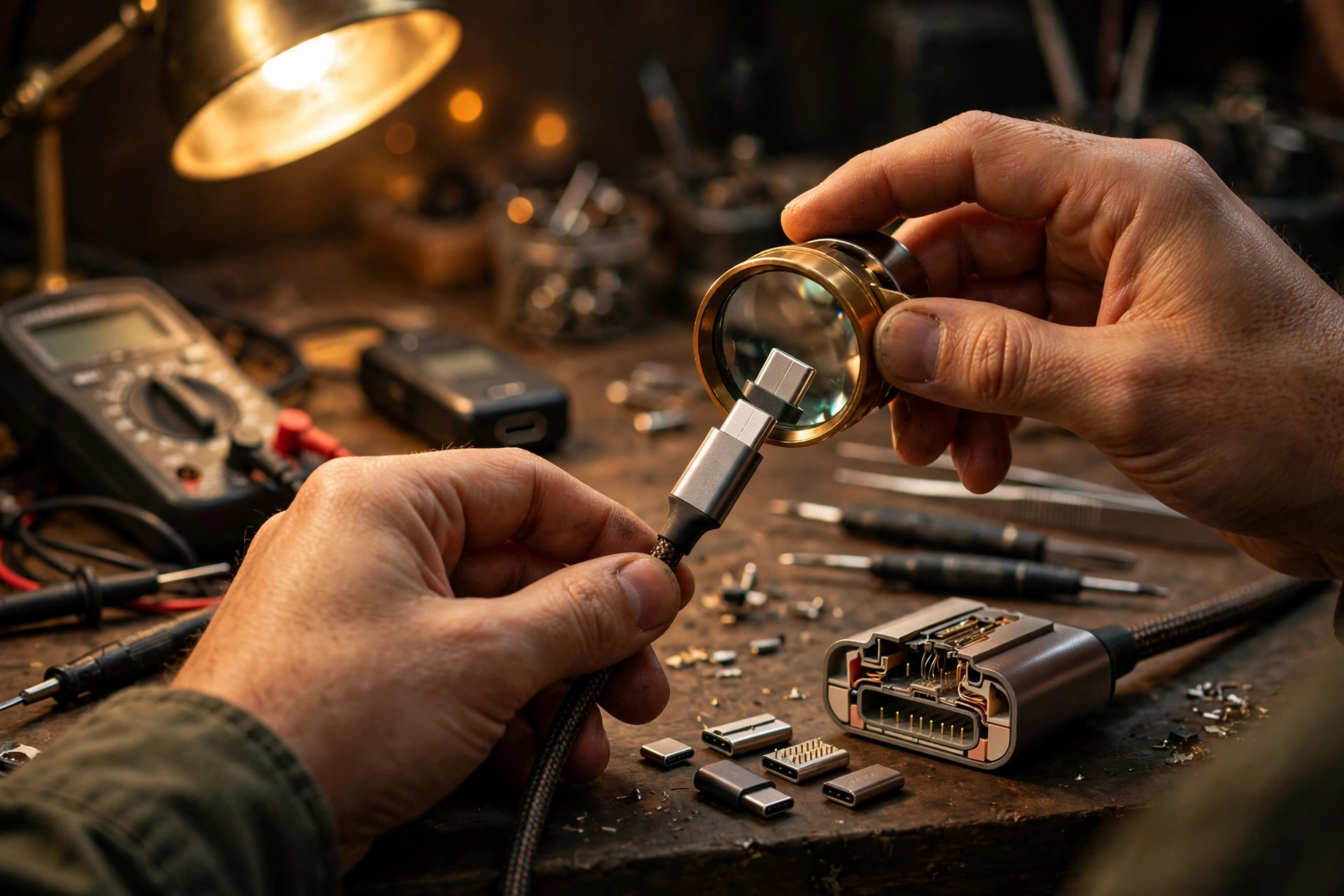
An e-marker, short for electronically marked cable chip, is a small chip hidden inside a USB-C plug shell. It talks to the charger or the laptop over the Configuration Channel and declares the current, voltage, and speed capability of the cable [S20][S21]. It does not regulate current, it does not raise voltage, and it does not raise speed. It only declares, and that point needs repeating because cable advertising often leaves the impression that the chip itself makes charging faster. The system trusts what the chip says, and that trust is exactly the gap a fake cable can exploit.
The chip declares its data as 32-bit Vendor Defined Objects, known as VDOs, covering maximum current at 3A or 5A, maximum voltage at 20V or 50V for EPR, maximum data rate, passive or active construction, and the vendor ID [S16][S73]. In one measured example, a 240W cable reported vendor ID 0x2095, which belongs to CE Link Limited, as a passive cable at USB 2.0 speed of 480Mbps with a 50V limit. That combination shows that a 240W charging cable can carry only USB 2.0 data and still be compliant, not fake [S16]. Charging capability and data capability sit in separate VDO fields and can be set independently, so the two must never be tied together.
Another measured example deserves attention: a Monoprice cable reported vendor ID 0x291A, which is registered to Anker, while another 240W cable reported CE Link Limited at 0x2095, a name that never appeared on the retail packet at all [S16]. The vendor ID that is read out belongs to the chip maker, not to the cable brand, and it cannot be used to work out the cable brand in reverse. That detail matters when spotting fakes, because a vendor ID that does not match the brand is already a warning sign, even though it cannot by itself prove a cable is fake and must be read with other checks.
A cable without an e-marker is treated by both ends as the most conservative case, with a limit of 3A, which is 60W at 20V, and the charger will not grant 5A because the cable looks thick or costs more [S16][S20]. A 60W or 3A USB 2.0 cable without a chip is normal, not defective, and the presence or absence of a chip alone cannot judge a 60W cable as good or bad [S20][S22]. The right test is whether the claimed capability of the cable matches its intended use, not whether a chip is present. If laptop charging looks abnormal, book an inspection through the diagnostic page; confirmed repair prices are listed on the pricing page.
The vendor ID also deserves a closer look, because it is the field most often misread. A reader who sees a familiar brand name in the vendor field may assume the cable was made by that brand, when the field only names the chip maker. A cable assembled by one company can carry a chip made by another, and the chip maker may supply many cable brands at once. That is why a vendor ID that does not match the packet is a warning sign worth noting, but never a verdict on its own. The full picture needs the certification field, the product field, the negotiated wattage, and the measured power under load, and only when those agree can the cable be trusted. A single field, read in isolation, will mislead as often as it helps.
| E-marker declaration | Example value | What a reader should note |
|---|---|---|
| Maximum current | 3A or 5A | Only 5A can reach above 100W |
| Maximum voltage | 20V or 50V | Only 50V can reach 240W |
| Data speed | USB 2.0 at 480Mbps or higher | Most charging cables carry only USB 2.0 |
| Construction | Passive or active | Active cables need one chip at each end |
VCONN, Ra, and SOP Prime: How the Chip Talks to Both Ends
The e-marker chip has no power source of its own. It runs on VCONN, supplied by the source over the unused Configuration Channel pin. VCONN is a 5V supply, with an allowed range of 4.75V to 5.5V, a default of 1.0W, and the chip itself draws at most about 70mW. Without VCONN, the chip stays silent [S33][S20]. That supply arrangement explains why some testers need an external supply to read an e-marker: the tester itself may not provide enough VCONN. A chip that cannot be read is not necessarily absent from the cable; the supply or the negotiation order may be at fault.
A passive electronically marked cable or an active cable connects an Ra pull-down resistor from the VCONN pin to ground, with a value from 800 ohms to 1.2k ohms. Before the source supplies VCONN, seeing Ra tells it that this is an electronically marked cable [S33]. That resistor is a signal that someone is present, telling the source to power the chip and then ask for its identity. If the Ra resistor is damaged or its solder joint is loose, the source may never learn that the cable has a chip, and the result is a lock at 60W, with no visible damage on the outside.
USB PD messages travel over the Configuration Channel using Bi-phase Mark Coding at a nominal rate of 300kbps, with an allowed range of 270 to 330kbps. SOP is a message from the source to the sink, while SOP prime and SOP double prime are messages from the source to the chips inside the two cable plugs, and Discover Identity is sent with SOP prime to a cable plug [S33][S14]. After the cable is plugged in, the source supplies VCONN first and then sends Discover Identity. The chip answers with a set of VDOs, 128 bits in total, in four 32-bit fields: the ID Header VDO, the Cert Stat VDO with the certification number, the Product VDO, and the Product Type VDO for cables [S15][S14].
In a measured 240W cable, the Cable VDO was 0x110A2640, decoding to bits 2 to 0 at zero for USB 2.0 at 480Mbps, bits 6 to 5 at 2 for 5A, and bits 10 to 9 at 3 for a maximum of 50V, which is EPR [S16]. Charging capability and data capability are separate fields, and this example proves again that a 240W cable can carry only USB 2.0 data. When reading a VDO, each field must be checked in turn instead of looking at total wattage alone.
An e-marker can only be addressed by the side that supplies VCONN. A computer that wants to read a plug chip may first need to ask for a VCONN swap, and VCONN swap is an optional feature in the USB PD specification that may not succeed, so the same cable may not return the same e-marker data on different hosts [S16]. That limit explains why one computer reads full data from a cable while another reads nothing, and the cause need not be a broken cable at all; the host may simply not support the swap.
Reading an e-marker is only the first step, because the numbers a tester shows are not the whole truth. The VDO reply is a claim burned into the chip at the factory, and a tester never opens the plug to measure copper thickness or to check whether the shielding is intact. A normal reading therefore only opens the door, and the actual charging power and the data speed must still be checked afterwards. When the two disagree, the cable should be suspected. That three-part check returns in the later chapters on fake cables, because a fake cable lives exactly in the gap between the reading and the physical build.
| Communication link | Number | Meaning |
|---|---|---|
| VCONN voltage | 5V, allowed 4.75V to 5.5V | Chip supply, default 1.0W |
| Ra resistor | 800 ohms to 1.2k ohms | Tells the source a chip is present |
| Transfer rate | 300kbps, allowed 270 to 330kbps | Bi-phase Mark Coding |
| Reply length | 128 bits, four 32-bit fields | Header, certification, product, cable |
Where USB PD 3.1 and 240W Came From
The USB Promoter Group announced USB PD Revision 3.1 on 26 May 2021, a major update that let USB-C cables and plugs supply up to 240W. The USB Type-C specification moved to Release 2.1 at the same time to define the 240W cable requirements [S2][S3]. Before PD 3.1, the PD limit was 20V times 5A, which is 100W. PD 3.1 kept that range as the Standard Power Range and added the Extended Power Range [S71][S72]. That date matters, because cables and chargers made before 2021 were never designed for 240W and cannot be expected to gain high-voltage support through a software update. If you are unsure which power range your laptop supports, check it through the diagnostic page; repair prices are on the pricing page.
PD 3.1 also added Extended Power Range Adjustable Voltage Supply, which allows voltage to be adjusted in 100mV steps from 15V up to the highest fixed voltage of the charger [S2][S8]. That adjustable mechanism lets high-power laptops and workstations take the most suitable voltage for their battery layout, workload, and thermal state, instead of staying fixed to three voltage steps. The comparison between PPS and AVS in a later chapter goes into that difference in detail. Plugable also notes that PD 3.1 takes the Extended Power Range to 240W, renames the Standard Power Range, and adds AVS and protection layers as part of the new mechanism [S5].
The Standard Power Range follows the PD 3.0 specification, with fixed voltages of 5V, 9V, 15V, and 20V, and a limit of 20V times 5A, which is 100W. Any device that does not clearly support the Extended Power Range runs in the Standard Power Range, with a limit of 100W [S8][S10]. That backward-compatible design keeps older devices safe when a new specification arrives, but it also means that buying a new charger does not automatically bring 240W. The laptop and the cable must both understand the new mechanism.
The Extended Power Range adds three fixed voltages: 28V times 5A is 140W, 36V times 5A is 180W, and 48V times 5A is 240W. Reaching 240W relies on raising voltage, not raising current, and current stays at the 5A limit throughout [S2][S8]. That design choice has a practical reason: with current held at 5A, conductor heating and connector loss do not run out of control as power rises, and the risk concentrates on insulation and voltage tolerance, which cable design can target directly instead of endlessly thickening copper.
| Power range | Fixed voltage steps | Maximum power |
|---|---|---|
| Standard Power Range | 5V, 9V, 15V, 20V | 20V times 5A equals 100W |
| Extended Power Range | 28V, 36V, 48V | 48V times 5A equals 240W |
| Adjustable Voltage Supply | 15V to highest fixed voltage, 100mV steps | Depends on the charger highest step |
SPR and EPR: The Voltage Steps at a Glance
The line between the Standard Power Range and the Extended Power Range is not only about wattage, but also about the set of voltage steps. The Standard Power Range holds fixed steps of 5V, 9V, 15V, and 20V. The Extended Power Range adds 28V, 36V, and 48V on top of those steps instead of replacing them [S71][S8]. A charger that supports the Extended Power Range must still declare the Standard Power Range steps, because a laptop must finish Standard Power Range negotiation before it can enter the Extended Power Range, and that order is covered in the next chapter.
The electrical floor for an Extended Power Range cable is written in USB Type-C 2.1, section 3.11.1. An EPR cable must functionally support a declared 50V and 5A operation, with a minimum functional voltage of 53.65V. Components on the VBUS path, such as bypass capacitors, should carry a rating of at least 63V. To control the risk of arcing between plug and receptacle from inductive kickback and ringing when a live cable is pulled out, an EPR cable may add a snubber capacitor inside each plug [S4]. Those numbers are not arbitrary. They leave a safety margin: 48V working voltage against a 63V component rating, with room to absorb surges.
The same point appears in a second source: components on the VBUS line should carry a rating of at least 63V, above the 48V working voltage, leaving a safety margin [S6]. A buyer will never open a plug to measure a capacitor rating, but knowing this requirement explains why a compliant 240W cable cannot be extremely thin, extremely cheap, and extremely light at the same time. The plug must hold a chip, resistors, capacitors, and conductors thick enough for the job, and size and cost both have a floor.
Reaching 240W needs the charger, the cable, and the laptop to support the Extended Power Range at the same time: the charger must declare an EPR power data object, the cable must be a 50V and 5A EPR cable, and the laptop must know how to enter EPR mode. If any one of the three is missing, power falls back to the Standard Power Range limit [S2][S8]. That three-party condition is the most important sentence in this guide, and the later chapters on misdiagnosis, buying, and inspection all build on it. Before sending a machine in, compare the confirmed prices on the pricing page and book through the diagnostic page.
The three voltage steps of the Extended Power Range exist for different machines, not as a ladder that every laptop must climb. A laptop that needs 140W stops at 28V, a machine that needs 180W stops at 36V, and only a machine built for 240W ever asks for 48V. Buying a cable rated for 48V does not push a 140W laptop any faster, because the laptop only ever asks for the step it was built to take. Matching the cable to the machine matters more than buying the highest number on the shelf.
| Voltage step | Current | Power | Range |
|---|---|---|---|
| 5V | 5A | 25W | Standard Power Range |
| 9V | 5A | 45W | Standard Power Range |
| 15V | 5A | 75W | Standard Power Range |
| 20V | 5A | 100W | Standard Power Range |
| 28V | 5A | 140W | Extended Power Range |
| 36V | 5A | 180W | Extended Power Range |
| 48V | 5A | 240W | Extended Power Range |
EPR Negotiation Order: SPR First, Then EPR
A laptop that wants the Extended Power Range must first finish Standard Power Range negotiation and then send an EPR Mode Enter message. After the charger confirms, it queries the cable identity through Discover Identity. Only when the e-marker reports EPR support does the charger send Enter Succeeded and then announce a voltage step of 28V or higher. If the cable is only a 100W cable, the process stops in the Standard Power Range and charging continues there [S6][S14]. That order is not red tape. It is a safety design: the system must first confirm that the cable can take high voltage before it dares to raise the voltage. A Sanyi buying guide also notes that the Extended Power Range needs the charger to declare an EPR power data object together with a 5A EPR cable, with fixed steps of 28V at 140W, 36V at 180W, and 48V at 240W [S7].
One PD contract takes four messages: Source Capabilities, in which the charger declares its power data object table; Request, in which the laptop picks one step; Accept; and PS Ready, with a GoodCRC confirmation for each message. If negotiation fails or breaks off, the contract never forms [S14]. If the cable is pulled out mid-negotiation, or contact is poor, or the Configuration Channel wire is broken, the contract never forms, and the laptop may not charge at all or may stay at a basic 5V supply. That mechanism explains why some cables drop out when moved slightly: the fault is not in the battery, but in the negotiation messages that cannot get through.
Entering the Extended Power Range follows a strict order: finish Standard Power Range negotiation first, then let the laptop send the EPR Mode Enter message, then let the charger confirm and query the cable identity. Only when the e-marker reports EPR support does the charger move to 28V or higher [S6]. If the cable is not an EPR cable, an EPR charger only runs in the Standard Power Range, and the system falls back to 100W or less. That fallback is a protection behaviour by design, not a fault [S89]. A reader who sees that fallback should not at once conclude that something is broken, but should first compare the three sides.
USB Type-C 2.1 requires every EPR cable to carry an e-marker, to be rated at 50V and 5A, and to carry the USB-IF EPR identification mark [S6]. A cable without a 240W mark should not be used as an EPR cable, and that visual check is the fastest first step when buying a cable. The later chapters on certification explain how to check whether a mark is genuine.
Negotiation also explains why a cable can charge a phone without trouble and still fail a laptop. A phone only ever asks for a low-voltage step, so the negotiation finishes early and the cable never has to prove it can handle high voltage. A laptop asks for more, and the negotiation must pass through the EPR steps, the identity query, and the voltage rise, with each message confirmed before the next one is sent. A weak link that never matters at 5V can break the whole chain at 28V or 48V, and the laptop falls back to a safe low power instead of risking damage. That fallback is the system working as designed, even though it feels like a fault to the user who only sees slow charging.
| Negotiation step | Who sends it | Purpose |
|---|---|---|
| Source Capabilities | Charger | Declares the list of voltage steps |
| Request | Laptop | Picks one step from the list |
| Accept | Charger | Confirms the pick |
| PS Ready | Charger | Voltage switch is complete |
| Mode Enter | Laptop | Asks to enter Extended Power Range |
| Discover Identity | Charger | Reads the cable chip with SOP prime |
Three Sides Must Support 240W at the Same Time
Reaching 240W needs three sides at once: a charger with an EPR power data object, an EPR cable, and a laptop whose USB-C port and internal power circuit support the same voltage step. Any missing side drops the power down [S6][S89]. That condition sounds simple, yet each side hides a trap when checked in practice: a charger may reach the total wattage but not the single-port wattage, a cable may carry 5A but not 50V, and a laptop may support charging on one USB-C port but not on another.
Total charger wattage is not the same as single-port wattage. Many chargers advertised at 240W reach that number only by adding ports together, and a single port may not deliver 240W. A buyer should read the power data object list for each port and confirm a 28V, 36V, or 48V step [S90][S89]. That trap is most common with multi-port chargers, because advertising often states only the total and says nothing about how the total is split. A buyer should ask the maker for the per-port list instead of trusting the large print on the packet.
On the cable side, a standard 100W cable is also 5A but is rated only at 20V. Reaching 240W needs the e-marker to declare 50V and EPR support at the same time, and neither can be missing. The phrase 5A cable by itself never proves EPR support [S44]. That is one of the most common misunderstandings: many people think buying a 5A cable is the same as buying a 240W cable, when 5A is only current and voltage is what separates 100W from 240W.
On the laptop side, not every USB-C port supports charging, and some ports carry data only. Repair guidance suggests trying another USB-C port first, testing with a direct plug instead of a hub or dock, and only then drawing a conclusion [S48][S50]. The same laptop can hold ports with different capability, and the Lenovo example later shows a rear USB-C port that accepts up to 140W while a side USB-C port accepts no power at all [S89]. Before buying a cable, a reader should first learn which port on their own laptop takes how many watts instead of assuming that all ports are equal. Port capability varies, and a suspected damaged port can be checked through the diagnostic page; prices are on the pricing page.
| Side | What to check | Common trap |
|---|---|---|
| Charger | Single-port power data object list holds 28V, 36V, or 48V | Total is enough, single port is not |
| Cable | E-marker holds 5A, 50V, and EPR support | Only 5A, no 50V |
| Laptop | Which port supports charging and its maximum wattage | Plugged into a data-only port |
PDO, PPS, and AVS: Fixed Steps and Adjustable Voltage
A Fixed power data object is a fixed voltage output. An Augmented power data object is an adjustable voltage output, and both PPS and AVS belong to that mechanism. The power data object table declared by the charger decides what the laptop can pick, and the laptop cannot pick a step the charger never declared [S10]. That is the basic rule of PD negotiation: the laptop can only choose from the list the charger has put forward, and it cannot demand a voltage the charger does not supply.
PPS, or Programmable Power Supply, arrived in PD 3.0 and stayed in PD 3.1, inside the Standard Power Range. It adjusts voltage in 20mV steps from 3.3V to 21V, and current in 50mA steps. It is mainly used for phones and similar devices, and it can charge a battery directly by bypassing the battery charger [S8][S10]. The fine adjustment of PPS cuts conversion loss and heat, which helps a small phone battery, but its low-voltage range is not enough for high-power laptop charging.
AVS, or Adjustable Voltage Supply, arrived in PD 3.1 as the high-voltage extension of PPS. It adjusts in 100mV steps inside the Extended Power Range, from 15V up to the highest fixed voltage of the charger, which is 28V, 36V, or 48V. Its design purpose is to let high-power laptops and workstations take the most suitable voltage for their battery layout, workload, and thermal state [S8][S10]. PPS and AVS cannot be swapped: PPS is fine at 20mV steps and low voltage from 3.3V to 21V, while AVS is coarse at 100mV steps and high voltage from 15V to 48V. AVS has no programmable current limit of the PPS kind, and it is handled like a fixed supply [S10][S8].
Support for PPS must not be read as support for the Extended Power Range. The two serve different purposes: PPS is fine tuning inside the Standard Power Range, and AVS is the high-voltage version of PPS inside the Extended Power Range [S10]. When a charger advertises PPS, that says nothing about whether it can output 28V or higher, and the power data object list must be checked separately for an EPR fixed step. A wrong charger choice is not a repair matter, but abnormal laptop charging can be checked through the diagnostic page, with prices on the pricing page.
The difference between PPS and AVS also explains why a charger that works well for a phone can still fail a laptop. A phone battery charges best with fine voltage steps at low voltage, where a small change in voltage makes a real difference to heat and to charging efficiency. A laptop battery and system load need the opposite: a higher voltage that stays steady while the machine draws tens of watts for hours. PPS was built for the first case and AVS for the second, and a charger that only speaks PPS will never hold a laptop at 28V, no matter how high its total wattage looks on the packet. That is why the power data object list, not the headline wattage, is the document that matters when a laptop charger is chosen.
| Mechanism | Voltage range | Step | Range |
|---|---|---|---|
| Fixed power data object | 5V, 9V, 15V, 20V, 28V, 36V, 48V | Fixed step | Standard plus Extended |
| PPS | 3.3V to 21V | 20mV | Standard Power Range |
| AVS | 15V to highest fixed voltage | 100mV | Extended Power Range |
PD 3.2 and PD 3.3: Revisions, Not More Power
PD 3.2 was announced in October 2023, and its limit stayed at 240W. Its focus was revisions such as adding Standard Power Range AVS. USB-IF uploaded PD 3.3 Version 1.0 on 5 November 2026, but no public change summary was available at that time, so it should not be assumed to change the EPR voltage steps or the power limit [S10][S14][S11]. A larger version number does not mean higher power, and that is an easy mistake to make. When buying a cable, there is no need to chase the newest version number; the real questions are the voltage steps and the e-marker reading.
Before PD 3.1, the PD limit was 20V times 5A, which is 100W. PD 3.1 kept that range as the Standard Power Range and added the Extended Power Range [S71]. The main line of PD progress was that single step from 100W to 240W, and later revisions mainly refined negotiation details, adjustable voltage ranges, and other functions instead of pushing the limit higher again. A reader who sees PD 3.2 or PD 3.3 should ask what negotiation detail changed, not whether the new version charges faster.
The full text of the official USB-IF PD 3.1 and Type-C 2.1 specifications needs a paid membership to obtain, and the material cited here comes from official announcements, reprints of specification clauses, and maker technical articles. Those reprints may not cover every detail word for word, and a reader doing engineering design should obtain the official documents from USB-IF directly. That honest limit matters, because a reprint is a second-hand source for a specification that is itself the authority.
For most users, the version number carries little practical meaning: as long as the charger, the cable, and the laptop all support the Extended Power Range, PD 3.1 is already enough to reach 240W, and a PD 3.2 or PD 3.3 revision will not make the same combination charge faster. Attention belongs on the voltage steps, the e-marker reading, and the measured power, which are far more useful than chasing a version number.
A version number by itself never makes charging faster. What really decides power is the voltage step the charger declares, the voltage and current the cable e-marker declares, and the voltage step the laptop selects. When a cable carries a PD 3.2 or PD 3.3 label, the right question is what the power data object list holds, not whether the newer version must mean higher power. An older cable with a complete e-marker can still reach 240W in the right combination, and a newer label on its own proves nothing about the cable in hand.
| Version | Announced | Power limit | Focus |
|---|---|---|---|
| PD 3.0 | Before PD 3.1 | 100W | Standard Power Range, PPS |
| PD 3.1 | 26 May 2021 | 240W | Added Extended Power Range and AVS |
| PD 3.2 | October 2023 | 240W | Revision, added Standard Power Range AVS |
| PD 3.3 | Uploaded 5 November 2026 | Still 240W | No public change summary at that time |
The Chip Supply Chain: Which E-Marker Chips Have Verifiable Sources
Infineon, formerly Cypress, makes the EZ-PD CCG2, model CYPD2103, a USB Type-C controller that can be used in an electronically marked cable assembly. CCG1, model CYPD1103, and CCG2 both received USB-IF certification, with Product Test IDs 1095059 and 1095054 [S76][S77]. CCG2 uses a 32-bit, 48MHz Arm Cortex-M0 with 32KB of flash memory and supports firmware upgrades. It integrates a Type-C transceiver, system-level ESD protection, and termination resistors, in packages that include a 3.3 square millimetre 20-ball WLCSP, a 14-pin DFN, and a 24-pin QFN [S77]. A reader does not need to memorise those details, but should know that e-marker chips come from established chip makers with certification records behind them.
Moving from CCG1 to CCG2 cuts external parts sharply: a single-chip design falls from 11 resistors, 5 capacitors, 2 diodes, and 2 FETs to 1 resistor and 4 capacitors, and a dual-chip design falls in the same way. Infineon application note AN95615 describes designing a USB 3.1 Type-C cable with CCG2 [S74]. Fewer external parts means fewer solder joints inside the plug and fewer points of failure, so higher chip integration brings a practical benefit beyond cost alone. The Infineon community also notes that an e-marker cable is only needed above 3A or for Alt Mode, and a low-power basic cable does not need one [S75].
Hynetek makes the HUSB332 series, a line of e-marker chips made for cable identification, with several verified models. HUSB332 holds USB-IF certification Test ID 875 and XID 5400 and supports Thunderbolt 3 at 40Gbps. HUSB332B holds Test ID 6773 and supports Thunderbolt 3 and USB4 at 40Gbps. HUSB332C holds Test ID 8655, complies with USB Type-C 2.1 and PD 3.1, and supports USB4 passive cables. HUSB332E holds Test ID 10226 and supports Thunderbolt 3, 4, and 5, plus USB4 up to 80Gbps [S80][S82][S81][S78]. HUSB332G supports PD 3.2, EPR at 240W, a VBUS rating of 50V, and a CC rating of 55V, in a DFN 1.6 by 1.6 millimetre 4-lead package or an SOT23 3-lead package, with a working temperature from minus 40 degrees Celsius to plus 85 degrees Celsius [S79].
HUSB332E runs on VCONN1 or VCONN2, with a working voltage from 2.7V to 5.75V, built-in Ra resistors on both sides, a VCONN diode, and support for both I2C and PD protocols for programming and reading [S78]. Hynetek also makes the PD 3.2 dual-role power controller HUSB253, which supports EPR at 240W, up to 48V, and a 60V rating on key pins, together with a 240W EPR charger design that pairs the HUSB368 charger controller with the HUSB332E cable e-marker and the HUSB253. That pairing shows that the e-marker is only one link in the 240W chain, not a lone part [S83].
Two kinds of chip must be kept apart. The Texas Instruments TPS65988DK is a USB-PD controller datasheet example: its PD physical layer uses Bi-phase Mark Coding, and it supports cable detection and USB4 device use. It is a port controller, not a cable e-marker, and the two must not be confused [S124]. The same applies to charger-side controllers: the Framework charger uses the Weltrend WT6676F and the Infineon EZ-PD CCG8, both charger-side controllers, not cable-side chips, and the two kinds cannot be swapped in understanding [S84][S86]. Teardown and test reports also name Hynetek as an e-marker supplier, and the models listed above all have official datasheets that can be checked [S44].
| Chip family | Verified model example | Support focus |
|---|---|---|
| Infineon EZ-PD CCG2 | CYPD2103, Test ID 1095054 | Cable assembly controller, 32KB flash |
| Hynetek HUSB332 | Test ID 875 | Thunderbolt 3, 40Gbps |
| Hynetek HUSB332B | Test ID 6773 | Thunderbolt 3, USB4 40Gbps |
| Hynetek HUSB332C | Test ID 8655 | PD 3.1, USB4 passive cable |
| Hynetek HUSB332E | Test ID 10226 | Thunderbolt 5, USB4 80Gbps |
| Hynetek HUSB332G | PD 3.2, 240W | VBUS rating 50V |
Wire Gauge, Length, and Voltage Drop: How AWG Shapes Charging
Under IEC 62680-1-3:2024, the USB Type-C standard, a compliant cable at its highest rated current must keep VBUS power-path voltage drop at or below 500mV and ground return drop at or below 250mV. The same source states the same limits a second time: VBUS maximum IR drop 500mV, ground 250mV [S24][S33]. When drop exceeds the limit, the device end sees too little voltage and slows down or drops out. That limit is written into the specification, not a suggestion, and measurement must use a four-wire milliohm meter through a breakout board for VBUS and ground, subtracting the breakout board resistance itself [S102][S26].
AWG, or American Wire Gauge, works backwards: a smaller number means a larger copper cross-section, lower resistance, and smaller drop. Quality charging cables often use 20 to 24AWG for power conductors and 28AWG for data lines. Cheap charging cables often use 28AWG or even 30AWG for power, with very low current capability [S24][S25][S26]. For pure copper at 20 degrees Celsius, the standard wire gauge table gives 20AWG at about 0.033 ohms per metre, 22AWG about 0.053 ohms per metre, 24AWG about 0.084 ohms per metre, and 28AWG about 0.213 ohms per metre, per conductor. At 5A, one metre of 20AWG loses about 165mV, while 24AWG loses about 420mV, a gap of about 2.5 times [S102]. Those numbers show that a two-step change in gauge can more than double the drop and push a cable close to the specification limit.
Resistance grows with length. At the same gauge, a 2 to 3 metre cable carries clearly more total resistance than a 0.5 to 1 metre cable. Quality long cables compensate with a thicker gauge. A 3 metre EPR cable, such as the UGREEN 65868, can be rated at 240W only when both the conductor and the e-marker keep up, and length alone does not prove slowness [S25][S36]. A 1 metre cable is the balance point between resistance and practical use. A 2 metre cable must accept higher drop or a thicker conductor. A 3 metre cable must use an EPR certified structure, and a cheap uncertified 3 metre cable should never be pushed to high power [S25][S40].
EPR cable power conductors generally use 22AWG or 21AWG, thicker than the 24AWG of a standard cable. That is a description of construction practice, not a promise for every single cable, and the final check must use the e-marker reading plus a measured drop [S8]. Current through a high-resistance cable creates a drop, following voltage equals current times resistance, so the device end sees less voltage than the charger puts out. The laptop senses the drop and cuts the current it draws to stay safe, and the result is slower charging. A poor cable that heats up under heavy current is turning electrical energy into heat through resistance [S25][S26]. A cable that heats up should not be used again; if the laptop may be affected, book an inspection through the diagnostic page, with prices on the pricing page.
The gauge numbers also explain why a cable that works well at low current can fail at high current. At 1A, even a thin conductor loses only a small voltage, and the laptop may never notice. At 5A, the same conductor loses five times as much, the device end voltage falls, and the laptop cuts its draw to stay safe. That is why a cable that charges a phone without trouble can still fail badly on a laptop, and why a drop test must be done at the current the laptop really draws.
| Wire gauge | Resistance per metre, about | Drop at 5A over 1 metre, about |
|---|---|---|
| 20AWG | 0.033 ohms | 165mV |
| 22AWG | 0.053 ohms | About 265mV |
| 24AWG | 0.084 ohms | 420mV |
| 28AWG | 0.213 ohms | Above the 500mV limit |
Cable Types: Passive, Active, Optical, and Length Limits
A passive cable holds only conductors, connectors, and an optional e-marker chip, with no signal amplification parts. An active cable holds a retimer, which fully rebuilds the signal, or a redriver, which only amplifies the signal, to compensate for loss over long distance [S91]. A hybrid optical cable, also called an active optical cable, carries power and USB 2.0 data over copper and high-speed data over fibre. Fibre itself does not conduct electricity, so the high-speed part is immune to electromagnetic interference [S91]. The three structures serve different uses and carry different prices and length limits, so a buyer must first decide which one is needed. Choosing the wrong cable type does not mean the laptop is broken; a real hardware concern can be checked through the diagnostic page, with prices on the pricing page.
A passive USB4 40Gbps cable has a practical length limit of about 0.8 metres. A passive USB4 Version 2.0 80Gbps cable is also about 0.8 metres or shorter [S91][S93]. An active copper cable can stretch 40Gbps to about 5 metres, and an optical cable can reach 20 metres at 40Gbps and about 10 metres at 80Gbps [S92][S93]. A passive USB 2.0 cable can reach about 4 to 5 metres in practice, and USB 3.2 Gen 2 at 10Gbps reaches about 3 metres. The higher the speed, the shorter the passive length, because signal loss rises with frequency and distance [S91][S93].
A passive 240W USB 2.0 cable used only for charging can reach 4 metres, because charging does not use the high-speed data channel and is not bound by the high-speed length limit [S91]. That difference matters: length is not a problem for a charging cable, but it is a hard limit for a high-speed data cable. Many users buy a 2 metre USB4 cable, find that it never reaches 40Gbps, and assume the cable is fake, when the passive length itself has already passed the physical limit.
An active cable must carry an e-marker and must support at least USB 3.2 Gen 2x2 at 20Gbps. An active SuperSpeed USB cable does not support USB4 mode [S91]. An optically isolated active cable can reach 50 metres, but it carries no USB 2.0 and supplies no power, so it belongs to industrial, imaging, and medical use, not to ordinary laptop charging [S91]. USB4 can mean 20Gbps, 40Gbps, or 80Gbps, and the letters USB4 alone, with no speed number, never guarantee 40Gbps [S96]. Thunderbolt 4 is different: it forces 40Gbps, PCIe at 32Gbps, and DisplayPort 1.4, so its promise is clearer [S95][S94]. The JMTJM USB4 procurement guide also covers the difference between retimer and redriver in active cables and the need to check the e-marker when buying [S125]. Market examples also include USB4 Version 2.0 80Gbps cables listed as supporting 240W [S126].
| Cable type | High-speed length limit, about | Charging use |
|---|---|---|
| Passive USB4 40Gbps | 0.8 metres | Short cable for files and charging |
| Passive USB4 80Gbps | 0.8 metres or shorter | Short cable for files and charging |
| Active copper 40Gbps | About 5 metres | Long-distance file transfer |
| Optical cable 40Gbps | 20 metres | Long-distance file transfer |
| Passive USB 2.0 240W charging cable | About 4 metres | Charging only, length is flexible |
Shielding: Foil, Braid, and PD Negotiation
A well-built USB-C cable runs from the inside out as copper conductors, insulation for each core, shielding in the form of aluminium foil plus a drain wire or tinned copper braid, and an outer jacket, with a nylon braid added on braided cables. Aluminium foil coverage sits near 100 percent and targets high-frequency interference. Copper braid targets low-frequency electromagnetic interference and adds mechanical strength. High-speed cables such as USB 3.2 Gen 2x2, USB4, and Thunderbolt need a second foil layer to seal the gaps in the braid [S46][S47]. Shielding is not decoration. It is part of high-speed signal integrity, and a break in the shield harms data and negotiation directly.
Poor shielding lets electromagnetic interference leak in, disturbs the differential data signal, and can also cause PD negotiation to fail. One cable maker notes that better shielding can cut PD negotiation failures, and outer wear that exposes inner conductors means the shield is already broken [S47][S46]. Many users never learn that link: a cable that transfers files slowly or charges on and off may not have a conductor fault at all, but a shield break at one point that lets noise corrupt negotiation messages and forces the system to slow down or renegotiate.
A braided outer layer does not mean better conduction. Nylon braid only protects the outer jacket and never improves conduction. With the same conductor gauge and the same load, a PVC jacket and a nylon braided cable heat up by the same amount. The value of braid is resistance to wear, snagging, and tangling, not faster charging [S42]. Seeing a braided outer layer and assuming a premium cable is a common mistake. Attention belongs on conductor gauge, the e-marker reading, and the certification mark instead.
Shielding layers also shape how thick and stiff a cable feels: one more foil layer makes the cable slightly harder and thicker, but steadier at high speed. For a charging-only cable, shielding demands are lower, because USB 2.0 speed does not need such strict shielding. For a USB4 or Thunderbolt cable, shielding is the difference between success and failure. Before buying, a reader should ask whether the cable will mainly charge or mainly transfer files and drive a display, because the two uses place very different demands on shielding.
A shield break does not always stop charging at once. At first it may only cause occasional renegotiation or unstable transfer speed, and a user can easily blame software or the charger for those signs. As the break spreads, negotiation failures grow more frequent until charging drops in and out. Shielding cannot be checked by look alone, because the break can sit under the outer jacket, so data speed testing and negotiation stability are the indirect ways to judge it.
| Shield layer | What it targets | What failure brings |
|---|---|---|
| Aluminium foil, coverage near 100 percent | High-frequency interference | High-speed signal distortion |
| Copper braid plus drain wire | Low-frequency electromagnetic interference | Negotiation messages disturbed |
| Second foil layer, high-speed cables | Gaps in the braid | USB4 speed never reached |
| Outer jacket plus nylon braid | Wear and snagging | Protection breaks, shield follows |
Strain Relief and Bend Life: Where Cables Usually Break
The most common break point sits in the strain relief section at the plug root, 8 to 15 millimetres long, where a soft cable body meets a hard plug shell. The bend radius is smallest there and stress concentrates. Copper strands bend back and forth at that point, fatigue, and break. Quality cables use a thick moulded boot or a double strain relief to spread the bending force, while cheap cables use only a thin plastic sleeve that splits quickly [S42][S41]. That spot is the first thing to touch and look at when buying a cable: whether the boot is long enough, thick enough, and bends gradually instead of folding at a sharp angle.
For connector life, a USB Type-C cable must support at least 10,000 plug cycles. Maker durability claims vary widely: the Belkin magnetic self-coiling 240W cable claims more than 100,000 bends and more than 20,000 plug cycles, the Anker 240W bio-braided cable claims 20,000 bends, and the UGREEN L706 claims 20,000 bends and 15,000 plug cycles. The test angle and mandrel radius behind those numbers differ, so they cannot be compared directly [S33][S39][S37][S38]. Anker also lists a Prime 240W cable at 300,000 bends and a 100W nylon cable at 12,000 bends, a gap so wide that it proves the numbers alone cannot be compared [S43].
A claim of 10,000 bends means nothing unless it also states the bend angle, whether plus or minus 90 degrees or plus or minus 180 degrees, and the mandrel radius, whether 5 millimetres or 10 millimetres. Folding at 180 degrees puts clearly more stress on each cycle than a 90 degree bend, and halving the mandrel radius concentrates strain sharply. A number with no test conditions should be treated as a slogan [S42]. When a buyer sees a bend count, the right question is what the test conditions were, and if no answer is given, the number should not drive the purchase. A bend count proves little on its own; laptop charging trouble can be checked through the diagnostic page, with prices on the pricing page.
The most common break point sits just behind the connector: the connector is hard, the cable body is soft, and all the bending and pulling force concentrates at the single point where the cable enters the plug, creating a stress concentration. Repeated bending causes work hardening in copper, which grows brittle and breaks strand by strand [S98][S100]. Strain relief design decides life: a long soft sleeve with tapering thickness or grooved ribs spreads bending, while a hard, short moulded sleeve concentrates bending in a 3 millimetre stretch just past the sleeve and speeds fatigue. One industrial case found a hard sleeve design breaking at about 3,000 cycles, while a tapered-hardness design passed 50,000 cycles in the same use [S100].
| Check point | Quality cable practice | Cheap cable practice |
|---|---|---|
| Strain relief length | Thick boot, tapering thickness | Thin plastic sleeve, short and hard |
| Bend claim | States angle and mandrel radius | Number only, no conditions |
| Plug cycle claim | 10,000 cycles and up, with test stated | Number only, no conditions |
| Break point | Stress spread, longer life | Root at 8 to 15 millimetres breaks first |
Ageing: Copper Strands Breaking From the Inside Out
Copper breakage works from the inside out: before the outer braid or jacket shows wear, the fine copper strands inside have already started breaking one by one. The strands that remain must carry all the current, so local heating rises, a broken end can pierce the inner insulation, and only later does the outer layer fray or split [S98]. That mechanism explains why some cables look perfect while charging grows slower and hotter: most of the inner conductor is already gone, the remaining strands carry high resistance, and drop and heat rise together.
Early warning signs of cable ageing include dropping out when moved slightly, fast charging suddenly vanishing, data dropping out, and a plug that feels loose and only charges when held by hand. When those signs appear, the cable should be suspected first, not the laptop battery or the charger [S99][S101]. Those signs arrive late in the failure: the cable is already well into its decline, and continued use only worsens the break and can pierce insulation and cause a short.
Temperature cycling is another ageing mechanism: materials expand and contract at different rates, which loosens solder joints and separates strain relief sleeves, and heat during charging softens the plastic inside the cable, so long-term heat speeds material ageing [S99][S100]. Wrapping a cable tightly around a charger every day, stuffing it into a backpack, and pulling it on the metro all fatigue the strain relief section and the middle conductors. Repair guidance names wrapping around a charger, a laptop hinge, or pulling as the main cause of middle conductor breakage, and the better habit is loose coiling with no hard fold at the plug root [S42][S48][S49].
In industrial settings, the leading failure cause is not breakage but connector contact decline from dust, liquid, and chemical contamination, plus wrong pin assembly. In office and home settings, fatigue breakage just behind the connector dominates, and the two settings need different inspection priorities [S100]. Hong Kong users mostly fall in the second group, so inspection should focus on the plug root and on storage habits rather than on industrial contamination.
A cable body or plug that feels clearly hot during charging signals resistance that is too high or contact that is poor. It should be stopped and replaced at once, and the fact that it still charges is no reason to keep using it. Heat also speeds insulation ageing and solder decline, creating a cycle that only gets worse [S25][S48]. That is a safety line, not a maintenance tip: heat itself is already evidence of failure.
Ageing also explains why a cable that worked for a year can suddenly seem to fail overnight. The strands inside break one at a time over months, and the remaining strands carry more and more of the load, so the drop and the heat creep up slowly. For a long time the laptop still charges, only a little slower, and the change is easy to miss. Then one more strand breaks, the drop crosses the limit, and the laptop drops out of fast charging altogether. From the outside that looks sudden, but the damage was building for months, and a regular check of charging speed and plug temperature would have caught the trend long before the cable gave up.
| Ageing stage | Outside appearance | Inside reality |
|---|---|---|
| Early | Looks perfect | Fine strands start breaking one by one |
| Middle | Drops out now and then, fast charging gone | Remaining strands carry more load and heat |
| Late | Outer layer frays, splits, plug feels loose | Broken ends pierce insulation, short risk |
| Final | Burning smell, blackening, hot to touch | Stop at once, do not test again |
Need a laptop repair expert?
Free diagnosis · Transparent pricing · No fix, no fee · 180-day warranty
Why No E-Marker Means a 60W Lock
When a charger cannot read a 5A e-marker, it supplies at most 20V times 3A, which is 60W. A cable labelled 100W or 240W that gives no e-marker reply is in practice a 60W cable, and that is the most common reason a bigger charger still charges slowly [S15][S22][S23]. When no e-marker answers, a compliant host assumes a basic cable and locks the charging limit at 3A and 20V, which is 60W. That lock is a safety design, not a fault [S15][S22].
That lock has two common causes. First, the cable never had a chip, for example a basic 60W USB 2.0 cable that never supported high power. Second, the cable has a chip that cannot be read, because VCONN never reaches it, the Ra resistor is damaged, the Configuration Channel wire is broken, or a VCONN swap fails. Both cases look the same from the outside, both charge at 60W, but they need different handling: the first needs a new cable, and the second needs a check of whether the cable or the host is at fault.
Replacing a 140W charger and still seeing only 60W usually points to a cable locked at 60W, not to a charger fault. The right isolation step is to swap in a known good 5A or EPR cable and test again, instead of replacing the charger first [S48][S15]. That order saves money, because many users replace the charger first, pay for a new one, and only then learn that the cable was the problem.
A simple behaviour test can separate the cases: connect the cable to a charger of 100W or more and a laptop that can take high power. If the highest reading is 20V at 3A, which is 60W, the cable is unmarked or 3A class. If the reading is 20V at 5A, which is 100W, or higher, the cable carries a 5A e-marker. That test needs no specialist tool, but the charger and the laptop must themselves support the power level being tested [S16][S22]. The negotiated wattage is a limit, not real-time draw, so it must not be read as actual charging power. Negotiated wattage and real power are different things; a suspected charging circuit fault can be checked through the diagnostic page, with prices on the pricing page.
| Test result | What it means | Next step |
|---|---|---|
| Highest 20V times 3A, which is 60W | Unmarked cable or 3A cable | Swap in a known good 5A cable and test again |
| Highest 20V times 5A, which is 100W | 5A marker present, no EPR | A 140W target needs an EPR cable |
| Highest 28V times 5A, which is 140W | EPR negotiation succeeded | Cable, charger, and laptop all support EPR |
| No charging at all | Configuration Channel wire may be broken | Check the port for dust, swap the cable |
5A Does Not Mean 240W
A standard 100W cable is also 5A but is rated only at 20V. Reaching 240W needs the e-marker to declare 50V and EPR support at the same time, and neither can be missing. The phrase 5A cable by itself never proves EPR support [S44]. A genuine 240W cable meets four conditions together: a current rating of 5A, support for 48V operation, a USB PD version of 3.1 or higher, and EPR support already enabled. If any one of the four is missing, the cable is not a genuine 240W cable, and the idea that 5A means 240W is a wrong idea [S44].
That misunderstanding is so common because packaging and advertising often highlight 5A alone and treat it as a synonym for high power. In practice 5A is only the current limit, and power equals voltage times current. Twenty volts times 5A is 100W, and 48V times 5A is 240W, so the 140W gap between them comes entirely from voltage, not from current. When buying a cable, the question is not whether it is 5A, but whether its e-marker declares 50V and EPR support.
A 240W cable with only USB 2.0 data is not fake. Many genuine 240W charging cables, including the Anker A8060, the UGREEN 45068, the Apple 240W cable, and the Belkin 240W cable, carry data only at USB 2.0 speed of 480Mbps, because charging and data sit in separate fields. A 240W cable that transfers files slowly is not necessarily fake; it may be the wrong cable for the job, and high-speed transfer or a display needs a separate look at the data specification [S34][S37][S39][S65]. That example again shows that charging and data must be checked separately instead of using one to judge the other.
A thick cable body does not mean a good cable either. A thick body can hide thick copper, but it can also hide a thick jacket or filler. What really decides 5A is the e-marker declaration and the conductor gauge, and both must be checked with a tester or with the negotiated wattage [S20][S102]. A buyer cannot judge a cable by outer diameter alone, because the outer jacket can be thickened to look fat while the conductor inside stays thin. Looks alone never show conductor thickness; abnormal laptop charging can be checked through the diagnostic page, with prices on the pricing page.
| Claim | What it really means | Does it equal 240W |
|---|---|---|
| 5A cable | Current limit 5A | No, voltage still matters |
| 100W cable | 20V times 5A | No, voltage stops at 20V |
| 240W cable | 48V times 5A, all four conditions met | Yes, only when all four are met |
| USB 2.0 240W cable | 240W charging, 480Mbps data | Yes, charging and data are separate |
CC Wire Breakage and One-Sided Damage
USB-C charging relies on the CC1 and CC2 pins to carry PD signals. If the Configuration Channel wire breaks inside the cable, the charger treats the laptop as an ordinary low-power device and refuses to raise voltage above 5V, so the laptop never receives enough voltage to charge. A cable that looks perfect on the outside can still hold a broken CC wire inside [S48]. That fault is the hardest to spot, because the cable shows no damage and still gives a small reaction, such as slow 5V charging, while never reaching high voltage, and it is easily mistaken for a charger or battery fault.
USB-C is a symmetric design, so when CC1 is damaged, flipping the plug may let CC2 negotiate successfully. The result is a cable that charges on one side and not on the other, or only at a certain angle. That pattern points to a damaged CC pin on the plug or receptacle or a loose solder joint, not to a battery problem [S48]. That one-sided pattern is a useful diagnostic clue, because a battery or mainboard fault never changes with plug direction, while a direction-dependent fault most likely sits in the cable or the receptacle.
Poor contact makes charging cut in and out: a loose plug, dust in the receptacle, or oxidised contacts all make contact resistance rise and fall, so charging drops and returns. Repair guidance notes that charging only at a certain angle usually means a bent CC pin on the plug or a damaged solder joint on the receptacle, and holding the plug at that angle to keep using it is a bad idea [S48][S49][S50]. Holding the angle does more than cause annoyance: it loosens the solder joint further and can pull the receptacle off the board, turning a cable replacement into a receptacle repair.
Dust in the receptacle can also pretend to be a fault. A USB-C port is small and collects lint and dust easily, so a plug may look fully inserted while the contacts never meet and the circuit stays open. A torch can show the dust, and compressed air can blow it out gently after the machine is shut down and unplugged. A metal pin, a paper clip, or water must never be used to pick at it [S48][S50]. That check should come before replacing a cable, because cleaning costs nothing and can save the time spent replacing the charger and the cable first.
A broken Configuration Channel wire and a broken conductor share one trait: the outside looks perfect while the inside is already broken. That kind of internal break cannot be seen with the eye, and only behaviour testing and cable swapping can find it. Flipping the plug, changing the port, and changing the charger, one at a time, while writing down the negotiated voltage and current each time, will show which link holds the fault. Guessing by feeling gets it wrong most of the time.
| Symptom | Most likely cause | How to check |
|---|---|---|
| Charges on one side, not the other | One of CC1 or CC2 is damaged | Flip the plug, swap the cable, compare |
| Charges only at a certain angle | Bent CC pin, loose receptacle solder | Do not hold the angle, swap cable and port |
| Looks fine but only charges at 5V | CC wire broken inside | Swap in a known good cable, read the voltage |
| Plug never seats fully, drops out | Dust in the receptacle | Torch check, gentle compressed air |
A USB-IF certified USB-C to USB-C cable must carry a mark on the cable body for one of two power levels, 60W or 240W, using the matching power icon or mark. The 100W certification category stopped accepting new applications at the end of 2021, and after that a USB-C to USB-C cable could only be certified at 240W. Most 100W certified cables on the market today hold an old certification or hold no certification at all [S17][S18][S27]. USB-IF introduced the 60W and 240W cable certification marks in 2021, and a 240W mark means the product passed USB-IF testing under PD 3.1. The old 100W mark category was removed, and the current marks are only 60W and 240W [S123][S17].
Certification applies to one model at a time, not to a whole brand. USB-IF Product Search only lists products that passed the compliance programme and were allowed to use the USB-IF mark. Certification covers a specific cable assembly, not a brand or a product range, and it is normal for one brand to hold certified models and uncertified models at the same time [S28][S29]. A buyer therefore cannot judge a cable by brand alone and say that a brand with a certified model means the cable in hand is certified. Each model must be checked on its own.
Under USB Type-C 2.1, section 3.11.2, every EPR cable must be electronically marked and must carry the USB-IF EPR identification icon clearly, so a user can confirm by sight that the cable supports up to 240W. A cable without a 240W mark should not be used as an EPR cable [S4]. The physical marks to look for when buying include the wattage or current printed on the plug or cable, such as 60W, 100W, 240W, 3A, or 5A, the USB speed mark, such as SS plus a number, USB4, or the Thunderbolt lightning mark, and the USB-IF certification mark. A cable with no printing, no wattage, and no speed mark should first be assumed to be 60W or USB 2.0 until a test proves otherwise [S73][S119].
The mark itself follows strict rules. A certification mark must use the official USB-IF artwork without change. Its minimum size is 0.2 inches, which is 5 millimetres, with clear space around it and a trademark statement, for example that USB Type-C is a registered trademark of USB-IF. A mark printed on a packet does not mean the product is certified [S31][S29]. The USB-IF Integrators List marketing name guidance also sets the naming format for a USB-C cable as speed plus 60W or 240W, and a buyer can use that format to check whether packet wording follows the rules [S32]. A mark that does not match the USB-IF artwork is a reason to check the cable, not a diagnosis of the laptop; a hardware concern can be checked through the diagnostic page, with prices on the pricing page. Wade Bush also notes that an EPR cable must print 60W or 240W, that a non-EPR cable falls back to lower power, and that a buyer can check the Integrators List [S19].
| Mark level | Meaning | What to note |
|---|---|---|
| 60W mark | Certified cable, maximum 60W | Do not use it as 100W or 240W |
| 240W mark | Certified cable, maximum 240W, PD 3.1 | Check it with the e-marker reading |
| 100W wording | Old category or maker claim | Not a current certification level |
| No printing at all | Capability not stated | Assume 60W or USB 2.0 first |
How to Verify Certification: Product Search and TID
To check certification, go to USB-IF Product Search at usb.org/products and search with the exact model or market name, checking the company name, model, and category. The public list shows only products certified in the last two years by default, and older products need a date filter to appear. Finding nothing does not prove a cable is fake, but the seller must then explain [S28][S29][S30]. GIGAZINE tested Product Search against Amazon listings and found that many products claiming certification had no record, which proves the method works in real buying [S30]. The official entry point for that search is usb.org/products, which lists only products that passed the compliance programme and were allowed to use the mark [S1].
A TID, or Test ID, is the number USB-IF uses to track a product sent for testing and the test standard used. A laboratory assigns a TID when it accepts a product for testing. Passing the test and USB-IF review is what makes certification, and a TID alone never proves a pass. A TID on a quotation cannot replace a Product Search check [S27]. That difference matters, because some sellers present a TID as proof of certification, and a reader must know the difference: a TID only says the product was sent for testing, while certification says it passed.
For buying in Sham Shui Po or the Golden Computer Arcade, there is no verified data on individual shops, models, or prices, so no claim is made about any shop, price, or which shop can be trusted. In practice, three checks should be done on the spot: first, ask for the model name and check it at once on USB-IF Product Search; second, read the e-marker with a tester and confirm 5A, 50V, and EPR support all together; third, test the power at once with your own charger and laptop instead of trusting the print on the packet. Any one of the three, no model, no e-marker reading, or a refusal to test, is already enough reason not to buy [S28][S44][S15].
The per-model rule also applies to maker certification examples. The Belkin BoostCharge Pro magnetic 240W cable, model CAB027, is listed by the maker as USB-IF certified, with dual e-markers and over-temperature protection. Another Belkin 240W cable is listed as USB-IF certified, with dual e-markers and 30,000 bends. Those are claims that can be checked, and the next step is to check the model on Product Search [S39][S40]. A maker claim of certification never removes the need to check, because checking is part of the buying process itself.
| Verification step | How to do it | How to read the result |
|---|---|---|
| Product Search | Enter the exact model, check company and category | A hit means a certification record exists, a miss needs seller explanation |
| TID | Look for a test number | A TID only means the product was sent for testing |
| Physical mark | Look for a 60W or 240W mark on the cable | No mark means do not treat it as an EPR cable |
| Live test | Use your own charger and laptop to read power | Power that does not match the packet is a warning |
Framework Laptop 16: A 180W and 240W Example
The Framework Laptop 16 supports USB-C charging up to 240W. Its original 180W charger uses PD 3.1 EPR to deliver 36V at 5A, and 180W covers most use cases, although a fitted graphics module may draw from the battery [S84]. Framework warns that a cable without EPR voltage support limits charging to 20V at 3A or 20V at 5A, and the e-marker of an EPR cable is how the system confirms that the cable can safely carry the voltage and current [S84].
The 180W charger of the Framework Laptop 16 uses the Weltrend WT6676F controller to deliver 36V at 5A in EPR, while its 240W support uses the Infineon EZ-PD CCG8 single or dual-port USB-C PD controller. The charger-side controller and the cable-side e-marker are two different kinds of chip [S84][S86]. That example shows that the controller inside a charger and the chip inside a cable come from two separate supply chains. A charger should be judged by its charger controller, and a cable by its cable e-marker, and the two must not be confused.
A low-wattage charger will not damage the Framework Laptop 16, but performance is limited: battery charging can take about 80W, and the rest goes to the CPU, memory, screen, and USB ports. At 140W, the CPU is throttled while the battery charges, and 140W is broadly enough when the battery is not charging [S85]. A laptop only takes the power it is rated for. Battery charging on the Framework Laptop 16 can take about 80W, and the remaining power runs the system instead of going into the battery [S85]. That is the counter-proof for the idea that a bigger charger always charges faster: the laptop has a take limit, and extra power never makes the battery charge faster.
The trap for gaming laptops also deserves attention: even a 280W to 330W gaming machine with a USB-C port can only treat 240W EPR as a travel or office supplement, and it cannot replace the original 280W to 330W charger under a full graphics load for long [S7]. Before buying a USB-C charger, a reader should first learn how many watts their own laptop draws at full load, instead of assuming that 240W can replace every original charger. Low charging on a gaming laptop need not be a cable fault; an inspection can be booked through the diagnostic page, with prices on the pricing page.
| Framework Laptop 16 combination | What happens in practice | Source basis |
|---|---|---|
| Original 180W charger plus EPR cable | 36V times 5A, enough for a graphics module | Maker deep-dive article |
| Low-wattage charger | No damage, but CPU may throttle | Community discussion |
| Non-EPR cable | Limited to 20V times 3A or 5A | Maker warning |
| 240W support | Uses the CCG8 controller | Maker upgrade report |
MacBook Pro and Lenovo: 140W Examples and Different Ports
The 16-inch MacBook Pro with M5 Pro or M5 Max needs 140W for fast charging, which is EPR at 28V times 5A. The boxed Apple 140W charger supplies a 28V at 5A step, and it reaches 140W only with a MagSafe 3 cable or a 240W USB-C cable [S67][S87]. Apple support documents state that the 16-inch MacBook Pro from 2021 onwards fast-charges with the Apple 140W charger and a USB-C to MagSafe 3 cable, and that 16-inch models from November 2023 onwards can also use a 240W USB-C charging cable [S68].
The 16-inch MacBook Pro is the clearest example. Models from 2021 to 2023 needed a MagSafe 3 cable for 140W fast charging, because no EPR USB-C cable existed at the time. Models from November 2023 onwards can also reach 140W with a 240W USB-C cable. Using the wrong cable makes the machine look as if it does not support fast charging, when the real cause is a cable that does not support EPR [S51][S52]. Notebookcheck notes that the 16-inch MacBook Pro was the first device to support EPR, and that 140W was at first limited to MagSafe 3 [S51]. That timeline shows that the same laptop in different model years can need completely different cables, so a buyer must check the year and model before buying.
For Lenovo Legion, the Legion Slim 5 14 supports 140W USB-C PD, while the Legion 5i model 16IRX9 ships with a 230W Slim Tip charger but its rear USB-C port accepts at most 140W and its side USB-C port accepts no power at all. Ports on the same machine can hold different capability [S89]. Lenovo also makes the ThinkPlus 240W cable, whose maker documents state Legion support and USB 2.0 data speed, another case where charging and data must be read separately [S88]. Before buying, a reader should check the maker documents for the supported laptops and voltage steps instead of assuming that every model from one brand behaves the same way.
On misdiagnosis, the claim that a 240W cable still charges at only 60W so the laptop must be broken is far too quick. The truth may be a charger with no EPR power data object, a laptop port without EPR support, or a cable e-marker that only states 20V at 5A, which is a 100W cable. Each link must be compared in turn, and no conclusion can rest on one cable alone [S6][S89]. After comparing each link in turn with no cause found, book an inspection through the diagnostic page; prices are on the pricing page.
| Laptop example | Fast charging need | Cable need |
|---|---|---|
| MacBook Pro 16-inch, 2021 to 2023 | 140W at 28V times 5A | MagSafe 3 cable |
| MacBook Pro 16-inch, after November 2023 | 140W at 28V times 5A | 240W USB-C cable also works |
| Framework Laptop 16 | 180W at 36V times 5A | EPR cable |
| Legion Slim 5 14 | 140W USB-C PD | EPR cable |
| Legion 5i 16IRX9 rear port | Up to 140W | EPR cable, side port takes no power |
Copper-Clad Aluminium and False AWG
Copper-clad aluminium, shortened to CCA, is an aluminium core wrapped in thin copper, and it looks like copper when stripped. At the same gauge, CCA direct-current resistance runs about 55 to 60 percent higher than pure copper. The TIA limit is 9.38 ohms per 100 metres per conductor, which pure copper meets, while CCA at the same gauge sits at about 14 to 15 ohms. Aluminium resistance is about 1.6 times copper, and a false gauge claim plus CCA can push resistance to more than twice the genuine value [S53][S54][S55]. Those numbers come from network cable checks, but the principle, resistance and scraping the core, applies to charging cable conductors too, although USB-C cores are finer and harder to work with, so a tester that measures whole-cable resistance is the practical tool [S53].
To test for CCA, scrape a stripped conductor. CCA shows a silver aluminium core, while pure copper is copper coloured all the way through. Measuring direct-current resistance also separates them: pure copper Cat5e sits at about 9 ohms per 100 metres, while CCA can reach 20 to 50 ohms or more [S53][S55][S56]. Pure copper direct-current resistance sits at about 9 ohms or less per 100 metres, while CCA reaches 20 to 50 ohms or more, and that gap shows up clearly in measurement [S56]. Fake cables use copper-clad aluminium and fake UL marks, and the United States National Electrical Code does not allow CCA in data cables [S70].
False AWG is another method: a cable labelled 22AWG that is really 28AWG looks the same, passes a continuity test, and only shows its difference under heavy current over time through heat and voltage drop. A buyer cannot judge a cable by outer diameter alone, because the outer jacket can be thickened to look fat [S55][S25]. That trap is hard to guard against, because an ordinary continuity test only tells a user that the cable conducts, not how thick it is, and thickness only shows up in a drop or resistance measurement.
Copper-clad aluminium passed off as pure copper is a common fraud, and the network cable checks for it are scraping the core to show silver aluminium and weighing a genuine copper box at about 11 to 14 kilograms [S54]. For a USB-C charging cable, a reader does not need to strip the cable to test it. In practice, a tester should measure whole-cable resistance, the negotiated wattage should be read, and the drop under sustained load should be watched. If the three do not agree, the cable should be suspected instead of waiting until it heats up.
Copper-clad aluminium is hard to guard against because it behaves normally in a low-current test, passes continuity, and looks the same from the outside. The difference only appears under heavy current over a long time, as a larger drop, more heat, and slower charging. Buying a cable therefore cannot rest on a continuity test alone. A drop test under load is needed to show whether the conductor is really thick enough for the job.
| Conductor | Resistance per 100 metres, about | How to identify it |
|---|---|---|
| Pure copper | About 9 ohms or less, TIA limit 9.38 ohms | Copper coloured all the way through |
| Copper-clad aluminium | About 14 to 15 ohms at the same gauge | Scraping shows a silver aluminium core |
| CCA plus false gauge | More than twice the genuine value | Resistance measurement clearly high |
| False AWG, labelled 22, really 28 | Heat and drop under heavy current | Drop test, not a continuity test |
Fake E-Markers: Burned-In Claims and Blank Fields
An XDA reporter used WhatCable to read three cables and found that the Portronics Flash C2, labelled Thunderbolt 4, 40Gbps, and 240W, and the Konnect 240C, labelled 240W, carried 128-bit e-marker identity data that was almost identical, differing by only three bits. That means a cheap cable had a high-end claim burned into it. The vendor, certification, and product ID fields of the Flash C2 were all blank [S45][S15]. Two cables from different brands at different prices sharing identity data that differs by only three bits is already a strong warning, because genuine chips never overlap that closely.
A genuine e-marker should hold vendor, certification, and product numbers. In testing, many cheap 240W cables showed all three fields blank. A blank field is not a space-saving choice; it shows that the cable cannot be traced [S45][S15]. Warning signs of a fake cable include a vendor ID of 0x0000 or an unregistered number, no USB-IF certification VDO, a vendor ID that does not match the brand, and several unrelated brands reporting the same blank vendor ID [S112][S20].
A cheap maker can burn any specification into a cheap e-marker chip, so a cable with no shielding and thin copper can appear in a system as a 40Gbps Thunderbolt 4 or 240W cable. A normal e-marker reading never proves that the physical structure is sound, and the real charging power and data speed must be tested to cross-check it [S45][S44][S16]. E-marker data can be forged: a chip only repeats what the factory burned into it, and software only reads a claim, not a physical measurement, so actual charging and transfer tests must follow [S44][S113].
Software such as WhatCable can only read what the chip says about itself. It cannot check whether the copper inside the jacket is really that thick or whether the shielding really exists. The WhatCable developer states plainly that the software cannot verify the physical structure of a cable, and a fake chip can be burned with any claim [S15][S16][S44]. The XDA test also notes that the developer states plainly that the software is not a fake cable detector, and a normal reading never proves that a cable passes [S45]. That limit must be kept in mind: an e-marker reading is a necessary check, not a sufficient one.
| Fake cable warning | How it shows up | Meaning |
|---|---|---|
| 128-bit data differs by only three bits | WhatCable comparison of two cables | The same fake chip used again |
| Vendor, certification, and product fields blank | Blank fields when reading the e-marker | No traceability |
| Vendor ID 0x0000 or unregistered | Reading shows zero or unknown | Not a properly registered chip |
| Reading normal but measured power wrong | Power meter and transfer speed do not match | Chip claim and physical build do not agree |
Misdiagnosis One to Three: Charger, Battery, Mainboard
The first misdiagnosis is blaming the charger. Replacing a charger with a 140W model and still seeing only 60W usually means the cable locks at 60W, not that the charger is faulty. The right isolation step is to swap in a known good 5A or EPR cable and test again, instead of replacing the charger first [S48][S15]. That mistake costs the most, because a charger usually costs more than a cable, and replacing the wrong part wastes money without fixing anything.
The second misdiagnosis is blaming the battery. A laptop that stays plugged in without gaining charge may be receiving only 5V from the cable while the laptop draws power faster than it charges, not a battery that cannot hold charge. A power meter should confirm the actual input wattage before the battery is judged [S48][S50]. A battery should only be suspected when a laptop in a known good charging combination still loses charge while plugged in, or the battery swells, or the system reports abnormal battery health. A battery costs HK$580 and up, with the final price set by a written quote after inspection. A slow cable must not be read as a broken battery that needs replacing [S48].
The third misdiagnosis is blaming the mainboard or the charging port. Charging that cuts in and out, or only works when the plug is held at an angle, often comes from a broken Configuration Channel wire or conductor inside the cable, not from the mainboard. The isolation method is to swap the cable, the port, and the charger on the same laptop, one at a time, and if only swapping the cable fixes it, the cable is the problem [S48][S49][S50]. When a known good charger plus an EPR cable plus two USB-C ports still fail to charge or keep dropping out, the fault most likely sits in the receptacle or the mainboard charging circuit. At that point the laptop should be sent in for inspection instead of buying a third cable to try. Mainboard chip-level repair costs HK$880 and up, with other items set by a written quote after inspection [S48][S50].
The three-way swap test is the most important diagnostic method: swap in a known good cable of the same class, swap in a known good charger, and swap to another USB-C port on the laptop, changing only one thing at a time and recording the negotiated wattage and the sustained wattage [S114][S119]. One test alone can only prove the result for that combination, and it cannot prove that a cable itself passed certification, and that limit must be kept in mind. Once the three-way swap still leaves a fault, book an inspection through the diagnostic page; prices are on the pricing page.
| Misdiagnosis | What the truth may be | Right isolation step |
|---|---|---|
| Charger is too weak | Cable locks at 60W | Swap in a known good 5A cable and test again |
| Battery is broken | Cable only supplies 5V, drain beats charging | Confirm actual input wattage with a power meter |
| Mainboard or port is broken | CC wire or conductor broken inside the cable | Swap cable, port, and charger, one at a time |
Misdiagnosis Four to Seven: Software, Wrong Port, Dust
The fourth misdiagnosis is blaming software or a frozen embedded controller. A USB-C port that will not charge can come from an embedded controller stuck in a bad state, and unplugging power and holding the power button for 30 seconds can reset the embedded controller. If charging still fails after the reset, the reset should not be repeated again and again. The next step should be hardware isolation testing [S48]. Repeating the reset never repairs a broken cable, and it only wastes time and can hide a real hardware fault.
The fifth misdiagnosis is thinking the laptop does not support fast charging. The 16-inch MacBook Pro is the clearest example: models from 2021 to 2023 needed a MagSafe 3 cable for 140W fast charging, because no EPR USB-C cable existed at the time, while models from November 2023 onwards can also reach 140W with a 240W USB-C cable. Using the wrong cable makes the machine look as if it does not support fast charging, when the cable is the part that lacks EPR support [S51][S52]. The lesson is that a conclusion that fast charging is unsupported can only be drawn after the right cable, the right charger, and the right port have all been used, and any earlier conclusion is an unfinished test.
The sixth misdiagnosis is plugging into the wrong port. Many laptops do not support charging on every USB-C port, and some ports carry data only. Repair guidance suggests trying another USB-C port first, testing with a direct plug instead of a hub or dock, and only then drawing a conclusion [S48][S50]. That check costs the least and is the easiest to overlook, because users usually reach for the most convenient port and never think that ports on the same machine can differ.
The seventh misdiagnosis is dust in the port pretending to be a fault, as covered earlier: a USB-C port is small and collects lint and dust easily, so a plug may look fully inserted while the contacts never meet and the circuit stays open. A torch can show the dust, and compressed air can blow it out gently after the machine is shut down and unplugged. A metal pin, a paper clip, or water must never be used to pick at it [S48][S50]. Another claim that is too quick is that a USB-C port that will not charge must mean a broken battery. The truth may be a broken wire inside the cable, oxidised contacts, dust in the port, a charger power data object that does not match, or damage to the laptop USB-C port itself. The three-way swap of cable, charger, and port should come first, before any decision to open the machine for inspection [S114][S116]. Before any machine is opened, run the three-way swap, then book through the diagnostic page; prices are on the pricing page.
| Misdiagnosis | What the truth may be | Right action |
|---|---|---|
| Software or controller frozen | Controller stuck, but reset still fails | Reset once, do not repeat, move to hardware isolation |
| Laptop does not support fast charging | Wrong cable, model year needs a different cable | Check the year, use the right cable, test again |
| Wrong port | That port carries data only | Try another port, plug in directly without a hub |
| Dust in the port pretending to be a fault | Lint blocks the plug from seating fully | Torch check, gentle compressed air |
History Lessons: The 56k Ohm Resistor and Burned Laptops
In 2015, Google engineer Benson Leung tested USB-A to USB-C cables and found that many used the wrong resistor, for example a 10k ohm pull-down instead of the required 56k ohm pull-up, so devices misjudged the power capability and drew too much current. One Surjtech 3 metre cable even wired VBUS and GND in reverse and burned out his Chromebook Pixel and two PD analysers. That is the best-known cheap cable burns a machine case in USB-C history [S57][S59][S109]. Leung tested 13 cables and found only 3 compliant, and the 56k ohm resistor problem was the most common fault of that year [S59].
The Surjtech cable was analysed with a breakout board and a multimeter. The GND pin on the USB-A end was wired to the VBUS pin on the USB-C end, and the VBUS pin on the USB-A end was wired to the GND pin on the USB-C end, so power and ground were fully reversed. It also used a 10k ohm resistor instead of the required 56k ohm resistor, and wired it as a pull-down instead of a pull-up [S109]. The result was that two USB-C ports stopped responding at once, could neither charge nor act as a host, and the embedded controller was damaged beyond software recovery [S108][S109].
The safety key for a USB-A to USB-C cable is the 56k ohm pull-up resistor. It connects between the Configuration Channel line and VBUS and tells the host that this is a device taking only the default USB power, about 500mA. If it is left out or replaced with the wrong value, such as 10k ohms, the host wrongly thinks the device can take 3A, and neither the cable nor the port is designed for that current, which is enough to overheat or damage them [S57][S111]. Early OnePlus USB-C cables were also found non-compliant by Leung: they used a 3A identification resistor that could damage a charger, a hub, or a computer USB port, and they should not have been shared with a Chromebook Pixel, a Nexus 6P, or a Nexus 5X [S108].
After those findings, Amazon banned the sale of USB-C cables and adapters that did not meet the USB-IF specification, and Leung work led some makers to fix their designs [S110][S108]. UL guidance from 2017 noted that more than 100 USB-C to USB-A adapters were assessed and more than half failed the applicable USB specification, and that a random market sample of USB cables passed a flame-retardant test at under 28 percent. Those are historical sample numbers and do not describe the market today, but they show that the risk from uncertified cheap cables is not theoretical [S58]. The lesson from that history is simple: a cable error is not only slow charging, and in a severe case it can burn a machine, so saving a small sum on a cable can cost a whole laptop.
The Leung cases also changed how the industry talks about cables. Before 2015, a USB-C cable was treated as a simple accessory, and few buyers asked about resistor values or wiring. After a cable burned a laptop and two analysers, makers, retailers, and buyers all learned that a cable is part of the power system, not just a piece of wire. Amazon banning non-compliant cables was the clearest sign of that change, because a marketplace that once sold any cable now had to check compliance. The lesson still holds: a cable that carries 240W deserves the same care as the charger and the laptop it connects.
| Historical event | Number | Lesson |
|---|---|---|
| Leung tested 13 cables | Only 3 were compliant | Compliance was very low that year |
| Surjtech wrong wiring | VBUS and GND reversed, 10k ohms instead of 56k ohms | Burned a laptop and two analysers |
| UL checked more than 100 adapters | More than half failed | Uncertified cheap cable risk is not theoretical |
| Flame-retardant sample | Pass rate under 28 percent | Historical number, not a present-day share |
How to Read an E-Marker: Four Methods and Testers
Four methods read an e-marker. First, a phone app, which is handy and portable. Second, desktop software, such as WhatCable on macOS, which is simple to use but only runs on Apple Silicon Macs with macOS 14 or higher. Third, a portable tester, which is the most practical and most accurate, at a mid-range price. Fourth, a professional analyser, such as a Teledyne LeCroy, which can capture every PD packet [S44][S45]. The four methods trade off against each other: a phone app is already enough for a quick check before buying a cable, while a portable tester only earns its place when many cables are bought or when repair work is done. A tester reading never replaces a laptop inspection; a hardware concern can be booked through the diagnostic page, with prices on the pricing page.
For tester comparison, the ChargerLAB POWER-Z KM003C supports 50V and 6A, PD 3.1, a 20-bit ADC, and PD protocol analysis. The AVHzY CT-3 supports 0 to 29V and 0 to 6A, reads e-markers, and records offline [S64]. The FNIRSI FNB58 supports 4 to 28V and 0 to 7A, reads e-markers, and measures cable resistance. The Treedix tester reads e-markers and measures resistance. Those are only maker-published specifications, and the model should be checked before buying [S63]. The KM003C has limits: reading an e-marker needs an external supply above about 5.1V, it cannot detect connector pins or measure cable resistance, and testers have reported that e-marker reading does not succeed every time [S117][S118].
On macOS, System Information under Power and AC Charger Information shows the negotiated wattage, and the terminal command system_profiler SPPowerDataType can pull out the Wattage line. In measured examples, a 100W cable reported 100W and a 60W cable reported 60W [S114]. The macOS ioreg command can show AdapterDetails in millivolts and milliamps: a 100W cable reads 20V at 5A and a 60W cable reads 20V at 3A, and a 3A limit usually means the cable or one link in the chain does not support 5A [S114]. One important limit is that system_profiler reports the negotiated limit, not real-time draw. Negotiating 100W never proves that a cable can sustain 100W for long, and a load test must follow, for example by keeping the CPU busy while watching the charger display or an external meter [S114].
Windows does not expose USB-C PD details or cable e-marker data to applications. Device Manager and USBView only show device descriptors, not cable declarations, so a Windows user who wants to read an e-marker must use a hardware tester [S16][S115]. Indirect Windows methods include HWiNFO for battery charge rate and an external USB-C meter for real-time voltage, current, and wattage. Software readings come from internal system sensors and can err by 10 to 20 percent, which is less accurate than a hardware meter [S116]. Linux kernel 6.3 or higher exposes the negotiated contract in sysfs through the USB-PD driver, for example under the port partner power delivery path and the port cable identity path, where cable identity can be read [S119].
Choosing a reading method is a trade-off between cost, accuracy, and how often it will be used. A phone app costs nothing extra and fits in a pocket, but it only reads the claim and never measures the build. A portable tester costs about as much as a good cable, yet it pays for itself the first time it stops a buyer from keeping a fake cable. A professional analyser belongs in a laboratory, where its cost is spread across many tests. For most laptop users, the sensible path is a phone app for a quick check before buying, plus a power meter under load to confirm the real charging power, and a tester only when cables are bought often or when repair work is done.
| Reading method | Suits whom | Limit |
|---|---|---|
| Phone app | Quick check before buying a cable | Reads a claim only, never checks physical build |
| WhatCable on macOS | Apple Silicon Mac users | Only macOS 14 or higher |
| Portable tester, KM003C and similar | Frequent buyers or repair work | Reading needs external supply above 5.1V |
| Professional analyser | Engineering and repair laboratories | High cost, complex operation |
Checking Without Instruments: System Reports and Behaviour Tests
The USB page of macOS System Information shows the speed of each device, up to 480 Mb per second, 5 Gb per second, or 40 Gb per second, plus Current Available and Current Required in milliamps, but it is a snapshot that never updates on its own. After swapping a cable, the window must be closed and reopened before the change shows [S115]. That snapshot habit easily misleads: after a cable swap, a user who does not reopen System Information still sees the old cable data and concludes that the new cable makes no difference.
For ChromeOS, press Ctrl plus Alt plus T to open CROSH, enter battery_test 1, and the screen should show that the battery is charging. Entering battery_test 10 shows the battery health percentage. Dell and Acer Chromebook documents both use this as the battery and charging test method, and a health percentage above 50 percent sits inside the expected wear range [S120][S121]. That method needs no extra tool, and a Chromebook user can use it directly to separate a cable problem from a battery problem.
A multimeter has a correct use: with a USB-C breakout board, it can measure wrong wiring, such as VBUS and GND swapped, and continuity or resistance. Benson Leung used a breakout board plus a multimeter to expose the fully miswired Surjtech cable. A multimeter cannot read an e-marker and cannot measure high-speed signal integrity [S109]. That division must be kept in mind: a multimeter checks wiring, a tester checks the e-marker, and a power meter checks actual power, and none of the three can replace another.
An e-marker reading must be paired with a real test: a tester only prints what the chip claims and never measures the copper inside the cable. Verification needs three parts together, the e-marker reading plus the actual charging power from a power meter plus a data speed test through a file transfer or an external SSD. If any one of the three disagrees, the cable should be suspected [S63][S44]. A practical swap test runs as follows: keep the same charger and the same laptop, swap only the cable, and compare negotiated wattage; then swap only the charger, then only the laptop port; finally use an external meter under load to read sustained wattage. One test alone can only prove the result for that combination, and it cannot prove that a cable itself passed certification [S114][S119].
| Check without instruments | How to do it | What it can prove |
|---|---|---|
| macOS System Information | Read negotiated wattage and USB speed | Negotiated limit, not real-time draw |
| CROSH battery_test | Enter battery_test 1 and 10 | Charging state and battery health percentage |
| Behaviour test at 20V times 3A | Connect a 100W charger and read the top voltage and current | Separates a 60W cable from a 5A cable |
| Three-way swap | Change only one part at a time, record wattage | Locates which link holds the fault |
Magnetic Cable Risks: The Price Behind the Convenience
The risk mechanism of a magnetic USB-C cable is this: USB-C uses a reversible pin layout, and a magnetic adapter holds several sets of power, ground, and data pins. At the instant of plugging in or pulling out, if the wrong pins touch briefly, a voltage surge can be created that burns internal parts of the device [S106]. A second risk of a magnetic head is that exposed pins lose the shielding of the USB-C metal shell, so an electrostatic discharge, for example after walking across carpet and then touching the adapter, can enter the port directly. A strong magnet also attracts metal debris, staples, and pins, which can bridge two pins and cause a short [S106][S107].
The Framework community holds a real case: a user plugged in a magnetic USB-C cable and the laptop then failed to POST, with the indicator light showing a memory error, and it only returned to normal the next day. The community consensus is that USB was never designed for magnetic connection, and Apple MagSafe is a dedicated magnetic system designed from the start, so the two cannot be compared [S107]. The data risk of a magnetic cable is that even without burning a machine, a magnetic connection is known for instability, and a file transfer that drops without warning can corrupt data. Framework community discussion also notes that a 240W supply shorted to a data line can burn a laptop [S106][S107].
On misdiagnosis, the claim that a magnetic cable is convenient and safe because Apple has MagSafe is wrong. Apple MagSafe is a dedicated magnetic design with few pins, wide spacing, and no high-speed data pins, while a third-party magnetic USB-C cable forces magnetism onto the reversible high-density pin layout of USB-C, and the two cannot be compared [S106][S107]. The Belkin magnetic 240W cable does hold USB-IF certification, dual e-markers, and over-temperature protection, but a reader should know that certification covers the cable itself and never proves that the magnetic adapter habit carries no risk, so the two must be judged separately [S39].
A charging cable tripped over or pulled hard is the most common cause of receptacle damage. A USB-C receptacle is usually soldered to the mainboard or a sub-board, and once it comes loose it usually needs professional repair, because tape and glue will not hold it. A right-angle adapter or a compliant magnetic adapter can reduce the force on the receptacle, but the adapter itself must meet the wattage the laptop needs [S49][S48]. That advice is not an encouragement to use magnetic cables. It only says that if an adapter is used to reduce strain, the adapter itself must not become a new point of failure.
Another problem with magnetic adapters is that a user can hardly notice when a pin has already suffered slight damage. A brief touch between pins during plugging may not burn a machine at once, but it can leave a pin surface slightly blackened, and contact resistance then rises slowly until charging grows unstable. By the time the signs are clear, the port may already be damaged. That gradual decline is the hardest part of magnetic cable risk to guard against.
| Magnetic cable risk | Mechanism | Result |
|---|---|---|
| Surge on plug or pull | Wrong pins touch briefly | Internal parts burned |
| Static discharge straight in | Exposed pins lose metal shell shielding | Port damaged |
| Metal debris short | Strong magnet attracts staples and pins | Short across two pins |
| Transfer drops out | Magnetic connection is unstable | File transfer breaks, data corrupted |
Choosing Order and Decision Framework
The choosing order should run as follows: the highest input of the device first, then the charger output, then the cable power rating, then length and wire gauge, then the certification mark. First settle how many watts the laptop takes, then settle whether the charger holds the matching power data object, and only then pick the cable. Reversing that order and buying a premium cable first is the most common waste [S18]. The logic is that cable capability must match the device and the charger, not exceed them without purpose, because capability beyond the device limit never makes charging faster.
Faults should first be sorted into five kinds: first, no charging at all; second, slow charging or a drop in power; third, charging that cuts in and out; fourth, slow or dropping data; fifth, heat, smell, or blackening. The five kinds need different check orders and cannot be treated as one [S114][S116]. No charging at all calls for a dust check in the port and a Configuration Channel check first. Slow charging calls for a three-side capability comparison first. Charging that cuts in and out calls for a contact and strain relief check first. Slow data calls for a shielding and speed check first. Heat or smell calls for stopping at once, with no further testing.
The first decision step is the three-way swap: swap in a known good cable of the same class, swap in a known good charger, and swap to another USB-C port on the laptop, changing only one thing at a time and recording the negotiated wattage and the sustained wattage [S114][S119]. The second decision step is a reading check: on macOS use system_profiler and ioreg, on Windows use HWiNFO and an external meter, on ChromeOS use CROSH battery_test, and on Linux use sysfs. Judge by numbers, not by feeling [S114][S116][S120][S119].
The first rule for buying in Hong Kong is to check separately: charging wattage, data speed, EPR support, length, and the certification mark are five separate items, and a packet that states only one of them never proves that the other four pass [S73][S97]. The advantage of an original cable is traceability: the Apple 140W charger and MagSafe 3 cable, the Framework 180W and 240W chargers and their supplied cables, and the Lenovo ThinkPlus 240W cable all carry maker documents stating the supported laptops and voltage steps. A third-party cable needs each item checked in turn, the power data object, the e-marker reading, and the USB-IF mark [S67][S84][S88]. After checking each item in turn with questions remaining, book an inspection through the diagnostic page; prices are on the pricing page.
A decision framework only works when the results are written down. Negotiated wattage, sustained wattage, which port was used, and which cable was tested are all easy to forget after a few swaps, and a user who relies on memory will often repeat a test that was already done. Writing each result in a short note takes a minute and turns a confusing afternoon into a clear record that shows exactly which link failed. That record is also useful when the laptop is sent in for inspection, because repair staff can start from the tests already done instead of repeating them from the beginning.
| Decision step | What to do | What happens if it is skipped |
|---|---|---|
| Sort the fault | Five kinds, different orders | Wrong check order wastes time |
| Three-way swap | Change only one part at a time | Several changes at once hide the real cause |
| Reading check | Use system reports or a meter for numbers | Judging by feeling leads to misdiagnosis |
| Check five items separately | Wattage, speed, EPR, length, certification | One item checked, wrong cable bought |
Replace, Upgrade, or Do Not Upgrade: Three Decisions
Three conditions call for replacing a cable at once, with no further testing: first, a plug or cable body that feels hot, gives off a burning smell, or shows blackening; second, an outer jacket split open to show the inner cores; third, charging power locked at 60W for a long time while the charger and the laptop both support higher power [S48][S50][S15]. The conditions for stopping a cable at once are consistent across several sources: an outer jacket split to show coloured inner wires, a plug that is bent, twisted, or blackened, a plug that heats abnormally, a burning smell, or a cable that drops out when moved slightly. Anker also warns that a jacket split to show inner wires means the cable should be thrown away at once, and tape must not be used to patch it for high-power charging [S99][S101].
The conditions for replacing a cable also include an outer jacket split to show inner wires, a plug that is bent or blackened, abnormal heat, dropping out when moved slightly, an e-marker reading that does not match the label, and wattage under sustained load far below the negotiated wattage. If any one of those holds, the cable should be replaced at once, and tape must not be used to patch it for high-power charging [S99][S101]. Tape can only cover the outside. It cannot repair broken copper strands, a broken shield, or a loose solder joint, and continued high-power charging only worsens the fault.
The condition for upgrading a cable is that the laptop and the charger both support EPR, while the present cable is a 60W or 100W cable that causes a long-term drop in power. The upgrade target is an EPR cable marked 240W, carrying an e-marker and a USB-IF mark, accepted with a tester or a negotiated wattage reading [S89][S20]. The condition for not upgrading is that the laptop takes at most 60W or 100W and the present cable already delivers that wattage steadily. Upgrading to a 240W cable will not make the laptop charge faster, and it only costs extra money [S89][S85]. Reading the two conditions together avoids buying a cable that is not needed and avoids missing a real need to upgrade. Before deciding between an upgrade and an inspection, compare the pricing page and book through the diagnostic page.
Length is also part of an upgrade decision: a 1 metre cable is the balance point between resistance and practical use, a 2 metre cable must accept higher drop or a thicker conductor, and a 3 metre cable must use an EPR certified structure, so a cheap uncertified 3 metre cable should never be bought to push high power [S25][S40]. Before buying, a reader should ask whether the length is really needed or whether a longer cable is being chosen at the cost of higher drop, and that trade-off cannot be judged by price alone.
| Decision | Condition | Action |
|---|---|---|
| Replace at once | Hot, burning smell, blackening, jacket split, locked at 60W | Do not test again, replace at once |
| Upgrade to a 240W cable | Laptop and charger both support EPR, present cable drops power | Buy a 240W cable with a chip and a mark, accept it by test |
| Do not upgrade | Laptop takes at most 60W or 100W, present cable is steady | Keep the present cable, spend nothing extra |
Maker Model Comparison: A Checklist Before Buying
The Anker Zolo A8060 carries 240W, USB 2.0 at 480Mbps, a braided jacket, and an e-marker. CairoVolt testing found that an FNB58 read an EPR-capable e-marker from it, with a drop of 0.20V at 3A [S34][S35]. The UGREEN 45068 carries 240W PD 3.1, 48V at 5A, USB 2.0 at 480Mbps, a length of 2 metres, and a certified e-marker [S37]. The UGREEN L706 manual states 240W PD 3.1, USB4 at 80Gbps, an e-marker, 20,000 bends, and 15,000 plug cycles [S38].
The Belkin CAB027 magnetic self-coiling cable (the magnet is for storage, not a magnetic connector) carries 240W, dual e-markers plus over-temperature protection, more than 100,000 bends, more than 20,000 plug cycles, and USB-IF certification [S39]. The Apple 240W cable, model MYQT3AM/A, carries 240W, USB 2.0, a 2 metre braided jacket, and the charger is sold separately [S65][S66]. The UGREEN 65868 carries 240W PD 3.1 EPR, 48V at 5A, a length of 3 metres, an e-marker chip, and a display, an example of a long cable reaching 240W only when the conductor and the e-marker both keep up [S36]. All of the above are maker specifications only, and the model and the USB-IF list must be checked again before buying instead of trusting the packet alone.
A buying checklist should be ticked off item by item before purchase: first, the highest wattage and voltage step the laptop takes; second, whether the single-port power data object of the charger holds 28V, 36V, or 48V; third, whether the cable is marked 240W and carries an e-marker; fourth, the data speed need, whether USB 2.0, 10Gbps, or 40Gbps; fifth, whether the length sits inside the passive limit, with 40Gbps at about 0.8 metres; sixth, the USB-IF or Thunderbolt mark; seventh, keeping the receipt and the model name [S89][S91][S119]. If any one of the seven cannot be answered, the cable should not be bought at once, and the answer should be found first.
A 60-second checklist before buying is also worth keeping: first, does the cable body carry a 60W or 240W mark; second, does the packet model match USB-IF Product Search; third, does the maker specification state an e-marker; fourth, does the data speed fit the intended use, since most charging cables carry only USB 2.0; fifth, is the length really needed or is extra length being bought at the cost of drop. If the five questions cannot all be answered, do not buy [S28][S44][S18].
| Maker model | Charging | Data | Length |
|---|---|---|---|
| Anker Zolo A8060 | 240W | USB 2.0 at 480Mbps | Braided cable, e-marker |
| UGREEN 45068 | 240W at 48V times 5A | USB 2.0 at 480Mbps | 2 metres |
| UGREEN L706 | 240W | USB4 at 80Gbps | 20,000 bends, 15,000 plug cycles |
| Belkin CAB027 | 240W, dual chips plus over-temperature protection | Magnetic self-coiling cable | More than 100,000 bends, more than 20,000 plug cycles |
| Apple MYQT3AM/A | 240W | USB 2.0 | 2 metre braid, charger sold separately |
| UGREEN 65868 | 240W at 48V times 5A | Display | 3 metres |
Hong Kong Use: Humidity, Commuting, and Storage
When humidity is high, moisture reacts with metal contacts to cause corrosion or oxidation, insulation falls, and conductivity changes. An oxide layer acts as an insulator, raises resistance between contacts, and worsens the charging connection [S61]. Gold, gold-plated, or stainless steel contacts resist oxidation better, while copper or brass contacts oxidise more easily. Hong Kong is a humid coastal setting, so that mechanism deserves special attention locally, The Hong Kong Observatory numbers show: the Hong Kong Observatory station recorded an annual mean relative humidity of 78 percent for 1971 to 2000, with monthly means of 81 to 84 percent from March to August, reaching 83 to 84 percent in April and May [S103]. Hong Kong stays in high humidity for the long term, so the oxidation risk for cables and contacts is a climate fact, not a guess.
When humidity passes about 60 percent, a conductive water film forms on copper surfaces and speeds electrochemical reaction. Sulphides and chlorides in coastal air react with copper to form copper sulphide or copper chloride, which cuts conductivity sharply, and voltage drives metal ion migration that forms dendrites in the water film and causes intermittent short circuits [S104]. Humidity also makes dust stick to wet contact surfaces and raises contact resistance further. Gold or stainless steel contacts, a silicone outer jacket, and dry storage can slow corrosion but never stop it completely [S105]. For salt mist and condensation, coastal air carries salt, and condensation leaves corrosive residue behind. A temperature of 35 degrees Celsius with salt water at 3 percent concentration has been shown to corrode metal parts, and a laptop left near a window, the sea, or a cold air outlet where condensation forms carries a higher contact corrosion risk [S60][S62].
The special point of Hong Kong use is an annual mean relative humidity of about 78 percent, plus large temperature gaps when moving in and out of air-conditioned rooms, so cables and contacts easily gather condensation on cold surfaces. Storage should stay dry, and a cable should not be left for long in a damp bag bottom or by a window [S103][S105]. For commuting and folding, wrapping a cable tightly around a charger every day, stuffing it into a backpack, and pulling it on the metro fatigues the strain relief section and the middle conductors again and again. The better habit is loose coiling with no hard fold at the plug root [S42][S48][S49]. For metro pulling and receptacle damage, a charging cable tripped over or pulled hard is the most common cause of receptacle damage, and a USB-C receptacle soldered to the mainboard or a sub-board usually needs professional repair once it comes loose [S49][S48].
A daily care routine covers these points: hold the plug when unplugging instead of pulling the cable, avoid a 90 degree hard fold and tight wrapping around a charger, store the cable following its natural curve, check the contacts regularly for oxidation or dust, and keep storage dry in the humid season [S99][S101][S105]. Those habits cost nothing extra, yet they extend cable life sharply, and in the high humidity of Hong Kong, dry storage matters more in practice than buying a dearer cable.
Humidity damage also works slowly, and that makes it easy to ignore. A contact that oxidises a little at a time loses conductivity in small steps, and charging grows slightly slower month by month instead of failing in one day. A user may blame the charger or the battery for that slow decline, when the real cause is a thin oxide layer on the contacts. Regular inspection and dry storage catch that slow change before it becomes a fault that needs repair.
| Hong Kong factor | Number or mechanism | What to do |
|---|---|---|
| Mean relative humidity | 78 percent for the year, 81 to 84 percent from March to August | Store dry, keep away from bag bottoms and windows |
| Humidity above about 60 percent | Conductive water film forms on copper | Gold or stainless contacts, check oxidation regularly |
| Coastal salt and condensation | 35 degrees Celsius, 3 percent salt water corrodes metal | Keep away from windows, the sea, and cold air outlets |
| Commuting pulls | Metro pulling is the main receptacle damage cause | Loose coiling, never wrap tightly around a charger |
How the EU Common Charger Rules Affect Hong Kong Users
EU Directive 2022/2380 requires phones and 11 other device kinds to use USB-C from 28 December 2024, and laptops join from 28 April 2026. Devices charging above 5V, 3A, and 15W must support USB PD, and devices drawing more than 240W may keep a dedicated high-power plug but must also support USB-C charging up to 240W [S12][S13][S69]. The EU common charger rules require wired charging devices at 100W or less to use a USB-C port and USB PD, with laptops joining from 28 April 2026. Gaming laptops above 100W may keep a dedicated round charger port, but they must also carry a USB-C port [S122][S123].
Hong Kong is not in the EU, but most new laptops on the market follow the same design as they leave the factory, so Hong Kong users gain from the spread of USB-C in the same way [S122]. That indirect effect is practical: before, every laptop used a different round charger, and a broken one had to be replaced with the same model. Now most new laptops carry a USB-C port, so chargers and cables can be shared, but the same move brings every problem covered in this guide, including e-markers, EPR, and certification marks. A USB-C port never means that everything charges.
On PD 3.3, USB-IF uploaded PD 3.3 Version 1.0 on 5 November 2026, but no public change summary was available at that time, so it should not be assumed to change the EPR voltage steps or the power limit [S11]. The EU timetable and the PD version are two separate lines: the EU rules state which interface to use and when it takes effect, while the PD version states how charging negotiation works, and the two must not be confused.
For a Hong Kong user, the practical meaning of the EU rules is that a new laptop can be expected to carry a USB-C charging port, but not that every USB-C port on it supports the same wattage, and not that the cable in the box is always a 240W cable. When buying a machine, the right questions are which port takes how many watts, how many watts the supplied cable carries, and whether it holds an e-marker. Those details should be found in the maker technical specification, and they should not be left until the day the machine is used.
The spread of USB-C also changes what a buyer should expect in the box. A laptop that ships with a USB-C port does not always ship with a cable that matches the port, and the supplied cable may be a basic 60W cable even when the port supports 140W. That mismatch is not a defect in the laptop, but it means the first cable a user owns may not be the cable the machine needs. Checking the supplied cable against the port rating is a small step that saves a good deal of confusion later.
| EU timetable | Content | Meaning for a Hong Kong user |
|---|---|---|
| 28 December 2024 | Phones and 11 other kinds must use USB-C | Chargers and cables start to unify |
| 28 April 2026 | Laptops join the common charger rules | Most new laptops carry a USB-C charging port |
| Charging above 15W | Must support USB PD | Dedicated chargers without PD become rarer |
| Devices above 240W | May keep a dedicated plug, but must also support 240W USB-C | High-power gaming machines keep a dedicated charger |
Before Sending a Laptop In: The Three-Way Swap and Repair Prices
The condition for sending a laptop port in for repair is that after the three-way swap, every cable and charger works normally on another laptop, while every USB-C port on this machine fails to charge or fails to recognise a device, or the port shows blackening, bent pins, or looseness inside. Mainboard chip-level repair costs HK$880 and up, with the final price set by a written quote after inspection [S48][S50]. Before sending a machine in, battery trouble should first be ruled out: an ageing battery can also make charging look abnormal. A battery costs HK$580 and up, with the final price set by a written quote after inspection, and neither the battery nor the mainboard should be blamed before the three-way swap is done [S48].
When the problem is no longer the cable but the laptop itself, only the four confirmed repair prices may be stated: a battery at HK$580 and up, a screen at HK$1,280 and up, mainboard chip-level repair at HK$880 and up, and a keyboard at HK$480 and up, with every other repair item set by a written quote after inspection [S48]. Cable prices hold no verified source, so no cable price is stated. When the problem is no longer the cable but the laptop, the right step is inspection first, with a written quote in hand before any decision to repair.
Laptop King is located at Room 1209, Dalton Plaza, Shek Mun, Shatin, with telephone +852 2186 8010, WhatsApp +852 6558 6806, and opening hours 12:00 to 19:00. Before sending a machine in, a reader can first run the three-way swap, the system report check, and the behaviour test, write the results down, and pass them to the repair staff, which can save a good deal of diagnosis time. Repair prices after inspection are set by a written quote after inspection, and a verbal quote on the phone should never decide the matter.
When a known good charger plus an EPR cable plus two USB-C ports still fail to charge or keep dropping out, the fault most likely sits in the receptacle or the mainboard charging circuit. At that point the laptop should be sent in, and a third cable should not be bought to try luck [S48][S50]. That is the last decision point in this guide: a cable problem is solved by replacing the cable, and a laptop problem is solved by inspection, and the two must not be confused. An inspection can be booked through the diagnostic page, with repair prices on the pricing page.
| Repair item | Confirmed price | Note |
|---|---|---|
| Battery | HK$580 and up | Set by a written quote after inspection |
| Screen | HK$1,280 and up | Set by a written quote after inspection |
| Mainboard chip-level | HK$880 and up | Set by a written quote after inspection |
| Keyboard | HK$480 and up | Set by a written quote after inspection |
Frequently Asked Questions
Q1: A cable is labelled 240W, so why does it charge at only 60W in practice?
Because 240W needs the charger, the cable, and the laptop to support the Extended Power Range at the same time, and any missing side drops the power down [S6][S89]. The most common cause is an e-marker that gives no reply, so the charger locks the limit at 20V times 3A, which is 60W [S15][S22]. Swap in a known good 5A or EPR cable and test again, instead of replacing the charger first [S48][S15]. If the reading stays at 60W after the swap, check whether the single-port power data object list of the charger holds a voltage step above 28V, and check which port on the laptop supports charging.
Q2: Does a 5A cable mean a 240W cable?
No. Current and voltage are separate numbers, and 5A on its own only covers the current side. A cable rated at 100W already carries 5A, yet its voltage stops at 20V, so its power stops at 100W. The step up to 240W comes from voltage, and the chip must state 50V together with EPR support for the cable to qualify [S44]. All four tests must pass at once for a cable to count as genuine 240W: 5A current, 48V operation, PD 3.1 or higher, and EPR support switched on [S44]. A buyer who only asks about amps will miss the voltage half of the answer.
Q3: A 240W cable transfers files slowly, so is it fake?
Not necessarily. Many genuine 240W charging cables carry data only at USB 2.0 speed of 480Mbps, because charging and data sit in separate fields [S34][S37][S65]. The Anker A8060, the UGREEN 45068, the Apple 240W cable, and the Belkin 240W cable all behave that way, and slow transfer does not prove a fake cable. It may mean the wrong cable was bought for the job [S34][S37][S39]. High-speed transfer or a display needs a cable marked 10Gbps, 40Gbps, or 80Gbps, and a charging cable should not be used for file transfer.
Q4: How can a cable be checked on the spot for genuine 240W support?
Do three things on the spot: first, look for a 240W mark on the cable body; second, read the e-marker with a tester and confirm 5A, 50V, and EPR support all together; third, test the power at once with your own charger and laptop [S28][S44][S15]. No model name, no e-marker reading, or a refusal to test is already enough reason not to buy, if any one of the three holds [S28][S44]. A model can also be checked on USB-IF Product Search, and finding nothing does not prove a fake, but the seller must then explain [S28][S30].
Q5: A cable charges when plugged in one way but not the other way, so what is wrong?
That pattern points to a damaged Configuration Channel pin on the plug or receptacle, or a loose solder joint, not to a battery problem [S48]. USB-C is a symmetric design, so when CC1 is damaged, flipping the plug may let CC2 negotiate successfully, and the result is charging on one side and not on the other [S48]. Swap the cable and test again. If both sides charge after the swap, the cable was the problem. If only one side still charges after the swap, the laptop receptacle may be the problem and should be sent in for inspection.
Q6: Are magnetic cables safe?
Third-party magnetic USB-C cables carry real risks: at the instant of plugging in or pulling out, the wrong pins can touch briefly and create a voltage surge that burns internal parts. Exposed pins lose the shielding of the metal shell, so static can enter the port directly, and a strong magnet attracts metal debris that can short across pins [S106][S107]. The Framework community holds a real case in which a laptop failed to POST after a magnetic USB-C cable was used, and it only returned to normal the next day [S107]. Apple MagSafe is a dedicated magnetic design with few pins, wide spacing, and no high-speed data pins, and it cannot be compared with a third-party magnetic USB-C cable [S106][S107].
Q7: Does Hong Kong humidity make a cable fail faster?
Yes. The Hong Kong Observatory station recorded an annual mean relative humidity of 78 percent, with monthly means of 81 to 84 percent from March to August [S103]. When humidity passes about 60 percent, a conductive water film forms on copper surfaces and speeds electrochemical reaction, while coastal sulphides and chlorides react with copper and cut conductivity sharply [S104]. Humidity also makes dust stick to wet contact surfaces and raises contact resistance further [S105]. The remedy is dry storage, keeping a cable out of a damp bag bottom or a window, and checking contacts regularly for oxidation or dust [S103][S105].
Q8: When should a laptop be sent in for inspection instead of trying another cable?
When a known good charger plus an EPR cable plus two USB-C ports still fail to charge or keep dropping out, the fault most likely sits in the receptacle or the mainboard charging circuit, and the laptop should be sent in instead of buying a third cable to try luck [S48][S50]. The same applies after the three-way swap, when every cable and charger works normally on another laptop while every USB-C port on this machine fails to charge, or when the port shows blackening, bent pins, or looseness [S48][S50]. Mainboard chip-level repair costs HK$880 and up, a battery HK$580 and up, a screen HK$1,280 and up, and a keyboard HK$480 and up, with other items set by a written quote after inspection.
Conclusion
The quality of a USB-C charging cable is never decided by its look, its thickness, its braid, or its price. It is decided together by what the e-marker chip declares, by the conductor gauge and the voltage drop, by the integrity of the shielding, by the strain relief design, and by the certification record. Reaching 240W is never a matter for one cable alone. It needs the charger, the cable, and the laptop to support the Extended Power Range at the same time, and any missing side drops the power down. That drop is protection, not a fault. Five amps never means 240W on its own, a 240W cable can carry only USB 2.0 data, a braided cable is not necessarily a durable cable, and a thick cable body never proves a thick conductor. Those differences are where most buyers are caught out.
Before buying a cable, a reader should first learn how many watts the laptop takes at most, which port supports charging, and whether the single port of the charger holds a voltage step above 28V, and only then choose a cable by power rating, length and gauge, and certification mark, in that order. At the point of purchase, the model should be checked, the e-marker reading should be read, and the actual power should be measured on the spot. After purchase, the cable should be confirmed with three checks together, the e-marker reading plus a power meter plus a data speed test, to make sure all three agree. When a cable feels hot, gives off a burning smell, shows blackening, splits open, or locks at 60W for a long time, it should be replaced at once, with no further testing. When a known good combination still fails to charge, the laptop should be sent in for inspection instead of buying a third cable.
Hong Kong users should pay extra attention to humidity and commuting: with an annual mean relative humidity of 78 percent, contact oxidation is a climate fact, and dry storage, loose coiling, and regular checks are habits that cost nothing yet extend cable life. Laptop King is located at Room 1209, Dalton Plaza, Shek Mun, Shatin, with telephone +852 2186 8010, WhatsApp +852 6558 6806, and opening hours 12:00 to 19:00. Repair prices after inspection are set by a written quote after inspection, with a battery at HK$580 and up, a screen at HK$1,280 and up, mainboard chip-level repair at HK$880 and up, and a keyboard at HK$480 and up.
The step most worth spending time on when buying a cable is checking on the spot: the model must match USB-IF Product Search, the e-marker reading must show 5A, 50V, and EPR support together, and the actual charging power must be confirmed with a power meter or a system report. The large print on a packet is only a starting point, never the end point, and the real evidence is the reading and the live test. Once that habit is formed, the chance of being caught out by a cable falls sharply, because a fake cable fears nothing more than a buyer who checks on the spot.
A cable is also a consumable, not a durable good: the plug root bends every day, a backpack pulls at it, and humid air oxidises it, and each of those shortens its life. Checking the plug root regularly for fraying, checking whether the plug feels loose, and watching whether charging drops out now and then are habits that catch the warning signs early. When a warning sign appears, the cable should be replaced instead of waiting for heat or blackening. Replacing a cable costs far less than repairing a burned port or mainboard, and that trade-off should be clear.
Sources
- [S1] USB-IF Product Search — https://www.usb.org/products
- [S2] USB Promoter Group announcement, 26 May 2021: PD 3.1 supplies up to 240W — https://sup1rpfvwro.vcriteria.top/sites/default/files/2021-05/USB%20PG%20USB%20PD%203.1%20DevUpdate%20Announcement_FINAL.pdf
- [S3] The Register report: PD 3.1 rises from 100W to 240W — https://www.theregister.com/on-prem/2021/05/27/usb-c-levels-up-and-powers-up-to-deliver-240w-in-upgraded-power-delivery-spec/620183
- [S4] CNX Software reprint of Type-C 2.1 section 3.11: EPR cable must declare 50V and 5A — https://www.cnx-software.com/2021/05/27/usb-type-c-specification-2-1-allows-up-to-240w-extended-power-range-epr/
- [S5] Plugable: PD 3.1 EPR reaches 240W — https://plugable.com/blogs/news/what-is-240w-usb-extended-power-range-epr
- [S6] Hung Phat: EPR needs SPR negotiation first, then EPR mode — https://hungphatlaptop.com/en/chuan-usb-pd-laptop-nhan-sac-epr-240w/
- [S7] SZSanyi: EPR needs an EPR PDO from the charger plus a 5A EPR cable — https://www.szsanyi.com/en/blog/usb-c-pd-3-1-epr-240w-charger-buying-guide
- [S8] Bwoohk: PD 3.1 SPR and EPR split, PPS 20mV steps, AVS 100mV steps — https://www.bwoohk.com/blog/charger/usb-pd-31-explained-what-the-240w-charging-era-means-for-your-devices.html
- [S9] Wowohcool: EPR cable needs a 50V and 5A e-marker — https://www.wowohcool.com/blog/usb-c-pd-3-1-explained/
- [S10] Informatique Phone: Fixed PDO and APDO, PPS 3.3 to 21V, AVS 15 to 48V — https://informatique-phone.com/blog/usb-c-pd-power-delivery-pps-profiles-hub-pass-through/
- [S11] MEF Mobile: SPR limit 100W, EPR 240W, PD 3.3 uploaded 5 November 2026 — http://mefmobile.org/usb-c-pd-how-to-choose-a-charger-and-cable-that-fit/
- [S12] Altium: EU common charger covers laptops from 28 April 2026 — https://resources.altium.com/p/after-eu-laptop-charger-deadline-usb-c-becomes-design-baseline
- [S13] MindStick: Laptop common charger takes effect 28 April 2026 — https://www.mindstick.com/news/4890/eu-common-charger-rules-now-cover-laptops-bringing-usb-c-to-a-bigger-buying-decision
- [S14] Safeguard: PD negotiation in four messages, BMC 300kbps, VCONN and Ra — https://safeguard.sh/resources/blog/usb-c-power-delivery-explained-pd-3-2-epr-negotiation-and-charger-authentication
- [S15] Windows Forum retelling XDA testing: e-marker is a 128-bit digital passport — https://windowsforum.com/news/usb-c-e-marker-claims-can-mislead-how-windows-users-verify-240w-usb4-and-thunderbolt-cables.449015/
- [S16] USB Connection Information: Measured 240W cable, Cable VDO 0x110A2640 decoded — https://usbconnectioninformation.com/guides/usb-c-cable-emarker-chips/
- [S17] SyncTronics: 60W, 100W, 140W, and 240W comparison — https://en.synctronics.com.tw/usb-c-cable-wattage-comparison.htm
- [S18] Cruxtec: Choosing order is device, charger, cable, length and gauge, certification — https://cruxtec.com.au/blogs/technology-guides/usb-c-to-usb-c-cables-charging-data-video?_pos=49&_sid=c8fa90191&_ss=r
- [S19] Wade Bush: EPR cable must print 60W or 240W — https://wadebush.com/usb-c-240w-cables-explained-epr-markings/
- [S20] Donvistek: E-marker definition, mandatory above 3A, VCONN supply — https://donvistek.com/info-detail/why-every-100w-cable-needs-an-e-marker-chip-and-how-to-verify-it-before-you-pay
- [S21] Werewolf: E-marker mandatory cases, tester comparison — https://werewolf.us/a/pages/vflex-user-manual/cable-selection-guide
- [S22] DPReview discussion: Cable without e-marker tops out at 60W and USB 2.0 — https://www.dpreview.com/forums/threads/whatcable-is-the-free-mac-app-photographers-with-a-drawer-full-of-usb-c-cables-need.4865734/
- [S23] AnswerKit: Unmarked cable treated as 60W — https://www.answerkit.site/q/how-do-i-check-if-my-usb-c-cable-is-100w-or-240w
- [S24] USB Guide: IEC 62680-1-3:2024 drop limit, VBUS 500mV and ground 250mV — https://usb-guide.com/usb-c-cable-voltage-drop-ranking/
- [S25] Ulanzi: Voltage drop physics, AWG table — https://www.ulanzi.com/en-gb/blogs/knowledges/usb-cable-quality-led-light-output
- [S26] CopyProgramming: AWG measurement, 24AWG over 1 metre at 2A drops about 0.2V — https://copyprogramming.com/howto/how-to-measure-the-quality-of-a-usb-charging-cable
- [S27] TeachMeMicro: TID is a test tracking number — https://www.teachmemicro.com/usb-type-c-tid-numbers-and-certification-verification/
- [S28] RottenWifi: Certification is per model, check Product Search — https://blog.rottenwifi.com/how-to-tell-if-a-usb-c-cable-is-safe-and-properly-certified/
- [S29] Spilma: USB-IF certification programme, Integrators List — https://www.spilma.com/en/guides/usb-if-usb-c-certification
- [S30] GIGAZINE: Product Search used to check Amazon listings — https://gigazine.net/gsc_news/en/20231202-usb-if-product-search
- [S31] DigiTechBytes: Mark must use official artwork, minimum 0.2 inches — https://digitechbytes.com/emerging-consumer-tech-explained/usb-if-logos-cable-markings/
- [S32] USB-IF Integrators List marketing name guidance — https://usb.org/sites/default/files/USB-IF%20Integrators%20List%20Marketing%20Name%20Guidance_January%202023.pdf
- [S33] Anker Wholesale: Ra 800 ohms to 1.2k ohms, VCONN 5V 4.75 to 5.5V and 1W — https://www.ankerwholesale.com/blog/240w-usb-c-pd-3-1-e-marker-cable-wholesale-guide
- [S34] Anker Zolo A8060 manual: 240W, USB 2.0 at 480Mbps — https://manuals.plus/asin/B0DBVKTB2L
- [S35] CairoVolt testing of Anker Zolo A8060: FNB58 reads an EPR e-marker — https://cairovolt.com/en/anker/cables/anker-zolo-usb-c-braided-cable
- [S36] UGREEN 65868: 240W PD 3.1 EPR, 48V and 5A, 3 metres — https://ugreenpk.com/product/ugreen-65868-usb-c-to-usb-c-240w-fast-charging-cable-3-meter/
- [S37] UGREEN 45068: 240W PD 3.1, 48V and 5A, 2 metres — https://ugreenindia.com/products/ugreen-45068-2m-usb-c-cable-240w-pd-480mbps
- [S38] UGREEN L706 manual: 240W PD 3.1, USB4 80Gbps — https://manuals.plus/fy/ae/1005008981318545
- [S39] Belkin support: BoostCharge Pro magnetic 240W cable — https://www.belkin.com/support-article/?articleNum=337561
- [S40] Best Buy: Belkin 240W cable, USB-IF certified, dual e-marker — https://www.bestbuy.ca/en-ca/product/belkin-boostcharge-usb-c-to-usb-c-cable-6-6ft-240w-fast-charging-power-cord-white/19586755
- [S41] Xierun: Strain relief is the weakest point — https://www.xierunelec.com/blog/what-factors-affect-the-lifespan-of-a-charging-cable-6253691.html
- [S42] FY Elec: Five-layer cable structure, three break points — https://www.fyelec.net/braided-vs-pvc-usb-c-cables-where-yours-will-actually-break/
- [S43] Anker: Prime 240W cable at 300,000 bends — https://www.anker.com/ca/blogs/cables/outdoor-usb-c-cable
- [S44] USB Guide: Four ways to read an e-marker, four conditions for a genuine 240W cable — https://usb-guide.com/how-to-check-usb-c-cable-e-marker-information/
- [S45] XDA: WhatCable testing, two Portronics cables differ by three bits — https://www.xda-developers.com/why-usb-c-cables-kept-failing-whatcable-solved-it-in-seconds/
- [S46] Absurdly Optimized: Wire gauge physics, shielding layout — https://www.absurdlyoptimized.com/tech/usb-cables/
- [S47] DX Cable Tech: Shielding layers, poor shielding causes PD negotiation failure — https://dxcabletech.com/news/usb-type-c-cable-shielding-how-to-improve-emi-performance.html
- [S48] LapSolve: Twelve fixes for USB-C not charging — https://lapsolve.com/usb-c-not-charging/
- [S49] Zappedia: Receptacle, charger, and battery diagnosis table — https://zappedia.com/how-fix-broken-laptop-charger-port-chord/
- [S50] Mobile Care: Ten-minute isolation test, dust — https://mobilecareusa.com/blog/usb-c-port-not-working
- [S51] Notebookcheck: 16-inch MacBook Pro first device to support EPR — https://www.notebookcheck.net/Apple-16-inch-MacBook-Pro-becomes-the-first-device-to-support-USB-C-Extended-Power-Range-but-140-W-fast-charging-is-limited-to-MagSafe-3-for-now.573806.0.html
- [S52] Gadget Hub: 2021 to 2023 models need MagSafe 3 for 140W — https://gadget-hub.jp/en/macbook-magsafe-vs-usb-c-charging/
- [S53] Techify and Medium: CCA resistance 55 to 60 percent above pure copper — https://techify.medium.com/your-ethernet-cable-might-be-aluminum-wearing-a-copper-costume-49086d3c0d42
- [S54] VGroup: CCA passed off as pure copper is common fraud — https://www.vgroup.work/en/guides/spotting-counterfeit-it-equipment/
- [S55] StartMade: Aluminium resistance about 1.6 times copper — https://www.startmade.co.kr/blog/en/152-power-cord-wire-gauge-copper-test.html
- [S56] HengXang: Pure copper resistance about 9 ohms or less per 100 metres — https://www.hengxang.com/blog/how-to-choose-ethernet-cable
- [S57] Mattzon: Benson Leung testing, 56k ohm resistor — https://mattzon.com/posts/usb-c-cable-safety-emarker-guide
- [S58] UMA Technology: UL found more than half of over 100 adapters non-compliant — http://umatechnology.org/4-of-the-worst-usb-c-cable-brands-what-the-2015-non-compliance-cases-actually-show/
- [S59] The Register 2015: Leung tested 13 cables, only 3 compliant — https://www.theregister.com/on-prem/2015/11/05/google-engineer-names-and-shames-dodgy-usb-type-c-cable-makers/1241574
- [S60] Sunkye: Humidity corrodes metal contacts — https://www.sunkye.com/what-factors-affect-the-life-of-the-connector-contacts.html
- [S61] Xinteng: Moisture oxidises copper and brass contacts — https://www.xtpogopin.com/blog/what-is-the-effect-of-humidity-on-pogo-pin-female-performance-2218128.html
- [S62] EJER: High humidity micro-corrosion raises resistance — https://www.ejercab.com/ejer-dry-cabinet-n2-cabinet-maintenance-high-humidity-lkh
- [S63] Picklog: Three-level tester comparison — https://picklog.cc/blog/usb-c-cable-tester
- [S64] ESP32 Tutorials: POWER-Z KM003C at 50V and 6A, PD 3.1 — https://esp32tutorials.com/best-usb-power-meters-and-current-testers-7-usb-c-testers-bluetooth-meters-and-current-profilers-compared-buying-guide/
- [S65] Apple 240W USB-C braided cable MYQT3AM/A manual — https://manuals.plus/asin/B0DCH5B2HF
- [S66] Gadget Review: Apple 240W cable, 240W PD, braided, 2 metres — https://www.gadgetreview.com/apple-240w-usb-c-charge-cable-2m-now-24-99-at-best-buy-fast-reliable-power-for-all-your-devices
- [S67] HeyBMX: 16-inch MacBook Pro 140W needs a 28V EPR step — https://heybmx.com/blogs/news/macbook-pro-m5-charger-guide-100w-140w
- [S68] Wecent: 3A cable limits at 60W, 5A cable at 100W, 140W needs EPR — https://www.wecentgroup.com/140w-charger-16-inch-macbook-pro-any-usb-c-cable/
- [S69] Safeguard: EU USB-C and PD timetable — https://safeguard.sh/resources/blog/charging-ports-evolution-usb-c-pd-qi2-and-juice-jacking
- [S70] CCCA: Fake cables use copper-clad aluminium and fake UL marks — https://www.cablinginstall.com/cable/article/16471965/ccca-good-cable-bad-cable
- [S71] Granite River Labs: PD 3.1 SPR and EPR layers — https://www.graniteriverlabs.com/en-us/technical-blog/usb-power-delivery-specification-3-1
- [S72] mbedded.ninja: PD progress, 100W to 240W comparison — https://blog.mbedded.ninja/electronics/communication-protocols/usb-protocol/usb-charging-and-power-delivery/
- [S73] FastChargeCheck: Charging and data checked separately, 60W, 100W, and 240W levels — https://www.fastchargecheck.com/cable-ratings.html
- [S74] Infineon: USB Type-C cable and EMCA questions — https://community.infineon.com/t5/tkb/articleprintpage/tkb-id/KnowledgeBaseArticles/article-id/12681
- [S75] Infineon: E-marker cable needed above 3A or for Alt Mode — https://community.infineon.com:443/t5/EZ-PD-USB-Type-C/USB-C-cable-that-can-be-used-instead-of-EMCA-board-with-CCGXX/td-p/113464
- [S76] EE News Europe: Cypress EZ-PD CCG1 and CCG2 receive USB-IF certification — https://www.eenewseurope.com/en/power-controllers-for-usb-type-c-cables-are-now-usb-if-certified/
- [S77] Infineon and Mouser: EZ-PD CCG2 datasheet — https://www.mouser.com/datasheet/2/196/Infineon_EZ_PD_CCG2_Datasheet_USB_Type_C_Port_Cont-3361616.pdf
- [S78] Hynetek: HUSB332E e-marker chip datasheet — https://www.hynetek.com/uploadfiles/site/219/news/c63918ba-2256-48c6-ad67-2ebbb13be215.pdf
- [S79] Hynetek: HUSB332G e-marker chip datasheet — https://www.hynetek.com/uploadfiles/site/219/news/8814c6ce-d73d-4766-89d4-0d74c4e84d0e.pdf
- [S80] Hynetek: HUSB332 e-marker chip datasheet — https://en.hynetek.com/uploadfiles/site/219/news/da152399-c839-4159-a402-962ec101aa16.pdf
- [S81] Hynetek: HUSB332C e-marker chip datasheet — https://www.hynetek.com/uploadfiles/site/219/news/f718e0b4-5201-4979-bca1-3b887334b49e.pdf
- [S82] Datasheet4U: HUSB332B e-marker chip datasheet — https://datasheet4u.com/pdf-down/H/U/S/HUSB332B-Hynetek.pdf
- [S83] EE Times: Hynetek PD 3.2 DRP controller HUSB253 — https://www.eetimes.com/power-your-devices-through-universal-usb-c-48-v-rail-hynetek-brings-new-usb-pd3-2-drp-controller/
- [S84] Framework: Framework Laptop 16 180W charger deep dive — https://frame.work/blog/framework-laptop-16-deep-dive---180w-power-adapter
- [S85] Framework community: Will a lower wattage charger damage the machine — https://community.frame.work/t/can-you-use-lower-a-wattage-charger-on-the-framework-16/80992
- [S86] TechRadar: Framework 16 supports 180W and 240W — https://www.techradar.com/pro/frameworks-new-16-inch-laptop-gets-an-electrifying-new-upgrade-240w-usb-type-c-refresh-means-much-faster-charging-but-its-only-available-on-amd-for-now
- [S87] Plugable: MacBook M5 charger wattage guide — https://plugable.com/blogs/news/best-chargers-for-the-newest-macbooks
- [S88] Notebookcheck: Lenovo ThinkPlus 240W cable supports Legion — https://www.notebookcheck.net/Lenovo-releases-new-affordable-240-W-retractable-USB-C-cable-with-Legion-gaming-laptop-support.1086859.0.html
- [S89] SpecForgePC: USB-C laptop charger wattage guide — https://specforgepc.com/guides/explained/usb-c-laptop-charger-wattage-65w-100w-140w/
- [S90] Factlen: The 240W USB-C era, total wattage trap — https://factlen.com/news/the-240w-usb-c-era-how-gan-technology-is-finally-killing-the-heavy-power-brick-16076-297d0af0
- [S91] TinkerVault: USB data cable speed, length, and Thunderbolt — https://www.tinkervault.com/post/usb-data-cables
- [S92] Foyun Cables: USB4 cable guide — https://fycables.com/2026-usb4-0-cable-guide-certification-power-length/
- [S93] CopyProgramming: Maximum USB cable length guide — https://copyprogramming.com/howto/what-is-the-maximum-usb-cable-length
- [S94] Plugable: USB4 against Thunderbolt 4 — https://plugable.com/blogs/news/usb4-vs-thunderbolt-4-who-sets-the-rules-what-s-guaranteed-and-how-cables-get-certified
- [S95] LaunchSpecs: USB4 against Thunderbolt 4 specification comparison — https://launchspecs.com/usb4-vs-thunderbolt-4-spec-differences/
- [S96] MakeUseOf: USB4 can mean 20Gbps or 80Gbps — https://www.makeuseof.com/usb4-can-deliver-20gbps-or-80gbps-and-there-is-no-easy-way-to-tell-what-youll-get/
- [S97] USB.info: Choosing USB cables, what really matters — https://usb.info/usb-cables/
- [S98] The Design Stuff: Why braided cables fray at the neck — https://thedesignstuff.com/why-braided-cables-fray-at-the-neck
- [S99] Anker: Why charging cables fail — https://us.anker.com/blogs/chargers/why-some-charging-cables-fail-early-and-how-to-pick-a-durable-one
- [S100] Techedom: Common USB-C cable failures in industrial settings — https://techedom.com/common-usb-c-cable-failures-in-industrial-environments-and-how-to-prevent-them/
- [S101] PrintOrg: Why USB-C cables fail — https://printorg.nl/tech-tips/why-usb-c-cables-fail/
- [S102] ChinaTopCable: USB 2.0 cable length and AWG guide — https://www.chinatopcable.com/usb-2-0-cable-length-awg-voltage-drop/
- [S103] Hong Kong Observatory: Monthly climate normals, relative humidity 78 percent — https://www.hko.gov.hk/en/cis/region_climat/HKO/HKO_normal.htm
- [S104] PCB and Assembly: How to stop PCB corrosion — https://pcbandassembly.com/blog/a-best-guide-to-prevent-pcb-corrosion/
- [S105] Xinteng: How to protect Pogo Pin cables from humidity — https://www.xtpogopin.com/blog/how-to-protect-pogo-pin-cables-from-humidity-2251401.html
- [S106] How-To Geek: Stop using magnetic USB-C cables — https://www.howtogeek.com/stop-using-magnetic-usb-c-cables-they-can-kill-your-device/
- [S107] Framework community: Do not use magnetic USB-C cables — https://community.frame.work/t/dont-use-magnetic-usb-c-cables/43492
- [S108] Wikipedia: Benson Leung — https://en.wikipedia.org/wiki/Benson_Leung
- [S109] The Register: Faulty Type-C cable fried a laptop — https://www.theregister.com/on-prem/2016/02/03/dodgy-type-c-usb-cable-fried-my-laptop/563474
- [S110] Notebookcheck: Amazon bans non-compliant USB Type-C cables — https://www.notebookcheck.net/Amazon-banning-sale-of-non-compliant-USB-Type-C-cables.162242.0.html
- [S111] Total Phase: Nintendo Switch power risk, 56k ohm resistor — https://www.totalphase.com/blog/2018/05/whats-going-nintendo-switchs-usb-c-charging-cables/
- [S112] Cablyst: How to spot a fake USB-C cable — https://www.cablyst.tech/blog/posts/2026-07-20-how-to-spot-a-fake-usb-c-cable/
- [S113] Gadgety: Cheap USB-C cables can fake 40Gbps Thunderbolt speeds — https://www.gadzhety.online/en/post/kak4311/
- [S114] chan.dev: Test USB-C cable power on macOS — https://chan.dev/test-usb-c-cable-power-on-macos/
- [S115] USB Connection Information: Check USB status on Mac and Windows — https://usbconnectioninformation.com/guides/check-usb-status/
- [S116] USB Guide: How to measure actual USB-C charging power — https://usb-guide.com/how-to-measure-actual-usb-c-charging-power/
- [S117] FixoryHQ: USB-C power meter 240W, what to check before buying — https://fixoryhq.com/en/usb-c-power-meter-240w/
- [S118] TinkerVault: Best USB testers and PD testers compared — https://www.tinkervault.com/usb-testers
- [S119] Botmonster: Spot a real 100W USB-C cable in about twenty seconds — https://botmonster.com/hardware/identify-100w-usb-c-cable/
- [S120] Dell: How to use CROSH diagnostics on a Dell Chromebook — https://www.dell.com/support/kbdoc/en-gb/000132432/using-the-crosh-diagnostics-on-your-dell-chromebook
- [S121] Acer community: Use CROSH diagnostics on ChromeOS devices — https://community.acer.com/en/en/kb/articles/8427-use-crosh-diagnostics-to-troubleshoot-hardware-problems-on-chrome-os-devices
- [S122] Notebookcheck: All new laptops must have USB-C to be sold in the EU — https://www.notebookcheck.net/Official-All-new-laptops-must-have-USB-C-to-be-sold-in-the-EU-new-charger-in-the-box-rules-exceptions-for-gaming-laptops.1286705.0.html
- [S123] Pouyam: USB-C explained, charging speeds and EU rules — https://www.pouyam.com/guides/usb-c-explained-cables-charging-eu-common-charger
- [S124] Texas Instruments: TPS65988DK datasheet — https://www.ti.com/document-viewer/lit/html/SLVSFN9A/GUID-59CD93E8-552A-440F-A5FC-8EBF4267FB3C
- [S125] JMTJM: USB4 cable procurement guide — https://www.jmtjm.com/news/usb4-cable-procurement-guide-technical-thresholds.html
- [S126] Silvergate and PremiumCord: USB4 Version 2.0 80Gbps 240W Thunderbolt 5 cable — https://www.silvergate.cz/produkt/premiumcord-usb4-version2-0-80gbps-16k60hz-240w-thunderbolt-5-cable-angled-1m/
Need Professional Laptop Repair?
Laptop King has 15+ years of repair experience in Shek Mun, Sha Tin. Free diagnosis, transparent pricing, no fix no fee. 180-day warranty for your peace of mind.