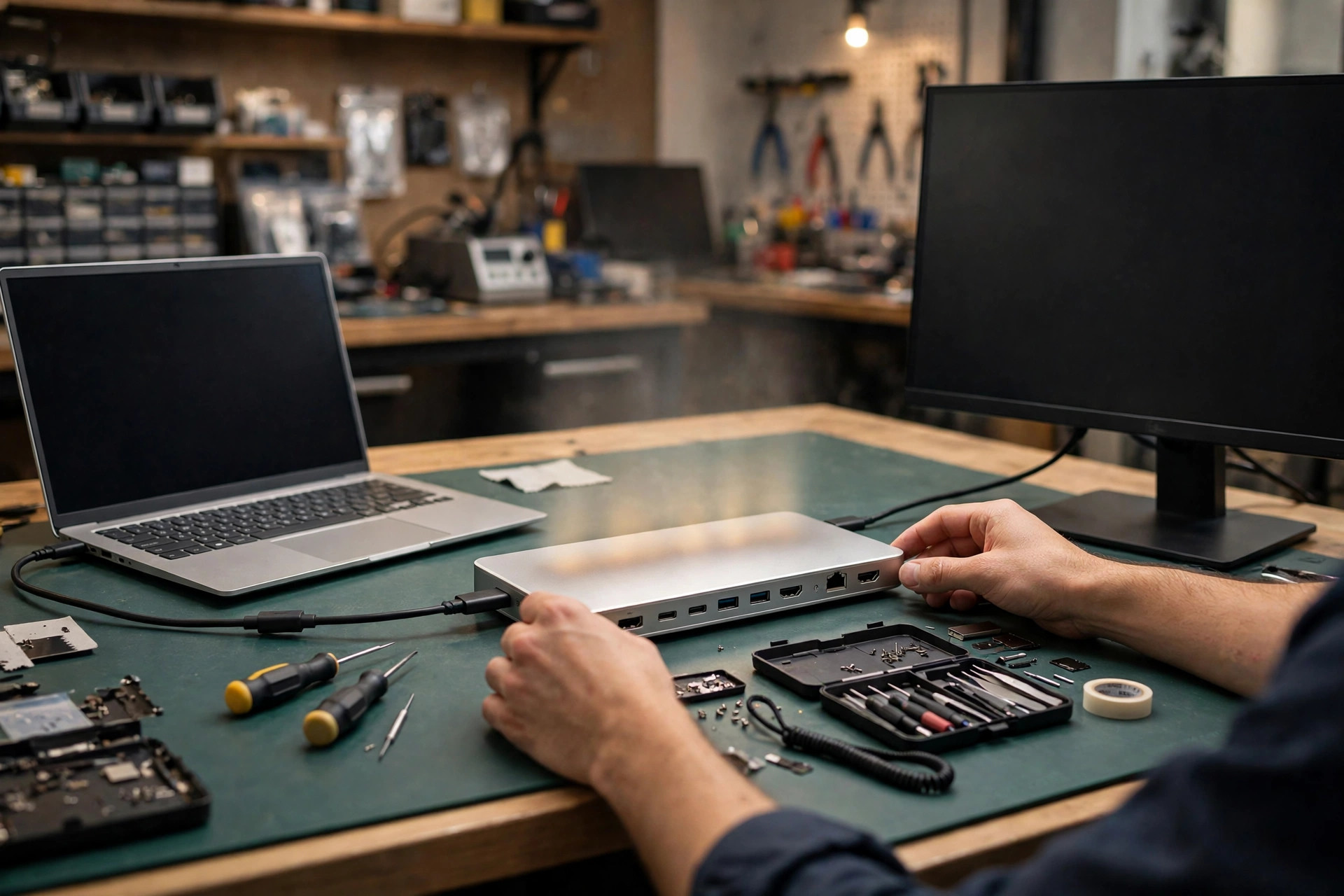
📌 Key Takeaways
- •[S1] USB-IF — USB Charger (USB Power Delivery), official page. PD 3.1 raises the ceiling to 240W and adds 28V, 36V and 48V; the earlier ceiling was 100W (20V x 5A). (https://www.usb.org/usb-charger-pd)
- •[S2] USB-IF — USB Type-C, official page. Index of Type-C and PD testing and compliance documents. (https://www.usb.org/usbc)
- •[S3] Plugable — What Is 240W USB Extended Power Range (EPR), vendor technical explainer. PD 3.1 EPR ceiling 240W (28V, 36V, 48V x 5A), SPR ceiling 100W, EPR needs an SPR contract first, EPR cable needs an EPR e-marker. (https://plugable.com/blogs/news/what-is-240w-usb-extended-power-range-epr)
- •[S4] USB-C 60W vs 100W vs 240W Cables & E-Marker Chips Guide (wh2lhub) and RSQ USB-C cable explainer, third-party technical summaries. Standard cable limited to 3A and 60W, 5A needs an e-marker, EPR needs a 240W cable, connection starts at 5V and negotiates up. (https://wh2lhub.com/usb-c-cables/usb-c-60w-vs-100w-vs-240w/) (https://www.rsq.kr/tech/usb-c-cables-power-and-data-limits/)
- •[S5] Dell — Dell Docking Station WD19S User Guide (Docking Specifications), official guide. WD19S delivery: 130W brick delivers 90W to a Dell machine, 180W brick delivers 130W to a Dell machine, non-Dell machines 90W (PD 3.0); working temperature 0-35 °C, humidity 10%-80%; per-port USB power ceilings. (https://www.dell.com/support/manuals/en-us/dell-wd19s-130w-dock/wd19s_user_guide/docking-specifications?guid=guid-22bfc1bd-cd42-4634-a014-993536756768&lang=en-us)
# Laptop USB-C Dock Overheating and Thermal Throttling: An Advanced Hong Kong Guide to Hot Docks, Power-Budget Shortfalls, Dropouts, Slowdowns and Shutdowns
In a Hong Kong summer, in a room with no air conditioning or with air conditioning that cannot keep up, a laptop plugged into a USB-C dock works perfectly at first. Half an hour later the external monitor starts flickering, a USB drive ejects itself, the Ethernet connection drops and reconnects, charging gets slower and slower, and then the whole dock goes dead until its cable is unplugged and it is left alone for a while. The dock feels hot to the touch. So does the bottom of the laptop. So does the power brick. The first thing most people say is that the dock has burned out. The second is that the laptop is overheating. Both can be wrong.
The first thing this guide establishes is that a dock is not a splitter cable. It is a small computer plus a power distribution unit squeezed into a palm-sized case. Inside it, five jobs run at the same time: power conversion, high-speed data transport, image decompression, USB fan-out, and Ethernet conversion. Every one of them draws power and every one of them produces heat. The second thing is that the word "hot" has three completely different meanings in this subject, with different mechanisms and different fixes. The third is that very often the dock is not overheating at all. It simply cannot deliver as many watts to the laptop as the laptop needs at full speed, so the laptop slows down, drains its battery, and even loses charge while plugged in. It looks exactly like overheating, but no amount of extra airflow will fix it.
This guide starts with mechanism: which chips inside a dock generate heat, how the power budget is cut down three times over, the three-step ladder of thermal throttling, the difference between aluminium and plastic cases, and the trade-off between fanned and fanless designs. It then turns to Hong Kong's 31.6 °C summer reality, measurement methods, seven common misdiagnoses, and a seven-layer diagnostic process in which only one variable changes at a time. Every key claim carries a source tag, and the source list is at the end. Anything marked "inference", "worked example" or "not verified" is reasoning or a teaching calculation without first-hand public data behind it, and must not be quoted as a measured fact.
Readers with only ten minutes should read the first section, which separates the three meanings of "hot", and then the section on the layered diagnostic process. The rest can be consulted layer by layer when a fault appears. Before sending a machine in for inspection, back up your data and bring the dock, its power supply and every cable, so that the full fault condition of dock plus laptop plus load can be reproduced.
First, the conclusion: "hot" has three meanings, and they must not be mixed up
A dock that gets slow or drops out after a while is usually the result of three chains narrowing at the same time: the total power supply is divided between the dock itself and its downstream devices, several high-power chips are packed into a fanless or small-fan sealed case and heat each other, and Hong Kong summer room temperature is already close to the manufacturer's working temperature limit. The symptoms appear in three forms, and diagnosis must keep three separate terms instead of covering everything with the single word "overheating" [S30][S33].
The first form is thermal throttling, also called thermal derating. When a chip or a power controller reaches a temperature threshold, it actively slows down, reduces its power delivery, or lowers its link speed. The result is intermittent dropouts, flickering, USB devices dropping one by one, and slower charging, but the dock does not necessarily stop altogether. One third-party testing article describes how a dock under sustained heavy load heats up internally until its power controller triggers thermal derating, actively lowering its output voltage or current combination to protect the hardware, with the result that charging slows and devices drop intermittently [S31]. Derating as a general protection mechanism is sound power engineering and is consistent with Dell's official documentation on over-temperature protection, but the specific thresholds of "which model derates to how many watts at which temperature" are not published model by model in official documents, so the only general statement that can safely be made is that some docks have thermal derating protection. No threshold numbers are stated, because none are published model by model.
The second form is over-temperature protection shutdown. As temperature rises further, the dock cuts itself off and cannot recover until it is disconnected from power and allowed to cool. Dell's official manual states this mechanism in plain words: if the abnormal condition is not removed, in the worst case the dock shuts down through its over-temperature protection mechanism, and recovery requires unplugging the cable, unplugging dock power, waiting 15 seconds, and plugging power back in [S6][S7]. This is the strongest official evidence in this guide: the manufacturer itself admits that the dock has a temperature threshold, that an ambient temperature above 35 °C is already an abnormal condition, that overheating shuts the dock down, and that recovery takes a 15-second power cut.
The third form is a power-budget shortfall that looks like overheating. The dock is not hot at all. It simply cannot deliver as many watts as the laptop needs at full speed, so the laptop throttles, drains power, and even loses charge while plugged in. The user concludes that the dock has burned out and buys another dock of the same class, which is slow in exactly the same way, because the problem was never temperature. It was arithmetic. HP's official documentation already warns that a mobile workstation needing more than 100 W must use a separate power supply [S9].
All three look alike from the outside. All three are "slow or dropping out after a while". But the layered diagnostic process for each is completely different. Knowing which one you are dealing with is what stops you replacing the wrong part.
A dock is a small computer: five subsystems, one case
To understand why a dock gets hot, take its functions apart. A modern USB-C or Thunderbolt dock contains at least five subsystems working at the same time, all drawing power and all producing heat [S25][S30].
| Subsystem | What it does | Typical chip or example (verified) | Where the heat comes from |
|---|---|---|---|
| Power controller plus DC-DC conversion | Takes 19.5 V or 20 V DC from the external power supply and converts it to 20 V for the laptop and 5 V for each USB port | TI's official technical paper states that the power controller and DC-DC converter are part of the dock power chain [S25] | MOSFET switching loss, inductor loss, conduction loss |
| Thunderbolt or USB4 controller | Carries 40 Gbps tunnels for PCIe, USB and DisplayPort | Intel JHL8440: 40G support, native USB 10G, DP 1.4 Alt Mode, 32G PCIe tunnelling [S16] | High-speed SerDes running continuously; the heavier the load, the hotter it runs |
| Video path: MST hub or DisplayLink | MST splits one DP signal across several screens; DisplayLink decompresses a compressed picture from the host inside the dock | Synaptics VMM5200 (the MST chip in the Plugable UD-3900C4) [S19]; Synaptics DL-7400 supports four 4K120 screens or dual 8K60 [S17] | Decompression and splitting work rises with resolution, refresh rate and how much the picture changes |
| USB hub chip | Splits one upstream USB link into several downstream ports and manages bandwidth and power per port | Realtek RTS5411 is a USB 3.0 hub controller; this research verified only that its datasheet index page exists and could not read its power table directly [S46] | Sustained full load when several devices transfer at once |
| Ethernet, card reader, audio | 1G or 2.5GbE PHY, SD card reader, USB audio | CalDigit TS4 uses Intel i225-V 2.5GbE (cited in a third-party review) [S37]; TS4 also has a UHS-II card reader [S13]; Realtek RTL8153 is a USB 3.0 to 10/100/1000M Ethernet controller [S41] | PHY and card reader heat up during sustained file transfer |
Dock types and their heat sources compared
What the market calls a USB-C dock is really several completely different machines sharing one USB-C plug. Type decides thermal behaviour, and misidentifying the type sends every later diagnosis down the wrong road.
| Dock type | How it works | Main heat sources | Heat or failure character |
|---|---|---|---|
| DP Alt Mode plus MST, native path | Video is a native DisplayPort signal sent straight to the display over the high-speed lanes; the host does not compress each frame [S38] | Thunderbolt or USB controller plus power conversion; MST chip splits the signal [S16][S19] | Heat comes mainly from the controller and power; display load is decoupled from host load |
| Thunderbolt or USB4 desktop dock | A 40 Gbps tunnel carries PCIe, USB and DisplayPort at the same time [S16] | High-speed SerDes at full speed; high-wattage power conversion | Only reaches the cooling limit when dual 4K and large transfers run together |
| DisplayLink path | The host CPU compresses the picture in real time, sends it over USB, and a chip inside the dock decompresses it for output [S38] | Decompression chip inside the dock; host CPU compression load makes the laptop itself hotter [S17][S38] | Temperature and stutter rise together when playing video, scrolling web pages or switching windows |
| Small travel hub (bus-powered) | No external power supply; all power comes from the laptop USB-C port and is shared with downstream devices [S23] | Several chips plus power rails inside the smallest case, with the least cooling area | Not suitable for sustained desktop use with dual screens and many devices at full load; worse still when used inside a bag |
| Desktop dock with its own power brick | The dock has its own AC power supply and distributes power internally [S7][S13] | Power conversion plus all data chips; brick and dock cool separately | Brick heat does not directly equal dock heat, but when both are hot the heat load on the desk adds up |
Mechanism one: power-conversion loss, a few watts of heat for every 100 W passing through
The physics is simple. No converter is 100% efficient, output power is always less than input power, and the difference becomes heat. The general formula given by EDN is [S26]:
> Efficiency = output power divided by input power; waste heat = (output power divided by efficiency) minus output power = input power minus output power.
Worked example, not a measured value, and it must be labelled as such: suppose a dock's DC-DC stage is 90% efficient. To deliver 100 W to a laptop it must take in about 111 W, and about 11 W becomes heat inside the dock. If efficiency falls to 85%, the same 100 W output produces about 17.6 W of waste heat. The difference between 11 W and 17.6 W is enough, inside a palm-sized sealed case, to raise case temperature noticeably. This example only demonstrates the order of magnitude using a general formula. It is not the measured efficiency of any model. Manufacturers mostly do not publish per-dock DC-DC efficiency, and the gap figures are a total reserve, not pure loss. The two must not be confused.
Three points need care. First, a dock has more than one conversion stage. The external brick converts AC to DC first, and the dock then converts DC to DC again, for example 20 V down to 5 V for USB ports and 3.3 V for chips. Every stage has losses, and losses add up. TI's official technical paper states that the architecture of the power controller and DC-DC converter is itself the core of loss and efficiency considerations [S25].
Second, the higher the current, the faster conduction loss rises, because it grows with the square of the current. This is the physical reason why higher power means much more heat (inference: the formula is general electrical engineering; the loss figures for each individual dock are not verified). So 100 W charging runs far hotter than 65 W charging, not merely "35 W more". The wider the voltage conversion step, for example from 20 V down to the dock's internal 5 V or 3.3 V rails, the more conversion stages there are and the more points at which loss occurs. The more downstream devices there are, the more power rails the dock must keep open and the higher its idle draw.
Third, "brick wattage" does not equal "watts reaching the laptop", and neither equals "total dock input". Example: the Dell WD19TB ships with a 180W brick but delivers only 130W to a Dell laptop, and the remaining budget must be kept for the dock itself and its downstream ports. That figure comes from a third-party summary citing Dell documentation [S45] and was not checked directly against the official text. The CalDigit TS4 ships with a 230W external supply but delivers only 98W to the host [S13]. The difference is not all waste; it is the sum of the dock's port, chip and charging budgets. But the numbers themselves show that the wattage on the box cannot be read as charging wattage. Anker's numbers are the most candid and the most worth quoting, and the next section compares them one by one.
Mechanism two: the power budget, three deductions from the wattage on the box
This is the most misunderstood section of the subject, and the one with the most practical meaning in Hong Kong. A dock's power supply passes through three deductions:
``
Wattage printed on the brick
  minus the dock's own operating reserve (chips, hub, fan, standby)
  minus the reserve for each downstream port (USB-A or USB-C charging, attached devices)
  = the PD wattage actually available to the laptop
And "actually available to the laptop" is then limited by two further ceilings: the cable ceiling and the manufacturer or protocol ceiling. The cable first. USB PD is a negotiation protocol, not a tap: the power source first announces the power combinations it can supply, the power consumer requests one of them, and voltage only rises once both sides agree. Every connection starts at 5 V [S1][S4]. The standard power range of PD 3.0 tops out at 100W (20 V x 5 A); PD 3.1 adds an extended power range topping out at 240W (48 V x 5 A), with 28 V (140W) and 36 V (180W) steps in between [S1][S3]. The USB-IF Type-C page also indexes the PD testing and compliance documents, which is the starting point for checking compliance claims about cables and chargers [S2]. The key limit is that a standard USB-C cable is rated for only 3 A, so 20 V x 3 A = 60W at most. To go above 60W, the cable must contain an e-marker chip proving to the charger that it can carry 5 A. Without an e-marker, the charger limits output to 60W [S4]. Extended-power cable needs an EPR-capable e-marker and 50 V tolerance [S1][S3]. In other words, with the same dock, one wrong cable can cut the charging ceiling from 100W to 60W while the dock itself is completely healthy.
The current USB-IF certification marks have been simplified to two tiers, 60W and 240W, and the old "100W" mark has been retired. So a cable box that says "100W" today needs a second look at whether it is really 60W or 240W certified and whether it has an e-marker; the words on the packaging alone are not enough [S43]. Cables have another trap: the StarTech 240W EPR cable datasheet states plainly that its 240W and 5 A delivery is real, but its data is only USB 2.0 (480 Mbps) and it does not support USB-C video [S43]. With this kind of cable on a dock, power may be sufficient while picture and high-speed data are certainly not. Expensive does not mean suitable. Check the e-marker reading and the certification mark, not the price.
Official power-budget calculations compared
The three official examples below, placed side by side, use numbers that come from the manufacturers, with no inference needed. The other rows in the table carry their own source tags, and one figure comes from a third-party summary citing manufacturer documentation. The pattern appears at once: the wattage on the box is usually an input ceiling or a brick rating, not a guarantee of power delivered to the laptop. The line to read is the one labelled "PD pass-through" or "power delivery to host".
| Model (source) | Brick or input ceiling | Maximum delivered to the laptop | What the difference is |
|---|---|---|---|
| Anker 555 USB-C Hub (8-in-1) [S23] | 100W PD input | 85W | 15W reserved for the hub's own operation (stated by the manufacturer) |
| Dell Universal Dock UD22 [S7] | 130W AC brick | 96W | 34W total reserve (dock itself plus downstream plus conversion) |
| CalDigit TS4 [S13][S15] | 230W external supply | 98W | 132W remaining total budget (power for 18 ports and more) |
| Dell WD19S (130W brick version) [S5] | 130W | 90W to a Dell machine; 90W to a non-Dell machine | The manufacturer uses a proprietary protocol for differentiated delivery |
| Dell WD19S (180W brick version) [S5] | 180W | 130W to a Dell machine; 90W to a non-Dell machine | 130W requires the 180W version |
| Dell WD19TB or WD19TBS [S45] | 180W | 130W to a Dell machine; 90W to a non-Dell machine | Third-party summary citing Dell documentation, not checked directly against the official text; non-Dell machines are capped at 90W |
| HP USB-C Dock G5 [S9][S10] | 120W | Up to 100W to an HP machine; up to 75W to a non-HP machine | A ZBook needing more than 100W needs a separate power supply |
| Lenovo ThinkPad Thunderbolt 3 Workstation Dock Gen 2 [S12] | 230W | 170W (mobile workstation) | A higher delivery class built for the P-series workstations |
| Lenovo ThinkPad Thunderbolt 4 Workstation Dock [S11] | 300W | Up to 230W to the workstation | Working temperature ceiling up to +40 °C |
| Anker Prime Docking Station A83B6 [S20] | AC input, total USB output up to 160W | Upstream port up to 100W (20 V / 5 A) | Combination ceilings apply when several ports are used at once |
The Dell UD22 calculation is 130W brick minus 96W to the system, leaving a 34W total reserve [S7]. Note that 34W is not "pure loss" or "pure heat". It is the sum of the dock's own draw, the downstream USB port power budget, conversion loss and design margin. Treating all 34W as wasted heat is a misreading. The correct reading is that a 130W box does not mean 130W of charging. A secondary summary of the same source also describes the mechanism: under heavier dock load, the charging power available to the laptop falls as downstream load rises. That is a mechanism description only. By how much it falls was not checked cell by cell against the official power table, so the official power table for that model is the authority, and no figure should be read as something every UD22 necessarily does in every situation.
The CalDigit TS4 calculation makes one point better than any other: a 230W supply minus 98W to the host leaves a 132W remaining total budget [S13][S15]. Again, 132W is not loss. It is everything else the dock must serve at the same time: 18 ports, downstream Thunderbolt power, USB charging ports (front USB-C up to 20W, other USB ports 7.5W each), card reader, Ethernet and audio. A bigger brick does not mean more power to the laptop. The brick rating is the total budget for the whole dock, and power to the laptop is only one item in it.
Three traps catch Hong Kong buyers most often. First, "a 130W brick does not mean 130W of charging". The 130W version of the WD19S delivers only 90W; 130W requires the 180W version. Buy the wrong version and a performance laptop at full speed will lose charge while plugged in and throttle, and the user will conclude that the dock is overheating and faulty [S5]. Second, "non-native machines are discounted". The same WD19S gives a Dell machine 130W but caps a non-Dell machine at 90W [S5]; the HP G5 behaves the same way, 100W for an HP machine and 75W for a non-HP machine [S9]. This is a difference the manufacturer builds in through a proprietary protocol. It is not a broken cable and it is not a broken dock. Third, "the total is not the per-port figure". The Anker Prime totals 160W of output, but a single upstream port tops out at 100W, and different combinations of ports in use have different ceilings [S20]. Plug in one more phone for fast charging and the laptop's share may be renegotiated. During PD renegotiation the voltage dips briefly, and what the user sees is a flicker or a dropout.
Downstream devices "take" power from the laptop
A dock's total power budget is a fixed ceiling, not "each port independent". The following is a concept calculation, not a measurement of any model:
`
Total budget (brick or PD input ceiling)
  = power to the laptop + power for the dock itself + power for all downstream ports
Common downstream port ratings, using Dell UD22 official specifications as the verified example [S7]: a USB 3.2 Gen 2 port tops out at 0.9 A at 5 V, or 4.5W; a USB port with PowerShare or BC 1.2 tops out at 2 A at 5 V, or 10W; a USB-C port tops out at 3 A at 5 V, or 15W, falling to 1.5 A at 5 V, or 7.5W, when the rear USB-C port already has a device attached. The Dell WD19S official specification table lists similar per-port ceilings: front USB 3.2 Gen1 PowerShare up to 10W, front USB-C up to 7.5W, each rear USB 3.2 Gen1 up to 4.5W, rear USB-C up to 15W [S5]. In other words, with several devices plugged in, downstream power alone can already account for tens of watts. A media testing summary also notes that multi-port docks share one internal power rail, and when high-draw peripherals are attached the dock reports a lower power combination to the laptop, so charging quietly falls [S32].
Different docks manage power with different priorities (not verified: the priority order of each model must be checked against that model's official documentation). Some docks protect host charging first and cut downstream power when it runs short. Some protect downstream stability first and cut host charging. Some have no dynamic allocation at all, and when the total load exceeds the ceiling the whole dock resets, so every device drops and reconnects together. The user cannot tell which kind it is from the outside. The only way is to work backwards from the symptoms: charging slows while downstream devices all work normally, which points more towards a dock that protects downstream and cuts the host; a downstream SSD ejects while laptop charging stays normal, which points more towards a dock that protects the host and cuts downstream; everything, screen, charging and all devices, dropping for one second and coming back together, which points more towards a total-budget overshoot triggering a whole-dock reset or a PD renegotiation.
How a power shortfall makes a laptop slow down and drain its battery
This is the most important causal chain connecting "dock heat" and "laptop slow", and it is worth writing out as a calculation. The following is a worked example from conservation of energy, not a figure from any single measurement:
`
Let: P_to_laptop = power the dock actually delivers to the laptop (W)
     P_system = the laptop's whole-system draw right now
                (CPU plus graphics plus screen plus fan plus charging demand)
     P_battery = battery charge or discharge power
                (positive means charging, negative means discharging)
Conservation of energy (ignoring transients): P_to_laptop = P_system + P_battery
Therefore: P_battery = P_to_laptop - P_system
`
Three cases follow. At light load, power delivered to the laptop exceeds system draw, the battery charges, and the percentage rises. At balance, power delivered to the laptop roughly equals system draw, and the battery percentage stays at the same number for a long time, for example stuck at 80%. That is not "not charging"; it is power that exactly covers the system. At heavy load, power delivered to the laptop is less than system draw, the battery discharges to cover the gap. That is charge falling while plugged in. Worked example: the system needs 95W, the dock delivers only 85W, and the 10W difference comes from the battery, which falls slowly from 100% to 90% and then 80%.
The laptop's self-protection responds in three steps. The mechanism is sound, but brand implementation details are not verified and vary by model. First it reduces charging current: the system is fed first and charging waits, so the percentage rises slowly or stalls. Second it reduces performance: the embedded controller or BIOS sees input power persistently short and tightens the CPU and graphics power limits, so system draw falls back to the input level. What the user sees is "slow as soon as the dock is connected, fast again as soon as the original charger is plugged in directly". Third, and only last, it shuts down: when battery charge reaches a critical level, the system forces sleep or shutdown to protect data.
The key misdiagnosis sits in the second step. This slowdown looks like "laptop overheating and throttling", but its root cause is a dock power shortfall, not poor laptop cooling. The test that separates them is in the layered-process section: same laptop, same load, switch to the original charger plugged in directly. If speed returns, the fault is in the dock power chain. If it stays slow with the original charger, only then is it time to check laptop cooling or battery health. Thunderbolt 4 docks commonly top out at 100W of charging, and a 16-inch performance laptop needing 140W or more can lose charge while plugged into a 100W dock during gaming or rendering [S42].
The rule of thumb can go on a checklist: check the wattage of the laptop's original charger, then compare it with the dock's "power delivered to the laptop" figure, not its brick wattage. If dock delivery is lower than the original charger wattage and the user often works at full speed, expect throttling or battery drain even when the dock is completely healthy. That is not a fault. It is a mismatch in selection. A thin-and-light office laptop with a 45 to 65W original charger is usually fine on a 60 to 100W dock, with generous headroom and low heat stress. A performance laptop or mobile workstation with a 130W, 170W or 230W original charger will certainly not be enough on a 60W or 90W dock [S9][S11]. (The charger wattages above are general selection advice, not a measured specification for each model.)
Mechanism three: the three-step ladder of thermal throttling, cutting functions, then shutting down
Almost every electronic product protects itself against heat in steps. The following is a concept model: the step logic is general design practice, and the actual threshold temperatures and trigger conditions of individual docks have not been verified model by model in public manuals, so no number in this section should be taken as a specification for any particular model.
| Step | Mechanism (concept) | What the user sees |
|---|---|---|
| Step 1: slow down, reduce load | When chip temperature approaches its ceiling, the controller first lowers clock speed, reduces supply current, or lowers link speed to cut heat generation | USB transfers slow down, Ethernet falls from 1 Gbps to 100 Mbps, a display drops from 4K 60 Hz to 4K 30 Hz or flickers; the symptom is "slower, reduced", not "dead" |
| Step 2: cut functions selectively | As temperature rises further, the controller switches off individual high-draw subsystems, for example downstream USB power first, then the card reader, then a second display output, to keep core functions alive | One device suddenly disappears, one screen goes black, but the rest of the dock keeps working |
| Step 3: whole-dock thermal shutdown | When temperature reaches a hard protection point, the dock cuts power or resets entirely to prevent permanent damage | All devices disappear at once, all screens go black, the dock indicator light goes out or changes colour; recovery needs a power cut and cooling |
Dell's UD22 official manual confirms that step 3 exists, without publishing a specific threshold temperature: "in the worst case, the dock shuts down through its over-temperature protection mechanism; if this happens, unplug the USB-C cable and the dock power supply, wait 15 seconds, then plug the power supply back in before the dock can come back online" [S7]. The manual also states plainly that a loud fan is a warning signal, meaning the dock is in some overheated state, for example because its vents are blocked or the working environment is above 35 °C [S7]. The Dell WD19TB official manual carries the same 15-second reset procedure and the same fan warning [S6].
Inference: the symptoms progress gradually from step 1 to step 3. If a user notices slower transfers and a slower network at step 1 and improves cooling or reduces load early, step 3 can usually be avoided. But if the pattern is always "suddenly everything dies", the dock has been working at the edge of steps 2 and 3 for a long time. This is also why "the dock dropped out, I unplugged it and plugged it back in, and now it is fine" does not mean "nothing is wrong". Replugging only forces a fresh power negotiation, retrains the links and lets the chip cool briefly. If the same symptom keeps coming back, the root cause has not gone away, and it will return as soon as the load rises again.
Thermal derating deserves a mention too. A third-party testing article describes how a dock under sustained heavy load heats up internally until its power controller triggers thermal derating and actively lowers output, and how a dock with a 100W external supply reserves 15 to 20W for its own operation and its peripheral port budget, so the wattage on the box is not the wattage that reaches the laptop's battery management system [S31]. A media testing summary also notes that a multi-port dock with high-draw peripherals attached can let charging fall quietly from 85W to 60W or lower [S32]. Both are third-party descriptions whose threshold numbers have not been confirmed by the manufacturers. The safe reading is that some docks have thermal derating protection, shown by slower charging and intermittent device dropouts, and that "recovery after cooling" is the supporting evidence, not a threshold number that does not exist.
Cooling design: aluminium cases, plastic cases, fans, and vents
An aluminium case is not automatically cool, and a plastic case is not automatically hot. Ask where the heat goes
The CalDigit TS4 is the representative aluminium case with passive cooling. The official introduction stresses 18 ports, 98W delivery and 2.5GbE [S13]; a third-party review describes the TS4 case as "itself a heatsink", with a finned aluminium shell that adds cooling area and can stand upright or lie flat [S36]. Another review measured a surface temperature of about 38 to 40 °C, within the normal operating range, but already warm to the touch [S37]. The key point is that a warm aluminium case is a good sign, because it means heat is travelling from the chip to the case and out into the air; a cool aluminium case with dropouts inside may instead mean the heat path has failed. But an aluminium case also passes heat to the desk or to the hand, so touch alone easily misjudges it as "overheating". There is also an infrared thermometer trap when measuring a metal case: a bright aluminium alloy shell has a much lower emissivity, reflects surrounding heat sources, and can read far too low or far too high. When measuring a metal case, stick a small piece of matt tape on it and measure the tape, or use a contact probe instead (inference: infrared measurement principle).
A plastic case behaves the other way round. Plastic conducts heat poorly, so heat stays trapped inside the case and chip temperature can be far higher than case temperature. UGREEN's official article states plainly that a plastic case cannot shed heat quickly, so the controller reaches its temperature ceiling and throttles, producing intermittent dropouts, display flicker and falling storage speed [S30]. A plastic dock may feel only slightly warm while its internals are already throttling. Touch cannot be trusted. Finned or upright designs aim to cool passively without a fan, but they are sensitive to placement: lying flat, pushed against a wall, or stuffed in a drawer all weaken convection. The TS4's fins and upright placement add convection area [S36]; some docks use a finned aluminium case plus vents to form an airflow channel, which is a third-party ODM description and must be treated as such, not as a manufacturer specification.
Another third-party comparison notes that the TS4's large aluminium case is passively cooled, with no fan but enough thermal mass, while the Revodok it was compared with measured 55 to 60 °C under sustained load before throttling. That is a third-party measurement, not a manufacturer specification [S34].
A fan is not automatically better, and no fan is not automatically worse
Most USB-C docks use fanless passive cooling. The Dell WD19TB is an exception, and its official manual devotes a whole section to the fan [S6], worth quoting point by point: the fan is triggered by temperature and does not spin until it is hot enough; the fan does not stop until the dock has cooled, even after the connection to the system is removed; the fan has five speed steps plus off: off, 1900, 2200, 2900, 3200 and 3600 rpm; a loud fan is a warning that the vents may be blocked or that the working environment is above 35 °C; if the abnormal condition is not removed, in the worst case the dock shuts down through its over-temperature protection mechanism; recovery is to unplug the cable, unplug dock power, wait 15 seconds, then plug power back in; and even when used only as a charging stand for a phone or a power bank, the fan spins automatically when the dock warms up, which is normal.
The Dell UD22 is another official example of a dock with a fan: the fan is triggered by temperature, with five speed steps plus off: 0 rpm (off), then 3000, 3500, 4200, 4700 and 5100 rpm; the fan does not spin until it is hot enough, and after the connection is removed the fan does not necessarily stop at once until the dock has cooled [S7]. Note that the UD22 and the WD19TB are two different models with different fan speed figures, and their numbers must not be mixed together.
Need a laptop repair expert?
Free diagnosis · Transparent pricing · No fix, no fee · 180-day warranty
Inference: a dock with a fan has one extra failure mode, the fan and the air path. A blocked vent, an ageing fan bearing, or a stalled fan can drop it from active cooling back to passive cooling without the user noticing at once, because the dock looks unchanged from the outside. A fanless dock has no such variable, but its cooling ceiling depends entirely on case area, placement and ambient temperature. The CalDigit TS4 is the official example of fanless design: its ribbed aluminium alloy case acts as a passive heatsink, cooling through large area plus thermal mass, completely silent [S15]. The TS4's firmware updates are also worth noting: the latest Thunderbolt firmware version 45.1 improves downstream USB4 and Thunderbolt compatibility, and firmware itself can affect dock stability [S14].
Vents, placement, and dust: the three enemies of passive cooling
Dell's manual lists "blocked vents" as the first suspected cause of a loud fan [S6]. UGREEN and several guides agree: a dock placed under a laptop, on soft cloth, tight against a shelf, or behind a monitor cannot shed its heat [S30][S33]. Anker's official FAQ warns the same way: a dock warming up during charging or high-speed transfer is normal, but nothing should be placed on top of it or cover it [S21]. Another Anker hub manual states plainly that a 100W input leaves only 85W for the laptop after the hub, because the hub itself needs 15W to operate [S22]. That 15W is direct evidence of the dock's own draw, written in black and white by the manufacturer, not a theory.
The dust failure chain, as industry guides describe it, runs: dust blocks the vent, internal temperature rises, the controller passes 85 °C, protective throttling starts, the bus resets, and the display flickers while USB drops out [S35]. That 85 °C figure comes from a third-party cleaning guide, not a chip manufacturer's datasheet, and cannot be treated as a universal threshold for all docks. The parts of the mechanism that are credible are these: dust is an insulating layer, and dust on heatsinks, circuit boards and chip surfaces makes it harder for heat to reach the air; dust in a vent cuts airflow, so a fanned dock spins faster and louder and still cannot shed heat; dust inside a plug, in a USB-C, HDMI or RJ45 socket, adds oxides that raise contact resistance, and higher contact resistance means more local heating, which degrades the contact further in a vicious circle (inference). Claims such as "dust is the main cause of most dock failures" come from third-party guides with no official statistics behind them. Dust can only be listed as a check item, never quoted as a statistical fact.
Cleaning guidance is general maintenance advice, not a repair instruction. Disconnect power and remove all cables before cleaning. Do not use a metal tool inside a plug, because it scratches the pins and causes permanent poor contact. Blow compressed air at an angle, not straight in, or dust is driven deeper. Wipe the case with a dry or slightly damp cloth and keep liquid out of the vents. In Hong Kong's dusty and humid environment, check every three to six months (inference: this frequency is a general suggestion, not a manufacturer rule). Opening a dock case yourself to clean or repair it may affect warranty; a dock still under warranty should go through the official warranty route first (general principle) [S35].
Manufacturer working-temperature ceilings compared
Ceilings differ widely between models, from 25 °C to 60 °C. In the same 32 °C room with no air conditioning, one dock is still within specification and another is already over it. There is no single universal number for a dock's normal working temperature. Check the working-temperature ceiling in the manual for your own dock and compare it with room temperature.
| Product or document | Working-temperature ceiling | Notes |
|---|---|---|
| Dell WD19S official guide [S5] | 0 °C to 35 °C (operating); relative humidity 10% to 80% (non-condensing) | The brick itself is rated 0 to 40 °C |
| Dell WD19TB manual [S6] | Above 35 °C is listed as a "high working temperature environment" abnormal condition | Loud fan plus possible over-temperature shutdown |
| Dell UD22 official manual [S7] | 0 °C to 35 °C; relative humidity 10% to 80% (non-condensing) | Not designed to be back-powered from the system USB-C port |
| Lenovo ThinkPad Thunderbolt 4 Workstation Dock [S11] | Up to +40 °C; humidity up to 95% | 300W brick, up to 230W delivered to the workstation |
| Lenovo ThinkPad Thunderbolt 3 Workstation Dock Gen 2 [S12] | Up to 60 °C; humidity up to 95% | The older generation has a wider ceiling and cannot be compared directly with the new one |
| Anker Prime Docking Station A83B6 [S20] | Working temperature 0 °C to 25 °C; storage minus 40 °C to 80 °C | Note: a 25 °C ceiling is extremely narrow, and Hong Kong summer room temperature already exceeds it; readers must check their own model's rating and not generalise |
| CalDigit TS4 [S15] | Safe temperature range 10 °C to 35 °C; avoid use in humid environments | Moisture and condensation can accumulate and damage electronic components |
Hong Kong: why this city is especially prone to dock heat problems
The climate figures (verified)
Hong Kong Observatory climate normals for 1991 to 2020 [S28]: annual mean temperature 23.5 °C; annual mean relative humidity 78%; July mean temperature 28.9 °C, daily mean maximum 31.6 °C, relative humidity 81%; August mean 28.7 °C, maximum 31.3 °C, humidity 81%; May to June humidity 82% to 83%; annual rainfall 2431.2 mm. Another summary quoting Observatory figures agrees: July daily mean maximum 31.6 °C and daily mean minimum 26.9 °C, relative humidity 81%, June daily mean maximum 30.7 °C, and June to September daily mean maximums of 30.5 to 31.6 °C [S29]. Observatory readings for July 2026 also show many days with a mean temperature around 30 to 31 °C and a maximum of 33 to 34 °C [S27]. In other words, a Hong Kong summer room with no air conditioning sitting above 30 °C is not an extreme case. It is normal. Actual indoor temperature varies with ventilation, orientation, and sunlight.
The headroom calculation (worked example): a dock working ceiling of 35 °C minus Hong Kong's July daily mean maximum of 31.6 °C leaves only 3.4 °C of headroom. A dock ceiling of 35 °C minus a stuffy office with no air conditioning (inference: this can reach 30 to 33 °C) leaves only 2 to 5 °C of headroom. In a Hong Kong summer, a room with no air conditioning or weak air conditioning is already pushing against a dock's design ceiling before the dock does any work at all. Add a few watts of heat inside the dock and chip temperature can reach the first or second protection step. This is not a dock being "poor quality". It is the distance between the design ceiling and a Hong Kong summer being very short to begin with. A dock that works perfectly in winter and only fails in summer is one of the common seasonal patterns in Hong Kong (inference: the seasonal link is a mechanism inference with no local statistics behind it).
Humidity has two effects (inference, labelled): first, high humidity reduces the efficiency of convective cooling, because the closer room temperature is to chip temperature, the smaller the temperature difference and the slower the cooling. This is a basic principle of heat transfer, not a measured value. Second, humidity plus dust plus temperature differences between an air-conditioned room and the outdoors can cause condensation or corrosion at contacts and vents, raising contact resistance and intermittent dropouts over time. Whether condensation itself directly causes a dock to overheat is not verified, so it can only be listed as a check and maintenance reminder, not written as a proven cause. Note also that the Dell UD22 working humidity ceiling is 80% (non-condensing) [S7] and the CalDigit TS4 manual says to avoid humid environments [S15]. Hong Kong summer outdoor humidity can itself exceed the rated working humidity ceiling of some docks. A room with air conditioning or a dehumidifier will be much drier; a room with no air conditioning needs attention.
Placement: flat, upright, or stacked
The physics (inference: general convection principle): hot air rises and forms natural convection. A dock's cooling efficiency depends on whether cool air can flow in and hot air can flow out. Any placement that blocks convection raises the temperature inside the case.
| Placement | Effect |
|---|---|
| Flat on a hard surface with ventilation all round | The baseline state; there is still a thin air layer between the base and the desk, but base cooling is limited |
| Upright | The CalDigit TS4 is officially designed to stand upright (it can also lie flat); its ribbed aluminium case benefits from a chimney effect when upright and takes up less desk area [S15]; inference: upright exposes two large faces to the air at once and convects better than flat, provided the vents or ribs are not covered when upright |
| Flat under a laptop, or in front of a laptop exhaust vent | The laptop's hot air blows straight at the dock, or the dock is pressed down by the laptop with no air under its base; the two machines heat each other |
| Stacked: books, papers, an external hard drive or another hub on top of the dock | The worst case. The top of a dock is one of its main cooling faces, and covering it is the same as covering a heatsink; weight can also bend the USB-C plug and raise contact resistance |
| On cloth, a bed, a sofa, or carpet | A soft surface sinks in and seals the vents or gaps in the base; fibres are also easily drawn into the air path of a fanned dock |
| Stuffed in a narrow shelf, behind a monitor, or inside a drawer | Hot air has nowhere to go, so local ambient temperature keeps accumulating; Dell's manual states plainly that blocked vents or ambient temperature above 35 °C are typical causes of a loud fan or an over-temperature shutdown [S6][S7] |
| Close to a wall or to other heat sources (brick, router, NAS) | Several heat sources warm each other, so local temperature rises above room temperature |
Commuting use and Hong Kong's humid environment
The most common Hong Kong scene for a travel dock, a small USB-C hub, is using it on the MTR or a bus, or carrying it in a backpack together with the laptop, where the dock is still supplying power or transferring data inside the bag, for example in charging mode or standby charging, in a sealed space with no convection, so heat accumulates. By the time the user arrives, the dock is already hot to the touch, and the user concludes that it is broken, when the cause is the physics of a sealed space plus continuous power delivery. Carrying a dock or hub in a backpack or handbag every day puts sideways force on the plug and repeated bending on the cable, fatiguing the solder joints inside the USB-C plug and the wire cores. Early fatigue shows as "it only works at one angle", and later becomes permanent poor contact (inference: mechanical fatigue is a general principle). Advice: keep the travel hub and the desktop dock separate. A desktop dock stays fixed in one place, which reduces insertion wear.
Hong Kong is a coastal city. In a seaside or sea-view flat, or an office with windows often open, the air carries more salt than inland air. Salt plus humidity accelerates oxidation and corrosion of metal contacts, the USB-C pins, HDMI pins, RJ45 pins and DC plug, raising contact resistance. This section could not verify any quantitative corrosion rate for dock contacts. The above is only a qualitative inference that a coastal plus high-humidity environment oxidises contacts faster. It must not be written as a quantitative claim such as "in Hong Kong it will oxidise within three years". Its practical meaning is that for a seaside user whose dock symptom is "intermittent poor contact that improves when the cable is moved", contact oxidation or wear should rank higher than "chip overheating".
Safety warning, in strong terms: if a dock, cable or power brick gives off a burnt smell, deforms, smokes, or becomes too hot to touch, disconnect power and stop using it at once. Do not keep using it, do not put it in a backpack, and do not place it near flammable material. If in doubt, send it for inspection. This is general safety knowledge, not a recall notice for any model, and it must not imply that any brand has a batch problem.
The signal layer: USB 3 falling back to USB 2, Ethernet dropping with it, displays stepping down
This section is not about power. It is about how heat degrades the signal link. The physical structure is that inside a USB-C plug, USB 2.0 (D+ and D-) and USB 3.x (SuperSpeed, TX and RX differential pairs) are two physically separate sets of pins and circuits. A USB 3 device connects both sets at once. The system first tries to establish a SuperSpeed link, and only falls back to USB 2.0 High-Speed (480 Mbps) if that fails [S39].
| Mode | Signalling rate (signalling rate, not file-copy speed) |
|---|---|
| USB 2.0 High-Speed | 480 Mbps |
| USB 3.2 Gen 1 (SuperSpeed) | 5 Gbps |
| USB 3.2 Gen 2 (SuperSpeed+) | 10 Gbps |
Heat degrades the link through three routes (inference-led, and labelled as such). First, signal integrity degrades. Rising temperature makes the chip's internal clock drift, raises PCB copper resistance and raises connector contact resistance, narrowing the high-speed signal eye, raising the bit error rate, and causing link training to fail or retransmissions to surge, so the controller drops the link to a lower speed or resets it to stay stable. Low-speed USB 2.0 signals run at a far lower frequency and are far less sensitive to the same degradation, which is why "USB 3 dead, USB 2 alive" is so common. Second, the controller may actively slow down. Some hub controllers, when overheated, actively lower SuperSpeed link speed or switch off individual SuperSpeed ports to cut power and heat (inference: this behaviour varies by chip model and has not been verified against individual chip datasheets; it should not be written as a feature all docks have). Third, unstable power triggers a reset. Heat makes the power or DC-DC output ripple larger or the voltage sag, so a USB device loses power for an instant and the system treats it as unplugged and plugged back in. When it re-enumerates, if the SuperSpeed link cannot be established, it comes back in USB 2.0 mode. What the user sees is "the SSD suddenly went from 5 Gbps to 480 Mbps, and unplugging and plugging it back in fixes it for a while".
The key distinction is this: if the same SSD runs at 5 Gbps plugged directly into the laptop and at 480 Mbps through the dock, and returns to 5 Gbps after the dock cools down, heat-related slowdown is likely. If it is 480 Mbps whether hot or cold, the problem is more likely the cable, the port, or physical pin damage.
Ethernet inside a dock is a "USB device", not an independent network card [S41]. So it fails in three layers. At the USB layer, the Ethernet device disappears from Device Manager or the system report, because the USB hub or bridge chip has reset or shut down from overheating, and the Ethernet device goes with it. At the link layer, the network is still there, but speed falls from 1 Gbps to 100 Mbps or the connection keeps dropping and reconnecting, because the PHY signal has degraded or USB bandwidth has been taken by video or storage traffic. At the power layer, the connection drops only during large downloads or uploads and is fine when idle, because at high traffic the PHY plus bridge chip draw more power and generate more heat together, triggering the first or second protection step, while at idle the draw is low and the symptom disappears. This is the most typical time signature of a heat-related fault: load-related and time-related.
Display degradation from heat follows a similar pattern (inference-led): dual 4K becoming single 4K, or a second screen going black intermittently, may mean the MST hub or DisplayLink chip has overheated and switched off one display output to save the other, or that a power shortfall has made the dock protect charging at the cost of the display; 4K 60 Hz falling to 4K 30 Hz or 1080p may mean a bandwidth or clock step-down, or a link retraining at a lower mode; flicker, snow, or intermittent loss of signal may mean high-speed video signal integrity has degraded as the HDMI or DP retimer drifts with heat; and a DisplayLink-only pattern, the laptop fan racing while video plays or pages scroll and the picture stutters, happens because host CPU compression load pushes laptop temperature up, the laptop throttles first, DisplayLink compression slows with it, and the picture stutters. That is a loop in which laptop heat and dock heat amplify each other. One important reminder: display step-down can also be caused by insufficient bandwidth, which has nothing to do with heat. Diagnosis must first separate "it is 30 Hz from the moment it is switched on" (a bandwidth or settings problem) from "it falls from 60 Hz to 30 Hz after a while in use" (a heat or power problem). The bandwidth mechanics of dual screens are covered in detail in this site's other dual-monitor failure guide [S44].
On storage, a high-speed NVMe external enclosure transferring large files over USB 3.2 Gen 2 (10 Gbps) loads the dock's USB hub controller and the SSD enclosure controller at the same time, and both heat up together. The symptom chain (inference): transfer speed falls midway from hundreds of megabytes per second to tens of megabytes per second, around 40 MB per second at USB 2.0 level, which is near the practical ceiling of a 480 Mbps signalling rate. That is a worked example: 480 Mbps divided by 8 is about 60 MB per second in theory, before protocol overhead. Or the device ejects suddenly and needs to be unplugged and plugged back in. The misdiagnosis is to conclude that the SSD enclosure is broken or the SSD is overheating. The dock's USB layer may have failed first. The control test is to plug the SSD directly into the laptop and transfer the same files.
Measurement: touch is not a diagnosis, measure four numbers
The limits of judging by touch
Industry guides carry an experience rule: if a dock is too hot to touch comfortably for more than 3 to 5 seconds, it counts as overheating [S35]. That is a third-party guide, not a manufacturer standard. But Anker's official documentation also states that the 555 Hub can reach about 149 °F (about 65 °C) on its surface at full load, and that this is normal for products of this kind [S23]. A 65 °C surface already feels like "cannot hold it for more than a few seconds". In other words, "very hot" does not mean "faulty". Touch can only answer "is it hot". It cannot answer "is it normal". Touch also varies with the person, how long they touch, and how much area they touch, so it cannot be the only evidence for a repair decision.
WAVLINK's official FAQ says a dock heating up during work is normal and advises placing it somewhere ventilated [S24]. Anker's official FAQ says a dock warming up during charging or high-speed transfer is normal and should not be covered [S21]. A CalDigit TS4 review says a surface temperature of 38 to 40 °C is within the safe range but already feels warm to the touch [S37]. The correct judgement uses function plus time pattern, not hand temperature: warmth alone with normal function is usually normal operation. A case temperature persistently above 60 to 65 °C together with dropouts, slowdowns, or loss of function is worth suspecting (an inference framework, see below). A burnt smell or deformation is different again: stop using the dock at once. "Too hot to hold for more than a few seconds" cannot by itself be the abnormality test, because a dock the manufacturer states is normal at 65 °C feels exactly like that to the touch.
How to read temperature figures (an inference framework, not a manufacturer threshold): a case temperature of 40 to 50 °C at full load is within the normal working range for most docks (inference: using Anker's 65 °C full-load surface temperature as the upper reference, 40 to 50 °C sits far below it). A case temperature persistently above 60 to 65 °C together with dropouts or slowdowns makes a heat-related fault significantly more likely, and cooling should be improved or load reduced before testing again. A case temperature that is not high but still drops out means heat is not the main cause, and the investigation should turn to power, cable, firmware, or driver.
Infrared thermometers, USB negotiated speed, and power meters
Infrared thermometer points: measure the hottest point of the dock case, usually near the power input, near the host-cable plug, or near the display-output chip, and measure ambient temperature at the same time. Only the difference between the two is the temperature rise. The emissivity trap is covered above: a bright aluminium case can read far off. On distance and spot size, an infrared thermometer's spot grows with distance; from too far away it measures the average of "dock plus desk", not dock surface temperature, so measure up close. On timing, measure after 15 to 30 minutes at a stable load, not just after switching on, and record the load state, or the number cannot be compared with anything. On records, write down four numbers each time: ambient temperature, dock case temperature at its hottest point, laptop case or exhaust temperature, and the load state plus how long it has run.
To measure USB speed, first look at the negotiated speed. On Windows use Microsoft USBView, the official diagnostic tool; on macOS use System Information under USB; on Linux use lsusb -t. A reading of 480M means USB 2.0 High-Speed; 5000M or 10000M` means SuperSpeed [S39]. Second, run a four-point comparison, changing only one variable at a time: the SSD plugged directly into the laptop as the baseline, the SSD through the dock on the same port with the same cable, the SSD through another port on the dock, and the SSD through the dock with another known-good cable. Third, interpret: direct connection at 5 Gbps but 480 Mbps through the dock means the dock or its host cable is limiting the SuperSpeed link; 480 Mbps both direct and through the dock means the problem is in the SSD, the cable, or the laptop port, not the dock; a SuperSpeed negotiation with slow copying means the link is not the immediate bottleneck, so check the storage device, the file type, and background programs [S39]. Fourth, do not use large-file write tests on a drive that is already suspected of failing. A write test can further damage an already unstable device or lose data (general principle) [S39].
To measure power, use an inline USB-C power meter or tester, for example the FNIRSI FNB58 (28 V / 7 A range, with e-marker reading, PD triggering, and cable resistance measurement) or the ChargerLAB POWER-Z KM003C (50 V / 6 A, PD 3.1 protocol analysis) [S40]. Specifications come from product summaries and must be checked against each product's official specification. There are also simpler direct-reading meters such as the Plugable USBC-VAMETER3 [S40]. Three readings matter: power in watts equals voltage in volts multiplied by current in amps. Watts alone is not enough; voltage and current must be read together. Record a stable value and the peaks and troughs, because PD negotiation renegotiates as load changes and instant readings jump around; look at a stable interval lasting one to two minutes. Record battery state too, because the same dock charges at high power when the battery is at 20% and at low power when it is at 95% (trickle charging), and the two cannot be compared directly.
Where the meter is placed matters, and this is important. Between the brick and the dock PD input, the meter reads the power the brick actually delivers to the dock. That is the correct position, and it verifies whether the brick and the PD input cable meet their ratings. Between the dock and the laptop host cable, the meter reads the power the dock actually hands to the laptop, but most inline meters carry power only, not data or video, so putting one in series breaks data and display between the dock and the laptop. It can only be used briefly to measure power, not left inline for normal use, and a Thunderbolt host cable certainly cannot be interrupted with an ordinary power meter (inference: a meter's data-channel capability varies by model, so check that meter's official documentation). Readings inside the laptop system best reflect "how much the laptop actually receives", but brands display them differently, so they should be cross-checked against meter readings. A meter that supports e-marker reading shows the cable's reported current ceiling (3 A or 5 A), voltage ceiling (20 V or 50 V), and data capability [S40]. If the reading shows 3 A while the brick is 100W, that confirms "the cable limits it to 60W". Meters themselves have error: an inline meter has internal resistance that causes a small voltage drop, and at high power the meter itself heats up. Treat readings as approximate, with an error of a few percent being normal (inference: measurement principle).
How to tell "dock heat" from "laptop heat"
The two sets of symptoms overlap heavily. Both are slow, both drop out, both make fans noisy. They must be separated with an isolation test. Laptop overheating means the CPU or graphics processor reaches its junction temperature limit and throttles, which can be confirmed with HWiNFO64 by recording CPU package temperature, effective clock speed, and the core or package thermal throttling flags. Temperature figures alone, or "it feels slow", cannot prove it. There must be throttling flags plus records under a repeated load [S47]. Dock overheating means the laptop CPU temperature is normal and no throttling flag fires, but the external display, USB, or Ethernet fails first, or the dock case is hot while the laptop base is not.
| Test | Method | How to read the result |
|---|---|---|
| Laptop on its original charger, no dock | Run the same load for 15 to 30 minutes | If speed returns and charge rises normally, the problem is in the dock power or cooling chain; if it stays slow or hot, the problem is in the laptop itself (cooling, battery, system) |
| Dock idle versus dock loaded | Connect the dock to power and the laptop only, with no downstream devices or screens, and measure case temperature; then add the screen, external SSD, and Ethernet one at a time, measuring each time | If case temperature and symptoms worsen together after adding one device, that device's load is the trigger |
| Cold dock versus hot dock | Test speed immediately after switching on a fully cooled dock; test the same item again after 30 minutes of continuous use | Normal when cold and worse when hot points to heat; equally bad hot and cold points to a non-heat cause (cable, settings, firmware) |
| Swap the dock or swap the laptop | Connect the same dock to another known-good laptop; connect the same laptop to another known-good dock of the same class | If the symptom follows the dock, it is a dock problem; if it follows the laptop, it is a laptop problem |
| Touch both heat sources | Touch the dock case and the laptop base or exhaust at the same time and note which gets hot first and which is hotter | Only a supporting check; laptop CPU temperature must come from system monitoring software, never from touch |
Seven common misdiagnoses and traps
Mistake one: mistaking dock overheating for laptop overheating
The similarity is that both make the whole setup slow, loud, and intermittently laggy. The way to separate them was covered above: read the throttling flags in HWiNFO64 [S47] and run the test of removing the dock. The key test is to unplug the dock, plug the laptop into its original charger, connect the display or USB devices directly to the laptop, and run the same workload for 15 to 30 minutes. If it recovers, the problem is in the dock chain, not laptop cooling.
Mistake two: mistaking dock overheating for a broken charger
A broken charger typically shows as no output at all, intermittent power loss, a brick too hot to touch, or a burnt smell. A hot dock typically shows as a hot dock case, peripherals failing first, and charging slowing down without stopping completely. Separate them by testing the same brick plugged directly into the laptop, bypassing the dock, and then testing the dock with another known-good brick. If the brick works fine directly but fails through the dock, the problem is in the dock chain. If the brick also fails directly, the problem is the brick or the laptop charging port. Both can exist at the same time, so do not close the case after replacing only one of them. A brick's own false wattage rating and failure belong to the charger subject; this guide only uses "test with the original brick as a cross-check" as one step in layered diagnosis. Brick heat and dock heat must be measured separately. A hot brick does not prove the dock is underpowered, and a hot dock does not prove the brick is faulty. Measure each on its own and compare each on its own.
Mistake three: mistaking dock overheating for a broken cable, and the reverse
A broken cable typically fails the moment it is moved, works only at one angle, or is unstable from the start. Dock thermal throttling typically shows as normal when cold, and only starting to drop out after 30 to 60 minutes of use, then recovering after cooling. Time pattern is the key distinction: an immediate fault points first to cable, socket, or driver; a delayed fault that tracks with how long the machine has been running and recovers after cooling points first to heat. But cables can heat up too. A poor-quality cable has high internal resistance, so under high current the cable body heats up, voltage drop grows, the dock receives too little voltage, and a PD renegotiation is triggered. For a cable test, use a short cable of the same specification, for example the original 0.8 to 1 m cable with a 5 A e-marker. Do not test 100W charging with a 2 m cable. The longer the cable, the larger the resistive voltage drop and the greater the high-speed signal loss. The 0.8 m host cable supplied with a dock is not an arbitrary length; swapping to a 2 m cable may look convenient but can force the PD negotiation down a step or slow the high-speed link (inference: the qualitative link between length and signal integrity, not measured for any individual cable).
Mistake four: a power-budget shortfall misjudged as a dock fault
This is the most expensive misdiagnosis. A user buys a 60W dock for a laptop whose original charger is 130W. At full speed the laptop throttles and the battery falls, so the user concludes that the dock has burned out and buys another dock of the same class, which is slow in exactly the same way. The truth is that the dock is not broken. Its power budget was simply never enough. HP's official documentation already warns that a ZBook needing more than 100W must use a separate power supply [S9]. The way to separate them is to check the laptop's original charger wattage against the dock's "power delivered to the laptop" figure, then run a light-load test. If the dock charges normally when the laptop is idle and only falls at full speed, that is the signature of a budget shortfall, not a heat fault. A heat fault usually gets worse with time even at light load.
Mistake five: throttling, dropout, and shutdown are three different things
| Symptom | Mechanism | What it looks like | How it recovers |
|---|---|---|---|
| Thermal throttling or thermal derating | The controller reaches a temperature threshold and actively slows down or reduces wattage (third-party description [S31]; Dell fan with stepped speeds [S6]) | Intermittent flicker, USB devices dropping one by one, slower transfers, slower charging, but not a complete stop | Gradual recovery after load is reduced or ventilation improved |
| Intermittent dropout (not heat) | Cable, driver, firmware, or bandwidth exhaustion | Drops when the cable is moved, not recognised after waking from sleep, only one device affected | Change the cable, update firmware, reduce devices |
| Over-temperature protection shutdown | Temperature passes the protection threshold and the dock cuts itself off (Dell official wording [S6][S7]) | The dock is completely unresponsive, lights out, fan stopped, and needs a 15-second power cut to recover | Disconnect power, cool for 15 seconds, then plug back in |
| Laptop CPU thermal throttling | The CPU reaches its junction temperature limit and slows down (confirmed by HWiNFO flags [S47]) | The whole machine is slow, including programs running on the laptop itself, not only external devices | Laptop cooling work, unrelated to the dock |
Mistake six: a firmware or driver problem pretending to be overheating
Plugable's official knowledge base states that a TBT4-UDZ firmware update can fix unstable displays, failure to be recognised after waking, and DisplayPort not being recognised, and that the update covers the DP MST chip and the USB hub chip [S18]. A UD-3900C4 firmware update targets HDMI flicker and connection problems, and must not be interrupted during the update [S19]. Dell's official troubleshooting process starts with resetting the dock (unplug the cable, unplug power, hold the power button for 30 seconds to discharge, LED flashing three times), then updating Windows, BIOS, drivers, and dock firmware, in that order, with nothing skipped [S8]. The trap is that a firmware problem usually appears as "fixed by one update" or "broken by one update", unrelated to time or temperature, while a heat problem is "fine when cold, bad when hot". The two time patterns are opposite, and that is an important distinction. Warning: never cut power or unplug a cable during a firmware update, or the dock may be bricked. Plugable warns the same way that an update must not be interrupted [S19].
Mistake seven: believing that "hot to the touch means broken"
This was covered above: WAVLINK's official FAQ says a dock heating up during work is normal and advises ventilation [S24]; Anker's official FAQ says a dock warming up during charging or high-speed transfer is normal and should not be covered [S21]; a CalDigit TS4 review says a surface temperature of 38 to 40 °C is within the safe range but already feels warm [S37]. The correct judgement uses function plus time pattern, not hand temperature. Two related traps: first, "the box says 100W, so if it cannot charge at 100W the dock is lying". The 100W on the box is usually an input ceiling; the figure that reaches the laptop is on the pass-through line. Anker delivers 85W to the laptop from a 100W input [S23], and Dell delivers 96W to the system from a 130W brick [S7]. Second, "a loud fan means a broken fan". Dell's manual says a loud fan is an overheating warning, caused by blocked vents or ambient temperature above 35 °C. Clear the vents and lower the room temperature first; do not replace the fan at once [S6][S7]. Third, "putting a USB fan next to the dock fixes it". An external fan can improve convection (inference), but if the root cause is a power-budget shortfall, no amount of airflow makes the wattage larger. Separate "heat" from "power" first.
Heat failure versus power shortfall: a comparison table
| Check | More likely a heat fault | More likely a power-budget shortfall |
|---|---|---|
| When it appears | Normal when cold, appears only after 30 to 60 minutes of use, recovers after cooling | Falls as soon as a heavy program starts, normal when idle, unrelated to how long the machine has been on |
| Battery level | Charging speed normal or only slightly slower; charge does not fall | Charge falls while plugged in at full speed; charging normal at light load |
| Scope of the fault | Spreads with time (inference: a common pattern, not a rule): Ethernet or USB first, then the display, then the whole dock | Fixed: laptop slows down and charges slowly, downstream devices mostly normal |
| Better ventilation or a fan blowing on the dock | Symptoms clearly appear later or disappear | No improvement; airflow cannot increase wattage |
| Removing downstream charging devices | No clear improvement | Charging recovers; this is a budget allocation problem |
| A dock with stronger power delivery | Symptoms unchanged (if the heat source is the chip itself) | Symptoms disappear |
| Room temperature effect | Worse in summer, better in winter, especially obvious in a room with no air conditioning | Little difference between winter and summer; depends mainly on load |
| Over-temperature shutdown | Possible, needs a 15-second power cut to recover [S6][S7] | Does not trigger an over-temperature shutdown |
The layered diagnostic process: seven layers, one variable at a time
The design rule for this process is to change only one variable at a time, with the same load, the same room temperature, and the same work, recording time and symptoms. Do not change the cable and the dock at the same time, or the cause cannot be identified. Preparation takes five minutes. Write down the dock model, brick wattage, cable length and markings (whether it is marked 5 A or 240W), laptop model and original charger wattage. Write down room temperature (approximate is fine), dock placement (flat or upright, covered or not, vents blocked or not), and the list of connected devices (how many screens, how many USB devices, whether an external SSD is attached). Write down when the symptom first appears: from the moment it is switched on, or only after some time in use? Does it recover after cooling?
Layer one: reduce the load
Connect only one 1080p display plus keyboard and mouse. No external SSD, no phone charging. Run for 30 minutes. If the symptom disappears, the problem relates to total load (heat, bandwidth, or power budget, one of the three). Move to layer two to narrow it down. If the symptom stays, the problem does not relate to total load, and the first suspects are the cable, the firmware, or an individual dock port.
Layer two: cooling test
Move the dock to a ventilated hard surface, stand it upright if supported, remove anything covering it, and make sure the vents are not blocked. If it has a fan, listen for whether the fan speeds up with load. The Dell WD19TB has five speed steps plus off [S6] and the UD22 has five plus off [S7]. Run the same load for another 30 minutes. If the symptom clearly appears later or disappears, that supports the heat hypothesis. As a control, point a fan directly at the dock (a temporary test, not a long-term fix) and run it once more. If the symptom improves further, the evidence for heat is stronger. Note that this test cannot prove "heat is the only cause". It can only prove "heat contributes".
Layer three: bypass the dock
Plug the laptop into its original charger directly, connect the display or USB devices directly to the laptop as far as possible (or one at a time), run the same load for 15 to 30 minutes, and record CPU temperature, effective clock speed, and throttling flags in HWiNFO64 at the same time [S47]. If the direct connection is normal and the fault only appears through the dock, the problem is in the dock chain. If the direct connection is also slow and HWiNFO64 shows CPU throttling flags firing, the problem is in laptop cooling or power, unrelated to the dock, and the laptop fan, cooling, and battery health should be checked.
Layer four: change the cable
Swap to an original or certified short cable (0.8 to 1 m, 5 A e-marker, supporting the required bandwidth) and test with the same load [S4]. At the same time, check the USB-C socket for looseness, dust, or oxidation, and whether moving the cable breaks the connection at once. If changing the cable fixes it, the cable was the problem. If changing the cable changes nothing, the cable can be ruled out and the investigation returns to the dock itself.
Layer five: power-budget test
Check the laptop's original charger wattage against the dock's "power delivered to the laptop" figure in the comparison table. Run a light-load versus full-speed comparison: does the laptop charge normally when idle? Does it lose charge or throttle at full speed, for example during video export or a large compile? Remove all downstream charging devices from the dock (phone, external SSD), leave only laptop charging, and test again. If charging recovers, it is a budget allocation problem. The key is that a power shortfall tracks load instantly (it falls as soon as a heavy program starts), while a heat fault tracks time (it falls only after a while in use). Both can exist at the same time and must be recorded separately.
Layer six: firmware, driver, BIOS
Follow Dell's official process [S8]. First, reset the dock: unplug the cable, unplug AC power, hold the power button for 30 seconds to discharge, plug AC power back in (LED flashes three times), then plug the cable back in. Second, update Windows, laptop BIOS, Thunderbolt controller firmware, and dock firmware, with the dock connected during the update. Third, update DisplayLink Manager for a DisplayLink dock, Realtek Ethernet or audio drivers, and display drivers. Fourth, after updating, test again from cold and record the firmware versions before and after. Warning: never cut power or unplug a cable during a firmware update, or the dock may be bricked [S19].
Layer seven: cross-testing
Connect the same dock to another known-good laptop and test with the same load. Connect the same laptop to another known-good dock of the same class and test with the same load. If the problem follows the dock, it is a dock fault or a design shortfall. If the problem follows the laptop, it is a laptop-side problem. If both work normally, it may be a combination, firmware, or cable issue between the two, and hardware should not be replaced in a hurry.
Process summary table
| Step | What changes | If it improves, it points to | If nothing changes, next step |
|---|---|---|---|
| Reduce load | Remove extra devices, lower resolution | Total load (heat, bandwidth, power) | Cable, firmware, individual port |
| Improve ventilation and cooling | Move it, clear vents, stand upright | Heat | Power, firmware |
| Bypass the dock | Direct charger plus direct devices | The dock chain | Laptop cooling, power |
| Change to an original short cable | The cable | The cable | Dock, firmware |
| Remove downstream charging | The power budget | Budget shortfall | Heat, firmware |
| Update firmware, driver, BIOS | The software layer | Firmware, driver | Hardware |
| Cross-test | Swap laptop, swap dock | Whichever item the fault follows | Combination, environment |
Repair, replace, or upgrade: the decision table
| Situation | Recommended direction | What to check |
|---|---|---|
| Firmware, driver, or BIOS out of date, and updating fixes it [S8][S18][S19] | Repair: update and reset, no need to replace the dock | Test again from cold after updating and record versions before and after |
| Cable mismatched or aged, and an original short cable fixes it [S4] | Repair: replace the cable | Test with a 0.8 to 1 m cable with a 5 A e-marker |
| Bad placement, blocked vent, or dust, and cleaning plus moving fixes it [S6][S35] | Repair: clean and reposition | Leave at least a hand's width of air around it and put nothing on top |
| Power-budget mismatch that can be adjusted | Repair: charge fewer devices at once, reduce the number of external screens or their resolution, plug the original charger directly into the laptop, use the dock for data or video only | Check the power calculation table to confirm watts delivered to the laptop |
| Dock recovers after a reset [S8] | Repair: follow the official reset process | The LED flashing three times is what confirms the reset is complete |
| Cross-testing proves the fault follows the dock, and firmware, cable, and ventilation are already ruled out | Replace: change to a dock of the same class | Is the new dock's "power delivered to the laptop" equal to or above the laptop's original charger wattage? |
| Dock triggers over-temperature shutdown frequently, or shows a burnt smell, deformation, or a permanently dead port | Replace: do not keep delaying | A burnt smell or deformation means stop using it at once and do not keep testing |
| The laptop has been upgraded, from an office machine to a mobile workstation, and the old dock's power budget can no longer keep up | Upgrade: move to a higher class of dock | For example, moving from a 100W class to a 230W class; the Lenovo Thunderbolt 4 Workstation Dock delivers up to 230W to a workstation [S11] |
| The workload has grown, from a single 1080p screen to dual 4K60 plus NVMe plus 2.5GbE running together | Upgrade: move to a model with better cooling | A large aluminium case with passive cooling (CalDigit TS4 [S36][S37]) or a fanned design (Dell WD19TB [S6]); the two routes differ and neither is better in every case |
| Moving from DisplayLink to native Thunderbolt or Alt Mode | Upgrade: change architecture | For video editing or colour-critical work, DisplayLink compression delay and CPU load may not be suitable [S38] |
| HWiNFO64 proves CPU thermal throttling, and the direct connection is also slow [S47] | Do not repair the dock; check the laptop first | Laptop-side repair prices are in the four confirmed prices below |
For laptop-side work, the confirmed prices are: battery from HK$580, screen from HK$1,280, chip-level motherboard repair from HK$880, and keyboard from HK$480. Dock inspection, repair, or replacement is not one of those four items, so it is always quoted in writing after inspection. Every other item not listed is also quoted in writing after inspection. Pricing details are on pricing, and the diagnostic process is on diagnostics.
Before sending a machine in, back up your data and bring the dock, its power supply, its host cable, and the laptop together so cross-testing can be done. Bringing only the dock may not reproduce the full fault condition of dock plus laptop plus load. The shop is at Room 1209, Tat Lee Plaza, Shek Mun, Shatin, telephone +852 2186 8010, WhatsApp +852 6558 6806, open 12:00-19:00.
The one-line decision tree: normal when cold and bad only when hot, improve ventilation and reduce load first; if that fails, change the cable and update firmware; if that fails, cross-test; if the fault follows the dock, replace or upgrade the dock; if it follows the laptop, inspect the laptop; if it falls at full speed but is normal at light load, check the power-budget comparison table first and do not treat it as overheating.
Closing: when to stop using a dock at once
If a dock, cable, or power brick gives off a burnt smell, deforms, smokes, or becomes too hot to touch, disconnect power and stop using it at once. Do not keep using it, do not put it in a backpack, and do not place it near flammable material. If in doubt, send it for inspection. This is general safety knowledge, not a recall notice for any model. If a dock repeatedly triggers an over-temperature shutdown and needs a 15-second reset to come back [S6][S7], or its fan runs at high speed for a long time with an abnormal sound, the dock is already working outside its design range. It is not a case of "wait for winter and it will be fine". The weather only narrowed the headroom. A dock working at the edge of protection for a long time suffers in lifespan and stability, so improve placement, reduce load, or change to a dock with better cooling instead of waiting for winter.
Six low-cost steps, with no disassembly and no modification, are worth trying first, and if the symptom disappears after them, the problem was most likely environment, load, or cable, and repair or replacement may not be needed at all. Improve placement (hard surface, ventilation, air all round, nothing on top, vents not facing a wall). Reduce load (remove bus-powered devices that are not needed, give an external SSD its own power or plug it directly into the laptop, change dual 4K to single 4K plus the laptop's built-in screen, and watch whether the symptom disappears). Change the cable (use the dock's supplied original host cable, and use a PD input cable with an e-marker and a clear certification mark, as short as possible). Update firmware and drivers (dock firmware, laptop BIOS, Thunderbolt or USB4 controller driver, DisplayLink driver where applicable, in the order the manufacturer specifies, with power kept stable during the update). Clean dust from vents and plug surfaces after disconnecting power. Lower the room temperature (air conditioning or a dehumidifier, keep direct sunlight off the dock, and do not stack the dock with its brick or a router).
Pricing details are on pricing, and the diagnostic process is on diagnostics. The shop is at Room 1209, Tat Lee Plaza, Shek Mun, Shatin, telephone +852 2186 8010, WhatsApp +852 6558 6806, open 12:00-19:00.
Frequently asked questions
Q1: My dock feels very hot to the touch. Does that mean it is broken?
A1: Not necessarily. Anker's official documentation states that the 555 Hub can reach about 65 °C on its surface at full load, and that this is normal for products of this kind [S23]. A CalDigit TS4 review measured about 38 to 40 °C on the surface, within the safe range, but already warm to the touch [S37]. A warm aluminium case means heat is travelling from the chip to the case and out into the air; a plastic case may feel only slightly warm while its internals are already throttling [S30]. Judge by function plus time pattern, not by hand temperature: warmth alone with normal function is usually normal operation. A case temperature persistently above 60 to 65 °C together with dropouts, slowdowns, or loss of function is worth suspecting. A burnt smell or deformation means stop using the dock at once. "Too hot to hold for more than a few seconds" cannot by itself be the test, because a dock the manufacturer states is normal at 65 °C feels exactly like that. If it is normal when cold, drops out after a while, and recovers after cooling, check cooling and power using the layered process.
Q2: Why does my laptop battery still fall while it is plugged in?
A2: Because the power the dock delivers to the laptop is less than the power the laptop system is drawing right now, and the battery covers the difference. That is battery drain while plugged in. The energy balance is that battery charge or discharge power equals the power the dock delivers to the laptop minus system draw (worked example). For example, if the system needs 95W and the dock delivers only 85W, the 10W difference comes from the battery, which falls slowly from 100%. The wattage on the box is not the wattage that reaches the laptop: the Anker 555 is 100W in and 85W to the laptop [S23], the Dell UD22 is a 130W brick and 96W to the system [S7], and the CalDigit TS4 is a 230W supply and 98W to the host [S13]. Check the laptop's original charger wattage against the dock's "power delivered to the laptop" figure. If dock delivery is below the original charger wattage and the user often works at full speed, expect throttling or battery drain even when the dock is completely healthy. Pricing details are on pricing, and the diagnostic process is on diagnostics.
Q3: How do I tell whether it is the dock overheating, the laptop overheating, or not enough power?
A3: Use three comparison tests. First, cold versus hot: normal when cold and bad only when hot points to heat; equally bad hot and cold points to cable, settings, or firmware. Second, direct versus docked: plug the laptop into its original charger without the dock, run the same load for 15 to 30 minutes, and watch CPU temperature and throttling flags in HWiNFO64 [S47]. Normal when direct and faulty only through the dock points to the dock chain; slow when direct too, with throttling flags firing, points to laptop cooling. Third, light load versus full speed: charging normally when idle and falling only at full speed points to a power-budget shortfall; worsening with time even at light load points to a heat fault. Time pattern is the key: a power shortfall tracks load instantly, while a heat fault tracks time. Both can exist at the same time and must be recorded separately.
Q4: My dock keeps needing a 15-second wait before it works again. Does that mean it is fixed?
A4: No. Dell's official manual describes the 15-second reset only as the recovery procedure after an over-temperature protection shutdown, not as a repair [S6][S7]: unplug the cable and the dock power supply, wait 15 seconds, then plug the power supply back in before the dock can come back online. Repeated over-temperature shutdowns mean the dock is already working outside its design range. Improve placement, reduce load, check that vents are not blocked, and check the working-temperature ceiling. For example, Dell's ceiling is 35 °C against Hong Kong's July daily mean maximum of 31.6 °C, leaving only 3.4 °C of headroom [S28]. Then run the layered process with cross-testing. If the same symptom keeps coming back after those steps, send it for inspection and bring the dock, its brick, its host cable, and the laptop together. Pricing details are on pricing, and the diagnostic process is on diagnostics.
Sources
- [S1] USB-IF — USB Charger (USB Power Delivery), official page. PD 3.1 raises the ceiling to 240W and adds 28V, 36V and 48V; the earlier ceiling was 100W (20V x 5A). (https://www.usb.org/usb-charger-pd)
- [S2] USB-IF — USB Type-C, official page. Index of Type-C and PD testing and compliance documents. (https://www.usb.org/usbc)
- [S3] Plugable — What Is 240W USB Extended Power Range (EPR), vendor technical explainer. PD 3.1 EPR ceiling 240W (28V, 36V, 48V x 5A), SPR ceiling 100W, EPR needs an SPR contract first, EPR cable needs an EPR e-marker. (https://plugable.com/blogs/news/what-is-240w-usb-extended-power-range-epr)
- [S4] USB-C 60W vs 100W vs 240W Cables & E-Marker Chips Guide (wh2lhub) and RSQ USB-C cable explainer, third-party technical summaries. Standard cable limited to 3A and 60W, 5A needs an e-marker, EPR needs a 240W cable, connection starts at 5V and negotiates up. (https://wh2lhub.com/usb-c-cables/usb-c-60w-vs-100w-vs-240w/) (https://www.rsq.kr/tech/usb-c-cables-power-and-data-limits/)
- [S5] Dell — Dell Docking Station WD19S User Guide (Docking Specifications), official guide. WD19S delivery: 130W brick delivers 90W to a Dell machine, 180W brick delivers 130W to a Dell machine, non-Dell machines 90W (PD 3.0); working temperature 0-35 °C, humidity 10%-80%; per-port USB power ceilings. (https://www.dell.com/support/manuals/en-us/dell-wd19s-130w-dock/wd19s_user_guide/docking-specifications?guid=guid-22bfc1bd-cd42-4634-a014-993536756768&lang=en-us)
- [S6] Dell — Dell WD19TB User Manual (FAQ, via manua.ls mirror), official manual content. Temperature-triggered fan, five speed steps (1900-3600 rpm, plus off), blocked vent or above 35 °C gives a loud-fan warning, worst case over-temperature protection shutdown, 15-second power-off recovery. (https://www.manua.ls/dell/wd19tb/manual?p=35)
- [S7] Dell — Dell Universal Dock UD22 user guide and product guide (via manua.ls and a Dell Technologies PDF repost), official manual content. 130W brick delivers 96W to the system, working temperature 0-35 °C, humidity 10%-80% non-condensing, fan with five speed steps plus off: 0, 3000, 3500, 4200, 4700, 5100 rpm, over-temperature shutdown with 15-second recovery, per-port USB power ratings, no back-powering from the system USB-C port. (https://www.manua.ls/dell/universal-dock-ud22/manual?p=25) (https://www.delltechnologies.com/asset/en-us/products/electronics-and-accessories/technical-support/dell-universal-dock-ud22-product-guide.pdf.external)
- [S8] Dell — Dell WD19 Series Dock BIOS Settings and Driver Installation for Troubleshooting, official knowledge base. Dock reset process (unplug cable, unplug power, hold power 30 seconds, LED flashes three times) and the order for updating Windows, BIOS, drivers and dock firmware. (https://www.dell.com/support/kbdoc/en-il/000193792/dell-wd19-series-dock-bios-settings-and-driver-installation-for-troubleshooting)
- [S9] HP — HP USB-C Dock G5 Data Sheet, official datasheet. Delivery: up to 100W to an HP machine, up to 75W to a non-HP machine; a ZBook needing more than 100W needs a separate power supply; 120W brick. (http://www8.hp.com/h20195/v2/GetDocument.aspx?docname=4aa7-5464enw)
- [S10] HP — HP USB-C Dock G5 and Universal Dock G2 QuickSpecs, official document. G5 specifications, 100W and 75W delivery, 120W brick, firmware updates. (https://h20195.www2.hp.com/v2/getpdf.aspx/c09126888.pdf)
- [S11] Lenovo — ThinkPad Thunderbolt 4 Workstation Dock Datasheet, official datasheet. 300W brick, up to 230W delivered to the workstation, working temperature up to +40 °C, humidity up to 95%. (https://techtoday.lenovo.com/sites/default/files/2024-08/thunderbolt-4-workstation-dock-datasheet-ww-en.pdf)
- [S12] Lenovo — ThinkPad Thunderbolt 3 Workstation Dock Gen 2 Datasheet, official datasheet. 230W brick, 170W delivered to a mobile workstation, working temperature up to 60 °C, humidity up to 95%. (https://iits.smu.edu.sg/sites/iits.smu.edu.sg/files/Tender2021/ThinkPad%20Thunderbolt%203%20Dock%20Gen%202%20datasheet.pdf)
- [S13] CalDigit — Introducing the TS4, official announcement. 18 ports, 98W PD, 2.5GbE, 3x Thunderbolt 4, 230W external supply (cited in reviews). (https://us.caldigit.com/blogs/news/introducing-the-ts4)
- [S14] CalDigit — TS4 macOS Firmware Update Procedures, official knowledge base. Latest Thunderbolt firmware version 45.1 (updated 2026-01-27), improving downstream USB4 and Thunderbolt compatibility. (https://www.caldigit.com/ts4-macos-firmware-update-procedures/)
- [S15] CalDigit — TS4 Thunderbolt Station 4 user guide (via manuals.plus), official manual content. 230W supply delivers 98W to the host, 18 ports, ribbed aluminium passive cooling case, can stand upright, safe temperature range 10-35 °C, avoid humid environments. (https://manuals.plus/caldigit/ts4-thunderbolt-station-4-manual.pdf)
- [S16] Intel — Intel JHL8440 Thunderbolt 4 Controller Product Specifications, official specification page. 40G Thunderbolt and USB4 peripheral support, native USB 10G, DP 1.4 Alt Mode, 32G PCIe tunnelling. (https://www.intel.com/content/www/us/en/products/sku/189982/intel-jhl8440-thunderbolt-4-controller/specifications.html)
- [S17] Synaptics — Synaptics Introduces DisplayPort 2.1 and DisplayLink Quad-Display SoCs (GlobeNewswire official press release). DL-7400 supports four 4K120 screens or dual 8K60 HDR10, 2.5GbE, Windows, macOS, ChromeOS, Linux. (https://www.globenewswire.com/en/news-release/2023/01/03/2581858/35894/en/Synaptics-Introduces-DisplayPort-2-1-and-DisplayLink-Quad-Display-SoCs-to-Drive-Productivity-in-the-Rapidly-Evolving-Workplace.html)
- [S18] Plugable — Does my TBT4-UDZ need updated firmware?, official knowledge base. Firmware update covers the DP MST chip and the USB hub chip and can fix unstable displays and failure to be recognised after waking. (https://kb.plugable.com/en_US/does-my-tbt4-udz-need-updated-firmware)
- [S19] Plugable — Is There a Firmware Update Available for the UD-3900C4 Docking Station?, official knowledge base. VMM5200 MST chip firmware 5.06.101, targeting HDMI flicker and connection problems; do not interrupt the update. (https://kb.plugable.com/en_US/docking-stations-and-video/is-there-a-firmware-update-available-for-the-ud-3900c4-docking-station)
- [S20] Anker — ANKER A83B6 Prime Docking Station Installation Guide (via manuals.plus), official manual content. Total USB output up to 160W, upstream port up to 100W (20V, 5A), combination ceiling table for several ports in use, working temperature 0-25 °C, LCD overheat warning, Dock Manager firmware update. (https://manuals.plus/anker/a83b6-prime-docking-station-manual)
- [S21] Anker — Anker 563 USB-C Docking Station (10-in-1) FAQ (Anker official support page). A dock warming up is normal; do not cover it; upstream port up to 100W, PD port up to 30W, USB-A up to 7.5W. (https://service.anker.com/article-description/Anker-563-USB-C-Docking-Station-10-in-1-FAQ?ref=uesr_cental?ref=Home_Page)
- [S22] Anker — Anker USB-C Hub manual (via manuals.plus), official manual content. A 100W PD input leaves only 85W for the laptop after the hub, because the hub itself needs 15W; a 30W charger leaves too little to charge a laptop after the 15W deduction. (https://manuals.plus/m/8147de56d36dfcef6638372281a25a93ac21a1bdcee892042f52453cb40ae584)
- [S23] Anker — Anker 555 USB-C Hub (8-in-1) product page and user guide, official sources. 100W input, 15W own reserve, 85W to the laptop, 30W charger insufficient, full-load surface about 149 °F (about 65 °C) is normal, PD-IN is charging only with no data or video. (https://www.anker.com/uk/products/a8383) (https://ankertechnologycompanyltd.my.site.com/ankerenexternal/s/article/Anker-555-USB-C-Hub-8-in-1-User-Guide-A8383)
- [S24] WAVLINK — DisplayLink Docking Station FAQ and Usage Guide (via manuals.plus), official FAQ content. Dock heating during work is normal; place it somewhere ventilated. (https://manuals.plus/m/89d709ebe92b2c543b8570ca828b5f727cf260c8a81457295a6f59a0fca90c99)
- [S25] Texas Instruments — Design considerations for USB Type-C Power Delivery AC adapters (Analog Design Journal), TI official technical paper. PD controller and DC-DC converter architecture, efficiency and loss considerations. (https://www.ti.com/lit/an/slyt797/slyt797.pdf?ts=1765501029104)
- [S26] EDN — Power Converter Efficiency: Formulas and Calculations. Efficiency formula: efficiency = output power divided by input power; waste heat = (output power divided by efficiency) minus output power. (https://www.edn.com/efficiency-calculations-for-power-converters/)
- [S27] Hong Kong Observatory — Automatic Weather Observations Daily Data for Single Element, official data page. Many days in June-July 2026 averaged about 30-31 °C with maxima of 33-34 °C. (https://www.weather.gov.hk/en/cis/awsDailyElement.htm?stn=HKA&ele=TEMP)
- [S28] Hong Kong Observatory — 1991-2020 Climatological Normals for Hong Kong, official page. Annual mean temperature 23.5 °C, annual mean relative humidity 78%, July mean 28.9 °C, daily maximum 31.6 °C, humidity 81%, annual rainfall 2431.2 mm. (https://www.weather.gov.hk/en/Whats-New/105637/1991-2020-Climatological-Normals-for-Hong-Kong)
- [S29] City Break Geek — Hong Kong Weather (quoting Observatory 1991-2020 averages). July mean maximum 31.6 °C, humidity 81%, June rainfall 491.5 mm, June-September mean maximum 30.5-31.6 °C. (https://www.citybreakgeek.com/hong-kong/hong-kong-weather-typhoons-and-seasons/)
- [S30] UGREEN — Why Dock Stability Matters More Than Speed for High-Load Workflows, vendor official article. Under sustained load the three main causes of instability are bandwidth exhaustion, thermal throttling and unstable power; a plastic case sheds heat slowly and the controller throttles at its temperature ceiling. (https://eu.ugreen.com/en-ch/blogs/docking-station/why-dock-stability-matters-for-high-load-workflows)
- [S31] Khanlist — I stopped trusting USB-C dock power ratings after testing them against my laptop, third-party testing article. A 100W dock reserves 15-20W for itself, thermal derating lowers PD output, and measured charging fell below system demand under sustained load from 85W. (http://khanlist.com/story/i-stopped-trusting-usb-c-dock-power-ratings-after-testing-16ddda90)
- [S32] XDA Developers — I stopped trusting USB-C dock power ratings after testing them against my laptop, media testing summary. Docks reserve 15-20W, downstream devices sharing one power rail can cut charging from 85W to 60W, and thermal derating lowers rated power under sustained load. (https://www.xda-developers.com/stopped-trusting-usb-c-dock-power-ratings-after-testing-against-laptop/)
- [S33] Office Gadgets Lab — Dock Overheating Issues? Causes & Fix Guide, third-party guide. Dock overheating symptoms (hot to the touch, flicker, USB drops, Ethernet stopping, temporary shutdown) and causes (PD load, ventilation, dual 4K). (https://officegadgetslab.com/dock-overheating-issues-causes-risks/)
- [S34] ByrdPilot — UGREEN Revodok Max 213 vs CalDigit TS4, third-party comparison. TS4 has a large aluminium case with passive cooling, no fan but enough thermal mass; the Revodok throttles at 55-60 °C under sustained load (third-party measurement). (https://www.byrdpilot.com/ugreen-revodok-max-213-vs-caldigit-ts4/)
- [S35] ByrdPilot — How to Clean a Thunderbolt Hub; OfficeGadgetsLab — Dock Overheating Issues? Causes & Fix Guide, third-party guides. The 3-5 second touch rule, the dust failure chain, the claim of throttling above 85 °C, and compressed-air cleaning method. (https://www.byrdpilot.com/how-to-clean-a-thunderbolt-hub/) (https://officegadgetslab.com/dock-overheating-issues-causes-risks/)
- [S36] XDA Developers — CalDigit TS4 review, third-party review. TS4 finned aluminium cooling case, 18 ports, 98W PD, 230W external supply. (https://www.xda-developers.com/caldigit-ts4-review)
- [S37] Robb Sutton — CalDigit TS4 Review: Thunderbolt 4 Dock, third-party review. TS4 surface temperature 100-105 °F (38-40 °C), the aluminium case is itself the heatsink, Intel i225-V 2.5GbE. (https://robbsutton.com/caldigit-ts4-thunderbolt-4-dock-review/)
- [S38] HomeLabInsider — Why Does DisplayLink Compression Cause High CPU Usage?, third-party technical explainer. DisplayLink compresses on the host CPU in real time, the dock chip decompresses and rebuilds the picture, sent over USB bulk transfer, unlike the native DP Alt Mode path. (https://homelabinsider.com/why-does-displaylink-compression-cause-high-cpu-usage/)
- [S39] ElectronixLab — USB 3.0 Runs at USB 2.0 Speed; Lention — External SSD Stuck at USB 2.0 Speed Through a USB 3.x Hub?, third-party technical summaries. USB 2.0 High-Speed 480 Mbps, USB 3.2 Gen 1 5 Gbps, negotiated speed versus copy speed, USBView, System Information and lsusb -t methods, four-step direct comparison test. (https://electronixlab.net/en/tutorials/usb-3-device-runs-at-usb-2-speed) (https://www.lention.com/blogs/news/external-ssd-usb-2-speed-through-usb-3-hub)
- [S40] MicrocontrollersLab — Best USB-C Power Meters and PD Trigger Boards, third-party product summary. FNIRSI FNB58 (28V, 7A, e-marker reading, PD trigger), POWER-Z KM003C (50V, 6A, PD protocol analysis), Plugable USBC-VAMETER3 (48V, 240W direct reading). (https://microcontrollerslab.com/best-usb-c-power-meters-pd-trigger-boards-buying-guide/)
- [S41] Realtek RTL8153-CG Datasheet (via Mouser repost), chip maker documentation. RTL8153 is a USB 3.0 to 10, 100, 1000M Ethernet controller. (https://www.mouser.cl/datasheet/3/873/1/rtl8153.pdf)
- [S42] 10Lappy — Thunderbolt 4 vs USB4; LaptopJudge — Windows 11 Dock Station guide, third-party summaries. Thunderbolt 4 docks commonly charge at 100W; a laptop needing 140W or more can lose charge while plugged into a 100W dock; a dock power shortfall can trigger controller resets and dropouts. (https://10lappy.com/thunderbolt-4-vs-usb4/) (https://laptopjudge.com/windows-11-dock-station-fix-undetected-usb-c/)
- [S43] StarTech USB2EPR10F and USB2EPR6F Datasheet (via Mouser repost); USB-IF certification mark summary, third-party summaries. A 240W EPR cable (48V, 5A, USB-IF certified, built-in e-marker) with data of only USB 2.0 (480 Mbps) and no USB-C video support; working temperature minus 10 to 60 °C, humidity 5-85%. (https://www.mouser.com/datasheet/3/6177/1/usb2epr10f_datasheet.pdf) (https://www.electronicsinfoline.com/will-it-work/usb-c-cable-checker)
- [S44] laptops-king.com — Laptop USB-C Dock Dual-Monitor Failure (this site's completed article, English version). DisplayLink principles, DL-6950 and DL-7400 specifications, dual-screen layered process; used only as a cross-reference, not as a first-hand source. (https://www.laptops-king.com/en/blog/laptop-usb-c-dock-dual-monitor-failure-advanced-hk/)
- [S45] DockSelector — WD19 vs WD19TB vs WD19DC, third-party summary (quoting Dell official documents). WD19S 130W version delivers 90W to the laptop, 180W version delivers 130W, non-Dell machines capped at 90W, WD19DC dual cable 210W. (https://dockselector.com/guides/wd19-vs-wd19tb-vs-wd19dc)
- [S46] Realtek — RTS5411 USB 3.0 Hub Controller Datasheet (via alldatasheet index page), chip maker documentation. This research verified only that the index page exists and could not read its power and thermal tables directly, so the hub chip power share is listed as not verified. (https://www.alldatasheet.net/category/index.jsp?sSearchword=LOW%20SPEED%20USB%20MICRO-CONTROLLER&list=1110&cate=4)
- [S47] LaptopJudge — 2-in-1 Laptop Performance Fix and Laptop Operating Temperatures, third-party diagnostic method. HWiNFO64 records CPU temperature, effective clock speed, and throttling flags; Event ID 37 does not mean overheating; no single temperature works as a universal fault threshold. (https://laptopjudge.com/2-in-1-laptop-performance-fix/)
Need Professional Laptop Repair?
Laptop King has 15+ years of repair experience in Shek Mun, Sha Tin. Free diagnosis, transparent pricing, no fix no fee. 180-day warranty for your peace of mind.