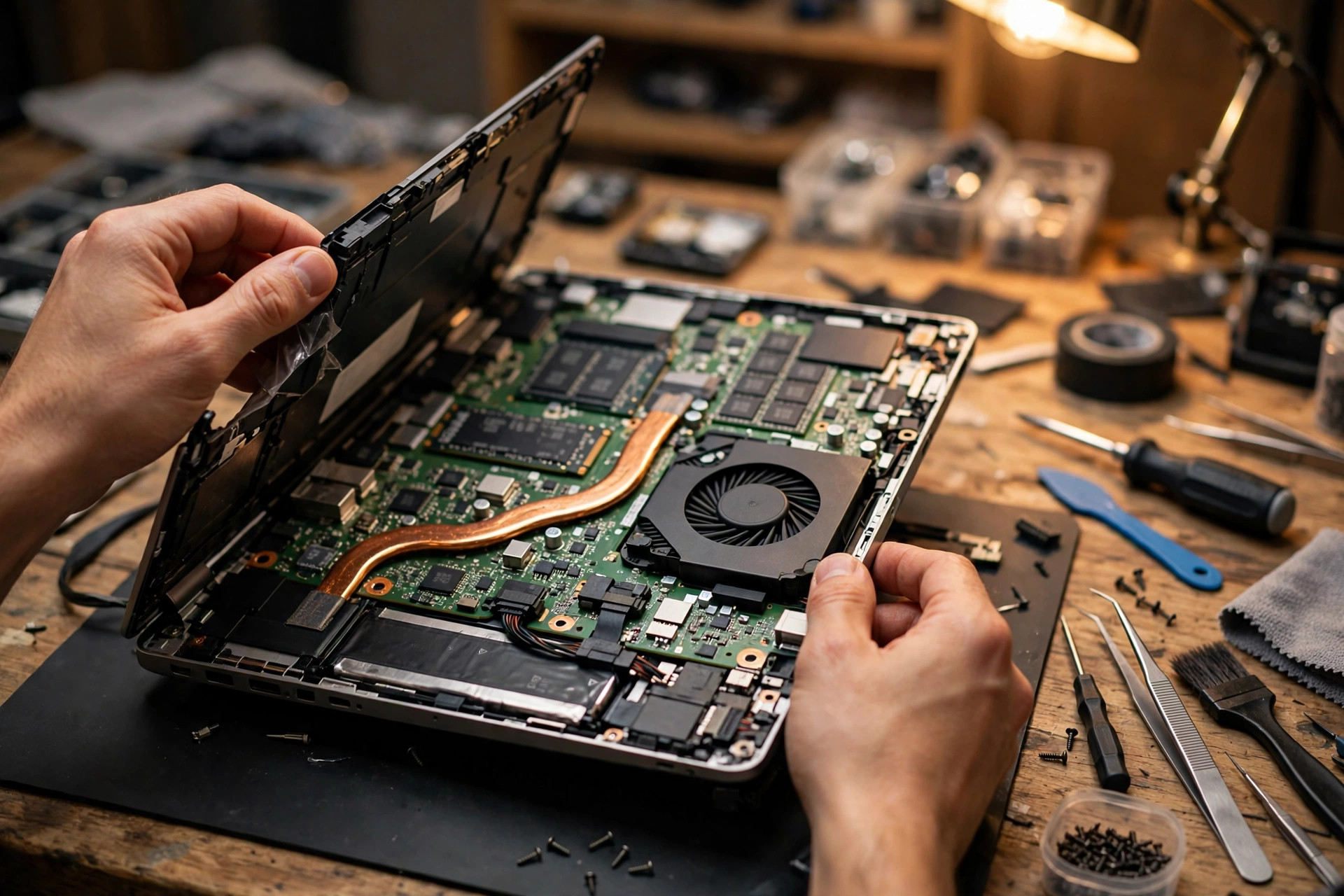
Premise: this article is only about the advanced boot loop, and the basic checks are already done
This article starts from one explicit premise: the basic checks are already done, but the machine still will not boot. Basic checks here mean removing every external device, testing with the original charger plugged directly into a wall outlet, confirming that power supply itself is not the problem, and ruling out a plain flat battery or a faulty charger. If those steps have not been done, they should be done first, because everything that follows is built on the condition that the basics are excluded.
The subject is specific: the machine responds when the power button is pressed, but it sticks on the vendor logo screen, or the logo appears and then the machine restarts on its own and loops, or it loops before Windows loads, or it loops through Windows automatic repair without ever getting out. The focus is where the boot chain itself breaks, not a problem that appears while using the desktop.
This is NOT the batch 54 article: that article covers a machine that freezes or restarts suddenly while already inside Windows or while in use. This is NOT the batch 45 article: that article covers a machine with no display at all, and this article only borrows the external display test in the blind-boot section as a way to rule something out, without rewriting the black-screen article. This is NOT a Windows Update article: an update is mentioned only where recovery-environment evidence points that way, and it is never assumed to be the cause by default.
One warning belongs at the top as well: before any firmware write, bootloader rebuild, or partition operation, data safety comes first. That means confirming whether a backup exists, whether the data on the drive is readable, whether BitLocker encryption is on, and whether the recovery key is available. Changing firmware settings without the key can turn a machine that was looping but still recoverable into a machine that is locked and still looping. The full hard rules are in the data-safety section near the end, and they should be read before any hands-on step.
The boot chain map: where it stops decides how it is fixed
Booting is not one action. It is a chain with a fixed order, and when any link fails, the machine stops at that link or is restarted by firmware or by Windows, which is what looks like a loop from the outside. Using one fix for every loop is the most common wrong direction: reinstalling Windows to fix a firmware-stage fault, or reflashing firmware to fix a Windows-stage fault, both fail and both can damage data first.
The general boot chain, in order, is as follows. First, the embedded controller and power sequencing: after the power button is pressed, the embedded controller confirms power, battery, and charger status, then releases the power rails in order before releasing the processor. Second, firmware initialisation and self-test: the processor runs code stored in the board firmware chip, initialises the memory controller, runs memory training, and detects the keyboard, display, and storage devices. Third, device enumeration: firmware finds memory, storage, display, keyboard, USB devices, and network boot options one by one. Fourth, boot-device selection: firmware follows the boot order and boot entries stored in non-volatile memory and picks a bootloader. Fifth, bootloader handoff: firmware loads the bootloader from the EFI System Partition, checks signatures where Secure Boot is enabled, and hands control to the Windows Boot Manager. Sixth, Windows load: the Windows kernel, drivers, and login load one by one, and only from this stage onward is it a Windows problem. Seventh, the Windows Recovery Environment and automatic repair: a separate recovery path that Windows enters after repeated failed starts, which is not the same stage as the firmware logo stage.
If the machine never gets past the second or third stage, no Windows reinstall, driver update, or Startup Repair can help, because Windows has not started yet. If the machine reaches the sixth or seventh stage and then loops, firmware has already done its job, and the fault is in the Windows boot files, the system drive, or a driver that loads with Windows. The rest of this article is organised by stage, not by the label loop.
Triage first: firmware loop, Windows recovery loop, or blind boot
Do not judge by the words stuck on logo alone. Judge by observable signals. Before opening the machine or changing any setting, do one recorded clean-boot observation: remove the dock, USB devices, SD card, external drive, and second display, leaving only the original charger plugged directly in. Press power once and do not press it again, then watch a whole cycle: fan, lights, screen, sound, and drive activity light if there is one. Recording the first boot on a phone is worth doing, because describing it from memory easily misses the decisive difference.
| Observation | Firmware / self-test loop | Windows recovery loop | Blind boot: the machine is booting, but the display is dead |
|---|---|---|---|
| Vendor logo | Appears every time, but the machine restarts before any Windows spinning dots appear; or the logo itself freezes and then the machine restarts | Appears, then Windows spinning dots, Preparing Automatic Repair, or a blue recovery screen appear, then the machine returns to restart | The built-in screen stays blank with no obvious restart cycle; or the logo appears only on an external display |
| Windows spinning dots or login screen | Never appear | Appeared at some point, then the machine entered a repair screen or restarted again | Visible on an external display, including the logo, the repair screen, or even the desktop |
| Fan pattern | Almost exactly repeated every cycle: spins briefly, stops, spins again; or runs at full speed and then powers off suddenly | Changes during the Windows load stage, and stays relatively steady during the repair screen | Enters a normal running pattern, and a login sound or sustained drive activity may be heard |
| Caps Lock light test | Usually no response during a self-test failure, because the keyboard controller or firmware has not finished initialising | Usually responds on the blue recovery screen, which shows control has reached a higher layer | Responds normally when an external display shows a picture, proving the host has booted and only the built-in display path is at fault |
| Beep or power-light blink code | A regularly repeated beep or blink code, which is the firmware layer diagnostic language and must be recorded with count and spacing | Usually no firmware beep, only Windows-layer error messages | Usually no firmware error code, because self-test has passed and the fault is in the display path |
| Can firmware setup be reached | Usually not; or setup is reached but the machine loops as soon as a setting is saved; or the setup screen itself is unstable | Usually reachable, and the setup screen is stable | Visible on an external display, proving the firmware layer is working |
| Can the recovery environment be reached | Never seen | Seen, but repair, restore, and safe mode all fail or return to the loop | Displays normally on an external display |
Three misjudgements are common. First, a black built-in screen with a spinning fan is treated as a failure to boot and firmware is reflashed, when the machine may already have booted and only the built-in display path is faulty. Second, Preparing Automatic Repair is treated as firmware failure, when the appearance of the recovery environment itself proves firmware has already handed over control. Third, a frozen logo is treated as a dead drive, when the logo can freeze because firmware is waiting for memory training, waiting for a storage response, waiting for a USB response, or stuck itself. The drive is only one possibility, not the default answer.
Bare-boot isolation: remove everything external before judging
An external device can stop an otherwise healthy machine from booting, through several mechanisms. First, boot-order hijack: firmware looks for bootable files during startup, and if an external device sits ahead of the internal drive, firmware may try to boot from a non-bootable external device and the boot is interrupted or loops. A vendor service manual states this plainly: a computer does not boot to the operating system when USB devices are connected during startup because it is looking for bootable files in the connected USB devices, and the published fix is to disconnect USB devices before booting or to disable USB boot support in firmware setup. Second, enumeration stall: firmware enumerates USB devices during self-test, and a faulty USB device, damaged cable, failing external drive, or faulty dock can stall enumeration, so the machine appears stuck on the logo while firmware waits for a response that never comes cleanly. Removing the device lets enumeration finish. Third, power and USB-C power delivery negotiation interference: a dock or USB-C device with abnormal negotiation can interrupt the embedded controller boot sequence, so a machine that loops on a dock and boots bare is showing a real mechanism, not user error. Fourth, network boot: if boot order includes network boot ahead of the internal drive, or if the internal drive is not detected, firmware may attempt network boot, wait for a network response, time out, and loop or stall, which can look like a frozen logo.
The isolation order should be fixed: power off, remove the dock, external display, USB devices, external keyboard and mouse, SD card, printer, and any USB hub; boot on the original charger only, using only the built-in screen. If the machine boots bare, reconnect one device at a time and reboot after each one until the device that brings the fault back is found. If it still loops bare, the fault is internal: firmware, memory, storage, or board, and peripheral theory can be set aside. If a specific dock is the trigger, test the same machine on a different charger without the dock, and test the dock cable and dock firmware separately where possible. Do not replace the laptop because a dock is faulty.
The embedded controller and power sequencing: a light is not a boot
The embedded controller is a small controller on the board that runs before the main processor is fully up. Vendor documentation describes it as the chip that controls hardware components and power management functions, and describes embedded controller reset and real-time clock reset as a way to restore hardware to its default state. In plain mechanism terms, the embedded controller watches the power button, the charger, and the battery, and it sequences the power rails. The processor cannot start until the rails are up, stable, and in the right order. If sequencing stalls, the machine may show a power light and nothing else, flicker, or power-cycle, and that is not yet a firmware or Windows fault at all.
A vendor community discussion draws a useful framing distinction, and its source level should be stated: it is vendor community discussion, not a manual for a specific model. A power-rail fault means a required voltage is not reaching components, while an embedded controller fault means low-level power-button, charging, keyboard, or thermal control is not behaving. Both can look like a light with no boot, but they point at different checks.
Vendor guides from more than one brand publish a similar embedded controller reset procedure: remove external devices, remove or disconnect power as directed for the model, hold the power button for the model-specific duration, then reconnect power and power on. One brand notes a specific consequence: after a successful embedded controller reset, the machine may not power on from the battery alone on the first attempt, and the adapter must be connected first. That detail matters, because it is normal after reset on those models, not a new fault.
What embedded controller reset does not do should be stated plainly: it does not rewrite firmware, it does not repair a corrupted EFI partition or boot configuration store, it does not fix a failing drive, and it does not recover data. Its value is narrow: it clears a hung low-level power state. If the machine behaves exactly the same after a correct reset, the fault is downstream, in self-test, memory, firmware settings, storage, or board, and repeating the reset will not change the answer.
Power-sequencing traps include three common ones. First, interpreting a light as a boot: a lit power LED proves the board is receiving some power, not that the processor started, self-test ran, or the display path is alive. Vendor guidance for no-display cases makes the same point in different words: a power light on does not equal a boot. Second, charger-only versus battery-only confusion: a fault that appears only on battery, or only on a particular charger or dock, points at power delivery, not at Windows, so the bare machine on a known-good charger with no dock should be tested before any conclusion about firmware or storage. Third, repeated forced shutdowns during early boot: forced shutdown is a legitimate tool for reaching the recovery environment after Windows has started to load, but it is not a harmless habit during the logo stage itself, because forcing power off during firmware initialisation or during a firmware update can corrupt firmware state or leave non-volatile memory in an inconsistent state. If in doubt, wait first, especially for the memory training window in the next sections, before forcing power off.
The battery itself can become a boot obstacle: a battery with an internal short, severe ageing, or an abnormal protection circuit can drag a power rail down at the moment of boot and cause the machine to power off and restart. The test, following the model procedure, is to disconnect the battery and test once on the original adapter only; if the machine boots stably on adapter power and loops again when the battery is refitted, suspicion on the battery rises sharply. The confirmed battery item is battery replacement from HK$580, and every other power or board item is subject to a written quotation after inspection.
Self-test and the logo screen: the logo is a firmware picture, not a Windows picture
Vendor manual material defines self-test as the series of tests at power-on that check basic board operations, memory operation, video operation, and that the boot drive is working. If self-test detects a problem, an error message or beep symptom appears. Vendor support material maps beep symptoms during self-test to subsystems, for example a memory-not-detected pattern versus a video-not-detected pattern, and advises checking seating and connections for the named subsystem.
Two consequences follow. First, the logo is a firmware picture: on many models the vendor logo is drawn by firmware while self-test is still running. Vendor community guidance states this plainly: the logo is contained in motherboard firmware, so displaying it does not require extensive use of the hard drive. A machine stuck on the logo may therefore have failed before it ever tried to read Windows. Second, silence is not proof of success: many laptops ship in quiet self-test mode, with no beep, no memory count, and no checkpoint display when no error is detected. Absence of a beep does not prove self-test passed. Conversely, a beep pattern, a diagnostic LED, or a diagnostic screen is high-value evidence when present, and it should be recorded exactly, including order and repetition, and matched to the model-specific manual, not to a generic beep table from another brand.
A firmware-stage loop typically looks like one of these: the logo appears, the machine powers off and restarts by itself, and the logo appears again, with no Windows text and no Preparing Automatic Repair at any point; or the logo appears and freezes, with no spinning dots and no response to keyboard input, and the machine does not progress even after a long wait, subject to the memory training exception in the next section; or pressing the setup key does nothing, or the machine never reaches setup, diagnostics, or a one-time boot menu; or removing the internal drive does not change the behaviour at all, with the machine still sticking at the same logo point, which is strong evidence the stop is before storage handoff, not in Windows boot files. That drive-removal test is diagnostic only: the machine should not be left disassembled, and no conclusion should be drawn from it without also checking memory and firmware settings.
The fact that a machine worked yesterday does not rule out firmware. Firmware state can change without a user-visible update: non-volatile memory boot entries can become stale after a drive swap or clone, a real-time clock battery can lose settings, a firmware setting can be left in a state that no longer matches the installed drive, for example boot mode versus partition style, and a peripheral can change enumeration order. The fault can therefore be a configuration mismatch, not a dead component, which is why the settings section matters before any part is replaced.
Memory training: the most misread logo stall
Vendor guidance is explicit and is the single most important trap-avoidance point in this article. After any of these events, the device will initiate a full memory training process on the next startup: a firmware update; disconnecting the battery interface or replacing the battery, including the real-time clock battery; replacing memory modules with different capacities or brands; or performing an embedded controller reset or real-time clock reset. During memory training, the device will remain on the vendor logo screen. Vendor guidance states the process may take some minutes depending on total memory capacity, and instructs the user to keep the device connected to power, avoid forced shutdown, and wait for training to complete and the operating system to load. On some newer platforms, text such as Working on Memory Training may be displayed; on other hardware, no text is displayed during training.
The mechanism in brief: before the processor can reliably use memory, firmware must calibrate signal timings for the installed modules, including drive strengths and delays. That calibration is not a Windows task and cannot be skipped by reinstalling Windows. If it is interrupted by forced shutdown, the machine may have to start training again, and repeated interruption can look exactly like a permanent boot loop.
| Situation | Training delay: wait | Training failure or memory fault: isolate and test |
|---|---|---|
| Trigger event | A firmware update, battery disconnect, memory change, or embedded controller reset has just happened | No trigger event, or training should already have completed, or a new module, a reseat, or a knock came just before the fault |
| Surface behaviour | The logo persists for minutes, the fan may run, the machine does not power-cycle by itself, and no error code appears | The logo persists or the machine power-cycles repeatedly, or a beep or diagnostic pattern points at memory |
| Correct response | Stay on the charger, do not force power off, wait through the vendor-stated window, and observe whether it progresses, shows a memory error, or restarts on its own | Isolate memory: test one module at a time where the design allows, test each slot where the design allows, reseat firmly, and check for mismatched modules |
| Wrong response | Forcing power off at the first black screen after a trigger event | Replacing everything at once, or changing several things together, so the result cannot be attributed to any one of them |
Mixed-module timing conflict deserves its own explanation: module compatibility is not only capacity and labelled speed, but also timing parameters, voltage, chip layout, single-sided or double-sided construction, and the parameter table stored in the module. Two modules from different kits, batches, or brands can carry the same labelled speed and still leave firmware unable to find one parameter set both accept. If no stable intersection exists, the machine loops at the self-test stage. Each module working alone does not prove the pair works together, and a pair failure does not prove both modules are faulty. Memory upgrades should be bought as a matched kit against the model support list, not pieced together one module at a time.
The socketed versus soldered reality must be stated plainly. On machines with socketed memory, isolation by single-module testing is a practical workshop step. On machines with soldered memory, there is no module to swap, and a memory-stage failure points at board-level diagnosis. The article must not promise a memory swap for every model: whether memory can be tested by substitution depends on the exact model, and that check is part of inspection. If a machine has soldered memory plus one socketed slot, the socketed module can be removed first and the machine tested on soldered memory alone; if the machine has only soldered memory, or still loops after the socketed module is removed, swapping cannot prove whether soldered memory itself is faulty, and firmware codes, pre-boot diagnostics, and board-level testing must be used instead. Do not attempt to desolder soldered memory for testing, because that is beyond ordinary repair range and risks board damage. Soldered memory work is subject to a written quotation after inspection.
What not to do at the memory stage: do not force power off repeatedly during a first boot after a firmware update, battery disconnect, or embedded controller reset until the training window has been allowed; do not change several things at once, such as new memory plus a firmware change plus a drive swap, and then try to attribute the result to one of them; and do not enable an aggressive memory profile or overclock setting as a fix for a training failure, because it makes training harder, not easier. Return to firmware defaults first, following the settings section.
Firmware settings: a loop with no dead part
Need a laptop repair expert?
Free diagnosis · Transparent pricing · No fix, no fee · 180-day warranty
The settings that most often matter for early boot are listed below, and every one of them is a vendor-documented check.
| Setting | How it creates a loop | Check and handling principle |
|---|---|---|
| Boot mode: UEFI versus Legacy | A Windows installation made in UEFI mode will not boot if firmware is switched to Legacy, and vice versa; the symptom can be a loop, a no bootable device message, or a return to firmware setup, not a Windows error | Boot mode must match the drive partition scheme; record the original setting before changing it, and do not change it to a textbook value without checking |
| Boot order and boot entries | If the internal drive is not first, or if the entry points at a removed or cloned drive, firmware may try the wrong device, time out, and loop | Confirm Windows Boot Manager is first and points at the correct internal drive; a one-time boot menu can separate an order problem from file damage |
| Storage controller mode: AHCI versus RAID or VMD | Changing storage mode between RAID and AHCI can make Windows unbootable if the setting no longer matches what Windows expects | Record the original setting first; fixing the setting to a textbook value can break a machine whose Windows was installed under the other value |
| Secure Boot and key state | Signature validation failure, cleared keys, or custom mode without default keys can leave firmware rejecting the bootloader | See the Secure Boot section; use diagnostic disabling only as isolation, then restore, and check BitLocker first |
| Fast Boot and fast startup | Firmware Fast Boot shortens self-test and shrinks the window to press setup keys; Windows fast startup means a shutdown is not a full cold boot | Disable fast paths only as a diagnostic step, record what was changed, and restore or explain the final setting |
| Date, time, and real-time clock state | A flat real-time clock battery can lose boot order and settings on every full power loss, producing an intermittent loop that seems random | Watch the pattern: settings kept while on power but lost after unplugging points at clock state, not at Windows |
One look-alike that is not a loop should also be named: vendor guidance notes that certain notebooks with an ambient light sensor will record when the bottom cover has been opened and will remind the user on the first power-on after the cover is properly reattached. The prompt can be cleared by powering off and on again, or by the stated key combination. If a logo-stage prompt appeared immediately after a cover was opened for cleaning, memory, or storage work, check for this prompt before diagnosing a deeper fault.
Firmware corruption versus firmware misconfiguration: three layers
Settings, boot entries, and firmware code are three different layers, and confusing them leads to the wrong repair. The settings layer means user settings in non-volatile memory are wrong, and the usual sign is that firmware setup can still be reached and loading defaults may restore booting, which is the lowest-risk layer. The boot-entry layer means the firmware boot entries point at a missing or wrong EFI file, so firmware cannot find a bootable device and shows a no bootable device message or loops directly, which does not necessarily mean firmware code itself is broken. The firmware-code layer means the program stored in the board firmware chip was interrupted during an update, written with the wrong file, or interrupted while writing, so self-test cannot complete, which is the most serious layer, and ordinary load defaults cannot rescue it. It needs crisis recovery or chip-level rewriting.
Firmware updates are especially dangerous for a clear mechanism reason: during an update, the old program is being overwritten, and until the new program is fully written, the machine is in a window with no complete firmware available. Any power loss, forced shutdown, flat battery, or unstable dock power can leave the machine inside that window, which is why vendor documentation repeatedly stresses never interrupting an update and never cutting power during it.
One timeline question helps judge how likely firmware corruption is: did the machine ever boot normally once after the update? If it reached Windows normally once after the update and only later started looping, firmware corruption becomes relatively less likely, and Windows-layer or hardware-layer checks should come first. If it never booted successfully after the update, suspicion on the firmware layer rises sharply. That is diagnostic logic, not a statistical claim, and this article provides no incidence rate, because no verifiable local data exists for that purpose.
Vendor crisis recovery paths differ completely by brand and generation, and they must never be copied across brands. The following describes concepts and limits only, not a universal procedure. One brand community guidance describes crisis recovery as powering off, inserting a prepared firmware recovery USB drive, holding a specific key combination while pressing power for some seconds, and holding the combination until a recovery screen or fan or beep response appears; the recovery USB must be the file for that exact model and product number, with the format and folder layout the model requires, and a wrong file, wrong format, or incompatible USB drive can produce no response, which by itself does not prove the board is dead. Another brand CrashFree concept is a rescue program inside firmware that tries to read a firmware file back from a support disc or USB drive when an update was interrupted or firmware is corrupted, and the rescue must not be powered off or reset during the process. A desktop-board USB firmware recovery concept needs only power and a USB drive, without processor, memory, or graphics, but the great majority of laptops have no equivalent physical button or dedicated port, so applying a desktop procedure to a laptop wastes time and can mislead a user into thinking a missing button means a dead board. Another brand describes a Novo button on some models for entering firmware or recovery mode, and an emergency reset hole on some internal-battery models, both of which are vendor-documented standard procedures, while other key combinations mentioned in community discussion must be treated as community experience to be checked against the model, never as a universal procedure.
The risk list for firmware recovery must be read before acting: file error risk, where a wrong model, generation, or region file can make a recoverable machine harder to recover, so the full model and product number must be matched, not just a similar appearance or series; power interruption risk, where a power cut, flat battery, unstable dock power, or loose USB drive during recovery can interrupt the write again, so recovery must use the original charger plugged directly into a wall outlet, with dock and hub removed; Secure Boot and BitLocker interaction risk, where a firmware setting change can trigger a BitLocker recovery prompt or cause a protected boot chain to be rejected, so no key clearing or boot-mode switch should happen without the recovery key; settings-reset side effect, where loading defaults clears custom settings and the settings must be rechecked afterwards, especially for a Windows system that needs UEFI mode and Secure Boot to boot normally; false recovery risk, where the appearance of a recovery screen does not prove recovery succeeded, and success requires a full completion, an automatic restart, and a stable entry into firmware setup or Windows; and the chip-level boundary, where crisis recovery with no response at all, physical firmware chip damage, or a board power-sequencing fault cannot be rescued by crisis recovery and needs chip-level equipment and board-level testing, which is beyond the range a user can safely attempt, so the correct move is to stop and complete the data-safety assessment rather than trying firmware files from unknown sources.
Vendor documentation also records a case worth citing as a lesson: a brand published that entering firmware setup before completing first-run setup caused a hang at the vendor logo on affected models, fixed by a firmware update to a stated version for those models. The source level is vendor documentation. The general lesson is that a logo hang can be a known firmware bug for a specific model and version, not a hardware failure, which is why model and firmware version must be recorded before any part is blamed.
Secure Boot and BitLocker: check before changing anything
Secure Boot, where enabled, is a firmware check before Windows loads: firmware verifies the digital signature of each boot component in the chain against databases stored in firmware, including the allowed signatures database, the forbidden signatures database, and the key-exchange keys, under the platform key. If a component signature is missing, invalid, or forbidden, firmware rejects it and halts boot, commonly with a Secure Boot violation or invalid signature detected message. That mechanism explains a specific loop shape: the machine reaches the bootloader stage, fails signature validation, and returns to firmware or to recovery repeatedly, without ever loading the Windows kernel. It is not a Windows crash, and reinstalling Windows with the same unsigned or mismatched bootloader will not necessarily clear it.
Secure Boot loops are created in several ways. First, changed key state without a changed bootloader: clearing keys, loading custom keys, or switching Secure Boot to custom mode without loading default keys can leave firmware in a state where Windows does not trust the key database, or firmware does not trust the bootloader, and vendor and technical guidance for that case is to restore default Secure Boot keys or return Secure Boot mode to standard, then cold-boot. Second, certificate-chain transition: technical reporting on the transition notes that bootloader signing moved from an older certificate authority to a newer chain, that machines managed through normal updates usually continue to start normally, but that environments with older firmware or custom trust rules need attention, and that a mismatch between the forbidden-signatures update and firmware trust in the newer authority can produce a boot failure. The source level is technical news reporting on vendor guidance, not a manual for a specific laptop, so this article presents it only as a check firmware and key state if the loop began around a Secure Boot or firmware update point, not as a universal cause. Third, non-UEFI graphics or option ROM: older graphics firmware without UEFI support can force a legacy path that conflicts with Secure Boot, and the diagnostic step is to test with Secure Boot temporarily disabled to isolate signature validation, then restore Secure Boot and address the underlying component or firmware version. Fourth, dual-boot or cloned bootloader: a bootloader copied from another machine, or a second operating system bootloader that replaces the Windows Boot Manager entry, can fail signature validation or point at the wrong EFI partition.
The BitLocker warning must be read before changing any firmware setting: changing firmware settings, boot order, Secure Boot state, or storage mode can trigger a BitLocker recovery prompt on an encrypted drive. The recovery key is a separate credential from the Windows password. Before any firmware change, the user should confirm whether BitLocker is on and where the recovery key is stored. If the key is not available, firmware security changes should not be made as a trial step, because a machine that was looping but recoverable can become a machine that is locked and still looping. Disabling Secure Boot must never be presented as a permanent fix without explanation: it is a diagnostic isolation step, and the final state should be Secure Boot restored where the machine and its Windows installation support it, unless there is a documented reason to leave it off.
The handoff: drive detection, EFI partition, bootloader, and boot configuration
For a UEFI Windows installation, the handoff is: firmware reads its non-volatile memory boot entries and boot order; firmware selects the Windows Boot Manager entry, which points at a bootloader file on the EFI System Partition; firmware loads that bootloader file from the EFI System Partition, which is a small FAT32 partition on the system drive; the bootloader reads the Boot Configuration Data store, also on the EFI System Partition, which describes where Windows lives and how to load it; and Windows Boot Manager loads the Windows kernel. A failure at any of these steps can produce a loop, a no bootable device message, a return to firmware setup, or a drop into the recovery environment, depending on how far the chain got and whether firmware falls back to another entry.
| Handoff point | What failure looks like | Triage and handling principle |
|---|---|---|
| Drive not detected in firmware | Firmware setup lists no internal drive model at all | The fault is at detection: seating, connector, drive failure, firmware storage setting, or board storage path; no bootloader repair can help a drive firmware does not see, so detection isolation comes first, not repeated software repair |
| Wrong boot order or stale entry | Firmware points at a removed, cloned, or second drive entry | Correct order and entries before rebuilding anything; a successful rebuild message by itself does not prove firmware now points at the right entry, so firmware setup must be checked to confirm Windows Boot Manager is first and points at the correct drive |
| Damaged or missing EFI partition or boot configuration | Firmware loads nothing, or loads a bootloader that cannot find Windows | Vendor guidance publishes the repair sequence: assign a letter to the EFI partition from the recovery environment or installation media, back up the old boot configuration, recreate boot files, and rebuild the configuration; drive letters in the recovery environment may differ from letters in normal Windows, so they must be confirmed before writing |
| Cloned or moved bootloader | Only the Windows partition was cloned without the EFI partition, or the bootloader sits on a second drive | The machine may boot only while the second drive is present, or loop after the second drive is removed; the fix is to recreate the bootloader on the correct drive EFI partition, not to keep the second drive attached as a crutch |
| Partition-style mismatch | A GPT drive needs UEFI boot and an MBR drive needs Legacy boot | Converting one without the other, or switching firmware mode without converting, creates a loop that looks like drive failure but is a mode mismatch; conversion is a deliberate, backed-up operation, not a trial toggle |
Two traps must be named. Formatting the EFI partition as a quick fix without recreating boot files, or deleting the EFI partition because it looks small and empty in normal Windows, will make the machine unbootable, because the EFI partition is hidden from normal Windows for a reason. The other trap is the storage controller driver layer: some models use a storage controller abstraction layer, and Windows needs the matching driver to recognise the system drive at boot. If that driver layer is damaged or misconfigured, the surface symptom can be a no bootable device message, while the drive itself may be perfectly healthy, so the drive must pass diagnostics before a drive-failure conclusion is drawn.
A non-destructive triage order protects data. Step one: does firmware setup show the drive? If it shows the model, suspicion leans toward bootloader, EFI, configuration, or Windows-layer problems, and the drive is at least detectable at firmware level. If it does not show the model, suspicion leans toward the drive itself, the slot, the cable, the firmware storage setting, or the board storage circuit, and not seeing the drive does not mean the data is gone, because a wrong setting mode can also hide the drive. Step two: in the recovery environment, use read-only viewing to inspect the partition structure, confirming whether the EFI partition exists, whether it is FAT32, and whether the Windows system partition exists. That step is read-only and is suitable before any backup is made. If the EFI partition is missing, the partition table is damaged, or the Windows system partition cannot be read, stop and complete the data assessment before any destructive command. Step three: use another computer or a live environment in read-only or copy mode to confirm whether user data is readable. If data is readable elsewhere, the problem leans toward the original machine boot chain. If data is unreadable everywhere, or reads with many errors, strange sounds, or extreme slowness, the problem leans toward drive hardware, and repeated power-on testing should stop to avoid further damage. Step four: only then consider bootloader repair, in the correct order, checking disk errors, checking system files, repairing the boot record, rebuilding the configuration, and copying boot files from the Windows folder to the EFI partition with the correct tool. One key detail is that on a UEFI system, some legacy repair commands can return access denied, and the correct response is not to force them repeatedly, but to rebuild with the tool that targets the EFI partition directly. Before rebuilding, confirm that the Windows system partition letter in the recovery environment matches the intended partition, because letters can differ there. If the machine uses BitLocker, confirm the recovery key is available before any bootloader repair.
The Windows recovery loop: the recovery screen itself is evidence
Vendor and Microsoft documentation describe the recovery environment as a recovery platform based on the Windows preinstallation environment, providing automatic diagnosis and repair of startup problems and a central platform for advanced recovery tools. Entry methods include a restart combination from within Windows, a settings recovery restart, a command-line restart into recovery, installation media with a repair option, and, for a machine that cannot boot Windows, interrupting startup repeatedly so that Windows detects repeated failures and enters automatic repair on a later start. Microsoft recovery troubleshooting guidance lists disk corruption, corrupted or missing system files, and pending update actions as reasons a system may be unable to start, and gives the recovery command sequence: identify the system volume, run a disk check, run an offline system file check, and run an image repair.
Recovery-loop traps include the following. First, repeating Startup Repair without checking the drive: if the drive is failing, Startup Repair may run, report it cannot fix the problem, and loop, so the next step is drive health evidence from vendor diagnostics or from recovery command-line checks, not a tenth Startup Repair. Second, resetting Windows to fix a firmware loop: reset or reinstall will not help if firmware never hands off to Windows, and it risks data if done without a backup, so reset is a Windows-stage last resort, after the firmware stage and drive detection are cleared. Third, uninstalling updates as a reflex: the recovery environment offers uninstalling updates where relevant, but this article is not a Windows Update article, so an update should only be blamed if the loop began immediately after an update and recovery evidence points that way, and even then the order should be Startup Repair, restore point, and command-line checks, rather than jumping to reset. Fourth, deep recovery procedures such as renaming system registry hives to escape a reset loop: community and support material describes them, but they carry data and reset consequences and should not be presented as a casual first step. They belong in a specialist recovery note with a backup warning, not in a general boot-loop article as a routine fix. Fifth, a damaged recovery environment itself: if interrupting startup never reaches the recovery environment, and installation media also cannot reach recovery, the fault may be in the recovery partition, the EFI partition, or the firmware stage, not in user files, which is a handoff-stage problem, not a reason to keep forcing restarts. As a general rule, one interrupted startup to reach the recovery environment is enough, and afterwards the normal recovery menus should be used, because repeated forced shutdowns can interrupt file writes and worsen file system damage.
Display versus boot: is it booting blind?
This section is the boundary with the black-screen article, and it must be handled carefully so the two articles do not contradict each other. A machine can be booting normally while its display path fails, and a machine can be stuck in firmware while its display works perfectly to show the logo. The logo proves the display can show a firmware image, and it does not prove Windows loaded.
Tests that distinguish blind boot from true boot failure, without opening the machine, include the following. First, the external display, done correctly: connect an external display only as a diagnostic step, with peripherals otherwise removed, and observe whether the external display shows setup, diagnostics, the recovery environment, or Windows while the internal display shows only the logo or nothing. If the external display progresses, the fault is in the internal display path, not in boot, and the black-screen path applies. Second, sound and activity: a drive activity light, a fan behaviour change after the logo stage, a Caps Lock toggle response, and Windows login sounds where enabled can indicate Windows loaded behind a dark or frozen internal display. Absence of these signs does not prove boot failure, because many machines are quiet and have no drive light, but presence of them is strong evidence of blind boot. Third, keyboard shortcuts: vendor and Microsoft guidance notes graphics-driver reset shortcuts and display-mode cycling as display checks, and those checks only help if Windows has loaded. If no display shortcut has any effect and no external display shows progress, the fault is more likely a true boot stall. Fourth, remote or network signs: if the machine appears on the network, responds to a known remote signal, or shows charging and network activity consistent with a loaded system, that points at display, not boot, but it is supporting evidence, not a primary test, and it should not be used to declare a machine fixed without a visual check.
The trap is clear: replacing the screen or display cable for a firmware loop wastes the repair, and reinstalling Windows for a display fault risks data for no benefit. The display test must come before either decision.
Vendor diagnostics: use the firmware own tests before guessing
Each vendor provides a pre-boot diagnostic that runs from firmware, independent of Windows, and the source level is vendor support documentation. One brand diagnostic is embedded with firmware and launched by firmware internally, accessed from the one-time boot menu or by holding a function key while powering on; the quick test runs automatically, and an advanced or thorough test can target individual components, with results including error codes and validation codes to note exactly. Another brand diagnostic is entered from the startup menu, then a system diagnostics key, then system tests, with a fast test first and an extensive test if needed, and a failure produces a failure identifier or error code to record. Another brand maps self-test beep symptoms to subsystems and directs the reader to the model-specific hardware maintenance manual for exact codes, because one-time boot and diagnostics keys are model-dependent and must be taken from the model manual, not assumed. Another brand guidance for stuck-on-logo cases centres on embedded controller reset, firmware defaults, and memory-training waiting, rather than a single named diagnostic suite, and that difference matters: on that brand, a diagnostics pass is less central than training being allowed to complete and defaults being restored.
Rules for using vendor diagnostics in a boot-loop case are as follows. Run diagnostics only after the bare-boot isolation, so a peripheral does not pollute the result. Record the exact error code, failure identifier, and test name, because a code is the fastest route to the correct repair and to a correct quotation, while a vague diagnostics failed is not evidence. A pass does not prove the machine is healthy: pre-boot diagnostics test components at a point in time and may not catch an intermittent drive, an intermittent memory training failure, or a bootloader file problem, so a pass narrows the fault toward firmware settings, bootloader, or Windows, and does not close the case. A fail does not automatically prove the failed part is the only fault: a failing drive can cause a memory-stage timeout, and a memory fault can cause a drive test to misbehave, so a fail should be confirmed by isolation where possible before replacing a part.
To understand the diagnostic flow and what a diagnostic visit covers, see the /diagnostic page. If a diagnostic result points at a specific part or procedure, check the confirmed items on the /pricing page first, and treat every other cost as subject to a written quotation after inspection.
Hong Kong context: humidity, commuting, and local repair reality
Hong Kong humid climate and the sharp change between air-conditioned rooms and humid outdoor air create a specific mechanism worth naming, without overstating it as a proven cause for any individual machine. Condensation can form when a cold machine is brought into warm, humid air, or vice versa. Moisture on connectors, in vents, or on a board can contribute to intermittent contact or corrosion over time, especially if a machine is repeatedly powered on while still cold and damp. Dust and moisture together can affect cooling and contact surfaces, and a machine that is carried daily, used in varied environments, and rarely cleaned may develop contact or cooling issues that appear as intermittent boot behaviour before they appear as a hard failure. Practical guidance follows from the mechanism, not from a statistic: allow a machine that has come in from humid outdoor air or from a cold environment to reach room temperature and dry before powering on, avoid using a laptop in rain or with a wet bag, and do not store a laptop in a damp place. If liquid exposure is suspected, power off and seek inspection rather than repeatedly attempting to boot, because repeated boot attempts on a wet board can turn a recoverable fault into board damage. No humidity threshold or failure rate is stated here, because none is verified for this article purpose.
Daily commuting in Hong Kong means a laptop is repeatedly packed, carried, knocked, and unpacked. The mechanisms that follow are: seating and connectors, where repeated movement can loosen a socketed memory module or storage drive, or stress a cable or connector, producing an intermittent detection fault that looks like a loop on some boots and a normal boot on others, so intermittent behaviour that changes after movement points at seating and connectors before it points at Windows; bag pressure and lid or hinge stress, where pressure on a closed lid, or a bag that presses the power button, can cause unintended power events, partial boots, or embedded controller state confusion, so a loop that began after a bag change or a drop should prompt a physical inspection question, not just a software history; dock at home and dock at office, where many Hong Kong users move between two docks or between a dock and bare use, so a loop that only happens at one location points at that location dock, charger, monitor, or USB device, not at the laptop Windows installation; and SD cards and USB drives left in place, where a card or drive left in a slot for convenience can become a boot candidate on the next cold boot, especially after a firmware update changes boot order handling, so the diagnostic step is simple: remove it and test bare.
Local parts and price reality must be stated plainly: parts availability and cost in Hong Kong depend on the exact model, the exact part number, and whether the part is socketed or soldered, new or compatible, and in local stock. This article must not promise a part, a turnaround, or a price for a part that has not been inspected. The confirmed price items in this article scope, and only these, are listed in the decision and inspection sections, and everything else is subject to a written quotation after inspection. That rule is not a disclaimer for its own sake: it reflects the mechanism, because a boot loop can be a settings fix, a bootloader rebuild, a memory isolation, a drive replacement, or board work, and those have different parts and labour, so quoting one of them before inspection would mislead the reader and misdirect the repair.
Common misdiagnosis traps
| Misdiagnosis claim | Why it is wrong | Correct triage |
|---|---|---|
| Seeing the logo means the drive is dead | The logo is drawn by firmware, and the drive may not have been involved yet; memory training, power sequencing, or firmware itself can stall at the logo | Follow the triage decision tree first, then check whether firmware setup shows the drive |
| Seeing automatic repair means firmware is dead | The recovery environment appearing proves firmware has already handed over control, so the problem is in the Windows layer or storage layer | Follow the Windows recovery loop path |
| A black built-in screen means the machine cannot boot | It may be blind boot, with the machine already booted | Do the external display test first |
| Reinstalling Windows fixes every loop | Firmware loops, memory training failures, and power sequencing faults are untouched by reinstalling Windows, and reinstalling can overwrite data | Triage into firmware, Windows, and blind-boot branches first, then decide whether reinstalling is needed |
| Reflashing firmware fixes every loop | Windows-layer, drive hardware, and display-path problems are untouched by reflashing, and reflashing adds firmware risk | Consider crisis recovery only when firmware corruption evidence holds |
| Clearing real-time clock settings fixes firmware corruption | Clearing settings only clears settings, and does not rewrite firmware code | Keep the settings layer, boot-entry layer, and firmware-code layer separate |
| Testing one memory module proves memory is fine | A single test cannot separate module failure, slot failure, and mixed timing conflict | Run the full one-module-per-slot matrix |
| A dock fault is proven because removing the dock fixes booting | The cause may be dock power shortage, power delivery negotiation abnormality, charger power shortage, or port contact failure, and the dock is only one variable | Run the one-by-one exclusion, and do not change three things at once |
| Not seeing the drive means the data is gone | A wrong firmware setting mode, wrong boot entry, or storage controller driver layer problem can hide a drive whose data is intact | Run the four-step non-destructive triage, and save data first |
| Turning Secure Boot off solves the problem, so it can stay off | Turning it off is only a diagnostic step, and staying off lowers boot trust protection and can affect BitLocker and Windows requirements | Restore the correct setting after diagnosis, and record the original setting |
| Forcing shutdown repeatedly can test the recovery environment into appearing | Repeated forced shutdown can interrupt writes and worsen file system damage | Enter the recovery environment once, then use its normal menus |
| Assuming a new part is good, or an old part is good | New memory can be incompatible, a new drive can carry a stale bootloader, and an old drive can fail intermittently | Test, and do not assume |
| A vendor diagnostic pass means there is no problem | A pass only narrows the range, and cannot catch intermittent drive, memory, or bootloader faults | Continue along the triage direction after a pass |
Repair, replace, or upgrade: decide by evidence, not by guess
No framework here uses an invented price, lifespan, or success rate. The decision is driven by stop point, data value, model design, and inspection evidence.
Decide by stop point first. If firmware settings can be reached, the drive is detected, diagnostics point at a setting or training issue, and a corrected setting or completed training run restores booting, repair is a settings and verification job, and no part decision is needed until that path is exhausted. If the bootloader, EFI partition, or configuration stage is at fault, but the drive is detected, its partitions are visible, and data is readable from the recovery environment or another machine, bootloader recreation is a software repair path, and data should be backed up before the rebuild where possible. If the drive is not detected, fails diagnostics, or is intermittently detected, the decision becomes drive replacement versus board storage-path diagnosis, and no drive should be ordered until detection and seating have been isolated, nor should repairs keep running on a failing drive if data matters. If the memory stage is at fault and memory is soldered, the decision becomes board-level diagnosis, and this article must not promise a module swap for a soldered design. If memory is socketed, the decision becomes module isolation, then module replacement or slot or board diagnosis depending on which combination fails. If the board, embedded controller, or power-rail stage is at fault, with no self-test, no setup, and no diagnostics, the decision becomes board-level inspection, and whether that is chip-level work or board replacement depends on inspection evidence and on the exact fault found. If the display stage is at fault and the machine boots blind, the decision moves to the display path, not to a boot repair.
Decide by data value second. Before any destructive step, ask: is there a backup, and is the data on the internal drive the only copy? Is BitLocker on, and is the recovery key available? Has the drive been read from the recovery environment or another machine, and is it readable? If data is the priority and the drive is failing or detection is intermittent, data-first handling outranks boot repair, because repeated boot attempts, repeated Startup Repairs, and repeated resets on a failing drive can reduce recovery options. If data is backed up or not a priority, a reset or reinstall path becomes a legitimate last resort after the firmware and bootloader paths are cleared.
Decide by model and whole-machine condition third. Relevant model questions, all answerable by inspection, are: is memory socketed or soldered, is storage socketed or soldered, and is the battery removable or internal? Is the firmware version known to have a logo-hang bug for this model, fixed by a vendor update? Are parts for this exact model available locally, or would a part need to be ordered, which affects time, not just cost, and must be stated as inspection-dependent? Is the machine overall condition, including battery, keyboard, screen, hinge, and cooling, such that a board repair makes sense, or is the boot fault one of several accumulating faults? A machine with a single, isolated, settings-level boot fault is a different decision from a machine with a boot fault plus a failing drive plus a swollen battery plus a damaged hinge, so the article prompts the reader to consider the whole machine, not just the loop, before committing to a repair.
Replacement or upgrade becomes the honest path when inspection shows: the fault is board-level and the board path is not viable for the model, or the cost after written quotation exceeds the value the owner places on the machine; the drive is failing and the machine other major components are also at end of useful life, so a drive-only fix would leave the owner with a machine likely to return with the next fault; or data has been secured, the Windows-stage path has been exhausted, and a clean reinstall on a healthy drive still loops, which points back to firmware or board, not to software. In each case, the article states the evidence that led to the recommendation, not just the recommendation, because a recommendation without a stop point, a diagnostic code, and a quotation is a guess, not a decision framework.
The correct timing for an upgrade must also be stated: upgrading memory or storage should be considered after the boot loop is fixed and the machine is stable, not as a side step before the loop is triaged. Adding new memory before the loop is fixed can introduce a new training variable and confuse the original triage, and replacing the drive before the loop is fixed can leave the original drive data ignored, which breaks the save-data-first principle. Upgrade specifications, including matched memory kits, drive interface, and firmware support, must be checked against the model support list, and cannot be assumed compatible just because a part fits. Upgrade and repair prices must be read separately: see the confirmed items on the /pricing page, and treat every other item as subject to a written quotation after inspection. For a diagnostic visit, see the /diagnostic page.
Data-safety hard rules: before any firmware or bootloader work
This section is not a friendly reminder. It is a hard rule, and breaking any part of it can turn recoverable data into unrecoverable data.
The golden order is save data first, then fix booting. First, judge whether data is readable before choosing a repair method: if the drive is visible at firmware level and readable in the recovery environment or a live environment, copy user data to another drive or external storage device before any bootloader file write, configuration rebuild, or firmware update. Second, confirm BitLocker status and recovery key: if the system drive uses BitLocker encryption, confirm the recovery key is available before any firmware setting change, Secure Boot change, bootloader rebuild, or move of the drive to another computer for reading, because moving ahead without the key can make data permanently unreadable. Third, confirm whether a backup exists: ask whether there is a cloud backup, an external drive backup, or a company backup, and if the user believes a backup exists but it has not succeeded for a long time, say so plainly, and do not assume the backup is usable. Fourth, do not experiment on the original drive: do not try formatting and reinstalling, clearing a partition table and rebuilding it, or repairing a partition with a third-party tool on an unbacked-up original drive, because even a boot that succeeds afterwards may already have overwritten or damaged user data.
Operations that must never be done unless data is backed up and the user has confirmed are: running a clean, format, partition delete, or partition table rebuild; running a bootloader rebuild before confirming the EFI partition and Windows system partition letters; clearing Secure Boot keys, switching boot mode, or changing storage controller mode before confirming the BitLocker key; updating firmware before backing up, because a firmware update itself does not directly delete drive data, but if the update fails and the machine cannot boot, data recovery becomes much harder; and repeatedly forcing shutdown to test the recovery environment, because entering the recovery environment once is enough, and afterwards its normal menus should be used.
The pre-firmware-update data and power checklist is: data is backed up or confirmed readable; the BitLocker recovery key is confirmed available where applicable; the original charger is plugged directly into a wall outlet, with dock and hub removed, and battery charge is sufficient or adapter-only power is used as the vendor requires; the firmware file has been matched to the full model and product number, and its source is the vendor official support page, not a third-party download site; during the update there is absolutely no power cut, no power button press, no USB removal, and no lid closing that puts the machine to sleep, subject to vendor power settings; and after the update, completion requires waiting until the machine restarts automatically and enters the system stably, because a black screen, fan sound, or automatic restart in the middle cannot be judged as failure by feeling and must not be interrupted manually.
If the machine already cannot boot at all, what happens to the data? Do not assume the data is gone: a firmware loop, EFI damage, or memory training failure does not equal drive data loss, and in many cases the drive itself is intact and only the boot chain is broken. The correct order is to let professional inspection confirm whether the drive is visible at firmware level and readable, then decide between direct data copying and a data recovery assessment. If the drive itself shows physical fault signals, repeated power-on testing should stop, because each power-on can widen the damage, and the case should go directly to a data recovery assessment instead of repeated boot attempts.
What to note before inspection, and where to get help
For a boot-loop inspection to be efficient, the reader should bring or note the following, rather than only writing that the machine cannot boot: the exact brand and model, and firmware version if known; what changed just before the fault, and whether the fault is constant or intermittent; whether the machine loops bare, with no dock and no peripherals, or only with a dock or device attached; any beep pattern, error code, diagnostic code, or on-screen message, recorded exactly; whether BitLocker is on, and whether the recovery key is available; whether a backup exists, and what data matters most; a firmware setting change record, including whether Secure Boot was turned off, whether boot mode was changed, and whether keys were cleared; and the steps already tried, with the change after each step, rather than only writing that everything was tried and nothing worked. With that information, an inspector can start directly from the matching branch of the triage decision tree, without asking everything again and without repeating destructive steps already tried.
Steps that can safely be described for a careful reader include bare-boot isolation, waiting through memory training on the charger after a known trigger event, entering firmware setup and recording settings where the model allows it, running vendor pre-boot diagnostics and recording codes, reaching the recovery environment by interrupted startup or installation media and using Startup Repair or System Restore where offered, and checking boot order and Windows Boot Manager position after recording original settings. Steps that should be described as inspection, not as home trial, include opening the machine to reseat memory or storage, especially where the battery is internal and the cover triggers a sensor prompt; boot configuration or EFI recreation, firmware flashing, and Secure Boot key management; board-level power-rail, embedded controller, or chip-level diagnosis; drive replacement where the drive is soldered or where data recovery is needed; and any step that requires a BitLocker recovery key the reader does not have. The boundary is not only about skill, it is about reversibility and data risk: a step that can be undone and does not touch data belongs in the home list, while a step that can lock a drive, corrupt firmware, or destroy a bootloader belongs in the inspection list, with a written quotation after inspection.
The confirmed price items are only four: battery replacement from HK$580, screen replacement from HK$1,280, board chip-level repair from HK$880, and keyboard replacement from HK$480. Every other procedure in this article, including but not limited to firmware crisis recovery, memory replacement, drive replacement, data recovery, board-level inspection, dock or charger replacement, and display cable replacement, is subject to a written quotation after inspection, and this article provides no other price figure. To see the confirmed items in full, visit /pricing. To understand the inspection flow, visit /diagnostic. If triage already points at a branch, bring the note list to /diagnostic so the inspector can start from the correct stage.
Laptop King | Room 1209, Dalton Plaza, Shek Mun, Sha Tin | Tel +852 2186 8010 | WhatsApp +852 6558 6806 | Hours 12:00-19:00
Need Professional Laptop Repair?
Laptop King has 15+ years of repair experience in Shek Mun, Sha Tin. Free diagnosis, transparent pricing, no fix no fee. 180-day warranty for your peace of mind.