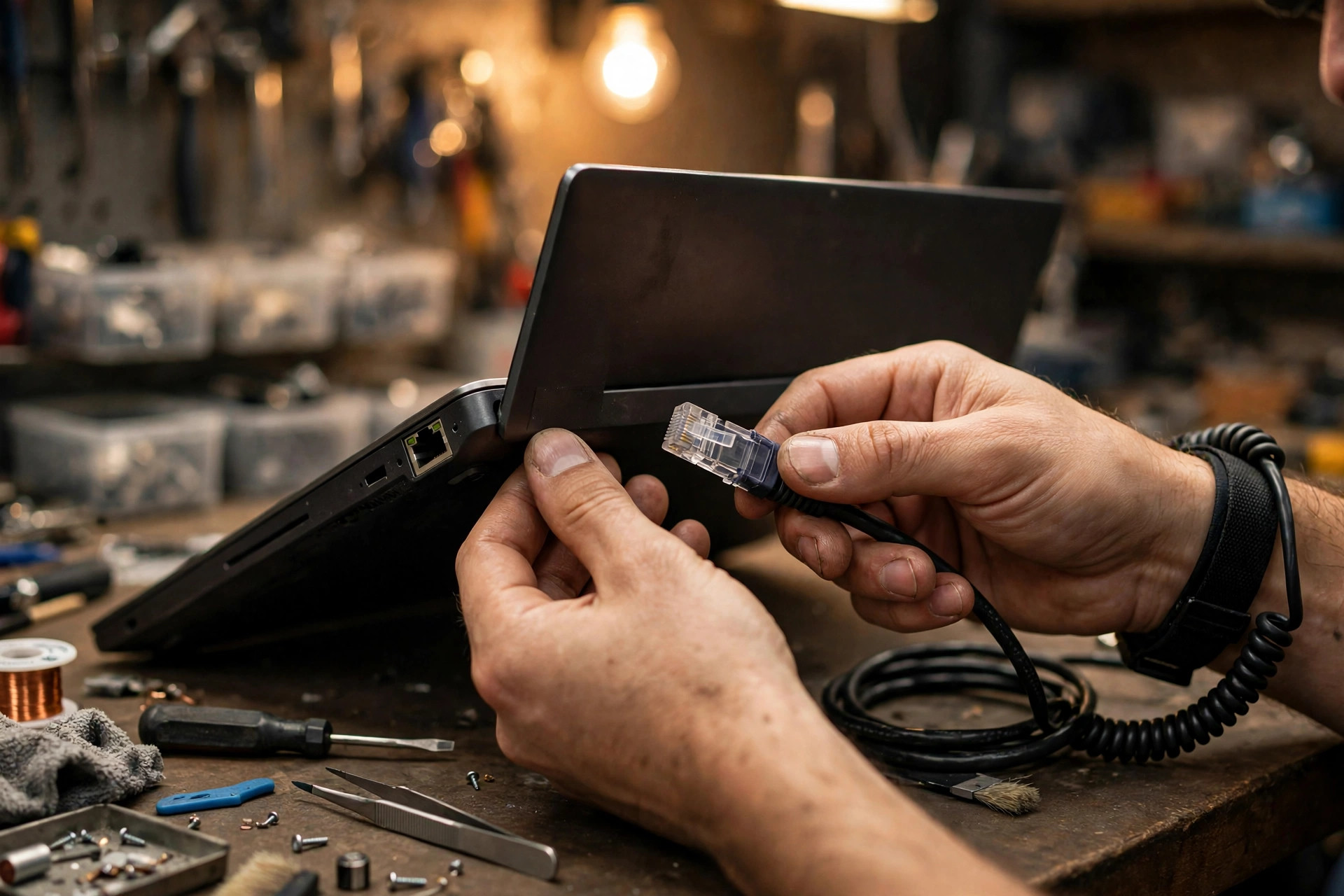
Premise: this article covers only the advanced layer, after the basic checks are done
This article starts with a premise that must be stated up front: you have already tried another cable, tried another port on the router or switch, and reinstalled the driver — and the laptop's wired Ethernet port still will not connect, keeps dropping, or will only reach 100 Mbps when it should reach 1 Gbps or 2.5 Gbps. If any of those basic checks has not been done, the advanced reasoning in this article does not apply; go back to the basics first, because everything here is built on the starting point that the basics have already been excluded. This article will not rewrite cable swapping, port swapping, or driver reinstallation as its main body; those steps appear here only as a one-sentence premise.
This article is about a strictly defined set of symptoms, and a case belongs here if it matches any one of them. First, after swapping the cable, swapping the port, and reinstalling the driver, there is still no link at all, with no link light or a permanent "unplugged" indication. Second, a link comes up but drops repeatedly, when the machine moves, when the cable moves, or after a period of use, and then returns on its own. Third, a link comes up but the negotiated speed stays at 100 Mbps even though both ends are labelled as supporting 1 Gbps. Fourth, a link comes up at 1 Gbps but will not reach 2.5 Gbps even though the laptop and the device at the other end are both labelled as supporting 2.5 Gbps. These four symptoms look very different on the surface, but the advanced diagnostic logic is the same for all of them: narrow the fault down layer by layer, and never condemn a part on the strength of a single symptom.
One distinction must run through the whole article: link speed is not internet speed. The speed shown in the operating system's network status is the local link speed negotiated between the laptop and the device directly connected to it. It is not the speed of the internet plan, and it is not the result of a speed-test website. If the local link speed is already 100 Mbps, an end-to-end speed test cannot exceed that local ceiling. Conversely, if the local link speed is 1 Gbps but the speed test is low, the cause is not in this link. A large share of misdiagnosis in this topic comes from confusing those two numbers, and this article will keep returning to the distinction.
Strict boundaries: what this article is not, so you do not pick up the wrong guide
Wired Ethernet port faults are easily confused with other topics, so the boundaries must be settled before the main discussion. The following boundary table is not decoration; it is the contract for the whole article. A symptom outside the boundary belongs to its own topic and should not be forced into the advanced reasoning here.
| Your situation | Which topic it belongs to | How this article treats it |
|---|---|---|
| After swapping cable, port, and driver, still no link, intermittent drops, or only 100 Mbps | This article: advanced wired Ethernet port layer | Follow the layer-by-layer elimination in this article |
| The machine will not turn on at all, or the power button gives no response | Power button topic: power-on signalling and power sequencing | Not this article; until the power-on layer passes, the Ethernet port cannot be assessed |
| The machine turns on but the screen stays black | Black screen topic: display and power-on self-test layer | Solve the display layer first; do not dismantle the Ethernet port here |
| The machine turns on but keeps rebooting, or loops on the logo screen | Boot loop topic | Mentioned here only for differentiation, not expanded |
| The machine only works while plugged into the charger, or the charging light flickers, or power returns only when the charging cable is moved | Intermittent charging topic: charging port and charging circuit | The charging circuit and the Ethernet port are two separate paths; do not merge them |
| The machine has no network at all, including wireless networks not being found | Wireless topic: wireless module and system network layer | If wired and wireless fail together, test the two paths separately before blaming the wired port |
| A USB-C dock gives network trouble, but the onboard wired port has not been tested or has not been separated from the dock | USB-C dock topic: the dock itself | This article covers only why a dock result cannot prove anything about the onboard port; detailed dock faults belong to the dock article |
| The link is normal and the speed is normal, but some websites will not open or some programs cannot reach the network | Upper network layer: name resolution, firewall, application settings | The link layer has already passed; this is exclusion material only, not the main body |
The whole model: a chain, not a single part
A wired link is not a single part; it is a chain. From the plug to the device at the other end, every segment can become the bottleneck or the break, and a fault in any segment can imitate a fault in another. The first step in advanced diagnosis is not to replace a part but to draw the chain, and then to ask of each segment whether it has genuinely been excluded or merely assumed to be excluded.
In signal order, the chain runs roughly as follows: the plug and its latch, then the eight spring contacts of the laptop's RJ45 jack, then the magnetics — the isolation transformer, which in many laptop designs is integrated into the jack itself — then the PHY chip, which converts between digital signals and the analogue signals on the wire, then the media access controller (MAC) and the host bus, which is a PCIe link or an internal chipset link, then the driver and the operating system, then the cable channel to the jack, magnetics, PHY, and switch or router port at the other end. The cable channel itself is not always a single cord. In a home setup with the laptop connected directly to the router, the channel may be just one patch cord. In an office setup through a wall outlet, the channel includes the fixed run behind the wall outlet, the patch panel, two patch cords, and any couplers in between, and any one of those segments can be the point where the speed falls.
The diagnostic principle for the advanced layer is a single sentence: change one variable at a time, and watch which observed indicator changes with it. The observed indicators are four in number: the link light state, the negotiated speed, stability under movement, and the behaviour of a USB adapter that bypasses the onboard port entirely. Changing the cable, the port, the driver, the power settings, and the firmware all at once and then finding that the problem is gone proves nothing about which change mattered, and leaves nothing to work from when the problem returns. That principle runs through every section that follows, and each section will name its variable, its observed indicator, and how the result should be read.
| Layer | Name | What is examined | Typical behaviour when this layer fails |
|---|---|---|---|
| Layer 1 | Jack and plug physical layer | RJ45 jack contacts, spring tension, plug latch, debris, corrosion, housing cracks | Drops only when moved, works only when held at an angle, plug feels loose, speed falls to 100 Mbps |
| Layer 2 | Cable channel layer | Pair integrity, cable category, length, termination quality, wall-outlet path | Direct connection reaches full speed but the wall-outlet path does not; 100 Mbps works but 1 Gbps does not |
| Layer 3 | Magnetics and PHY layer | Isolation transformer, physical-layer chip, electrostatic and surge damage | No link light, no speed works at all, drops only under load |
| Layer 4 | Negotiation layer | Autonegotiation, speed and duplex settings, capability ceiling of the device at the other end | Permanent 100 Mbps, worse behaviour after forced settings, mismatched settings at the two ends |
| Layer 5 | Host bus layer | MAC, PCIe or chipset link, USB adapter path | Onboard port fails but a USB adapter works, or the two paths behave completely differently |
| Layer 6 | Driver and operating system layer | Driver version, advanced settings, driver regression | Problems start immediately after an update, symptoms follow the driver version, device appears and disappears |
| Layer 7 | Power and sleep layer | Power-saving switch, Energy-Efficient Ethernet, Fast Startup, sleep mode, PCIe power saving | Drops only after sleep or after idling, reboot fixes it but shutdown and restart brings it back |
| Layer 8 | Firmware and BIOS layer | Mainboard LAN switch, wake settings, energy-saving standby settings, settings reset by a firmware update | Network adapter completely invisible in Device Manager, problems start after a firmware update |
| Layer 9 | Board level | Electrostatic damage, liquid corrosion, bent pins, cold solder, cracked jack, trace damage | Fault follows the laptop, all external parts swapped with the same symptom, visible abnormality at the jack |
Symptom triage: put your symptom in a box before you start
Advanced diagnosis should not begin with "I think it is this part". It should begin with "under which conditions does the symptom change". The triage table below subdivides the four main symptoms, and the reader should find their own box first and then go to the matching sections, rather than reading the article from start to finish as if it were a story.
| Symptom in detail | Key observation question | Priority layers | Conclusion you must not jump to |
|---|---|---|---|
| No link at all, link light never responds | Does another machine reach the network with the same cable and the same port? Is the adapter visible in Device Manager at all? | Jack, magnetics, PHY, BIOS switch, device at the other end | Do not condemn the mainboard immediately; separate the BIOS layer from the hardware layer first |
| Link comes up but drops repeatedly, and moving the cable or the machine triggers the drop | How does the link light change at the moment of the drop? Does gentle movement near the plug trigger it at once? | Jack contact, plug latch, cable break near the connector, cold solder | Do not call it a driver problem first; movement-related drops point to the physical layer |
| Link drops intermittently with no relation to movement, after idling or after waking from sleep | Was the machine asleep before the drop? Does a restart fix it for a while? | Power management, Energy-Efficient Ethernet, Fast Startup, driver | Do not call the jack broken; a time pattern points to the power and driver layers |
| Permanent 100 Mbps, direct connection and wall-outlet path both 100 Mbps | Is the port at the other end genuinely capable of 1 Gbps? What does a short direct cable give? What does a USB adapter give? | Pairs, termination, capability ceiling at the other end, PHY, magnetics | Do not blame the internet provider; local link speed and internet speed are two different numbers |
| Permanent 100 Mbps, but a short direct cable immediately reaches 1 Gbps | What sits in between on the original path? | Wall run, patch panel, coupler, wall-outlet termination | Do not blame the laptop port; the direct cable has already removed the laptop from the suspect list |
| Permanent 100 Mbps, USB adapter reaches 1 Gbps but the onboard port does not | Which USB port is the adapter on, and is it a USB 3 or better port? | Onboard jack, magnetics, PHY, board level | Do not blame the cable; the USB adapter has already proved the cable and the other end can do 1 Gbps |
| Permanent 100 Mbps, USB adapter also only 100 Mbps | Has a different short cable been tried direct? Has a different device at the other end been tried? | Cable channel, capability ceiling at the other end | Do not blame the laptop; two paths at 100 Mbps point to a shared segment |
| 1 Gbps works but 2.5 Gbps does not | Are the other end, the cable, and the wall path all capable of 2.5 Gbps? | Negotiation layer, cable category and length, capability ceiling at the other end | Do not call the machine broken; if any segment supports only 1 Gbps, the negotiated result is 1 Gbps, which is normal fallback |
| Speed looks normal but large file transfers fail while small packets are fine | Have jumbo frames or offload settings been changed? What does the link light do under load? | Driver advanced settings, PHY stability under load, cable margin | Do not judge by idle speed alone; passing negotiation at idle does not prove error-free operation under load |
| First few minutes after boot are unstable, then the link settles | Does it happen on every boot? What happens after waking from sleep? | Driver initialisation, power-state transition, PHY negotiation timing | Do not dismiss it as a one-off; a boot pattern is itself a clue |
The RJ45 jack: eight contacts that can accept a plug without making contact
An RJ45 jack, properly called an 8P8C jack, contains eight spring contacts. The flat contacts of the plug press against them, and contact depends on spring pressure, a clean metal surface, and correct alignment — not merely on the plug going in. A plug can go in, and can even click, while the electrical contact is already unfit for high-speed signalling. That sentence is the point of this whole section.
Jack faults take several forms, and each form has a different symptom pattern, which is why they are worth separating. A bent or crossed pin is usually caused by a plug forced in at an angle, or by a pin lifted out of its slot so that two pins touch each other. The symptom is no link, or a link that appears and disappears as the plug is wiggled; one forum report describes exactly this wiggle-dependent cycle of "unplugged, identifying, unidentified". The key feature is movement dependence, not random dropping.
Loss of spring tension is caused by repeated insertion and removal fatiguing the spring, so that contact pressure falls. The symptom is that the link works only if the cable is held at an angle or pushed in hard, and drops under vibration or desk movement. This fault is deceptive because the link is completely normal while the machine sits still, and an inspection that leaves the machine untouched on a bench may never reproduce it.
A worn or broken plug latch is a fault on the plug side rather than the jack itself, but its symptoms are almost identical to a jack fault. When the latch tab snaps or weakens, the plug backs out by a fraction of a millimetre, the link drops when the cable is tugged or the laptop moves, and reseating the plug temporarily fixes it, which makes it look like a software drop. The way to separate the two is to try a different plug with a healthy latch and clean contacts in the same jack, and to see whether the symptom follows the plug or stays with the jack.
Debris in the jack — dust, grit, or a foreign object — prevents full seating or bridges two contacts. The symptom is an intermittent link, sometimes with only certain speeds working. This fault should not be attacked with a sharp tool, because levering a pin sideways can turn a cleaning job into a jack replacement job.
Corrosion and oxidation form a poorly conducting layer on the contact surface as moisture and time do their work. One repair-forum account describes green copper oxide on pins after water ingress, and notes that copper oxide is a poor conductor and that only the contact face needs cleaning. The symptom pattern is usually gradual: occasional drops first, then a lower negotiated speed, then no link, possibly worse after damp periods. The Hong Kong context section returns to this mechanism, but the reader should first understand that corrosion is a slow narrowing of margin, not a switch that flips from healthy to dead in a day.
A cracked jack housing or cracked solder is a different class of fault, because the jack is a mechanical anchor as well as an electrical part. A drop, a trip over the cable, or leverage on a plugged-in cable stresses the housing and its solder joints. The symptom is a link that depends on cable angle and pulling force, and that fails only when the cable hangs or pulls sideways. This is a board-level replacement job, not a cleaning job, and the board-level section returns to it.
Why "it clicks" is not proof of contact comes down to three reasons. First, a plug with a worn latch can still click while sitting slightly out of position. Second, a plug can sit squarely while one spring contact has already lost its tension, so the electrical result is still unfit. Third, a plug can sit correctly while the contact surface is oxidised, so the static contact resistance is already high enough to distort high-speed signalling. The discriminating tests are threefold: does the link survive gentle cable movement at the plug, does it survive the laptop being moved, and does a different plug, with different latch wear and contact plating, behave identically in the same jack. Only if all three tests point at the jack does the jack become the prime suspect.
The honest repair reality must also be stated. Cleaning and carefully reseating a bent pin are described in repair forums, but they are delicate work, done with good light and magnification and with as little movement of the pin as possible. A jack whose housing is cracked, whose pins are broken, or whose solder joints are cracked is a board-level replacement job, and this article will not promise that cleaning fixes a cracked jack. Whether a replacement jack for a specific laptop model is available, or whether jacks are interchangeable between models, was not verified in this research, and this article will not promise availability for any model. For Ethernet work, all pricing is on the basis of a written quotation after inspection, and the general pages for pricing and diagnostic describe the general arrangements.
The cable channel: why a cable that "works" can still be incapable of 1 Gbps
This section explains the most misunderstood symptom in the whole topic: a cable that works perfectly at 100 Mbps but cannot do 1 Gbps. The explanation is not mysterious; it follows directly from the pair-count rule.
The 10 Mbps and 100 Mbps standards use only two pairs for data: pins 1 and 2, and pins 3 and 6. The 1 Gbps standard uses all four pairs — pins 1 and 2, 3 and 6, 4 and 5, and 7 and 8 — transmitting and receiving simultaneously on each pair, at 250 Mbps per pair. The consequence can be stated plainly: any fault confined to pairs 4 and 5 or 7 and 8 is invisible at 100 Mbps and fatal at 1 Gbps. A broken conductor, a bad crimp, or a damaged contact on pins 4, 5, 7, or 8 lets the link come up at 100 Mbps and never at 1 Gbps. The link is not slow because of the internet provider; it is a pair-count problem. In the reverse direction, if the link will not come up at all, the fault may be on pairs 1 and 2 or 3 and 6, or on all pairs, or on the jack, or on the PHY.
A basic continuity tester can miss this class of fault. Continuity testing shows only whether each wire is connected; it does not measure bandwidth, it does not detect a split pair, and it does not measure crosstalk caused by excessive untwisting. One source explicitly warns that continuity alone does not prove a path is Ethernet-ready at the required speed. A reader who treats a continuity pass as proof that the cable is good will send the whole diagnosis in the wrong direction.
Cable category and distance limits describe the channel as a whole, not the length of one visible patch cord. The channel is the fixed run plus the patch cords at both ends. In an office with wall outlets and patch panels, a long in-wall run plus two patch cords can exceed the budget even when each piece looks short. The table below gives the design targets, and the notes that follow explain why the 2.5 Gbps and 5 Gbps rows must not be read as guarantees.
| Cable | 100 Mbps | 1 Gbps | 2.5 Gbps (802.3bz) | 5 Gbps (802.3bz) | 10 Gbps |
|---|---|---|---|---|---|
| Cat5e | 100 m | 100 m | 100 m (designed for it) | Possible in good conditions, not the guaranteed design target | Not specified |
| Cat6 | 100 m | 100 m | 100 m | 100 m (design target) | About 37 to 55 m, depending on alien crosstalk and conditions |
| Cat6A | 100 m | 100 m | 100 m | 100 m | 100 m |
Termination quality is the invisible gigabit killer. One wiring guide recommends keeping untwist under about 13 mm (half an inch) at termination. Untwisting further increases crosstalk, which matters far more at gigabit speeds, with four simultaneous bidirectional pairs, than at 100 Mbps, with two pairs and one direction each. A split pair — using two wires from different twisted pairs as if they were one pair — can still pass a simple continuity test yet fail at gigabit, because crosstalk and impedance are wrong. Pin-to-pin continuity is not the same as correct pairing, and that sentence is worth remembering. The T568A and T568B wiring orders are both valid; what matters is consistency at both ends of a straight-through run and preservation of the pairs. Gigabit interfaces generally handle straight and crossover cables automatically, so A versus B alone is not a gigabit fault — a mixed or split termination is.
Crimp and punch-down quality matter just as much. A conductor nicked during stripping, not fully seated to the front of the plug, or loosely punched will pass at low speed or at rest and fail under movement, temperature change, or gigabit signalling. The shake-test logic in one vendor guide makes the same point: flex the cable near both connector ends and watch the link lights, because flicker or a drop under movement points to an intermittent internal break, most commonly near the connectors. Stranded conductors suit patch cords because they flex; solid conductors suit fixed runs because they hold terminations and have lower loss. Using the wrong construction for the job, or re-terminating a stranded patch cord as if it were solid, is a termination-quality risk.
Copper-clad aluminium cable, where an aluminium core carries a thin copper outer layer, deserves a paragraph of its own. It looks like copper from outside and may even be jacket-printed as Cat5e or Cat6, but aluminium has substantially higher resistance than copper at the same gauge. Sources do not agree on a single figure: one industry paper puts the composite conductor about 40 percent above copper, commonly quoted sources put it around 55 percent, and pure aluminium versus copper is about 64 percent. This article therefore gives a range, not a single false-precision figure. The consequences are more attenuation over distance, so a long copper-clad aluminium run can fall short of its labelled gigabit speed; brittleness, so it breaks more easily on re-termination or repeated bending; and aluminium oxide at terminations, which unlike the copper oxide discussion above is non-conductive, so termination failures follow. One test-equipment vendor states that copper-clad aluminium conductors are not standards-compliant for category cabling and that a claimed certification mark on such cable may be counterfeit. This article reports that position; it does not claim that every inexpensive cable is copper-clad aluminium, nor that such cable can never carry any signal — the failure is one of margin, distance, and longevity. Practical identification clues from the same sources include jacket or box markings saying copper-clad aluminium, a scored conductor showing silver underneath, and unusually light reel or box weight, but these are checks and not guarantees, and no reader should be advised to cut a cable they still need in order to verify it. For a laptop port, the relevant effect is signal loss and fragility, not the heat and voltage-drop language of power-over-Ethernet scenarios, and this article will not import power-over-Ethernet fire language into a laptop article.
Magnetics and the PHY: the layer between the jack and the computer
The first major component behind most RJ45 jacks is an isolation transformer, called magnetics, which in many laptop designs is integrated into the jack itself. Its functions, as described in protection literature, are galvanic isolation — separating the cable's ground from the laptop's ground and blocking direct current and common-mode voltage — common-mode rejection and electromagnetic interference suppression through transformers and chokes, and some surge attenuation, because the tiny magnetic core saturates under a large surge and stops coupling the full surge through. That attenuation is not immunity, and this article will not describe it as surge-proofing. One source gives a typical figure of a few hundred amperes on a standard surge waveform before transformer failure, but that figure is explicitly flagged as needing verification for each part, so this article places it in the unverified list at the end and does not apply it to any specific laptop's jack.
Magnetics are passive components, and they are divided by pair. Damage to the winding of one pair can therefore produce a pair-selective fault: if the damaged pair is one of the gigabit-only pairs, gigabit fails while 100 Mbps works; if the damaged pair is one of the pairs that 100 Mbps also needs, the link fails entirely. This mechanism echoes the pair-count rule for cables, and the reader should see the implication: the same symptom of "100 Mbps works, 1 Gbps does not" can come from the cable, the jack, or the magnetics, and the symptom alone cannot tell them apart. Only the elimination sequence can.
The PHY, the physical-layer transceiver, converts between the digital MAC interface and the analogue signals on the wire: encoding, echo cancellation (needed because 1000BASE-T transmits and receives simultaneously on each pair), equalisation, and autonegotiation signalling. PHY failure has more than one level. In a dead PHY, there is no link light and no link at any speed, yet the adapter may still appear in the operating system, because the MAC and driver side can be alive while the PHY side is dead. That is why "reinstalling the driver did not help" is consistent with a hardware fault, not proof of one. In a partial PHY failure, the link comes up but with errors, drops under load, or only at lower speeds — but this article will not attribute every partial failure to the PHY specifically, because the cable, the jack, and the magnetics produce the same pattern, which is exactly why layer-by-layer elimination matters. Overheating and visible board damage are also listed as checks in PHY guidance; heat-related faults often appear under sustained load, clear after cooling, and then recur.
Electrostatic and surge damage must be described with care. A surge large enough — a nearby lightning strike, or a large ground-potential difference between two buildings' grounds — can exceed what magnetics plus on-board protection can absorb, and can kill the PHY, the magnetics, or the switch port at the other end, sometimes several devices in the chain at once. This article will not claim that a specific incident was lightning damage without evidence, and it will not claim that consumer surge protectors make Ethernet safe. The honest formulation is this: if several wired devices failed at the same time, especially after a storm or after cable work between buildings or floors, surge damage moves up the list; a single laptop port failing alone, with no storm and no other failed device, does not point strongly to surge. Long outdoor runs or runs between floors act as antennas for lightning-coupled energy, while an indoor, single-room laptop-to-router run is at the lower-risk end — but lower risk is not no risk, and this article will not put a number on that risk without a source. Equally, the transformer does little against a fast electrostatic pulse that couples through the shell, the shield, or the PHY side, so the presence of magnetics is not a reason to call a port surge-proof.
Autonegotiation: why the link chooses 100 Mbps, and why forcing speed makes things worse
Need a laptop repair expert?
Free diagnosis · Transparent pricing · No fix, no fee · 180-day warranty
Autonegotiation is the exchange by which the two ends advertise their capabilities — speeds and duplex modes — and agree on the highest common mode. It was optional for 10 and 100 Mbps operation and became mandatory for 1000BASE-T. One vendor user guide states that both ends must be set to autonegotiate to establish a 1 Gbps connection. The negotiated speed is the highest speed that both ends and the channel can sustain cleanly. A PHY that cannot get a clean signal on all four pairs will fall back, typically to 100 Mbps, where only two pairs are needed and the signalling is far more forgiving. Fallback is a symptom with a cause, not a setting to override.
There are four classic traps, and each deserves to be taken apart.
The first trap is that the other end caps the speed. A 100 Mbps-only switch port, an old router LAN port, a wall outlet wired for two pairs only, or a 100 Mbps USB adapter in the chain caps everything downstream at 100 Mbps no matter how good the laptop is. The premise of this article says the switch port was swapped, but swapping to another port on the same 100 Mbps device does not remove the cap. Check the capability of the link partner, not just its port number. A port-swap test is only meaningful if the new port is on a device known to support the required speed.
The second trap is a forced speed and duplex mismatch. The vendor guide is explicit: the setting must match at both ends, a mismatch causes dropped packets and poor performance, and only experienced administrators should force speed and duplex manually. A common mismatch pattern is one end forced to 100 Mbps full-duplex while the other end is left on automatic, which then falls back to half-duplex by parallel detection, producing a link that "connects" but collapses under load with errors and retransmissions. This article warns against "forcing 1 Gbps" as a fix for a fallback caused by a damaged pair: forcing cannot repair a pair, and if the link comes up forced, it will typically error heavily. Returning both ends to automatic is the safe default; anything beyond that is switch administration.
The third trap is the half-duplex legacy. Ten-gigabit and fibre interfaces do not support forced speed and duplex at all, and for copper gigabit the supported path is autonegotiation. Any advice to force settings should be limited to returning both ends to automatic and re-testing, unless the reader is administering the switch.
The fourth trap is misreading 2.5 Gbps negotiation. A laptop with a 2.5 Gbps-capable port connected to a 1 Gbps switch negotiates 1 Gbps, and that is correct behaviour, not a fault. A 2.5 Gbps port connected to a 2.5 Gbps switch over poor Cat5e may negotiate 1 Gbps or 100 Mbps for the same pair and margin reasons discussed in the cable section. Do not promise 2.5 Gbps over any given installed cable without testing that channel.
What negotiated speed does and does not prove should also be stated plainly. A negotiated 1 Gbps proves that the channel passed autonegotiation at that moment. It does not prove error-free operation under load. A negotiated 100 Mbps proves that something limited the link — a partner cap, a pair fault, a termination fault, or a PHY or magnetics fault — but it does not by itself say which one. The elimination sequence in a later section is how the article narrows it down.
The host bus: the onboard path and the USB path are different computers, in effect
In modern laptops the Ethernet MAC is typically integrated in the chipset or system-on-chip, connected through an internal high-speed link, with an external PHY and magnetics between it and the jack. Older descriptions distinguish chipset-integrated controllers from add-in controller chips on PCI or PCIe, but the exact topology varies by model, and this article will not assert a specific laptop's topology without its service manual, which was not verified in this research. What matters for diagnosis is that the onboard path shares the laptop's board, power, and sometimes thermal environment. A fault that follows the laptop across cables, switches, and operating system reinstalls, and that a USB adapter bypasses, localises to this onboard path — jack, magnetics, PHY, board traces, or the MAC and bus itself. Narrowing further between those needs board inspection, not settings.
A USB Ethernet adapter contains its own MAC, PHY, magnetics, and jack. It bypasses the onboard port entirely, which is why it is the best single elimination test for the question "is the onboard port the problem". But the adapter is capped by its host bus. USB 2.0 has a theoretical 480 Mbps, while real-world Ethernet throughput through a USB 2.0 adapter is typically around 200 to 300 Mbps across several sources, and a gigabit adapter on USB 2.0 cannot deliver gigabit. A "gigabit" label on the adapter does not override the bus. USB 3.0, at 5 Gbps, can deliver true gigabit, with one source giving around 900 Mbps in practice and a laboratory result for a 2.5 Gbps adapter reaching up to about 2.37 Gbps, but those are laboratory or secondary-source figures, not a promise for any reader's machine, and actual throughput also depends on the host controller, hub sharing, processor load, and the cable and partner. In a USB-C or Thunderbolt dock, the dock's internal USB generation and whether the port is shared with other devices also matter; a 2.5 Gbps adapter behind a USB 2.0 hub is a USB 2.0 adapter in practice.
The practical consequences are threefold. First, if a USB 2.0-port adapter "only" reaches about 200 Mbps, that is the bus ceiling, not a fault in the laptop's network or the internet provider. Second, if a USB 3.0 adapter reaches full gigabit while the onboard port caps at 100 Mbps, the onboard path — jack, PHY, magnetics, or board — is the suspect, not the cable, not the switch, and not the internet provider. Third, USB adapters share bus bandwidth with other devices on the same controller or hub, and add processor overhead compared with PCIe; intermittent USB disconnections from power saving, a loose connector, or a hub produce a different symptom — a total drop, not a speed fallback — and should not be confused with autonegotiation fallback. This article will not claim that PCIe is always better in absolute terms for a laptop user, because most laptops have no PCIe slot available to the user; the realistic choice is onboard versus USB, and the article frames it that way.
The slowest device in the chain caps throughput, a rule repeated across sources. The elimination sequence exists to find which device is the slowest, rather than assuming it is the laptop. Readers who want the general arrangements can check pricing and diagnostic before working through that sequence.
The driver layer: why reinstalling the driver can change nothing
Many users who say they have "reinstalled the driver" have in fact uninstalled it and let the operating system install the same version again — the version delivered by the operating system update service. If the problem is in that version, reinstalling it any number of times gives the same result. A genuine version test must distinguish three sources, which can be different versions: first, the built-in driver or the driver delivered by operating system updates; second, the laptop maker's official support page, which provides a driver for the specific model, usually tested by the maker against its BIOS and chipset; and third, the generic driver from the network chip maker's own website. This article suggests noting the driver version and date in Device Manager before comparing versions, rather than relying on a feeling of having "updated to the latest". "Latest" is not the same as "most stable": a new version may fix one problem and introduce another.
The strongest evidence for a driver regression is the timeline. If the fault began immediately after an operating system update or a driver update, when everything was previously normal, a driver regression is more likely than a sudden hardware death. The verification method is the roll-back function in Device Manager, where available, or manually installing the maker's older official version. Change only one variable at a time, and observe for a period after the change; changing the driver, the power settings, and the BIOS all at once leaves no way to know which change worked. The reverse trap is also worth naming: "reinstalling the driver fixed it once" does not mean "it is a driver problem every time". The earlier fix may only have reset the link or the power state during the reinstall process, while the underlying cause — for example, a jack contact problem — remained in place.
Advanced driver settings vary by network adapter and driver, and not every machine shows all of them. This article will only say "if you see it, consider it", never assume the reader will find a given option name. Speed and duplex belong to the autonegotiation section and should default to automatic. Energy-Efficient Ethernet and Green Ethernet belong to the power section. Wake-on-LAN settings belong to the power section as well. Jumbo frames and offload settings — checksum offload and large-send offload — should not be switched on casually in a home or office network; if jumbo frames are enabled while the switch does not support them, the symptom can be a link that looks normal but fails on large file transfers. That point is given as a one-sentence warning only, not expanded into a jumbo-frame tutorial, because that would leave the topic. Virtual LAN tagging is meaningful only on a managed company network; a home reader who sees an unfamiliar VLAN setting should not change it, and an office reader should hand it to the IT or network administrator rather than changing company switch settings personally.
Distinguishing a driver problem from a PHY or hardware problem follows an elimination logic. The driver layer is more likely if Device Manager shows the adapter, the link light responds, the fault is intermittent, or the symptoms follow the driver version — breaking on an upgrade and recovering on a roll-back. The hardware layer is more likely if Device Manager shows no adapter at all, after excluding the BIOS layer; if the link light never responds; if the plug does not seat firmly or feels loose; or if a short direct cable, a different partner device, and a different driver version all give the same symptom. Between the two there is a grey area: the PHY itself is controlled by the driver for power saving and negotiation, so a driver problem can imitate a hardware problem, and ageing hardware can imitate a driver problem. The decision framework at the end of this article exists to handle that grey area, and the middle sections will not condemn the hardware outright.
The power layer: the advanced layer most often overlooked
In Device Manager, the network adapter's properties include a Power Management page with an option to allow the computer to turn off the device to save power. With that box checked, the operating system may power down the adapter while idle or asleep. That setting is normal functionality, not a bug; but in some driver and BIOS combinations, the adapter fails to wake properly after being powered down, or takes a long time to renegotiate a link after waking, which appears as "no network after waking" or "drops after idling for a while". Unchecking that box is a low-risk, reversible layer test. If the symptom disappears after unchecking it, the power layer is implicated; if nothing changes, that one switch has been excluded, but not the whole power layer, because Energy-Efficient Ethernet, PCIe power saving, Fast Startup, and other mechanisms remain. Note also that not every adapter shows a Power Management page. Machines with modern standby are particularly likely to lack that page, and in that case the reader should not be taught to edit low-level system settings; the correct statement is that the machine's platform power management has taken over that function.
Energy-Efficient Ethernet, standardised as IEEE 802.3az, puts the link into a low-power idle state when idle, no longer sending idle signals continuously, and wakes when data needs to be sent. By design, the transition is supposed to be transparent to upper layers, without breaking the link or dropping packets. It becomes a fault when the two ends do not cooperate: Energy-Efficient Ethernet is negotiated between the laptop adapter and the switch or router port, and both ends must support it and work together. If one side's implementation is faulty, or the wake timing does not match, the result can be intermittent drops, link flapping — the link repeatedly going up and down — increased latency, or failures that appear only at busy times. For one specific controller model, there are secondary technology-media reports that the maker advised affected users to disable Energy-Efficient Ethernet in Device Manager as a mitigation, and this article will only write that as "there are reports that", never as an official instruction from the maker to all users of that model, and it will give no percentage, wattage, or money-saving figure for Energy-Efficient Ethernet, because sources differ and no common test conditions were verified. As a diagnostic step, setting Energy-Efficient Ethernet or Green Ethernet to disabled in the advanced page is another low-risk, reversible test. The cost of disabling it is only slightly higher idle power consumption; it does not lower the link speed ceiling, and this article states that plainly so that readers do not mistake "disabling power saving" for "slowing down". One further note: Energy-Efficient Ethernet may also be enabled at the switch or router end. If disabling it on the laptop alone does not help, that does not exclude Energy-Efficient Ethernet, but home readers should not be taught to change router or company switch settings casually; a company environment belongs to the IT department.
Wake-on-LAN is often misunderstood as a single switch, but it is really three layers stacked together. First, the firmware layer: the BIOS or UEFI must have a wake setting, and energy-saving standby settings must not conflict with it, because if the firmware layer does not supply power to the adapter, no operating system setting can help. Second, the driver advanced layer: wake on magic packet must be enabled, and some adapters have a shutdown wake setting that controls whether the link stays up after shutdown. Third, the operating system power management layer: the device must be allowed to wake the computer, preferably with the restriction that only a magic packet wakes it, so that ordinary network traffic does not wake the machine. The relevance to this article's faults is that wake settings share the same switches as the power layer. A user who changes power settings to enable wake, or disables all wake settings to save power, may inadvertently change how the adapter behaves after sleep or shutdown, creating or worsening a "drops after waking" problem. This article advises noting the original settings before changing wake settings, and changing one layer at a time. Another trap is that wake support on a dock or USB Ethernet adapter is itself limited, so a dock's wake behaviour must not be used to infer anything about the onboard adapter's wake behaviour.
Fast Startup, modern standby, and PCIe power saving explain why "a restart fixes it, but a shutdown and restart brings it back". Fast Startup is the default shutdown mode in the operating system: shutdown is really a partial hibernation, in which the kernel and driver session are saved and reloaded at the next boot, rather than initialising the hardware from zero. Shutdown-and-start and restart are therefore different tests: if a restart fixes the problem but a shutdown and start brings it back, the driver or hardware state was not cleanly reset, and Fast Startup is a likely accomplice. The diagnostic method is to turn off Fast Startup in the power options and then compare a full shutdown and start. Modern standby, also called S0 low-power idle, differs from traditional S3 sleep: a modern standby machine stays partly connected while asleep, and its power management logic differs from traditional sleep, to the point that some machines show no Power Management page in Device Manager at all. In that case, "no network after waking" is not necessarily a dead adapter; it may be that the driver did not recover correctly during a platform power-state transition. This article will not teach readers to force modern standby off through low-level system settings, because the risk is high and the behaviour varies by machine; the correct statement is that this is a platform-layer difference, and if it is suspected, the machine should be sent for inspection rather than modified at a low level by the reader. PCIe link-state power management, found in the power plan, affects PCIe devices including the onboard adapter's PCIe connection. If it is suspected, the test is to set it to off in the power plan for comparison, but this article must warn that it is a system-wide setting affecting battery life, and that whatever the result, the reader should be told how to restore it and how to weigh the trade-off, rather than leaving a permanently power-hungry setting in place as if it were a normal fix. A related false trail is that "no address after waking" is not necessarily an adapter problem: sometimes the link has recovered but the address assignment conversation has not completed, and releasing and renewing the address, or unplugging and replugging the cable to force renegotiation and a fresh address assignment, is a low-cost layer test that separates the link layer from the address layer. This article mentions it in one sentence only and does not expand into an address-assignment tutorial.
The firmware and BIOS layer: where to look when no driver change helps
Several makers' firmware offers a similar option under different names: an onboard LAN controller, an onboard hardware LAN, a LAN entry under on-board devices, or a network controller entry under device security. Set to disabled, the operating system cannot see the adapter at all, and no driver installation can help, because the hardware has not been offered to the operating system. Why would it be disabled without the user knowing? A firmware update can reset settings, someone may have disabled the onboard port to use an external adapter, a company IT policy may have locked it, or the CMOS settings may have become corrupted. This article states the rule plainly: if Device Manager shows no adapter, do not condemn the hardware immediately; first ask whether the firmware layer has it switched on.
The writing constraint is that different makers use different keys to enter firmware setup and different menu paths, so this article can only say "press the maker-specified key at boot, enter the firmware setup, and look for LAN or on-board devices options". It will not write one maker's path as if it were a universal tutorial. Before changing firmware settings, readers should be warned not to change options they do not understand, to save and exit after a change, and, if unsure, to photograph the original settings before changing anything. Individual models' firmware menu paths were not verified maker by maker in this research, and this article will not state any one of them as fact.
A firmware update is not a cure-all, and it can itself be the culprit. One maker's guidance states that a firmware update should only be applied when the new firmware explicitly addresses the problem being experienced, and that machines without that need should not be updated casually. Both sides must be told together: on the positive side, a firmware update can sometimes fix PCIe compatibility or adapter firmware problems; on the negative side, after a firmware update the LAN setting may be reset, wake and energy-saving standby settings may change, and the new firmware itself may introduce a new problem. "Problems began after a firmware update" is therefore a strong timeline clue, and the priority is to check the firmware's LAN settings, not to update again immediately. The safety line must be written in full: a firmware update interrupted by a power cut or a disconnection can leave the machine unable to boot, so this article will not casually tell readers to "try updating the firmware". The battery must be sufficient, the machine should preferably be on mains power, the update should not be done during a thunderstorm or on an unstable supply, and if the reader is unsure, the machine should be sent for inspection.
Other firmware-related switches are named only, not expanded. Network boot, sometimes called LAN boot ROM or PXE boot, relates to whether the machine recognises the network at boot, not to everyday browsing faults; in a dock scenario, boot network settings can sometimes interact with dock Ethernet at boot, and this article mentions that in one sentence without teaching readers to enable network boot casually. Energy-saving standby settings, sometimes called ErP ready or deep sleep, cut standby power after shutdown, so the adapter link light goes out and wake functions stop working. That is normal energy-saving behaviour, not a fault, but a user who does not know it may think "the port died after shutdown". This article separates "no light after shutdown" from "cannot get online while the machine is running" as two different states.
Board level: electrostatic damage, liquid, bent pins, cold solder, cracked jacks
Board-level causes cannot be distinguished from each other by symptoms alone in most cases, and that honest premise comes first. Each item below is a possibility a technician inspects for, not a diagnosis a reader can make from a symptom. The purpose of listing them is so that the reader understands what an inspection looks at, and why a bench inspection is sometimes the only way to an answer, not so that the reader can label their own machine.
| Board-level cause | Mechanism | Clues that raise or lower suspicion |
|---|---|---|
| Electrostatic damage to the PHY or magnetics | A fast transient punctures or degrades PHY input and output circuits or magnetics insulation; it may be partial, affecting one pair, or total | Sudden onset after handling, dry-season static, or cable work; usually no visible damage; often total or pair-selective failure with no movement dependence |
| Liquid ingress and corrosion | Liquid reaches the jack or the board; corrosion grows over days and weeks, especially on powered contacts through an electrochemical effect | Green or white deposits, sticky residue, a history of spilling or damp storage; gradual worsening; neighbouring parts may also be affected |
| Bent pins in the jack | See the jack section | Movement-dependent, wiggle-dependent |
| Cold solder or cracked solder joints | Jack, PHY, or magnetics joints crack under mechanical stress from cable leverage or drops, or under thermal cycling, so contact becomes intermittent | Pressure or angle dependence; sometimes temperature dependence, working when cold and failing when warm, or the reverse; needs board inspection under magnification |
| Cracked jack housing | See the jack section | Plug feels loose, latch does not hold, visible crack |
| Board trace or via damage | Liquid, flexing, or previous repair damage breaks a trace between the PHY and the jack or magnetics | Affects the onboard port only; a USB adapter works; needs board-level diagnosis, and a trace repair must not be promised without inspection |
| Previous repair damage | Overheated joints, lifted pads, or a wrong replacement jack, for example a Fast-Ethernet-only jack with two-pair magnetics fitted to a gigabit board | A history of prior repair; a two-pair-magnetics jack would cap the speed at 100 Mbps by construction; this is listed only as a check after a prior repair, because no verified instance was found in this research, and it must not be written as a common cause |
The layer-by-layer elimination sequence: from the premise, one step at a time
The sequence below starts where the premise starts: cable, switch port, and driver already tried. It does not repeat basic checks as its body; it states which variables remain unexcluded after the basics. Change only one variable per step, and note the result before moving on.
| Step | What to do | How to read the result |
|---|---|---|
| Step 1 | Note the onboard port's negotiated speed and link light state, and whether it is stable or changes when the cable moves | Speed and light state are the baseline for every later step; without a baseline there is nothing to compare |
| Step 2 | Confirm the link partner's capability: is that port genuinely capable of 1 Gbps or 2.5 Gbps, or is the whole device limited to 100 Mbps | Swapping to another port on the same 100 Mbps device proves nothing; the test must move to a device and port known to support the required speed |
| Step 3 | Use a short, known-good cable to connect the laptop directly to the router or switch port, bypassing wall outlets and intermediate devices | If the direct connection immediately reaches the required speed, the fault is in an intermediate segment of the original path; if it gives the same symptom, the fault narrows to the laptop, the partner device, or that short cable |
| Step 4 | Test with a USB 3.0 or better adapter, on a USB 3.0 or better port, using the same cable and the same partner port | If the adapter reaches full speed, the onboard path becomes the suspect; if the adapter also caps at the same speed, the cable channel or the partner remains suspect, even if the cable was swapped, because the replacement may share the same in-wall run, wall outlet, or termination fault |
| Step 5 | Inspect the jack under good light and magnification: bent or crossed pins, debris, corrosion, cracked housing, latch hold; compare with the adapter's jack behaviour on the same plug | A visible abnormality plus movement-related symptoms raises suspicion of the jack; a normal appearance does not exclude the jack, because spring tension and contact resistance cannot be seen |
| Step 6 | Movement test at the jack: gently flex the cable near the plug while watching the link state | An immediate change under movement points to the jack, the plug, or a cable fault near the connector; no change under movement lowers suspicion of the physical contact layer |
| Step 7 | Compare driver versions: note the current driver version and date, compare with the laptop maker's official support page and the chip maker's generic driver, and if appropriate use the roll-back function as a single-variable comparison | Symptoms that follow the version raise suspicion of the driver layer; no change after a version change lowers it |
| Step 8 | Compare power settings one at a time: uncheck the power-saving switch, disable Energy-Efficient Ethernet, turn off Fast Startup, noting each result and how to restore it | If one setting change removes the symptom, the power layer is implicated; if no power comparison changes anything, the power layer is less likely, but platform power differences are not fully excluded |
| Step 9 | Check the firmware LAN switch and related settings, noting whether the problem began after a firmware update | If the firmware has it switched off, switching it on is the answer; if it is switched on, the firmware layer becomes less likely |
| Step 10 | If the fault follows the laptop across cables, partners, and adapters, and the jack looks intact, the suspected range reaches the PHY, magnetics, and board level, and at that point the article hands over to inspection on the basis of a written quotation after inspection, not to further settings changes | This is the handover point of the sequence; further answers need board inspection and an inspection quotation, not more settings changes |
Common misdiagnoses and traps
| Misdiagnosis or claim | Why it is wrong or incomplete | How to think instead |
|---|---|---|
| Cannot get online, so it must be the internet provider or the router | Link speed is a local negotiation; the provider is not involved in that layer at all; a link speed of 100 Mbps, or no link at all, cannot be explained by provider speed | Look at link speed and link lights first and confirm the local link; only when the local link is normal and other devices also cannot get online is it worth suspecting the router or provider |
| The cable was swapped, so it cannot be the cable | Swapping a patch cord excludes only that patch cord; the wall run, patch panel, couplers, and jack contacts remain unexcluded | Run the short direct cable test to narrow down which segment of the path is at fault |
| The speed test is slow, so the port is broken | A speed test measures end-to-end throughput, affected by the provider, the server, wireless links, and other devices sharing the connection; link speed is the port's own indicator | Keep the two numbers separate: link speed is local, speed test is end-to-end, and they must not be used interchangeably |
| Reinstalling the driver fixed it once, so it is always a driver problem | The reinstall process also resets the link and power state, or that occasion happened to be a driver version problem; the underlying cause may still be present | Note the driver version and timeline; when the problem returns, compare what was changed last time with what has changed this time |
| Updating to the newest driver is always best | A new version can introduce a regression; the maker's official version and the chip maker's generic version can be different versions, each with its own trade-offs | Use "symptoms follow the version" as evidence, not "new" as evidence; roll back for comparison where appropriate |
| The dock works online, so the onboard port must be completely dead | Two independent paths; a working dock proves only that the USB path works | A working dock is a usable workaround, not a death certificate; the firmware, driver, power, and jack layers still need to be separated |
| The onboard port is dead, so the machine cannot be saved | In many cases a USB Ethernet adapter or a dock can replace the onboard port for the long term, without an immediate mainboard repair | See the decision framework below, and choose by use, budget, and machine age |
| The link light is on, so the port cannot be broken | The link light only shows that a link signal exists; it does not guarantee the correct negotiated speed, error-free packets, or stability under load | Read link light, link speed, and stability together, never one alone |
| The port has no light after shutdown, so the port is broken | Energy-saving standby settings cut standby power after shutdown, which is normal energy-saving behaviour | Separate "after shutdown" from "while the machine is running" as two different states |
| Changing every setting at once and finding it fixed means there is no need to know which change worked | Changing several things at once leaves no way to know which one mattered when the problem returns, raising later maintenance costs | Change one variable at a time, and note what was changed and what happened |
| A company network is slow or drops, so it must be my machine | A managed company switch may have port settings, virtual LAN settings, authentication, or port speed limits, which an individual user cannot and should not change casually | In an office, first ask IT: how do colleagues at the same location fare, and does changing seat or port make a difference |
| The tester says pass, so the cable must be fine | A continuity tester cannot measure bandwidth, split pairs, or crosstalk | A pass excludes breaks, shorts, and miswiring only; it does not exclude gigabit signal-quality problems |
| Forcing 1 Gbps will fix the fallback | Forcing cannot repair a broken pair, and can create a duplex mismatch | Return to automatic as the safe default; forcing is at most a brief diagnostic step, and it must be restored |
| The machine has a 2.5 Gbps port, so failing to reach 2.5 Gbps means it is broken | If any segment in the path supports only 1 Gbps, the negotiated result is 1 Gbps | Check the whole path, not just the laptop's label |
| The plug clicked, so contact must be fine | A worn latch, lost spring tension, or oxidised contacts can all exist under a click | Use the movement test and a plug comparison, not the sound alone |
Dock and USB-C adapter confusion: the boundary must be drawn clearly
This section is the part of this article that must be covered without overlapping the dock article. Its core message is a single sentence: a dock or USB Ethernet adapter and the onboard RJ45 port are two completely different hardware and driver paths, and a result on either side proves nothing about the other side.
| Onboard RJ45 | Dock or USB-C Ethernet | |
|---|---|---|
| Hardware path | Network chip on the mainboard, plus the mainboard RJ45 jack | USB Ethernet chip inside the dock or adapter, plus the USB connection |
| Driver | PCIe network adapter driver | USB Ethernet driver, shown in Device Manager as a USB device rather than a PCIe adapter |
| Power and sleep behaviour | Follows mainboard, firmware, and PCIe power management | Follows USB power supply, USB selective suspend, and dock firmware |
| Firmware | Mainboard firmware | The dock's own firmware, which on some docks needs a separate update |
First, dock works and onboard does not. That proves only that the USB path, the network at the other end, and the cable — if the same cable is shared — are broadly healthy. It does not prove that the onboard adapter is dead; the cause can still be the onboard driver, a firmware switch, a power setting, or an onboard jack contact problem. A working dock is a useful workaround, not a diagnostic conclusion. Before considering a dock, readers can check pricing and diagnostic and weigh the dock against the decision framework.
Second, onboard works and dock does not. That proves only that the onboard path is healthy; the dock problem may be the dock driver, the dock firmware, USB port power, or the USB-C cable and protocol, and it has nothing to do with the onboard port. It must not be described as "the machine's network port has a problem".
Third, neither side works. That is the first situation in which a shared segment becomes worth suspecting: the same cable, the same router or switch port, the same network settings, or an operating-system layer shared by both paths, such as a virtual private network, a firewall, or the network stack. But even when neither side works, the coincidence of two independent faults cannot be excluded on logic alone, even if it is less likely.
Fourth, both sides fail intermittently but at different times. That points even more strongly to independent power or driver problems on each path, rather than to a single hardware death. This article advises readers to note which side, when, and while doing what, before sending the machine for inspection, because without that record the fault is hard to reproduce.
Dock-specific traps are touched on only briefly, with detail left to the dock article. There are reports that some dock Ethernet implementations developed problems after an operating system major-version upgrade while working normally on the previous version, involving an interaction between the USB Ethernet driver and the system version — which shows precisely that a dock problem can be tied to the operating system version while the onboard port is completely unaffected. Dock Ethernet behaviour at boot and on waking from sleep, such as a machine hanging at boot with dock Ethernet connected, or dock networking not returning after waking, is unrelated to the onboard port and must not be conflated with it. This article will not write that buying a dock solves everything: a dock is a way around the onboard port, and it carries its own costs, compatibility questions, power supply questions, and firmware maintenance questions, as the decision framework below shows.
Hong Kong context: only structural differences, no specific cases
In a home router scenario, the LAN ports of an ordinary home router are not necessarily all the same speed: some ports may be 1 Gbps, some may be 100 Mbps, or one port may have a special purpose. This article advises readers that when testing by swapping ports, they should confirm what speed the new port itself supports, and not assume that all ports on a router are identical. Similarly, a path through a wall outlet, a trailing switch, or a powerline adapter has segments, and each segment can be the point where the speed falls.
In an office LAN scenario, a company desk usually connects through a wall outlet, a patch panel, and a switch, so the path is longer and has more intermediate segments than a home setup, and the switch may be managed, with port settings, virtual LAN settings, and authentication. An individual user facing an Ethernet problem in an office should first ask IT how colleagues at the same location fare, rather than changing settings personally. This article will not teach readers to bypass company network policy.
In an older building or older renovation scenario, the cable inside the wall may have been installed many years ago, with different cable categories, workmanship, and connector ageing. In that situation, a short direct cable reaching 1 Gbps while the wall-outlet path reaches only 100 Mbps is a classic layer result pointing at the wall path rather than the laptop itself. This article can state that logic, but it cannot assert that any particular class of building is necessarily like that.
In a 2.5 Gbps scenario, 2.5 Gbps ports are becoming more common, but "the machine has a 2.5 Gbps port" does not mean "the whole path supports 2.5 Gbps": the router or switch port, the cable, and the wall path must all cooperate before 2.5 Gbps is reached. If any segment supports only 1 Gbps, the negotiated result is 1 Gbps, which is normal fallback, not a fault. This article states that plainly so that readers do not treat "cannot reach 2.5 Gbps" as "the machine is broken".
On humidity and corrosion, the mechanism is damp plus time plus powered contacts as the conditions for corrosion growth. Hong Kong's humid climate, condensation from the temperature difference between air-conditioned rooms and the outdoors, and slow drying after a spill are, at the mechanism level, plausible accelerants — but this research verified no Hong Kong-specific corrosion rate, prevalence figure, or climate statistic, and this article will cite none. The practical advice stays at the mechanism level: keep the jack dry, do not store a laptop long-term in a damp place with a cable plugged in, and do not repeatedly power up and test a machine immediately after a spill. On commuting and desk-move cable stress, a laptop carried in a bag with a cable still plugged in, a cable yanked when moving between desks, and a plug levered by a bag strap are mechanical stresses that fit the bent-pin, cracked-jack, and cold-solder mechanisms described earlier. This is a use-pattern explanation, not a claim about any individual's habits.
For inspection, only confirmed shop details are used: Room 1209, Dali Plaza, Shek Mun, Sha Tin; telephone +852 2186 8010; WhatsApp +852 6558 6806; opening hours 12:00–19:00. All pricing is on the basis of a written quotation after inspection. This article will not give any other address, telephone number, or hours, and will not give any unconfirmed service promise. Readers who want the general arrangements can check pricing and diagnostic first.
Repair, replace, or upgrade: a decision framework
The pricing red line comes first: apart from the confirmed items that are unrelated to Ethernet work, every repair, accessory, and alternative in this article is described only as subject to a written quotation after inspection. No specific amount, no discount, and no implication that one option is necessarily cheaper or more expensive than another is given. All five options below must be described, not just one of them.
| Option | Suitable for which situation | Advantages | Costs and limits, stated honestly |
|---|---|---|---|
| Software and settings repair: driver version, power settings, Energy-Efficient Ethernet, firmware switch | Layer tests point to the driver, power, or firmware layers, and no hardware damage is involved | Lowest cost, reversible, no dismantling | Only works for software-layer problems; if the cause is a jack or PHY fault, no settings change will help; firmware operations carry risk, and unsure readers should send the machine for inspection |
| USB Ethernet adapter as a workaround | The onboard port is confirmed faulty, but the user mainly needs wired networking and does not mind an extra external accessory, or needs to resume work immediately without dismantling the machine | Works immediately, no dismantling, can be carried to another machine | Occupies a USB port; the USB path has its own driver, power supply, and sleep behaviour, which can bring new problems; an external accessory is easy to lose or break; it bypasses the onboard port rather than repairing it |
| USB-C dock with Ethernet | The user already uses, or plans to use, a dock for a monitor, keyboard, and charging over a single cable | Single-cable setup, and solves other connection needs at the same time | The dock itself has compatibility and firmware maintenance questions; different laptops and USB-C protocol support differ; buying a whole dock only for Ethernet needs its own cost-benefit judgement; when dock Ethernet fails, it needs its own layer separation |
| Onboard RJ45 jack repair or replacement | Layer tests narrow the fault to the jack itself, for example a plug that will not seat, spring or contact problems, or physical jack damage, while the rest of the mainboard is healthy | Restores the original function, with no long-term reliance on an external accessory | Requires dismantling; the jack is soldered to the mainboard, so repair difficulty varies by model; inspection must first confirm that the problem is the jack and not the PHY chip, otherwise replacing the jack will not help; pricing is subject to a written quotation after inspection |
| Board-level repair or machine replacement | Layer tests point to the PHY chip or mainboard circuitry, or the machine has other mainboard problems at the same time, or the machine is old enough that repair cost relative to replacement is unfavourable | The board-level route may save the whole machine; replacement solves all ageing problems at once | Board-level repair needs professional inspection and equipment, and not every machine is suitable or worth repairing; replacement requires data migration, software reconfiguration, and disposal of the old machine; both prices are subject to a written quotation after inspection, and this article will not compare which is cheaper |
On upgrade trade-offs, one point deserves to stand alone: if the reader is considering upgrading the whole path to 2.5 Gbps, the decision unit is not the laptop alone but the laptop port, the cable channel, and the partner device port together. Upgrading only one segment leaves the negotiated result limited by the slowest remaining segment. Before upgrading, the elimination sequence should be used to confirm where the current bottleneck sits, rather than assuming that upgrading the laptop automatically upgrades the whole path. Upgrade pricing is likewise subject to a written quotation after inspection, and this article gives no upgrade package price.
Stop signals and what to bring for inspection
The following situations are stop signals: stop testing and do not keep powering the machine up repeatedly. First, a burning smell, smoke, or abnormal heat at the jack or chassis. Second, liquid, sticky residue, or green or white deposits at the jack while the machine is still powered. Third, a plug that is clearly loose on insertion, a cracked housing, or pins that are exposed or crossed. Fourth, other mainboard symptoms appearing at the same time, such as abnormal booting, a swollen battery, or a trackpad lifting. Fifth, a firmware setting change after which the machine will not boot, or uncertainty about what was changed. After stopping, the correct action is to note the symptoms and the settings already changed, and then send the machine for inspection, rather than changing more settings in an attempt to undo the damage.
What to prepare before inspection can improve inspection efficiency, but it is not a promise of a result. A symptom timeline: when it began, whether there was an update, a cable change, or a move beforehand, whether it is continuous or intermittent, and whether it appears immediately at boot or only after a period of use. The results of layer tests already done: the short direct cable result, the link speed numbers, the driver version, the settings changed — including Energy-Efficient Ethernet, power management, and Fast Startup — and the firmware LAN switch state, if it was checked. Comparison results: does another machine reach 1 Gbps with the same cable and the same port? Does the same machine behave differently at a different seat or port? How do a dock or USB Ethernet adapter behave on the same machine? Bringing the cable and adapter normally used, where convenient, lets the inspector reproduce the user's real combination rather than only an ideal combination in the inspection room. On data safety, before inspection the reader should confirm that a backup can be opened, and that disk encryption recovery keys are in hand and stored separately from the machine. That point applies to any repair, not only to Ethernet work, but it belongs in the inspection checklist once more.
The core message of the whole article can now be restated in one paragraph. An advanced wired Ethernet port fault is not one symptom matched to one answer; it is a chain, nine layers, and a process of changing one variable at a time. Swapping the cable, swapping the port, and reinstalling the driver exclude only a few segments of that chain; behind them remain the jack, the cable channel, magnetics and the PHY, negotiation, the host bus, the driver version, power, firmware, and board level, each to be asked about in turn. A reader who works through the elimination sequence should know which layer their fault has narrowed to, and with that narrowed result in hand, can look at diagnostic for the inspection arrangements and pricing for the general pricing notes, so that the inspection can confirm the answer in the shortest time, and so that the reader does not accept an unnecessary mainboard replacement or machine replacement on the strength of a symptom that was never separated into layers.
Unverified list: items this article deliberately does not present as fact
The following items were not verified against a primary source during research, and the main text does not present them as conclusions. Readers should not quote them as facts. First, the Ethernet topology of individual laptop models — whether the MAC is chipset-integrated and whether magnetics are integrated into the jack — varies by model and was not verified against any service manual. Second, RJ45 jack part availability and interchangeability for specific laptops was not verified, and no availability or interchangeability is promised for any model. Third, the real-world performance of 2.5 Gbps and 5 Gbps over installed Cat5e cabling at 100 m in real buildings: the standards' design intent is documented, but real performance depends on bundle crosstalk, termination quality, and noise, and this article gives only "may work, not guaranteed", with no success rate. Fourth, how much higher copper-clad aluminium resistance is: sources range from about 40 percent to about 64 percent, so this article gives a range, not a single precise figure. Fifth, magnetics surge-withstand typical figures: one source mentions a few hundred amperes as a typical figure, but it is explicitly flagged as needing verification for each part, and this article does not apply it to any laptop. Sixth, any Hong Kong-specific humidity or corrosion rate, prevalence figure, building wiring prevalence, internet provider speed, or regulation: none was verified, and the Hong Kong section is mechanism description only. Seventh, how common each board-level cause is in practice: no source supports any ranking, and this article ranks none of them. Eighth, an instance of a two-pair-magnetics jack fitted to a gigabit board after a wrong repair: no verified instance was found, so this article lists it only as a check after a prior repair, not as a common cause. Ninth, USB adapter real-world throughput on any specific laptop: cited figures are secondary-source ranges or laboratory results, and actual performance depends on the host controller, hub sharing, processor load, cable, and partner. Tenth, whether an individual PHY chip supports cable diagnostics: support varies by PHY and driver and was not verified for any machine, so this article does not promise that the reader's machine has a built-in cable test. Eleventh, any price for Ethernet port repair, adapters, docks, or board-level repair: all are unverified and are given only as subject to a written quotation after inspection. Twelfth, the port speeds of individual router or switch models: the actual model's specifications must be checked, and "all home routers are gigabit" is false and is not claimed here. Thirteenth, individual laptop models' firmware menu paths: these were not verified maker by maker, and this article gives only general guidance. Fourteenth, the original source of advice to disable Energy-Efficient Ethernet for one specific controller model: only secondary technology-media reporting was found, with no official original text located, so this article writes only "there are reports that". Fifteenth, any specific percentage, wattage, or money-saving figure for Energy-Efficient Ethernet problems: sources differ, with no common test conditions, and none is adopted here. Sixteenth, whether any specific driver version has a regression: no version was verified first-hand, and this article gives only the timeline and version-comparison method. Seventeenth, the LAN situation of any specific Hong Kong internet provider, housing estate, or office building: no specific case was verified. Eighteenth, modern standby behaviour on any specific laptop: implementation varies by platform and was not verified machine by machine, so this article gives only the platform-difference concept. In addition, the effect of PCIe link-state power management on an Ethernet adapter has only general discussion behind it, with no first-hand measurement for an Ethernet adapter, so this article lists it only as one variable that can be compared in testing, not as a common main cause. The capability of specific cable tester models was also not verified: only the general limits of continuity testers were confirmed, and this article recommends no specific tester model. The effect of jumbo frames and offload settings in a specific network was given only as a general warning, with no specific combination verified, and this article does not expand it into a tutorial.
Need Professional Laptop Repair?
Laptop King has 15+ years of repair experience in Shek Mun, Sha Tin. Free diagnosis, transparent pricing, no fix no fee. 180-day warranty for your peace of mind.