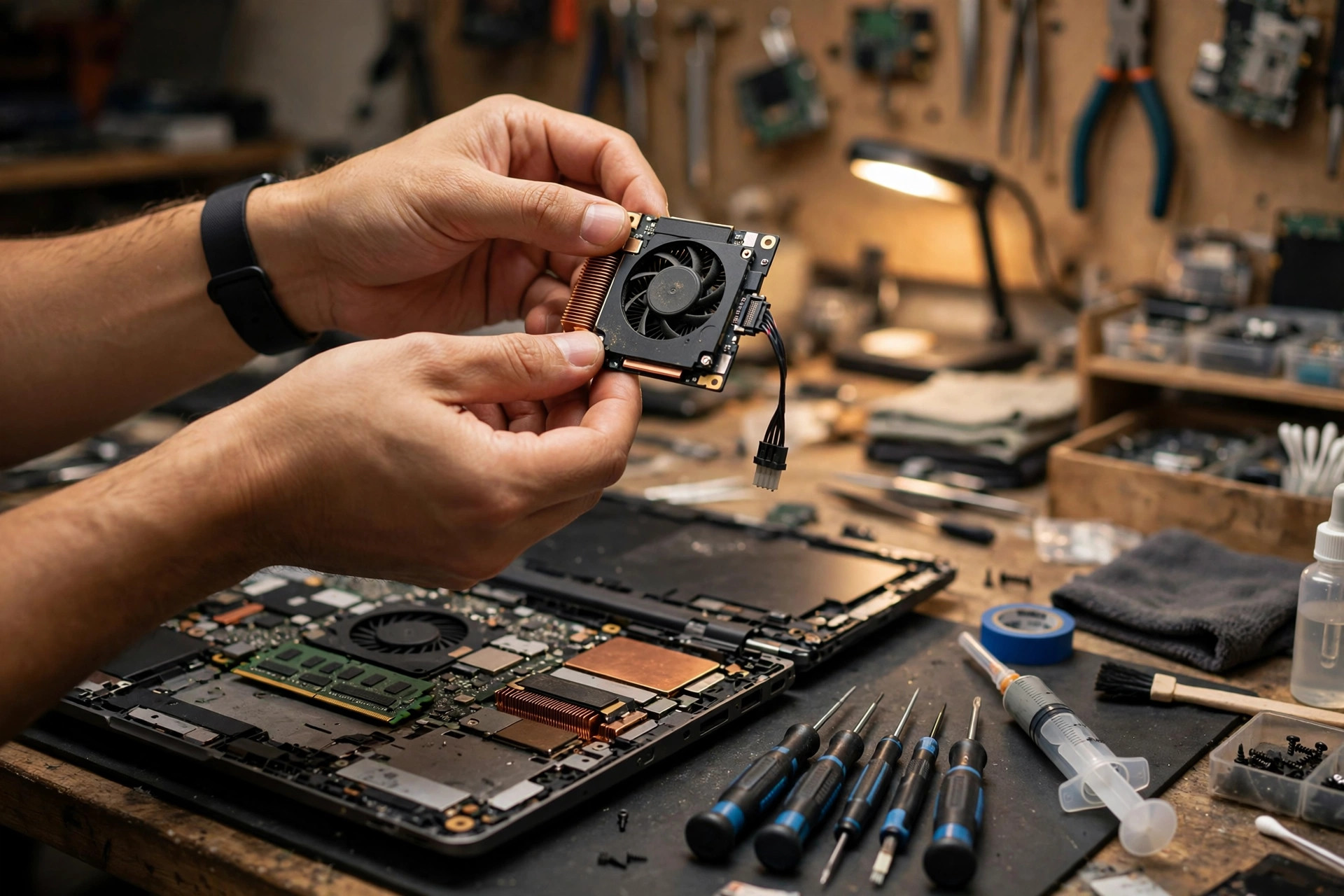
A laptop fan that does not spin at all, or that stops and starts intermittently, followed by a machine that grows hotter, slower, and finally shuts itself down without warning, is one of the most frequently misdiagnosed faults in laptop repair. The usual first reactions are to clean the dust, replace the thermal paste, or buy a cooling pad to sit the machine on, and when the temperature drops a little the problem is declared solved, until the shutdowns return. This article assumes the reader has already done the basic cooling maintenance: the exhaust vents have been cleaned, the thermal paste has been replaced, and the machine placement and ventilation have been checked, and the problem persists. Only then does this advanced diagnosis apply. When basic maintenance has already been done and the fan still does not spin, the fault is very probably not in the dust or the paste layer at all, but in the layer that decides why the fan does not spin. The fan not spinning is itself the cause; the overheating and the shutdown are its consequences, and treating the consequences while the cause remains will never fix the machine.
Article link: https://www.laptops-king.com/blog/laptop-fan-not-spinning-thermal-shutdown-advanced-hk/
1. Scope guard: this article covers only overheating shutdowns caused by a fan that does not spin, and does not rewrite the other cooling articles
This article must draw its boundaries first, because laptop cooling problems are covered by several related articles, each handling a different symptom, and following the wrong one leads to the wrong method. The boundaries below are given only as pointers; the detailed content belongs in those articles, and this article will not expand or rewrite it.
A fan that is noisy or that runs at full speed permanently belongs to another article, which deals with a fan that spins too hard and too loudly. This article is the opposite: it deals with a fan that spins too little, or not at all. Noise that remains after cleaning also belongs elsewhere, in the article about residual noise after a dust clean. Overheating that remains after a paste replacement on a gaming laptop belongs to the gaming-model route, which covers the power and cooling design specific to gaming machines. Overheating that remains after cleaning and paste replacement in general belongs to the route covering heat-pipe failure and power limits, the residual causes that survive a clean and a repaste. High-pitched whining belongs to yet another article about high-frequency sound sources, and has no direct connection with whether a fan spins. This article covers exactly one situation: basic cleaning, paste replacement, and vent inspection have already been done, the fan still does not spin or stops intermittently, and the machine therefore overheats, throttles, and finally forces itself off.
| Three-second triage | Points to |
|---|---|
| Fan is noisy, runs at full speed permanently | Fan noise route, not this article |
| Noise remains after a dust clean | Post-clean residual noise route, not this article |
| Gaming laptop still overheats after a paste replacement | Gaming post-repaste overheating route, not this article |
| Still overheats after cleaning and repasting, heat pipe or power limit suspected | Post-clean and post-repaste residual overheating route, not this article |
| High-pitched whining or squealing sound | High-frequency whine route, not this article |
| Basic maintenance done, fan completely still or intermittently stopping, machine overheats and shuts down after a while | This article: advanced fan stall diagnosis |
| Fan spins briefly then stops, spins under light load but not heavy load, spins only at one angle | This article: stall pattern diagnosis by layer |
2. The vocabulary of a fan that does not spin: fully still, intermittently stopping, spinning briefly then stopping, and spinning too slowly are four different faults
Describing exactly what is seen must come before any diagnosis. A fan that does not spin is not one diagnosis but a group of symptoms, and at least four patterns must be separated, because each points at a different layer.
Fully still means the fan never moves once from power-on to shutdown, while the machine grows steadily hotter until it throttles or switches off. A fully still fan most strongly suggests a layer that prevents the rotation condition from ever being met: the power rail, the control signal, the cable connection, or the motor itself. Fully still does not automatically mean the motor has burned out, because a fault in the control or power layer can equally leave a healthy motor completely still, and the two can only be separated by measurement.
Intermittently stopping means the fan sometimes spins and sometimes stops, with no clear relationship to load or temperature: it stops while idle and spins again under load, or spins for a while and then stops on its own before starting again. Intermittent stopping most strongly suggests a layer that is sometimes good and sometimes bad: poor contact, a loose cable, a seizing bearing, or an intermittently interrupted control signal. Intermittent faults are the hardest to catch, because the machine may behave perfectly normally at the moment it is examined, and the timeline and the trigger conditions become the evidence that reproduces the fault.
Spinning briefly then stopping means the fan moves for a moment at power-on, or spins for a few seconds, and then stops completely and never spins again no matter how hot the machine becomes. The brief spin at power-on is highly significant evidence: it shows the motor can still move and that power briefly reached the fan, so the fault is more likely in the control layer that takes over afterwards, in temperature sensing, in the fan curve judgement, or in the embedded controller making a wrong decision. A brief spin followed by silence and a fan that never moves at all are two entirely different diagnostic starting points and must never be conflated.
Spinning too slowly means the fan moves but clearly too slowly: a hand held at the exhaust feels no airflow or almost none, and the temperature keeps climbing while the fan speed never follows it upward. Slow spinning must be split into two cases: a fan that cannot spin fast, and a control layer that never asks it to spin fast. The two look identical from the outside but have entirely different causes, and the layered procedure later in this article explains how to separate them. Slow spinning must also not be confused with a noisy fan: noise is spinning too hard, slowness is spinning too little, and the directions are opposite.
| Stall pattern | What it looks like | Priority layers | One-line triage |
|---|---|---|---|
| Fully still | Never moves once from power-on to shutdown | Power rail, control signal, cable, motor | No rotation condition ever met, check power and control first |
| Intermittently stopping | Sometimes spins, sometimes stops, no clear load or temperature link | Poor contact, loose cable, seizing bearing, signal interruption | Good sometimes and bad sometimes points at contact and seizure |
| Spins briefly then stops | Moves at power-on, then silent however hot the machine gets | Temperature sensing, fan curve, embedded controller judgement | A power-on spin proves the motor still moves, check control judgement |
| Spins too slowly | Moves but airflow is extremely weak, speed never follows temperature | Ageing motor, bearing resistance, control layer never asking for speed | Separate a fan that cannot go fast from a fan never asked to go fast |
3. Why a fan spins at all: motor, bearing, pulse-width control, embedded controller, temperature sensors, power rail, and cable
Diagnosing why a fan does not spin requires understanding that rotation needs several conditions to be satisfied at the same time, and the absence of any one of them stops the fan. What follows describes generic mechanisms. Specific voltages, speed tables, sensor positions, and cable pin definitions must be taken from the service manual for the exact model, and values from one machine must never be applied to another.
The motor is the source of motion. Laptop fans generally use brushless direct-current motors, which rely on electronic commutation to rotate the blades rather than on carbon brushes making contact, as older brushed motors did. Brushless motors last longer and run quieter, but they need their drive circuit to work before they can move at all, so a drive circuit fault can stop the motor just as surely as a motor fault. Motor failure itself can take the form of an open winding, a failed drive component, or an internal short, and typically presents as a fan that never moves, not even briefly at power-on. Motor failure and control-layer failure look identical from the outside and can only be separated by measuring the power and control signals, never by looking.
The bearing supports the rotating shaft, and different models use different bearing constructions, with the exact type given by the model specification. The bearing exists to let the blades rotate with extremely low resistance, and once it wears, dries out, or jams with dust, resistance can grow until the motor cannot push the blades, or the blades turn extremely slowly and stop partway. A seized bearing has one characteristic sign: turning the blades gently by hand meets obvious resistance, catching, and uneven movement. That check must only be carried out with the power off and by a technician in appropriate circumstances, because opening the machine and touching the blades carries the risk of blade damage and live-circuit danger, as discussed later. Bearing seizure is a mechanical resistance problem, while motor failure is a motive-power problem, and the two lead to entirely different repair directions.
Pulse-width modulation, abbreviated PWM, is the main method by which the system controls fan speed. It works by sending a rapid series of on-off pulses to adjust the average power delivered to the fan: a higher pulse duty cycle means a faster fan. The PWM signal is generated by a control circuit on the mainboard and delivered to the fan through its cable. If the PWM line breaks, makes poor contact, or its generating circuit fails, the fan may stop completely or may fall back to a low default speed, depending on how that particular fan behaves with no PWM signal, and that default behaviour varies by model and must be taken from the model service manual. It must never be assumed that every fan runs at full speed or stops entirely without a signal.
The embedded controller, abbreviated EC, is a small dedicated controller inside the laptop that manages low-level functions such as the keyboard, the battery, temperature, and the fans. The EC reads the temperature sensor values, compares them against a built-in fan curve, and decides how fast the fan should spin, issuing the PWM signal accordingly. The fan curve is the mapping between temperature and speed: slow or stopped at low temperature, faster at high temperature. An EC firmware error, a wrong fan curve judgement, or a wrong temperature reading can all make the EC conclude, wrongly, that the machine is not hot, so it never asks the fan to spin however hot the machine becomes. The characteristic sign of an EC problem is that the fan spins briefly at power-on, proving the motor and the brief power delivery work, and then stops once the EC takes over control; or that the fan responds to a BIOS fan test but never spins once the operating system has loaded, showing that the control path breaks at one particular layer.
Temperature sensors are the eyes of the EC judgement. A laptop contains several temperature sensors distributed across the processor, the graphics chip, and different mainboard positions, and their readings are combined through the EC or through processor-internal mechanisms to decide fan speed and throttling timing. A sensor that reads wrongly, a sensor line with poor contact, or a failed heat path at a sensor position can all feed the system a false temperature: the machine is in reality very hot, but the system reads a low temperature, so the fan never spins and throttling arrives late, and the machine keeps heating until it forces itself off. Conversely, a sensor reading too high would keep the fan at full speed permanently, but that belongs to the noise route, not this article. Sensor faults are the hardest to confirm at home, because the monitoring software the user reads displays temperatures through the very same sensing path: if the sensor reads wrongly, the monitoring software displays the same wrong value, and a single software reading can never exclude a sensor fault.
The power rail is the circuit that delivers electricity to the fan. The fan needs power before it can move, and that power comes from the system power architecture, through the mainboard power circuitry, protective components, and the cable to the fan. A power rail fault can take the form of ageing power circuitry components, a blown protective component, poor contact on a power pin of the cable, or damage to a mainboard power layer, and it presents as a fan that never spins, and that will not improve when the fan is replaced, because electricity never reaches the fan at all. The main difference between a power fault and a motor fault is the known-good fan test: fitting a known-good fan, if the new fan also does not spin, the power or control layer immediately becomes the prime suspect, while if the new fan spins normally, suspicion moves to the original fan. Fitting a fan is a disassembly and diagnostic task that must be done by a technician, and before a user attempts it, the warranty position, the exact model match, and the power-off procedure must all be considered, as the decision framework later explains.
The cable and connector form the bridge between the fan and the mainboard. A laptop fan cable is usually very short and very thin, routed through a cramped space inside the machine, with a tiny connector that is easily loosened, half-seated, or oxidised by disassembly, vibration, or ageing. Cable faults overlap heavily with intermittent stopping: vibration, angle, light pressure on the chassis, or opening and closing the lid can all make the contact good one moment and bad the next, and the fan follows, spinning and stopping in step. A half-seated cable is the easiest fault to misdiagnose, because the fan sometimes spins, tempting the reader to conclude the fan itself is fine and only the temperature control is at fault, when in reality the line itself is unreliable. Cable inspection must only be done with the power disconnected, because plugging or unplugging a fan cable while live can immediately damage the fan drive or the mainboard control circuit.
4. How a stalled fan pushes a machine step by step towards shutdown: temperature climb, throttling, and forced shutdown
After the fan stalls, the machine does not switch off immediately. It deteriorates along an observable chain, and understanding that chain explains why the early symptom is slowness and only the late symptom is shutdown, and why intervening early in the chain and intervening late carry very different consequences.
The first step is temperature climb. The processor and the graphics chip continuously generate heat while working, and under normal conditions that heat travels through the heatsink into the fan airflow and is carried away, keeping the temperature inside its designed range. Once the fan stops, the airflow is gone, and heat can only escape slowly through the chassis by passive dissipation, far slower than the rate at which heat is generated, so the temperature climbs without stopping. The climbing speed is proportional to load: it climbs slowly at idle and fast during gaming, video editing, or running many programs at once. A machine with a stalled fan may therefore seem fine for a long time at idle and fail very quickly under load, and that load relationship is itself important evidence.
The second step is throttling. Processors and graphics chips contain built-in temperature protection: when the temperature reaches a designed threshold, they automatically reduce clock speed and voltage to generate less heat, and that is throttling. What the user feels during throttling is programs slowing down, video stuttering, game frame rates collapsing, programs taking a long time to open, and the mouse responding sluggishly. Throttling is not itself a fault but a protection mechanism working as designed, buying time for the temperature to fall again. With the fan stalled, however, the heat reduction from throttling still exceeds what passive dissipation can remove, so the temperature keeps climbing, throttling deepens, and the machine grows slower and slower until there is nothing left to throttle down to.
The third step is forced shutdown. When the temperature reaches a higher, second protection threshold, the system triggers a forced shutdown or emergency power cut, designed to prevent permanent hardware damage from overheating. A forced shutdown looks like this: the picture suddenly goes black, the machine switches off instantly, there is no shutdown procedure, and on the next power-on there may be a warning that the previous shutdown was abnormal. Forced shutdown is completely different from normal shutdown, which follows a procedure, saves state, and waits for programs to close; forced shutdown cuts power immediately, and any data being written and any files currently open carry a risk of corruption. Repeated forced shutdowns are themselves a source of secondary damage: system file corruption, storage write interruption, and data loss can all be caused by repeated forced shutdowns.
The fourth step is the trace left in the records. After a forced shutdown, the Windows system records typically contain entries noting the abnormal shutdown, including kernel power events. The purpose of reading those records is not to memorise error codes but to study frequency and pattern: whether shutdowns always follow high load, whether each one is preceded by a period of growing slowness, and whether the timing matches the temperature climb. The records alone can never name the fan as the culprit, because power problems and system problems can also produce abnormal shutdown records, and they must always be read together with direct observation of the fan. Direct observation always outranks record inference: seeing with your own eyes that the fan does not spin, and feeling with your hand that no air comes from the exhaust, is more direct than any record.
This chain carries one important conclusion: in the early part of the chain the machine is merely slow, and users easily mistake that for a slow system, a software problem, or ageing storage, and keep using a throttling machine until the forced shutdowns finally suggest a cooling fault. Another conclusion is that the period between throttling and forced shutdown is the golden window for intervention. Stopping the load, backing up data, and arranging diagnosis inside that window can prevent the secondary damage of repeated forced shutdowns. Waiting until the machine switches off the moment any demanding program opens, when even a backup cannot be completed, makes the whole job far more costly.
5. The layered exclusion procedure: power-on moment, BIOS, light versus heavy load, angle and vibration, AC versus battery, and the cooling pad comparison
The procedure below assumes basic maintenance has already been done, and it runs from no disassembly to disassembly. The discipline is the same as before: change one thing at a time, test immediately after each change, and write the result down before changing the next thing. Each step answers exactly one question, and no step should change several conditions at once.
Step one is observing the power-on moment. At power-on, watch whether the fan moves at all, how long it moves, whether there is sound, and whether there is airflow. A brief spin at power-on shows the motor still moves and that power briefly reached the fan, and a subsequent stop points at the control judgement layer; no movement at all from power-on points at one of the power, control, motor, or cable layers never satisfying the rotation condition. The observation should be made twice, once from a cold start and once from a warm restart, and both results read together, because the EC judgement can differ between cold and warm states. During observation, never put fingers near the fan blades; listen with the ears and feel the exhaust airflow with the back of the hand, and safety comes first.
Step two is observation under BIOS or UEFI. Restart into the BIOS setup screen, stay there for several minutes, and watch whether the fan spins under BIOS. Under BIOS the system load is extremely low, there are no Windows drivers and no third-party programs, so it is a clean comparison environment. A fan that does not spin even under BIOS points at the hardware or firmware control layer, and further effort should not be spent on Windows drivers or software; a fan that spins normally under BIOS but stops once Windows has loaded points at the Windows power management, driver, or control software layer. BIOS testing has two limits: first, the temperature under BIOS is itself very low, so the fan curve may legitimately call for the fan to stop, meaning that a still fan under BIOS does not by itself prove a fault, and temperature and dwell time must be noted together; second, BIOS fan test functions differ by brand, some brands include a built-in fan test and some do not, and the model documentation must be followed rather than assuming every BIOS has the same test.
Need a laptop repair expert?
Free diagnosis · Transparent pricing · No fix, no fee · 180-day warranty
Step three is the light-load versus heavy-load comparison. First observe at idle for ten minutes and record the fan state and the warmth felt on the chassis; then open a medium-load program and observe for ten minutes; and only then open a high-load program, with preparations to stop immediately at any sign of deepening throttling or an impending shutdown. Spinning under light load but stopping under heavy load points at a control or power layer failing under heavy load; stopping under both light and heavy load points at a deeper power, control, or motor problem; stopping under light load but spinning under heavy load is more likely a fan curve that legitimately stops the fan at low temperature, and belongs to normal strategy rather than fault, but only if the speed is confirmed to rise with temperature under heavy load, otherwise it remains a control problem. High-load testing must only be done after data has been backed up, and the machine must never be deliberately pushed to shutdown while unbacked-up data is at stake.
Step four is the angle and vibration comparison. Gently tilt the chassis, gently change its resting angle, and gently press different parts of the chassis, watching whether the fan state changes in step. If angle or vibration changes the fan state, the fault points at the mechanical contact layer: cable contact, bearing seizure, or chassis deformation pressing on the blades. This test must be extremely gentle and limited to a single slow sweep; the machine must never be slapped, shaken, or pressed hard, because the test itself can create a new fault, and that would be a heavy price for a diagnostic step. Once the test shows a response, stop immediately, write down which angle and which position produced the response, and hand the machine to diagnosis rather than repeating the test until the cable breaks completely.
Step five is the AC versus battery comparison. Test once with the original charger connected, and once on battery power with the charger removed, and record the two results separately. Stopping only on AC power but working on battery, or only on battery but working on AC, points at the power architecture layer: charger capacity, battery power path, and power management strategy differ between the two supply modes. The comparison must use an original charger of full rated power, because a third-party or underpowered charger can itself manufacture false evidence and invalidate the AC result. Battery ageing also affects the comparison: an aged battery whose peak power delivery cannot keep up may cause simultaneous throttling and stalling under high load, and the battery condition must be recorded together with the result.
Step six is the cooling pad comparison. This step does not recommend buying a cooling pad to solve the problem; it uses a cooling pad as a comparison experiment: with the pad in place, does the temperature fall, does throttling ease, and is shutdown delayed? Improvement with the pad proves only that the problem is temperature-related, not that the fan itself is fine, because the pad supplies airflow from outside to replace the airflow the built-in fan should have supplied. The masking danger of cooling pads is explained in detail in the misdiagnosis section below. After the comparison, the pad should be removed and the test repeated, so that the return of the original symptoms is confirmed, and both results are read together before any conclusion is drawn.
| Comparison step | Method | If the result is this | Points to |
|---|---|---|---|
| Power-on observation | Cold start and warm restart, listen and feel airflow | Spins briefly then stops completely | Motor still moves, control judgement layer first |
| Power-on observation | As above | No movement at all from power-on | One of the power, control, motor, or cable layers |
| Observation under BIOS | Stay in BIOS for several minutes, watch the fan | Still does not spin under BIOS | Hardware or firmware control layer first |
| Observation under BIOS | As above | Spins under BIOS, stops in the system | Windows power management or driver control layer |
| Light versus heavy load | Idle, medium load, high load in stages | Spins light, stops heavy | Control or power failing under heavy load |
| Light versus heavy load | As above | Stops light and heavy | Deeper power, control, or motor problem |
| Angle and vibration | Extremely gentle tilt and press, one slow sweep | Angle changes the fan state | Cable contact, bearing seizure, mechanical layer |
| AC versus battery | Original charger connected versus battery only | AC and battery behave differently | Power architecture or power management layer |
| Cooling pad comparison | With pad versus pad removed | Improves with pad, returns without pad | Temperature-related, built-in fan problem unsolved |
6. Single-fan versus dual-fan machines: why one fan still spinning does not mean the machine is safe
Many laptops have two fans, serving the processor and the graphics chip separately, or serving the left and right cooling zones separately. Single-sided stalling is a trap specific to dual-fan machines: because the other fan still spins, the machine still appears to have airflow and fan sound, and users easily conclude the fan is normal and the cooling is merely slightly weak, while the chip served by the stalled side keeps heating towards throttling and shutdown.
The two fans in a dual-fan machine are not fully independent. They are generally controlled by the same EC, but their power, cables, PWM signals, and motors are each independent, and a fault in any independent part of one side can stall that side alone. The diagnostic starting point for a dual-fan machine is to feel the left and right exhaust airflow separately and to record the two sides separately, never to feel one side and treat it as the state of the whole machine. Clearly asymmetric airflow, one side with no airflow at all and the other side normal, is already direct evidence of single-sided stalling. Under single-sided stalling, the still-spinning fan may be driven faster by the EC to compensate, so the user hears a louder fan and mistakes that for a healthy fan, when in reality one side has stalled and the other side is overworking to compensate.
A machine with a single-sided stall must not continue in heavy use. The stalled side's chip has already lost its cooling, and the still-spinning side's airflow may not reach the stalled side's cooling zone at all, because the air channels are usually separate and airflow does not automatically cross over to compensate. Continuing heavy use lets the stalled side's chip heat towards throttling and shutdown, while the compensating fan runs at full speed for long periods and ages faster. The correct response is to reduce load immediately, back up data, and arrange diagnosis, and never to keep gaming or editing video merely because the other side still spins.
Single-fan machines have no single-sided problem, but their judgement is more direct: the only fan not spinning means the whole machine's active cooling has failed, and the temperature will climb under any load, differing only in speed. Users of single-fan machines should pay particular attention to uneven chassis surface temperatures, with the area near the cooling zone and one region of the keyboard becoming especially hot, but those are auxiliary observations only and can never replace the exhaust airflow check.
7. BIOS fan tests, embedded controller resets, and firmware fan curves: what may be done, and what must not be changed casually
This section covers the firmware layer, and three different kinds of operation must be kept apart: diagnostic tests, reset operations, and custom modifications. Their risks are completely different and they must never be confused with one another.
A BIOS fan test is a diagnostic test and carries relatively low risk. Some brands include a built-in fan test in the BIOS or in a pre-boot diagnostic tool, which can drive the fan at different speeds so the technician can immediately hear and feel whether the fan responds. A response under the fan test shows that the motor, power, and control path work in test mode, and the problem may lie in the judgement layer under normal operation; no response at all under the fan test shows a deeper hardware or firmware control problem. Before running a fan test, the model documentation must confirm that the function exists, and keystrokes and options from another brand must never be guessed onto this machine. During the test, watch for abnormal sound, vibration, or smell, and stop immediately if any appears.
An embedded controller reset is a reset operation. A common method is to shut down, remove the charger, disconnect the internal battery where the model allows the user to do so, hold the power button for a period to drain residual charge, and then reconnect and power on. The purpose of an EC reset is to let the EC re-initialise and clear a temporary judgement error. Three points must be stated clearly: first, an EC reset only helps temporary judgement errors, and it will never fix a damaged motor, a loose cable, a damaged power rail, or a faulty sensor, however many times it is repeated; second, if stalling returns immediately after a reset, the problem is not a temporary judgement error, and repeated resets should stop and layered diagnosis should take over; third, disconnecting an internal battery is itself a disassembly task with risks, and users unfamiliar with the procedure should hand it to diagnosis rather than risking disassembly merely to perform a reset. Data must be backed up before any reset operation, because the system state may change after the reset.
Custom modification of a firmware fan curve is a high-risk operation, and this article strongly advises ordinary users against changing it casually. Online advice frequently suggests entering the BIOS or using a third-party tool to change the fan curve, forcing the fan to run at full speed permanently or lowering the temperature threshold at which stopping ends. Such modifications carry four problems: first, changing the curve never repairs a motor, cable, power, or sensor fault, it merely changes when the EC asks the fan to spin, and if the fan receives no signal or cannot move, changing the curve has no effect at all; second, changing the curve can mask a sensor reading error, making temperature control look normal while the sensor still reads wrongly; third, a permanent full-speed curve accelerates fan ageing, increases noise, and increases power consumption, spending fan life to cover another unsolved problem; fourth, wrong firmware settings can leave the machine unable to boot or make fan behaviour more chaotic, destroying even the original evidence. The correct order is to diagnose by layer which layer has failed first, and only then to discuss whether any curve setting needs adjustment, and any adjustment should be made by a technician following the model documentation, never from generic values found online.
8. Common misdiagnoses: eight of the most expensive wrong judgements
First, blaming the battery. Battery ageing genuinely degrades a machine, but its typical presentation is short endurance, jumping percentage, and shutting down while charge apparently remains, not a fan that does not spin. Attributing a fan stall with overheating shutdown to the battery without a power-on observation and a BIOS comparison means the new battery changes nothing and the fan still does not spin. The battery and the fan power path are connected, but connection is not causation, and the two must be separated with the AC versus battery comparison.
Second, blaming a slow system, a software problem, or a virus. During throttling the machine genuinely becomes slow, which easily suggests a system problem, leading to system reinstallation, virus cleaning, and storage replacement, none of which helps, because the slowness comes from temperature protection throttling rather than system load. The way to tell is direct: when the machine slows down, check the fan state and the exhaust airflow at the same time, and if the fan is still and the chassis is extremely hot, the slowness is only the visible face of throttling, not the cause. Before reinstalling a system, a fan stall must be excluded, or the reinstallation will be repeated to no effect.
Third, replacing the thermal paste only. Thermal paste carries heat from the chip to the heatsink, while the fan carries heat away from the heatsink; the two are in series, and failure of either one overheats the machine, but replacing paste only repairs the heat transfer link and never repairs the heat removal link. With the fan stalled, heat reaches the heatsink and still has no airflow to carry it away, and the temperature climbs exactly as before. A stall that survives a paste replacement does not mean the paste is faulty, and does not mean the paste should be replaced again; it means the cause was never in the paste layer, and the investigation must move to the fan layer. The premise of this article is precisely that paste replacement has already been done and stalling persists.
Fourth, settling for a cooling pad. A cooling pad supplies airflow from outside, which can lower the temperature reading, ease throttling, and delay shutdown, making the problem look solved. But a cooling pad masks the problem in three dangerous ways: first, the built-in fan is still stalled, and local hot spots near the chip may never receive the pad airflow, so local overheating continues; second, because the temperature reading looks better, users continue heavy use for longer, extending the time under local overheating; third, the pad airflow direction may not match the built-in air channel design, and wrong placement can even disturb the original air channel. A cooling pad may only serve as a temporary aid while data is being backed up, and never as a long-term solution; the built-in fan problem must be handled separately.
Fifth, casually changing the BIOS fan curve. As the previous section explains, changing the curve never repairs a motor, cable, power, or sensor fault, and a permanent full-speed setting accelerates fan ageing. A fan that spins again after a curve change does not prove the problem is solved: the change may merely have shifted the EC judgement threshold so that an intermittent problem temporarily does not appear. Before any curve change, the original settings, the original stalling frequency, and the original trigger conditions must be recorded, and after the change the machine must continue to be observed rather than declared repaired.
Sixth, slapping the chassis or shaking the machine to make the fan spin again. A fan that spins again after a slap shows the problem lies in the mechanical contact layer, but the slap itself may break the cable completely, damage the blades, or cause secondary bearing damage. A single slap that restarts the fan proves nothing except that the fault is mechanical, and the correct response is to reduce load immediately, back up, and arrange diagnosis, never to develop a habit of slapping the machine into life.
Seventh, delaying backup. A machine with a stalled fan can deteriorate from throttling to forced shutdown very quickly, and repeated forced shutdowns bring secondary damage of their own. Data backup should be done immediately after a fan stall is confirmed, under low load and slowly, and never postponed until the machine shuts down the moment any demanding program opens, when even a backup may no longer be possible. Backup sessions must avoid high-load testing, to reduce the chance of triggering a shutdown during the backup itself.
Eighth, treating a single-sided stall as normal. On a dual-fan machine, one side still spinning and the other side stalled is easily dismissed as slightly weak cooling or a slightly louder fan, while the stalled side's chip overheats over a long period. The left and right exhaust airflows must be checked separately, and any side with no airflow at all is a fault, regardless of the other side still spinning.
| Misdiagnosis | Apparent reason | Why it is wrong | Correct approach |
|---|---|---|---|
| Blaming the battery | A new battery seems to help | Battery faults show as endurance and percentage, not a still fan | Separate with the AC versus battery comparison |
| Blaming a slow system or virus | Throttling makes the machine slow | Slowness is only the visible face of throttling, the cause is the stalled fan | Check fan and airflow whenever the machine slows |
| Replacing thermal paste only | Paste replacement is standard cooling wisdom | Paste only transfers heat, the fan removes it | A stall surviving repaste moves the investigation to the fan layer |
| Settling for a cooling pad | Temperature readings improve | Outside airflow masks built-in failure, local hot spots remain | Cooling pad only as a temporary aid, handle the fan separately |
| Casually changing the BIOS fan curve | The fan spins again after the change | Curve changes never repair motor, cable, power, or sensor faults | Diagnose the layer first, adjust curves only through diagnosis |
| Slapping the chassis to restart the fan | The fan restarts immediately | Slapping may break the cable and damage blades | Mechanical proof means back up and arrange diagnosis at once |
| Delaying backup | Waiting for the problem to stabilise first | Forced shutdown can arrive quickly and brings secondary damage | Back up immediately under low load once a stall is confirmed |
| Treating a single-sided stall as normal | The other side still spins and makes sound | Air channels are separate, one side cannot compensate for the other | Check left and right exhaust airflows separately |
9. Repair, fan replacement, or mainboard-level decision framework
Before any decision, four questions must all be answered yes: has the data been backed up, has the stall pattern been identified, have the comparison steps been completed, and have the left and right exhausts been checked separately? If any answer is no, the decision rests on guesswork rather than evidence.
If the evidence points at the cable or connector, through looseness or poor contact, the priority is to have the cable and connector handled after diagnosis confirms the model and routing. Cable work must use the correct model and routing, and a generic cable must never be bought on screen size or fan size alone. After cable work, the full comparison set must be repeated, including the power-on observation, the light versus heavy load comparison, and the angle comparison, and the repair counts as complete only when intermittent stopping does not return. If the connector itself is damaged, cable replacement alone may not be enough, and the connector layer must be handled on the diagnostic result.
If the evidence points at the fan itself, including motor damage, bearing seizure, or fan drive failure, the priority is replacement with a fan of the exact same model. Fan replacement must match completely, including dimensions, cable pinout, power and control definitions, and air channel shape, and buying on outward similarity alone is a common error. After replacement, the full comparison set must again be repeated to confirm that speed rises with temperature, and the job must not be declared complete on a single spin at power-on. Fan replacement items are quoted in writing after diagnosis.
If the evidence points at the power rail or the mainboard control layer, including power circuitry component damage, EC control failure, or sensor line problems, the decision belongs to the mainboard chip-level range. Mainboard chip-level work starts at HK$880, and all other items are quoted in writing after diagnosis. A mainboard-level decision must compare the written quotation against the machine residual value and the usage need: if the machine is still fairly new, its other components are in good condition, and the cost of migrating data and settings is high, chip-level repair may be more worthwhile; if the machine is already old, its other components are also ageing, and the repair cost approaches the replacement cost, upgrading the whole machine may be more reasonable. That comparison must use a written quotation, never an estimated price.
If the evidence points at a temperature sensor reading wrongly, the decision must separate the sensor itself from the sensor line. Sensor replacement likewise belongs to the mainboard-level diagnostic range, and it must first be confirmed which sensor reads wrongly, by how much, and whether the error follows temperature, rather than deciding on the reading of a single monitoring program. After sensor work, the light versus heavy load comparison must be repeated to confirm that fan speed now follows the true temperature, or the problem is not yet solved.
Whichever direction is chosen, two things must never be done: first, never decide on mainboard replacement or whole-machine replacement before diagnosis, because those are the highest-cost options and should only be considered once layered evidence points at the mainboard layer and a written quotation comparison has been made; second, never continue heavy use while the fan problem is unsolved, because local overheating and repeated forced shutdowns can turn a problem that only needed a fan replacement into one that needs mainboard-level work.
| Pointed layer | Priority choice | What not to do | Decision key |
|---|---|---|---|
| Cable contact layer | Handle cable and connector after diagnosis confirms model | Buy a generic cable on size, repeat slap testing | Angle comparison plus intermittent pattern |
| Fan itself layer | Replace with a fan of the exact same model, repeat full comparison | Buy on outward similarity, accept one power-on spin as completion | Full model match plus speed following temperature |
| Power rail layer | Handle the power circuitry on the diagnostic result | Keep heavy use going under a cooling pad | Mainboard chip-level starts at HK$880, rest on written quotation |
| Mainboard control layer | Compare repair, board replacement, and machine replacement on a written quotation | Decide on board or machine replacement before diagnosis | Written quotation versus residual value and need |
| Sensor layer | Confirm which sensor reads wrongly before handling | Decide on one monitoring program reading alone | After handling, speed must follow true temperature |
10. Hong Kong context: humidity, commuting vibration, and local parts and price reality
The Hong Kong environment puts three specific pressures on fan stalling. The first is humidity. Humidity accelerates oxidation on cable connector pins, worsens contact, and raises the risk of mainboard moisture leakage. Under long-term humid conditions, moving between air-conditioned rooms with large temperature differences, and condensation on the chassis, intermittent stalling becomes more likely. Humidity-related faults characteristically appear intermittently, sometimes good and sometimes bad, and more noticeably in rainy seasons or when the weather changes. After moisture exposure, the machine must not be powered on repeatedly for testing; drying and diagnosis should come first, because live testing can widen the leakage area. Humidity also accelerates the loss of bearing lubrication, bringing bearing seizure forward in time.
The second is commuting vibration. Carrying a laptop daily on public transport, with the chassis under pressure and the lid opened and closed many times, wears fan cables and chassis structures faster than a machine that stays on a desk. Packing the machine together with hard objects, opening the lid one-handed by the screen, and keeping the machine under pressure in a bag all accelerate cable loosening and chassis deformation. For a commuting machine whose intermittent stalling follows vibration or angle, the cable and mechanical layer should be suspected first, rather than immediately assuming the motor has burned out. Commuting also lets the intake draw in more dust and fibres, but since the premise of this article is that basic cleaning has already been done, a stall that survives cleaning on a commuting machine points even more strongly back to the cable and mechanical layer.
The third is local parts and price reality. Laptop fan models are extremely numerous: the same brand, the same series, different years, and different configurations can use fans with completely different models, cable pinouts, and air channel shapes, and local parts supply must be confirmed against the full model number, never guessed from brand or screen size. Confirmed starting prices cover only four items: battery from HK$580, screen from HK$1,280, mainboard chip-level from HK$880, and keyboard from HK$480. Fan replacement, cable replacement, sensor-related work, and power circuitry work are all quoted in writing after diagnosis, with details on the pricing page https://www.laptops-king.com/pricing and the diagnostic service https://www.laptops-king.com/diagnostic. Before any quotation, anyone claiming a particular part and a particular price with certainty is guessing without evidence, and that must not be treated as a diagnosis. The pricing page https://www.laptops-king.com/pricing and the diagnostic service https://www.laptops-king.com/diagnostic are the formal routes for checking starting prices and arranging diagnosis.
11. What to prepare before sending the machine for diagnosis
Bring the following information, so that diagnosis can start directly from the layered table instead of from zero: the laptop brand and full model number, the fan count and the separate left and right exhaust inspection results; the stall pattern, whether fully still, intermittently stopping, spinning briefly then stopping, or spinning too slowly; the power-on observation result, the BIOS observation result, the light versus heavy load comparison result, the angle and vibration comparison result, the AC versus battery comparison result, and the cooling pad comparison result; the symptom timeline, including when it first appeared and whether it followed a drop, liquid exposure, disassembly, parts replacement, or a firmware update; the list of steps already tried and the result of each step; and the data backup status. On price, confirmed starting prices cover only four items: battery from HK$580, screen from HK$1,280, mainboard chip-level from HK$880, and keyboard from HK$480. All other items are quoted in writing after diagnosis, with details on the pricing page https://www.laptops-king.com/pricing and the diagnostic service https://www.laptops-king.com/diagnostic. The shop is at Room 1209, Daly Plaza, Shek Mun, Sha Tin, telephone +852 2186 8010, WhatsApp +852 6558 6806, opening hours 12:00–19:00.
Frequently asked questions
Q1: The fan spins briefly at power-on and then stops completely. Is that normal?
A brief spin at power-on can itself be a normal self-test, but a fan that never spins again while the machine grows hotter and hotter is not normal. The way to tell is to stay in BIOS for several minutes after power-on, then load the system and run the light versus heavy load comparison, and watch whether the fan ever starts again as temperature rises. If it never spins again through the whole sequence, the problem points at the control judgement layer, including temperature sensing, the fan curve, and the embedded controller judgement, rather than at a completely dead motor, because the power-on spin already proved the motor can still move.Q2: The fan does not spin under BIOS but spins again once the system has loaded. Why?
There are two possibilities. The first is that the temperature under BIOS is itself very low, so the fan curve legitimately calls for the fan to stop, and that is normal strategy rather than a fault. The second is that BIOS and the system use different control paths, and a power management or control program layer only starts asking the fan to spin once the system has loaded. The way to tell is to extend the BIOS dwell time while noting the warmth felt on the chassis: if the chassis grows warm under a long BIOS stay and the fan still never spins, the firmware control layer becomes suspect; if the fan speed follows load normally once the system has loaded, the still fan under BIOS was more likely a low-temperature stop strategy.Q3: Slapping the chassis or tilting it makes the fan spin again. What does that mean?
It most likely means the problem lies in the mechanical contact layer: a half-seated cable, poor pin contact, or a seizing bearing, where vibration or an angle change temporarily restores contact or frees a stuck blade. But spinning again after a slap is not a repair, it is only proof that the fault is mechanical, and the slap itself may break the cable completely or damage the blades. The correct response is to reduce load immediately, back up data, and arrange diagnosis, never to develop a habit of slapping the machine into life, and never to repeat the test until the cable breaks completely.Q4: The fan stalls only on AC power but works on battery, or the reverse. Why?
Different behaviour on AC and battery points at the power architecture or power management layer. On AC power the system runs a high-performance mode with its power path through the charger and the mainboard power circuitry; on battery it runs an energy-saving mode with its power path through the battery and the battery power circuitry. Fan control strategy, power circuitry load, and peak power capability all differ between the two modes, and a fault in either path can stall the fan in only one supply mode. The comparison must use an original charger of full rated power, or a third-party charger can itself manufacture false evidence.Q5: With a cooling pad the temperature falls and shutdowns stop. Does that mean the problem is solved?
No. A cooling pad supplies airflow from outside, which can improve the overall temperature reading, ease throttling, and delay shutdown, but the built-in fan is still stalled, and local hot spots near the chip may never receive the pad airflow, so local overheating continues. Improvement with a pad proves only that the problem is temperature-related, not that the fan problem is solved. A cooling pad may only serve as a temporary aid while data is being backed up, and the built-in fan problem must be handled separately through the layered procedure, or the user will continue heavy use for longer because the readings look better, extending the time under local overheating.Q6: After replacing the thermal paste the fan still does not spin. Is the paste at fault?
No. Thermal paste transfers heat, while the fan removes heat, and the two are in series but in different layers. A stall that survives a paste replacement shows the cause was never in the heat transfer layer, but in a layer governing fan rotation: motor, bearing, control signal, sensor, power rail, or cable. The paste should not be replaced again; the investigation should move to the fan layer with the layered exclusion steps: power-on observation, BIOS comparison, light versus heavy load comparison, angle comparison, and AC versus battery comparison, narrowing down layer by layer which one leaves the fan unable to move.Q7: On a dual-fan machine one side has stalled and the other side still spins. Can the machine continue in use?
Heavy use should not continue. Dual-fan air channels are usually separate, so the still-spinning side airflow may never reach the stalled side cooling zone, and the chip served by the stalled side has already lost its cooling and will heat towards throttling and shutdown. The still-spinning side being driven to full speed to compensate looks and sounds like a healthy fan, which makes the trap worse. The correct response is to reduce load immediately, back up data, and arrange diagnosis, with the left and right exhausts checked separately, since any side with no airflow at all is a fault.Q8: Can changing the fan curve in BIOS to force the fan to full speed permanently solve a stall?
It cannot be treated as a solution. Changing the curve only changes when the fan is asked to spin: if the fan receives no signal, cannot move, or receives no power, changing the curve has no effect at all. If the problem is a sensor reading wrongly, changing the curve may temporarily mask the wrong reading while the sensor still reads wrongly and the temperature judgement stays wrong. Permanent full speed also accelerates fan ageing and increases noise and power consumption. Curve adjustment must follow layered diagnosis, must be made by a technician following the model documentation, never from generic values found online, and the original settings and original stalling frequency must be recorded before any change.Q9: The fan does not spin but the machine has not shut down yet. Does that mean there is no problem?
No. A fan that does not spin without a shutdown yet only means the machine is still early in the chain: temperature is climbing, throttling may already have begun, but the forced shutdown threshold has not yet been reached. Under low idle load the machine may run for a long time without incident, and then slow suddenly or shut down the moment a demanding program opens. Not having shut down yet is not safety but the golden window for intervention: back up under low load, run the layered comparisons, and arrange diagnosis, rather than waiting until repeated forced shutdowns have already caused secondary damage.Q10: What should be prepared before sending the machine for diagnosis, and how is the price calculated?
Bring the following: laptop brand and full model number, fan count and separate left and right exhaust inspection results, the stall pattern, the power-on observation result, the BIOS observation result, the light versus heavy load comparison result, the angle and vibration comparison result, the AC versus battery comparison result, the cooling pad comparison result, the symptom timeline, the list of steps already tried with each result, and the data backup status. On price, confirmed starting prices cover only four items: battery from HK$580, screen from HK$1,280, mainboard chip-level from HK$880, and keyboard from HK$480. All other items are quoted in writing after diagnosis, with details on the pricing page https://www.laptops-king.com/pricing and the diagnostic service https://www.laptops-king.com/diagnostic. The shop is at Room 1209, Daly Plaza, Shek Mun, Sha Tin, telephone +852 2186 8010, WhatsApp +852 6558 6806, opening hours 12:00–19:00.Need Professional Laptop Repair?
Laptop King has 15+ years of repair experience in Shek Mun, Sha Tin. Free diagnosis, transparent pricing, no fix no fee. 180-day warranty for your peace of mind.