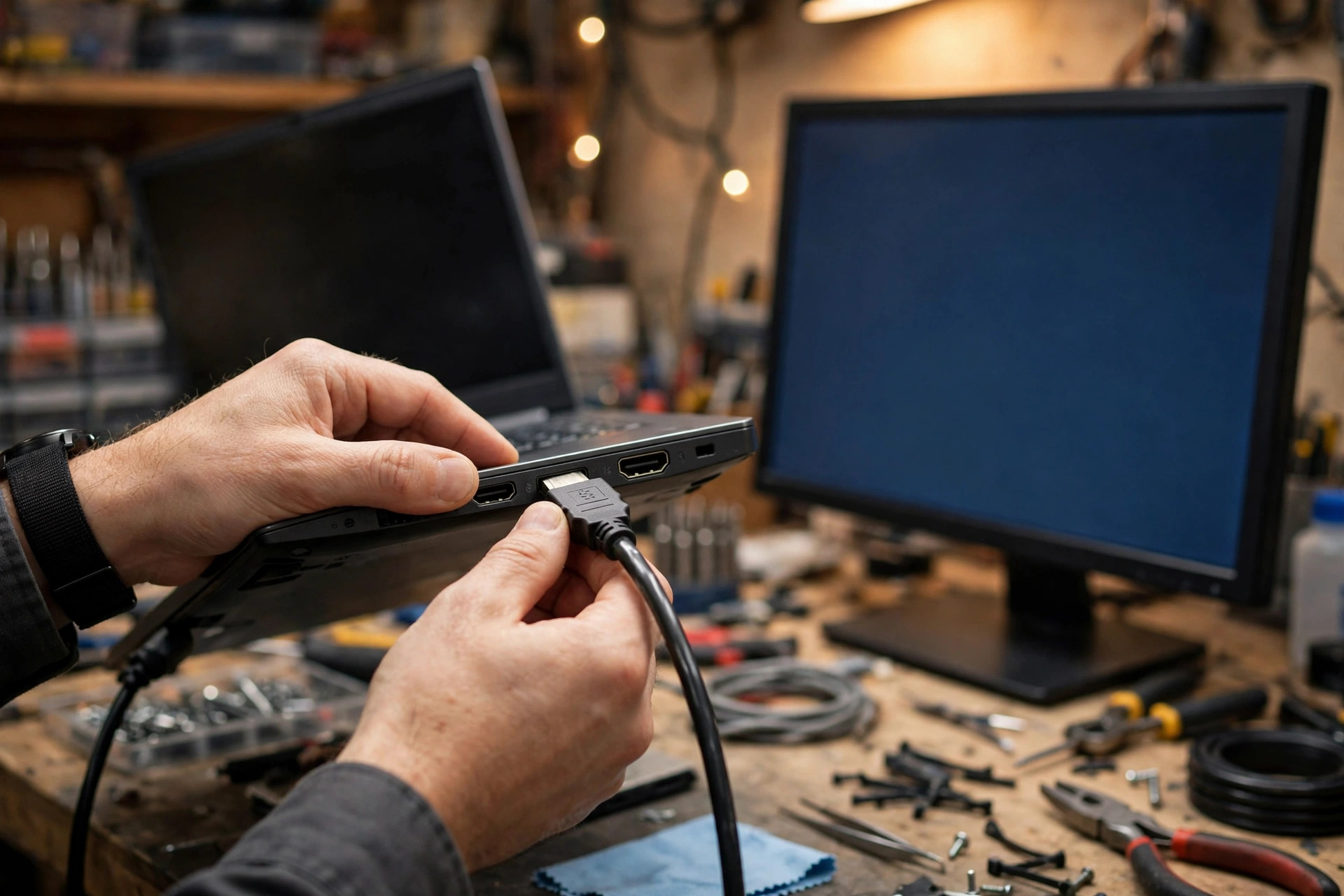
📌 Key Takeaways
- •[S1] HDMI Forum, Inc. "HDMI Forum Releases Version 2.1 of the HDMI Specification" (press release, 28 November 2017) - HDMI Forum / HDMI.org, https://www.hdmi.org/announce/detail/172; also HDMI Forum, https://hdmiforum.org/hdmi-forum-releases-version-2-1-hdmi-specification/
- •[S2] HDMI Licensing Administrator, Inc. "Ultra High Speed HDMI Cable - Bandwidth Up To 48Gbps" (HDMI.org cable page) and "Ultra High Speed HDMI Cable Certification Program" (program overview, 2022) - HDMI Licensing Administrator, Inc., https://www.hdmi.org/spec2sub/ultrahdmicables; https://www.hdmi.org/download/savefile?fileKey=Marketing/uhs_program_overview_2022-01-01.pdf
- •[S3] HDMI Licensing Administrator, Inc. "Ultra HDMI Cable Certification Program for Ultra96 HDMI Cables and Ultra High Speed HDMI Cables" (2025) - HDMI Licensing Administrator, Inc., https://hdmi.org/download/savefile?fileKey=Marketing/Ultra_Cable_Certification_Program.pdf
- •[S4] Extron "HDMI 2.0: Specification Overview & Frequently Asked Questions" - Extron, https://www.extron.com.au/article/hdmi2faq?tab=tools
- •[S5] CinemaConfig "Fixed Rate Link - Home Theater Reference" - CinemaConfig, https://cinemaconfig.com/reference/fixed-rate-link
# Laptop HDMI Output Failure: An Advanced Guide to No Signal, Why 4K 120Hz Will Not Engage, HDCP Black Screens, and Layered Diagnosis in Hong Kong
Introduction: First Tell Two Kinds of "Broken HDMI" Apart
A laptop connected to an external monitor shows "No Signal" on the screen. Or the picture appears, but a 4K monitor tops out at 60Hz and the settings panel offers no 120Hz option at all. Or the desktop works perfectly, and the moment Netflix starts playing, the screen goes black while the sound keeps going. These look like three separate faults, but most of them come from one chain: the GPU, the MUX, the transmitter, the cable, the EDID handshake, HDCP authentication, the driver, and the settings. A limit at any link shows up on screen [S5][S20]. This guide deals with faults at the signal and protocol layer, not physical port damage. A companion article already covers physical HDMI port damage, loose sockets, bent or broken pins, lifted solder joints, and impact damage, and this guide does not repeat that material. It says only this much where the distinction matters: if wiggling the cable makes the picture come and go, if a picture appears only at one angle, if the plug is visibly loose, or if pins are visibly bent, that is the physical layer and belongs to physical-layer inspection. If the cable is fully seated and still shows "No Signal", if the picture blacks out for a few seconds and recovers by itself, if resolution or refresh rate will not go higher, if the desktop is normal but protected content goes black the moment it plays, if colours look washed out or wrong, or if there is no sound, while the plug looks completely normal, then the fault sits in negotiation or transmission at some layer of the chain, and that is the scope of this guide [S20].
The first concept to establish is that HDMI is not a dumb wire. After a cable is plugged in, the source and the display must complete a whole sequence of negotiations before a picture appears: Hot-Plug Detection (HPD), then EDID reading, then mode selection, then link training, then HDCP authentication, then further negotiation for audio, HDR, VRR, and the rest. A failure at any step can produce a black screen, but the cause and the fix are completely different at each step. Diagnosis is, at its essence, layer-by-layer elimination to find which step broke [S20]. Readers who need to check pricing while working through the guide can refer to pricing, and a measured check can be arranged through the diagnostic service.
The second concept is the gap between expectation and specification. Many complaints do not come from damaged hardware but from assuming a label buys a capability: assuming a machine labelled HDMI 2.1 must reach 4K at 120Hz, assuming a cable marked "4K cable" must carry 48 Gbps, assuming a normal desktop means the whole HDMI chain is healthy. All three assumptions are wrong, and later sections take each one apart with bandwidth arithmetic and vendor documentation [S5][S24].
The third concept is diagnostic order. The correct order runs from the bottom up and from the outside in: confirm the rated capability of the port, the cable, and the display first, then confirm negotiation and link rate, and only then suspect the graphics processor or motherboard hardware. Reversing the order, replacing the monitor first, reinstalling the operating system, suspecting a dead graphics chip, is the most common source of misdiagnosis in this subject. Layered diagnosis forces the checker to confirm expectations first and verify one layer at a time instead of replacing the most expensive part on a guess [S20]. Hong Kong users feel this subject keenly: in a small flat a laptop drives the living-room television for streaming, in an office it drives a 4K monitor for documents, and a gaming laptop drives a high-refresh monitor for games, so one HDMI cable has to serve several completely different modes. Cables in commuter bags are bent repeatedly, and ports sit for long periods in humid air [S18]. In that environment, swapping one cable or one adapter often fails, because the fault may sit in two or three layers at once.
Every section of this guide returns to one image: external display output is a chain, and the GPU, the transmitter, the cable, the intermediate devices, the display, the authentication, and the driver are its links, with the weakest link setting the ceiling. When one link falls below the others, the system does not report an error and shows no warning; it quietly steps down, dropping resolution, refresh rate, or colour depth, or showing nothing at all [S5]. Learning to tell these links apart is the one thinking tool this guide requires; everything else is that tool applied to different scenes. The signal chain comes first.
The Signal Chain in Ten Layers: From GPU to Screen
From the moment a laptop GPU draws a frame to the moment an external monitor shows it, the signal passes through the layers below. Each layer has its own failure modes, and the ten symptoms later in this guide are matched against them one by one.
| Layer | Name | What it does | Typical symptom when it breaks |
|---|---|---|---|
| L0 | Rendering GPU | The dGPU or iGPU draws the frame | The built-in screen is abnormal too, or only games fail |
| L1 | MUX / Optimus routing | Decides which GPU drives the output | Behaviour changes sharply when the mode is switched |
| L2 | HDMI transmitter | Outputs TMDS or FRL signalling | High modes will not engage, link training falls back |
| L3 | Cable | Carries the high-speed signal | Intermittent dropouts, stable only after downgrading |
| L4 | Intermediate devices | Docks, switches, receivers, capture cards | Direct connection works, through a device it does not |
| L5 | EDID / DDC handshake | The display reports its capabilities | Resolution locked low, shown as a generic monitor |
| L6 | HDCP authentication | Encrypted transport of protected content | Desktop normal, Netflix black screen |
| L7 | Display scaler / T-CON | Converts the signal to panel timing | Only one mode blacks out, only one port works |
| L8 | CEC / ARC / eARC | Control and return audio | Picture but no sound, Atmos will not appear |
| L9 | OS / driver layer | Windows mode table, colour, audio endpoints | Wrong settings, or failure after a driver update |
The Rendering GPU: Which Chip Draws, Which Chip Outputs
Most modern laptops have two GPUs: an iGPU (integrated GPU) built into the CPU, frugal with power, handling everyday work, video decoding, and desktop composition; and a dGPU (discrete GPU), a separate NVIDIA or AMD chip, powerful and power-hungry, handling games and heavy graphics work. NVIDIA Optimus (also called MSHybrid) is hybrid graphics technology: the system decides by workload which GPU renders. Light work uses the iGPU, heavy work uses the dGPU [S12]. But the key trap is this: "rendered by the dGPU" does not mean "output directly by the dGPU". In the traditional Optimus design, even when the dGPU draws a frame, the finished frame still travels back over the PCIe bus to the iGPU, and the iGPU's display path outputs it to the built-in screen; the iGPU here acts only as the display controller [S12].
A MUX switch (multiplexer switch) is a hardware switching chip on the motherboard that can switch the built-in screen's connection from "through the iGPU" to "directly from the dGPU". In dGPU-only mode, frames go straight from the dGPU to the screen and no longer pass through the iGPU [S12]. Three points matter. First, a MUX is hardware; it cannot be added by downloading a driver or changing a Windows setting. A machine has one from the factory or it does not [S12][S39]. Second, Advanced Optimus is the automated version, able to switch without a restart, but not every model has it [S12]. Third, the external HDMI port needs extra care: on many laptops the HDMI port is wired directly to the dGPU, on some it is wired to the iGPU, and on some it is decided by the MUX. This wiring differs from model to model and must be checked in that model's official specifications or service manual, never assumed. If the HDMI port is wired to the iGPU, frames still have to pass through the iGPU for output even when a game is rendered by the dGPU; if the HDMI port is wired directly to the dGPU, connecting an external monitor already bypasses the iGPU, which is equivalent to turning the MUX on [S12].
How to check: open NVIDIA Control Panel and go to Manage Display Mode under 3D Settings. A machine with a hardware MUX will show options such as Optimus and NVIDIA GPU only, and one that supports Advanced Optimus will show Automatic Select [S12]. The per-app GPU choice under Windows Settings, Display, Graphics only chooses the rendering GPU; it does not mean the iGPU is bypassed [S12]. The diagnostic meaning is direct: no HDMI signal while the built-in screen is normal does not necessarily mean a broken HDMI port; it may be a driver or MUX state problem on the GPU path that serves that output. Conversely, if the built-in screen is abnormal too, the fault more likely sits in the shared GPU or driver layer rather than in the HDMI-only path. Pricing can be checked through pricing, and an inspection can be arranged through the diagnostic service.
The Transmitter: TMDS and FRL, Two Generations of Signalling Language
The HDMI physical layer has two generations, and they must not be confused. TMDS (Transition Minimized Differential Signaling) is the signalling of the HDMI 1.4 and 2.0 era. It uses three data lanes plus one separate clock lane, with 8b/10b encoding, so every 10 bits carry only 8 bits of useful data, an efficiency of 80 percent [S5]. The HDMI 2.0 ceiling is 18 Gbps of total line rate, and the effective payload is 18 multiplied by 8 over 10, which is 14.4 Gbps [S4][S5]. HDMI 2.0 was released in September 2013 and supports 4K at 60Hz, HDR, and BT.2020 [S4]. At 4K 50 or 60Hz, 8-bit can run RGB or 4:4:4 or 4:2:2, while 10-bit or higher can only run 4:2:0 [S4]. That table is the key to understanding why 4K at 60Hz with HDR automatically drops chroma.
FRL (Fixed Rate Link) is the signalling of the HDMI 2.1 era. HDMI 2.1 was released on 28 November 2017 and introduced FRL to replace TMDS for high-speed modes [S1]. FRL turns the old clock lane into a fourth data lane, with the clock embedded in the data; it uses 16b/18b encoding, about 88.9 percent efficient, and adds Reed-Solomon forward error correction (FEC) [S5]. The source and the display negotiate through link training a rate that both sides and the cable support; if negotiation fails, the link falls back to a lower rate instead of dropping out. That is why "a picture, but no high refresh rate" is often the result of link training falling back, not of no signal at all [S5]. HDMI.org states plainly that 4K at 120Hz is possible only over FRL [S5].
| FRL level | Lanes x rate | Total rate | Effective payload (total rate x 16/18) |
|---|---|---|---|
| FRL1 | 3 x 3 Gbps | 9 Gbps | 8.00 Gbps |
| FRL2 | 3 x 6 Gbps | 18 Gbps | 16.00 Gbps |
| FRL3 | 4 x 6 Gbps | 24 Gbps | 21.33 Gbps |
| FRL4 | 4 x 8 Gbps | 32 Gbps | 28.44 Gbps |
| FRL5 | 4 x 10 Gbps | 40 Gbps | 35.56 Gbps |
| FRL6 | 4 x 12 Gbps | 48 Gbps | 42.67 Gbps |
HDMI Version History: What Each Version Actually Guarantees
| Version | Released | Signalling | Maximum link rate | Representative ceiling | Main new features |
|---|---|---|---|---|---|
| HDMI 1.4 | 2009 | TMDS | 10.2 Gbps | 4K at 30Hz, 1080p at 60Hz | ARC, 3D, CEC [S27] |
| HDMI 2.0 | 2013 | TMDS | 18 Gbps | 4K at 60Hz | Static HDR, BT.2020 [S4][S27] |
| HDMI 2.0a | 2015 | TMDS | 18 Gbps | 4K at 60Hz | HDR10 support [S27] |
| HDMI 2.0b | 2016 | TMDS | 18 Gbps | 4K at 60Hz | HLG HDR [S27] |
| HDMI 2.1 | 28 November 2017 | FRL plus TMDS | 48 Gbps | 4K at 120Hz, 8K at 60Hz, up to 10K | VRR, ALLM, QMS, QFT, eARC, Dynamic HDR, DSC [S1][S21] |
| HDMI 2.2 | Released 2025 (forward-looking) | FRL | 96 Gbps | 8K at 120Hz, 4K at 240Hz, and others | Ultra96 cable [S3] |
HDMI 2.0, 2.0a, and 2.0b offer nearly double the bandwidth of 1.4, support 4K at 60Hz, static HDR, and up to 32 audio channels [S27]. This was the practical level of most mid-range laptops and 4K televisions between 2016 and 2020. Its diagnostic meaning is that 4K at 60Hz with HDR is the 2.0 comfort zone, while 4K at 120Hz, VRR, and eARC are all outside what 2.0 guarantees. A few individual 2.0 products implement eARC on their own, but that is not a 2.0 specification guarantee.
The key change in HDMI 2.1 is not just the number jumping from 18 to 48, but the signalling itself changing: from TMDS to Fixed Rate Link, transmitted in packets, with forward error correction and link training that can negotiate down when needed [S21][S5]. New features include 8K60, 4K120, Dynamic HDR, eARC, VRR, ALLM, QMS, QFT, and VESA DSC 1.2a compression [S1][S21]. The HDMI Forum announcement lists that feature set explicitly [S1].
The HDMI 2.2 specification was released in 2025, raising bandwidth to 96 Gbps and introducing the Ultra96 cable. As of 21 November 2026, mainstream laptops in Hong Kong still use HDMI 2.1, including "HDMI 2.1" ports running in TMDS mode. This guide will not judge existing laptops by HDMI 2.2 numbers, and it does not advise readers to wait for HDMI 2.2 products to fix a fault they have today. Pricing can be checked through pricing, and an inspection can be arranged through the diagnostic service.
The Biggest Trap: "HDMI 2.1" Is a Feature Set, Not a Single Speed
This is the most important section in the whole guide, and it needs prominent treatment, or readers will keep being misled by labels. The fact is that the HDMI Licensing Administrator (HDMI LA) has confirmed that every new feature in HDMI 2.1 is optional. A device can comply with HDMI 2.1 while continuing to use TMDS (18 Gbps) and supporting neither FRL, VRR, nor ALLM [S24][S25][S26]. The reason is that HDMI LA no longer accepts new products for certification under the HDMI 2.0 name; the 2.0 feature set was folded into 2.1 as a subset, and new products can only be labelled HDMI 1.4b or HDMI 2.1 [S24][S26]. HDMI LA's position is that a device labelled HDMI 2.1 must also state which HDMI 2.1 features it supports, to avoid confusion [S25][S26].
An example makes the point best. TFTCentral found a 1080p 240Hz monitor labelled with two HDMI 2.1 ports, yet its specifications showed it supported neither VRR nor ALLM, not even FRL; its HDMI 2.1 interface supported only the TMDS protocol, with a maximum resolution of 1920 by 1080 and a maximum refresh rate of 240Hz [S25][S26]. In functional terms, that port was equivalent to HDMI 2.0. HDMI.org itself warns that some products labelled HDMI 2.1 may have only eARC, and that if a new 4K television labelled HDMI 2.1 has one or more ports supporting 4K at 120Hz, the television must say so. The only way to reach 4K at 120Hz is FRL [S21]. The practical consequence for laptop users is that two laptops both printed with "HDMI 2.1" can behave completely differently: one supports 4K at 120Hz plus VRR, the other is capped at 4K at 60Hz. The version number by itself cannot be used as diagnostic evidence.
How to Read a Laptop's Real HDMI Specification
Readers should not look only at the "HDMI 2.1" label on a sales page. They should check each item in turn:
| Check | A trustworthy statement | An untrustworthy statement |
|---|---|---|
| Maximum mode pairing | "HDMI 2.1, up to 4K/60Hz" or "up to 8K/60Hz (DSC required)" | "HDMI 2.1" alone, with no paired numbers |
| FRL rate | States an FRL level such as FRL3 24G, FRL5 40G, or FRL6 48G | States only the version number, never mentions FRL |
| VRR / ALLM / eARC | Lists support item by item | Says only "HDMI 2.1" with no mention of VRR; assume VRR is not supported |
| HDCP version | States HDCP 2.2 or 2.3 | States only the HDMI version, never the HDCP version |
| GPU path | The specification sheet or support page states which GPU drives the HDMI port | Not stated; check the service manual or test it |
| Multi-display downgrade terms | Notes that maximum resolution may be limited when the refresh rate is above 60Hz | No note; the user discovers the downgrade only after connecting extra screens |
The Bandwidth Arithmetic: How to Calculate It, How to Check It, How to Read It
The bandwidth an uncompressed mode needs can be calculated directly with a public formula. The formula below counts active pixels only, so it is a lower-bound estimate that does not include blanking. Real CTA-861 timing adds blanking, at a cost of about 5 percent (4K at 60Hz) to 9 to 15 percent (high refresh rates), depending on whether CVT Reduced Blanking or traditional timing is used. In other words, the numbers in the table below are lower bounds. If a mode's active-pixel bandwidth already exceeds a link's payload ceiling, it definitely cannot work; if it sits just below the ceiling, it may still fail because of blanking. Leave a margin when judging, and never treat a lower bound as a guarantee [S5].
Required bandwidth (Gbps) = horizontal pixels x vertical pixels x refresh rate (Hz) x bits per pixel / 1,000,000,000
| Format | 8-bit | 10-bit | 12-bit |
|---|---|---|---|
| RGB / YCbCr 4:4:4 | 24 bpp | 30 bpp | 36 bpp |
| YCbCr 4:2:2 | 16 bpp | 20 bpp | 24 bpp |
| YCbCr 4:2:0 | 12 bpp | 15 bpp | 18 bpp |
| Mode | 8-bit RGB / 4:4:4 | 10-bit RGB / 4:4:4 | 10-bit 4:2:2 | 10-bit 4:2:0 | 8-bit 4:2:0 |
|---|---|---|---|---|---|
| 1080p 60Hz | 2.99 | 3.73 | 2.49 | 1.87 | 1.49 |
| 1080p 144Hz | 7.17 | 8.96 | 5.97 | 4.48 | 3.58 |
| 1080p 240Hz | 11.94 | 14.93 | 9.95 | 7.46 | 5.97 |
| 1440p 60Hz | 5.31 | 6.64 | 4.42 | 3.32 | 2.66 |
| 1440p 144Hz | 12.74 | 15.93 | 10.62 | 7.96 | 6.37 |
| 1440p 240Hz | 21.23 | 26.54 | 17.69 | 13.27 | 10.62 |
| 4K 60Hz | 11.94 | 14.93 | 9.95 | 7.46 | 5.97 |
| 4K 120Hz | 23.89 | 29.86 | 19.91 | 14.93 | 11.94 |
| 4K 144Hz | 28.66 | 35.83 | 23.89 | 17.91 | 14.33 |
| 4K 240Hz | 47.78 | 59.72 | 39.82 | 29.86 | 23.89 |
| 8K 60Hz | 47.78 | 59.72 | 39.82 | 29.86 | 23.89 |
The Link Ceiling Reference Table
| Link | Total rate | Effective payload | 4K 60Hz 8-bit RGB (11.94G) | 4K 120Hz 10-bit RGB (29.86G) | 4K 144Hz 10-bit RGB (35.83G) |
|---|---|---|---|---|---|
| HDMI 1.4 (TMDS) | 10.2 Gbps | 8.16 Gbps | No (needs 4:2:0 or a lower refresh rate) | No | No |
| HDMI 2.0 (TMDS) | 18 Gbps | 14.40 Gbps | Yes (just fits; tight after blanking) | No (4:2:0 at 14.93G still exceeds 14.40G) | No |
| HDMI 2.1 FRL 24G | 24 Gbps | 21.33 Gbps | Yes | No (4:2:2 at 19.91G fits) | No |
| HDMI 2.1 FRL 32G | 32 Gbps | 28.44 Gbps | Yes | No (just short; 4:2:2 fits) | No |
| HDMI 2.1 FRL 40G | 40 Gbps | 35.56 Gbps | Yes | Yes | No (short by 0.27G; 8-bit at 28.66G fits) |
| HDMI 2.1 FRL 48G (FRL6) | 48 Gbps | 42.67 Gbps | Yes | Yes | Yes (about 16% margin; after blanking of about 9% it may still fit; the link training result decides) |
How to check the ceiling of your own chain: for the laptop HDMI port, check the official specification sheet's "HDMI version / maximum resolution / refresh rate" column; if it says only "HDMI 2.1" with no FRL rate, treat it as unknown and never assume 48G. For the monitor or television, check the manual's "HDMI port specification" page port by port; on many televisions only HDMI 3 or 4 is 48G. Also check the modes the EDID offers. For the cable, check the certification label and scan the QR code; with no label, treat it as unknown. Take the lowest of the three: the chain ceiling is the minimum of the laptop port FRL, the cable certified bandwidth, and the display port FRL. Whichever link is lowest caps the whole chain. Pricing can be checked through pricing, and an inspection can be arranged through the diagnostic service.
DSC: How Compression Helps, and What Its Limits Are
DSC (Display Stream Compression) is a VESA compression standard, a low-latency, visually lossless compression algorithm. It is mathematically lossy, but the human eye generally cannot tell [S6]. HDMI 2.1 introduced DSC 1.2 to squeeze modes above 48 Gbps into an FRL link [S6]. It works by cutting each frame into slices, and each slice into chunks; after compression the average bits per pixel fall from 24 bpp (8-bit RGB) to, for example, 12 bpp (a 2:1 ratio) or 8 bpp (a 3:1 ratio) [S6]. An 8K frame in 24-bit RGB compressed by DSC to 12 bpp needs half the bandwidth; compressed to 8 bpp it needs a third [S6]. The typical target of VESA DSC 1.2a is 8 bpp, which is 3:1 at 8-bit, 3.75:1 at 10-bit, and 4.5:1 at 12-bit.
| Mode (uncompressed need) | Without DSC | DSC to 12 bpp | DSC to 8 bpp |
|---|---|---|---|
| 4K 120Hz 10-bit RGB (29.86G) | Needs FRL 40G or above | FRL 24G is enough | FRL 24G is enough |
| 4K 144Hz 10-bit RGB (35.83G) | Needs FRL 48G | FRL 32G is enough | FRL 24G is enough |
| 4K 240Hz 10-bit RGB (59.72G) | No FRL rate works | About 23.89G, FRL 32G is enough | About 15.93G, FRL 24G is enough |
| 8K 60Hz 8-bit RGB (47.78G) | No FRL rate works | About 23.89G, FRL 32G is enough | About 15.93G, FRL 24G is enough |
| 8K 60Hz 10-bit RGB (59.72G) | No FRL rate works | About 23.89G, FRL 32G is enough | About 15.93G, FRL 24G is enough |
Cables: Certification Grades, Fake Cables, Length, and Active Fibre
The cable is the most underestimated link in the whole chain, and also the most often misjudged. HDMI cables have always been certified by speed category, not by specification version number [S2].
| Official cable name | Tested bandwidth | Suitable modes | Certification label |
|---|---|---|---|
| Standard HDMI Cable | About 4.95 Gbps | 720p, 1080i older equipment | No mandatory certification label |
| High Speed HDMI Cable | 10.2 Gbps | 1080p, early 4K at 24/30Hz | No mandatory certification label |
| Premium High Speed HDMI Cable | 18 Gbps | 4K at 60Hz plus HDR | Must carry an anti-counterfeit label plus QR code [S23] |
| Ultra High Speed HDMI Cable | 48 Gbps | 4K at 120Hz, 8K at 60Hz, eARC, VRR, ALLM, DSC | Must carry an anti-counterfeit label plus QR code; the certification programme is mandatory [S2][S22] |
"4K cable", "8K cable", and "HDMI 2.1 cable" are none of them official certification names. The only name with certification meaning is "Ultra High Speed HDMI Cable". Packaging that says "supports 4K 120Hz" but carries no certification label is unverified [S2]. The market is full of cables printed with "4K 120Hz", "8K", or "HDMI 2.1" whose cable is actually only High Speed (10.2 Gbps) or Premium (18 Gbps) grade. The way to judge is not the price, since expensive does not mean genuine, but whether there is a certification label and whether scanning the QR code passes. A 18 Gbps cable carrying a 4K at 120Hz signal shows one or more of these symptoms: the option never appears, the picture blacks out or flickers intermittently, snow-like noise appears, the HDCP handshake fails, or the output drops back to 4K at 60Hz or 1080p on its own. Those symptoms do not mean the laptop is broken; they mean the cable's bandwidth is short and link training has fallen back or is retrying.
How to Verify a Cable Is Genuinely Certified
First, look at the packaging or cable label. Premium and Ultra High Speed certified cables must carry the official Certification Label on every retail package, with holographic anti-counterfeiting and a QR code [S2][S23]. Second, scan the QR code with the HDMI Cable Certification App. HDMI LA provides the official verification app, and a scan should show the brand, model, and length, matching the packaging [S23]. If the app shows a brand, model, or length that does not match the packaging, or if it cannot be scanned, treat the cable as suspect. Third, certification is per length. HDMI LA requires every length to be tested and certified separately; a 1-metre version of a model passing does not mean the 3-metre version passes [S2]. When buying, confirm that this length is certified, not merely that the brand is certified. Fourth, the cable printing. A certified cable usually has the official name (for example "Ultra High Speed HDMI Cable"), the brand, and the length printed on the cable itself. A cable printed only with "4K 120Hz", "8K", or "HDMI 2.1", with no official name and no certification label, should not be treated as certified. A QR code that will not scan does not mean the cable is definitely fake; a damaged QR label, an old batch, or an out-of-date app are all possible. A code that will not scan, or data that does not match, means the cable is unverified, and the priority is to swap in a verified certified cable as a comparison test.
Length Limits: Passive Copper at 48 Gbps Reaches Only About 2 to 3 Metres
The HDMI specification itself sets no maximum cable length; the usable length in practice is set by signal attenuation, and attenuation worsens sharply as bandwidth rises [S18]. The working consensus (vendor and installer practice, not a hard specification limit) is that a passive copper cable running the full 48 Gbps is reliable only to about 3 metres; beyond 3 metres, insertion loss near 6 GHz typically exceeds -8 dB, causing dropouts or "No Signal" [S17]. The same source notes that passive copper running 18 Gbps is generally good to 5 to 7 metres [S17]. Another source also notes that HDMI LA considers Ultra High Speed cable beyond a few metres very likely to need powered active electronics [S18].
| Cable type | Reliable length at 48 Gbps | Reliable length at 18 Gbps | Notes |
|---|---|---|---|
| Passive copper | About 2 to 3 metres | About 5 to 7 metres | Longer runs need an active cable [S17] |
| Active copper (built-in equaliser / retimer) | About 7.6 metres (25 feet) | Longer | Directional; must be connected the right way round [S17] |
| Active optical cable (AOC) | Tens to over a hundred metres | Tens to over a hundred metres | Directional; avoid excessive bending [S17] |
An Active Optical Cable (AOC) carries the high-speed signal over fibre and the auxiliary signals over copper, reaching 10 metres, 20 metres, or over 100 metres. Its failure modes differ from passive copper. First, direction: the cable is marked Source and Display; plugging it in backwards will not damage it, but the link will not work. Second, power dependence: the electrical-to-optical conversion inside an AOC needs power; if the laptop HDMI port supplies too little power or does not support HDMI Cable Power, the AOC may fail to start or drop out intermittently under load. Some AOCs come with a separate USB power lead that must be connected. Third, the auxiliary channel is still copper: DDC, EDID, and HDCP handshakes and CEC low-speed signals still travel over copper, so a healthy high-speed fibre does not mean the handshake channel is healthy. Fourth, bending and crushing: fibre dislikes excessive bending and heavy pressure; in-wall installation, a sofa leg pressing on it, or a sharp right-angle bend can cause intermittent faults that may not be visible from outside. Fifth, compatibility: individual AOCs can differ in link-training compatibility with individual laptops or displays; the same AOC working on machine A and failing on machine B is not unusual. Comparison testing is still the way to decide. Do not write that "an AOC is always better than a copper cable". An AOC solves long-distance attenuation, not a version ceiling; if the laptop HDMI port itself supports only TMDS 18 Gbps, swapping to an AOC will not conjure 4K at 120Hz.
The diagnostic meaning is this: a 5-metre "48G" passive cable that works at 1080p and drops out at 4K 120Hz is not a "broken cable"; it physically cannot run at that frequency. Swapping in a 1 to 2 metre certified Ultra High Speed short cable as a comparison is the fastest way to separate a "cable bandwidth" problem from a "port or settings" problem. In Hong Kong's small flats, the common layout is a laptop on the sofa and a television on the opposite wall, a 3 to 5 metre run. If a user runs 4K at 120Hz over a 5-metre passive copper cable and it fails, swap in a 2-metre certified cable for a direct comparison before suspecting the laptop. The signature of a length problem is "the short cable works and the long cable does not", which is easy to tell apart from a settings problem. Pricing can be checked through pricing, and an inspection can be arranged through the diagnostic service.
EDID: When the Display's Self-Introduction Is Wrong, Everything Is Wrong
EDID (Extended Display Identification Data) is a set of capability data a display broadcasts to the source, defined by VESA [S7]. It includes the manufacturer, product model, serial number, supported resolutions, refresh rates and colour formats, display size, and brightness data [S7]. The base EDID block is 128 bytes, and every block has a checksum (all bytes must add up to a multiple of 256) [S7]. E-EDID can add extension blocks (for example the CTA-861 extension, carrying consumer video formats, audio, HDR, and colour gamut data) [S7]. EDID travels over DDC (Display Data Channel); DDC2B is based on the I2C bus, and the display-side address is 0x50 [S7]. EDID is usually stored in a serial EEPROM inside the display, and the host may be able to read it even when the display is switched off [S7]. Its successor standard is DisplayID, which replaces the fixed 128-byte structure with variable-length data blocks for more detailed display attributes [S7].
The handshake runs like this: plug in the cable, the Hot-Plug Detection (HPD) pin changes voltage and tells the source "something is plugged in"; the source reads the EDID over DDC; the source picks a video mode both sides support (resolution plus refresh rate plus colour depth plus chroma); the source starts outputting a TMDS or FRL signal; and the scaler and timing controller (T-CON) inside the display convert the signal to the panel's native timing.
| EDID state | Device Manager shows | Resolution options | Most likely cause |
|---|---|---|---|
| Read normally | Correct monitor model | Native resolution present | Bandwidth, DSC, or link training |
| Read failed | Generic PnP Monitor | Only low resolutions | Cable, connector, converter, or dock firmware [S20] |
| Partially read | Model correct but refresh rates incomplete | Resolution right, refresh rates missing | DSC negotiation, bandwidth ceiling |
| No monitor at all | No external monitor | Built-in screen only | HPD, negotiation failure, port capability |
Other typical symptoms of an EDID fault include the display being recognised as a Generic Non-PnP Monitor or Generic PnP Monitor instead of its correct model; the native resolution option missing, leaving only 1024 by 768 or 1920 by 1080; the maximum refresh rate locked at 30Hz or 60Hz; a resolution that is "definitely supported" not appearing in the options; or a black screen or out-of-range message after selecting it; an audio endpoint missing, where the display has speakers but no such display appears in the Windows audio output list (the EDID audio descriptor is missing or has been rewritten by an intermediate device); and, after a splitter, KVM, or AVR, the EDID being rewritten or reduced to the lowest common denominator, so two displays of different resolutions are both forced down to the lower one [S38].
A display is not a passive receiver; its scaler and firmware affect the negotiation result. Television HDMI ports differ from port to port: on many televisions only one or two ports (for example HDMI 3 and 4) are full-speed HDMI 2.1 (48G), and the rest are 18G. Plugging into the wrong port means 4K at 120Hz will never engage, and the laptop is not the problem. Game Mode, PC Mode, and the input label also matter: many televisions support 4:4:4 chroma and full bandwidth only in Game or PC mode (or when the input label is set to "PC"); in ordinary video mode the television may internally convert the signal to 4:2:2 even when the laptop sends 4:4:4 [S13]. Some televisions' Game Mode also switches off image processing, reducing latency and affecting VRR and ALLM triggering at the same time. ALLM (Auto Low Latency Mode) is an HDMI 2.1 feature that lets the source tell the television to switch into low-latency mode automatically [S1]. If the television's ALLM and VRR interact badly, black-screen flicker can appear when the mode switches. On display firmware, the EDID content, the VRR range, and the HDR metadata handling are all decided by firmware; a firmware bug can make only one specific mode fail (for example 4K at 120Hz works and 4K at 144Hz goes black). Updating display firmware is a legitimate elimination step, but it must follow the vendor's instructions.
EDID override tools and their risks must be stated plainly, not glossed over. Windows has no built-in "fix EDID with one click" feature. Common approaches include Custom Resolution Utility (CRU), a third-party tool that can edit or override the EDID mode list and add custom resolutions and refresh rates. That is an advanced operation: wrong timing parameters can cause a black screen or a failure to reach the desktop, so a system restore point must be created first, and the user must know how to enter Safe Mode to revert. Display vendors can also supply an EDID override through an INF file; Windows stores the override data in the registry, and when an override exists it is used in preference to the original EDID in the display's EEPROM [S38]. That is the vendor's official route and is preferable to a third-party tool. The iron rule is that an EDID override can only reveal a mode the display already supports but its EDID failed to declare; it cannot make a 4K60 panel run 4K120, and it cannot make an 18 Gbps cable carry 48 Gbps. Treating an override as an "overclocking tool" is a common misunderstanding, and the result is a black screen and repeated restarts [S38]. Pricing can be checked through pricing, and an inspection can be arranged through the diagnostic service.
The HDCP Authentication Chain: Desktop Normal, Protected Content Black, Nine Times Out of Ten It Is This
HDCP (High-bandwidth Digital Content Protection) was developed by Intel. It is a digital content protection protocol, not part of HDMI itself [S8]. Its purpose is to stop protected content being intercepted on its way from the source to the display [S8]. The authentication flow is this: the source and the display exchange public keys (KSVs), check that the other side is an authorised device, and check it against the revocation list; both sides establish a shared key, the source encrypts the protected content for transmission, and the display decrypts it immediately [S8]. After authentication the connection is monitored continuously: the devices re-confirm the connection every few seconds, and if the handshake is interrupted (for example the power-on order is wrong, the cable is loose, or the signal drops for an instant), transmission stops at once and the picture goes black [S8].
The versions must be kept apart: the HDMI version and the HDCP version are two independent standards. A machine can have an HDMI 2.0 port but no HDCP 2.2 hardware, and as a result it cannot play protected 4K content [S8]. HDCP 2.2 and 2.3 are the usual thresholds for protected 4K content; the HDCP 2.3 specification covers transmitters, receivers, and repeaters, and describes a topology limit of at most 4 repeater layers and at most 32 HDCP devices [S8].
| HDCP version | Main use | Encryption | Notes |
|---|---|---|---|
| HDCP 1.x (latest revision 1.4) | Full HD (1080p) era | Proprietary encryption, 56-bit keys | Cannot be used for advanced 4K or HDR content [S28] |
| HDCP 2.2 | Mandatory threshold for 4K UHD and HDR | RSA authentication plus 128-bit AES content encryption | The usual requirement for streaming 4K content [S28] |
| HDCP 2.3 | 8K and high-frame-rate 4K | Strengthened RSA and AES | HDCP 2.3 on HDMI specification released 28 February 2018 [S28][S29] |
Repeater rules and common intermediate-device traps are worth going through one by one. An AVR or soundbar acting as a repeater must pass HDCP authentication both upstream (to the laptop) and downstream (to the television) and forward the authentication. An old AVR that supports only HDCP 1.4 is a common cause of a 4K black screen: the laptop connected directly to the television works, but through the AVR it goes black. Many splitters and switches do not support HDCP, or support only HDCP 1.4; even when they claim support, quality varies. Some splitters also take the EDID down to the lowest common mode, which further reduces the resolution. Most capture cards do not support HDCP; by design they do not accept protected content, so a capture card showing a black screen while the television shows a picture is expected behaviour, not a fault [S8]. As for so-called "HDCP strippers", devices on the market that claim to bypass HDCP, this guide neither recommends nor teaches their use, for two reasons: first, circumventing content protection may raise copyright law issues; second, such devices offer no guarantee of quality or compatibility and may make the link even less stable. The correct approach is to make the whole chain compliant. Power-on order matters too: the HDCP handshake is sensitive to order, and switching the television and AVR on first and the laptop second (or connecting the cable before switching on) gives a higher success rate; waking a soundbar by hot-plugging midway can interrupt the handshake and black out playback halfway through.
The specific Netflix thresholds on Windows are worth listing item by item, because readers often mistake a platform requirement for a fault. Netflix 4K playback requires several conditions at once, including Windows 11 with the latest updates, a Premium plan, playback quality set to Auto or High, a stable connection of at least 15 Mbps, an NVIDIA GeForce GTX 1050 or newer, an AMD Radeon RX 400 or newer, an Intel 7th generation Core or newer, HEVC capability, and a 4K 60Hz display with an HDCP 2.2 compliant connection (an external monitor needs HDCP 2.2 whether it uses HDMI or DisplayPort) [S9]. Chrome 117 or newer on Windows 11 can play 4K, but HDR and Dolby Atmos are still limited to Edge or the Netflix app [S9]. If any one condition is not met, Netflix drops to 1080p on its own, so "Netflix only gives me 1080p" is not necessarily a fault; the compliance chain may simply be incomplete. NVIDIA's support documentation states that Netflix UHD playback requires an HDCP 2.2 display, and that in a multi-display setup, if any enabled display does not support HDCP 2.2, the picture quality is downgraded to FHD [S30]. Intel's support documentation likewise states that Netflix 4K playback requires the HDMI cable and the HDMI ports (on both the display and the computer) to be HDCP 2.2 certified [S31]. In other words, connecting one extra old display as a second screen can drag the main screen's Netflix down from 4K to 1080p, which answers a common Hong Kong question: "my main screen is a 4K television, so why does Netflix only show HD?"
How to check HDCP status: in NVIDIA Control Panel, Display, View HDCP Status (the path differs slightly between driver versions), which shows the HDCP capability of each display; follow the menu layout of the driver version in use. Intel Graphics Command Center and AMD Adrenalin also have display information pages showing HDCP status and supported modes. Some playback software, such as CyberLink BD Advisor and the Netflix app diagnostics, shows HDCP status and the DRM level and can be used for cross-checking. Note that an HDCP status of "supported" does not mean "the current handshake succeeded"; the handshake is renegotiated every time playback starts, so intermittent black screens may be a handshake timeout rather than a version mismatch. Pricing can be checked through pricing, and an inspection can be arranged through the diagnostic service.
CEC, ARC, and eARC: Control and Return Audio, Not to Be Confused with Forward Audio
CEC (Consumer Electronics Control) is the HDMI control bus, letting devices send each other commands (for example switching the television on and the soundbar on at the same time, or using the television remote to adjust the soundbar volume). Each vendor has its own brand name: Samsung Anynet+, Sony BRAVIA Sync, LG SIMPLINK [S11]. ARC (Audio Return Channel, introduced with HDMI 1.4) lets a television send its own audio (for example the sound from a built-in streaming app) back over the same HDMI cable to a soundbar or AV receiver, with no extra optical cable. ARC bandwidth is about 1 Mbps, enough only for compressed formats. eARC (Enhanced Audio Return Channel, an HDMI 2.1 feature) raises return bandwidth sharply to about 37 Mbps [S11], supporting 192 kHz and 24-bit audio, uncompressed 5.1 and 7.1, Dolby TrueHD, DTS:X, Dolby Atmos, and other object-based audio [S11][S21]. eARC is one of the HDMI 2.1 features, but like the other 2.1 features it is optional [S1].
| ARC | eARC | |
|---|---|---|
| Introduced | HDMI 1.4 | HDMI 2.1 |
| Bandwidth (approximate) | About 1 to 3 Mbps (sources differ: the HDMI specification is about 1 Mbps; DPL Labs technical analysis is about 3 Mbps) [S36] | About 37 Mbps [S21][S36] |
| Carries | Dolby Digital, DTS, Dolby Digital Plus (including streaming Atmos) | All of the above, plus Dolby TrueHD, DTS-HD Master Audio, DTS:X, and uncompressed multi-channel PCM |
| Depends on | CEC switched on | The audio data channel is independent of CEC, but device discovery and the handshake still use the CEC line [S36] |
| Lip-sync | Present | Upgraded lip-sync correction [S21] |
The most common misunderstanding is that "streaming Atmos always needs eARC". That is wrong. Atmos on streaming platforms such as Netflix and Disney+ is carried as Dolby Digital Plus with Atmos metadata, a lossy format that ARC can already carry; only the TrueHD-carried Atmos on UHD Blu-ray actually needs eARC [S36]. Readers should not upgrade a whole system unnecessarily for streaming Atmos.
One distinction matters most: when a laptop sends audio over HDMI to a television or monitor speaker, that is forward audio, not ARC or eARC. ARC and eARC apply only to the scenario where the television is the source and sends its sound back to a soundbar or AVR. A laptop with no sound is usually a wrong Windows audio output device, a driver issue, or an EDID audio block problem; it should not be confused with ARC. There are four common break points. First, ARC and eARC exist only on the one television HDMI port marked ARC or eARC; plugging into the wrong port gives no return audio at all [S11]. Second, many televisions require CEC to be switched on before ARC can negotiate a return path, and the eARC handshake also depends on CEC [S11]. Third, the television audio output must be set to bitstream or passthrough (not PCM) before the AVR can decode Atmos or DTS:X; setting PCM forces a downmix to stereo [S11]. Fourth, the cable: eARC needs a cable with enough bandwidth, and a non-compliant cable makes eARC cut in and out [S11]. Ultra High Speed cable explicitly supports eARC [S2].
On audio formats and bandwidth, LPCM (2-channel and multi-channel) is uncompressed and basically supported by HDMI; multi-channel LPCM needs higher bandwidth. Dolby Digital (AC-3) and DTS are lossy compressed 5.1 formats that ARC can also carry. Dolby Digital Plus (DD+) is lossy compressed and can carry Atmos metadata, and ARC can carry it (including streaming Atmos). Dolby TrueHD and DTS-HD Master Audio are lossless compressed formats that need eARC (or a direct HDMI connection to an AVR). Dolby Atmos carried by TrueHD and DTS:X are object-based formats on a lossless carrier that need eARC (or a direct HDMI connection to an AVR). Uncompressed 5.1 and 7.1 PCM and 32 channels are supported by eARC at up to 192kHz and 24-bit, with uncompressed 5.1, 7.1, and 32 channels [S21]. Pricing can be checked through pricing, and an inspection can be arranged through the diagnostic service.
The OS and Driver Layer: The Windows Display Stack
Windows manages external displays through the GPU driver: detection (the Win+P projection menu and the "Detect" button), mode settings (resolution, refresh rate, scaling, the HDR switch), colour management (ICC profiles), and audio output device selection. The same GPU can have an OEM driver (preloaded by the laptop vendor and tuned for that model) and a reference driver (published directly by NVIDIA, AMD, or Intel). The two can differ in their support for HDMI modes, HDCP, and VRR, and a driver installed automatically by Windows Update can sometimes overwrite the OEM driver and break an HDMI feature that worked before.
A clean install, using a tool such as DDU (Display Driver Uninstaller) in Safe Mode to remove the old driver completely before reinstalling, can clear damaged driver state, a stale EDID cache, and a wrong mode table. It is one step in layered elimination, not the first step; the DDU section later in this guide covers it in detail. Colour format and output settings (NVIDIA Control Panel, AMD Software, Intel Graphics Command Center) include the output colour format (RGB or YCbCr), the output dynamic range (Full 0-255 or Limited 16-235), and chroma (4:4:4, 4:2:2, 4:2:0), and those settings directly decide the colour problems covered later. The HDR switch is under Settings, System, Display, HDR, and Windows also has an "SDR content brightness" slider that adjusts how bright SDR content looks in HDR mode. Intel's official documentation notes that after HDR is enabled, SDR content can look paler or darker, partly because SDR is correctly mapped to the sRGB range in HDR mode, while in SDR mode colours are stretched to the panel's native gamut and look oversaturated; side by side, HDR looks "pale" [S14]. Pricing can be checked through pricing, and an inspection can be arranged through the diagnostic service.
Need a laptop repair expert?
Free diagnosis · Transparent pricing · No fix, no fee · 180-day warranty
The Ten Symptoms: Why Each One Happens, and Which Layer Breaks
Each symptom below follows the same structure: what it looks like, which layer breaks, why it happens, and the key test. Readers can start from the table, work backwards from the symptom to the layer, and then read the matching section for the detailed mechanism.
| Symptom | Most likely layer | Check first |
|---|---|---|
| No signal at all | HPD, DDC, EDID, link training, GPU routing | Short certified cable, direct connection, another port, cross-test with another machine |
| Intermittent signal loss | Cable at the bandwidth edge, FEC, HDCP re-authentication | Downgrade test, short cable |
| 4K 120Hz will not engage | Bandwidth ceiling, cable, television port, adapter | Do the arithmetic first, then change the cable and the port |
| Resolution locked at 1080p | EDID, intermediate device, driver mode table | Check the monitor name in Device Manager |
| HDCP black screen | HDCP chain, intermediate device, browser threshold | Direct-connection comparison, add intermediaries back one at a time |
| VRR flicker | LFC boundary, panel characteristics, VRR range | Switch VRR off as a comparison, lock the frame rate |
| HDR will not turn on, or looks pale | EDID, bandwidth, tone mapping, the content itself | Separate "will not turn on" from "turned on but looks pale" |
| No sound to external speakers | Audio endpoint, EDID audio, ARC, eARC | First separate forward audio from return audio |
| Wrong colours | Limited versus Full, chroma, television mode | Align both ends, switch to PC or Game mode |
| Detected but black screen | EDID failure, mode negotiation failure | Check the monitor name, direct connection, clean driver reinstall |
Symptom (1): No Signal at All
The external monitor shows "No Signal" or a black screen; Windows may not detect a second display at all, or it may detect one but show no picture. The layers that can break, from most to least common, are as follows. The HPD and DDC layer: the HPD pin shows no voltage change, so the source never learns a display is present; or the DDC channel is broken and the EDID cannot be read. In that case Windows usually does not detect the display at all [S20]. The EDID layer: the EDID is read but its checksum is wrong or its contents are damaged, so the source cannot pick a mode and outputs nothing [S20]. Link training failure: FRL negotiation cannot agree even on the lowest rate (for example the cable attenuation is too severe, or a connector makes poor contact), so the source gives up outputting. The GPU, MUX, and driver layer: the GPU that serves the HDMI output has not started (for example the dGPU is asleep, the MUX is in the wrong mode, or the driver has crashed), or Windows has assigned the output to the wrong GPU. The wrong input source: the display has the wrong HDMI input selected; the simplest cause, but also the most common, and it must be ruled out first. Intermediate devices: a dock, switch, or receiver is not powered, its firmware has hung, or the EDID is intercepted.
The mechanism point is this: "No Signal" means the display is receiving no valid video stream on that input, because the handshake never completed, the source is outputting a wrong mode, or the link dropped after being established. That is a different state from a "Windows black screen" (the computer believes the display is working but the picture is black) and from an "HDCP error" (the picture is deliberately withheld). The three must not be confused [S8]. The key tests are: a short certified cable connected directly, bypassing every intermediate device; another HDMI port on the display; another laptop connected to the same display; Win+P to force an output; and checking whether Windows display settings detect the display at all. What each result means is covered in the layered elimination section.
Symptom (2): Intermittent Signal Loss (Black for a Few Seconds, Then Recovers by Itself)
The picture blacks out for 1 to 3 seconds every now and then and comes back on its own, sometimes with the Windows device connect and disconnect sound; sometimes it happens only at high resolution or high refresh rate, and dropping the resolution makes it stable. The layers that can break include the cable at the bandwidth edge: the cable sits just at the bandwidth limit, so it is good enough most of the time, but any interference, temperature change, or slight movement pushes the error rate past the limit and FRL triggers a retrain, during which the screen is black. Dropping the resolution or refresh rate reduces the bandwidth demand and the problem disappears, which is ironclad evidence for this mechanism. The link training and FEC layer: FRL has Reed-Solomon FEC error correction; when the error rate exceeds what FEC can correct, the link must retrain [S5]. TMDS has no FEC, so errors show up directly as snow, flicker, or dropouts. HDCP re-authentication: HDCP monitors the connection continuously, and if the handshake is briefly interrupted, transmission stops at once and must be re-authenticated [S8]. If the dropout happens only while protected content is playing, HDCP is the stronger suspect; if the desktop drops out too, the cable or the link is the stronger suspect. VRR or mode switching: a large swing in game frame rate makes the VRR range jump, or a refresh rate switch without QMS support causes a black screen [S1]. Power and sleep: a laptop power-saving setting puts the dGPU to sleep and wakes it again, or the display wakes from sleep and HPD fires again, forcing a fresh handshake. Interference: high-frequency HDMI signals (a 6 GHz fundamental frequency) are easily disturbed by nearby wireless devices; the Ultra High Speed certification's low EMI requirement exists precisely to reduce interference with Wi-Fi, Bluetooth, and wireless controllers [S2].
The mechanism point is that intermittent loss and "no signal at all" sit at different levels. No signal at all usually means the handshake never got established; intermittent loss usually means the link was established but the signal integrity sits at the edge, and any disturbance pushes it out of tolerance. That distinction decides the repair: the first calls for checking settings, EDID, and the driver, while the second calls for checking the cable, the length, and interference first.
Symptom (3): 4K 120Hz and 4K 144Hz Will Not Engage
The monitor supports 4K at 120Hz, but the refresh rate options in Windows or NVIDIA Control Panel stop at 60Hz; or selecting 120Hz produces a black screen for a few seconds and falls back to 60Hz. The main cause is not enough bandwidth; nine times out of ten this symptom is an arithmetic problem, not a fault. 4K at 120Hz in 10-bit RGB needs 29.86 Gbps of active-pixel bandwidth (before blanking) [S5]. HDMI 2.0 (14.40G payload) definitely cannot do it; FRL 24G (21.33G) cannot; FRL 32G (28.44G) cannot either, by a small margin; it needs FRL 40G (35.56G) or 48G (42.67G). 4K at 144Hz in 10-bit RGB needs 35.83 Gbps, so even FRL 40G (35.56G) falls short by 0.27G, and in practice FRL 48G is needed for a stable result; at 8-bit (28.66G), even FRL 32G is not enough (28.66G exceeds FRL 32G's 28.44G payload by 0.22G, before blanking), so FRL 40G is the minimum. On HDMI 2.0, the only possible route to 4K at 120Hz is a reduced-quality 4:2:0 chroma mode (10-bit 4:2:0 is 14.93G, still slightly above the 14.40G payload; 8-bit 4:2:0 is 11.94G, which fits), and that needs both the display and the GPU to support that special timing. It is not routine support, so readers should never be promised that "HDMI 2.0 can do 4K at 120Hz" [S4].
Other layers that can break include the cable: an uncertified "4K cable" cannot run 32G, 40G, or 48G, so link training drops the speed on its own and the 120Hz option never appears. The display port: the television's 18G port is used instead of its 48G port. The dock or adapter: the dock's HDMI port is a lower version than the laptop port, so the whole chain is capped by the dock. The USB-C to HDMI adapter chip: the DP-to-HDMI conversion chip inside the adapter has its own bandwidth ceiling (commonly HDMI 2.0 grade, 18G), so even when the laptop USB-C supports DP 1.4, the adapter only outputs 4K at 60Hz [S15]. DSC not enabled: 4K at 144Hz in 10-bit RGB falls just short on FRL 40G, and if both the GPU and the display support DSC, turning DSC on can solve it; if either side does not support it, there is no solution. The key test is to do the arithmetic first. If the numbers already say it cannot work, there is no point in trying more settings; say plainly which link needs upgrading. If the numbers say it can work but the option is missing, swap in a 1 to 2 metre certified Ultra High Speed short cable for a direct connection, then try each television HDMI port in turn.
Symptom (4): Resolution Locked at 1080p, or the Wrong Refresh Rate
A 4K monitor's highest option in Windows is 1920 by 1080; or the refresh rate offers only 30Hz, 59Hz, or 60Hz, with no 120Hz or 144Hz; or the resolution list contains 4K, but selecting it blacks out and falls back. The layers that can break include the EDID layer (the most common): the EDID cannot be read, is read wrongly, or is replaced by an intermediate device, so Windows sees only a "generic" mode table whose highest entry is 1080p [S20]. A display shown in Device Manager as "Generic PnP Monitor" instead of its correct model is a strong signal of an EDID problem. Cable or link fallback: link training drops to a low rate, and the GPU removes the high modes from the options altogether (it does not list them and then black out; it never lists them). An out-of-date driver mode table: the driver's built-in mode table does not include the display's new modes, or a stale EDID cache makes the driver use old data [S20]. Intermediate device EDID: a dock, KVM, or receiver supplies its own EDID whose highest entry is only 1080p, and the source believes it [S20]. On 59Hz versus 60Hz: 59Hz is usually the display of 59.94Hz (NTSC timing), not a fault; if the display EDID offers 59.94Hz, Windows shows 59Hz. It should not be treated as "cannot reach 60Hz". Scaling and custom resolutions: a custom resolution in NVIDIA Control Panel can force a mode the EDID does not offer, but if the mode exceeds the link bandwidth the result is a black screen, which is a common cause of "selected it and it fell back". NVIDIA's official warning is that if the meaning of the timing fields is uncertain, the user should not continue, because wrong timing can cause a black screen on boot [S34]. Pricing can be checked through pricing, and an inspection can be arranged through the diagnostic service.
Symptom (5): HDCP Black Screen, Desktop Normal, Netflix or Blu-ray Goes Black the Moment It Plays
The desktop, the browser, and office software are all normal; the moment Netflix, Disney+, or a Blu-ray player starts protected content, the picture goes black (there may be sound with no picture, or an HDCP error appears); closing the player brings the desktop back at once. The main cause is a broken HDCP authentication chain. The desktop is not protected by HDCP, so it is normal; protected content needs the whole chain to be HDCP compliant before it plays [S8]. The most suspect links, in order, are as follows. First, intermediate devices: a dock, HDMI switch, splitter, or capture card that does not support the required HDCP version, or a repeater layer count that is exceeded. A capture card is generally not an authorised HDCP receiver, so a television with a picture and a capture card with a black screen is expected behaviour, not a fault [S8]. The most useful first test is to remove every intermediate device and connect the laptop directly to the display; if the direct connection works, add the devices back one at a time to find which one breaks the chain [S8]. Second, the display or television HDCP version: an old display with only HDCP 1.4 cannot play protected 4K content that needs HDCP 2.2 or 2.3, so it goes black or drops in resolution [S8]. Third, the cable: a cable does not take part in HDCP authentication directly, but cable attenuation causing signal errors can make the HDCP handshake fail, and the symptom looks the same as a version mismatch, a black screen. Swapping in a certified short cable is a cheap elimination test. Fourth, the driver and playback path: browser playback of Netflix 4K has extra thresholds, Windows 11, Chrome 117 or newer, Edge, or the Netflix app, the HEVC extension, a Premium plan, and an HDCP 2.2 connection; missing any one of them drops playback to 1080p or a black screen [S9]. Using the wrong browser (for example Firefox) to play Netflix caps playback at 720p, which is not an HDCP fault. Fifth, the power-on order: the HDCP handshake is sensitive to order; switching the display on first and the source second, or fully powering both machines off for a minute and then switching them on in order, can force a fresh negotiation [S8].
The mechanism point must be stated plainly: an HDCP black screen does not mean "the machine is broken". It means the content provider requires "no viewing unless compliant". The fix is not to "repair the machine" but to "make the whole chain compliant", by replacing a non-compliant device, removing a non-compliant intermediate device, or accepting a lower resolution. No tool or cable that claims to "bypass HDCP" should be relied on; a compliant splitter does not remove encryption [S8]. This guide does not teach readers to use non-compliant means.
Symptom (6): VRR, FreeSync, and G-Sync Flicker or Black Frames
While gaming, the picture flickers, occasionally drops a black frame, or flashes across the whole screen when the frame rate falls sharply; switching VRR off makes it normal. The VRR mechanism is this: Variable Refresh Rate (an HDMI 2.1 feature) makes the display refresh rate follow the GPU frame rate in real time, reducing tearing and stutter [S1]. FreeSync is AMD's implementation based on open standards, and G-Sync is NVIDIA's implementation (G-Sync Compatible means an ordinary display that supports Adaptive-Sync) [S33]. To turn VRR on, the display OSD must be switched on first before the driver can see it; switching it on in the driver alone while the OSD is off does not work [S10].
Why it flickers: the low framerate compensation (LFC) boundary. Many VRR displays have a minimum frequency of 48Hz; when the game frame rate falls below 48 fps, the display has to show the same frame twice (frame doubling) to compensate, and the moment the T-CON switches modes it flickers [S10]. When the frame rate hovers around 48 fps, the display keeps switching between "normal VRR" and "LFC", and the flicker is at its worst. For LFC to start at all, the display's maximum refresh rate must be at least about twice its minimum (for example 48-144Hz works, while 48-75Hz does not have enough ratio for LFC to start) [S42]. A sharp frame rate drop, for example from 144Hz to 60Hz, causes a momentary loss of sync between the display and the GPU and a brief flash [S10]. Panel characteristics: OLED and VA panels are the most sensitive to VRR flicker; IPS and TN are relatively better [S10]. That is a physical characteristic of the panel, not a fault; the same machine connected to different panels can flicker to very different degrees. Panel voltage decay: when a scan pause exceeds about 21 milliseconds (corresponding to 48Hz), pixel voltage decays, causing the image to fade and flicker, which is exactly the physical reason the VRR lower limit exists [S42]. A mismatched VRR range: if the VRR range the EDID offers (for example 48-120Hz) does not match the display's real capability, the GPU drives the display outside its range and produces black frames.
The three FreeSync tiers must be quoted with their version year, because AMD has tightened the requirements. FreeSync (the base tier) is tear-free VRR with low flicker and low latency. FreeSync Premium adds low framerate compensation (LFC) and requires a higher minimum refresh rate. FreeSync Premium Pro adds HDR gaming support on top of Premium [S33]. AMD's official description says FreeSync technology is built on industry standards such as DisplayPort Adaptive-Sync and HDMI Variable Refresh Rate and can travel over DisplayPort and HDMI [S33]. The definition of LFC is that when the frame rate falls below the display's minimum refresh rate, the same frame is shown repeatedly so the effective refresh rate stays inside the display's range; for example a 60-144Hz display can synchronise a 40 FPS game to 80Hz by doubling frames [S33]. The key reminder is that a display supporting VRR over DisplayPort does not necessarily support VRR over HDMI, and vice versa. When buying a display or connecting a laptop, confirm which VRR implementation that input port supports [S33].
The key tests are: switch VRR off and see whether the flicker stops (if it stops, the fault is in the VRR layer); lock the game frame rate inside the VRR range (for example lock it at 60 fps instead of letting it fall below 48); try another display; and update the display firmware and the GPU driver. If only one game flickers, that game's own frame rate fluctuation is the main cause, not a hardware fault.
Symptom (7): HDR Will Not Turn On, or Looks "Pale and Grey" When It Does
There are three reasons HDR may not turn on. First, the EDID has no HDR block: the display's CTA-861 extension does not declare HDR support (or an intermediate device strips it out), so Windows does not offer the HDR switch. A direct-connection test can separate a display problem from an intermediate-device problem. Second, not enough bandwidth: 4K at 60Hz HDR needs 10-bit, and 10-bit RGB needs 14.93G, which exceeds HDMI 2.0's 14.40G payload; the GPU may therefore not offer an HDR mode, or it may automatically drop chroma to 4:2:2 or 4:2:0 before allowing HDR [S4][S5]. In that case "HDR will not turn on" really means "full-quality HDR will not turn on"; a reduced-chroma HDR mode may turn on, depending on what the driver reports. Third, the driver or the cable: a driver too old to understand HDR metadata, or a cable that has fallen back in speed so the GPU will not risk turning HDR on.
The reasons HDR looks pale once it is on are explained clearly in Intel's official documentation [S14]. First, SDR is correctly mapped in HDR mode: in HDR mode, Windows reads the display's colour profile and maps SDR content correctly into the sRGB (Rec.709) range; in SDR mode Windows assumes the display is 100 percent sRGB and does not read the profile, so SDR colours are stretched to the panel's native gamut and look oversaturated. Comparing the two, HDR looks "pale", but in fact HDR is the accurate one and SDR is the oversaturated one [S14]. Second, the SDR brightness balance: the default brightness of SDR content in HDR mode may not suit the user's taste (too dark or too bright), and the Windows "HDR/SDR brightness balance" slider (Settings, Display, HDR, SDR content brightness) can adjust it [S14]. Third, the content itself is not HDR: if the game or video does not output HDR, turning HDR on in Windows only sends SDR content through the HDR pipeline, and the picture looks dull and flat. That is not a display problem; the content has no HDR [S14]. The way to check is to toggle HDR with Win+Alt+B and compare; if switching HDR on and off while the game is running makes no visual difference, the game is not outputting HDR at all. Fourth, SBTM (Source-Based Tone Mapping, HDMI 2.1a): it lets the source pre-apply tone mapping based on the display's actual brightness curve, improving mixed HDR and SDR content; but both the source and the display must support SBTM, and SBTM is optional [S19].
Symptom (8): No Sound to External Speakers, Television, or Soundbar; ARC and eARC Failure
First, separate two kinds of "no sound". The first is laptop to television or monitor (forward audio): the laptop sends audio over HDMI together with the video to the display. This is the most common "laptop connected to a television has no sound". The second is television to soundbar or AVR (return audio, ARC or eARC): the television sends the sound from its built-in app back to the soundbar. That has no direct connection to the laptop.
The break points in forward audio are five. First, the wrong Windows audio output device, the most common cause. After an HDMI cable is plugged in, Windows does not necessarily switch the default playback device to the HDMI device (the television or monitor name) on its own; it must be selected manually under Settings, System, Sound. This is a settings problem, not a hardware problem. In Windows 11, go to Settings, System, Sound, Output, and choose the television, display, or AVR (the name may be the display model, or "NVIDIA High Definition Audio", "AMD High Definition Audio", or "Intel Display Audio") [S41]. The arrow next to the speaker icon in the taskbar switches the output device quickly. Windows does not always switch automatically when a cable is plugged in; it must be selected by hand [S41]. Second, the endpoint is disabled or hidden: go to Settings, System, Sound, More sound settings, the Playback tab, right-click, and choose "Show Disabled Devices" and "Show Disconnected Devices"; if the HDMI audio device is greyed out, right-click, Enable, and set it as the default device [S41]. Third, the display has no speakers at all: many PC monitors, especially gaming monitors, have no built-in speakers at all and only offer a 3.5mm audio output jack; after HDMI audio reaches the display, speakers or headphones must be connected to the display's audio output jack, or the laptop's 3.5mm jack must be used instead. Readers should first check whether the display specification lists built-in speakers. Fourth, the EDID audio block: the display's EDID (CTA-861 extension) declares the audio formats it supports (for example 2-channel PCM or Dolby Digital); if the EDID has no audio block, or an intermediate device strips it out, the GPU will not output audio. A direct-connection test can separate the two. Fifth, the driver: the GPU's HDMI audio driver (for example NVIDIA High Definition Audio) is disabled or damaged, and Device Manager shows a warning sign. HDMI audio is handled by the GPU's display audio driver (NVIDIA High Definition Audio, AMD High Definition Audio, or Intel Display Audio), not by the motherboard's Realtek audio chip [S41]. Reinstalling the Realtek driver therefore usually does nothing for HDMI no-sound; the correct driver is the audio component inside the graphics driver. A format mismatch is another cause: if the television supports only 2-channel PCM but the laptop outputs Dolby Digital or DTS, the television cannot decode it and there is no sound; setting the output format to PCM or stereo separates a format problem at once. A display that is itself muted, at zero volume, or on the wrong input is basic but must be ruled out.
The break points in return audio (ARC and eARC) are four: the wrong port, since ARC and eARC exist only on the port marked for them [S11]; CEC switched off, since many televisions require CEC to be on before ARC can negotiate a return path, and the eARC handshake also depends on CEC [S11]. Strictly speaking, eARC's audio data channel does not itself depend on CEC, but device discovery and the handshake use the CEC line, so with CEC off eARC may fail to find the other device and the result is no sound; the wrong output format, since the television audio output must be set to bitstream or passthrough before Atmos or DTS:X can be decoded, and setting PCM forces a downmix to stereo [S11]; and confusing ARC with eARC, since running ARC (about 1 to 3 Mbps) instead of eARC (about 37 Mbps) means Atmos and uncompressed multi-channel audio can never appear, and "no Atmos" usually means ARC is running, the wrong port is used, or the output is PCM [S11][S36]. On cables, eARC needs a cable with enough bandwidth; a non-compliant cable makes eARC cut in and out [S11]. Special causes of intermittent or delayed sound include the television's image processing delay being out of sync with the audio, which eARC's upgraded lip-sync correction can ease [S21], and the television's "audio delay / lip-sync" setting can also be checked. A Bluetooth soundbar and HDMI enabled at the same time can confuse routing, since Windows uses only one output device at a time and it must be chosen explicitly. After a display wakes from sleep, the audio endpoint can disappear: switching the display off and on again does not always make Windows rebuild the endpoint, and replugging the cable or restarting the graphics driver (Win + Ctrl + Shift + B) can be used as a temporary comparison, but frequent occurrences need the driver and firmware checked. The mechanism point is that audio and video travel on the same HDMI cable but in different packets; normal video does not mean normal audio, and vice versa. Audio failure must be investigated on its own; never assume "there is a picture, so the cable is fine".
Symptom (9): Wrong Colours, Limited versus Full RGB, YCbCr 4:2:0 versus 4:4:4
The picture shows black turned grey, dark detail disappearing (crushed black), red and blue fine text with coloured edges or blur, or the whole picture tinted. Three independent colour dimensions must not be confused. First, RGB Full (0-255) versus Limited (16-235). Full range means black is 0 and white is 255 (the computer standard). Limited range means black is 16 and white is 235 (the video standard; below 16 and above 235 are kept as headroom and footroom). A mismatch causes trouble: if the laptop outputs Limited (16-235) and the television reads it as Full (0-255), black at 16 is read as dark grey and the whole picture looks washed out. Conversely, if the laptop outputs Full and the television reads it as Limited, the dark range from 0 to 15 is all clipped to black and dark detail disappears. The fix is to make both ends match. Set the output dynamic range in NVIDIA Control Panel, AMD Software, or Intel Graphics, and set the HDMI Black Level or RGB Range in the television OSD to the same setting (Full to Full, Limited to Limited). A computer monitor generally uses Full; a television for video generally uses Limited (the television default). The safest approach is to align both ends by hand and never rely on Auto. How to tell: if black looks grey and white looks not white enough, suspect a Limited versus Full mismatch; if dark areas are solid black and bright areas are blown out, suspect the mismatch in the other direction [S13].
Second, RGB versus YCbCr. RGB is the computer's native language, with all three components for every pixel [S13]. YCbCr splits the picture into brightness (Y) and two colour differences (Cb and Cr); the human eye is sensitive to brightness detail and insensitive to colour detail, so chroma can be thinned out to save bandwidth [S13]. A computer desktop and text should use RGB (or YCbCr 4:4:4); video content using YCbCr is perfectly normal. A GPU connected to a television sometimes chooses YCbCr automatically, which makes desktop text worse, and it must be changed back to RGB by hand.
Third, chroma subsampling, 4:4:4 versus 4:2:2 versus 4:2:0. 4:4:4 has 100 percent chroma resolution (full), 100 percent of the bandwidth of 4:4:4, and sharp desktop text; it is the correct choice [S13]. 4:2:2 has 50 percent horizontal chroma, about 66.7 percent of the bandwidth (saving 33 percent), and slightly soft text [S13]. 4:2:0 has 50 percent horizontal and vertical chroma, 50 percent of the bandwidth (saving 50 percent), and blurry text with coloured edges, especially on fine red and blue text [S13]. 4:2:0 is fine for films and streaming (real pictures rarely have a coloured edge one pixel wide), but for desktop text, spreadsheets, and code it is very visible: red and blue text smears, and one-pixel coloured lines merge [S13]. Why does it drop to 4:2:0 automatically? Not enough bandwidth (4K at 60Hz 10-bit HDR on HDMI 2.0 must drop chroma); the television is not in PC or Game mode, so it internally converts 4:4:4 to 4:2:2 [S13]; or the driver defaults to YCbCr for a television. The fix is to free bandwidth by lowering the refresh rate or colour depth and switch back to RGB or 4:4:4, switch the television to PC or Game mode, or change to a link with enough bandwidth (FRL 48G).
Symptom (10): The External Monitor Is "Detected but Black", or the EDID Is Wrong
Windows display settings show a second display (the mouse can even move onto it), but the external monitor is completely black; or the display name is wrong (for example "Generic PnP Monitor"), or the resolution and refresh rate options are wrong. The mechanism is the classic case of the EDID layer and the output layer separating: HPD succeeded (so Windows knows something is there), but the EDID failed or the mode negotiation failed (so there is no valid video signal) [S20]. HPD normal plus EDID failure: Windows detects that a display exists but cannot read what it supports, so it outputs a conservative default mode; if the display does not support that mode, the screen is black. The mouse can move onto it because Windows believes the display is working [S20]. A wrong EDID (not unread, but read wrongly): for example through a dock, the dock's own EDID is read, so the display name and mode table are all the dock's, not the real display's; the result is a locked resolution and wrong refresh rates. A driver caching an old EDID: after changing the display, the driver still uses the old EDID and the mode table is all wrong [S20]. The difference from symptom (1) is that in symptom (1) Windows does not detect anything at all, while in symptom (10) it detects the display but shows no picture or wrong data. The two break at different layers: the first calls for checking HPD, DDC, the cable, and the port, while the second calls for checking the EDID content, intermediate devices, and the driver cache. The key tests are: check whether Device Manager shows the correct display model; connect directly with another short cable and see whether the name returns to the correct one; clean-reinstall the driver and see whether it improves; and check for intermediate devices. Pricing can be checked through pricing, and an inspection can be arranged through the diagnostic service.
The Layered Elimination Procedure: In What Order to Test, and What Each Result Proves
The principle is to start with the tests that are cheap, fast, and need no disassembly, and narrow down step by step. Change only one variable at a time and write down the result. Never change the cable, the port, and the driver all at once; even if it works again, nobody will know which change fixed it, and the next failure will have to be guessed from scratch.
Step 0: Record the Baseline (5 Minutes, Do Not Skip)
Write down the laptop model plus GPU plus driver version, the display model plus firmware version, the cable (length, and whether it has a certification label), what intermediate devices are in the chain, which HDMI port is used, the target mode (for example 4K at 120Hz 10-bit), and which of the ten symptoms it is. Without a baseline, later comparisons are meaningless.
Step 1: The Simplest Eliminations (Cost Nothing)
| Test | What to do | What the result proves |
|---|---|---|
| Input source | Confirm the display has the right HDMI input selected (HDMI 1, 2, 3, or 4) | A wrong input is the most common "no signal"; rule it out before continuing |
| Full power-off restart | Shut the laptop down completely (not sleep); switch the display off and unplug its power cable for about 1 minute; unplug the HDMI cable at both ends; switch the display on first, then plug the cable in, then switch the laptop on, and wait 10 to 15 seconds [S8] | Forces a fresh HDCP and EDID handshake; if it works again, the earlier handshake state was stuck, not broken hardware |
| Win+P | Press Win+P and try each of "PC screen only, Duplicate, Extend, Second screen only" in turn | If one projection mode shows a picture and the others do not, it is a Windows output setting problem |
| Display settings "Detect" | Settings, System, Display, Detect | See whether Windows detects the display; detected but black points to symptom (10); not detected points to symptom (1) |
Step 2: Cable Comparison (The Single Most Useful Test)
| Test | What to do | What the result proves |
|---|---|---|
| Short certified cable, direct | Use a 1 to 2 metre cable with an Ultra High Speed certification label, verified by QR scan, and connect the laptop directly to the display, bypassing every dock, switch, and receiver [S2] | Works again: the original cable's bandwidth, length, or damage is the main cause. Still fails: the cable is not the main cause, keep going down |
| Another display HDMI port | Try each HDMI port on the display in turn (especially a television's 48G port) | One port works and the others do not: a port version difference. None works: not a port version problem |
| Another laptop or another display | Laptop A to display B; laptop B to display A (cross-test) | The problem follows the laptop: the laptop end (driver, MUX, GPU, port). It follows the display: the display end (EDID, firmware, port). It follows the cable: the cable |
Step 3: Downgrade Testing (Separating by Bandwidth)
| Test | What to do | What the result proves |
|---|---|---|
| Force 1080p 60Hz | In Windows or NVIDIA Control Panel, set the external display to 1920 by 1080 at 60Hz, 8-bit, RGB | A picture means the link basically works and the problem is a high-bandwidth mode (bandwidth, link training, DSC). No picture means even low bandwidth fails, and the problem is in the handshake, EDID, driver, or hardware layer |
| Step up gradually | 1080p 60, then 1440p 60, then 4K 60, then 4K 120, one step at a time, noting where it first fails | The breaking point maps directly onto the bandwidth table and shows which FRL rate the link really reaches |
| Lower colour depth or chroma | 10-bit to 8-bit; RGB or 4:4:4 to 4:2:2 or 4:2:0 | A picture proves bandwidth is the bottleneck. No picture means it is not a bandwidth problem |
| Switch HDR or VRR off | Switch each one off in turn and see whether the symptom disappears | Whichever one fixes it when switched off is the triggering layer |
Step 4: The Driver and OS Layer
| Test | What to do | What the result proves |
|---|---|---|
| Update the driver | Download the latest GPU driver for that model from the laptop vendor's website (the OEM version first); do not rely only on Windows Update | Works again: a driver bug or an out-of-date mode table |
| Clean driver reinstall | In Safe Mode, use DDU to remove the GPU driver completely, then install the OEM driver; this also clears the EDID cache | Works again: damaged driver state or a stale EDID |
| BIOS and MUX settings | Enter the BIOS and check the display mode (Hybrid, Discrete, or MUX settings); if there is a MUX, try switching to dGPU-only and test HDMI again | Improvement after switching: a MUX or Optimus routing problem. No MUX option: the machine has no MUX, so stop looking there |
| Another OS or live environment | If possible, test the HDMI output from another system (for example a Linux live USB) | Works in the other OS but not Windows: a Windows driver or settings problem. Fails in both: a hardware or firmware layer problem |
Step 5: Advanced EDID (Only When Needed, and State the Risks)
Use a tool such as Monitor Asset Manager or CRU (Custom Resolution Utility) to read the EDID and check whether the display name is correct, whether the checksum is valid, whether the mode table contains the target mode, and whether the CTA-861 extension has HDR and audio blocks. An EDID override (forcing Windows to use a hand-written EDID and bypass a wrong EDID) is an advanced measure, suitable only when the EDID has been proven wrong, a direct connection is wrong too, and every other method has failed. Writing a wrong EDID can leave the display with no picture, so the user must know how to revert. This guide states the risks plainly and does not present an EDID override as a routine step. If the EDID itself is damaged (for example the display EEPROM has failed), an EDID override is only a workaround, and in the long term the display needs repair or replacement.
Step 6: Hardware-Layer Judgement (The Last Check Before Sending It In)
If everything above has been done and it still fails, and the cross-tests prove the problem follows the laptop regardless of the cable or display, consider the hardware layer: the HDMI transmitter chip, the MUX chip, the GPU itself, or the motherboard traces. The judgement at this stage relies on the following: the HDMI port shows no signal with a short certified cable and another display, but USB-C DP Alt Mode output works, which points at the HDMI-only path (transmitter, MUX, or port traces) and suggests the GPU itself may be normal. Both HDMI and USB-C output fail, but the built-in screen is normal, which points at the GPU display output or the driver layer. The built-in screen is also abnormal (artefacts, flicker, or no picture), which points at the GPU, video memory, or motherboard, not at an HDMI-only problem. These judgements are only "suspect", not a diagnosis. A diagnosis needs the machine opened and measured, which is repair inspection work, and the price is subject to a written quotation after diagnosis. Pricing can be checked through pricing, and an inspection can be arranged through the diagnostic service.
Twelve Misdiagnosis Traps
| Trap | The assumption | The truth | How to test it |
|---|---|---|---|
| The cable works on another television | The cable is fine | A cable has no binary "works or does not work" state, only "works at a given bandwidth". 1080p 60Hz 8-bit needs only 2.99G; 4K 120Hz 10-bit needs 29.86G, ten times as much | Use the certification label plus a QR scan as the pass certificate, or use a known certified short cable as a comparison |
| "4K cable", "8K cable", "HDMI 2.1 cable" | The packaging words mean certification | The only name with certification meaning is "Ultra High Speed HDMI Cable", and it must have a certification label plus a QR code [S2] | When buying, check three things: the certification label, QR verification, and the printing on the cable |
| A passive cable longer than 2 to 3 metres | Length makes no difference | Passive copper running the full 48 Gbps is reliable only to about 3 metres; longer runs need an active cable [S17] | Use a passive certified cable within 2 metres; beyond 3 metres at high bandwidth, use an active or fibre cable |
| HDMI to DisplayPort adapter direction | Any adapter works both ways | Almost all DP-to-HDMI cables are one-way only; HDMI output to a DisplayPort monitor needs an active, powered converter [S16] | When buying, read that the product says "HDMI source to DisplayPort display" |
| The USB-C to HDMI adapter chip ceiling | It equals the laptop HDMI port | USB-C to HDMI runs DisplayPort Alt Mode; running USB 3 data at the same time leaves only 2 lanes and halves the bandwidth; many cheap adapters are internally only HDMI 2.0 grade [S15] | If there is a native HDMI port, use it first for 4K at 120Hz |
| The dock HDMI port is a lower version than the laptop port | Docking equals connecting to the laptop | Many docks have HDMI ports that are only HDMI 2.0 (18G) or lower; a dock may also use DisplayLink instead of native DP Alt Mode [S15] | Check the dock's official specification for its "HDMI maximum output"; compare with a direct connection to the laptop's native HDMI port |
| Television HDMI ports differ from port to port | All four ports are the same | Many televisions have only HDMI 3 and 4 at full-speed 48G; HDMI 1 and 2 are 18G | Check the television manual's "HDMI port specification" page, port by port |
| Game Mode and input label effects | The television mode does not affect the signal | Many televisions support 4:4:4 chroma and full bandwidth only in Game or PC mode (or when the input label is set to "PC") [S13] | When using a television as a computer monitor, turn on Game or PC mode first |
| "Updating the driver fixes everything" and "reinstalling Windows fixes everything" | Drivers and reinstalls are a cure-all | Not enough bandwidth, a short cable, a wrong EDID, a non-compliant HDCP chain, or the wrong television port are none of them driver problems | Follow the layered order: cable, direct connection, and downgrade tests first, then touch the driver |
| "The machine says HDMI 2.1, so it must reach 4K at 120Hz" | The version number equals speed | All HDMI 2.1 features are optional, and FRL can stop at 24G or 40G [S5] | Look at the FRL rate, not the version number; if it cannot be found, measure the ceiling with the step-up test |
| "An HDCP black screen means the machine is broken" | A black screen means hardware failure | An HDCP black screen is a content protection mechanism, not a hardware fault [S8] | Direct-connection test, then add intermediate devices back one at a time to find which one breaks the chain |
| "VRR flicker means the monitor is broken" | Flicker means a broken panel | VRR flicker is often the frame rate falling below 48Hz and triggering LFC, or a sharp frame rate change losing sync, especially on OLED and VA panels [S10] | Lock the frame rate inside the VRR range, update the firmware and driver, and compare with another display |
GPU Control Panels: The Settings That Actually Matter
NVIDIA Control Panel (Display, Change resolution) has five things to look at [S34]. Resolution and refresh rate: select the display and set the resolution and refresh rate; note that the options in the PC section and the Ultra HD, HD, SD (television) section are different, and the PC section usually offers the correct high refresh rate options. Output color format: RGB, YCbCr444, YCbCr422, or YCbCr420; a PC monitor usually uses RGB, while a television may need YCbCr. Output color depth: 8, 10, or 12 bpc; when bandwidth is short, the 10 bpc option may not appear until the resolution or refresh rate is lowered [S34]. Output dynamic range: Full (0-255, PC) versus Limited (16-235, television); choosing wrong makes black look grey or crushes dark detail. NVIDIA's documentation states that the dynamic range can be chosen as 16-235 or 0-255 [S34]. View HDCP Status: shows the HDCP capability of each display. Customize, Create Custom Resolution: custom timing can be set, but NVIDIA's official warning is that if the meaning of the timing fields is uncertain, the user should not continue, because wrong timing can cause a black screen on boot [S34]. Custom resolution is a last resort, and a backup and restore point must be made first.
In AMD Adrenalin (AMD Software), the Display settings include the FreeSync switch, Virtual Super Resolution, GPU Scaling, and HDMI Link Assurance (in some versions). The FreeSync switch must be turned on in both the driver and the display OSD; one side alone is not enough. Custom Resolutions carry the same black-screen risk and need the same care. In Intel Graphics Command Center and Intel Arc Control, the Display section sets resolution, refresh rate, and colour; the Intel display audio component is installed with the graphics driver. On some Intel laptops, HDMI audio must be confirmed as enabled inside the Intel driver.
In Windows 11 display settings (the same for every GPU), go to Settings, System, Display: choose the external display, set the resolution (pick the native resolution marked "Recommended"), and set the scaling. In Advanced display, choose the refresh rate. For HDR, go to Settings, System, Display, HDR (the display and the cable must both support it; if the picture turns grey after HDR is turned on, check the colour depth and dynamic range settings). Win+P switches quickly between PC screen only, Duplicate, Extend, and Second screen only; for diagnosis use Extend or Second screen only, so Duplicate does not force both screens to the lowest common mode.
Settings, System, Display, Advanced display also shows the resolution, refresh rate, and "active signal mode" Windows has settled on. The display OSD information page shows the resolution, refresh rate, and HDR state the display is actually receiving; comparing it with the Windows settings is evidence of a negotiation or EDID problem when the two disagree. Pricing can be checked through pricing, and an inspection can be arranged through the diagnostic service.
Apple Silicon Mac HDMI Behaviour (A Separate Section, Because It Is Completely Different from Windows Laptops)
Macs with a built-in HDMI port are the 14 and 16 inch MacBook Pro, Mac mini, Mac Studio, and Mac Pro; the MacBook Air and the 24 inch iMac have no built-in HDMI and need a USB-C to HDMI adapter [S32]. The versions split by chip generation: M1, M1 Pro, M1 Max, and the base M2 have HDMI 2.0 (TMDS 18 Gbps) with a maximum of 4K at 60Hz; from M2 Pro, M2 Max, and M2 Ultra onwards, and across M3 Pro, M3 Max, and the whole M4 line, the HDMI is HDMI 2.1 (FRL 48 Gbps) with a maximum of 8K at 60Hz or 4K at 240Hz [S32]. Apple's official support page lists the models that can connect at 8K at 60Hz as MacBook Pro models from 2023 onwards (M4, M5, M6, M2 Pro, M3 Pro, M4 Pro or Max, and others), Mac mini (M2 Pro, M4, M4 Pro, and others), Mac Studio from 2023 onwards, and the 2023 Mac Pro; the list of models that can connect at 4K at 240Hz is the same [S32]. An 8K connection needs an Ultra High Speed 48 Gbps cable, and Apple officially recommends certified cables such as the Belkin UltraHD High Speed HDMI cable [S32]. Adapters do not support the maximum modes: Apple states plainly that 8K at 60Hz and 4K at 240Hz do not support adapters and need a direct connection to the Mac HDMI port [S32]. On HDMI-CEC, some Macs from 2023 onwards support HDMI-CEC and can control an external display's power and volume; the USB-C Digital AV Multiport Adapter and the Belkin Connect USB-C to HDMI Adapter also support HDMI-CEC on macOS Sonoma 14.4 or later [S32]. On USB-C to HDMI limits, early Apple Silicon Macs limited HDMI transmission over USB-C to 4K at 60Hz (even when the adapter itself supported more); breaking past that needs a specific adapter and firmware that support HDMI 2.1. That is a third-party adapter vendor's implementation, so it must be cited as a vendor claim and confirmed by testing [S32]. The diagnostic meaning is that when a Mac user reports "4K at 120Hz will not engage", the first step is to confirm the chip generation: the built-in HDMI on an M1 Pro is capped in hardware at 4K at 60Hz, which is not a settings problem. The correct way out is Thunderbolt or USB-C to DisplayPort, or a supported adapter, not repeatedly reinstalling macOS.
MUX, BIOS, and Firmware: What Switching Changes, and What It Does Not Change
A MUX switch is a hardware switch that decides which GPU the laptop's built-in display connects to: in Hybrid mode the built-in display connects to the iGPU and frames rendered by the dGPU must be forwarded through the iGPU; in Discrete or dGPU-only mode the built-in display connects directly to the dGPU and skips the iGPU [S39]. A MUX is hardware and cannot be added later by downloading a driver or changing a Windows setting [S39].
The GPU path for the built-in display and the GPU path for external HDMI can differ. On many laptops the HDMI port is already driven directly by the dGPU even when the built-in display is in Hybrid mode, so external HDMI already enjoys dGPU direct drive; on other laptops the HDMI is driven by the iGPU and needs a MUX switch or a USB-C or Thunderbolt route before the dGPU can drive it. There is no universal answer; check that model's service manual, official support page, or a trusted review teardown. The MUX is switched in vendor control software (Lenovo Vantage or Legion Toolkit, ASUS Armoury Crate, Acer NitroSense or PredatorSense, HP OMEN Gaming Hub, Dell Alienware Command Center, or MSI Center) or in the BIOS; some models need a restart after switching, while Advanced Optimus can switch automatically without one [S39]. Advanced Optimus is NVIDIA's dynamic MUX technology, switching the display path automatically by application with no restart; it needs hardware and firmware support and is not on every model [S39]. For diagnosis, if the behaviour of external HDMI at 4K 120Hz, VRR, or HDCP changes clearly before and after a MUX switch, the HDMI path is affected by the MUX; if nothing changes, the HDMI port's GPU path is unrelated to the MUX, or the problem is at another layer. The cost is that in dGPU direct-drive mode battery life shortens noticeably and heat rises; after diagnosis, if the user mainly does office work, switch back to Hybrid mode.
How to confirm which GPU is driving HDMI right now: in Task Manager, Performance, GPU 0 and GPU 1, watch which GPU's usage rises while playing a video or running a game (the test is most accurate when the external display is set as the main display or the only display) [S39]. In NVIDIA Control Panel, Configure Surround, PhysX, the PhysX settings page shows which GPU each display is connected to (in some driver versions). Tools such as GPU-Z and HWiNFO can show the display connection state; when citing third-party tools, note that they are third-party tools for reference only.
BIOS and EC firmware updates can change HDMI behaviour in recognisable patterns: a BIOS update sometimes fixes the HDMI handshake, MUX switching, display output priority, or an HDMI dropout caused by power management. EC (Embedded Controller) firmware controls power, fans, and some I/O behaviour, and an EC update sometimes affects HDMI hot-plug detection. When BIOS or EC updates are mentioned, four things must be stated together: download firmware only from the vendor's official support page for the matching model; never cut power or switch off during an update; back up important data before updating; and if the current BIOS version has no known HDMI problem, do not update just to be "new", since a BIOS update itself carries a risk of bricking the machine and the decision belongs to the user or to a professional.
On vendor practice, the following is how to check, not a per-model specification; per-model numbers must come from that model's official specification sheet, and this guide writes no model numbers from memory. Lenovo (ThinkPad, IdeaPad, Legion): the official PSREF specification PDF states the HDMI maximum mode plainly (for example many ThinkPads say "HDMI 2.1, up to 4K/60Hz") [S35]; for the Legion gaming line, check separately whether its HDMI is driven directly by the dGPU. ASUS (ROG, TUF, VivoBook, Zenbook): Armoury Crate on ROG and TUF has a GPU mode (Eco, Standard, Ultimate), and Ultimate usually means MUX direct drive; VivoBook and Zenbook office machines usually have HDMI driven by the iGPU, with a maximum mode often of 4K at 60Hz, to be confirmed model by model in the official specification sheet. Acer (Nitro, Predator, Swift, Aspire): NitroSense or PredatorSense on Nitro and Predator has a GPU mode switch; the HDMI maximum mode on Swift and Aspire office machines must be checked in the official specification sheet. HP (OMEN, Victus, Pavilion, EliteBook): OMEN Gaming Hub has a GPU mode setting; the HDMI maximum mode on business EliteBook and ProBook machines is often 4K at 60Hz and must be checked in the official QuickSpecs. Dell (Alienware, G series, XPS, Latitude): Alienware Command Center has a GPU mode; the HDMI maximum mode on XPS and Latitude must be checked in the official specification sheet, and some XPS machines use USB-C or Thunderbolt as the main external output with HDMI as the secondary. MSI (Katana, Stealth, Prestige, Modern): MSI Center has a GPU mode (Hybrid or Discrete); the HDMI maximum mode on Prestige and Modern office machines must be checked in the official specification sheet. The iron rule is that whenever a statement says "a brand's series usually works like this", it must add "subject to that model's official specification sheet". Never write blanket judgements such as "all ASUS machines support 4K at 120Hz" or "all HP machines support only 4K at 60Hz"; within one brand, different models, years, and GPUs can have completely different HDMI ceilings. Pricing can be checked through pricing, and an inspection can be arranged through the diagnostic service.
A Clean Driver Install (DDU): Procedure and Risks
DDU is needed when a standard uninstall or overwrite install leaves the problem in place, when the GPU vendor has changed, or when a damaged driver causes a black screen, flicker, or a locked resolution. Everyday updates should not use DDU as a routine; the vendor installer's "Perform a clean installation" option (NVIDIA) or AMD Cleanup Utility is enough for most cases [S40]. The standard procedure (combining Wagnardsoft, Tom's Hardware, and Intel support documentation) has seven steps [S40]. First, download the new driver installer and save it on the desktop (the network will be disconnected later). Second, create a system restore point, and back up the BitLocker recovery key (it may be needed to enter Safe Mode if the device is encrypted). Third, disconnect the network (so Windows Update does not automatically install an old driver after cleaning). Fourth, restart into Safe Mode (Wagnardsoft recommends Safe Mode as best, although it is not compulsory) [S40]. Fifth, run Display Driver Uninstaller (DDU), choose the device type GPU, choose the vendor (NVIDIA, AMD, or Intel), and choose Clean and restart. Sixth, after restarting, install the downloaded driver (ticking "Perform a clean installation" is recommended). Seventh, reconnect the network and verify the resolution, refresh rate, HDCP status, and audio endpoints.
The risks must be stated plainly: DDU removes driver packages, registry entries, Driver Store contents, and some related audio components, and a wrong operation (for example choosing the wrong device type) can make the system unstable. In Safe Mode the graphics card runs on the basic driver and the picture resolution temporarily drops, which is normal. If the laptop has two GPUs (iGPU plus dGPU), both vendors' drivers must be handled separately, or handled as the vendor support documentation directs; never clear one and leave the other's residue behind. DDU cannot repair hardware faults: a damaged HDMI transmitter, a faulty MUX, or a failed panel are all beyond DDU [S40].
The Hong Kong Context: Humidity, Commuting, Shared Equipment, and Repair Reality
Hong Kong is a high-humidity environment, and electronic products sit in humid air for long periods, so the metal contacts of a socket can oxidise or corrode, raising contact resistance, destabilising the signal, and causing intermittent dropouts. The real risk in Hong Kong is not a single humidity number but the temperature difference: walking from an air-conditioned office into hot, humid air outside, or from outside back into an air-conditioned room, can bring a device surface below the dew point and cause condensation; moisture can enter the HDMI socket and accumulate into oxidation over time. On mechanism, FRL high-speed signals are very sensitive to contact impedance; moisture plus an oxide layer increases high-frequency attenuation, so a low-bandwidth mode (1080p) may show no effect at all while a high-bandwidth mode (4K at 120Hz) fails first. That is one Hong Kong-specific reason why "1080p works but 4K does not". The practical advice is to keep contacts dry; if moisture is suspected, switch the power off first, wipe the connector dry with a dry cloth, and wait until it is fully dry before trying again; never wipe a powered connector with a wet cloth. Cables that are not used for a long time should be stored somewhere dry. After a laptop is carried from an air-conditioned room outdoors, or from outdoors back into an air-conditioned room, connecting HDMI at once may produce a brief abnormality from condensation; wait for the machine to return to room temperature and the connector to dry before testing. A socket that is not used for a long time can be covered with a dust cap. If visible oxide is already present on a socket, do not scrape it off with a metal tool; switch the machine off, unplug it, and clear surface dust with compressed air, and send it in if that does not help. Cables should be coiled loosely in large loops, never wound tightly into small loops, so bending does not concentrate in one place; the root of the plug is the most fragile part, so check it regularly for cracks and replace the cable when one appears. Do not make "humidity" a cure-all explanation: humidity can worsen contact problems, but it cannot make a TMDS laptop run 4K at 120Hz. Diagnosis must still start with a direct connection and a short cable comparison.
On commuting, a laptop carried in and out every day and plugged into HDMI several times a day wears in two places: the signal pins, since HDMI Type A has 19 pins carrying high-speed data (TMDS and FRL), DDC, HPD, CEC, and more, and wear or oxidation on the high-speed pins directly harms signal integrity and causes intermittent dropouts or fallback speeds; and the shell and shielding, since the metal shell holds the plug mechanically and shields it, and a loose shell lets the plug move more, which indirectly makes the signal pins contact unreliably. The distinguishing point is this: if wiggling the cable makes the picture come and go, or a picture appears only at one angle, that leans towards a physical contact problem (the other article's scope); if the cable is firmly seated and still drops out intermittently, or if dropping the resolution makes it stable, that leans towards a signal integrity or bandwidth-edge problem (this guide's scope). Both can exist at once: a loose shell can make the signal pins contact badly, which in turn makes link training fall back. The practical advice is to reduce unnecessary plugging and unplugging, to hold the plug body itself when plugging or unplugging rather than pulling the cable, and to use a short cable with a fixed cable run so the plug is under less strain. Hong Kong users commonly plug and unplug HDMI several times a day (office, home, classroom projector, shared office display), and the number of insertions itself accelerates socket wear (the physical layer, the other article) while also increasing the chance of an EDID or HDCP handshake failure, since every insertion is a fresh negotiation.
Common local scenarios compare as follows. A small flat, laptop to living-room 4K television: the chain is the laptop, a 3 to 5 metre cable, and the television (possibly through a soundbar); the common ceilings and traps are a long cable with too little bandwidth, a television with only certain ports supporting 4K120, VRR, and eARC, and the soundbar's HDCP and ARC versions. A shared office, laptop to a shared display: the chain is the laptop, a dock, a splitter, and the display; the common ceilings and traps are the dock's HDMI ceiling, a splitter EDID taking the lowest common mode, and settings left behind by multiple users. A classroom, laptop to projector: the chain is the laptop, a long cable, a wall panel, and the projector; the common ceilings and traps are projectors that are mostly HDMI 1.4 and 1080p, long-cable attenuation, and input source switching. Gaming, laptop to a high-refresh display: the chain is the laptop, a short certified cable, and the display; the common ceilings and traps are the VRR range and LFC, the MUX path, and chroma subsampling dropping and blurring text. Home cinema, laptop to television to soundbar or AVR: the chain is the laptop, the television, eARC, and the soundbar; the common ceilings and traps are confusing ARC with eARC, the passthrough setting, and TrueHD needing eARC. Projectors and displays in shared workspaces and classrooms are often older models (HDMI 1.4 and HDCP 1.4), so a laptop that "cannot reach 4K" in that setting is hitting the projector's ceiling, not a laptop fault; readers should carry a short certified cable and an adapter and confirm the venue equipment's maximum mode in advance. A projector showing "no signal" may also mean the input source was never switched, the projector is on standby, or the laptop's Win+P is still on "PC screen only"; check those three first before suspecting the signal layer.
On local repair and pricing reality, only four confirmed prices may be quoted: battery from HK$580, screen from HK$1,280, motherboard chip-level repair from HK$880, and keyboard from HK$480. Every other repair, inspection, cable, adapter, or dock cost is subject to a written quotation after diagnosis, and no price may be invented. The shop details are: Room 1209, Dali Plaza, Shek Mun, Shatin; telephone +852 2186 8010; WhatsApp +852 6558 6806; hours 12:00-19:00. Pricing details can be checked through pricing, and an inspection can be arranged through the diagnostic service.
The Repair, Replace, or Upgrade Decision Framework, and Preparing to Send It In
Case one: replacing the cable fixes it. The symptoms are that the original cable works when connected directly and the old cable does not, or that a low resolution is stable while a high resolution flickers. The action is to replace it with a cable whose packaging or specification page plainly states Ultra High Speed certification, at a suitable length (within 2 metres first for the target mode); beyond 3 metres at high bandwidth, consider an active or fibre cable. After replacing the cable, re-check with the step-up test. Do not change the dock or reinstall the driver at the same time, or nobody will know which change fixed it.
Case two: replacing the dock, adapter, or intermediate device fixes it. The symptoms are that a direct connection works but going through the dock does not, or that the dock works on another machine but not this one while this machine's DP version meets the dock's requirements. The action is to first confirm the dock is on its original power supply, its firmware is updated, and the cable is the one supplied with the dock; if it still fails, consider a dock that matches the host HDMI version and the number of monitors required. Do not buy a more expensive Thunderbolt dock to solve a bandwidth ceiling on an HDMI 1.4 host; the ceiling is in the host, not the dock. On adapters, an HDMI output to a DisplayPort monitor needs an active converter, and a passive cable bought in the wrong direction will never work [S16].
Case three: adjusting settings or reinstalling the driver fixes it. The symptoms are that HDMI works in another OS or live environment but not Windows, that updating or clean-reinstalling the driver fixes it, that the problem started after a Windows Update or driver update, or that the error is in the colour format (Limited or Full), chroma, audio output device, or HDR switch, all of which are settings. The action is to follow the layered order: update the OEM driver, clean-reinstall, check the BIOS and MUX settings, and correct the colour, audio, and HDR settings. Do not start by reinstalling Windows.
Case four: repair the socket or the motherboard. The symptoms are that cross-tests prove the problem follows the laptop (changing the cable, the display, and the port all fail); that even the low-bandwidth 1080p 60Hz mode shows no signal while USB-C DP Alt Mode output works (pointing at the HDMI-only path); that both HDMI and USB-C output fail while the built-in screen is normal (pointing at the GPU display output); that the problem started after the laptop was dropped, got wet, or overheated; or that BIOS and MUX switching, driver reinstalls, and EDID overrides all fail. The action is to send it in for inspection. The inspection must confirm whether it is the transmitter chip, the MUX chip, the GPU, or the motherboard traces; the repair cost differs greatly by cause, and everything is subject to a written quotation after diagnosis. The confirmed starting price for motherboard chip-level repair is from HK$880, but that is only a starting price, and the actual cost depends on the extent of the damage.
Case five: use USB-C DP Alt Mode instead of HDMI (a workaround). It applies when the laptop's native HDMI port is suspected of a hardware fault but the USB-C port supports DP Alt Mode and outputs normally; when the native HDMI port is an older version (for example HDMI 1.4 or 2.0) but USB-C supports DP 1.4, so a USB-C to HDMI 2.1 adapter can reach a higher mode; or when the user needs an external monitor immediately and does not want to send the machine in yet. The limits must be stated: a USB-C to HDMI connection passes through an adapter chip, and the bandwidth ceiling is set by the adapter [S15]; never assume USB-C is automatically faster than native HDMI. A USB-C port running USB 3 data at the same time loses 2 lanes and halves the bandwidth [S15]. A DisplayLink dock is not native DP Alt Mode, and its latency and bandwidth characteristics differ, so it is not suitable for gaming or high refresh rates. A workaround is not a repair; the native HDMI port's hardware problem is still there and may get worse later.
Case six: signals to buy a new machine. When several of the following appear together, consider replacing the machine rather than continuing to repair it: the laptop's native HDMI port is at most HDMI 1.4 or 2.0 while the user needs 4K at 120Hz, VRR, or DSC, which is a specification ceiling no repair can fix, leaving only a new machine or a USB-C workaround; the official specification sheet states an HDMI maximum of 4K at 60Hz (TMDS mode) while the user wants 4K at 120Hz, which no cable, driver, or setting can break through, since the HDMI transmitter itself is the ceiling; the MUX and GPU path are confirmed to drive HDMI from the iGPU, whose HDMI controller ceiling is below the dGPU's, and switching the MUX still does not help, so the ceiling must be accepted or another output path used; the HDCP version is insufficient (the laptop supports only HDCP 1.4), which no software can fix, capping protected 4K content at 1080p; the motherboard repair quotation is close to or above the machine's remaining value (the quotation is only known after inspection, so never tell a reader to replace a machine before one is given); or, besides HDMI, the machine has other ageing hardware (battery, screen, keyboard, and others), so the combined repair cost is no longer worth it.
| Case | Evidence | Action | Price basis |
|---|---|---|---|
| Replacing the cable fixes it | A short certified cable connected directly works at once | Replace with a certified cable | Cables are subject to a written quotation after diagnosis |
| Adjusting settings fixes it | Another OS works, or a driver reinstall fixes it | Adjust settings, clean-reinstall the driver | Costs nothing, needs no disassembly |
| The dock or intermediate device is the bottleneck | Direct works, through the device it does not | Replace with an intermediate device that meets the specification | Subject to a written quotation after diagnosis |
| Hardware is suspect | Cross-tests follow the laptop; even low bandwidth shows no signal | Send it in for inspection | Motherboard chip-level repair from HK$880; everything else subject to a written quotation after diagnosis |
| A specification ceiling | The official specification states a maximum of 4K at 60Hz | Accept the ceiling, use a USB-C workaround, or replace the machine | Subject to a written quotation after diagnosis |
Before any repair, back up data: documents, photos, and videos and other personal data to an external drive or the cloud, and confirm the backup can be opened; browser bookmarks, password manager data, and software licence keys; and work project files and settings. HDMI repair may involve opening the machine, cutting power, updating the BIOS, or motherboard repair, and there is a risk of data loss during the process; even when the repair does not touch the drive, opening and testing the machine can change the system state. If the laptop cannot switch on or cannot display, the backup should be handled by the repair staff during inspection; do not remove the drive and try to read it yourself unless you know exactly what you are doing. Tell the repair staff which data matters most and whether there is encryption or BitLocker involved.
The five-minute quick checklist can be followed directly. First, has the monitor input source been selected by hand, HDMI 1, 2, 3, or 4? Second, press Win+P and choose Extend. Third, press Win + Ctrl + Shift + B to reset the display driver. Fourth, swap in the cable supplied with the monitor or dock, connect directly to the laptop, and try every HDMI port. Fifth, check whether Windows display settings detect a second display. Sixth, drop the resolution to 1080p at 60Hz and see whether there is a picture. Seventh, remove every intermediate device and connect the laptop directly to the display, then try again. Do not do the following: do not buy an expensive cable or dock before confirming which mode the port supports; do not change the cable, the dock, and the driver at the same time and then not know which one fixed it; do not use a phone charging cable to connect a monitor and then blame the monitor; do not open the machine, remove the battery, or pry at the socket pins yourself, especially while the machine is still under warranty; and do not download so-called universal monitor or USB-C drivers from third-party websites. The shop details are: Room 1209, Dali Plaza, Shek Mun, Shatin; telephone +852 2186 8010; WhatsApp +852 6558 6806; hours 12:00-19:00. Pricing details can be checked through pricing, and an inspection can be arranged through the diagnostic service. On price, apart from the four confirmed items, everything is subject to a written quotation after diagnosis.
Conclusion: Do the Arithmetic First, Then Replace Parts
The core of this advanced guide to laptop HDMI output failure is one sentence: do the arithmetic first, then replace parts. Once the bandwidth is calculated, it is clear that 4K at 120Hz in 10-bit RGB needs 29.86 Gbps, and an "HDMI 2.1" port at FRL 32G or below cannot fit it at all. Once the chain ceiling is calculated, it is clear that the lowest of the three links decides, and which link to upgrade becomes obvious. Once a direct-connection comparison is done, it is clear whether the problem is the cable, an intermediate device, or the laptop itself. A version number does not equal speed, packaging words do not equal certification, a normal desktop does not mean the whole chain is healthy, and an expensive cable does not mean the right cable. Change one variable at a time, write down each result, and the problem will narrow itself to one layer. Readers who do that will not only fix this fault; the next time they buy a cable, a dock, or a monitor, they can check the specifications first instead of replacing parts by guesswork.
Frequently Asked Questions
Q: The machine says HDMI 2.1, so why will 4K at 120Hz not engage?
A: Every feature in HDMI 2.1 is optional, and FRL can stop at 24G or 40G rather than the full 48G [S5][S24]. 4K at 120Hz in 10-bit RGB needs 29.86 Gbps, and FRL 24G (21.33G) and FRL 32G (28.44G) are both short, so FRL 40G or 48G is needed. First check the maximum mode pairing in the official specification sheet, then test with a 1 to 2 metre certified Ultra High Speed short cable connected directly, trying each television HDMI port in turn. If the arithmetic already says it cannot work, do not try more settings; say plainly which link needs upgrading.
Q: The external monitor shows no signal at all. Is the HDMI port broken?
A: Not necessarily. No signal at all can come from HPD, DDC, EDID, link training, GPU routing, a wrong input source, or an intermediate device; any of those can leave the monitor showing no signal while the HDMI port itself is completely normal [S20]. Start with the simplest eliminations: confirm the display has the right HDMI input selected, do a full power-off restart, force an output with Win+P, then connect directly with a short certified cable and cross-test with another laptop. Only when even the low-bandwidth 1080p 60Hz mode shows no signal, while USB-C output works, does the HDMI-only path become suspect, and only then should sending it in be considered. Pricing can be checked through pricing, and an inspection can be arranged through the diagnostic service.
Q: The desktop is normal, but Netflix goes black the moment it plays. What is wrong?
A: That is an HDCP protected-playback chain problem, not a no-signal fault. The desktop is not protected by HDCP, so it is normal; protected content needs the whole chain to be HDCP compliant before it plays [S8]. First remove every intermediate device and connect the laptop directly to the display; if the direct connection works, add the devices back one at a time to find which one breaks the chain. Also check the browser and app thresholds: Windows 11, Chrome 117 or newer, Edge, or the Netflix app, the HEVC extension, a Premium plan, and an HDCP 2.2 connection; missing any one of them drops playback to 1080p or a black screen [S9]. Connecting an extra old display that does not support HDCP 2.2 as a second screen can also drag the main screen down from 4K to 1080p [S30].
Q: The picture blacks out for a few seconds while I am using it, then recovers by itself. Is the cable broken?
A: Most likely the cable is at the bandwidth edge, or the signal integrity is at its limit. The cable sits just at the bandwidth limit, so it is good enough most of the time, but any interference, temperature change, or slight movement pushes the error rate past the limit and FRL triggers a retrain, during which the screen is black [S5]. Stability after dropping the resolution or refresh rate is ironclad evidence for this mechanism. First swap in a 1 to 2 metre certified Ultra High Speed short cable connected directly; if the short cable is stable, the problem is the original cable's length, bandwidth, or damage, not the laptop. If the dropout happens only while protected content is playing, HDCP re-authentication is the stronger suspect [S8].
Q: My 4K monitor tops out at 1080p and the settings show no 4K option. What should I do?
A: Most often it is an EDID problem. When the EDID cannot be read, is read wrongly, or is replaced by an intermediate device, Windows sees only a "generic" mode table whose highest entry is 1080p [S20]. Check the monitor entry in Device Manager to see whether it shows the correct model or a Generic PnP Monitor. The correct model means the EDID was read and the problem more likely sits in bandwidth or link training; a Generic PnP Monitor means the EDID was not read, and the cable, port, and dock should be checked first. A direct connection with a short cable separates an intermediate-device problem from a display problem at once.
Q: The picture flickers while I am gaming, and switching VRR off stops it. Is the monitor broken?
A: Not necessarily. VRR flicker is often the frame rate falling below 48Hz and triggering LFC, or a sharp frame rate change losing sync, especially on OLED and VA panels [S10]. When the frame rate hovers around 48 fps, the display keeps switching between "normal VRR" and "LFC", and the flicker is at its worst. Lock the game frame rate inside the VRR range (for example lock it at 60 fps), update the display firmware and the GPU driver, and compare with another display. If only one game flickers, that game's own frame rate fluctuation is the main cause, not a hardware fault.
Q: I turned HDR on and the whole picture looks grey, paler than SDR. Is HDR broken?
A: Not necessarily. "HDR looks pale" does not mean "HDR is broken". Intel's official documentation notes that in HDR mode SDR content is correctly mapped to the sRGB range and looks pale, while in SDR mode colours are stretched to the panel's native gamut and look oversaturated; in fact HDR is the accurate one [S14]. First separate "will not turn on" from "turned on but looks pale": a failure to turn on calls for checking EDID, bandwidth, and the driver, while a pale picture calls for adjusting the Windows "HDR/SDR brightness balance" slider and checking whether the content is actually outputting HDR (compare with Win+Alt+B).
Q: The laptop connected to a television has a picture but no sound. What should I do?
A: First separate forward audio from return audio. Laptop to television is forward audio, and the most common cause is the wrong Windows audio output device; select the television or display manually under Settings, System, Sound [S41]. Next, the display may have no speakers at all; many gaming monitors have no built-in speakers and only offer a 3.5mm audio output jack. After that, check for a missing EDID audio block and a disabled GPU HDMI audio driver. ARC and eARC apply only to the television sending sound back to a soundbar, and they should not be confused with a laptop having no sound [S11].
Q: What should I check before buying a cable, so I do not buy the wrong one?
A: Check three things: whether the packaging has an Ultra High Speed certification label, whether scanning the QR code verifies it, and whether the cable itself is printed with "Ultra High Speed HDMI" [S2]. If any of the three is missing, treat it as unknown. On length, use a passive certified cable within 2 metres first for 4K at 120Hz; beyond 3 metres at high bandwidth, consider an active or fibre cable. Do not trust packaging words such as "4K cable", "8K cable", or "HDMI 2.1 cable"; none of them is an official certification name. Expensive does not mean genuine; the way to verify is to scan the QR code, not to look at the price.
Q: What should I prepare before sending the machine in for repair?
A: First complete the layered cross-testing and record which combinations work and which do not; bring the original cable, the comparison cable, the display model, the laptop model, and the test record; and back up data before the repair, including documents, photos, browser bookmarks, password manager data, and software licence keys, confirming the backup can be opened. On price, apart from the four confirmed items (battery from HK$580, screen from HK$1,280, motherboard chip-level repair from HK$880, and keyboard from HK$480), everything is subject to a written quotation after diagnosis; pricing can be checked through pricing, and an inspection can be arranged through the diagnostic service.
Sources
- [S1] HDMI Forum, Inc. "HDMI Forum Releases Version 2.1 of the HDMI Specification" (press release, 28 November 2017) - HDMI Forum / HDMI.org, https://www.hdmi.org/announce/detail/172; also HDMI Forum, https://hdmiforum.org/hdmi-forum-releases-version-2-1-hdmi-specification/
- [S2] HDMI Licensing Administrator, Inc. "Ultra High Speed HDMI Cable - Bandwidth Up To 48Gbps" (HDMI.org cable page) and "Ultra High Speed HDMI Cable Certification Program" (program overview, 2022) - HDMI Licensing Administrator, Inc., https://www.hdmi.org/spec2sub/ultrahdmicables; https://www.hdmi.org/download/savefile?fileKey=Marketing/uhs_program_overview_2022-01-01.pdf
- [S3] HDMI Licensing Administrator, Inc. "Ultra HDMI Cable Certification Program for Ultra96 HDMI Cables and Ultra High Speed HDMI Cables" (2025) - HDMI Licensing Administrator, Inc., https://hdmi.org/download/savefile?fileKey=Marketing/Ultra_Cable_Certification_Program.pdf
- [S4] Extron "HDMI 2.0: Specification Overview & Frequently Asked Questions" - Extron, https://www.extron.com.au/article/hdmi2faq?tab=tools
- [S5] CinemaConfig "Fixed Rate Link - Home Theater Reference" - CinemaConfig, https://cinemaconfig.com/reference/fixed-rate-link
- [S6] Synopsys "10K Resolution at 120Hz Display with DSC 1.2" - Synopsys, https://www.synopsys.com/blogs/chip-design/10k-resolution-120hz-display-reality-dsc-1-2-hdmi-2-1.html
- [S7] Wikipedia contributors "Extended Display Identification Data" - Wikipedia, https://en.wikipedia.org/w/index.php?title=Extended_Display_Identification_Data&oldid=1374883343
- [S8] AWOL Vision "What is HDCP? How to Avoid the Black Screen on Your 4K Projector" and iTechGuides "Unlocking the Secrets of HDCP" - AWOL Vision / iTechGuides, https://awolvision.com/en-ca/blogs/awol-vision-blog/guide-to-hdcp-support; https://www.itechguides.com/unlocking-the-secrets-of-hdcp-does-your-device-support-it/
- [S9] Engadget "Here's what you'll need to watch Netflix in 4K on Chrome" and GHacks "Netflix enables 4K streaming in Chrome on Windows 11 with hardware and DRM requirements" - Engadget / GHacks, https://www.engadget.com/2240115/heres-what-youll-need-to-watch-netflix-in-4k-on-chrome/; https://www.ghacks.net/2026/08/06/netflix-enables-4k-streaming-in-chrome-on-windows-11-with-hardware-and-drm-requirements/
- [S10] Tab-TV "VRR Flicker Problem in TV and Monitors" and LiveMonitor "G-SYNC and FreeSync: how to turn on variable refresh rate" - Tab-TV / LiveMonitor, https://www.tab-tv.com/vrr-flicker-problem-in-tv-and-monitors/; https://www.livemonitor.online/en/help/videokarta/g-sync-freesync/
- [S11] GadgetsFocus "HDMI eARC Not Working or No Sound? 7 Fixes (2026)" and Burton Acoustix "How to Fix No Sound From a Soundbar Using HDMI ARC" - GadgetsFocus / Burton Acoustix, https://gadgetsfocus.com/hdmi-earc-not-working-no-sound-audio-delay-fixes/; https://blog.burtonacoustix.com/soundbar/fix-soundbar-no-sound
- [S12] How-To Geek "What Is a MUX Switch in a Gaming Laptop?" and LaptopStudy "What is a MUX Switch For Gaming Laptops?" - How-To Geek / LaptopStudy, https://www.howtogeek.com/780933/what-is-a-mux-switch-in-a-gaming-laptop/; https://laptopstudy.com/mux-switch-laptop/
- [S13] Hazen Studio "Chroma Subsampling Explained: 4:4:4 vs 4:2:2 vs 4:2:0" and "YCbCr vs RGB: Full vs Limited Range on Mac & TV HDMI" - Hazen Studio, https://www.hazenstudio.com/maclc/blog/chroma-subsampling/; https://www.hazenstudio.com/maclc/blog/ycbcr-vs-rgb/
- [S14] Intel "After Enabling HDR in Windows, the Colors Are Washed Out" - Intel Corporation, https://www.intel.com/content/www/us/en/support/articles/000035037/graphics.html
- [S15] ElorumTech "USB-C Dock & Adapter Display Limits: Lanes, DisplayLink, Thunderbolt" - ElorumTech, https://elorumtech.elorum.world/guides/usb-c-dock-display-limits.html
- [S16] Plugable "HDMI to DisplayPort: Why Cables Fail" and Dell "HDMI to DisplayPort Adapter: A Simple Guide" - Plugable / Dell, https://Plugable.com/blogs/news/why-connecting-a-displayport-monitor-to-an-hdmi-port-fails-the-guide-to-directional-video-cables; https://www.dell.com/support/kbdoc/en-ed/000125170/hdmi-to-displayport-dp-conversion-information
- [S17] CinemaConfig "Active vs Passive HDMI Cable" - CinemaConfig, https://cinemaconfig.com/reference/active-vs-passive-hdmi-cable
- [S18] CinemaConfig "HDMI Cable Length Limits - Home Theater Reference" - CinemaConfig, https://cinemaconfig.com/reference/hdmi-cable-length-limits
- [S19] TFTCentral "HDMI 2.1a Certification Announced Including New Source-Based Tone Mapping (SBTM) Feature" and How-To Geek "What is HDMI 2.1a and how is it different?" - TFTCentral / How-To Geek, https://tftcentral.co.uk/news/hdmi-2-1a-certification-announced-including-new-source-based-tone-mapping-sbtm-feature; https://www.howtogeek.com/777210/what-is-hdmi-2-1a-and-how-is-it-different/
- [S20] Laptop Judge "HDMI EDID Troubleshooting (display Fix)" and TouchWall "Recognition Display EDID Troubleshooting Checklist" - Laptop Judge / TouchWall, https://laptopjudge.com/hdmi-edid-troubleshooting/; https://touchwall.us/blog/recognition-display-edid-troubleshooting-checklist-for-school-av-teams/
- [S21] HDMI Licensing Administrator, Inc. "HDMI 2.1 Products Will Drive Home Entertainment Sales This Holiday Season" - HDMI Licensing Administrator, Inc. (hdmi.org), https://www.hdmi.org/blog/detail/118
- [S22] HDMI Licensing Administrator, Inc. "The Ultra High Speed HDMI Cable Might Be the Best HDMI Cable for You" - HDMI Licensing Administrator, Inc. (hdmi.org), https://www.hdmi.org/blog/detail/122
- [S23] HDMI Licensing Administrator, Inc. "What Is the Best HDMI Cable for Commercial Installation? The Official HDMI Cable Certification Programs Explained" - HDMI Licensing Administrator, Inc. (hdmi.org), https://www.hdmi.org/blog/detail/120
- [S24] MakeUseOf "The 'HDMI 2.1' label on your TV might be lying, legally" - MakeUseOf, https://www.Makeuseof.com/the-hdmi-21-label-on-your-tv-might-be-lying-legally/
- [S25] HotHardware "Is That HDMI 2.1 Gaming Monitor A Fake Knockoff? Here's What You Need To Know" - HotHardware, https://hothardware.com/news/all-hdmi-21-features-are-optional-even-high-speed
- [S26] GameRevolution "Some 'HDMI 2.1' devices are actually HDMI 2.0 thanks to confusing licensing and certifications" - GameRevolution, https://www.gamerevolution.com/news/699492/some-hdmi-2-1-devices-are-actually-hdmi-2-0-thanks-to-confusing-licensing-and-certifications
- [S27] Crutchfield "HDMI cables buying guide" - Crutchfield, https://www.crutchfield.com/S-LH3FRkpdf27/learn/learningcenter/home/cables/hdmi.html
- [S28] Digital Content Protection LLC "HDCP Specifications" - Digital Content Protection LLC (digital-cp.com), https://www.digital-cp.com/hdcp-specifications
- [S29] Digital Content Protection LLC "HDCP Interface Independent Adaptation Specification Revision 2.3" (2 March 2018) - Digital Content Protection LLC, https://www.digital-cp.com/sites/default/files/specifications/HDCP%20Interface%20Independent%20Adaptation%20Specification%20Rev2_3.pdf
- [S30] NVIDIA Customer Support "4K UHD Netflix content on NVIDIA GPUs" - NVIDIA, https://nvidia.custhelp.com/app/answers/detail/a_id/4583/~/4k-uhd-netflix-content-on-nvidia-gpus
- [S31] Intel Support "Unable to Access or Play 4K Video on Netflix" - Intel, https://www.intel.com/content/www/us/en/support/articles/000030192/graphics/processor-graphics/intel-uhd-graphics-family.html
- [S32] Apple Support "Connect to HDMI from your Mac" - Apple, https://support.apple.com/en-us/108928
- [S33] AMD "AMD FreeSync Technology" - AMD, https://www.amd.com/en/products/graphics/technologies/freesync.html
- [S34] NVIDIA Control Panel Help "Change Resolution" - NVIDIA, https://www.nvidia.com/content/Control-Panel-Help/vLatest/en-us/mergedProjects/Display/CS_Change_Resolution_Advanced.htm
- [S35] Lenovo Support "Connect to a wired display (ThinkPad T14 Gen 5 / T16 Gen 3 / P14s Gen 5 User Guide)" - Lenovo, https://download.lenovo.com/manual/thinkpad_t14g5_t16g3_p14sg5/ug/html_en/en/Connect_to_a_wired_display.html
- [S36] DPL Laboratories, Inc. "HDMI's Enhanced Audio Return Channel (eARC) Detailed Technical Exploration" - DPL Laboratories, Inc., https://dpllabs.com/hdmis-enhanced-audio-return-channel-earc-detailed-technical-exploration/
- [S37] CinemaConfig "eARC vs ARC - Home Theater Reference" - CinemaConfig, https://cinemaconfig.com/reference/earc-vs-arc
- [S38] ITechGuides "How to Force Display Resolution and Bypass EDID on Linux" - ITechGuides, https://www.itechguides.com/how-to-force-display-resolution-and-bypass-edid-a-step-by-step-linux-guide/
- [S39] LaptopStudy "What is a MUX Switch For Gaming Laptops? How Important is it?" - LaptopStudy, https://laptopstudy.com/mux-switch-laptop/
- [S40] Tom's Hardware "How to Totally Uninstall Nvidia, AMD or Intel Graphics Drivers (DDU)" - Tom's Hardware, https://www.tomshardware.com/how-to/uninstall-nvidia-amd-intel-gpu-drivers
- [S41] Windows Forum "Fix HDMI Audio Not Playing Through TV in Windows 11/10" - Windows Forum, https://windowsforum.com/tutorials/fix-hdmi-audio-not-playing-through-tv-in-windows-11-10.444576/
- [S42] FPS Wiki "Low Framerate Compensation (LFC) Stutter in VRR" - FPS Wiki, https://fps-wiki.com/articles/low-framerate-compensation-lfc-stutter-vrr.html
- [S43] ZH-ZONG "Premium HDMI Cable: What the Certification Proves" - ZH-ZONG, https://zh-zong.com/premium-hdmi-cable/
Need Professional Laptop Repair?
Laptop King has 15+ years of repair experience in Shek Mun, Sha Tin. Free diagnosis, transparent pricing, no fix no fee. 180-day warranty for your peace of mind.