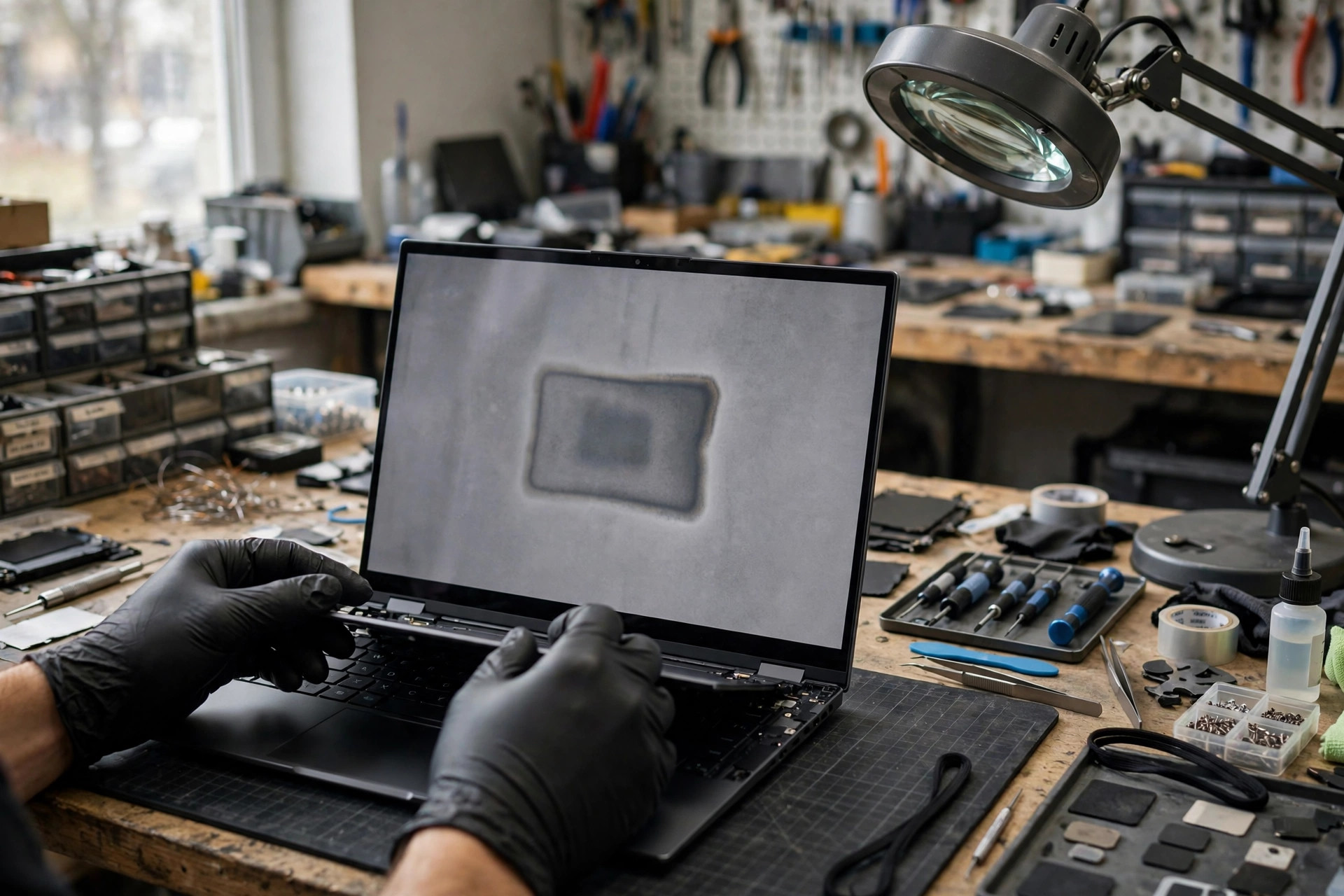
1. Scope: this article covers only the OLED layer, and every TFT-LCD layer is mentioned only as a boundary
This article applies to one narrow situation: a laptop internal screen is an OLED panel, and on a mid-grey or white background you can see a faint old pattern, an old window border, a taskbar, or a logo shape that stays after the picture has changed, and you want to know whether it is temporary image retention or permanent burn-in, how to narrow it down layer by layer, how to avoid the common misdiagnoses, and what to record before sending the machine for inspection. The OLED layer means the chain that starts with pixels that emit their own light, continues through organic material ageing, sub-pixel differences, and uneven ageing, and ends with the residual pattern seen on a solid-colour background. This article explains how that chain can fail, how layer-by-layer exclusion narrows it down, how to avoid the common traps, and what a reader can safely do at user level.
The neighbouring topics are mentioned only as boundaries, never rewritten. The TFT-LCD TCON layer belongs to another article, which covers timing control, gate and source division, gamma and VCOM, supply ripple, and COF bonding; this article mentions it only when distinguishing TCON ghosting from OLED burn-in, and it never rewrites TCON timing, and it never applies gamma, VCOM, or liquid-crystal residual voltage mechanisms to an OLED panel as if they were facts. The eDP cable layer belongs to another article, which covers the transmission chain from the mainboard display output through the hinge area to the panel-end connector; this article mentions the cable layer only as a remaining candidate during exclusion, and never rewrites its bending mechanism. The backlight layer belongs to another article, covering backlight supply, control, and lamp-strip mechanisms; this article mentions it only to state that OLED has no backlight and no liquid-crystal shutter layer, and never expands on backlight detail, and never applies backlight leakage or backlight ageing language to OLED. The graphics processor and driver layer belongs to another article, covering drivers, display settings, colour settings, and image processing; this article mentions it only when the external monitor and the screenshot are both abnormal, and never gives driver installation or setting steps. The panel glass pixel layer belongs to another article, covering dead pixels, stuck pixels, bright dots, and glass line faults; this article mentions it only when contrasting a single-point defect with a whole old interface pattern, and never expands on pixel defect causes. No symptom can be assigned to one layer by its name alone; it must pass layer-by-layer exclusion first.
One more boundary must be stated at the start: this article covers OLED panels only. If you are not sure which panel type your machine has, use the panel model and the original specifications, not how black or how vivid the screen looks. Protection function names, trigger conditions, and warranty terms all vary by model, and the brand examples in this article are only what that brand page showed; they cannot be treated as a universal standard for all models.
2. OLED self-emission: every pixel is its own light source, and there is no backlight
OLED stands for organic light-emitting diode: organic material emits light when current passes through it, every pixel is an independent light source, and pixels can be switched individually, which is why true black is possible. By contrast, an LCD relies on a backlight shining through a liquid-crystal layer; its pixels do not emit light themselves. This difference is the foundation of the whole advanced guide: OLED ageing is the light-emitting material itself ageing faster where it is used more, not backlight ageing, and not a liquid-crystal problem.
Because of self-emission, OLED brightness, power draw, and heat are directly tied to picture content: a full-white picture makes every pixel emit at once, giving the highest power and heat load, while a small bright highlight can concentrate power on a few pixels and reach a higher peak brightness. That point leads directly to the automatic brightness limiting mechanisms discussed later. Once you understand self-emission, you understand why ageing speed can differ greatly across one panel: areas that emit more age faster, and areas that stay dark age more slowly. Burn-in is exactly that difference accumulating until it becomes visible to the eye.
3. Organic material ageing: brightness decay and colour shift are general and gradual
OLED pixels are made of organic compounds, and long exposure to heat and light reduces their efficiency, which appears as reduced brightness output. Another way to summarise the mechanism is to split it into two kinds: photo-induced degradation, where high brightness light energy degrades the emitting material, and electro-induced degradation, where current passing through the organic material over a long time degrades brightness and colour. The end result in both cases is brightness decay and colour shift. In other words, ageing itself is general and gradual; only when ageing is uneven does it become visible as burn-in.
This distinction matters. A whole screen slowly getting dimmer and slowly shifting warm in colour, with no specific pattern, is uniform ageing, not burn-in. A taskbar, logo, or window border shape visible on a mid-grey background is uneven ageing, and that is the burn-in direction. Treating uniform ageing as burn-in makes people think replacing one panel solves all dimming; treating burn-in as uniform ageing makes people miss that static high-brightness habits are the main cause. The two must be kept apart, never mixed.
4. Red, green, and blue sub-pixel ageing: blue is generally the bottleneck, but it is not an absolute law
Multiple sources agree that the blue sub-pixel is less efficient, chemically more fragile, and shortest-lived, while red and green are relatively stable, and blue dimming first shifts overall colour balance. An industry survey notes that the blue emitter is the least stable emitter, that efficient phosphorescent blue has no mature commercial solution yet, and that the industry is exploring other routes. Another practical clue is sub-pixel size design: some panels make the blue sub-pixel larger than red and green, precisely to reduce the brightness the blue needs and to save its life.
But counter-examples and variables must be noted: blue-first is a general rule, not the same answer for every panel and every test. A second-hand report of a long test noted that in that test the green sub-pixel wore the most. The conclusion can therefore only be that blue is generally the bottleneck, while which colour degrades first in practice varies with panel structure and test conditions. All OLED panels do not fail blue first, and no universal degradation order table can be given. If you see one colour area unusually dark or colour-shifted, record it with solid-colour background checks separated by colour, and leave the judgement to the inspection bench, rather than declaring which sub-pixel has failed from the colour alone.
5. WOLED and QD-OLED: different structures, different blue load paths, and no invented life gap
The two mainstream structures handle blue differently, and that distinction belongs in an advanced guide. In the WOLED route, the emitting layer first produces white light, which then passes through RGB colour filters; the advantage is mature production and better uniformity, and the cost is that the filters reduce efficiency, so full-screen brightness management needs more care. In the QD-OLED route, the underlying emission is blue, and quantum dots convert blue light into red and green; the blue emitting layer therefore carries a different load structure from WOLED. What they share is that neither escapes the blue material bottleneck.
If the two panels are compared, the comparison must stay at the level of different structures and different blue load paths. This research round found no directly quotable life comparison figure for laptop panels, and that figure is unverified and cannot be stated as a conclusion. When buying a machine or replacing a panel, check the specifications of that panel model, and never decide which type must last longer from the structure name alone.
6. Uneven ageing is burn-in: the difference between heavily used and lightly used areas on the same panel
The essence of burn-in is not the whole panel dimming together. It is that pixels that have long shown static content at high brightness on the same panel age faster and become dimmer than neighbouring pixels, so a faint residual image appears on a mid-grey or white background. Multiple sources summarise it in one sentence: the brighter and the longer it burns, the faster it ages. Uniform ageing therefore only makes overall brightness fall slowly, possibly with colour shift, but does not necessarily show a specific pattern; uneven ageing leaves the shape of a specific pattern, such as a taskbar, a logo, a game interface, or a browser tab bar, and that is burn-in.
That also explains why burn-in checks usually use a mid-grey background: a solid-colour background exposes brightness unevenness best, while a normal video or complex picture hides it. Conversely, not seeing a residual image in a complex picture does not mean there is no burn-in, and seeing a faint pattern on a mid-grey background does not by itself confirm permanent burn-in, because temporary retention is also visible on a mid-grey background. The next step must use time and maintenance procedures to tell them apart, as the exclusion section explains in detail.
7. Permanent burn-in and temporary image retention: similar appearance, completely different mechanisms
The two look similar but have completely different mechanisms, and they need to be understood separately. Temporary image retention fades within minutes to hours after changing to moving content, resting, or running the manufacturer's maintenance procedure. A brand official FAQ defines it the same way: temporary retention gradually disappears after showing changing content or switching the screen off. Permanent burn-in is caused by uneven pixel ageing, and the residual image persists and cannot be fully restored by changing the picture or by an ordinary refresh procedure.
On specific hour thresholds, honesty is required: one general explainer site gave a short-time versus long-time threshold, but that figure has only a single second-hand source, with no official or independent long-test support, and it is unverified and cannot be stated as a conclusion. The only safe wording is that short-term retention mostly recovers, while repeated static high-brightness display over a long time accumulates into permanent burn-in, with no specific hour threshold. The most practical reader test is not counting hours, but showing moving content for a while, letting the maintenance procedure run, and checking again the next day on the same mid-grey background, to see whether the residual image is still in the same place with the same shape.
8. ABL, ASBL, and APL: three often-confused terms that must be separated
This section is the easiest to get wrong in an advanced guide, and the three terms must be separated. APL, average picture level, describes how much of the picture is bright; for example, a white window covering a quarter of the screen is a lower APL, full white is the highest APL, and a small window simulating a highlight is a very low APL. APL is a measurement basis, not a protection function itself. ABL, automatic brightness limiter, is the real power and heat budget mechanism: when the bright area expands, ABL pulls peak brightness down to stay within the panel power and heat budget, while a small bright area can be pushed higher. Measurement examples quoted in a second-hand explainer belong to individual models only, and are not universal figures for all OLED laptops. That explainer also stresses that true ABL cannot be fully switched off from a menu, because it is the panel's inherent way of allocating power.
ASBL and TPC, the automatic static brightness limiter and temporal peak luminance control, are static picture dimmers: when the picture stays almost unchanged for a long time, ASBL gradually lowers overall brightness to reduce burn-in risk, and brightness returns as soon as the picture moves. This is what users most often notice as unexplained dimming during document work, and it is often wrongly called ABL. One television manual calls it TPC, with a separate static-element treatment, and one display manual lists ABL, pixel cleaning, thermal modulation, screen saver, and pixel shift together as protection functions. The inference for laptops can only be understood as a mechanism direction: laptop daily document work is mostly static windows, so it triggers ASBL-type mechanisms more easily than television moving video, and if daily brightness is already below the panel's sustainable full-white brightness, ABL may not intervene often. No specific figure such as a model triggering ASBL after a certain number of minutes at a certain brightness can be stated, because it was never measured.
9. Pixel refresh and pixel shift: different levels of protection, and their names must not be swapped
Pixel shift moves the whole picture by a pixel-level amount, so a static element never presses on exactly the same sub-pixels forever. One display manual describes shift strength in weak and strong levels, and warns that switching it off increases retention risk. A brand official page says the same: pixel shift automatically moves pixels, and when it is on, the picture edge may slightly move beyond the screen boundary, which is normal and not a fault. A laptop official page also says pixel shift slightly moves display pixels to avoid a static image staying in the same place for a long time.
Pixel refresh is a compensation procedure run while the screen is off or on standby, measuring and compensating ageing differences between pixels to make display more uniform. A television manual version has two levels: after a period of cumulative viewing, switching off runs a short procedure lasting a few minutes, and after a longer cumulative total, switching off runs a long procedure lasting about an hour, during which horizontal lines may appear at the top or bottom of the screen, which is normal, and the procedure can also be started manually from a menu for about an hour, and unplugging power prevents the automatic procedure from running. Another brand television function called screen optimisation or pixel refresh starts automatically after switching off without cutting power, or after a period of cumulative viewing, taking about ten minutes, and a manual start can keep the television off for over an hour and may show a white line. A laptop official page version starts pixel refresh after thirty minutes of idle time. Note that this thirty minutes is that laptop page's figure, and it differs from the television thresholds, so the two must never be merged into one standard. The common point is that refresh procedures need standby power; unplugging every night and leaving power off for a long time blocks maintenance procedures. But unplugging does not equal giving up warranty, because warranty terms and maintenance procedures are two different things.
Other protection mechanisms include logo dimming, which detects a long-static logo, programme name, or news subtitle area and automatically lowers brightness in that area; a screen saver, which lowers brightness after no picture change is detected for a long time; proximity sensing, which dims or turns the picture black when the user leaves and wakes it when the user returns; and heat-sink structures, with custom heat sinks and internal airflow to improve heat dissipation and reduce burn-in risk, and thermal modulation that lowers brightness at high internal temperature to protect the panel. Proximity sensing appears in a new display introduction, and whether it has reached all laptops is unverified, so it must not be generalised. Heat-sink multiples and other promotional figures were not independently verified, and do not belong in the main text.
10. Static interface elements and high-brightness and HDR use: how they accelerate uneven ageing
The mechanism chain is direct: a static element keeps the same pixels under high load for a long time, those pixels age faster than neighbouring pixels, and a residual image appears. A brand official FAQ lists high-risk static elements including the taskbar, desktop icons, application menus, game interfaces, channel logos, and paused video, especially when shown at high brightness for a long time. Another laptop explainer also notes that laptop static interface elements, such as the taskbar, browser tabs, and toolbars, are the main source of burn-in.
The higher the brightness, the higher the current and heat per pixel, and the faster organic material degrades. One general explainer calls full brightness one of the fastest ways to age OLED, but a brightness percentage recommendation from an individual explainer site are not an official standard. HDR is special because of peak brightness: HDR highlights can push a small area of pixels far above daily brightness, and if the same highlight area stays static for a long time, such as an HDR desktop or an HDR game interface staying in the same place, the cumulative load on that area is higher than daily static document work. But this research round found no direct measurement comparing an HDR static interface with daily static document work, so that comparison is a mechanism inference only, and no multiple or hour gap can be stated. A large near-white static area is worst, because it drives the most sub-pixels to high load at the same time. Dark mode, auto-hiding the taskbar, and shortening screen-off time reduce cumulative static high-brightness pixel load in mechanism terms, but they are risk-reducing habits only, never as a guarantee that burn-in will not happen.
11. Heat and humidity: heat is an accelerator, humidity is an encapsulation challenge, and neither is a diagnosis by itself
Multiple sources agree: heat accelerates chemical degradation of organic material, making brightness loss and colour shift appear faster. One technical explainer notes that high temperature reduces the chemical stability of the organic layer and accelerates decomposition, affecting the emitting layer and the conducting layer, and that self-emission creates heat inside the display, making heat dissipation harder. Another explainer notes that brighter pixels draw more power and generate more heat, forming a positive feedback loop of high brightness, high heat, and faster ageing. On figures such as ageing doubling per temperature rise, one content site gave multiples based on a standard and on lap versus ventilated desk use. This research round marks those multiples clearly: that site also mixed in product recommendations without stated sources and other unverified figures, the multiples have no official or independent source support in this round, and they are unverified and do not belong in the main text. The main text can only state the qualitative direction that higher temperature accelerates ageing.
Precisely because heat is an accelerator, manufacturers use heat sinks, airflow, and thermal brightness reduction. A laptop adds a variable in which body heat and panel heat affect each other: long high load on the processor and graphics processor makes the body hot, which in mechanism terms makes the panel work hotter, but this research round found no direct measurement of body temperature against panel ageing rate, so that relationship can only be written as a mechanism inference, never quantified.
On humidity, a technical explainer notes that encapsulation exists precisely to protect OLED from heat, moisture, and oxygen, and that thin-film encapsulation and multi-layer barrier layers are the defence. In mechanism terms, moisture and oxygen ingress accelerates organic material degradation, so encapsulation integrity matters. From that, only pure mechanism-level Hong Kong inferences can be made, and they are inferences only, not measurement results: in Hong Kong humidity, the challenge to encapsulation is in mechanism terms greater than in a dry environment, but this research round has no Hong Kong OLED burn-in incidence or humidity-versus-burn-in statistics, and no Hong Kong percentage, case count, or conclusion that Hong Kong is especially prone to burn-in can be written. In commuting use, outdoor high-brightness use in mechanism terms pushes users to raise brightness, combined with temperature differences between inside and outside vehicles and restricted body heat dissipation, forming a high-brightness plus high-heat combination, but again there is no Hong Kong commuter measurement data, and it must not be quantified. In high-brightness outdoor use, long full brightness in sunlight for readability directly increases pixel load and heat; that is an application of the earlier mechanism, not a new independent cause.
Need a laptop repair expert?
Free diagnosis · Transparent pricing · No fix, no fee · 180-day warranty
12. Hong Kong context: outdoor climate background is only background, not panel temperature, and certainly not burn-in evidence
The Hong Kong Observatory published 1991–2020 climate averages on 4 February 2021: annual mean temperature 23.5 degrees Celsius, annual mean relative humidity 78 percent, based on measurements at the Observatory headquarters and other major stations. Those figures are only Hong Kong outdoor climate background, not indoor humidity, not machine humidity, and certainly not the moisture level of an individual machine; moreover they are thirty-year averages, not the humidity on a particular day, month, or machine at a particular moment. Humidity can only be understood as mechanism: if water vapour condenses near joints and encapsulation interfaces, or if a machine stays in high humidity for a long time, it can in theory increase the chance of material degradation and contact change, making originally marginal display conditions unstable. Deriving a failure rate, life effect, or individual machine cause from average humidity is entirely unverified and cannot be used as a conclusion.
What matters most for Hong Kong office and professional use is long static interfaces: document software toolbars, split-screen centre lines, design software palettes, trading software fixed quote rows, browser tab bars, and video conferencing fixed button rows are all sources where the same pixels stay bright for a long time. Commuting use has another variable that must be kept separate: backpack pressure and hinge load belong to the mechanical layer, and must not be mixed with burn-in mechanism; what commuting really has to do with burn-in is outdoor high-brightness use and restricted heat dissipation. Practical risk-reducing habits for OLED laptop use in Hong Kong include auto-hiding the taskbar, dark mode, shortening screen-off time, avoiding long maximum brightness display of the same static picture, and keeping standby power so maintenance procedures have a chance to run. All of them only reduce risk, never guarantee anything.
13. Layer-by-layer exclusion: follow the order, and missing one step makes the process incomplete
Exclusion must follow the order, and missing one step makes it incomplete. Step zero is preparation before testing: clean the screen surface, and record current brightness, colour, HDR on or off, power-saving settings, and use state, because screen protector glare, night mode, HDR settings, and colour profiles can all mimic retention or colour shift. Step one is screenshot comparison: when the built-in screen shows an abnormality, take a screenshot, and it must be opened on another device; viewing the screenshot on the same faulty panel is an invalid comparison, because the panel's own retention covers the screenshot content. If the screenshot looks normal on another device while the physical built-in screen shows retention, the problem is more likely on the panel side after rendering; if the screenshot itself looks abnormal on another device, the problem is more likely before or within rendering, and panel-side suspicion falls, but a combined problem is still not excluded.
Step two is external monitor comparison: use another display to show the same picture, and record whether the built-in screen and the external screen are abnormal at the same time. Both abnormal leans towards the upstream output or rendering layer; only the built-in screen abnormal narrows the range to the built-in screen path, but it never proves the panel is faulty, because multiple layers inside the built-in screen path are still unseparated. Step three is solid-colour testing: start with mid-grey, which is most sensitive, because mid-grey exposes brightness unevenness best, then look at light grey, white, red, green, and blue, with black last, because black on OLED means pixels switched off, and burn-in cannot be seen on black. During testing, the taskbar and all static interfaces must be hidden first, otherwise self-created static elements pollute the test result. Only when the same shape repeats in the same place across multiple colours does the result support the panel unevenness direction; if it appears in only one colour, or if the shape follows new content, other layers must be reconsidered.
Step four is time plus varied content verification: show moving content for a while, let the manufacturer's maintenance procedure run, and check again the next day on the same mid-grey background, to see whether the residual image is still in the same place with the same shape. Temporary retention fades, permanent burn-in does not fully fade. Step five is system setting false-appearance exclusion: check night mode, HDR settings, colour profiles, pixel-shift edge movement, and static dimming, and only after all of them are excluded should repair be discussed. Skipping any step can turn a setting false appearance, temporary retention, or an upstream problem into a wrong burn-in diagnosis.
| Comparison result | Narrowing direction | Conclusion that does not follow |
|---|---|---|
| Screenshot normal on another device, physical built-in screen has retention | Leans to panel side, rendering layer cut away | Does not confirm burn-in, temporary retention looks the same |
| Screenshot abnormal on another device | Leans to rendering or upstream layer | Does not exclude a combined panel problem |
| External monitor normal, built-in screen has retention | Narrowed to built-in screen path | Does not prove panel failure, cable, timing, and glass are still candidates |
| External monitor also has retention | Leans to whole-machine output or rendering layer | Does not prove graphics hardware failure |
| Same shape repeats in same place across mid-grey and multiple colours, still there next day | Supports panel unevenness direction | Still needs inspection attribution, and wear percentage cannot be measured |
| Mid-grey retention fades next day | Supports temporary retention | Does not mean the panel has no ageing at all, only that this retention has faded |
| No retention visible on black picture | Expected, because OLED black means pixels off | Does not mean no burn-in, mid-grey must be checked again |
14. Neighbouring layer distinctions: all five groups in full, never in one sentence
The first group is TCON ghosting versus OLED burn-in. TCON ghosting follows new content, deforms, flickers, and may cover half the screen or a line; OLED burn-in follows old content, stays fixed, and has the shape of an old window or old interface. Both symptom names contain a residual image idea, but their mechanisms are completely different and must never be mixed. The second group is eDP cable versus OLED burn-in. Cable problems are mostly intermittent and change with lid angle; burn-in is a fixed shape that does not move with lid angle. When recording lid angle, only record the angle observed in daily use and its relationship to symptoms, never do repeated lid opening and closing tests, and never bend the cable to test it.
The third group is the backlight layer, and in an OLED article it must be stated as not applicable. OLED has no backlight layer and no liquid-crystal shutter layer, so backlight leakage, backlight ageing, and liquid-crystal retention language must never be applied to OLED. If an OLED screen shows edge glow or near-black unevenness, it should be discussed separately as near-black uniformity versus burn-in, never explained with backlight terms. The fourth group is graphics processor and driver artefacts. Driver artefacts are mostly checkerboard patterns, broken pictures, external monitor plus screenshot following, and accompanied by crashes; burn-in is a fixed old pattern, with external monitor and screenshot normal. The fifth group is panel glass pixel layer dead pixels. Dead, stuck, and bright dots are single-point defects; burn-in is a whole old interface outline. A single point and a whole shape are already different, and they must never be mixed. There is also near-black banding or cloud-like uniformity, which belongs to panel uniformity, and must not be directly called burn-in.
15. Common misdiagnoses and traps: twelve wordings most likely to go wrong
First, viewing a screenshot on the same faulty panel and calling it normal or abnormal; that comparison itself is invalid, and the screenshot must be viewed on another device. Second, doing a solid-colour test without hiding the taskbar and static interfaces, so self-created static elements pollute the result. Third, testing with only black or only one colour: black on OLED cannot show burn-in, and one colour alone cannot tell which sub-pixel is involved. Fourth, immediately calling temporary retention burn-in, without time and maintenance procedure re-checking. Fifth, treating protection functions as faults: pixel-shift edge movement, static dimming, and horizontal or white lines during a refresh procedure are all normal phenomena stated in manuals, not faults. Sixth, screen protector glare or surface dirt mimicking retention, with a conclusion reached before cleaning. Seventh, judging retention under strong outdoor light, where strong light both hides and exaggerates brightness unevenness, so the check must be repeated under stable indoor light.
Eighth, deciding from a single phone photograph alone, because phone exposure, white balance, and compression all change how visible retention is, and the decision must rest on multi-colour solid-colour testing plus next-day re-checking. Ninth, directly equating accelerated long-test results with daily use: accelerated tests deliberately use maximum brightness plus the same static content, which is the worst case, and cannot be directly equated with daily mixed use, but they also prove that protection mechanisms reduce risk without eliminating uneven ageing. Tenth, directly applying television or display maintenance thresholds and warranty years to laptops, because model and product category differ, and thresholds and terms differ. Eleventh, treating a cure after replacing the whole panel assembly as a diagnosis of one layer: the assembly contains multiple layers, and a cure after an assembly swap only proves the problem was within the original assembly range, and cannot be reverse-inferred to one layer inside it. Twelfth, treating improvement after reinstalling a driver as fixed: reinstalling a driver also resets resolution, refresh rate, colour settings, and power settings, and any one of those resets can hide a marginal problem temporarily, so the machine must be observed again at native settings for a period.
16. Which shapes are most worth suspecting as burn-in
The shapes most worth suspecting are old interface shapes that repeat on a mid-grey background, stay in a fixed place, and have a clear outline. Common Hong Kong static sources include the taskbar, browser tab bar, document software toolbar, design software palette, trading software fixed quote row, game interface, video conferencing fixed button row, and split-screen centre line. Their common point is that the same pixels stay bright for a long time in the same place. Conversely, retention that follows new content, whole-screen uniform dimming, single-point defects, and intermittent abnormalities that change with lid angle all fail the burn-in shape test, and the neighbouring layer distinctions should be revisited.
Beyond shape, colour must also be considered: if retention visibility differs across red, green, and blue solid-colour backgrounds, it may reflect sub-pixel differential ageing, but it must never be used to declare which sub-pixel has failed from colour alone. Shape plus multiple colours plus next-day re-checking, all three together, support the panel unevenness direction; missing any one of them leaves only suspicion, not a diagnosis.
17. User-level safe operation checklist: do only these, and never teach disassembly
Readers can only do the following user-level safe operations. First, pixel refresh: follow only the original manual, use automatic procedures as the main route, do not cut power during a procedure, and do not repeatedly abuse manual refresh, because refresh procedures have their own designed purpose and limits, and abuse does not mean more effective. Second, brightness management: avoid long maximum brightness display of the same static picture, and use automatic brightness, dark mode, auto-hiding the taskbar, and shortening screen-off time. Third, external monitor comparison and screenshot comparison, following the order in section thirteen, with the screenshot viewed on another device. Fourth, a symptom log, following the template in section nineteen. Fifth, keep standby power so maintenance procedures have a chance to run, and do not unplug every night and then blame maintenance procedures for not running.
Things that must never be done include disassembling the machine by yourself, removing the screen by yourself, replacing the panel by yourself, prying connectors, unplugging internal cables, heating or pressing the panel. If there is a strange smell, abnormal heat, a swollen battery, water exposure, a cracked screen, or a deformed case, stop using the machine and send it for inspection first. All of the safe checklist above is user-level operation, with no internal disassembly involved, and readers must not think that reading the mechanism section qualifies them to open the machine for diagnosis.
18. Repair, replacement, and upgrade decision framework: look at certainty, binding reality, whole-machine condition, and downtime cost
Before deciding, understand the panel binding parts reality: panel size, interface, and assembly integration vary by model, and universality must never be assumed; some models integrate the panel with other assemblies to a high degree, some models have limited replacement panel supply, and the specific situation must be checked against that panel model's specifications and repair documents, and without those documents it is unverified. Decisions must look at four dimensions: first, diagnostic certainty, meaning how far layer-by-layer exclusion has gone and how complete the symptom log is; second, panel binding parts reality, meaning whether a suitable replacement panel exists for that model and whether it is an assembly or a single component; third, whole-machine condition, meaning whether the battery, keyboard, mainboard, and other parts are ageing at the same time; fourth, downtime cost, meaning whether there is a backup machine during inspection and whether data backup is complete.
The four branches are only a framework, not personalised advice. First, continue using plus change habits: retention is slight, mostly temporary retention, and the rest of the machine is in good condition, so change habits first and observe. Second, send for panel replacement inspection: exclusion supports the panel unevenness direction, retention already affects daily use, and the written quotation is reasonable. Third, consider replacing the machine: multiple parts of the whole machine are ageing at the same time, panel binding parts supply is limited, and the written quotation is close to replacement cost, and this comparison must only be made after the written quotation arrives, never asserted before a quotation that replacement is better value. Fourth, deal with the upstream first: external monitor and screenshot are both abnormal, or setting false appearances have not been excluded, so the upstream and settings should be dealt with first, and the machine must not jump directly to panel replacement. On charges, starting prices and case quotations must be distinguished: the only confirmed starting price categories are four, battery from HK$580, screen from HK$1,280, mainboard chip-level from HK$880, and keyboard from HK$480, and each is only the starting price for its own category, and a starting price is not a quotation for this case; the screen starting price is not an OLED panel price; every other item is subject to a written quotation after inspection. To check the pricing range first, see pricing; to understand the inspection process, see diagnostic.
19. Pre-inspection symptom log template and stop-use signals
A symptom log should include the date and time of occurrence, the picture content at the time, the retention shape and position, solid-colour test results with visibility on mid-grey, light grey, white, red, green, and blue, the external monitor result, the screenshot result on another device, changes after showing moving content, changes after a maintenance procedure, next-day re-check results, brightness settings, HDR on or off, colour settings, power-saving settings, felt body temperature, and use environment, whether indoor or outdoor, commuting or office. Photographs and screenshots must be labelled separately: a phone photograph of the physical screen is one kind, and a system screenshot is another kind, and the two must never be mixed as the same evidence.
Stop-use and send-for-inspection signals include a strange smell, abnormal heat, a swollen battery, water exposure, a cracked screen, and a deformed case. If any of these appear, stop using the machine and send it for inspection first, do not continue using it, and do not open it to check by yourself. When sending for inspection, bring the machine, the original adapter, and the symptom log, label the screenshot and the physical screen photograph separately, write the original trigger conditions on the inspection form, and ask the inspection side to re-check under similar conditions. To check the pricing range first, see pricing; to understand the inspection process, see diagnostic.
20. Brand official statements comparison: only write pages actually seen in this round, and honestly write not found where nothing was found
| Brand / page nature | What this round actually saw | Limits / what must not be inferred |
|---|---|---|
| ASUS laptop official page | Pixel refresh after a period of idle time; pixel shift moving pixels slightly; free replacement within warranty if OLED Care was not switched off; warranty period varies by region | No Hong Kong laptop year seen, and no year is given here |
| ASUS ROG display introduction | Display protection functions plus proximity sensing; an individual display series claiming three-year burn-in warranty | Display, not laptop, and must never be applied to laptops |
| Samsung Hong Kong television support page | Pixel shift, logo dimming, pixel refresh; screen saver after two minutes of still picture | Television, not laptop; not a panel manufacturer document |
| LG television manual | Short and long refresh graded procedures; static brightness auto-reduction is normal | Television manual, not laptop; not a panel manufacturer document |
| Dell display support page | Display panel exchange service; an individual QD-OLED display limited to at most three years, including burn-in | Display, not laptop; check region and model again |
| MSI laptop official FAQ | Temporary retention versus permanent burn-in definitions; static high-brightness elements causing uneven ageing; an OLED technology characteristic | No specific warranty year seen, and no year must be added |
| Apple old support document, second-hand quotation | Side-view colour shift is normal; long use can bring temporary retention or burn-in; automatic brightness plus short auto-lock recommended | Old document, second-hand quotation; not a laptop OLED warranty policy |
| Lenovo | No official OLED burn-in policy found in this round | No mechanism name or year must be added from impression |
| Samsung Display / LG Display, panel manufacturers | No burn-in policy page from either panel manufacturer found in this round | Electronics product support pages must never be presented as panel manufacturer statements |
21. Conclusion: retention does not mean burnt, and burn-in does not mean an immediate machine replacement
Three sentences summarise it: first, seeing retention does not immediately mean burnt, because temporary retention and permanent burn-in have completely different mechanisms, and only time and maintenance procedures can tell them apart. Second, layer-by-layer exclusion is the only reliable narrowing method before a diagnosis, with external monitor, screenshot, solid colours, next-day re-checking, and setting exclusion, and missing any step leaves the process incomplete. Third, decisions must wait for a written quotation, a starting price is not a case quotation, and every other item is subject to a written quotation after inspection. The shop is at Room 1209, Dawning Plaza, Shek Mun, Sha Tin, telephone +852 2186 8010, WhatsApp +852 6558 6806, open from 12:00 to 19:00. To check the pricing range first, see pricing; to understand the inspection process, see diagnostic.
22. How to read accelerated long tests: the worst case proves risk exists, but it does not equal daily results
Accelerated long tests are valuable for advanced readers, but they must be read correctly. Second-hand reports of long tests note that with maximum brightness, the same static content shown for long hours each day, and a cumulative total around ten thousand hours, all OLED panels in the test showed retention to different degrees; newer panels were brighter and more power-efficient than older panels, but under the same extreme static pressure, burn-in resistance had not improved by the same margin. Another second-hand report of a display test noted that after about eight thousand hours and thirty months of deliberately static document use, degradation was measurable but slow, and peak brightness had only slightly fallen after a longer period. The point of these two reports is not either figure, but the reading method: accelerated tests deliberately use maximum brightness plus the same static content, which is the worst case, and cannot be directly equated with daily mixed use; but they also prove that protection mechanisms reduce risk without eliminating uneven ageing. Long-test results cannot be used as a conclusion as all OLED panels will burn after a certain number of years, and never written as new panels have solved burn-in; both extremes are wrong.
Advanced readers should also note test condition differences: test brightness, static content type, daily hours, heat dissipation environment, and protection function on or off status all affect results. Figures from different tests cannot be directly compared, and certainly cannot be directly applied to your own laptop. The correct use of long tests is as mechanism evidence: static high brightness plus long time does bring uneven ageing into view, and protection mechanisms do slow it down, but cannot make uneven ageing zero. What daily users should focus on is always their own static habits, layer-by-layer exclusion results, and symptom log, not one hour figure from a long test.
23. Panel model checking method: without model documents, write unverified
A common mistake in advanced guides is writing one model's experience as a rule for all models. The correct checking method has four steps. First, confirm the panel type, using the panel model and original specifications, never judging by how black the screen looks. Second, confirm protection function names: pixel refresh, pixel shift, and logo dimming names vary by brand and model, and must be checked against that machine's manual, never using one brand's name to explain another brand's menu. Third, confirm trigger conditions: television and laptop thresholds differ, and display and laptop thresholds also differ, and they need to be understood separately. Fourth, confirm warranty terms, by checking the original text again by specific model plus Hong Kong sales terms, because a United States page policy does not necessarily apply to Hong Kong, and television and display years must never be applied to laptops. If any step has no document, write unverified, and never fill it in from impression.
This method also applies to inspection communication. When sending for inspection, ask whether the replacement is an assembly or a single component, which layer inside the original assembly was judged to be the main cause, and whether the judgement basis was cross-testing or post-replacement observation. Asking these three questions clearly avoids treating an assembly result as a single-part diagnosis and misleading the parts judgement for the next machine with the same symptoms. Readers do not need to know disassembly to ask these questions; asking questions is itself user-level operation, with no disassembly involved.
24. Three use contexts compared: document work, design, and trading have different static sources
In document work, static sources are mainly toolbars, tab bars, and status bars, characterised by large area, medium brightness, and extremely long time. In design work, static sources are mainly colour palettes, layer lists, and toolboxes, characterised by fixed position, high colour contrast, and long daily hours. In trading use, static sources are mainly fixed quote rows, chart borders, and button rows, characterised by high contrast, long time without moving, and users unwilling to switch the screen off. In game use, static sources are mainly game interfaces, health bars, and skill rows, characterised by high brightness, high contrast, and long time in the same place. The three contexts share that the same pixels stay bright for a long time, and differ in that the shape, area, and brightness distribution of static elements differ, so the burn-in shape differs too.
The practical value of a comparison table is that readers can work backwards from a retention shape to which habit is most worth changing. For example, a toolbar-shaped retention should first lead to auto-hiding the taskbar and dark mode; a palette-shaped retention should first lead to design software interface layout and screen-off time; a quote-row-shaped retention should first lead to trading software interface settings and rest habits. But working backwards is only a suspicion direction, not a diagnosis, and must be combined with layer-by-layer exclusion and next-day re-checking before it can be stated. No context comparison table count as a guarantee: changing habits does not mean already-formed burn-in disappears, only temporary retention has a chance to fade, and permanent burn-in does not fully recover by changing habits.
| Use context | Main static sources | Retention shape features | Habit most worth changing first |
|---|---|---|---|
| Document office work | Toolbars, tab bars, status bars | Horizontal long bars, top or bottom | Auto-hide taskbar, dark mode, shorten screen-off time |
| Design work | Colour palettes, layer lists, toolboxes | Fixed side colour blocks, small grids | Move palette position sometimes, avoid long maximum brightness |
| Trading screens | Fixed quote rows, chart borders | Fixed rows and columns, number grids | Switch pictures regularly, avoid leaving the screen on without switching off |
| Games | Game interfaces, health bars, skill rows | Fixed corner icons, horizontal bars | Avoid one game with one interface staying still for a long time |
25. When retention remains after a maintenance procedure, what happens next
When retention remains after a maintenance procedure, there are three possibilities, and they must be handled separately. First, the retention is temporary retention, but needs more time to fade: show moving content for a while, and check again the next day on the same mid-grey background, without immediately running manual refresh again. Second, the retention is permanent burn-in: the purpose of a maintenance procedure is to compensate ageing differences and make display more uniform, not to restore already-aged pixels to brand-new condition, so retention remaining after the procedure is within expectation, and must not be understood as maintenance procedure failure. Third, the retention is not a panel-layer problem at all: external monitor and screenshot checks were not done, or setting false appearances were not excluded, so the maintenance procedure was never the right treatment, and layer-by-layer exclusion should be redone.
Whichever possibility applies, readers must not do three things: first, do not repeatedly abuse manual refresh, thinking running it a few more times will clear burn-in; second, do not disassemble the machine to check the panel or connectors by yourself; third, do not buy parts based on another model's online experience and replace them yourself. The correct method is to organise the symptom log, including mid-grey test results before and after the maintenance procedure, next-day re-check results, and external monitor and screenshot results, bring the machine and the original adapter for inspection, and write on the inspection form that the maintenance procedure has already been run and what the result was, so the inspection side can re-check under similar conditions. To check the pricing range first, see pricing; to understand the inspection process, see diagnostic.
26. Frequently Asked Questions
Q1: What is OLED burn-in? Does it mean the screen is burnt out?
Not that simply. The essence of OLED burn-in is uneven ageing: on the same panel, pixels that have long shown static content at high brightness age faster and become dimmer than neighbouring pixels, so a faint old pattern appears on a mid-grey or white background. Uniform ageing only makes the whole screen slowly dimmer, without necessarily showing a specific pattern; only a specific old pattern points in the burn-in direction. Seeing retention also does not mean the panel is already permanently burnt, because temporary retention fades after showing moving content or running a maintenance procedure, and time plus next-day re-checking must be used to tell them apart. Retention seen at first sight must never be declared as burnt.
Q2: How can temporary retention and permanent burn-in be told apart?
Use time and maintenance procedures, not the first look. Temporary retention fades within minutes to hours after showing moving content, resting, or running the manufacturer's maintenance procedure. Permanent burn-in is caused by uneven pixel ageing, and the residual image persists and cannot be fully restored by changing the picture or by an ordinary refresh procedure. The practical method is to show moving content for a while, let the maintenance procedure run, and check again the next day on the same mid-grey background, to see whether the residual image is still in the same place with the same shape. A specific hour threshold is unverified, and no specific figure can be stated as a conclusion.
Q3: Why is the blue sub-pixel often called the bottleneck? Do all OLED panels fail blue first?
Generally, the blue sub-pixel is less efficient, chemically more fragile, and shortest-lived, and blue dimming first shifts overall colour balance; some panels make the blue sub-pixel larger, precisely to reduce the brightness the blue needs and to save its life. But that is only a general rule, not the same answer for every panel and every test, and a long test reported that in that test the green sub-pixel wore the most. The conclusion is therefore only that blue is generally the bottleneck, while which colour degrades first in practice varies with panel structure and test conditions. All OLED panels do not fail blue first.
Q4: Which lasts longer against burn-in, WOLED or QD-OLED?
No conclusion can be drawn from the structure name alone. WOLED first produces white light in the emitting layer, which then passes through colour filters; QD-OLED has blue as the underlying emission, and quantum dots convert blue light into red and green. The two structures have different blue load paths, but this research round found no directly quotable life comparison figure for laptop panels, and that figure is unverified. Comparison can only stay at the level of different structures and different blue load paths, and when buying a machine or replacing a panel, the specifications of that panel model should be checked, rather than deciding which type must last longer from the structure name alone.
Q5: What is the difference between ABL and ASBL? Why does the machine dim for no apparent reason?
ABL is the automatic brightness limiter, a power and heat budget mechanism: when the bright area expands, it pulls peak brightness down to stay within the panel power and heat budget. ASBL is the static picture dimmer: when the picture stays almost unchanged for a long time, it gradually lowers overall brightness to reduce burn-in risk, and brightness returns as soon as the picture moves. The unexplained dimming users most often notice during document work is mostly ASBL, not ABL, and the two must never be mixed. Both are inherent panel mechanisms or protection functions, not faults, and it must never be said that switching them off solves the problem.
Q6: Are pixel refresh and pixel shift the same thing?
No, they are protection functions at different levels, and their names must never be swapped. Pixel shift moves the whole picture by a pixel-level amount, so a static element never presses on exactly the same sub-pixels forever; when it is on, the picture edge may slightly move beyond the boundary, which is normal and not a fault. Pixel refresh is a compensation procedure run while the screen is off or on standby, measuring and compensating ageing differences between pixels to make display more uniform; it needs standby power, and horizontal or white lines may appear during the procedure, which is a normal phenomenon stated in manuals. Television and laptop trigger thresholds differ, and they must never be merged into one standard.
Q7: If the external monitor is normal and the built-in screen has retention, is OLED burn-in confirmed?
No. A normal external monitor only narrows suspicion to the built-in screen path, but multiple layers inside the built-in screen path are still unseparated, and temporary retention looks the same on the built-in screen. The correct method is to look at the external result together with screenshot comparison, solid-colour testing, and next-day re-checking. A screenshot must be opened on another device, because viewing it on the same faulty panel is an invalid comparison. Skipping any step means burn-in cannot be declared confirmed.
Q8: How should a solid-colour test be done properly? Why can burn-in not be seen on black?
Start with mid-grey, which is most sensitive, because mid-grey exposes brightness unevenness best; then look at light grey, white, red, green, and blue, with black last. Black on OLED means pixels switched off, so burn-in cannot be seen on black, and not seeing retention on black is expected and never means there is no burn-in. During testing, the taskbar and all static interfaces must be hidden first, otherwise self-created static elements pollute the result. Only when the same shape repeats in the same place across multiple colours does the result support the panel unevenness direction; if it appears in only one colour, or if the shape follows new content, other layers must be reconsidered.
Q9: Why can backlight, TCON, and driver explanations not be applied to OLED?
Because the mechanisms are fundamentally different. OLED has no backlight layer and no liquid-crystal shutter layer, so backlight leakage, backlight ageing, and liquid-crystal retention language must never be applied to OLED. TCON ghosting follows new content, deforms, and flickers; OLED burn-in follows old content and stays fixed. Driver artefacts are mostly checkerboard patterns, broken pictures, external monitor plus screenshot following, and accompanied by crashes; burn-in is a fixed old pattern, with external monitor and screenshot normal. Panel glass pixel layer dead, stuck, and bright dots are single-point defects; burn-in is a whole old interface outline. Similar symptom names, completely different mechanisms, and they must never be mixed.
Q10: Hong Kong is so humid, does that mean my machine is very likely to get burn-in?
No. The Hong Kong Observatory published 1991–2020 climate averages on 4 February 2021: annual mean temperature 23.5 degrees Celsius, annual mean relative humidity 78 percent, and those figures are only Hong Kong outdoor climate background, not indoor humidity, not machine humidity, and certainly not the moisture level of an individual machine. The humidity challenge to encapsulation can only be understood as mechanism, and deriving a failure rate, life effect, or individual machine cause from average humidity is entirely unverified. This research round has no Hong Kong OLED burn-in incidence statistics, and any Hong Kong percentage or case count is unverified.
Q11: Do high brightness and HDR always accelerate burn-in?
In mechanism terms it accelerates ageing, but it cannot be quantified. The higher the brightness, the higher the current and heat per pixel, and the faster organic material degrades; HDR highlights can push a small area of pixels far above daily brightness, and if the same highlight area stays static for a long time, the cumulative load on that area is higher than daily static document work. But this research round found no direct measurement comparing an HDR static interface with daily static document work, so that comparison is a mechanism inference, and no multiple or hour gap can be stated. Dark mode, auto-hiding the taskbar, and shortening screen-off time only reduce risk, and are not a guarantee that burn-in will not happen.
Q12: During pixel refresh, horizontal or white lines appear. Is the panel broken?
No, that is a normal phenomenon stated in manuals. An individual brand television manual states that horizontal lines may appear at the top or bottom of the screen during a long refresh procedure, and another brand television screen optimisation procedure may show a white line, and both are procedure-in-progress appearances, not faults. Procedures need standby power, and unplugging every night and leaving power off for a long time blocks maintenance procedures. But unplugging does not equal giving up warranty, because warranty terms and maintenance procedures are two different things. Do not cut power during a procedure, and do not repeatedly abuse manual refresh.
Q13: How should charges be understood? What is the difference between a starting price and a case quotation?
Starting prices and case quotations must be distinguished, and that sentence must be kept clear. The only confirmed starting price categories are four: battery from HK$580, screen from HK$1,280, mainboard chip-level from HK$880, and keyboard from HK$480, and each is only the starting price for its own category, and a starting price is not a quotation for this case; the screen starting price is not an OLED panel price; every other item is subject to a written quotation after inspection. The shop is at Room 1209, Dawning Plaza, Shek Mun, Sha Tin, telephone +852 2186 8010, WhatsApp +852 6558 6806, open from 12:00 to 19:00. To check the pricing range first, see pricing; to understand the inspection process, see diagnostic.
Q14: What can readers do themselves? What must never be done?
Readers can only do user-level safe operations: use pixel refresh only following the original manual, with automatic procedures as the main route, do not cut power during a procedure, and do not repeatedly abuse manual refresh; brightness management, avoiding long maximum brightness display of the same static picture, and using automatic brightness, dark mode, auto-hiding the taskbar, and shortening screen-off time; external monitor comparison and screenshot comparison, with the screenshot viewed on another device; a symptom log, following the template in this article; and keeping standby power so maintenance procedures have a chance to run. Things that must never be done include disassembling the machine by yourself, removing the screen by yourself, replacing the panel by yourself, prying connectors, unplugging internal cables, heating or pressing the panel. If there is a strange smell, abnormal heat, a swollen battery, water exposure, a cracked screen, or a deformed case, stop using the machine and send it for inspection first. To check the pricing range first, see pricing; to understand the inspection process, see diagnostic.
Need Professional Laptop Repair?
Laptop King has 15+ years of repair experience in Shek Mun, Sha Tin. Free diagnosis, transparent pricing, no fix no fee. 180-day warranty for your peace of mind.