📌 Key Takeaways
- •Defective pixel — Wikipedia. https://en.wikipedia.org/wiki/Defective_pixel
- •ISO 13406-2 — Wikipedia (standard withdrawn and replaced by ISO 9241-302, 303, 305, 307:2008; three-type defect concept). https://en.wikipedia.org/wiki/ISO_13406-2
- •Dead or Stuck Pixel? The Screen Defect Test That Tells Them Apart — NILE1. https://nile1.com/dead-or-stuck-pixel-the-screen-defect-test-that-tells-them-apart/
- •What are Dead Pixels and How to Fix — Lenovo CA Glossary. https://www.lenovo.com/ca/en/glossary/what-is-dead-pixel/
- •Dell Display Pixel Guidelines — Dell Support (varies by model; dead pixels cannot be repaired by software; pressing opposed). https://www.dell.com/support/kbdoc/en-lk/000126004/dell-display-pixel-guidelines
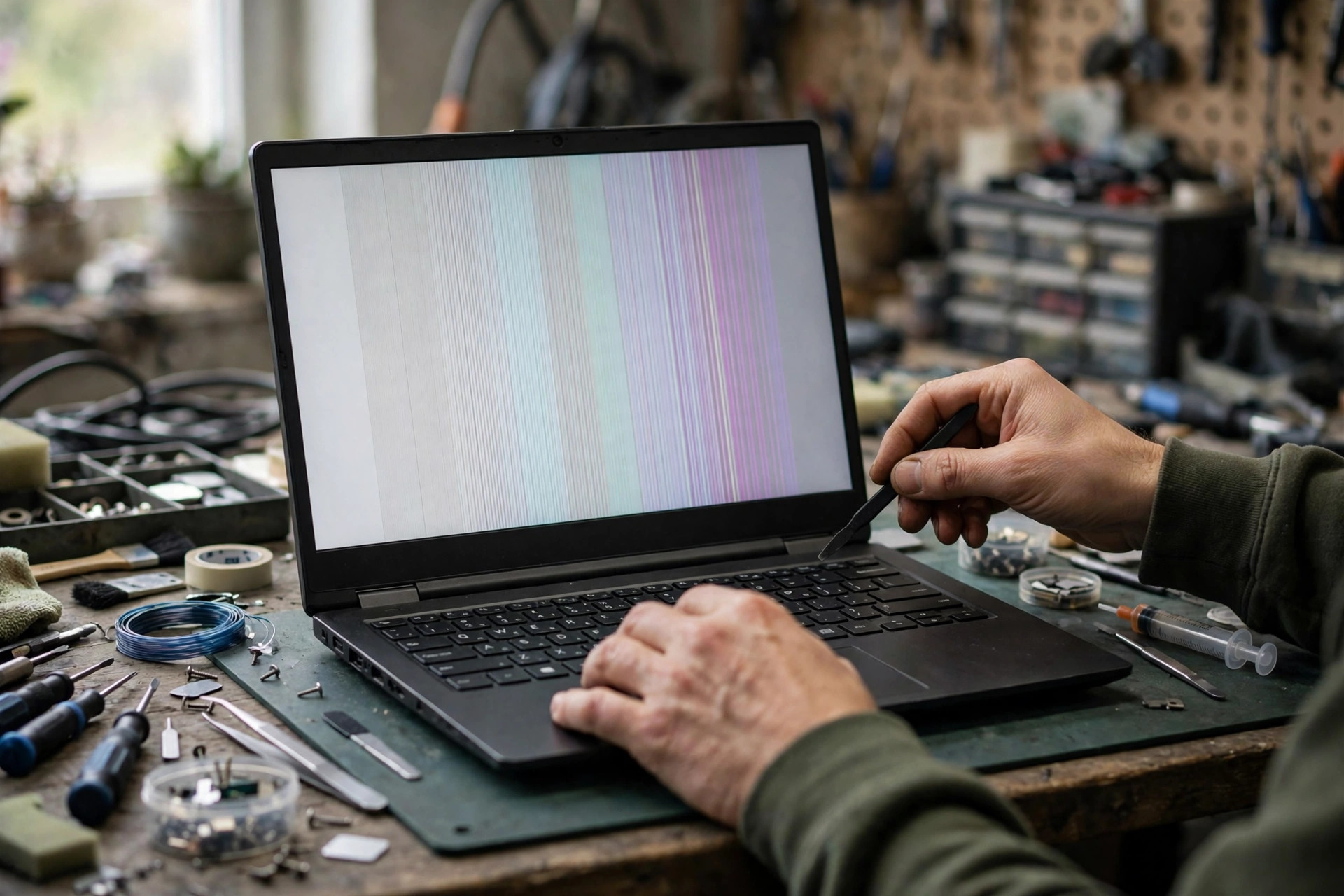
A fixed black dot on the screen, a white dot that glows on a black background, a vertical line running from top to bottom, a horizontal line running from left to right, a whole screen that has drifted yellow or cyan, or light leaking from the edges on a black picture — these symptoms all look like "the screen is broken", but they can come from completely different layers: a single sub-pixel transistor, a driver circuit at the edge of the panel, the timing controller, the cable that passes through the hinge, the graphics output itself, or merely a colour setting. Which layer has failed changes the repair path and the cost by a large margin. A loose cable and a dead panel must never be given the same verdict, and a driver problem and a panel hardware problem must never be given the same repair route.
First, the scope, because readers easily confuse several guides. The previous advanced guide covered brightness that will not adjust: the brightness control chain, backlight signals, ambient light sensing, pulse-width and direct-current dimming. An older guide covered flicker itself: refresh rate, backlight instability, an unsteady picture. Neither brightness control nor flicker as such is covered here. The subject is static or semi-static dots, lines, colour shift, bleed and pressure marks — problems that remain even when brightness adjustment works perfectly. It assumes the reader has already done the basic checks: a restart, a change to a neutral wallpaper, and a rough split using an external monitor. If those basic steps have not been done, they should be done first, or the advanced triage that follows will be contaminated by the simplest causes.
One more opening warning matters just as much. Triage is covered here, not do-it-yourself disassembly repair. Any internal inspection must be carried out by a qualified technician with the machine powered off and the battery isolated. The internal display cable carries panel power as well as data signals, and it must never be plugged or unplugged while the machine is powered on: a live connection can short in an instant and damage a new panel, the motherboard display circuit, or the backlight power components. What a reader can safely do at home is observe, record, compare screenshots, compare an external monitor, compare the BIOS screen, observe lid-angle behaviour, and run solid-colour tests. Anything that requires opening the machine belongs in inspection.
1. Why a pixel dies, sticks, or glows: the thin-film transistor layer
An LCD panel does not itself emit light, and that single fact is the starting point for understanding every pixel fault. A backlight behind the panel supplies light, which passes through the liquid crystal layer, the red, green and blue filter layers, and polarising layers before it becomes the picture the eye sees. Each pixel is made of red, green and blue sub-pixels, and each sub-pixel is controlled by its own thin-film transistor, which switches it and sets how much light passes. When a sub-pixel transistor cannot conduct or switch off properly, light either cannot pass or stays on, and a fixed dot appears on the picture. In other words, the essence of most pixel faults is that a switch controlling light has failed — not that the whole screen has lost power.
Everyday language calls every dot a "dead pixel", but that blanket term misleads everything that follows, because three kinds of dot have different mechanisms and different handling. They must be separated.
| Phenomenon | Appearance on solid colours | Mechanism | Can software recover it? |
|---|---|---|---|
| Dead or dark dot | A black dot on every background, most obvious on white and light pictures | The sub-pixel or transistor cannot conduct or receives no power, the liquid crystal does not rotate, and the backlight is blocked by the polariser | Extremely unlikely. Software cannot make a genuinely open-circuit or burnt-out transistor conduct again |
| Bright or hot pixel | A dot that keeps shining white or coloured light on a black picture; white when the whole group of three sub-pixels is fully on | The three sub-pixel transistors are stuck in the conducting state, so all light passes through the filter layer | Low. Like a dead dot, this is hardware failure, not a one-off stuck state |
| Stuck pixel | A fixed colour — red, green, blue, or a mixed colour such as cyan, magenta or yellow — that does not change when the picture changes; sometimes most visible on grey or white pictures | An individual sub-pixel is stuck in a fixed state and the drive circuit fails to switch it normally; sometimes related to unstable supply or temperature change, and it can appear intermittently | Some chance. Rapid colour-cycling tools work by forcing that sub-pixel to switch repeatedly, but there is no reliable unified success figure, and it is never a guarantee |
There is also a partial sub-pixel anomaly: a tiny bright point smaller than half a sub-pixel. Manufacturer guidance states explicitly that, at normal viewing distance, such a micro-point may not be distinguishable from a genuine sub-pixel defect and is not counted as a defect for warranty purposes. Anyone teaching readers to count dots must therefore add the precondition "with the naked eye, at normal viewing distance". Micro-points found with a magnifier must not be used to assert warranty eligibility or repair necessity. A wrong counting method guarantees a wrong conclusion.
Why do new machines have dots, and why do dots appear in clusters? At the manufacturing level, a panel contains millions of transistors, and even at very high yields a microscopic process can leave individual failures. That is why manufacturers publish pixel policies instead of promising zero defects: a genuinely zero-defect panel would be extremely expensive, and manufacturers must choose between an extremely expensive zero-defect product and openly acknowledging a small number of defects. At the pressure and impact level, force on the liquid crystal layer often produces not a single dot but a small cluster or a spreading patch, which differs in shape from a single manufacturing dot. That difference is useful as a reference, but appearance alone must never be used to declare human-caused damage, because manufacturing defects can also cluster; the judgement must combine any history of impact or pressure with inspection. At the heat and ageing level, sources note that heat and ageing can gradually cause panel problems and that an individual stuck pixel can appear after a period of use — but the specific speed and temperature thresholds involved have no reliable source, so no temperature figure is given, and readers should distrust any article that invents one.
2. Pixel policies and the old standard: concepts may be introduced, figures must not be copied as thresholds
The withdrawn standard ISO 13406-2 divided defects into three types: constantly bright hot spots, constantly dark dead spots, and stuck sub-pixels. That three-way division remains useful to introduce, because it matches the dead, bright and stuck classification in the previous section. But two limitations must be stated just as clearly, or introducing the concept becomes misleading.
First, ISO 13406-2 has been withdrawn and replaced by the ISO 9241 series. Writing a withdrawn standard as if it were the current warranty standard is itself an error. Second, each brand's actual pixel policy is governed by the official document for that model, and the figures differ across product lines and series. They must not be copied across brands or across product lines. A brand's monitor policy can differ from its laptop internal-panel policy, figures can differ between series of the same brand, and an old model's service-manual threshold does not apply to a new model.
The three-type concept and the reason for having any allowance may therefore be explained, but no class figure is quoted as the threshold for the reader's own laptop. Any sentence claiming that a certain number of dots guarantees a manufacturer replacement, without the official document for that model, is unverified. Out-of-warranty or non-manufacturer repair is not governed by the manufacturer pixel policy at all. Whether a panel is worth replacing should be judged by inspection and a written quote after diagnostic service; screen replacement is referenced on the pricing page, with screens from HK$1,280, and everything else subject to a written quote after inspection.
3. The signal path: from graphics output to the light the eye sees
Triage is impossible without knowing which layers a signal passes through. The simplified path is: graphics output (integrated or discrete graphics, via the motherboard) to the embedded DisplayPort or, on older machines, LVDS main link (high-speed differential lanes plus an auxiliary control channel), to the panel-side connector, to the timing controller (TCON), to the source driver (column direction, via TAB or COF bonding to the glass), to the gate driver (row direction, at the panel edge), to the thin-film transistor matrix, to the liquid crystal layer, to the red, green and blue filter layers, to the backlight and polariser layers, and finally to the picture.
Embedded DisplayPort is the standard designed for built-in displays, aimed at notebooks and similar devices, and it consists of a main link, an auxiliary channel, and an optional hot-plug detect, supporting backlight control and power-enable signals among other functions. Newer implementations can combine several high-speed lanes, but older or entry-level implementations may not use all lanes; lane count, speed, compression, resolution, refresh rate and colour depth must be considered together, and compatibility must never be inferred from pin count or from the three letters "eDP" alone. LVDS was the mainstream notebook internal-panel interface before eDP, common on older machines, and it also transmits video as differential signals; the diagnostic logic is the same, but cables and connectors are not interchangeable, and any mention of cable replacement must add "order by model".
The timing controller receives the signal from the processor and synchronises the parts of the panel, sending timing signals via TAB and COF to the row and column drive circuits, which in turn become signals controlling the thin-film transistors, while also generating the drive voltages the panel needs. Typical TCON failure appears as timing disorder producing horizontal lines, vertical lines, pixelation or a garbled screen, and in severe cases no picture at all or flickering coloured vertical lines, even though key presses still respond. Inspection points can include burnt integrated circuits, bulging capacitors, blown fuses and supply shorts, but these belong to professional inspection and are not presented here as steps a reader can carry out.
An important practical boundary follows. In notebooks, the TCON is very often already integrated into the panel assembly, unlike some televisions where a separate TCON board can be replaced. Individual models place the TCON in the body rather than the lid, and manufacturers may sell only the complete display assembly. For most notebooks, therefore, a TCON fault in practice amounts to replacing the panel or the assembly, and "replacing just the TCON board is much cheaper" is not promised unless that model genuinely has a separately supplied TCON board; otherwise everything is subject to a written quote after diagnostic service, with screen pricing referenced on the pricing page.
The difference between source and gate drivers explains why line direction is a clue — but only a clue. TAB bonds a liquid crystal panel to a circuit board using anisotropic conductive adhesive; COF mounts a driver integrated circuit on a flexible circuit board and connects it to the panel's internal electrodes. If a row or column drive circuit fails locally, or TAB or COF contact fails, the corresponding row or column of transistors cannot work, and the result is bright lines, bright bands, dark lines, dark bands, or coloured lines and bands. The simplified popular mapping is as follows, stated only as tendencies, never as a diagnosis: vertical lines more commonly point to source or column drive or TAB bonding failure; horizontal lines more commonly point to gate or row drive problems; multiple lines, full-screen coloured stripes, or a garbled screen more likely indicate TCON, signal-integrity, or graphics-output layers rather than a single driver chip. The same body of sources also lists TCON, motherboard, cable and the panel itself as capable of producing lines in either direction, so the claim that vertical always equals source and horizontal always equals gate, with one hundred percent accuracy, has no source support, and that absolute mapping does not hold.
The eDP cable itself has three failure modes that must be kept apart. The first is conductor breakage or fatigue: the cable runs from the motherboard, along one side of the body, through the hinge, to a connector on the back of the panel, and every lid opening bends the hinge section; after enough cycles, or after a single pinch or crush, copper can break at the most stressed hinge point, producing intermittent symptoms in which a line appears, disappears, or flickers as the opening angle changes. The second is connector looseness or poor contact: the symptoms resemble breakage but may appear with vibration or movement of the body, and service manuals list reseating the LCD connector as the first standard step, before replacing the LCD assembly or the motherboard. The third is oxidation or fretting wear: no quantified study of oxidation rates for notebook eDP connectors or of any Hong Kong humidity acceleration figure exists, so contact resistance rising with long use in humid conditions is only a theoretical possibility and must be confirmed by inspection — never "Hong Kong humidity means it must be oxidation", and never with any percentage. Old-style LCD connector-strip oxidation comes from antique-equipment discussion and must not be transplanted directly onto modern eDP connectors.
4. Layer-by-layer comparison: which layer produces which picture on the same machine
The table below is the backbone of the triage. After each appearance description, the decisive column is the triage feature: the same appearance is separated into layers only by the right combination of tests. The handling column is for reference only, and every quotation is subject to a written quote after inspection.
| Layer | Typical appearance | Key triage feature | Practical handling direction |
|---|---|---|---|
| Pixel and sub-pixel layer | Single or several black, white, or fixed-colour dots; position fixed, unchanged by changing picture or wallpaper | Clearest on solid-colour tests; absent from screenshots; external monitor normal; still visible on the BIOS screen | Stuck pixels may be tried with software, with limits; dead and bright dots are hardware, in practice panel or assembly replacement; screens from HK$1,280, see the pricing page |
| Source and gate driver, TAB and COF layer | Single or multiple vertical or horizontal lines, bands, local loss of colour, missing rows or columns | Line position fixed in panel coordinates; gentle pressure on the panel edge or TAB position sometimes changes the line, but only gentle observation is permitted, never force; absent from screenshots; external monitor normal | Mostly panel or assembly replacement; TAB delamination is difficult to repair durably under ordinary repair conditions, and "just stick it back" is not a reliable outcome; subject to a written quote after diagnostic service |
| TCON layer | Full-screen or wide-area horizontal plus vertical lines, pixelation, garbled screen, flickering coloured lines, no picture but backlight present | May already appear on the BIOS or diagnostic screen; external monitor normal; sometimes accompanied by supply or fuse problems | Depends on model: a separate TCON board may be tried, an integrated design amounts to panel or assembly replacement; subject to a written quote after inspection |
| eDP or LVDS cable, connector and hinge layer | Intermittent lines, flicker, noise, colour shift, picture interruption that changes with lid angle | Lid-angle test positive: symptoms change with opening angle; vibration or body movement changes them; absent from screenshots; external monitor normal | Check, reseat, or replace the cable, ordered by model; if the hinge itself is damaged and pinching the cable, the hinge must be handled together, or a new cable will fail again; price subject to a written quote after inspection |
| Graphics output and driver layer | Lines, colour blocks, or noise appearing on the internal screen and the external monitor together; or present in screenshots; or appearing only after entering the operating system, with a normal BIOS screen | Screenshot positive, external-monitor positive, BIOS negative together point to this layer; may also accompany crashes or driver resets, but crashes are not the subject here | Driver and settings layers are excluded first; the hardware layer is motherboard and graphics-output inspection, with motherboard chip-level work from HK$880, see the pricing page, and the rest subject to a written quote after inspection; "the graphics chip must be burnt out" is never a safe conclusion |
| Backlight and optical uniformity layer | Edge or corner light leakage on a black picture, cloudy unevenness, pressure marks, yellowing | Varies with viewing angle, brightness, and ambient light; differs in character from the fixed-coordinate nature of pixel dots and lines | First distinguish IPS glow, bleed, pressure marks, and cloudy unevenness; whether to replace the panel depends on severity and inspection; subject to a written quote after diagnostic service |
5. Colour shift and discolouration: full-screen shift, local shift, and missing colour channels must be told apart in three layers
Colour shift is the easiest fault to misdiagnose, because "the whole picture has gone yellow" can be a single setting or a cable or a panel problem. The correct order is software traps first, hardware directions second — never start by telling the reader to replace the panel.
5.1 The three software traps: Night Light, HDR, and colour profiles
When Night Light is on, displayed content may take on a reddish tint depending on intensity. The diagnostic points are whether the shift is uniformly warm or yellow across the whole screen, whether it appears only in the evening or on a schedule, and whether switching it off restores the picture immediately. If those features match, suspect Night Light first, not panel ageing. The trap is that Night Light set to run all day or at excessive intensity makes the picture look yellow even in daytime — a settings problem, not hardware.
When HDR is on, some screens cannot correctly reproduce desktop applications' standard colours; non-HDR content in HDR mode needs manual mapping with a brightness slider whose default position may not suit everyone, and HDR may switch off on battery for power-saving reasons, leaving colours washed out after a restart. The diagnostic points are whether the shift or washout appeared only after HDR was switched on, whether switching HDR off improves it immediately, and whether only desktop applications are affected while HDR video looks normal. If so, adjust the HDR settings first, not the panel. Whether an HDR control exists at all depends on the screen, graphics hardware, driver, and operating system version; its absence does not mean a fault.
For colour profiles, system colour management allows a profile to be assigned to each display device, describing how the screen renders colour values. A wrong profile installed by a third-party application, or a profile mismatched to the screen mode, can cause whole-screen shift, oversaturation, or washout. The practical test is whether the shift appears on only one display, whether returning to the standard sRGB profile improves it, and whether it appears only in one colour-managed application while other applications look normal. The last pattern points to an application and system profile mismatch, not a broken panel. The limitation is that profile problems are usually uniformly whole-screen; they will not make only one line or one region shift, so a local shift lowers the profile suspicion and returns the reader to hardware directions.
Graphics control panels also contain digital vibrance, colour temperature, contrast, and gamma settings, and a driver update can reset or carry over old settings so colours suddenly become stronger or weaker. The test is to restore the control panel colour settings to defaults and compare with an external monitor: a normal external picture with a shifted internal picture points more to an internal-screen-specific setting or hardware, while both screens shifting together points more to driver or system settings. Each brand's control-panel option names and paths vary by driver version, so only concepts are stated and no unverified step-by-step paths are listed; readers should follow their own driver version's interface.
5.2 Hardware colour shift: run three tests first, never guess a broken lane from a colour
A full-screen warm or yellow shift with settings normal must be triaged. If it persists on the BIOS or diagnostic screen and in external-monitor comparison, and changes with the system, suspect the driver or graphics-output layer; if only the internal screen shifts while the external monitor is normal, the internal-screen path — cable, TCON, or panel — is indicated. Manufacturer support replies use exactly this logic, treating a normal external colour as confining the problem to the laptop screen, and the same logic applies below.
A local shift — for example one side yellow and the other normal, or one coloured band — points more to the panel optical layer, such as uneven backlight, cloudy unevenness, polariser or optical-film ageing, or local driver-layer failure, rather than a whole-screen setting. Descriptions of cloudy unevenness include white or yellow stripe-like irregular colour distribution, with causes including liquid-crystal impurities, uneven backlight brightness, assembly stress, liquid-crystal cell defects, and thermal stress from prolonged high-temperature operation.
A missing colour channel — the whole picture leaning magenta or cyan, as if one primary colour were missing — requires special caution. Popular lore says a broken cable colour wire causes a missing colour, but no official evidence exists for a "one broken lane equals one missing colour" correspondence on modern eDP. Embedded DisplayPort encodes video and sends it over differential lanes, which differs from the old parallel red-green-blue interface mechanism, so the old explanation must not be copied. Colour shift must therefore be triaged with the external-monitor, BIOS, and screenshot tests, and no one should infer which lane is broken from the colour alone. Likewise, edge yellowing or yellow patches appear in manufacturer community cases as possible hardware problems with a recommended order of display tests and external-monitor tests, but the specific cause — backlight ageing or polariser ageing — was not confirmed in those cases, so they are inspection directions, not conclusions.
5.3 Panel ageing and backlight colour-temperature drift: separating ageing from fault
Backlight or panel colour temperature drifting with years of use is often mentioned in display-technology discussion, but no measurement standard or manufacturer ageing curve for laptop panels exists, so no figure for years, no drift in kelvin, and no claim of the form "it turns yellow after a certain number of years" is given. Readers who meet any article writing such figures should demand its source.
What follows is method, not factual assertion. First, ageing-type shift is usually uniformly whole-screen and gradual, not a sudden line or a sudden local patch. Second, the three software traps — Night Light, HDR, and colour profiles — plus driver settings must be excluded first, or "ageing" is merely an excuse for unexcluded settings. Third, compare with an external monitor: if the external picture is normal while the internal picture is uniformly yellow or dark, and angle and BIOS behaviour agree, panel or backlight ageing or failure is one direction, but the final word requires diagnostic service, with screen replacement referenced on the pricing page at screens from HK$1,280.
6. Bleed, IPS glow, cloudy unevenness, pressure marks, and delamination: five terms that must not be mixed
Light in the corners on a black picture makes readers jump to "bleed, replace the panel". But black-picture light has at least five different causes with completely different handling. Mixing the terms leads either to paying for a panel replacement for a normal characteristic, or to waving away a genuine defect.
| Phenomenon | Cause | How to tell it apart | Is it a defect? |
|---|---|---|---|
| Backlight bleed | Uneven pressure from the panel frame lets backlight escape at the edges; a manufacturing and assembly quality issue that can affect any LCD panel type, not only IPS | Light patches fixed at edges or corners; moving the head or changing angle hardly changes them, and position and intensity stay roughly constant; most obvious on a black picture at higher brightness | When severe and visible in everyday light, treated as a defect; mild cases depend on brand policy and inspection |
| IPS glow | An inherent characteristic of IPS liquid-crystal arrangement and polariser design, where some backlight passes through when viewed off-axis; a technical characteristic, not a fault of an individual machine | Changes markedly with viewing angle: moving the head or shifting position moves, weakens, or even removes the glow; reduced when viewed straight on; a soft hazy glow in the corners, possibly white, silver, or slightly yellow | Generally treated as a normal characteristic, not a defect; a panel replacement must not be promised to improve it |
| Cloudy unevenness, or mura | Uneven liquid-crystal layer, uneven backlight, assembly stress, impurities, or deterioration of the liquid-crystal alignment layer under prolonged high temperature, among other causes; a widely recognised industry phenomenon that is not repairable | Most obvious on dark pictures in dark surroundings; low-contrast irregular cloudy patches; differs from the fixed edge patches of bleed and from the angle-dependent change of glow; a roughly fifty-percent grey background also helps observation | Widely treated as difficult-to-repair optical unevenness; the boundary between mild and severe defect must be judged by inspection and by effect on actual use, never by a single overexposed phone photograph |
| Pressure marks | Force makes the liquid-crystal or optical layers unevenly compressed, producing cloudy or spotty dark or bright areas | Not necessarily at the edges; can be central or near the pressure point, more cloudy and irregular in shape, and does not move much with viewing angle; judged together with position, shape, and any pressure history | Such damage is usually permanent; software adjustment cannot reverse it |
| Delamination | Adhesion between optical films and glass deteriorates with time, thermal stress, mechanical stress, moisture, or contaminants, causing separation | Affects transmittance, reflectance, and polarisation, leading to brightness and contrast loss and colour shift; manufacturing examples include polariser peeling under high temperature | A film-stack deterioration whose inspection direction differs from bleed and glow, and which must not be confused with them |
The hard rule for press testing admits no softening. Only gentle pressure is permitted, and only as preliminary observation for suspected edge contact or suspected pressure marks — never forceful squeezing, massaging, or pressing hard on the panel. One source warns explicitly not to press the bezel or panel to try to change bright corners, because doing so may damage the display and mask the original problem. The logic of a gentle press test is that if gentle pressure on a particular edge position produces an immediate, repeatable change in a line or light patch, it supports a poor-contact suspicion; if gentle pressure changes nothing, it excludes nothing; and if forceful pressure creates a new problem, the operator bears the consequences. A gentle press is a risky observation method, not a repair method, and uncertainty should lead directly to inspection. Popular advice to massage a stuck pixel gently with a cloth applies at most to individual stuck pixels and carries the risk of creating more dead pixels if pressed hard; it is not a general therapy, and pressing with a hard object or a fingernail is never advised.
7. The exclusion protocol: five tests, each answering one question
The principle is a single sentence: each test answers one question. Running every test at once without recording anything is the same as running none. Readers should record, item by item, "present or absent, on which picture, at which angle". The order below runs from outside to inside, from zero cost to needing comparison equipment, and readers should follow it in order rather than jumping to a conclusion.
Test zero: exclude the settings layer first
Change to a solid, neutral wallpaper, switch off Night Light and colour filters, and confirm that the apparent line or shift is not the wallpaper's own pattern or a filter effect. If the problem appears in only one application, suspect that application's colour settings or graphics resource use before suspecting the panel. This step looks redundant, but in practice it blocks a large number of false faults.
Test one: the screenshot test, separating the graphics-output layer from the downstream panel layers
When a line, colour block, or shift is present, take a system screenshot and open the file on another device — a phone or another computer — or open it on an external monitor. Never judge the screenshot only on the same faulty internal screen: a panel-layer line is superimposed on every picture, so on the same screen the difference cannot be seen. Making that mistake once wastes the whole test.
If the screenshot contains the same line, colour block, or shift, it points to the graphics-output, driver, or operating-system layer, because the picture data itself already contains the fault before it is recorded. The next step is driver and settings investigation, and on the hardware side, motherboard and graphics-output inspection. If the screenshot contains no line or block while the eye still sees one on the internal screen, it points downstream of the picture data: panel, TCON, cable, or connector layers, because a screenshot records the graphics output picture data, not the panel's actual optical result.
The limits must be stated together. The screenshot test only separates "before the framebuffer" from "after the framebuffer"; it cannot further separate panel from TCON from cable, and it cannot prove the graphics output is fully healthy. It works best for fixed physical defects; for intermittent faults that depend on temperature or angle, a single screenshot may miss the fault, so the screenshot must be taken at the very moment the fault appears. Never take a screenshot while the fault is absent and then claim that a normal screenshot proves a panel fault — the timing must match for the test to hold.
Test two: the external monitor test, separating the internal-screen path from the display system
Connect an external monitor by HDMI, DisplayPort, or USB-C and mirror the same picture for comparison, rather than merely extending the desktop and looking at the other side. Set the external monitor as close as possible to its native resolution, so scaling does not soften lines or colour shifts or cause misjudgement. Record the four combinations: internal present or absent, multiplied by external present or absent.
| Internal screen | External screen | More likely layer | Next step |
|---|---|---|---|
| Fault present | Clean | Internal-screen path: panel, eDP cable, TCON, internal-screen-only output | BIOS screen plus lid-angle test to narrow further |
| Fault present | Same fault | Graphics-output, driver, or system rendering layer | Safe mode and clean-driver test |
| Fault absent | Fault present | External cable, external monitor, or external output port itself | Change cable, port, or external screen for comparison; do not therefore judge the internal screen faulty |
| Neither shows it | Not triggered | Intermittent fault, not triggered during the test | Record trigger conditions, including temperature, angle, and load |
Test three: the BIOS, UEFI, or manufacturer diagnostic screen test, separating the operating-system layer from the hardware layer
Restart and observe whether lines, dots, or shifts already appear on the boot logo, BIOS setup screen, or manufacturer UEFI diagnostics. Some models offer a built-in LCD self-test, activated by holding a key at power-on, in which the screen cycles through solid colours — but the key method is not universal across models and readers must follow their own model's manual, never treat it as a universal step. The reading is as follows: if the fault is already present on the BIOS or diagnostic screen, the hardware layer is strongly indicated, because the operating-system drivers have not yet loaded, and manufacturer support replies state the standard rule in exactly these terms — lines in BIOS point toward LCD replacement or repair, while a clean BIOS points first to reinstalling the display driver. If the BIOS or diagnostic screen is clean and the fault appears only after entering the operating system, the driver, settings, or application layers become more suspicious, but hardware cannot be fully excluded, because some intermittent problems triggered only by power-management states in the system require individual inspection.
Need a laptop repair expert?
Free diagnosis · Transparent pricing · No fix, no fee · 180-day warranty
The limits apply here too. An individual manufacturer's diagnostic screen may use a different resolution or refresh rate, so a subtle pixel dot may not be visible there; a negative result — nothing seen in diagnostics — does not exclude hardware and must be combined with other tests. BIOS pictures are low-resolution and colour-poor, so a subtle shift or a single dark dot may not show in BIOS; a clean BIOS only excludes the operating-system driver and settings layers, not hardware.
Test four: the lid-angle test, separating the cable and hinge layer from fixed panel faults
Slowly and gently change the opening angle — for example from ninety degrees to one hundred and twenty degrees and back to ninety — pausing several seconds at each position to observe whether lines, flicker, shift, or picture interruption change. Observe once only; do not rock the lid back and forth rapidly. Repeated bending worsens an already damaged cable, and guidance warns explicitly to stop moving the hinge once angle-dependent behaviour has been recorded.
A positive result — symptoms change as the angle changes — strongly indicates the eDP or LVDS cable, connector, or hinge routing, with the cable damaged, pinched, or loose in the hinge section. A negative result — exactly the same at every angle — points to a fixed panel, TCON, or driver-layer fault, while lowering but not eliminating cable suspicion: a connector with poor contact, or a fully broken lane carrying no signal at any angle, can also present as fixed, and needs powered inspection to resolve. As a safety addition, if the hinge itself is already loose, cracked, or noisy, the lid-angle test must be gentler still, and hinge damage pinching the cable should be considered first; hinge repair is outside this triage, but replacing a cable without addressing the hinge may lead to the new cable failing quickly.
Test five: the solid-colour test, classifying dots and measuring lines
Display black, white, red, green, blue, and roughly fifty-percent grey full-screen solid colours in turn, using a built-in solid wallpaper, a browser full-screen solid page, or a manufacturer diagnostic tool, at normal viewing distance and everyday brightness. The reading is: white or coloured dots on black point to bright or stuck pixels; black dots on white point to dead pixels; fixed coloured dots on red, green, or blue point to the corresponding stuck sub-pixel; fixed light patches at edges or corners on black point to bleed; corner haze that moves with angle points to IPS glow; roughly fifty-percent grey is best for cloudy unevenness and slight brightness unevenness; white is best for dead dots and yellow patches; black is best for bright dots and bleed.
Lines must also be measured in detail: start and end positions, whether edge to edge or only a local segment; width, whether a single-pixel line or a whole band; colour, whether black, white, red, green, blue, or flickering colours; and whether they vary with lid angle or temperature, whether present at power-on or only after use. These details are the most useful information to bring to inspection, and should be photographed and noted rather than merely recorded as "there is a line". A solid-colour test only classifies; it cannot confirm a cause. For example, a white dot on black can be a bright pixel or dust or dirt on the surface. Surface dirt changes with wiping or reflection angle, while an internal panel defect does not — but the distinction may only be made by gently wiping the surface with a clean microfibre cloth, and if wiping does not remove it, the panel interior becomes suspect. Never scrub the screen hard.
Combined quick reading
Lines or colour blocks in a screenshot point mainly to the graphics-output, driver, or system layer. No lines in a screenshot, but lines already in BIOS with no angle change, point mainly to fixed panel, TCON, or driver-layer faults. No lines in a screenshot, but lines already in BIOS with angle change, point mainly to the cable, connector, or hinge layer. No lines in a screenshot, no lines in BIOS, lines only after entering the system, plus lines on the external monitor, point mainly to the driver or settings layer. A single fixed dot with a clear solid-colour classification points mainly to the pixel layer. Any case where two test results contradict each other — for example no lines in a screenshot but lines on the external monitor — should be treated as requiring professional inspection, not forced into one answer. At least two tests must agree before triage has value. Readers suspecting a panel or cable direction can first check the pricing page for the screen reference from HK$1,280, then confirm the actual path and written quotation through diagnostic service.
8. Graphics-output artefacts versus fixed panel lines: a behaviour comparison
Readers most often ask why a fault sometimes looks like a line and sometimes like a pile of coloured noise. The table below is the article's most valuable identification asset, because position, colour, screenshot, external monitor, BIOS, temperature, and load behaviour together separate the layers.
| Feature | Panel, TCON, or cable layer more likely | Graphics-output, memory, or driver layer more likely |
|---|---|---|
| Position | Fixed in screen physical coordinates; does not move whatever program is opened or wherever a window is dragged; same position after power off and on | Moves with content: follows window dragging, appears, disappears, or deforms as scenes change; checkerboard patterns, coloured noise blocks, and three-dimensional polygon displacement are typical descriptions |
| Colour and shape | A single fixed vertical or horizontal line, a fixed coloured dot, half-screen abnormality, or a whole-area missing colour | Flickering noise, rainbow patterns, broken textures, whole-picture distortion; more obvious at higher load |
| Screenshot | Screenshot normal, a physical layer | Screenshot usually shows the same abnormality, a rendering layer |
| External monitor | External screen clean, an internal-screen path | External screen usually shows the same abnormality, a graphics-output layer |
| BIOS picture | Usually present, a hardware layer | Usually absent, unless graphics-output hardware is damaged enough to corrupt even basic output |
| Temperature and load relationship | More related to hinge angle for cables, weakly related to three-dimensional load | Normal when cold at power-on, appearing after a period of use, gaming, or three-dimensional work, later accompanied by crashes, blue screens, or driver resets, pointing to overheating or memory instability |
| Safe mode or clean driver | Usually no improvement | May improve for a driver layer, or show no improvement at all for a hardware layer, which must then be separated further |
One prohibition applies: a checkerboard pattern never proves memory is burnt out and the motherboard must be replaced. A checkerboard pattern can also come from driver corruption, leftover overclocking, or poor cooling; the correct reading is that a checkerboard pattern plus load dependence plus appearance on the external screen plus no improvement after a clean driver makes graphics hardware strongly suspect and requires professional inspection. Likewise, solder-joint deterioration is a repair-layer inference that must be marked as requiring professional inspection, never asserted from symptoms alone. Motherboard chip-level inspection is referenced on the pricing page, with motherboard chip-level work from HK$880, and the rest subject to a written quote after diagnostic service.
Safe mode and clean-driver testing: what counts as excluding the driver
Safe mode loads only a minimal driver set. If the fault disappears in safe mode, a third-party driver or background program becomes more likely; if the fault remains in safe mode, driver suspicion falls, but hardware death cannot be concluded from safe mode alone. The recommended test order is: first, look once in safe mode; second, perform a clean driver reinstall — remove the old driver first, then install the version supplied by the laptop manufacturer or the graphics-chip manufacturer, rather than letting system update assign a generic version; third, change only one variable at a time, never changing the driver, the colour profile, and the HDR switch together, or no one will know which change worked.
There are three traps. First, safe mode uses a basic display driver with low resolution and different colour management, so a slight shift may be invisible in safe mode — never therefore claim that a normal safe mode proves a driver fault. Second, if a fault appears only under high load or three-dimensional applications, safe mode will never trigger the three-dimensional path, so the test result is meaningless and must be combined with load-feature judgement. Third, if a third-party driver-cleaning tool is mentioned, it must be accompanied by a warning to follow the tool's instructions in safe mode, back up beforehand, and use it only where driver-layer suspicion is clear — it is not a universal first step, and its safety must not be exaggerated.
Integrated versus discrete graphics switching: concepts only, not a home diagnosis step
Graphics switching technology switches automatically between integrated graphics and discrete graphics according to application load, to save power or improve performance. A multiplexer switch is a hardware switch on the motherboard that allows the internal screen to be connected directly to the discrete graphics, bypassing integrated graphics. Manufacturer documentation describes a discrete-only mode in which the internal screen is driven directly by discrete graphics, while a hybrid mode routes output through integrated graphics. On models without a multiplexer, the internal screen is usually output through integrated graphics, with discrete graphics doing only off-screen rendering.
The diagnostic value is limited: if a machine offers a manufacturer switching setting, and a fault appears on only one graphics path while the other path is completely normal, that is a useful clue pointing to one graphics path. The limitations matter more. First, the great majority of office machines have no discrete graphics and no multiplexer at all, so this section does not apply to them; readers with only one integrated graphics unit should skip it. Second, switching settings vary by brand and model, with no universal steps; "go to BIOS and turn off hybrid graphics" is not universal teaching, since manufacturer guidance itself states that not every machine offers the option and readers must check their own model's manual. Third, a fault disappearing after switching does not prove the other graphics unit faulty, because driver version, power mode, and thermal state may have changed at the same time, so safe-mode and clean-driver results must be combined before any conclusion. Fourth, the claim that switching can distinguish integrated from discrete faults with one hundred percent certainty has no source confirmation: a switching result is only one clue.
9. Intermittent fault logic: heat, angle, and cold start — how to record usefully
Intermittent faults are the hardest to repair, because the machine may look normal at the moment of inspection. Trigger conditions should be recorded, not chased by repeatedly restarting in the hope of chance.
For hinge-angle dependence, the mechanism has source support: the cable passes through the hinge, and many opening cycles wear it; a screen that fails only at a particular opening angle, or recovers or worsens with a small movement, strongly indicates the cable or connector. The recording method is to note which angle range fails — for example lines appearing at about ninety degrees and disappearing when fully open — whether it reproduces every time, and whether gentle pressure on the bezel changes anything. Readers must not be told to shake the screen vigorously or open and close it rapidly and repeatedly as a test, because that action itself may worsen cable damage. The record must be brought to inspection, or a technician testing at a fixed angle may see no fault at all.
For heat-related behaviour, the hot-after-use pattern — normal when cold at power-on, with coloured noise, lines, or crashes appearing after a period of use or high load, and recovering after cooling — makes graphics-output or memory overheating or poor cooling one direction. But the same pattern can also appear in panel drive-circuit thermal failure, so heat alone must never be used to conclude a graphics fault; the screenshot, external-monitor, and BIOS tests must be combined. The cold-start pattern — lines or shift present just after power-on and disappearing after warming up — has poor contact, drive-circuit marginal states, and panel drive-chip marginal states as possible directions, but no quantifiable cold-start fault statistics exist, so the cold-start pattern is a hypothesis requiring inspection, not a law. Likewise, thermal expansion and contraction causing intermittent cable contact is physically plausible but has no measurement source specific to laptop eDP, so temperature change can only be said to affect contact and electronic component behaviour, with the actual mechanism requiring inspection, never as a proven causal chain.
The suggested recording list can be used as a table that readers photograph or copy: when the fault first appeared, and whether there was any drop, pressure, liquid exposure, driver change, or system update beforehand; the fault shape — dot, line, whole-area shift, or half-screen picture — its colour, and whether it is fixed or moving; whether screenshots, the external monitor, the BIOS picture, and safe mode show the same fault, one sentence each; the hinge-angle, temperature, load, and cold-versus-warm behaviour; and any accompanying symptoms such as crashes, blue screens, fan racing, or abnormal heat. One accompanying symptom requires immediate stopping: a swollen battery. A swollen battery pressing on the screen is a separate matter; on seeing it, readers must stop using the machine and send it for inspection, never open it themselves. These records can make inspection faster, but providing them does not yield an immediate quotation; quotations are subject to a written quote after diagnostic service, with reference prices on the pricing page.
10. Pixel-fixer and flashing-colour software: what it can do, what it cannot do, and how to avoid traps
Pixel-fixer software is the most easily mythologised part of this subject, and must be treated with restraint. First, the distinction: a dead pixel cannot be repaired by software, and the only solution is panel replacement; manufacturer pixel guidance also strongly advises against handling it with software or pressure methods, because further screen damage or warranty effects may follow. A stuck pixel is said to be recoverable in some cases through rapid colour cycling that stimulates the liquid crystal to rearrange, but the success rate is not guaranteed, and manufacturers state explicitly for such software that it is unofficially supported and may not work.
On the principle, tools cycle red, green, blue, white, and other colours rapidly near the faulty point, intending to stimulate a stuck sub-pixel or liquid-crystal layer back into action; some guides mention flashing at sixty frames per second or above. What may be expected is only that a very small number of recently appeared stuck pixels may recover, as a low-cost attempt after other causes have been excluded and when there is no urgency. What must not be expected falls into four groups. First, genuinely dead pixels, fully black: software will not revive a failed transistor. Second, fixed vertical or horizontal lines, whole-area missing colour, or half-screen abnormality: these are panel drive, cable, or TCON layer problems, and flashing-colour software targets a single sub-pixel, so it will not repair a whole row or column. Third, backlight bleed, pressure marks, or cracked glass: physical-layer damage, wholly unrelated to flashing colours. Fourth, graphics-output or memory patterns: rendering-layer problems, where flashing colours only make the picture more confused and will not repair the graphics unit.
The time-cost warning matters equally. Sources mention running times from ten minutes to one hour, and also state that if nothing changes after one hour, repair may be impossible. No success-rate figure is given: a percentage circulating in popular writing comes from a single unofficial blog without methodology and is unverified. If flashing colours show no change after several tens of minutes, continuing for several hours will usually change nothing and will delay genuine diagnosis; the correct position is to try once, with a time limit, stop if ineffective, and move to layered diagnosis. Trying without effect does not mean the panel must be replaced immediately, and it does not mean the machine is about to fail entirely: a single stuck or dead pixel does not necessarily predict that the whole panel is about to fail, but a rapidly increasing number of dead pixels should be sent for inspection. The correct position also includes that pixel-fixer software is a low-cost attempt, not a diagnostic tool, and still less a repair guarantee.
The safety warning must be given in full, not reduced to the single word "caution". Rapidly flashing colours are themselves a photosensitive stimulus. Health information states that flashing light or images at three to sixty flashes per second are among the possible triggers for photosensitive epilepsy, and strongly contrasting geometric patterns are also triggers. Health warnings also state that a very small number of people, even with no history of epilepsy, may experience photosensitive epileptic symptoms from flashing images, including dizziness, visual changes, eye or face twitching, limb jerking, and brief loss of consciousness, and that they should stop immediately and seek medical attention if symptoms appear. Therefore, people with a history of epilepsy, a family history of epilepsy, or previous discomfort from flashing light must not use pixel-fixer flashing tools; even without such a history, first use should be in a well-lit room, at a distance, without staring at the flashing area for a long time; stop immediately on dizziness, eye pain, twitching, or confusion; and do not let children stare at the flashing area for a long time. This section gives no medical diagnosis, only a safety reminder; anyone in doubt should consult a doctor.
The screen-pressing massage method is not recommended as a method. Manufacturers explicitly oppose pressing: it may crack the screen or damage internal parts and may affect warranty. Third-party guides also mention gentle bezel pressure as an observation clue for cable looseness, but observation and therapeutic pressing are two different things: a line changing under gentle bezel pressure is a diagnostic clue, but pressing hard on the faulty point to press a pixel back to health must never be attempted. The two must be kept separate, or readers will mistake a diagnostic action for a repair method.
On avoiding scam-type repair tools, no officially published blacklist of fraudulent pixel-fixer tools exists, so no particular tool is named here as certainly fraudulent; only general avoidance principles are stated, or unproven accusations would result. The general principles are: stop immediately if a tool demands payment before unlocking repair, demands installing unknown drivers or system tools, demands disabling antivirus, or demands system administrator privileges; any claim of guaranteeing repair of all dead pixels or lines is certainly exaggerated, because dead pixels, lines, and TCON faults are simply outside what software can repair; a solid-colour test page running only in the browser carries far lower risk than a program requiring download and installation; if a download is needed, use only well-known sources and first confirm the machine's warranty status, since self-disassembly or unofficial tools may affect warranty; and no tool should ever ask for personal data, payment data, or remote-control permission in order to repair a screen.
11. Common misdiagnosis traps, dismantled one by one
Trap one: a cable fault misjudged as a dead panel — the most expensive misdiagnosis
The symptom is intermittent lines or a picture that changes with lid angle, dismissed at inspection with a single word: replace the panel. The dismantling is to run the lid-angle test plus external-monitor and screenshot tests first; if the lid-angle test is positive, the cable, connector, or hinge routing should be suspected first, and no panel should be ordered before the cable has been checked. Guidance is strongly worded on this point. The reverse trap: a fixed, unchanging line must not be misjudged as a loose cable; fixed lines point more to fixed panel or TCON faults, blindly reseating a cable may not help, and opening the machine carries risks.
Trap two: a graphics-output or driver problem misjudged as a panel problem, or the reverse
The symptom is lines or colour blocks appearing on the internal screen and the external monitor together, or in screenshots, yet still treated as a broken panel. The dismantling is that when screenshot and external-monitor tests are both positive, driver and settings investigation must come first, not direct panel replacement; conversely, when screenshots are clean and the external monitor is normal, time must not be wasted repeatedly reinstalling drivers, and attention should turn to panel-path inspection. Manufacturer support replies use exactly these two tests as the triage standard. Screen and motherboard chip-level reference prices are on the pricing page, and the actual path and quotation are subject to diagnostic service.
Trap three: IPS glow misjudged as bleed or a defect — the most common false defect
The dismantling is to repeat the test under three conditions: the angle test, everyday brightness, and normal viewing distance. If moving the head moves or removes the light, IPS normal characteristics are strongly indicated, panel replacement may not improve it, and even a new panel may look the same. Plainly stated: not every corner light on a black picture is a fault, so readers do not pay for a panel replacement for a normal characteristic. The reverse also holds: severe bleed fixed at the edges and visible in everyday light must not be waved away with the words "IPS glow is normal"; it should be sent for judgement.
Trap four: surface dirt or a screen-protector bubble misjudged as a dead pixel or pressure mark
The dismantling is to wipe the surface gently with a clean microfibre cloth first and check the protector edges for bubbles or dust; surface problems change with wiping or reflection angle, while internal panel defects do not. The reminder is that wiping is limited to gentle surface wiping, never forceful pressing on the panel interior.
Trap five: mythologising pixel-fixer software
See section ten. One addition: pressing hard to massage a stuck pixel risks creating more dead pixels, and must not be presented as equally safe as software tools. For OLED panels, displaying a flashing block in the same position for a long time carries burn-in or image-retention risk; guidance warns explicitly that running overnight may be tolerable for LCD but must not be done for OLED. The subject here is mainly LCD notebooks, but any mention of OLED models carries this warning.
Trap six: cloudy unevenness misjudged as a backlight fault that can be calibrated away
Industry guidance states that cloudy unevenness is a common phenomenon and is not repairable, or usually not repairable. Software colour calibration, brightness adjustment, or backlight-strip replacement cannot eliminate cloudy unevenness; lowering brightness or using a screensaver can only soften perception, not reverse liquid-crystal alignment-layer deterioration. Lower brightness does indeed make bleed and cloudy unevenness look milder, but that is masking, not repair, and the two must be kept apart.
Trap seven: lines increasing over time misjudged as software deterioration
Lines whose number or colour changes over time, or whose area expands, point more to hardware deterioration — for example bonding loosening further, a cable breaking further, or TCON supply deteriorating — than to a driver version problem. Manufacturer community cases include vertical lines sometimes widening, changing colour, and starting to flicker, ultimately still pointing to internal-screen or cable hardware. When lines show a worsening trend, do not delay: send the machine for inspection promptly with photographic records. No prediction of deterioration speed is given.
Trap eight: concluding from a single test alone
Examples include concluding from the external-monitor test alone that graphics output is fault-free, ignoring the independence of the eDP path; concluding from the screenshot test alone that the panel is broken, ignoring the TCON and cable subdivision after the framebuffer; or concluding severe bleed from a single night-mode phone photograph. At least two tests must confirm each other before triage has value.
| Misdiagnosis | Correct dismantling | Key test |
|---|---|---|
| Cable fault treated as dead panel | A positive lid-angle test suspects the cable, connector, or hinge first | Lid-angle test |
| Graphics-output problem treated as panel failure | Positive screenshot plus external-monitor tests lead to driver investigation first | Screenshot test, external-monitor test |
| IPS glow treated as bleed | Light that moves or disappears when the head moves indicates glow | Angle test, everyday brightness |
| Surface dirt treated as dead pixel | Gentle surface wiping and protector check; surface problems change with wiping | Solid-colour test, gentle surface wipe |
| Flashing-colour software mythologised | Meaningful only for individual stuck pixels; irrelevant to dead pixels, lines, or bleed | Solid-colour classification first |
| Cloudy unevenness treated as backlight fault | Not repairable; lowering brightness only masks it | Fifty-percent grey picture, everyday brightness |
| Worsening lines treated as software deterioration | Expanding area points more to hardware deterioration; inspect promptly with photographs | Continuous photographic records |
| Conviction from a single test | At least two tests must confirm each other; contradictions go to inspection | All five tests compared |
12. Repair, replace, or upgrade: a decision framework by diagnosed direction
The framework below states path logic only, not specific prices, apart from the four confirmed starting prices that may serve as reference anchors. The decision tree runs directly from diagnosis results to paths:
Screenshot positive plus external-monitor positive plus no improvement in safe mode or after a clean driver points strongly to the graphics-output or motherboard layer, leading toward motherboard chip-level inspection, with the reference anchor of motherboard chip-level work from HK$880, and the actual figure subject to a written quote after diagnostic service, with price overview on the pricing page. Screenshot normal plus external monitor clean plus lines already in BIOS plus no angle dependence plus fixed lines or fixed dots points strongly to the panel or TCON layer, leading toward panel replacement, with the reference anchor of screens from HK$1,280. Screenshot normal plus external monitor clean plus change with hinge angle points strongly to the cable or connector, leading toward cable reseating or replacement inspection, with the price subject to a written quote after inspection. A single stuck pixel where flashing-colour trial has failed may simply be lived with, since it does not affect function, or the panel may be replaced; no more time should be wasted trying more flashing-colour tools. Slight backlight bleed or IPS glow visible only on a black picture in a dark room should first be judged by whether it affects everyday use; if slight and unnoticed in everyday use, immediate replacement is usually unnecessary. Accompanied problems — for example a swollen battery, a cracked hinge, other motherboard faults, or an already aged machine — lead into replace-or-upgrade assessment, not a screen-only calculation.
| Path | Applicable clues | Limits and notes |
|---|---|---|
| Panel only | Fixed dead-dot groups, fixed lines, panel glass or liquid-crystal layer damage; external screen clean, no angle dependence | The panel must match the model: size, resolution, refresh rate, interface, and backlight method must all match; panels of different models cannot be interchanged; supply of a model-specific panel varies by model, and no delivery commitment is made; screens from HK$1,280, see the pricing page |
| Complete lid assembly | Panel plus hinge plus cable plus housing problems together; or panel-only replacement whose labour or risk exceeds assembly replacement | Cost usually higher than panel only; actual figure subject to a written quote after diagnostic service |
| Cable reseating or replacement | Change with angle, change under gentle bezel pressure, intermittent appearance | Reseating applies only to looseness or poor contact; a worn, pinched, or broken cable must be replaced; disassembly requires power off and battery isolation |
| Board-level TCON or panel-drive repair | Half-screen abnormality, whole-area missing colour, TCON-layer suspicion, but panel glass itself uncracked | Important reality: many laptop panels integrate TCON circuitry with the panel glass, unlike televisions with a separately replaceable TCON board; television TCON guidance about replacing a TCON board cannot be transplanted directly onto laptop internal screens; laptop TCON suspicion usually ends in panel replacement in practice, board-level repair feasibility depends on model inspection, and it must never be written as certainly available as a separate TCON board replacement; subject to a written quote after inspection |
| Graphics-output or motherboard chip-level repair | Screenshot plus external monitor together, no improvement after a clean driver, load-related patterns, accompanied crashes or blue screens | Reference anchor: motherboard chip-level work from HK$880, see the pricing page; never write that repair is certain; graphics-output or memory hardware damage may ultimately require motherboard replacement or machine replacement, decided only after inspection |
13. The Hong Kong context: backpacks, humidity, heat, and opening cycles
The Hong Kong context below is context reminders only: statistics, causal conclusions, and prevention promises are not included.
For backpack squeezing and commuting, a notebook squeezed in a backpack is a known context for pressure marks and panel pressure. A repair case describes a customer without an inner sleeve whose book pressure caused a vertical line, and guidance also lists rough handling and housing assembly pressure as pressure-point causes. Hong Kong commuting's common backpack squeezing, heavy objects placed on the lid, and lifting the machine by one corner of an opening lid are risk contexts, but not statistics about what most Hong Kong users do to break machines, because no local statistical source supports that. Practical advice is: check the keyboard surface for foreign objects — including pens, earphones, and USB sticks — before closing the lid; use a computer bag with a screen compartment; and do not lift the whole machine by one edge of the screen. These are prevention suggestions, not accusations that the reader necessarily broke the machine in that way.
For humidity, contact points may theoretically oxidise or rise in contact resistance in humid conditions, and film adhesion may also be affected by moisture. But the quantified relationship between Hong Kong humidity and eDP oxidation acceleration, and its commonness, are unverified, so humid conditions are only one item of usage background asked about at inspection, never a causal conclusion or a prevention promise — for example, a claim that using a dry cabinet prevents failure is unverified. Practical care advice, given as advice rather than measurement conclusions, is: avoid leaving a laptop for long periods in humid environments with large temperature differences, such as closing it into a bag immediately after frequent alternation between air-conditioned rooms and outdoors; and after liquid or moisture exposure with screen abnormality, do not power on repeatedly for testing, but send it for inspection.
For high-temperature use, prolonged high-temperature operation is one cause of cloudy unevenness, including liquid-crystal alignment-layer deterioration. Hong Kong summer outdoor and in-car heat, and prolonged high-load gaming or rendering keeping the body hot, are reasonable background questions at inspection, but specific temperature thresholds and time relationships have no reliable source, so no figures are given. For opening cycles, hinge-section cable fatigue related to opening count is a mechanism on which multiple sources agree, so users who open and close many times daily, or who use the machine as a desktop but keep moving the lid, should first suspect the cable for intermittent lines — but no figure is given for how many openings break a cable.
For local parts reality, a conservative view is required. On model specificity, notebook panels are not generic parts, and guidance warns explicitly against inferring compatibility from eDP speed or pin count alone: resolution, refresh rate, colour depth, timing, lane count, speed, and compression must all be considered together, and old LVDS and new eDP machines are not interchangeable. The model plus the panel model must be quoted before any quotation can be given, and no screen of a given size fits every machine. On panel versus assembly, some models allow panel-only replacement while retaining the original lid, hinges, cables, and camera cable, while other models — especially thin and light machines and some manufacturer models — are supplied by the manufacturer only as a complete display assembly, or have the TCON already integrated into the assembly, so in practice the whole group must be replaced. For the reader's own model, the answer must rest on diagnostic service plus a written quotation; panel-only replacement is not presumed necessarily cheaper, nor whole-assembly replacement necessarily dearer. On cable versus panel, a cable is itself a relatively low-cost part, and popular writing says cable replacement is cheaper than panel replacement, but no specific cable price is given, only that it is subject to a written quote after inspection. More important still: if the hinge is already damaged, replacing only the cable without addressing the hinge may lead to recurrence — a practical reminder, not a price promise. Screen reference pricing is on the pricing page.
For repair-triage expectations, the reasonable triage order is: ask for the four-combination test results first, look at solid-colour photographs, repeat the external-monitor, BIOS, and angle tests on site, inspect the cable and connectors after opening, and confirm the panel model before quoting. What readers should expect is that repair staff triage by layer first and do not simply say "replace the panel" on entry; if the other side quotes a panel replacement without any layered testing, readers are entitled to ask why cable and graphics-output causes were excluded. No promises are made about this shop's waiting time, same-day collection, or free inspection; shop information appears at the end.
14. What to bring for inspection
Model number: the full model from the bottom label or system information — never only brand plus size, since a brand and a fifteen-inch size are not enough to identify a panel. Fault photographs: photographs of the fault on solid-colour pictures, ideally one each in white, black, red, green, and blue, because solid colours show dead pixels, lines, and shifts most easily, remembering to use normal exposure and never night mode to exaggerate. Five test results: screenshot present or absent, external monitor present or absent, BIOS present or absent, safe mode present or absent, and lid-angle change present or absent, one sentence each. Hinge-angle behaviour: which angle fails and whether movement changes it. Timeline: when it started, and whether there was any drop, pressure, liquid exposure, or driver update. Accompanying symptoms: crashes, blue screens, heat, or battery abnormality, with a swollen battery requiring immediate stopping and inspection. Bringing all of the above means inspection staff need not repeat layered testing from zero, so inspection can be faster — a process suggestion, not a time promise. On smelling burning, seeing smoke, feeling abnormal heat, finding liquid residue, or seeing the body cracked, stop immediately and send the machine for inspection.
Laptop King | Room 1209, Darley Plaza, Shek Mun, Sha Tin | Telephone +852 2186 8010 | WhatsApp +852 6558 6806 | Hours 12:00–19:00. Screens from HK$1,280, motherboard chip-level work from HK$880, batteries from HK$580, keyboards from HK$480, see the pricing page; the actual path and quotation are subject to a written quote after diagnostic service, and all other items are likewise subject to a written quote after inspection.
Frequently Asked Questions
Q1: There is a black dot on my screen. Must I replace the panel immediately?
Not necessarily. Classify it with solid-colour tests first: a black dot on white leans toward a dead pixel, a white dot on black leans toward a bright pixel, and a fixed coloured dot leans toward a stuck pixel. Dead and bright dots are hardware; only stuck pixels offer a chance for a software attempt. A single dead pixel does not necessarily predict that the whole panel is about to fail, but a rapidly increasing number should be sent for inspection. Whether replacement is worthwhile depends on the dot's position, number, effect on everyday use, and a written quote after inspection — screens from HK$1,280, see the pricing page, and the actual figure subject to diagnostic service.Q2: The line is invisible in a screenshot but visible to the eye. What does that mean?
It means the fault more likely lies after the picture data — in the panel, TCON, cable, or connector layers. A screenshot records graphics-output picture data, not the panel's actual optical result, so a panel-layer line does not enter the screenshot. Remember to open the screenshot on another device; viewing it on the same faulty internal screen cannot show the difference. The next steps are the external-monitor and BIOS tests to narrow further.Q3: The line is also in the screenshot. Does that mean the graphics chip is broken?
No. A line in a screenshot only points to the graphics-output, driver, or system rendering layer; it does not prove graphics hardware death. Driver corruption, colour-setting errors, and application rendering problems can also reproduce in screenshots. The correct order is safe mode and clean-driver testing first; only no improvement after a clean driver, appearance on the external monitor, and load dependence together raise hardware suspicion, requiring professional inspection — motherboard chip-level work from HK$880, see the pricing page.Q4: The external monitor is normal. Does that mean the display system is completely fine?
No. External output and the internal eDP path are different paths, so a normal external picture only excludes a major overall graphics-output failure; it does not exclude the cable, the panel-side connector, or the TCON. A stable external picture makes the internal screen, cable, connector, or hinge routing more suspicious, but does not prove the display hardware fault-free. After a normal external test, the BIOS and lid-angle tests are still needed.Q5: Lines already appear on the BIOS screen. What does that mean?
It strongly indicates the hardware layer, because operating-system drivers have not yet loaded at that point, so the driver and settings layers can essentially be excluded. Manufacturer support replies state the standard rule in exactly these terms: lines in BIOS point toward LCD replacement or repair, while a clean BIOS points first to reinstalling the display driver. But BIOS pictures are low-resolution and colour-poor, so a subtle shift or a single dark dot may not show in BIOS; a clean BIOS only excludes the operating-system driver and settings layers, not hardware.Q6: Moving the lid makes a line appear or disappear. Is that a cable problem?
It strongly indicates the cable, connector, or hinge routing, with the cable damaged, pinched, or loose in the hinge section. That is a positive lid-angle test. But once a positive result has been recorded, stop moving the hinge; repeated bending worsens an already damaged cable. If the hinge itself is already loose, cracked, or noisy, hinge damage pinching the cable must also be considered, since replacing a cable without addressing the hinge may lead to the new cable failing quickly. Price is subject to a written quote after diagnostic service.Q7: Can vertical and horizontal lines be mapped directly to particular drivers?
No. Vertical lines more commonly point to source or column drive or TAB bonding failure, and horizontal lines more commonly point to gate or row drive problems, but that is only a tendency, not a diagnosis. The same body of sources also lists TCON, motherboard, cable, and the panel itself as capable of producing lines in either direction. Any claim that vertical always equals source and horizontal always equals gate, with one hundred percent accuracy, has no source support; the final narrowing requires the exclusion tests plus powered inspection.Q8: The whole picture has gone yellow. Is that panel ageing?
Do not conclude so quickly. Exclude the software traps first — Night Light, HDR, colour profiles, and graphics control-panel colour settings — all of which produce uniformly whole-screen shifts and can be verified immediately by switching off or restoring defaults. After excluding the software layers, run the external-monitor, BIOS, and screenshot triage: a shift only on the internal screen points to the internal-screen path, while a shift on both screens points to driver or system settings. Ageing-type shift is usually uniformly whole-screen and gradual, and no ageing-curve figures exist, so any claim giving a number of years or a drift in kelvin should be asked for its source.Q9: There is light in the corners on a black picture. Must that be a bleed defect?
Not necessarily. Run the angle test first: light that moves, weakens, or disappears when the head moves indicates IPS glow, an inherent IPS characteristic generally treated as normal, where panel replacement may not improve it; light fixed at edges or corners, unchanged when the head moves, leans toward bleed; cloudy, irregular light not necessarily at the edges leans toward pressure marks or cloudy unevenness. Judge with everyday brightness, slightly dim ambient light, and arm's-length distance, with the naked eye — never convict from a night-mode phone photograph.Q10: Pixel-fixer software ran all night without effect. Should I keep running it?
No. Pixel-fixer software is meaningful only for individual stuck pixels and is irrelevant to genuinely dead pixels, fixed lines, whole-area missing colour, bleed, pressure marks, and graphics-output patterns. Sources mention running times from ten minutes to one hour, and state that if nothing changes after one hour, repair may be impossible. No success-rate figure is given, since a circulating percentage comes from a single unofficial blog without methodology. Try once, with a time limit, stop if ineffective, and move to layered diagnosis. People with a history of epilepsy, a family history of epilepsy, or previous discomfort from flashing light must not use flashing tools; stop immediately on dizziness, eye pain, twitching, or confusion, and seek medical attention.Q11: Gentle pressure on the screen edge changes a line. Does that mean pressing fixed it?
No. A line showing an immediate, repeatable change under gentle edge pressure only supports a poor-contact suspicion; it is a diagnostic clue, not a repair method. Manufacturers explicitly oppose pressing, since it may crack the screen or damage internal parts and may affect warranty. Never squeeze, massage, or press hard on the panel, and never press with a hard object or a fingernail. When uncertain, send the machine directly for inspection rather than treating a diagnostic action as a repair method.Q12: What matters most to prepare before inspection?
First, the full model number — never only brand plus size. Second, fault photographs on solid-colour pictures, ideally one each in white, black, red, green, and blue, with normal exposure and never night mode. Third, the five test results — screenshot, external monitor, BIOS, safe mode, and lid angle — one sentence each. Fourth, hinge-angle behaviour and a timeline, including any drop, pressure, liquid exposure, or driver update. Fifth, accompanying symptoms, including crashes, blue screens, heat, and battery abnormality, with a swollen battery requiring immediate stopping and inspection. Screens from HK$1,280 and motherboard chip-level work from HK$880, see the pricing page, with the actual figure subject to a written quote after diagnostic service.Sources
- Defective pixel — Wikipedia. https://en.wikipedia.org/wiki/Defective_pixel
- ISO 13406-2 — Wikipedia (standard withdrawn and replaced by ISO 9241-302, 303, 305, 307:2008; three-type defect concept). https://en.wikipedia.org/wiki/ISO_13406-2
- Dead or Stuck Pixel? The Screen Defect Test That Tells Them Apart — NILE1. https://nile1.com/dead-or-stuck-pixel-the-screen-defect-test-that-tells-them-apart/
- What are Dead Pixels and How to Fix — Lenovo CA Glossary. https://www.lenovo.com/ca/en/glossary/what-is-dead-pixel/
- Dell Display Pixel Guidelines — Dell Support (varies by model; dead pixels cannot be repaired by software; pressing opposed). https://www.dell.com/support/kbdoc/en-lk/000126004/dell-display-pixel-guidelines
- What if defective pixel is found on your monitor — Lenovo Support (ISO 9241 concept). https://support.lenovo.com/cd/uk/solutions/ht002800
- LCD-related symptoms — Lenovo 076835U User Manual (repair order: reseat connector, LCD assembly, motherboard). https://www.manualowl.com/m/Lenovo/076835U/Manual/229726?page=47
- Dead Pixels: The Scourge of Early LCD Screens and How They Went Away — How-To Geek. https://www.howtogeek.com/where-did-all-the-dead-pixels-go/
- Understanding the Causes of Horizontal Lines on LCD Screens — Boardor (TAB and COF definitions; row and column drive local failure). https://boardor.com/blog/understanding-the-causes-of-horizontal-lines-on-lcd-screens
- Fixing lines on screen caused by a poorly connected LVDS — PC Hardware Pro (TCON drive voltages; TCON failure presentation). https://www.pchardwarepro.com/en/como-solucionar-lineas-en-pantalla-por-un-lvds-mal-conectado/
- What causes these moving horizontal lines on display? — iFixit Answers (TCON position; manufacturer selling only the complete display assembly, example). https://de.ifixit.com/Antworten/Ansehen/637994/What+causes+these+moving+horizontal+lines+on+display
- Laptop Screen Signalling Interfaces — LVDS & EDP — Laptop-LCD-Screen.co.uk (normal external output does not prove the internal path healthy; live plug warning; compatibility cannot be inferred from pin count alone). https://www.laptop-lcd-screen.co.uk/blog/post/2018/10/13/laptop-screen-signalling-interfaces-lvds-and-edp.aspx
- embedded DisplayPort (eDP) — Intel Core Processors Datasheet (main link, auxiliary channel, hot-plug detect; backlight control). https://edc.intel.com/content/www/jp/ja/design/ipla/software-development-platforms/client/platforms/alder-lake-desktop/12th-generation-intel-core-processors-datasheet-volume-1-of-2/005/embedded-displayport-edp/
- VESA Embedded DisplayPort Standard 1.4 — Design-Reuse (multi-lane concept). https://www.design-reuse.com/news/202527297-vesa-rolls-out-production-ready-embedded-displayport-standard-1-4-for-mobile-personal-computing-devices/
- Thin red vertical line on my LCD screen — iFixit Answers (thin red vertical lines usually a TAB problem; mostly panel replacement). https://www.ifixit.com/Answers/View/379111/Thin+red+vertical+line+on+my+LCD+screen
- Laptop Screen Flickers When You Move the Lid? — PC-Repair.Services (cable through hinge, opening bending, hinge-point breakage). https://pc-repair.services/blog/laptop-screen-flickers-lid-north-berwick
- Display Failed on XPS-13 — Dell Community (lid-angle plus normal external output indicating cable or hinge suspicion). https://www.dell.com/community/en/conversations/xps/display-failed-on-xps-13/6adb42d15983fcfa4dec4fb2
- My laptop screen is having a yellow tint — HP Support Community (yellow-tint investigation; external-monitor triage). https://h30434.www3.hp.com/t5/Notebook-Video-Display-and-Touch/my-laptop-screen-is-having-a-yellow-tint-which-is-causing/td-p/9468690
- Laptop screen turned yellow/orange at the edges — HP Support Community (edge yellow and orange investigation order). https://h30434.www3.hp.com/t5/Notebook-Video-Display-and-Touch/Laptop-screen-turned-yellow-orange-at-the-edges/td-p/9210120
- What is meant by a "mura effect" on LCD displays? — Elo Support (cloudy unevenness; prolonged high temperature; not repairable). https://elosupport.elotouch.com/hc/en-us/articles/31650896754711-What-is-meant-by-a-mura-effect-on-LCD-displays
- Backlight Bleed Test & IPS Glow Check Online — BlackScreen.click (bleed fixed versus glow changing with angle; everyday brightness; night-mode phone exaggeration). https://www.blackscreen.click/backlight-bleed-test.html
- What is Backlight Bleed and how does it affect your monitor or TV? — PC Hardware Pro (bleed unchanged by head movement; IPS glow changing with angle; pressure points usually permanent). https://www.pchardwarepro.com/en/What-is-backlight-bleed--why-does-it-occur--and-how-does-it-affect-your-screen/
- IPS Glow vs Backlight Bleed Guide — Evetech (IPS glow inherent and angle-dependent; bleed as frame-pressure leakage). https://evezone.evetech.co.za/deep-dives/ips-glow-vs-backlight-bleed
- Backlight Bleed Test — DisplayCheck.cc (do not press bezel or panel to test bright corners; photographs only for position records). https://www.displaycheck.cc/backlight-bleed-test
- Delaminating of LCD polarizers — Focus LCDs (polariser peeling under high temperature). https://focuslcds.com/journals/delaminating-of-lcd-polarizers/
- The Vital Role Of Optical Thin Films in LCD Module Repair — Rinaldi (film adhesion deteriorating under thermal stress, mechanical stress, and moisture). https://www.rinalgp.com/news/the-vital-role-of-optical-thin-films-in-lcd-mo-82842093.html
- Lines on Your Phone Screen: Screenshot Test, Direction, Repair Cost — The Leaker (lines in screenshots leaning to software, absent lines leaning to display hardware; valid only when viewed on another device). https://theleaker.com/lines-on-phone-screen/
- Patches on Laptop Screen: Display Diagnostics vs Graphics Driver Troubleshooting — WPWebify (screenshot plus external-monitor quick tests; BIOS test; solid-colour test; hinge angle). https://www.wpwebify.com/blog/patches-on-laptop-screen-display-diagnostics-vs-graphics-driver-troubleshooting/
- Dell Inspiron 5378 Screen — LaptopJudge (stable external picture making internal screen, cable, or hinge more suspicious; stop moving the hinge after a positive lid-angle result). https://laptopjudge.com/dell-inspiron-screen/
- HP Support Community — Lines threads (lines in BIOS indicating hardware; normal external output indicating internal screen or cable; lines on both indicating graphics card or driver). https://h30434.www3.hp.com/t5/Notebook-Video-Display-and-Touch/Lines-across-my-screen/td-p/9569410
- How to fix a dead or stuck pixel on your screen — PC Hardware Pro (flashing-colour tools meaningful only for stuck pixels; no response from genuinely dead pixels). https://www.pchardwarepro.com/en/como-arreglar-un-pixel-muerto-o-atascado-en-la-pantalla/
- How to Fix Dead Pixels — Expert Photography (flashing-tool time guidance; do not run flashing blocks overnight on OLED). https://expertphotography.com/stuck-vs-dead-pixels
- Mura Effect — Roda Computer (cloudy unevenness; usually not repairable). https://www.roda-computer.com/technology/mura-effect/
- Experiencing Artifacts with Intel Graphics — Intel (complete driver removal and reinstall flow after artefacts). https://www.intel.com/content/www/us/en/support/articles/000037523/graphics.html
- HDR settings in Windows — Microsoft Support (Night Light reddish tint; standard-colour reproduction problems under HDR). https://wus.prod.support.services.microsoft.com/en-us/windows/hdr-settings-in-windows-2d767185-38ec-7fdc-6f97-bbc6c5ef24e6
- NVIDIA Advanced Optimus Overview — NVIDIA (internal-screen drive path under switching modes). https://nvidia.custhelp.com/app/answers/detail/a_id/5097/~/nvidia-advanced-optimus-overview
- Photosensitive epilepsy — Epilepsy Society (three to sixty flashes per second as possible triggers). https://epilepsysociety.org.uk/sites/default/files/2020-05/PhotosensitiveepilepsySeptember2019.pdf
- Important Health Warning: Photosensitive Seizures — Activision and Xbox health warning (photosensitive epileptic symptoms and stop-use guidance). https://support.activision.com/servlet/servlet.FileDownload?retURL=%2Fapex%2Fmanuals&file=00PU0000008kBDbMAM
Need Professional Laptop Repair?
Laptop King has 15+ years of repair experience in Shek Mun, Sha Tin. Free diagnosis, transparent pricing, no fix no fee. 180-day warranty for your peace of mind.