📌 Key Takeaways
- •External monitor normal, only the built-in screen flickers or shows lines: the problem is more likely on the built-in screen side — cable or panel. Dell support documents note that a normal external display points towards a hardware problem with the laptop screen itself.
- •Both screens flicker or show lines together: the problem is more likely on the display driver, graphics chip, display output or motherboard side.
- •Neither screen shows the problem this time: an intermittent fault may simply not have appeared during the test. That does not prove the fault has gone away; combine this with the other tests and your observation notes.
Flickering or horizontal lines are not one problem: work out which layer first
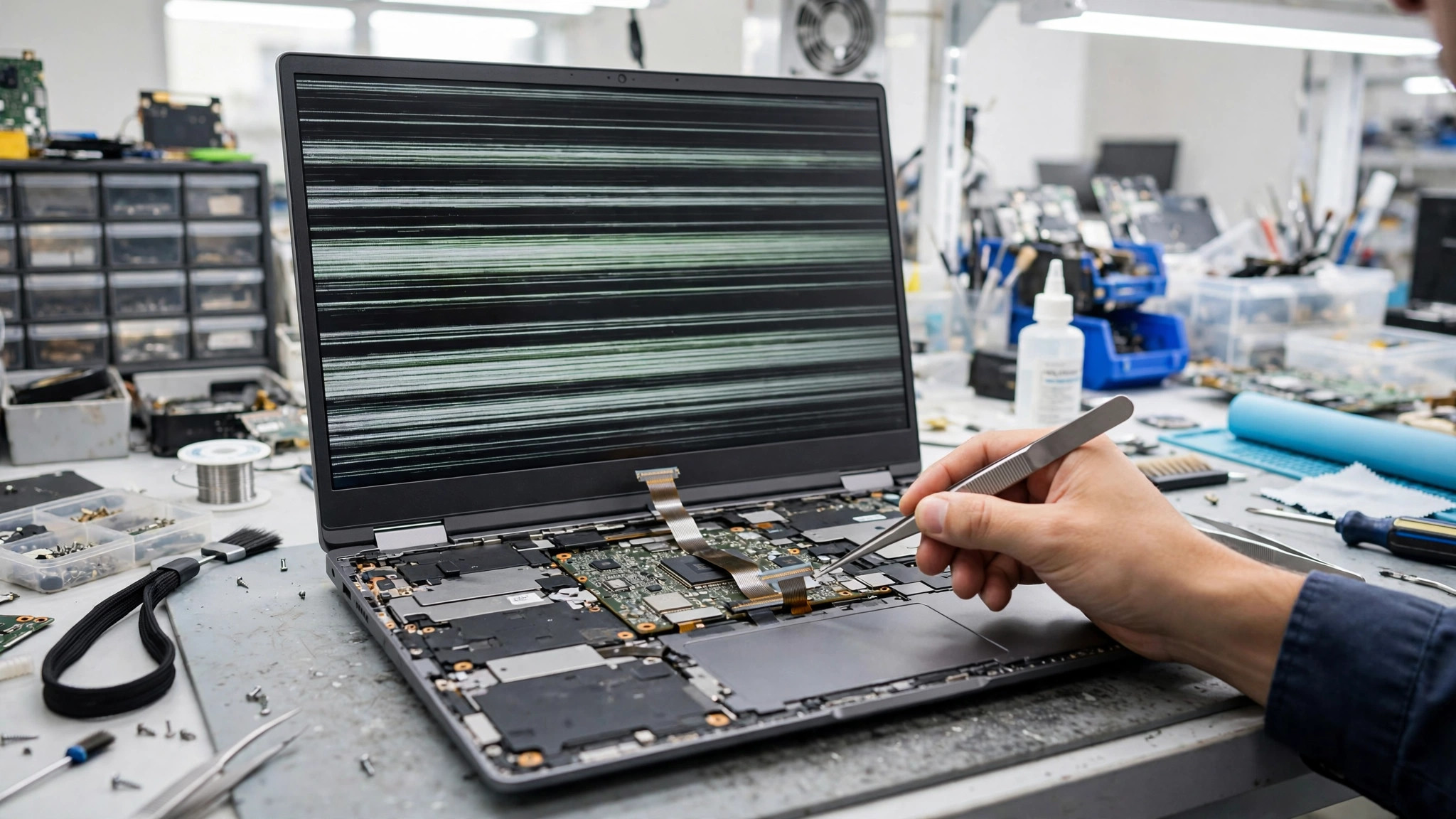
A flickering laptop screen or a screen with horizontal lines can come from three different layers: the display cable, the screen panel itself, or the graphics / motherboard side, including the display driver. The same visible symptom, such as one horizontal line, can come from more than one layer, so do not jump straight to replacing the panel. Work through the tests below, change only one thing at a time, and write down each result. Several tests pointing the same way are worth far more than any single test on its own.
Symptom comparison table
| Symptom | More likely direction | Next test |
|---|---|---|
| Flickering or lines change when you move the screen angle or open and close the lid | Display cable | Hinge angle test, external monitor test |
| A line stays in exactly the same place whatever the screen angle | Screen panel | External monitor test, BIOS / UEFI test, brand self-test |
| Both the built-in screen and an external monitor flicker or show lines | Graphics / motherboard side, or display driver | Task Manager flicker test, safe mode / driver test, BIOS / UEFI test |
| Flickering only in one app | Incompatible app, or driver | Task Manager flicker test |
| Screen very dim, only a faint image visible with a torch held at an angle | Backlight system | Torch backlight test, then inspection |
| Flickering or lines already visible on the BIOS / UEFI screen | Hardware direction, not a Windows driver | External monitor test, hinge angle test |
Layer one: the display cable
The display cable runs from the motherboard, through the hinge, up to the connector behind the panel. Every time the lid opens and closes, the cable bends, and the hinge area takes the most stress. Over time the cable can loosen, wear, get pinched at the hinge, or develop an internal break in a conductor.
Typical cable signs: flickering or lines that come and go; symptoms that change when the screen angle changes; some angles fine and others flickering or black; a line whose position or shape changes with the angle. An external monitor looking normal does not prove the internal cable is fine, because the external output does not travel through the same internal cable path.
Layer two: the screen panel itself
Panel problems cover the panel itself, the backlight system and the panel driver board. A panel fault often shows as a line that stays in a fixed position, does not move with the hinge angle, and appears on the startup logo, the BIOS / UEFI screen and the brand self-test screen alike. Pressure or impact can damage the inside of a panel even when the outer glass shows no obvious crack. A panel fault can also show as uneven brightness, a dim screen, or a faint image that only appears when a torch is held at an angle to the screen. A fixed line caused by panel damage does not go away by updating the driver.
Layer three: graphics / motherboard, including the display driver
Microsoft support documents state that flickering in Windows is commonly caused by a display driver problem or an incompatible app, and that the Task Manager flicker test is the official way to tell those two apart. Dell support documents add that flickering can also come from a wrong refresh rate setting, a software conflict, or a video cable fault — so flickering does not automatically mean the graphics chip has failed. On the hardware side, a fault in the graphics output, the display signal path or the motherboard supply to the panel can also cause flickering or lines. If both the built-in screen and an external monitor show the same problem, this layer is the more likely direction.
Test 1: external monitor test
How to do it:
1. Get an external monitor or TV that you know is working, and a video cable that you know is working, such as HDMI, DisplayPort or USB-C video.
2. Start the laptop and reach the normal desktop.
3. Connect the external monitor, press the Windows key plus P, and choose Duplicate or Extend.
4. With both screens showing a picture, watch both for a while and note whether each one flickers or shows lines.
5. If needed, try another cable or another port on the external monitor, to rule out the cable itself.
How to read the result:
- External monitor normal, only the built-in screen flickers or shows lines: the problem is more likely on the built-in screen side — cable or panel. Dell support documents note that a normal external display points towards a hardware problem with the laptop screen itself.
- Both screens flicker or show lines together: the problem is more likely on the display driver, graphics chip, display output or motherboard side.
- Neither screen shows the problem this time: an intermittent fault may simply not have appeared during the test. That does not prove the fault has gone away; combine this with the other tests and your observation notes.
Test 2: hinge angle test
How to do it:
1. Put the laptop on a steady desk and do not press on the screen panel.
2. While the flickering is happening, move the lid very slowly and gently a little forward and a little back, pausing at each angle for a few seconds and watching whether the flickering changes.
3. Note which angles make the flickering worse, better, disappear or turn into a black screen, and which angles make no difference at all.
4. Keep the movement light. Do not twist the lid, force the hinge, or press on the hinge area.
How to read the result:
- Flickering clearly changes with the angle, appearing at one angle and clearing at another: the cable is the stronger suspect, possibly loose, worn or pinched at the hinge.
- Flickering does not change at all with the angle: this test gives no evidence for a cable fault, but it does not rule the cable out. Move on to the other tests.
Test 3: BIOS / UEFI screen test
How to do it:
1. Restart the laptop.
2. During startup, press the key your brand specifies to enter the BIOS / UEFI setup screen. The key differs by brand — common examples are F2, Del, Esc or F10 — so check your own model documentation.
3. Stay on the BIOS / UEFI screen for a while and watch for flickering or lines.
4. When you leave, do not change any setting. If you are unsure how to exit, choose to leave without saving.
How to read the result:
- Flickering or lines also appear on the BIOS / UEFI screen: the hardware direction is more likely, because the Windows display driver has not loaded at this stage.
- BIOS / UEFI screen looks normal, and flickering only starts after Windows loads: the Windows display driver, an app or a system setting is the more likely direction, although hardware cannot be fully ruled out.
Test 4: safe mode / driver test (Windows)
How to do it:
Need a laptop repair expert?
Free diagnosis · Transparent pricing · No fix, no fee · 180-day warranty
1. Back up important files first (see the self-help section below).
2. Enter safe mode. The usual path is Settings, System, Recovery, Advanced startup, Restart, then Troubleshoot, Advanced options, Startup Settings, Restart, and then the key for safe mode. The exact path depends on the system version.
3. In safe mode, watch for a while and note whether the flickering or lines are still there.
4. If needed, uninstall the display driver in safe mode first, then restart and see how the machine behaves on the basic display driver. The steps are: Device Manager, Display adapters, right-click, Properties, Driver, Uninstall device. Microsoft support documents describe this uninstall step.
5. Afterwards, install the driver for your exact model from the laptop brand support page or the graphics chip maker's official channel. Do not download drivers from unknown sites.
How to read the result:
- Flickering disappears in safe mode: a full display driver, a third-party app or a startup item is the more likely cause. Lenovo support documents describe uninstalling the chipset and display drivers in safe mode and reinstalling the brand official drivers in Windows as an official path.
- Flickering is still there in safe mode: the hardware direction is more likely, or the basic display output itself has a problem. Do not rely on safe mode alone; combine it with the BIOS / UEFI and external monitor tests.
Test 5: Task Manager flicker test (Windows)
How to do it:
1. While the flickering is happening, press Ctrl + Shift + Esc to open Task Manager. If that does not work, press Ctrl + Alt + Delete and choose Task Manager.
2. Keep the Task Manager window in the foreground and watch whether Task Manager itself flickers, while also watching the rest of the desktop.
How to read the result:
- Task Manager flickers together with the rest of the screen: the display driver is the more likely direction. Source: Microsoft support documents.
- Task Manager does not flicker, but the rest of the screen does: an incompatible app is the more likely direction. Source: Microsoft support documents.
Test 6: refresh rate and resolution check
How to do it:
1. Right-click the desktop and open Display settings.
2. Check whether the resolution is set to the recommended resolution. Dell support documents advise checking that the resolution matches the recommended resolution.
3. Open the advanced display settings and check the refresh rate. Dell support documents advise choosing a refresh rate suited to that laptop screen. If the refresh rate was changed before, set it back to the recommended setting and watch whether the flickering changes.
4. Also check the brightness setting, and confirm that the brightness has not been set to the lowest level or left jumping because of an automatic brightness setting. Dell support documents include a brightness check step.
How to read the result:
- Flickering disappears after returning to the recommended resolution or refresh rate: a mismatched setting is the more likely cause.
- Flickering stays after returning to the recommended settings: settings are not the main cause. Continue with the other tests.
Extra test: torch backlight test (only when the screen is very dim)
How to do it:
1. Put the laptop in a dim room.
2. If the screen has gone very dim, almost unreadable, shine a torch at an angle across the screen surface.
3. Look at the lit area for a faint image, such as desktop icons or a window outline.
How to read the result:
- A faint image is visible under the torch: the panel may still be producing an image, but the backlight system is not working normally.
- No image at all under the torch: this does not prove a backlight fault. It could be the panel, the cable, the display output or a startup problem. Combine this with the external monitor and BIOS tests.
Extra test: brand built-in screen self-test (only if your model provides one)
How to do it (Dell example only):
1. Shut the laptop down.
2. Hold the D key, then press the power button, and release the D key once colours appear on the screen.
3. The screen cycles through colours. Watch for lines, flickering, spots or areas that do not display.
4. Press Esc or hold the power button to exit the test.
How to read the result:
- Lines or flickering also appear on the self-test colour screens: the panel or related hardware direction is more likely. Dell support documents advise contacting technical support if the built-in self-test shows a display problem.
- Self-test colours look normal: the basic panel display is more likely fine, and the problem is more likely in the graphics side, the display settings or the driver. Dell support documents state that a normal screen in this test points away from the LCD itself.
Combined reading table
| Test combination | More likely direction |
|---|---|
| Angle changes the symptom, external monitor normal, BIOS screen also flickers | Cable is the strongest suspect, panel second |
| Angle makes no difference, line position fixed, BIOS screen also flickers, external monitor normal, self-test also shows the line | Panel is the strongest suspect |
| External monitor also flickers, BIOS screen also flickers, angle makes no difference | Graphics / motherboard suspicion rises |
| BIOS screen normal, safe mode normal, normal mode flickers, Task Manager flickers with the rest | Display driver is the strongest suspect |
| BIOS screen normal, Task Manager does not flicker, rest of screen flickers, only one app shows it | Incompatible app is the strongest suspect |
| Changing the refresh rate makes an obvious difference | Refresh rate / setting mismatch suspicion rises, but other hardware factors still need ruling out |
Self-help steps (no disassembly needed)
Work in this order, and watch the result after each step before moving on:
1. Restart fully. Do not just close the lid and open it again. A restart can clear a one-off problem. Source: Microsoft support documents.
2. Record the problem. Use another phone to film the flickering or lines, and note when it first appeared, what triggers it and where the line sits. The clip is very useful later for inspection or advice. Dell support documents suggest filming what you see during testing.
3. Back up important files. Before any driver change, system update or repair, back up first. If the flickering makes the laptop hard to use, connect an external monitor to do the backup, or back up in safe mode. Do not do a system reset or format before backing up.
4. Do the tests above, one variable at a time. Do not update the driver, change the refresh rate, move the lid and connect an external monitor all at once, or you will not know which change made the difference.
5. Check the external cable and external devices. If you use an external monitor, check the cable for looseness, bending or damage, and try another cable you know is working. Unplug external devices you do not need, to rule out external interference.
6. Check system updates and apps. Install available system updates. If the flickering only appears in one app, update that app, or stop using it for a while and see whether the flickering goes away. Microsoft support documents note that if Task Manager does not flicker but the rest of the screen does, an incompatible app is the likely cause, and that app should be updated or removed. Do not remove several apps at once.
7. Update or roll back the display driver. If the flickering started after a Windows update or a driver update, rolling back the display driver is worth considering. Microsoft support documents state that a display driver can be rolled back if Windows Update recently updated a device, and that updating or uninstalling the driver can also be tried. Use the driver from the laptop brand official support page, or the graphics chip maker's official channel, for your exact model. Lenovo support documents advise downloading the latest chipset and display drivers from the Lenovo support site.
8. Check refresh rate and resolution. Set them back to the recommended settings, as in Test 6.
9. Use the brand built-in diagnostic. For example, the Dell LCD built-in self-test, the HP PC Hardware Diagnostics display test, or your own brand's equivalent. Follow the brand's official instructions.
Things not to do
- Do not open the machine yourself to touch the cable or panel. Incorrect disassembly can damage the cable or related parts and make the fault harder to judge. Opening the panel yourself can cause further damage, and it is hard to restore once opened.
- Do not press hard on the screen, bend the hinge, or open and close the lid fast and repeatedly to "test it back to normal". These actions can make cable or panel damage worse.
- Do not change BIOS / UEFI settings you do not understand. Changing the wrong display or startup setting can make the problem harder to tell apart. If you are unsure how to exit, choose to leave without saving.
- Do not download drivers or tools from unofficial sources. Use only the laptop brand official site, the official system update, or the graphics chip maker's official site.
- Do not make system changes before backing up. Removing a driver, entering safe mode or doing a system restore can all interrupt your work.
When to send it for repair
Arrange an inspection instead of repeating software attempts if any of these apply:
- The BIOS / UEFI screen also flickers or shows lines.
- Safe mode still flickers, and driver updates or rollbacks make no difference.
- The external monitor is normal, but the built-in screen keeps flickering or shows a fixed line.
- The hinge angle test can reproduce the flickering, and it is getting easier to trigger.
- The screen shows a fixed line, a dark patch, abnormal colours or clearly uneven brightness.
- The torch test shows a faint image, pointing to a backlight system problem.
- The laptop was dropped, pressed, soaked or hit on the lid before the flickering or lines appeared.
- The flickering has gone from occasional to constant, or from slight to severe, and now affects normal use.
- Other abnormal signs appear with it, such as startup problems or a burning smell. If there is a burning smell, stop using the machine at once, do not switch it on again, do not charge it, and send it for inspection.
- You are unsure of the cause, or unfamiliar with BIOS, safe mode and similar steps. Let a technician work out the cause.
- Back up important files.
- Write down when the symptoms appeared, what triggers them, and the test results, for example the external monitor test, the hinge angle test and the BIOS test.
- Write down the laptop brand and model, the operating system version, whether the driver or system was recently updated, and whether the machine was dropped or pressed.
- Do not open the machine yourself, so the fault does not get harder to judge or pick up extra damage.
What happens if you leave it
- Cable wear: a cable fault may only show at some angles at first. If the lid keeps opening and closing or stays under pressure, the worn area can spread, and the flickering can go from occasional to constant, then to a long black screen or no display. This describes the direction of change only. Not every case develops this way; the actual outcome depends on inspection.
- Panel damage spreading: damage inside a panel from pressure or impact does not repair itself. If the screen keeps being pressed, the line area can spread, or uneven brightness and colour problems can follow. A fixed line does not disappear by updating the driver.
- Backlight problems: if a backlight fault comes from an unstable supply or a loose connector, the flickering can go from occasional to frequent, and the picture can go from sometimes dim to persistently dim. The torch test only helps with the direction; it cannot predict how fast things will get worse.
- Graphics / motherboard direction: if the cause is a driver or setting, leaving it may not make the hardware worse at once, but it keeps hurting day-to-day use. If the cause is a hardware signal path, waiting will not make the hardware recover on its own. The actual outcome depends on inspection. This article makes no specific promise about how fast hardware will get worse.
- File risk: a screen problem on its own does not mean files are already lost. But if the fault gets worse until the machine cannot be used normally, backing up gets much harder. So back up early, while you can still see the screen, instead of waiting until there is no picture at all.
Pricing: the only prices we can state here
| Item | Price |
|---|---|
| Screen | HK$1,280 up |
| Main board chip-level | HK$880 up |
| Cable replacement | Quoted in writing after inspection |
| Graphics / motherboard display-related repair | Quoted in writing after inspection |
FAQ
Q1: The external monitor looks normal. Does that mean the graphics side is fine?
A1: No. A normal external monitor only shows that the external output path is working. The external output does not travel through the same internal cable as the built-in screen, so a normal external picture cannot prove the internal cable is fine. It points the problem towards the built-in screen side — cable or panel — but an inspection is still needed to separate the two.
Q2: There is a horizontal line, so does the panel have to be replaced?
A2: No. A cable fault can also cause lines, flickering, colour bands or intermittent black screens. The hinge angle test is the key separator: a cable problem usually changes with the angle, while a panel problem usually stays in a fixed position. Do not decide on a panel replacement from the line alone; use the tests to separate cable from panel.
Q3: The BIOS screen also flickers. Does that mean hardware has failed?
A3: It makes the hardware direction more likely, because the Windows display driver has not loaded at the BIOS stage. But it does not say which hardware layer it is. Combine the BIOS result with the external monitor test and the hinge angle test before deciding which layer is the suspect.
Q4: The flickering comes and goes. Can I just leave it?
A4: Intermittent flickering is common with cable faults and loose connections, and one normal test does not mean the fault has gone away. Back up first, keep a note of when it appears and what triggers it, and film it with another phone. If the flickering gets more frequent, turns into a fixed line, or the screen goes very dim, arrange an inspection rather than waiting until there is no picture at all.
Need Professional Laptop Repair?
Laptop King has 15+ years of repair experience in Shek Mun, Sha Tin. Free diagnosis, transparent pricing, no fix no fee. 180-day warranty for your peace of mind.