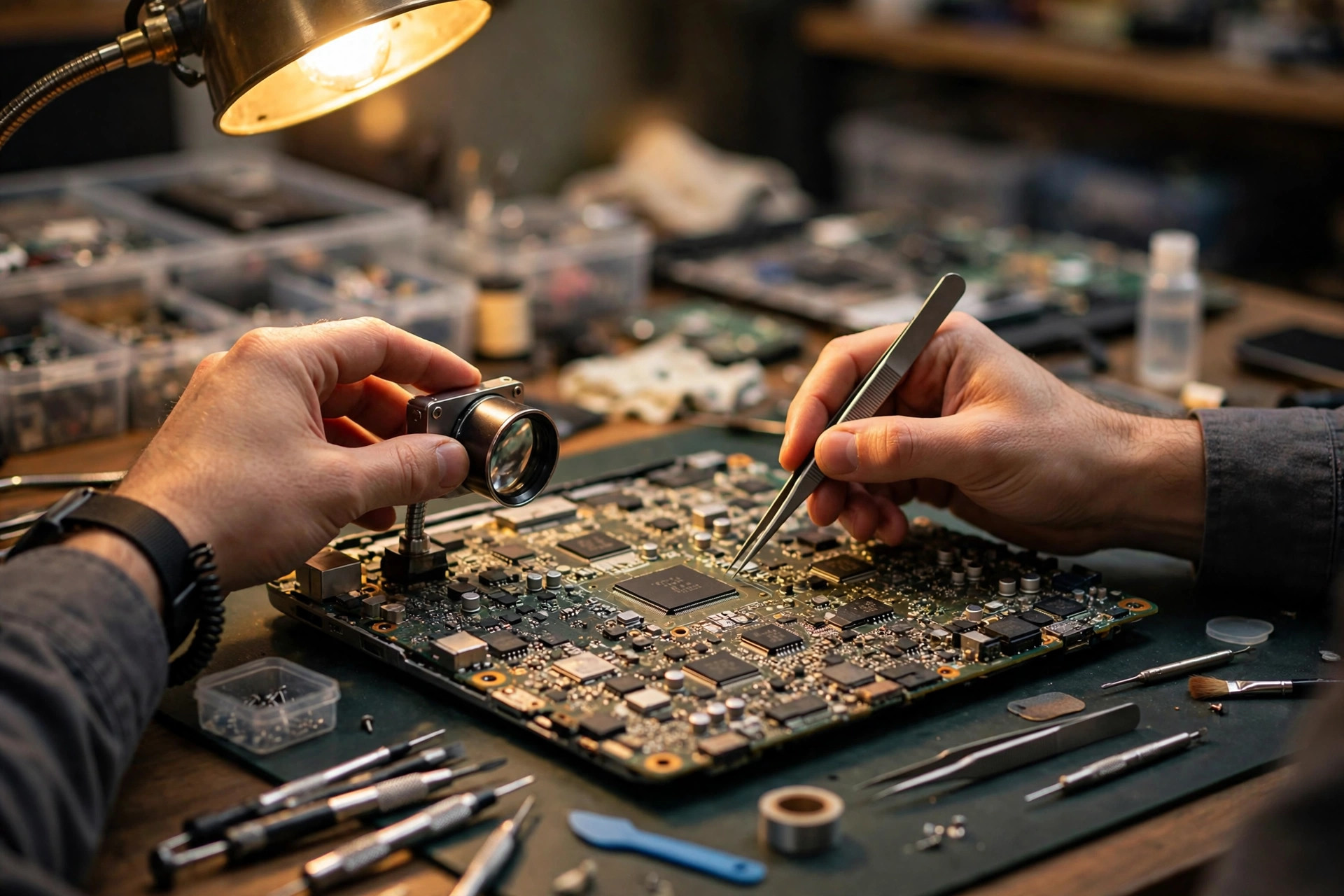
After a restart, instead of the Windows sign-in screen, you see a blue screen asking for a 48-digit number. Many users assume Windows is broken or the drive has failed, and reach for a reinstall. In many cases, neither Windows nor the drive is at fault. What has broken is the boot trust chain: firmware, TPM, Secure Boot keys and BitLocker protectors no longer agree on what the boot chain should look like. This guide covers that chain only: how the TPM measures and seals, how the Secure Boot key hierarchy works, how BitLocker protectors differ, how BIOS updates and board replacements trigger recovery, and how layered exclusion and data preservation should be ordered. Fan, thermal, battery and screen faults are outside its scope and appear only as contrasts. Any internal work involving the TPM, Secure Boot or BitLocker belongs to professional diagnostics; what readers can do is record what they see from outside and check where their recovery key is backed up, as listed at the end.
What the TPM actually is: not a password, but a ruler for boot
The Trusted Platform Module (TPM) is a security function, implemented as hardware or firmware, that stores keys, measures the boot process, and releases a sealed key only when the measurements match expectations. It does not remember your password. It remembers what the boot chain looked like the last time it booted successfully. At every boot, firmware and boot components hash themselves into Platform Configuration Registers (PCRs) inside the TPM. PCRs can only be extended, never directly overwritten: each new measurement is hashed together with the existing value to produce the new register value. A PCR is therefore not a settings table that can be edited at will, but a cryptographic fingerprint of the boot process.
BitLocker uses that fingerprint to decide whether to unlock automatically. The volume encryption key is sealed in the TPM together with a snapshot of measurements taken when sealing happened. Only when the current boot measurements match that snapshot does the TPM unseal the key and let Windows start without intervention. If any link changes, the TPM withholds the key and the system falls into recovery mode, asking for the 48-digit recovery key. That is not a side effect of failure. It is the design: when measurements disagree, the system treats the boot chain as possibly tampered with and stops to demand extra proof rather than unlocking silently.
A natural question follows: why did the machine work yesterday and lock today? The answer usually lies inside the boot chain rather than inside Windows: a BIOS update, a Secure Boot database update, a boot order change, or a firmware reset to defaults can each change a measurement. Grasping that distinction is the dividing line between "Windows is broken" and "the trust chain is broken".
Discrete TPM versus firmware TPM: different homes, different consequences
Modern laptops implement the TPM in two ways. The first is a discrete TPM (dTPM): a dedicated chip on the motherboard that communicates over a hardware bus. The second is a firmware TPM running inside processor or chipset firmware: Intel calls it Platform Trust Technology (PTT), AMD calls it firmware TPM (fTPM). Both satisfy the Windows 11 requirement and are equivalent in security model when configured correctly, but they live in different places, and that fact drives the whole board-replacement problem.
| Item | Discrete TPM (dTPM) | Firmware TPM (Intel PTT / AMD fTPM) |
|---|---|---|
| Location | Dedicated chip on the motherboard | Inside processor or chipset firmware |
| Follows which hardware | The motherboard | The processor or chipset firmware |
| Common BIOS names | TPM Device, Security Chip, Security Device Support | Intel PTT, AMD fTPM, AMD CPU fTPM, PSP fTPM |
| After a board replacement | The new board's chip holds none of the old keys | If the processor is replaced too, the old binding is likewise lost; if only the board changes, the outcome still depends on firmware settings and measurements |
| Wrong setting selected | Selecting dTPM with no discrete module installed leaves Windows seeing no TPM at all | Switching the firmware TPM off likewise leaves Windows seeing no TPM |
| Common misunderstanding | Adding a module inherits the old keys | A processor-bound TPM travels with the drive |
A second common scenario is a wrong TPM device selection in firmware setup: a board offering both fTPM/PTT and dTPM options has the non-existent dTPM option selected, so Windows reports that no compatible TPM can be found. That is not a burnt TPM chip. It is a mismatch between the selected device and the hardware actually present. Layered exclusion therefore starts by confirming which TPM implementation is currently selected before judging whether the measurement chain is intact.
PCRs: every link of the boot chain has a register remembering it
There are 24 PCRs, numbered 0 to 23, each measuring a different part of the boot chain. For laptop BitLocker, the relevant registers are as follows (PCR 1 and PCR 3 are included as contrast rows). The table below assumes native UEFI boot; firmware booting in compatibility mode stores measurements differently and is not covered here.
| PCR | What it measures | Common causes of change |
|---|---|---|
| PCR 0 | Core system firmware executable code | BIOS/UEFI firmware update, firmware version change |
| PCR 1 | Core system firmware data | Firmware configuration data change |
| PCR 2 | Extended or pluggable executable code | Add-in card, option firmware module, third-party UEFI driver change |
| PCR 3 | Extended or pluggable firmware data | Add-in firmware data change |
| PCR 4 | Boot manager | Windows Boot Manager update, boot order change, boot file change |
| PCR 7 | Secure Boot state | Secure Boot on/off change, Secure Boot policy and key database change |
| PCR 11 | BitLocker access control | BitLocker protector state change; must be included in the validation profile |
A second contrast concerns the two shapes of the default validation profile. On PCs without Secure Boot State (PCR 7) support, BitLocker by default protects the key against changes to PCR 0, PCR 2, PCR 4 and PCR 11. When PCR 7 support exists, the default becomes PCR 7 and PCR 11. In other words, on a Secure Boot machine the focus of trust shifts from measuring firmware and the boot manager piece by piece to asking whether the Secure Boot state itself remains trustworthy. Enterprise group policy can rewrite this default list, tightening or loosening sensitivity to platform changes. Two outwardly identical laptops can therefore react differently to the same BIOS update, simply because their validation profiles differ.
| Validation profile situation | PCRs included at sealing | Sensitivity to change |
|---|---|---|
| Native UEFI without PCR 7 support | PCR 0, 2, 4, 11 | Any change to firmware, extension code or boot manager triggers recovery |
| Native UEFI with PCR 7 support | PCR 7, 11 | A Secure Boot state change triggers recovery; firmware detail changes may be covered by Secure Boot policy |
| Enterprise policy customised | As specified by policy, added or removed | Tightening triggers more often, loosening lets more through; both carry a cost |
| Legacy compatibility boot | Measurements stored differently; the table above does not apply directly | Judge by the individual model's firmware settings |
The Secure Boot key chain: PK, KEK, db and dbx each have one job
Secure Boot is part of the UEFI standard, not a single vendor's invention. Before executing any boot software, firmware verifies its signature against built-in trust keys; an image whose signature does not verify, or has been revoked, is not loaded. Trust comes from a set of keys and databases stored in firmware non-volatile memory.
| Level | Full name | Role | Who can change it |
|---|---|---|---|
| PK | Platform Key | Top of the trust chain; decides who may manage the whole Secure Boot key hierarchy | The holder of the platform private key, or a physically present user through firmware menus |
| KEK | Key Exchange Key | Authorises updates to db and dbx; the management bridge between firmware and operating systems | Through PK authority, or through an update signed by an existing KEK |
| db | Signature Database | Lists trusted boot image signers or image hashes | Through a KEK-signed update |
| dbx | Forbidden Signature Database | Lists signatures, certificates or image hashes no longer trusted; a blocklist | Through a KEK-signed update |
Why can a machine with Secure Boot still on lock itself out? Because Secure Boot answers only whether boot software is trusted, while BitLocker answers whether boot measurements match the sealing snapshot. Secure Boot state itself is measured into PCR 7, so any change to the Secure Boot switch, key databases or policy changes PCR 7 and can trigger BitLocker recovery. The two are partners, not the same gate: Secure Boot controls admission, TPM measurement controls consistency, BitLocker controls unlocking.
dbx revocation updates and the certificate transition: two real trust-chain events
The dbx is not a fixed table. It is a revocation list that must keep being updated. On 9 August 2022, KB5012170 arrived as a Secure Boot DBX security update: it added signatures of known vulnerable UEFI modules to the DBX so that a Secure Boot security-feature bypass could not be exploited to load untrusted software. The vulnerabilities included the GRUB security-feature bypass guidance and three bootloader bypass issues. After release, some devices showed BitLocker recovery prompts or installation errors, and vendor documentation recorded a known issue: if BitLocker group policy for the native UEFI TPM platform validation profile was enabled with PCR 7 selected by policy, the update might fail to install. The lesson is not to avoid updates. It is that any change to the boot chain must be preceded by confirming where the recovery key is backed up, or an ordinary security update becomes a data crisis.
Need a laptop repair expert?
Free diagnosis · Transparent pricing · No fix, no fee · 180-day warranty
The second event is the certificate transition. Microsoft's Secure Boot certificates were first issued in 2011 and began expiring in 2026: Microsoft Corporation KEK CA 2011 expired on 24 June 2026 and is replaced by Microsoft Corporation KEK 2K CA 2023; Microsoft UEFI CA 2011 expired on 27 June 2026 and is replaced by Microsoft UEFI CA 2023; Microsoft Windows Production PCA 2011 expired on 19 October 2026. Expiry alone does not mean an old machine stops booting at once, but it does mean the authorising certificates at the top of the chain must be renewed, or future db and dbx updates can no longer be authorised through the old certificates. For laptop owners the practical meaning is one sentence long: before any boot-chain update, confirm where the recovery key lives, not after.
| Trust-chain event | What changed | Possible symptom |
|---|---|---|
| BIOS/UEFI firmware update | PCR 0, PCR 1 | BitLocker recovery prompt |
| Secure Boot switch change | PCR 7 | BitLocker recovery prompt; Windows Hello credentials may need re-enrolment |
| dbx revocation update (for example KB5012170) | dbx contents, PCR 7 related policy | Recovery prompt, or the update itself failing to install |
| Certificate transition (2011 to 2023) | Certificates in KEK and db | The authorisation basis for future db/dbx updates changes |
| Boot order or boot manager change | PCR 4 | Recovery prompt |
| Board or TPM replacement | Whole measurement set and key ownership | Recovery prompt, and the old TPM protector no longer matches the new hardware |
BitLocker protectors: four doors, four different keys
A BitLocker protector is a mechanism that guards the volume encryption key. One volume can carry several protectors at once, but which door is used at boot decides what proof the user must supply.
| Protector | What boot requires | Advantage | Risk and cost |
|---|---|---|---|
| TPM | TPM measurements matching the sealing snapshot | Fully automatic boot; the user notices nothing | Any measurement change sends the machine straight to recovery, with no grace period |
| TPM plus PIN | Matching TPM measurements, plus a startup PIN | A stolen machine alone is not enough to unlock | Repeated wrong PIN entries can trigger recovery; a forgotten PIN loses one whole door |
| Recovery key (48-digit numerical password) | The 48-digit recovery key | The last resort when measurements fail | The key must have been backed up in advance; it cannot be recreated afterwards |
| Password protector (more common on non-system volumes) | A user-chosen password | Independent of TPM measurements | A forgotten password locks the volume just as firmly, unless another backup exists |
Where the recovery key is backed up decides the fate of the machine on the day it locks. The following list is a checklist to work through one item at a time, not a ranking:
| Backup location | Applies when | What to check |
|---|---|---|
| Personal Microsoft account | A personal PC signed in with a Microsoft account | Confirm the account is the same one used when encryption was enabled; old and new accounts are frequently confused |
| Microsoft Entra ID (formerly Azure AD) | Company or school devices | Retrieval requires the organisation's administrator; an individual cannot retrieve another organisation's key |
| Traditional Active Directory | Domain-joined company PCs | Via the BitLocker Recovery Password Viewer or the computer object's recovery tab; administrator rights required |
| Intune / Company Portal | Intune-managed devices | Via the device page's get-recovery-key function |
| Printout | A backup printed when encryption was enabled | Often filed with warranty papers or manuals; worth checking paper files before assuming loss |
| USB device or text file | A backup saved when encryption was enabled | Files are usually named with BitLocker Recovery Key wording and can be searched from another computer |
| No backup anywhere | A local account with no backup ever made | Vendor documentation is explicit: even Microsoft Support cannot retrieve or recreate it; the remaining path is generally a reset or clean install, which erases the encrypted drive |
Layered exclusion: firmware settings, TPM state, key backup, hardware fault
TPM and Secure Boot failures share symptoms: the blue recovery screen, a startup PIN that no longer works, Windows Hello credentials that stop working, a TPM that cannot be found, or an abnormal Secure Boot state can each come from several layers. Layered exclusion narrows the range in order, so that the most dangerous layer is never touched before the key backup is confirmed. Layers 1 and 2 are read-only checks; any setting correction must wait until layer 3 key confirmation, and is then carried out by the diagnostic session.
| Layer | What diagnostics check | Typical picture if this layer is at fault |
|---|---|---|
| Layer 1: BIOS/UEFI settings | Native UEFI boot mode, Secure Boot switch state, TPM device selection (fTPM/PTT or dTPM), whether settings were reset to defaults | A settings reset changes PCR 7 or the TPM device selection, triggering recovery or a vanished TPM |
| Layer 2: TPM state | Whether a TPM exists, whether its specification version is 2.0, whether it is ready for use, whether the measurement chain is complete | No TPM found, wrong specification, interrupted measurements, automatic unsealing impossible |
| Layer 3: Key backup | Whether the recovery key backup location is confirmed, whether the Key ID matches a backed-up key, whether a company device needs its organisation administrator | Key cannot be found, so every later step is constrained by data risk |
| Layer 4: Hardware fault | Board, processor, TPM chip, firmware storage, flex cables and solder joints | Intermittent TPM disappearance, boot-time detection that comes and goes, symptoms that move after a part swap |
Why not simply try clearing the TPM and see if that helps? Because clearing the TPM is an irreversible key-destruction operation, not a diagnostic tool. Afterwards, the old TPM key bindings are gone and Windows Hello credentials fail with them; if BitLocker is still enabled and the recovery key is not in hand, the drive is locked. Trying it speculatively is equivalent to removing the original lock cylinder before confirming that a spare key exists. The value of layered exclusion is precisely that it pushes such irreversible steps to the end, and only after key backup is confirmed.
Hong Kong situations: discovering the lock only after a board swap is a common data crisis
Hong Kong repair realities make TPM problems harder than textbooks suggest. The first situation is a board replacement after which the customer discovers the lock only at home. The replacement itself may be entirely successful and the machine may boot, but the BitLocker sealing belongs to the old board, so the blue recovery screen appears when the customer gets home, while the recovery key sits on another device or under an old account. Prevention lies not in board-swap technique but in key confirmation before the swap: note the Key ID, confirm the backup location and confirm the sign-in account, so the first boot after repair does not become a scramble.
The second situation is a Microsoft account that yields no key. Common causes include a local account at boot time but a Microsoft account at encryption time; setup done by a family member or colleague under their account; an account that has since been disabled or cannot be signed into; or a second-hand device whose previous owner's key has nothing to do with the current user. These are account-ownership problems, not technical faults, and diagnostics can only help match Key IDs against the backup checklist; nobody can retrieve another person's account key on the user's behalf.
The third situation is the company machine. Keys for company or school devices are often held in Entra ID, Active Directory or Intune, and will never appear in a personal account. If an employee sends the machine for repair without telling the organisation administrator first, neither the shop nor the user can obtain the key and the machine stalls at the recovery screen. The correct order is to check the key through the organisation first, then arrange repair; reversing the order costs working time and data safety.
The fourth situation is humidity, commuting knocks and solder or flex-cable trouble. Hong Kong's average relative humidity is high, and prolonged dampness can accelerate oxidation and contamination of contact surfaces; daily commuting vibration and knocks can loosen board solder joints, flex connectors and TPM-related wiring into intermittent contact. Intermittent faults are the hardest to diagnose: the TPM is detected today and gone tomorrow, fine on a desk and failing after a bag journey. Such symptoms should not be blamed directly on Windows or Secure Boot settings, but checked at hardware layer by diagnostics. For diagnostic flow, see the diagnostic service; for fee structure, see the pricing reference.
| Hong Kong situation | Surface symptom | Real risk | What to record before repair |
|---|---|---|---|
| Lock discovered only after a board swap | Blue screen asking for the 48-digit key | Backup location never confirmed, so the machine cannot be unlocked at once | Key ID, before-and-after changes, backup account |
| Microsoft account yields no key | No matching key in the account | Wrong account ownership, or encryption under a local account | Sign-in account, who set the machine up, old-account clues |
| Company machine under Intune or AD | No key in any personal account | Key lives in the organisation directory, unreachable personally | Organisation name, administrator contact route, device identifier |
| Humidity-driven contact oxidation | Intermittent TPM disappearance | Contact trouble misread as a settings problem | Frequency, environmental changes, whether movement matters |
| Commuting knocks, solder or flex trouble | Works sometimes, fails after movement | Intermittent hardware fault misread as a software problem | Knock history, link between symptoms and movement, whether it is stable at rest |
Common misdiagnosis traps: four fixes that make things worse
| Misdiagnosis trap | What the user assumes | What actually happens |
|---|---|---|
| Assuming Windows is broken and reinstalling | A reinstall fixes every boot problem | Data on the encrypted drive is erased during reinstall; the trust-chain problem itself was never diagnosed and may greet the user again |
| Clearing the TPM with no key backup | Clearing resets everything to health | Old key bindings die at once, Windows Hello credentials fail; if BitLocker is still on and the key is not in hand, the drive is locked |
| Switching Secure Boot off as a fix | Turning it off stops the locking | The Secure Boot state change itself alters PCR 7 and may trigger recovery again, while weakening boot admission protection so untrusted boot software can load |
| Treating TPM clearing as a cure-all | One clear restores factory health | Clearing removes keys inside the TPM only; it repairs no solder joint, flex cable, firmware fault or key-backup gap, while raising data risk |
Another frequent misreading is treating intermittent TPM disappearance as a Windows update problem. Updates can indeed change measurements, but intermittence (sometimes present, sometimes absent, worse after movement, fine at rest) points more strongly at the hardware layer: solder joints, flex cables, firmware storage or the TPM chip's own contacts. The distinguishing feature is not the symptom name but the symptom pattern: update-triggered recovery typically appears at the first restart after the update and then behaves consistently every boot; intermittent hardware faults behave inconsistently and correlate with movement, temperature or humidity. Recording the pattern is worth more than remembering the symptom name.
Repair, replace or upgrade decision framework
| Situation | Direction | Reason |
|---|---|---|
| Single recovery prompt after a BIOS or dbx update, key backup confirmed | Unlock with the key, then let diagnostics reseal protectors against the new measurements | The measurement change was an expected update; the trust chain itself is intact |
| Settings reset to defaults, wrong TPM device selected | Let diagnostics match settings against the hardware actually present | A device-selection error is not a chip fault; replacing parts does not solve it |
| Recovery prompt after a board swap, key backup confirmed | Unlock with the key, then let diagnostics create a new TPM protector for the new board | The old binding belongs to the old board; a new binding must be created |
| Recovery prompt after a board swap, key backup not confirmed | Stop and work through the backup checklist first; do not rush to clear the TPM or reinstall | Before any irreversible step, the key question must be settled |
| Intermittent TPM disappearance linked to movement or knocks | Hardware-layer diagnostics of solder joints, flex cables and board wiring | The symptom pattern points at hardware contact trouble, which settings cannot repair |
| Company machine with keys in the organisation directory | Obtain the key through the organisation administrator first, then arrange repair | A personal account will never contain an organisation-managed key |
| Old model, board repaired several times | Judge by diagnostic results; do not assume an upgrade helps | The trust-chain cause may be hardware lifespan, which an upgrade may not improve |
| Tempted to switch Secure Boot off or clear the TPM for one boot | Not recommended; leave the decision to diagnostics | Both change the trust chain or destroy key bindings, at a cost above one boot |
What to record before repair
Readers should not handle internal TPM, Secure Boot or BitLocker settings themselves, but they can record the following to help professional layered diagnosis: photograph the full text of the recovery screen, including the first eight digits of the Key ID; note what changed before the problem appeared, such as a BIOS update, Windows update, board or part replacement, boot order change or settings reset; note whether the symptom appears at every boot or intermittently, and whether it relates to movement, knocks or a humid environment; confirm possible recovery key backup locations, including a personal Microsoft account, a company or school organisation, a printout, a USB device or a text file, and note which accounts have ever signed into the machine; note whether the device is a company or school machine and how to contact its organisation administrator. For diagnostic arrangements, see the diagnostic service; for fee structure, see the pricing reference.
Data preservation first: questions to answer before any TPM clear or reinstall
The data-preservation order has a single iron rule: keys first, operations second. Before any operation that could change TPM state or erase a drive, the following questions must be answered with a concrete backup location, not with "probably" or "maybe":
| Must-answer question | If there is no definite answer |
|---|---|
| In which account or organisation directory is the recovery key held? | Stop and work through the backup checklist; do not touch the TPM first |
| Does the recovery screen Key ID match a backed-up key? | Match on the first eight digits of the Key ID; do not guess from memory |
| Is the device a company or school machine? | Check through the organisation administrator first; do not assume a personal account holds the key |
| What last changed the boot chain (update, board swap, part swap, settings reset)? | Record the before-and-after contrast for diagnostics to judge the measurement source |
| Is there an independent backup of the data elsewhere? | If not, tell diagnostics how important the data is before any drive-erasing step is considered |
Conclusion
TPM and Secure Boot failures are rarely a single broken part: a firmware update changes PCR 0, a Secure Boot state change changes PCR 7, a boot manager change changes PCR 4, a board swap changes the whole key ownership, a dbx update changes the revocation list, a certificate transition changes the authorisation basis, and humidity and knocks change hardware contact state. The safest order is always to record the recovery screen and the before-and-after contrast first, confirm the key backup location second, and only then let diagnostics narrow the range across firmware settings, TPM state, key backup and hardware fault. For diagnostic or fee questions, see the diagnostic service and the pricing reference, and rely on a written quotation after diagnostics.
Shop information: Room 1209, Daly Plaza, Shek Mun, Shatin, telephone +852 2186 8010, WhatsApp +852 6558 6806, business hours 12:00–19:00.
If the machine already shows these symptoms, first photograph the recovery screen text and Key ID, then consult the diagnostic service and check the pricing reference for fee structure.
Disclaimer: this article is for reference only; actual circumstances are subject to professional diagnostic results. Different models differ in structure and manufacturer specifications, and handling should follow the written quotation after diagnostics and professional advice.
Need Professional Laptop Repair?
Laptop King has 15+ years of repair experience in Shek Mun, Sha Tin. Free diagnosis, transparent pricing, no fix no fee. 180-day warranty for your peace of mind.