📌 Key Takeaways
- •Burnt power components (MOSFETs, capacitors) or a single failed VRAM chip → usually worth board-level repair; the parts are cheap relative to a board swap
- •GPU core itself dead (die damage) → not repairable; the board must be replaced or the machine retired
- •Cracked BGA solder joints with a healthy chip → reball is a reasonable option, especially on high-value gaming machines
- •Physical board damage (cracked PCB, large areas of torn pads) → usually needs a board replacement
- •Low residual value or an obsolete model → a new machine may be the better deal
Gaming Laptop Repair: Heat, GPU, and Power — the Complete Troubleshooting Guide
Gaming laptops live a harder life than office machines. A business ultrabook idles most of the day; a gaming laptop runs near full load for hours, pushing CPU and GPU to their limits inside a thin chassis. That workload explains why gaming laptops (ASUS ROG, Lenovo Legion, Acer Nitro and similar performance lines) develop a characteristic set of failures: thermal problems, GPU instability, and power issues. This guide covers the symptom reference tables, the layer-by-layer diagnosis process, and when to bring the machine in. For a deeper dive on one major brand, see our ASUS ROG gaming laptop repair and upgrade guide.
Why gaming laptops fail the way they do: three built-in pressures
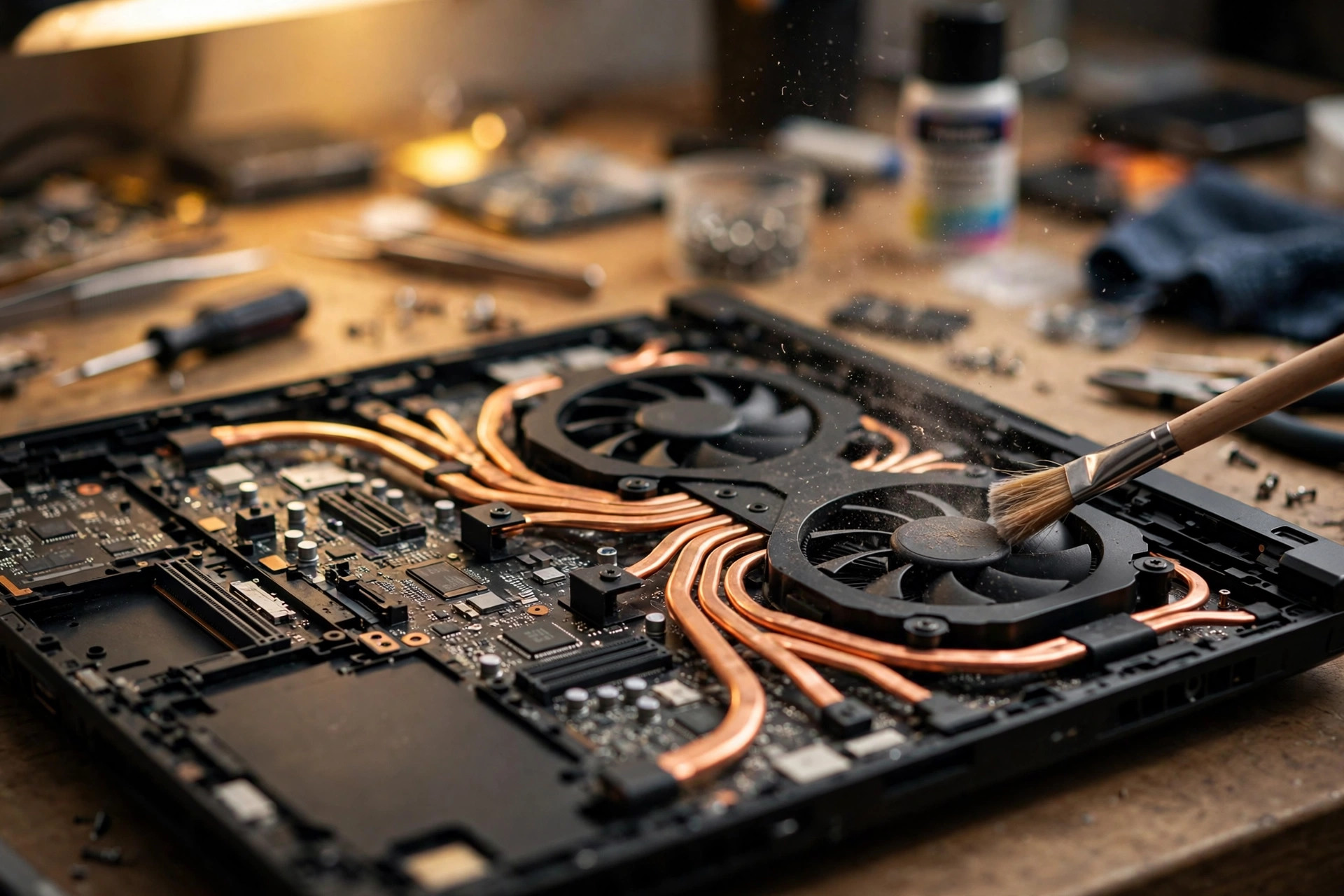
First, heat density. The industry standard for gaming laptop cooling is a dual-fan layout — one fan near the CPU, one near the GPU — connected by heat pipes to their fin stacks, with multiple intake and exhaust vents. Higher-end models add refinements: the ASUS Zephyrus line uses the keyboard and bottom cover as intakes with a widened rear exhaust and dust filters; top-tier models use vapor chambers that spread heat two-dimensionally across the board (ASUS covers 42% of the Zephyrus G16's board on models supporting up to the RTX 5090 laptop GPU). But a thin chassis fundamentally limits fan size and airflow, so "fans at full speed, riding the temperature wall" under sustained load is normal operation, not necessarily a fault.
Second, power demand. Gaming laptop chargers commonly come in 180W, 230W, 280W and 330W ratings. An under-spec charger cannot deliver sustained high power, and the symptoms look like "the machine got slow" — throttling, stuttering, battery draining while plugged in.
Third, soldered components. Unlike desktop PCs, a laptop GPU is soldered to the motherboard, so "replacing the GPU" almost always means replacing the board. Board-level repair exists, but whether it is worth it (see the reflow-vs-reball section) depends on exactly what failed.
Common symptoms: what you see, what it likely is, what to do
| Symptom | Most likely causes | Suggested first step |
|---|---|---|
| Fan loud or grinding/rattling, especially after 2–3 years | Worn bearings (dried lubricant); dust-clogged fins; dried thermal paste keeping temperatures high | Check dust buildup and temperatures with HWiNFO64; noise at low temperature usually means worn bearings — the fan needs replacing |
| Game runs fine for a few minutes then artifacts (colored blocks, lines, flicker) | Overheating or unstable power, overheated VRAM | Monitor GPU core, hotspot and VRAM temperatures under load; clean dust; check power supply |
| Artifacts only appeared after a driver update | Driver regression or corrupted install | Clean-install with DDU in Safe Mode; roll back one version |
| Frequent black screens that recover by themselves | Driver timeout or unstable power/memory under load | Test at stock settings; check power delivery and temperatures |
| Sudden throttling, frame-rate collapse while gaming | Undersized or failing charger; thermal throttling | Verify the original charger at the model's rated wattage; check temperatures |
| Burning smell, smoke, or visibly swollen battery | Electrical fault or battery failure — a safety issue | Power off immediately and do not turn it back on; bring it in without further testing |
GPU fault diagnosis: work from software to hardware, in layers
Professional GPU troubleshooting follows a strict order — driver first, then temperature, then power, hardware last — because cheaper causes must be ruled out before concluding a soldered component failed.
Layer 1 — Drivers. Fully remove the old driver with DDU in Safe Mode and install the current official release; roll back one version if the problem began with a specific update. Gaming-laptop-specific checks also apply: GPU switching (MUX / iGPU-to-dGPU), G-Sync / variable refresh rate, fullscreen mode, and any active overclock or undervolt — a black screen only in games can be a switching problem, not a dying GPU.
Layer 2 — Temperature. Use MSI Afterburner, HWiNFO64 or GPU-Z to watch the GPU core, hotspot, and VRAM temperatures at idle and under the load that triggers the fault. "Temperatures look normal" does not rule out a fault — a lone hotspot, VRAM temperature, or power spike can crash a machine alone. Dust cleaning and a thermal repaste are the standard temperature-layer repair actions.
Layer 3 — Power. A black screen while the machine keeps running (audio still audible) usually points to a driver timeout or unstable power; restarts under load make the charger or the board's power circuitry the prime suspect. On a laptop: use the original charger, confirm its wattage matches the model, and check the charging port is not loose.
Layer 4 — Hardware. Artifacts that persist across different games and a clean OS reinstall are a strong hardware-fault signal. Damaged VRAM can be probed with tools such as MemTestG80; failed VRAM generally needs professional repair or a board replacement. Laptop GPUs cannot be swap-tested like desktop cards — a fundamental limitation of laptop GPU repair.
What temperature is normal? Benchmark reference
Modern CPUs are designed to run at their temperature wall — riding near 100°C under boost is expected behaviour. Judge sustained vs spike: a brief boost spike to 90–100°C is acceptable; staying there is not.
| Situation | Reference range |
|---|---|
| Gaming CPU under sustained load | 75–90°C common; 80–95°C high but usually within spec |
| Gaming GPU under load | 70–85°C typical; 85–90°C high but generally acceptable |
| Idle / light work (CPU) | 35–50°C; above 55°C at idle warrants checking background apps or cooling degradation |
| Needs immediate action | Sustained ≥95°C, frequently hitting 100°C, thermal throttling, automatic shutdown |
Thermal paste vs liquid metal vs phase-change pads (PTM7950)
Thermal conductivity from repair-community comparisons: standard paste 4–14 W/m·K; liquid metal (gallium-indium-tin alloy) around 70–80 W/m·K; PTM7950 around 10–13 W/m·K. PTM7950 is a solid pad at room temperature that liquefies above ~45°C to conform to the surface and re-solidifies on cooldown, resisting "pump-out" with almost no degradation across thermal cycling.
Need a laptop repair expert?
Free diagnosis · Transparent pricing · No fix, no fee · 180-day warranty
Lifespan: standard paste roughly 2–5 years (it dries and cakes, causing 10–15°C of degradation); liquid metal 5+ years but with chemical risks; PTM7950 5+ years without drying or cracking. Liquid metal is electrically conductive — a spill onto board components can short the board; gallium attacks aluminum (embrittlement within hours), so it belongs only on nickel-plated copper; and it alloys with bare copper. The community consensus: liquid metal only by experienced technicians with full masking; PTM7950 is widely treated as the best all-round laptop repaste choice.
Practical warning: models like the ASUS ROG Strix G16 ship with liquid metal on the CPU from the factory — repasting with ordinary paste can make temperatures worse, so confirm the model's factory material first. The ROG Strix G15 Advantage Edition (G513Q series) uses liquid metal on CPU and GPU from the factory, and the community has documented cases of it migrating over time and causing board-level shorts.
Power and chargers: "the machine is slow" is often the power supply
An inadequate charger produces symptoms that masquerade as performance problems. One documented ROG forum case: a GL702VS's throttling and stuttering vanished after replacing its 230W adapter with a 330W one.
"Plugged in but losing charge" has a known mechanism: when load exceeds charger output, the system draws the shortfall from the battery. Dell documents this as "Hybrid Power" on Alienware / Precision / Dell G models: under extreme load the machine can draw from the battery at up to ~5%/hour without throttling; below 20% battery the mechanism is disabled and throttling or stuttering may appear.
USB-C PD vs the original barrel charger is a major trap. USB PD 3.0 tops out at 100W (PD 3.1 EPR reaches 240W but needs special cables and chargers). In testing, a Lenovo Legion Pro 7 that feeds ~160W to its GPU on its barrel charger managed only about 65W to the GPU on 100W USB-C PD — the rest goes to the CPU, display and everything else. For full gaming performance, the original high-wattage charger is not optional.
Telling a failing charger from a failing board: confirm you are using the original charger at the correct wattage, with an undamaged cable and a firm connector. If a known-good charger of the same specification clears the symptoms, the original charger is faulty; if symptoms persist and the port feels loose or only charges at certain angles, suspect the charging port or the board's power circuitry.
DIY dust cleaning and repasting: real risks
Clearing vent dust is low-risk; going deeper carries documented risks. Warranty disputes — ASUS support has stated opening the machine does not automatically void warranty rights, but damage caused during the process can; its warranty terms exclude damage from non-authorised disassembly and improper maintenance. Ribbon cables (keyboard, touchpad, display, battery) tear easily. Stripped screws — laptop screws are fine PH0/PH00 Phillips; the wrong bit strips them. Wrong screw, wrong hole — lengths can differ by fractions of a millimetre, and a long screw in a short hole can pierce the board, so record every screw's position. Liquid metal spill — conductive, with documented cases of manufacturers refusing warranty after misuse. Uneven heatsink pressure — tighten diagonally in stages, or contact ends up worse than before.
Sensible DIY scope: disassembly experience, a proper precision bit set, machine out of warranty, and jobs that do not require removing the heatsink. Always bring it in if the machine is under warranty, uses liquid metal, shows artifacts or no display, or board-level work is suspected.
When to observe vs when to bring it in immediately
| Observe first, basic checks | Bring it in immediately |
|---|---|
| Hot and loud only while gaming, no artifacts or crashes: check for dust-blocked vents, elevate the machine, update the display driver | No display (fans spin, lights on, nothing on screen) — possible GPU or board power failure |
| A single one-off blue screen that recovered: note the error code and trigger | Artifacts in multiple programs, persisting after driver reinstall, worsening over time — a hardware-fault signal |
| Burning smell or smoke: cut power immediately and do not power on again | |
| Swollen battery: a physical hazard — stop charging, do not squeeze or puncture it | |
| Repeated blue screens or restarts, especially dying at the same point under load — very likely a cooling or power problem |
Why waiting turns small problems into big ones
The classic escalation chain: poor cooling → chronic heat → solder-joint ageing → chip-level damage. GPU and VRAM are BGA packages soldered with hundreds of tiny balls; repeated heating and cooling makes chip, substrate and board expand at different rates, stressing the solder balls until they crack and lose contact — the thermal-cycling mechanism behind BGA failure, and artifacts are exactly what memory errors look like. Early diagnosis is genuinely cheaper.
Board-level repair: when is it worth it, and reflow vs reball
Chip-level repair replaces individual components on the board instead of swapping the whole motherboard: failed MOSFETs and capacitors, individual VRAM chips, or reworking the GPU.
The key distinction is reflow vs reball. Reflow only reheats old solder joints to remelt them — no new solder. Multiple repairers describe reflow as a temporary fix, "rented normal", typically failing again within weeks to months (one repairer discontinued reflow in 2026 for exactly this reason). Reball replaces all solder balls with fresh ones — done properly, a permanent repair.
A decision framework:
- Burnt power components (MOSFETs, capacitors) or a single failed VRAM chip → usually worth board-level repair; the parts are cheap relative to a board swap
- GPU core itself dead (die damage) → not repairable; the board must be replaced or the machine retired
- Cracked BGA solder joints with a healthy chip → reball is a reasonable option, especially on high-value gaming machines
- Physical board damage (cracked PCB, large areas of torn pads) → usually needs a board replacement
- Low residual value or an obsolete model → a new machine may be the better deal
Data protection before handing the machine in
1. Back up first. If the machine still boots and the drive reads normally, back up photos, documents and the desktop, and spot-check a few files. Gaming laptops commonly have two M.2 slots — cover both drives.
2. If the drive makes noises, is intermittently detected, or freezes constantly — stop. Further use worsens physical damage; tell the technician the drive holds irreplaceable data and put data recovery ahead of the repair.
3. Hardware repairs do not normally wipe your system, but ASUS's warranty terms state they are not responsible for software or data loss during repair. Never assume your system is untouched — backing up is your responsibility.
4. BitLocker / device encryption: a motherboard replacement triggers a BitLocker lock. Find your 48-digit recovery key in your Microsoft account before the repair — Microsoft confirms they cannot recover a lost key, and without it the only option is a full reinstall.
5. Game saves: Steam Cloud sync is the default but not enabled for every game; saves from Epic, GOG and standalone installs usually live in Documents or AppData — back those up manually.
Pricing notes
Every gaming laptop fault differs by model, symptoms and extent — all repairs are quoted in writing after inspection. These are our confirmed routine prices for reference:
| Item | Price |
|---|---|
| Battery | HK$580 up |
| Screen | HK$1,280 up |
| Main board chip-level | HK$880 up |
| Keyboard | HK$480 up |
| Fan / thermal service / other repairs | Quoted in writing after inspection |
FAQ
Q1: My gaming laptop hits 90°C while gaming. Is that broken?
A1: Not necessarily. Gaming laptop CPUs commonly run 75–90°C under sustained load, and 80–95°C is high but often within spec — modern CPUs are designed to run at their temperature wall. Brief boost spikes near 100°C are acceptable; sustained temperatures at or above 95°C, throttling, or automatic shutdowns are the signals that need attention.
Q2: Can I just use a USB-C charger instead of the bulky brick?
A2: For light work, usually yes — but not for gaming. Standard USB-C PD is limited to 100W, while gaming laptops commonly need 180–330W; in testing, a Legion-class machine limited to about 65W for its GPU on 100W PD versus ~160W on its barrel charger. For full gaming performance, use the original high-wattage charger.
Q3: Is liquid metal thermal compound better for my ROG laptop?
A3: Many ROG models ship with liquid metal from the factory, and it conducts heat far better than standard paste — but it is electrically conductive and attacks aluminum, so repasting it is specialist work: a spill can short the board. If a factory-liquid-metal machine is repasted with ordinary paste, temperatures can actually get worse. This is not a safe DIY job; have it done by experienced technicians.
Q4: Should I back up my game saves before bringing the machine in for repair?
A4: Yes. Hardware repairs do not normally wipe your system, but repairers are not responsible for data loss during service, so back up first. Steam Cloud covers many games but not all; saves from Epic, GOG and standalone installs usually live in Documents or AppData — copy those manually. If BitLocker is enabled, make sure you have your 48-digit recovery key before any board work.
Need Professional Laptop Repair?
Laptop King has 15+ years of repair experience in Shek Mun, Sha Tin. Free diagnosis, transparent pricing, no fix no fee. 180-day warranty for your peace of mind.